In a nutshell
If you have only ever made a virtual machine by clicking through the Azure portal, here is the mental shift this lesson asks for: in Terraform a VM is not one thing — it is a small kit of parts that snap together. A public IP, a network card, a firewall, a disk, an operating-system image and a first-boot script are each their own resource, and the references between them are what tell Terraform the order to build them in. Write the kit down once and you can review it before it runs, stamp out ten identical copies, and delete the whole thing with a single command.
Two mental models carry the entire lesson. A single VM is like ordering one custom-built machine from a catalogue: you choose the frame (size), the pre-loaded software (source_image_reference), a storage drawer (os_disk) and a start-up routine (custom_data), and it arrives assembled and already doing its job. A VM Scale Set (VMSS) is a self-refilling vending fleet: you describe one machine, say “keep between 2 and 10 of these alive,” and Azure stamps out identical units, spreads them across separate buildings (availability zones), and quietly refills the fleet when CPU climbs or a unit dies. Same machine, described once; the platform keeps the right number running.
Level: Senior · Time: ~59 min · the opening half is written for someone building their first VM; Going deeper and the later challenges are for the experienced reader.
Before you start, have a working azurerm provider and remote backend from Getting Started with the azurerm Provider, and the network — VNet, subnet, NSG — from Azure Virtual Network, Subnets, NSGs & Peering. Comfort with terraform init / plan / apply / destroy and basic HCL (resources, variables, references) is assumed.
After this lesson you will be able to (1) build a Linux VM — public IP, NIC, NSG, disk, image and cloud-init — as a single readable resource graph; (2) explain why one VM takes ten resources and how Terraform orders them from .id references alone; (3) authenticate the right way — SSH keys for Linux, a Key-Vault-sourced password for Windows, a managed identity for the box’s own API calls; (4) install software at first boot with custom_data and know when to reach for a VM extension instead; (5) choose an availability model — zone, availability set, or an autoscaling VM Scale Set; and (6) run the full init → plan → apply → curl → destroy loop and tear it down so it stops billing.
A virtual machine is the oldest thing in the cloud and still the thing most teams reach for first: a full operating system you own, on hardware you rent by the second. In Azure the portal hides a truth that Terraform makes brutally explicit — a VM is never one resource. To get a Linux box you can ssh into and curl, you assemble a small graph: a public IP address, a network interface that binds that IP to a subnet, a network security group that decides who may knock, an operating-system image, an OS disk, optionally data disks, an identity so the box can call Azure APIs without a secret, and a boot script so it comes up already doing its job. Portal clicks paper over that graph; Terraform is the graph, written down.
This lesson builds that graph for real. You will learn every resource in the chain — azurerm_public_ip, azurerm_network_interface, azurerm_linux_virtual_machine and its Windows twin azurerm_windows_virtual_machine, azurerm_managed_disk with azurerm_virtual_machine_data_disk_attachment — and every decision each one forces: which size SKU, which image (a source_image_reference publisher/offer/sku/version tuple, or a source_image_id you baked), what caching and storage_account_type on the disk, SSH keys for Linux versus admin_password for Windows (and why the password belongs in Key Vault, never in HCL), how to pass a cloud-init script through custom_data, and how to make the workload survive a datacentre failure with availability zones, an availability set, or a VM Scale Set that autoscales. The centrepiece is a copy-pasteable demo: a Linux VM with a public IP, a NIC, an NSG rule and a cloud-init that installs nginx — you run terraform apply, then curl the box and see your page. Then you tear it all down with one command, because a VM left running is a bill that never sleeps.
Why Terraform and not the portal, az, or an ARM/Bicep template? Because a VM is exactly the kind of multi-resource, order-sensitive, re-created-often thing that punishes manual work and rewards a plan you can read before you apply. The portal cannot show you, before you click Create, that changing the image forces a full VM replacement; terraform plan shows you the -/+ destroy and then create replacement in red. This lesson sits on top of two neighbours in the KloudVin ladder: it assumes you have a working provider and remote backend from Getting Started with the azurerm Provider: Authentication & Remote Backend, and it drops the VM into the network you build in Azure Virtual Network, Subnets, NSGs & Peering. Where the VM needs to sit behind a real front end, that is the job of Azure Load Balancer, Application Gateway & WAF with Terraform.
What you’ll build
The scenario is the one every team hits in week one on Azure: “stand me up a Linux box on a private subnet, give it a public IP so I can reach it, lock it down to my address, and have nginx already running when it boots.” By the end you will have exactly that, expressed as .tf files you can commit, review and destroy. Then you graduate the single box to a VM Scale Set — the same image, but two-to-ten identical instances spread across availability zones, front-ended by a load balancer, adding and removing capacity as CPU rises and falls.
The architecture in words: a resource group holds everything. A virtual network carves out 10.0.0.0/16, and a subnet takes 10.0.1.0/24. A Standard public IP gives the box a stable, zone-resilient front door. A network interface joins the subnet and carries that public IP. A network security group attached to the NIC allows inbound 22 from your address and 80 from anywhere. The Linux VM references the NIC, an Ubuntu 22.04 image, a Premium SSD OS disk, and a cloud-init script passed as base64 custom_data; it carries a system-assigned managed identity so it can later read a Key Vault secret with no password. That is the graph the diagram below draws, left to right.
Here is the full bill of materials — every resource you will create, what it models, and whether changing it in place is cheap or triggers a destroy-and-recreate:
| Resource | Models | Key dependency | Change-in-place or replace? |
|---|---|---|---|
azurerm_resource_group |
The container for all of it | none | In place (name change replaces) |
azurerm_virtual_network |
The 10.0.0.0/16 address space |
resource group | In place (address_space is updatable) |
azurerm_subnet |
The 10.0.1.0/24 segment |
VNet | In place (prefix change replaces) |
azurerm_public_ip |
The internet-facing IP | resource group | In place (SKU change replaces) |
azurerm_network_security_group |
The firewall rules | resource group | In place (rules update live) |
azurerm_network_interface |
The vNIC binding IP↔subnet | subnet + public IP | In place (subnet change replaces) |
azurerm_network_interface_security_group_association |
Attaches NSG to the NIC | NIC + NSG | In place |
azurerm_linux_virtual_machine |
The VM itself | NIC (+ image, disk) | Image/size/zone change replaces |
azurerm_managed_disk |
An empty data disk | resource group | In place (grow only; shrink replaces) |
azurerm_virtual_machine_data_disk_attachment |
Mounts the disk at a LUN | disk + VM | In place |
And the decision that sends people to Terraform in the first place — why not just click, script, or template it:
| Approach | How you describe the VM | Sees drift? | Preview before change? | Verdict for a VM graph |
|---|---|---|---|---|
| Azure Portal | Point-and-click wizard | No | No | Fine to learn once; unrepeatable, unreviewable |
az vm create |
Imperative CLI flags | No | No | Great for throwaways; no state, no plan |
| ARM / Bicep | Declarative JSON/DSL | Partial (what-if) | az deployment what-if |
Azure-only; weaker multi-cloud/module story |
Terraform (azurerm) |
Declarative HCL + state | Yes (plan refreshes) |
Yes (terraform plan) |
The graph, versioned, previewed, destroyable |
The VM resource graph
The single most important idea in this lesson is that Terraform builds the dependency graph from your references, not from a list you write. You never tell Terraform “create the public IP before the NIC.” Instead the NIC’s ip_configuration block contains public_ip_address_id = azurerm_public_ip.demo.id, and that reference is the edge. Terraform reads it, knows the public IP must exist first, and orders the graph. The VM’s network_interface_ids = [azurerm_network_interface.demo.id] is the next edge. This is why depends_on is almost never needed here — the id references already encode every ordering constraint.
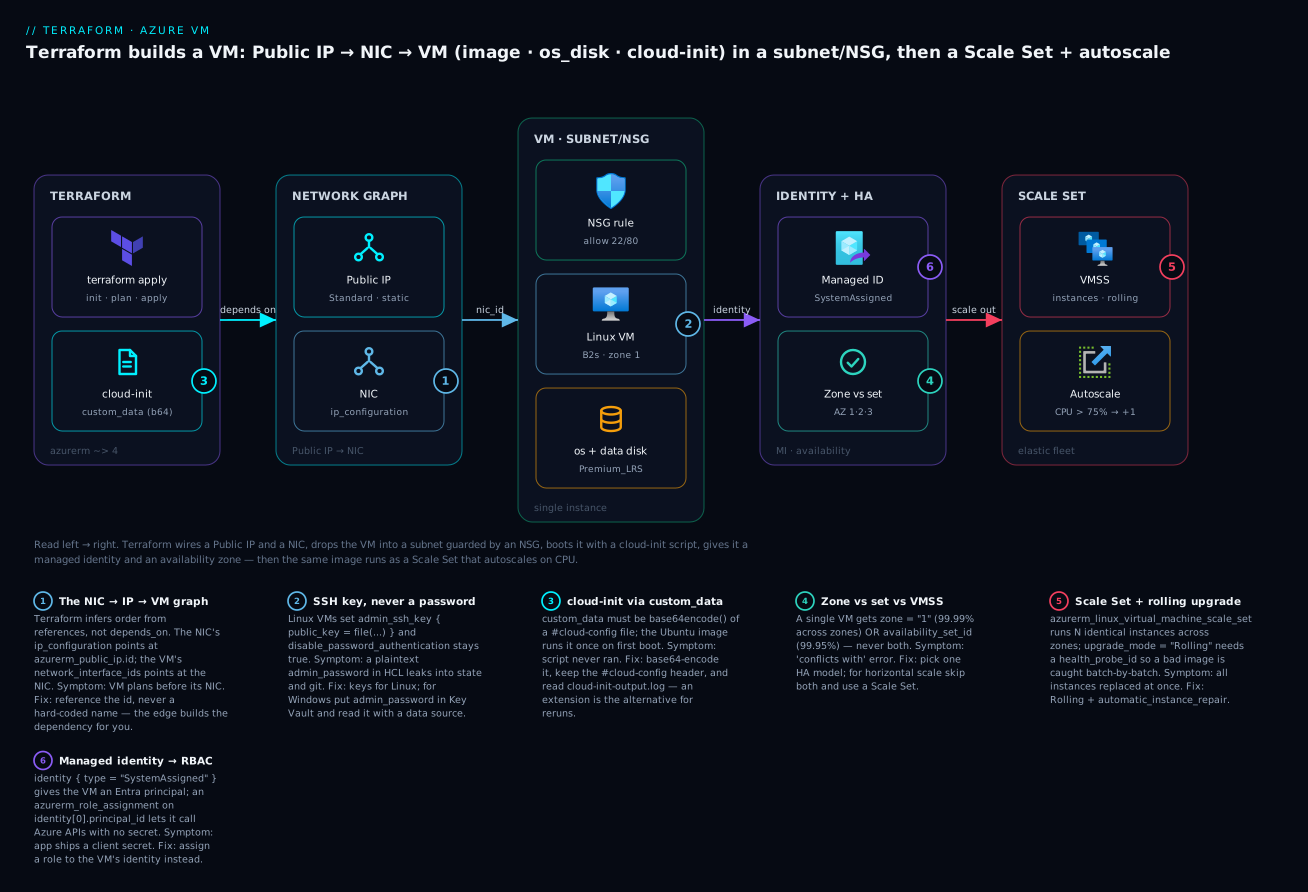
Read it left to right: the Terraform plane (with a base64 cloud-init file) creates the Public IP and NIC; the NIC attaches the VM, which lands in a subnet behind an NSG rule with its disks; the VM gets a managed identity and a zone; and the far right shows the horizontal-scale variant — a Scale Set with autoscale. The six badges mark the decisions that trip people up, and the legend narrates each with a symptom and a fix.
The two networking resources that front the VM are small but each has a couple of arguments that cause real errors when set wrong. First the public IP:
azurerm_public_ip argument |
Values | Notes / gotcha |
|---|---|---|
allocation_method |
Static, Dynamic |
Standard SKU requires Static. Dynamic + Standard = plan error |
sku |
Basic, Standard |
Use Standard (Basic is retiring Sep 2025); Standard is zone-aware and secure-by-default |
sku_tier |
Regional, Global |
Global only for cross-region Front Door / anycast scenarios |
zones |
["1"], ["1","2","3"] |
Zonal or zone-redundant; must be a Standard SKU |
domain_name_label |
e.g. kv-demo |
Gives you kv-demo.<region>.cloudapp.azure.com |
ip_version |
IPv4, IPv6 |
Dual-stack needs two ip_configuration blocks on the NIC |
ddos_protection_mode |
VirtualNetworkInherited, Enabled |
Standard DDoS is billed separately when enabled |
Then the network interface, whose one required ip_configuration block wires the private and public addressing:
azurerm_network_interface argument |
What it sets | Common value |
|---|---|---|
ip_configuration.subnet_id |
Which subnet the NIC joins | azurerm_subnet.demo.id |
ip_configuration.private_ip_address_allocation |
Dynamic or Static |
Dynamic (DHCP from the subnet) |
ip_configuration.private_ip_address |
Fixed private IP | only when allocation is Static |
ip_configuration.public_ip_address_id |
Attaches the public IP | azurerm_public_ip.demo.id |
ip_configuration.primary |
Marks the primary config | true (needed with multiple IP configs) |
dns_servers |
Custom DNS for the NIC | usually omit (inherit VNet) |
accelerated_networking_enabled |
SR-IOV fast path | true on supported sizes only (renamed from enable_accelerated_networking in azurerm v4) |
ip_forwarding_enabled |
Route traffic not addressed to it | true only for NVAs/routers |
Sizing and images: what the VM actually is
Two arguments define the character of a VM: size (how much CPU, memory and I/O you rent) and the image (what operating system boots). Both are frequent sources of “it worked in eastus but not westeurope” surprises, so it pays to understand the vocabulary.
Size is an Azure VM SKU string like Standard_B2s or Standard_D4s_v5, and the family letter tells you the shape of the machine. Note the trailing s — it means premium-storage-capable; you need an s-suffixed size to attach a Premium_LRS disk, which is why demos use B2s and not B2.
| Size family | Letter | Optimised for | Example SKU | Typical use |
|---|---|---|---|---|
| Burstable | B |
Cheap, bursty CPU (credits) | Standard_B2s |
Dev boxes, low-traffic web, this demo |
| General purpose | D |
Balanced CPU:memory | Standard_D4s_v5 |
Web/app servers, small DBs |
| Compute optimised | F |
High CPU:memory ratio | Standard_F8s_v2 |
Batch, gaming, app tiers |
| Memory optimised | E |
High memory:CPU | Standard_E8s_v5 |
In-memory caches, mid DBs |
| Storage optimised | L |
High local disk IOPS | Standard_L8s_v3 |
NoSQL, big-data nodes |
| GPU | N |
GPU (NV/NC/ND) | Standard_NC24ads_A100_v4 |
ML training/inference |
Find what a region actually offers with az vm list-sizes --location eastus -o table (or az vm list-skus --location eastus --resource-type virtualMachines). Not every size exists in every region or every zone — the classic “SKU not available” error is capacity, not a typo.
Images are the other half. You either reference a marketplace image by its four-part tuple, or point at a custom image / gallery version you built with Packer. The marketplace tuple is publisher : offer : sku : version:
| Field | What it is | Find it with |
|---|---|---|
publisher |
The vendor (Canonical, RedHat, MicrosoftWindowsServer) | az vm image list-publishers -l eastus -o table |
offer |
The product line | az vm image list-offers -l eastus -p Canonical -o table |
sku |
The specific edition | az vm image list-skus -l eastus -p Canonical -f <offer> -o table |
version |
A dated version or latest |
az vm image list -l eastus -p Canonical --all -o table |
Here are the tuples you will actually use — memorise the first two:
| OS | publisher | offer | sku | version |
|---|---|---|---|---|
| Ubuntu 22.04 LTS (Gen2) | Canonical |
0001-com-ubuntu-server-jammy |
22_04-lts-gen2 |
latest |
| Ubuntu 24.04 LTS | Canonical |
ubuntu-24_04-lts |
server |
latest |
| RHEL 9 | RedHat |
RHEL |
9-lvm-gen2 |
latest |
| Debian 12 | Debian |
debian-12 |
12-gen2 |
latest |
| Windows Server 2022 | MicrosoftWindowsServer |
WindowsServer |
2022-datacenter-azure-edition |
latest |
| Windows Server 2019 | MicrosoftWindowsServer |
WindowsServer |
2019-Datacenter |
latest |
Two traps live here. Gen1 vs Gen2: a -gen2 image needs a Gen2-capable size (most modern s sizes are), and mixing them yields a cryptic provisioning failure. version = "latest": convenient for demos, dangerous for production — a new image version can silently change on the next apply and force a replacement. Pin an explicit version (22_04.202406170) for reproducible fleets. And when to abandon the marketplace entirely:
| You want… | Use | Argument |
|---|---|---|
| A stock OS, patched at boot by cloud-init | Marketplace image | source_image_reference { … } |
| A golden image baked with your agents/config | Shared Image Gallery version | source_image_id = azurerm_shared_image_version.x.id |
| A one-off managed image | Managed image | source_image_id = azurerm_image.x.id |
source_image_reference and source_image_id are mutually exclusive — set exactly one. Golden images (built with Packer, versioned in a Compute Gallery) are the production pattern because they cut boot time and remove “works because cloud-init happened to succeed” risk.
OS disks and data disks
Every VM has exactly one OS disk, created for you from the image, and zero or more data disks you attach. In Terraform the OS disk is an inline os_disk block on the VM; data disks are their own azurerm_managed_disk resources joined with an attachment resource. Keeping data disks separate is deliberate — it lets you detach and reattach a disk to another VM, or resize it, without touching the VM.
The os_disk block has three arguments that matter:
os_disk argument |
Values | Guidance |
|---|---|---|
caching |
None, ReadOnly, ReadWrite |
ReadWrite for the OS disk (default, best for boot) |
storage_account_type |
Standard_LRS, StandardSSD_LRS, Premium_LRS, Premium_ZRS |
Premium_LRS for anything real; needs an s-size |
disk_size_gb |
≥ image default (e.g. 30) | Grow only; you can enlarge, never shrink in place |
write_accelerator_enabled |
true/false |
M-series + Premium only, for write-heavy workloads |
The storage_account_type you pick is a price/performance dial. This is the table to keep open:
| Disk type | Media | Relative cost | IOPS/throughput | Use for |
|---|---|---|---|---|
Standard_LRS |
HDD | ₹ (cheapest) | Low, variable | Dev, cold archive, backups |
StandardSSD_LRS |
SSD | ₹₹ | Moderate, consistent | Light prod, web servers |
Premium_LRS |
SSD | ₹₹₹ | High, guaranteed | Databases, prod OS disks |
Premium_ZRS |
SSD (3 zones) | ₹₹₹₹ | High + zone-redundant | Zone-resilient stateful VMs |
UltraSSD_LRS |
NVMe | ₹₹₹₹₹ | Extreme, tunable | Latency-critical DBs (data disks only) |
A data disk is a first-class resource so it can outlive the VM. You create it, then attach it at a LUN (Logical Unit Number, 0–63, unique per VM):
azurerm_managed_disk argument |
Purpose | Example |
|---|---|---|
storage_account_type |
Same dial as OS disk | Premium_LRS |
create_option |
How the disk is initialised | Empty, Copy, FromImage, Restore |
disk_size_gb |
Size in GiB | 64 |
zone |
Pin to a zone (must match the VM’s zone) | "1" |
disk_iops_read_write |
Provisioned IOPS (Ultra/PremiumV2) | 5000 |
And the attachment, whose caching choice is workload-specific:
Data-disk caching |
Best for | Avoid for |
|---|---|---|
None |
Write-heavy: transaction logs, streaming writes | Read-heavy reference data |
ReadOnly |
Read-heavy: database data files, static assets | Anything you write constantly (stale reads) |
ReadWrite |
The OS disk; small mixed workloads | Databases (Microsoft advises None/ReadOnly for data) |
A data disk pinned to zone = "1" can only attach to a VM in zone 1 — a mismatch is the “disk and VM in different zones” error. Match them or leave both unzoned.
Authentication: SSH keys for Linux, passwords for Windows
This is where a teaching resource must draw a hard line: never put a password in HCL. HCL becomes state, state is plaintext JSON, and state ends up in a bucket, a backend, and often a git history. For Linux this is easy — use SSH keys and there is no password to leak.
A Linux VM authenticates with an admin_ssh_key block. The username must match admin_username, and public_key is the public half of your key pair — read it from disk with file(), generate it with the tls provider, or pull it from a variable. disable_password_authentication defaults to true and should stay that way:
resource "azurerm_linux_virtual_machine" "demo" {
  # …
  admin_username                  = var.admin_username   # "azureuser"
  disable_password_authentication = true                 # the default; keep it

  admin_ssh_key {
    username   = var.admin_username                       # MUST equal admin_username
    public_key = file(var.ssh_public_key_path)           # ~/.ssh/id_rsa.pub — the PUBLIC key
  }
}
If you would rather Terraform mint the key (handy in CI where no key exists), the tls provider does it — but the private key then lives in state, so treat state as a secret and prefer a pre-existing key for humans:
resource "tls_private_key" "vm" {
  algorithm = "RSA"
  rsa_bits  = 4096
}
# public_key = tls_private_key.vm.public_key_openssh
# then output the private key with sensitive = true, or write it to Key Vault
Windows VMs cannot use SSH keys for the built-in admin; they need an admin_password. That password must satisfy Azure’s complexity rules (12–123 chars, three of four character classes) and — non-negotiably — must come from Key Vault, read at plan time with a data source, never typed into the .tf:
data "azurerm_key_vault" "kv" {
  name                = "kv-demo-vault"
  resource_group_name = "kv-platform-rg"
}

data "azurerm_key_vault_secret" "win_pw" {
  name         = "win-admin-password"
  key_vault_id = data.azurerm_key_vault.kv.id
}

resource "azurerm_windows_virtual_machine" "win" {
  name                = "kv-win-vm"     # ≤ 15 chars, or set computer_name
  size                = "Standard_B2s"
  admin_username      = "azureadmin"
  admin_password      = data.azurerm_key_vault_secret.win_pw.value  # from Key Vault, never hardcoded
  # …
}
The Linux and Windows VM resources are close cousins with a handful of hard differences worth tabulating before you write either:
| Aspect | azurerm_linux_virtual_machine |
azurerm_windows_virtual_machine |
|---|---|---|
| Primary auth | admin_ssh_key (keys) |
admin_password (from Key Vault) |
| Password auth | Off by default (disable_password_authentication = true) |
Always password-based |
computer_name |
≤ 64 chars | ≤ 15 chars (NetBIOS limit) |
| cloud-init | Yes, via custom_data |
No cloud-init; use custom_data + a custom-script extension |
| Patch settings | patch_mode (ImageDefault/AutomaticByPlatform) |
patch_mode, hotpatching_enabled, enable_automatic_updates |
| Timezone | n/a | timezone = "UTC" etc. |
| WinRM | n/a | winrm_listener {} for remote mgmt |
| Extensions | CustomScript, AAD login | CustomScriptExtension, DSC, Antimalware |
| Licence | n/a | license_type = "Windows_Server" for Hybrid Benefit |
The clean pattern for both: keys for Linux, Key Vault for Windows, and the VM’s own managed identity (covered below) for anything the box needs to authenticate to.
cloud-init via custom_data — and the extension alternative
A raw VM is useless; you want it to come up already running your workload. Azure gives you two mechanisms, and knowing which to reach for saves hours.
cloud-init through custom_data is the idiomatic, cloud-native way on Linux. You write a #cloud-config YAML file, base64-encode it, and hand it to the VM; the Ubuntu/Debian/RHEL image runs it once, on first boot. The one rule people forget: custom_data expects base64, so wrap the file in base64encode(). Here is a real cloud-init that installs and starts nginx and drops a home page — save it as cloud-init.yaml:
#cloud-config
package_update: true
packages:
  - nginx
write_files:
  - path: /var/www/html/index.html
    permissions: "0644"
    content: |
      <!doctype html>
      <h1>Hello from Terraform + cloud-init on Azure</h1>
      <p>This nginx page was provisioned at first boot by custom_data.</p>
runcmd:
  - [ systemctl, enable, nginx ]
  - [ systemctl, restart, nginx ]
And the one line in the VM that ships it:
custom_data = base64encode(file("${path.module}/cloud-init.yaml"))
Use templatefile() instead of file() when the script needs values from Terraform (a hostname, a database endpoint, a token) — custom_data = base64encode(templatefile("${path.module}/cloud-init.yaml.tftpl", { db_host = azurerm_postgresql_flexible_server.db.fqdn })). The directives you will use most:
| cloud-init directive | Does | Example |
|---|---|---|
packages: |
Installs apt/yum packages | - nginx |
package_update: |
apt-get update first |
true |
write_files: |
Drops files with content/permissions | config, index.html |
runcmd: |
Shell commands, once, at first boot | systemctl restart nginx |
users: |
Adds OS users + their SSH keys | ops team keys |
bootcmd: |
Runs very early, every boot | mount tweaks |
The VM extension (azurerm_virtual_machine_extension) is the alternative, and the only first-class option on Windows. Unlike custom_data, an extension is a tracked resource — Terraform knows its state, you can change its script and re-apply, and it works after boot. Trade-off: it runs as a separate step after the VM is up, so it is slower and adds a resource to your graph.
resource "azurerm_virtual_machine_extension" "nginx" {
  name                 = "install-nginx"
  virtual_machine_id   = azurerm_linux_virtual_machine.demo.id
  publisher            = "Microsoft.Azure.Extensions"
  type                 = "CustomScript"
  type_handler_version = "2.1"

  settings = jsonencode({
    commandToExecute = "apt-get update && apt-get install -y nginx"
  })
}
When to use which:
| Dimension | custom_data (cloud-init) |
azurerm_virtual_machine_extension |
|---|---|---|
| Runs | Once, at first boot | After boot; re-runnable on change |
| Tracked in state | No (it’s just a VM argument) | Yes (own resource) |
| Windows | Not really (no cloud-init) | Yes (CustomScriptExtension/DSC) |
| Change → effect | Changing it replaces the VM | Re-applies in place |
| Secrets | Visible in state (base64) | Use protected_settings (encrypted) |
| Best for | Immutable first-boot config | Post-boot agents, Windows, reruns |
That “changing custom_data replaces the VM” row is the sharp edge: cloud-init is boot-time by nature, so Terraform treats it as immutable. If you tweak the script and apply, plan shows a destroy-and-recreate. For config that changes often, an extension (or better, a golden image + config management) is the right tool.
Availability: sets vs zones vs Scale Sets
A single VM is a single point of failure — one host fault, one rack, one datacentre, and it is gone. Azure gives you three escalating answers, and choosing the wrong one (or trying to combine two that conflict) is a top-five Terraform-on-Azure mistake.
An availability set (azurerm_availability_set) spreads VMs across fault domains (racks with independent power/network) and update domains (patched at different times) within one datacentre. It protects against rack and maintenance failures, carries a 99.95% SLA for two or more VMs, and is set on the VM with availability_set_id.
Availability zones are physically separate datacentres within a region. Pin a VM to a zone with zone = "1"; spread instances across zones 1, 2, 3 and you get a 99.99% SLA and survival of a whole-datacentre failure. The hard rule: a VM sets zone OR availability_set_id, never both — they are mutually exclusive, and setting both is a plan-time error.
A VM Scale Set (azurerm_linux_virtual_machine_scale_set) is the horizontal-scale answer: N identical instances from one template, spread across zones, behind a load balancer, that grow and shrink on demand. It is the right tool when you want more of the same box, not a bigger one.
| Option | Terraform | Protects against | SLA | Scales? | Use when |
|---|---|---|---|---|---|
| Single VM | zone/none |
disk failure only | 99.9% (Premium disk) | No | Dev, stateful singletons |
| Availability set | azurerm_availability_set + availability_set_id |
rack + host maintenance | 99.95% | No | Legacy HA in one DC; can’t use zones |
| Availability zones | zone = "1" per VM |
whole-datacentre failure | 99.99% | Manual (add VMs) | Modern HA for a fixed fleet |
| VM Scale Set | azurerm_linux_virtual_machine_scale_set |
DC failure + demand spikes | 99.95–99.99% | Autoscale | Elastic web/app tiers |
The Scale Set carries most of the same arguments as a single VM, plus the ones that make it a fleet:
| VMSS argument | Purpose | Example |
|---|---|---|
sku |
The size of each instance | Standard_B2s |
instances |
Starting instance count | 2 |
zones |
Zones to spread across | ["1","2","3"] |
upgrade_mode |
How a template change rolls out | Rolling |
health_probe_id |
LB probe that gates rolling upgrades | azurerm_lb_probe.web.id |
network_interface {} |
NIC template (nested, not a separate resource) | with ip_configuration |
automatic_instance_repair {} |
Auto-replace unhealthy instances | enabled = true |
overprovision |
Boot extra, keep the healthy ones | true (default) |
upgrade_mode decides what happens when you change the image or custom_data on a running Scale Set:
upgrade_mode |
Behaviour on template change | Needs a health probe? | Use when |
|---|---|---|---|
Manual |
Nothing until you reimage each instance | No | Full control, blue/green by hand |
Automatic |
All instances updated immediately, no gating | No | Non-critical, fast rollout (risky) |
Rolling |
Batch-by-batch, health-gated, pauses between | Yes | Production — safe, catches a bad image |
Rolling is the production default: it upgrades a max_batch_instance_percent slice, waits for the health probe to report green, pauses pause_time_between_batches, and stops if max_unhealthy_instance_percent is exceeded — so a broken image never takes down the whole fleet.
Autoscale and managed identity
A Scale Set does not scale itself; you attach an azurerm_monitor_autoscale_setting that watches a metric (usually Percentage CPU) and adds or removes instances. It has a profile with a capacity floor/ceiling and one rule per direction:
| Autoscale field | Meaning | Example |
|---|---|---|
capacity.default/minimum/maximum |
Baseline / floor / ceiling instance count | 2 / 2 / 10 |
metric_trigger.metric_name |
The metric watched | Percentage CPU |
metric_trigger.time_window |
Look-back window for the average | PT5M |
metric_trigger.operator / threshold |
The trip condition | GreaterThan / 75 |
scale_action.direction |
Increase or Decrease |
Increase |
scale_action.value |
How many instances per action | 1 |
scale_action.cooldown |
Wait before acting again | PT5M (ISO-8601 duration) |
Finally, managed identity is what lets the VM (or Scale Set) call Azure APIs — read a Key Vault secret, write to a storage account, pull from a registry — with no secret at all. Add identity { type = "SystemAssigned" } and Azure creates an Entra ID service principal tied to the VM’s lifecycle; grant it a role with azurerm_role_assignment against identity[0].principal_id:
resource "azurerm_linux_virtual_machine" "demo" {
  # …
  identity {
    type = "SystemAssigned"   # Azure creates an Entra principal bound to this VM
  }
}

data "azurerm_key_vault" "kv" {
  name                = "kv-demo-vault"
  resource_group_name = "kv-platform-rg"
}

resource "azurerm_role_assignment" "vm_kv_read" {
  scope                = data.azurerm_key_vault.kv.id
  role_definition_name = "Key Vault Secrets User"
  principal_id         = azurerm_linux_virtual_machine.demo.identity[0].principal_id
}
| Identity type | Terraform | Lifecycle | Use when |
|---|---|---|---|
| SystemAssigned | identity { type = "SystemAssigned" } |
Born and dies with the VM | One VM, simple case |
| UserAssigned | identity { type = "UserAssigned", identity_ids = [...] } |
Independent, shareable | Many VMs share one identity |
| Both | type = "SystemAssigned, UserAssigned" |
Mixed | Transition / dual-grant |
Now the code that ties it all together.
Hands-on: build it with Terraform
This is the demo. Five files, one folder, run top to bottom. ⚠️ It creates real, billable Azure resources — a Standard public IP, a B2s VM, and Premium disks. Follow the destroy step at the end. Expect a handful of rupees for a few minutes of runtime.
Step 0 — prerequisites. Log in, pick a subscription, make an SSH key if you do not have one, and find your public IP so only you can SSH in:
az login
az account set --subscription "<YOUR-SUBSCRIPTION-ID>"

# create an SSH key pair if you don't have one (public half is ~/.ssh/id_rsa.pub)
test -f ~/.ssh/id_rsa.pub || ssh-keygen -t rsa -b 4096 -N "" -f ~/.ssh/id_rsa

# your current public IP, in CIDR form, for the SSH allow-rule
echo "$(curl -s ifconfig.me)/32"
Step 1 — the files. Create a folder and drop in these five files. This is the whole demo:
| File | Holds |
|---|---|
versions.tf |
required_version, required_providers, the provider block |
variables.tf |
Inputs: subscription, region, prefix, admin user, key path, your IP |
cloud-init.yaml |
The #cloud-config that installs nginx (shown above) |
main.tf |
The resource graph: RG, VNet, subnet, PIP, NSG, NIC, VM, data disk |
outputs.tf |
The public IP, the ready-to-paste SSH command, the identity |
versions.tf — pin the provider and require a subscription (azurerm v4 makes subscription_id mandatory):
terraform {
  required_version = ">= 1.6"
  required_providers {
    azurerm = {
      source  = "hashicorp/azurerm"
      version = "~> 4.20"
    }
  }
}

provider "azurerm" {
  features {}
  subscription_id = var.subscription_id
}
variables.tf:
variable "subscription_id" {
  description = "Target Azure subscription ID"
  type        = string
}

variable "location" {
  description = "Azure region"
  type        = string
  default     = "eastus"
}

variable "prefix" {
  description = "Name prefix for every resource"
  type        = string
  default     = "kv-demo"
}

variable "admin_username" {
  type    = string
  default = "azureuser"
}

variable "ssh_public_key_path" {
  description = "Path to your SSH PUBLIC key"
  type        = string
  default     = "~/.ssh/id_rsa.pub"
}

variable "my_ip_cidr" {
  description = "Your public IP in CIDR form for the SSH rule, e.g. 203.0.113.5/32"
  type        = string
}
main.tf — the full graph:
resource "azurerm_resource_group" "demo" {
  name     = "${var.prefix}-rg"
  location = var.location
}

resource "azurerm_virtual_network" "demo" {
  name                = "${var.prefix}-vnet"
  address_space       = ["10.0.0.0/16"]
  location            = azurerm_resource_group.demo.location
  resource_group_name = azurerm_resource_group.demo.name
}

resource "azurerm_subnet" "demo" {
  name                 = "${var.prefix}-subnet"
  resource_group_name  = azurerm_resource_group.demo.name
  virtual_network_name = azurerm_virtual_network.demo.name
  address_prefixes     = ["10.0.1.0/24"]
}

resource "azurerm_public_ip" "demo" {
  name                = "${var.prefix}-pip"
  location            = azurerm_resource_group.demo.location
  resource_group_name = azurerm_resource_group.demo.name
  allocation_method   = "Static"     # Standard SKU must be Static
  sku                 = "Standard"
  zones               = ["1"]
}

resource "azurerm_network_security_group" "demo" {
  name                = "${var.prefix}-nsg"
  location            = azurerm_resource_group.demo.location
  resource_group_name = azurerm_resource_group.demo.name

  security_rule {
    name                       = "allow-ssh"
    priority                   = 100
    direction                  = "Inbound"
    access                     = "Allow"
    protocol                   = "Tcp"
    source_port_range          = "*"
    destination_port_range     = "22"
    source_address_prefix      = var.my_ip_cidr   # only YOU can SSH
    destination_address_prefix = "*"
  }

  security_rule {
    name                       = "allow-http"
    priority                   = 110
    direction                  = "Inbound"
    access                     = "Allow"
    protocol                   = "Tcp"
    source_port_range          = "*"
    destination_port_range     = "80"
    source_address_prefix      = "*"          # nginx open to the world
    destination_address_prefix = "*"
  }
}

resource "azurerm_network_interface" "demo" {
  name                = "${var.prefix}-nic"
  location            = azurerm_resource_group.demo.location
  resource_group_name = azurerm_resource_group.demo.name

  ip_configuration {
    name                          = "internal"
    subnet_id                     = azurerm_subnet.demo.id
    private_ip_address_allocation = "Dynamic"
    public_ip_address_id          = azurerm_public_ip.demo.id   # the IP→NIC edge
  }
}

resource "azurerm_network_interface_security_group_association" "demo" {
  network_interface_id      = azurerm_network_interface.demo.id
  network_security_group_id = azurerm_network_security_group.demo.id
}

resource "azurerm_linux_virtual_machine" "demo" {
  name                  = "${var.prefix}-vm"
  resource_group_name   = azurerm_resource_group.demo.name
  location              = azurerm_resource_group.demo.location
  size                  = "Standard_B2s"
  admin_username        = var.admin_username
  network_interface_ids = [azurerm_network_interface.demo.id]   # the NIC→VM edge
  zone                  = "1"

  admin_ssh_key {
    username   = var.admin_username
    public_key = file(var.ssh_public_key_path)
  }

  os_disk {
    caching              = "ReadWrite"
    storage_account_type = "Premium_LRS"
    disk_size_gb         = 30
  }

  source_image_reference {
    publisher = "Canonical"
    offer     = "0001-com-ubuntu-server-jammy"
    sku       = "22_04-lts-gen2"
    version   = "latest"
  }

  custom_data = base64encode(file("${path.module}/cloud-init.yaml"))

  identity {
    type = "SystemAssigned"
  }

  boot_diagnostics {}   # managed storage; invaluable when a boot fails

  tags = {
    environment = "demo"
    managed_by  = "terraform"
  }
}

# A separate, reattachable data disk mounted at LUN 0
resource "azurerm_managed_disk" "data" {
  name                 = "${var.prefix}-data-disk"
  location             = azurerm_resource_group.demo.location
  resource_group_name  = azurerm_resource_group.demo.name
  storage_account_type = "Premium_LRS"
  create_option        = "Empty"
  disk_size_gb         = 64
  zone                 = "1"   # must match the VM's zone
}

resource "azurerm_virtual_machine_data_disk_attachment" "data" {
  managed_disk_id    = azurerm_managed_disk.data.id
  virtual_machine_id = azurerm_linux_virtual_machine.demo.id
  lun                = 0
  caching            = "ReadWrite"
}
outputs.tf:
output "public_ip_address" {
  description = "Public IP of the VM"
  value       = azurerm_public_ip.demo.ip_address
}

output "ssh_command" {
  description = "Paste this to log in"
  value       = "ssh ${var.admin_username}@${azurerm_public_ip.demo.ip_address}"
}

output "vm_identity_principal_id" {
  description = "The VM's system-assigned identity (grant it roles)"
  value       = azurerm_linux_virtual_machine.demo.identity[0].principal_id
}
Step 2 — init. Download the provider and set up the working directory:
terraform init
Initializing provider plugins...
- Finding hashicorp/azurerm versions matching "~> 4.20"...
- Installing hashicorp/azurerm v4.26.0...
Terraform has been successfully initialized!
Step 3 — plan. Pass the two required variables (subscription and your IP). Terraform refreshes and shows exactly what it will build:
terraform plan \
  -var "subscription_id=<YOUR-SUB-ID>" \
  -var "my_ip_cidr=$(curl -s ifconfig.me)/32"
Terraform will perform the following actions:

  # azurerm_linux_virtual_machine.demo will be created
  + resource "azurerm_linux_virtual_machine" "demo" {
      + name                  = "kv-demo-vm"
      + size                  = "Standard_B2s"
      + zone                  = "1"
      + ...
    }
  # (9 more resources: RG, VNet, subnet, PIP, NSG, NIC, association, disk, attachment)

Plan: 10 to add, 0 to change, 0 to destroy.

Changes to Outputs:
  + public_ip_address = (known after apply)
  + ssh_command       = (known after apply)
Read the plan. 10 to add, 0 to change, 0 to destroy is what a first apply should say. If you ever see destroy on a resource you did not expect, stop.
Step 4 — apply. Build it (-auto-approve skips the yes/no prompt; drop it to review):
terraform apply \
  -var "subscription_id=<YOUR-SUB-ID>" \
  -var "my_ip_cidr=$(curl -s ifconfig.me)/32" \
  -auto-approve
azurerm_linux_virtual_machine.demo: Creating...
azurerm_linux_virtual_machine.demo: Creation complete after 51s
azurerm_virtual_machine_data_disk_attachment.data: Creation complete after 22s

Apply complete! Resources: 10 added, 0 changed, 0 destroyed.

Outputs:
public_ip_address = "20.185.44.212"
ssh_command       = "ssh azureuser@20.185.44.212"
Step 5 — verify. Two checks. First, curl the nginx page cloud-init installed — give it a minute after apply for #cloud-config to finish on first boot:
IP=$(terraform output -raw public_ip_address)
curl "http://$IP"
<!doctype html>
<h1>Hello from Terraform + cloud-init on Azure</h1>
<p>This nginx page was provisioned at first boot by custom_data.</p>
Then SSH in and confirm the data disk landed at LUN 0 and cloud-init succeeded:
ssh "azureuser@$IP"
# on the VM:
cloud-init status --wait          # -> status: done
lsblk | grep -A1 sdc              # the 64 GiB data disk at LUN 0
sudo systemctl is-active nginx    # -> active
If cloud-init misbehaved, sudo cat /var/log/cloud-init-output.log is the first place to look — it is the console of your first-boot script.
Step 6 — destroy. ⚠️ Do this when you are done — the VM, public IP and Premium disks bill by the hour. One command removes all ten resources in reverse dependency order:
terraform destroy \
  -var "subscription_id=<YOUR-SUB-ID>" \
  -var "my_ip_cidr=$(curl -s ifconfig.me)/32" \
  -auto-approve
Plan: 0 to add, 0 to change, 10 to destroy.
...
Destroy complete! Resources: 10 destroyed.
Confirm nothing lingers with az resource list -g kv-demo-rg -o table (it should error that the group is gone) — orphaned disks and public IPs are the classic “why am I still being billed” surprise.
Variables, outputs and making it reusable
The demo hard-codes a shape: one VM, one NIC, one disk. Real usage wants many boxes from the same definition. Two patterns get you there.
for_each over a map turns the single VM into a fleet keyed by name, each with its own size and zone — no copy-paste:
variable "vms" {
  type = map(object({
    size = string
    zone = string
  }))
  default = {
    web-1 = { size = "Standard_B2s", zone = "1" }
    web-2 = { size = "Standard_B2s", zone = "2" }
    app-1 = { size = "Standard_D2s_v5", zone = "3" }
  }
}

resource "azurerm_network_interface" "vm" {
  for_each            = var.vms
  name                = "${var.prefix}-${each.key}-nic"
  location            = azurerm_resource_group.demo.location
  resource_group_name = azurerm_resource_group.demo.name
  ip_configuration {
    name                          = "internal"
    subnet_id                     = azurerm_subnet.demo.id
    private_ip_address_allocation = "Dynamic"
  }
}

resource "azurerm_linux_virtual_machine" "vm" {
  for_each              = var.vms
  name                  = "${var.prefix}-${each.key}"
  size                  = each.value.size
  zone                  = each.value.zone
  network_interface_ids = [azurerm_network_interface.vm[each.key].id]
  # …admin_ssh_key, os_disk, source_image_reference as before…
}
Adding db-1 is a one-line change to the map; Terraform plans exactly one new NIC and VM. Note how azurerm_network_interface.vm[each.key].id threads the per-key reference — the graph is built per instance.
Wrap it in a module when the VM pattern (NIC + NSG association + VM + disks + identity) repeats across projects. Expose size, image, subnet_id, ssh_public_key and zone as variables; output the private IP and identity principal. Then decide build-vs-borrow:
| Option | Source | Use when |
|---|---|---|
| Roll your own module | ./modules/linux-vm |
You need a specific, opinionated shape; full control |
| Azure verified module | Azure/avm-res-compute-virtualmachine/azurerm |
You want a supported, feature-complete VM fast |
| Community module | registry claranet/*, etc. |
A pattern already exists; vet it and pin the version |
The official Azure Verified Modules (AVM) for compute are worth knowing — they wrap the exact graph in this lesson with sane defaults, diagnostic settings and identity wiring. Roll your own when your standards diverge from theirs; borrow when they match, and always pin version so a registry update never surprises a plan.
Common mistakes and troubleshooting
VMs fail in a small number of well-worn ways. This is the table to scan when apply errors or the box is up but wrong:
| Symptom | Likely cause | Fix |
|---|---|---|
| SSH times out / refused | NSG has no allow 22, wrong source IP, or NSG not associated to NIC |
Add the inbound rule from my_ip_cidr; confirm the ..._security_group_association exists |
| SSH: Permission denied (publickey) | admin_ssh_key.username ≠ admin_username, or you gave the private key |
Match the usernames; public_key = file("~/.ssh/id_rsa.pub") (the .pub) |
| cloud-init didn’t run | custom_data not base64-encoded, or missing #cloud-config header |
Wrap in base64encode(); keep #cloud-config on line 1; read /var/log/cloud-init-output.log |
| Changing the script recreates the VM | custom_data is boot-time; any change forces replace |
Expected — use azurerm_virtual_machine_extension for re-runnable config |
disk and VM must be in the same zone |
Data disk zone ≠ VM zone |
Set both to "1" (or leave both unzoned) |
Premium_LRS not allowed for this size |
Size has no s suffix (not premium-capable) |
Use an s-size: Standard_B2s, Standard_D2s_v5 |
Static allocation ... Standard SKU conflict |
Public IP Standard + Dynamic |
Set allocation_method = "Static" for Standard SKU |
| Image / SKU not found | Wrong publisher/offer/sku, or Gen1/Gen2 mismatch | Verify with az vm image list; match -gen2 image to a Gen2 size |
SkuNotAvailable in region/zone |
The size has no capacity in that region/zone | Try another zone, another size, or another region |
conflicts with availability_set_id |
Set both zone and availability_set_id |
Pick one HA model — never both |
Windows: computer_name invalid |
name > 15 chars and no computer_name |
Set computer_name ≤ 15 chars |
subscription_id is required |
azurerm v4 needs it in the provider | Set subscription_id or ARM_SUBSCRIPTION_ID |
Four gotchas deserve prose because they eat afternoons. Ordering is inferred, not declared — if you find yourself reaching for depends_on between a NIC and a VM, you have probably hard-coded a name where you should reference an .id; fix the reference and the edge appears. custom_data is immutable — teams are stunned when tweaking a boot script destroys and recreates a production VM; treat cloud-init as first-boot-only and move mutable config to an extension or config management. Zonal everything or zonal nothing — a zonal VM wants a zonal public IP and zonal disks in the same zone; mix them and provisioning fails late. And quota is real — the SkuNotAvailable/QuotaExceeded errors are Azure telling you the region or your subscription’s vCPU quota can’t fit the size; check az vm list-usage -l eastus -o table and request an increase rather than blaming the HCL.
Cost, cleanup and production notes
A VM is billed while it exists in a running state, plus its disks and IP whether it runs or not. Rough monthly cost if you forget to destroy this demo (East US, pay-as-you-go, indicative):
| Resource | Rate driver | ~Cost if left a month |
|---|---|---|
Standard_B2s VM |
Compute hours (running) | ~₹2,600 (~$31) |
Premium_LRS 30 GiB OS disk |
Provisioned size | ~₹450 (~$5.3) |
Premium_LRS 64 GiB data disk |
Provisioned size | ~₹850 (~$10) |
| Standard public IP | Hourly, whether used or not | ~₹300 (~$3.6) |
| Total | — | ~₹4,200 / month if abandoned |
Two cost levers: stop-deallocate the VM when idle (az vm deallocate stops compute billing — but disks and IP still bill), and destroy when truly done (terraform destroy removes everything). Deallocating in the portal is not the same as stopping in the OS: an OS shutdown still bills for compute because the VM stays allocated.
Production hardening, five notes:
| Practice | Why | How |
|---|---|---|
| Remote, locked state | A VM graph in terraform.tfstate on a laptop is a disaster |
azurerm backend (Storage Account + blob lease) |
| No public IP on servers | Attack surface; use a bastion/Load Balancer | Drop the PIP; reach VMs via Azure Bastion |
| Pin image versions | latest silently changes and can replace VMs |
Set an explicit version, or a golden gallery image |
| Managed identity, not secrets | Passwords/keys in config leak via state | identity {} + azurerm_role_assignment |
| Tag and detect drift | Cost allocation + catch portal edits | tags {} + scheduled terraform plan in CI |
Going deeper
The demo above is deliberately the modern happy path. Four topics sit just underneath it, and each separates someone who can copy a VM module from someone who can own Azure compute in production.
The legacy azurerm_virtual_machine — and why you never author one new
Before the provider’s 2.x era there was a single mega-resource, azurerm_virtual_machine, that crammed Linux, Windows, the OS disk, data disks and the image into one sprawling block (with os_profile, storage_os_disk, storage_data_disk sub-blocks and even unmanaged VHDs in a storage account). It still exists for backwards compatibility and you will meet it in old codebases — but never write a new one. The modern split, azurerm_linux_virtual_machine and azurerm_windows_virtual_machine, is two lean, OS-specific resources with secure defaults: managed disks only, and disable_password_authentication = true out of the box.
Legacy azurerm_virtual_machine |
Modern azurerm_linux/windows_virtual_machine |
|
|---|---|---|
| OS coverage | One resource, os_profile_*_config blocks |
Two resources, one per OS |
| Data disks | Inline storage_data_disk blocks |
Separate azurerm_managed_disk + attachment |
| Unmanaged disks | Still possible (VHD in a storage account) | Managed disks only |
| Defaults | Verbose, everything explicit | Opinionated, secure-by-default |
| Status | Legacy — avoid for new work | The current standard |
Migrating an old one is not a field rename — the resources are genuinely different — so it is a terraform state rm plus import into the new resource (or a removed block alongside a fresh definition), rehearsed against a non-prod copy first. There is no in-place upgrade path.
VMSS orchestration: Flexible vs Uniform
A Scale Set has two orchestration modes, and which Terraform resource you pick decides the mode. The original Uniform mode treats instances as a faceless, identical herd managed only through the VMSS API — you model it with azurerm_linux_virtual_machine_scale_set / azurerm_windows_virtual_machine_scale_set, the resource this lesson’s demo uses. The newer Flexible mode manages standard, individually-addressable VM instances and can even mix sizes and images; it has its own resource, azurerm_orchestrated_virtual_machine_scale_set. Azure now defaults new scale sets to Flexible in the portal, and it is the recommended starting point for most new workloads.
| Uniform | Flexible | |
|---|---|---|
| Terraform resource | azurerm_linux/windows_virtual_machine_scale_set |
azurerm_orchestrated_virtual_machine_scale_set |
| Instance model | Identical, faceless herd | Standard VM objects, addressable |
| Mixed sizes / images | No | Yes |
| Fault-domain control | Limited | Explicit platform_fault_domain_count |
| Recommended for | Existing very large identical pools | New workloads (Azure’s default) |
The demo stays on the Uniform resource because its sku / instances / upgrade_mode shape is the gentlest introduction. When you build a real fleet in 2026, evaluate azurerm_orchestrated_virtual_machine_scale_set first.
Spot instances: cheap capacity you can lose
For interruptible work — batch, CI runners, stateless web behind a queue — Azure sells spare capacity at a steep discount as Spot. The trade: Azure can evict a Spot VM with about 30 seconds’ notice when it wants the capacity back. On both single VMs and scale sets you opt in with three arguments:
resource "azurerm_linux_virtual_machine" "spot" {
  # …all the usual arguments…
  priority        = "Spot"
  eviction_policy = "Deallocate"   # keep the disks; or "Delete" to bin everything
  max_bid_price   = -1             # -1 = pay up to the on-demand price, evicted only on capacity
}
eviction_policy = "Deallocate" stops the VM but keeps its disks so you can restart when capacity returns; "Delete" throws it all away. max_bid_price = -1 means “I’ll pay up to the normal pay-as-you-go rate,” so price never evicts you — only capacity does. Never put a stateful singleton or anything latency-critical on Spot; it is for work that can vanish and be retried.
Disk encryption: four mechanisms, know which you mean
“Encrypt the disk” is ambiguous on Azure, and the distinction is a favourite interview probe:
| Mechanism | What it covers | Terraform touch-point |
|---|---|---|
| SSE, platform-managed keys | All managed disks at rest, by default | Nothing — always on, free |
| SSE, customer-managed key (CMK) | Managed disks, with your Key Vault key | azurerm_disk_encryption_set + disk_encryption_set_id |
| Encryption at host | Disk and temp disk and caches, at the host | encryption_at_host_enabled = true on the VM |
| Azure Disk Encryption (ADE) | In-guest full-volume (BitLocker/dm-crypt) | azurerm_virtual_machine_extension |
Platform-key SSE is always on and free, so “are my disks encrypted?” is yes, by default. Reach for a disk encryption set when compliance says you must hold the key; enable encryption at host (a feature you register per-subscription first) when you must also cover the temp disk and caches; ADE is the older in-guest option, now usually superseded by encryption-at-host for new builds.
azurerm v4: what changed under you
The lesson’s HCL targets azurerm v4 (~> 4.x), which shipped breaking changes that trip people upgrading from v3:
| v3 → v4 change | What it means for you |
|---|---|
subscription_id now required |
Set it (or ARM_SUBSCRIPTION_ID); the provider no longer infers it |
enable_* → *_enabled renames |
e.g. accelerated_networking_enabled; a rename reads as a plan diff until you update code |
skip_provider_registration → resource_provider_registrations |
New string-based control over which resource providers register |
| Deprecated v3 fields/resources removed | The first plan after the bump surfaces each one to fix |
Upgrading is never automatic: raise the constraint, run terraform plan, and read every diff. Pin the provider (version = "~> 4.20") so a stray terraform init -upgrade never jumps you across a major version by surprise.
Practice challenges
Work these against the demo folder from the hands-on section. Each is a real edit-plan-read loop; the solution and a one-line why are hidden until you have tried it. Nothing here needs to be applied to bill money — reading the plan is the whole exercise for most.
1. Resize without recreating (beginner). Change the VM’s size from Standard_B2s to Standard_B2ms and run terraform plan. Does Terraform replace the VM or update it in place?
<details><summary>Solution</summary>
The plan shows ~ size — an update in place, not a -/+ replacement. Azure resizes the VM (a reboot, not a rebuild). Contrast this with changing the image or the zone, which are ForceNew and destroy-and-recreate.
Why: teaches which VM changes are cheap (size, tags, NSG rules) versus which force a replace (image, zone, custom_data).
</details>
2. Open HTTPS (beginner). Add an inbound rule allowing TCP 443 from anywhere. What must be unique about it?
<details><summary>Solution</summary>
Copy the allow-http security_rule, rename it allow-https, set destination_port_range = "443" and a unique priority (e.g. 120). NSG rules update live — no VM churn.
Why: NSG rule priorities must be unique per direction, and NSG changes apply in place, unlike image or custom_data edits.
</details>
3. One box to two (intermediate). Use the for_each map pattern from the reusability section to stand up web-1 (zone 1) and web-2 (zone 2). Which resources must be keyed per-instance, and which can stay shared?
<details><summary>Solution</summary>
The NIC and the VM (and a per-VM public IP, if each needs one) must be for_each-keyed so names don’t collide; the resource group, VNet, subnet and NSG are shared. Thread the reference as azurerm_network_interface.vm[each.key].id.
Why: teaches the per-instance-vs-shared split that every fleet and module rests on. </details>
4. cloud-init vs extension (intermediate). Move the nginx install out of custom_data and into an azurerm_virtual_machine_extension. Change the install command in each version and run plan. What differs?
<details><summary>Solution</summary>
Editing custom_data shows the VM being destroyed and recreated (it is boot-time and immutable). Editing the extension’s settings.commandToExecute re-applies the extension in place — no VM churn.
Why: the immutability of custom_data is the single most surprising VM behaviour in production.
</details>
5. A passwordless secret read (advanced). Give the VM permission to read a Key Vault secret with no credential in code.
<details><summary>Solution</summary>
Keep identity { type = "SystemAssigned" }, add an azurerm_key_vault data source, and grant an azurerm_role_assignment with role_definition_name = "Key Vault Secrets User" on azurerm_linux_virtual_machine.demo.identity[0].principal_id. The VM then fetches the secret over IMDS.
Why: managed identity is the production answer to “where do I put the password” — the secret is never in HCL, state, or the VM. </details>
6. Elastic and cheap (advanced). Convert the single VM into a Uniform azurerm_linux_virtual_machine_scale_set of 2 instances, add an azurerm_monitor_autoscale_setting that scales out above 75% CPU, and make the instances Spot. What must a production Rolling upgrade also carry?
<details><summary>Solution</summary>
Set instances = 2, upgrade_mode = "Rolling", and on the instance template priority = "Spot", eviction_policy = "Deallocate", max_bid_price = -1. A Rolling upgrade requires a health_probe_id (from an azurerm_lb_probe) — batches are health-gated, so a bad image is caught before it reaches the whole fleet.
Why: ties autoscale, Spot economics and safe rollout into one production shape. </details>
Common beginner mistakes
These are misconceptions, not error messages — the wrong mental model that produces the errors in the troubleshooting table above. Fix the model and the errors stop happening.
-
“A VM is one resource.” New users hunt for the one
azurerm_virtual_machinethat does everything (and find the deprecated legacy resource). The right model: the VM is the centre of a graph — the public IP, NIC, NSG association and disks are siblings you wire together with.idreferences. Think “assemble a kit,” not “call one API.” -
“I’ll add
depends_onto be safe.” Explicit ordering feels safer, but here it is almost always a smell. The referencenetwork_interface_ids = [azurerm_network_interface.demo.id]is the ordering edge. If you are reaching fordepends_onbetween a NIC and a VM, you have probably hard-coded an id where a reference belongs — fix the reference and the edge appears for free. -
“cloud-init is just config I can tweak whenever.” It reads like ordinary config, so people edit it on a running VM and are stunned when
plandestroys the box. The right model:custom_datais first-boot-only and immutable — treat it as part of the VM’s birth certificate. Mutable config belongs in a VM extension or a config-management tool. -
“Shutting the VM down stops the bill.” An in-OS
shutdownleaves the VM allocated, so compute keeps billing. Onlyaz vm deallocate(orterraform destroy) stops the compute charge — and even then the disks and any Standard public IP bill on. “Stopped” in the portal and “stopped” in the guest OS are different states. -
“
version = "latest"is fine everywhere.” Convenient for a demo, a landmine in production: a new image version can appear between applies and force a VM replacement you never asked for. Pin an explicitversion(or a golden gallery image) for anything reproducible. -
“A Dynamic public IP will show up in my outputs.” A
Dynamicaddress is not assigned until the VM starts, so theip_addressoutput can be empty right after apply. Useallocation_method = "Static"(also required for a Standard SKU) so the address exists from creation. -
“Bigger VM = more available.” Size is a vertical dial — more CPU and memory, still one host, one failure. Availability is a different axis: zones, an availability set, or a Scale Set. A
Standard_D64s_v5is not more resilient than aB2s; it is just larger.
Cheat-sheet
The resources, in dependency order:
| Resource | One-line role |
|---|---|
azurerm_public_ip |
Internet-facing IP (Standard + Static) |
azurerm_network_security_group |
Inbound/outbound firewall rules |
azurerm_network_interface |
Binds IP ↔ subnet; the VM attaches this |
azurerm_network_interface_security_group_association |
Glues NSG to NIC |
azurerm_linux_virtual_machine / _windows_virtual_machine |
The VM (keys vs password) |
azurerm_managed_disk + ..._data_disk_attachment |
A reattachable data disk at a LUN |
azurerm_availability_set |
Rack/maintenance HA (mutually exclusive with zone) |
azurerm_linux_virtual_machine_scale_set |
N identical instances across zones |
azurerm_monitor_autoscale_setting |
Grows/shrinks a VMSS on a metric |
The arguments you set every time:
| Need | Argument | Value |
|---|---|---|
| Size | size |
Standard_B2s (s = premium-disk capable) |
| Image | source_image_reference |
Canonical / 0001-com-ubuntu-server-jammy / 22_04-lts-gen2 / latest |
| Custom image | source_image_id |
gallery version id (mutually exclusive with the above) |
| OS disk | os_disk |
caching=ReadWrite, storage_account_type=Premium_LRS |
| Linux auth | admin_ssh_key |
username = admin_username, public_key = file(".pub") |
| Windows auth | admin_password |
from azurerm_key_vault_secret data source |
| Boot script | custom_data |
base64encode(file("cloud-init.yaml")) |
| HA (one VM) | zone or availability_set_id |
never both |
| Identity | identity { type = "SystemAssigned" } |
+ azurerm_role_assignment |
Commands:
terraform init                         # download azurerm, set up backend
terraform plan  -var-file=dev.tfvars   # preview (read the add/change/destroy counts)
terraform apply -var-file=dev.tfvars   # build
terraform output -raw public_ip_address
terraform destroy -var-file=dev.tfvars # tear down (stops the bill)

az vm image list -l eastus -p Canonical --all -o table   # find image tuples
az vm list-sizes -l eastus -o table                      # sizes in a region
az vm list-usage -l eastus -o table                      # your vCPU quota
Interview and exam questions
1. Why does creating one Azure VM in Terraform take five or more resources? A VM references a NIC (network_interface_ids), the NIC references a subnet and a public IP, and the NSG is associated separately. Each is its own azurerm_* resource, and the references between them build the dependency graph Terraform uses to order creation.
2. How does Terraform know to create the public IP before the NIC before the VM, without depends_on? From the id references: the NIC’s public_ip_address_id = azurerm_public_ip.demo.id and the VM’s network_interface_ids = [azurerm_network_interface.demo.id] are graph edges. Terraform builds order from references; depends_on is only for hidden dependencies it cannot see.
3. What’s the difference between source_image_reference and source_image_id? source_image_reference names a marketplace image by publisher/offer/sku/version; source_image_id points at a custom managed image or a Shared Image Gallery version you built. They are mutually exclusive — set exactly one.
4. Why must a Linux VM use admin_ssh_key rather than a password, and where does the Windows password go? A password in HCL lands in plaintext state and often in git. Linux uses SSH public keys (admin_ssh_key, disable_password_authentication = true). Windows needs admin_password, which you read from Key Vault via a azurerm_key_vault_secret data source — never hardcoded.
5. You changed the cloud-init custom_data and terraform plan shows the VM being destroyed and recreated. Why, and what would avoid it? custom_data runs only at first boot, so Terraform treats it as immutable — any change forces replacement. Use an azurerm_virtual_machine_extension (re-runnable, tracked in state) or a golden image for config that changes.
6. Explain availability set vs availability zone vs VM Scale Set. An availability set spreads VMs across fault/update domains in one datacentre (99.95%). Availability zones (zone = "1..3") spread across physically separate datacentres (99.99%). A VM Scale Set runs N identical instances across zones and autoscales. A single VM sets zone or availability_set_id, never both.
7. What does identity { type = "SystemAssigned" } give you, and how does the VM then read a Key Vault secret? It creates an Entra ID service principal bound to the VM’s lifecycle. Grant it a role with azurerm_role_assignment on identity[0].principal_id (e.g. Key Vault Secrets User), and the VM’s code uses IMDS/managed identity to fetch the secret — no credential in code.
8. Why Standard_B2s and not Standard_B2 for a demo with a Premium disk? The s suffix means premium-storage-capable. Premium_LRS disks require an s-size; Standard_B2 would reject the disk.
9. (Terraform Associate style) A colleague hardcodes network_interface_ids = ["/subscriptions/.../nic-1"] and adds depends_on. What’s the idiomatic fix? Reference the resource: network_interface_ids = [azurerm_network_interface.demo.id]. The reference creates the dependency edge automatically, so depends_on and the brittle literal id both disappear.
10. (Terraform Associate style) After terraform apply, public_ip_address output is empty. Why might that be, and how do you guarantee a value? A Dynamic public IP has no address until the VM using it starts, so ip_address can be empty at apply. Use allocation_method = "Static" (required anyway for a Standard SKU) so the address is assigned at creation and always present in outputs.
11. What’s the safe upgrade_mode for a production VMSS and what does it need? Rolling — it updates instances in health-gated batches with pauses, so a bad image is caught before the whole fleet is replaced. It requires a health_probe_id (a load-balancer or application-gateway probe).
12. How do you stop a VM billing without destroying it, and what’s the catch? az vm deallocate (or scale to zero for a VMSS) stops compute billing. The catch: the OS/data disks and any Standard public IP still bill, and an in-OS shutdown does not deallocate — the VM stays allocated and keeps charging for compute.
Glossary
| Term | Plain-language meaning |
|---|---|
| Resource graph | The dependency tree Terraform builds from your .id references; it decides creation and destruction order |
azurerm provider |
The plugin that turns HCL into Azure API calls; v4 requires a subscription_id |
NIC (azurerm_network_interface) |
The virtual network card that binds a VM to a subnet and, optionally, a public IP |
| NSG (network security group) | A stateful firewall of allow/deny rules, attached here to the NIC |
| Public IP — Static vs Dynamic | Static is assigned at creation (required for a Standard SKU); Dynamic only appears once the VM starts |
| VM size / SKU | The machine shape (Standard_B2s); the trailing s means premium-storage-capable |
| Image tuple | A marketplace image named by publisher : offer : sku : version |
| Gen1 / Gen2 | VM generation; a -gen2 image needs a Gen2-capable size |
| OS disk | The single boot disk created from the image; one per VM |
| Data disk | A separate azurerm_managed_disk you attach at a LUN; it can outlive the VM |
| LUN | Logical Unit Number (0–63), the slot a data disk mounts into on a VM |
storage_account_type |
The disk tier dial: Standard_LRS → Premium_ZRS (cost vs IOPS vs zone-redundancy) |
| cloud-init | Cloud-native first-boot configuration for Linux, written as #cloud-config YAML |
custom_data |
The VM argument that ships cloud-init; expects base64, runs once, is immutable |
| VM extension | A tracked, re-runnable post-boot script resource; the only first-class option on Windows |
admin_ssh_key |
Linux public-key auth; its username must equal admin_username |
| Managed identity | An Entra principal bound to the VM so it calls Azure APIs with no secret (System- or User-assigned) |
| IMDS | The Instance Metadata Service (169.254.169.254) the VM uses to fetch its identity token |
| Availability set | Spreads VMs across fault/update domains within one datacentre (99.95%) |
| Availability zone | Physically separate datacentres in a region; zone = "1..3" (99.99%) |
| VMSS | VM Scale Set — N identical instances from one template, autoscaled |
| Orchestration mode | VMSS Uniform (faceless herd) vs Flexible (azurerm_orchestrated_..., addressable, Azure’s default) |
upgrade_mode / Rolling |
How a template change rolls out; Rolling is health-gated and needs a health_probe_id |
| Autoscale | azurerm_monitor_autoscale_setting adds/removes instances on a metric like Percentage CPU |
| Spot / priority | Discounted, evictable capacity (priority = "Spot") for interruptible work |
| ForceNew / replace | An argument change Terraform can’t do in place, so it destroys and recreates (image, zone, custom_data) |
Key takeaways
- A VM is a graph, not a resource. Public IP → NIC → VM (+ NSG association, disks, identity). Terraform orders it from your
.idreferences, so reference resources instead of hardcoding ids or reaching fordepends_on. - Keys for Linux, Key Vault for Windows, identity for everything else.
admin_ssh_keyon Linux,admin_passwordfrom a Key Vault data source on Windows, andidentity { type = "SystemAssigned" }+azurerm_role_assignmentso the box calls Azure APIs with no secret. custom_datais base64 and immutable.base64encode(file("cloud-init.yaml"))with a#cloud-configheader runs once at first boot; changing it replaces the VM. Use a VM extension when config must change or the OS is Windows.- Pick one HA model.
zone(99.99%) oravailability_set_id(99.95%) for a fixed fleet — never both — and a VM Scale Set withazurerm_monitor_autoscale_settingwhen you want elastic, self-scaling capacity withRollingupgrades. - Mind the sharp edges:
s-sizes for Premium disks, Standard public IP must beStatic, Gen2 image needs a Gen2 size, data-disk zone must match the VM zone, and azurerm v4 requiressubscription_id. - Destroy what you build. A VM plus Premium disks plus a Standard public IP bills ~₹4,200/month if abandoned.
terraform destroyis the cleanup, and remote locked state plus tags plus scheduledplankeep the estate honest in production.