Quick take: AWS charges you per-second for things you forgot you turned on. The four controls that stop a surprise bill are all free or nearly free: a free-tier usage alert, a Budget with an 80%/100% threshold wired to SNS, a CloudWatch billing alarm (only in
us-east-1), and Cost Anomaly Detection. Cost Explorer tells you where the money went; the Cost and Usage Report (CUR) in S3 tells you down to the resource. Set all four on day one, before you launch anything.
A developer spins up a quick demo: a t3.micro behind an Application Load Balancer, an RDS database, and — because a tutorial said so — a NAT gateway in each of three Availability Zones so the private subnets can reach the internet. The EC2 instance is inside the Free Tier, so they assume the whole thing is free. Three weeks later a $180 bill arrives. The instance was indeed free. The three NAT gateways were not: roughly $0.045 per hour each plus $0.045 per GB processed, running 24×7, is about $97/month before a single byte of app traffic — and the ALB, the RDS storage, and a handful of unattached Elastic IPs did the rest. Nobody set an alert, so nobody knew until the invoice landed.
This article is the guardrail that would have caught it on day two instead of day thirty. It is written for someone new to AWS billing but it does not hand-wave: you will learn exactly what the Free Tier covers (and its three very different flavours), how to turn on free-tier usage alerts, how to enable and drive Cost Explorer (filters, group-by, granularity, forecast, RI/Savings Plans reports), how to build every kind of AWS Budget and wire its thresholds to SNS/email, the crucial difference between actual and forecasted alerts, how to add the CloudWatch billing alarm that only lives in us-east-1, how Cost Anomaly Detection learns your baseline, how consolidated billing works across an organization, and how the CUR lands hourly line items in S3 for deep analysis. Every step comes with the Console path, the aws CLI, and Terraform.
By the end you will never be surprised by an AWS bill again — not because AWS got cheaper, but because you built the trip-wires. You will also know the usual suspects behind a shock invoice (NAT gateway hours and data, inter-AZ and internet egress, idle Elastic IPs and EBS volumes, forgotten load balancers and RDS instances, verbose CloudWatch Logs) and exactly which Cost Explorer filter surfaces each one. Cost control on AWS is not an accounting chore you do at month-end; it is four small, mostly free objects you create before you build.
What problem this solves
AWS is pay-as-you-go with no spending cap by default. There is no “stop at $50” switch on a personal account — the platform will happily let a misconfigured resource, a runaway Lambda loop, a leaked access key running crypto-mining, or three forgotten NAT gateways bill you for the entire month. The bill is only tallied and shown to you after the usage happens, and full invoice detail can lag by up to a day. If you have not set up any alerting, the first time you learn about a problem is the invoice — by which point the money is already spent.
What breaks without cost control is not the workload; it is your wallet and your trust in the platform. The three shapes this pain takes are:
- The slow leak — a resource that quietly bills 24×7 (a NAT gateway, an idle RDS Multi-AZ, an unattached
gp3volume, a public IPv4 address). Individually small, collectively a few hundred dollars a month, invisible until you look. The fix is a Budget and a monthly Cost Explorer review. - The spike — a sudden jump: a data-transfer explosion, a fan-out Lambda bug, a new service someone launched, a compromised key. The fix is Cost Anomaly Detection (learns the baseline, alerts on the deviation) plus a forecasted Budget alert.
- The Free-Tier cliff — you were “on the Free Tier” and blew past a limit (750 EC2 hours, 5 GB of S3, 1 TB of CloudFront egress) without noticing. The fix is free-tier usage alerts plus a small dollar Budget as a backstop.
Everyone hits at least one of these. Beginners hit all three in their first month. The controls in this article are the standard, AWS-native answer — and, importantly for a learner, they are free or cost cents, so there is no excuse to skip them.
Learning objectives
By the end of this article you can:
- Explain the three kinds of Free Tier (12-month, always-free, short-term trials) and the newer credit-based sign-up plan, and enable free-tier usage alerts.
- Navigate the Billing and Cost Management console and turn on Cost Explorer and the Receive Billing Alerts preference.
- Drive Cost Explorer end-to-end: filter, group-by service/tag/account, change granularity, read the forecast, and open RI/Savings Plans coverage and utilization reports.
- Create every type of AWS Budget (cost, usage, RI, Savings Plans) with actual and forecasted threshold alerts to SNS/email, and understand budget actions.
- Add a CloudWatch billing alarm on
AWS/Billing EstimatedChargesinus-east-1, and know why it must be there. - Turn on Cost Anomaly Detection with a monitor and an alert subscription.
- Understand consolidated billing, blended rates, and how the Free Tier and RI/SP sharing behave across an organization.
- Enable a Cost and Usage Report (CUR) to S3 and know when to reach for it over Cost Explorer.
- Recognise the top surprise-bill culprits and the exact Cost Explorer filter that surfaces each.
Prerequisites & where this fits
You need an AWS account you can log into as the root user or an IAM/IAM Identity Center principal with billing access, and the AWS CLI v2 configured (aws configure or aws sso login). Terraform is optional but every step includes an aws provider snippet. A few tasks — enabling Cost Explorer, toggling billing preferences, viewing the Bills page — are management-account / root actions in an organization or require an explicit billing IAM policy (aws-portal:*, or the newer fine-grained billing, ce, budgets, cur actions). Nothing here needs you to launch a paid resource.
Where it fits: this is the foundation of the FinOps and governance track, and the first thing you should do in any new account. It sits directly beneath tagging (you tag resources so Cost Explorer and the CUR can slice by team/project — see the companion piece on tagging strategy and cost-allocation enforcement), quotas (service limits stop runaway counts; budgets stop runaway spend — see the companion on service quotas and limit-increase requests), and anomaly troubleshooting (when a spike fires, you triage it — see the companion on cost-spike anomaly-detection troubleshooting). It builds on account structure from AWS Organizations and IAM Foundations and pairs with the network cost knowledge in Amazon VPC, Subnets and Security Groups Explained.
Core concepts
Cost management on AWS is a small vocabulary. Learn these words precisely — the tools, the exam, and the invoices all use them exactly.
| Term | What it is | Where it lives | Cost |
|---|---|---|---|
| Billing & Cost Management | The console home for all cost tooling | Global console (data mostly us-east-1) |
Free |
| Free Tier | Time-limited or always-free service allowances | Billing → Free tier | N/A |
| Cost Explorer (CE) | Interactive UI + API to visualise past/forecast cost | Billing → Cost Explorer | UI free; API $0.01/request |
| AWS Budgets | Threshold alerts on cost/usage/RI/SP + actions | Billing → Budgets | First 2 free, then $0.02/budget/day |
| CloudWatch billing alarm | A CloudWatch alarm on EstimatedCharges |
CloudWatch, us-east-1 only |
Alarm free tier: 10 alarms |
| Cost Anomaly Detection (CAD) | ML that learns your baseline and flags deviations | Billing → Cost Anomaly Detection | Free |
| Cost and Usage Report (CUR) | Hourly line-item export to your S3 bucket | Billing → Data Exports / CUR | S3 storage only |
| Consolidated billing | One payer account bills many member accounts | AWS Organizations | Free |
| Cost allocation tags | Tag keys activated for cost breakdown | Billing → Cost allocation tags | Free |
| SNS | Pub/sub topic that fans an alert to email/Slack/Lambda | Simple Notification Service | 1M publishes/mo free |
| EstimatedCharges | The running month-to-date cost metric | AWS/Billing namespace, us-east-1 |
Free |
| Blended / unblended rate | Averaged vs actual per-account rate in an org | CE / CUR “cost type” | N/A |
| Amortized cost | Upfront RI/SP fees spread across the term | CE / CUR “cost type” | N/A |
| Forecast | CE/Budgets projection of future spend from history | CE / Budgets | Free |
The single most important mental model is latency. Cost data is not real-time; each tool sees it on a different delay, which is the source of half the “why is it showing nothing?” confusion.
| Signal | Typical latency | Granularity | Notes |
|---|---|---|---|
CloudWatch EstimatedCharges |
~6 hours | Per-service + total, us-east-1 |
Cheapest near-real-time signal |
| Cost Explorer (daily) | Up to ~24 hours | Daily / monthly | Refreshes up to ~3×/day |
| Cost Explorer (hourly) | Up to ~24 hours | Hourly (paid opt-in) | Enable “hourly & resource-level data” |
| AWS Budgets evaluation | Up to ~8–12 hours | Depends on budget | Evaluated a few times per day |
| Cost Anomaly Detection | Detects within ~24h of anomaly | Per monitor | Runs ~3×/day |
| Cost and Usage Report | Up to ~24 hours, refreshed 1–3×/day | Hourly line items | The most detailed, most delayed |
| Bills page (invoice) | Finalised after month close | Per-service, per-region | The legal record |
Because everything lags, you cannot use these tools to stop spend in real time — you use them to catch a problem within hours, not seconds. The only thing close to a hard stop is a budget action that applies a restrictive policy, and even that fires on the (delayed) budget evaluation, not instantly.
The AWS Free Tier: 12-month, always-free, and trials
“Free Tier” is three completely different things wearing one name. Confusing them is the number-one cause of a beginner’s first surprise bill.
| Flavour | Duration | Resets | Example | The trap |
|---|---|---|---|---|
| 12-month free | 12 months from sign-up | Monthly, within the 12 months | 750 hrs t2/t3.micro EC2, 5 GB S3 |
Expires silently at month 13 → full price |
| Always free | Forever | Monthly | 1M Lambda requests, 25 GB DynamoDB | Exceeding the monthly cap bills the overage |
| Short-term trials | Fixed days from first use | Does not reset | 30-day GuardDuty, 2-month Redshift | Starts when you first use it, not at sign-up |
The 12-month allowances (the ones that expire)
These are free for 12 months from the day you create the account, then bill at standard rates with no warning other than the alert you set. The headline members:
| Service | 12-month monthly allowance | Then you pay |
|---|---|---|
| EC2 | 750 hrs t2.micro/t3.micro (region-dependent) Linux and 750 hrs Windows |
~$0.0116/hr (t3.micro) |
| EBS | 30 GB gp2/gp3, 2M I/Os, 1 GB snapshots |
~$0.08/GB-mo (gp3) |
| RDS | 750 hrs db.t2/t3/t4g.micro, 20 GB storage, 20 GB backup |
Instance + storage rates |
| ELB | 750 hrs Classic or Application LB, 15 GB processed | ~$0.0225/hr + LCU |
| S3 | 5 GB Standard, 20k GET, 2k PUT | ~$0.023/GB-mo |
| CloudFront | (Now always-free) 1 TB out, 10M requests | ~$0.085/GB after |
| RDS/ElastiCache | 750 hrs cache.t2/t3.micro (ElastiCache) |
Node rates |
| Data transfer | (Now always-free) 100 GB/mo out aggregate | ~$0.09/GB |
The always-free allowances (forever, monthly)
These never expire; you only pay for usage above the monthly cap. The important ones for a beginner:
| Service | Always-free monthly allowance |
|---|---|
| Lambda | 1M requests + 400,000 GB-seconds compute |
| DynamoDB | 25 GB storage + 25 WCU + 25 RCU (provisioned) |
| CloudWatch | 10 custom metrics, 10 alarms, 1M API requests, 5 GB Logs |
| SNS | 1M publishes, 1k email, 100 SMS (varies) |
| SQS | 1M requests |
| CloudFront | 1 TB data out, 10M HTTP/S requests, 2M CloudFront Functions |
| Data transfer out | 100 GB/mo aggregated across most services |
| KMS | 20,000 requests/mo (keys still ~$1/key/mo) |
| Cognito | 50,000 MAUs (user pools) |
| Step Functions | 4,000 state transitions/mo |
| X-Ray | 100,000 traces recorded/mo |
| CodeBuild | 100 build minutes/mo (general1.small) |
Short-term trials (start on first use)
These are per-service free trials that begin the moment you first enable the service, run for a fixed window, and then bill fully. They do not align with your 12-month clock.
| Service | Trial | Watch-out |
|---|---|---|
| GuardDuty | 30 days | Bills per-event + per-GB after |
| Amazon Inspector | 15 days | Per-resource after |
| Amazon Redshift | 2 months / 750 hrs dc2.large |
Cluster is expensive after |
| Amazon SageMaker | 2 months | Notebook + endpoint hours after |
| Macie | 30 days | Per-GB scanned after |
| QuickSight | 30-day author trial | Per-user/session after |
The newer credit-based sign-up plan
For accounts created from mid-2025 onward, AWS layered a credit-based free plan on top: on sign-up you receive credits (a sign-up grant plus more for completing onboarding activities, on the order of up to $200 total), valid for a limited window (about 6 months), and you can operate in a “free account plan” that will not incur charges until you deliberately upgrade to a paid plan — at which point normal Free Tier + pay-as-you-go rules apply. Legacy accounts keep the classic 12-month tier. Because both models are in the wild, always check Billing → Free tier and Billing → Credits to see which you have and how much runway remains.
| Model | Who has it | Guardrail | Where to check |
|---|---|---|---|
| Classic 12-month + always-free | Accounts before ~Jul 2025 | Alerts only (no cap) | Billing → Free tier |
| Credit-based free plan | Newer accounts | Free plan blocks charges until you upgrade | Billing → Credits, Free tier |
Free-tier usage alerts
Independent of Budgets, AWS emails you when you are forecast to exceed 85% of a 12-month/always-free limit. Turn it on once:
| Setting | Where | Behaviour |
|---|---|---|
| Receive AWS Free Tier alerts | Billing → Billing preferences → Alert preferences | Emails at ~85% of a free-tier limit (actual or forecast) |
| Additional email address | Same panel | Sends to an ops inbox, not just the root email |
| Free tier usage report | Billing → Free tier | Table of each service vs its limit (actual + forecast) |
# View current free-tier usage (needs the newer Free Tier API / console)
aws freetier get-free-tier-usage --region us-east-1 \
  --query 'freeTierUsages[].[service,usageType,actualUsageAmount,limit,forecastedUsageAmount]' \
  --output table
This is your first, zero-cost guardrail. It will not stop you crossing a limit — nothing does — but it means you find out at 85%, not on the invoice.
The Billing console and enabling Cost Explorer
Everything lives under Billing and Cost Management (the console link is usually your account-name menu → Billing and Cost Management). The pages you will use:
| Page | What it shows | You’ll use it to |
|---|---|---|
| Home / Bills | Month-to-date and past invoices by service/region | See the actual charge |
| Payments / Credits | Payment history, promotional credits balance | Check remaining credits |
| Cost Explorer | Interactive cost charts + forecast | Analyse where money went |
| Budgets | Cost/usage/RI/SP budgets + alerts | Set the trip-wires |
| Budgets Reports | Scheduled digests of budget status | Weekly/monthly rollup |
| Cost Anomaly Detection | Monitors + detected anomalies | Catch spikes |
| Cost and Usage Reports / Data Exports | CUR configuration → S3 | Deep, resource-level analysis |
| Cost Categories | Rules that group cost into buckets | Map cost to teams/products |
| Cost allocation tags | Activate tag keys for cost breakdown | Slice CE/CUR by tag |
| Free tier | Usage vs each free-tier limit | Track the cliff |
| Billing preferences | Alerts, invoice, credit-sharing toggles | Opt in to alerts |
| Payment preferences | Default payment method, currency | Billing setup |
| Purchase orders | PO management (enterprise) | Invoicing |
Two preferences unlock the alerting in this article. Set both once, in us-east-1 context:
| Preference | Location | Unlocks |
|---|---|---|
| Receive CloudWatch billing alerts | Billing preferences → Alert preferences | The AWS/Billing EstimatedCharges metric in us-east-1 |
| Receive AWS Free Tier alerts | Billing preferences → Alert preferences | Free-tier 85% emails |
Enabling Cost Explorer
Cost Explorer is off until you enable it once. Go to Billing → Cost Explorer → Launch/Enable. The first enable back-fills roughly the last 24 hours of history and up to ~12–14 months of past data over the following day — so if you enable it and it looks empty, that is expected; come back tomorrow. There is no CLI to “enable” it (it is an account-level, one-time console action), but once enabled the Cost Explorer API (ce) works:
# After enabling in the console, confirm the ce API responds (each call = $0.01)
aws ce get-cost-and-usage \
  --time-period Start=2026-06-01,End=2026-07-01 \
  --granularity MONTHLY \
  --metrics "UnblendedCost" \
  --query 'ResultsByTime[].Total.UnblendedCost' --output table
Once enabled, you can also grant IAM principals ce:* (read) so a team can self-serve without root.
Cost Explorer in depth
Cost Explorer answers “where did the money go, and where is it heading?” It is a UI over the same data the CUR holds, minus per-resource detail unless you pay for it. Four levers control every view: filter, group by, granularity, and date range (with forecast and cost type on top).
Filters — narrow the population
You can filter a report by any of these dimensions (include or exclude), and stack multiple filters (AND across dimensions, OR within one):
| Filter dimension | Example value | Surfaces |
|---|---|---|
| Service | Amazon Relational Database Service |
Per-service spend |
| Linked account | 1234-5678-9012 |
Which account in the org |
| Region | ap-south-1 |
Regional spend (egress lives here) |
| Instance type | t3.micro, m5.large |
Right-sizing candidates |
| Usage type | NatGateway-Hours, DataTransfer-Out-Bytes |
The exact meter (culprit-hunting) |
| Usage type group | EC2: Running Hours |
Coarser bucket of meters |
| Purchase option | On-Demand / Reserved / Spot / Savings Plan | Commitment coverage |
| API operation | GetObject, PutItem |
Request-driven cost (S3/DynamoDB) |
| Tenancy | Shared / Dedicated | Dedicated-host waste |
| Availability Zone | apse1-az1 |
Inter-AZ transfer |
| Platform | Linux / Windows / RHEL | Licensing cost |
| Tag | Environment=prod, Team=payments |
Team/project cost (must be activated) |
| Cost category | Product=Checkout |
Business-mapped cost |
| Charge type | Usage / Tax / Credit / Refund / RI fee | Separate credits from real usage |
| Billing entity | AWS / AWS Marketplace | Marketplace SaaS charges |
| Legal entity | AWS Inc / AWS EMEA | Multi-entity invoicing |
| Record type | Usage / Fee / Enterprise Discount | Discount visibility |
| Resource | i-0abc… (hourly opt-in) |
Per-resource cost (paid feature) |
Group by — pivot the axis
The single most useful skill: group by Service for the what, group by Usage type for the culprit, group by Tag for the who, group by Linked account for the where.
| Group by | Best question it answers |
|---|---|
| Service | “Which service costs the most?” (default starting point) |
| Usage type | “What exact meter is billing?” (finds NAT/egress) |
| Usage type group | “Compute vs storage vs transfer at a glance” |
| Linked account | “Which team’s account is the spend?” |
| Region | “Where is my egress and regional cost?” |
| Instance type | “Am I over-provisioned on a size?” |
| Purchase option | “How much is On-Demand vs committed?” |
| API operation | “Which call pattern drives S3/DDB cost?” |
| Tag key | “Cost per team/project/environment” |
| Cost category | “Cost per business unit/product” |
| Charge type | “Usage vs tax vs credits” |
| Legal entity / Billing entity | “Marketplace vs AWS, per invoicing entity” |
Only one primary group-by applies at a time in the UI; combine with filters to drill (e.g. filter Service = EC2, group by Usage type → see BoxUsage vs NatGateway vs DataTransfer).
Granularity and date range
| Setting | Options | Notes |
|---|---|---|
| Granularity | Monthly / Daily / Hourly | Hourly needs the paid “hourly & resource-level” opt-in |
| Historical range | Up to ~14 months back | Older data isn’t in CE (use CUR/S3) |
| Forecast range | Up to 12 months forward | Confidence band widens with distance |
| Resource-level | On/off (paid) | Adds per-resource rows; ~$0.01/1,000 usage records/mo |
Cost types — the number is not one number
The same usage has several legitimate “costs” depending on how you treat commitments and org sharing. Pick deliberately:
| Cost type | Definition | Use it for |
|---|---|---|
| Unblended | The actual rate on each line at time of use | Matching the invoice, default |
| Amortized | Upfront RI/SP fees spread across the term | True run-rate with commitments |
| Blended | Averaged rate across an org’s accounts | Org-wide fairness view |
| Net unblended | Unblended after discounts (EDP/credits) | Real out-of-pocket |
| Net amortized | Amortized after discounts | Discounted run-rate |
Forecast
Cost Explorer’s forecast uses your history to project month-end (and up to 12 months out) with an 80% confidence interval. It needs a baseline — on a brand-new account or right after a big architecture change the forecast is wildly off, because there is little or contradictory history. Forecast improves after a few weeks of steady usage.
RI and Savings Plans reports
If you buy commitments, Cost Explorer ships purpose-built reports:
| Report | Answers | Target |
|---|---|---|
| RI Utilization | “Am I using the reservations I bought?” | ≥ 95% |
| RI Coverage | “What % of eligible usage is covered by RIs?” | Set to your risk appetite |
| Savings Plans Utilization | “Am I using my SP commitment?” | ≥ 95% |
| Savings Plans Coverage | “What % of eligible usage SP covers?” | Balance savings vs flexibility |
| RI/SP Recommendations | “What should I buy, at what term/payment?” | 7/30/60-day lookback |
Saved reports and defaults
Cost Explorer ships default reports (Monthly costs by service, Daily costs, Monthly costs by linked account, RI/SP utilization & coverage, etc.) and lets you save any customised view. Saved reports are how a team standardises “the three views we check every Monday.”
| Default report | Shows |
|---|---|
| Monthly costs by service | Stacked bar per service |
| Monthly costs by linked account | Per-account rollup |
| Daily costs | Day-by-day trend + forecast |
| RI Utilization / Coverage | Commitment health |
| Savings Plans Utilization / Coverage | Commitment health |
| Monthly EC2 running hours | Compute usage trend |
# Cost Explorer itself is enabled in the console (one-time), but you can
# codify an "anomaly monitor" and cost categories that shape CE. Example: a
# cost category that maps usage into business buckets Cost Explorer can group by.
resource "aws_ce_cost_category" "product" {
  name         = "Product"
  rule_version = "CostCategoryExpression.v1"

  rule {
    value = "Checkout"
    rule {
      tags {
        key           = "Product"
        values        = ["checkout"]
        match_options = ["EQUALS"]
      }
    }
  }
  rule {
    value = "Platform"
    rule {
      dimension {
        key           = "LINKED_ACCOUNT"
        values        = ["111122223333"]
        match_options = ["EQUALS"]
      }
    }
  }
}
AWS Budgets: cost, usage, RI, Savings Plans, and budget actions
A Budget is a target plus one or more alert thresholds that notify (and optionally act) when crossed. This is your primary trip-wire.
Budget types
| Type | Tracks | Typical use |
|---|---|---|
| Cost budget | Dollars spent | “Alert if this account > $10/mo” |
| Usage budget | A usage metric (hours, GB, requests) | “Alert if EC2 hours > 750 (free-tier cliff)” |
| RI utilization budget | % of RIs used | “Alert if RI utilization < 90%” |
| RI coverage budget | % of usage covered by RIs | “Alert if coverage < 70%” |
| Savings Plans utilization | % of SP commitment used | “Alert if SP utilization < 90%” |
| Savings Plans coverage | % of eligible usage SP covers | “Alert if coverage < 70%” |
Budget parameters
| Parameter | Values | Notes |
|---|---|---|
| Period | Daily / Monthly / Quarterly / Annually | Match how you reason about spend |
| Amount | Fixed, or auto-adjusting (avg of last N periods / forecast) | Auto-adjust tracks a moving baseline |
| Start/effective date | Date | Back-dated budgets can evaluate prior period |
| Scope / filters | Service, account, tag, region, purchase option, etc. | Same dimensions as Cost Explorer |
| Cost types included | Refunds, credits, taxes, upfront, recurring, other-subscription, support, discounts | Toggle what “counts” |
| Aggregation | Unblended / Amortized / Blended | Match your accounting view |
| Alerts | Up to 5 per budget | Each has %, actual/forecast, recipients |
| Notifications | Up to 10 email addresses + SNS topic + Chatbot | Fan-out targets |
Actual vs forecasted — the distinction that trips everyone
| Alert basis | Fires when | Pro | Con |
|---|---|---|---|
| Actual | Real spend crosses the % | Never a false alarm | Only warns after money is spent |
| Forecasted | Projected month-end crosses the % | Early warning | Needs history; noisy on new accounts |
The standard pattern for a small account: actual at 80% and 100%, plus forecasted at 100% once you have a few weeks of history. On a brand-new account, skip forecasted until the forecast stabilises, or it will scream on day two.
Budget actions — make it actually stop
A budget action runs automatically (or after manual approval) when a threshold is crossed. This is the closest AWS gets to a spending cap.
| Action type | Effect | Applies to |
|---|---|---|
| Apply IAM policy | Attach a restrictive (usually Deny) policy | Users / groups / roles |
| Apply SCP | Attach a Service Control Policy | OUs / member accounts (org) |
| Target EC2/RDS instances | Stop specified running instances | Tagged EC2 / RDS |
Actions can require approval (someone clicks “execute”) or run automatically. Use them carefully — an auto-applied Deny SCP that fires on a forecast blip can lock a team out of the account. Prefer approval-required for anything destructive.
Notification targets
| Target | How | Good for |
|---|---|---|
| Up to 10 addresses on the alert | Simple, direct | |
| SNS topic | Budgets publishes to the topic | Fan-out to Lambda/Slack/PagerDuty |
| AWS Chatbot | Via SNS → Chatbot → Slack/Teams | ChatOps |
For SNS, the topic access policy must allow budgets.amazonaws.com to SNS:Publish — the number-one reason a budget alert never arrives is a missing topic policy or an unconfirmed subscription.
Budgets pricing
| Item | Cost |
|---|---|
| First 2 budgets | Free |
| Each additional budget | $0.02 / budget / day |
| Budget actions | No extra charge for the action feature |
| Budget alerts via SNS/email | SNS/email standard (free tier covers small volume) |
CLI and Terraform
# Create a $10/month cost budget (JSON files shown in the lab section)
aws budgets create-budget \
  --account-id 111122223333 \
  --budget file://budget.json \
  --notifications-with-subscribers file://notifications.json
resource "aws_budgets_budget" "monthly_cost" {
  name         = "monthly-cost-10usd"
  budget_type  = "COST"
  limit_amount = "10"
  limit_unit   = "USD"
  time_unit    = "MONTHLY"

  cost_types {
    include_credit = false
    include_refund = false
    include_tax    = true
  }

  notification {
    comparison_operator        = "GREATER_THAN"
    threshold                  = 80
    threshold_type             = "PERCENTAGE"
    notification_type          = "ACTUAL"
    subscriber_sns_topic_arns  = [aws_sns_topic.budget_alerts.arn]
    subscriber_email_addresses = ["ops@example.com"]
  }

  notification {
    comparison_operator        = "GREATER_THAN"
    threshold                  = 100
    threshold_type             = "PERCENTAGE"
    notification_type          = "FORECASTED"
    subscriber_sns_topic_arns  = [aws_sns_topic.budget_alerts.arn]
  }
}
The CloudWatch billing alarm
Before Budgets existed, this was the cost alert, and it is still the cheapest near-real-time signal. AWS publishes a single running metric, EstimatedCharges in the AWS/Billing namespace — but only to CloudWatch in us-east-1, and only after you opt in to “Receive CloudWatch billing alerts.”
| Property | Value |
|---|---|
| Namespace | AWS/Billing |
| Metric | EstimatedCharges |
| Dimensions | Currency=USD; optionally ServiceName=…, LinkedAccount=… |
| Region | us-east-1 ONLY (global billing data is published there) |
| Update frequency | ~every 6 hours |
| Prerequisite | Billing preferences → Receive Billing Alerts = on |
| Statistic | Maximum (it’s a cumulative month-to-date value) |
| Period | 21600 s (6 hrs) or 86400 s (1 day) |
| Value | Cumulative month-to-date USD; resets at month start |
# 1) Confirm the metric exists (only works in us-east-1, after opt-in)
aws cloudwatch list-metrics --namespace "AWS/Billing" \
  --metric-name EstimatedCharges --region us-east-1

# 2) Create an alarm that fires when month-to-date > $10
aws cloudwatch put-metric-alarm --region us-east-1 \
  --alarm-name "billing-over-10-usd" \
  --namespace "AWS/Billing" --metric-name EstimatedCharges \
  --dimensions Name=Currency,Value=USD \
  --statistic Maximum --period 21600 --evaluation-periods 1 \
  --threshold 10 --comparison-operator GreaterThanThreshold \
  --treat-missing-data notBreaching \
  --alarm-actions arn:aws:sns:us-east-1:111122223333:billing-alerts
resource "aws_cloudwatch_metric_alarm" "billing" {
  provider            = aws.use1              # MUST be us-east-1
  alarm_name          = "billing-over-10-usd"
  namespace           = "AWS/Billing"
  metric_name         = "EstimatedCharges"
  dimensions          = { Currency = "USD" }
  statistic           = "Maximum"
  period              = 21600
  evaluation_periods  = 1
  threshold           = 10
  comparison_operator = "GreaterThanThreshold"
  treat_missing_data  = "notBreaching"
  alarm_actions       = [aws_sns_topic.budget_alerts.arn]
}
Budgets vs the billing alarm: Budgets is richer (usage/RI/SP, forecast, filters, actions, per-service) and is what you build going forward; the CloudWatch alarm is a dead-simple total-dollar trip-wire that many teams keep as a belt-and-braces backstop.
Cost Anomaly Detection
Budgets and alarms fire on thresholds you guessed. Cost Anomaly Detection (CAD) is different: it uses machine learning to learn your normal spend pattern per service and alerts when reality deviates — catching the spike you did not think to threshold. It is free.
Monitors — what CAD watches
| Monitor type | Watches | Best for |
|---|---|---|
| AWS services (recommended) | Every service, evaluated individually | Default; catches any service spiking |
| Linked account | A specific member account | Per-team accountability |
| Cost category | A cost-category value | Per-product/business unit |
| Cost allocation tag | A specific tag key/value | Per-project |
Alert subscriptions
| Setting | Options | Notes |
|---|---|---|
| Threshold | Absolute $ or % impact | e.g. alert if anomaly > $50 or > 20% |
| Frequency | Individual / Daily digest / Weekly digest | Individual for real spikes; digest for noise |
| Delivery | Email or SNS topic | SNS for fan-out to Slack |
| Recipients | Emails / SNS ARN | Route to the right team |
# A monitor over all AWS services
aws ce create-anomaly-monitor --anomaly-monitor \
  '{"MonitorName":"all-services","MonitorType":"DIMENSIONAL","MonitorDimension":"SERVICE"}'

# A subscription that emails when an anomaly's impact exceeds $50
aws ce create-anomaly-subscription --anomaly-subscription '{
  "SubscriptionName":"anomalies-over-50",
  "MonitorArnList":["arn:aws:ce::111122223333:anomalymonitor/…"],
  "Frequency":"IMMEDIATE",
  "Subscribers":[{"Type":"EMAIL","Address":"ops@example.com"}],
  "ThresholdExpression":{"Dimensions":{"Key":"ANOMALY_TOTAL_IMPACT_ABSOLUTE","Values":["50"],"MatchOptions":["GREATER_THAN_OR_EQUAL"]}}
}'
resource "aws_ce_anomaly_monitor" "services" {
  name              = "all-services"
  monitor_type      = "DIMENSIONAL"
  monitor_dimension = "SERVICE"
}

resource "aws_ce_anomaly_subscription" "over_50" {
  name      = "anomalies-over-50"
  frequency = "IMMEDIATE"
  monitor_arn_list = [aws_ce_anomaly_monitor.services.arn]

  subscriber {
    type    = "EMAIL"
    address = "ops@example.com"
  }

  threshold_expression {
    dimension {
      key           = "ANOMALY_TOTAL_IMPACT_ABSOLUTE"
      values        = ["50"]
      match_options = ["GREATER_THAN_OR_EQUAL"]
    }
  }
}
CAD needs about 10 days of history to build a baseline. Deep-dive triage of a fired anomaly (root-causing the exact usage type and resource) is its own discipline — see the companion piece on cost-spike anomaly-detection troubleshooting.
Consolidated billing across an organization
If you use AWS Organizations, the management (payer) account receives one consolidated bill for all member (linked) accounts. This is not just convenience — it changes the numbers.
| Behaviour | How it works in an org |
|---|---|
| Single invoice | Payer account pays; members show as line items |
| Volume tiering (blended) | Usage aggregates across accounts to reach cheaper tiers (e.g. S3, data transfer), then blends |
| Free Tier | One Free Tier applies across the whole org, not per account |
| RI / Savings Plans sharing | Unused commitments in one account can cover eligible usage in another (toggle per account) |
| Credits sharing | Promotional credits can be shared org-wide (toggle in preferences) |
| Cost Explorer / Budgets | Payer sees all accounts; members see only themselves (unless granted) |
| CUR | The payer’s CUR contains every account’s line items |
| Cost allocation tags | Activated once at the payer, apply org-wide |
The Free-Tier rule surprises people: spin up ten member accounts thinking each gets 750 free EC2 hours, and you get 750 total, not 7,500. Turn off RI/SP sharing for an account when a team wants to see its own un-subsidised cost. Governance of member accounts (SCPs, guardrails, account vending) is covered in AWS Control Tower, Guardrails and the Multi-Account Foundation.
The Cost and Usage Report (CUR)
Cost Explorer is a UI with limits (14 months, coarse resource detail). When you need every line item, hourly, at resource granularity, queryable in SQL, you enable the Cost and Usage Report — the most detailed billing data AWS produces — delivered to your S3 bucket (now via Data Exports / CUR 2.0).
| Config option | Values | Notes |
|---|---|---|
| Granularity | Hourly / Daily / Monthly | Hourly for precise spike analysis |
| Format | CSV (GZIP) / Parquet | Parquet for Athena/QuickSight |
| Include resource IDs | On/off | On = per-resource rows (bigger files) |
| Split cost allocation data | On/off | Per-pod/task cost for ECS/EKS |
| Time granularity of versions | Overwrite / Create new | Overwrite keeps one current file set |
| Refresh | Up to ~3×/day | Back-fills estimates until finalised |
| S3 bucket | Your bucket + prefix | Needs a bucket policy for billingreports.amazonaws.com |
| Athena/Redshift/QuickSight | Integration templates | Query without moving data |
CUR vs Cost Explorer, at a glance:
| Dimension | Cost Explorer | CUR |
|---|---|---|
| Detail | Service/usage-type, tag, account | Every line item, per resource, per hour |
| History | ~14 months | Unlimited (you keep the S3 data) |
| Query | UI + ce API |
SQL (Athena/Redshift), any BI tool |
| Latency | Up to ~24h | Up to ~24h, refreshed |
| Cost | UI free; API $0.01/call | S3 storage + Athena scan |
| Best for | Quick “where did it go” | Deep audits, chargeback, big-data analysis |
# List existing CUR definitions (must run in us-east-1)
aws cur describe-report-definitions --region us-east-1

# Create a Parquet, hourly, resource-level CUR (report def JSON abbreviated)
aws cur put-report-definition --region us-east-1 --report-definition '{
  "ReportName":"kloudvin-cur",
  "TimeUnit":"HOURLY",
  "Format":"Parquet",
  "Compression":"Parquet",
  "AdditionalSchemaElements":["RESOURCES"],
  "S3Bucket":"kloudvin-cur-111122223333",
  "S3Prefix":"cur",
  "S3Region":"us-east-1",
  "ReportVersioning":"OVERWRITE_REPORT"
}'
resource "aws_cur_report_definition" "cur" {
  provider                   = aws.use1
  report_name                = "kloudvin-cur"
  time_unit                  = "HOURLY"
  format                     = "Parquet"
  compression                = "Parquet"
  additional_schema_elements = ["RESOURCES"]
  s3_bucket                  = aws_s3_bucket.cur.id
  s3_region                  = "us-east-1"
  s3_prefix                  = "cur"
  additional_artifacts       = ["ATHENA"]
  report_versioning          = "OVERWRITE_REPORT"
}
The biggest surprise-bill culprits
Most shock bills come from a short list of resources that bill 24×7 regardless of app traffic, or that meter data you did not realise moved. Learn this table and the Cost Explorer filter that finds each — it is the single most valuable page here.
| Culprit | Why it surprises | Rough rate (us-east-1) | Find it in Cost Explorer |
|---|---|---|---|
| NAT gateway (hours) | Per-AZ, 24×7, even idle | ~$0.045/hr each | Filter Usage type *NatGateway-Hours |
| NAT gateway (data) | $/GB on top of hours | ~$0.045/GB | Usage type *NatGateway-Bytes |
| Public IPv4 address | Now charged even when attached | ~$0.005/hr each | Usage type PublicIPv4:InUseAddress |
| Idle Elastic IP | Unattached EIP billed | ~$0.005/hr | Usage type ElasticIP:IdleAddress |
| Inter-AZ data transfer | Crossing AZs isn’t free | ~$0.01/GB each way | Group by Region + Usage type DataTransfer-Regional-Bytes |
| Internet egress | Out to internet after 100 GB free | ~$0.09/GB (to 10 TB) | Usage type DataTransfer-Out-Bytes |
| Unattached EBS volume | Detached gp3 still bills |
~$0.08/GB-mo | Service EBS, group by Usage type VolumeUsage |
| EBS snapshots | Accumulate forever | ~$0.05/GB-mo | Usage type SnapshotUsage |
| RDS running/Multi-AZ | Multi-AZ doubles the instance | Instance + storage | Service RDS, group by Instance type |
| Idle load balancer | ALB/NLB bill per-hour + LCU | ~$0.0225/hr + LCU | Service ELB, group by Usage type |
| CloudWatch Logs | Verbose logging = ingestion $ | ~$0.50/GB ingest | Service CloudWatch, Usage type *DataProcessing-Bytes |
| EKS control plane | $0.10/hr per cluster, even empty | ~$0.10/hr | Service EKS |
| VPC endpoints | Interface endpoints bill per-hour + data | ~$0.01/hr each | Service EC2-Other, Usage type VpcEndpoint* |
| Provisioned DynamoDB / Kinesis | Provisioned capacity/shards bill idle | Varies | Service DynamoDB / Kinesis |
Data transfer pricing (the invisible meter)
| Path | Rate (typical) | Free? |
|---|---|---|
| Into AWS from internet | $0.00 | Free |
| Out to internet | ~$0.09/GB (first 10 TB) | First 100 GB/mo free (aggregate) |
| Same AZ, private IP | $0.00 | Free |
| Cross-AZ, same region | ~$0.01/GB each direction | No |
| Cross-region | ~$0.02/GB (varies by pair) | No |
| Via NAT gateway | +~$0.045/GB processed | On top of egress |
| Via CloudFront to internet | ~$0.085/GB (first 10 TB) | 1 TB/mo always free |
| S3 to same-region EC2 | $0.00 | Free |
| S3 to internet | ~$0.09/GB | 100 GB/mo aggregate free |
| Inter-region VPC peering | ~$0.01–0.02/GB | No |
The lesson: egress and cross-AZ transfer are the meters you cannot see in the console’s resource list. Cost Explorer grouped by Usage type is the only place they become obvious.
Architecture at a glance
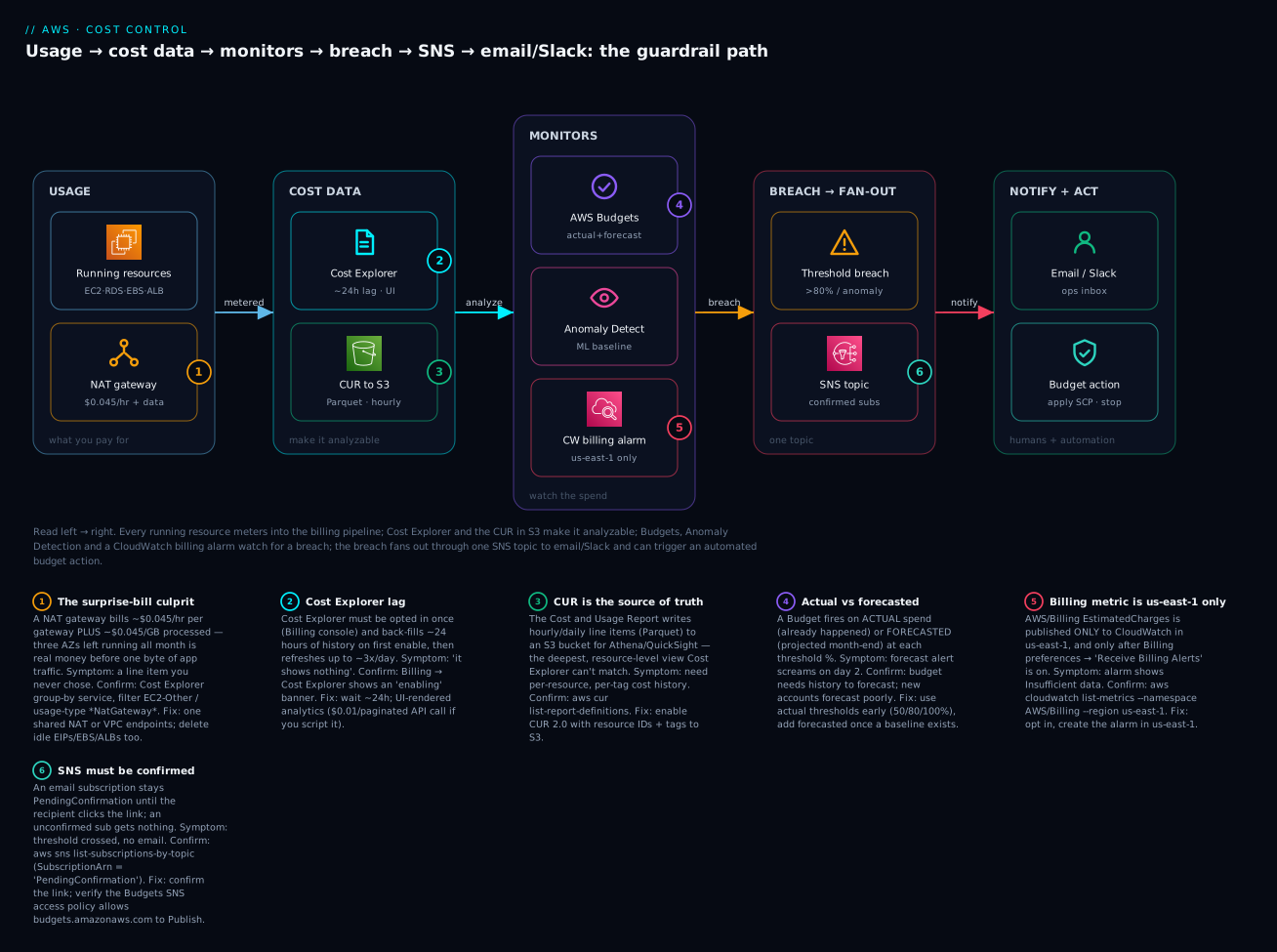
The diagram traces one dollar of cost from the resource that spends it to the human who gets alerted, left to right, and marks the six points where a beginner’s setup breaks. Start at USAGE: your running resources (EC2, RDS, EBS, ALB) meter continuously, and the classic culprit — a NAT gateway at ~$0.045/hr plus ~$0.045/GB, per AZ (badge 1) — bills 24×7 whether or not your app is busy. That usage flows into COST DATA: Cost Explorer renders it in the UI after a ~24-hour lag and a one-time enable (badge 2), while the CUR lands hourly Parquet line items in an S3 bucket for deep, per-resource SQL analysis (badge 3).
Three MONITORS watch that data: AWS Budgets evaluates both actual and forecasted spend against your thresholds (badge 4), Cost Anomaly Detection compares reality to an ML baseline, and a CloudWatch billing alarm on EstimatedCharges — which exists only in us-east-1 after you opt in (badge 5). When any of them crosses its line, the BREACH → FAN-OUT stage publishes to a single SNS topic — but only if the subscription is confirmed and the topic policy lets budgets.amazonaws.com publish (badge 6). Finally, NOTIFY + ACT delivers the alert to an email/Slack inbox and can trigger an automated budget action (apply a restrictive SCP/IAM policy or stop tagged EC2/RDS) — the closest AWS gets to a hard cap. Read the legend as symptom · how to confirm · fix for each numbered failure point.
Real-world scenario
FrameHive, a five-person video-tooling startup in Bengaluru, ran everything in one AWS account on a personal credit card. Their architect had spread the app across three AZs “for resilience,” following a reference architecture that placed a NAT gateway in each private subnet. Month one, the founder — who had signed up believing the t3.micro tier meant “basically free” — got a ₹14,800 (~$178) bill and panicked, assuming they had been hacked.
They had not. The triage, using exactly the tools in this article, took twenty minutes. First, Cost Explorer → group by Service showed the money split roughly: EC2-Other $71, EC2 $9, RDS $58, ELB $16, CloudWatch $12, everything else <$12. “EC2-Other” is where AWS files NAT gateways, EBS, and data transfer — so the founder re-ran with group by Usage type, which is the move that cracks every one of these. The top rows were unmistakable: NatGateway-Hours $97 across three gateways, NatGateway-Bytes $14, EBS:VolumeUsage.gp3 $11 on two volumes attached to instances they had terminated (the volumes were not deleted on termination), and PublicIPv4:InUseAddress $8 for addresses on resources they forgot they had.
The fixes were structural and free-to-cheap. They deleted two NAT gateways and kept one (dev traffic did not need per-AZ NAT), saving ~$65/month, and replaced S3 and DynamoDB access with gateway VPC endpoints (free) so that traffic never touched NAT at all. They deleted the two orphaned gp3 volumes and set DeleteOnTermination=true on future instances. They released the idle Elastic IPs. RDS was legitimately needed but was Multi-AZ on a db.t3.medium for a dev database — they dropped it to Single-AZ db.t3.micro (inside the 12-month tier), cutting it to near-zero.
Then they built the guardrails so this could never recur silently. A $50/month cost Budget with actual alerts at 80% and 100% and a forecasted alert at 100%, all to an SNS topic that fanned to the whole team’s Slack via AWS Chatbot. A CloudWatch billing alarm at $30 in us-east-1 as a backstop. Cost Anomaly Detection with an all-services monitor and a $25 impact threshold. And free-tier usage alerts on, so the next time they approached 750 EC2 hours they would know at 85%. The next month’s bill was ₹1,900 (~$23) — and when a teammate later left a load-test ALB running over a weekend, the anomaly alert fired on Saturday morning, not on the invoice. Total cost of all four guardrails: under $1/month.
Advantages and disadvantages
| Advantages | Disadvantages |
|---|---|
| Guardrails are free or cost cents | Nothing is a true real-time hard cap |
| Set once, protect forever | All signals lag hours (up to ~24h) |
| Cost Explorer needs no setup after enable | CE resource-level detail is a paid opt-in |
| Budgets support actual + forecast + actions | Forecast is unreliable on new/changed accounts |
| Anomaly Detection needs zero thresholds | CAD needs ~10 days to learn a baseline |
| CUR gives unlimited, SQL-queryable depth | CUR needs S3 + Athena setup to be useful |
| Works across an org with one bill | Free Tier is org-wide, not per-account |
| Budget actions can auto-restrict spend | Auto-actions can lock a team out if misconfigured |
Cost Explorer + Budgets + free-tier alerts cover the 90% case for a beginner at essentially no cost. Reach for the CUR and Cost Categories only when a single account’s spend gets big enough to need chargeback and per-resource audits. Reserve budget actions (especially auto-apply SCP/IAM) for accounts where a runaway is genuinely dangerous, and prefer approval-required to avoid self-inflicted lockouts.
Hands-on lab
You will set a free-tier alert, create a $10 monthly cost Budget with 80% and 100% SNS alerts, and add a CloudWatch billing alarm — via Console, aws CLI, and Terraform — then tear it all down. Nothing here launches a paid resource; SNS and the first two budgets and ten alarms are within free limits.
⚠️ Cost note: 3rd+ budgets cost $0.02/day; the first two are free. SNS email and 10 CloudWatch alarms are free-tier. This lab stays free.
Part A — Turn on the two billing preferences (Console)
- Sign in and open Billing and Cost Management. Ensure the console Region shows
us-east-1for billing actions (top-right selector) — billing data is global but published inus-east-1. - Go to Billing preferences → Alert preferences → Edit.
- Tick Receive AWS Free Tier alerts and enter an ops email in Additional email address.
- Tick Receive CloudWatch billing alerts (this enables the
EstimatedChargesmetric). - Save. Expected: both toggles show enabled; the CloudWatch metric appears in
us-east-1within a few hours.
Part B — Create the SNS topic and confirm a subscription (CLI)
ACCOUNT_ID=$(aws sts get-caller-identity --query Account --output text)

# Create the topic in us-east-1 (so Budgets + the billing alarm can share it)
TOPIC_ARN=$(aws sns create-topic --name billing-alerts --region us-east-1 \
  --query TopicArn --output text)
echo "$TOPIC_ARN"   # arn:aws:sns:us-east-1:<acct>:billing-alerts

# Subscribe your email; AWS emails a confirmation link you MUST click
aws sns subscribe --topic-arn "$TOPIC_ARN" --protocol email \
  --notification-endpoint ops@example.com --region us-east-1

# Verify: after clicking the link, this should show a real SubscriptionArn
aws sns list-subscriptions-by-topic --topic-arn "$TOPIC_ARN" --region us-east-1 \
  --query 'Subscriptions[].[Endpoint,SubscriptionArn]' --output table
Expected: before you click the email link, SubscriptionArn is PendingConfirmation; after, it is a real ARN. An unconfirmed subscription receives nothing — this is the most common “my alert never came” bug.
Now allow Budgets to publish to the topic (attach an access policy):
aws sns set-topic-attributes --region us-east-1 --topic-arn "$TOPIC_ARN" \
  --attribute-name Policy --attribute-value "{
    \"Version\":\"2012-10-17\",
    \"Statement\":[{
      \"Sid\":\"AllowBudgets\",
      \"Effect\":\"Allow\",
      \"Principal\":{\"Service\":\"budgets.amazonaws.com\"},
      \"Action\":\"SNS:Publish\",
      \"Resource\":\"$TOPIC_ARN\"
    }]
  }"
Part C — Create the $10 monthly Budget with 80%/100% alerts (CLI)
Create budget.json:
{
  "BudgetName": "monthly-cost-10usd",
  "BudgetLimit": { "Amount": "10", "Unit": "USD" },
  "TimeUnit": "MONTHLY",
  "BudgetType": "COST"
}
Create notifications.json (80% actual + 100% forecasted, both to SNS + email):
[
  {
    "Notification": {
      "NotificationType": "ACTUAL",
      "ComparisonOperator": "GREATER_THAN",
      "Threshold": 80,
      "ThresholdType": "PERCENTAGE"
    },
    "Subscribers": [
      { "SubscriptionType": "SNS", "Address": "arn:aws:sns:us-east-1:111122223333:billing-alerts" },
      { "SubscriptionType": "EMAIL", "Address": "ops@example.com" }
    ]
  },
  {
    "Notification": {
      "NotificationType": "FORECASTED",
      "ComparisonOperator": "GREATER_THAN",
      "Threshold": 100,
      "ThresholdType": "PERCENTAGE"
    },
    "Subscribers": [
      { "SubscriptionType": "SNS", "Address": "arn:aws:sns:us-east-1:111122223333:billing-alerts" }
    ]
  }
]
aws budgets create-budget \
  --account-id "$ACCOUNT_ID" \
  --budget file://budget.json \
  --notifications-with-subscribers file://notifications.json

# Verify
aws budgets describe-budget --account-id "$ACCOUNT_ID" \
  --budget-name monthly-cost-10usd \
  --query 'Budget.{Name:BudgetName,Limit:BudgetLimit.Amount,Type:BudgetType}' \
  --output table
Expected: the budget lists with a $10 limit; Budgets → your budget in the console shows both alerts. (Replace 111122223333 with your real account ID in the JSON.)
Part D — Add the CloudWatch billing alarm (CLI)
aws cloudwatch put-metric-alarm --region us-east-1 \
  --alarm-name "billing-over-10-usd" \
  --namespace "AWS/Billing" --metric-name EstimatedCharges \
  --dimensions Name=Currency,Value=USD \
  --statistic Maximum --period 21600 --evaluation-periods 1 \
  --threshold 10 --comparison-operator GreaterThanThreshold \
  --treat-missing-data notBreaching \
  --alarm-actions "$TOPIC_ARN"

# Verify (state may be INSUFFICIENT_DATA until the metric populates ~6h)
aws cloudwatch describe-alarms --region us-east-1 \
  --alarm-names billing-over-10-usd \
  --query 'MetricAlarms[].[AlarmName,StateValue]' --output table
Expected: the alarm exists; state is INSUFFICIENT_DATA until EstimatedCharges publishes (up to ~6h after opt-in), then OK.
Part E — Everything as Terraform (IaC)
terraform {
  required_providers { aws = { source = "hashicorp/aws" } }
}

# Billing metric + CUR live in us-east-1 — use an aliased provider
provider "aws" { region = "ap-south-1" }
provider "aws" { alias = "use1"  region = "us-east-1" }

data "aws_caller_identity" "me" {}

resource "aws_sns_topic" "budget_alerts" {
  provider = aws.use1
  name     = "billing-alerts"
}

resource "aws_sns_topic_policy" "allow_budgets" {
  provider = aws.use1
  arn      = aws_sns_topic.budget_alerts.arn
  policy = jsonencode({
    Version = "2012-10-17",
    Statement = [{
      Effect    = "Allow",
      Principal = { Service = "budgets.amazonaws.com" },
      Action    = "SNS:Publish",
      Resource  = aws_sns_topic.budget_alerts.arn
    }]
  })
}

resource "aws_sns_topic_subscription" "email" {
  provider  = aws.use1
  topic_arn = aws_sns_topic.budget_alerts.arn
  protocol  = "email"
  endpoint  = "ops@example.com"   # confirm the link in your inbox
}

resource "aws_budgets_budget" "monthly_cost" {
  name         = "monthly-cost-10usd"
  budget_type  = "COST"
  limit_amount = "10"
  limit_unit   = "USD"
  time_unit    = "MONTHLY"

  notification {
    comparison_operator        = "GREATER_THAN"
    threshold                  = 80
    threshold_type             = "PERCENTAGE"
    notification_type          = "ACTUAL"
    subscriber_sns_topic_arns  = [aws_sns_topic.budget_alerts.arn]
    subscriber_email_addresses = ["ops@example.com"]
  }
  notification {
    comparison_operator       = "GREATER_THAN"
    threshold                 = 100
    threshold_type            = "PERCENTAGE"
    notification_type         = "FORECASTED"
    subscriber_sns_topic_arns = [aws_sns_topic.budget_alerts.arn]
  }
}

resource "aws_cloudwatch_metric_alarm" "billing" {
  provider            = aws.use1
  alarm_name          = "billing-over-10-usd"
  namespace           = "AWS/Billing"
  metric_name         = "EstimatedCharges"
  dimensions          = { Currency = "USD" }
  statistic           = "Maximum"
  period              = 21600
  evaluation_periods  = 1
  threshold           = 10
  comparison_operator = "GreaterThanThreshold"
  treat_missing_data  = "notBreaching"
  alarm_actions       = [aws_sns_topic.budget_alerts.arn]
}
terraform init && terraform apply # confirm the SNS email link afterwards
Part F — Teardown
# CLI-created resources
aws cloudwatch delete-alarms --alarm-names billing-over-10-usd --region us-east-1
aws budgets delete-budget --account-id "$ACCOUNT_ID" --budget-name monthly-cost-10usd
aws sns delete-topic --topic-arn "$TOPIC_ARN" --region us-east-1

# Terraform-created resources
terraform destroy
Expected: describe-alarms and describe-budget return empty/NotFound. Leave Receive Billing Alerts / Free Tier alerts on — they cost nothing and you want them permanently.
Common mistakes & troubleshooting
This is the playbook — bookmark it. First the scannable table, then the nastiest failures in full.
| # | Symptom | Root cause | Confirm (exact cmd / console path) | Fix |
|---|---|---|---|---|
| 1 | Budget/alarm alert never arrives by email | SNS subscription unconfirmed | aws sns list-subscriptions-by-topic → SubscriptionArn = PendingConfirmation |
Click the confirmation link in the email |
| 2 | Budget crosses threshold, SNS silent | Topic policy blocks Budgets | aws sns get-topic-attributes → no budgets.amazonaws.com Allow |
Add SNS:Publish allow for budgets.amazonaws.com |
| 3 | Cost Explorer shows nothing / empty | Just enabled; ~24h back-fill | Billing → Cost Explorer shows an “enabling” banner | Wait ~24h; it back-fills history |
| 4 | Billing alarm stuck INSUFFICIENT_DATA |
Metric not in this Region, or opt-in off | aws cloudwatch list-metrics --namespace AWS/Billing --region us-east-1 empty |
Create alarm in us-east-1; enable Receive Billing Alerts |
| 5 | No AWS/Billing metric anywhere |
“Receive Billing Alerts” never enabled | Billing preferences → Alert preferences unchecked | Enable it; wait ~6h for first datapoint |
| 6 | Forecast alert fires on day 2 of a new account | Forecast has no baseline | Budget shows huge forecast vs tiny actual | Use ACTUAL thresholds early; add FORECASTED later |
| 7 | Tag missing from Cost Explorer group-by | Tag not activated as cost-allocation tag | Billing → Cost allocation tags → key Inactive |
Activate the key; wait ~24h for it to populate |
| 8 | “AccessDenied” opening Bills/Cost Explorer | IAM principal lacks billing permissions | Error names ce: / aws-portal: / budgets: action |
Attach billing policy; management-acct may need to allow IAM billing access |
| 9 | Free Tier ended, bill jumped, no warning | 12-month tier expired silently | Billing → Free tier shows expired; charges at full rate | Set free-tier alert + a small $ budget as backstop |
| 10 | Member accounts each expected 750 free EC2 hrs | Free Tier is org-wide, not per-account | One org = one Free Tier allowance | Budget per account; don’t rely on per-account free tier |
| 11 | ce get-cost-and-usage returns DataUnavailableException |
Cost Explorer not enabled on the account | Billing → Cost Explorer not launched | Enable Cost Explorer once in the console |
| 12 | NAT/egress cost invisible in resource console | It’s a usage-type meter, not a listed resource | Cost Explorer group by Usage type shows NatGateway-* |
Delete extra NAT; use VPC endpoints; review egress |
| 13 | Anomaly Detection never alerts on a real spike | No alert subscription, or threshold too high | Cost Anomaly Detection → subscription list empty / high $ | Add a subscription with a sensible $/% threshold |
| 14 | Budget action locked a team out of the account | Auto-apply Deny SCP fired on a forecast blip | Budget → action history shows auto-execute | Set actions to approval-required; scope the policy |
| 15 | Terraform aws_cloudwatch_metric_alarm never fires |
Alarm created in the wrong region | terraform state show → provider not us-east-1 |
Pin the aliased us-east-1 provider on the alarm |
The three that bite hardest, in full:
1 & 2 — the alert that never comes. The overwhelmingly common failure is a silent SNS chain. An email subscription stays PendingConfirmation until someone clicks the AWS confirmation email, and an unconfirmed subscription receives nothing — no error, just silence. Separately, Budgets publishes as the service principal budgets.amazonaws.com, so the topic’s access policy must explicitly allow it to SNS:Publish; without that, the budget evaluates and “fires” but the publish is denied. Confirm both: aws sns list-subscriptions-by-topic --topic-arn <arn> (look for a real ARN, not PendingConfirmation) and aws sns get-topic-attributes --topic-arn <arn> (look for the budgets.amazonaws.com Allow). Fix by clicking the link and attaching the policy from Part B. Test end-to-end with aws sns publish --topic-arn <arn> --message test — if that email arrives, the chain works and the problem is upstream in the budget config.
4 & 5 — the billing alarm in the wrong Region. AWS/Billing EstimatedCharges is published only to us-east-1, because AWS treats billing as a global service homed there. Create the alarm in ap-south-1 and it will sit in INSUFFICIENT_DATA forever, because the metric does not exist in that Region. And even in us-east-1, the metric only appears after you enable Billing preferences → Receive Billing Alerts, and then only after the next ~6-hour publish. Confirm with aws cloudwatch list-metrics --namespace "AWS/Billing" --region us-east-1 — an empty result means either wrong Region or opt-in off. This is the single most common CloudWatch-billing-alarm mistake, and every Terraform config must pin an aliased us-east-1 provider on the alarm resource.
6 — the forecast that screams on a new account. Cost Explorer and Budgets forecast month-end from history. On a brand-new account, or the month after a big architecture change, there is little or contradictory history, so the forecast can project an absurd number and a FORECASTED alert fires immediately. This is expected, not a bug. Use ACTUAL thresholds (50/80/100%) for the first few weeks, then add a FORECASTED 100% alert once the daily trend has stabilised. The same caveat applies to auto-adjusting budgets: give them a couple of periods of history before trusting the baseline.
CLI error / status reference
| Code / status | Where | Meaning | Fix |
|---|---|---|---|
DataUnavailableException |
ce API |
Cost Explorer not enabled / data not ready | Enable CE; wait ~24h |
AccessDeniedException |
ce / budgets |
Principal lacks billing IAM permissions | Attach ce:*/budgets:*; allow IAM billing access |
PendingConfirmation |
SNS subscription | Email link not clicked | Click the confirmation email |
AuthorizationError |
sns publish from Budgets |
Topic policy denies the service | Allow budgets.amazonaws.com SNS:Publish |
INSUFFICIENT_DATA |
CloudWatch alarm | No datapoints yet / wrong Region | Use us-east-1; enable billing alerts; wait ~6h |
ValidationException (budget) |
budgets |
Bad JSON (e.g. missing ThresholdType) |
Fix the notification JSON schema |
ThrottlingException |
ce API |
Too many CE API calls | Back off; each call also costs $0.01 |
ReportLimitExceeded |
cur API |
Too many CUR definitions | Delete an old report definition |
NotFoundException |
budgets describe-budget |
Wrong name/account | Check --budget-name and --account-id |
InvalidParameterValue (region) |
cloudwatch billing |
Alarm in non-us-east-1 | Recreate in us-east-1 |
Decision table — “which control do I reach for?”
| If you want to… | Use | Why |
|---|---|---|
| Know where the money went | Cost Explorer (group by usage type) | Fastest visual breakdown |
| Get warned before overspend | Budgets (forecasted) | Projects month-end |
| Get warned after overspend | Budgets (actual) / billing alarm | Never a false alarm |
| Catch a spike you didn’t threshold | Cost Anomaly Detection | Learns the baseline |
| Analyse per-resource, per-hour | CUR in S3 + Athena | Deepest detail |
| Actually stop runaway spend | Budget action (approval) | Applies SCP/IAM or stops instances |
| Avoid the free-tier cliff | Free-tier alert + usage budget | 85% + a hard hours threshold |
Best practices
- Set the four guardrails on day one, before launching anything: free-tier alert, a small cost Budget, a CloudWatch billing alarm, and Cost Anomaly Detection. All free or near-free.
- Enable Cost Explorer immediately — the ~24h back-fill means the sooner you enable, the sooner you have history and a usable forecast.
- Wire alerts to SNS, not just email, so you can fan out to Slack/Teams (via Chatbot) and to automation (Lambda) later without rebuilding.
- Always confirm the SNS subscription and topic policy — test end-to-end with
sns publishso you know the chain works before you rely on it. - Use ACTUAL thresholds early, add FORECASTED once you have history. New-account forecasts are unreliable.
- Group Cost Explorer by Usage type when hunting a mystery charge — it surfaces NAT, egress, and cross-AZ that the resource list hides.
- Tag everything and activate the tag keys so Cost Explorer and the CUR can slice by team/project/environment — see the tagging-strategy companion.
- Put the billing alarm in
us-east-1and pin an aliased provider in IaC; it is the number-one region mistake. - Prefer approval-required budget actions for anything that applies a Deny policy — auto-apply on a forecast blip can lock you out.
- Delete-on-terminate for EBS, release idle EIPs, and use VPC endpoints to keep traffic off NAT — structural fixes beat alerting.
- Review Cost Explorer weekly (a saved report), not at month-end; a small leak caught early is cents, caught late is dollars.
- In an org, remember the Free Tier is shared and set a per-account budget rather than trusting per-account free allowances.
Security notes
Cost data is sensitive business information — it reveals architecture, scale, launch timing, and vendor relationships. Treat access to it with least privilege.
| Concern | Guidance |
|---|---|
| Who can see cost | Grant ce:*, budgets:*, cur:*, aws-portal:ViewBilling only to those who need it; separate from resource admin |
| Root vs IAM | Enabling Cost Explorer and billing preferences may need root/management; do it once, then delegate via IAM |
| IAM access to Billing | The management account must enable IAM user/role access to Billing before member IAM principals can view cost |
| SNS topic policy | Scope the SNS:Publish allow to budgets.amazonaws.com (and cloudwatch.amazonaws.com) — do not open the topic to * |
| Budget action policies | The IAM/SCP a budget action applies is powerful; scope it tightly and prefer approval-required |
| CUR bucket | The S3 bucket holds full billing detail — block public access, encrypt (SSE-S3/KMS), restrict the bucket policy to billingreports.amazonaws.com and your analysts |
| Cross-account visibility | In an org, member accounts see only their own cost unless the payer shares views; don’t leak org-wide cost to a single team |
| Audit | Billing console actions are logged by CloudTrail — see AWS CloudTrail, Config and Audit Compliance |
Cost & sizing
The controls themselves are the cheapest insurance in AWS. What each one costs:
| Item | Cost | Notes |
|---|---|---|
| Cost Explorer UI | Free | Unlimited use in the console |
Cost Explorer API (ce) |
$0.01 / request | Adds up if you script dashboards; cache results |
| Cost Explorer hourly + resource-level | ~$0.01 / 1,000 usage records / mo | Paid opt-in; leave off unless needed |
| Budgets | First 2 free, then $0.02/budget/day | ~$0.60/mo per extra budget |
| CloudWatch billing alarm | Free | Within the 10-alarm free tier |
| Cost Anomaly Detection | Free | Monitors and alerts cost nothing |
| CUR | S3 storage + Athena scan | Parquet + partitioning keeps scans cheap |
| SNS | 1M publishes/mo free | Email deliveries within free tier for small volumes |
| Free-tier alerts | Free | Just email |
In INR terms, a complete guardrail set — Cost Explorer, two budgets, a billing alarm, anomaly detection, free-tier alerts — costs effectively ₹0/month. Even a heavy setup (a dozen budgets, a scripted CE dashboard, a CUR feeding QuickSight) is a few hundred rupees a month — trivially less than the first surprise bill it prevents. The right-sizing rule: spend zero on the guardrails, spend your effort on the structural fixes (delete NAT/EIP/EBS waste, right-size RDS/EC2, buy Savings Plans once you have a steady baseline).
Interview & exam questions
1. Why must a CloudWatch billing alarm be created in us-east-1? (CLF-C02, SOA-C02) — Because AWS publishes the AWS/Billing EstimatedCharges metric only to CloudWatch in us-east-1; billing is a global service homed there. An alarm in any other Region sits in INSUFFICIENT_DATA because the metric does not exist locally. You also must enable “Receive Billing Alerts” first.
2. What is the difference between an actual and a forecasted budget alert? (CLF-C02) — An actual alert fires when real, already-incurred spend crosses the threshold; a forecasted alert fires when the projected month-end spend crosses it. Actual never false-alarms but only warns after the money is spent; forecasted warns early but needs history and is noisy on new accounts.
3. Name the three kinds of AWS Free Tier. (CLF-C02) — 12-month free (from sign-up, e.g. 750 EC2 hours/mo, expires at month 13), always-free (forever, monthly, e.g. 1M Lambda requests, 25 GB DynamoDB), and short-term trials (fixed days from first use, e.g. 30-day GuardDuty). Newer accounts may instead have a credit-based free plan.
4. Cost Explorer shows nothing right after you enable it. Why? (CLF-C02) — Cost Explorer is a one-time opt-in that back-fills roughly 24 hours (and up to ~14 months of history over the following day). Empty immediately after enable is expected; return in ~24 hours.
5. Where do NAT gateway and data-transfer costs appear in Cost Explorer? (SOA-C02) — Group by Usage type (not just Service). NAT lands under NatGateway-Hours/NatGateway-Bytes (filed under “EC2-Other”), and transfer under DataTransfer-Out-Bytes/DataTransfer-Regional-Bytes. The resource console does not show these meters.
6. How does the Free Tier behave in an AWS Organization? (CLF-C02) — There is one Free Tier for the whole organization, aggregated at the payer, not one per member account. Ten accounts share 750 free EC2 hours total, not 7,500.
7. What is the closest thing AWS has to a hard spending cap? (CLF-C02, SOA-C02) — A budget action: when a threshold is crossed, it can automatically (or with approval) apply a restrictive IAM policy or SCP, or stop tagged EC2/RDS instances. It still fires on the delayed budget evaluation, so it is not truly instantaneous.
8. When would you use the CUR over Cost Explorer? (SOA-C02) — When you need per-resource, hourly line items, unlimited history, or SQL/BI analysis (chargeback, deep audits). Cost Explorer is capped at ~14 months and coarser resource detail; the CUR delivers full detail to your S3 bucket for Athena/QuickSight.
9. What does Cost Anomaly Detection add over Budgets? (CLF-C02) — It uses ML to learn your normal spend and alerts on deviations without you setting a threshold, catching spikes you never anticipated. Budgets only fire on thresholds you defined in advance.
10. What are unblended vs amortized cost? (SAA-C03) — Unblended is the actual rate charged on each line at the time of use (matches the invoice). Amortized spreads upfront RI/Savings Plans fees across the commitment term, giving a truer per-hour run-rate when you have commitments.
11. Your budget crossed its threshold but no email arrived. First two things to check? (SOA-C02) — (a) Is the SNS email subscription confirmed (not PendingConfirmation)? (b) Does the SNS topic policy allow budgets.amazonaws.com to SNS:Publish? Both are silent failures.
12. What enables the EstimatedCharges metric in the first place? (CLF-C02) — The Receive Billing Alerts preference in Billing preferences → Alert preferences. Until it is on, no AWS/Billing metric is published, even in us-east-1.
Quick check
- A teammate created a CloudWatch billing alarm in
ap-south-1and it never fires. What are the two things wrong, and where must the alarm live? - You enable a brand-new account’s budget with a FORECASTED 100% alert and it fires on day two. Is this a bug? What should you have used instead?
- Cost Explorer’s “group by Service” shows a big EC2-Other bucket. What single change reveals whether it’s NAT, EBS, or data transfer?
- Your
$10budget crossed 80% but no email came, even though the budget shows the alert as triggered. Name the two silent failure points. - In an org with eight member accounts, how many free EC2 hours per month do you actually get across the org, and why does that surprise people?
Answers
- Two things: (a) the
AWS/Billing EstimatedChargesmetric is published only inus-east-1, so an alarm elsewhere has no metric and sits inINSUFFICIENT_DATA; (b) the Receive Billing Alerts preference may not be enabled. The alarm must live inus-east-1. - Not a bug. A new account has no history, so the forecast is unreliable and can project an absurd month-end. Use ACTUAL thresholds (50/80/100%) first and add FORECASTED once a few weeks of steady history exist.
- Change group-by from Service to Usage type. “EC2-Other” splits into
NatGateway-Hours/-Bytes,EBS:VolumeUsage,DataTransfer-*, etc., pinpointing the meter. - (a) The SNS email subscription is unconfirmed (
PendingConfirmation— the recipient never clicked the link); (b) the SNS topic policy doesn’t allowbudgets.amazonaws.comtoSNS:Publish. Both fail silently. - 750 total, not 6,000. The Free Tier is one allowance for the whole organization, aggregated at the payer account — not one per member account. People assume it multiplies per account.
Glossary
| Term | Definition |
|---|---|
| Free Tier | Time-limited (12-month), always-free, or short-trial service allowances for new/all accounts |
| Free-tier usage alert | Email when you’re forecast to exceed ~85% of a free-tier limit |
| Cost Explorer | Interactive UI + ce API to visualise and forecast cost by many dimensions |
| AWS Budgets | Threshold-based alerts on cost/usage/RI/SP, optionally with automated actions |
| Budget action | Automation a budget triggers on breach: apply IAM/SCP policy or stop EC2/RDS |
| Actual alert | Fires on already-incurred spend crossing a threshold |
| Forecasted alert | Fires on projected month-end spend crossing a threshold |
| EstimatedCharges | Cumulative month-to-date cost metric in AWS/Billing, us-east-1 only |
| CloudWatch billing alarm | A CloudWatch alarm on EstimatedCharges |
| Cost Anomaly Detection | ML-based detection of spend deviating from a learned baseline |
| Monitor | A CAD object defining what to watch (all services, an account, a tag, a category) |
| CUR | Cost and Usage Report — hourly line-item export to your S3 bucket |
| Consolidated billing | One payer account billed for all member accounts in an Organization |
| Blended rate | Averaged per-unit rate across an org’s accounts |
| Amortized cost | Upfront RI/SP fees spread across the commitment term |
| Cost allocation tag | A tag key activated so Cost Explorer/CUR can break cost down by it |
| NAT gateway | Managed egress device billed per-hour per-AZ plus per-GB — a top surprise-bill culprit |
| Cost category | Rules that group raw cost into business buckets (product/team) |
Next steps
You can now build the four guardrails and read where the money goes. Extend outward:
- Next: Tag everything so Cost Explorer and the CUR can slice by team, project, and environment — the companion AWS tagging strategy and cost-allocation enforcement (wave sibling) makes chargeback possible.
- Related: Stop runaway counts (not just spend) with the companion on AWS service quotas, limits, and increase requests — quotas and budgets are the two halves of guardrails.
- Related: When an anomaly fires, triage it fast with the companion on AWS cost-spike anomaly-detection troubleshooting — root-causing the exact usage type and resource.
- Related: AWS Organizations and IAM Foundations — consolidated billing, the payer account, and delegating billing access safely.
- Related: AWS Control Tower, Guardrails and the Multi-Account Foundation — SCPs and guardrails, the same policies a budget action can apply.
- Related: Amazon VPC, Subnets and Security Groups Explained — where NAT gateways, endpoints, and egress cost actually come from.