The email arrives, you click Verify, you type a card number, and sixty seconds later you are the owner of an AWS account with a root user that can do anything — spin up a hundred GPU instances, empty an S3 bucket, delete the account — and by default that god-mode identity is protected by exactly one thing: a password you probably reused. This is the most dangerous moment in the life of any AWS environment, and it is the moment almost everyone rushes past to go build the fun thing. The account is brand new, it is empty, and it feels safe precisely because it is empty. It is not safe. It is a single leaked credential away from a five-figure bill, a public data leak, or a crypto-miner that runs for three weeks before the invoice tells you.
This article is the first-hour runbook — the exact, ordered set of actions a senior engineer performs on a new AWS account before deploying a single workload. You will lock down the root user (MFA on, access keys gone, alternate contacts set, the sign-in email itself secured), create a real day-to-day admin the right way through IAM Identity Center rather than sharing root, flip the handful of account-level guardrails that are dangerously off by default (S3 Block Public Access, EBS default encryption, IMDSv2), get billing hygiene in place so a mistake costs you an email instead of a mortgage payment (free-tier alerts, an AWS Budget, a CloudWatch billing alarm, Cost Explorer), turn on the two things that record and detect trouble (CloudTrail and GuardDuty), and finally write the break-glass procedure that lets you recover when — not if — someone loses the MFA device.
None of this is advanced. Every step here is Beginner-level and free-tier friendly, and the whole sequence takes under an hour by hand or a few minutes with the Terraform at the end. But “not advanced” is not the same as “optional”: this is the account security baseline the CLF-C02 and SAA-C03 exams assume you know and that every real team applies on day zero. Get it wrong and everything you build later inherits the weakness. Get it right once and it protects every workload that ever lands in the account. We will go through each control the way you should think about all AWS settings — what it is, what the default is, why the default is wrong, exactly how to set it, and the one way it silently fails — with aws CLI and Terraform for every step.
What problem this solves
A new AWS account ships with a set of defaults optimised for getting started fast, not for staying safe. The root user has no MFA. S3 buckets can be made public. EBS volumes are not encrypted unless you ask. EC2 instances answer the old, tokenless IMDSv1 metadata endpoint that turns a routine SSRF bug into full credential theft. There is no spending limit, no billing alert, and nothing recording who did what. Each of these is a deliberate default that trades safety for convenience, and each one is a well-known attacker playbook. The problem this baseline solves is simple to state and expensive to ignore: an empty account is not a secure account, and the gap between “created” and “secured” is where the incidents live.
Concretely, here is what goes wrong when the first hour is skipped. A developer commits a root or IAM access key to a public GitHub repo; bots scan new commits within minutes, and by morning there are hundreds of p4d.24xlarge GPU instances mining cryptocurrency in six Regions you have never used. Or a data scientist makes an S3 bucket public “just to share a CSV,” forgets it, and a security researcher — or a ransomware crew — finds it before you do. Or an SSRF vulnerability in a web app lets an attacker curl the instance metadata endpoint, read the EC2 role’s temporary credentials, and pivot into the rest of the account. Or, most mundanely and most commonly, someone leaves a NAT gateway and a few RDS instances running over a weekend and the ₹800 you expected becomes a ₹90,000 surprise — with no alert, because no alert was ever configured.
Who hits this? Everyone, on their very first account. It bites hardest on individuals and small teams learning AWS (who assume “free tier” means “can’t cost much” — it doesn’t), on enterprises spinning up sandbox and proof-of-concept accounts outside the governed landing zone, and on anyone who confused “I turned on MFA” with “the account is secured.” The fix is never vigilance or good intentions — it is a small set of preventive guardrails set once at the account level, a recording plane that is on before anything happens, and money alarms that make cost a signal you get in real time rather than a bill you get in thirty days.
Here is the whole first-hour baseline as a checklist, in the order you will execute it. Every row is a section of this article.
| # | Task | Why it matters | Default state | Where you set it |
|---|---|---|---|---|
| 1 | Register root MFA | One leaked root password = total takeover | No MFA | Console → root Security credentials |
| 2 | Delete/never create root access keys | Programmatic root is uncontainable | Usually none, but check | IAM → root access keys |
| 3 | Set 3 alternate contacts | AWS reaches the right humans on abuse/billing | Only the root email | Account settings |
| 4 | Secure the root email inbox | Email owns password reset = owns the account | Whatever you signed up with | Your mail provider |
| 5 | Enable IAM Identity Center + admin | Stop using root for daily work | Not enabled | IAM Identity Center |
| 6 | Account-level S3 Block Public Access | No bucket can leak by accident | All four flags OFF | S3 → account settings |
| 7 | EBS default encryption | Every new volume/snapshot encrypted | OFF | EC2 → EBS settings (per Region) |
| 8 | IMDSv2 as launch default | Kills the SSRF→credential-theft path | IMDSv1 allowed | EC2 → account attributes (per Region) |
| 9 | Disable unused Regions | Shrinks the attack + bill surface | 17 Regions enabled | Account → Regions |
| 10 | Free-tier usage alerts | Warns before free turns into paid | OFF | Billing preferences |
| 11 | AWS Budget + SNS alert | Real spend threshold with notification | None | AWS Budgets |
| 12 | CloudWatch billing alarm | Second, metric-based spend tripwire | None (needs opt-in) | CloudWatch (us-east-1) |
| 13 | Enable Cost Explorer | See where the money goes | OFF (opt-in) | Cost Management |
| 14 | All-Regions CloudTrail trail | Immutable record of every API call | 90-day Event history only | CloudTrail |
| 15 | Enable GuardDuty | Managed threat detection | Not enabled | GuardDuty |
| 16 | Write the break-glass runbook | Recover when the MFA device is lost | Nothing | Your wiki + a safe |
And here is the blast radius of skipping each — the reason this is a first-hour job and not a someday-backlog job:
| If you skip… | The failure mode | Who finds out, and how | Typical cost |
|---|---|---|---|
| Root MFA | Password-spray or reused-password takeover | You, when the bill or an odd Region appears | Account-wide compromise |
| Root access-key deletion | Key leaks to Git; bots mine crypto | AWS abuse email, days later | ₹5–50 lakh before you catch it |
| S3 Block Public Access | Public bucket data leak | A researcher, journalist, or attacker | Breach disclosure + fines |
| EBS default encryption | Unencrypted data at rest fails audit | Your auditor, at the worst time | Failed SOC 2 / contract loss |
| IMDSv2 default | SSRF reads role creds, lateral movement | Incident responders, post-breach | Full workload compromise |
| Billing alerts | Runaway spend runs for a full cycle | The invoice, 30 days late | 10–100× expected bill |
| CloudTrail | No forensic record of the incident | Nobody — that’s the problem | Un-investigable breach |
Learning objectives
By the end of this article you will be able to:
- Lock down the root user end to end — enable MFA (and register a backup device), guarantee zero root access keys exist, set the billing/operations/security alternate contacts, and secure the root sign-in email itself.
- Create your first administrator correctly using IAM Identity Center with an
AdministratorAccesspermission set and enforced MFA, and know when a plain IAM admin user or role is the right fallback instead. - Flip every account-level guardrail that ships off by default — S3 Block Public Access at the account scope, EBS default encryption, IMDSv2-required launch defaults, unused-Region disablement — and explain what each one prevents.
- Build billing hygiene from scratch: free-tier usage alerts, an AWS Budget with SNS notifications, a CloudWatch billing alarm on
EstimatedCharges, Cost Explorer, and Cost Anomaly Detection. - Turn on the recording and detection plane — a single all-Regions CloudTrail trail with log-file validation, plus GuardDuty — so the account is observable before any workload lands.
- Design and store a break-glass procedure for emergency root access, including credential custody, MFA backup, and the exact recovery paths for a lost device or a locked-out sole admin.
- Do all of it two ways — click-path in the Console for understanding, and
awsCLI + Terraform for repeatability — and tear it down cleanly, knowing exactly which pieces can cost money.
Prerequisites & where this fits
You need almost nothing to follow along: a freshly created AWS account you own (or a sandbox you are allowed to secure), a web browser for the few root-only steps that must be done in the Console, and the AWS CLI v2 installed for everything else. A working knowledge of the shell and a text editor is assumed; Terraform is optional but recommended, and the lab includes a complete configuration. Every billable item is called out, and the baseline itself is designed to sit inside the AWS Free Tier — you can complete the entire runbook for a few rupees or nothing at all.
Conceptually, this article is layer zero of an AWS estate. Everything else stacks on top of it. If you are running a single account, this is your security foundation. If you are heading toward many accounts, this is the manual version of what AWS Organizations and Control Tower will later automate for every account they vend — and doing it by hand once makes those tools legible instead of magical. The identity mechanics here (root vs IAM vs Identity Center, policy evaluation) are covered in depth in AWS Organizations and IAM Foundations: Accounts, OUs and Roles; the where do my resources live question behind Region selection is AWS Regions and Availability Zones: Resiliency from the Ground Up; and the audit story you begin here — the immutable record of who did what — goes deep in AWS CloudTrail and Config: Audit and Compliance at Scale. When you outgrow a single account, AWS Control Tower Guardrails: Building a Secure Multi-Account Foundation is the next step.
Here is where this baseline sits relative to the tools that automate it later:
| Layer | You do it by… | This article | At scale it becomes |
|---|---|---|---|
| Root & first admin | Manually, per account | The whole point | Identity Center + delegated admin |
| Account guardrails | Manual toggles / Terraform | Sections below | SCPs + Config rules + Control Tower |
| Billing controls | Budgets + alarms by hand | Sections below | Consolidated billing + org budgets |
| Audit & detection | One trail, one detector | Sections below | Org trail + GuardDuty org admin |
| Account vending | You click “Create account” | N/A (single account) | Account Factory / AFT |
Core concepts
Before the runbook, get the mental model straight, because the single most common beginner mistake is not understanding which identity is which and what is on by default. AWS has several kinds of identity, and they are not interchangeable.
The root user is the identity tied to the email address you signed up with. It has complete, unconditional control over the account and a small set of powers no other identity can ever have (closing the account, changing the account email, some billing actions). You cannot restrict root with an IAM policy. The only correct posture is: secure it with MFA, remove any programmatic access, and never use it for day-to-day work.
Everything else is IAM — the identity and access service. An IAM user is a long-lived identity with a password and/or access keys; useful sparingly (a break-glass account), dangerous in bulk (every long-lived key is a liability). An IAM role is an identity with no long-lived credentials that principals assume to get temporary credentials via STS — this is how EC2 instances, Lambda functions, and federated humans should get access. IAM Identity Center (formerly AWS SSO) is the modern front door for humans: it federates your workforce, assigns permission sets (which become roles in the target account), and hands out short-lived credentials with MFA — so no human needs an IAM user at all.
| Identity type | Credentials | Lifetime | Use it for | Never use it for |
|---|---|---|---|---|
| Root user | Email + password (+MFA) | Permanent | ~10 root-only tasks, break-glass | Daily work, automation, CLI |
| IAM user | Password and/or access keys | Long-lived | One break-glass admin, legacy | Per-person human access at scale |
| IAM role | Assumed → temporary (STS) | ≤ 12 h session | EC2/Lambda/ECS, cross-account | Anything needing a static secret |
| Identity Center user | Federated, short-lived | Session (1–12 h) | All human console/CLI access | Machine-to-machine automation |
| Access key | AKIA… + secret |
Until rotated/deleted | Legacy programmatic, rare | Root, ever; humans, ideally never |
The second half of the model is what is off by default. AWS errs toward “it works out of the box,” which means several security controls are your job to switch on. Memorise this table; it is the spine of the whole article.
| Control | Default | Secure setting | Scope | Reversible? |
|---|---|---|---|---|
| Root MFA | Disabled | Enabled (+ backup device) | Account | Yes |
| Root access keys | None (but verify) | None, permanently | Account | Yes |
| S3 Block Public Access | All flags OFF | All four ON | Account + per-bucket | Yes |
| EBS encryption by default | OFF | ON | Per Region | Yes |
| IMDS version | v1 + v2 allowed | v2 required (http-tokens) |
Per Region default + per-instance | Yes |
| CloudTrail | 90-day history only | Multi-Region trail to S3 | Account | Yes |
| GuardDuty | Not enabled | Enabled | Per Region | Yes |
| Cost Explorer | Not enabled | Enabled (opt-in) | Account | One-way (can’t disable cleanly) |
| Billing CloudWatch alerts | OFF | ON | Account (us-east-1) | Yes |
| IAM access to Billing | Off (historically) | On | Account | Yes |
A final concept that trips up beginners more than any other: global vs Regional. Some things are account-global (IAM, root, S3 Block Public Access at account scope, CloudFront, Route 53). Many are Regional — they must be set in every Region you use, one at a time. EBS default encryption, IMDSv2 defaults, GuardDuty, and CloudWatch alarms are Regional. The billing metric EstimatedCharges lives only in us-east-1 (N. Virginia) no matter where you operate. Forgetting this is why a control “you turned on” isn’t actually protecting the Region where the incident happens.
| Scope | Services / settings | Practical consequence |
|---|---|---|
| Global | IAM, root user, STS, S3 BPA (account), Route 53, CloudFront, WAF (CloudFront), Organizations | Set once, applies everywhere |
| Regional | EBS default encryption, IMDSv2 defaults, GuardDuty, Config, most CloudWatch, VPC, EC2 | Repeat in every Region you use |
| us-east-1 only | AWS/Billing EstimatedCharges metric, some global-service CloudTrail events |
Billing alarm must be created here |
The first hour: root user lockdown
The root user is the crown jewels, and the first job is to weld the vault shut. There is no partial credit here — a root user without MFA is a P1 finding on its own. Work through these in order.
Register a root MFA device (and a backup)
MFA for root must be done in the Console — sign in as root, open Security credentials, and under Multi-factor authentication (MFA) assign a device. AWS supports registering up to 8 MFA devices per root user, and you should register at least two so a lost phone is an inconvenience, not a lockout. Prefer a FIDO2 security key (a physical YubiKey or a passkey) as primary and a virtual authenticator app (TOTP) as backup, or two hardware keys kept in different physical locations.
| MFA type | Example | Phishing-resistant? | Cost | Best as |
|---|---|---|---|---|
| FIDO2 / passkey | YubiKey, Touch ID passkey | Yes (origin-bound) | ₹0–4,000 | Primary root MFA |
| Virtual (TOTP) | Authy, Google Authenticator | No | Free | Backup root MFA |
| Hardware TOTP | Gemalto/Thales token | No | ₹1,500–3,000 | Air-gapped backup |
| Recovery codes | n/a (AWS has none for root) | — | — | Not available — use 2nd device |
There are no printable “recovery codes” for the AWS root user — your backup is the second registered device. This is exactly why registering two matters: if you register one and lose it, recovery is a support-driven identity-verification ordeal (covered in Troubleshooting).
Guarantee zero root access keys
Programmatic access as root is uncontainable — you cannot scope it, cannot attach a boundary, cannot easily detect its misuse until it’s too late. Modern accounts usually start with no root access keys, but you must verify and delete any that exist. AWS best practice, and every CIS benchmark, is a hard zero.
# Generate a credential report and confirm the root row has no active keys
aws iam generate-credential-report
aws iam get-credential-report --query 'Content' --output text | base64 -d \
  | awk -F',' 'NR==1 || $1=="<root_account>"' \
  | cut -d',' -f1,4,9,14   # user, mfa_active, access_key_1_active, access_key_2_active
Expected output — the <root_account> row shows mfa_active=true and both access_key_*_active=false:
user,mfa_active,access_key_1_active,access_key_2_active
<root_account>,true,false,false
If a key exists, delete it from the Console (root → Security credentials → Access keys → Delete). There is no scenario in which a root access key is the right answer.
Set the three alternate contacts
By default AWS contacts only the root email for everything — billing disputes, abuse reports, security notices, and operational issues all land in one inbox that may not be monitored. Set all three alternate contacts so the right humans get the right message.
| Contact type | AWS sends here | Point it at |
|---|---|---|
| BILLING | Invoices, payment issues, billing changes | Finance / accounts payable |
| OPERATIONS | Operational + maintenance notices | On-call / ops distribution list |
| SECURITY | Abuse reports, vulnerability + security notices | Security team / SOC inbox |
aws account put-alternate-contact --alternate-contact-type SECURITY \
  --name "KloudVin Security" --title "Security Lead" \
  --email-address security@example.com --phone-number "+91-80-4000-0000"
# repeat for BILLING and OPERATIONS
aws account get-alternate-contact --alternate-contact-type SECURITY
Secure the root email itself
This is the step everyone forgets and it is the most important: whoever controls the sign-up email controls the account, because email is the password-reset path. If the root email is you@gmail.com with a weak password and no MFA, your beautiful root MFA is theatre. Put MFA on the email account, use a strong unique password, and for a company account use a distribution list / shared mailbox (e.g. aws-root+prod@company.com) that several trusted people can access — never one employee’s personal inbox that vanishes when they leave.
| Root email risk | Consequence | Mitigation |
|---|---|---|
| Personal inbox of one employee | Account orphaned when they leave | Use a shared/DL mailbox |
| No MFA on the mailbox | Email takeover → account takeover | Enable MFA on the mail provider |
| Weak/reused password | Credential-stuffing reset | Strong unique password in a vault |
| Publicly guessable address | Targeted phishing / reset attempts | Use a non-obvious alias |
| Forwarding rule to outside | Silent interception of reset mails | Audit inbox rules |
Finally, know the short list of tasks that genuinely require root — because these are the only reasons you should ever sign in as root again, and they justify the break-glass procedure later.
| Root-only task | Why it’s root-only |
|---|---|
| Change account name, root email, or root password | Identity of the account itself |
| Close the AWS account | Irreversible, account-level |
| Change/cancel AWS Support plan (some cases) | Contract-level |
| Restore permissions when the sole admin is locked out | Only root sits above IAM |
| Enable S3 MFA Delete on a bucket | Root credential required by S3 |
| Edit a resource policy that locked everyone out (S3/SQS) | Break-glass on a self-lockout |
| Register as a seller in AWS Marketplace | Account-level commercial action |
| Sign up for GovCloud / request PII removal | Account-level requests |
| Change the account’s default currency / tax settings | Billing identity |
Creating your first admin: IAM Identity Center vs IAM user
With root sealed, you need an identity for actual work — and it must not be root. There are two paths, and for anything beyond a throwaway sandbox the answer is IAM Identity Center.
Why Identity Center is the default answer
IAM Identity Center gives humans short-lived, MFA-protected credentials via permission sets, with a single sign-in portal and no long-lived access keys anywhere. When you enable it in a standalone account, AWS automatically creates an AWS Organization (with just your account in it) to host it — that is expected and free. You then create a user, enforce MFA, and assign the AWS-managed AdministratorAccess permission set. From then on you log in through the access portal, get temporary credentials, and root stays untouched.
The alternative — a plain IAM admin user with AdministratorAccess and an access key — is acceptable only as a single, MFA-protected break-glass identity, or in a genuinely throwaway learning sandbox where Identity Center is overkill. The moment there is more than one human, or the account matters, Identity Center wins.
| Dimension | IAM Identity Center | IAM admin user | Winner |
|---|---|---|---|
| Credential lifetime | Temporary (1–12 h) | Long-lived key/password | Identity Center |
| MFA | Enforced centrally | Per-user, easy to skip | Identity Center |
| Multiple humans | Native (users/groups) | One user each = key sprawl | Identity Center |
| CLI experience | aws sso login / SSO profiles |
Static key in ~/.aws |
Identity Center |
| Cross-account (future) | Built for it (permission sets) | Manual role assumption | Identity Center |
| Key leak blast radius | Session expires in hours | Valid until noticed | Identity Center |
| Setup effort | Slightly more (one-time) | Trivial | IAM user |
| Right for | Any real account | One break-glass identity | — |
| Cost | Free | Free | Tie |
Permission sets and the policy chain
A permission set is a bundle of policies that Identity Center materialises as an IAM role in each assigned account. Start with the predefined AdministratorAccess set for yourself; create scoped sets (PowerUserAccess, read-only, job-specific) as the team grows. Understanding the policy types now saves you hours of “why is this denied” later — the deep mechanics are in AWS Organizations and IAM Foundations and the hands-on user/group/role walkthrough is in the companion article IAM Users, Groups, Roles and Policies: A Hands-On Guide.
| Policy type | Attached to | Effect | Set by |
|---|---|---|---|
| Identity (managed/inline) | User / group / role / permission set | Grants Allow | You / AWS |
| Resource policy | S3 bucket, KMS key, SQS, etc. | Grants cross-account / public | Resource owner |
| Permissions boundary | IAM user / role | Caps max permissions | Admin |
| Service control policy (SCP) | OU / account (Organizations) | Caps across the account | Org admin |
| Session policy | Passed at AssumeRole | Further narrows a session | Caller |
The evaluation rule you must internalise: an explicit Deny anywhere always wins; otherwise you need an explicit Allow and no boundary/SCP that caps it. For a single new account with AdministratorAccess, this rarely bites — but the day you add your first SCP (see the companion AWS Organizations and SCPs: Multi-Account Guardrails), this table is what you debug against.
Turn on IAM access to Billing
One easily-missed toggle: by default, IAM users and roles may be blocked from the Billing console even with admin permissions, because of a legacy account-level switch. Enable “IAM user and role access to Billing information” (Account settings, a root task) so your new admin can see budgets, Cost Explorer, and invoices without logging in as root.
| Setting | Default (older accounts) | What it unlocks | Who can change it |
|---|---|---|---|
| IAM access to Billing | Disabled | Billing/Cost consoles for IAM/SSO | Root user only |
| Cost Explorer | Disabled | Cost analysis + forecasts | Admin (after IAM billing on) |
| Free Tier alerts | Disabled | Usage-vs-free-tier emails | Admin/root |
Account-level guardrails you set once
These are the settings that are off by default and that, once flipped, protect every resource anyone ever creates in the account. Set them before the first workload lands.
S3 Block Public Access (account level)
Public S3 buckets are the single most common cloud data leak. Block Public Access (BPA) is a set of four independent switches; enabling all four at the account level means no future bucket can be made public — by ACL or by policy — without an explicit, audited exception. Do this even before you create a bucket.
| BPA flag | What it blocks | Recommended |
|---|---|---|
BlockPublicAcls |
New public ACLs on buckets/objects | true |
IgnorePublicAcls |
Makes existing public ACLs ineffective | true |
BlockPublicPolicy |
New bucket policies granting public access | true |
RestrictPublicBuckets |
Cross-account + public access via policy | true |
aws s3control put-public-access-block --account-id 123456789012 \
  --public-access-block-configuration \
  BlockPublicAcls=true,IgnorePublicAcls=true,BlockPublicPolicy=true,RestrictPublicBuckets=true
# verify
aws s3control get-public-access-block --account-id 123456789012
If you genuinely need a public bucket later (a static website), you disable BPA on that one bucket deliberately — the account-level setting is the safety net, not a straitjacket.
EBS default encryption (per Region)
Encryption at rest for EBS volumes and snapshots is off unless you ask. Flip encryption by default in every Region you use so no one can create an unencrypted volume. It uses the AWS-managed aws/ebs key unless you set a customer-managed KMS key; there is no performance penalty and it is invisible to workloads.
| Setting | Default | Secure | Note |
|---|---|---|---|
EbsEncryptionByDefault |
false |
true |
Regional — repeat per Region |
| Default KMS key | aws/ebs (AWS-managed) |
CMK for audit/control | Optional; CMK adds key-policy control |
| Existing volumes | Unaffected | Re-create/snapshot to encrypt | Default applies to new volumes |
| Encrypted snapshot copy | Manual | Enforced once default is on | Copies inherit encryption |
aws ec2 enable-ebs-encryption-by-default --region ap-south-1
aws ec2 get-ebs-encryption-by-default --region ap-south-1
# {"EbsEncryptionByDefault": true}
IMDSv2 as the launch default (per Region)
The Instance Metadata Service (IMDS) is how an EC2 instance learns its role credentials. The old IMDSv1 answers any local HTTP GET — so a server-side request forgery (SSRF) bug becomes credential theft. IMDSv2 requires a session token (a PUT then a header), which SSRF typically can’t do, and a hop limit of 1 stops containers from reaching it. Set the account-level metadata defaults so every new instance launches v2-only.
| Option | IMDSv1 (bad) | IMDSv2 (good) | Effect |
|---|---|---|---|
HttpTokens |
optional |
required |
Forces token-based requests |
HttpPutResponseHopLimit |
1–64 | 1 (or 2 for containers) |
Limits how far metadata travels |
HttpEndpoint |
enabled |
enabled (or off if unused) |
Turns IMDS on/off entirely |
InstanceMetadataTags |
disabled |
optional | Exposes tags via IMDS |
aws ec2 modify-instance-metadata-defaults \
  --http-tokens required --http-put-response-hop-limit 1 \
  --region ap-south-1
aws ec2 get-instance-metadata-defaults --region ap-south-1
This sets the default for future launches; existing instances keep their setting until you modify them with modify-instance-metadata-options.
Disable Regions you don’t use
A new account has ~17 Regions enabled by default; every enabled Region is attack surface and a place a stray resource can hide and bill you. Disable the ones you will never use (Account → Regions), keeping your primary, a DR Region, and us-east-1 (needed for global services and billing). Region opt-in/opt-out is account-global and reversible. Region selection factors — latency, data residency, price, service availability — are covered in AWS Regions and Availability Zones.
| Region status | Meaning | Can host resources? | Bill risk |
|---|---|---|---|
| Enabled (default) | Available for use | Yes | Yes — even if unused |
| Opt-in required (newer Regions) | Off until enabled | No until enabled | No |
| Disabled (you opted out) | Blocked | No | No |
us-east-1 |
Special: global services + billing | Keep enabled | Low if empty |
Together these four toggles are your preventive layer. The full account-guardrail matrix, with the exact one-way each fails:
| Guardrail | CLI in one line | Verify | Silent-failure trap |
|---|---|---|---|
| S3 BPA (account) | s3control put-public-access-block |
get-public-access-block |
Set on bucket but not account |
| EBS encryption | ec2 enable-ebs-encryption-by-default |
get-ebs-encryption-by-default |
Done in one Region only |
| IMDSv2 default | ec2 modify-instance-metadata-defaults |
get-instance-metadata-defaults |
Existing instances still v1 |
| Region disable | Console → Account → Regions | Region list | Disabling a Region with live resources fails |
Billing hygiene: budgets, alerts and Cost Explorer
The fastest way a beginner account goes wrong is cost, and unlike security incidents you always pay for those. AWS gives you several overlapping money tripwires; use more than one, because each covers a different gap. Set the actionable ones (a Budget and a CloudWatch alarm both wired to SNS) and the diagnostic ones (Cost Explorer, Anomaly Detection).
| Mechanism | What it does | Latency | Actionable? | Cost |
|---|---|---|---|---|
| Free Tier usage alerts | Warns at 85%/100% of a free-tier limit | ~Daily | Email only | Free |
| AWS Budgets | Threshold on cost/usage → notify or act | ~Daily eval | Yes (SNS + Budget Actions) | 2 free, then ~$0.02/day each |
| CloudWatch billing alarm | Alarm on EstimatedCharges metric |
~6 h metric | Yes (SNS) | Free (metric + alarm within limits) |
| Cost Anomaly Detection | ML flags unusual spend spikes | ~Daily | Yes (SNS/email) | Free |
| Cost Explorer | Visual analysis + forecast | ~24 h to populate | No (diagnostic) | UI free; API $0.01/request |
| Zero-spend budget | Alerts on the first cent of spend | ~Daily | Yes | Free (template) |
AWS Budgets
A Budget watches actual or forecasted cost/usage and notifies subscribers when a threshold is crossed. The first two budgets are free; extra ones cost about ₹1.7/day (~$0.02). The most useful beginner budget is the zero-spend budget (alert on any charge at all) plus a small monthly cost budget (say $10) with alerts at 80% and 100%.
| Budget type | Watches | Example threshold |
|---|---|---|
| Cost | $ spend | Alert at 80% of $10/month |
| Usage | Service usage units | 750 EC2 hours (free-tier) |
| Zero-spend | Any charge > $0.01 | First-cent alert |
| RI/Savings Plans | Coverage/utilisation | < 90% utilisation |
| Expected (forecast) | Predicted month-end | Forecast > budget |
Budget notifications must target an SNS topic (or email), and — the classic trap — an email SNS subscription does nothing until you click the confirmation link. More on that in Troubleshooting; it is the number-one reason “my alerts don’t work.”
CloudWatch billing alarm
The second tripwire is a CloudWatch alarm on the EstimatedCharges metric. Two gotchas define this control: you must first enable “Receive billing alerts” in Billing preferences (a one-time opt-in), and the metric exists only in us-east-1, so the alarm must be created there regardless of where you work.
| Requirement | Value | Why |
|---|---|---|
| Billing alerts preference | Enabled (one-time) | Metric isn’t published otherwise |
| Region for the alarm | us-east-1 |
Only place EstimatedCharges exists |
| Namespace / metric | AWS/Billing / EstimatedCharges |
The total estimated bill |
| Dimension | Currency=USD |
Required dimension |
| Period | 21600 (6 h) |
Metric updates a few times/day |
| Statistic / operator | Maximum / GreaterThanThreshold |
Fire when the running total crosses |
Cost Explorer and Anomaly Detection
Turn on Cost Explorer (Billing → Cost Management) — it takes up to 24 hours to populate and, once enabled, effectively can’t be turned off, but it’s free for the UI and the single best tool for “where did the money go?” Enable Cost Anomaly Detection too; its ML baseline catches the weird spikes a fixed threshold misses (a forgotten NAT gateway, a runaway Lambda). Free-tier categories are worth knowing so your alerts mean something:
| Free-tier flavour | Duration | Examples |
|---|---|---|
| 12-month free | 12 months from signup | 750 h/mo t2/t3.micro EC2, 5 GB S3, 750 h RDS |
| Always free | Forever, within limits | 1M Lambda requests/mo, 25 GB DynamoDB |
| Trials | Short, per service | GuardDuty 30 days, some ML services |
Turning on the audit trail: CloudTrail + GuardDuty
You cannot investigate what you did not record, and you cannot respond to what you cannot detect. Two services close that gap on day one.
CloudTrail: the record
Every account has a free 90-day Event history, but it is Region-limited, not durable, and not queryable at scale. The real control is a trail — a persistent delivery of API events to an S3 bucket. Create one multi-Region trail with log-file validation (a signed digest that proves the logs weren’t tampered with) so a single trail captures every Region, including global-service events. The first copy of management events is free; data events (S3 object-level, Lambda invokes) cost extra, so leave them off for a baseline.
| Trail setting | Baseline value | Why |
|---|---|---|
IsMultiRegionTrail |
true |
One trail covers all Regions |
IncludeGlobalServiceEvents |
true |
Captures IAM, STS, CloudFront |
EnableLogFileValidation |
true |
Tamper-evidence (digest files) |
| Management events | On (read+write) | Free first copy; the who-did-what |
| Data events | Off (baseline) | Billable; enable selectively later |
| Destination bucket | Dedicated, BPA on, SSE | Don’t reuse an app bucket |
| KMS encryption | Optional CMK | Control who can read logs |
| Event category | Examples | Cost | Baseline |
|---|---|---|---|
| Management | RunInstances, CreateUser, ConsoleLogin |
Free (1st copy) | On |
| Data | GetObject, PutObject, Invoke |
Billable/event | Off |
| Insights | Unusual API-rate anomalies | Billable | Off (add later) |
| Network activity | VPC endpoint activity (newer) | Billable | Off |
The deep story — organization trails, Object Lock (WORM) archives, CloudTrail Lake, and turning this into an audit-grade evidence pipeline — is AWS CloudTrail and Config: Audit and Compliance at Scale. For a single account, one validated multi-Region trail to a locked-down bucket is the right baseline.
GuardDuty: the detection
GuardDuty is managed threat detection: it continuously analyses CloudTrail management events, VPC flow logs, and DNS logs (no agents, nothing to run) and raises findings — crypto-mining, credential exfiltration, calls from Tor, reconnaissance. It has a 30-day free trial, then bills per volume of data analysed. Enable it in every Region you use; in a single account it’s a one-liner and among the highest-value security controls per rupee.
| GuardDuty aspect | Detail |
|---|---|
| Data sources | CloudTrail mgmt events, VPC flow logs, DNS logs (foundational) |
| Optional protections | S3, EKS, Malware, RDS, Lambda (extra cost) |
| Agents required | None (log-based) |
| Pricing | 30-day free trial, then per-GB analysed |
| Finding severity | Low / Medium / High (0.1–8.9 scale) |
| Route findings to | EventBridge → SNS/Lambda/ticket |
| Scope | Regional — enable per Region |
| Sample finding type | What it suggests |
|---|---|
CryptoCurrency:EC2/BitcoinTool.B |
Instance mining crypto |
UnauthorizedAccess:IAMUser/InstanceCredentialExfiltration |
Role creds used off-instance |
Recon:IAMUser/MaliciousIPCaller |
Recon from a known-bad IP |
Backdoor:EC2/C&CActivity.B!DNS |
Instance talking to C2 |
Policy:IAMUser/RootCredentialUsage |
Someone used root — investigate |
That last finding, RootCredentialUsage, is worth wiring to a pager: after this baseline, any root sign-in should be a deliberate break-glass event — never a surprise.
The break-glass procedure
You have locked root behind MFA and told everyone never to use it. So what happens at 2 a.m. when the sole admin is on a plane, the Identity Center IdP is down, and production is on fire — or when someone drops the only MFA phone in a river? Break-glass is the pre-agreed, audited way to get emergency root or admin access without weakening the everyday posture. Design it now, while it’s calm.
The principle is split control and full audit: no single person can invoke root alone, every use is logged and alerted, and the credentials live offline. A common pattern: the root password sealed in the corporate password vault (access-logged), the two root MFA devices held by two different trusted people (or in two safes), and a rule that any break-glass use triggers a GuardDuty/CloudTrail alert and a written post-incident review.
| Break-glass element | Store where | Custody | Audit |
|---|---|---|---|
| Root password | Sealed vault entry (1Password/CyberArk) | Access-logged, dual-approval | Vault access log |
| Root MFA device #1 | Physical safe A | Person X | Sign-out log |
| Root MFA device #2 | Physical safe B (different site) | Person Y | Sign-out log |
| Break-glass IAM user | Vault, MFA on, normally-denied | Same dual control | CloudTrail |
| Root email access | Shared mailbox, MFA on | Security team | Mail audit log |
| Break-glass step | Action | Control |
|---|---|---|
| 1. Declare | Open an incident; get second approver | Two-person rule |
| 2. Retrieve | Pull sealed password + MFA from custody | Logged checkout |
| 3. Sign in | Root or break-glass IAM user | CloudTrail ConsoleLogin |
| 4. Act | Do the minimum root-only task | Scope narrowly |
| 5. Alert | Confirm the sign-in alarm fired | Detective control |
| 6. Rotate | Change password, re-seal, review | Post-incident |
| 7. Review | Written RCA; was root truly required? | Governance |
| Break-glass anti-pattern | Why it fails | Do instead |
|---|---|---|
| Root creds in a wiki page | Anyone with wiki access is root | Sealed, access-logged vault |
| One person holds password + MFA | Single point of compromise/failure | Split across two people |
| No alert on root sign-in | Misuse goes unnoticed | Alarm on ConsoleLogin/GuardDuty |
| Never testing the procedure | It fails the one time you need it | Rehearse quarterly |
| Same MFA device for root + daily | Lose it once, lose both | Dedicated root MFA devices |
Architecture at a glance
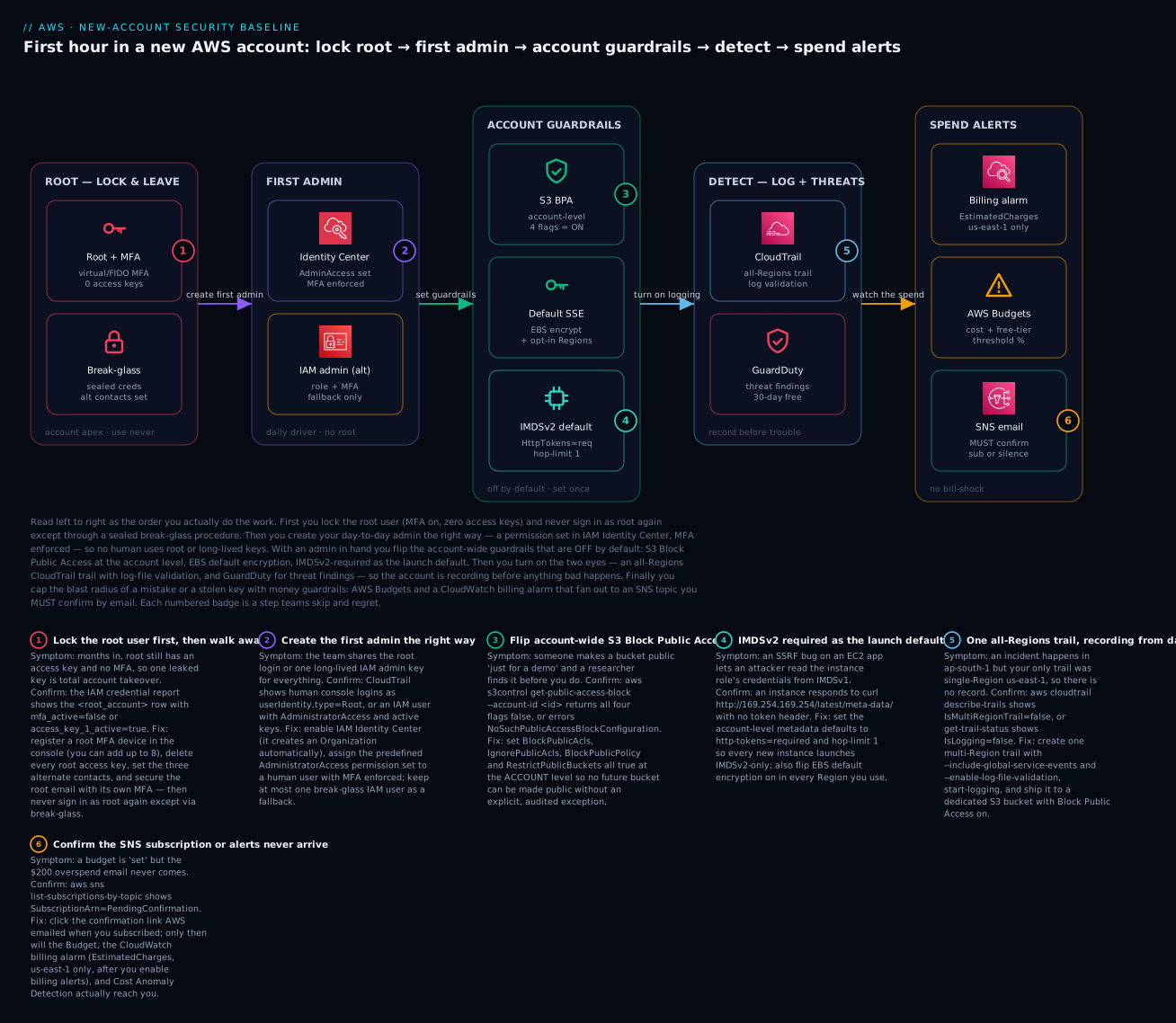
The diagram below is the whole first-hour baseline drawn as the order you execute it, left to right. You start at the ROOT zone — the account apex — and your only job there is to lock it: MFA on, zero access keys, alternate contacts set, and a sealed break-glass path so root is reachable in an emergency but used by no one day to day (badge 1). With root sealed you move to FIRST ADMIN and create a real identity through IAM Identity Center with the AdministratorAccess permission set and MFA enforced (badge 2), keeping at most one IAM admin as a fallback. Now that a non-root admin exists, you flip the ACCOUNT GUARDRAILS that ship off by default — account-wide S3 Block Public Access (badge 3), EBS default encryption, and IMDSv2-required launch defaults (badge 4) — so every future resource is born safe. Then the DETECT zone turns on the two eyes: an all-Regions CloudTrail trail with log-file validation (badge 5) and GuardDuty for threat findings, so the account is recording before any workload arrives. Finally the SPEND ALERTS zone caps the blast radius of any mistake with AWS Budgets and a CloudWatch billing alarm that both fan out to an SNS topic you must confirm by email (badge 6). Each numbered badge marks the exact step teams skip and later regret; the legend narrates the symptom, the confirming command, and the fix.
Real-world scenario
Nimbus Learning, a five-person Bengaluru ed-tech startup, opened a fresh AWS account to build a demo for an investor. The founder-engineer created the account on a Friday, enabled root MFA (good instinct), and got straight to building — skipping everything else on the list because “it’s just a demo account, we’ll harden it before launch.” The demo used an EC2 instance running a small Node.js API and an S3 bucket for uploaded course PDFs. To share PDFs quickly with a content contractor, someone toggled the bucket to public. To move fast, the API instance used an IAM role with broad S3 permissions and the default IMDSv1 metadata endpoint. No budget, no billing alarm, no CloudTrail trail, no GuardDuty.
Three things then happened over nine days, none of them caught, because nothing was watching. First, a Google-indexable public bucket exposed 1,400 learner PDFs — some with names and phone numbers on the cover page. Second, the Node API had a classic SSRF bug in a “fetch preview image from URL” feature; a scanner found it, curled http://169.254.169.254/latest/meta-data/iam/security-credentials/, and lifted the instance role’s temporary keys — IMDSv1 made it a two-line exploit. Third, using those keys, the attacker launched GPU instances in us-west-2 and ap-northeast-1 — Regions Nimbus had never touched — to mine cryptocurrency. The first anyone knew was a billing email 26 days later: $18,700.
The post-mortem was brutal precisely because it was so preventable. Every root cause was a first-hour item they had deferred. Here is the timeline against the baseline that would have stopped each stage:
| Day | What happened | Which skipped control would have caught it |
|---|---|---|
| 0 | Account created, only root MFA done | (partial credit) |
| 1 | Bucket made public for a contractor | Account-level S3 BPA would have refused it |
| 2 | API deployed with IMDSv1 | IMDSv2 default would have blocked cred theft |
| 5 | Public bucket indexed by Google | BPA (prevention) + GuardDuty (detection) |
| 6 | SSRF → role credentials exfiltrated | IMDSv2 + GuardDuty InstanceCredentialExfiltration |
| 7 | GPU miners launched in 2 new Regions | Region disablement + a $10 budget + billing alarm |
| 9 | Mining at scale across Regions | GuardDuty CryptoCurrency:EC2/BitcoinTool |
| 26 | Invoice reveals $18,700 | A budget alert would have fired on day 7 at $10 |
AWS ultimately waived most of the fraudulent charges (they often do for first-time compromise, via a support case) — but the data exposure could not be un-happened, and Nimbus spent the investor demo week doing breach notification instead. The engineer’s summary, now taped above their desk: “The baseline isn’t the thing you do before launch. It’s the thing you do before you build.” They now apply this exact runbook — as Terraform — as the first commit in every new account.
Advantages and disadvantages
The baseline is close to all upside, but it is honest to name the costs — they are real, they are small, and they are almost all one-time.
| Advantages | Disadvantages / costs |
|---|---|
| Prevents the top beginner incidents (public buckets, key leaks, bill shock) | ~30–60 minutes of upfront work per account |
| Almost entirely free (fits Free Tier) | A few controls (GuardDuty after trial, extra budgets) have tiny ongoing cost |
| Protects every future resource automatically | Some guardrails are Regional — easy to set in one Region and forget the rest |
| Detective + preventive + reactive layers together | Break-glass adds process overhead (custody, reviews) |
| Repeatable as Terraform → same baseline everywhere | Terraform can’t fully confirm SNS email subscriptions |
| Directly maps to CLF-C02 / SAA-C03 / CIS benchmark | MFA/break-glass discipline requires ongoing habit |
| Makes later Organizations/Control Tower legible | Overkill for a truly throwaway 1-hour sandbox |
When does the effort not pay off? Almost never — but if you are genuinely spinning up an account to run one tutorial for an hour and delete it, the full break-glass ceremony is overkill; even then, root MFA, a zero-spend budget, and account-level BPA are non-negotiable. For anything that lives longer than a day or holds any real data, the entire baseline is the floor, not the ceiling.
Hands-on lab
This lab applies the baseline to a real account with the aws CLI, then gives you the equivalent Terraform. It is free-tier friendly; the only item that can bill is GuardDuty after its 30-day trial, and CloudTrail’s S3 storage (a few paise). Teardown is at the end. Steps 1–2 (root MFA, alternate contacts) are partly Console-only where AWS requires it; the rest is copy-paste.
Assumptions: AWS CLI v2 installed; you are authenticated as an admin (Identity Center or an IAM admin), not root; Region ap-south-1 (Mumbai) as primary, plus us-east-1 for the billing alarm. Replace 123456789012 with your account ID and the email with yours.
| Lab item | Free? | Notes |
|---|---|---|
| Alternate contacts, S3 BPA, EBS enc, IMDSv2 | Free | Pure configuration |
| SNS topic + email sub | Free | Under generous free limits |
| AWS Budget | Free | First 2 budgets free |
| CloudWatch billing alarm | Free | Within alarm free tier |
| CloudTrail (1 trail, mgmt events) | ~Free | S3 storage is paise |
| GuardDuty | Free 30 days | Then per-GB — delete to be safe |
Step 0 — Confirm you are not root
aws sts get-caller-identity
Expected — an assumed-role or IAM user ARN, not ending in :root:
{
  "UserId": "AROA...:you@example.com",
  "Account": "123456789012",
  "Arn": "arn:aws:sts::123456789012:assumed-role/AWSReservedSSO_AdministratorAccess_.../you@example.com"
}
Step 1 — Alternate contacts
for T in BILLING OPERATIONS SECURITY; do
  aws account put-alternate-contact --alternate-contact-type $T \
    --name "KloudVin $T" --title "$T Contact" \
    --email-address ops@example.com --phone-number "+91-80-4000-0000"
done
aws account get-alternate-contact --alternate-contact-type SECURITY
Step 2 — Account-level S3 Block Public Access
aws s3control put-public-access-block --account-id 123456789012 \
  --public-access-block-configuration \
  BlockPublicAcls=true,IgnorePublicAcls=true,BlockPublicPolicy=true,RestrictPublicBuckets=true
aws s3control get-public-access-block --account-id 123456789012
Expected: all four flags true.
Step 3 — EBS default encryption + IMDSv2 default (per Region)
aws ec2 enable-ebs-encryption-by-default --region ap-south-1
aws ec2 modify-instance-metadata-defaults \
  --http-tokens required --http-put-response-hop-limit 1 --region ap-south-1
# verify both
aws ec2 get-ebs-encryption-by-default --region ap-south-1
aws ec2 get-instance-metadata-defaults --region ap-south-1
Step 4 — SNS topic + confirmed email subscription
TOPIC_ARN=$(aws sns create-topic --name kloudvin-billing-alerts \
  --region us-east-1 --query TopicArn --output text)
aws sns subscribe --topic-arn "$TOPIC_ARN" --protocol email \
  --notification-endpoint ops@example.com --region us-east-1
# >>> CHECK YOUR INBOX and click "Confirm subscription" <<<
aws sns list-subscriptions-by-topic --topic-arn "$TOPIC_ARN" --region us-east-1
Until you click the link, SubscriptionArn shows PendingConfirmation and no alert will ever arrive. This is the single most common billing-alert failure.
Step 5 — A zero-spend and a $10 budget
Create budget.json and notify.json:
{
  "BudgetName": "monthly-10-usd",
  "BudgetLimit": { "Amount": "10", "Unit": "USD" },
  "TimeUnit": "MONTHLY",
  "BudgetType": "COST"
}
[
  {
    "Notification": {
      "NotificationType": "ACTUAL",
      "ComparisonOperator": "GREATER_THAN",
      "Threshold": 80,
      "ThresholdType": "PERCENTAGE"
    },
    "Subscribers": [
      { "SubscriptionType": "EMAIL", "Address": "ops@example.com" }
    ]
  }
]
aws budgets create-budget --account-id 123456789012 \
  --budget file://budget.json \
  --notifications-with-subscribers file://notify.json
aws budgets describe-budgets --account-id 123456789012 \
  --query 'Budgets[].BudgetName'
Step 6 — CloudWatch billing alarm (us-east-1)
First enable Receive billing alerts in Billing → Billing preferences (one-time, Console). Then:
aws cloudwatch put-metric-alarm --region us-east-1 \
  --alarm-name "estimated-charges-over-10" \
  --namespace "AWS/Billing" --metric-name "EstimatedCharges" \
  --dimensions Name=Currency,Value=USD \
  --statistic Maximum --period 21600 --evaluation-periods 1 \
  --threshold 10 --comparison-operator GreaterThanThreshold \
  --alarm-actions "$TOPIC_ARN"
aws cloudwatch describe-alarms --alarm-names "estimated-charges-over-10" \
  --region us-east-1 --query 'MetricAlarms[].StateValue'
Step 7 — Multi-Region CloudTrail trail
BUCKET="kloudvin-trail-123456789012"
aws s3api create-bucket --bucket "$BUCKET" --region ap-south-1 \
  --create-bucket-configuration LocationConstraint=ap-south-1
aws s3api put-public-access-block --bucket "$BUCKET" \
  --public-access-block-configuration \
  BlockPublicAcls=true,IgnorePublicAcls=true,BlockPublicPolicy=true,RestrictPublicBuckets=true
Attach the CloudTrail bucket policy (save as trail-policy.json, then put-bucket-policy):
{
  "Version": "2012-10-17",
  "Statement": [
    { "Sid": "AWSCloudTrailAclCheck", "Effect": "Allow",
      "Principal": { "Service": "cloudtrail.amazonaws.com" },
      "Action": "s3:GetBucketAcl",
      "Resource": "arn:aws:s3:::kloudvin-trail-123456789012" },
    { "Sid": "AWSCloudTrailWrite", "Effect": "Allow",
      "Principal": { "Service": "cloudtrail.amazonaws.com" },
      "Action": "s3:PutObject",
      "Resource": "arn:aws:s3:::kloudvin-trail-123456789012/AWSLogs/123456789012/*",
      "Condition": { "StringEquals": { "s3:x-amz-acl": "bucket-owner-full-control" } } }
  ]
}
aws s3api put-bucket-policy --bucket "$BUCKET" --policy file://trail-policy.json
aws cloudtrail create-trail --name kloudvin-baseline-trail \
  --s3-bucket-name "$BUCKET" \
  --is-multi-region-trail --include-global-service-events \
  --enable-log-file-validation
aws cloudtrail start-logging --name kloudvin-baseline-trail
aws cloudtrail get-trail-status --name kloudvin-baseline-trail \
  --query 'IsLogging'
Expected: true.
Step 8 — Enable GuardDuty
aws guardduty create-detector --enable --region ap-south-1
aws guardduty list-detectors --region ap-south-1
Step 9 — The whole baseline as Terraform
For repeatability, this is the same baseline in Terraform. Note the two providers (billing alarm needs us-east-1) and that the email subscription still needs a human click.
terraform {
  required_providers { aws = { source = "hashicorp/aws", version = "~> 5.60" } }
}
provider "aws" { region = "ap-south-1" }
provider "aws" { alias = "use1", region = "us-east-1" }

data "aws_caller_identity" "me" {}

# --- Account guardrails ---
resource "aws_s3_account_public_access_block" "acct" {
  block_public_acls       = true
  ignore_public_acls      = true
  block_public_policy      = true
  restrict_public_buckets  = true
}
resource "aws_ebs_encryption_by_default" "on" { enabled = true }
resource "aws_ec2_instance_metadata_defaults" "imdsv2" {
  http_tokens                 = "required"
  http_put_response_hop_limit = 1
}

# --- Billing alerts ---
resource "aws_sns_topic" "billing" { name = "kloudvin-billing-alerts" }
resource "aws_sns_topic_subscription" "email" {
  topic_arn = aws_sns_topic.billing.arn
  protocol  = "email"                 # confirm the email by hand
  endpoint  = "ops@example.com"
}
resource "aws_budgets_budget" "monthly" {
  name         = "monthly-10-usd"
  budget_type  = "COST"
  limit_amount = "10"
  limit_unit   = "USD"
  time_unit    = "MONTHLY"
  notification {
    comparison_operator = "GREATER_THAN"
    threshold           = 80
    threshold_type      = "PERCENTAGE"
    notification_type   = "ACTUAL"
    subscriber_email_addresses = ["ops@example.com"]
  }
}
resource "aws_cloudwatch_metric_alarm" "billing" {
  provider            = aws.use1
  alarm_name          = "estimated-charges-over-10"
  namespace           = "AWS/Billing"
  metric_name         = "EstimatedCharges"
  dimensions          = { Currency = "USD" }
  statistic           = "Maximum"
  period              = 21600
  evaluation_periods  = 1
  threshold           = 10
  comparison_operator = "GreaterThanThreshold"
  alarm_actions       = [aws_sns_topic.billing.arn]
}

# --- Detect ---
resource "aws_guardduty_detector" "gd" { enable = true }
# (CloudTrail bucket + policy + aws_cloudtrail resource omitted for brevity —
#  set enable_log_file_validation = true and is_multi_region_trail = true)
Step 10 — Teardown
Most of the baseline is free and worth leaving on; delete GuardDuty (to be safe past the trial) and the CloudTrail bucket if this was a throwaway.
| Resource | Command | Cost if left |
|---|---|---|
| GuardDuty detector | aws guardduty delete-detector --detector-id <id> --region ap-south-1 |
Per-GB after 30 days |
| CloudTrail trail | aws cloudtrail delete-trail --name kloudvin-baseline-trail |
Free (mgmt events) |
| Trail S3 bucket | Empty then aws s3 rb s3://$BUCKET --force |
Paise of storage |
| Budget | aws budgets delete-budget --account-id … --budget-name monthly-10-usd |
Free (first 2) |
| Billing alarm | aws cloudwatch delete-alarms --alarm-names estimated-charges-over-10 --region us-east-1 |
Free |
| SNS topic | aws sns delete-topic --topic-arn "$TOPIC_ARN" --region us-east-1 |
Free |
| S3 BPA / EBS enc / IMDSv2 | Leave on — free and protective | Free |
⚠️ Leave the account-level guardrails (BPA, EBS encryption, IMDSv2), alternate contacts, root MFA, and a zero-spend budget on — they cost nothing and protect everything you build next.
Common mistakes & troubleshooting
This is the playbook. The failures below are ordered roughly by how often they bite beginners; each row is symptom → root cause → the exact way to confirm → the fix.
| # | Symptom | Root cause | Confirm (command / console path) | Fix |
|---|---|---|---|---|
| 1 | Budget/billing email never arrives | SNS email subscription unconfirmed | aws sns list-subscriptions-by-topic --topic-arn <arn> → PendingConfirmation |
Click the confirm link AWS emailed; re-subscribe if lost |
| 2 | CloudWatch billing alarm won’t create / no data | Billing alerts not enabled, or wrong Region | Billing → Billing preferences; try alarm outside us-east-1 | Enable “Receive billing alerts”; create alarm in us-east-1 |
| 3 | Locked out of root (lost password) | Password unknown, no session | Try “Forgot password” on root sign-in | Reset via root email link — hence secure that inbox |
| 4 | Locked out of root (lost MFA device) | Only one MFA device registered | Root sign-in → “Troubleshoot MFA” | Sign in with the backup device; else AWS identity-verification recovery |
| 5 | IAM/SSO admin can’t see Billing | IAM access to Billing disabled | Billing console → Access denied | Root enables “IAM user/role access to Billing” |
| 6 | New EC2 volume is unencrypted | EBS default set in wrong/one Region | aws ec2 get-ebs-encryption-by-default --region <r> |
Enable in every Region you launch in |
| 7 | Old instance still serves IMDSv1 | Defaults apply to new launches only | curl http://169.254.169.254/latest/meta-data/ sans token |
aws ec2 modify-instance-metadata-options --http-tokens required on it |
| 8 | Bucket still public despite “BPA on” | BPA set on bucket, not account | aws s3control get-public-access-block --account-id <id> |
Set BPA at the account level (all 4 true) |
| 9 | CloudTrail not logging | start-logging not called, or bucket policy wrong |
aws cloudtrail get-trail-status --name <t> → IsLogging:false |
start-logging; fix bucket policy for cloudtrail.amazonaws.com |
| 10 | “Resource not found” on billing metric | EstimatedCharges only in us-east-1 |
List metrics in your Region → empty | Query/alarm in us-east-1 only |
| 11 | Trail bucket create fails / access denied | InsufficientS3BucketPolicyException |
CloudTrail create error text | Add s3:GetBucketAcl + s3:PutObject for CloudTrail principal |
| 12 | Runaway spend, no warning | No budget/alarm, or unconfirmed SNS | Cost Explorer shows spike; SNS pending | Confirm SNS; add zero-spend + $ budget + alarm |
| 13 | GuardDuty “enabled” but no findings | Enabled in one Region; activity elsewhere | aws guardduty list-detectors --region <r> per Region |
Enable GuardDuty in every used Region |
| 14 | Region actions all denied | Region disabled or opt-in required | Account → Regions status | Re-enable the Region (or use an enabled one) |
| 15 | Identity Center won’t enable | No Organization / conflicting SSO | IAM Identity Center console message | Let it create the Org; resolve existing SSO first |
Three failures deserve prose, because they are the ones that turn into 2 a.m. incidents.
Locked out of root with a lost MFA device (row 4). If you registered only one MFA device and lose it, you cannot simply reset it — root MFA recovery requires AWS to verify your identity, historically via a phone call to the registered number and/or an email challenge to the root address, and it can take hours to a day. This is why the lockdown step insists on two registered devices and a secured root email/phone: with a backup device you sign in normally; without one you are at the mercy of a support process during an incident. If you’re reading this before the loss: go register a second MFA device now.
“My billing alerts don’t work” (rows 1, 2, 10). This is almost always one of three things stacked together: the SNS email subscription was never confirmed (still PendingConfirmation), “Receive billing alerts” was never enabled in Billing preferences, or the CloudWatch alarm was created outside us-east-1 where the EstimatedCharges metric doesn’t exist. Fix all three and send a test by temporarily lowering the threshold below current spend so the alarm goes to ALARM and you see the email land — then raise it back. An untested alert is not an alert.
CloudTrail says it’s on but nothing lands in S3 (row 9). Two causes dominate: you created the trail but never called start-logging (a trail can exist and be off), or the S3 bucket policy doesn’t grant the cloudtrail.amazonaws.com service principal s3:GetBucketAcl and s3:PutObject under the bucket-owner-full-control condition. Confirm with get-trail-status (IsLogging must be true) and check for LatestDeliveryError in the same output — it names the exact permission problem. A trail that isn’t logging is the cruelest failure because you only discover it during the incident you needed it for.
Finally, a quick decision table for the confusing “which spend tool do I even use?” moments:
| If you want… | Use | Why not the others |
|---|---|---|
| A hard “tell me at the first cent” | Zero-spend budget | Alarms have ~6 h lag; this is daily but definitive |
| A real-time-ish $ threshold | CloudWatch billing alarm | Budgets evaluate less often |
| Alert on weird spend, not a fixed number | Cost Anomaly Detection | Fixed thresholds miss novel spikes |
| Understand where money went | Cost Explorer | It’s diagnostic, not an alerter |
| Warn before free tier turns paid | Free Tier usage alerts | Budgets track $, not free-tier % |
Best practices
- Do the baseline before the build, every account, no exceptions. Treat “new account” and “run the baseline” as one atomic action — ideally the first Terraform apply.
- Root: MFA on, keys at zero, used never. Register two MFA devices, secure the root email with its own MFA, and route any root sign-in to a pager via GuardDuty
RootCredentialUsage. - No humans on IAM users. People log in through IAM Identity Center with short-lived, MFA-protected credentials; keep at most one break-glass IAM user.
- Guardrails at the account scope, in every Region. Account-level S3 BPA once; EBS default encryption and IMDSv2 defaults in each Region you use — automate so you can’t forget one.
- Two money tripwires, both confirmed. A zero-spend budget plus a $-threshold budget/alarm, wired to a confirmed SNS subscription, and tested by forcing one to fire.
- One multi-Region trail with validation, to a locked bucket. Enable log-file validation and Block Public Access on the trail bucket; don’t reuse an application bucket.
- Turn on GuardDuty in every Region and read the first finding. The 30-day trial is free; wire findings to email/EventBridge so they’re seen.
- Disable Regions you’ll never use. Shrinks both the attack surface and the places a runaway resource can hide.
- Write and rehearse break-glass. Split custody, log every use, alert on it, and test the procedure quarterly — before you need it.
- Codify the whole thing. The baseline as Terraform means every future account is identical and reviewable; drift is visible in
plan. - Tag and name for accountability. Even the baseline resources (
kloudvin-billing-alerts,kloudvin-baseline-trail) should be recognisable at a glance. - Revisit when you go multi-account. What you did by hand here becomes SCPs, Config rules, and Control Tower guardrails — the concepts transfer directly.
Security notes
The baseline is a security exercise, but a few cross-cutting principles deserve emphasis. Least privilege starts at the top: root is the ultimate privilege, so the correct amount of routine root usage is zero, and every non-root identity should get only what its job needs (start admins broad, then scope down as roles clarify — never the reverse). Defence in depth is why you set both preventive controls (BPA, IMDSv2, encryption) and detective ones (CloudTrail, GuardDuty): prevention has gaps, and detection is how you find the gap before an attacker monetises it.
| Security dimension | This baseline’s control | Strengthen later with |
|---|---|---|
| Identity | Root MFA, Identity Center, no long-lived keys | Permission boundaries, access analyzer |
| Data at rest | EBS default encryption, trail bucket SSE | KMS CMKs, S3 Object Lock (WORM) |
| Data exposure | Account-level S3 BPA | Macie, bucket policies, VPC endpoints |
| Credential theft | IMDSv2 required, hop-limit 1 | Instance role scoping, no keys on disk |
| Audit integrity | CloudTrail log-file validation | Object Lock, org trail, dedicated Security account |
| Threat detection | GuardDuty | Security Hub, detective, automated response |
| Blast radius | Region disablement, budgets | SCPs, RCPs, permission boundaries |
Two specifics worth internalising. Encryption is free and invisible on EBS — there is no reason not to default it on, and “we’ll encrypt the important ones later” is how unencrypted volumes end up in audits. And IMDSv2’s hop limit matters as much as requiring the token: a hop limit of 1 stops a compromised container on the instance from reaching the metadata endpoint at all, which is a common real-world escalation path the token requirement alone doesn’t fully close.
Cost & sizing
The happy truth: a well-secured new account costs essentially nothing. The baseline is designed to live inside the Free Tier, and the few billable items are tiny and optional. “Sizing” here means “how much does safety cost,” and the answer is: less than a cup of coffee per month, often zero.
| Baseline item | Free tier / cost | Realistic monthly cost |
|---|---|---|
| Root MFA, alternate contacts | Free | ₹0 |
| S3 Block Public Access | Free | ₹0 |
| EBS default encryption | Free (no perf/storage penalty) | ₹0 |
| IMDSv2 defaults | Free | ₹0 |
| IAM Identity Center | Free | ₹0 |
| AWS Budgets | First 2 free; then ~$0.02/day each | ₹0 (2 budgets) |
| CloudWatch billing alarm | Within alarm free tier | ₹0 |
| Cost Explorer (UI) | Free; API $0.01/request | ₹0 |
| Cost Anomaly Detection | Free | ₹0 |
| CloudTrail (1 trail, mgmt events) | First copy free; S3 storage billed | ~₹5–20 (log storage) |
| GuardDuty | 30-day trial, then per-GB analysed | ₹0 trial; ~₹80–800 after (usage-based) |
| SNS (email notifications) | 1,000 email deliveries/mo free | ₹0 |
The one line to watch after month one is GuardDuty, priced on the volume of CloudTrail events, VPC flow logs, and DNS logs it analyses — for a quiet account it’s a few tens of rupees; for a busy one it scales with activity, and the optional protections (S3, EKS, Malware, RDS, Lambda) add more. The anti-cost is the point: the entire baseline’s monthly bill is a rounding error against the ₹18,700 (or ₹18 lakh) a single unmonitored incident costs. The real cost driver in a new account is never the security baseline — it’s the workloads, especially always-on NAT gateways, idle RDS instances, and forgotten EBS volumes, which is exactly what the budgets and Cost Explorer you just set up will surface. The billing deep-dive — Cost Explorer reports, budget actions, and cost allocation tags — is the companion article AWS Billing, Cost Explorer, Budgets and Alerts: A Hands-On Guide.
Interview & exam questions
Q1. Why should the root user never be used for daily work, and what should you do with root access keys? Root has unrestricted, un-scopable power and a set of actions no IAM policy can limit, so any compromise is total. Root access keys should not exist at all — delete any that do, keep zero permanently, and secure root with MFA plus alternate contacts, using it only for the ~10 root-only tasks. (CLF-C02, SAA-C03, SCS-C02)
Q2. What is the difference between IAM Identity Center and an IAM user for human access? Identity Center federates humans and issues short-lived, MFA-protected credentials via permission sets, with no long-lived keys; an IAM user has long-lived credentials that leak permanently until noticed. Identity Center is the recommended front door for all human access; IAM users are reserved for break-glass or legacy machine cases. (CLF-C02, SAA-C03)
Q3. A new S3 bucket is unexpectedly public even though the app set no public ACL. What prevents this class of mistake? Account-level S3 Block Public Access with all four flags on (BlockPublicAcls, IgnorePublicAcls, BlockPublicPolicy, RestrictPublicBuckets) so no bucket can be made public without a deliberate per-bucket exception. Confirm with aws s3control get-public-access-block. (CLF-C02, SAA-C03, SCS-C02)
Q4. How does IMDSv2 mitigate SSRF-based credential theft, and what does the hop limit add? IMDSv2 requires a session token obtained via a PUT with a header, which typical SSRF payloads can’t produce, so they can’t read role credentials from 169.254.169.254. A hop limit of 1 additionally prevents containers/proxies on the instance from reaching the metadata endpoint at all. (SAA-C03, SCS-C02)
Q5. Where must a CloudWatch billing alarm be created and why? In us-east-1, because the AWS/Billing EstimatedCharges metric is published only there regardless of where your workloads run; you must also first enable “Receive billing alerts” in Billing preferences. (CLF-C02, SOA-C02)
Q6. Your budget is configured but no alert email arrives. What’s the most likely cause? The SNS email subscription (or the budget’s email subscriber) was never confirmed — it sits in PendingConfirmation until the recipient clicks the confirmation link. Confirm with aws sns list-subscriptions-by-topic. (CLF-C02, SOA-C02)
Q7. What makes a CloudTrail trail “audit-grade” versus the default Event history? A trail persists events durably to S3 across all Regions (--is-multi-region-trail, --include-global-service-events), and log-file validation adds signed digests proving the logs weren’t altered; Event history is only ~90 days, Region-scoped, and not tamper-evident. (SAA-C03, SCS-C02, SOA-C02)
Q8. What is a break-glass procedure and what are its two essential properties? A pre-agreed, audited way to obtain emergency root/admin access. Its essentials are split control (no one person holds password and MFA) and full audit + alerting (every use is logged and triggers a notification), with credentials stored offline and rotated after use. (SAP-C02, SCS-C02)
Q9. Which security controls in a new account are Regional, and why does it matter? EBS default encryption, IMDSv2 launch defaults, GuardDuty, and CloudWatch alarms are Regional — they must be set in every Region you use, or the Region where an incident happens may be unprotected. IAM, root, and account-level S3 BPA are global. (SAA-C03, SCS-C02)
Q10. How would you get early warning of unusual (not just high) spend? Cost Anomaly Detection uses ML to baseline normal spend and flags deviations a fixed threshold would miss; pair it with a zero-spend budget for absolute first-cent alerts and a $-threshold budget/alarm for known ceilings. (CLF-C02, SOA-C02)
Q11. Why set the three alternate contacts on a new account? By default AWS emails only the root address for billing, operations, and security notices; setting BILLING, OPERATIONS, and SECURITY contacts ensures abuse reports and security notifications reach the right team, not an unmonitored founder inbox. (CLF-C02)
Q12. What’s the correct posture if you must run one genuinely public S3 bucket (a static site)? Keep account-level BPA on as the safety net and disable BPA deliberately on that single bucket, with a tight bucket policy — the account setting stays protective for every other bucket. (SAA-C03, SCS-C02)
Quick check
- How many MFA devices should you register on the root user, and why more than one?
- Which single Region must host a
EstimatedChargesCloudWatch billing alarm? - Name the four S3 Block Public Access flags you enable at the account level.
- What state does an unconfirmed SNS email subscription sit in, and what’s the consequence?
- What two properties make IMDSv2 + hop-limit 1 defeat SSRF credential theft?
Answers
- At least two. AWS has no printable recovery codes for root, so a second registered device is your only self-service recovery if one is lost — register up to eight; two is the practical minimum.
us-east-1(N. Virginia). TheAWS/Billing EstimatedChargesmetric is published only there, regardless of where your resources run — and you must first enable “Receive billing alerts.”BlockPublicAcls,IgnorePublicAcls,BlockPublicPolicy,RestrictPublicBuckets— all set totrueat the account scope.PendingConfirmation— until the recipient clicks the confirmation link, the subscription delivers nothing, so budget/alarm notifications silently never arrive.- IMDSv2 requires a session token via a
PUT+ header that typical SSRF can’t send, and a hop limit of 1 stops containers/proxies on the instance from reaching the metadata endpoint at all.
Glossary
- Root user — The all-powerful identity tied to the account’s sign-up email; secure with MFA, give zero access keys, use only for root-only tasks.
- IAM (Identity and Access Management) — The service defining users, roles, and policies that govern who can do what in the account.
- IAM Identity Center — AWS’s workforce SSO (formerly AWS SSO): federated humans, permission sets, and short-lived MFA-protected credentials.
- Permission set — A bundle of policies in Identity Center that becomes an IAM role in each assigned account (e.g.
AdministratorAccess). - MFA (Multi-Factor Authentication) — A second sign-in factor (FIDO2 key, passkey, or TOTP app) beyond the password; mandatory on root.
- Access key — A long-lived
AKIA…/secret pair for programmatic access; a liability if leaked, and forbidden on root. - Block Public Access (BPA) — Four S3 switches that, at the account level, prevent any bucket from being made public by ACL or policy.
- EBS default encryption — A per-Region setting that encrypts every new EBS volume and snapshot at rest with no performance cost.
- IMDSv2 — The token-protected Instance Metadata Service version that blocks SSRF-based theft of an instance’s role credentials.
- Hop limit — The TTL on IMDS responses; setting it to 1 stops containers/proxies on the instance from reaching the metadata endpoint.
- CloudTrail — Records API calls (who/what/when/from where); a multi-Region trail to S3 with log-file validation is the audit-grade form.
- GuardDuty — Agentless managed threat detection that analyses CloudTrail, VPC flow, and DNS logs and raises severity-scored findings.
- AWS Budgets — Cost/usage thresholds that notify (via SNS/email) or act when spend crosses a limit; first two budgets are free.
- EstimatedCharges — The CloudWatch billing metric (namespace
AWS/Billing), published only inus-east-1, used for billing alarms. - Break-glass — A pre-agreed, split-custody, fully-audited procedure for emergency root/admin access when normal paths fail.
Next steps
You now have a locked-down, monitored, cost-guarded account — the floor every workload stands on. Build outward:
- Next: IAM Users, Groups, Roles and Policies: A Hands-On Guide — go deeper on the identity layer you just bootstrapped: least-privilege policies, roles for workloads, and policy evaluation in practice.
- Related: AWS Billing, Cost Explorer, Budgets and Alerts: A Hands-On Guide — turn the budgets and alarms here into full cost visibility with Cost Explorer reports, budget actions, and allocation tags.
- Related: AWS Organizations and IAM Foundations: Accounts, OUs and Roles — the mental model behind root, IAM, Identity Center, and the policy-evaluation chain, in depth.
- Related: AWS Organizations and SCPs: Multi-Account Guardrails — when you outgrow one account, enforce these guardrails centrally with service control policies.
- Related: AWS Control Tower Guardrails: Building a Secure Multi-Account Foundation — let Control Tower vend new accounts with this baseline already applied.
- Related: AWS CloudTrail and Config: Audit and Compliance at Scale — grow the single trail you started into an org-wide, tamper-proof evidence pipeline.