The pipeline ran clean for three weeks, then finance flagged it: an invoice for ₹4,18,500 was booked as ₹4,185.00 because the decimal moved, and a supplier name came back as Acme lndia Pvt Ltd with a lowercase L where a capital I should be. Nobody changed the code. The model is the same model. But the supplier started sending scanned PDFs instead of digital ones, and that one change quietly demolished your extraction accuracy. This is the most common production reality of Azure AI Document Intelligence — the managed OCR-plus-structure service (the artist formerly known as Form Recognizer) that turns invoices, receipts, IDs and your own custom forms into typed JSON — and it is maddening because the service almost never errors. It returns a 200 OK with a confident-looking payload that happens to be wrong.
That is the whole problem with debugging document AI: there is rarely an exception to catch. A misread is a successful API call with a bad value inside it, often carrying a confidence score the caller never checked. A broken table is a tables array that parsed — it just put the total in the wrong column. A drifted custom model still returns fields; they’re just blank or shifted on the new document layout the model never saw. The failures hide inside well-formed responses, which is why teams ship them straight to a database and find the damage weeks later in a reconciliation report.
This is the diagnostic playbook for those silent failures. We treat low-confidence fields, broken table extraction and custom-model drift not as three bugs but as three symptom classes, each confirmed with a specific check — the raw JSON, the confidence and spans, the Document Intelligence Studio overlay, the training labels, or the API version you pinned. By the end you stop trusting the green checkmark: when a value looks wrong you will know whether you face a low-DPI scan, a model probing the wrong region, a prebuilt-invoice field that doesn’t exist for your locale, a table whose header merged into the body, or a custom model trained on five clean samples now meeting the real world. Knowing which, in minutes rather than days, is the difference between a contained data-quality issue and a quarter of corrupted records.
What problem this solves
Document Intelligence hides enormous machinery — OCR, layout analysis, key-value association, table reconstruction, and for custom models a trained extractor — so you can POST a PDF and get back typed fields. That abstraction is a gift until the values are subtly wrong, and then it becomes an opaque wall. The service deliberately returns a structured result rather than throwing, because for most callers a best-effort answer with a confidence number is more useful than a hard failure. But that design means the burden of judging correctness is on you, and if you don’t read the confidence, inspect the spans, or look at the bounding regions, you have no idea the answer is wrong until a human downstream catches it.
What breaks without this knowledge: a team pipes fields.InvoiceTotal.content straight into accounts payable with no threshold, so a 0.42-confidence misread posts as fact. Another trains a custom model on a dozen pristine samples, sees 0.98 on the test set, ships it — then the first real batch arrives rotated, at 150 DPI, with a logo the model now treats as an anchor, and extraction collapses. A third expects a Tax field its region’s receipts don’t print, gets null, and assumes the API is broken. None of these throw; all are diagnosable in the raw response; all are ignored because the response said 200.
Who hits this: anyone automating document workflows — AP automation, KYC/onboarding, claims, contract intake, expense management. It bites hardest on teams feeding scanned or photographed documents (DPI, skew and noise dominate accuracy), using custom models trained on too few or too clean samples (drift is near-universal), that never set a confidence threshold (so every misread ships), or that pinned an old API version and don’t realise newer models extract tables and fields differently. The fix is almost never “the model is bad” — it’s “find the stage degrading the answer and feed it, configure it, or threshold it correctly.”
To frame the whole field before the deep dive, here is every symptom class this article covers, the question it forces, and the one place to look first:
| Symptom class | What the result is really telling you | First question to ask | First place to look | Most common single cause |
|---|---|---|---|---|
| Low-confidence field | “I read something here but I’m unsure” | Is the input legible, or is the model wrong? | The confidence + the source pixels at that boundingRegion |
Low-DPI / skewed / noisy scan |
| Wrong-value field (high confidence) | “I’m confident — and wrong” | Did it read the right location on the page? | The field’s spans / bounding box in Studio |
Field bound to the wrong region or wrong model |
| Null / missing field | “That field isn’t in my schema for this doc” | Does this field even exist for this model/locale? | The model’s documented field list | Field unsupported for the document type/region |
| Broken table | “I reconstructed a grid that doesn’t match” | Did header/row/column structure survive OCR? | tables[].cells rowIndex/columnIndex/kind |
Merged cells, missing ruling lines, multi-page split |
| Custom-model drift | “New layout, same model, blank fields” | Did the production doc match the trained layout? | Per-field confidence vs training docInfo |
Too few / too clean training samples |
| Quota / throttle (429) | “You’re sending faster than your tier allows” | Is it the model, or the rate limit? | Retry-After header + tier TPS |
Free (F0) tier or burst over the limit |
Learning objectives
By the end of this article you can:
- Map any Document Intelligence misread to a stage in the analysis pipeline — OCR/read → layout → field extraction → your post-processing — and name the most likely root cause at each stage.
- Read a raw
analyzeResult: locate a field’sconfidence, itscontent, itsspansinto the read results, and itsboundingRegions, and use them to prove whether a value is right, wrong, or merely uncertain. - Diagnose a low-confidence field as a low-DPI/skewed/noisy input, a handwriting vs print mismatch, an unsupported language, or a genuinely ambiguous source — and confirm which.
- Diagnose broken table extraction as merged/spanning cells, missing ruling lines, a header that fell into the body, a multi-page table split, or a borderless table the layout model under-segmented.
- Diagnose custom-model drift by comparing production confidence against the training set, recognise overfitting to too-few/too-clean samples, and decide between a template and a neural custom model.
- Set and enforce a confidence threshold with a human-in-the-loop fallback, so a low-confidence value never ships unreviewed.
- Drive the core diagnostic tools fluently: Document Intelligence Studio, the raw REST
analyzeResultJSON, theaz cognitiveservicesCLI, and the operation-status polling flow.
Prerequisites & where this fits
You should already understand the basics: Document Intelligence is one of the Azure AI Services (the multi-service family formerly branded Cognitive Services), provisioned as a resource with an endpoint and keys (or, better, a managed identity). You should know how to run az in Cloud Shell, read JSON, and that the service exposes prebuilt models (invoice, receipt, ID, business card, layout, read) and lets you train custom models on your own labelled documents. Familiarity with REST APIs, HTTP status codes and async long-running operations (POST to start, GET to poll) helps, because the analyze flow is asynchronous.
This sits in the AI/ML & Observability track. It assumes you have a resource provisioned and a document to analyse; the resource-model and identity fundamentals live in Azure AI Foundry: Hub & Project Resource Model Explained, and securing the keys with identity is covered in Managed Identity: System-Assigned vs User-Assigned Patterns. If you are pushing extracted fields into a search index for retrieval, Azure AI Search: Create Your First Index, Indexer & Skillset is the natural next hop — Document Intelligence is a common skill inside that skillset. For storing the source documents, Azure Blob Storage Fundamentals is where they live, and it is the input to batch analysis.
A quick map of who owns what when a misread lands, so you escalate to the right person fast:
| Stage | What lives here | Who usually owns it | Failure classes it can cause |
|---|---|---|---|
| Source document | DPI, skew, noise, format, language | Whoever supplies the doc | Low confidence, OCR misreads |
| Ingestion / upload | Blob, SAS, content-type, size | App / platform team | 400 (bad input), truncated reads |
| OCR / read | Text recognition, lines, words | Microsoft (model) | Misread characters, missing text |
| Layout | Tables, selection marks, regions | Microsoft (model) | Broken tables, wrong regions |
| Field extraction | Typed fields + confidence | Microsoft (prebuilt) / you (custom) | Null fields, drift, wrong values |
| Your post-processing | Threshold, mapping, validation | App / dev team | Shipping unreviewed low-confidence values |
Core concepts
Five mental models make every later diagnosis obvious.
A misread is a successful call with a bad value, not an error. Document Intelligence is best-effort: it almost always returns 200 OK with an analyzeResult, even when it read garbage. The signal of correctness is not the status code — it is the confidence on each field, line and word, and whether the field’s bounding region sits over the pixels you expected. If your code only checks for HTTP errors, you are blind to every misread the service ever makes. The first discipline of this whole topic is: read the confidence, look at the location.
The pipeline has stages, and a misread belongs to exactly one. Every analysis flows OCR/read (turn pixels into words with positions) → layout (group words into lines, paragraphs, tables, selection marks, and detect document regions) → field extraction (map content to typed fields — done by a prebuilt model or your custom model) → your post-processing (threshold, map, validate, store). A wrong character is an OCR problem (fix the input). A total in the wrong column is a layout/table problem. A blank InvoiceTotal on a doc that clearly has one is a field-extraction problem (model or drift). Localising the failure to a stage tells you which knob to turn — and stops you from “retraining the model” when the real fix was a higher-DPI scan.
Prebuilt and custom models fail differently. Prebuilt models (prebuilt-invoice, prebuilt-receipt, prebuilt-read, prebuilt-layout, prebuilt-idDocument, and the general prebuilt-document/key-value model) ship with a fixed, documented field schema and are trained by Microsoft on huge corpora — they fail by not having a field you want (it’s not in their schema or not in your locale) or by mis-mapping on an unusual layout. Custom models you train on your own labelled documents fail by drift: they learned the layout of your training set and degrade on anything that differs (new vendor template, different DPI, rotation). Knowing which kind you’re calling tells you whether the fix is “accept this field doesn’t exist” or “expand the training set.”
Confidence is per-element and bounded 0 to 1 — and your threshold is a product decision. Each field, line and word carries a confidence in [0.0, 1.0]. It expresses the model’s certainty, not a guarantee of correctness — a confident misread is possible (and is its own symptom class). The right pattern is a threshold with a human-in-the-loop fallback: above the threshold, auto-process; below it, route to a person. There is no universal “good” number — a 0.80 cut-off that’s fine for a free-text comment field is reckless for a payment amount. Treating confidence as a binary “it worked” rather than a tunable risk dial is the root cause of most shipped misreads.
Every config — model, API version, page range, locale — changes the answer. The result depends on which model id you call, which API version you pinned (newer versions extract tables and add fields the old one didn’t — the service has moved from the v2.x Form Recognizer API to the v3.x / 2024-11-30 GA Document Intelligence API, with prebuilt-layout gaining far better table handling along the way), the page range you analysed, and the locale/language you hinted. A pipeline that “suddenly” extracts differently usually had its model id or API version changed, or started receiving a document type the chosen model wasn’t built for.
The vocabulary in one table
Before the deep sections, pin down every moving part. The glossary at the end repeats these for lookup; this table is the mental model side by side:
| Concept | One-line definition | Where it lives | Why it matters to misreads |
|---|---|---|---|
analyzeResult |
The JSON envelope holding pages, tables, fields | API response body | The single source of truth — read it, not just the field value |
confidence |
Model certainty for a field/line/word, 0–1 | On every extracted element | Your only built-in signal that a value may be wrong |
content |
The recognised text of an element | On fields/lines/words | What you usually consume; can be confidently wrong |
spans |
Offset+length into the flat content stream |
On elements | Lets you trace a field back to the exact recognised text |
boundingRegions |
Page number + polygon of where it sits | On fields/tables/cells | Proves the model read the right place |
| Prebuilt model | Microsoft-trained fixed-schema extractor | prebuilt-* model ids |
Fails by missing fields / unusual layout |
| Custom model | Your model trained on your labelled docs | Your model id | Fails by drift on unseen layouts |
| Template vs neural | Custom model build modes | Build-time choice | Template = layout-rigid; neural = layout-flexible |
| Selection mark | A checkbox/radio detected as selected/unselected | selectionMarks in layout |
Mis-detected → wrong boolean fields |
| Confidence threshold | Your cut-off for auto-accept vs review | Your code | The control that stops misreads shipping |
| API version | The dated service contract you call | api-version query param |
Changes fields/tables returned |
| DPI | Scan resolution (dots per inch) | The input file | Low DPI is the top OCR-accuracy killer |
The model and API-version reference
Before the per-symptom anatomy, here is the lookup table you scan first: which model produces which output, and what each is for. Half of all “the API is broken” tickets are someone calling the wrong model for their document — asking prebuilt-receipt to extract invoice line items, or prebuilt-read (pure OCR, no fields) and wondering where the typed fields went.
| Model id | What it returns | Use it for | What it does NOT do |
|---|---|---|---|
prebuilt-read |
Text, lines, words, languages (OCR only) | Raw text extraction, language detection | No tables, no typed fields, no key-value pairs |
prebuilt-layout |
Text + tables + selection marks + structure | Anything needing table/structure, including custom-model prep | No semantic field names (it’s structure, not meaning) |
prebuilt-document (general key-value) |
Key-value pairs + tables + structure | Generic forms with no dedicated prebuilt | No schema specific to invoices/receipts |
prebuilt-invoice |
Invoice fields (vendor, total, line items, etc.) | Invoices, bills | Fields outside its schema; non-invoice docs |
prebuilt-receipt |
Receipt fields (merchant, total, tax, items) | Retail/expense receipts | Invoice-specific fields; un-printed fields (region-dependent) |
prebuilt-idDocument |
ID fields (name, DOB, document number) | Passports, driving licences, national IDs | Document types it wasn’t trained on |
prebuilt-businessCard |
Contact fields (name, company, phone, email) | Business cards | Free-form documents |
| Custom (template) | Your labelled fields, layout-rigid | Consistent fixed layouts, fast/cheap training | Generalising to unseen layouts |
| Custom (neural) | Your labelled fields, layout-flexible | Varying layouts of the same doc type | Magic on truly random documents |
| Custom classifier | Document type classification | Routing mixed batches to the right model | Field extraction (it classifies, then you extract) |
Three reading notes that save the most time:
| Distinction | The trap | How to tell them apart |
|---|---|---|
prebuilt-read vs prebuilt-layout |
Expecting tables from read |
read has no tables array at all; use layout for structure |
| Prebuilt-missing-field vs model bug | Hours blaming the model for a null |
If the field isn’t in the model’s documented schema (or your locale doesn’t print it), null is correct behaviour |
| Old API version vs model regression | “It used to extract this table” | Diff the api-version you send; v3.x / 2024-11-30 extracts tables the old v2.x API didn’t |
Reading a result: confidence, content, spans, and regions
You cannot debug what you don’t look at, and the field value alone is not enough. Every diagnosis in this article starts by opening the raw analyzeResult and reading four things about the suspicious element: its content (what was recognised), its confidence (how sure), its spans (where in the flat text stream it came from), and its boundingRegions (which page and what polygon — i.e. where on the page). A value that’s wrong-but-confident has the wrong bounding region; a value that’s uncertain has a low confidence; a value that’s missing simply isn’t in the fields object.
The call is asynchronous: you POST to ...:analyze and get a 202 with an Operation-Location header, then GET that URL until status is succeeded (the lab below shows the full POST). Poll and inspect the suspicious field in one slice:
ENDPOINT="https://di-shop-prod.cognitiveservices.azure.com"; KEY="<key>"   # prefer a managed-identity token
# Poll the operation, then read the field the way you must ALWAYS inspect it — value + confidence + region:
curl -s "$ENDPOINT/documentintelligence/documentModels/prebuilt-invoice/analyzeResults/<operationId>?api-version=2024-11-30" \
  -H "Ocp-Apim-Subscription-Key: $KEY" | jq '.status, .analyzeResult.documents[0].fields.InvoiceTotal'
That jq slice returns the field as value and confidence and region together:
{
  "type": "currency",
  "valueCurrency": { "amount": 4185.00, "currencyCode": "INR" },
  "content": "₹4,185.00",
  "confidence": 0.412,
  "spans": [ { "offset": 1842, "length": 9 } ],
  "boundingRegions": [ { "pageNumber": 1, "polygon": [6.1,8.9, 7.0,8.9, 7.0,9.1, 6.1,9.1] } ]
}
Three things to read off this immediately: confidence is 0.412 (well below any sane auto-accept threshold — this should have gone to review, not the ledger); the content is ₹4,185.00 where the source said ₹4,18,500 (the Indian digit grouping confused the parse); and the boundingRegions polygon tells you exactly which pixels to go look at to confirm. The fields you must learn to read, and what each tells you:
| Result field | What it is | What it tells you in a misread |
|---|---|---|
status |
Operation state (running/succeeded/failed) |
failed is a real error; succeeded ≠ correct |
analyzeResult.modelId |
Which model actually ran | Confirms you called what you think you did |
documents[].fields.<F>.content |
The recognised text of field F | The value you consume — verify against pixels |
documents[].fields.<F>.confidence |
Certainty 0–1 for field F | Below threshold → don’t auto-accept |
documents[].fields.<F>.spans |
Offset/length into content stream |
Trace the field to its source text |
documents[].fields.<F>.boundingRegions |
Page + polygon of the field | Proves it read the right place |
pages[].words[].confidence |
Per-word OCR certainty | Pinpoints the exact bad word, not just the field |
pages[].angle |
Detected page rotation in degrees | Large angle → skew is hurting OCR |
tables[] |
Reconstructed grids | Inspect cells to debug table breaks |
The fastest way to see all of this is Document Intelligence Studio (https://documentintelligence.ai.azure.com): upload the document, run the model, and it overlays the bounding boxes on the page with confidence colour-coding. When a value is wrong, the overlay shows you in one glance whether the box is over the right text (an OCR misread) or over the wrong region entirely (a field-mapping or drift problem). Keep Studio open beside the JSON during any investigation.
Symptom 1 — Low-confidence fields
A low-confidence field is the service saying “I read something here, but I’m not sure.” It is the honest failure mode — the value may still be right, but the model is flagging risk, and if you’re not reading confidence you’re throwing that signal away. Five distinct causes. Scan the matrix, then read the detail for whichever row matches:
| # | Low-confidence cause | Tell-tale signal | Confirm with | Real fix | Band-aid that masks it |
|---|---|---|---|---|---|
| 1 | Low-DPI / blurry scan | Whole-page word confidence low; fuzzy pixels | pages[].words[].confidence; view source at the region |
Rescan at ≥300 DPI; preprocess | Lower the threshold (ships misreads) |
| 2 | Skewed / rotated page | pages[].angle large; text slanted |
Check angle; Studio overlay tilted |
De-skew/auto-rotate before upload | Accept the bad read |
| 3 | Handwriting vs print | Cursive/handwritten fields low, printed fields fine | styles[].isHandwritten; per-field confidence |
Expect lower bar for handwriting; HITL review | Treat like print (it isn’t) |
| 4 | Unsupported / wrong language | Whole document low; wrong script | Compare doc language to supported list | Use a supported language; prebuilt-read for detection |
Force it anyway |
| 5 | Genuinely ambiguous source | One field low, rest fine; the source IS unclear | Look at the pixels — a human can’t read it either | Human-in-the-loop; fix at source | Guess |
Cause 1 — Low-DPI, blurry or noisy scans (the dominant cause)
OCR accuracy is dominated by input quality, and resolution is the single biggest lever. A document scanned or photographed at 150 DPI, compressed hard, or full of speckle noise gives the read model fuzzy glyphs, and it returns plausible-but-uncertain characters: 5 read as S, 0 as O, 1 as l, a moved decimal. The field comes back with low word-level confidence because the model genuinely could not see clearly.
Confirm. Look at per-word confidence on the page, not just the field, to see whether the whole image is degraded or just one field:
# Lowest-confidence words on page 1 — a broadly low floor means the SCAN is the problem
curl -s "$ENDPOINT/documentintelligence/documentModels/prebuilt-invoice/analyzeResults/<operationId>?api-version=2024-11-30" \
  -H "Ocp-Apim-Subscription-Key: $KEY" \
  | jq '[.analyzeResult.pages[0].words[] | {content, confidence}] | sort_by(.confidence) | .[0:10]'
In Studio, the page overlay highlights low-confidence words — if most of the page lights up, it’s the image, not the model. If you have to squint to read the pixels at the bounding region, so did the model.
Fix. Fix the input. Source at 300 DPI or higher (Microsoft’s recommended OCR minimum is around 300 DPI; tiny fonts benefit from more). Where you can’t control the source, preprocess — de-noise, raise contrast, and keep the file within the service’s input limits.
| Input attribute | Recommended | Why it matters | What goes wrong below it |
|---|---|---|---|
| Resolution | ≥ 300 DPI | Glyphs resolve cleanly | Character substitutions, moved decimals |
| Format | PDF, JPEG, PNG, TIFF, BMP, HEIF | Supported, lossless-friendly | Unsupported → 400; heavy JPEG → artefacts |
| Max file size | Within tier limit (standard tier larger than free) | Service rejects oversize | 400 / InvalidContentLength |
| Max pages per analyze | Bounded (standard tier far higher than free) | Service truncates/limits | Later pages silently not analysed |
| Min text height | Legible at the DPI used | Tiny fonts under-resolve | Low confidence on fine print |
| Colour / contrast | High contrast, minimal noise | Clean foreground/background split | Speckle read as characters |
Causes 2–5 — skew, handwriting, language, and genuine ambiguity
The other four low-confidence causes share the same diagnostic move — read the right field of the result — so handle them together:
- Skewed/rotated pages (Cause 2). Heavy skew warps the baseline and degrades OCR. Confirm:
jq '.analyzeResult.pages[] | {pageNumber, angle, unit}'— a few degrees is auto-corrected, beyond ~10° hurts. Fix: de-skew/auto-rotate before upload; don’t rely on the service for badly tilted scans. - Handwriting vs print (Cause 3). Handwritten fields legitimately score lower; the model flags them with
isHandwrittenstyle spans. Confirm:jq '.analyzeResult.styles[] | select(.isHandwritten == true) | {confidence, spans}'. Fix: set a separate, lower bar for handwriting and route it to review more readily — the lower confidence is correct signalling, not a model defect. - Unsupported/wrong language (Cause 4). A model forced onto a language it doesn’t support returns a low or nonsensical whole document. Read OCR supports a broad set; prebuilt field models support fewer locales. Confirm: run
prebuilt-read(it detects languages) and compare against the model’s supported list. Fix: use a supported model/locale;prebuilt-readcovers the widest OCR set. - Genuinely ambiguous source (Cause 5). A smudged total or overlapping stamp is ambiguous to a human too; low confidence is correct, and there is no model fix. Confirm: look at the pixels at the bounding region. Fix: this is exactly what the human-in-the-loop path is for — and the real fix is upstream, a better source document.
Symptom 2 — Confidently wrong values
The nastier sibling of low confidence: a field comes back with high confidence and the wrong value. The model isn’t flagging risk because it isn’t uncertain — it read something cleanly, just not what you wanted. This is where teams that “trust high confidence” get burned, because a threshold alone won’t catch it. Four causes:
| # | Wrong-value cause | Tell-tale signal | Confirm with | Real fix |
|---|---|---|---|---|
| 1 | Field bound to the wrong region | High confidence, value is some other field’s text | Bounding box in Studio sits over the wrong area | Custom model with correct labels; or post-validate |
| 2 | Two candidates on the page | E.g. subtotal picked instead of total | Both values present; model chose the salient one | Validate by business rule; custom-label the right one |
| 3 | Wrong model for the document | Invoice run through prebuilt-receipt etc. |
analyzeResult.modelId ≠ the right model |
Call the correct prebuilt/custom model |
| 4 | Locale/format misparse | Right text, wrong typed value (date/number/currency) | content correct but valueDate/valueCurrency wrong |
Check locale; validate parsed value vs content |
The wrong-region check is the anchor for all four. When confidence is high but the value is wrong, the field read clean text from the wrong place, so the value is irrelevant — the location is the bug. In Studio, click the field and see where its box sits; in JSON, read boundingRegions[].polygon and compare to where the right value lives. The fix is a custom model with the correct field labelled, and/or a post-extraction validation that rejects the impossible. The four variants:
- Wrong region (Cause 1). Grabbed the ship-to total instead of the grand total, or a custom model anchored on a logo that moved. Fix: correct labels + a business rule (total = subtotal + tax).
- Multiple candidates (Cause 2). Two totals/dates on the page; the model picked the salient one wrongly. Confirm: both values appear in
content; the box points at the chosen one. Fix: enforcetotal ≥ subtotal; custom-label the exact field. - Wrong model (Cause 3). An invoice sent to
prebuilt-receipt, or Vendor A’s custom model run on Vendor B. Confirm:jq '.analyzeResult.modelId'≠ intended. Fix: route to the right model; a custom classifier dispatches mixed batches. - Locale/format misparse (Cause 4).
contentis right (07/04/2026) but the typed value parsed in the wrong locale (4 Jul vs 7 Apr). Confirm:jq '.fields.InvoiceDate | {content, valueDate}'— compare the two. Fix: apply the known locale; re-derive fromcontentwhen they disagree.
Symptom 3 — Broken table extraction
Tables are the hardest thing OCR does, because a table is spatial structure inferred from text positions, not something explicitly tagged in a scanned PDF. When extraction breaks, the tables array still parses — it just has the wrong shape: a header merged into row one, a total in the wrong column, a two-page table split into two tables, or a borderless table under-segmented. Five causes. Remember: tables come from prebuilt-layout (or any model that includes layout) — prebuilt-read returns no tables at all.
| # | Table-break cause | Tell-tale signal | Confirm with | Real fix |
|---|---|---|---|---|
| 1 | Merged / spanning cells | One cell’s columnSpan/rowSpan > 1; values shift |
tables[].cells[].columnSpan/rowSpan |
Handle spans in code; map by kind not position |
| 2 | Missing ruling lines (borderless) | Columns bleed together; wrong column count | Compare columnCount to the real table |
Use a model/version with better borderless handling |
| 3 | Header fell into the body | Row 0 has data, no columnHeader cells |
cells[].kind (columnHeader vs content) |
Detect header by kind, not by assuming row 0 |
| 4 | Multi-page table split | Same table returns as two tables entries |
Two tables, page break between them | Stitch by column structure across pages |
| 5 | Used prebuilt-read (no tables) |
tables array absent/empty |
analyzeResult.modelId is prebuilt-read |
Switch to prebuilt-layout |
Reading a table the right way
The crucial discipline: never address table data by raw row/column number alone — read kind and the span fields. Each cell carries rowIndex, columnIndex, rowSpan, columnSpan, and kind (columnHeader, rowHeader, stubHead, or content). Code that assumes “header is row 0, amount is column 3” shatters the moment a cell spans two columns or the header detection shifts.
# Dump a table's cells with their structure — the only honest way to see what was reconstructed
curl -s ".../analyzeResults/<operationId>?api-version=2024-11-30" -H "Ocp-Apim-Subscription-Key: $KEY" \
  | jq '.analyzeResult.tables[0] | {rowCount, columnCount,
        cells: [.cells[] | {r:.rowIndex, c:.columnIndex, rs:.rowSpan, cs:.columnSpan, kind, content}]}'
The cell anatomy you must understand to debug any table:
| Cell property | Meaning | Default | Why it breaks naive code |
|---|---|---|---|
rowIndex / columnIndex |
Zero-based grid position | — | Shifts when a span consumes positions |
rowSpan / columnSpan |
How many rows/cols the cell covers | 1 | A merged header throws off every later column index |
kind |
columnHeader / rowHeader / stubHead / content |
content |
The real way to find headers — not “row 0” |
content |
The cell’s text | — | May itself be a multi-line wrap |
boundingRegions |
Page + polygon of the cell | — | Confirms which page (matters for split tables) |
rowCount / columnCount |
Table dimensions | — | Wrong count = under/over-segmentation |
The five ways tables break, and the fix for each:
- Merged/spanning cells (Cause 1). A cell with
columnSpan/rowSpan> 1 makes the grid non-rectangular, so fixed-index code lands amounts in the wrong field. Fix: read the span fields and map by the header cell’s text (kind == "columnHeader"), never a hardcoded index. - Borderless under-segmentation (Cause 2). With no ruling lines the layout model infers columns from alignment; tight spacing bleeds columns together and
columnCountcomes back too low. Fix: useapi-version=2024-11-30, whoseprebuilt-layouthandles borderless tables far better than the old v2.x API; or a custom model for a critical fixed layout. - Header fell into the body (Cause 3). Detection failed, row 0 holds data and no cell is
columnHeader, so “skip row 0” drops a real row. Confirm: no cell haskind == "columnHeader". Fix: find headers bykind, not position. - Multi-page split (Cause 4). A table crossing a page break returns as two
tablesentries (each page segmented independently). Confirm: two entries, matchingcolumnCount, adjacentpageNumbers. Fix: stitch the rows in code when column structure matches. - No tables at all (Cause 5). An empty
tablesarray usually means you calledprebuilt-read(OCR only, no tables). Fix: switch toprebuilt-layout— this one-line mistake accounts for a surprising share of “tables return nothing” tickets.
Symptom 4 — Custom-model drift and training problems
A custom model that scored beautifully at training and now returns blank or wrong fields in production hasn’t “broken” — it’s meeting documents that differ from what it learned. This is the most preventable failure class and the one teams most consistently walk into, because the test-set score feels like a guarantee. Five causes:
| # | Drift / training cause | Tell-tale signal | Confirm with | Real fix |
|---|---|---|---|---|
| 1 | Too few training samples | Great on test docs, poor on new ones | Compare training doc count to variety in prod | Add diverse samples (cover the real spread) |
| 2 | Too-clean / non-representative training | Trained on digital PDFs, prod is scanned | Compare training input quality to production | Train on production-representative docs |
| 3 | Template model on varying layouts | New vendor template → blank fields | Model build mode = template; layout differs | Rebuild as neural, or per-template models + classifier |
| 4 | New document variant in production | A field that always worked is now null | Per-field confidence collapses on the new variant | Add the new variant to training; retrain |
| 5 | Inconsistent / sparse labelling | Some fields flaky from day one | Review the labelled training set in Studio | Re-label consistently; label every occurrence |
Cause 1 — Too few training samples
A template custom model can train on as few as five documents, and that’s the trap: five near-identical samples produce a model that memorised that exact layout. It scores ~0.98 on a held-out copy of the same layout and falls apart on real variety. The high training score is overfitting, not quality.
Confirm. Look at how many documents — and how much variety — the model was trained on, versus the variety arriving in production. A handful of samples against dozens of real-world variants is the diagnosis.
# List your custom models and inspect one's build details
az cognitiveservices account list --query "[?kind=='FormRecognizer'].{name:name, rg:resourceGroup}" -o table
# Model details (created date, description, doc types) via REST:
curl -s "$ENDPOINT/documentintelligence/documentModels/<your-model-id>?api-version=2024-11-30" \
  -H "Ocp-Apim-Subscription-Key: $KEY" | jq '{modelId, createdDateTime, description, docTypes: (.docTypes|keys)}'
Fix. Add training samples that span the real variation: every vendor template, both digital and scanned, the DPI range you actually receive, the rotations you see. Quantity matters less than representative coverage.
Cause 2 — trained too clean. You trained on pristine digital PDFs because they were easy to gather, but production is phone-photographed receipts at 150 DPI — the model never learned noise it never saw, so confidence collapses on real inputs. Confirm: compare training input quality (DPI, scanned vs digital, skew) to production. Fix: make the training set look like production.
Cause 3 — Template model meeting layout variation
Custom models build in two modes. A template model is fast and cheap, excellent on a fixed layout but layout-rigid — a new vendor’s arrangement returns blank fields. A neural model tolerates layout variation by learning the meaning of fields, at the cost of longer training. Calling a template model “drifted” when you fed it a new layout is a category error. Fix: rebuild as neural for varying layouts; or one template model per layout plus a classifier that routes. Choose by how much your layouts vary:
| Aspect | Template (custom) | Neural (custom) |
|---|---|---|
| Layout flexibility | Rigid — best on one fixed layout | Flexible — tolerates layout variation |
| Min training docs | As few as ~5 | A few labelled docs (more helps) |
| Training time | Fast (minutes) | Longer |
| Best for | Consistent, structured forms | Varying layouts of the same doc type |
| Failure mode | Blank on a new layout | Degrades gracefully; still needs coverage |
| Cost/effort to maintain | One model per layout | One model spanning layouts |
Cause 4 — a new production variant. A field that worked for months suddenly returns null because a supplier changed their template or a new vendor was onboarded — drift is often event-driven, not gradual. Confirm: per-field confidence drops sharply for that variant while old ones still work; bucket production confidence by vendor to find it. Fix: add the variant to training and retrain; monitor per-field confidence so you catch the next one the day it arrives, not in a quarterly audit.
Cause 5 — inconsistent/sparse labelling. If you labelled a field in some training docs but missed it in others, or inconsistently (sometimes including the currency symbol, sometimes not), the model learns a muddled signal and the field is flaky from day one — this looks like drift but was a training defect. Confirm: review the labels in Studio — is every occurrence labelled, consistently? Fix: re-label every occurrence with the same boundaries and retrain. Consistent labels matter as much as sample count.
Architecture at a glance
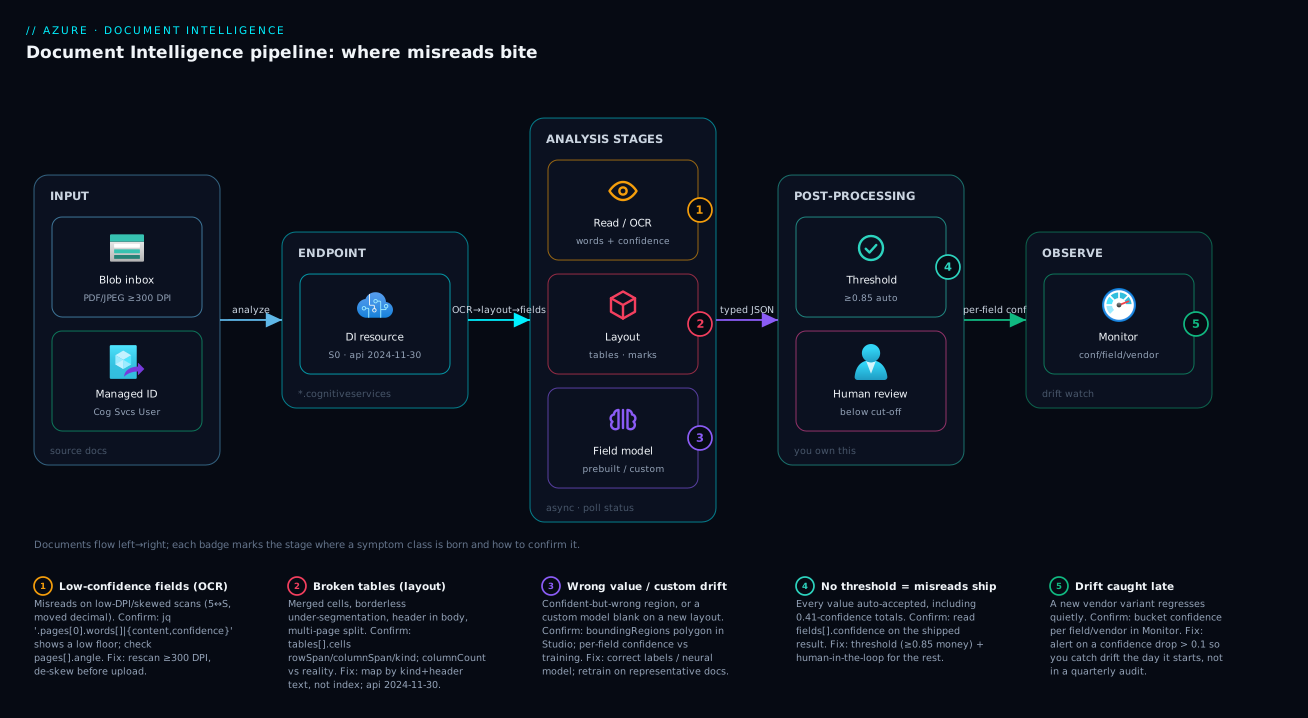
The system that turns a scanned PDF into validated fields is a left-to-right pipeline, and every misread lives at a specific stage on it. Documents land in Blob Storage (the input zone) and are submitted to the Document Intelligence resource over its *.cognitiveservices.azure.com endpoint, authenticated by a managed identity rather than a static key. Inside the service, analysis runs as a chain: the read/OCR stage turns pixels into positioned words (this is where DPI and skew bite — badge 1), the layout stage assembles tables and selection marks (where merged cells and borderless tables break — badge 2), and the field-extraction stage — a prebuilt model or your custom model — maps content to typed fields (where confidence drops and custom models drift — badge 3). The result is an async operation: you POST, receive an Operation-Location, and poll until succeeded.
The right-hand zone is the part teams forget exists and the part that actually protects production: your post-processing. Here you read each field’s confidence against a threshold; anything above it auto-flows to the downstream store, while anything below it — or anything that fails a business-rule validation (total = subtotal + tax) — is routed to a human-in-the-loop review queue (badge 4). Telemetry from every stage flows to Azure Monitor, where per-field confidence over time is the leading indicator that a custom model is drifting (badge 5) long before a human notices bad data. Follow the arrows left to right and you can place any symptom in this article onto exactly one hop — and that placement is the diagnosis.
Real-world scenario
Lumio Retail Finance (the same fictional outfit from our App Service playbook, now automating accounts payable) processed roughly 8,000 supplier invoices a month: invoices arrived by email, landed in a Blob container, and a Function called prebuilt-invoice (pinned at an old v2.1 default from the original build) to push vendor, date, total and line items straight into their ERP. For a quarter it was a quiet success — ~92% auto-posted, the rest kicked to a clerk.
Then reconciliation flagged a cluster of wrong totals, all from one large supplier. First instinct: “the model regressed” — and a support ticket. The real investigation took twenty minutes once they opened the raw analyzeResult instead of consuming InvoiceTotal.content blindly. Three findings stacked up. That supplier had switched from digital PDFs to scanned copies at ~150 DPI; per-word confidence sat around 0.5–0.6 and the Indian digit grouping (₹4,18,500) was misread with a moved decimal — low-DPI OCR (Symptom 1, Cause 1). The supplier’s line-item table was borderless, and the old API under-segmented it, merging the rate and amount columns (Symptom 3, Cause 2). And most damning: the pipeline had no confidence threshold at all — every value, including the 0.41-confidence total, posted to the ERP as fact.
The fix was three changes, none of them “a better model.” A confidence threshold of 0.85 on monetary fields with a human-in-the-loop queue below it (the highest-leverage change — it would have caught every bad total on day one); an upgrade to api-version=2024-11-30, whose prebuilt-layout segmented the borderless table correctly; and working with the supplier to send digital PDFs again, or scan at 300 DPI. Within a week the wrong-total cluster was gone, auto-post actually rose to 94% (the new API extracted more fields cleanly), and the review queue held exactly the documents that needed a human — the low-DPI stragglers — not a random sample of everything. The lesson: the model was never the bug. The bug was trusting a 200 OK without reading the confidence, and pinning an API version that pre-dated the table improvements they needed.
Advantages and disadvantages
Document Intelligence is the right tool for a large class of problems and the wrong tool for a few — knowing which keeps you out of the failure modes above.
| Advantages | Disadvantages |
|---|---|
| Managed OCR + structure + typed fields in one call | Best-effort: returns confident-looking values that can be wrong |
| Strong prebuilt models (invoice, receipt, ID) — zero training | Prebuilt schemas are fixed; missing fields can’t be added |
| Custom models trainable on as few as ~5 docs | Few/clean samples overfit → production drift |
| Per-element confidence you can threshold on | Confidence is not a correctness guarantee (confident misreads) |
| Studio gives a visual overlay for fast debugging | Tables are inferred structure — fragile on borderless/multi-page |
| Async API scales to large batches | Async polling adds latency and orchestration complexity |
| Identity-based auth + private networking available | Quota/throttling on lower tiers (F0 especially) |
| Improves with each API version (better tables/fields) | Pinning an old version silently misses those gains |
Where each matters: the prebuilt models are unbeatable when your documents are standard invoices/receipts/IDs — don’t train a custom model for those. Custom models earn their keep on your proprietary forms, but only if you respect the training discipline (representative, well-labelled samples). The confidence-as-risk-dial advantage is only realised if you use it — a pipeline with no threshold throws away the service’s best safety feature. And the “improves each version” point cuts both ways: it’s an advantage if you track versions and a silent liability if you pin once and forget.
Hands-on lab
A free-tier-friendly walk-through: provision a Document Intelligence resource, analyse a document with a prebuilt model, read the confidence and bounding regions from the raw result, and implement a threshold check. You need an Azure subscription and the Azure CLI.
1. Create a resource (free F0 tier for the lab). F0 allows a low request rate and is perfect for experimenting.
RG="rg-di-lab"; LOC="eastus"; NAME="di-lab-$RANDOM"
az group create -n $RG -l $LOC
az cognitiveservices account create \
  --name $NAME --resource-group $RG --location $LOC \
  --kind FormRecognizer --sku F0 \
  --custom-domain $NAME --yes
2. Get the endpoint and a key. (In production you’d use a managed identity; for the lab a key is fine.)
ENDPOINT=$(az cognitiveservices account show -n $NAME -g $RG --query properties.endpoint -o tsv)
KEY=$(az cognitiveservices account keys list -n $NAME -g $RG --query key1 -o tsv)
echo "$ENDPOINT"
3. Analyse a sample invoice with prebuilt-invoice. Use any invoice URL (or a Microsoft sample). The POST returns 202 with an Operation-Location header.
OP=$(curl -s -D - -o /dev/null -X POST \
  "$ENDPOINT/documentintelligence/documentModels/prebuilt-invoice:analyze?api-version=2024-11-30" \
  -H "Ocp-Apim-Subscription-Key: $KEY" -H "Content-Type: application/json" \
  -d '{"urlSource":"https://raw.githubusercontent.com/Azure-Samples/cognitive-services-REST-api-samples/master/curl/form-recognizer/sample-invoice.pdf"}' \
  | tr -d '\r' | awk '/[Oo]peration-[Ll]ocation:/ {print $2}')
echo "$OP"
4. Poll until succeeded, then read totals with confidence.
# Repeat until status is "succeeded"
curl -s "$OP" -H "Ocp-Apim-Subscription-Key: $KEY" | jq '.status'

# Then read the field with its confidence and region
curl -s "$OP" -H "Ocp-Apim-Subscription-Key: $KEY" \
  | jq '.analyzeResult.documents[0].fields.InvoiceTotal | {content, confidence, boundingRegions}'
Expected output: a JSON object with a content like "$1,098.23", a confidence near 0.9x, and a boundingRegions polygon. That is the shape you must always inspect — value, confidence, and location together.
5. Implement the threshold check (the actual point of the lab). Pull every field and split into auto-accept vs needs-review at 0.85:
curl -s "$OP" -H "Ocp-Apim-Subscription-Key: $KEY" \
  | jq '.analyzeResult.documents[0].fields
        | to_entries
        | map({field:.key, content:.value.content, confidence:.value.confidence,
               decision: (if (.value.confidence // 0) >= 0.85 then "auto" else "review" end)})'
This is the pattern your production code implements: fields at or above the threshold flow downstream; the rest go to a human queue.
6. (Optional) Inspect tables with prebuilt-layout. Re-run the POST against prebuilt-layout:analyze, poll, then dump tables[0].cells to see rowIndex/columnIndex/kind — the structure you debug table breaks with.
7. Teardown. Delete the resource group so nothing lingers.
az group delete -n $RG --yes --no-wait
For repeatability, the resource as Bicep (use a managed identity in real deployments):
resource di 'Microsoft.CognitiveServices/accounts@2024-10-01' = {
  name: 'di-shop-prod'
  location: location
  kind: 'FormRecognizer'
  sku: { name: 'S0' }            // S0 standard for production; F0 free for the lab
  identity: { type: 'SystemAssigned' }   // identity over keys
  properties: {
    customSubDomainName: 'di-shop-prod'
    publicNetworkAccess: 'Disabled'      // pair with a private endpoint
  }
}
Common mistakes & troubleshooting
This is the centerpiece — the playbook you keep open while a misread is live. Each row is a real failure: symptom → root cause → how to confirm (exact command / Studio path) → fix. Scan to your symptom, then read the per-symptom detail below for the ones that bite hardest.
| # | Symptom | Root cause | Confirm (exact command / portal path) | Fix |
|---|---|---|---|---|
| 1 | Field value wrong; nobody noticed for weeks | No confidence threshold — every value auto-accepted | Read documents[0].fields.<F>.confidence in the raw result; it was low all along |
Add a threshold + human-in-the-loop for anything below it |
| 2 | Whole-page values fuzzy/wrong (5↔S, 0↔O, moved decimal) | Low-DPI / noisy scan | `jq '.analyzeResult.pages[0].words[] | {content,confidence}'` shows a low floor |
| 3 | Text slanted, accuracy poor | Skewed / rotated page | jq '.analyzeResult.pages[].angle' is large; Studio overlay tilts |
De-skew/auto-rotate before upload |
| 4 | Handwritten field scores low, printed fields fine | Handwriting held to print threshold | `jq '.analyzeResult.styles[] | select(.isHandwritten)'` |
| 5 | Whole document low confidence / nonsense | Unsupported or wrong language | Run prebuilt-read; compare detected language to model’s supported list |
Use a supported model/locale; prebuilt-read for widest OCR |
| 6 | High confidence but value is some other field | Field bound to the wrong region | Studio: click field, box sits over wrong area; check boundingRegions.polygon |
Custom model with correct labels; post-validate by rule |
| 7 | Subtotal returned where total expected | Two candidates, model picked the salient one | Both values in content; field box points at the wrong one |
Business rule (total ≥ subtotal); custom-label the right field |
| 8 | Every field cleanly wrong | Wrong model called for the doc type | jq '.analyzeResult.modelId' ≠ intended model |
Route to correct model; add a custom classifier for mixed batches |
| 9 | content right, typed value wrong (date/number) |
Locale / format misparse | Compare content vs valueDate/valueCurrency |
Apply known locale; re-derive from content when they disagree |
| 10 | Amounts land in the wrong column | Merged/spanning cells shift indices | `jq '.analyzeResult.tables[0].cells[] | {columnIndex,columnSpan,kind}'` |
| 11 | Columns bleed together; wrong column count | Borderless table under-segmented (old API) | tables[0].columnCount too low vs real table |
Upgrade to api-version=2024-11-30; or custom model |
| 12 | Header row treated as data (or a data row dropped) | Header detection failed; no columnHeader cells |
`jq '.analyzeResult.tables[0].cells[] | select(.kind==“columnHeader”)'` returns nothing |
| 13 | A long table comes back as two tables | Multi-page table split per page | Two tables entries, matching columnCount, adjacent pageNumber |
Stitch by column structure across pages |
| 14 | tables array empty |
Used prebuilt-read (OCR only, no tables) |
jq '.analyzeResult.modelId' is prebuilt-read |
Switch to prebuilt-layout |
| 15 | Custom model great in test, poor in prod | Too few / too-clean training samples (overfit) | Compare training doc count+variety to production spread | Add representative samples (vendors, DPI, scanned) |
| 16 | New vendor’s invoice → all fields blank | Template model on an unseen layout | Model build mode = template; layout differs from training | Rebuild as neural; or per-template models + classifier |
| 17 | A field that always worked is now null | New production document variant | Per-field confidence collapses on that variant only | Add the variant to training; retrain; monitor confidence |
| 18 | A field flaky since the model launched | Inconsistent/sparse labelling at training | Review labels in Studio — not every occurrence labelled | Re-label every occurrence consistently; retrain |
| 19 | 404 / ModelNotFound on analyze |
Wrong model id or wrong region/resource | az cognitiveservices account list; check model id spelling |
Use correct model id + the resource that owns the custom model |
| 20 | 429 TooManyRequests under load |
Tier rate limit exceeded (F0 especially) | Response has Retry-After; check sku.name |
Honour Retry-After; upgrade F0→S0; add backoff/queue |
| 21 | 400 InvalidRequest / InvalidContent |
Bad/oversize file, unsupported format, bad SAS | Error body code/message; check size/format/SAS |
Supported format within limits; valid read-SAS or MI |
| 22 | 401/403 from the endpoint |
Wrong key, or MI lacks the data role | az cognitiveservices account keys list; role assignment |
Use correct key; grant Cognitive Services User to the MI |
The error/status codes you’ll see, separated from the (more common) silent misreads:
| Code | Meaning | Likely cause | How to confirm | Fix |
|---|---|---|---|---|
200 + low confidence |
Succeeded, but uncertain | Poor input or hard field | Read the confidence per field |
Threshold + human-in-the-loop |
202 then running forever |
Operation not yet done (normal) or stuck | Large doc; transient | Poll Operation-Location; check status |
Keep polling with backoff; investigate if failed |
status: failed |
The analysis itself failed | Corrupt/unreadable file | Read error.code/error.message in result |
Fix/replace the input document |
400 InvalidContent |
Input rejected | Unsupported format, oversize, bad SAS | Error message |
Supported format, within size/page limits, valid SAS/MI |
401 Unauthorized |
Auth failed | Wrong/expired key or bad token | Re-fetch key / token | Correct credential; rotate if leaked |
403 Forbidden |
Authn ok, not authorised | MI missing data-plane role; network blocked | Role assignment; firewall/PE | Grant Cognitive Services User; fix networking |
404 ModelNotFound |
Model id/region wrong | Typo, or custom model in another resource | az cognitiveservices account list |
Correct model id and resource |
429 TooManyRequests |
Rate limited | Over the tier’s TPS (F0 tiny) | Retry-After header; sku.name |
Backoff; upgrade tier; queue requests |
Three points from that table deserve emphasis because teams get them wrong most often. Row 1 is the one that matters most: a wrong value ships for weeks only because the pipeline consumed fields.<F>.content with no confidence threshold — pull the historical result and the confidence was below any sane cut-off the whole time. A threshold with a human-in-the-loop queue (start ~0.80–0.85 for money/identity fields, tune from the review queue’s hit rate) is the single highest-leverage change in this article. For broken tables (rows 10–13), the universal fix is to address cells by kind and header text, never by raw index, and to upgrade to api-version=2024-11-30 for far better borderless handling. For drift (rows 15–18), the operational fix is to monitor per-field confidence by vendor so you catch the next new variant the day it arrives — drift is event-driven, and a quarterly reconciliation is the most expensive way to find it.
Best practices
- Always set a confidence threshold with a human-in-the-loop fallback. This is the single most important rule. Auto-accept above it, route below it to a person. A pipeline with no threshold throws away the service’s best safety feature and ships every misread.
- Never trust a
200as “correct.” A successful call is best-effort. Readconfidenceand, for anything that matters, verify theboundingRegionssit over the right pixels. - Address tables by
kindand header text, not by raw row/column index. Merged cells and shifted headers break index-based code instantly; map values to theircolumnHeadercell. - Pick the right model for the document.
prebuilt-readfor OCR only,prebuilt-layoutfor tables/structure, a field prebuilt for known doc types, a custom model only for your proprietary forms. Half of “broken” tickets are the wrong model id. - Pin and track the API version. Use the current GA (
2024-11-30); review when you upgrade, because newer versions extract more fields and far better tables — but don’t let a pinned-once version silently miss those gains. - Train custom models on production-representative data. Cover every template, both scanned and digital, the real DPI range and rotations. Variety beats volume; a handful of clean samples will overfit.
- Label consistently — every occurrence, same boundaries. Inconsistent labels create fields that are flaky from day one and masquerade as drift.
- Prefer neural custom models when layouts vary, template models only for genuinely fixed layouts; add a classifier to route mixed batches.
- Validate with business rules. Total = subtotal + tax; dates within range; amounts non-negative. Rules catch confident misreads that a threshold alone cannot.
- Monitor per-field confidence over time. Drift is often event-driven (a new vendor template). Alert on a confidence drop per field/vendor so you catch it the day it starts, not in a quarterly audit.
- Fix accuracy at the source first. Higher-DPI scans, de-skewing and digital originals beat any downstream tweak. The cheapest accuracy gain is a better input.
- Use managed identity, not keys. Authenticate to the endpoint with the app’s identity and a least-privilege data-plane role; keep keys out of code and config.
The signals worth wiring before the next bad-data incident — leading indicators, not a quarterly reconciliation:
| Monitor / alert on | Signal | Threshold (starting point) | Why it’s leading |
|---|---|---|---|
| Per-field confidence (by vendor) | Mean field confidence | Drop > 0.1 vs baseline | First sign of a new variant / drift |
| % routed to human review | Below-threshold rate | Sudden rise | Input quality or model degraded |
| Throttling | 429 rate / Retry-After |
Any sustained 429 | Tier too small / burst over limit |
| Failed analyses | status: failed count |
> 0 sustained | Corrupt inputs entering the pipeline |
| Auto-post correction rate | Downstream edits to auto-accepted fields | Rising | Threshold set too low (shipping misreads) |
Security notes
- Authenticate with managed identity, not keys. Disable local (key) auth where possible and grant the app’s system- or user-assigned managed identity the Cognitive Services User data-plane role. Keys in code or config are the most common leak vector for AI Services.
- Lock down the network. Set
publicNetworkAccess: Disabledand reach the resource over a private endpoint from your VNet, so the endpoint isn’t internet-exposed. Restrict the Blob container holding source documents the same way. - Mind the data you send. Invoices, IDs and forms are often PII/PHI. Know your data residency: pick a region that meets your compliance needs, and prefer private networking so documents never traverse the public internet. If you must redact, do it before submission.
- Scope SAS tightly when using
urlSource. If you pass a SAS URL instead of identity-based access, make it read-only, short-lived, and IP-scoped — a broad SAS on a document store is an exfiltration path. - Secure the human-in-the-loop queue. The review tool sees the same sensitive documents; apply the same access control, auditing and least privilege there as on the pipeline.
- Don’t log raw content. Extracted fields can contain account numbers and personal data; keep them out of plaintext logs and traces, and scrub before sending telemetry to Monitor.
- Pin and scan custom-model training data. The labelled training set is sensitive (real customer documents); store it in a locked-down container with auditing, and purge what you no longer need.
The security knobs that also reduce these incidents — secure and reliable pull the same direction:
| Control | Setting / mechanism | Secures against | Also prevents |
|---|---|---|---|
| Managed identity + data role | identity + Cognitive Services User |
Leaked keys | Key-rotation breaking the pipeline |
| Private endpoint | publicNetworkAccess: Disabled + PE |
Public exposure / interception | Documents traversing the internet |
| Read-only, short SAS | Scoped SAS on urlSource |
Document-store exfiltration | Stale/over-broad access lingering |
| Region choice | Resource location | Data-residency violations | Cross-border compliance gaps |
| No-content logging | Scrub fields from logs/telemetry | PII in logs | Sensitive data in observability tools |
Cost & sizing
The bill is driven by pages analysed, not API calls, and which model you use:
- Pricing is per page (per 1,000 pages), and custom/prebuilt field models cost more per page than plain
prebuilt-readOCR. So routing every document through an expensive field model when you only need text is overspend — useprebuilt-readfor OCR-only needs and the heavier models only where you need fields/tables. - The free F0 tier is for development and small volumes — a low monthly page allowance and a tight request rate (the source of
429s). It is not a production tier; move to S0 (standard) for any real throughput, where you pay per page with no hard daily cap. - Custom model training and storage have their own (modest) costs, but the bigger cost lever is re-training discipline: retraining repeatedly on poorly-chosen samples wastes effort more than money. Train representative once, monitor, and retrain on real drift.
- The human-in-the-loop queue has a labour cost, and your threshold tunes it directly: too high a threshold floods the queue (people reviewing fine documents); too low ships misreads (expensive downstream corrections). Tune the threshold to the cheapest total of (review labour + correction cost).
- Adjacent costs: Blob storage for source documents (cheap, but lifecycle-manage old ones), egress if processing cross-region (keep the resource and blobs co-located), and Monitor ingestion for the confidence telemetry.
A rough monthly picture for Lumio’s ~8,000 invoices/month (multi-page, so more analysed pages): an S0 resource billed per page for prebuilt-invoice, plus negligible Blob storage, plus the labour of reviewing the ~6–8% below threshold. The dominant cost was never the API — it was the clerk-hours, which the right threshold minimised by sending only the genuinely-ambiguous documents to review. The cost drivers and what each one buys:
| Cost driver | What you pay for | Rough scale | What it controls | Watch-out |
|---|---|---|---|---|
| Pages analysed (field model) | Per-page extraction | Largest line item | Throughput | Don’t run field models where OCR suffices |
Pages analysed (prebuilt-read) |
Per-page OCR | Cheaper per page | OCR-only volume | Use it when you don’t need fields |
| F0 free tier | $0, tiny limits | Dev only | Experiments | 429s under any real load |
| Custom training/storage | Train + store model | Modest | Custom-model upkeep | Wasteful if retrained on bad samples |
| Human review labour | Clerk time per reviewed doc | Often the biggest total cost | Threshold setting | Threshold too high floods the queue |
| Blob + Monitor | Source storage + telemetry | Small | Retention | Lifecycle old docs; sample telemetry |
Interview & exam questions
1. Why is a Document Intelligence misread usually not an exception, and what does that imply for your code? The service is best-effort and returns 200 OK with an analyzeResult even when it read wrongly — a misread is a successful call with a bad value inside. The implication is that checking only for HTTP errors is blind to every misread; your code must read each field’s confidence and, where it matters, verify the boundingRegions sit over the right pixels.
2. What is a confidence threshold and why is a human-in-the-loop fallback essential? A confidence threshold is your cut-off for auto-accepting a field versus routing it to a person. Above it you auto-process; below it a human reviews. It’s essential because confidence is a risk dial, not a guarantee — without the fallback, every low-confidence value (and any misread) ships unreviewed straight into downstream systems.
3. Difference between prebuilt-read and prebuilt-layout? prebuilt-read is OCR only — text, lines, words, language — with no tables and no typed fields. prebuilt-layout adds tables, selection marks and document structure. If you call read and wonder where the tables went, that’s why; switch to layout for any structure.
4. A field comes back with high confidence but the wrong value. What’s happening and how do you confirm? The model read clean text from the wrong location — it bound the field to the wrong region (e.g. subtotal instead of total, or a custom model anchored on something that moved). Confirm with the field’s boundingRegions.polygon (or click it in Studio) and see the box is over the wrong area. Fix with a correctly-labelled custom model and/or a business-rule validation.
5. Why might table extraction put values in the wrong column, and how do you make consuming code robust? Merged/spanning cells (columnSpan/rowSpan > 1) shift the grid so fixed-index code reads the wrong column, and header detection can fail so row 0 holds data. Make code robust by reading each cell’s kind (columnHeader vs content) and span fields, and mapping values to their header text rather than a hardcoded column index.
6. What is custom-model drift and what most commonly causes it? Drift is a custom model returning blank or wrong fields in production despite a high training score, because production documents differ from the training set. The most common causes are too few or too-clean training samples (overfitting), a template model meeting a new layout, and a new document variant (a vendor changing their template). The fix is representative training data and, for varying layouts, a neural model.
7. Template vs neural custom models — when do you pick each? A template model is fast/cheap, trains on as few as ~5 docs, and is excellent on a single fixed layout but rigid (blank on a new layout). A neural model tolerates layout variation by learning field meaning, at the cost of longer training. Pick template for consistent fixed forms, neural for varying layouts of the same document type.
8. A custom model scored 0.98 on its test set but performs badly in production. What likely went wrong? It overfit to a small, non-representative training set — a handful of clean, near-identical samples. The 0.98 reflects memorising that exact layout/quality, not generalisation. Fix by training on production-representative documents (multiple templates, scanned and digital, real DPI range) and monitoring per-field confidence.
9. How do you handle a table that spans two pages? A multi-page table often returns as two separate tables entries, one per page. Detect it by matching columnCount and adjacent pageNumbers in the cells’ bounding regions, then stitch the rows together in code, validating that the column headers match.
10. You suddenly see 429 TooManyRequests. What is it and how do you respond? You exceeded the tier’s request rate — the F0 free tier is especially small. The response includes a Retry-After header. Respond by honouring Retry-After, adding exponential backoff and a submission queue, and moving from F0 to S0 for real throughput.
11. The model returns null for a field you expected. Is the API broken? Usually no — either the field isn’t in that model’s schema (e.g. asking a receipt model for an invoice-only field), or your locale’s documents don’t print that field. Confirm against the model’s documented field list; if it’s not there or not on the document, null is correct behaviour, not a bug.
12. How do you authenticate to Document Intelligence securely, and what role is needed? Use the application’s managed identity (system- or user-assigned) rather than a static key, disable local auth where possible, and grant the identity the Cognitive Services User data-plane role. Pair with a private endpoint so the resource isn’t internet-exposed. This keeps keys out of code and the endpoint off the public internet.
These map to AI-102 (Azure AI Engineer Associate) — plan and manage an Azure AI solution; implement knowledge mining and document intelligence (Document Intelligence/Form Recognizer, prebuilt and custom models, confidence handling) — and touch AZ-204 where it’s wired into an app, and AI-900 for the foundational “what is Document Intelligence” concepts. A compact cert mapping:
| Question theme | Primary cert | Objective area |
|---|---|---|
| Prebuilt vs custom; read/layout/fields | AI-102 | Implement document intelligence |
| Confidence, thresholds, human-in-the-loop | AI-102 | Build/optimise document solutions |
| Template vs neural; drift; training | AI-102 | Train & manage custom models |
| Securing the resource (identity, PE) | AI-102 / AZ-500 | Secure an AI solution |
| Document AI fundamentals | AI-900 | Describe features of Azure AI |
Quick check
- A field returns
200 OKwithcontentthat’s clearly wrong. Why didn’t the API throw, and what’s the one property you check first to catch this in code? - Your
prebuilt-layouttable puts the amount in the wrong column. Name the two cell properties you must read to make your consuming code robust (instead of using a fixed column index). - True or false: a custom model that scores 0.98 on its test set is safe to ship to production.
- A field that extracted correctly for months suddenly returns
nullfor one supplier’s invoices. What’s the most likely cause and the fix? - You’re getting
429 TooManyRequests. What header tells you when to retry, and what’s the production fix beyond backoff?
Answers
- The service is best-effort and returns a successful response with a confident-looking value even when it read wrongly — a misread is a
200, not an error. Check the field’sconfidencefirst (and verifyboundingRegionsfor important fields); a threshold on confidence is what catches it. - Read the cell’s
kind(columnHeadervscontent) and itscolumnSpan/rowSpan. Map values to their header text found viakind, not by a hardcoded column index, so merged/spanning cells don’t shift your mapping. - False. A high test score on a small, non-representative set usually means overfitting — the model memorised that layout/quality. It can still fail on real-world variety. Train on production-representative data and monitor per-field confidence.
- A new document variant — that supplier changed their invoice template, which the custom model never saw, so its fields don’t map and confidence collapses. Fix by adding the new variant to the training set and retraining, and monitor per-field/per-vendor confidence to catch the next one immediately.
- The
Retry-Afterheader tells you how long to wait. Beyond honouring it with exponential backoff, the production fix is to move off F0 to S0 (and queue submissions), because the free tier’s request rate is the constraint.
Glossary
- Azure AI Document Intelligence — the managed service (formerly Form Recognizer) that extracts text, tables, structure and typed fields from documents via prebuilt and custom models.
analyzeResult— the JSON envelope returned by an analysis, containingpages,tables,documents/fields,stylesandparagraphs; the source of truth for debugging.- Confidence — a per-field/line/word certainty score in
[0.0, 1.0]; the model’s built-in risk signal, not a guarantee of correctness. - Confidence threshold — your chosen cut-off above which a field auto-processes and below which it routes to human review.
- Human-in-the-loop (HITL) — the review path where a person validates below-threshold or rule-failing extractions before they’re accepted.
content— the recognised text of an element; what you usually consume, and what can be confidently wrong.spans— offset + length into the flatcontenttext stream, letting you trace a field back to its recognised source text.boundingRegions— the page number and polygon describing where on the page an element sits; proves the model read the right location.- Prebuilt model — a Microsoft-trained, fixed-schema extractor (
prebuilt-invoice,prebuilt-receipt,prebuilt-read,prebuilt-layout,prebuilt-idDocument, etc.). - Custom model — a model you train on your own labelled documents to extract your specific fields.
- Template model — a custom build mode that is fast and layout-rigid; excellent on one fixed layout, blank on new ones.
- Neural model — a custom build mode that tolerates layout variation by learning field meaning; slower to train, more robust.
- Custom classifier — a model that classifies a document’s type so you can route it to the right extractor.
prebuilt-read— the OCR-only model: text, lines, words, language — no tables, no typed fields.prebuilt-layout— the structure model: text plus tables, selection marks and document layout.- Selection mark — a checkbox/radio detected as selected or unselected in the layout output.
- Drift — degradation of a custom model’s accuracy when production documents differ from the training set (new template, DPI, rotation).
- DPI (dots per inch) — scan resolution; the dominant lever on OCR accuracy (target ≥ 300 DPI).
- API version — the dated service contract (
api-version, e.g.2024-11-30) that determines which fields and table improvements you get. - Document Intelligence Studio — the web tool (
documentintelligence.ai.azure.com) for running models, labelling custom-model data, and viewing bounding-box overlays with confidence.
Next steps
You can now localise any Document Intelligence misread to a pipeline stage and fix it. Build outward:
- Next: Azure AI Search: Create Your First Index, Indexer & Skillset — Document Intelligence is a common skill inside a skillset; feed your extracted fields into retrieval.
- Related: Azure AI Foundry: Hub & Project Resource Model Explained — where the AI Services resource model and identity live.
- Related: Managed Identity: System-Assigned vs User-Assigned Patterns — authenticate to the endpoint without keys.
- Related: Azure Blob Storage Fundamentals — where source documents live and the input to batch analysis.
- Related: Azure AI Language Service: PII, Sentiment, Entity NER & CLU — the text-analytics companion for the content you’ve extracted.