The first time you open Azure Virtual Desktop (AVD) in the portal it does not look like one product — it looks like a pile of objects with confusingly similar names: a host pool, an application group, a workspace, and somewhere underneath, the actual session host VMs. Nothing tells you which is the thing users connect to, which one costs money, or in what order they wire together. People create a workspace that shows nothing, or a desktop that throws an authentication error the instant a user touches it, and conclude AVD is fiddly. It is not fiddly — it is two layers wearing four hats, and once you see the two layers the four hats become obvious.
This article gives you that mental model in plain English. AVD is a managed brokering service — Microsoft’s flavour of Virtual Desktop Infrastructure (VDI), where Windows desktops and apps run on Azure VMs and users are brokered onto them from any device. The trick is to split it cleanly into a control plane (the broker, gateway, and metadata objects — host pool, application group, workspace — all run by Azure, free) and a data plane (your session-host VMs, where every rupee of the bill lives). The control plane decides which VM a user lands on and tunnels them to it; the data plane is the Windows machine they sit on. Everything else — pooled vs personal, desktop vs RemoteApp, FSLogix — hangs off those two layers.
By the end you will name what each object does, trace a single click from a user’s laptop to a Windows session and back, explain why the session hosts have no public IP yet users still reach them, and know the three or four wiring mistakes behind almost every day-one failure. This is the conceptual backbone the other AVD topics assume: once the architecture is clear, choosing personal vs pooled and deploying your first pooled host pool end to end become straightforward.
What problem this solves
Without a brokering service, giving users cloud desktops leaves two bad options. You hand-build individual VMs and let each user RDP straight to a public IP — opening RDP (TCP 3389) to the internet on every machine (a top ransomware entry point), with no load balancing, no SSO, no central place to publish apps. Or you ship physical laptops — slow, expensive, a data-loss nightmare the moment one is stolen. Neither scales past a handful of people, and both leave the brokering problem — “which machine should this user get, and how do they reach it safely?” — squarely on you.
AVD solves exactly that as a managed service. The session hosts sit in your virtual network with no public IP and no inbound ports. Users connect outbound over TLS on port 443 through a Microsoft-run Remote Desktop Gateway, authenticate against Microsoft Entra ID, and a Microsoft-run broker load-balances them onto a healthy host. You publish a desktop or apps to a workspace, grant access by Entra group, and change capacity by adding or removing VMs — never by re-imaging or re-opening ports. The hard parts (gateway, broker, web client, load-balancing, HA of the access path) are Microsoft’s; you own the Windows images and the VMs.
Who hits the confusion this clears up: anyone standing up VDI for the first time, anyone who inherited an AVD estate and cannot tell what is safe to delete, and any architect sizing a deployment. The biggest “aha” is that the control-plane objects are free regional metadata — so the architecture decision is never “how many host pools can I afford,” it is “how do I shape the metadata so users land on the right host.” Get that right and cost, security, and scaling fall out of it.
Learning objectives
By the end of this article you can:
- Split AVD cleanly into its control plane (broker, gateway, host pool, application group, workspace) and its data plane (session-host VMs), and say which layer is free and which one bills.
- Define each of the four core objects — host pool, session host, application group, workspace — and state the one-to-many rules that wire them together.
- Trace a single connection end to end: device → Entra sign-in → workspace feed → broker host-selection → gateway TLS tunnel → session host → FSLogix profile.
- Explain why session hosts need no public IP and no inbound port, and how users still reach them securely.
- Distinguish a pooled (Windows multi-session, many:1) from a personal (dedicated, 1:1) host pool, and a Desktop from a RemoteApp application group.
- Explain what FSLogix does and why it is what makes a shared pooled host feel personal to each user.
- Recognise the handful of wiring mistakes — unassigned users, an unregistered host, the Entra-auth RDP properties, a missing profile share — behind most day-one failures.
Prerequisites & where this fits
You should be comfortable with Azure basics: that a virtual machine is a rented compute instance, that VMs live in a virtual network and subnet, and that Microsoft Entra ID is Azure’s identity service where users and groups live. It helps to know roughly what RDP (Remote Desktop Protocol) is — the protocol that paints a remote Windows screen on your device. You do not need to have deployed AVD before; this is the layer that makes the deployment make sense. If the container model is fuzzy, the Azure resource hierarchy is useful background, because every AVD object lives inside it.
This sits at the front of the End-User Computing track as the concept anchor, upstream of the decision and deployment guides, and pairs with the Azure Virtual Network, subnets and NSGs fundamentals (the session hosts live in a subnet you design). If you are weighing AVD against the fully-managed alternative, Windows 365 Cloud PC vs Azure Virtual Desktop compares the two — the architecture here is exactly what Windows 365 hides. A map of who owns what before the deep dive:
| Layer | What lives here | Who runs it | Do you pay for it? |
|---|---|---|---|
| Identity | Users, groups, sign-in, Conditional Access | You (Entra ID) | Per existing Entra/M365 licensing |
| Control plane | Broker, gateway, web client, diagnostics | Microsoft (managed) | No — free regional metadata |
| Metadata objects | Host pool, application group, workspace | You define, Microsoft hosts | No — control-plane objects are free |
| Data plane | Session-host VMs, OS disks | You | Yes — this is almost the entire bill |
| Profile storage | FSLogix containers on Azure Files | You | Yes — storage for roaming profiles |
| Network | VNet, subnet, NSG, DNS | You | VNet is free; egress/some services bill |
Core concepts
Five mental models make every later detail obvious. Read these once and the rest is elaboration.
AVD is two layers, not one product. A control plane that Azure runs (broker, gateway, web client, and the metadata describing your environment) and a data plane that you run (the Windows session hosts). You never patch, scale, or pay for the control plane; you do all three for the session hosts. Almost every AVD sentence clears up once you ask: control plane (free, managed, metadata) or data plane (yours, billed, real Windows)?
The four objects are three pieces of metadata and one real machine. A host pool groups identical session hosts under one config; an application group is what you publish from it (a full Desktop or a set of RemoteApp programs); a workspace is the bundle a user subscribes to. Those three are free metadata. The fourth, the session host, is an Azure VM joined to Entra ID (or AD), running the AVD agent and registered to a host pool — your data plane and your entire bill.
The broker chooses; the gateway connects. On launch the connection broker reads the host pool metadata, applies the load-balancing rule and session limit, and picks a healthy host; the Remote Desktop Gateway then opens a TLS tunnel on port 443 to it. Because that tunnel is established outbound from the host, the session host needs no public IP and no inbound RDP port — the design’s most important security property. “Broker decides which host, gateway carries the pixels.”
Pooled means shared; personal means dedicated. A pooled pool runs Windows Enterprise multi-session so many users share each VM and the broker can send anyone to any host (cheap, the task-worker default); a personal pool binds each user to their own dedicated VM, 1:1 (GPU workstations, admin-rights users). The full decision lives in personal vs pooled host pools; here, just hold the shape: shared-and-dense vs dedicated-and-permanent.
FSLogix is what makes a shared host feel personal. In a pooled pool a user lands on a different VM each session, so their identity cannot live on any disk. FSLogix stores each user’s Windows profile in a profile container (a .vhdx) on an Azure Files share and mounts it onto whichever host the broker picked at sign-in. Without it, pooled users get a throwaway temporary profile and lose everything between sessions.
The objects in one table
Before the deep sections, pin every object down side by side — the mental model in one view:
| Object | One-line definition | Layer | Cost | One-to-many relationship |
|---|---|---|---|---|
| Host pool | Group of identical session hosts + their config | Control plane (metadata) | Free | Has many session hosts; feeds many app groups |
| Session host | A Windows VM that runs user sessions | Data plane | Billed (the bulk) | Belongs to exactly one host pool |
| Application group | What you publish: a Desktop or RemoteApps | Control plane (metadata) | Free | Belongs to one host pool; assigned to many users |
| Workspace | The feed a user subscribes to | Control plane (metadata) | Free | Groups many app groups into one feed |
| Broker | Picks a healthy host per the rules | Control plane (Microsoft) | Free | One managed service per region |
| Gateway | Tunnels RDP over TLS 443 | Control plane (Microsoft) | Free | One managed service per region |
| FSLogix profile | Roaming user profile in a .vhdx |
Data plane (storage) | Billed (Azure Files) | One container per user |
The two layers: control plane vs session hosts
Everything in AVD lands on one side of this line. The control plane is the part with “managed” stamped on it: Microsoft runs the broker, gateway, web client, and diagnostics, and you only supply the metadata — host pools, application groups, workspaces — which is regional (you pick a metadata location from a limited set) and free. The data plane is your session hosts — ordinary Azure VMs running the AVD agent and a Windows SKU (multi-session for pooled, single-user for personal) — sitting in your subnet, carrying 90%+ of the bill. Everything users blame (a slow desktop, a crashed app, a missing profile) is data plane; everything they route through (sign-in, host selection, the tunnel) is control plane:
| Concern | Control plane | Data plane |
|---|---|---|
| Who runs it | Microsoft | You |
| What it is | Broker, gateway, web client, metadata | Windows session-host VMs |
| Cost | Free | The entire bill |
| You patch it? | No | Yes (image + OS + agent) |
| You scale it? | No | Yes (add/remove VMs, autoscale) |
| Fails as | Brokering/auth errors (rare, Microsoft SLA) | Slow/crashed sessions, capacity (yours) |
| Examples of objects | Host pool, app group, workspace | Session host VM, OS disk, FSLogix share |
The four objects and how they wire together
The four objects connect in a strict shape, and most “it shows nothing” problems are a missing link in it. The rule of thumb: a user subscribes to a workspace, the workspace surfaces application groups, each application group publishes from one host pool, and the host pool contains the session hosts. Access is granted by assigning users or Entra groups to the application group — not the host pool or the workspace.
So the data flows down (workspace → app group → host pool → host) while the publishing wires up (create the host pool, attach an app group, reference it from a workspace, then assign users). The cardinalities are where beginners trip — and note a single Desktop group is the default per pool, with a user typically assigned to a desktop or RemoteApp groups, not both:
| Relationship | Cardinality | Why it matters |
|---|---|---|
| Host pool → session hosts | 1 host pool : many hosts | Capacity = number/size of hosts in the pool |
| Host pool → application groups | 1 : many | One pool can publish a Desktop and RemoteApps |
| Application group → host pool | many : 1 | An app group always points at exactly one pool |
| Application group → users/groups | 1 : many | Access is assigned here, not on the pool |
| Workspace → application groups | 1 : many | The feed the user sees is the workspace |
| Workspace → users | (via app groups) | Users see a group only if assigned to it |
Desktop vs RemoteApp application groups
An application group comes in two flavours. A Desktop application group publishes the entire Windows desktop — a full session (Start menu, taskbar, the lot) as if sitting at the machine. A RemoteApp application group publishes individual programs; each opens in its own window, seamlessly integrated with the user’s local desktop, hiding that Windows is running remotely. You can publish both kinds from one host pool via separate groups, but a user is normally assigned to one experience. The decision is mostly about how much of “a whole PC” the user needs:
| Factor | Desktop app group | RemoteApp app group |
|---|---|---|
| What the user gets | A full remote Windows desktop | Individual apps as windows |
| Best for | Knowledge/office workers, “their whole PC” | A few specific apps; locked-down access |
| Feel | A separate desktop to switch into | Apps blend into the local desktop |
| Default per pool | One Desktop group exists by default | You create RemoteApp groups explicitly |
| Surface area | Larger (full OS exposed) | Smaller (only published apps) |
| Typical assignment | Pooled office fleet, personal desktops | Contractors, kiosk-style, app-only access |
Workspaces tie it together
A workspace is deliberately thin: no compute and no apps of its own — just the labelled bundle a user subscribes to. Its job is to collect application groups into one feed so a user adds one subscription URL and sees everything they are entitled to. Common designs are one workspace per environment (prod/test) or per business unit; because it is free metadata, the choice is purely organisational. The frequent beginner trap is creating the workspace and the app group but never referencing the app group from the workspace — so the user subscribes and sees an empty feed.
How a connection actually flows
Fix this section in memory — it explains the security model and most of the failure modes at once. Follow one click from a laptop to a running Windows session.
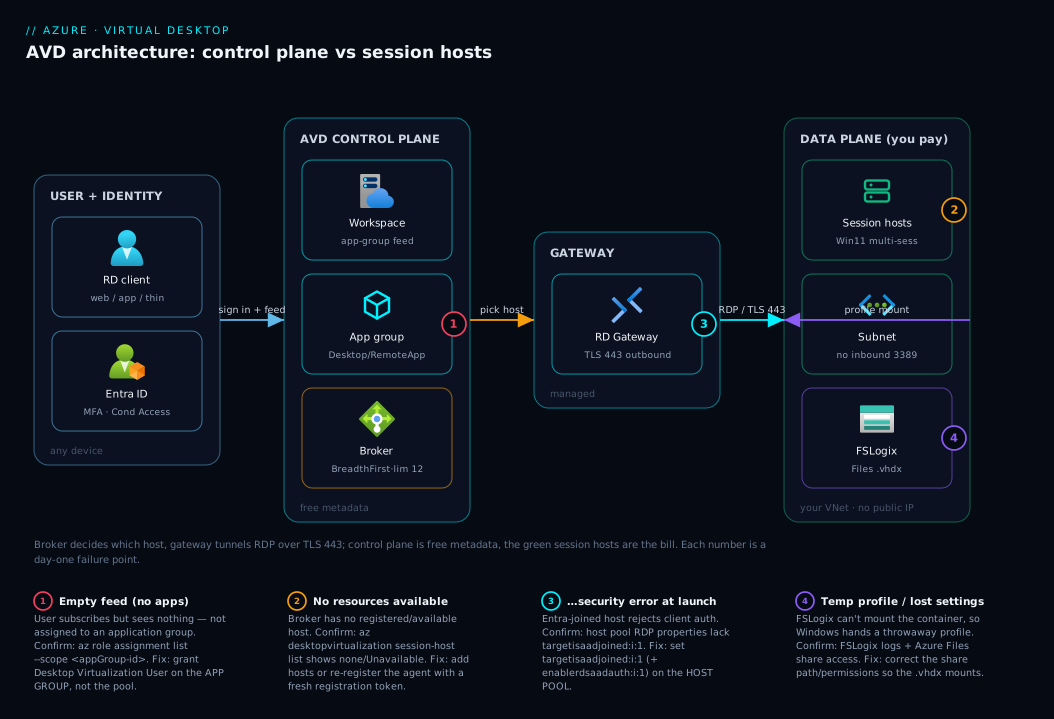
A user opens the Remote Desktop client (desktop app, web client, or thin client) and signs in to Microsoft Entra ID. The client pulls the user’s workspace feed — the desktops and apps they are assigned, as icons. The user clicks one. That launch goes to the AVD control plane, where the broker consults the host pool metadata, applies the load-balancing rule and the per-host session limit, and selects one healthy session host. The gateway then opens a TLS tunnel on port 443 so the user’s RDP traffic reaches that host. The session lands on a VM in your virtual network subnet, and the user’s FSLogix profile container mounts from Azure Files so their Documents and settings appear regardless of which host they got. Pixels stream back through the same tunnel.
Two properties fall straight out of this flow. First, because the host’s side of the tunnel is established outbound through the gateway, the session host never needs a public IP or an inbound RDP port — the VMs are unreachable from the internet and 3389 stays closed. Second, because the broker re-selects a host on every launch in a pooled pool, the user is not tied to a machine — FSLogix carries their identity across that reshuffling. Each hop is also a failure point (a blocked sign-in, an empty feed, “no resources available,” a gateway security error, a lost profile) — the next section’s diagram maps these as numbered badges, and the troubleshooting table gives the fix for each.
FSLogix and profiles in plain English
FSLogix is the piece that confuses people most and breaks most quietly. In a pooled pool “your desktop” cannot live on a disk, because tomorrow the broker may put you on a different VM. So FSLogix stores the whole Windows user profile in a single profile container (a .vhdx) on a network share — almost always Azure Files. At sign-in it mounts the container onto the host you landed on, so Windows sees your real profile (Documents, AppData, OneDrive and Teams caches); at sign-out it unmounts. The container roams with you; the host does not.
Three facts keep you out of trouble. Each user gets one container, so two simultaneous sessions on different hosts conflict (personal pools, being 1:1, often need no FSLogix). The share must be reachable and correctly permissioned, or FSLogix silently falls back to a temporary profile and settings vanish at sign-out. And the container grows with data, so set a quota (commonly 5–30 GB/user) and pick the Files tier for the pool’s busyness:
| Aspect | Pooled pool | Personal pool |
|---|---|---|
| Needs FSLogix? | Yes — identity must roam | Usually no — profile lives on the dedicated disk |
| Profile lives where | .vhdx container on Azure Files |
The user’s own OS disk |
| Containers per user | One | N/A |
| Failure if misconfigured | Temp profile, settings lost at sign-out | Rare (profile is local) |
| Storage to size | Azure Files share + per-user quota | Just the OS disk |
| Why it exists | Hosts are interchangeable | Host is dedicated, so no roaming needed |
Architecture at a glance
Read the diagram left to right as the same path the previous section walked: a user signs in to Microsoft Entra ID and pulls their workspace feed; the broker reads the host pool metadata and selects a healthy session host; the gateway opens a TLS tunnel on port 443 to that host with no public IP and no inbound port; and the user’s profile roams in through an FSLogix container on Azure Files in your virtual network subnet.
The dividing line in the picture is the money line: the control-plane band is free, regional metadata; you pay only for the data-plane band (the VMs, their OS disks, and the profile share). The four numbered badges mark where a first deployment breaks — trace the arrows once and you can place any AVD problem on the exact hop where it bites.
Real-world scenario
Meridian Outsourcing runs a 250-seat document-processing operation in Pune. Agents work fixed shifts on a single line-of-business app plus Office, from cheap thin clients and their own home laptops during overflow. The CTO, Devang, wants the app reachable from anywhere, zero company data on personal machines, and a bill that does not look like 250 laptops.
Devang’s team maps the workload straight onto the architecture. Because agents are interchangeable and the apps are light, they pick a pooled host pool — hp-docs-prod in Central India — running Windows 11 Enterprise multi-session, with Breadth-first load balancing, a max session limit of 12, and Standard_D8s_v5 hosts. The hosts are Entra-joined (Meridian is cloud-only), so they set the two correctness RDP properties — targetisaadjoined:i:1 and enablerdsaadauth:i:1 — because overflow agents use unmanaged laptops. Profiles roam through FSLogix on a Premium Azure Files share. They publish a RemoteApp application group (just the LOB app and Office), reference it from one production workspace, and assign the Entra group grp-docs-agents. Onboarding is now: add to the group, send the workspace URL.
Day one broke in the textbook way, and the architecture told them exactly where. Overflow agents on home laptops got “…because of a security error” — a gateway-hop auth failure (badge 3): they had set enablerdsaadauth but missed targetisaadjoined:i:1. The next ticket, “No resources available” (badge 2), was a registration problem: a rebuilt host came up with an expired registration token, so its agent never registered and the broker had fewer hosts at peak; a fresh token brought it to Available. A quieter complaint, “it keeps forgetting my Start menu” (badge 4), was a profile-share permissions gap dropping a few users to a temporary profile.
The payoff matched the model: the control-plane objects cost nothing, and because the team deallocates hosts outside shift hours with a scaling plan, monthly compute landed at roughly ₹2.4 lakh instead of the cost of 250 managed laptops — and not a byte of document data touched a personal machine. Every problem was a single mislinked object, found in minutes because they could place it on a hop.
Advantages and disadvantages
AVD’s architecture buys real things and costs real things — name both:
| Advantages | Disadvantages |
|---|---|
| Session hosts have no public IP / no inbound port — RDP is never exposed | You still own and patch the session-host VMs and images |
| Control plane is free — broker, gateway, metadata cost nothing | Idle hosts still bill unless you autoscale/deallocate |
| Pooled multi-session packs many users per VM — strong density | Multi-session means noisy-neighbour risk on a hot host |
| Users reach desktops from any device, brokered and load-balanced | Profiles depend on FSLogix + Azure Files done correctly |
| Capacity changes by add/remove VM, never re-imaging or port changes | More moving parts than a managed Cloud PC (Windows 365) |
| Identity, MFA, Conditional Access flow through Entra ID | A metadata location is a limited region set; data plane is anywhere |
The two-layer split is why these trade-offs land where they do: you inherit the control plane’s availability for free, but the operational burden (patching, sizing, scaling, profile storage) and the entire cost of the data plane are yours. When that ownership is unwelcome — a small team wanting a per-user fixed price and zero VM management — the fully-managed Windows 365 Cloud PC trades AVD’s flexibility and density for simplicity. AVD wins when you want control of the image, multi-session density, and granular scaling and networking; it loses when you would rather not run VMs at all.
Hands-on lab
This lab is a guided exploration — you stand up the metadata objects to see the layers and their wiring on free control-plane resources, stopping before you pay for session-host VMs. (For the full deployment with real hosts and a user login, follow deploy your first pooled host pool end to end.) Run in Cloud Shell (Bash).
Step 1 — Variables and resource group.
RG=rg-avd-arch-lab
MD_LOCATION=centralindia        # AVD metadata location (limited region set)
HP=hp-arch-lab
WS=ws-arch-lab
az group create -n $RG -l $MD_LOCATION -o table
Step 2 — Register the resource provider (one-time per subscription).
az provider register --namespace Microsoft.DesktopVirtualization
az provider show --namespace Microsoft.DesktopVirtualization \
  --query registrationState -o tsv     # wait for "Registered"
Step 3 — Create a pooled host pool (free metadata — no VMs yet).
az desktopvirtualization hostpool create \
  --name $HP --resource-group $RG --location $MD_LOCATION \
  --host-pool-type Pooled \
  --load-balancer-type BreadthFirst \
  --max-session-limit 12 \
  --preferred-app-group-type Desktop -o table
Expected: hostPoolType: Pooled, loadBalancerType: BreadthFirst — and the bill has not moved, because this is control-plane metadata.
Step 4 — Create a Desktop application group bound to the pool (the “publishes from one host pool” rule, made concrete):
HP_ID=$(az desktopvirtualization hostpool show -n $HP -g $RG --query id -o tsv)
az desktopvirtualization applicationgroup create \
  --name "ag-desktop-lab" --resource-group $RG --location $MD_LOCATION \
  --host-pool-arm-path "$HP_ID" \
  --application-group-type Desktop -o table
Expected: an application group of type Desktop whose hostPoolArmPath points at $HP.
Step 5 — Create a workspace and wire the application group into it.
APP_GROUP_ID=$(az desktopvirtualization applicationgroup show \
  -n ag-desktop-lab -g $RG --query id -o tsv)

az desktopvirtualization workspace create \
  --name $WS --resource-group $RG --location $MD_LOCATION \
  --application-group-references "$APP_GROUP_ID" -o table
Expected: a workspace whose applicationGroupReferences contains your app group — the full chain workspace → application group → host pool, all free metadata.
Step 6 — See the registration token a real host would use to join (proof the data plane joins the control plane via a short-lived secret):
az desktopvirtualization hostpool retrieve-registration-token \
  --name $HP --resource-group $RG \
  --query "expirationTime" -o tsv
Expected: a near-future expiry timestamp — what a session host’s AVD agent presents to register; an expired one is the classic “host shows Unavailable” cause.
Validation checklist. You built the entire control plane — host pool, Desktop application group bound to it, workspace referencing the group, and the registration token — and the bill stayed flat, because none of it is data plane. The objects map to the architecture:
| Step | Object created/inspected | Layer | What it proves |
|---|---|---|---|
| 3 | Host pool (pooled, Breadth-first) | Control plane | The pool is free metadata + config |
| 4 | Desktop application group | Control plane | App groups publish from one pool |
| 5 | Workspace referencing the app group | Control plane | Workspace → app group → pool wiring |
| 6 | Registration token | Control plane → data plane | How a real host joins the pool |
Cleanup (removes the free metadata; nothing was billed, but keep it tidy).
az group delete -n $RG --yes --no-wait
The same three control-plane objects in Bicep read as cleanly as the wiring diagram — a host pool, an application group pointing at it, a workspace referencing the group:
param location string = 'centralindia'

resource hp 'Microsoft.DesktopVirtualization/hostPools@2024-04-03' = {
  name: 'hp-arch-lab'
  location: location
  properties: {
    hostPoolType: 'Pooled'
    loadBalancerType: 'BreadthFirst'
    maxSessionLimit: 12
    preferredAppGroupType: 'Desktop'
  }
}

resource ag 'Microsoft.DesktopVirtualization/applicationGroups@2024-04-03' = {
  name: 'ag-desktop-lab'
  location: location
  properties: {
    hostPoolArmPath: hp.id
    applicationGroupType: 'Desktop'
  }
}

resource ws 'Microsoft.DesktopVirtualization/workspaces@2024-04-03' = {
  name: 'ws-arch-lab'
  location: location
  properties: {
    applicationGroupReferences: [ ag.id ]
  }
}
Common mistakes & troubleshooting
Most AVD day-one failures are one mislinked object, and the architecture tells you which. Here is the scannable map — symptom, the broken link, how to confirm, and the fix — with each row mapping to a hop in the connection flow (and a badge on the diagram):
| # | Symptom | Root cause (broken link) | Confirm (exact path / command) | Fix |
|---|---|---|---|---|
| 1 | User subscribes but the feed is empty | User not assigned to the application group | az role assignment list --assignee <user> --scope <appGroup-id> shows none |
Assign the user/Entra group to the application group (Desktop Virtualization User) |
| 2 | App group exists but not in the workspace feed | App group not referenced by the workspace | az desktopvirtualization workspace show --query applicationGroupReferences |
Add the app-group ID to the workspace references |
| 3 | “No resources available” on connect | No registered/available host in the pool | Session hosts blade shows none/Unavailable; az desktopvirtualization session-host list |
Add hosts, or fix agent registration with a fresh token |
| 4 | “…because of a security error” at launch | Missing Entra-join RDP property on the pool | Host pool → RDP properties string lacks targetisaadjoined:i:1 |
Set targetisaadjoined:i:1 (+ enablerdsaadauth:i:1) on the host pool |
| 5 | Host shows Unavailable in the pool | Expired registration token / agent not registered | Session host status Unavailable; agent logs |
Generate a new token, re-register the agent |
| 6 | User gets a temporary profile, loses settings | FSLogix profile share unreachable/mis-permissioned | FSLogix logs on the host; check Azure Files share access | Fix share path/permissions so the container mounts |
| 7 | Slow logons in a pooled pool | Oversized profile / wrong Azure Files tier | Logon duration; profile container size on the share | Quota the profile; move busy pools to Files Premium |
| 8 | Whole morning rush lands on one host | Depth-first load balancing left on | Host pool loadBalancerType: DepthFirst; one host saturated |
Switch to BreadthFirst for even spread |
| 9 | Sessions drop seconds after starting | Host can’t reach Entra/DNS or required URLs | Network rules / NSG / DNS on the host subnet | Allow required AVD/Entra egress; fix subnet DNS |
Two bite hardest. “…because of a security error” (#4) is the gateway-hop auth failing: when hosts are Entra-joined and users connect from unmanaged devices, the host pool’s custom RDP properties become correctness settings, and the launch fails unless targetisaadjoined:i:1 is set (usually with enablerdsaadauth:i:1) — on the host pool, so no VM-side change fixes it. Temporary profiles (#6) is the quiet one: the session works, so users only notice their settings vanished after signing out and back in. It is always FSLogix failing to mount the container (share unreachable, wrong permissions or path); fix the share access and the profile roams again.
Best practices
- Treat the control plane as free and shape it freely. Create the host pools, application groups, and workspaces your design needs; none of them bill, so the only cost lever is the session hosts.
- Assign access to Entra groups on the application group, never to individual users or the host pool. Onboarding becomes “add to the group,” and you avoid the empty-feed trap.
- Default to a pooled pool with Breadth-first load balancing for office/task workloads — even spread, best user experience — and reserve Depth-first for deliberate cost-packing with autoscale.
- Set the Entra-join RDP properties at the host-pool level (
targetisaadjoined:i:1,enablerdsaadauth:i:1) for cloud-only estates before users connect, so the gateway-hop auth works on day one. - Get FSLogix right before scaling pooled pools — a reachable, correctly-permissioned Azure Files share with per-user quotas — because a silent temp-profile fallback is the worst kind of “it works but forgets.”
- Keep the host’s network egress healthy (Entra, DNS, required AVD URLs) so sessions do not drop after launch, and use a scaling plan to deallocate idle hosts outside working hours — hosts need outbound, not inbound, and the control plane is free but idle VMs are not.
- Pick one Desktop or RemoteApp experience per user to keep the feed clean; RemoteApps shrink the surface for app-only/contractor access.
- Validate the whole publishing chain (workspace → app group → host pool → registered host → assigned user) as a checklist whenever a feed is empty.
Security notes
The headline security win is that session hosts have no public IP and no inbound RDP port — users reach them only outbound through the managed gateway over TLS 443. Lean into it: deploy hosts into a private subnet, use NSGs to keep inbound locked down, and never “temporarily” attach a public IP. Identity is the front door — require MFA, apply Conditional Access to the AVD app, and grant the Desktop Virtualization User role to least-privilege Entra groups. The PaaS-isolation patterns for the storage these hosts call live in Private Endpoint vs Service Endpoint.
Two AVD-specific points round it out. The FSLogix profile share holds users’ actual data — secure the Azure Files share like any sensitive data store and back it up, because losing it loses everyone’s profile. And the session host image is yours to patch, harden, and curate — a RemoteApp group exposing only specific programs is a smaller attack surface than a full desktop. Secrets the hosted apps consume belong in Azure Key Vault, not the image; control-plane security (broker, gateway, auth) is Microsoft’s under its SLA, everything from the image down is yours.
Cost & sizing
The bill is almost entirely the data plane, in order: session-host VM compute (by far the largest line), OS-disk and FSLogix storage, networking/egress, and licensing — and there is no separate AVD per-user service fee when users hold an eligible Microsoft 365 / Windows licence. The control-plane objects are free, so the only real cost levers are how many and how big your session hosts are, how densely you pack pooled users, and how long you leave them running.
The single biggest lever is density (pooled multi-session: many users per VM); the second is not running idle VMs — a scaling plan deallocating hosts outside working hours commonly saves 30–60% versus 24/7, and reservations / a savings plan cut the steady baseline further. Right-size by measuring real concurrent users, then choosing a VM SKU and max session limit that keep hosts comfortable. The broader discipline lives in FinOps and Cost Management at Scale. What drives the bill, and how to pull each lever:
| Cost driver | What you pay for | Rough shape | How to control it |
|---|---|---|---|
| Session-host compute | VM instance-hours (the bulk) | Largest line by far | Density (pooled), right-size SKU, scaling plan |
| OS disk storage | One managed disk per host | Modest | Right-size disk tier/size |
| FSLogix profiles | Azure Files share for containers | Per-user, grows with data | Quota per profile; right Files tier |
| Networking / egress | Outbound data, some services | Usually small | Standard VNet design; hosts close to users |
| Licensing | M365 / Windows entitlement | Per existing licence | Use eligible licences (no extra AVD fee) |
| Reservations / savings plan | 1- or 3-yr VM commit | Cuts steady baseline | Commit only the always-on floor |
A rough order-of-magnitude for 200 light office users (illustrative — validate with the live pricing calculator): a pooled design at ~4 users/vCPU on D8s_v5 hosts with a scaling plan needs roughly 10–13 VMs for the concurrent shift, a fraction of the ~200 VMs a 1:1 personal design would need — which is why pooled is the default for cost-sensitive fleets. There is no free AVD compute, but the free control plane means the conversation is always about right-sizing and scheduling the hosts, never the metadata.
Interview & exam questions
1. Name the four core AVD objects and how they wire together. Host pool (group of session hosts + config), session host (a Windows VM in the pool), application group (a Desktop or RemoteApps published from one host pool), and workspace (the feed a user subscribes to). A user is assigned to an application group, which a workspace references and which publishes from one host pool containing the session hosts.
2. Which AVD objects are free and which one bills, and why? The control-plane objects — host pool, application group, workspace, plus the broker and gateway — are free metadata Microsoft runs; the session-host VMs (and the FSLogix storage) are billed because they are the actual Windows machines and disks you operate. So the cost decision is never “how many host pools can I afford” — it is right-sizing and scheduling the session hosts.
3. Why do session hosts need no public IP or inbound RDP port? Because the connection is established outbound from the host through the managed gateway over TLS 443 — the user never connects inbound to the VM, so RDP (3389) is never exposed. That is the architecture’s core security property.
4. Pooled vs personal host pool — what’s the difference and when do you use each? A pooled pool runs Windows Enterprise multi-session so many users share each VM (best for cost-sensitive, interchangeable task/office workers); a personal pool binds each user to their own dedicated VM, 1:1 (GPU workstations, admin-rights users). Pooled = dense and cheap; personal = dedicated and permanent.
5. What does an application group do, and what are its two types? It is what you publish from a host pool, and access is assigned on it. A Desktop group publishes the full remote desktop; a RemoteApp group publishes individual programs as seamless windows — and you assign users (Desktop Virtualization User) to the application group, not the host pool.
6. What is a workspace and why might a user’s feed be empty? A workspace is the labelled bundle of application groups a user subscribes to — free metadata that carries no compute. The feed is empty most often because the user is not assigned to any application group in it, or the group was never referenced by the workspace.
7. What does FSLogix do and why is it essential for pooled pools? It stores each user’s Windows profile in a container (.vhdx) on an Azure Files share and mounts it onto whichever host the broker picked at sign-in. Pooled users land on different hosts so their identity must roam — without it they get a throwaway temporary profile; personal pools usually do not need it.
8. Breadth-first vs depth-first load balancing — what’s the difference? Breadth-first spreads new sessions across all hosts so none is overloaded (best UX, the safe default); depth-first fills one host to its session limit before using the next so idle hosts can be powered off to save cost. A saturated host degrades everyone on it, so use depth-first deliberately with autoscale.
9. A user on an unmanaged laptop gets “…because of a security error” launching an Entra-joined desktop. Cause and fix? The host pool is missing the Entra-join RDP properties — set targetisaadjoined:i:1 (usually with enablerdsaadauth:i:1) at the host pool level. The failure is in the client-to-host Entra auth the gateway brokers, so no VM-side change fixes it.
10. Which certs cover AVD architecture, and how does this map? The control-plane/data-plane split, host pools, app groups, workspaces, FSLogix, and Entra-joined session hosts are core to AZ-140 (Azure Virtual Desktop Specialty); the Entra identity/Conditional Access angle touches AZ-104 and AZ-500. “Broker decides, gateway connects, hosts have no inbound” is the conceptual spine of the AZ-140 design domains.
These map most directly to AZ-140 (Configuring and Operating Microsoft Azure Virtual Desktop), with identity and governance overlap into AZ-104 and AZ-500.
Quick check
- Which AVD objects are free and which one is billed, and why?
- A user subscribes successfully but their feed is empty. What is the most likely broken link, and on which object do you fix it?
- True or false: a session host needs an inbound RDP port (3389) open for users to connect.
- In a pooled pool, what makes a user’s Documents and settings appear on whichever host the broker picks?
- Put these in order for one connection: gateway TLS tunnel, broker picks a host, Entra sign-in, workspace feed.
Answers
- The control-plane objects — host pool, application group, workspace (plus the broker and gateway) — are free metadata Microsoft runs; the session-host VMs (and the profile storage) are billed, because they are the actual Windows machines and disks you operate. Cost lives entirely in the data plane.
- The user is almost certainly not assigned to an application group (or the app group was never referenced by the workspace). Fix the assignment on the application group — grant the user/Entra group the Desktop Virtualization User role there, not on the host pool or workspace.
- False. Session hosts have no inbound RDP port; the connection is established outbound through the managed gateway over TLS 443, which is the architecture’s core security property.
- FSLogix — it stores each user’s profile in a container on an Azure Files share and mounts it onto whichever host they land on at sign-in, so their identity roams across interchangeable hosts.
- Entra sign-in → workspace feed → broker picks a host → gateway TLS tunnel. Sign in, pull the feed, the broker selects a healthy session host, and the gateway tunnels the RDP session to it over 443.
Glossary
- Azure Virtual Desktop (AVD) — Microsoft’s managed VDI service: Windows desktops and apps run on Azure VMs, and users are brokered onto them from any device.
- Control plane — the Microsoft-managed broker, gateway, web client, and metadata (host pool, application group, workspace); free, and you do not operate it.
- Data plane — your session-host VMs that run user sessions; you patch and scale them, and they are nearly the entire bill.
- Host pool — a logical group of identical session hosts sharing one configuration (image, load-balancing rule, session limit, RDP properties); free control-plane metadata.
- Session host — an Azure VM joined to Entra ID/AD, running the AVD agent and registered to a host pool; in a pooled pool it runs Windows Enterprise multi-session.
- Application group — what you publish from a host pool: a Desktop (full desktop) or RemoteApp (individual apps); access is assigned here.
- Workspace — the labelled feed of application groups a user subscribes to in the Remote Desktop client; carries no compute.
- Connection broker — the managed control-plane service that selects a healthy session host per the load-balancing rule and session limit.
- Remote Desktop Gateway — the managed service that tunnels the RDP session over TLS 443, so hosts need no public IP or inbound port.
- Pooled vs personal — pooled runs Windows multi-session (many users share each host, any user lands on any host); personal binds each user to a dedicated VM, 1:1.
- Multi-session — the Windows 11/10 Enterprise edition that lets many users sign in to one VM simultaneously.
- FSLogix — stores a user’s profile in a
.vhdxcontainer on Azure Files, one per user, and mounts it at sign-in so identity roams across pooled hosts. - Load-balancing rule — Breadth-first (spread users across hosts) or Depth-first (fill one host to its session limit before the next).
- Registration token — a short-lived secret a session host’s AVD agent presents to register to a host pool; an expired one leaves the host Unavailable.
- Metadata location — the region (from a limited set) where AVD stores the host-pool/workspace metadata; distinct from where session hosts run.
Next steps
You can now see AVD as two layers and place any object or failure on a hop. Build outward:
- Next: Personal vs Pooled Host Pools: A Decision Framework — turn the architecture into the one click that decides your cost and patching model.
- Related: Deploy Your First AVD Pooled Host Pool End to End — build the real thing: host pool, session hosts, app group, workspace, and a user login.
- Related: Windows 365 Cloud PC vs Azure Virtual Desktop — when this architecture is more than you want to run.
- Related: Azure Virtual Network, Subnets and NSGs — the private subnet your no-public-IP session hosts live in.
- Related: Azure Monitor and Application Insights — see session health, logons, and host metrics once you are running.