You have stood up an Azure Virtual Desktop (AVD) host pool or handed out Windows 365 Cloud PCs, and security asks: “Is MFA enforced on those desktops?” You open Microsoft Entra Conditional Access, find an existing “require MFA for all cloud apps” policy, and assume you are covered. You are probably not — and the assumption is the kind that fails an audit and a real attacker. AVD and Windows 365 do not sign in to a single neat cloud app. A session crosses two identity boundaries: the user first authenticates to the feed and gateway to enumerate and launch the desktop, then — for an Entra-joined session host — authenticates again at the remote desktop logon inside the session. A policy that targets the wrong app, or only one of the two, leaves a gap a credential-stuffing bot walks straight through.
This is the step-by-step guide to closing that gap. Conditional Access is Entra’s policy engine: at every sign-in it evaluates “if this user, on this app, from this device, at this risk then require MFA, a compliant device, or block.” For desktops the trick is knowing which target resources AVD and Windows 365 use, requiring phishing-resistant MFA on the right one, layering device compliance and sign-in frequency without making the desktop unusable, and using filter for devices and break-glass exclusions so the policy hardens attackers without locking out the platform team. You will do every step three ways — the Entra portal, az/Microsoft Graph, and Bicep — each with expected output, validation, and teardown.
By the end you will have a tested, report-only-first Conditional Access design that requires strong MFA to reach an AVD or Windows 365 desktop, optionally enforces device compliance on the endpoint a user connects from, re-prompts on a sane schedule, excludes break-glass accounts, and does not double-prompt your users into a help-desk revolt. We assume the desktops are already deployed — this is about the identity layer in front of them. If you are still choosing the platform, Windows 365 Cloud PC vs Azure Virtual Desktop: Cost, Control, and Use-Case Trade-offs Compared is upstream of this one.
What problem this solves
A virtual desktop is the highest-value target in your estate: a full Windows machine, inside your network, reachable from anywhere, signed into with a username and password. If that sign-in is password-only, you have published a domain-joined workstation to the internet and protected it with a reusable secret — the exact failure mode behind most ransomware entries. Conditional Access turns “username and password from anywhere” into “phishing-resistant MFA, from a compliant device, re-verified on a schedule, for these users only.” The problem this article solves is applying that control to AVD and Windows 365 accurately — because how these services authenticate makes it easy to apply it to the wrong thing and believe you are protected when you are not.
What breaks without getting this right comes in two opposite flavours. The silent gap: an admin assumes the tenant-wide “require MFA” policy covers AVD, but it was scoped to apps that exclude the AVD provider, so desktop sign-ins sail through on a password alone — and nobody notices until a penetration test or a breach. The self-inflicted lockout: an admin scopes a “require compliant device” policy to all cloud apps before the session hosts are Intune-enrolled and compliant, so the moment a user lands on the desktop its own outbound M365 sign-ins are blocked — a desktop that boots but can do nothing. Both are common, and both are avoidable.
Who hits this: every organisation running AVD or Windows 365 under a security mandate, a cyber-insurance questionnaire, or a Zero Trust initiative — nearly all of them. It bites hardest on teams that deployed the desktops first and bolted on identity later, tenants with a tangle of pre-existing policies nobody fully remembers, and anyone who learned that AVD uses more than one cloud app the hard way. Here is what is actually being signed into and where a policy can land:
| Sign-in stage | What the user authenticates to | Entra app involved | What a CA policy here controls | Common mistake |
|---|---|---|---|---|
| Feed / subscribe | Workspace enumeration (Remote Desktop client, web client) | Azure Virtual Desktop (app ID 9cdead84-a844-4324-93f2-b2e6bb768d07) |
Whether the user may list and launch desktops at all | Targeting only “Windows Virtual Desktop” by old name and missing the client app |
| Desktop launch | The gateway/broker session connection | Same Azure Virtual Desktop resource | MFA before the session establishes | Assuming a tenant-wide policy already covers it |
| In-session logon (Entra-joined host) | The Windows logon inside the session host | The host’s own device sign-in / Microsoft 365 sign-in | Whether MFA re-prompts at the desktop logon | Double-prompting because frequency is set too aggressively |
| Windows 365 provisioning/connect | Cloud PC enumeration and connect | Windows 365 plus Azure Virtual Desktop (W365 rides the AVD control plane) | MFA to reach the Cloud PC | Targeting only “Windows 365” and missing the AVD app W365 uses |
| Device compliance signal | The endpoint the user connects from | Device platform / compliance state | Block from unmanaged or non-compliant devices | Requiring compliance on the session host itself, locking the desktop’s own apps |
Learning objectives
By the end of this article you can:
- Name the exact Entra cloud apps (target resources) that AVD and Windows 365 sign-ins use, and explain why both ride the Azure Virtual Desktop application.
- Build a policy that requires MFA — specifically phishing-resistant MFA via an authentication strength — to reach an AVD or Windows 365 desktop, in the portal, with
az/Microsoft Graph, and as Bicep. - Decide when to layer device compliance, scoped to the connecting endpoint, without breaking the session host’s own sign-ins.
- Use filter for devices to include or exclude session hosts and Cloud PCs by attribute, so a policy never locks the desktops out of themselves.
- Tune sign-in frequency and persistent browser controls so MFA re-prompts on a sane schedule instead of every launch.
- Roll the whole thing out Report-Only first, read the sign-in logs for who would have been blocked, and promote to enforced with break-glass excluded.
- Troubleshoot the real failures: the double-prompt, “you cannot get there from here,” the host blocked from Microsoft 365, and the policy that silently never applied.
Prerequisites & where this fits
You need an Entra ID P1 licence at minimum (Conditional Access is premium); P1 covers the core design, P2 adds sign-in-risk conditions for later. For phishing-resistant MFA via authentication strengths and for device compliance you also want Microsoft Intune (Cloud PCs are Intune-managed by default; AVD session hosts you enrol yourself). You need the Conditional Access Administrator or Security Administrator role to create policies, and Global Administrator to create break-glass accounts. Be comfortable running az in Azure Cloud Shell with Microsoft Graph PowerShell available (pre-installed in Cloud Shell’s PowerShell mode). Familiarity with how AVD connects helps — How an AVD Session Actually Connects: Broker, Gateway, and the Reverse-Connect Transport, Step by Step explains the two-stage sign-in this article protects.
This sits at the intersection of the Identity & Zero Trust and AVD/Windows 365 tracks. It assumes the desktops already exist — built per Deploy Your First AVD Pooled Host Pool End to End: Host Pool, App Group, Workspace, and User Assignment — and that you understand the control-plane/session-host split from Azure Virtual Desktop Architecture Explained: Control Plane, Host Pools, Workspaces, and Session Hosts in Plain English. It builds on the safe-rollout mechanic in Deploying Conditional Access Safely: Report-Only Rollout to Enforcement — that article teaches how to roll any policy out without a lockout; this one teaches what the policy must say for virtual desktops.
Who owns what during a desktop-CA rollout, so you involve the right people before flipping a switch:
| Layer | What lives here | Who usually owns it | What a bad policy here breaks |
|---|---|---|---|
| Break-glass accounts | Two excluded emergency admins | Identity / security lead | Total lockout if not excluded |
| CA policy targeting the AVD app | The if/then rule on desktop sign-ins | Identity admin | Every AVD/W365 launch in the tenant |
| Authentication strength | Which MFA factors satisfy the grant | Identity / security | Launch fails if users lack the factor |
| Session hosts / Cloud PCs | The desktops being protected | AVD / EUC team | Desktop’s own M365 sign-ins if mis-scoped |
| Connecting endpoints | The device the user comes from | Endpoint / Intune team | Blocks legitimate users on unmanaged devices |
| Sign-in logs + Insights workbook | Report-only telemetry | Identity / SOC | Nothing — read-only proof before enforcing |
Core concepts
Five ideas make every step obvious.
A virtual desktop sign-in is two sign-ins. Opening the Remote Desktop or web client, a user authenticates to the feed to enumerate workspaces and again to launch a session — both hit the Azure Virtual Desktop Entra application. Then, on an Entra-joined session host (the modern default), the Windows logon inside the session is a second Entra authentication against the host’s device identity and, transitively, Microsoft 365. The clean pattern: require MFA at the first boundary (the AVD app) so the user proves strong identity before a desktop launches; the in-session logon then rides single sign-on and does not re-prompt.
The target resource is an application with a fixed, well-known ID. Policies are scoped to target resources — cloud apps. The one you want for desktops is Azure Virtual Desktop (historically “Windows Virtual Desktop”), application ID 9cdead84-a844-4324-93f2-b2e6bb768d07. This single app covers the feed, gateway and connection broker for both AVD and Windows 365 (W365 connects through the AVD control plane, so a policy on this app protects Cloud PC launches too). A separate Windows 365 service app exists, but the launch path runs through the AVD app — the load-bearing target. Pick the wrong app and your policy is decorative.
Grant controls are an AND/OR you assemble. Under Grant you choose Block access or Grant access with requirements: Require multifactor authentication, Require authentication strength (the modern, factor-specific control — e.g. Phishing-resistant MFA), Require device to be marked as compliant, Require hybrid joined device, and so on, combined as Require all (AND) or Require one (OR). For desktops the high-value combination is require an authentication strength AND, where endpoints support it, require a compliant device.
“Compliant device” means the device that is signing in — be precise about which one. The grant Require device to be marked as compliant checks the Entra device doing the authentication. At the launch boundary that is the endpoint the user connects from; at the in-session boundary it is the session host itself. The number-one footgun: require compliance on a policy that the host’s own M365 traffic matches, and if the host is not compliant the desktop boots but cannot reach M365 — Office will not activate, everything looks broken. You manage this with filter for devices and careful app targeting, both below.
Report-Only is how you avoid learning all this in production. Every policy has three states — On (enforced), Off (disabled), and Report-Only (enabledForReportingButNotEnforced), which evaluates real sign-ins and logs what it would have done without enforcing. Always create a desktop policy in Report-Only, watch a few days of launches for reportOnlyFailure rows (sign-ins that would have been blocked), fix the exclusions they reveal, then flip to On. The detailed mechanics live in Deploying Conditional Access Safely: Report-Only Rollout to Enforcement.
The vocabulary in one table
Pin down every moving part before the deep sections:
| Concept | One-line definition | Where it lives | Why it matters for desktops |
|---|---|---|---|
| Azure Virtual Desktop app | The Entra app the feed/gateway/broker use (9cdead84-…) |
Target resources picker | The load-bearing target for AVD and W365 launches |
| Windows 365 app | The Cloud PC service application | Target resources picker | Add for completeness; launch still rides the AVD app |
| Grant control | The requirement(s) to allow access | Policy → Grant | MFA / strength / compliance for desktops |
| Authentication strength | A named set of allowed MFA methods | Security → Auth methods → Strengths | Forces phishing-resistant MFA, not any factor |
| Require compliant device | Grant that checks Intune compliance state | Policy → Grant | Blocks unmanaged endpoints (scope carefully) |
| Filter for devices | Include/exclude devices by attribute rule | Policy → Conditions → Filter for devices | Excludes session hosts so they aren’t blocked |
| Sign-in frequency | How often Entra re-prompts within a session | Policy → Session | Re-verify desktops without per-launch prompts |
| Break-glass account | Excluded emergency Global Admin | Excluded from every policy | Your recovery path from a lockout |
| Report-Only | Evaluate + log, don’t enforce | Policy state | Validate against real launches before enforcing |
| Named location | A trusted IP/country range | Security → Named locations | Optional condition (e.g. exclude corp egress) |
| Single sign-on (in-session) | No re-prompt at the desktop logon | Host pool / Entra SSO config | Why one MFA at launch is enough |
Which cloud apps AVD and Windows 365 actually use
This section separates a policy that works from one that looks like it works — get the target resource wrong and everything downstream is wasted effort.
The Azure Virtual Desktop application is the target
AVD’s feed, gateway and connection broker all authenticate the user against a single first-party Entra application, shown in the target resources picker as Azure Virtual Desktop (older tenants call it Windows Virtual Desktop — same app), with an application ID constant across every tenant:
| Resource | Display name (current / legacy) | Application ID | Covers |
|---|---|---|---|
| Azure Virtual Desktop | Azure Virtual Desktop / Windows Virtual Desktop | 9cdead84-a844-4324-93f2-b2e6bb768d07 |
Feed enumeration, gateway, connection broker — for AVD and Windows 365 |
| Windows 365 | Windows 365 | 0af06dc6-e4b5-4f28-818e-e78e62d137a5 |
Cloud PC service/provisioning surface (launch still rides the AVD app) |
| Microsoft Remote Desktop | Microsoft Remote Desktop | a4a365df-50f1-4397-bc59-1a1564b8bb9c |
The client app identity (legacy; targeting the AVD resource is preferred) |
| Windows Cloud Login | Windows Cloud Login | 270efc09-cd0d-444b-a71f-39af4910ec45 |
The in-session Entra logon to an Entra-joined host (newer replacement for the device-login flow) |
The practical rule: target the Azure Virtual Desktop app for the launch-time MFA policy — the one both products run through. Ticking Windows 365 too loses nothing, but a policy targeting only Windows 365 will not reliably gate Cloud PC launches, since the connection goes through the AVD control plane. And do not target “All cloud apps” for a desktop policy unless you intend tenant-wide enforcement — that is what accidentally catches the session host’s own M365 traffic and creates the boot-but-broken desktop. Because Cloud PCs are brokered on the same control plane as AVD, this one policy on 9cdead84-… also carries a W365-only estate cleanly into AVD later.
What targeting “All cloud apps” does — and why you usually don’t
It is tempting to set one giant “require MFA for All cloud apps” policy and call desktops covered. It does cover the launch — but it also evaluates every token request the session host makes after logon (Office activation, Teams, SharePoint, OneDrive). If that policy also requires a compliant device and the host is not compliant, those in-session M365 sign-ins are blocked and the desktop is unusable. The safe pattern: a targeted desktop policy (AVD app) for the launch, and a separate org-wide policy for everything else where the host’s compliance is handled deliberately. When the two must coexist:
| Approach | What it targets | MFA at launch? | Risk to in-session M365 | When to use |
|---|---|---|---|---|
| Targeted (recommended) | Azure Virtual Desktop app only | Yes | None — host’s own traffic not matched | Almost always; the clean default |
| All cloud apps, MFA only | Everything | Yes | Low (MFA satisfied by SSO in-session) | Tenant-wide MFA baseline that also covers desktops |
| All cloud apps + compliant device | Everything | Yes | High — blocks non-compliant session host’s M365 | Only if session hosts are enrolled & compliant, or excluded by device filter |
| In-session policy (Windows Cloud Login) | The host’s logon app | Re-prompt at desktop logon | Adds a second prompt | Rare; when you deliberately want logon-time MFA on the host |
Building the launch-time MFA policy
The core control: require phishing-resistant MFA to reach a desktop, scoped to desktop users, excluding break-glass, in Report-Only first.
Choosing the grant: authentication strength, not just “require MFA”
The old grant Require multifactor authentication accepts any registered second factor — including phishable SMS and voice. The modern control, Require authentication strength, points at a named authentication strength listing exactly which methods satisfy it. Entra ships three built-ins (and you can build custom ones):
| Built-in authentication strength | Methods it accepts | Phishing-resistant? | Use for desktops when… |
|---|---|---|---|
| Multifactor authentication | Password + (Authenticator push, OATH/TOTP, SMS, voice, etc.) | No (allows SMS/voice) | Baseline only; better than password but weakest MFA |
| Passwordless MFA | Authenticator passwordless, FIDO2, Windows Hello, certificate | Mostly | Good middle ground; no password in the flow |
| Phishing-resistant MFA | FIDO2 security keys, Windows Hello for Business, certificate-based auth | Yes | The target for privileged or high-value desktops |
Require at least Multifactor authentication as a floor and aim for Phishing-resistant MFA for admins and sensitive workloads — the factors themselves (number matching, passkeys, FIDO2) are covered in Authenticator Passkeys and Number Matching: Stopping MFA Fatigue Attacks. Before enforcing phishing-resistant strength, confirm the population has registered a qualifying method, or every launch fails the grant.
The assignment: who, what, and the exclusions
The assignments are where lockouts are prevented:
| Assignment block | Set it to | Why |
|---|---|---|
| Users — include | The group of desktop users (e.g. grp-avd-users) |
Scope to the people who actually use desktops, not “all” |
| Users — exclude | Break-glass accounts; the sync service account | Survive a misconfiguration; never break identity sync |
| Target resources — include | Azure Virtual Desktop app (9cdead84-…); optionally Windows 365 |
The load-bearing target for launches |
| Conditions — client apps | Leave default (all) unless you have a reason | Desktop clients are “modern auth” clients |
| Conditions — device platforms | Optional; leave unset for the launch policy | You usually do not want to restrict which OS can launch |
| Grant | Require authentication strength = Phishing-resistant MFA (or MFA as a floor) | The actual control |
| Enable policy | Report-only (first), then On | Validate before enforcing |
A scoping group beats “All users,” and a dynamic group keeps it current automatically; see Entra ID Dynamic Groups: A Membership-Rule Cookbook That Actually Scales for a rule that auto-populates desktop users.
Portal steps
- Entra admin center → Protection → Conditional Access → Policies → + New policy.
- Name it precisely, e.g.
CA-AVD-W365-Require-PhishResistant-MFA. - Users → Include → Select users and groups → tick Users and groups → pick
grp-avd-users. → Exclude → add your two break-glass accounts and the Entra Connect sync account. - Target resources → Cloud apps → Include → Select apps → search Azure Virtual Desktop → select it. (Optionally add Windows 365.)
- Grant → Grant access → tick Require authentication strength → choose Phishing-resistant MFA (or Require multifactor authentication as a floor). Leave Require all the selected controls if you add compliance later.
- Enable policy → set to Report-only.
- Create. Expected: the policy appears with state Report-only, and within minutes new desktop launches show a
reportOnly*result in the sign-in logs.
az / Microsoft Graph steps
The Azure CLI does not create Conditional Access policies directly; you use Microsoft Graph — via Microsoft.Graph PowerShell, or a raw REST call issued with az rest. The Graph PowerShell path is the most readable:
# Connect with the scopes needed to manage CA policies (Cloud Shell PowerShell)
Connect-MgGraph -Scopes "Policy.ReadWrite.ConditionalAccess","Policy.Read.All","Group.Read.All"

# Resolve the IDs you need
$grp = (Get-MgGroup -Filter "displayName eq 'grp-avd-users'").Id
$bg1 = (Get-MgUser -UserId 'breakglass1@contoso.onmicrosoft.com').Id
$bg2 = (Get-MgUser -UserId 'breakglass2@contoso.onmicrosoft.com').Id

# The Phishing-resistant MFA built-in authentication strength has a well-known ID
$strengthId = "00000000-0000-0000-0000-000000000004"  # built-in: Phishing-resistant MFA
# Build and create the policy in Report-Only
$params = @{
  displayName = "CA-AVD-W365-Require-PhishResistant-MFA"
  state       = "enabledForReportingButNotEnforced"   # Report-Only
  conditions  = @{
    applications = @{
      includeApplications = @("9cdead84-a844-4324-93f2-b2e6bb768d07")  # Azure Virtual Desktop
    }
    users = @{
      includeGroups = @($grp)
      excludeUsers  = @($bg1, $bg2)
    }
    clientAppTypes = @("all")
  }
  grantControls = @{
    operator = "AND"
    authenticationStrength = @{ id = $strengthId }
  }
}
New-MgIdentityConditionalAccessPolicy -BodyParameter $params
Expected output: the cmdlet returns the new policy object with an id and state = enabledForReportingButNotEnforced. Verify it landed:
Get-MgIdentityConditionalAccessPolicy -Filter "displayName eq 'CA-AVD-W365-Require-PhishResistant-MFA'" |
  Select-Object id, displayName, state
If you prefer the pure-az CLI (no Graph PowerShell module), the identical create is a POST to /identity/conditionalAccess/policies issued with az rest --method POST --uri "https://graph.microsoft.com/v1.0/identity/conditionalAccess/policies" --body '<the same JSON body>' — same fields, same state, same authentication-strength id.
Bicep
Conditional Access policies are Graph resources, so in Bicep you use the Microsoft Graph Bicep extension (the Microsoft.Graph provider) rather than the ARM resource provider. The shape mirrors the Graph body:
extension microsoftGraphV1

@description('Object ID of the desktop-users group')
param desktopUsersGroupId string

@description('Object IDs of the break-glass accounts to exclude')
param breakGlassUserIds array

resource caAvdMfa 'Microsoft.Graph/identity/conditionalAccess/policies@v1.0' = {
  displayName: 'CA-AVD-W365-Require-PhishResistant-MFA'
  state: 'enabledForReportingButNotEnforced'   // Report-Only; flip to 'enabled' after validation
  conditions: {
    applications: {
      includeApplications: [ '9cdead84-a844-4324-93f2-b2e6bb768d07' ]  // Azure Virtual Desktop
    }
    users: {
      includeGroups: [ desktopUsersGroupId ]
      excludeUsers: breakGlassUserIds
    }
    clientAppTypes: [ 'all' ]
  }
  grantControls: {
    operator: 'AND'
    authenticationStrength: {
      id: '00000000-0000-0000-0000-000000000004'  // built-in Phishing-resistant MFA
    }
  }
}
The flag you will change after validation is state: enabledForReportingButNotEnforced → enabled. Keep the policy in source control so the production state is reviewed in a pull request, not toggled live.
Layering device compliance the right way
MFA proves who is signing in; device compliance proves they do it from a managed, healthy endpoint. For desktops the trick is applying it to the connecting device and never accidentally to the session host’s own outbound traffic.
Which device is being evaluated
The grant Require device to be marked as compliant checks the Entra device performing the sign-in — map it to the boundary:
| Boundary the policy matches | Device evaluated | What requiring compliance achieves | The footgun |
|---|---|---|---|
| Feed / launch (AVD app) | The endpoint the user connects from | Only managed laptops/PCs can launch desktops | Web client on a personal device fails (often desired) |
| In-session M365 (All cloud apps) | The session host itself | Forces the host to be Intune-compliant | If host isn’t compliant → its M365 sign-ins blocked → desktop broken |
| In-session logon (Windows Cloud Login) | The session host | Logon-time compliance check | Rarely needed; double-checks the host |
The safe default: require compliance only on the launch policy targeting the AVD app (gating the user’s own device) and leave the session host out of any compliant-device requirement — unless you enrol the hosts and make them compliant deliberately.
Whether to require compliance at launch at all depends on what devices your users connect from. Corporate Intune-enrolled laptops only? Require it — strongest posture. A mix of corporate and personal/BYOD (the web client on a home laptop)? Do not require it at launch, or you block the very BYOD scenario AVD and Windows 365 exist to enable; rely on MFA there. A sensible middle: MFA for everyone at launch plus require compliant device for the admin group only.
Using filter for devices to protect the session hosts
Filter for devices (Conditions → Filter for devices) lets a policy include or exclude devices by an attribute rule — device.trustType, device.extensionAttribute1, device.isCompliant, etc. The killer use for AVD is to exclude the session hosts from any policy that might otherwise trap their outbound sign-ins. Tag the hosts (an extension attribute, or a naming/OU/group attribute) and exclude that set:
| Goal | Filter mode | Example rule | Effect |
|---|---|---|---|
| Keep session hosts out of a compliant-device policy | Exclude | device.extensionAttribute1 -eq "AVDHost" |
Host’s own M365 sign-ins are not blocked by the policy |
| Only allow launches from devices with a tag | Include | device.extensionAttribute2 -eq "CorpManaged" |
Restrict who can connect by a custom attribute |
| Treat Entra-joined endpoints differently | Include/Exclude | device.trustType -eq "AzureAD" |
Branch policy by join type |
| Exclude a privileged-access-workstation set | Exclude | device.extensionAttribute3 -eq "PAW" |
PAWs bypass a friction control deliberately |
Via Graph, the filter goes under conditions.devices.deviceFilter:
# Add a device filter that EXCLUDES tagged session hosts from a policy
$params = @{
  conditions = @{
    devices = @{
      deviceFilter = @{
        mode = "exclude"
        rule = 'device.extensionAttribute1 -eq "AVDHost"'
      }
    }
  }
}
Update-MgIdentityConditionalAccessPolicy -ConditionalAccessPolicyId "<policy-id>" -BodyParameter $params
The rule syntax matches the string the portal builds; test it against a known device first (the dialog’s Configure → preview lists matching devices). Populating the attribute is the prerequisite — an empty attribute matches nothing and the filter silently protects nobody. For the identity side of session-host automation, see Managed Identities Demystified: System vs User-Assigned and When to Use Each.
Sign-in frequency and the double-prompt problem
The most common complaint after a desktop-MFA rollout is “it keeps asking me to authenticate.” That is almost always a sign-in frequency mistake or an SSO gap — understand the session controls before users file tickets.
What sign-in frequency actually controls
Once a user satisfies MFA, Entra issues long-lived tokens with a rolling refresh — no re-prompt for hours or days while the session stays active. Sign-in frequency (Session → Sign-in frequency) overrides that with a maximum age after which the user reauthenticates. Set it too low and every launch after the window re-prompts:
| Setting | What it does | Typical desktop value | Effect if set too aggressively |
|---|---|---|---|
| Sign-in frequency (time) | Max session age before reauth (hours/days) | 1–7 days for standard users; shorter for admins | Re-prompt mid-day; “it keeps asking me” tickets |
| Sign-in frequency: every time | Reauth on every matched sign-in | Privileged actions only, not general desktops | Prompt on literally every launch — usually wrong for desktops |
| Persistent browser session | Whether the browser stays signed in across closes | Default (let users stay signed in) | Forcing non-persistent re-prompts on every browser launch |
| Disable resilience defaults | Whether to fail closed during an Entra outage | Leave defaults (fail open briefly) for desktops | Lock users out during a transient Entra issue |
For a desktop population, a few days strikes the balance: an attacker with a stolen session must reauthenticate within that window, while users are not nagged. Reserve every time for genuinely privileged surfaces.
Why SSO means one MFA prompt at launch is enough
On an Entra-joined session host with single sign-on configured, the user authenticates once at the launch (where your MFA policy lives) and the in-session logon is satisfied by SSO — no second prompt, and in-session M365 apps inherit the authenticated session. That is why the recommended design puts MFA on the launch boundary: strong auth with one prompt. If users see two prompts (launch and Windows logon), SSO is not engaged on the host pool — the fix is in the host-pool RDP properties and Entra SSO config, not in the policy. The mechanics are in How an AVD Session Actually Connects: Broker, Gateway, and the Reverse-Connect Transport, Step by Step.
# Set sign-in frequency to 7 days on the desktop policy (Graph)
$params = @{
  sessionControls = @{
    signInFrequency = @{
      isEnabled = $true
      type      = "days"
      value     = 7
      authenticationType = "primaryAndSecondaryAuthentication"
    }
  }
}
Update-MgIdentityConditionalAccessPolicy -ConditionalAccessPolicyId "<policy-id>" -BodyParameter $params
// Add to the policy resource: re-prompt at most every 7 days
sessionControls: {
  signInFrequency: {
    isEnabled: true
    type: 'days'
    value: 7
    authenticationType: 'primaryAndSecondaryAuthentication'
  }
}
Architecture at a glance
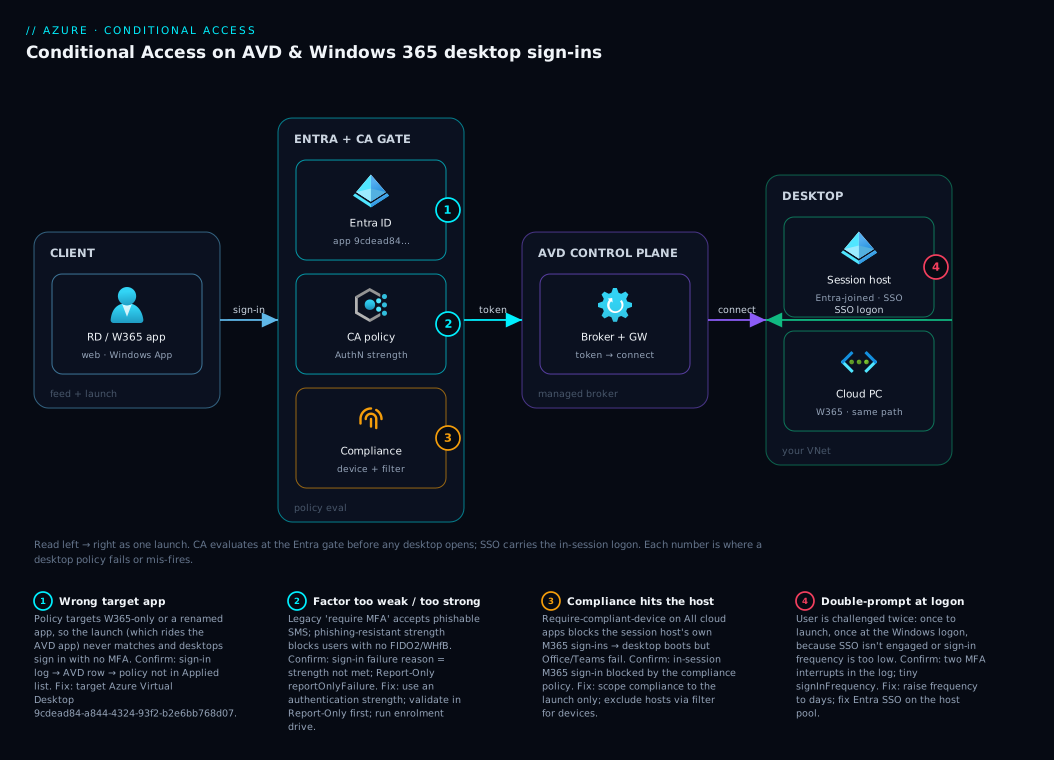
Read the diagram left to right as a single desktop launch. The user opens the Remote Desktop or Windows 365 client and authenticates to Entra ID, which evaluates every applicable policy — including yours, targeting the Azure Virtual Desktop application. At this gate three things are checked: the authentication strength (was the MFA phishing-resistant?), optionally the device compliance state of the endpoint the user connects from, and the session controls (within the sign-in-frequency window, or reauth required?). Break-glass accounts and the tagged session hosts are excluded here by a device filter, so the policy hardens users without trapping the platform’s own identities.
Only after the grant is satisfied does Entra issue a token and hand the user to the AVD control plane — broker and gateway — reaching a session host (or Cloud PC) in your VNet, where single sign-on lets the in-session Windows logon ride that one authentication without a second prompt. The numbered badges mark where this goes wrong: the wrong target app (policy never fires), a missing phishing-resistant factor (grant fails), a compliant-device requirement that catches the host instead of the endpoint, and an over-aggressive sign-in frequency that re-prompts on every launch.
Real-world scenario
Meridian Actuarial is a 600-person insurance consultancy. After a cyber-insurance renewal demanded “MFA on all remote access,” the platform team rolled out 40 AVD pooled session hosts and 120 Windows 365 Cloud PCs for actuaries handling sensitive client data from home. The security lead, satisfied that a long-standing “Require MFA for All cloud apps” policy existed, signed the questionnaire attesting MFA was enforced on the desktops.
Three weeks later, a red-team engagement walked straight onto a Cloud PC using credentials harvested from a phishing page. The “Require MFA for All cloud apps” policy did cover the launch — but it used the legacy Require multifactor authentication grant, and the compromised user had only SMS registered, which the attacker intercepted via a SIM-swap. The desktop, a full domain-resident Windows machine, was theirs in minutes. The audit attestation was true on paper and worthless in practice.
The remediation became a textbook case for this design. The team built a targeted policy on the Azure Virtual Desktop app (9cdead84-…) requiring the Phishing-resistant MFA strength, scoped to a dynamic group of desktop users, with two break-glass accounts and the Entra Connect sync account excluded, and left it in Report-Only for five business days. The logs were a revelation: 38 actuaries showed reportOnlyFailure because they had never registered a FIDO2 key or Windows Hello — enforcing on day one would have locked out a third of the practice. A two-week passkey-enrolment drive drove the failures to zero, and they flipped to On.
They almost made the classic second mistake: an engineer added Require device to be marked as compliant with All cloud apps as quick “extra hardening,” and in a test tenant the Cloud PCs immediately lost Office activation and Teams — their own outbound M365 sign-ins were now checked for compliance and the freshly-provisioned hosts had not yet reported compliant. They reverted, moved compliance to a separate policy targeting only the launch for the admin desktop group, and added a device filter excluding the tagged hosts from the tenant-wide compliance policy. Final shape: every launch requires phishing-resistant MFA; admin desktops additionally require a compliant connecting device; hosts are filtered out of compliance so they always reach M365; sign-in frequency is seven days. The next red-team attempt died at the MFA prompt — and the cost delta was negligible, because the value was applying controls they already owned to the right app with the right factor.
Advantages and disadvantages
Conditional Access on virtual desktops is close to mandatory, but the trade-offs are worth naming:
| Advantages | Disadvantages |
|---|---|
| Forces strong, phishing-resistant identity before a full Windows desktop is ever launched | Mis-targeting the app gives false confidence (policy looks active, protects nothing) |
| One policy on the AVD app covers both AVD and Windows 365 launches | Requires understanding the two-stage sign-in; not intuitive |
| Device compliance can restrict launches to managed endpoints | Compliance mis-scoped to the session host breaks the desktop’s own M365 access |
| Sign-in frequency re-verifies sessions on a schedule | Set too low, it produces a “keeps asking me” help-desk wave |
| Report-Only lets you validate against real launches before enforcing | Skipping Report-Only risks locking out a population that lacks the required factor |
| Break-glass exclusions and device filters make it recoverable and surgical | More moving parts than a single tenant-wide MFA toggle |
| Authentication strengths let you raise the bar (MFA → passwordless → phishing-resistant) over time | The strongest factors (FIDO2, WHfB) require an enrolment programme first |
The advantages dominate for any desktop touching sensitive data or admin rights. The disadvantages are almost entirely operational — they bite teams that skip Report-Only, mis-scope compliance, or enforce phishing-resistant strength before users can satisfy it, and every one is prevented by the rollout discipline in the lab below.
Hands-on lab
The centrepiece: an end-to-end build of a launch-time MFA policy for AVD and Windows 365, validated in Report-Only then promoted to enforced — in the portal, with az/Microsoft Graph, and as Bicep, with expected output, validation, and teardown at each stage. Run it in a test tenant or against a pilot group first.
Prerequisites for the lab
| Need | Why | Check |
|---|---|---|
| Entra ID P1 (P2 optional) | Conditional Access is premium | Get-MgSubscribedSku shows a P1/P2 plan |
| Conditional Access Admin or Security Admin role | Create/modify policies | Your role assignment in Entra → Roles |
| At least one AVD host pool or Windows 365 Cloud PC | Something to protect and test launches against | A desktop you can actually launch |
| Two break-glass accounts | Recovery from a lockout | Cloud-only Global Admins, excluded everywhere |
A pilot group (e.g. grp-avd-pilot) |
Limit blast radius | A handful of test users in a group |
| Microsoft Graph PowerShell (for CLI path) | CA is a Graph resource | Connect-MgGraph succeeds in Cloud Shell |
| A registered MFA method for pilot users | Or the policy will fail them in Report-Only too | Users have Authenticator/FIDO2 set up |
Step 0 — Confirm break-glass accounts exist and are excluded
Before any enforcing policy, verify you have two emergency-access accounts to exclude. If not, create them first (cloud-only Global Administrators with long random passwords stored offline) — this is the seatbelt.
# List Global Administrators so you can confirm your break-glass accounts are present
Connect-MgGraph -Scopes "RoleManagement.Read.Directory","User.Read.All"
$gaRole = Get-MgDirectoryRole -Filter "displayName eq 'Global Administrator'"
Get-MgDirectoryRoleMember -DirectoryRoleId $gaRole.Id |
  ForEach-Object { (Get-MgUser -UserId $_.Id).UserPrincipalName }
Expected output: your two breakglass*@…onmicrosoft.com accounts appear. Note their object IDs — you exclude them in every step.
Step 1 — Create the pilot group and add test users
# Create a security group for the pilot and add a test user
$pilot = New-MgGroup -DisplayName "grp-avd-pilot" -MailEnabled:$false \
  -MailNickname "grp-avd-pilot" -SecurityEnabled:$true
Get-MgUser -UserId "pilot.user@contoso.onmicrosoft.com" |
  ForEach-Object { New-MgGroupMember -GroupId $pilot.Id -DirectoryObjectId $_.Id }
"Pilot group: $($pilot.Id)"
Expected output: a group object ID prints and the test user is a member. Portal: Entra → Groups → New group → Security → add members.
Step 2 — Create the policy in Report-Only (portal)
- Entra → Protection → Conditional Access → + New policy, name
CA-LAB-AVD-MFA. - Users → Include
grp-avd-pilot; Exclude both break-glass accounts. - Target resources → Cloud apps → Include → Azure Virtual Desktop.
- Grant → Require multifactor authentication (use the simple grant for the lab; swap to authentication strength → Phishing-resistant MFA once validated).
- Enable policy → Report-only → Create.
Expected result: policy listed as Report-only. Nothing is enforced yet — the pilot user can still launch with or without MFA, but every launch is now evaluated and logged.
Step 3 — Create the same policy via Microsoft Graph
Connect-MgGraph -Scopes "Policy.ReadWrite.ConditionalAccess","Group.Read.All","User.Read.All"
$pilotId = (Get-MgGroup -Filter "displayName eq 'grp-avd-pilot'").Id
$bg1 = (Get-MgUser -UserId 'breakglass1@contoso.onmicrosoft.com').Id
$bg2 = (Get-MgUser -UserId 'breakglass2@contoso.onmicrosoft.com').Id

$params = @{
  displayName = "CA-LAB-AVD-MFA-graph"
  state       = "enabledForReportingButNotEnforced"
  conditions  = @{
    applications   = @{ includeApplications = @("9cdead84-a844-4324-93f2-b2e6bb768d07") }
    users          = @{ includeGroups = @($pilotId); excludeUsers = @($bg1, $bg2) }
    clientAppTypes = @("all")
  }
  grantControls = @{
    operator        = "OR"
    builtInControls = @("mfa")
  }
}
$pol = New-MgIdentityConditionalAccessPolicy -BodyParameter $params
"Created policy: $($pol.Id) state=$($pol.State)"
Expected output: Created policy: <guid> state=enabledForReportingButNotEnforced. You now have two lab policies (portal + Graph) to compare.
Step 4 — Generate real telemetry: launch a desktop
Have the pilot user launch an AVD desktop or Windows 365 Cloud PC from the Remote Desktop client, Windows App, or web client — ideally twice, including one user without MFA registered to produce a would-be failure. Wait ~5 minutes for the sign-in logs to populate.
Step 5 — Read the Report-Only results in the sign-in logs
Whether enforcement is safe lives in the sign-in logs, filtered to the AVD app and the Report-Only result.
# Pull recent sign-ins to the Azure Virtual Desktop app and show the Report-Only verdict
Connect-MgGraph -Scopes "AuditLog.Read.All"
Get-MgAuditLogSignIn -Filter "appId eq '9cdead84-a844-4324-93f2-b2e6bb768d07'" -Top 50 |
  Select-Object userPrincipalName, createdDateTime,
    @{n='ReportOnly';e={ ($_.AppliedConditionalAccessPolicies |
      Where-Object DisplayName -like 'CA-LAB-AVD-*').Result }} |
  Format-Table -AutoSize
Expected output: rows for your pilot user’s launches, with a ReportOnly column showing one of the four verdicts. Portal equivalent: Entra → Monitoring → Sign-in logs → filter Application = Azure Virtual Desktop → open a row → Report-only tab. The verdicts mean:
| Report-Only result | Meaning | What to do before enforcing |
|---|---|---|
reportOnlySuccess |
User satisfied the grant (MFA would pass) | Nothing — this user is ready |
reportOnlyInterrupted |
MFA would have prompted them | Fine; they will be prompted once when enforced |
reportOnlyFailure |
User would have been blocked | Investigate — usually no registered factor; fix before enforcing |
reportOnlyNotApplied |
Policy didn’t apply to this sign-in | Check scope/exclusions if you expected it to apply |
A clean rollout shows only reportOnlySuccess or reportOnlyInterrupted and no unexplained reportOnlyFailure rows. The users behind any failures need an MFA method registered (or an exclusion) before you enforce.
Step 6 — Validate with the What-If tool
Before flipping the switch, use What-If to confirm the policy applies to a representative user and not to break-glass. Portal: Conditional Access → Policies → What If → pick the pilot user + Azure Virtual Desktop app → What If. Expected: the lab policy appears under “will apply.” Repeat with a break-glass account — expected: it appears under “will not apply” with the exclusion as the reason. That second check proves you cannot lock yourself out.
Step 7 — Promote to enforced
Once telemetry is clean and What-If confirms the exclusions, flip to enabled.
# Promote the Graph-created lab policy to enforced
Update-MgIdentityConditionalAccessPolicy -ConditionalAccessPolicyId $pol.Id `
  -BodyParameter @{ state = "enabled" }
(Get-MgIdentityConditionalAccessPolicy -ConditionalAccessPolicyId $pol.Id).State
Expected output: enabled. Portal: open the policy → Enable policy → On → Save. Now test a real launch as the pilot user — you should be prompted for MFA before the desktop opens; test as break-glass — you should not be (it is excluded), proving the recovery path is intact.
Step 8 — (Optional) deploy the same policy as Bicep
To manage the policy as code, save the Bicep from earlier as ca-avd-mfa.bicep, supply the pilot group and break-glass IDs, and deploy at tenant scope:
az deployment tenant create \
  --name ca-avd-mfa \
  --location eastus \
  --template-file ca-avd-mfa.bicep \
  --parameters desktopUsersGroupId="<pilot-group-id>" \
               breakGlassUserIds='["<bg1-id>","<bg2-id>"]'
Expected output: a successful tenant deployment that creates (or updates) the policy. From here the production state lives in source control, changed by PR rather than a portal toggle.
Step 9 — Teardown
Remove everything the lab created so no live enforcing policy or stray group is left behind.
# Delete both lab policies (portal one by name, Graph one by id)
$lab = Get-MgIdentityConditionalAccessPolicy -Filter "startswith(displayName,'CA-LAB-AVD-')"
$lab | ForEach-Object { Remove-MgIdentityConditionalAccessPolicy -ConditionalAccessPolicyId $_.Id }

# Delete the pilot group
Remove-MgGroup -GroupId (Get-MgGroup -Filter "displayName eq 'grp-avd-pilot'").Id
"Teardown complete"
Expected output: Teardown complete, and the policies/group no longer appear in the portal. The Graph delete above also covers a Bicep-deployed policy if the display name matched; remove the template from any pipeline too. Leaving a forgotten enforced desktop policy is an incident waiting to happen — always tear down lab artifacts.
Common mistakes & troubleshooting
The failures here repeat across every team. Scan the playbook for the row matching your symptom.
| # | Symptom | Root cause | Confirm (exact path / command) | Fix |
|---|---|---|---|---|
| 1 | Policy looks active but desktops sign in with no MFA | Targeting the wrong app (e.g. only “Windows 365”, or a renamed app) | Sign-in logs → AVD app row → no policy under “Applied policies” | Target Azure Virtual Desktop 9cdead84-… |
| 2 | Every launch double-prompts for MFA | Sign-in frequency too low, or no SSO on the host pool | Sign-in logs show two MFA challenges; signInFrequency value tiny |
Raise frequency to days; fix Entra SSO on the host pool |
| 3 | Desktop boots but Office/Teams won’t sign in | Compliant-device grant on All cloud apps catches the non-compliant session host | In-session M365 sign-in shows blocked by the compliance policy | Move compliance to the launch policy only; or exclude hosts via device filter |
| 4 | “You can’t get there from here” at launch | A compliant/hybrid-joined grant blocks the user’s BYOD endpoint | Sign-in logs → failure reason = device not compliant | Drop compliance at launch (MFA only), or enrol the endpoint |
| 5 | Phishing-resistant policy blocks everyone | Users have no FIDO2/WHfB registered | Report-Only showed reportOnlyFailure for most users (skipped) |
Run an enrolment drive; validate in Report-Only first |
| 6 | Policy “not applying” to a user | User not in the include group, or caught by an exclusion | What-If → policy under “will not apply” with reason | Fix group membership / remove the unintended exclusion |
| 7 | Admins locked out after enforcing | Break-glass not excluded; admin lacked the factor | Can’t sign in; no excluded account to recover with | Use break-glass; if none, Microsoft support — then add exclusions |
| 8 | Windows 365 launches not gated, AVD ones are | Policy targeted a W365-specific app, not the AVD app W365 uses | W365 launch sign-in shows no applied policy | Add/ switch to Azure Virtual Desktop app |
| 9 | Legacy/older client can’t connect after enforce | Old client falls under legacy-auth or unsupported flow | Sign-in logs → client app = legacy; grant unsatisfiable | Update clients to modern auth; block legacy separately |
| 10 | Report-Only shows nothing for the AVD app | No real launches yet, or filter wrong | Sign-in logs filtered to AVD app are empty | Launch a desktop; wait ~5 min; re-filter |
The three most expensive to diagnose are worth pinning: row 1 (no MFA despite an enabled policy) is the wrong target resource — confirm via the sign-in’s Conditional Access tab (policy missing from Applied = no match), fix by targeting 9cdead84-…; row 3 (desktop boots but Office/Teams fail) is a compliant-device grant on All cloud apps catching the host’s own M365 traffic — move compliance to the launch policy and exclude hosts with a device filter; row 7 (admins locked out) is break-glass not excluded — recover with break-glass, then add the exclusions Report-Only would have flagged.
Best practices
- Target the Azure Virtual Desktop app (
9cdead84-…) for the launch policy. It is the one app both AVD and Windows 365 launches run through. Targeting anything else gives false confidence. - Require an authentication strength, not the legacy “require MFA.” Aim for Phishing-resistant MFA on high-value and admin desktops; SMS/voice are phishable and being retired as strong factors.
- Always roll out Report-Only first. Watch real launches, drive
reportOnlyFailureto zero, then enforce — this single discipline prevents both the lockout and the locked-out-population failures. - Exclude two break-glass accounts from every desktop policy. Cloud-only Global Admins, long random offline passwords — verify with What-If that they fall under “will not apply.”
- Keep compliance off the session hosts’ own traffic. Require compliant device on the launch (the user’s endpoint) if at all; use a device filter to exclude tagged hosts from any tenant-wide compliance policy.
- Use a scoping group, ideally dynamic, not “All users.” It keeps the policy current and clear of service principals and non-desktop staff.
- Set sign-in frequency in days, not minutes, reserving “every time” for privileged surfaces.
- Fix the double-prompt at the host pool, not the policy. Two prompts means SSO is not engaged on the Entra-joined host — repair SSO/RDP properties, do not weaken the policy.
- Validate with What-If before every enforcement change — it applies to a real user and not to break-glass.
- Manage policies as code (Bicep / Graph in a pipeline). The production
statechanges by reviewed PR, not a live toggle. - Separate the desktop policy from the tenant-wide baseline. One targeted policy for the AVD-app launch; a separate, deliberately-scoped policy for everything else — never overload one “All cloud apps” rule with desktop requirements.
Security notes
- Phishing-resistant MFA is the goal, not a nice-to-have. A virtual desktop is a full Windows machine reachable from anywhere; password-only or SMS-MFA on it is the classic ransomware entry. Require FIDO2 / Windows Hello for Business / certificate-based auth via an authentication strength for privileged and sensitive desktops.
- Protect both sign-in boundaries deliberately. MFA at the launch (AVD app) plus single sign-on for the in-session logon gets strong auth with one prompt. If you ever target the in-session logon directly (Windows Cloud Login), do it on purpose, and keep least privilege on scope — never widen to “All users”/“All cloud apps” for a desktop control unless you mean tenant-wide enforcement.
- Guard the break-glass accounts. Excluded from everything, they are the most dangerous accounts in the tenant — store credentials offline, alert on every sign-in.
- Pair with PIM and risk policies over time. Just-in-time admin (PIM) and sign-in-risk-based Conditional Access (P2) harden the surrounding surface once the baseline is enforced; treat the sign-in logs as sensitive and protect the Log Analytics workspace with RBAC.
Cost & sizing
Conditional Access adds no per-policy charge — the cost is the licences that unlock the features, most of which a security-conscious tenant already owns:
| Cost driver | What you pay for | Rough figure | What it unlocks | Watch-out |
|---|---|---|---|---|
| Entra ID P1 | Per user / month | ~₹500–650 (or bundled in M365 E3) | Conditional Access, device compliance grant, authentication strengths | Required for every user the policy targets |
| Entra ID P2 | Per user / month | ~₹750–950 (or bundled in M365 E5) | Sign-in-risk & user-risk conditions, PIM | Only if you add risk-based desktop policies |
| Microsoft Intune | Per user / month | ~₹650–800 (or bundled) | Device compliance state for the grant | Needed only if you require compliant device |
| Windows 365 | Per Cloud PC / month | Varies by size (₹2,500–8,000+) | The Cloud PC itself | Identity controls are licence-separate from the desktop |
| AVD compute | Session-host VM hours + storage | Per VM size | The session hosts | CA adds nothing to compute; it is identity-only |
| Log Analytics | Per GB of sign-in log ingestion | ~₹250–400 / GB | Report-only telemetry retention | Sample/retain deliberately on chatty tenants |
The only “sizing” decision is licence coverage: every targeted user must have at least P1 (or they are not evaluated), and the compliant device grant additionally needs Intune plus an enrolled device. There is no compute or throughput dimension — it evaluates inline at sign-in at no measurable latency cost. The genuine spend is the one-time enrolment programme for phishing-resistant factors (FIDO2 keys are hardware; Windows Hello for Business is config). For most teams these controls are already paid for inside an M365 E3/E5 bundle — the work is applying them correctly, not buying anything new.
Interview & exam questions
1. AVD and Windows 365 don’t sign in to one obvious app. Which Entra application do you target for a launch-time MFA policy, and why? Target Azure Virtual Desktop (app ID 9cdead84-a844-4324-93f2-b2e6bb768d07), historically shown as “Windows Virtual Desktop.” Both AVD and Windows 365 launches run through this application’s feed/gateway/broker, so a single policy on it protects both. Targeting only a Windows 365 app misses the launch path Cloud PCs actually use.
2. A team has “Require MFA for All cloud apps” enabled and believes AVD is covered. What’s the risk? The launch is covered, but the same policy also evaluates the session host’s own outbound M365 sign-ins — if it also requires a compliant device and the host isn’t compliant, the desktop boots but can’t reach M365. And the legacy “Require MFA” grant is satisfied by weak factors like SMS. Fix: a targeted policy on the AVD app with an authentication strength, separate from the tenant baseline.
3. What’s the difference between “Require multifactor authentication” and “Require authentication strength”? The legacy grant accepts any registered second factor, including phishable SMS/voice. Require authentication strength points at a named set of methods — e.g. the built-in Phishing-resistant MFA (FIDO2, Windows Hello for Business, certificate-based) — so you can mandate strong factors specifically. For high-value desktops you want the strength control.
4. Why be careful applying “Require device to be marked as compliant” to virtual desktops? The grant checks the device doing the sign-in. At launch that’s the user’s endpoint (fine to gate); but if it matches the session host’s own M365 traffic and the host isn’t compliant, the host’s sign-ins are blocked and the desktop is unusable. Scope compliance to the launch policy and/or exclude hosts with a device filter.
5. How does “filter for devices” help an AVD deployment? It lets a policy include or exclude devices by attribute (device.extensionAttribute1, device.trustType, etc.). The key use is to exclude tagged session hosts from any compliance policy so their outbound M365 sign-ins are never blocked, while still requiring compliance for real user endpoints.
6. Users complain the desktop “keeps asking for MFA.” What are the two likely causes? Either sign-in frequency is set too low (forcing reauth on each launch) or single sign-on isn’t engaged on the Entra-joined host pool (so the in-session logon prompts separately from the launch). Raise sign-in frequency to days, and fix Entra SSO on the host pool — it’s an SSO/host-pool problem, not a reason to weaken the policy.
7. Walk through a safe rollout of a phishing-resistant-MFA policy for desktops. Create it in Report-Only targeting the AVD app, scoped to a desktop-user group, with break-glass excluded. Watch real launches in the sign-in logs for reportOnlyFailure rows (users lacking FIDO2/WHfB), run an enrolment drive until failures hit zero, validate with What-If, then flip to enabled. Test that a pilot user is prompted and break-glass is not.
8. Why does Windows 365 only need a policy on the AVD app and not a separate launch policy? Windows 365 Cloud PCs are brokered on the same control plane as AVD; the connect/launch handshake goes through the AVD application. A Conditional Access policy on 9cdead84-… therefore gates Cloud PC launches as well, so one policy covers both products’ launch paths.
9. What is a break-glass account and why is it essential before enforcing a desktop CA policy? A break-glass (emergency-access) account is a cloud-only Global Administrator with a long offline password, excluded from every Conditional Access policy. If a policy locks out the admins, you sign in with break-glass to disable it. Excluding two of them before enforcing any policy is the standard guard against a self-inflicted lockout.
10. Which licences must every targeted user hold, and what happens otherwise? At least Entra ID P1 for Conditional Access — a user without it is simply not evaluated by the policy. Adding the compliant device grant requires Intune plus an enrolled device per user; sign-in-risk conditions require P2. There is no compute or per-policy charge.
These map most directly to SC-300 (Identity and Access Administrator) — implement and manage Conditional Access — and AZ-140 (Configuring and Operating Microsoft Azure Virtual Desktop), which covers securing AVD sign-ins specifically; the device-compliance angle touches MD-102 (Endpoint Administrator). A compact cert mapping:
| Question theme | Primary cert | Objective area |
|---|---|---|
| CA policy design, states, What-If | SC-300 | Implement & manage Conditional Access |
| Authentication strengths, phishing-resistant MFA | SC-300 | Plan & implement authentication methods |
| Securing AVD/W365 sign-ins, the AVD app | AZ-140 | Secure access to Azure Virtual Desktop |
| Device compliance, filter for devices | MD-102 / SC-300 | Manage compliance policies; device-based CA |
| Break-glass, lockout recovery | SC-300 | Manage emergency access; resilience |
Quick check
- Which Entra application (and its ID) do you target so a single Conditional Access policy gates both AVD and Windows 365 desktop launches?
- Your “Require MFA for All cloud apps” policy also requires a compliant device, and after enforcing it your Cloud PCs can no longer activate Office. What happened, and what’s the fix?
- True or false: requiring phishing-resistant MFA straight to enforced is safe as long as MFA is already turned on for the tenant.
- A desktop user is prompted for MFA twice on every launch. Name the two most likely causes.
- Before flipping a desktop policy from Report-Only to On, what two checks confirm you won’t lock yourself out?
Answers
- Azure Virtual Desktop, application ID
9cdead84-a844-4324-93f2-b2e6bb768d07(legacy name “Windows Virtual Desktop”). Both products’ launch paths run through this app, so one policy on it covers both. - The compliant-device grant on All cloud apps is now evaluating the Cloud PCs’ own outbound M365 sign-ins, and the non-compliant hosts are blocked, breaking Office/Teams. Fix: require compliance only on the launch policy (the user’s endpoint), and exclude the hosts/Cloud PCs from any tenant-wide compliance policy with a device filter — or make the hosts compliant deliberately.
- False. Phishing-resistant strength only accepts FIDO2, Windows Hello for Business, or certificate-based auth; users with only Authenticator push or SMS will be blocked. Validate in Report-Only and run an enrolment drive until
reportOnlyFailureis zero before enforcing. - Either sign-in frequency is set too low (forcing reauth each launch) or single sign-on isn’t engaged on the Entra-joined host pool (so the in-session logon prompts on top of the launch). Fix frequency to days and repair host-pool SSO.
- (a) What-If shows the policy applies to a representative desktop user, and (b) What-If shows it does not apply to your break-glass accounts (they’re excluded). The first proves it works; the second proves you can recover.
Glossary
- Conditional Access — Entra’s policy engine that evaluates “if [user/app/device/risk] then [require MFA / compliance / block]” at every sign-in.
- Azure Virtual Desktop (the app) — the first-party Entra application (
9cdead84-a844-4324-93f2-b2e6bb768d07, legacy “Windows Virtual Desktop”) that AVD’s and Windows 365’s feed, gateway and broker authenticate against; the load-bearing target for a desktop launch policy. - Grant control — the requirement(s) a sign-in must satisfy to be allowed: MFA, authentication strength, compliant device, hybrid-joined, etc.
- Authentication strength — a named set of MFA methods that satisfy a grant; built-ins are Multifactor authentication, Passwordless MFA, and Phishing-resistant MFA.
- Phishing-resistant MFA — the strongest built-in strength: FIDO2 security keys, Windows Hello for Business, and certificate-based authentication only.
- Require compliant device — a grant that checks the signing-in device’s Intune compliance state.
- Filter for devices — a condition that includes/excludes devices by attribute rule (e.g.
device.extensionAttribute1 -eq "AVDHost"). - Sign-in frequency — a session control setting the maximum age of a session before Entra forces reauthentication.
- Single sign-on (in-session) — configuration on an Entra-joined host pool so the desktop logon rides the launch authentication and doesn’t re-prompt.
- Report-Only — the policy state (
enabledForReportingButNotEnforced) that evaluates real sign-ins and logs the would-be result without enforcing; its log values arereportOnlySuccess/reportOnlyFailure/reportOnlyInterrupted/reportOnlyNotApplied. - Break-glass account — a cloud-only emergency Global Administrator excluded from every policy, used to recover from a lockout.
- What-If — the tool that simulates which policies apply to a chosen user/app/condition.
- Windows Cloud Login — the Entra application for the in-session logon to an Entra-joined session host.
- Session host / Cloud PC — the actual Windows desktop the user connects to (AVD session host or Windows 365 Cloud PC).
Next steps
You can now require strong MFA to reach a virtual desktop without locking yourself out. Build outward:
- Next: Deploying Conditional Access Safely: Report-Only Rollout to Enforcement — the full safe-rollout mechanic this article applies, in depth.
- Related: Authenticator Passkeys and Number Matching: Stopping MFA Fatigue Attacks — register the phishing-resistant factors your strength policy requires.
- Related: How an AVD Session Actually Connects: Broker, Gateway, and the Reverse-Connect Transport, Step by Step — the two-stage sign-in and SSO behaviour behind the single-prompt design.
- Related: Windows 365 Cloud PC vs Azure Virtual Desktop: Cost, Control, and Use-Case Trade-offs Compared — choosing the platform these controls sit in front of.
- Related: Entra ID Dynamic Groups: A Membership-Rule Cookbook That Actually Scales — auto-populate the desktop-user group your policy is scoped to.