A regional insurer has a datacenter lease expiring in nine months and roughly 400 VMs running on vSphere 7 — a mix of claims-processing apps, an Oracle estate, and a stubborn set of Windows VMs that the application owners swear cannot be re-platformed before the lease runs out. Re-architecting everything into native Azure IaaS in that window is fantasy. The realistic move is a lift-and-shift onto Azure VMware Solution (AVS): stand up a VMware private cloud inside Azure, bridge the on-prem vSphere environment to it with VMware HCX, and live-migrate the running VMs with zero downtime so the application teams barely notice. This guide walks the full path — provision the AVS private cloud, wire ExpressRoute, deploy and pair HCX, extend the networks, run a vMotion migration, cut over, and roll back — with the real commands, the exact limits, and the failure modes that will page you if you skip a step.
The appeal of AVS is that it is the same VMware stack — vCenter, ESXi, vSAN, NSX-T — running on dedicated bare-metal hosts in an Azure region, operated by Microsoft as a first-party service. Your operators keep their tooling and runbooks. HCX is the migration fabric VMware ships specifically for this: it builds an encrypted transport between two vCenters, stretches Layer-2 networks so a VM keeps its IP across the move, and performs bulk and vMotion (live) migrations across that fabric. The combination lets you evacuate a datacenter on a deadline without an IP re-addressing project or an application-by-application rewrite.
Because you will return to this mid-cutover at 2 a.m., the whole field is laid out as scannable tables: the SKU and quota matrix, the network-CIDR plan, the HCX Service Mesh appliance reference, the migration-type comparison, the ExpressRoute and port reference, and — most importantly — a symptom → root cause → confirm → fix playbook for every way a migration wave stalls. Read the prose once, then keep the tables open. To frame the whole journey before the deep dive, here is every phase, the long pole in each, and the one command that proves it is done:
| Phase | What you build | The long pole | Proof it’s done (command / UI) |
|---|---|---|---|
| 0 · Quota | Approved host quota | Support-ticket lead time (days) | Quota request Approved in the portal |
| 1 · Provision | AVS private cloud (SDDC) | 3–4 h bare-metal build | provisioningState = Succeeded |
| 2 · Connect | ExpressRoute + Global Reach | Auth-key dance across circuits | connectionStatus = Connected |
| 3 · HCX deploy | Cloud Manager + Connector | OVA download + activation | Connector paired to AVS site |
| 4 · Service Mesh | IX / NE / vMotion appliances | Network Profile IP pools | All tunnels Up (green) |
| 5 · Stretch | NSX-T segments (extended L2) | Per-VLAN extension | Segment shows Extended in NSX-T |
| 6 · Migrate | Bulk pilot → live vMotion | Bandwidth + switchover windows | VM Migration complete, original IP |
| 7 · Cutover | Gateway move + unstretch | Coordinated per-segment exit | traceroute egresses via AVS NSX-T |
What problem this solves
A datacenter exit on a hard deadline is the canonical forcing function. You have hundreds of VMs, a lease clock, application owners who will not sign off on a re-platform, and a network team that will not tolerate an IP re-addressing project across a claims estate. The naive answers all fail: native re-architecture is too slow, a cold “export-OVA-and-import” is downtime nobody will accept, and a raw vMotion across the internet is impossible because there is no shared vCenter and no stretched network.
What breaks without AVS + HCX: teams attempt VM-by-VM rebuilds in native Azure IaaS, discover that the Oracle estate and the Windows apps carry licensing and configuration assumptions that don’t survive the move, blow the timeline, and end up paying for the old datacenter for another year. Or they try a big-bang cutover with a re-IP and spend the weekend chasing every hard-coded IP, DNS record, firewall rule and certificate SAN that assumed the old address.
Who hits this: enterprises with a VMware-heavy estate and a deadline — datacenter lease expiry, an acquisition that must be integrated, a hardware-refresh they’d rather skip, or a DR-site consolidation. AVS is the bridge for workloads that genuinely need vSphere (or just need to move now and modernize later). The win is concrete: keep the IP (stretched L2), keep the tooling (same vCenter/NSX-T), move live (vMotion), and pay for dedicated hosts only as long as you need them. The cost of getting it wrong is a stalled migration wave — and every kind of stall has a specific, confirmable cause, which is the second half of this article.
Learning objectives
By the end of this article you can:
- Provision an AVS private cloud end to end — register the provider, win host quota, pick the right SKU and a non-overlapping management CIDR, and stand up the SDDC.
- Wire AVS into your network over its Microsoft-managed ExpressRoute circuit, connect it to a hub VNet’s ExpressRoute gateway, and bridge on-prem with Global Reach.
- Deploy and pair HCX — enable the Cloud Manager add-on, deploy the on-prem Connector OVA, activate it, pair the sites, and build a Service Mesh (IX / Network Extension / vMotion).
- Stretch on-prem VLANs into AVS NSX-T segments so migrated VMs keep their original IP, and know exactly when to unstretch.
- Choose the right migration type — Bulk, HCX vMotion, or Replication-Assisted vMotion (RAV) — for a pilot, a production VM, or a high-throughput wave, and explain the trade-offs.
- Diagnose a stalled wave from the symptom (red tunnel, failed pairing, wrong-IP VM, slow bulk) to the root cause with the exact
az/HCX/NSX-T path that confirms it. - Cut over and roll back safely — migrate the gateway to NSX-T, unstretch, and (pre-cutover) reverse any migration because the source VM still exists.
- Layer the enterprise controls — Entra-gated admin, Vault-held secrets, runtime EDR, posture scanning, and observability — before production traffic lands.
Prerequisites & where this fits
You should be comfortable with vSphere operations (vCenter, distributed port groups, vMotion concepts) and with Azure networking fundamentals — VNets, ExpressRoute, route propagation. You’ll drive Azure CLI and read JSON output, and you’ll work in both the Azure portal and the HCX/vCenter UIs (HCX is still largely a UI-driven product; the control-plane around it is automatable).
This sits in the migration / hybrid-connectivity track. The ExpressRoute design under it is its own discipline — see ExpressRoute Private Peering & Failover Design. The hub VNet AVS lands against is a Hub-Spoke vs Virtual WAN decision you make upstream. AVS is one lane of a broader Azure migration program; the SNAT/egress concerns of the landed estate connect to NAT Gateway & SNAT Port Exhaustion, and you’ll likely back up the AVS estate with Veeam Backup & Replication to object storage.
The concrete checklist before you start — what each prerequisite is, why it bites, and how to confirm it:
| Prerequisite | Why it matters | How to confirm / obtain | Gotcha if missing |
|---|---|---|---|
Microsoft.AVS provider registered |
No provider, no az vmware ops |
az provider show -n Microsoft.AVS |
“ResourceProviderNotRegistered” on create |
| Approved host quota | AVS hosts are dedicated bare metal | Support ticket: Service & subscription limits | Multi-day wait kills a day-one start |
| Non-overlapping /22 mgmt CIDR | SDDC subdivides it for vCenter/NSX/vMotion/vSAN | Reserve in IPAM; diff vs on-prem + peered VNets | Overlap = random connectivity loss |
| ExpressRoute circuit (on-prem) | AVS is reached over private connectivity only | Provisioned circuit + auth key | No path to AVS; pairing fails |
| On-prem vSphere 6.5+/7.x + admin | HCX Connector pairs to this vCenter | vCenter version + cloudadmin creds | Old vSphere → unsupported HCX pairing |
Azure CLI 2.55+ with vmware ext |
Drives private-cloud / Global Reach ops | az extension add -n vmware --upgrade |
Commands not found |
Contributor on target RG |
Create the private cloud + connections | az role assignment list |
AuthorizationFailed on create |
| Cutover maintenance window | The unstretch is the disruptive step | Change record (ServiceNow) | Trombone/egress flip with no change ticket |
Core concepts
Six mental models make every later step — and every failure — obvious.
AVS is the real VMware SDDC on dedicated hosts. A private cloud is a vSphere cluster (vCenter + ESXi + vSAN + NSX-T) running on dedicated bare-metal nodes in an Azure region, operated by Microsoft. You get cloudadmin@vsphere.local (a scoped vSphere admin), not root on the hosts. The minimum is 3 hosts; you scale by adding hosts or clusters. Because it’s the same stack, your runbooks port over — but the control plane (provisioning, ExpressRoute, scale) is Azure’s, and that’s what az vmware drives.
HCX is a two-manager fabric, not a single tool. On-prem you run the HCX Connector (a VM you deploy from an OVA); in AVS you run the HCX Cloud Manager (an add-on Microsoft deploys). A Site Pairing links the two managers. A Service Mesh then deploys the worker appliances that carry traffic: the Interconnect (IX) for bulk transport, the Network Extension (NE) for stretched L2, and the vMotion appliance for live moves. No Service Mesh, no migrations.
Stretched L2 is what preserves the IP — and it’s temporary. The Network Extension appliance bridges an on-prem VLAN to a new NSX-T segment in AVS, so a VM keeps its IP and default gateway across the move. The on-prem gateway stays authoritative until you cut over. A stretched segment tromboles egress back to on-prem (a latency tax), so you retire it by migrating the gateway to NSX-T and unstretching once every VM on that segment has moved.
ExpressRoute is the only path, and it takes two circuits to bridge. AVS exposes its own Microsoft-managed ExpressRoute circuit. You connect that circuit to your hub VNet’s ExpressRoute gateway (so Azure can reach AVS), and you use Global Reach to bridge the AVS circuit to your on-prem ExpressRoute circuit (so the on-prem HCX Connector can reach the AVS Cloud Manager). Forgetting Global Reach is the single most common “phantom DNS issue.”
Migration types trade throughput against downtime. Bulk replicates in the background then cuts over with a brief reboot at a scheduled window (highest throughput, slight downtime — perfect for pilots and big batches). HCX vMotion is live, zero-downtime, one VM at a time. Replication-Assisted vMotion (RAV) combines batch scale and zero downtime for a production wave. Pick per workload, not per project.
Rollback exists only before you unstretch. vMotion and bulk leave the source VM in place until you delete it. So before you migrate the gateway and unstretch, you can reverse any move or simply power the original on-prem VM back on — clients reconnect to the same IP on the stretched segment. That is why you migrate the gateway last.
The vocabulary in one table
| Term | One-line definition | Where it lives | Why it matters |
|---|---|---|---|
| Private cloud (SDDC) | vSphere cluster on dedicated AVS hosts | Azure region | The destination estate |
Management /22 |
CIDR the SDDC subdivides | --network-block |
Overlap → routing chaos |
| cloudadmin | Scoped vSphere admin you receive | AVS vCenter/NSX-T | Rotate it immediately |
| HCX Connector | On-prem half of the fabric | On-prem vCenter (OVA) | Source-side appliance |
| HCX Cloud Manager | AVS half of the fabric | AVS (add-on) | Target-side appliance |
| Site Pairing | Link between the two HCX managers | HCX UI | No pairing → no mesh |
| Service Mesh | Deployed IX/NE/vMotion appliances | HCX → Interconnect | Carries the traffic |
| Interconnect (IX) | WAN-optimized bulk transport | Service Mesh | Bulk/replication path |
| Network Extension (NE) | Stretches a VLAN to NSX-T | Service Mesh | Preserves the IP |
| NSX-T segment | AVS-side L2 network | AVS NSX-T | Where the VM lands |
| Global Reach | Bridges two ER circuits | ER config | On-prem ↔ AVS path |
| vMotion (HCX) | Live, zero-downtime move | HCX Migration | Production moves |
| Bulk migration | Background replicate + cutover | HCX Migration | Pilots + big batches |
| RAV | Batch scale + zero downtime | HCX Migration | Production waves |
| Tunnel status | Health of a mesh appliance | Service Mesh → Appliances | Red = no migrations |
AVS private cloud: SKUs, quota and the management CIDR
Everything starts with three decisions that are expensive to change: the SKU, the host count, and the management CIDR. Get the CIDR wrong and you re-provision; get the SKU wrong and you over-pay for the life of the estate.
Choosing the host SKU
AVS hosts are dedicated bare-metal nodes; the SKU fixes CPU, RAM and the vSAN footprint per host. Availability varies by region — confirm before you size.
| SKU | CPU (approx) | RAM (approx) | vSAN raw (approx) | Best for | Note |
|---|---|---|---|---|---|
| AV36 | 2× Intel 18-core | ~576 GB | ~15 TB NVMe | General mixed estate | Broadest region availability |
| AV36P | 2× Intel 18-core (higher clock) | ~768 GB | ~19 TB NVMe | RAM-heavy / DB workloads | More memory + storage per host |
| AV52 | 2× Intel 26-core | ~1.5 TB | ~38 TB NVMe | Very large memory footprints | Fewer regions; big-VM consolidation |
| AV48 | 2× 48-core (AMD, where offered) | ~1.5 TB | ~38 TB NVMe | High core-density consolidation | Region-limited |
The sizing levers and how each maps to the bill — pick the smallest cluster that fits real demand, not the on-prem peak:
| Lever | Drives | Right-size by | Trade-off |
|---|---|---|---|
| Host count | The dominant cost | Sum of vCPU/RAM/vSAN demand ÷ per-host | Below 3 is not allowed |
| Host SKU | Per-host density | Match the binding resource (often RAM or vSAN) | Wrong SKU over-pays for life of estate |
| Cluster count | Failure-domain / scale boundary | One cluster until you outgrow it | Each cluster has its own minimum |
| vSAN policy (FTT) | Usable capacity vs resilience | FTT=1 default; raise only if needed | Higher FTT consumes more raw |
| Reservation term | Steady-state discount | 1- or 3-yr RI once stable | Lock-in; size after migration settles |
The management CIDR plan
--network-block is a /22 the SDDC carves into subnets for vCenter, NSX-T, HCX, vMotion, vSAN and replication. It must overlap nothing — not on-prem, not a peered VNet, not another AVS. Reserve it exclusively in IPAM. The internal carve (indicative — AVS manages the exact split):
| Function | Carved from the /22 |
Why it’s separate | Overlap symptom |
|---|---|---|---|
| vCenter / management | Management subnet | Control-plane reachability | vCenter unreachable from hub |
| NSX-T edge / T0-T1 | NSX management | North-south routing | Segments don’t route |
| HCX appliances | HCX uplink/mgmt | Mesh tunnel endpoints | Tunnels won’t form |
| vMotion | vMotion subnet | Live-migration data path | vMotion stalls / fails |
| vSAN | vSAN subnet | Storage replication | vSAN health degraded |
| Replication | Repl subnet | Bulk/RAV replication | Bulk throughput collapses |
# Register the AVS resource provider (idempotent)
az provider register --namespace Microsoft.AVS --wait
az provider show --namespace Microsoft.AVS --query registrationState -o tsv

# Add the VMware CLI extension
az extension add --name vmware --upgrade

# Working context
RG=rg-avs-prod-sea
LOCATION=southeastasia
PRIVATE_CLOUD=avs-insurer-prod
az group create -n "$RG" -l "$LOCATION"
Host quota is requested through Help + Support → New support request (Issue type Service and subscription limits (quotas), quota type Azure VMware Solution). Request at least the cluster minimum (3 hosts of the AV36 / AV36P / AV52 SKU available in your region). This is the long pole — it’s a human-approved gate, not self-service, so raise it days ahead. The quota-and-limits reference you’ll be asked about:
| Item | Value / limit | Source of truth | Why it bites |
|---|---|---|---|
| Hosts per cluster (min) | 3 | Service limit | Can’t run a 2-host cluster |
| Hosts per cluster (max) | 16 | Service limit | Add a cluster beyond this |
| Clusters per private cloud | up to 12 (region/SKU-dependent) | Service limit | Scale-out boundary |
| Hosts per private cloud | up to 96 (region/SKU-dependent) | Service limit | Plan growth early |
| Quota approval | Hours-to-days, manual | Support ticket | Day-one start stalls |
| Provisioning time | 3–4 hours | Platform | Kick off early |
| Management block | exactly /22 | --network-block |
Smaller is rejected |
Provisioning the SDDC
Provisioning bare-metal hosts and the full SDDC takes 3–4 hours. Kick it off early. Pick a management /22 that overlaps nothing.
az vmware private-cloud create \
  --resource-group "$RG" \
  --name "$PRIVATE_CLOUD" \
  --location "$LOCATION" \
  --sku AV36P \
  --cluster-size 3 \
  --network-block 10.100.0.0/22 \
  --internet Disabled \
  --accept-eula
--internet Disabled keeps the private cloud off the public internet (the default and the right posture). The flags that matter on create, with their defaults and the cost/risk of changing them:
| Flag | What it sets | Default | When to change | Cost / risk |
|---|---|---|---|---|
--sku |
Host SKU (AV36/AV36P/AV52) | none (required) | Match binding resource | Over-pay if oversized |
--cluster-size |
Hosts in the first cluster | 3 | Size to demand | Below 3 invalid; each host bills |
--network-block |
Management /22 |
none (required) | Must not overlap | Re-provision if it overlaps |
--internet |
Public internet for the SDDC | Disabled | Almost never enable | Enabling adds attack surface |
--accept-eula |
Accepts VMware EULA | — | Required to create | — |
--mi-system-assigned |
Managed identity on the cloud | off | If you script KV access | Identity sprawl if unused |
When it completes, pull the auto-generated vCenter and NSX-T credentials and the management endpoints:
# vCenter and NSX-T admin credentials (rotate after handoff)
az vmware private-cloud list-admin-credentials \
  --resource-group "$RG" --private-cloud-name "$PRIVATE_CLOUD" -o jsonc

# Management network endpoints (vCenter, NSX-T, HCX URLs)
az vmware private-cloud show \
  --resource-group "$RG" --name "$PRIVATE_CLOUD" \
  --query "{vcsa:endpoints.vcsa, nsxt:endpoints.nsxtManager, hcx:endpoints.hcxCloudManager}" -o jsonc
Manage the estate around the migration as code so it’s reproducible and reviewed. A Terraform skeleton for the private cloud:
resource "azurerm_vmware_private_cloud" "avs" {
  name                = "avs-insurer-prod"
  resource_group_name = azurerm_resource_group.avs.name
  location            = "southeastasia"
  sku_name            = "AV36P"

  management_cluster {
    size = 3
  }

  network_subnet_cidr        = "10.100.0.0/22"
  internet_connection_enabled = false

  nsxt_password   = var.nsxt_password   # set, then rotate out-of-band
  vcenter_password = var.vcenter_password
}
The Terraform vs az choice for AVS pieces — what each is genuinely good at:
| Component | Prefer | Why |
|---|---|---|
| Private cloud + clusters | Terraform | Reproducible, drift-detected, code-reviewed |
| ExpressRoute connections | Terraform | Lives next to the hub VNet definition |
| Global Reach | az (then codify) |
Auth-key dance is easier imperatively first |
| HCX enable (add-on) | az |
One-time enable; UI-driven thereafter |
| Service Mesh / migrations | HCX UI / REST | Not in az/TF; drive via HCX API in pipeline |
| Post-landing NSX-T segments + DHCP | Terraform | Target estate as code |
| In-guest day-2 (agents, domain join) | Ansible | Config management, not infra |
Connecting AVS over ExpressRoute and Global Reach
AVS exposes an ExpressRoute circuit of its own (Microsoft-managed). Connect it to your hub VNet’s ExpressRoute gateway, and use Global Reach to bridge it to your on-prem circuit so HCX traffic can flow datacenter-to-AVS.
# The AVS-managed ExpressRoute circuit ID
EXPR_ID=$(az vmware private-cloud show -g "$RG" -n "$PRIVATE_CLOUD" \
  --query "circuit.expressRouteId" -o tsv)

# Authorize the AVS circuit, capture the auth key
az vmware authorization create \
  --resource-group "$RG" --private-cloud "$PRIVATE_CLOUD" \
  --name avs-er-auth
AUTH_KEY=$(az vmware authorization show -g "$RG" --private-cloud "$PRIVATE_CLOUD" \
  --name avs-er-auth --query expressRouteAuthorizationKey -o tsv)

# Connect the AVS circuit to the hub VNet's ExpressRoute gateway
az network vpn-connection create \
  --name conn-avs-to-hub \
  --resource-group rg-network-hub \
  --vnet-gateway1 ergw-hub \
  --express-route-circuit2 "$EXPR_ID" \
  --authorization-key "$AUTH_KEY" \
  --routing-weight 0
Then bridge on-prem to AVS with Global Reach (this is what lets the on-prem HCX Connector reach the HCX Cloud Manager in AVS):
az vmware global-reach-connection create \
  --resource-group "$RG" --private-cloud "$PRIVATE_CLOUD" \
  --name gr-onprem-to-avs \
  --peer-express-route-circuit "/subscriptions/<sub>/resourceGroups/rg-onprem-er/providers/Microsoft.Network/expressRouteCircuits/er-onprem-circuit" \
  --authorization-key "<onprem-circuit-auth-key>"
The two connections people confuse — what each bridges, and the symptom when it’s missing:
| Connection | Bridges | Created by | Missing → symptom |
|---|---|---|---|
| AVS circuit → hub ER gateway | Azure VNets ↔ AVS | az network vpn-connection create |
Hub/jump hosts can’t reach AVS |
| Global Reach (AVS ↔ on-prem) | On-prem ↔ AVS directly | az vmware global-reach-connection create |
Site pairing fails; “phantom DNS” |
| ExpressRoute gateway SKU | Throughput ceiling for the path | Gateway create | Undersized → migration bandwidth cap |
| Route propagation | AVS routes into the VNet | Default on the connection | No routes → black-hole |
The ExpressRoute gateway SKU is a real throughput lever for a migration wave — bulk transfers are bandwidth-hungry:
| ER gateway SKU | Throughput (approx) | Max connections | When to use |
|---|---|---|---|
| Standard | ~1 Gbps | limited | Small estates, light waves |
| HighPerformance | ~2 Gbps | more | Mid-size waves |
| UltraPerformance | ~10 Gbps | high | Large parallel bulk waves |
| ErGw1AZ / 2AZ / 3AZ (zone-redundant) | ~1 / 2 / 10 Gbps | high | Same tiers, zone-redundant |
The ports and protocols the path must allow end to end — open these or the mesh never forms:
| Port / protocol | Between | Purpose | Symptom if blocked |
|---|---|---|---|
| TCP 443 | Connector ↔ Cloud Manager | Management / pairing | Site pairing fails |
| UDP 4500 | IX/NE appliances (both sites) | IPsec transport (tunnels) | Tunnels stay red |
| UDP 500 | IX/NE appliances | IKE negotiation | Tunnels won’t establish |
| TCP 902 | Hosts ↔ vMotion path | vMotion data | vMotion errors |
| TCP 8000 | ESXi (vMotion) | vMotion provisioning | Live moves stall |
| TCP 9443 | Admin ↔ Connector appliance | Appliance config UI | Can’t configure Connector |
Deploying and pairing HCX
HCX is an AVS add-on. Enable it (which deploys the HCX Cloud Manager inside the private cloud), then download the Connector OVA to deploy on-prem.
# Enable the HCX add-on (deploys HCX Cloud Manager in AVS)
az vmware addon hcx create \
  --resource-group "$RG" --private-cloud "$PRIVATE_CLOUD" \
  --offer "VMware MaaS Cloud Provider (Enterprise)"

# Get the HCX Cloud Manager URL
HCX_URL=$(az vmware private-cloud show -g "$RG" -n "$PRIVATE_CLOUD" \
  --query "endpoints.hcxCloudManager" -o tsv)
echo "HCX Cloud Manager: $HCX_URL"
Log into the HCX Cloud Manager UI (https://<hcx-cloud-manager>/) with the cloudadmin credentials. Under Administration → System Updates → Request Download Link, generate the HCX Connector OVA. On the on-prem vCenter, deploy that OVA as a VM, give it a management IP and gateway on your on-prem network, and let it boot. Generate the activation key the Connector needs from the Cloud Manager UI under Administration → Activation Keys (key type HCX Connector), and apply it during the Connector’s initial configuration at https://<connector-ip>:9443.
The two HCX managers side by side — which lives where and does what:
| Attribute | HCX Connector | HCX Cloud Manager |
|---|---|---|
| Side | On-prem (source) | AVS (target) |
| How it’s deployed | OVA you import to vCenter | Azure add-on (az vmware addon hcx) |
| Activation | Connector key, applied at :9443 |
Pre-activated by the add-on |
| Login | cloudadmin you set | cloudadmin@vsphere.local |
| Role | Initiates pairing & migrations | Accepts pairing; hosts target appliances |
| Config UI | https://<ip>:9443 |
https://<cloud-mgr>/ |
The HCX capability matrix — which edition unlocks each service (you need Enterprise for vMotion/RAV/MON/OSAM):
| Capability | HCX (base, bundled with AVS) | HCX Enterprise | What it’s for |
|---|---|---|---|
| Bulk migration | Yes | Yes | High-throughput batches + pilots |
| Cold migration | Yes | Yes | Powered-off VMs |
| Network Extension (stretched L2) | Yes | Yes | Preserve VM IP across the move |
| HCX vMotion | Limited | Yes | Zero-downtime single-VM moves |
| Replication-Assisted vMotion (RAV) | No | Yes | Zero-downtime production waves |
| Mobility-Optimized Networking (MON) | No | Yes | Local egress for AVS-side VMs pre-cutover |
| OS-Assisted Migration (OSAM) | No | Yes | Non-vSphere (Hyper-V/KVM) sources |
| WAN Optimization | Yes | Yes | Dedup/compress to fit the ER circuit |
| Traffic Engineering / app path resiliency | No | Yes | Steer/optimize the transport |
Building the Service Mesh
This is the core of HCX: a Site Pairing links the two managers, and a Service Mesh deploys the appliances (IX/WAN, Network Extension, vMotion) that actually carry traffic. Most of this is driven in the Connector UI, but the work is concrete and ordered.
In the on-prem HCX Connector (https://<connector-ip>:9443 for appliance config, then the plugin in on-prem vCenter for operations):
- Site Pairing → Connect to Remote Site: enter the AVS HCX Cloud Manager URL and cloudadmin credentials. A successful pairing shows the AVS site as connected.
- Compute Profile (one on each side): select the resource pool, datastore, and deployment networks the HCX appliances will use. On AVS this is largely pre-baked; on-prem you choose the cluster and the management/uplink/vMotion/replication networks.
- Network Profile: define the IP pools HCX appliances draw from for management, uplink, vMotion, and replication — on-prem these are your network’s ranges; misallocating here is the #1 mesh failure.
- Service Mesh → Create: pick the paired sites and the two compute profiles, then enable the services you need.
After Finish, watch the Service Mesh → Appliances view until every appliance reports Tunnel Status: Up (green). No green tunnels means no migrations — debug here before going further.
The Service Mesh appliances — what each does, how many you get, and the symptom when it’s unhealthy:
| Appliance | Role | Count | Health signal | Down → symptom |
|---|---|---|---|---|
| HCX-IX (Interconnect) | WAN-optimized bulk transport | 1+ per mesh | Tunnel Up | Bulk/RAV can’t transfer |
| HCX-NE (Network Extension) | Stretches VLAN → NSX-T segment | 1 per ~8 segments | Tunnel Up | VM loses IP on move |
| HCX-WO (WAN Optimization) | Dedup/compression | Optional | Tunnel Up | Slower, bandwidth-heavy transfers |
| HCX vMotion | Live-migration data path | With IX | Tunnel Up | Live moves fail / fall back |
The HCX profiles you configure, and what each feeds — get the Network Profile right and the rest follows:
| Profile | Defines | Per side? | The classic mistake |
|---|---|---|---|
| Compute Profile | Cluster, datastore, deployment networks | Both | Pointing at a datastore with no space |
| Network Profile | IP pools (mgmt/uplink/vMotion/repl) | Both | Too few IPs / wrong subnet → red tunnels |
| Service Mesh | Pairs profiles + enables services | Once | Enabling vMotion without the license |
| Network Extension config | Which VLANs to stretch | As needed | Stretching a VLAN with no in-scope VMs |
Stretching networks and choosing the migration type
To migrate a VM live and keep its IP, the VLAN it lives on must be extended into AVS. In the HCX plugin → Network Extension → Extend Networks: select the source on-prem distributed port group / VLAN, provide the gateway IP + prefix for that subnet (the on-prem default gateway stays authoritative until cutover), and submit. HCX creates a corresponding NSX-T segment in AVS bridged over the NE appliance.
The migration types — this is the decision that determines downtime and throughput for each workload:
| Type | Downtime | Throughput | Switchover | Best for |
|---|---|---|---|---|
| Bulk Migration | Brief reboot at cutover | Highest (parallel) | Scheduled window | Pilots, large batches, tolerant VMs |
| HCX vMotion | Zero | Low (one at a time) | Continuous | Single critical production VMs |
| Replication-Assisted vMotion (RAV) | Zero | High (batch) | Scheduled, no reboot | Production waves |
| Cold Migration | Full (VM off) | Medium | Immediate | Powered-off VMs |
| OS-Assisted (OSAM) | Varies | Medium | Scheduled | Non-vSphere / KVM/Hyper-V sources |
The decision table — pick the type from the workload, not the project:
| If the VM is… | And you need… | Use |
|---|---|---|
| A non-prod pilot | To validate the path safely | Bulk |
| A single Tier-1 app | Zero downtime, one move | HCX vMotion |
| A batch of prod VMs | Zero downtime and scale | RAV |
| Already powered off | Just to move the disk | Cold |
| On Hyper-V / KVM | A vSphere landing | OSAM |
| Latency-sensitive after move | The gateway local in AVS | Migrate gateway + unstretch ASAP |
The network-extension settings and their gotchas:
| Setting | What it does | Default / typical | Gotcha |
|---|---|---|---|
| Source port group / VLAN | The L2 to stretch | Your DVS port group | Standard vSwitch not supported for NE |
| Gateway IP + prefix | On-prem gateway stays authoritative | The VLAN’s real gateway | Wrong prefix → asymmetric routing |
| Mobility-Optimized Networking (MON) | Lets AVS-side VMs egress locally pre-cutover | Off | Without it, all egress tromboles |
| Appliance scale | NE appliances per mesh | ~8 segments/appliance | One NE for 30 VLANs → bottleneck |
| Unextend | Removes the bridge | Manual at cutover | Forgetting it = permanent trombone |
Running migrations
Always validate with a non-production VM first using a Bulk migration, then move production with vMotion or RAV. In the HCX plugin → Migration → Migrate: select the source VMs, set the destination (AVS resource pool, datastore vsanDatastore, folder, and the stretched NSX-T segment so the IP is preserved), choose the migration type, validate (HCX runs pre-checks), then start. Track each VM under Migration → Tracking.
To migrate at scale repeatably, drive HCX via its REST API from your pipeline so each wave is a reviewed, logged job rather than UI clicks:
# Authenticate to HCX and list migratable VMs (token used for subsequent migration calls)
HCX_TOKEN=$(curl -sk -X POST "https://${HCX_URL}/hybridity/api/sessions" \
  -H "Content-Type: application/json" \
  -d '{"authData":{"username":"cloudadmin@vsphere.local","password":"<pwd>"}}' \
  -D - -o /dev/null | awk '/x-hm-authorization/{print $2}' | tr -d '\r')

curl -sk -X POST "https://${HCX_URL}/hybridity/api/service/inventory/virtualmachines" \
  -H "x-hm-authorization: ${HCX_TOKEN}" \
  -H "Content-Type: application/json" \
  -d '{"filter":{"cloud":{"local":true}}}' | jq '.data.items[].name'
The migration pre-check failures you’ll actually hit, and what each means:
| Pre-check failure | Means | Fix |
|---|---|---|
| “No compatible network” | Target segment not stretched | Extend the VLAN first; pick the NSX-T segment |
| “Insufficient datastore space” | vSAN can’t hold the VM | Add a host; clean up; pick another datastore |
| “VMware Tools out of date” | Guest tooling too old | Update Tools (improves quiesce/vMotion) |
| “Unsupported hardware version” | VM HW version mismatch | Upgrade VM compatibility on-prem |
| “Snapshot present” | Active snapshot blocks move | Consolidate/remove snapshots |
| “Tunnel not up” | Mesh appliance unhealthy | Fix Network Profile / ports first |
Sizing a wave to your bandwidth — the practical throughput math:
| Factor | Effect on wave duration | Lever |
|---|---|---|
| ER circuit committed bandwidth | Hard ceiling on bytes/hour | Bigger circuit / ER gateway SKU |
| WAN Optimization on | Dedup/compress cuts bytes 2–4× | Enable WO appliance |
| Parallel bulk count | More VMs in flight = faster wave | But saturates the link |
| Change rate during replication | Long-tail re-sync before cutover | Schedule cutover at low-change window |
| Other tenants on the circuit | Contention | Schedule heavy bulk off-hours |
Architecture at a glance
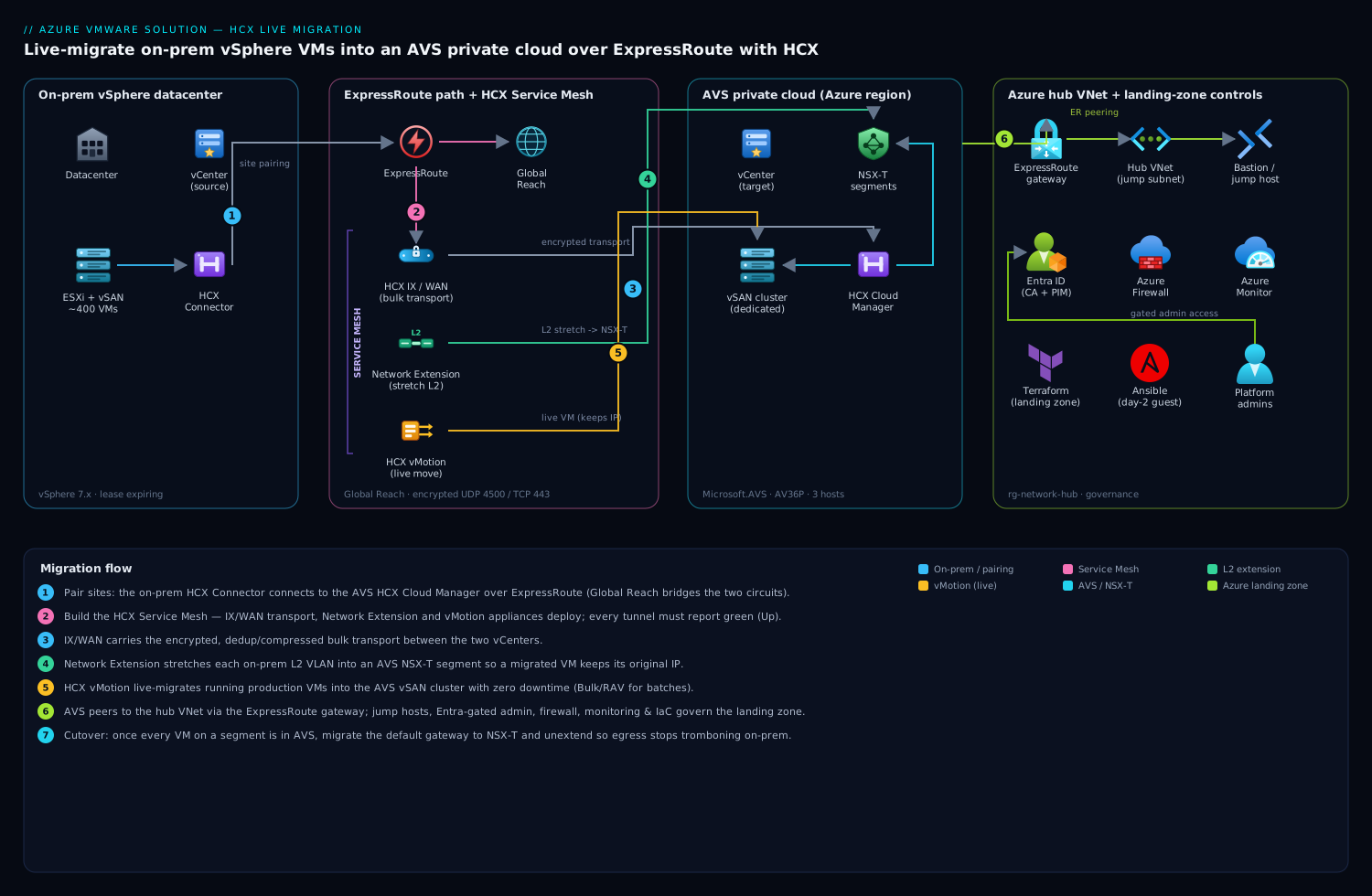
Read the diagram left to right; it is the request/data path a migrating VM actually travels. On the far left sits your on-prem vSphere datacenter — vCenter 7.x with ~400 VMs on vSAN, and the HCX Connector OVA you deployed and activated. Its first job is the Site Pairing to AVS, which only works once the private transport in the middle is wired: the AVS ExpressRoute circuit bridged to your on-prem circuit by Global Reach (carrying management on TCP 443 and the IPsec tunnels on UDP 4500/500), and on top of it the HCX Service Mesh — the IX, Network Extension and vMotion appliances whose tunnels must all read Up before a single VM moves.
From there the path enters the AVS private cloud: an AV36P 3-host SDDC with its own vCenter on vsanDatastore, the HCX Cloud Manager (the paired target), and the NSX-T segments that are stretched L2 copies of your on-prem VLANs (10.100.0.0/22 management block) so a migrated VM keeps its original IP. Finally, the Azure landing zone on the right is where you operate the estate: the ExpressRoute gateway in the hub VNet, a jump host reachable only through Entra PIM and Conditional Access, and Key Vault + Entra holding the rotated cloudadmin secret. The five numbered badges sit on the exact hops that stall a migration — missing Global Reach, red tunnels, a wrong target segment, an unactivated Connector, and an un-rotated cloudadmin — and the legend narrates each as symptom · confirm · fix.
Real-world scenario
Meridian Assurance, a regional insurer, had a datacenter lease expiring in nine months and 412 VMs on vSphere 7 in two clusters: a claims-processing tier (.NET + IIS), a 14-VM Oracle RAC estate the DBAs refused to re-platform on the timeline, and ~120 Windows file/print and line-of-business VMs. The platform team was five engineers. The mandate from the CIO was blunt: be out of the building before the lease auto-renews, and do not break claims processing — a regulated workload with an SLA.
They chose AVS as the bridge. Month one went to quota and design: a 3-host AV36P cluster in Southeast Asia (RAM-bound by Oracle), a 10.100.0.0/22 management block reserved in IPAM after a painful discovery that the on-prem team had already used 10.100.0.0/16 for a lab — which would have silently black-holed routing. They re-reserved 10.140.0.0/22. The ExpressRoute already existed for an unrelated SaaS link; they added Global Reach to bridge it to the AVS circuit.
The first stall came at the Service Mesh. Tunnels stayed red for two days. The engineers chased DNS and firewalls before opening Service Mesh → Appliances and reading the actual error: the on-prem Network Profile had been given a /29 IP pool — six usable addresses — for a mesh that needed management, uplink, vMotion and replication IPs across two NE appliances. It ran out. Widening the pool to a /27 brought every tunnel Up within the hour. That single misallocation had cost two days; it is now the first thing they check.
The pilot — a non-prod claims-staging VM via Bulk — moved cleanly and came up in AVS with its original IP on the stretched segment, validating the whole path. Production then moved in waves: the Windows LOB tier via RAV (zero downtime, batched, ~40 VMs a night within the ER bandwidth), the claims tier via HCX vMotion one app at a time during business hours because the application owners wanted to watch each one. The Oracle RAC estate was the careful wave — quiesced, Bulk-migrated over a weekend with WAN Optimization on to fit the ER circuit, validated against a DBA checklist before cutover.
The one production scare: an engineer, migrating a claims VM at 1 a.m., targeted a non-stretched NSX-T segment by mistake. The VM came up with a new IP, the load-balancer health check dropped it, and a sliver of claims traffic errored for four minutes until they spotted the changed IP in Migration → Tracking, powered the original on-prem VM back on (it still existed — they hadn’t unstretched), and clients reconnected to the same IP. The fix was a guardrail: the migration pipeline now refuses any target that isn’t the stretched segment for that VLAN. After each VLAN was fully evacuated they migrated the gateway to NSX-T and unstretched, killing the trombone. They were out of the datacenter in seven months, a month ahead, and the wall got a new rule: “A red tunnel is a Network Profile IP pool until proven otherwise — and never target a segment you haven’t stretched.”
The incident as a timeline, because the order of moves is the lesson:
| Time | Event | Action taken | Effect | What it should have been |
|---|---|---|---|---|
| Month 1 | CIDR overlap found in IPAM | Re-reserved 10.140.0.0/22 |
Avoided silent black-hole | Always diff the /22 first |
| Wk 5 | Service Mesh tunnels red (2 days) | Chased DNS/firewall | No progress | Read Service Mesh → Appliances first |
| Wk 5 | Root cause: /29 Network Profile | Widened to /27 | Tunnels Up in an hour | Size the IP pool up front |
| Wk 6 | Pilot bulk migration | Non-prod VM, original IP | Path validated | — |
| Wk 8–18 | Prod waves (RAV + vMotion) | Batched + per-app | Zero downtime on Tier-1 | — |
| Wk 14 | 1 a.m. wrong-segment move | VM got new IP, LB dropped it | 4-min claims error | Pipeline guardrail on target |
| Wk 14 | Recovery | Powered on-prem VM back on | Clients reconnect (same IP) | Rollback works pre-unstretch |
| Wk 16+ | Per-VLAN cutover | Migrate gateway + unstretch | Trombone gone | — |
Advantages and disadvantages
AVS + HCX is the right tool for a deadline-driven VMware exit, and the wrong tool for a greenfield cloud-native build. Weigh it honestly:
| Advantages (why this model helps) | Disadvantages (why it bites) |
|---|---|
| Same VMware stack — operators keep vCenter/NSX-T tooling and runbooks | You don’t get root on hosts; the control plane is Azure’s, not yours |
| Zero-downtime live vMotion of running production VMs | HCX is UI-heavy; large waves need REST/API discipline to be repeatable |
| IP preservation via stretched L2 — no re-addressing project | Stretched L2 tromboles egress until you unstretch — a latency tax |
| Reversible before unstretch — source VM stays in place | The window to roll back closes at unstretch; ordering is unforgiving |
| Dedicated bare-metal performance; no noisy neighbors | Billed per dedicated host (3-host minimum) — expensive at rest |
| A fast bridge to Azure for workloads that can’t re-platform now | A poor destination — long-term it costs more than native PaaS/IaaS |
| First-party Azure service — integrates with Entra, Monitor, ER | Quota is a manual gate; a day-one start can stall for days |
| Migration tooling (HCX) is included with the service | Enterprise features (vMotion/RAV/MON) need the Enterprise edition |
AVS shines when you have a regulated, VMware-pinned estate and a clock — claims systems, an Oracle estate, hardware-refresh avoidance, DR-site consolidation. It is a bridge, not a destination: plan the modernization backlog so workloads that can re-platform leave AVS for native Azure later, and you retire the dedicated-host cost. Use it badly — as a permanent home for everything, with stretched L2 left forever and HCX appliances never retired — and you’ve recreated your datacenter in Azure at a premium.
Hands-on lab
A full AVS provision needs approved quota and bills real money, so this lab is read-then-dry-run: it scripts the entire control-plane path with --dry-run-style validation and idempotent checks you can run against a real subscription without committing a 3-host cluster, then shows the exact teardown. Where a step would provision hosts, we stop and validate inputs instead. Run in Cloud Shell (Bash).
Step 1 — Variables and provider registration (safe, idempotent).
RG=rg-avs-lab
LOCATION=southeastasia
PRIVATE_CLOUD=avs-lab-$RANDOM
az group create -n "$RG" -l "$LOCATION" -o table
az provider register --namespace Microsoft.AVS --wait
az provider show --namespace Microsoft.AVS --query registrationState -o tsv   # expect: Registered
az extension add --name vmware --upgrade
Step 2 — Validate your management CIDR against existing space (no provisioning). Prove the /22 overlaps nothing before you ever spend a host-hour:
# List CIDRs already in use across your VNets, then eyeball against your planned /22
az network vnet list --query "[].{name:name, cidrs:addressSpace.addressPrefixes}" -o table
PLANNED=10.140.0.0/22
echo "Planned AVS management block: $PLANNED  — must overlap NONE of the above"
Step 3 — Dry-run the private-cloud create (validate only). --no-wait returns immediately; here we instead just render the command and check SKU availability rather than committing:
# Confirm the SKU is offered in the region BEFORE you commit a cluster
az vmware private-cloud list-skus --location "$LOCATION" -o table 2>/dev/null \
  || echo "Check the portal AVS blade for AV36/AV36P/AV52 availability in $LOCATION"

echo "Would run:"
cat <<EOF
az vmware private-cloud create -g $RG -n $PRIVATE_CLOUD -l $LOCATION \\
  --sku AV36P --cluster-size 3 --network-block $PLANNED --internet Disabled --accept-eula
EOF
Expected: the SKU list (or a portal pointer) and the rendered create command. Do not run the create unless you have approved quota and intend to pay for a cluster.
Step 4 — (If you DO have a real private cloud) read its state and endpoints. Against an existing AVS:
az vmware private-cloud show -g "$RG" -n "$PRIVATE_CLOUD" \
  --query "{state:provisioningState, hosts:management.clusterSize, sku:sku.name}" -o jsonc
# expect: state=Succeeded, hosts=3, sku=AV36P
Step 5 — Validate the ExpressRoute/Global Reach plumbing (read-only).
az network vpn-connection show -n conn-avs-to-hub -g rg-network-hub \
  --query "connectionStatus" -o tsv   # expect: Connected
az vmware global-reach-connection show -g "$RG" \
  --private-cloud "$PRIVATE_CLOUD" --name gr-onprem-to-avs \
  --query "provisioningState" -o tsv  # expect: Succeeded
Step 6 — Teardown. The only thing this lab created is an empty resource group (and provider registration, which you leave). Remove the group:
az group delete -n "$RG" --yes --no-wait
If you did provision a private cloud, the destructive teardown (destroys vSAN data) is:
az vmware global-reach-connection delete -g "$RG" --private-cloud "$PRIVATE_CLOUD" --name gr-onprem-to-avs --yes
az network vpn-connection delete -n conn-avs-to-hub -g rg-network-hub
az vmware private-cloud delete -g "$RG" -n "$PRIVATE_CLOUD" --yes
The lab checkpoints and their expected output, so you know each step passed:
| Step | Command | Expected output | If it fails |
|---|---|---|---|
| 1 | provider show | Registered |
Re-run az provider register --wait |
| 2 | vnet list CIDRs | No overlap with your /22 | Pick a different /22 |
| 3 | list-skus | AV36/AV36P/AV52 rows | Choose a region that offers your SKU |
| 4 | private-cloud show | Succeeded, 3 hosts |
Wait for provisioning; check quota |
| 5 | vpn-connection show | Connected |
Check auth key / gateway |
| 5 | global-reach show | Succeeded |
Re-issue the peer circuit auth key |
| 6 | group delete | (async) | — |
Common mistakes & troubleshooting
This is the section you’ll return to mid-wave. A migration stall always has a confirmable cause; the trick is reading the right signal first instead of chasing DNS. The master playbook — match your symptom, run the confirm, apply the fix:
| # | Symptom | Root cause | Confirm (exact cmd / UI path) | Fix |
|---|---|---|---|---|
| 1 | Random connectivity loss after provision | CIDR overlap of the /22 |
Diff --network-block vs az network vnet list + on-prem IPAM |
Re-provision with a non-overlapping /22 |
| 2 | Can’t start provisioning at all | Host quota not approved | Portal → quota request status | Raise support ticket days ahead |
| 3 | Site pairing fails | Global Reach missing | az vmware global-reach-connection show … provisioningState |
Create the GR bridge between both ER circuits |
| 4 | Mesh tunnels red, no migrations | Wrong Network Profile IP pool (too small/wrong subnet) | HCX → Service Mesh → Appliances (read the error) | Widen the IP pool; correct the subnet |
| 5 | Tunnels red despite correct IPs | UDP 4500 / TCP 443 blocked | Firewall logs between Connector ↔ Cloud Mgr | Open 4500/500/443 end to end |
| 6 | Connector never pairs | Activation key not applied | https://<connector>:9443 shows un-activated |
Generate HCX Connector key, apply at config |
| 7 | Migrated VM gets a new IP | Targeted a non-stretched segment | HCX → Migration → Tracking (changed IP) | Target the stretched NSX-T segment |
| 8 | All egress slow / tromboning | Segment left stretched post-move | traceroute from VM exits via on-prem |
Migrate gateway to NSX-T + unstretch |
| 9 | Bulk painfully slow | ER bandwidth cap / WO off | ER metrics; WO appliance status | Enable WAN Optimization; schedule off-hours |
| 10 | vMotion falls back to bulk | vMotion ports (902/8000) blocked or HW mismatch | Pre-check output; ESXi vMotion logs | Open vMotion ports; upgrade VM HW version |
| 11 | Pre-check: “insufficient datastore” | vSAN out of space | NSX-T/vCenter datastore usage | Add a host; clean up; pick another datastore |
| 12 | App breaks only after cutover | Hard-coded on-prem gateway/DNS | App config; traceroute/DNS from guest |
Update gateway/DNS to AVS-side post-unstretch |
| 13 | Migration “complete” but VM unreachable | Bound to wrong NSX-T segment / NSG on hub | AVS vCenter VM network; hub NSG effective rules | Re-attach correct segment; fix NSG |
| 14 | cloudadmin creds in a leak/audit finding | Auto-gen creds never rotated | Vault secret age; Entra sign-in logs | Rotate post-handoff; store in Vault; gate via PIM |
The decision table — start here when a wave stalls and you don’t yet know the layer:
| If you see… | It’s probably… | Do this first |
|---|---|---|
| Pairing fails | Global Reach / 443 path | global-reach-connection show |
| Red tunnels | Network Profile IP pool | Service Mesh → Appliances error |
| Wrong IP after move | Non-stretched target | Migration → Tracking |
| Slow bulk | Bandwidth / WO off | ER metrics + WO status |
| vMotion won’t run | Ports / VM HW version | Pre-check output |
| Egress slow post-move | Still stretched | traceroute from the VM |
| Random drops day-one | CIDR overlap | Diff the /22 |
The error/limit reference — the strings and numbers you’ll actually meet:
| Signal / string | Where it shows | Meaning | Action |
|---|---|---|---|
provisioningState: Failed |
private-cloud show |
SDDC build failed | Open ticket; check quota/region capacity |
| “ResourceProviderNotRegistered” | private-cloud create |
Microsoft.AVS not registered |
az provider register --wait |
| Tunnel Down (red) | Service Mesh → Appliances | Appliance can’t reach peer | IP pool / ports |
| “Activation failed” | Connector :9443 |
Wrong/expired key | Re-generate the Connector key |
| Pre-check “No compatible network” | Migration validate | Target not stretched | Extend the VLAN |
| Pre-check “snapshot present” | Migration validate | Active snapshot blocks move | Consolidate snapshots |
connectionStatus: NotConnected |
vpn-connection show |
ER connection down | Re-check auth key / gateway |
Global Reach provisioningState: Failed |
global-reach show |
Peer circuit auth invalid | Re-issue the peer auth key |
Best practices
- Reserve the management
/22in IPAM and diff it against everything — on-prem, every peered VNet, other AVS — before you provision. CIDR overlap is the most expensive day-one mistake. - Raise host quota first, on day zero. It’s a manual support gate; treat it as the long pole and start it before anything else.
- Size the Network Profile IP pool generously (a /27, not a /29). The #1 mesh failure is running out of appliance IPs.
- Don’t migrate until every tunnel is green. A red tunnel means zero migrations; fix the mesh before you touch a single VM.
- Always pilot with a non-prod Bulk migration to validate the full path before any production move.
- Target the stretched segment, every time. Build a pipeline guardrail that refuses a non-stretched target so a 1 a.m. mistake can’t re-IP a VM.
- Migrate the gateway last and unstretch per VLAN as each is evacuated — the stretched L2 is a latency tax and the rollback window.
- Never delete source VMs until the wave is validated and the gateway is moved. That’s your rollback.
- Enable WAN Optimization and schedule heavy bulk off-hours so a wave doesn’t saturate a shared ExpressRoute.
- Drive HCX via REST from a pipeline for scale waves — reviewed, logged jobs beat UI clicks and give you an audit trail.
- Rotate cloudadmin/NSX-T credentials immediately after handoff and store them in a vault; gate admin via Entra + PIM.
- Treat AVS as a bridge — maintain a modernization backlog so workloads that can re-platform leave AVS and retire dedicated-host cost.
Security notes
AVS is reached over private connectivity only (--internet Disabled, ExpressRoute) — there is no public data-plane surface by default, and that is the posture to keep. The management plane, though, is yours to lock down, and the auto-generated cloudadmin/NSX-T credentials are a standing risk until rotated. The control checklist:
| Control | What it protects | How | Failure if skipped |
|---|---|---|---|
| Private connectivity only | The data plane | --internet Disabled + ER |
Public exposure of vCenter/NSX |
| Rotate cloudadmin/NSX-T | The admin plane | Rotate post-handoff → Vault | Standing secret in pipeline vars |
| Entra-gated admin + PIM | Human access to vCenter/jump host | Conditional Access + just-in-time roles | Standing admin, shared passwords |
| Secrets in a vault | Migration tooling creds, app strings | HashiCorp Vault, leased at runtime | Creds baked into guest/pipeline config |
| Runtime EDR on guests | The migrated OSes | CrowdStrike Falcon via Ansible day-2 | Blind to runtime threats in Azure |
| Posture / IaC scanning | The landing zone + its Terraform | Wiz / Wiz Code over hub + ER + storage | Drift to public exposure unnoticed |
| NSG least-privilege on hub | North-south to AVS | Scoped NSGs; effective-rules review | Over-broad rules expose the path |
| Encrypted HCX transport | Migration traffic in flight | IPsec (built in, UDP 4500) | (Built in; verify tunnels are IPsec) |
| Change-gated waves | Operational risk | ServiceNow change record per wave | Untracked, un-approved cutovers |
A note on identity federation: if Okta is your workforce IdP, federate it into Entra and gate the jump-host roles there, so there is no separate AVS admin identity to manage. See Entra Conditional Access at Scale for the persona model, and Entra Privileged Identity Management for the just-in-time elevation pattern.
Cost & sizing
AVS bills per dedicated host (3-host cluster minimum), so the dominant lever is host count and SKU — right-size to actual vSAN/CPU/RAM demand rather than the on-prem peak, and commit to reservations once the migration settles. The cost drivers and how to attack each:
| Cost driver | Roughly | Lever | INR sense (indicative) |
|---|---|---|---|
| AVS hosts (the big one) | Per host-hour × cluster | Right-size SKU + count; reserve | A 3-host AV36P cluster runs into lakhs/month PAYG |
| Reserved instances | 1- or 3-yr commit | Reserve the steady baseline | ~30–50% off PAYG for committed hosts |
| ExpressRoute circuit + gateway | Per Mbps + gateway-hour | Size to wave bandwidth, not forever | Existing circuit amortizes; gateway SKU adds |
| Egress during waves | Per GB | WAN Optimization; off-hours | A big wave moves TBs — budget it |
| HCX appliances | Compute they consume | Retire after migration | HCX is a tool, not a permanent tax |
| Temporary extra hosts for headroom | Per host-hour | Scale back post-wave | Don’t leave migration headroom running |
The right-sizing rules and the free/cheap levers:
| Rule | Why | How |
|---|---|---|
| Size to the binding resource | Often RAM or vSAN, not vCPU | Pick AV36P (RAM) vs AV36 (general) accordingly |
| Reserve after, not before | Demand is unknown mid-migration | PAYG during waves; RI once steady |
| Retire HCX + extra hosts | They’re migration-only | Tear down Service Mesh; scale clusters in |
| Unstretch to cut egress | Trombone = cross-link traffic | Migrate gateway; egress locally in AVS |
| Pipe spend to observability | See an over-sized cluster this week | Dynatrace/Datadog cost dashboards |
| Plan the exit | AVS hosts cost more than native | Modernization backlog → leave AVS |
There is no free tier for AVS — it’s dedicated bare metal — so the lab above is deliberately read-then-dry-run. For the broader cost-governance picture, see Azure FinOps & Cost Management at Scale.
Interview & exam questions
1. Why can’t you just vMotion an on-prem VM straight into Azure? Plain vMotion requires a shared vCenter/SSO domain and a stretched network; on-prem and AVS are separate vCenters. HCX builds the encrypted transport, pairs the two managers, and stretches L2 so a cross-cloud live move becomes possible. (AZ-305 / VMware migration.)
2. What is Global Reach and why is it mandatory for HCX? Global Reach bridges two ExpressRoute circuits at the Microsoft edge. AVS has its own circuit; on-prem has another. Without Global Reach the on-prem HCX Connector can’t reach the AVS Cloud Manager, so site pairing fails — often misdiagnosed as DNS.
3. Bulk vs vMotion vs RAV — when each? Bulk = highest throughput with a brief cutover reboot (pilots, big batches). vMotion = zero downtime, one VM at a time (single Tier-1 apps). RAV = batch scale and zero downtime (production waves). Pick per workload, not per project.
4. How does a migrated VM keep its IP? Network Extension stretches the on-prem VLAN to an NSX-T segment in AVS over the NE appliance; the on-prem gateway stays authoritative, so the VM keeps its IP and gateway until you migrate the gateway to NSX-T and unstretch.
5. What does “unstretch” mean and why do it? A stretched L2 tromboles egress back to on-prem (latency tax) and is the rollback window. Once every VM on a segment is in AVS, you migrate the gateway to NSX-T and unstretch so traffic egresses locally and the segment is native.
6. Your Service Mesh tunnels are red. First check? The on-prem Network Profile IP pool (too small/wrong subnet) is the #1 cause, then UDP 4500 / TCP 443 firewall rules between Connector and Cloud Manager. Read Service Mesh → Appliances for the actual error before chasing DNS.
7. Why is host quota a planning risk? AVS hosts are dedicated bare metal; quota is approved via a manual support ticket, not self-service. A team that starts on day one and discovers a multi-day wait has burned a week. Raise it first.
8. How do you roll back a bad migration? Before unstretch, the source VM still exists. Reverse the migration or power the original on-prem VM back on — clients reconnect to the same IP on the stretched segment. This is why you migrate the gateway last.
9. What’s the security posture for AVS connectivity? Private connectivity only (--internet Disabled, ExpressRoute); rotate the auto-generated cloudadmin/NSX-T creds immediately into a vault; gate human admin via Entra + Conditional Access + PIM; EDR on guests; posture-scan the landing zone.
10. Why is AVS “a bridge, not a destination”? It bills per dedicated host — more expensive long-term than native Azure PaaS/IaaS. Use it to move now without re-platforming, then modernize workloads off AVS to retire the dedicated-host cost.
11. A migrated VM came up with a new IP. What happened? It was targeted at a non-stretched NSX-T segment instead of the stretched one. Confirm in Migration → Tracking; fix by targeting the stretched segment, and add a pipeline guardrail so it can’t recur.
12. What sizes a migration wave? ExpressRoute committed bandwidth (the ceiling), WAN Optimization (cuts bytes 2–4×), parallel bulk count, and the change rate during replication. Schedule heavy bulk off-hours so it doesn’t starve other workloads on the circuit.
Quick check
- Which connection bridges on-prem ↔ AVS directly, and what breaks without it?
- You need zero downtime and batch scale for a production wave — which HCX migration type?
- What is the minimum host count for an AVS cluster, and what determines the management network size?
- Your tunnels are red. Name the two most likely causes, in order.
- Why must you migrate the gateway and unstretch, and when is it safe to delete the source VMs?
Answers
- Global Reach bridges the AVS ExpressRoute circuit to the on-prem circuit. Without it the on-prem HCX Connector can’t reach the AVS Cloud Manager and site pairing fails (often misread as DNS).
- Replication-Assisted vMotion (RAV) — it combines batch throughput with zero-downtime switchover.
- 3 hosts minimum; the management network is a non-overlapping /22 (
--network-block) the SDDC subdivides. - (1) Wrong/too-small Network Profile IP pool on-prem; (2) UDP 4500 / TCP 443 blocked between Connector and Cloud Manager.
- The stretched L2 tromboles egress to on-prem and is the rollback window; migrate the gateway to NSX-T and unstretch to egress locally. Delete source VMs only after the wave is validated and the gateway is moved.
Glossary
- Azure VMware Solution (AVS) — A first-party Azure service running the full VMware SDDC (vCenter, ESXi, vSAN, NSX-T) on dedicated bare-metal hosts in an Azure region.
- Private cloud (SDDC) — A single AVS vSphere cluster instance; minimum 3 hosts, scaled by adding hosts/clusters.
- cloudadmin — The scoped vSphere admin account (
cloudadmin@vsphere.local) AVS hands you; rotate it after handoff. - VMware HCX — VMware’s hybrid mobility fabric: pairs two vCenters, stretches L2, and performs bulk/live migrations.
- HCX Connector — The on-prem (source) HCX manager, deployed from an OVA into on-prem vCenter.
- HCX Cloud Manager — The AVS (target) HCX manager, deployed as an Azure add-on.
- Site Pairing — The authenticated link between the two HCX managers; prerequisite to a Service Mesh.
- Service Mesh — The set of deployed HCX worker appliances (IX, NE, vMotion) that carry migration traffic.
- Interconnect (IX) — The WAN-optimized, encrypted bulk-transport appliance.
- Network Extension (NE) — The appliance that stretches an on-prem VLAN into an AVS NSX-T segment, preserving VM IPs.
- NSX-T segment — The AVS-side L2 network a migrated VM lands on.
- ExpressRoute Global Reach — A bridge between two ExpressRoute circuits; here, AVS’s circuit and the on-prem circuit.
- HCX vMotion — Live, zero-downtime migration of a single running VM across the HCX fabric.
- Bulk Migration — Background replication then a scheduled cutover with a brief reboot; highest throughput.
- Replication-Assisted vMotion (RAV) — Batch-scale, zero-downtime migration for production waves.
- Mobility-Optimized Networking (MON) — An NE feature letting AVS-side VMs egress locally before full cutover.
- Unstretch (Unextend) — Removing a network extension after migrating the gateway to NSX-T, ending the egress trombone.
Next steps
- ExpressRoute Private Peering & Failover Design — the private-connectivity layer AVS depends on, done right.
- Hub-Spoke vs Virtual WAN Enterprise Topology — the hub VNet AVS lands against.
- Set Up Veeam Backup & Replication for VMware to Object Storage (SOBR) — protect the AVS estate after you land it.
- Enterprise Architecture: Azure Migration — where AVS fits in a broader migration program.
- Azure FinOps & Cost Management at Scale — keep the dedicated-host bill honest and plan the exit.