It is 08:55 on a Monday and three hundred call-centre agents are trying to start their shift. The Remote Desktop client spins, then throws “We couldn’t connect to the gateway because of an error. If this keeps happening, ask your admin or tech support for help.” Some agents get in; most don’t. A handful see their desktop appear and then drop to a black screen for ninety seconds before the shell loads. Nothing was deployed over the weekend. The session-host VMs are running — you can see them green in the portal. And yet Azure Virtual Desktop (AVD) — Microsoft’s managed desktop-and-app virtualization service — is, for most of your users, simply unreachable.
This is the highest-stress AVD incident there is, because “can’t connect” is not one failure. It is at least a dozen distinct failures wearing nearly identical error messages, spread across four owners: identity (the sign-in and Conditional Access check), the control plane (the broker that selects a host and the gateway that relays the session), the session host itself (registration, agent health, capacity), and the user profile (FSLogix loading the roaming profile from a file share). The generic client error tells you almost nothing on purpose — exposing internals to an unauthenticated caller would leak the estate’s shape. So the truth is captured, but it lives in five different places, and if you don’t know which place maps to which failure you will spend the outage restarting VMs that were never broken.
This article is the diagnostic playbook for that incident. We treat “users can’t connect” not as a single bug but as a set of symptom classes mapped onto the real connection path: client → Entra ID sign-in → broker (host selection) → gateway (reverse-connect relay) → session host → FSLogix profile → desktop. For each symptom you get the tell-tale signal, the exact place to confirm it (a portal blade, a Get-AzWvd* PowerShell call, an az command, or a Log Analytics / KQL query against the diagnostic tables), and the precise fix — with the band-aid that masks it called out so you stop reaching for it. The centrepiece is a single large symptom-to-fix table you can keep open at 08:55, backed by an error-code reference and per-symptom detail. Read the prose once; live in the tables during the incident.
What problem this solves
AVD’s managed control plane is a gift right up until a connection fails, and then the abstraction becomes a wall. You did not build the broker, the gateway, or the web feed — Microsoft runs them as a multi-tenant service — so you cannot SSH into “the gateway” and read a log. The information you need is real and captured, but scattered across the Entra sign-in logs, the host pool’s session host status blade, the AVD Insights workbook (only populated if you enabled diagnostics in advance), and the host’s own event logs and FSLogix logs under C:\ProgramData\FSLogix\Logs. The single most common reason an AVD outage runs two hours instead of fifteen minutes is that the team looks in the wrong one of these places first.
What breaks without this knowledge is predictable and expensive. An on-call engineer restarts a session host (which sometimes “fixes” it by evicting a stuck FSLogix lock — exactly the wrong lesson), or reimages a healthy host while the real fault — an expired Conditional Access grant, a blocked outbound FQDN, a profile share at its IOPS ceiling, or a host pool whose RDP properties disabled the client’s credential type — sits there diagnosable and ignored. Worse, “can’t connect” failures are frequently fleet-wide: one bad Conditional Access policy or one blocked control-plane endpoint takes out every user at once, so the blast radius is the whole workforce, not one unlucky person.
It bites hardest in four spots: Entra-joined host pools (“security error” when a default RDP property is wrong), FSLogix estates (logon loops, temp profiles, black screens on any profile-share problem), locked-down networks (“couldn’t connect to the gateway” when a required FQDN is blocked), and scaling-plan estates (“no resources available” when hosts are drained or at their cap during a login storm). The fix is almost never “restart the VM” — it is “find the hop that is failing and make it tell the truth.”
The seven symptom classes this article covers — sign-in/token failure, empty feed, broker “no resources available”, gateway/transport error, RDP “security error”, FSLogix logon loop / temp profile, and post-auth black screen — each map to exactly one hop on the connection path. The hop-by-hop table in The connection path section below pins each to its failure signature, the single best place to confirm it, and its most common cause; the master playbook near the end is the at-a-glance index you keep open during the incident.
Learning objectives
By the end of this article you can:
- Map any AVD “can’t connect” report to a specific hop on the connection path — sign-in, feed, broker, gateway, host, or profile — and name the most likely root cause for that hop.
- Diagnose a sign-in / token failure as a Conditional Access block, an MFA loop, a disabled account, or a licensing gap, and confirm which from the Entra sign-in logs and the failure reason code.
- Distinguish a broker “No resources are available” error (host selection found nothing assignable) from a gateway “couldn’t connect to the gateway” error (the relay/transport path failed) — and confirm each with the right blade or command.
- Fix the Entra-joined “because of a security error” failure by setting the correct host-pool custom RDP properties (
targetisaadjoined,enablerdsaadauth). - Break an FSLogix logon loop / temporary-profile fallback by reading the FSLogix logs and isolating share permissions, capacity, ESP/storage problems, or a stale
.lock/.metadatafile. - Drive the core AVD diagnostic tools fluently: the Session hosts status blade, the Diagnostics / AVD Insights workbook and its
WVDConnections/WVDErrors/WVDCheckpointstables, the Entra sign-in logs, the required-URL check, and the on-host FSLogix and Event Viewer logs. - Read the canonical error-code reference and required-FQDN tables and predict which symptom each blocked endpoint or wrong setting produces.
Prerequisites & where this fits
You should already hold the static AVD picture: AVD splits into a control plane Microsoft runs (the broker that selects hosts, the gateway that relays sessions, and the metadata objects — host pool, application group, workspace) and a data plane you run (the session-host VMs and their storage). If those terms are fuzzy, start with Azure Virtual Desktop Architecture Explained: Control Plane, Host Pools, Workspaces, and Session Hosts in Plain English. The moving sequence behind a launch — feed, token, host-selection, the host’s outbound gateway tunnel, the reverse-connect stitch, and the RDP Shortpath upgrade — is laid out in How an AVD Session Actually Connects: Broker, Gateway, and the Reverse-Connect Transport, Step by Step. This article is the failure companion to that flow: where the deep dive shows how it works, this shows how it breaks and how to confirm the break.
You should be comfortable with TLS on 443, TCP vs UDP, what an NSG and a UDR are, that Entra ID issues the tokens that authorize access, and that a host pool can be Entra-joined or AD/hybrid-joined. Familiarity with az, PowerShell and basic KQL helps, because the richest connection data lives in Log Analytics once diagnostics are on. The profile layer assumes you know what FSLogix does — read FSLogix Profile Containers Explained: How Roaming Profiles Work and Where to Put the VHDX (Files, NetApp, or ANF) if not.
This sits in the Observability & Troubleshooting track of AVD knowledge. Upstream is identity (sign-in and Conditional Access — see Deploying Conditional Access Safely: Report-Only Rollout to Enforcement); alongside it is the build itself (Deploy Your First AVD Pooled Host Pool End to End: Host Pool, App Group, Workspace, and User Assignment) and the capacity model (Personal vs Pooled Host Pools: A Decision Framework for Picking the Right AVD Desktop Model and Sizing It). A quick map of who owns and confirms what during an incident, so you escalate to the right person fast:
| Layer on the path | Who usually owns it | “Can’t connect” failures it causes |
|---|---|---|
| Client / DNS | Endpoint / SRE | Outdated client; rarely the real cause |
| Entra sign-in | Identity team | Token failures, CA blocks, MFA loops |
| Web feed / workspace | Microsoft + your assignments | Empty feed, missing or stale icons |
| Broker (host selection) | Microsoft + your config | “No resources available”, wrong host |
| Gateway / transport | Microsoft + your egress | “couldn’t connect to the gateway”, lag |
| Session host (VM + agent) | App / platform team | Host unavailable, drain mode, “security error” |
| FSLogix profile | Platform + storage | Logon loop, temp profile, black screen |
Core concepts
Six mental models make every later diagnosis obvious.
The error message names the client’s complaint, not your root cause. The Remote Desktop client collapses many distinct failures into a few deliberately vague strings (“couldn’t connect to the gateway”, “no resources available”, “because of a security error”). Don’t trust the string — localise the failure to one hop using the tools that tell the truth (sign-in logs, host status blade, diagnostic tables, on-host logs). The client string is a starting category, never the diagnosis.
Three actors carry a connection, and they fail differently. A connection is a hand-off between the broker (validates your token and selects a host), the gateway (relays bytes over an outbound, reverse-connected channel), and the session host (must be registered, healthy, and under its session cap to be selectable). A broker failure reads “no resources available”; a gateway/egress failure reads “couldn’t connect to the gateway”; a host-side auth failure reads “because of a security error.” The hand-off mechanics — including reverse connect — are in the connection-flow deep dive; here we care how each one breaks.
Reverse connect means the host dials out — so egress is everything. The session host opens an outbound TLS 443 connection to the gateway and parks it; the client also connects outbound; the gateway stitches the two legs. The host has no public IP and no inbound RDP (3389) — so its ability to connect at all depends entirely on its outbound path to a set of control-plane FQDNs. Block one and new connections fail platform-wide while existing sessions (already stitched) keep running — the single most baffling AVD symptom until you know to check egress.
The token is the ticket, and identity can block it before AVD is involved. Before the broker selects a host, the client presents a token proving the user authenticated via Entra and is assigned the resource. If Conditional Access blocks the sign-in (device not compliant, MFA unsatisfied, location blocked), the connection dies at sign-in — the broker, gateway and hosts are healthy and irrelevant. A huge fraction of “can’t connect” incidents are really “can’t sign in”, diagnosed in the Entra sign-in logs, not the AVD blades.
The profile load happens after auth, on the host — with its own failure surface. Once the session reaches the host, FSLogix attaches the user’s roaming profile as a VHDX from a file share. If that attach fails — bad permissions, an exhausted share, a stale lock from a crashed session, or a storage problem — FSLogix either loops the logon, drops the user onto a temporary profile (settings and data “gone”), or shows a black screen while it retries. These happen after a successful connection, so the AVD blades show the session connected; the truth is in C:\ProgramData\FSLogix\Logs.
Diagnostic data must be on before the incident, or you are blind. The WVDConnections, WVDErrors, WVDCheckpoints and agent-health tables behind the AVD Insights workbook only exist if you configured diagnostic settings on the host pool, app group and workspace to a Log Analytics workspace ahead of time — there is no retroactive capture. Set this (plus central FSLogix logging and sign-in-log export) up on day one; mid-incident is too late.
The vocabulary in one table
Before the deep sections, pin down every moving part. The glossary repeats these for lookup; this is the mental model side by side.
| Concept | One-line definition | Why it matters to “can’t connect” |
|---|---|---|
| Host pool | Session-host VMs + connection settings | Holds RDP properties, drain state, capacity |
| Application group | Desktop/RemoteApp resources to publish | Must be assigned to the user or the feed is empty |
| Workspace | The container the user subscribes to | Wrong/unsubscribed → empty feed |
| Broker | Selects a healthy host (Microsoft-managed) | “No resources available” originates here |
| Gateway | Relays the session (reverse-connect) | “Couldn’t connect to the gateway” originates here |
| Session host | A registered VM serving sessions | Must be Available + under cap to be picked |
| RDAgent | Agent registering the host to the service | Not registered → host invisible to broker |
| Custom RDP properties | Per-pool RDP client flags | Wrong cred flag → “security error” |
| Conditional Access | Identity policy gating the sign-in | Blocks the token before AVD is involved |
| FSLogix | Roaming-profile container engine | Fails → loop / temp profile / black screen |
| Profile VHDX | The user’s roaming profile disk on a share | Attach failure is a top logon cause |
| Drain mode | Stops new sessions to a host | Drained host = not selectable (intended) |
| Scaling plan | Schedule/autoscale of host power state | Mis-set → hosts off during a login storm |
The connection path, hop by hop
Every “can’t connect” failure lives on exactly one hop of the same path: (1) the RD client authenticates to Entra ID (MFA / CA); (2) it pulls the workspace feed; (3) it presents the token to the broker, which selects a host; (4) the session host — already dialling outbound to the gateway with a parked reverse-connect leg — is stitched to the client’s leg; (5) the RDP session authenticates to the host; (6) FSLogix attaches the profile VHDX; (7) the shell loads. Internalise the path and the rest of this article is a lookup.
The discipline that wins incidents: name the hop before you touch anything. The table maps each hop to its failure signature, best confirmation source, and most common cause.
| # | Hop | Failure signature (what the user sees) | Best confirmation source | Most common cause |
|---|---|---|---|---|
| 1 | Entra sign-in | Stops at sign-in / MFA; CA error | Entra → Sign-in logs (failure reason) | Conditional Access block / MFA loop |
| 2 | Workspace feed | No icons, or stale icons | App group role assignments; client “unsubscribe + re-add” | Resource not assigned to user |
| 3 | Broker (host selection) | “No resources are available” | Host pool → Session hosts; WVDErrors |
All hosts drained / unavailable / at cap |
| 4 | Gateway / transport | “couldn’t connect to the gateway…” | Required-URL check; firewall logs; WVDConnections |
Blocked outbound FQDN; egress break |
| 5 | RDP host auth | “…because of a security error” | Host pool RDP Properties; client cred type | enablerdsaadauth/cred-type mismatch |
| 6 | FSLogix profile | Temp profile / logon loop | C:\ProgramData\FSLogix\Logs; host events |
Share perms / capacity / stale lock |
| 7 | Shell / desktop | Black screen, then maybe shell | FSLogix logs + Event Viewer | Slow profile attach; stuck shell init |
Symptom 1 — Sign-in and token failures (it never reaches AVD)
The user reports “AVD is down,” but the connection died at the Entra ID sign-in, before the broker was asked for a host: the client stalls at the credential/MFA prompt, throws a Conditional Access message (“your device must be compliant”), or silently loops MFA. The AVD blades are green because AVD is not involved yet.
Confirm. In Entra ID → Sign-in logs, filter by the user and application (AVD sign-ins appear under the AVD client / Windows Cloud Login apps) and read the failure reason and status code — the error code tells you exactly which gate closed.
# List recent interactive sign-in failures for a user (needs the Entra sign-in logs / Graph)
az rest --method get \
  --url "https://graph.microsoft.com/v1.0/auditLogs/signIns?\$filter=userPrincipalName eq 'agent01@contoso.com' and status/errorCode ne 0&\$top=10" \
  --query "value[].{time:createdDateTime, app:appDisplayName, code:status.errorCode, reason:status.failureReason, ca:conditionalAccessStatus}" -o table
If you export sign-in logs to Log Analytics, the same answer is one KQL query:
SigninLogs
| where TimeGenerated > ago(1h)
| where AppDisplayName has_any ("Azure Virtual Desktop", "Windows Cloud Login", "Microsoft Remote Desktop")
| where ResultType != 0
| summarize count() by ResultType, ResultDescription, ConditionalAccessStatus, UserPrincipalName
| order by count_ desc
Fix. Match the failure code to its cause and remediate at the identity layer — never in AVD. The common offenders:
| Code | Meaning (likely AVD cause) | Fix |
|---|---|---|
| 50105 | User not assigned a role for the app | Assign the user to the application group / grant access |
| 53003 | Blocked by Conditional Access (device/location/risk) | Adjust/scope the CA policy; satisfy the grant (compliance, MFA) |
| 53000 / 53001 | Device not compliant / not joined | Enrol/comply the device, or scope the policy |
| 50076 / 50079 | MFA required (strong auth) not satisfied | Complete MFA; check the method is registered |
| 50058 | Silent sign-in failed; loops the prompt | Sign out fully and re-authenticate; clear the cached account |
| 50034 | User not found (wrong tenant / UPN typo) | Use the correct UPN / tenant; invite as needed |
| 700016 | App not found (AVD enterprise apps missing) | Ensure the AVD service principals exist and are enabled |
The trap here is the MFA loop: a CA policy requiring MFA every time with no session persistence, plus a client that can’t satisfy it (no registered method, or a number-matching prompt the user keeps missing), produces an endless prompt that reads as “can’t connect.” Diagnose it in the sign-in logs (repeated 50074/50076 for one session) and fix it at the policy — sign-in frequency, allowed methods, or excluding the AVD app from an over-strict control. For rolling CA changes without taking out the fleet, see Deploying Conditional Access Safely: Report-Only Rollout to Enforcement.
Symptom 2 — Empty feed or missing icons
The user signs in fine but the workspace shows no desktop or app icons, or shows stale ones (a desktop you removed, or missing a newly published app). This is an assignment or subscription problem, not a connection problem — nothing has tried to reach a host yet.
Confirm. Check that the application group is assigned to the user (or a group they’re in), and that the app group is in a workspace the user is subscribed to. Via PowerShell:
# Who is assigned to the application group? (Az.DesktopVirtualization)
# Look for the user's UPN or a group they belong to.
az role assignment list \
  --scope "/subscriptions/<sub>/resourceGroups/rg-avd/providers/Microsoft.DesktopVirtualization/applicationGroups/dag-desktop" \
  --query "[?roleDefinitionName=='Desktop Virtualization User'].{who:principalName, type:principalType}" -o table
Fix. Two root causes, two fixes. If the resource is genuinely unassigned, assign the Desktop Virtualization User role on the application group to the user or group and confirm the app group is linked to a workspace. If the assignment is correct but icons are missing, stale, or show a removed desktop, the client has cached the resource list — have the user refresh the feed (unsubscribe and re-subscribe to the workspace URL, or use Subscribe with URL). A wrong workspace entirely means they subscribed to the wrong URL; point them at the correct one. (See master-playbook rows 3–5 for the at-a-glance version.)
Symptom 3 — Broker “No resources are available”
The connection authorizes and then dies with “No resources are available for you to connect to.” This is a broker failure: it validated the request but found no host it could assign — every candidate is drained, unavailable (agent unhealthy / not registered), powered off, or at its maximum session limit. The VMs may be running; “running” is not “available to the broker.”
Confirm. Open the host pool’s Session hosts blade and read the Status column. A selectable host is Available; anything else (Unavailable, NeedsAssistance, Shutdown, or drained) is invisible to the broker. Also check Allow new sessions (drain mode) per host.
# Session host status across the pool (Az.DesktopVirtualization)
az desktopvirtualization session-host list \
  --host-pool-name hp-callcentre --resource-group rg-avd \
  --query "[].{host:name, status:status, sessions:sessions, allowNew:allowNewSession, agent:agentVersion}" -o table
If diagnostics are flowing to Log Analytics, the error and the broker’s reason are in WVDErrors / WVDConnections:
WVDErrors
| where TimeGenerated > ago(1h)
| where CodeSymbolic has_any ("NoHealthyRpAvailable","NoResourcesAvailable","ConnectionFailedNoHealthyRdshAvailable")
| summarize count() by CodeSymbolic, Message
| order by count_ desc
Fix. Find which exhaustion you hit and relieve it. The four flavours and their fixes:
| “No resources” cause | Confirm | Real fix | Band-aid that masks it |
|---|---|---|---|
| All hosts in drain mode | Session hosts → allowNewSession=false |
Re-enable new sessions on enough hosts | Restarting (doesn’t change drain) |
| Hosts powered off by a scaling plan | Hosts show Shutdown at peak | Fix the ramp-up schedule / min hosts | Manually starting (recurs next day) |
| Hosts unavailable (agent/registration) | Status Unavailable / NeedsAssistance | Re-register / repair the RDAgent | Reimaging a network-blocked host |
| Max session limit reached | sessions vs maxSessionLimit |
Raise the cap or scale out | Killing user sessions blindly |
Two traps deserve emphasis. The scaling-plan trap: a plan that ramps hosts up at 09:00 leaves you short during an 08:55 login storm — the most common cause of a Monday-morning “no resources” wave; move the ramp-up earlier and set a sane minimum hosts percentage. The registration trap: a host whose RDAgent can’t reach the service (expired token, or blocked egress — see Symptom 4) shows Unavailable and is silently excluded, so reimaging it won’t help if the network is the problem.
Symptom 4 — “We couldn’t connect to the gateway” (egress and transport)
The connection gets a host but fails to establish the session: “We couldn’t connect to the gateway because of an error.” This is the gateway / transport hop. Because AVD is reverse-connect, the host must reach a set of outbound control-plane FQDNs over TLS 443; if a firewall, proxy, NSG or UDR blocks one, the host can’t park its reverse-connect leg and the stitch fails. The signature that screams “egress”: new connections fail platform-wide while existing sessions keep working (already-stitched flows survive; new orchestration can’t happen).
Confirm. Run the required-URL check on a session host to find which endpoint is unreachable, and corroborate against firewall/proxy logs.
# On the session host: agent's built-in required-URL check (RDAgent install dir)
& "C:\Program Files\Microsoft RDInfra\Agent\RequiredEndpointsCheck.ps1"
# Or the AVD agent URL tool; both report each required FQDN as reachable / blocked.
If you front egress with Azure Firewall, the AVD FQDN tag (WindowsVirtualDesktop) plus the storage/identity dependencies must be allowed, and DNS must resolve the FQDNs. The diagnostic tables show the transport failure too:
WVDConnections
| where TimeGenerated > ago(1h)
| where State == "Failed" or isnotempty(WVDConnectionFailureReason)
| summarize count() by WVDConnectionFailureReason, ClientOS, GatewayRegion
| order by count_ desc
Fix. Unblock the required endpoint(s). The outbound FQDNs/ports a session host needs — block any and you get the gateway error or a host that can’t register:
| Endpoint (FQDN / tag) | Port | Purpose | Symptom if blocked |
|---|---|---|---|
*.wvd.microsoft.com |
443 | Broker, gateway, web feed, diagnostics | “couldn’t connect to the gateway”; empty feed |
WindowsVirtualDesktop (FQDN/service tag) |
443 | The AVD control-plane traffic group | New connections fail platform-wide |
login.microsoftonline.com |
443 | Entra ID authentication | Sign-in / token failures |
*.servicebus.windows.net |
443 | Agent ↔ service messaging (reverse connect) | Host Unavailable; “no resources” |
*.blob.core.windows.net / mrsglobalsteus2prod* |
443 | Agent + boot artefacts (Azure Storage) | Agent can’t update/register |
gcs.prod.monitoring.core.windows.net |
443 | Diagnostics / agent telemetry | Health/diagnostics gaps |
| STUN/TURN (RDP Shortpath public) | UDP 3478 | Direct UDP transport negotiation | Sessions fall back to TCP (laggy, not down) |
| Shortpath (managed networks) | UDP 3390 | Direct UDP from the client’s network | No fast path; TCP relay only |
Two failure shapes to separate cleanly:
| Distinction | The trap | How to tell them apart |
|---|---|---|
| Gateway unreachable vs session laggy | Treating slow UDP loss as an outage | Unreachable = connection fails; laggy = it connects but media is on the TCP relay (Shortpath didn’t engage). Get-RdpShortpathStats / connection info confirms the transport |
| Egress block vs host-down | Reimaging a network-starved host | Egress block hits many/all hosts at once and kills new connections only; a single down host is isolated. The required-URL check is decisive |
The deeper mechanics of the outbound path, Shortpath (UDP), and why nothing is ever opened inbound are in How an AVD Session Actually Connects: Broker, Gateway, and the Reverse-Connect Transport, Step by Step. For diagnosing the egress path itself (effective routes, NSG, DNS) the playbook in Troubleshooting VNet Connectivity: NSGs, UDRs, Effective Routes and Network Watcher is the right next stop.
Symptom 5 — “…because of a security error” (RDP auth to the host)
The session reaches the host and then fails at the RDP authentication step with “…we couldn’t connect because of a security error. If this keeps happening, ask your admin or tech support for help.” This is almost always an Entra-joined (Azure AD-joined) host pool where the host pool’s custom RDP properties don’t match the credential type the client is presenting, or the client/OS doesn’t support the required auth flow.
Confirm. Read the host pool’s custom RDP properties and check for the Entra-join flags. The two that matter for Entra-joined pools are targetisaadjoined:i:1 and enablerdsaadauth:i:1.
# Inspect the host pool's RDP properties string
az desktopvirtualization host-pool show \
  --name hp-callcentre --resource-group rg-avd \
  --query "{type:hostPoolType, rdp:customRdpProperty, loadBalancer:loadBalancerType}" -o json
Fix. For an Entra-joined host pool, set the RDP properties so the client uses the correct (Entra-issued, web-account) credential. Append the flags via PowerShell (don’t hand-edit and drop existing properties):
# Entra-joined host pool: enable Entra auth + mark hosts as Entra-joined
Update-AzWvdHostPool -ResourceGroupName rg-avd -Name hp-callcentre `
  -CustomRdpProperty "targetisaadjoined:i:1;enablerdsaadauth:i:1"
Bake it into the deployment so the property can’t drift, and grant the VM-logon RBAC in the same template:
resource hostPool 'Microsoft.DesktopVirtualization/hostPools@2023-09-05' = {
  name: 'hp-callcentre'
  location: location
  properties: {
    hostPoolType: 'Pooled'
    loadBalancerType: 'BreadthFirst'
    customRdpProperty: 'targetisaadjoined:i:1;enablerdsaadauth:i:1'  // Entra-joined connect
  }
}
// Users still need VM-logon RBAC — Entra authorizes the OS logon on Entra-joined hosts
resource vmUserLogin 'Microsoft.Authorization/roleAssignments@2022-04-01' = {
  name: guid(resourceGroup().id, 'avd-users', 'vm-user-login')
  properties: {
    roleDefinitionId: subscriptionResourceId('Microsoft.Authorization/roleDefinitions',
      'fb879df8-f326-4884-b1cf-06f3ad86be52')  // Virtual Machine User Login
    principalId: avdUsersGroupObjectId
    principalType: 'Group'
  }
}
Also confirm the supporting pieces an Entra-joined connection needs:
| Requirement for Entra-joined connect | Confirm | Fix if missing |
|---|---|---|
enablerdsaadauth:i:1 (use Entra auth to the host) |
customRdpProperty on the pool |
Add the flag (see above) |
targetisaadjoined:i:1 (connect without device compliance) |
customRdpProperty |
Add the flag |
| Virtual Machine User Login RBAC (Entra authorizes the OS logon) | az role assignment list on the VM/RG |
Grant Virtual Machine User Login |
| Client account supports Entra (web-account) auth | RD client version / Windows build | Update to a supported client |
| Conditional Access for the host app satisfied | Sign-in logs for the host app | Satisfy/scope the CA policy |
The most common miss is the RBAC one (covered in the Bicep above): without Virtual Machine User Login on the hosts you can pass the RDP layer and still be denied at the OS, because Entra performs the VM logon authorization. The second most common is an out-of-date RD client that doesn’t support the web-account auth flow — update it before assuming a server-side fault.
Symptom 6 — FSLogix logon loops, temporary profiles, and “my data is gone”
The user authenticates, reaches the host, and then either loops the logon (signs in, gets kicked back), lands on a temporary desktop with none of their files (“everything’s gone!”), or sits on a black screen before the shell appears. These are FSLogix profile-attach failures, and they happen after a successful AVD connection — so the AVD blades show the session connected and look innocent. The truth is on the host.
Confirm. Read the FSLogix logs on the affected host — they are explicit about why the VHDX didn’t attach.
# FSLogix profile logs on the session host — newest first
Get-ChildItem "C:\ProgramData\FSLogix\Logs\Profile" | Sort-Object LastWriteTime -Descending | Select-Object -First 3
# Look for: "Failed to attach", "lock", access-denied, "disk full", or a temporary-profile fallback.
Corroborate with the host’s Event Viewer: Applications and Services Logs → Microsoft → FSLogix → Apps/Operational, and the standard Windows User Profile Service events. The decision table for the common attach failures:
| FSLogix symptom | Confirm | Fix |
|---|---|---|
| Temporary profile (data “gone”) | FSLogix log: “attach failed” + temp-profile line | Fix the underlying attach error (below) |
| Logon loop (in → out → in) | FSLogix + User Profile Service events | Resolve permissions/lock; clear bad profile state |
| “Profile is in use” / can’t attach | VHDX .lock/.metadata lingering |
Remove the stale lock (user fully signed out) |
| Black screen, eventual desktop | FSLogix attach duration; storage metrics | Faster storage / fix the IOPS cap |
| Access denied to the share | FSLogix log: access denied to UNC path | Apply the correct share/NTFS permissions |
| “Disk full” on attach | Profile share out of space/quota | Share capacity / quota |
Fix. Permissions are the most common cause: users need Create/Traverse at the share root (each creates their own folder, can’t enumerate others), admins get Full Control. On Azure Files with identity-based auth, both the share-level RBAC (Storage File Data SMB Share Contributor) and the NTFS ACLs must be right or the attach is denied even though the path resolves — the same layered trap as Troubleshooting Storage 403s: Firewall, Private Endpoint, RBAC and SAS. A crashed host can leave a stale lock, so the next logon falls back to temp until the user signs out fully. And shares hitting their size quota or IOPS ceiling (Standard, or under-provisioned Premium) cause failed or black-screen-slow attaches — right-size per FSLogix Profile Containers Explained: How Roaming Profiles Work and Where to Put the VHDX (Files, NetApp, or ANF).
Architecture at a glance
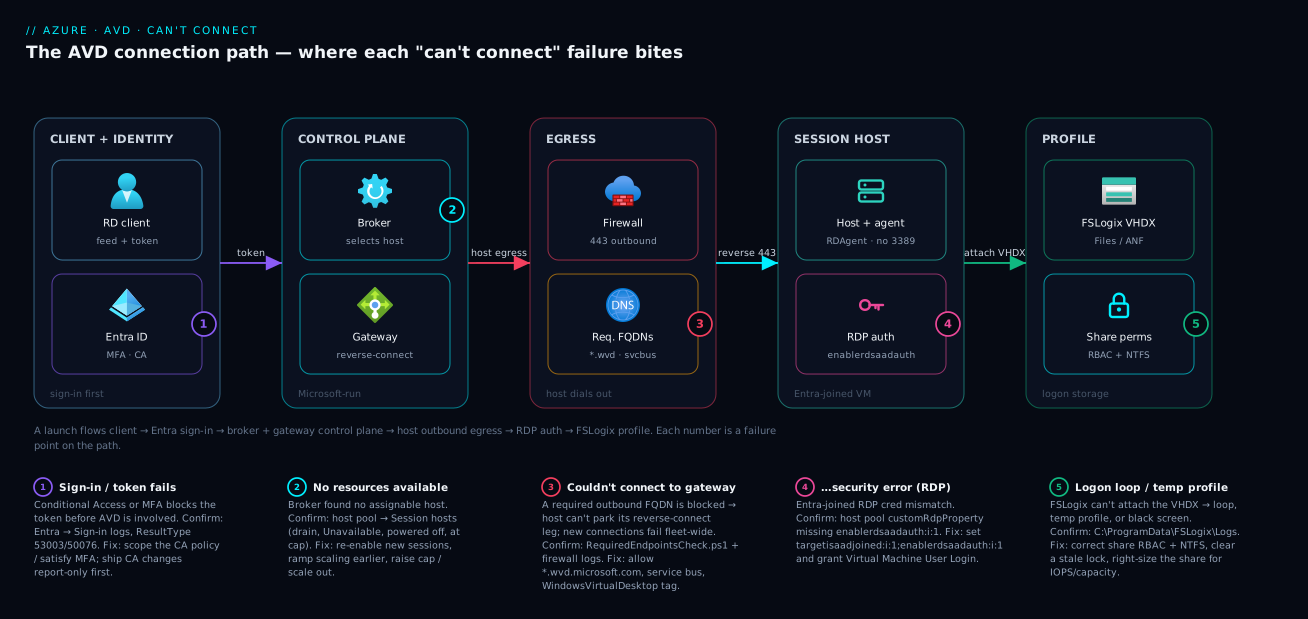
The diagram draws the real AVD connection path left-to-right and pins each “can’t connect” failure class as a numbered badge onto the hop where it bites. Read it as a journey: a user on the client authenticates to Entra ID (badge 1 — sign-in / Conditional Access can block here, before AVD is involved). With a valid token, the request reaches the Microsoft-run control plane, where the broker selects a host and the gateway prepares to relay (badge 2 — “no resources available” when nothing is assignable). For the gateway stitch to work, the session host must already be reaching outbound to the control-plane FQDNs over TLS 443 through your firewall/egress (badge 3 — a blocked FQDN produces “couldn’t connect to the gateway” and kills new connections fleet-wide).
Once stitched, the session host authenticates the RDP session (badge 4 — Entra-joined credential/RDP-property mismatch shows as “because of a security error”), and finally FSLogix attaches the user’s profile VHDX from the profile file share (badge 5 — bad permissions, a stale lock, or an exhausted share cause logon loops, temp profiles and black screens). The legend narrates each number as symptom · confirm · fix, so the picture doubles as a triage map: find the badge matching the report, jump to that section, confirm, fix.
Real-world scenario
Northwind Support Services runs a 24×7 operation: 600 agents on a pooled, Entra-joined host pool of 30 D8s_v5 hosts, FSLogix profiles on Azure Files Premium, all egress through Azure Firewall, gated by a Conditional Access policy requiring MFA and a compliant device. It had run smoothly for months. Then, over one weekend, the identity team tightened a Conditional Access policy and the storage team migrated the profile share to a new Premium share with “the same permissions.” Monday at 08:55, the floor lit up: most agents couldn’t connect, a minority got in onto blank desktops, and the service desk’s first instinct — “restart the session hosts” — changed nothing.
The on-call architect refused to touch the VMs and instead named the hops. First, Entra sign-in logs: a wave of 53003 (blocked by Conditional Access) for the AVD app — the tightened policy now required a device-compliance signal the AVD client sessions weren’t presenting. That explained the majority who couldn’t sign in at all. Second, for the minority who did get in, the Session hosts blade showed all hosts Available and under cap (so not a broker problem), but their sessions landed on temporary profiles — and C:\ProgramData\FSLogix\Logs was full of access-denied to the new UNC path. The “same permissions” migration had copied NTFS ACLs but missed the share-level RBAC (Storage File Data SMB Share Contributor) on the new Azure Files share, so FSLogix couldn’t write the VHDX and fell back to temp profiles. Two independent failures, two different owners, masquerading as one “AVD is down.”
The fix was surgical and fast once the hops were named. The identity team scoped the Conditional Access policy to exclude the AVD sign-in from the new device-compliance control (and moved the broader change to a report-only rollout to validate it properly), which cleared the sign-in wave within minutes. The storage team applied the missing share-level role assignment plus the documented FSLogix NTFS permissions on the new share; new logons immediately attached the real profile instead of a temp one. Agents who were stuck on temp profiles signed out fully (releasing any locks) and back in, landing on their roaming profiles. Total time from “name the hops” to “floor recovered” was about 25 minutes — against an estimated two-plus hours had the team kept reimaging healthy hosts.
The retrospective produced three durable changes: an AVD Insights dashboard pinned for on-call (the WVDConnections/WVDErrors diagnostics, already enabled, were credited with half the speed); every Conditional Access change to AVD now ships report-only first; and the FSLogix share build was codified so “the same permissions” can never again mean “minus the share RBAC.” The lesson the team wrote down: in AVD, “users can’t connect” is a category, not a diagnosis — and the only fast path through it is to localise the failure to a hop before changing anything.
Advantages and disadvantages
The “name the hop, confirm, then fix” discipline this article teaches is a method, and like any method it has trade-offs against the reflex alternative (“restart and hope”).
| Dimension | Hop-localising diagnosis (this method) | Reflexive restart / reimage |
|---|---|---|
| Time to resolution | Minutes once the hop is named | Often hours; frequently fixes nothing |
| Blast radius understanding | Distinguishes fleet-wide vs single-host instantly | Treats every incident as host-local |
| Root cause captured | Yes — you know why and prevent recurrence | No — the cause survives the restart |
| Skill / setup required | Diagnostics enabled in advance; tool fluency | Low skill, but high recurrence cost |
| Risk of collateral damage | Low — you change only the failing layer | High — reimaging healthy hosts, killing sessions |
| Works for identity failures | Yes — sends you to sign-in logs, not VMs | No — restarting VMs can’t fix a CA block |
The method’s cost is front-loaded: it only works if diagnostics, FSLogix central logging and sign-in-log export were configured before the incident and the on-call engineer can name the hop under pressure — exactly what an over-restart-prone team lacks. The reflexive approach has one narrow virtue — it is sometimes accidentally right (a restart clears a stale FSLogix lock), which is what makes it dangerous: the lucky fix reinforces a habit that fails most of the time and damages healthy hosts the rest. Past a handful of users the front-loaded method wins decisively; the only question is whether you set up the diagnostics before or after your first two-hour outage.
Hands-on lab
This lab makes the diagnostic surfaces real on an existing pooled host pool with at least one session host (build one with Deploy Your First AVD Pooled Host Pool End to End: Host Pool, App Group, Workspace, and User Assignment) and az with the desktopvirtualization extension. Everything here is read-only or trivially reversible.
1. Enable diagnostics so you’re not blind. Point the host pool’s logs at a Log Analytics workspace (do the same for the app group and workspace objects):
HP=$(az desktopvirtualization host-pool show -n hp-lab -g rg-avd-lab --query id -o tsv)
LAW=$(az monitor log-analytics workspace show -n law-avd-lab -g rg-avd-lab --query id -o tsv)
az monitor diagnostic-settings create --name avd-diag --resource "$HP" --workspace "$LAW" \
  --logs '[{"category":"Connection","enabled":true},{"category":"Error","enabled":true},{"category":"Checkpoint","enabled":true},{"category":"Management","enabled":true}]'
2. Read host availability the way the broker sees it. This is your Symptom-3 source:
az desktopvirtualization session-host list --host-pool-name hp-lab --resource-group rg-avd-lab \
  --query "[].{host:name, status:status, sessions:sessions, allowNew:allowNewSession, agent:agentVersion}" -o table
Every host should be Available with allowNew=true. If any is Unavailable, that’s a real Symptom-3 condition to investigate.
3. Simulate “no resources” safely with drain mode. Put your only host into drain, try to connect (you’ll get “No resources are available”), then read it back and undo:
az desktopvirtualization session-host update --host-pool-name hp-lab --resource-group rg-avd-lab \
  --name <host.fqdn> --allow-new-session false
# ...attempt a connection from the RD client → "No resources are available" ...
az desktopvirtualization session-host update --host-pool-name hp-lab --resource-group rg-avd-lab \
  --name <host.fqdn> --allow-new-session true
You just reproduced the most common Monday-morning broker error on demand — and confirmed the exact blade that reveals it.
4. Inspect the RDP properties (Symptom 5). See whether the pool is set up for the Entra-joined credential flow:
az desktopvirtualization host-pool show -n hp-lab -g rg-avd-lab \
  --query "{type:hostPoolType, rdp:customRdpProperty}" -o json
For an Entra-joined pool, confirm enablerdsaadauth:i:1 is present; its absence is the classic “security error” cause.
5. Find the FSLogix and sign-in evidence (Symptoms 1 and 6). On a session host, list the FSLogix logs; in Entra, pull recent AVD sign-in failures:
Get-ChildItem "C:\ProgramData\FSLogix\Logs\Profile" | Sort-Object LastWriteTime -Descending | Select-Object -First 3
SigninLogs
| where TimeGenerated > ago(24h)
| where AppDisplayName has "Azure Virtual Desktop" or AppDisplayName has "Windows Cloud Login"
| where ResultType != 0
| project TimeGenerated, UserPrincipalName, ResultType, ResultDescription, ConditionalAccessStatus
6. Query the connection tables. Once diagnostics have flowed (give it ~15 minutes after a test connect), the canonical KQL you’ll live in during an incident:
WVDConnections
| where TimeGenerated > ago(1h)
| summarize attempts=count(), failures=countif(State=="Failed") by bin(TimeGenerated, 5m)
| order by TimeGenerated desc
Teardown. Drain mode was already reverted in step 3. The diagnostic setting is free to leave on (it’s good practice); to remove it: az monitor diagnostic-settings delete --name avd-diag --resource "$HP". No VMs were modified.
Common mistakes & troubleshooting
This is the centrepiece. The table below is the master playbook — scan it during an incident, find the row that matches the symptom, run the confirm step verbatim, apply the fix, and avoid the band-aid. It spans the whole path (sign-in → feed → broker → gateway → host auth → profile → shell) and both basic and advanced failures. The per-symptom sections above carry the commands; this is the index you keep open at 08:55.
| # | Symptom | Root cause | Confirm (cmd / portal) | Fix |
|---|---|---|---|---|
| 1 | Stops at sign-in / MFA | Conditional Access blocked the token | Sign-in logs → AVD app → ResultType 53003 |
Scope the CA policy; satisfy MFA / compliance |
| 2 | Endless MFA prompts | MFA loop, method unsatisfied | Sign-in logs: repeated 50074/50076 |
Fix sign-in frequency / methods; register MFA |
| 3 | “User not assigned to this app” | No app-group assignment | az role assignment list on the app group |
Add Desktop Virtualization User |
| 4 | No icons in the feed | App group unassigned or not in a workspace | App-group role assignments + Workspace | Assign the user; link app group to a workspace |
| 5 | Stale / missing icons | Client cached the resource list | Client shows old/removed resources | Unsubscribe + re-subscribe to the workspace |
| 6 | “No resources available” | Hosts drained, or powered off at peak | Session hosts → allowNew=false; scaling schedule |
Re-enable sessions; ramp up earlier, raise min hosts % |
| 7 | “No resources available” | Hosts Unavailable, or all at their cap | Status Unavailable / sessions vs maxSessionLimit |
Re-register the RDAgent + fix egress; raise cap / scale |
| 8 | “Couldn’t connect to gateway” | A required outbound FQDN is blocked | RequiredEndpointsCheck.ps1; firewall logs |
Allow *.wvd.microsoft.com, service bus, the tag |
| 9 | New connections fail, old survive | Control-plane egress broke; many hosts | Required-URL check + effective routes | Restore AVD egress; fix the route/proxy rule |
| 10 | “…because of a security error” | Entra-joined RDP cred mismatch | customRdpProperty missing enablerdsaadauth:i:1 |
Set targetisaadjoined:i:1;enablerdsaadauth:i:1 |
| 11 | Connects then denied at the OS | Missing VM logon RBAC | az role assignment list on the VM/RG |
Grant Virtual Machine User Login |
| 12 | “Security error” on some clients | Old RD client lacks web-account auth | Compare client versions | Update the Remote Desktop client |
| 13 | Temp profile / logon loop | FSLogix VHDX failed to attach | C:\ProgramData\FSLogix\Logs → “attach failed” |
Fix the attach error (perms/lock/capacity) |
| 14 | “Profile is in use” | Stale .lock from a crashed session |
Lingering .lock/.metadata on the VHDX |
Full sign-out; clear the stale lock |
| 15 | Black screen, slow-to-shell | Slow attach: storage IOPS ceiling | Attach duration; Azure Files metrics | Faster storage; fix the IOPS cap |
| 16 | Access denied to profile share | Share RBAC and/or NTFS ACLs wrong | FSLogix log: access-denied to UNC | Apply share-level role + NTFS perms |
| 17 | Connects but feels laggy | TCP relay; Shortpath (UDP) didn’t engage | Get-RdpShortpathStats; UDP 3478/3390 |
Allow STUN/TURN UDP; check Shortpath prereqs |
| 18 | Everything down, all hosts | Service incident or expired token at scale | Azure Service Health; registration tokens | Escalate the incident; renew registration |
Error-code and message reference
The codes and message strings you’ll actually see, what each means on AVD specifically, and the first move:
| Code / message | Where it appears | Meaning & first move |
|---|---|---|
| 0x3000018 / “No resources are available” | RD client | Broker found no assignable host → Session hosts blade (drain, status, cap) |
| 0x108 / “couldn’t connect to the gateway” | RD client | Gateway/transport stitch failed → required-URL check; firewall/egress |
| “…because of a security error” | RD client | RDP host auth failed (Entra-join cred) → RDP properties + VM RBAC |
| 53003 | Sign-in logs | Blocked by Conditional Access → scope the policy |
| 50105 | Sign-in logs | User not assigned to the app → assign app-group access |
| 50074 / 50076 / 50079 | Sign-in logs | MFA / strong auth required → complete MFA; check the loop |
| ConnectionFailedNoHealthyRdshAvailable | WVDErrors |
No healthy host → same as “no resources” (Symptom 3) |
| ConnectionFailedClientDisconnect | WVDConnections |
Client dropped during connect → client network/version |
| FSLogix “Failed to attach VHD(X)” | FSLogix logs | Profile disk didn’t mount → perms / lock / capacity (Symptom 6) |
| ESP / 0x0000XXXX on attach | FSLogix logs | Disk/ESP/storage error → storage health; recreate the profile |
The single most useful habit: when a “can’t connect” report lands, ask whether it’s one user or many before touching anything — it routes you to the right half of the playbook in seconds.
| Scope of the report | What it points at | Playbook rows to check first |
|---|---|---|
| One user | That user’s account, profile, or client | 1 sign-in, 10 cred, 13 profile, 12 client |
| A few users on one host | A single bad session host | 7 host Unavailable, 15 slow attach |
| Many users at once | A fleet-wide control | 1 CA, 8–9 egress, 6 scaling, 18 incident |
| Everyone, instantly | Identity, egress, or service | 1 CA, 9 egress, 18 Service Health |
Best practices
The production rules that prevent most “can’t connect” incidents, or make them a glance to resolve:
| Practice | Why it matters |
|---|---|
| Enable AVD diagnostics on day one | No WVDConnections/WVDErrors history = every incident starts blind. Send Connection/Error/Checkpoint/Management to Log Analytics |
| Pin an AVD Insights dashboard for on-call | Connection success rate, top WVDErrors and host availability at a glance turns “where do I look?” into one screen |
| Always ask “one user or many?” first | Routes you to the right half of the playbook and stops you reimaging a host during a Conditional Access outage |
| Ship CA changes to AVD report-only first | A single bad policy is a fleet-wide outage; review the sign-in-log impact before enforcing |
| Set RDP properties for the join type up front | Entra-joined pools need enablerdsaadauth:i:1 (+targetisaadjoined:i:1); bake it in, not a post-incident edit |
| Grant Virtual Machine User Login at onboarding | The AVD assignment alone doesn’t authorize the OS logon on Entra-joined hosts |
| Codify the FSLogix share permissions | Share-level RBAC and NTFS ACLs, so a share rebuild can’t silently drop rights and cause temp-profile fallback |
| Right-size the profile share for peak concurrency | Standard Azure Files IOPS ceilings cause black-screen-slow attaches; size Premium for the storm, not the average |
| Tune scaling plans to your real login curve | Ramp hosts up before the storm and set a sane minimum-hosts %; a 09:00 ramp loses to an 08:55 surge |
| Allow and test the full required-FQDN set | Run the required-URL check from a host during deployment validation, not after an outage |
| Keep the Remote Desktop client current | Old clients miss the Entra web-account auth flow and throw “security error” failures that look server-side |
| Monitor host registration and agent health | Catch an Unavailable host proactively, before users hit “no resources” |
Security notes
The mechanisms that secure AVD are the ones that, misconfigured, cause “can’t connect” — security and reliability are two views of one configuration. Identity is the front door: Conditional Access should require MFA and ideally device compliance, but every tightening is a potential fleet-wide outage, which is why report-only rollout and an AVD-scoped exclusion strategy are security and availability controls. Keep break-glass identity paths out of band so an over-strict policy can’t lock out the admins who need to fix it.
Reverse connect is the network security win — protect it by protecting egress, not ingress. With no public IP and no inbound 3389, your attack surface is tiny; the corollary is that you must allow the specific outbound control-plane FQDNs (least-privilege egress via Azure Firewall’s AVD FQDN tag, not “allow all 443”). Blocking too much breaks connectivity; allowing too much widens egress risk. For the OS logon, prefer Virtual Machine User Login (standard user) over Administrator Login, reserving admin for break-fix.
The profile share is sensitive data at rest and a connectivity dependency. FSLogix VHDX files hold the user’s full roaming profile, so the share should use private endpoints (no public exposure), identity-based auth (Entra Kerberos for Azure Files, with share-level RBAC and NTFS ACLs least-privileged), and encryption at rest (default) — the same private-network posture also removes a class of “can’t reach the share” failures. Treat the host pool registration token as a short-lived secret: a leaked or expired token is both an exposure and a cause of hosts going Unavailable.
Cost & sizing
“Can’t connect” is rarely a billing problem, but two of its causes are cost-driven. The bill drivers and how sizing feeds reliability:
| Driver | How under-sizing causes “can’t connect” | Right-size guidance |
|---|---|---|
| Session-host compute | Too few hosts → “no resources” at peak | Size for peak concurrent sessions, not average |
| Scaling-plan aggressiveness | Over-aggressive shutdown → hosts off at login | Min-hosts % covers the surge; ramp before peak |
| Profile storage tier | Standard IOPS ceiling → black-screen-slow attach | Premium/ANF for high-concurrency logon storms |
| Profile share size | “Disk full” attach failures | Provision for total profile growth + headroom |
| Log Analytics ingestion | (Not a connect failure) | Keep diagnostics on; cap noisy categories |
Rough figures (Azure, illustrative — price your region in the calculator): a D8s_v5 session host runs on the order of ₹40,000–55,000 / ~US$480–660 per month if left on 24×7, which is why scaling plans matter — shutting hosts overnight can cut compute 40–60% for a day shift, provided you don’t ramp so late that you cause the very “no resources” outage you’re trying to avoid. Azure Files Premium is provisioned-capacity priced (provisioned GiB also buys IOPS/throughput), so the reliability fix for black-screen-slow logons — Premium or ANF — is a real but modest line item next to compute. Log Analytics diagnostics ingestion is the cheapest insurance you’ll buy: a few GB/month against hours of outage it routinely saves. There is no AVD “free tier” — the service has no per-user licence charge (your Microsoft 365/Windows licensing grants access), but the compute and storage are full-price. For trimming idle spend without breaking availability, see Azure Advisor Cost Recommendations: Right-Sizing and Idle Resources.
Interview & exam questions
Useful for AZ-140 (Configuring and Operating Microsoft Azure Virtual Desktop) and senior platform interviews.
Q1. A user gets “No resources are available.” What does this tell you, and where first? A broker failure — no assignable host. Check the Session hosts blade for hosts drained (allowNewSession=false), Unavailable, powered off, or at their cap — not VM power state alone, since “running” isn’t “available to the broker.”
Q2. How do “No resources are available” and “couldn’t connect to the gateway” differ? The first is host selection (nothing assignable, fixed at the host pool). The second is transport/egress (the host couldn’t reach control-plane FQDNs to park its reverse-connect leg, fixed at the firewall).
Q3. “Because of a security error” on an Entra-joined pool — most likely fix? The custom RDP properties are missing the Entra-join flags. Set targetisaadjoined:i:1;enablerdsaadauth:i:1 and ensure the user holds Virtual Machine User Login RBAC so Entra can authorize the OS logon.
Q4. Why does one blocked firewall rule break new connections fleet-wide while existing sessions survive? AVD is reverse-connect: orchestration flows through control-plane FQDNs the host reaches outbound. Block one and new connections can’t be set up, but already-stitched data flows keep running.
Q5. A user lands on a desktop with none of their files. What happened, how confirm? FSLogix failed to attach the profile VHDX and fell back to a temporary profile. Confirm in C:\ProgramData\FSLogix\Logs (“attach failed” + temp-profile line); cause is usually share permissions, a stale lock, or an exhausted share.
Q6. Where do you diagnose an AVD sign-in failure, and why not the AVD blades? The Entra sign-in logs — the failure happens at auth before the broker is involved. Filter by the AVD app and read ResultType (53003 CA, 50105 not assigned, 50076 MFA); the AVD blades look healthy because AVD never got the request.
Q7. What diagnostic data must exist before an incident? The WVDConnections, WVDErrors, WVDCheckpoints and agent-health tables — populated only if you configured diagnostic settings on the host pool, app groups and workspace to Log Analytics ahead of time. No retroactive capture.
Q8. A session connects but feels laggy. Is that an outage? No — usually the media is on the TCP reverse-connect relay because RDP Shortpath (UDP) didn’t establish (UDP 3478/3390 blocked or prerequisites unmet). The session works; enable the UDP path. Confirm with Get-RdpShortpathStats.
Q9. Every Monday at 08:55 a wave of “no resources” clears by 09:10. Cause and fix? A scaling plan ramping hosts up too late for the login storm. Move the ramp-up earlier and raise the minimum hosts percentage.
Q10. How do you tell a fleet-wide failure from a user-specific one fast? Ask “one user or many?” One → their account, profile, or client. Many at once → Conditional Access, egress/firewall, scaling, or an Azure service incident (check Service Health).
Q11. What RBAC lets a user log on to an Entra-joined host, beyond the AVD assignment? Virtual Machine User Login (or Administrator Login) on the VMs — Entra performs the VM logon authorization on an Entra-joined host; the Desktop Virtualization User assignment only gets them through AVD, not the OS.
Q12. A user reports an empty feed but signs in fine. Where’s the problem? Assignment / subscription, not connectivity: the application group isn’t assigned (grant Desktop Virtualization User) or isn’t in a subscribed workspace. Refresh/re-subscribe to clear a cached resource list.
Quick check
- A user gets “No resources are available.” Is that a broker, gateway, or identity failure — and what’s the first blade you open?
- Which two custom RDP properties make an Entra-joined host pool’s connections work, and what error appears if they’re missing?
- New connections fail fleet-wide but existing sessions keep running. What class of cause does that signature point to, and why?
- A user lands on a temporary profile with their data “gone.” Which logs confirm it, and name two common root causes.
- Where — not in the AVD blades — do you diagnose a sign-in/Conditional-Access failure, and what kind of value tells you the cause?
Answers
- A broker (host-selection) failure — the broker found no assignable host. First open the host pool’s Session hosts blade and check drain state, status (Available vs Unavailable), power state, and session-cap utilisation.
targetisaadjoined:i:1andenablerdsaadauth:i:1. Missing them produces the “…because of a security error” failure at RDP authentication on Entra-joined hosts. (Also grant Virtual Machine User Login so the OS logon is authorized.)- Egress / control-plane connectivity (a blocked required FQDN, firewall/proxy/UDR change). AVD is reverse-connect: new connections need outbound orchestration to control-plane endpoints, but already-stitched data flows survive — so new fails while old keeps working.
- The FSLogix logs at
C:\ProgramData\FSLogix\Logs(and the FSLogix Operational event log) confirm the failed VHDX attach and temp-profile fallback. Common causes: wrong share permissions (share-level RBAC and/or NTFS), a stale lock from a crashed session, or an exhausted/slow share (capacity or IOPS). - In the Entra sign-in logs (filtered to the AVD application), because the failure happens at authentication before AVD is involved. The ResultType / failure-reason code (e.g.
53003Conditional Access,50105not assigned,50076MFA) tells you which gate closed.
Glossary
| Term | Definition |
|---|---|
| Azure Virtual Desktop (AVD) | Microsoft’s managed desktop/app virtualization service; you run session-host VMs, Microsoft runs the broker and gateway control plane |
| Broker | Control-plane component that validates a request and selects a healthy host by load-balancing rule and session cap. Source of “no resources available” |
| Gateway | Control-plane relay carrying the session over a reverse-connected, outbound TLS 443 channel. Source of “couldn’t connect to the gateway” |
| Reverse connect | AVD’s inverted transport: the host dials outbound to the gateway and parks a leg; the client also connects outbound; the gateway stitches them — so the host needs no public IP or inbound 3389 |
| Host pool | The set of session-host VMs plus connection settings (RDP properties, load-balancing, drain state, session cap) |
| Application group | Desktop or RemoteApp resources published from a host pool; must be assigned (Desktop Virtualization User) to appear in a feed |
| Workspace | The container a user subscribes to that groups application groups into a feed |
| Custom RDP properties | Per-pool RDP client flags (e.g. enablerdsaadauth, targetisaadjoined) controlling connection behaviour and credential type |
| RDAgent | The agent on each host that registers it to the AVD service; if it can’t reach the service the host shows Unavailable |
| Conditional Access | Entra ID policy gating the sign-in (MFA, compliance, location, risk); can block the AVD token before the broker is involved |
| FSLogix | The profile-container engine that attaches a user’s roaming profile as a VHDX from a file share at logon |
| Temporary profile | A fresh local profile FSLogix falls back to when the real profile can’t attach; the user appears to have lost their data |
| Drain mode | A host setting (allowNewSession=false) that stops new sessions; drained hosts are intentionally invisible to the broker |
| RDP Shortpath | Optional direct UDP transport (managed UDP 3390, or public via STUN/TURN UDP 3478) bypassing the TCP relay; failure means a laggy session, not an outage |
| WVDConnections / WVDErrors | Log Analytics tables (populated only when diagnostics are enabled) recording AVD connection attempts, errors and milestones |
Next steps
- Read How an AVD Session Actually Connects: Broker, Gateway, and the Reverse-Connect Transport, Step by Step for the moving sequence behind every failure here.
- Build or rebuild a pool cleanly with Deploy Your First AVD Pooled Host Pool End to End: Host Pool, App Group, Workspace, and User Assignment.
- Get the profile layer right with FSLogix Profile Containers Explained: How Roaming Profiles Work and Where to Put the VHDX (Files, NetApp, or ANF).
- Stop CA-driven outages before they happen with Deploying Conditional Access Safely: Report-Only Rollout to Enforcement.
- When the failure is the egress path itself, work it with Troubleshooting VNet Connectivity: NSGs, UDRs, Effective Routes and Network Watcher.