A user signs into a pooled Azure Virtual Desktop session host, and twenty seconds later Outlook is fully indexed, OneDrive is in cached mode, their desktop icons are where they left them — even though this is a different VM from yesterday and the disk underneath was rebuilt last night. That trick is FSLogix: it packs everything Windows scatters across C:\Users\<name> into a single virtual hard disk file — a VHDX — on a file share, and mounts that file into the session at logon so the OS believes the profile was always local. Get FSLogix right and non-persistent desktops feel persistent; get the storage underneath it wrong and you get 90-second logons, corrupt profiles after a crash, and a help-desk queue that never empties.
This article is the mental model, not a click-path. Installing the agent takes five minutes; the hard part is two decisions that are easy to get wrong and expensive to undo: what’s in that VHDX and how it attaches, and where you put it — a standard Azure Files share, a Premium (FileStorage) share, or Azure NetApp Files (ANF). Those three differ by an order of magnitude in latency and IOPS, by which authentication they support (Entra Kerberos vs AD DS vs ANF’s domain join), and by roughly 5–10× in cost. Pick the cheap one for a 500-user firm and logons crawl; pick ANF for a 30-user pilot and you’ve over-bought by lakhs a year.
By the end you will be able to explain — to an architect or an auditor — how a roaming profile used to work and why it was fragile, what FSLogix changed, what’s inside the container versus deliberately left out, how the VHDX attaches and detaches across a session, and the decision that matters: how to choose Files vs Files Premium vs ANF from concurrent users, IOPS-per-user, latency target, identity model and budget. The prose stays tight; comparison grids, sizing math and a decision table carry the detail, with az/PowerShell and Bicep where you configure things.
What problem this solves
Before FSLogix, non-persistent Windows desktops had a brutal trade-off: either a persistent VM per user (so C:\Users survived — hundreds of always-on VMs to patch and pay for) or roaming / mandatory profiles, which copied the profile to a file server at logon and back at logoff. Roaming worked for a small Documents folder in 2008; it falls apart on a modern profile, which is huge and full of databases: the Outlook OST (10–50 GB in cached mode), the OneDrive cache, Teams state, the search index, browser profiles, the registry hive. Copying tens of gigabytes file-by-file is slow; copying an open database mid-write corrupts it; and last-writer-wins merges silently lose data when two sessions touch the same profile.
FSLogix replaces the copy with a mount. Instead of streaming files to and from a server, it keeps the whole profile as one VHDX on a share and attaches it as a disk — so the user’s C:\Users\<name> is redirected into the mounted VHDX. No copy at logon (logon is just an attach), no per-file merge, no corruption from copying open databases, and applications that demand a “local” profile (Outlook cached mode, OneDrive Files On-Demand, the Windows Search index) are happy because, as far as Windows can tell, the profile is local.
What breaks without it: pooled AVD and Windows 365 Frontline are simply not viable — users either lose their profile every session (mandatory profile) or wait minutes for a roaming copy and risk corruption. Who hits this: anyone running multi-session AVD, Windows 365 Frontline (shared Cloud PCs), or any VDI with a non-persistent OS disk. The moment you have more users than VMs and rebuild hosts on a schedule, you need profiles that detach from the host — and FSLogix is how Azure does that.
The whole problem in one frame:
| Profile approach | How the profile moves | Where it breaks | What FSLogix changes |
|---|---|---|---|
| Local profile only | Stays on the VM’s C:\ |
Lost when the non-persistent VM is rebuilt | Profile lives on a share, not the host |
| Roaming profile (RUP) | Copied file-by-file at logon/logoff | Slow on large profiles; corrupts open DBs (OST) | Mounts a VHDX — no copy, no merge |
| Mandatory profile | Read-only template, discarded at logoff | No personalisation; users lose all changes | Per-user writable VHDX persists changes |
| Persistent VM per user | Never moves | Hundreds of idle VMs to patch and pay for | Non-persistent hosts + portable profile |
Learning objectives
By the end of this article you can:
- Explain how a classic roaming profile worked and name the three specific reasons it fails on a modern Windows profile (size, open databases, merge conflicts).
- Describe precisely what FSLogix does — redirect
C:\Users\<name>into a mounted VHDX — and what is and isn’t inside that container. - Distinguish a Profile Container from an Office Container (ODFC) and say when you would split them.
- Walk the VHDX lifecycle: where the file lives, how it attaches at logon, what
RW/ROand difference disks mean, and how it detaches at logoff. - Choose between
VHDandVHDX, fixed vs dynamic sizing, and the per-user folder naming flags (%username%%sid%vs%sid%_%username%). - Pick the right storage backend — Azure Files Standard, Azure Files Premium (FileStorage), or Azure NetApp Files — from concurrent users, IOPS/user, latency target, identity model and cost.
- Wire the correct identity and permissions model: Entra Kerberos vs AD DS vs ANF domain join, the share-level RBAC roles, and the exact NTFS ACLs FSLogix needs.
- Size a share and estimate the monthly INR/USD bill, and diagnose the common failures: slow logons, “failed to attach”, profiles falling back to temporary, and bloat from never-shrinking dynamic VHDX.
Prerequisites & where this fits
You should understand Azure Virtual Desktop basics — a host pool is a set of session-host VMs; pooled pools put many users on shared multi-session hosts (FSLogix mandatory); personal pools assign one VM per user (FSLogix optional). If those are fuzzy, read Azure Virtual Desktop Architecture: Control Plane & Session Hosts Explained and AVD Host Pool: Personal vs Pooled — Deciding the Right Model first. Know the shape of Azure Files SMB shares from Azure Files SMB Share: Mount on Windows & Linux Quickstart and storage redundancy from Azure Storage Redundancy: LRS, ZRS, GRS, RA-GRS Explained.
This sits in the Virtual Desktop & End-User Compute track, between the host-pool design decision (upstream) and day-2 profile operations (downstream). FSLogix makes the host-pool choice work — pooled AVD without good profile storage is a non-starter — and the backend you pick here constrains latency, identity design and a meaningful slice of the bill. It leans on identity (Managed Identity: System vs User-Assigned Patterns for the storage account; AD / Entra Kerberos for share auth) and on storage networking, since the share is usually reached over a Private Endpoint vs Service Endpoint.
Who owns what when a logon is slow — so you escalate to the right team:
| Layer | What lives here | Who usually owns it | Profile failure it can cause |
|---|---|---|---|
| Session host VM | FSLogix agent, OS, apps | AVD / EUC team | Agent misconfig, registry flags wrong |
| Identity | Entra Kerberos / AD DS, ACLs | Identity team | “Failed to attach” (auth/ACL denied) |
| Storage account / share | VHDX files, share quota, SKU | Storage team | Slow logon (IOPS/latency), full share |
| Network | Private Endpoint, DNS, NSG | Network team | SMB unreachable → temp profile fallback |
| Backup / DR | Share snapshots, replication | Backup team | Lost profiles, no recovery point |
Core concepts
Five mental models make every later decision obvious.
The profile is a disk image, not a folder. A classic profile is a directory (C:\Users\jdoe) that tools copy around. An FSLogix profile is a single file — a VHDX containing a tiny NTFS filesystem that holds that directory. At logon FSLogix attaches the VHDX (it appears as a disk) and redirects C:\Users\jdoe into it via a reparse point; everything under the profile reads/writes into the mounted image, nothing is copied, and at logoff the image detaches. Think “mount a USB drive that is your profile,” not “sync a folder.”
Profile Container vs Office Container are two separate VHDX files. The Profile Container captures the whole profile. The Office Container (ODFC) captures only Office/Microsoft 365 data — OST, OneNote cache, Teams, search index, OneDrive metadata — into a second VHDX. Most deployments use Profile Container alone (it already includes the Office data); you split only for specific reasons (Office data on faster/separate storage, or layering a non-FSLogix base profile). Running both means two VHDX attached at once.
Attach is fast; the share’s job is random I/O, not throughput. Because logon is an attach, the share isn’t asked to stream 30 GB — it serves thousands of small random reads and writes as Windows boots the profile, indexes mail and writes the registry. So the FSLogix storage metric is IOPS and latency, not raw MB/s: a share with huge throughput but high latency (or a low IOPS ceiling) gives slow logons even though “the network is fast.” This one fact drives the entire Files-vs-Premium-vs-ANF decision.
One writer per profile, normally. By default a VHDX is attached read-write to exactly one session. If the same user logs into a second host while the first is live, FSLogix (depending on config) blocks the attach, gives a temporary profile, or uses Cloud Cache/multi-session settings. The safe assumption: one VHDX, one active RW attach — concurrent multi-session profiles need explicit configuration and have trade-offs.
Dynamic VHDX grows but rarely shrinks on its own. An FSLogix VHDX is usually dynamically expanding: you set a maximum (e.g. 30 GB) and the file grows only to data used — but when the user deletes data, the file does not auto-shrink (freed blocks stay allocated), so over months it bloats toward its max. You reclaim space with scheduled compaction, not automatically. Budget share quota against max × user count unless you actively compact.
The vocabulary in one table
Pin down every moving part before the deep sections — the glossary repeats these for lookup; this is the mental model side by side:
| Term | One-line definition | Where it lives | Why it matters |
|---|---|---|---|
| FSLogix | Agent that redirects the profile into a mounted VHDX | Session host (installed) | The whole mechanism |
| Profile Container | VHDX holding the entire user profile | On the file share | The thing that roams |
| Office Container (ODFC) | Optional second VHDX for Office/M365 data | On the file share | Split-out Office state |
| VHDX | The virtual disk file format | On the share | The container file itself |
Profiles share |
SMB share that stores all the VHDX files | Storage account / ANF volume | The storage backend you choose |
| Redirect | C:\Users\<name> reparsed into the VHDX |
On the host at logon | Makes the profile look local |
| Cloud Cache | Local-cache + multi-target replication mode | Host + 1–4 backends | HA / multi-region profiles |
| Concurrent users | Users with a live session at once | Per host pool | Drives IOPS/quota sizing |
| IOPS/user | Random I/O one active profile needs | Workload-dependent | The real sizing input |
| Temp profile | Fallback local profile when attach fails | Host C:\Users |
The symptom of a broken share |
| Kerberos (storage) | How the host authenticates to the share | Entra ID / AD DS / ANF | Determines the identity model |
How a roaming profile used to work (and why it broke)
To appreciate what FSLogix changed, you have to picture the old machinery precisely. A roaming user profile (RUP) stored the user’s profile folder on a file server share. At logon, Windows copied the entire profile down from the server to the local C:\Users\<name>; the user worked against the local copy; at logoff, Windows copied the changed files back up to the server. Folder Redirection could move Documents, Desktop and a few known folders to a UNC path so they didn’t have to be copied — but the rest of the profile (AppData, registry, caches) still round-tripped.
Three structural failures doomed this on a modern profile:
| Failure | Why it happens | Concrete symptom | FSLogix’s answer |
|---|---|---|---|
| Size / copy time | Logon copies the whole profile file-by-file | 30 GB OST → multi-minute logons | Attach the VHDX instead of copying |
| Open-database corruption | OST / search index are live DBs; copying mid-write tears them | “Outlook data file corrupt”; rebuilt OST | Profile is mounted, not copied — DB stays intact |
| Merge / last-writer-wins | Two sessions write the same profile; logoff overwrites | Silent loss of settings/files | One RW attach; no per-file merge |
| No cached-mode support | Outlook/OneDrive demand a “local” profile | Cached mode and Files On-Demand disabled | VHDX is local to the session |
| AppData bloat | AppData\Local excluded from roaming → settings lost |
App state resets every session | Whole profile (incl. AppData) in the VHDX |
The deepest of these is the database problem. The Outlook OST, the Windows Search index (Windows.edb) and OneDrive’s metadata are transactional databases open and being written while the user is signed in. A copy of a half-written database is corrupt, so admins disabled Outlook cached mode and the search index to make roaming “work” — degrading the experience. FSLogix sidesteps the whole class: the database lives inside a mounted disk, Windows reads and writes it in place, nothing ever copies it. That is the single biggest reason FSLogix exists.
What FSLogix actually does, layer by layer
FSLogix is a filter driver plus a service. The chain of events, layer by layer:
The redirect mechanism
At its heart, FSLogix performs a bind/redirect: it makes C:\Users\<name> resolve into the mounted VHDX rather than to a real local folder. The default and cleanest method is a reparse point — C:\Users\<name> becomes a reparse point into the attached VHDX, which gives the best app-compatibility; an older registry-profile-swap method exists but is rarely needed. You almost never touch this. The point to internalise is that no profile data sits on C:\ — it all lives in the VHDX, and C:\Users\<name> is just a doorway into it.
What is inside the container (and what is not)
By default the Profile Container holds essentially the entire user profile. But you can — and often should — exclude specific paths so they don’t bloat the VHDX, configured via redirections.xml and registry settings.
| Path | In container by default? | Typical action | Why |
|---|---|---|---|
AppData\Roaming |
Yes | Keep | Core settings; must roam |
AppData\Local |
Yes | Keep (mostly) | App state; cached mode data |
Outlook OST (...\Outlook) |
Yes | Keep | The whole point — cached mode |
| Windows Search index | Yes | Keep | Fast mail/file search per user |
| OneDrive cache | Yes | Keep | Files On-Demand needs it local |
| Teams (classic) cache | Yes | Often exclude bulky logs | Reduce bloat |
Downloads |
Yes | Optionally redirect to OneDrive | Can be large/disposable |
| Temp / browser cache | Yes | Often exclude | Pure bloat; regenerates |
| Group Policy temp, MS Teams logs | Yes | Exclude | Churn with no value |
The mental rule: keep anything the user needs to feel continuous; exclude anything large that regenerates. Every exclusion is bloat you don’t store or back up, and churn you don’t write at logon.
Profile Container vs Office Container
For 90% of AVD/Windows 365 deployments: Profile Container only (Profile_<user>.vhdx), which already includes the Office data. Reach for the Office Container (ODFC_<user>.vhdx, capturing only OST/OneNote/Teams/search/OneDrive) only with a concrete reason to split — keeping Office data on ANF for latency while the rest lives on Files, or integrating with a third-party profile manager that owns the base profile. Running both means two VHDX attached per user.
The VHDX lifecycle: attach, use, detach
The container’s life across a session is where most “works on my machine, fails in production” bugs hide.
Where the file lives and how it is named
Each user gets their own VHDX in a per-user folder under the Profiles share. The folder naming is controlled by flags you must keep right and consistent across all hosts:
| Setting | Values | Default | Effect | Gotcha |
|---|---|---|---|---|
VHDLocations |
one or more UNC paths | (none) | Where VHDX files are stored | Multiple paths = failover order, not load-balance |
FlipFlopProfileDirectoryName |
0 / 1 |
0 |
0 → %username%%sid%; 1 → %sid%_%username% |
Pick one and never change it — folders won’t match if you flip later |
SIDDirNamePattern / SIDDirNameMatch |
regex | template default | Custom folder pattern | Only if you have a bespoke naming scheme |
VolumeType |
VHD / VHDX |
VHDX |
Disk format | Use VHDX (4 KB sectors, larger, resilient) |
Concretely, with FlipFlop=0 user jdoe gets \\share\profiles\jdoe_S-1-5-...\Profile_jdoe.vhdx; with FlipFlop=1 the folder is S-1-5-..._jdoe. The lesson: FlipFlopProfileDirectoryName is a one-time decision. Change it after users have profiles and FSLogix looks for a differently-named folder, doesn’t find the existing VHDX, and creates a fresh empty one — to the user, their profile vanished.
VHD vs VHDX, fixed vs dynamic
Two format choices, both with clear answers. Use VHDX (4 KB sectors, up to 64 TB, more resilient) over legacy VHD, and dynamic allocation (grows to used size up to the SizeInMBs cap, e.g. 30000 ≈ 30 GB) over fixed (full size on day one). Dynamic is the standard — you pay for used, not max — with the one trade-off from Core Concepts: it doesn’t auto-shrink, so you compact periodically.
Attach at logon, detach at logoff
The sequence FSLogix runs, and where each step fails:
| # | Step | What happens | If it fails… |
|---|---|---|---|
| 1 | User authenticates to the host | Standard Windows logon | (not FSLogix’s concern) |
| 2 | FSLogix finds the user’s folder | Looks under VHDLocations for the per-user folder |
No folder → creates a new VHDX (first logon) |
| 3 | Host authenticates to the share | Kerberos ticket to Files/ANF | Auth fails → temp profile (event 26) |
| 4 | VHDX attaches read-write | Disk mounts into the session | Locked by another session → temp or block |
| 5 | C:\Users\<name> redirected |
Reparse point set into the VHDX | Permissions wrong → attach fails |
| 6 | Session runs | All profile I/O goes to the VHDX | Slow storage → laggy session |
| 7 | User logs off | Profile flushed, VHDX detaches | Dirty detach (crash) → VHDX needs repair |
The two failure modes you’ll actually see are step 3 (the host can’t authenticate to the share — Kerberos/ACL) and step 4 (the VHDX is locked because the previous session didn’t detach cleanly, e.g. the host crashed). Both surface as a temporary profile — a fresh, empty profile discarded at logoff, so the user’s work is lost. Spotting “this is a temp profile, not my real one” fast is half the day-2 battle.
Choosing the storage backend: Files vs Files Premium vs ANF
This is the decision the title promises. All three present an SMB share but differ in latency, IOPS model, identity support, scale and cost. Read the grid, then the sizing math, then the decision table.
The three options side by side
| Dimension | Azure Files Standard | Azure Files Premium (FileStorage) | Azure NetApp Files |
|---|---|---|---|
| Media | HDD-backed | SSD-backed | All-flash (NetApp ONTAP) |
| Latency (typical) | ~tens of ms, variable | single-digit ms | sub-ms to low single-digit ms |
| IOPS model | Per-GB + transaction-priced | Provisioned by share size (IOPS scale with GiB) | Provisioned by capacity pool + service level |
| Min practical size | small (pay-as-you-go) | 100 GiB provisioned minimum | 1 TiB volume, 4 TiB pool minimum |
| Identity for SMB | Entra Kerberos / AD DS | Entra Kerberos / AD DS | AD DS join (or Entra Kerberos preview paths) |
| Best for | Small/light pilots; dev/test | Most production AVD/W365 | Large/dense pools; lowest, most consistent latency |
| Redundancy | LRS/ZRS/GRS | LRS/ZRS | LRS within region (replication via cross-region) |
| Relative cost | Lowest | Moderate (you pay for provisioned IOPS) | Highest entry point (pool minimums) |
The key structural difference: Standard Files prices transactions (every read/write/list is billable) — fine for documents, punishing for FSLogix’s millions of small I/Os, where cost and latency both spike under load. Premium Files provisions IOPS by size, so a bigger share gets more IOPS and lower latency, and you sometimes over-provision capacity purely to buy IOPS. ANF provisions performance by service level (Standard/Premium/Ultra) for the most consistent low latency, but its 4 TiB pool minimum makes it expensive to start small.
Why latency, not throughput, decides it
FSLogix logon is a storm of small random I/O. The numbers that matter are IOPS one active profile needs and latency each adds to logon. A rough planning model:
| Workload | IOPS per active user (planning) | Notes |
|---|---|---|
| Light (task worker, web apps) | ~5–10 IOPS | Browser + basic Office |
| Medium (knowledge worker, full Office) | ~10–20 IOPS | Cached Outlook, Teams, OneDrive |
| Heavy (developers, large datasets) | ~25–50+ IOPS | Big OST, indexing, heavy apps |
| Logon burst (per user) | hundreds, briefly | The spike that defines sizing |
The trap is sizing for steady-state and forgetting the logon storm: if 200 users sign in within 15 minutes, the share must serve hundreds of IOPS each, concurrently, for minutes — a Standard share that’s fine at noon collapses at 9 a.m. So you provision for peak concurrent logons, which is why Premium/ANF win for anything beyond a tiny pool.
Sizing the Premium share (the common case)
For Premium Files, provisioned IOPS scale with provisioned GiB (a base plus per-GiB, with bursting). So size the share by the larger of (a) the capacity your VHDX files need and (b) the IOPS your peak logon needs:
| Input | Example value | Drives |
|---|---|---|
| Concurrent users | 200 | IOPS peak |
| VHDX max size/user | 30 GB | Capacity |
| Active VHDX used/user (avg) | ~12 GB | Real consumed capacity |
| Steady IOPS/user | 15 | Steady IOPS = 3,000 |
| Provisioned capacity (for IOPS) | size up until IOPS floor ≥ peak | Both |
A concrete read: 200 medium users at ~12 GB used ≈ 2.4 TB, but you may provision more GiB purely to lift the IOPS ceiling above the logon storm. Size against max VHDX × users if you don’t compact, and validate the IOPS floor against your logon peak — not steady state.
The decision table
Read top to bottom; stop at the first match:
| If your situation is… | …pick | Why |
|---|---|---|
| < ~25 users, dev/test or POC, cost-first | Azure Files Standard | Cheapest; transaction cost tolerable at low scale |
| Mainstream production AVD/W365, 25–1000 users | Azure Files Premium | Provisioned IOPS, single-digit-ms latency, Entra Kerberos |
| Large/dense pools, latency-sensitive, > ~1000 users | Azure NetApp Files | Lowest, most consistent latency; scales to huge pools |
| Heavy devs, big OSTs, indexing-heavy, latency-critical | ANF (Premium/Ultra) | Sub-ms latency where Premium Files would lag |
| Need an existing AD DS forest, no Entra Kerberos | Files (AD DS auth) or ANF | Both join AD DS; pick by scale/latency |
| Multi-region active/active profiles | Files/ANF + FSLogix Cloud Cache | Cloud Cache replicates to 2–4 backends |
| You over-provisioned ANF for a small pool | downsize to Premium Files | ANF pool minimums waste money at low scale |
Two strong defaults: start with Premium Files for production — it covers the vast majority of AVD/Windows 365 deployments and supports Entra Kerberos, so you avoid domain controllers just for the share. Reach for ANF when dense (hundreds per pool), latency-critical, or already on NetApp — its consistency at scale is worth the higher floor. Reserve Standard Files for small or non-production pools.
Identity and permissions: who can attach the VHDX
A share full of VHDX files is useless if the host can’t authenticate to it and FSLogix can’t write the right NTFS ACLs. There are two layers of permission, and confusing them is the number-one cause of “failed to attach”: share-level RBAC (Azure roles on the storage account) decides whether the host’s identity can mount the SMB share at all, and directory/file NTFS ACLs (set via icacls) decide what it can do inside — each user creating and controlling their own folder but not reading anyone else’s. You need both correct.
Share-level RBAC roles
| Role | Grants | Who gets it |
|---|---|---|
| Storage File Data SMB Share Contributor | Read/write/delete on the share | The AVD users group (they create/own their VHDX) |
| Storage File Data SMB Share Elevated Contributor | Above + modify NTFS ACLs | Admins managing the share |
| Storage File Data SMB Share Reader | Read-only | Rarely for FSLogix (read-only profiles) |
Assign Storage File Data SMB Share Contributor to the security group containing your AVD users:
# Grant AVD users the SMB share role on the storage account
az role assignment create \
  --assignee "<AVD-Users-group-object-id>" \
  --role "Storage File Data SMB Share Contributor" \
  --scope "$(az storage account show -n stfslogixprod -g rg-avd --query id -o tsv)"
The NTFS ACLs FSLogix expects
The recommended NTFS set on the Profiles share root lets users create their own folder but not traverse into others’; FSLogix makes each user owner of their folder on first logon. The canonical ACLs:
| Principal | Permission | Applies to | Purpose |
|---|---|---|---|
| Authenticated Users (or AVD group) | Create folder / Modify | This folder only | Users create their own profile folder |
| Creator Owner | Modify | Subfolders and files | User owns/controls only their own folder |
| Domain Admins / Storage admins | Full control | This folder, subfolders, files | Management/repair |
| Everyone | (remove) | — | Tighten default share perms |
Applied with icacls against the mounted share (replace the drive/UNC):
# Run from a domain-joined admin host that has mounted the share as X:
icacls X:\ /inheritance:r
icacls X:\ /grant "Authenticated Users:(M)" /grant "CREATOR OWNER:(OI)(CI)(IO)(M)" \
  /grant "BUILTIN\Administrators:(F)"
Choosing the Kerberos identity source
How the host authenticates to the share is the architectural fork:
| Identity source | What you need | Best when | Trade-off |
|---|---|---|---|
| Microsoft Entra Kerberos | Entra ID + storage account configured for Entra Kerberos; hosts Entra-joined or hybrid | Cloud-first AVD/Windows 365; no DCs for the share | Newer; specific hybrid prerequisites |
| AD DS (on-prem/IaaS DCs) | A real AD forest reachable from hosts + storage joined to AD DS | You already run AD; legacy app needs | You must run/patch domain controllers |
| ANF domain join | ANF volume joined to AD DS | ANF backend | ANF currently leans on AD DS join |
Entra Kerberos is the modern default for greenfield Azure Files: Entra-joined session hosts get Kerberos tickets for the share without domain controllers run solely for FSLogix — a large operational saving. Choose AD DS when you already have a forest (hybrid identity) or when ANF is the backend, since ANF authenticates SMB via AD DS join. Identity and backend are linked: greenfield + Premium Files + Entra Kerberos is the clean modern stack; ANF generally pairs with AD DS.
Configuring FSLogix: the settings that matter
FSLogix is driven by registry values under HKLM\SOFTWARE\FSLogix\Profiles (via Group Policy, Intune, or image bake). You need only a handful — the essential set:
| Setting | Value (example) | Meaning | Notes |
|---|---|---|---|
Enabled |
1 |
Turn Profile Container on | The master switch |
VHDLocations |
\\stfslogixprod.file.core.windows.net\profiles |
Where VHDX files live | UNC to the share; multiple = failover order |
VolumeType |
VHDX |
Disk format | Always VHDX |
SizeInMBs |
30000 |
Max VHDX size (~30 GB) | Cap per user |
FlipFlopProfileDirectoryName |
1 |
Folder naming %sid%_%username% |
Decide once, never change |
DeleteLocalProfileWhenVHDShouldApply |
1 |
Remove stale local profiles that block attach | Prevents temp-profile fallback |
LockedRetryCount / LockedRetryInterval |
3 / 15 |
Retry if VHDX is locked | Smooths transient locks |
ConcurrentUserSessions |
0 (default) |
Allow same user on multiple hosts | Leave off unless you need it |
IsDynamic |
1 |
Dynamically-expanding VHDX | Standard; compact periodically |
A minimal registry seed (via PowerShell on the image, or GPO/Intune):
# Seed core FSLogix Profile Container settings (run on the session-host image)
$key = 'HKLM:\SOFTWARE\FSLogix\Profiles'
New-Item -Path $key -Force | Out-Null
Set-ItemProperty -Path $key -Name 'Enabled' -Value 1 -Type DWord
Set-ItemProperty -Path $key -Name 'VHDLocations' `
  -Value '\\stfslogixprod.file.core.windows.net\profiles' -Type MultiString
Set-ItemProperty -Path $key -Name 'VolumeType' -Value 'VHDX' -Type String
Set-ItemProperty -Path $key -Name 'SizeInMBs' -Value 30000 -Type DWord
Set-ItemProperty -Path $key -Name 'FlipFlopProfileDirectoryName' -Value 1 -Type DWord
Set-ItemProperty -Path $key -Name 'DeleteLocalProfileWhenVHDShouldApply' -Value 1 -Type DWord
The storage side is best deployed as code:
// Premium FileStorage account + a 'profiles' share sized for IOPS, ZRS-redundant
param location string = resourceGroup().location

resource sa 'Microsoft.Storage/storageAccounts@2023-05-01' = {
  name: 'stfslogixprod'
  location: location
  sku: { name: 'Premium_ZRS' }          // FileStorage requires Premium
  kind: 'FileStorage'
  properties: {
    minimumTlsVersion: 'TLS1_2'
    allowBlobPublicAccess: false
    azureFilesIdentityBasedAuthentication: {
      directoryServiceOptions: 'AADKERB'  // Entra Kerberos for SMB
    }
  }
}

resource fileSvc 'Microsoft.Storage/storageAccounts/fileServices@2023-05-01' = {
  parent: sa
  name: 'default'
}

resource profiles 'Microsoft.Storage/storageAccounts/fileServices/shares@2023-05-01' = {
  parent: fileSvc
  name: 'profiles'
  properties: {
    shareQuota: 3072          // GiB — sized for capacity AND the IOPS floor
    enabledProtocols: 'SMB'
  }
}
Two load-bearing properties: directoryServiceOptions: 'AADKERB' switches the share to Entra Kerberos (hosts authenticate without domain controllers), and shareQuota is deliberately larger than raw data needs because provisioned GiB buys provisioned IOPS.
Architecture at a glance
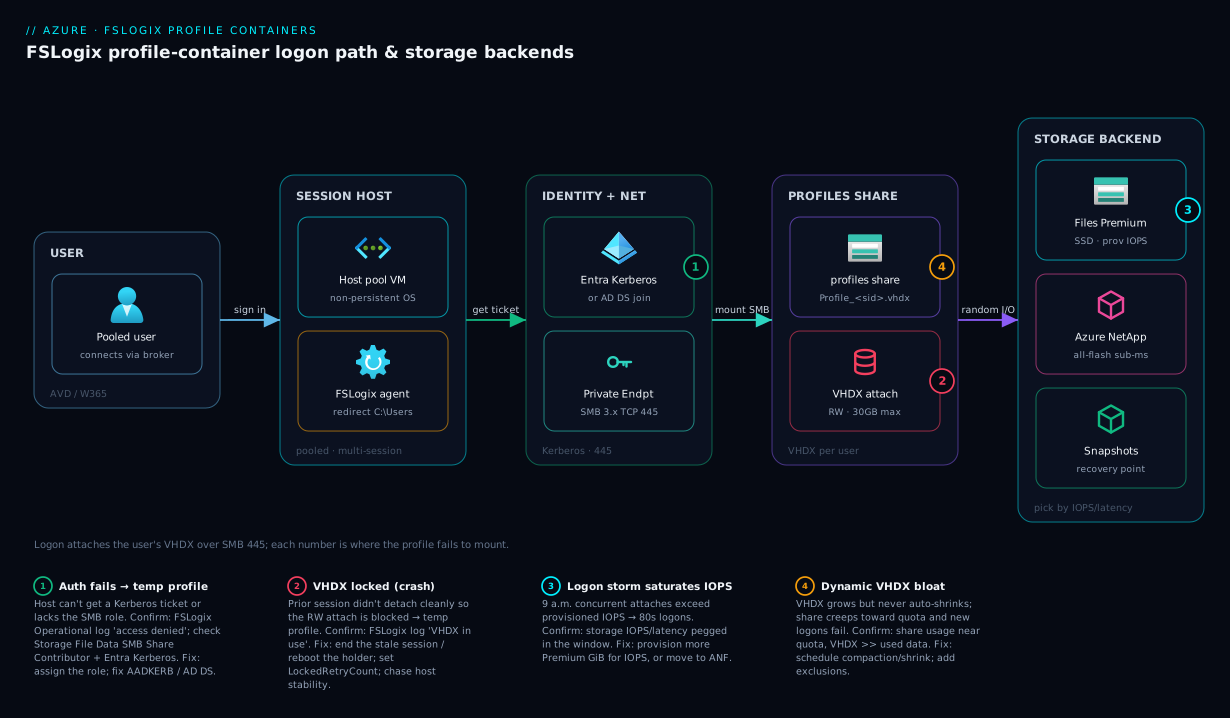
Picture a single logon, left to right. A user connects through the AVD control plane to a pooled session host. The moment Windows authenticates them, the FSLogix agent reads VHDLocations, resolves the user’s folder on the Profiles share, and the host presents a Kerberos ticket (Entra Kerberos or AD DS) to authenticate over SMB 3.x on TCP 445. With the share mounted, FSLogix attaches the VHDX read-write and reparses C:\Users\<name> into it — from here every profile read/write is small random I/O against the storage backend. That backend is one of three: Premium Files (single-digit-ms, IOPS by size), Standard Files (cheaper, transaction-priced, small pools), or an ANF volume (all-flash, sub-ms, dense/latency-critical pools). The share is reached over a Private Endpoint so SMB never traverses the internet, and share snapshots give the recovery point if a VHDX corrupts.
The numbered badges mark the day-2 failure points — auth failure (→ temp profile), a VHDX locked by a crashed prior session, the logon storm saturating an under-provisioned share, and dynamic-VHDX bloat — and the legend maps each to its symptom, confirm step and fix.
Real-world scenario
Meridian Legal Services runs a 300-seat practice and moves its lawyers and paralegals onto pooled Azure Virtual Desktop to retire an ageing on-prem VDI farm. Each profile is heavy by design: lawyers live in Outlook cached mode with 20–40 GB OSTs, the Windows Search index is business-critical (they search years of email constantly), and everyone has a large OneDrive in Files On-Demand. The first build used Standard Files because it looked cheapest on the calculator.
The 9 a.m. boot storm broke it. As ~180 users signed in within fifteen minutes, the Standard share — HDD-backed and transaction-priced — saturated: logons that took 25 seconds in testing took 70–90 seconds under real concurrency, Outlook took minutes to come online, and the help desk lit up. The bill was also a shock: FSLogix’s millions of small I/Os generated a huge transaction count, so “cheap” Standard cost far more while performing far worse. Two failures, one root cause — Standard’s HDD latency and per-transaction pricing are the wrong fit for FSLogix’s small-random-I/O logon storm.
The fix was a backend swap, not a redesign. They moved profiles to Premium Files (FileStorage) with ZRS, provisioning ~4 TiB — more than their ~2.5 TB of VHDX data needed, specifically to lift the provisioned-IOPS floor above the logon peak. They switched auth to Entra Kerberos (retiring the domain controllers run purely for the share), put it behind a Private Endpoint, and enabled DeleteLocalProfileWhenVHDShouldApply after stale local profiles caused occasional temp-profile fallbacks. They added weekly VHDX compaction, because bloat had already pushed several profiles 8–10 GB past their used size in two months.
Results: cold logons dropped to a steady 20–30 seconds even at peak, Outlook came online in seconds, the cost surprise vanished, and temp-profile incidents went to near-zero. The lesson — and the thesis of this article — is that the FSLogix backend choice is a latency-and-IOPS decision, not a capacity-and-price one. Standard saved a few thousand rupees a month on paper and cost a quarter of help-desk pain plus a worse bill; Premium at the right size was the answer, and ANF only at twice the density or with sub-ms needs.
Advantages and disadvantages
FSLogix is close to mandatory for pooled VDI, but not free of trade-offs — most land on the storage layer you now own.
| Advantages | Disadvantages |
|---|---|
| Makes non-persistent desktops feel persistent | Adds a storage dependency you must size and run |
| No logon copy — attach is fast | A slow/under-provisioned share = slow logons for everyone |
| Outlook cached mode + search index work | One RW attach per profile; concurrent sessions need care |
| Whole profile roams (incl. AppData) | Dynamic VHDX bloats without scheduled compaction |
| Backend choice tunes latency/cost | Three backends with very different cost/identity models to learn |
| Entra Kerberos can remove DCs from the share path | Identity/ACL misconfig → temp-profile fallback (silent data loss) |
| Free product (no FSLogix licence beyond eligible Windows/M365) | You pay for the storage IOPS, redundancy and backup |
The trade-offs that matter most: first, you traded a compute problem for a storage problem — no more hundreds of persistent VMs, but now a file share whose latency gates every logon, so under-size it and the whole pool suffers at once. Second, the temp-profile fallback is dangerous because it’s silent: attach fails, the user gets a disposable profile, works an afternoon, loses it at logoff — so alarm on it. Third, dynamic VHDX bloat is a slow leak that never hurts on day one and quietly fills the share over months, so compaction must be a scheduled job.
Hands-on lab
Provision a Premium Files share for FSLogix, configure Entra Kerberos and the correct RBAC, and seed the agent settings — all scriptable. (This creates a real Premium FileStorage account; a small share for an hour is a few tens of rupees — delete the resource group at the end.) Run in Cloud Shell (Bash) unless a step says PowerShell.
Step 1 — Variables and resource group.
RG=rg-fslogix-lab
LOC=centralindia
SA=stfslogixlab$RANDOM   # storage account names are globally unique, lowercase
az group create -n $RG -l $LOC -o table
Step 2 — Create a Premium FileStorage account (Premium is required for the Files Premium tier).
az storage account create -n $SA -g $RG -l $LOC \
  --sku Premium_ZRS --kind FileStorage \
  --min-tls-version TLS1_2 --allow-blob-public-access false -o table
Expected: a row with sku.name = Premium_ZRS, kind = FileStorage.
Step 3 — Create the profiles share, provisioned larger than data needs to buy IOPS.
az storage share-rm create --storage-account $SA -g $RG \
  --name profiles --quota 1024 --enabled-protocols SMB -o table
Expected: a share named profiles, shareQuota = 1024 (GiB). In production you size this against max VHDX × users and the IOPS floor for your logon peak.
Step 4 — Enable Entra Kerberos on the storage account (so Entra-joined hosts authenticate without DCs).
az storage account update -n $SA -g $RG \
  --enable-files-aadkerb true -o table
Expected: azureFilesIdentityBasedAuthentication.directoryServiceOptions = AADKERB. (In a full deployment you then grant admin consent to the created app registration and configure the hosts — out of scope for the lab.)
Step 5 — Grant the AVD users group the SMB share role. Use any test group object id you have, or your own user object id to prove the assignment:
ME=$(az ad signed-in-user show --query id -o tsv)
az role assignment create --assignee "$ME" \
  --role "Storage File Data SMB Share Contributor" \
  --scope "$(az storage account show -n $SA -g $RG --query id -o tsv)" -o table
Expected: a role-assignment row binding the principal to the share contributor role.
Step 6 — Seed FSLogix registry settings (PowerShell — run this part on a Windows session host or image, not Cloud Shell). This is the config the agent reads:
$key = 'HKLM:\SOFTWARE\FSLogix\Profiles'
New-Item -Path $key -Force | Out-Null
Set-ItemProperty -Path $key -Name 'Enabled' -Value 1 -Type DWord
Set-ItemProperty -Path $key -Name 'VHDLocations' `
  -Value "\\$env:SA.file.core.windows.net\profiles" -Type MultiString
Set-ItemProperty -Path $key -Name 'VolumeType' -Value 'VHDX' -Type String
Set-ItemProperty -Path $key -Name 'SizeInMBs' -Value 30000 -Type DWord
Set-ItemProperty -Path $key -Name 'FlipFlopProfileDirectoryName' -Value 1 -Type DWord
Set-ItemProperty -Path $key -Name 'DeleteLocalProfileWhenVHDShouldApply' -Value 1 -Type DWord
Validation checklist. You created a Premium FileStorage account and a profiles share, switched it to Entra Kerberos, assigned the correct SMB RBAC role, and seeded the agent. On a real Entra-joined session host with these registry values, a test user’s first logon would create \\<sa>.file.core.windows.net\profiles\<sid>_<user>\Profile_<user>.vhdx, attach it, and redirect C:\Users\<user> into it. Each step mapped to what it proves:
| Step | What you did | What it proves |
|---|---|---|
| 2 | Premium FileStorage account | Premium tier requires this kind/SKU |
| 3 | profiles share, over-sized quota |
Provisioned GiB buys IOPS on Premium |
| 4 | Enable Entra Kerberos | Hosts can auth without domain controllers |
| 5 | SMB share RBAC role | Share-level permission (layer 1 of 2) |
| 6 | FSLogix registry seed | The agent config that mounts the VHDX |
Cleanup (avoid lingering Premium charges — Premium Files bills on provisioned size).
az group delete -n $RG --yes --no-wait
Common mistakes & troubleshooting
The day-2 playbook — bookmark this. First the scannable table, then the entries that bite hardest. Most FSLogix diagnosis lives in the FSLogix logs (%ProgramData%\FSLogix\Logs\Profile) and the Microsoft-FSLogix-Apps/Operational event channel.
| # | Symptom | Root cause | Confirm (exact path / command) | Fix |
|---|---|---|---|---|
| 1 | User’s profile is empty/reset; changes lost at logoff | Temp-profile fallback (attach failed) | FSLogix log / event channel: “failed to attach”; profile is TEMP |
Fix the underlying attach error (rows 2–4); alarm on temp profiles |
| 2 | “Failed to attach”, auth-related | Host can’t authenticate to the share (Kerberos/RBAC) | FSLogix log shows access denied; test Test-NetConnection <sa>.file.core.windows.net -Port 445; check RBAC role |
Assign Storage File Data SMB Share Contributor; fix Entra Kerberos / AD DS config |
| 3 | “Failed to attach”, VHDX locked | Prior session didn’t detach (host crashed) | FSLogix log: VHDX in use / locked; another session holds it | Clear the lock (session ends / host reboot); set LockedRetryCount; investigate crashes |
| 4 | Attach works but profile folder denied | NTFS ACLs wrong on the share | icacls \\<sa>...\profiles missing Creator Owner / user create |
Apply canonical ACLs (Authenticated Users create, Creator Owner modify) |
| 5 | Logons slow only at 9 a.m. peak | Logon storm saturates an under-provisioned share | Storage metrics: IOPS/latency pegged during the window | Provision more IOPS (bigger Premium share) or move to ANF |
| 6 | Logons always slow, even off-peak | Wrong backend (Standard HDD latency) | Latency metrics tens of ms; on Standard tier | Move to Premium Files or ANF |
| 7 | Share fills up; new logons fail | Dynamic VHDX bloat (no compaction) | Share usage near quota; VHDX files >> used data | Schedule compaction/shrink; raise quota; add exclusions |
| 8 | OneDrive/Outlook re-syncs every logon | Office data not in the container, or wrong exclusions | Cached data not persisting; redirections.xml / settings |
Keep Office data in the Profile Container; fix exclusions |
| 9 | Same user on two hosts → second is temp | Concurrent sessions not enabled | Second session gets temp; default one-RW-attach | Enable ConcurrentUserSessions if desired, or prevent double-session |
| 10 | Profiles “disappeared” after a config change | FlipFlopProfileDirectoryName flipped |
New empty folders appear with the other naming | Revert the flag to its original value (never change it) |
| 11 | Slow logon + high storage cost on Standard | Transaction-priced Standard under FSLogix load | Storage transaction count very high | Move to Premium/ANF (provisioned, not per-transaction) |
| 12 | VHDX won’t attach; “corrupt” after crash | Dirty detach left the VHDX inconsistent | FSLogix log: corruption/dirty bit | Restore from share snapshot; repair the VHDX; mount snapshot |
The entries that cause the most lost hours, expanded:
1 & 2. The temp-profile fallback is the master symptom. When FSLogix cannot attach the VHDX — for any reason — it (by default) logs the user on with a temporary local profile so they’re not locked out. The danger: it looks like a working desktop but is discarded at logoff, losing the session’s work. Confirm the logged-on profile is a TEMP profile (the FSLogix event channel and %ProgramData%\FSLogix\Logs show the attach failure). The cause is almost always auth (missing RBAC role, Entra Kerberos/AD DS misconfigured) or a lock from a crashed session — but operationally the key action is to alarm on temp-profile events by shipping FSLogix logs to Log Analytics (see Azure Monitor & Application Insights for Observability).
5 vs 6. Slow logons — read when. Only at 9 a.m. = logon-storm IOPS (provision more, or move to ANF); always slow, even single-user = a latency problem with the backend tier, typically Standard’s HDD (move to Premium/ANF). Confirm with the account’s IOPS and latency metrics over the window — don’t throw capacity at a latency problem.
10. The FlipFlop landmine. Change FlipFlopProfileDirectoryName after users have profiles and FSLogix looks for the other folder name, doesn’t find the existing VHDX, and makes a fresh empty one — every affected user “loses” their profile at once. Confirm that new empty folders appeared with the opposite naming next to the originals. Fix: revert the flag; the originals are intact and will be found again.
Best practices
- Default to Premium Files for production, sized for the logon-storm IOPS not steady state — provision GiB until the IOPS floor clears your peak concurrent logons.
- Use ANF only when dense or latency-critical (hundreds per pool, big OSTs, sub-ms), and right-size the pool — its minimums waste money small.
- Use Entra Kerberos for greenfield Azure Files so you don’t run domain controllers solely for the share; reserve AD DS join for existing forests or ANF.
- Get both permission layers right: the SMB RBAC role and the canonical NTFS ACLs (Authenticated Users create, Creator Owner modify).
- Put the share behind a Private Endpoint so SMB (445) never traverses the internet, and verify DNS resolves to the private IP.
- Alarm on temp-profile / attach-failure events (ship FSLogix logs to Log Analytics) — the fallback silently loses data.
- Schedule VHDX compaction to reclaim dynamic-disk bloat before it fills the share.
- Exclude bulky, regenerable paths (temp, browser caches, Teams logs) via
redirections.xml. - Decide
FlipFlopProfileDirectoryNameonce and never change it; treat all settings as code (GPO/Intune/Bicep). - Snapshot the share on a schedule (GRS/cross-region for DR) and test a restore.
- Choose ZRS over LRS where available — a zone outage shouldn’t lose every profile in the region.
- Keep Profile Container alone unless you have a concrete reason to add the Office Container.
Security notes
The profile share holds the most sensitive things a user touches — mailbox cache, documents, browser state — so treat it like the crown jewels.
| Control | What to do | Why |
|---|---|---|
| Least-privilege RBAC | Users get SMB Share Contributor (not Elevated); admins get Elevated/owner | Users should create only their own folder, not modify ACLs |
| NTFS Creator Owner model | Each user owns only their folder; can’t read others’ | A profile is private; cross-read is a data breach |
| Encryption at rest | Azure Files/ANF encrypt at rest by default; add CMK if required | VHDX = mailbox + documents; encrypt it |
| Encryption in transit | SMB 3.x encryption; enforce TLS1_2+; require secure transfer |
Profile I/O must not be sniffable |
| Private networking | Private Endpoint; disable public access; NSG to 445 from hosts only | Never expose the SMB share publicly |
| Identity hardening | Entra Kerberos/AD DS; Conditional Access on AVD; no shared accounts | The share trusts the host’s Kerberos identity |
| Backup / immutability | Share snapshots; consider soft-delete; test restores | Ransomware or corruption shouldn’t be terminal |
| Audit | Storage diagnostic logs; alert on mass-delete/ACL change | Detect tampering with profile data |
Two FSLogix-specific points. First, the host authenticates to the share as its Kerberos identity / the user, so your AVD identity hardening (Conditional Access, MFA, no local admins on hosts) is your storage access control — a compromised session host is a compromised share. Second, the VHDX contains the Outlook OST — a full local copy of the mailbox — which usually pushes the profile share into your highest data-classification tier (encryption, private networking, audited access, tested restore). For the storage account keys, prefer identity-based access over account keys per Azure Key Vault: Secrets, Keys & Certificates.
Cost & sizing
The FSLogix bill is almost entirely the storage backend (the agent carries no extra licence cost for eligible Windows/Microsoft 365 entitlements). Three very different cost models drive the choice.
| Backend | What you pay for | Cost shape | Watch out for |
|---|---|---|---|
| Standard Files | Used GB + per-transaction | Cheap at rest, spikes under FSLogix I/O | Transaction cost balloons under logon storms |
| Premium Files | Provisioned GiB (IOPS scale with size) | Predictable; you pay for provisioned size | You over-provision GiB to buy IOPS |
| ANF | Capacity pool (TiB) × service level | Predictable but high entry (pool minimum) | 4 TiB pool minimum wastes money small |
A rough sizing-and-cost walk for a 200-user medium pool (indicative; confirm current pricing for your region):
| Input | Value | Implication |
|---|---|---|
| Users | 200 | — |
| Max VHDX/user | 30 GB | Quota ceiling = 6 TB if never compacting |
| Used VHDX/user (avg) | ~12 GB | ~2.4 TB real data |
| Peak concurrent logons | ~150 in 15 min | Defines the IOPS floor |
| Premium provisioned | ~3–4 TiB | Sized for IOPS, not just data |
| Snapshots | weekly retained | Incremental capacity add |
Right-sizing rules that save the most:
| Lever | Action | Savings effect |
|---|---|---|
| Tier match | Don’t use ANF for small pools; don’t use Standard for big ones | Avoids both over-buy and the transaction trap |
| Compaction | Shrink dynamic VHDX on a schedule | Reclaims GB → smaller provisioned share |
| Exclusions | Drop caches/temp from the container | Smaller VHDX, fewer writes, less storage |
| Redundancy choice | ZRS where you need zone HA; not GRS unless DR demands | GRS roughly doubles storage cost |
| Quota vs data | Provision Premium GiB for IOPS, but don’t wildly over-shoot | Premium bills on provisioned size |
| Right service level (ANF) | Standard vs Premium vs Ultra by latency need | Don’t buy Ultra where Premium suffices |
The headline: the cheapest-looking option (Standard Files) is usually the most expensive under real FSLogix load — per-transaction pricing punishes millions of small I/Os and HDD latency adds help-desk cost. Premium Files is the predictable default; ANF wins at density, where its consistent latency justifies the higher floor. Size against max VHDX × users unless you compact, validate the IOPS floor against your logon peak, and skip GRS unless DR demands cross-region copies.
Interview & exam questions
1. What does FSLogix actually do to the user profile?
It redirects C:\Users\<name> into a per-user VHDX that lives on a file share and is attached (mounted) at logon, rather than copied. The OS sees a local profile; nothing round-trips at logon/logoff. This makes non-persistent desktops behave as if the profile were always local. (AVD / AZ-140.)
2. Why did roaming profiles fail where FSLogix succeeds? Roaming profiles copied the whole profile file-by-file, which is slow on large profiles, corrupts open databases (the Outlook OST, the search index) when copied mid-write, and loses data via last-writer-wins merges. FSLogix mounts the profile instead of copying it, so none of those occur and Outlook cached mode works. (AZ-140.)
3. Profile Container vs Office Container — when split them? The Profile Container holds the whole profile (and already includes Office data); the Office Container (ODFC) holds only Office/M365 data. Use Profile Container alone for most deployments. Split only to put Office data on different/faster storage or to combine FSLogix Office data with a separate base-profile solution. (AZ-140.)
4. Why is IOPS/latency, not throughput, the FSLogix storage metric? Because logon is an attach, not a copy — the share serves a storm of small random reads/writes (profile boot, mail indexing, registry), so it’s bound by IOPS and latency. A high-throughput but high-latency share still gives slow logons. This is why Premium/ANF beat Standard for FSLogix. (AZ-140.)
5. Compare Azure Files Standard, Premium, and ANF for FSLogix. Standard = HDD, transaction-priced, cheapest but slow and costly under load — small pools only. Premium (FileStorage) = SSD, provisioned IOPS by size, single-digit-ms — the production default. ANF = all-flash, sub-ms latency, scales to dense pools but has a 4 TiB pool minimum. Choose by concurrency, latency need and scale. (AZ-140.)
6. What is the “temp profile” symptom and why is it dangerous? When FSLogix can’t attach the VHDX, it (by default) logs the user on with a temporary local profile — which looks like a working desktop but is discarded at logoff, silently losing the session’s work. You must alarm on attach-failure/temp-profile events. Causes: auth/RBAC/ACL failure or a VHDX lock. (AZ-140.)
7. Which identity options authenticate the host to the share, and when use each? Entra Kerberos (cloud-first; no domain controllers needed for the share), AD DS (existing forest / hybrid; required for ANF SMB), and ANF’s AD DS join. Greenfield Azure Files + Premium + Entra Kerberos is the clean modern stack; ANF pairs with AD DS. (AZ-140 / AZ-700 identity.)
8. What two permission layers must be correct, and what are they? Share-level RBAC (e.g. Storage File Data SMB Share Contributor) controls whether the identity can mount the SMB share at all; NTFS ACLs (Authenticated Users create folder, Creator Owner modify) control what they can do inside it. Both must be right or attach fails. (AZ-140.)
9. Why does a dynamic VHDX bloat, and how do you fix it? A dynamically-expanding VHDX grows as the user fills it but does not auto-shrink when data is deleted — freed blocks stay allocated, so the file creeps toward its max over months. You reclaim space with scheduled compaction/shrink, not automatically; budget quota against max size if you don’t compact. (AZ-140.)
10. A pooled AVD pool has fast logons at noon but 80-second logons at 9 a.m. What’s wrong and what do you do? The logon storm: many concurrent attaches exceed the share’s provisioned IOPS. Confirm with storage IOPS/latency metrics over the window. Fix by provisioning more IOPS (a larger Premium share) or moving to ANF — not by adding capacity you don’t need or restarting hosts. (AZ-140.)
11. What’s FlipFlopProfileDirectoryName and why is it a one-time decision?
It controls the per-user folder name: 0 → %username%%sid%, 1 → %sid%_%username%. Change it after users have profiles and FSLogix looks for a differently-named folder, doesn’t find the existing VHDX, and makes a new empty one — every user appears to lose their profile. Decide once at build time. (AZ-140.)
12. Where do FSLogix and storage logs live for diagnosis?
FSLogix logs at %ProgramData%\FSLogix\Logs and the Microsoft-FSLogix-Apps/Operational event channel show attach success/failure, locks and temp-profile fallback. Storage-side IOPS/latency/transaction metrics on the account show saturation. Ship both to Log Analytics for alerting. (AZ-140.)
Quick check
- In one sentence, what does FSLogix do to
C:\Users\<name>? - Which single storage metric most determines FSLogix logon speed — throughput or IOPS/latency — and why?
- You have 600 latency-sensitive users with huge OSTs in one pool. Files Premium or ANF?
- A user did an afternoon of work and lost it all at logoff with no error. What almost certainly happened?
- Why must you never change
FlipFlopProfileDirectoryNameafter go-live?
Answers
- It redirects it into a per-user VHDX that’s mounted/attached at logon (not copied), so Windows treats the roaming profile as local.
- IOPS/latency — logon is an attach that triggers a storm of small random I/O (profile boot, mail indexing, registry), so low latency and enough IOPS matter far more than raw MB/s.
- ANF — at that density and with sub-ms latency needs and large OSTs, ANF’s all-flash consistency beats Premium Files; the higher pool floor is justified.
- Temp-profile fallback — FSLogix couldn’t attach the VHDX (auth/ACL/lock), logged the user onto a temporary profile that looks normal but is discarded at logoff — which is why you alarm on attach failures.
- Because FSLogix would then look for a differently-named per-user folder, fail to find the existing VHDX, and create a new empty one — making every user appear to lose their profile.
Glossary
- FSLogix — Microsoft agent that redirects a Windows user profile into a mounted VHDX on a file share, making non-persistent desktops behave as persistent.
- Profile Container — The FSLogix VHDX holding the entire user profile; the default and most common FSLogix component.
- Office Container (ODFC) — An optional second VHDX holding only Office/Microsoft 365 data (OST, OneNote, Teams, search, OneDrive); used when you split Office state out.
- VHDX — The Hyper-V virtual hard disk format FSLogix uses (4 KB sectors, up to 64 TB, more resilient than legacy VHD).
- Profiles share — The SMB file share (on Azure Files or ANF) that stores every user’s VHDX.
- Redirect / reparse — The mechanism that makes
C:\Users\<name>resolve into the attached VHDX instead of a real local folder. - Attach / detach — Mounting the VHDX into the session at logon and dismounting it at logoff; the “attach” replaces the old roaming “copy.”
- Temp profile — The fallback temporary local profile FSLogix issues when it can’t attach the VHDX; looks normal but is discarded at logoff (silent data loss).
- Dynamic VHDX — A virtual disk that grows to used size up to a
SizeInMBsmax but does not auto-shrink; needs scheduled compaction. VHDLocations— The FSLogix setting listing the UNC path(s) to the profiles share; multiple paths act as failover order.FlipFlopProfileDirectoryName— Flag choosing the per-user folder naming (%username%%sid%vs%sid%_%username%); a one-time decision.- Logon storm — The burst of concurrent logons (e.g. 9 a.m.) that drives a share’s peak IOPS requirement.
- Cloud Cache — FSLogix mode that keeps a local cache and replicates the profile to 2–4 storage backends for HA / multi-region.
- Entra Kerberos (for Files) — Authenticating SMB to an Azure Files share using Entra ID Kerberos tickets, removing the need for domain controllers for the share.
- Azure NetApp Files (ANF) — All-flash, ONTAP-based Azure file service offering sub-ms latency; the premium FSLogix backend for dense/latency-critical pools.
Next steps
- Decide the host-pool model that this storage serves: AVD Host Pool: Personal vs Pooled — Deciding the Right Model.
- Build the desktop estate end to end: Deploy Your First AVD Pooled Host Pool End to End.
- Ground the SMB share fundamentals the VHDX rides on: Azure Files SMB Share: Mount on Windows & Linux Quickstart.
- Choose redundancy for the profile share deliberately: Azure Storage Redundancy: LRS, ZRS, GRS, RA-GRS Explained.
- Compare the broader desktop options if Windows 365 is on the table: Windows 365 Cloud PC vs AVD: Choosing Between Them.