A user finishes onboarding, you assign the Windows 365 Enterprise licence, and you wait for their Cloud PC to appear at windows365.microsoft.com. An hour later it is still showing Provisioning. Or worse, it flips to Provisioned with warnings or Failed, and the user has no desktop on day one. This is the most common Windows 365 incident, and it is maddening because the single word “Provisioning” hides a pipeline of seven or eight distinct steps — licence detection, group membership, provisioning policy match, network/domain-join validation, image acquisition, Microsoft Entra join, Microsoft Intune enrollment, and the Enrollment Status Page — any one of which can stall the whole thing while the portal tells you almost nothing about which.
This is the diagnostic playbook for that pipeline. We treat “stuck”, “provisioned with errors”, “Autopilot enrollment failed” and “image error” not as four bugs but as four symptom classes, each with a fan-out of root causes you confirm with a specific portal blade, Microsoft Graph call, or log. You will learn to read the provisioning path the way the service runs it — licence → security group → provisioning policy → on-premises/Azure network → image → Entra join → Intune enrollment → ESP — and localise a failure to exactly one hop. Windows 365 Enterprise provisions and manages Cloud PCs through Intune, so the tools that tell the truth are the Intune admin center (Devices → Windows 365 → All Cloud PCs and provisioning monitoring), the Azure Network Connection (ANC) health checks, the enrollment failures, and Get-MgDevice* / Get-MgBeta* Graph queries — and every diagnosis comes with the exact path to confirm it and the precise fix.
By the end you will stop guessing and refreshing. When a Cloud PC stalls you will know whether it is an undetected licence, a user who never landed in the group, a policy out of licences, an ANC that failed its domain-join health check, an out-of-region image, an incomplete hybrid-join, or an Enrollment Status Page blocking on a required app — and knowing which in a couple of minutes, instead of opening a support case and waiting two days while a new hire sits idle, is the entire point.
What problem this solves
Windows 365 hides machinery: assign a licence and a policy, and a managed Windows desktop appears, joined, enrolled and on the network. That abstraction is wonderful until provisioning fails and becomes an opaque wall — the portal shows a status word and maybe a generic error, but the real reason lives in five or six surfaces (licensing, group, policy, the ANC health check, Intune enrollment, the ESP), and not knowing which maps to which failure costs you an afternoon of clicking blades while a user has no machine.
What breaks without this knowledge: an admin reassigns the licence (sometimes “fixing” it by accident, teaching the wrong lesson), recreates the policy (often worse, orphaning the old Cloud PCs), or files a ticket and waits — while the actual cause (a user not in the policy’s group, an ANC service account that lost OU-join rights, an ESP blocking on an app that never installs, a wrongly generalised image) sits there, perfectly diagnosable, ignored. The fix is almost never “reassign the licence”; it is “find the hop that is failing and make it report the truth.”
Who hits this: every organisation rolling out Windows 365 Enterprise at scale, hardest in three places — Hybrid Azure AD join (the network connection and domain join are the richest failure source), custom-image deployments (a wrongly generalised, oversized, or wrong-region image), and strict Enrollment Status Page setups (a blocking ESP turns a slow install into a “failed provisioning”). Windows 365 Frontline adds a twist — shared mode means concurrency limits, not per-user assignment — producing “no Cloud PC available” symptoms that are licence math, not failures.
To frame the whole field before the deep dive, here is every symptom class this article covers, the question it forces, and the one place to look first.
| Symptom class | What the service is telling you | First question to ask | First place to look | Most common single cause |
|---|---|---|---|---|
| Stuck in Provisioning | “I started but haven’t finished a step” | Did the licence and group land? | Intune → Devices → Windows 365 → provisioning monitoring | User not in the targeted group, or no licence detected |
| Provisioned with warnings / errors | “It came up but a check failed” | Which post-provision health check failed? | Per-Cloud-PC status + Azure network connection health | ANC health-check failure (domain join / DNS) |
| Autopilot / Intune enrollment failed | “The OS came up but never enrolled” | Did Entra join and MDM enrollment complete? | Intune → Devices → Enrollment failures; ESP | Enrollment restriction, ESP blocking app, MDM scope |
| Image error / no image | “I can’t build from the image you gave me” | Is the image present, generalised, in-region? | Device images blade; provisioning policy image ref | Custom image not generalised, deallocated, or wrong region |
| No Cloud PC available (Frontline) | “Shared capacity is full” | Are concurrent sessions at the licence cap? | Frontline usage; assigned licence count | More concurrent users than Frontline licences (3:1) |
Learning objectives
By the end of this article you can:
- Map any Windows 365 provisioning failure to a specific pipeline step — licence, group, policy, network, image, Entra join, Intune enrollment, ESP — and name the most likely root cause for each.
- Diagnose a Cloud PC stuck in Provisioning as an undetected licence, a missing group membership, no available licences, or a join-type mismatch, and confirm which with the Intune provisioning view and Graph.
- Read the Azure Network Connection (ANC) health checks (DNS, domain join, AD permissions, endpoint URLs) to crack a Provisioned with warnings/errors status.
- Break an Autopilot / Intune enrollment failure by isolating it to an enrollment restriction, MDM user scope, device-limit cap, or an Enrollment Status Page blocking on a required app.
- Fix image and gallery errors — wrong region, ungeneralised custom image, deallocated source VM, unsupported size — and choose between gallery and custom images correctly.
- Use the grace period, reprovision and resize safely, knowing which of them destroys the disk.
- Read the licensing and network prerequisites the way the service checks them, so you stop the failure before it happens.
Prerequisites & where this fits
You should already understand the Windows 365 mental model: Windows 365 Enterprise assigns a per-user licence entitling one fixed-size Cloud PC, provisioned and managed through Microsoft Intune; a provisioning policy ties a licensed user (via a group) to a join type, network, image and region; and Frontline is the shared, concurrency-billed flavour. Familiarity with Microsoft Entra ID join versus Hybrid Entra join, basic Intune enrollment, and reading Microsoft Graph output helps. If you are still deciding between Cloud PC and session-based VDI, the Windows 365 Cloud PC vs Azure Virtual Desktop comparison sits upstream; this article assumes you have chosen Windows 365.
This sits in the End-User Compute → Troubleshooting track. It assumes the identity fundamentals — how Entra groups, licensing and Conditional Access work — and the Intune enrollment basics. It pairs tightly with the licensing and group mechanics in Group-Based Licensing Errors in Entra ID, because half of “stuck in Provisioning” is really a licence that never attached, and with Entra ID Dynamic Groups, because targeting a dynamic group whose rule excludes the user is a classic stall. If your Cloud PCs join to on-premises AD, the network connection is where most failures live; the AVD control-plane mechanics in Azure Virtual Desktop Architecture Explained give you the broader VDI picture.
A quick map of who owns what during a provisioning incident, so you call the right person fast.
| Layer | What lives here | Who usually owns it | Failure classes it can cause |
|---|---|---|---|
| Licensing | Win365 SKU, assignment (direct/group) | Identity / M365 admin | Stuck Provisioning (no licence detected) |
| Group / targeting | Security group the policy targets | Identity admin | Stuck (user not in group), dynamic-rule miss |
| Provisioning policy | Join type, network, image, region | Win365 admin (Intune) | Stuck, wrong join, image error |
| Network (ANC) | VNet, domain join, DNS, AD perms | Network + AD team | Provisioned with errors (health-check fail) |
| Image | Gallery or custom (Compute Gallery) | Win365 / image team | Image error, slow/failed build |
| Entra / Intune enrollment | Entra join, MDM, ESP, restrictions | Identity + Intune admin | Enrollment failed, ESP block |
| End user | Client, network, credentials | Helpdesk | Can’t connect after provisioning |
Core concepts
Five mental models make every later diagnosis obvious.
Provisioning is a pipeline, and the status word names the stage, not the bug. When you assign a licence to a user matching a provisioning policy, the service walks an ordered sequence: detect the licence, confirm group/policy match, allocate the Cloud PC, build it from the image, place it on the network, Entra-join or hybrid-join it, enroll it in Intune, run the Enrollment Status Page, and mark it available. “Provisioning” means a step is in flight or stalled; “Provisioned with warnings” means a post-provision health check flagged something; “Failed” means a step hard-errored. Your first job is always to find which step.
Windows 365 Enterprise runs through Intune — that is where the truth lives. Unlike Windows 365 Business (self-service, no Intune), Enterprise Cloud PCs are Intune-managed devices, so the provisioning monitoring view, per-device status, enrollment failures, ESP and Conditional Access all apply. If you are looking for “why” and you are not in the Intune admin center, you are usually in the wrong place. The Cloud PC also appears as an Entra device and an Intune managed device once it joins — both queryable with Graph.
The join type dictates the network requirement. A Microsoft Entra join Cloud PC needs only outbound connectivity to the service endpoints, so Microsoft can host it with no VNet from you. A Hybrid Microsoft Entra join (or any deployment on your own VNet via an Azure Network Connection) must reach a domain controller, resolve DNS to it, and have a service account that can join computers to the target OU — the ANC’s health checks test exactly these, and a red one is the most common cause of “Provisioned with warnings”. Choosing hybrid join when you do not need it imports a whole class of failures you did not have to own.
Licences are finite and the math is unforgiving. A licence entitles one Cloud PC per user; assign it to a user who already has one and nothing new provisions, and running out mid-rollout shows up as a policy that simply will not create new Cloud PCs. Frontline is different — shared, non-persistent and billed by concurrency (historically a 3:1 ratio of named users to licences) — so “no Cloud PC available” under Frontline is not a bug, it is more concurrent users than licences.
Reprovision and resize are destructive; the grace period is your safety net. Reprovision rebuilds the Cloud PC from the image — the disk’s data and apps are erased — and resize likewise reprovisions the OS disk on most paths. When a user loses their licence (offboarding, licence error, group removal), the Cloud PC enters a grace period (historically up to ~7 days), deallocated but recoverable before it is deprovisioned and the disk deleted. Knowing which action keeps data and which destroys it is the difference between a fix and a data-loss incident.
The vocabulary in one table
Before the deep sections, pin down every moving part — the glossary repeats these for lookup; this table is the mental model and why each one matters to provisioning.
| Concept | One-line definition | Why it matters to provisioning |
|---|---|---|
| Cloud PC | A per-user managed Windows desktop in the cloud | The thing that gets stuck |
| Provisioning policy | Ties licensed users → join, network, image, region | The recipe; wrong fields = wrong/failed build |
| Azure Network Connection (ANC) | Your VNet + domain-join config + health checks | Red health check → Provisioned with errors |
| Join type | Microsoft Entra join vs Hybrid Entra join | Dictates the network requirement |
| Device image | Gallery (Microsoft) or custom (Compute Gallery) | Wrong/ungeneralised → image error |
| Enrollment Status Page (ESP) | Blocks login until required apps/policies apply | Blocking ESP → “stuck” / failed |
| Frontline | Shared, non-persistent, concurrency-billed Cloud PCs | “None available” = licence-math, not a bug |
| Grace period | Recoverable window after licence loss | Deallocated but data still present |
| Reprovision | Rebuild from image (erases the disk) | Destructive — last resort |
| Resize | Change size/licence (reprovisions OS) | Also reprovisions; data risk |
The provisioning pipeline, step by step
Every Cloud PC walks the same ordered pipeline. Knowing the steps in order lets you say “it got to here and stopped”, which immediately narrows the cause — what each step does, what stalls it, and where you confirm it:
| # | Step | What it does | Stalls when… | Confirm in |
|---|---|---|---|---|
| 1 | Licence detection | Service sees the user has a Win365 licence | Licence unassigned, wrong SKU, usage location missing | M365 admin → Licenses; user → Licenses |
| 2 | Group / policy match | User is in the group the policy targets | User not in group; dynamic rule excludes them | Intune → Windows 365 → policy → assignments |
| 3 | Licence availability | A free licence exists for a new Cloud PC | All licences consumed; user already has one | Provisioning monitoring; licence count |
| 4 | Allocation & build | Cloud PC created and OS laid down from image | Image missing/ungeneralised/wrong region | Provisioning status; Device images |
| 5 | Network placement | Joined to Microsoft-hosted or your VNet | ANC health check fails (DNS/domain/perms) | ANC health checks |
| 6 | Entra / domain join | Entra join or hybrid domain join completes | Service account perms, OU, connectivity | ANC checks; on-prem AD |
| 7 | Intune enrollment | Device enrolls into Intune (MDM) | Enrollment restriction, MDM scope, device limit | Intune → Enrollment failures |
| 8 | ESP | Required apps/policies applied before login | ESP blocks on a required app that never installs | ESP profile; device status |
| 9 | Available | Cloud PC is ready and shown to the user | — | windows365.microsoft.com; All Cloud PCs |
Two reading rules save the most time. First, failures cluster by join type: an Entra-join, gallery-image, Microsoft-hosted Cloud PC has almost no surface to fail on (steps 5–6 are trivial), so a stall there is nearly always licensing (1–3) or enrollment (7–8), whereas a hybrid-join, custom-image, your-VNet Cloud PC can fail at every step. Second, the provisioning monitoring view already tells you the stage — open it before you theorise.
Where to watch provisioning in real time
The authoritative live view is Intune admin center → Devices → Windows 365 → All Cloud PCs, and the provisioning monitoring experience that shows each Cloud PC’s current status and the failure reason if any. For a single Cloud PC, open it and read its status and last status change. The statuses you will actually see, and what each means:
| Status | Meaning | Typical next move |
|---|---|---|
| Provisioning | A pipeline step is in flight | Wait a few minutes; if >1–2h, dig by stage |
| Provisioned | Ready and available | None — user can connect |
| Provisioned (with warnings) | Up, but a health check flagged | Read ANC health checks / device status |
| Failed | A step hard-errored | Read the error; match it to the playbook |
| In grace period | Licence lost; deallocated, recoverable | Restore licence to recover before deprovision |
| Deprovisioning | Being torn down (licence removed past grace) | Data is being deleted |
| Not provisioned | Eligible user, no Cloud PC yet | Check licence + group + policy match |
To pull the same data programmatically — invaluable when triaging dozens at once — the Graph beta Cloud PC endpoint lists every Cloud PC and its status (Connect-MgGraph with Intune/Win365 read permissions first):
# List every Cloud PC with its provisioning status and the policy that built it (Graph beta).
Get-MgBetaDeviceManagementVirtualEndpointCloudPC `
  -Property "id,displayName,status,provisioningPolicyName,userPrincipalName,lastModifiedDateTime" |
  Select-Object displayName, userPrincipalName, status, provisioningPolicyName |
  Sort-Object status
# REST equivalent: GET /beta/deviceManagement/virtualEndpoint/cloudPCs?$select=displayName,status,userPrincipalName
Licensing and group targeting: the silent stall
The most common reason a Cloud PC never starts is not a network or image error — it is that the service never saw a licensed, in-scope user. Three conditions must all be true: the user has the right licence, is in the group the policy targets, and a licence is actually available to consume.
Licence detection and usage location
A Windows 365 Enterprise licence does nothing until assigned — directly or, far better, via group-based licensing. A trap shared with all M365 licensing: if the user’s usage location is unset, the assignment fails silently, the user shows as licensed-but-errored, and no Cloud PC provisions. This is the same failure family covered in Group-Based Licensing Errors in Entra ID, which is worth reading because at scale you should assign Windows 365 by group, not per user.
Confirm. Check the user’s assigned plans and look for an assignment error:
# Does the user have a Windows 365 plan assigned, and is it error-free?
Get-MgUserLicenseDetail -UserId "ana@contoso.com" |
  Select-Object -ExpandProperty ServicePlans |
  Where-Object { $_.ServicePlanName -like "*CPC*" -or $_.ServicePlanName -like "*Windows_365*" }

# Usage location set? An empty UsageLocation breaks group-based licensing silently.
Get-MgUser -UserId "ana@contoso.com" -Property "displayName,usageLocation" |
  Select-Object displayName, usageLocation
In the portal, M365 admin center → Users → (user) → Licenses and apps shows the plan with a red error if assignment failed. Fix: set the usage location, resolve the error, or assign the licence; for group-based licensing, reprocess the group.
Group and policy targeting
A provisioning policy is assigned to a group, and a licensed user not in that group stays Not provisioned — no error, just nothing. Two variants bite repeatedly: the policy targets a dynamic group whose rule does not actually match the user (a typo, or a missing attribute), or the user was added but membership has not propagated yet (dynamic-group evaluation and licensing reprocessing are not instant).
Confirm. Verify the policy’s assignment and the user’s membership:
# What groups does the policy target? (Graph beta)
az rest --method get \
  --url "https://graph.microsoft.com/beta/deviceManagement/virtualEndpoint/provisioningPolicies?\$expand=assignments" \
  --query "value[].{policy:displayName, assignments:assignments}"

# Is the user actually a member of the targeted group?
Get-MgUserMemberOf -UserId "ana@contoso.com" |
  Where-Object { $_.AdditionalProperties.displayName -eq "grp-win365-engineering" }
In the portal, the policy’s Properties → Assignments lists the targeted groups and Entra → Groups → (group) → Members confirms the user; for a dynamic group, check the rule under Entra ID Dynamic Groups. Fix: add the user to the group (or fix the dynamic rule), then wait for evaluation or force a licence reprocess.
Licence availability and the “already has one” trap
Two more licence facts close the loop. A correctly licensed, in-group user will not get a second Cloud PC from the same policy (one licence, one Cloud PC), so when “nothing new provisions”, check whether the user already has one in All Cloud PCs and resize that instead. And if every tenant licence is consumed (M365 admin → Licenses shows assigned == total), a new in-scope user cannot provision until you buy more or free unused Cloud PCs. All of these cases are consolidated in the troubleshooting playbook later.
Network and domain join: the Azure Network Connection
When you provision onto your own VNet — mandatory for Hybrid Microsoft Entra join, optional for Entra join — you create an Azure Network Connection (ANC) binding a subnet plus (for hybrid) domain-join settings. The ANC runs an explicit battery of health checks, and a single red check is the most common reason a Cloud PC comes up Provisioned with warnings or fails at the join step. This is the richest failure surface in the product, and almost all of it is on-premises AD/DNS/permissions, not Windows 365 itself.
The ANC health checks and what each really tests
Each ANC health check maps to a concrete prerequisite the network must satisfy to host and join a Cloud PC; a red one tells you exactly which prerequisite is missing.
| ANC health check | What it actually verifies | Common cause of failure | Fix |
|---|---|---|---|
| DNS can resolve AD domain | The subnet’s DNS resolves your AD domain name | VNet DNS points at Azure default, not your DC | Set custom DNS on the VNet → your DC IPs |
| DNS can resolve DC | Resolves a reachable domain controller | DC unreachable / wrong DNS / firewall | Open line of sight to a DC; fix DNS |
| Domain join (test) | Service account can join a computer to the OU | Wrong/locked account, no rights on the OU | Grant create-computer-object rights on the OU |
| AD domain permissions | Account has the delegated rights it needs | Over-restrictive delegation | Delegate “Create/Delete Computer Objects” |
| Endpoint connectivity (URLs) | Required Windows 365/Intune URLs reachable | Firewall/proxy blocks required endpoints | Allow the Windows 365 required URLs/ports |
| Azure subscription / region | Subscription healthy, region supports Win365 | Disabled subscription, unsupported region | Use a healthy subscription / supported region |
| Resource group / VNet permissions | The service can deploy NICs into the subnet | Missing role on RG/VNet | Grant the Windows 365 service the needed role |
| IP address availability | The subnet has free IPs for Cloud PCs | Subnet too small / exhausted | Size the subnet for peak Cloud PC count |
Confirm. Intune → Devices → Windows 365 → Azure network connection → (your ANC) → overview shows each check with a green tick or a red error and detail; re-run the checks after any change, as they do not auto-refresh. Graph beta reads the connection’s health status:
# Health status of each Azure network connection (Graph beta).
az rest --method get \
  --url "https://graph.microsoft.com/beta/deviceManagement/virtualEndpoint/onPremisesConnections?\$select=displayName,healthCheckStatus,healthCheckStatusDetail" \
  --query "value[].{name:displayName, status:healthCheckStatus}"
Sizing the subnet — the silent exhaustion
A subnet that is too small is a delayed failure: the first few Cloud PCs provision, then new ones fail with no free IP addresses. Each Cloud PC consumes an IP and Azure reserves five per subnet, so plan for the peak Cloud PC count plus headroom for reprovisioning churn. The CIDR math is the same as for any Azure workload (see Azure VNet IP Address Planning); the Windows 365 rule of thumb — a /27 holds ~27 usable Cloud PCs, a /24 ~251 — says size up, not down, because you cannot resize a subnet in use.
Hybrid join versus Entra join — choose the smaller failure surface
The single biggest reliability decision is the join type, because it decides how much network you own. The trade-off:
| Dimension | Microsoft Entra join | Hybrid Microsoft Entra join |
|---|---|---|
| Network you provide | None (Microsoft-hosted) or your VNet | Your VNet (mandatory) |
| Needs a domain controller | No | Yes (line of sight + DNS) |
| ANC health checks that can fail | Few (endpoints, IPs) | All (DNS, domain join, perms…) |
| On-prem resource access (Kerberos) | Via Entra/Cloud Kerberos patterns | Native, classic Kerberos |
| Provisioning failure surface | Small | Large |
| When to choose | Default; cloud-first apps | Only for hard on-prem/AD dependencies |
The rule a senior architect applies: use Microsoft Entra join unless a real, named on-premises dependency forces hybrid. Teams that “default” to hybrid because “that is how our laptops are” import the entire ANC failure surface for no benefit — if your apps and file shares are reachable from Entra-joined devices, Entra join eliminates most of this section.
Images: gallery versus custom, and why builds fail
The provisioning policy references a device image — either a gallery image (Microsoft-maintained, includes Microsoft 365 Apps variants, always in-region and ready) or a custom image you upload from an Azure VM into the Windows 365 device images store, sourced from a managed image or Azure Compute Gallery. Gallery images almost never fail; custom images fail in a handful of specific, recognisable ways.
Why a custom image fails to build
A custom image is a generalised Windows image. The failures are concrete:
| Image failure | Symptom | Root cause | Fix |
|---|---|---|---|
| Not generalised | Upload/build fails or Cloud PCs clone with duplicate identity | VM captured without sysprep /generalize |
Recapture after sysprep /generalize /oobe /shutdown |
| Source VM not deallocated | Image upload errors | VM still running when captured | Deallocate (stop) the VM, then capture |
| Wrong OS / edition | Image rejected | Unsupported Windows edition for Win365 | Use a supported Windows Enterprise edition |
| Image in wrong region | Provisioning region can’t use it | Compute Gallery image not replicated to the region | Replicate the image to the provisioning region |
| Oversized disk | Upload rejected | OS disk larger than the supported ceiling | Keep the OS disk within the supported size |
| Image deleted/moved | Policy references a missing image | Source image removed after the policy was made | Re-upload and point the policy at the new image |
Confirm. Intune → Devices → Windows 365 → Device images lists each image with a status and failure reason; the policy’s Image field shows which it references, and if that image is gone or failed, every Cloud PC from the policy fails at build. Fix: rebuild it correctly (generalised, deallocated, supported edition/size), replicate to the provisioning region, and update the policy.
Gallery versus custom — when to use which
| Factor | Gallery image | Custom image |
|---|---|---|
| Maintenance | Microsoft patches/updates it | You rebuild and re-upload |
| M365 Apps | Bundled variants available | You bake them in |
| Region/readiness | Always in-region, ready | You must replicate per region |
| Failure risk | Near zero | Generalise/region/size pitfalls |
| Customisation | None beyond config/apps via Intune | Full (drivers, baseline apps) |
| Best for | Most deployments; app delivery via Intune | Hard image-time requirements only |
The senior default mirrors the join-type rule: start with a gallery image and deliver apps/config via Intune; only build a custom image when something genuinely must be baked in at image time. A custom image is a maintenance liability and a new class of provisioning failures — adopt it deliberately, not by habit.
Autopilot, Entra join, and Intune enrollment
Once the OS is laid down and on the network, the Cloud PC must join Entra (or hybrid-join), enroll into Intune, and pass the Enrollment Status Page. Enrollment is automatic and does not require importing hardware hashes the way physical-device Autopilot does — but it is still governed by Intune’s enrollment restrictions, MDM user scope, device limits, and your ESP, any of which can block a Cloud PC that otherwise built perfectly.
The enrollment gates that block a built Cloud PC
| Gate | What it controls | How it blocks provisioning | Fix |
|---|---|---|---|
| MDM user scope | Which users auto-enroll into Intune | If the user is out of scope, MDM enrollment never starts | Set MDM user scope to include the user (All or the right group) |
| Enrollment device-platform restriction | Which OS/platforms may enroll | A restriction blocking Windows blocks the Cloud PC | Allow Windows enrollment for the user’s group |
| Device limit restriction | Max devices per user in Intune | User at their device cap → enrollment fails | Raise the limit or clean up stale devices |
| Enrollment Status Page (ESP) | Blocks login until required apps/policies apply | A required app that never installs hangs/fails the ESP | Fix/remove the blocking app; tune ESP timeout |
| Conditional Access | Sign-in policy | A CA policy can block enrollment sign-in | Exclude enrollment or fix the CA condition |
Confirm. Intune → Devices → Enrollment → Enrollment failures lists failed enrollments with a reason; the user-scope and restriction settings live under Enrollment → Automatic enrollment (MDM user scope) and Enrollment restrictions. The Cloud PC also shows up as an Entra device once joined:
# Did the Cloud PC register as an Entra device, and is it Intune-managed?
Get-MgDevice -Filter "startswith(displayName,'CPC-')" -Property "displayName,trustType,isManaged,enrollmentType,approximateLastSignInDateTime" |
  Select-Object displayName, trustType, isManaged, enrollmentType
# trustType: 'AzureAd' (Entra join) or 'ServerAd' (hybrid). Absent device == join never happened.
The Enrollment Status Page — the “stuck” you cause yourself
A blocking ESP is the most common self-inflicted “stuck provisioning”. If your ESP is set to block device use until all required apps and policies install, and one of those required apps is large, mis-targeted, or fails, the Cloud PC sits at the ESP — a desktop that never finishes, surfaced as a provisioning failure if the ESP times out. The same ESP that protects a physical laptop turns a slow app install into an apparent outage on a Cloud PC.
| ESP setting | Effect | Provisioning risk | Recommendation |
|---|---|---|---|
| Block device use until all apps installed | Hard gate before the user gets the desktop | A bad required app blocks every Cloud PC | Keep the required app list minimal and reliable |
| Show error when install takes longer than (timeout) | ESP fails after N minutes | Too-short timeout fails slow-but-fine installs | Set a realistic timeout for your heaviest required app |
| Block list of specific required apps | Only those gate login | One flaky app on the list blocks everyone | Only gate apps that must be present at first login |
| Allow users to reset device on error | User can self-recover | None — it is a safety valve | Enable it for resilience |
| Allow use of device despite install error | Soft gate | Lower risk; apps finish in background | Prefer this unless an app is truly required at login |
Confirm. Intune → Devices → Enrollment → Enrollment Status Page → (profile) shows the settings; on a stuck device, the per-app install status shows which required app is hanging. Fix: remove the offender from the required/blocking set (let it install in the background), raise the timeout to fit your slowest legitimate required app, and enable “allow users to reset” as a safety valve.
Architecture at a glance
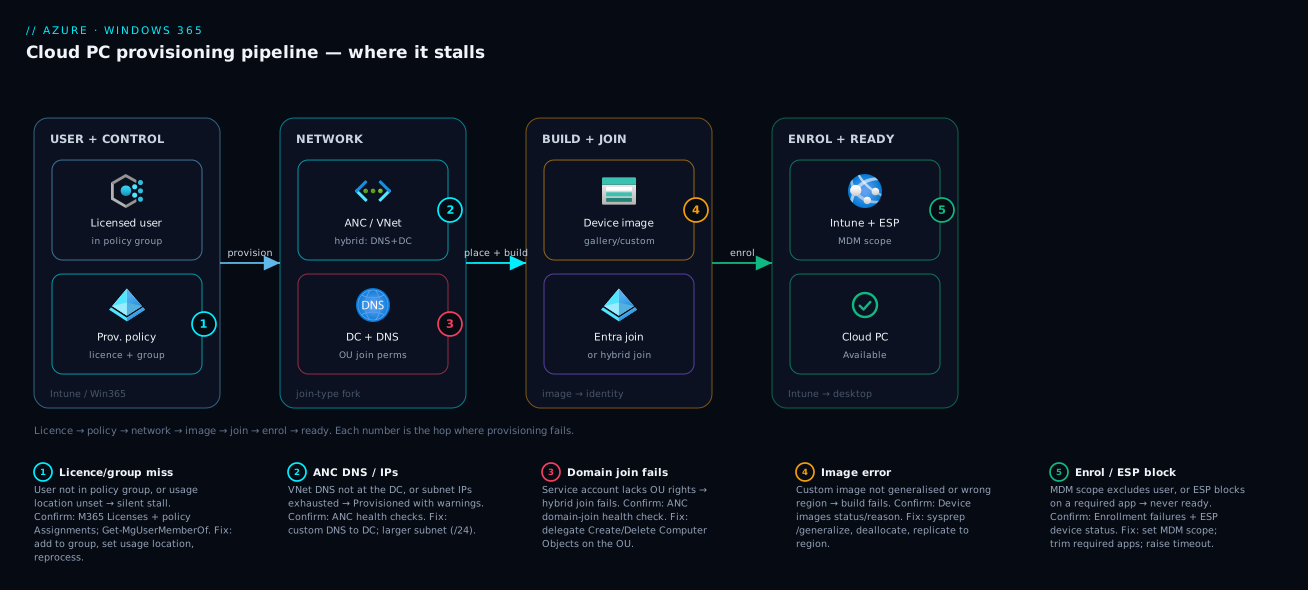
The diagram traces a Cloud PC as it is provisioned, then maps each failure class onto the exact step where it bites. Read it left to right. A licensed, in-group user triggers the request; Microsoft Intune (Windows 365) evaluates the provisioning policy, confirms the licence and group, and starts the build. The path then forks by join type — a Microsoft-hosted network (Entra join, no VNet) or your VNet via an Azure Network Connection (mandatory for hybrid join) where the Cloud PC must reach a domain controller and resolve DNS. The OS is laid down from a device image (gallery or custom), the device Entra-joins or hybrid-joins, enrolls into Intune, runs the Enrollment Status Page, and is finally marked Available.
The numbered badges sit on the steps that fail most — the licence/group check (1), the ANC (2) and domain join (3), the device image (4), and Intune enrollment/ESP (5) — and the legend maps each to its symptom, confirm surface and fix. That is the whole method: find the step the Cloud PC stopped at, read the named surface, apply the fix.
Real-world scenario
Nimbus Logistics, a 1,400-seat freight company, is rolling out Windows 365 Enterprise to 220 dispatch and back-office staff. They chose Hybrid Microsoft Entra join (the dispatch app uses classic Kerberos to an on-premises SQL Server) and a custom image (the dispatch client and two legacy printer drivers had to be baked in). Cloud PCs sit on a /26 subnet in Central India via an Azure Network Connection to their existing AD; the monthly spend is about ₹9.4 lakh.
The rollout went sideways on day one of wave two. Wave one’s 50 Cloud PCs had provisioned fine a week earlier; now wave two’s 90 users were a mess — about a third stuck in Provisioning, a third Provisioned with warnings, a handful Failed. The reflex was to reassign licences and recreate the policy. Reassigning did nothing; recreating made it worse, because the new policy targeted a freshly created group that also missed half the wave-two users, so even more sat Not provisioned.
The breakthrough came from reading the pipeline by stage. In All Cloud PCs, the failures sorted into three buckets. The stuck ones were licensing: wave-two users had been bulk-created without a usage location, so the group-based licence assignment errored silently (Get-MgUser ... usageLocation came back empty). The with-warnings ones were the ANC: the /26 subnet (≈59 usable IPs), fine for 50 Cloud PCs, was now exhausting IPs and the IP availability health check had gone red. The Failed ones were the custom image: rebuilt three days earlier to add a printer driver, it had been captured without sysprep /generalize, so clones failed identity setup.
Three causes, three surfaces, three fixes (the timeline below has the order): set the usage location on the wave-two users and reprocess the licensing group; create a new ANC on a /24 subnet for the remaining waves because the /26 could not be resized in place; and re-capture the source VM correctly (sysprep /generalize /oobe /shutdown, VM deallocated), re-upload, and update the policy’s image reference.
The next wave of 80 provisioned with zero failures. The lesson on the wall: “‘Provisioning’ is a pipeline — sort the failures by stage before you touch anything; never recreate a policy mid-incident, you just move the group problem.” Two standards followed: every new user gets a usage location at creation (enforced in the joiner script), and subnets are sized for peak-plus-churn from the start.
The incident as a timeline, because the order of moves is the lesson.
| Time | Symptom | Action taken | Effect | What it should have been |
|---|---|---|---|---|
| Day 1, 09:00 | Wave 2: stuck/warnings/failed | (rollout proceeds) | — | Sort failures by pipeline stage first |
| 09:20 | Mixed failures | Reassign licences | No change | Don’t reassign blind |
| 09:40 | Still failing | Recreate the provisioning policy | Worse — new group misses users | Never recreate a policy mid-incident |
| 10:15 | Triaging properly | Sort in All Cloud PCs by status | Three clean buckets emerge | This was the breakthrough |
| 10:30 | Stuck = licensing | usageLocation empty → set + reprocess |
Stuck Cloud PCs recover | Correct fix for bucket 1 |
| 11:00 | Warnings = network | ANC IP check red → new /24 ANC |
New Cloud PCs get IPs | Size subnets for peak from day 0 |
| 13:00 | Failed = image | Image not generalised → recapture | Failed Cloud PCs rebuild clean | Always sysprep /generalize |
| +1 wave | Stable | 80 provision with 0 failures | — | Sort-by-stage is the method |
Advantages and disadvantages
The same managed-pipeline model that causes this class of problem is also what makes it diagnosable. Weigh it honestly.
| Advantages (why this model helps you) | Disadvantages (why it bites) |
|---|---|
| Provisioning is fully managed end to end — licence to ready desktop with no per-VM ops | The status word (“Provisioning”) abstracts a multi-step pipeline; you must localise the failing stage |
| Everything runs through Intune, so the provisioning view, enrollment failures and ESP are first-class surfaces | The truth is spread across five surfaces (licensing, group, policy, ANC, enrollment) — you must know which maps to which |
| ANC health checks test DNS, domain join and permissions explicitly, before and during provisioning | Hybrid join imports the entire on-prem AD/DNS/permissions failure surface you must own |
| Gallery images are maintained, in-region and effectively never fail | Custom images add generalise/region/size pitfalls and a maintenance liability |
| The grace period makes licence loss recoverable, not instantly destructive | Reprovision and resize erase the disk — a wrong click is a data-loss incident |
| Group-based licensing scales assignment to thousands of users cleanly | A missing usage location or a dynamic-rule miss stalls provisioning silently, with no error |
| Frontline shares capacity across many users at a fraction of the licences | Frontline concurrency limits produce “none available” that looks like a bug but is licence math |
The model is right for organisations that want managed desktops without operating VMs, where Entra join and gallery images cover the requirements. It bites hardest on hybrid-join deployments (the ANC), custom images (generalisation/region), strict ESPs (blocking apps), and bulk-onboarding without usage locations — every disadvantage manageable, but only if you know it exists.
Hands-on lab
This lab walks the licensing-and-group half of the pipeline end to end, then verifies provisioning — no on-prem AD required, because we use Microsoft Entra join on a gallery image (the lowest-failure path). You need a tenant with at least one spare Windows 365 Enterprise licence and Intune/Win365 admin rights. Most steps are portal-driven (the provisioning policy UI has no full CLI equivalent); the verification is Graph.
Step 1 — Create a security group for the policy. In Entra → Groups → New group, create grp-win365-lab (Security, assigned membership). Note its Object ID.
Step 2 — Assign the Windows 365 licence to the group (group-based licensing). In M365 admin center → Billing → Licenses → Windows 365 Enterprise → Assignments, assign the licence to grp-win365-lab. Confirm the test user’s usage location is set first:
Get-MgUser -UserId "labuser@contoso.com" -Property "displayName,usageLocation" |
  Select-Object displayName, usageLocation
# If empty, set it so group-based licensing doesn't fail silently:
Update-MgUser -UserId "labuser@contoso.com" -UsageLocation "IN"
Step 3 — Add the test user to the group. In Entra → Groups → grp-win365-lab → Members → Add members, add labuser@contoso.com. (Direct/assigned membership applies immediately; a dynamic group would need evaluation time.)
Step 4 — Create the provisioning policy. In Intune → Devices → Windows 365 → Provisioning policies → Create policy:
- Join type: Microsoft Entra join.
- Network: Microsoft hosted network (region: your nearest supported region) — no VNet/ANC needed.
- Image: a gallery image (pick a Windows 11 Enterprise + M365 Apps variant).
- Assignments: target
grp-win365-lab.
Save. The service now matches the licensed, in-group user and starts provisioning.
Step 5 — Watch provisioning. In Intune → Devices → Windows 365 → All Cloud PCs, the new Cloud PC appears as Provisioning, then Provisioned (typically tens of minutes on a gallery image). Watch programmatically:
az rest --method get \
  --url "https://graph.microsoft.com/beta/deviceManagement/virtualEndpoint/cloudPCs?\$select=displayName,status,userPrincipalName" \
  --query "value[?contains(userPrincipalName,'labuser')].{name:displayName, status:status}"
Expected progression: Provisioning → Provisioned. The user can then connect at windows365.microsoft.com.
Step 6 — Verify the join and enrollment. Once provisioned, confirm it registered as an Entra-joined, Intune-managed device:
Get-MgDevice -Filter "startswith(displayName,'CPC-')" -Property "displayName,trustType,isManaged" |
  Select-Object displayName, trustType, isManaged
# Expect trustType = AzureAd, isManaged = True
Step 7 — Teardown. Remove the licence assignment from grp-win365-lab (or the user from the group); the Cloud PC enters the grace period, then deprovisions and the disk is deleted. To remove immediately, delete the provisioning policy and the group, then confirm the Cloud PC is gone from All Cloud PCs.
A note on cost discipline: a Windows 365 licence bills for the whole month once assigned, unlike a pay-per-second Azure VM — so do not “spin up to test and delete in an hour” expecting an hour’s charge; use an existing spare licence for this lab.
Common mistakes & troubleshooting
This is the centerpiece — the structured playbook you keep open mid-incident. Find your symptom, read the cause, run the exact confirm step, apply the fix. The rows span the basic failures (licensing, group, usage location) and the advanced ones (ANC health checks, hybrid domain join, custom-image generalisation, ESP blocks, Frontline concurrency).
| # | Symptom | Most likely root cause | Confirm (exact path / command) | Fix |
|---|---|---|---|---|
| 1 | User eligible but Not provisioned, no error | User not in the policy’s targeted group | Intune → Win365 → policy → Assignments; Get-MgUserMemberOf lacks group |
Add user to the group (or fix dynamic rule), wait for evaluation |
| 2 | Licensed user, nothing provisions | Usage location missing → licence assignment errored silently | Get-MgUser ... usageLocation empty; M365 → Users → Licenses shows error |
Set usage location; reprocess group-based licence |
| 3 | New users can’t provision, existing ones fine | All licences consumed | M365 → Licenses: assigned == total | Buy more licences or free unused Cloud PCs |
| 4 | Stuck in Provisioning for hours | A pipeline step stalled (often image build or join) | Intune → All Cloud PCs → status; provisioning monitoring detail | Identify the stage; match it to the relevant row below |
| 5 | Provisioned with warnings (hybrid) | ANC domain-join health check red — service account lacks OU rights | Intune → Win365 → Azure network connection → health checks | Delegate “Create/Delete Computer Objects” on the target OU |
| 6 | Provisioned with warnings — DNS | ANC DNS check red — VNet DNS not pointing at your DC | ANC health checks; VNet → DNS servers | Set custom DNS on the VNet to your DC IPs; re-run checks |
| 7 | New Cloud PCs fail after fleet grows | Subnet IP exhaustion (ANC IP-availability check red) | ANC health checks; subnet usable IPs vs Cloud PC count | New ANC on a larger subnet (/24); size for peak + churn |
| 8 | Failed at build, custom image | Image not generalised (sysprep) or in wrong region |
Intune → Device images → status/reason; image region | Recapture with sysprep /generalize /oobe /shutdown; replicate to region |
| 9 | Custom image upload fails | Source VM not deallocated, or disk oversized | Azure VM state; OS disk size vs supported ceiling | Deallocate VM, keep OS disk within limit, re-capture |
| 10 | Built but never enrolls in Intune | MDM user scope excludes the user | Intune → Devices → Enrollment → Automatic enrollment | Set MDM user scope to All (or the user’s group) |
| 11 | Enrollment fails with a restriction error | Enrollment restriction blocks Windows / device limit hit | Intune → Devices → Enrollment failures; Enrollment restrictions | Allow Windows enrollment; raise device limit / clean stale devices |
| 12 | Desktop never finishes (ESP spins) | Blocking ESP waiting on a required app that won’t install | Intune → ESP profile; device per-app install status | Remove app from required/blocking set; raise ESP timeout |
| 13 | Provisioned with warnings — endpoints | Firewall/proxy blocks required Windows 365 URLs | ANC endpoint connectivity check; firewall logs | Allow the Windows 365 required URLs/ports on the egress path |
| 14 | Cloud PC vanished / In grace period | User lost the licence (offboarded / group removed / error) | Intune → All Cloud PCs → status = In grace period | Restore the licence to recover before deprovision (data intact) |
| 15 | “No Cloud PC available” (Frontline) | Concurrent users exceed Frontline licences (3:1 cap) | Frontline usage; assigned vs concurrent | Add Frontline licences or stagger usage windows |
| 16 | Reprovision/resize erased user data | These actions rebuild the OS disk | Cloud PC action history | Restore from backup; use grace period / point-in-time restore instead next time |
| 17 | User can’t sign in after provisioning | Conditional Access blocks the enrollment/sign-in | Entra → Sign-in logs → failure reason | Exclude enrollment or fix the CA condition for the user |
| 18 | Provisioning slow (gallery image) | Normal cold build, or region capacity | Provisioning monitoring duration | Wait; if persistent, check region; consider a closer region |
The error-code and message reference
The portal and Graph surface specific strings; matching the string to the cause saves the most time. The non-obvious ones are the licensing/usage-location errors and the ANC health-check failure reasons.
| Error / message | Where it appears | What it means | Fix |
|---|---|---|---|
| Usage location is not set | M365 Licenses; group-based licensing | Licence can’t be assigned → no Cloud PC | Set the user’s usage location, reprocess |
| Mutually exclusive service plans | Group-based licensing | Conflicting plans block the assignment | Resolve the conflict (see group-licensing article) |
| Not enough licenses / out of licenses | M365 Licenses; provisioning | No free licence to consume | Buy more or free up assigned ones |
| Domain join check failed | ANC health checks | Service account can’t join the OU | Delegate computer-object rights on the OU |
| DNS resolution failed | ANC health checks | Subnet DNS can’t resolve the domain/DC | Point VNet DNS at your DC; verify reachability |
| Endpoint connectivity failed | ANC health checks | Required URLs/ports blocked | Allow the Windows 365 required endpoints |
| No IP addresses available | ANC health checks | Subnet exhausted | Larger subnet / new ANC |
| Image not found / image failed | Device images; provisioning | Custom image missing or build-invalid | Re-upload a generalised, in-region image |
| Enrollment failed (restriction) | Enrollment failures | Restriction or device limit blocked MDM | Adjust enrollment restriction / device limit |
| ESP timed out | Device ESP status | Required app didn’t install in time | Remove blocking app / raise timeout |
| In grace period | All Cloud PCs status | Licence lost; recoverable window | Restore the licence to recover |
Per-symptom detail on the four biggest classes
Stuck in Provisioning (licensing/group). Ninety percent of “stuck” with no error is licensing or targeting, not infrastructure. Walk the first three pipeline steps in order — licence error-free (usage location set), user in the policy’s group, a licence available — and only suspect a later stage once all three are green. The trap is treating “stuck” as infrastructure and recreating the policy, which just moves the group problem.
Provisioned with warnings (ANC). This almost always means a post-provision health check failed — on hybrid, the ANC. The red check is the diagnosis (re-run the checks after each fix; they do not auto-refresh), and the most common single cause is the service account lacking rights to create computer objects in the target OU.
Enrollment failed (Intune/ESP). A Cloud PC can build and join perfectly yet never become usable. Check Enrollment failures for a restriction or device-limit error first; if enrollment succeeded but the desktop never finishes, the ESP is blocking on a required app — the fix is a minimal, reliable required-app list, not “reprovision”.
Image error (custom). If every Cloud PC from one policy fails at build, suspect the image first. The fastest test: point a throwaway policy at a gallery image — if that provisions, your custom image is the problem; then check the faults in order (not generalised, VM not deallocated, wrong region, oversized disk) in Device images.
Best practices
Eight rules that prevent most of the above before it starts.
- Default to Microsoft Entra join and gallery images. Adopt hybrid join and custom images only for a real, named on-premises or image-time dependency — each one you avoid removes an entire failure surface (the ANC; generalisation/region).
- Assign Windows 365 by group-based licensing, never per user. It scales, it is auditable, and it pairs cleanly with the policy’s group targeting — assign the licence and add to the policy group in one motion.
- Enforce a usage location at user creation. Bulk-created users without one fail group-based licensing silently; put it in the joiner script/HR sync so it is never missing.
- Size the ANC subnet for peak plus churn from day zero. A
/24for a growing fleet, not a/26you will exhaust mid-rollout — you cannot resize a subnet in use. - Keep the ESP’s required/blocking app list minimal and reliable. Only gate apps that must be present at first login; prefer “allow use of device despite install error” and enable user self-reset.
- Treat any red ANC health check as a hard blocker. Re-run the checks after every network/AD change, provision a single test user first, confirm green, then roll the wave.
- Reprovision and resize only with eyes open — they erase the disk. Treat user data as ephemeral on a Cloud PC unless you have a backup/restore story; never use reprovision as a casual restart.
- Stage rollouts in waves and sort failures by pipeline stage. Roll 25–50 at a time and, if failures appear, sort them into licensing/network/image/enrollment buckets before touching anything — recreating the policy mid-incident makes it worse.
Security notes
Windows 365 Cloud PCs are full Windows endpoints whose security posture is mostly inherited from how you join, enroll and govern them.
- Identity is the perimeter. Cloud PCs sign in with Entra identities and obey Conditional Access like any device — require compliance and MFA so a stolen credential does not yield a corporate desktop, but roll CA changes out in report-only first, as in Deploying Conditional Access Safely, so you do not lock a fleet out (playbook row 17).
- Least privilege on the ANC service account. The domain-join account needs exactly create/delete computer object rights on the target OU — no more. Over-delegating it (Domain Admin “to make the health check pass”) is a common, dangerous shortcut.
- Least privilege on the admin role. Manage Cloud PCs with a scoped Windows 365 / Intune administrator role, not Global Admin; reprovision and resize are destructive, so restrict who can run them.
- Image hygiene for custom images. A custom image is your supply chain — patch it, generalise it correctly, and source it from a controlled Azure Compute Gallery, because a stale or backdoored image replicates to every Cloud PC built from it.
- Network isolation for hybrid deployments. Govern the ANC subnet like any production subnet — NSGs, no broad inbound, DNS locked to your controllers — with outbound restricted to the required Windows 365/Intune endpoints plus your line-of-business dependencies, not “any”.
Cost & sizing
Windows 365 cost behaves differently from raw Azure compute, and the difference drives most billing surprises during a rollout.
| Cost driver | How it bills | Sizing lever | Note |
|---|---|---|---|
| Windows 365 Enterprise licence | Fixed monthly per user (by size: vCPU/RAM/storage) | Pick the smallest size that fits the workload | Bills for the whole month once assigned, even if used briefly |
| Cloud PC size | Determines the monthly price | Right-size per persona (light office vs dev) | Resize up/down monthly as needs change |
| Frontline | Per licence, shared 3:1 by concurrency | Fewer licences for many shift workers | “None available” = at the concurrency cap |
| Custom image storage | Azure Compute Gallery / storage cost | Fewer images, replicate only to used regions | Small vs the licence, but real at scale |
| ANC network egress | Standard Azure egress for hybrid traffic | Keep dependencies in-region | Entra-join Microsoft-hosted avoids your egress |
| On-prem dependencies | DC, DNS, bandwidth you already run | n/a | Hybrid join leans on existing infra |
The single most important cost rule: a Windows 365 licence is a monthly commitment, not pay-per-second — assigning it bills for the month regardless of usage, so size by persona for the month, not by hours. Right-size per persona (do not put dispatch staff on a developer-sized Cloud PC), use Frontline for shift/occasional workers to share licences at the 3:1 ratio, and reclaim licences promptly when people leave. A mid-tier Enterprise Cloud PC runs a few thousand rupees per user per month; multiplied by seat count the licence dwarfs every other line item, so persona-based right-sizing — not infrastructure tuning — is where the savings live.
Interview & exam questions
A mix mapped to the MD-102 (Endpoint Administrator) and Windows 365 / Intune admin tracks.
-
A user has a Windows 365 Enterprise licence but no Cloud PC ever appears, with no error. What are the first three things you check, in order? Licence assigned and error-free (usage location set), user is a member of the group the provisioning policy targets, and a licence is actually available to consume. The pipeline cannot start until all three are true, and “no error, not provisioned” is almost always one of these — not infrastructure.
-
What is the difference between Microsoft Entra join and Hybrid Microsoft Entra join for a Cloud PC, and which has the smaller failure surface? Entra join needs only outbound connectivity to the service endpoints and can run on a Microsoft-hosted network; hybrid join requires your VNet, line of sight to a domain controller, working DNS, and a service account that can join the target OU. Hybrid has a far larger failure surface (the whole ANC), so choose Entra join unless a real on-premises dependency forces hybrid.
-
A Cloud PC shows “Provisioned with warnings”. Where do you look first and why? The Azure Network Connection health checks. “With warnings” almost always means a post-provision health check failed; on hybrid that is the ANC (DNS, domain join, AD permissions, endpoints, IP availability), and the red check is the diagnosis.
-
Why might a custom image fail to provision Cloud PCs while a gallery image works? Custom images can be improperly generalised (captured without
sysprep /generalize), captured from a still-running VM, in the wrong region, an unsupported edition, or oversized. Gallery images are Microsoft-maintained, generalised and in-region, so testing with one isolates the image as the cause. -
What is the Enrollment Status Page and how can it cause an apparent “stuck provisioning”? The ESP blocks device use until required apps and policies install. If a required app is large, mis-targeted, or fails to install, the Cloud PC sits at the ESP — a desktop that never finishes and, on timeout, a failure. Fix by minimising the required/blocking app list and setting a realistic timeout.
-
A user is offboarded and their licence is removed. What happens to the Cloud PC, and is the data immediately gone? It enters a grace period — deallocated but recoverable for a window (historically up to ~7 days) — before it is deprovisioned and the disk deleted. Restoring the licence within the window recovers it with data intact.
-
Under Windows 365 Frontline, an admin sees “No Cloud PC available”. Is this a provisioning bug? No. Frontline is shared and non-persistent, billed by concurrency at roughly a 3:1 ratio of named users to licences. “None available” means concurrent demand exceeds the licence count — a capacity/licence-math situation, fixed by adding licences or staggering usage, not by reprovisioning.
-
Why does a missing usage location stall Windows 365 provisioning, and where do you confirm it? Group-based licensing cannot assign a licence to a user with no usage location, so the assignment errors silently and no Cloud PC provisions. Confirm with
Get-MgUser -Property usageLocation(empty) or the red error in the M365 Licenses blade; fix by setting the location and reprocessing. -
What does the ANC subnet size determine, and what is the symptom of getting it wrong? Each Cloud PC consumes an IP; too small a subnet provisions the first Cloud PCs then fails new ones with “no IP addresses available”. Size for peak count plus reprovision churn, because you cannot resize a subnet in use.
-
How do you confirm that a Cloud PC actually joined Entra and enrolled in Intune?
Get-MgDeviceshowstrustType(AzureAd for Entra join, ServerAd for hybrid) andisManaged; an absent device means the join never happened, andisManaged = falsemeans it joined but did not enroll — pointing you at the enrollment gates (MDM scope, restrictions, ESP).
Quick check
- A licensed user shows Not provisioned with no error. Name the two most likely causes.
- A Cloud PC is Provisioned with warnings on a hybrid-join deployment. Which single surface do you open first?
- Which two Cloud PC actions erase the disk, and what is the safer alternative for licence loss?
- Your custom image builds fail but a gallery image works. Name two image faults to check.
- Under Frontline, users get “No Cloud PC available”. Is this a provisioning bug, and what is the fix?
Answers
- Not in the policy’s group, or usage location missing (group-based licensing errors silently). Both give “Not provisioned, no error”.
- The Azure Network Connection health checks — a red ANC check (DNS, domain join, permissions, endpoints, IP availability) is the diagnosis.
- Reprovision and resize erase the OS disk. For licence loss, the grace period keeps it recoverable — restore the licence within the window instead.
- Not generalised (
sysprep /generalize) or wrong region (also: VM not deallocated, unsupported edition, oversized disk). A gallery image avoids all of these. - No — Frontline is shared and concurrency-billed (~3:1); concurrent demand exceeds the licence count. Fix by adding licences or staggering usage.
Glossary
- Cloud PC — A per-user, persistent (or, for Frontline, shared/non-persistent) managed Windows desktop hosted by the Windows 365 service.
- Windows 365 Enterprise — The Intune-managed flavour of Windows 365; Cloud PCs are full Intune/Entra devices, provisioned via a provisioning policy.
- Windows 365 Frontline — A shared, non-persistent flavour billed by concurrency (historically 3:1 named users to licences) for shift and occasional workers.
- Provisioning policy — The object that ties licensed users (via a group) to a join type, network, image and region; the recipe the service follows to build a Cloud PC.
- Azure Network Connection (ANC) — Your VNet/subnet plus (for hybrid) domain-join configuration, with explicit health checks for DNS, domain join, permissions, endpoints and IP availability.
- Microsoft Entra join — A cloud-only device join; the lowest-failure path, requiring only outbound connectivity to the service endpoints.
- Hybrid Microsoft Entra join — A join that also registers the device in on-premises AD; requires a domain controller, DNS, and OU-join permissions.
- Device image — The OS image a Cloud PC is built from: a Microsoft gallery image or a custom image uploaded from an Azure VM / Compute Gallery.
- Enrollment Status Page (ESP) — An Intune page that can block device use until required apps and policies install; a blocking ESP is a common cause of apparent “stuck” provisioning.
- MDM user scope — The Intune setting that controls which users auto-enroll into MDM; a user out of scope never enrolls.
- Grace period — The recoverable window after a Cloud PC loses its licence, during which it is deallocated but its data is intact before deprovisioning.
- Reprovision — Rebuilding a Cloud PC from its image; erases the disk and all user data.
- Resize — Changing a Cloud PC’s size/licence; reprovisions the OS disk on most paths and so also risks data.
- Usage location — A required per-user attribute; if unset, group-based licence assignment fails silently and no Cloud PC provisions.
Next steps
- Still deciding between Cloud PC and session-based VDI? Confirm the model first with Windows 365 Cloud PC vs Azure Virtual Desktop.
- Stop the most common stall at the source with Group-Based Licensing Errors in Entra ID, standardising group-based assignment with usage locations enforced.
- Build self-maintaining policy targeting that never leaves a user out of the group with Entra ID Dynamic Groups.
- Before enforcing sign-in policy on a Cloud PC fleet, roll it out safely with Deploying Conditional Access Safely.
- Size the ANC subnet right the first time with the CIDR math in Azure VNet IP Address Planning.