In a nutshell
Bash is the glue that holds every pipeline together. Look inside any CI/CD job — a GitHub Actions run:, a GitLab script:, a Jenkins sh, a Dockerfile RUN, a container’s entrypoint — and the thing actually doing the work is a shell script. Learn to write those scripts safely and your pipelines stop surprising you at 2 a.m.; write them by copy-paste-and-pray and you join the majority of engineers whose “green” builds occasionally do the wrong thing in total silence.
Think of a Bash script like a recipe read out loud to an extremely literal, slightly reckless line cook. You say “add the $SALT,” and if you forgot to buy salt he doesn’t stop and ask — he adds nothing, shrugs, and carries on as if it went fine. You say “throw out $OLD_FILES,” and if that variable is empty he cheerfully throws out everything. The whole craft of safe shell scripting is turning that reckless cook into a careful one: make him stop the instant anything goes wrong (set -e), refuse to cook with an ingredient you never handed him (set -u), notice when a step in the middle of a chain failed (pipefail), and always clean the kitchen on his way out, even if he quit halfway (trap). Wrap every ingredient in quotes so a space in a name can’t be misread as two ingredients, and you have a script fit to run unattended.
That is the whole arc of this lesson. We start from “what is a shell,” fix the number-one bug (quoting), install the four-line safety preamble every serious script needs, then build up through conditionals, loops, functions, arrays, text-wrangling and argument-parsing to genuinely production-grade patterns: retries with backoff, lock files, JSON/YAML wrangling with jq/yq, structured logging, and knowing the exact moment to put the shell down and reach for Python. A total beginner can follow every step; an experienced engineer will still find sharp edges they had been getting away with.
Level: Foundation · Junior · Time: ~45 min · You’ll need: a terminal with Bash (macOS, Linux or WSL) and, ideally, free ShellCheck installed for the lab.
Open any CI/CD pipeline you like — GitHub Actions, GitLab CI, Jenkins, Azure Pipelines — and look past the YAML. Underneath the steps: and script: keys, the thing that actually runs is almost always a shell. A run: block is a shell script. A Dockerfile RUN is a shell command. The entrypoint that starts your container is a shell script. The “just a quick check” that gates a deploy is a shell one-liner. The shell is the universal glue of operations, and Bash is its lingua franca: it is on every Linux runner, every base image, every server you will ever SSH into. You cannot avoid it, so you should be good at it.
The trouble is that almost nobody learns Bash properly. People absorb it by osmosis — copy a snippet, tweak it until the pipeline goes green, move on — and the result is the single most common class of production incident there is: a script that looked like it worked, exited 0, and silently did the wrong thing. A space in a filename. An unset variable that expanded to nothing and turned rm -rf "$DIR/" into rm -rf /. A pipeline whose middle command failed but whose exit code came from the harmless tee at the end. This lesson is the cure. It is not a full Linux course (we do not cover the filesystem, package managers, or systemd) — it is a focused, pipeline-oriented treatment of the Bash language itself: how to write scripts that are safe, predictable, and idempotent, the way a CI script must be. We go through variables and quoting (the number-one bug), exit codes and the set -euo pipefail + trap preamble every serious script needs, conditionals and tests, loops, functions, arrays, parameter expansion, the cut/sed/awk/grep quartet, pipes and redirection, getopts, and how to debug it all. This sits one rung below the vendor-neutral anatomy of CI/CD — that lesson tells you what a job and a step are; this one tells you how to write the thing inside the step so it does not betray you.
Learning objectives
By the end of this lesson you will be able to:
- Start a script correctly — the right shebang, the
sh-versus-bashdistinction, and how scripts are executed — and reason about which shell your pipeline step actually runs. - Use variables and quoting correctly, defeating the word-splitting and globbing bugs that cause most shell outages, and apply parameter expansion (defaults, length, substring, substitution, case).
- Read and react to exit codes, and add the
set -euo pipefail+trapsafety preamble that turns a fragile script into a fail-fast, self-cleaning one. - Write conditionals and tests with
[[ ]], the file/string/number operators, and the&&/||short-circuit idioms. - Write loops — including the only safe way to read a file or command output line by line — functions with positional parameters, and arrays.
- Compose
cut,sed,awkandgrepfor the text-wrangling that fills real pipelines, and use pipes, redirection (>,2>&1), here-docs and here-strings deliberately. - Parse script arguments robustly with
getopts, and debug scripts withset -x,bash -n, and ShellCheck. - Write idempotent, fail-fast scripts fit to run unattended in CI.
Prerequisites & where this fits
You need only a terminal on macOS, Linux, or WSL, and a willingness to run small scripts as you read. No prior shell scripting is assumed — we define every term — but comfort with the command line (running a command, editing a file, cd-ing around) will help. This lesson sits in the Fundamentals module of the DevOps Zero-to-Hero course, deliberately before the tool-specific CI lessons, because every one of them ends up running shell: a GitHub Actions run: step, a GitLab script:, a Jenkins sh, an Azure Pipelines bash@3 task, a Dockerfile RUN, a Kubernetes init container. Once you understand the anatomy of a pipeline — stages, jobs, steps, agents — this lesson teaches you to write the code that lives inside a step without it becoming the reason your 2 a.m. page goes off. Everything here is Bash specifically (version 4+, the practical baseline in 2026), with notes where POSIX sh differs, because CI runners and containers vary in which shell they give you.
Core concepts: what the shell actually is
A shell is a program that reads lines of text, expands them according to a set of rules, and runs the result as commands. When you type ls -l "$HOME", the shell expands "$HOME" to /home/you, splits the line into words, finds the ls program, and runs it with the argument /home/you. A shell script is just a file full of those lines run non-interactively. The shell’s power — and its danger — is that expansion happens before the command runs, and the rules of expansion (word splitting, globbing, variable substitution) are exactly where the foot-guns live.
A handful of terms recur throughout, so fix them now:
| Term | Meaning |
|---|---|
| Shell | The command interpreter (bash, sh, dash, zsh); reads, expands, executes. |
| Bash | The “Bourne-Again SHell” — the GNU shell, ubiquitous on Linux; a superset of POSIX sh. |
POSIX sh |
The standardised minimal shell language; the lowest common denominator (dash, BusyBox ash). |
| Shebang | The #!/path/to/interpreter first line that tells the OS which interpreter to run a script with. |
| Builtin | A command the shell implements itself (cd, echo, [[, read) — no separate process. |
| External command | A separate program found on $PATH (grep, sed, awk, curl). |
| Expansion | The substitution the shell performs before running a command (variables, globs, command substitution). |
| Word splitting | The shell breaking an unquoted expansion into multiple words on $IFS (spaces/tabs/newlines). |
| Exit code / status | The integer (0–255) a command returns; 0 = success, non-zero = failure. |
The single most important sentence in this lesson: the shell expands variables and then splits the result into words and expands globs — so an unquoted $var is not “the value of var”, it is “the value of var, chopped on whitespace, with any * turned into matching filenames”. Quoting is how you stop that. Almost everything that follows is downstream of that one fact.
Starting a script: shebang, sh vs bash, and execution
A script is a text file. To make it runnable you give it a shebang (the #! line) and an execute bit:
#!/usr/bin/env bash
# deploy.sh — the first line is the shebang; the OS reads it to pick the interpreter.
echo "Hello from $0"
chmod +x deploy.sh   # add the execute permission
./deploy.sh          # run it; the kernel reads the shebang and runs: bash deploy.sh
There are three ways a script gets executed, and they behave differently:
| Invocation | What runs | Needs execute bit? | Honours shebang? |
|---|---|---|---|
./script.sh |
The interpreter from the shebang | Yes | Yes |
bash script.sh |
The bash you named, ignoring the shebang |
No | No (shebang is just a comment) |
source script.sh / . script.sh |
Runs in your current shell — variables and cd persist |
No | No |
That last row matters: source (or its POSIX synonym .) does not start a new process — it runs the lines in your current shell, so any variables it sets or directories it cds into stick around. Use it to load environment files (source .env); never use it to run an untrusted script, because it can change your shell.
Why #!/usr/bin/env bash and not #!/bin/bash
#!/usr/bin/env bash asks env to find bash on $PATH, which is more portable — on macOS the system /bin/bash is an ancient 3.2 (Apple froze it over licensing), while Homebrew installs a modern Bash 5 earlier on $PATH. env finds the modern one. The trade-off is that env can’t take arguments portably (#!/usr/bin/env bash -e is unreliable), so put your options inside the script with set instead — which you should do anyway.
sh vs bash: the distinction that bites in CI
This is the one that surprises people. sh is not Bash. On Debian and Ubuntu (and therefore most CI runners and Docker base images), /bin/sh is dash, a tiny strict POSIX shell with none of Bash’s conveniences. So a Dockerfile line like RUN [ -n "$X" ] && echo yes runs under sh, and Bash-only syntax — [[ ]], arrays, ${var,,}, <<<, function keyword, local (in some) — will throw a syntax error or behave differently.
| Feature | bash |
POSIX sh (dash) |
|---|---|---|
[[ condition ]] |
Yes (preferred) | No — use [ ... ] (the test builtin) |
Arrays arr=(a b c) |
Yes | No |
${var,,} / ${var^^} (case) |
Yes | No |
<<< here-string |
Yes | No |
$'\n' ANSI-C quoting |
Yes | No |
function name { } keyword |
Yes | No — use name() { } |
local in functions |
Yes | Often, but not guaranteed |
set -o pipefail |
Yes | No (not in POSIX) |
The practical rule for pipelines: decide which shell you are in and write for it. If you want Bash features, ensure the step runs Bash — most CI lets you set the shell. In GitHub Actions: shell: bash (it is the default on Linux/macOS anyway, with bash --noprofile --norc -eo pipefail {0}). In GitLab CI the runner uses sh by default unless the image’s default is Bash — call bash explicitly or set the image. In a Dockerfile, RUN uses /bin/sh; use the JSON-array exec form to force Bash: RUN ["/bin/bash", "-c", "set -euo pipefail; ..."]. A huge fraction of “works on my laptop, fails in the pipeline” bugs are simply your Mac/zsh or Bash running it locally and dash running it in the container. ShellCheck (later) catches most of these for you.
Variables and quoting — the number-one bug
A variable is set with name=value — no spaces around the = (name = value is parsed as “run the command name with args = and value”). You read it with $name or, better, ${name}:
name="prod cluster"          # the value contains a space
echo $name                   # BUG: prints two words → ls sees "prod" and "cluster"
echo "$name"                 # CORRECT: prints one word, "prod cluster"
echo "${name}-eu"            # braces delimit the name: "prod cluster-eu"
Here is the rule, and it is close to absolute: double-quote every variable expansion and every command substitution. Write "$var", "${arr[@]}", "$(date)". Quoting suppresses two things you almost never want inside a value:
- Word splitting — unquoted, the shell breaks the value on
$IFS(space, tab, newline) into separate arguments.rm $filewherefile="a b"tries to remove two files,aandb. - Globbing (pathname expansion) — unquoted, a
*,?, or[...]in the value is expanded against the filesystem.echo $varwherevar="*"prints your directory listing.
file="my report.txt"
rm $file        # BUG: rm "my" "report.txt" — deletes the wrong things or errors
rm "$file"      # CORRECT: rm "my report.txt"
The disaster case is well known: a script does rm -rf $TARGET/ and TARGET is unset or empty, so the line becomes rm -rf /. Quoting (rm -rf "$TARGET/") plus set -u (treat unset as an error, below) prevents it. Internalise this table:
| You write | If var="a b" and a file * exists, the shell runs |
Safe? |
|---|---|---|
cmd $var |
cmd a b (split into 2 args) |
No |
cmd "$var" |
cmd "a b" (one arg) |
Yes |
cmd $files (glob in value) |
filenames expanded | No |
cmd "$files" |
literal value, no glob | Yes |
cmd "${arr[@]}" |
each element a separate, intact arg | Yes |
cmd ${arr[@]} (unquoted) |
each element split again | No |
Single vs double quotes: double quotes ("...") allow expansion of $var, $(...) and backticks but suppress splitting/globbing; single quotes ('...') are literal — nothing is expanded. Use single quotes for fixed strings and for awk/sed programs (so $1 means awk’s field, not a shell variable). To get a literal single quote inside single quotes you must close, escape, reopen: 'it'\''s'.
Command substitution
$(command) runs a command and substitutes its standard output (trailing newlines stripped). Prefer it to the older backticks `command` — $(...) nests cleanly and is readable:
commit="$(git rev-parse --short HEAD)"   # capture output into a variable
echo "Building ${commit}"
files_count="$(ls -1 | wc -l)"           # nesting and quoting both work
Always quote the assignment target’s use ("$commit"); the assignment itself (x="$(...)") does not word-split, but using $commit later unquoted does.
Environment variables vs shell variables
A plain name=value is a shell variable — visible only in the current shell. export name=value (or export name) puts it in the environment, so child processes (the programs your script runs) inherit it. CI injects configuration as environment variables, which your script reads exactly the same way: "$CI_COMMIT_SHA", "$GITHUB_SHA", "$AWS_REGION". To pass a variable to one command only, prefix it: DEBUG=1 ./run.sh sets DEBUG for that invocation alone.
Parameter expansion — manipulate values without external tools
Bash’s ${...} parameter expansion does string work in the shell, faster and safer than spawning sed/cut. The defaults forms are essential for robust CI scripts:
| Expansion | Meaning | Example (f=app/main.go, x unset) |
|---|---|---|
${x:-default} |
Use default if x is unset or empty |
${x:-dev} → dev |
${x-default} |
Use default only if x is unset (empty stays empty) |
— |
${x:=default} |
As :- but also assigns default to x |
sets and returns dev |
${x:?message} |
Error and exit with message if x unset/empty |
${DB_URL:?must be set} |
${x:+value} |
Use value only if x is set (else empty) |
feature-flag style |
${#f} |
Length of the value | 8 |
${f#*/} |
Strip shortest match of pattern from front | main.go |
${f##*/} |
Strip longest from front (→ basename) | main.go |
${f%/*} |
Strip shortest from back (→ dirname) | app |
${f%%.*} |
Strip longest from back | app/main |
${f/main/test} |
Replace first match | app/test.go |
${f//o/0} |
Replace all matches | app/main.g0 |
${f:0:3} |
Substring (offset, length) | app |
${f^^} / ${f,,} |
Upper- / lower-case (Bash 4+) | APP/MAIN.GO |
The two you will reach for most in pipelines are ${VAR:-default} (give a safe default so the script does not break when an optional variable is missing) and ${VAR:?message} (fail immediately and clearly when a required variable is missing — far better than a confusing error 40 lines later). For example: region="${AWS_REGION:-ap-south-1}" and : "${IMAGE_TAG:?IMAGE_TAG is required}".
Exit codes — how everything signals success or failure
Every command returns an exit status: an integer 0–255 where 0 means success and any non-zero means failure (the specific number is the command’s choice — grep returns 1 for “no match found”, 2 for an actual error). The shell stores the last command’s status in the special variable $?:
grep -q "ERROR" build.log
echo "grep exit code: $?"     # 0 if found, 1 if not found, 2 on error
Your own scripts must return meaningful codes — this is how a CI step knows whether to go red. exit 0 for success, exit 1 (or another non-zero) for failure. A function returns the status of its last command, or you can return N explicitly. The exit-code conventions worth knowing:
| Code | Meaning |
|---|---|
0 |
Success |
1 |
General error (the catch-all) |
2 |
Misuse of a builtin / bad arguments (Bash convention) |
126 |
Command found but not executable (permission) |
127 |
Command not found (typo, missing tool on $PATH) |
128 + N |
Killed by signal N (e.g. 130 = Ctrl-C/SIGINT, 137 = SIGKILL/OOM, 143 = SIGTERM) |
Two of these are CI gold: 127 in a log almost always means a tool is not installed on the runner (or a typo), and 137 almost always means the out-of-memory killer killed your process (bump the container memory). Knowing the code tells you the fix without reading the rest of the log.
The safety preamble: set -euo pipefail + trap
This is the most important section in the lesson. By default, Bash is forgiving in all the wrong ways: it keeps going after a command fails, treats unset variables as empty, and reports only the last command in a pipeline. For an interactive shell that is convenient; for an unattended CI script it is how you silently deploy a half-built artifact. The fix is four words at the top of every serious script:
#!/usr/bin/env bash
set -euo pipefail
IFS=$'\n\t'
Here is exactly what each flag does and why you want it:
| Flag | Long form | Effect | Why it matters in CI |
|---|---|---|---|
-e |
set -o errexit |
Exit immediately if any command returns non-zero | Stops the script the instant a step fails instead of barrelling on |
-u |
set -o nounset |
Treat an unset variable as an error and exit | Catches typos and missing env vars; prevents the empty-$TARGET disaster |
-o pipefail |
— | A pipeline’s status is the last non-zero of any stage, not just the last command | cmd | tee log no longer hides cmd’s failure behind tee’s success |
(optional) IFS=$'\n\t' |
— | Word-split only on newline and tab, not space | Makes filenames-with-spaces far less dangerous |
Why all three of -e -u -o pipefail together? Each plugs a different leak:
- Without
-e,mkdir /readonly/dirfails, the script ignores it, and the next line writes into the wrong place — exit code still0. - Without
-u, a renamed variable ($IMAGE_TAG→$IMAGETAG) expands to empty and you pushmyrepo/app:(thelatest-ish disaster) with a0exit. - Without
pipefail,curl ... | tar -xwherecurl404s buttar“succeeds” on the empty stream exits0and you deploy nothing.
set -e has well-known sharp edges you must know:
- It does not trigger inside a condition:
if cmd; then,cmd && ...,cmd || ..., and!-negated commands are allowed to fail (that is the point of testing them). - A command whose failure you expect must be made explicit:
grep pattern file || true(swallow the non-match), or capture it:if ! grep -q pattern file; then .... - It does not apply inside command substitution in older Bash the way you’d hope, and a failing command in the middle of a function called in a condition won’t abort. When in doubt, check return codes explicitly.
trap — guaranteed cleanup
set -e makes the script stop on error; trap makes it clean up on the way out, no matter how it exits (success, error, or Ctrl-C). A trap registers a command to run when a signal or pseudo-signal fires. The big one is EXIT, which runs on any exit:
#!/usr/bin/env bash
set -euo pipefail

workdir="$(mktemp -d)"                 # create a temp working dir
cleanup() {
  rm -rf "$workdir"                    # always remove it
  echo "Cleaned up $workdir"
}
trap cleanup EXIT                      # run cleanup() however we leave

# ... do work in "$workdir" ...
git clone --depth 1 "$REPO" "$workdir/src"
# no matter what happens next, the temp dir is removed on exit
| Signal / pseudo-signal | Fires when | Typical use |
|---|---|---|
EXIT |
The script exits for any reason | Remove temp files, release locks, log “done” |
ERR |
A command fails (pairs with set -e) |
Print a diagnostic with $LINENO before dying |
INT |
Ctrl-C (SIGINT) | Graceful interrupt handling |
TERM |
kill / orchestrator stop (SIGTERM) |
Drain/stop gracefully (containers get this) |
A useful ERR trap prints where it died — invaluable in a long CI log:
trap 'echo "ERROR on line $LINENO (exit $?)" >&2' ERR
This combination — set -euo pipefail to fail fast, an EXIT trap to clean up, an ERR trap to tell you where — is the skeleton of every production-grade shell script. Put it at the top and you have eliminated the majority of “silent wrong behaviour” bugs in one stroke. (One upgrade to this preamble — the -E flag, which makes the ERR trap fire inside functions too — is covered in Going deeper.)
Conditionals and tests
Bash decides things with if and with the short-circuit operators. The thing being tested is a command’s exit status, not a boolean — if cmd; then means “if cmd succeeded (exit 0)”.
if [[ -f "$config" ]]; then
  echo "config exists"
elif [[ -d "$config" ]]; then
  echo "it's a directory"
else
  echo "missing"
fi
Use [[ ... ]], not [ ... ], in Bash. [[ ]] is a Bash keyword (safer parsing — no word-splitting of variables inside, supports &&/||/</> and =~ regex), whereas [ is the old test command that does split and needs every variable quoted. Reserve [ ] for POSIX sh scripts. The operators:
| Test | True when | Category |
|---|---|---|
-z "$s" |
string is empty (zero length) | string |
-n "$s" |
string is non-empty | string |
"$a" == "$b" |
strings equal (= also works); == supports glob patterns in [[ ]] |
string |
"$a" != "$b" |
strings not equal | string |
"$s" =~ ^v[0-9]+$ |
string matches the regex (Bash [[ ]] only) |
string |
-e path |
path exists (any type) | file |
-f path |
exists and is a regular file | file |
-d path |
exists and is a directory | file |
-r/-w/-x path |
readable / writable / executable | file |
-s path |
exists and is non-empty | file |
-L path |
is a symbolic link | file |
"$a" -eq "$b" |
numbers equal (-ne -lt -le -gt -ge for the rest) |
number |
String vs number is a classic trap: == compares strings, -eq compares integers. [[ "10" == "10.0" ]] is false (different strings), and [[ "abc" -eq 0 ]] errors. For arithmetic, use the dedicated (( )):
count=5
if (( count > 3 )); then echo "many"; fi   # numeric context: no $, C-style operators
(( count++ ))                               # arithmetic, increments to 6
total=$(( count * 2 ))                       # arithmetic expansion → 12
&&, ||, and the ||true idiom
A && B runs B only if A succeeded; A || B runs B only if A failed. This gives compact, readable flow:
mkdir -p ./dist && echo "ready"            # echo only if mkdir worked
command -v jq >/dev/null || { echo "jq not installed" >&2; exit 1; }   # guard
flaky-check || true                         # ignore failure (with set -e on)
The cmd || true idiom is how you tell set -e “this one is allowed to fail” — use it sparingly and only where a non-zero exit is genuinely fine (e.g. grep finding nothing, deleting a file that may not exist with rm -f). For multi-line “do this or bail”, prefer an explicit if.
case is the clean way to branch on a value matching patterns — common for dispatching on an argument or environment:
case "$ENVIRONMENT" in
  prod|production) replicas=5 ;;
  staging)         replicas=2 ;;
  dev|*)           replicas=1 ;;          # * is the default
esac
Loops — and the only safe way to read lines
Bash has for, while, and until. The for loop iterates a list of words:
for env in dev staging prod; do
  echo "Deploying to $env"
done

for file in ./manifests/*.yaml; do        # globs expand to real files
  [[ -e "$file" ]] || continue            # guard: skip if the glob matched nothing
  kubectl apply -f "$file"
done

for i in $(seq 1 5); do echo "attempt $i"; done   # or: for ((i=1;i<=5;i++))
while repeats while a command succeeds; until repeats until it does — the natural shape for a retry/wait loop, which pipelines need constantly:
# Wait for a service to become healthy (with a timeout), then proceed.
attempt=0
until curl -fsS "http://localhost:8080/health" >/dev/null; do
  attempt=$(( attempt + 1 ))
  (( attempt >= 30 )) && { echo "service never came up" >&2; exit 1; }
  echo "waiting for service... ($attempt)"
  sleep 2
done
echo "service is healthy"
Reading a file or command output line by line — the safe pattern
This is the loop everyone gets wrong. The wrong way is for line in $(cat file) — it splits on all whitespace (so a line “a b” becomes two iterations) and globs. The only safe way is while IFS= read -r line:
while IFS= read -r line; do
  echo "got: [$line]"
done < input.txt
Each piece matters: IFS= (empty, for this command) stops leading/trailing whitespace being trimmed; read -r stops backslashes being interpreted (-r = raw); < input.txt redirects the file into the loop’s stdin. To consume command output the same way, avoid piping into the loop (a pipe puts the loop in a subshell, so variables set inside are lost):
# GOOD: process substitution keeps the loop in the current shell
while IFS= read -r pod; do
  echo "restarting $pod"
done < <(kubectl get pods -o name)

# Read whitespace-separated fields per line:
while IFS=$'\t' read -r name status age; do
  echo "$name is $status"
done < pods.tsv
break exits the loop; continue skips to the next iteration. break 2/continue 2 operate on the enclosing loop when nested.
Functions and positional parameters
Functions group reusable logic. Define them with name() { ... } (portable) — skip the Bash-only function name {} keyword for portability. Always declare function-local variables with local, or they leak into the global scope and bite you elsewhere:
log() {                          # a simple structured logger
  local level="$1"; shift        # first arg is the level; shift drops it
  echo "[$(date -u +%FT%TZ)] [$level] $*" >&2   # remaining args are the message
}

deploy() {
  local service="$1" tag="${2:-latest}"   # second arg defaults to "latest"
  log INFO "deploying $service:$tag"
  kubectl set image "deploy/$service" "$service=$REGISTRY/$service:$tag"
}

log INFO "starting"
deploy api v1.4.2
deploy worker             # uses the default tag
Inside a function (and a script), arguments are the positional parameters:
| Variable | Meaning |
|---|---|
$0 |
The script name (in a function, still the script, not the function) |
$1, $2, … ${10} |
The 1st, 2nd, … 10th argument (braces needed past $9) |
$# |
The number of arguments |
"$@" |
All arguments, each as a separate quoted word — almost always what you want |
"$*" |
All arguments as a single string joined by the first char of $IFS |
shift / shift N |
Discard the first (or first N) arguments, renumbering the rest |
$$ |
PID of the current shell (useful for unique temp names) |
$! |
PID of the last background (&) command |
The "$@" vs "$*" distinction is the function-level twin of the quoting rule: "$@" preserves each argument intact (so a filename with spaces survives), "$*" smashes them into one string. Use "$@" to forward arguments to another command: wrapper() { mytool --flag "$@"; }. Validate argument count early: (( $# == 2 )) || { echo "usage: $0 <svc> <tag>" >&2; exit 2; }.
A function returns the exit status of its last command, or return N explicitly (note: return is for status 0–255, not for returning data — to return a string, echo it and capture with $(...)).
Arrays
Arrays hold lists — essential for building command arguments safely (the alternative, a space-separated string, re-introduces the word-splitting bug). Bash has indexed and associative (Bash 4+) arrays:
# Indexed array
regions=("ap-south-1" "eu-west-1" "us-east-1")
echo "${regions[0]}"          # first element → ap-south-1
echo "${#regions[@]}"         # length → 3
regions+=("us-west-2")        # append
for r in "${regions[@]}"; do  # iterate — ALWAYS quote "${arr[@]}"
  echo "$r"
done

# Build a command's arguments safely, then run them as one array
args=(--namespace prod --selector "app=web")
kubectl get pods "${args[@]}"   # each element stays one argument, spaces intact

# Associative array (declare -A) — key/value map
declare -A replicas=([api]=5 [worker]=2 [cron]=1)
echo "${replicas[api]}"         # → 5
for svc in "${!replicas[@]}"; do          # ${!arr[@]} = the KEYS
  echo "$svc wants ${replicas[$svc]}"
done
| Syntax | Meaning |
|---|---|
arr=(a b c) |
Create an indexed array |
"${arr[i]}" |
Element at index i |
"${arr[@]}" |
All elements, each a separate quoted word (use this to iterate/forward) |
"${arr[*]}" |
All elements as one string (joined by $IFS) |
"${#arr[@]}" |
Number of elements |
"${!arr[@]}" |
The indices/keys |
arr+=(x) |
Append element(s) |
declare -A m |
Declare an associative (key→value) array |
The killer use in pipelines is building up command-line arguments conditionally: start with args=(deploy), then [[ -n "$NAMESPACE" ]] && args+=(--namespace "$NAMESPACE"), then run helm "${args[@]}". Each piece stays a clean separate argument no matter what is in it — impossible to do safely with a flat string.
Pipes, redirection, here-docs and here-strings
Every process has three standard streams: stdin (fd 0, input), stdout (fd 1, normal output), stderr (fd 2, errors/diagnostics). The shell lets you connect and redirect them — this is the heart of “Unix philosophy” composition.
| Operator | Effect |
|---|---|
cmd1 | cmd2 |
Pipe: cmd1’s stdout becomes cmd2’s stdin |
cmd > file |
Redirect stdout to file (truncating it) |
cmd >> file |
Redirect stdout, appending |
cmd 2> file |
Redirect stderr to file |
cmd > out 2> err |
stdout and stderr to separate files |
cmd > file 2>&1 |
stdout to file, then stderr to the same place (order matters!) |
cmd &> file |
Bash shorthand for “both stdout and stderr to file” |
cmd < file |
Feed file as stdin |
cmd 2>/dev/null |
Discard stderr (the “black hole”) |
cmd >/dev/null 2>&1 |
Discard all output (run silently) |
cmd | tee file |
Send stdout to both the terminal and file |
The 2>&1 ordering is a classic interview catch: redirection is processed left to right, and 2>&1 means “make fd 2 go wherever fd 1 currently goes”. So cmd > file 2>&1 sends both to file (fd1→file, then fd2→fd1’s target=file), but cmd 2>&1 > file sends stderr to the terminal (fd2→current fd1=terminal) and only stdout to the file. Remember: redirect stdout first, then point stderr at it.
Separate your streams in scripts: send logs and progress to stderr (echo "building..." >&2) and keep stdout clean for data you want a caller to capture. That way result="$(myscript)" gets only the result, while the human still sees the progress messages.
Here-docs and here-strings
A here-document feeds a multi-line block as stdin — perfect for writing config files, SQL, or multi-line input without a separate file:
cat > config.yaml <<EOF
environment: ${ENVIRONMENT}
replicas: ${REPLICAS}
EOF
Variables are expanded inside <<EOF. To suppress expansion (write literal $VAR), quote the delimiter: <<'EOF'. Use <<-EOF (note the dash) to allow leading tabs to be stripped so you can indent the heredoc body. A here-string (<<<) feeds a single string as stdin — handy for one-liners:
grep "ERROR" <<< "$log_output"        # feed a variable as stdin without echo|grep
read -r major minor patch <<< "1 4 2" # split a string into variables
jq '.version' <<< "$json"
Text wrangling: grep, cut, sed, awk quick-reference
Pipelines spend half their life slicing text — parsing kubectl output, extracting a field from JSON-ish logs, rewriting a config. Four external tools do the bulk of it. (For structured data prefer jq for JSON and yq for YAML — they parse properly instead of guessing — but the classic quartet is everywhere.)
| Tool | Best for | Canonical example |
|---|---|---|
grep |
Finding/filtering lines that match a pattern | grep -E "ERROR|WARN" app.log |
cut |
Extracting columns by delimiter or character position | cut -d',' -f2,3 data.csv |
sed |
Stream editing — substitute, delete, insert lines | sed 's/old/new/g' file |
awk |
Field-aware processing, columns + arithmetic + logic | awk '{sum+=$3} END{print sum}' |
Key flags worth memorising:
- grep:
-iignore case,-vinvert (non-matching),-Eextended regex,-oprint only the match,-ccount,-qquiet (just set exit code — perfect forif grep -q),-rrecursive,-nline numbers. - cut:
-ddelimiter,-ffield list (-f1,3or-f2-),-ccharacter range. Simple but only handles a single-char delimiter and no repeated-whitespace collapsing — for that, useawk. - sed:
s/pat/rep/gsubstitute (g = all on the line),-iedit the file in place (-i.bakon macOS — BSD sed needs a backup suffix),-n '5p'print only line 5,/pat/ddelete matching lines,-Eextended regex. - awk: a whole language; the essentials are
$1,$2… (fields),$0(whole line),NF(number of fields),NR(line number),-F','(field separator), andBEGIN{}/END{}blocks.awk '{print $1}'is the readable, whitespace-collapsing way to grab the first column.
# Real pipeline snippets:
kubectl get pods | awk 'NR>1 && $3!="Running" {print $1}'   # name of every non-Running pod
git log --oneline | wc -l                                    # commit count
sed -E "s/version: .*/version: ${TAG}/" chart.yaml > chart.new   # bump a version
ps aux | grep -v grep | grep "myapp" | awk '{print $2}'      # find a process' PID
A note on grep’s exit code under set -e: grep -q pattern file returns 1 when there is no match, which set -e treats as a fatal error. If “no match” is a normal outcome, guard it: if grep -q pattern file; then ... or grep -q pattern file || true.
Parsing arguments with getopts
For anything beyond one or two positional arguments, parse flags with the getopts builtin — it handles -v, -f value, and combined -vf, and is portable. The option string lists valid letters; a trailing : means that flag takes an argument:
#!/usr/bin/env bash
set -euo pipefail

usage() { echo "usage: $0 [-v] [-e ENV] -t TAG" >&2; exit 2; }

verbose=0
environment="dev"
tag=""

while getopts ":ve:t:" opt; do        # leading : = silent error mode (we handle errors)
  case "$opt" in
    v) verbose=1 ;;                    # a flag (no argument)
    e) environment="$OPTARG" ;;        # -e takes a value, in $OPTARG
    t) tag="$OPTARG" ;;
    :) echo "option -$OPTARG needs a value" >&2; usage ;;   # missing arg
    \?) echo "unknown option -$OPTARG" >&2; usage ;;        # unknown flag
  esac
done
shift $(( OPTIND - 1 ))                # drop the parsed options; "$@" now = positionals

[[ -n "$tag" ]] || { echo "-t TAG is required" >&2; usage; }
echo "env=$environment tag=$tag verbose=$verbose remaining=$*"
| Piece | Role |
|---|---|
The optstring ":ve:t:" |
Valid options; : after a letter = takes an argument; leading : = quiet mode |
$opt |
The current option letter being processed |
$OPTARG |
The argument value for an option that takes one |
$OPTIND |
Index of the next argument; shift $((OPTIND-1)) removes the parsed options |
\? case |
Catches unknown options |
: case |
Catches a flag that is missing its required argument |
getopts handles only short single-letter options (no --long-flags); for GNU-style long options you either use the external getopt (different tool, trickier) or parse a while [[ $# -gt 0 ]]; do case "$1" in --env) ...; shift 2;; esac; done loop by hand. For most pipeline scripts, short flags via getopts are plenty.
Debugging: set -x, bash -n, and ShellCheck
When a script misbehaves, you have three tiers of help.
1. Trace execution with set -x (xtrace). It prints every command after expansion, prefixed with +, so you see exactly what ran with what values — the single fastest way to find “why did it expand to that”:
set -x            # turn tracing on
deploy api v1.2
set +x            # turn it off

# Or trace one block; or run the whole script with: bash -x script.sh
# Make the trace more useful by adding file:line:function to the prefix:
export PS4='+ ${BASH_SOURCE}:${LINENO}:${FUNCNAME[0]:-main}: '
In CI, gate verbose tracing behind a flag so logs stay clean by default: [[ "${DEBUG:-0}" == 1 ]] && set -x. Then re-run the job with DEBUG=1 (or the runner’s “re-run with debug logging” button) when you need it.
2. Check syntax without running, with bash -n script.sh (noexec) — it parses the script and reports syntax errors but executes nothing. Cheap to run as a pre-commit check on every script.
3. Lint with ShellCheck — do this for every script, always. ShellCheck is a static analyser that finds the bugs this entire lesson is about before they reach production: unquoted variables (SC2086), useless cat in pipes, [ ] vs [[ ]] issues, for line in $(cat ...) mistakes, cd without checking it succeeded, and the sh-vs-bash feature mismatches. It is the highest-leverage tool in shell scripting.
shellcheck deploy.sh                    # install: apt/brew install shellcheck
shellcheck -s bash *.sh                 # force the bash dialect
# Suppress a specific check on the next line only, with a reason:
# shellcheck disable=SC2086  # word splitting is intended here
Wire ShellCheck into CI as a required gate. A tiny GitHub Actions job catches shell bugs on every PR:
jobs:
  shellcheck:
    runs-on: ubuntu-latest
    steps:
      - uses: actions/checkout@v4
      - name: Lint shell scripts
        run: |
          sudo apt-get update && sudo apt-get install -y shellcheck
          # Find and lint every shell script in the repo:
          find . -type f -name '*.sh' -print0 | xargs -0 shellcheck -s bash
Pair it with a formatter (shfmt) for consistent style, and you have the shell equivalent of a linter+formatter that every other language enjoys.
Idempotency and fail-fast patterns for CI
A CI script may run twice (a re-run, a retry), partway (a previous run died), or in parallel. Idempotent means “running it again produces the same end state without erroring” — the property that makes retries safe. The patterns:
- Create idempotently.
mkdir -p dir(no error if it exists),rm -f file(no error if absent),ln -sf(replace a symlink),kubectl apply(declarative — converges) rather thankubectl create(errors if it exists). - Check-then-act, declaratively. Prefer “make state X true” over “do action Y”:
grep -q "entry" file || echo "entry" >> fileadds a line only if it is missing, so re-running does not duplicate it. - Use temp files atomically. Write to
"$f.tmp"thenmv "$f.tmp" "$f"—mvon the same filesystem is atomic, so a reader never sees a half-written file and a crash mid-write leaves the original intact. - Fail fast, fail loud, fail early.
set -euo pipefailat the top; validate all required inputs first (: "${IMAGE_TAG:?}"); check tools exist (command -v kubectl >/dev/null || { echo "kubectl missing" >&2; exit 1; }) before doing any work, so the script dies in second one rather than after a five-minute build. - Clean up always with
trap cleanup EXIT, so a failed run does not leave temp dirs, lock files, or port-forwards behind to poison the next run. - Make output deterministic. Pin tool versions, sort lists (
sort) before diffing or hashing, setLC_ALL=Cfor stable sorting/formatting across runners, and avoid embedding timestamps in artifacts you compare.
Here is the canonical safe-script skeleton that combines everything — keep it as your template:
#!/usr/bin/env bash
set -euo pipefail
IFS=$'\n\t'

# --- config & required inputs (fail fast) ---
: "${IMAGE_TAG:?IMAGE_TAG is required}"
region="${AWS_REGION:-ap-south-1}"

# --- cleanup on any exit ---
workdir="$(mktemp -d)"
cleanup() { rm -rf "$workdir"; }
trap cleanup EXIT
trap 'echo "ERROR on line $LINENO (exit $?)" >&2' ERR

# --- tool checks ---
for tool in git docker; do
  command -v "$tool" >/dev/null || { echo "$tool not installed" >&2; exit 127; }
done

main() {
  echo "Building ${IMAGE_TAG} in ${region}..." >&2
  # ... real work, using "$workdir" ...
}

main "$@"
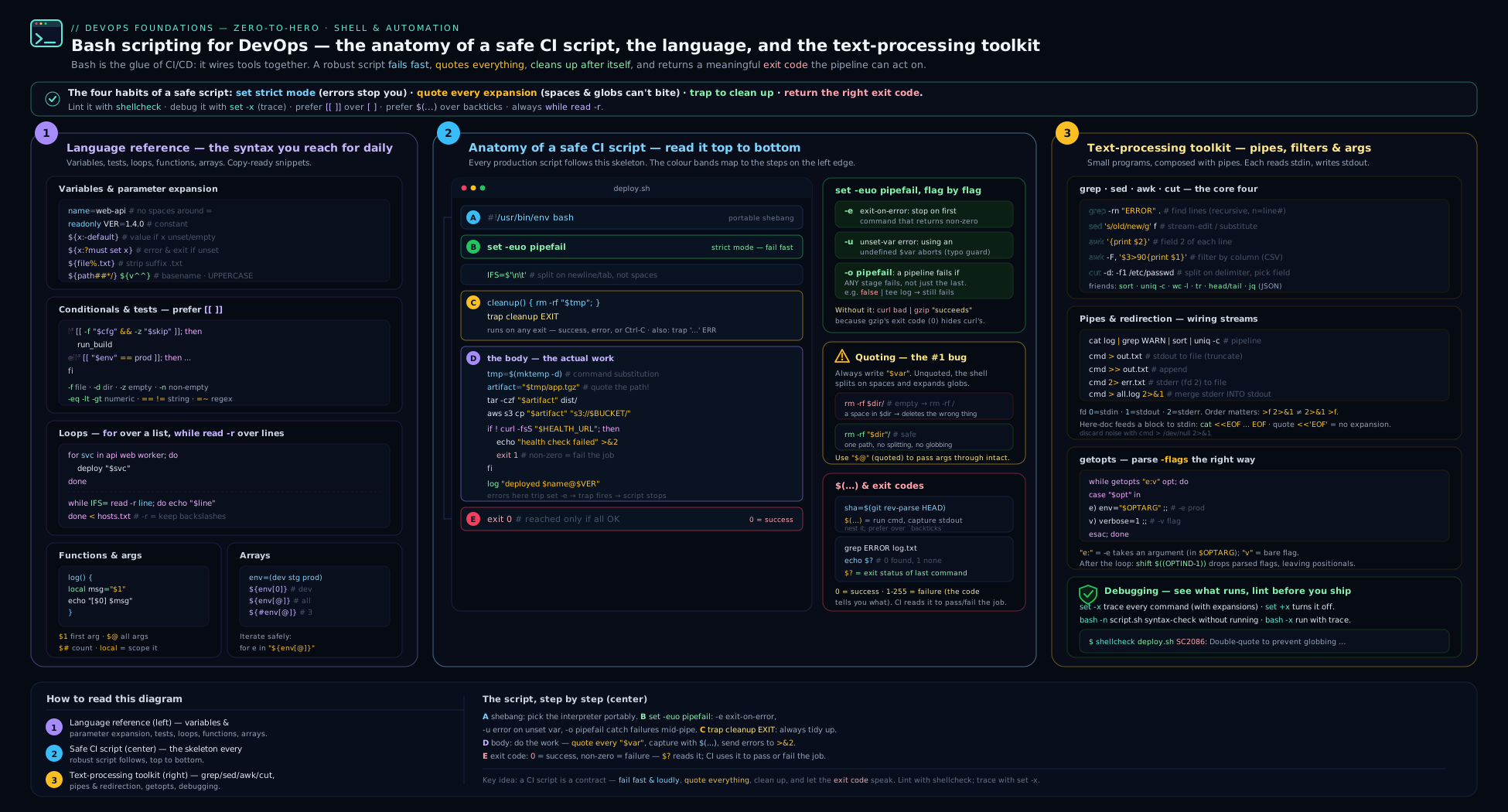
The diagram traces a single script from its shebang down through the safety preamble, quoted-variable expansion, a trap-guarded temp directory and a fail-fast main "$@" entry point — each labelled layer disarming one specific class of pipeline failure (a silent non-zero exit, an unquoted split, an empty variable, a leaked temp dir) before it can reach production.
Going deeper
Everything above makes a script safe. This section makes it production-grade — the patterns that separate a script you would run by hand from one you would trust to gate a deploy at 3 a.m. Each of these gets a full treatment in the companion Shell Scripting Zero-to-Hero course; here is the DevOps-automation distillation.
The preamble upgrade: set -Eeuo pipefail
The safety preamble earlier used set -euo pipefail. The production form adds one more letter — -E:
#!/usr/bin/env bash
set -Eeuo pipefail
IFS=$'\n\t'
-E (set -o errtrace) makes your ERR trap fire inside functions, command substitutions, and subshells — not just at the top level. This matters because of the very skeleton we just built: real work lives in main() and other functions, and without -E, an ERR trap set at the top never fires when a command fails inside a function. The diagnostic you carefully wrote — trap 'echo "ERROR on line $LINENO"' ERR — stays silent exactly when you need it most.
| Preamble | ERR trap fires for a failure inside main()? |
|---|---|
set -euo pipefail |
No — the trap is not inherited by the function |
set -Eeuo pipefail |
Yes — -E/errtrace inherits the trap into functions |
The rule: if you use an ERR trap and put your logic in functions (you should do both), use -Eeuo pipefail. Its sibling -T (functrace) does the same for DEBUG and RETURN traps, which you need only when profiling.
Retries with exponential backoff
Networks flap, registries rate-limit, a freshly-created cloud resource is not ready for a few seconds. A CI script that dies on the first transient error is a flaky script. The fix is a retry with exponential backoff — try, and on failure wait a growing interval before trying again, up to a cap:
# retry <max-attempts> <base-delay-seconds> <command...>
retry() {
  local max="$1" delay="$2"; shift 2
  local attempt=1
  until "$@"; do
    if (( attempt >= max )); then
      echo "command failed after $max attempts: $*" >&2
      return 1
    fi
    echo "attempt $attempt failed; retrying in ${delay}s..." >&2
    sleep "$(( delay + RANDOM % delay ))"   # backoff + jitter
    attempt=$(( attempt + 1 ))
    delay=$(( delay * 2 ))                   # 1s, 2s, 4s, 8s, ...
  done
}

retry 5 1 curl -fsS "https://registry.example.com/v2/" >/dev/null
retry 5 2 kubectl rollout status deploy/api --timeout=30s
Two details make it correct: the delay doubles each round (delay=$(( delay * 2 ))) so you back off instead of hammering, and the jitter (RANDOM % delay) spreads retries out so a fleet of jobs does not retry in lockstep and create a thundering herd. RANDOM is a Bash builtin returning 0–32767. This is the robust cousin of the wait-for-a-service loop shown earlier; the network-operations lesson drills it in depth, including /dev/tcp port probes for services with no HTTP endpoint.
Lock files: stopping a script from racing itself
A cron job or a webhook-triggered deploy can fire again before the last run finished. Two copies mutating the same state — a shared checkout, a database migration, a terraform apply — is a classic outage. A lock makes the second run wait or bail. The portable, dependency-free way is an atomic mkdir (creating a directory either wholly succeeds or wholly fails — it cannot half-happen):
lockdir="/tmp/deploy-api.lock"
if mkdir "$lockdir" 2>/dev/null; then
  trap 'rmdir "$lockdir"' EXIT      # release the lock however we exit
else
  echo "another deploy holds the lock ($lockdir); exiting" >&2
  exit 1
fi
# ... critical section: only one run reaches here at a time ...
On Linux specifically, flock is cleaner because it releases the lock automatically when the process (and its file descriptor) dies — even on kill -9, which a stale mkdir lock would survive:
exec 9>/var/lock/deploy-api.lock   # open fd 9 on a lock file
flock -n 9 || { echo "locked by another run; exiting" >&2; exit 1; }
# the lock is held until fd 9 closes (i.e. the process exits)
flock is Linux (util-linux) — it is not on stock macOS, so for scripts that must run on both, the mkdir pattern (paired with a trap cleanup and, ideally, the holder’s PID written inside so a stale lock can be detected and reclaimed) is the portable choice. The concurrency lesson covers flock, FIFOs and parallelism properly.
JSON and YAML: jq and yq, not grep
Pipelines are drowning in JSON (cloud CLIs, REST APIs, kubectl -o json) and YAML (Kubernetes manifests, Helm values, Compose files, the pipeline definitions themselves). Never parse structured data with grep/sed/awk — a reformatted field or a quoted brace and your regex silently returns the wrong thing. Use a real parser: jq for JSON, yq for YAML.
jq is a query language for JSON. The flags that matter in CI are -r (raw output, no surrounding quotes — essential when feeding a value into another command) and -e (set the exit code from the result, so you can gate on it):
# Extract a field for use in the shell (-r strips the quotes):
tag="$(jq -r '.image.tag' build-meta.json)"

# Filter + select — every non-Running pod's name:
kubectl get pods -o json | jq -r '.items[]
  | select(.status.phase != "Running") | .metadata.name'

# Gate a step on a JSON condition (-e → exit 1 if the result is false/null):
curl -fsS "$HEALTH_URL" | jq -e '.status == "healthy"' >/dev/null \
  || { echo "service reports unhealthy" >&2; exit 1; }

# Build JSON *safely* from shell values — --arg quotes and escapes for you
# (never string-concatenate JSON; a quote or newline in the value breaks it):
payload="$(jq -nc --arg sha "$GIT_SHA" --arg env "$ENVIRONMENT" \
  '{commit: $sha, environment: $env}')"
yq (the Go implementation by mikefarah — the common one; note a different Python yq also exists) speaks the same query syntax over YAML and can edit in place, which is how you bump an image tag in a Helm values file or a manifest without a fragile sed:
yq '.spec.replicas' deployment.yaml               # read a value
tag="v1.4.2" yq -i '.image.tag = strenv(tag)' values.yaml   # in-place edit from an env var
yq -o=json '.' config.yaml | jq '.'               # convert YAML → JSON and pipe to jq
yq '.services | keys | .[]' docker-compose.yaml   # list the service names
Using strenv(tag) (rather than interpolating "$tag" into the yq program) keeps the shell value out of the expression, so a value containing quotes or special characters cannot corrupt the edit — the same safety principle as jq --arg. The text-processing lesson goes deep on jq/yq/CSV. If jq/yq are not on the runner, install them in the image or a setup step — they are tiny static binaries.
Structured logging
echo "doing thing" is fine for a human reading a terminal. For logs that a machine will aggregate, search and alert on (Loki, CloudWatch, Datadog), emit structured lines — key/value or JSON — with a level and a timestamp, all on stderr so stdout stays clean for data:
log() {                       # log LEVEL message...
  local level="$1"; shift
  jq -nc --arg ts "$(date -u +%FT%TZ)" --arg level "$level" --arg msg "$*" \
    '{ts:$ts, level:$level, msg:$msg}' >&2
}
log INFO "deploying api:$tag to $ENVIRONMENT"
log ERROR 'rollout timed out'
# → {"ts":"2026-07-19T16:23:30Z","level":"INFO","msg":"deploying api:v1.4.2 to prod"}
Building the JSON with jq --arg (rather than a hand-rolled printf '{"msg":"%s"}') means a quote or backslash in the message cannot produce invalid JSON that breaks the downstream parser. Gate verbosity behind a level check ([[ "${LOG_LEVEL:-INFO}" == DEBUG ]] && log DEBUG ...) so debug lines do not drown production logs. The companion Shell Scripting course covers syslog/journald integration and log levels in depth.
Portability: macOS/BSD vs Linux/GNU
Your laptop and your runner rarely agree. The default /bin/bash on macOS is 3.2 (frozen in 2007 over a licensing change), while Linux runners ship Bash 5. Everything in this lesson targets the Linux/GNU form — the practical baseline in CI — but know where it diverges so “works on my Mac” does not become “fails in the pipeline” (and vice versa):
| Feature | Linux (Bash 4/5 + GNU coreutils) | macOS default (Bash 3.2 + BSD) |
|---|---|---|
${var,,} / ${var^^} case-change |
Yes (Bash 4+) | No — bad substitution; use tr |
declare -A associative arrays |
Yes (Bash 4+) | No — invalid option -A |
mapfile / readarray |
Yes (Bash 4+) | No — loop with read instead |
sed -i (in-place) |
sed -i 's/a/b/' f |
needs a suffix: sed -i '' 's/a/b/' f |
date math |
date -d '1 day ago' (GNU) |
date -v-1d (BSD) |
readlink -f (canonicalise) |
Yes (GNU) | No — use grealpath/perl |
grep -P (Perl regex) |
Yes (GNU) | No (BSD grep) |
Two escape hatches: install GNU tools on macOS (brew install bash coreutils gnu-sed, which give gsed, gdate, grealpath), or — for anything that ships in a container — write for the container’s shell, test it there, and let ShellCheck (shellcheck -s bash) flag Bashisms if the target is really POSIX sh. The Shell Scripting course’s POSIX-portability material catalogues these differences in full.
When to stop writing Bash and reach for Python
Bash is a superb glue language — orchestrating other programs, wiring stdin to stdout, gating a pipeline. It is a terrible general-purpose one. Reach for Python (or Go) the moment you hit any of these:
- The script is past ~100–150 lines, or you are writing functions that “return” data by
echo-ing strings and re-parsing them. - You need real data structures — nested maps, lists of objects — or non-trivial JSON/XML manipulation beyond what one clean
jqfilter does. - You need floating-point arithmetic (Bash integers only), timezone-aware date math, or serious string processing.
- You need unit tests, exception handling with stack traces, or an HTTP/cloud SDK rather than shelling out to a CLI.
- Multiple people maintain it and readability matters more than terseness.
The tell is friction: when you are fighting the shell — escaping, subshell variable loss, arrays-of-arrays you cannot express — that friction is the signal. A 40-line Bash wrapper that calls three CLIs is perfect; a 400-line Bash “application” parsing JSON into pseudo-objects is a rewrite waiting to happen. Knowing where that line sits is a senior skill, and drawing it early saves the 2 a.m. debugging session.
Hands-on lab
You will write, harden, and lint a small but real deployment-style script — entirely free, on any machine with Bash. Each step shows the command and the expected outcome.
Prerequisites. A terminal with Bash 4+ (bash --version). Install ShellCheck if you can: brew install shellcheck (macOS) or sudo apt-get install -y shellcheck (Debian/Ubuntu). The lab works without it, but step 6 is the highlight.
Step 1 — a deliberately fragile script. Create release.sh:
mkdir -p ~/bash-lab && cd ~/bash-lab
cat > release.sh <<'SCRIPT'
#!/bin/bash
target=$1
echo Releasing version $VERSION to $target
files=$(ls *.txt)
for f in $files; do
  echo packaging $f
done
SCRIPT
chmod +x release.sh
Step 2 — watch it misbehave. Run it with no arguments and an unset variable, then with a tricky filename:
touch "release notes.txt" build.txt
./release.sh
Expected: it prints Releasing version to (empty $VERSION and $target, swallowed silently), and the loop prints release, notes.txt, build.txt as three items — the space in release notes.txt was split. Nothing errored. This is the bug class the whole lesson is about.
Step 3 — add the safety preamble. Rewrite the head of the script and re-run:
cat > release.sh <<'SCRIPT'
#!/usr/bin/env bash
set -euo pipefail
target="${1:?usage: release.sh <target>}"
version="${VERSION:?VERSION env var is required}"
echo "Releasing version ${version} to ${target}"
for f in ./*.txt; do
  [[ -e "$f" ]] || continue
  echo "packaging $f"
done
SCRIPT
./release.sh
Expected now: it exits immediately with release.sh: line 3: 1: usage: release.sh <target> (or similar) — the missing argument is caught loudly instead of producing empty output. Provide the inputs and see it work cleanly:
VERSION=1.4.0 ./release.sh prod
Expected: Releasing version 1.4.0 to prod, then packaging ./build.txt and packaging ./release notes.txt as two correctly-quoted items.
Step 4 — add cleanup with a trap. Append a temp-dir pattern and confirm cleanup runs on both success and failure:
cat >> release.sh <<'SCRIPT'
workdir="$(mktemp -d)"
trap 'echo "cleaning $workdir"; rm -rf "$workdir"' EXIT
echo "staging into $workdir"
cp ./*.txt "$workdir"/
SCRIPT
VERSION=1.4.0 ./release.sh prod
Expected: you see staging into /tmp/tmp.XXXX, then cleaning /tmp/tmp.XXXX at the very end — the trap fired on normal exit. Run ls /tmp/tmp.* and confirm it is gone.
Step 5 — exit codes and validation. Confirm the script returns a non-zero status when an input is missing (this is what makes a CI step go red):
./release.sh prod    # VERSION not set
echo "exit code was: $?"
Expected: an error about VERSION and exit code was: 1 — a real failure signal a pipeline can act on.
Step 6 — lint with ShellCheck. Run it against both versions:
# Recreate the fragile original to a separate file and lint it:
cat > fragile.sh <<'SCRIPT'
#!/bin/bash
target=$1
files=$(ls *.txt)
for f in $files; do echo $f; done
SCRIPT
shellcheck fragile.sh
shellcheck release.sh
Expected: fragile.sh reports several findings — SC2086 (“Double quote to prevent globbing and word splitting”) on $target, $f, SC2045 (“Iterating over ls output is fragile”), and the unset-variable risks — each with a wiki link. release.sh should report no issues (or only benign ones). You have just used the tool that prevents the majority of shell production incidents.
Validation checklist.
- Running
release.shwith noVERSIONexits non-zero (echo $?shows1), proving fail-fast. - The filename with a space is processed as one item, proving correct quoting.
- The
mktempdirectory is gone after the run, proving thetrapcleanup fired. shellcheck release.shis clean whileshellcheck fragile.shflags SC2086, proving the linter catches the bugs.
Cleanup.
cd ~ && rm -rf ~/bash-lab
Cost note. Zero — everything ran locally with tools already on your machine (ShellCheck is free and open source). No cloud resources, no charges.
Practice challenges
Six graded drills, easiest first — each runs on any machine with Bash (and jq for the last two; brew install jq / apt-get install -y jq). Try each before opening the solution.
Challenge 1 (beginner) — Make it survive a space. This snippet mishandles a filename that contains a space. Fix it with quoting and a safe glob, without changing what it is meant to do (print each .log file once).
for f in $(ls *.log); do
  echo removing $f
done
<details> <summary>Solution</summary>
for f in ./*.log; do
  [[ -e "$f" ]] || continue     # skip cleanly if the glob matched nothing
  echo "removing $f"
done
Why: iterating a glob directly (never $(ls ...)) and quoting "$f" keeps a name like app error.log as one item; [[ -e "$f" ]] || continue handles the “no matches” case gracefully.
</details>
Challenge 2 (beginner) — Fail fast on a missing input. Write two lines so a script exits with a clear message if IMAGE_TAG is unset, and defaults REGION to ap-south-1 when it is absent.
<details> <summary>Solution</summary>
: "${IMAGE_TAG:?IMAGE_TAG is required}"     # exit non-zero with the message if unset/empty
region="${REGION:-ap-south-1}"              # safe default when unset/empty
Why: ${VAR:?msg} is the fail-fast guard for required inputs; ${VAR:-default} supplies a fallback — the two parameter-expansion forms every CI script leans on.
</details>
Challenge 3 (intermediate) — Read a file the safe way. A hosts.txt file has lines that may contain spaces and backslashes. Print --> <line> for each line, losing nothing.
<details> <summary>Solution</summary>
while IFS= read -r line; do
  echo "--> $line"
done < hosts.txt
Why: IFS= preserves leading/trailing whitespace, -r stops backslash mangling, and < file feeds the loop without a pipe (so no subshell). for line in $(cat hosts.txt) would split on every space and glob — the classic bug.
</details>
Challenge 4 (intermediate) — Parse flags with getopts. Write a parser accepting -e ENV (default dev), -t TAG (required), and -v (verbose flag), printing a usage error and exiting 2 if -t is missing.
<details> <summary>Solution</summary>
env=dev tag="" verbose=0
usage(){ echo "usage: $0 [-v] [-e ENV] -t TAG" >&2; exit 2; }
while getopts ":ve:t:" opt; do
  case "$opt" in
    v) verbose=1 ;;
    e) env="$OPTARG" ;;
    t) tag="$OPTARG" ;;
    :) echo "option -$OPTARG needs a value" >&2; usage ;;
    \?) echo "unknown option -$OPTARG" >&2; usage ;;
  esac
done
shift $(( OPTIND - 1 ))
[[ -n "$tag" ]] || usage
echo "env=$env tag=$tag verbose=$verbose"
Why: the optstring ":ve:t:" marks -e/-t as taking values (in $OPTARG), the leading : enables quiet error handling, and shift $(( OPTIND - 1 )) drops the parsed flags so "$@" is left with positionals.
</details>
Challenge 5 (advanced) — Retry a flaky command with backoff. Write a retry function that runs any command up to N times with a doubling delay, returning the command’s success or failing after N attempts. Demonstrate it against a command that succeeds on the third try.
<details> <summary>Solution</summary>
retry() {
  local max="$1" delay="$2"; shift 2
  local attempt=1
  until "$@"; do
    (( attempt >= max )) && { echo "failed after $max attempts: $*" >&2; return 1; }
    echo "attempt $attempt failed; retrying in ${delay}s..." >&2
    sleep "$delay"; attempt=$(( attempt + 1 )); delay=$(( delay * 2 ))
  done
}
# demo: succeed on the 3rd call
n=0; flaky(){ n=$(( n + 1 )); (( n >= 3 )); }
retry 5 1 flaky && echo "ok on attempt $n"
Why: until "$@" retries while the command fails; doubling delay is exponential backoff; the (( attempt >= max )) guard bounds it. Add sleep "$(( delay + RANDOM % delay ))" for jitter in a real fleet so jobs do not retry in lockstep.
</details>
Challenge 6 (advanced) — Put it together: locked, gated, self-cleaning. Write the head of a deploy script that (a) uses the full set -Eeuo pipefail preamble with an ERR trap, (b) takes a single lock so two runs cannot overlap, © creates a temp dir cleaned on any exit, and (d) refuses to proceed unless a health endpoint’s JSON reports "status":"healthy" (use jq -e).
<details> <summary>Solution</summary>
#!/usr/bin/env bash
set -Eeuo pipefail
IFS=$'\n\t'
trap 'echo "ERROR on line $LINENO (exit $?)" >&2' ERR

lock=/tmp/deploy.lock
mkdir "$lock" 2>/dev/null || { echo "another deploy is running; exiting" >&2; exit 1; }
work="$(mktemp -d)"
trap 'rmdir "$lock"; rm -rf "$work"' EXIT       # release lock + temp dir on any exit

: "${HEALTH_URL:?HEALTH_URL is required}"
curl -fsS "$HEALTH_URL" | jq -e '.status == "healthy"' >/dev/null \
  || { echo "upstream not healthy; aborting deploy" >&2; exit 1; }

echo "pre-flight passed; deploying into $work" >&2
# ... real deploy work ...
Why: -E makes the ERR trap fire inside functions too; the atomic mkdir lock plus a single EXIT trap guarantees the lock and temp dir are released however the script ends; jq -e turns a JSON condition into an exit code so a bad health check stops the deploy before it starts.
</details>
Common beginner mistakes
These are conceptual traps — the wrong mental model — distinct from the symptom→cause→fix table below.
- “It exited
0, so it worked.” Exit0means “the last thing I ran returned success,” not “the script did what you wanted.” Withoutset -e/pipefail, a failed command in the middle is ignored and the script still ends0. Right model: success is something you engineer with the safety preamble and explicit checks, not something a green tick proves. - “Quotes are just style / cosmetic.”
rm $fandrm "$f"are different programs: the first splits the value on spaces and expands globs, the second passes it intact. Right model: an unquoted$vardoes not mean “the value of var” — it means “the value, chopped on whitespace, with*expanded against the filesystem.” Quote every expansion unless you have a specific reason not to. - “
$(cat file)in aforloop reads the file line by line.” It reads it word by word — every space and newline is a split point, and globs expand. A line10.0.0.1 web01becomes two iterations. Right model: lines are read withwhile IFS= read -r line; do … done < file;foriterates words, never lines. - “
shandbashare the same thing.” On Debian/Ubuntu (and most containers)/bin/shis dash, which has no[[ ]], arrays,${var,,},<<<, orpipefail. Right model: the shebang and the runner’s shell decide which language you are writing; a script that works in your Bash can throw a syntax error undersh. Pick the shell deliberately and let ShellCheck confirm. - “
==compares numbers.”[[ "$a" == "$b" ]]compares strings, so"10" == "10.0"is false and"08" == "8"is false. Right model:-eq/-lt/-gt(or(( ))) are numeric;==/!=are string. Mixing them is a silent logic bug, not an error. - “My variable had a value inside the loop but it is empty afterwards.” The loop was on the right of a pipe (
cmd | while read …), so it ran in a subshell whose variables vanish when it ends. Right model: feed loops with redirection or process substitution (while read …; do …; done < <(cmd)) to keep them in the current shell. - “
set -emeans my script cannot possibly continue after an error.” It has real blind spots: commands inif/&&/||/!conditions, failures inside functions called from a condition, and (without-E)ERRtraps that do not reach into functions. Right model:set -eis a strong default, not a guarantee — check the exit codes that matter explicitly, and use-Eeuo pipefail. - “Bash can do anything, so I will build the whole tool in it.” Past ~150 lines, JSON-as-pseudo-objects, or floating-point math, you are fighting the language. Right model: Bash is glue for orchestrating other programs; when you need data structures, tests, or an SDK, that friction is the signal to move to Python or Go.
Common mistakes & troubleshooting
| Symptom | Cause | Fix |
|---|---|---|
| Script “succeeds” but did the wrong thing | No set -e; a failed command was ignored |
Add set -euo pipefail at the top |
rm/cp hits the wrong files; word-splitting |
Unquoted $var got split on spaces or glob-expanded |
Quote everything: "$var", "${arr[@]}" |
unbound variable error after adding set -u |
A variable is genuinely unset (often a typo or missing env var) | Provide a default "${X:-}" or set the variable; fix the typo |
command not found / exit 127 |
Tool not installed on the runner, or a typo | command -v tool guard; install it in the image |
Pipeline exits 0 despite a failing middle command |
No pipefail; status came from the last stage |
Add set -o pipefail |
| Variables set inside a loop are empty afterwards | The loop ran in a subshell because it was on the right of a | |
Use done < <(cmd) (process substitution), not cmd | while |
| Works locally, syntax error in container | Local Bash vs container /bin/sh (dash) — [[/arrays unsupported |
Force Bash (#!/usr/bin/env bash, RUN ["/bin/bash","-c",...]) or write POSIX |
2>&1 “didn’t capture stderr” |
Redirections were in the wrong order | Put > file before 2>&1 |
for line in $(cat f) mangles lines/spaces |
Word-splitting and globbing of the file contents | Use while IFS= read -r line; do ...; done < f |
set -e script dies on a grep with no match |
grep returns 1 on no-match, which -e treats as fatal |
Guard: grep -q ... || true, or if grep -q ... |
name = value → “command not found” |
Spaces around = in assignment |
Remove them: name=value |
Exit 137 in CI |
Process killed by SIGKILL — almost always OOM | Increase container/job memory; reduce footprint |
Best practices
- Start every script with the preamble:
#!/usr/bin/env bash, thenset -euo pipefail(and usuallyIFS=$'\n\t'). Non-negotiable for anything that runs unattended. - Quote all expansions.
"$var","$(cmd)","${arr[@]}". When ShellCheck flags SC2086, fix it rather than suppress it. - Use
[[ ]]over[ ],(( ))for arithmetic, and$(...)over backticks. Reserve[ ]/POSIX forms for scripts that must run undersh. trap cleanup EXITso temp files and locks are always released; add anERRtrap that prints$LINENO.- Validate inputs and tools up front with
${X:?}andcommand -v, so the script fails in second one, not after expensive work. - Make scripts idempotent (
mkdir -p,rm -f,applynotcreate, write-temp-then-mv) so re-runs and retries are safe. - Keep functions small,
local-scoped, and forward args with"$@". Send logs to stderr, keep stdout for data. - Lint with ShellCheck and format with
shfmtin CI as a required gate; runbash -nas a fast syntax check. - Prefer purpose-built parsers for structured data —
jqfor JSON,yqfor YAML — over fragilegrep/sedagainst them. - Keep scripts in version control, executable, and small. When a script grows past a few hundred lines or needs real data structures, that is the signal to move to Python or Go.
Security notes
- Never put secrets in the script or in
echo. Read them from environment variables injected by the CI secret store ("$DB_PASSWORD"), and rememberset -xprints them — disable tracing around secret handling, or pass secrets via files/stdin, not arguments (arguments show up inpsand process listings). - Beware command injection. Never build a command from untrusted input by string concatenation, and never
evaluser-controlled data —eval "$user_input"is arbitrary code execution. Pass data as quoted arguments or via stdin, not interpolated into a command line. - Quote to prevent both word-splitting and injection. Unquoted variables are a security issue, not just a correctness one: a filename like
; rm -rf /or$(curl evil)in an unquoted, eval-ed, or improperly-handled context can run. - Validate and constrain inputs. Check that an argument matches an expected pattern (
[[ "$tag" =~ ^[a-zA-Z0-9._-]+$ ]]) before using it in a path or a command — especially anything that becomes part of a filesystem path or a remote call. - Set a safe
PATHin scripts that run as root or in shared runners, so an attacker-planted./grepon the working directory cannot hijack a baregrep; prefer absolute paths or a controlledPATHfor privileged scripts. curl ... | bashis a supply-chain risk. Piping a remote script straight into a shell runs whatever the server returns, unreviewed — pin to a checksum or vendor the script into your repo instead.- Use
mktempfor temp files, never predictable names like/tmp/build, to avoid symlink/race attacks in world-writable/tmp.
Interview & exam questions
1. Why must you double-quote variable expansions in Bash?
Because an unquoted $var undergoes word splitting (the value is broken into separate arguments on $IFS) and globbing (any */?/[...] is expanded against filenames). Quoting ("$var") suppresses both, so the value is passed as a single, literal argument. It is the most common source of shell bugs and a frequent security issue.
2. What does set -euo pipefail do, flag by flag?
-e (errexit) exits the script the moment any command fails; -u (nounset) treats use of an unset variable as a fatal error; -o pipefail makes a pipeline return the exit status of the last command that failed rather than just the last command. Together they make a script fail fast and loud instead of continuing silently after an error.
3. What is the difference between sh and bash, and why does it cause “works locally, fails in CI” bugs?
sh is the POSIX shell — on Debian/Ubuntu it is dash, a strict minimal shell without [[ ]], arrays, ${var,,}, <<<, or pipefail. bash is a superset with all of those. Containers and CI often run scripts under /bin/sh (dash) while your laptop runs Bash, so Bash-only syntax fails only in the pipeline. Fix by forcing Bash or writing POSIX-compatible code.
4. What does trap cleanup EXIT accomplish, and why is EXIT special?
It registers cleanup to run whenever the script exits — for any reason: normal completion, an error (with set -e), or a signal. EXIT is special because it catches all exit paths, guaranteeing temp files, locks, and port-forwards are released even when the script dies unexpectedly.
5. Explain $@ vs $* (and why the quoting matters).
"$@" expands to each positional argument as a separate quoted word, preserving arguments that contain spaces — this is what you use to forward arguments to another command. "$*" joins all arguments into a single string separated by the first character of $IFS. Unquoted, both word-split. Use "$@" almost always.
6. What is the only safe way to read a file line by line, and what is wrong with for line in $(cat file)?
The safe form is while IFS= read -r line; do ...; done < file. for line in $(cat file) splits the file on all whitespace (so a line with spaces becomes multiple iterations) and applies globbing — it iterates words, not lines. IFS= preserves whitespace and -r stops backslash interpretation.
7. Why might variables set inside a while loop be empty after the loop, and how do you fix it?
If the loop is on the right side of a pipe (cmd | while read ...), it runs in a subshell, and variable changes do not propagate to the parent. Fix by feeding the loop with redirection or process substitution: while read ...; do ...; done < <(cmd) keeps the loop in the current shell.
8. What do exit codes 127, 126, 130, and 137 mean?
127 = command not found (typo or missing tool on $PATH); 126 = found but not executable (permissions); 130 = terminated by SIGINT (Ctrl-C, i.e. 128+2); 137 = killed by SIGKILL (128+9), in CI almost always the OOM killer. They let you diagnose a failure from the code alone.
9. Why is cmd > file 2>&1 different from cmd 2>&1 > file?
Redirections apply left to right and 2>&1 means “send stderr to wherever stdout points right now”. In the first, stdout is already redirected to file, so both end up in file. In the second, stdout still points at the terminal when 2>&1 runs, so stderr goes to the terminal and only stdout goes to file.
10. What is idempotency in a script, and give three patterns that achieve it.
Idempotency means running the script again yields the same end state without error, so retries are safe. Patterns: mkdir -p/rm -f (no error if the target already exists/absent); declarative kubectl apply instead of imperative create; check-then-act like grep -q line file || echo line >> file; and atomic write-temp-then-mv.
11. What is ShellCheck and name two issues it catches.
ShellCheck is a static analyser for shell scripts. It flags, among others, unquoted variables (SC2086, word-splitting/globbing), iterating over ls output (SC2045), [ ] vs [[ ]] pitfalls, cd without checking success, and sh/bash feature mismatches — i.e. exactly the bug classes that cause shell outages, caught before merge.
12. How does getopts work, and what is its limitation?
getopts optstring var parses single-letter flags in a while loop; a : after a letter means that flag takes an argument (placed in $OPTARG), and shift $((OPTIND-1)) removes the parsed options afterwards. Its limitation is that it handles only short single-letter options — no GNU-style --long-flags (you parse those by hand or with external getopt).
Quick check
- Write the three-line safety preamble every CI Bash script should start with.
- What does
${IMAGE_TAG:?must be set}do ifIMAGE_TAGis unset? - Which is correct for comparing two numbers:
[[ "$a" == "$b" ]]or[[ "$a" -eq "$b" ]]? - How do you append an element to a Bash array and then iterate it safely?
- What command lints a shell script for the bugs in this lesson?
Answers
#!/usr/bin/env bash, thenset -euo pipefail, then (usually)IFS=$'\n\t'.- It prints
must be setto stderr and exits the script non-zero immediately — a fail-fast guard for a required variable. [[ "$a" -eq "$b" ]]—-eqis numeric;==compares strings (so"10" == "10.0"would be false). For arithmetic prefer(( a == b )).arr+=(value)to append; iterate withfor x in "${arr[@]}"; do ...; done(always quote"${arr[@]}").shellcheck script.sh.
Exercise
Harden a real-world script and gate it in CI:
- Write
healthcheck.shthat takes a URL via-uand a timeout in seconds via-t(default 60) usinggetopts, then polls the URL withcurl -fsSin awhile/untilretry loop until it returns200or the timeout elapses, exiting0on success and non-zero on timeout. - Add the full safety preamble (
set -euo pipefail), validate that-uwas provided (${url:?}), and checkcurlis installed withcommand -v. - Add a
trapthat prints a clear failure message with$LINENOonERR, and (if you create any temp files) removes them onEXIT. - Make it idempotent and quiet by default; gate verbose
set -xtracing behind a-vflag orDEBUG=1. - Run
shellcheck healthcheck.shuntil it is clean, then add a GitHub Actions (or GitLab CI) job that installs ShellCheck and lints every*.shin the repo as a required check.
Success criteria: the script exits non-zero (and a CI step would go red) when the URL never returns healthy within the timeout; a missing -u produces a clear usage error and a non-zero exit; ShellCheck reports no issues; and a filename or URL containing spaces is handled without splitting. Bonus: convert it to also work under POSIX sh (swap [[ ]]→[ ], drop pipefail) and note what you lost.
Certification mapping
- Microsoft AZ-400 (DevOps Engineer Expert) — shell scripting underpins pipeline automation, custom pipeline tasks, deployment and configuration scripts, and Azure Pipelines
bash/script steps; theset -euo pipefail, exit-code, and idempotency content maps onto “implement a strategy for pipeline automation” and reliable release tasks. - AWS DOP-C02 (DevOps Engineer – Professional) — Bash is the glue of CodeBuild
buildspecphases, user-data/bootstrap scripts, Lambda shell layers, and Systems Manager run-commands; fail-fast and idempotent scripting are central to the “SDLC automation” and “resilient cloud solutions” domains. - LFCS / Linux Foundation Certified SysAdmin — directly tests shell scripting fundamentals: variables, conditionals, loops, exit codes, redirection, and writing/scheduling scripts; this lesson covers the scripting objectives end to end (it does not cover the broader system-administration objectives — pair it with Linux fundamentals).
- General — the concepts transfer to every CI system (GitLab CI
script:, Jenkinssh, GitHub Actionsrun:) and to container entrypoints and Dockerfiles, which is why this is a Fundamentals lesson rather than a vendor-specific one.
Glossary
- Shell — a command interpreter that reads text, expands it, and runs the result as commands (
bash,sh,dash,zsh). - Bash — the GNU “Bourne-Again SHell”; a superset of POSIX
sh, ubiquitous on Linux and the de-facto pipeline scripting language. - POSIX
sh/ dash — the minimal standardised shell; the default/bin/shon Debian/Ubuntu, lacking[[ ]], arrays, andpipefail. - Shebang — the
#!/usr/bin/env bashfirst line that tells the OS which interpreter to run a script with. - Exit code / status — the integer (
0–255) a command returns;0= success, non-zero = failure; stored in$?. set -e/ errexit — option that aborts the script on the first command failure.set -u/ nounset — option that treats use of an unset variable as a fatal error.pipefail— option that makes a pipeline fail if any stage fails, not just the last.set -E/ errtrace — option that makes anERRtrap fire inside functions, command substitutions, and subshells (not only at the top level); the reason to preferset -Eeuo pipefail.trap— registers a command to run when a signal or pseudo-signal (EXIT,ERR,INT,TERM) fires; used for cleanup.IFS(Internal Field Separator) — the characters the shell splits on during word splitting; default is space, tab and newline; narrowing it to$'\n\t'is a common safety habit.- Word splitting — the shell breaking an unquoted expansion into multiple words on
$IFS. - Globbing — pathname expansion of
*/?/[...]against the filesystem. - Parameter expansion —
${...}operations (defaults, length, substring, substitution, case) that manipulate values in-shell. - Command substitution —
$(command), replaces itself with the command’s stdout. - Subshell — a child shell (the right side of a pipe,
( … ),$( … )); variables set inside it do not survive into the parent. - Process substitution —
<(cmd)/>(cmd), which presents a command’s output (or input) as a filename; used to feed a loop without a subshell. - Positional parameters —
$1,$2,…,$#,"$@","$*"— a script/function’s arguments. getopts— the Bash builtin that parses short single-letter option flags in a loop, using$OPTARGand$OPTIND.- Here-document — a
<<EOF … EOFblock fed as stdin;<<'EOF'suppresses variable expansion. - Here-string —
<<<feeds a single string as stdin. - stdin/stdout/stderr — file descriptors
0/1/2: input, normal output, error output. xtrace/set -x— execution tracing that prints each command after expansion (prefixed+); thePS4variable customises the prefix.- Exponential backoff — retrying a failed operation with a delay that grows (often doubles) each attempt, avoiding hammering a struggling service.
- Jitter — random variation added to a retry delay so many clients do not retry in lockstep (avoiding a thundering herd).
- Lock file /
flock— a file or directory used as a mutex so only one instance of a script runs at a time;flock(Linux) and an atomicmkdir(portable) are the common mechanisms. jq— a command-line JSON processor and query language; the correct way to read and build JSON in a script.yq— the YAML analogue ofjq(mikefarah’s Go implementation), able to query and edit YAML in place.- Structured logging — emitting logs as machine-parseable records (key/value or JSON) with a level and timestamp, rather than free-form prose.
- Idempotent — produces the same end state when run again, making retries safe.
- ShellCheck — a static analyser that finds shell bugs (quoting,
[ ]vs[[ ]], fragile loops) before they ship.
Next steps
You can now write the shell that lives inside any pipeline step safely. From here:
- Learn to operate what your scripts deploy with SRE & incident management — error budgets, on-call, incident response, postmortems and toil, the natural next lesson in this track.
- See where these scripts run by revisiting the vendor-neutral anatomy of CI/CD — pipelines, triggers, stages and agents, then drop your hardened scripts into a real GitHub Actions, GitLab CI, Jenkins, or Azure Pipelines workflow.
- Apply the quoting-and-templating discipline to pipeline definitions themselves with YAML for DevOps — anchors, templates and Jinja.
- Go deeper on the shell itself with the companion Shell Scripting Zero-to-Hero course — a full track on defensive scripting,
jq/yqtext processing,flockconcurrency, signal handling and a style-guide capstone (linked throughout Going deeper above) — which takes these patterns well past the CI-glue subset covered here.