A production Linux box does an enormous amount of work that no human ever triggers. Backups run at 02:30. Logs rotate at midnight. TLS certificates renew twice a day. A health check pokes the database every five minutes and pages someone if it stops answering. Temp files older than a week get swept up. Every one of those is a scheduled job — code the system runs on a clock instead of on a keystroke. Learn to schedule reliably and you turn “remember to do this” into “the machine does this, forever, and tells me if it fails.”
There are, confusingly, several schedulers, and beginners pick the wrong one or misconfigure the right one. This lesson gives you the whole map: cron for recurring wall-clock jobs, at for a single job at a future time, anacron for machines that aren’t on 24/7, and systemd timers — the modern engine that most distros now build on. We build each from first principles, with real commands and real output, and we spend serious time on the single failure that trips up everyone: a command that runs perfectly when you type it but silently does nothing under cron.
Type the examples on a throwaway VM, container, or WSL. Scheduling is one of those skills where a five-minute test loop teaches more than an hour of reading — you will not internalise “cron has almost no environment” until you have watched a job fail because of it and then fixed it.
Why this matters
Three concrete situations where this lesson pays off the same day:
- The backup that never ran. Someone adds
0 2 * * * backup.shto a crontab, sees no errors, and assumes it’s working. Six weeks later they need a restore and discover the job died every single night because cron couldn’t findbackup.shon its minimalPATH. No output was captured, no alert fired. This is the most expensive beginner mistake in this entire course, and it is completely avoidable once you understand cron’s environment. - The laptop that skips its cleanup. A desktop or laptop is asleep at 3 a.m. when the daily cron job is scheduled — so it simply never runs. Plain cron has no memory; a missed run is gone. anacron and systemd’s
Persistent=exist precisely to fix this: run the job when the machine next wakes. - The audit question you can’t answer. “Did the certificate-renewal job run last night, and did it succeed?” With bare cron the honest answer is often “I think so?” With a systemd timer it’s one command:
journalctl -u certbot.service --since yesterday, showing the exact output and exit code. When something must be provable, that difference decides the design.
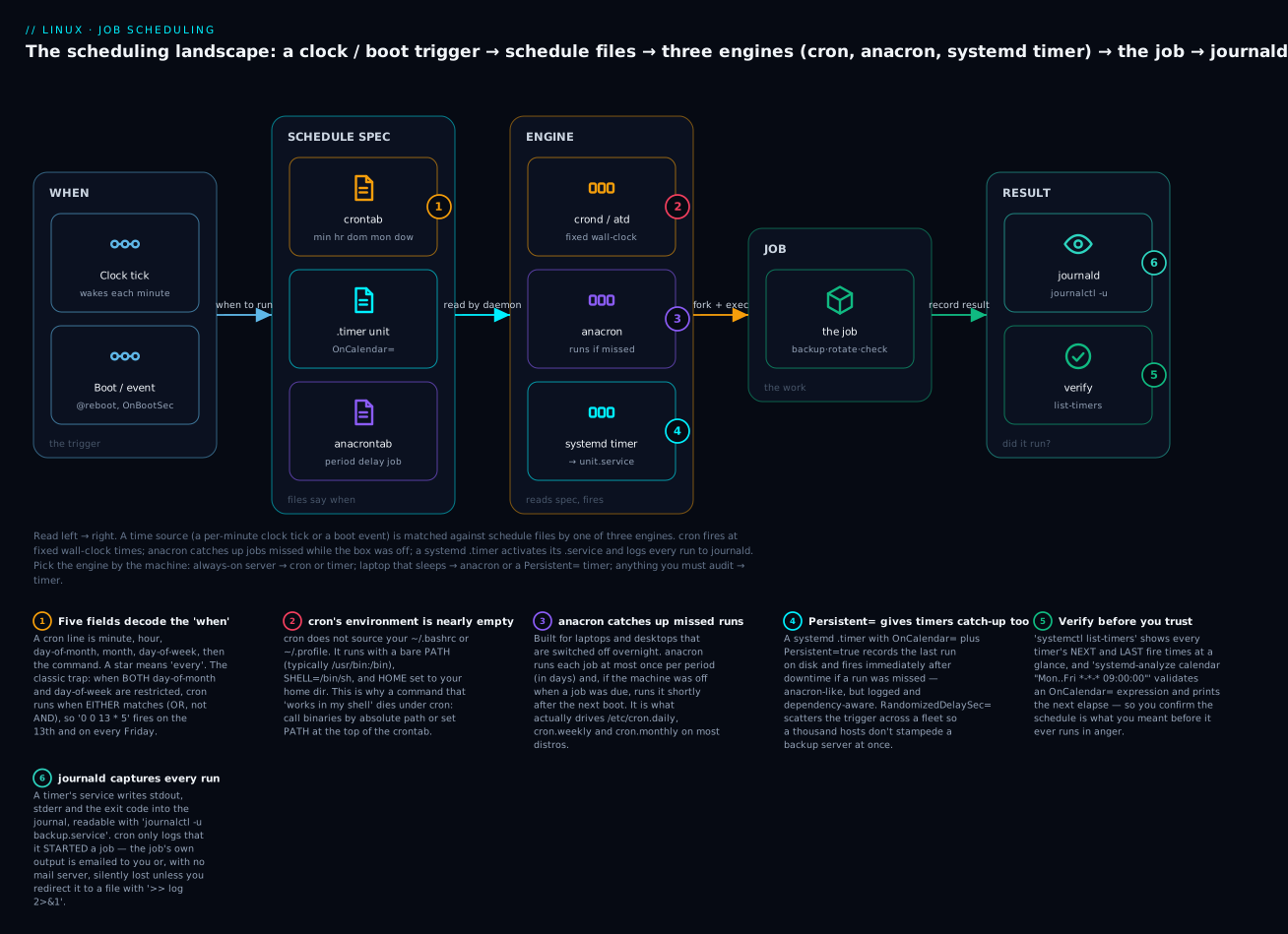
The mental model to hold onto: a trigger, an engine, a job, and a record. Something marks time (a per-minute clock tick, or a boot event). An engine (cron, anacron, or a systemd timer) matches that time against a schedule you wrote in a file. When they match, the engine forks the job. And — if you set it up right — the result is recorded so you can prove what happened. Everything below is detail on those four things.
cron: the per-user recurring scheduler
cron is the classic Unix job scheduler: a small daemon that wakes once a minute, reads a set of schedule files, and runs any command whose time has come. It has been doing this since 1975 and it is on essentially every Linux box you will ever touch. Its rules file is called a crontab (cron table).
Every user gets their own crontab. You never edit the stored file directly — you go through the crontab command, which validates your syntax and reloads the daemon for you.
crontab -e     # edit YOUR crontab (opens $EDITOR)
crontab -l     # list (print) your crontab to the terminal
crontab -r     # remove your crontab entirely — no confirmation!
The first time you run crontab -e it asks which editor to use, then drops you into an empty file. Add a line, save, and cron picks it up within a minute — no daemon restart, no reload command.
| Command | What it does | Note |
|---|---|---|
crontab -e |
Edit your crontab in $EDITOR (falls back to $VISUAL, then vi) |
The only correct way to edit — it validates and reloads |
crontab -l |
Print your crontab to stdout | Safe; good for backups: crontab -l > my-cron.bak |
crontab -r |
Delete your crontab | ⚠️ No confirmation, and -r sits right next to -e on the keyboard |
crontab -i |
Prompt before deleting (pair with -r) |
Make it a habit: crontab -ir |
crontab -u bob -e |
Edit another user’s crontab (root only) | How you manage service accounts |
crontab myfile |
Replace your crontab with the contents of myfile |
How you deploy a crontab from a config repo |
⚠️ crontab -r has no undo and no prompt. A slip of the finger from crontab -e to crontab -r wipes every job you have. Back up first (crontab -l > ~/crontab.bak), and use crontab -ir if you must remove one. The stored files live under /var/spool/cron/ (RHEL/Fedora) or /var/spool/cron/crontabs/ (Debian/Ubuntu), but treat those as cron’s private storage — always go through the crontab command.
A crontab line has six parts: five time fields, then the command.
# ┌──────────── minute        (0–59)
# │ ┌────────── hour          (0–23)
# │ │ ┌──────── day of month  (1–31)
# │ │ │ ┌────── month         (1–12 or jan–dec)
# │ │ │ │ ┌──── day of week   (0–7, 0 and 7 = Sunday, or sun–sat)
# │ │ │ │ │
  30 2 * * *  /usr/local/bin/backup.sh
That line means: at minute 30 of hour 2, every day of month, every month, every day of week — run the backup. In plain English, 02:30 nightly.
The five time fields, decoded
The five fields are where beginners get stuck, so learn the vocabulary once. Each field accepts the same four constructs.
| Field | Allowed values | Notes |
|---|---|---|
| Minute | 0–59 |
— |
| Hour | 0–23 |
24-hour clock; 0 = midnight, 23 = 11 p.m. |
| Day of month | 1–31 |
See the day-of-month and day-of-week gotcha below |
| Month | 1–12 or jan–dec |
Names are case-insensitive and not localised |
| Day of week | 0–7 or sun–sat |
Both 0 and 7 mean Sunday; 1 = Monday |
Inside any field you can use:
| Construct | Meaning | Example | Reads as |
|---|---|---|---|
* |
Every value | * * * * * |
Every minute |
n |
An exact value | 0 9 * * * |
09:00 every day |
a,b,c |
A list | 0 9,12,17 * * * |
09:00, 12:00, 17:00 |
a-b |
An inclusive range | 0 9-17 * * * |
Every hour from 09:00 to 17:00 |
*/n |
A step (every n) | */15 * * * * |
Every 15 minutes |
a-b/n |
A step within a range | 0 9-17/2 * * * |
09:00, 11:00, 13:00, 15:00, 17:00 |
Put those together and you can express almost any schedule. Here is the table to keep — read each line aloud until the mapping is automatic.
| Crontab line | When it runs |
|---|---|
* * * * * |
Every minute (the fastest cron can go) |
*/5 * * * * |
Every 5 minutes |
0 * * * * |
Top of every hour (minute 0) |
0 */2 * * * |
Every 2 hours, on the hour |
30 2 * * * |
02:30 every day |
0 9 * * 1-5 |
09:00 on weekdays (Mon–Fri) |
0 9 * * 6,0 |
09:00 on weekends (Sat & Sun) |
15 14 1 * * |
14:15 on the 1st of every month |
0 0 1 1 * |
Midnight on 1 January (once a year) |
0 22 * * 5 |
22:00 every Friday |
*/10 9-17 * * 1-5 |
Every 10 min, 09:00–17:59, weekdays |
0 0 * * 0 |
Midnight every Sunday |
0 4 1,15 * * |
04:00 on the 1st and 15th |
5 0 * * * |
00:05 every day (avoid exact midnight — see the lab) |
0 0 13 * 5 |
Midnight on the 13th and every Friday (OR — see gotcha) |
⚠️ The day-of-month / day-of-week OR trap. When both the day-of-month (field 3) and the day-of-week (field 5) are restricted — i.e. neither is * — cron runs the job when either matches, not both. So 0 0 13 * 5 does not mean “Friday the 13th”; it means “every 13th of the month, and also every Friday.” If you only want one of them to constrain the schedule, leave the other as *. This is decades-old Vixie-cron behaviour and it surprises people every year.
Shortcut nicknames
For common schedules cron accepts a @ nickname in place of all five fields.
| Nickname | Equivalent | Runs |
|---|---|---|
@yearly / @annually |
0 0 1 1 * |
Once a year, midnight 1 Jan |
@monthly |
0 0 1 * * |
Midnight on the 1st of each month |
@weekly |
0 0 * * 0 |
Midnight each Sunday |
@daily / @midnight |
0 0 * * * |
Midnight every day |
@hourly |
0 * * * * |
Top of every hour |
@reboot |
— (no time equivalent) | Once, when cron starts at boot |
@reboot is the odd one out: it isn’t a time, it’s an event. Use it for “start this once when the machine comes up” — a long-running helper, a tunnel, a cache warm-up. Note it fires when cron starts during boot, which is not a substitute for a real systemd service (no restart-on-crash, no ordering guarantees). For anything important, a systemd unit is the right tool.
# A user crontab with a mix of styles
@reboot         /home/vinod/bin/start-tunnel.sh
*/5 * * * *     /home/vinod/bin/healthcheck.sh
30 2 * * *      /home/vinod/bin/backup.sh >> /home/vinod/backup.log 2>&1
0 9 * * 1-5     /home/vinod/bin/standup-reminder.sh
System crontabs: /etc/crontab, /etc/cron.d and the run-parts dirs
User crontabs are for your jobs. System-wide jobs — the ones that belong to the machine, not a person — live in a different set of files, and they have one crucial extra field: the user to run as.
/etc/crontab and any file dropped into /etc/cron.d/ use a seven-field format: the same five time fields, then a user name, then the command.
# /etc/crontab or /etc/cron.d/myapp  — note the extra USER field
# m h dom mon dow  user   command
  17 3 * * *       root   /usr/local/sbin/rotate-secrets.sh
  */5 * * * *      www-data  /usr/local/bin/queue-worker.sh
That user field is why you cannot copy a line from your personal crontab -e into /etc/cron.d/ unchanged — the system parser would read your command’s first word as a username and fail. /etc/cron.d/ is the modern, package-friendly way to install system jobs: each app ships its own file, so installing or removing a package cleanly adds or removes its schedule without touching a shared file.
Then there are the four run-parts directories, the simplest scheduling interface in Linux: drop an executable script into one and it runs on that cadence. No crontab syntax at all.
| Path | Runs | Driven by |
|---|---|---|
/etc/cron.hourly/ |
Every hour | /etc/crontab (or anacron) via run-parts |
/etc/cron.daily/ |
Once a day | Usually anacron (see below) |
/etc/cron.weekly/ |
Once a week | Usually anacron |
/etc/cron.monthly/ |
Once a month | Usually anacron |
# Schedule a daily cleanup with zero crontab syntax:
sudo tee /etc/cron.daily/clean-tmp >/dev/null <<'EOF'
#!/bin/sh
find /var/tmp -type f -mtime +7 -delete
EOF
sudo chmod +x /etc/cron.daily/clean-tmp   # MUST be executable
⚠️ The run-parts naming trap. run-parts executes files whose names contain only letters, digits, underscores and hyphens. A file named clean-tmp.sh is silently skipped because of the dot. Name it clean-tmp (no extension), or you’ll wonder for hours why your perfectly good script never runs. Confirm what would run with run-parts --test /etc/cron.daily.
The cron environment: why “it works in my shell but not in cron”
This is the single most important section in the lesson. Nearly every “my cron job doesn’t run” bug is really an environment bug, and it comes from one fact:
cron does not log you in. It does not source /etc/profile, ~/.bash_profile, or ~/.bashrc. Your job runs in a deliberately bare environment that looks nothing like your interactive shell. The way the shell builds your interactive environment — and why cron gets none of it — is the subject of the Shell Basics: pipes, redirection & environment lesson; here we deal with the fallout.
Prove it to yourself. Add this line, wait a minute, then read the file it writes:
* * * * * env > /tmp/cron-env.txt
cat /tmp/cron-env.txt
# HOME=/home/vinod
# LOGNAME=vinod
# PATH=/usr/bin:/bin
# SHELL=/bin/sh
# PWD=/home/vinod
Compare that to the dozens of variables in your interactive env. Three differences do all the damage:
| Variable | In your shell | In cron | Consequence |
|---|---|---|---|
PATH |
/usr/local/sbin:/usr/local/bin:/usr/sbin:... (long) |
/usr/bin:/bin (tiny) |
Anything in /usr/local/bin, /opt, ~/bin, or a language version manager is not found |
SHELL |
/bin/bash (usually) |
/bin/sh |
Bash-isms ([[ ]], arrays, source) fail; /bin/sh is often dash |
| aliases/functions | Loaded from ~/.bashrc |
None | Your handy alias or shell function simply doesn’t exist |
The fixes, in order of preference:
- Call every binary by absolute path.
/usr/local/bin/aws, notaws. Find the path withcommand -v awsin your shell. - Set
PATHat the top of the crontab. cron lets you assign environment variables before the job lines:
# These assignments apply to every job below them in this crontab
PATH=/usr/local/sbin:/usr/local/bin:/usr/sbin:/usr/bin:/sbin:/bin
SHELL=/bin/bash
MAILTO=ops@example.com

30 2 * * *  backup.sh >> /var/log/backup.log 2>&1
- Make the script self-sufficient. Put
#!/bin/bash(or#!/bin/sh) as the shebang and setPATHinside the script, so it behaves the same however it’s launched.
Capturing output: MAILTO and redirection
By default, any output your job produces — stdout or stderr — is emailed to the crontab’s owner (or to MAILTO if set). On a server with no mail transfer agent installed, that mail goes nowhere: your job’s errors vanish. This is why the backup that dies every night is silent.
| Variable / syntax | Effect |
|---|---|
MAILTO=you@example.com |
Send job output here instead of the local user |
MAILTO="" |
Disable mail entirely (discard output) |
>> /var/log/job.log 2>&1 |
Append stdout and stderr to a file — the reliable choice |
> /var/log/job.log 2>&1 |
Overwrite the log each run (keeps only the last run) |
2>&1 | logger -t myjob |
Send output to syslog/journald tagged myjob |
>/dev/null 2>&1 |
Throw everything away (use only when you truly don’t care) |
The professional default is redirect to a file (or logger), never rely on mail:
30 2 * * * /usr/local/bin/backup.sh >> /var/log/backup.log 2>&1
The 2>&1 is essential and easy to forget: >> file only redirects stdout, so without 2>&1 your error messages still try to email out and get lost. 2>&1 means “send stderr to the same place stdout is going” — so both land in the log. Redirection is worth mastering properly; the Shell Basics: pipes, redirection & environment lesson covers >, >>, 2>&1 and pipes in depth.
The percent-sign trap
Inside a crontab, an unescaped % is turned into a newline, and everything after the first % becomes standard input to the command. This wrecks the single most common date-stamping pattern:
# WRONG — cron turns %Y%m%d into newlines; the command breaks
0 2 * * *  tar czf /backup/db-%Y%m%d.tgz /var/lib/db

# RIGHT — escape each % with a backslash
0 2 * * *  tar czf /backup/db-$(date +\%Y\%m\%d).tgz /var/lib/db
Better still, move the logic into a script (backup.sh) and call that from cron — scripts don’t suffer the % rule, and you get to test them by running them directly.
Where cron logs
cron records that it started a job, but not the job’s output (that’s your redirect’s problem). The location differs by family.
| Distro family | Service name | Where cron itself logs |
|---|---|---|
| Debian/Ubuntu | cron.service |
journalctl -u cron; also /var/log/syslog (grep CRON) |
| RHEL/Fedora/Rocky | crond.service |
journalctl -u crond; also /var/log/cron |
# Did cron even try to run my job? (Debian/Ubuntu)
journalctl -u cron --since "1 hour ago"
# Jul 09 02:30:01 web01 CRON[4821]: (vinod) CMD (/usr/local/bin/backup.sh >> /var/log/backup.log 2>&1)

# RHEL/Fedora
journalctl -u crond --since today | grep backup
If you see the CMD line, cron ran your command — any failure is now inside your job, so read your redirected log. If you don’t see it, the schedule or the service is the problem. The broader journald toolkit for reading these logs is covered in the Logging: journald, rsyslog & logrotate lesson.
at: run something once, later
Where cron is for recurring jobs, at is for a single job at a future time — “compress this directory at 3 a.m. tonight,” “send the report after the market closes,” “reboot in 20 minutes.” It needs the atd daemon running (systemctl enable --now atd).
You give at a time, then type the commands (ending with Ctrl-D), or pipe them in:
# Interactive: schedule for 3 a.m., type commands, end with Ctrl-D
at 3am
warning: commands will be executed using /bin/sh
at> /usr/local/bin/compress-logs.sh
at> <EOT>          # you pressed Ctrl-D here
job 7 at Thu Jul 10 03:00:00 2026

# Non-interactive: pipe the command in
echo '/usr/local/bin/report.sh' | at 17:30

# From a file, relative time
at -f cleanup.sh now + 2 hours
at understands a delightfully human time syntax:
| Time expression | Means |
|---|---|
at 16:00 / at 4pm |
Next 16:00 |
at now + 30 minutes |
30 minutes from now |
at now + 2 hours |
2 hours from now |
at 10am tomorrow |
10:00 the next day |
at 2am Jul 31 |
A specific date |
at midnight / at noon |
00:00 / 12:00 |
at teatime |
16:00 — a genuine, documented alias |
at 9am next week |
Same time, seven days on |
Manage the queue with three small commands, plus batch for load-aware scheduling:
| Command | Alias | What it does |
|---|---|---|
atq |
at -l |
List pending jobs (id, scheduled time, queue, owner) |
atrm 7 |
at -d 7 |
Delete job number 7 |
at -c 7 |
— | Print the full command/environment of job 7 |
batch |
— | Queue a job to run when system load drops below 1.5, not at a fixed time |
atq
# 7    Thu Jul 10 03:00:00 2026 a vinod
# 8    Thu Jul 10 17:30:00 2026 a vinod

atrm 8          # cancel the 17:30 report
A subtle strength of at: it snapshots your current environment at submission time (unlike cron’s bare environment), so a job you queue from an interactive shell usually inherits your PATH. batch is the tool for expensive, non-urgent work — a big re-index or a video encode — that you want to run “whenever the box is quiet” rather than at a set clock time.
anacron: catch-up scheduling for machines that sleep
cron has a fatal assumption for laptops and desktops: the machine is on when the job is due. If your daily backup is set for 03:00 and the laptop is closed at 03:00, plain cron simply skips it — there is no memory, no catch-up. The missed run is gone.
anacron solves exactly this. It works in days, not clock times, and it remembers when each job last ran by storing a timestamp on disk. When anacron starts (at boot, and periodically), it asks for each job: “has it been at least N days since this last ran?” If yes, it runs the job — after a short delay — regardless of the wall-clock time. A job missed while the machine was off runs shortly after the next boot. That’s the “catch-up” behaviour.
anacron’s config is /etc/anacrontab, and its lines have four fields: period, delay, a job identifier, and the command.
# /etc/anacrontab  (RHEL-style)
SHELL=/bin/sh
PATH=/sbin:/bin:/usr/sbin:/usr/bin
MAILTO=root
RANDOM_DELAY=45          # add up to 45 random minutes (spread load)
START_HOURS_RANGE=3-22   # only start jobs between 03:00 and 22:00

# period(days)  delay(min)  job-id        command
1               5           cron.daily    nice run-parts /etc/cron.daily
7               25          cron.weekly   nice run-parts /etc/cron.weekly
@monthly        45          cron.monthly  nice run-parts /etc/cron.monthly
| Field | Meaning | Example |
|---|---|---|
| Period | How often, in days (or @monthly, @weekly, @daily) |
7 = weekly |
| Delay | Minutes to wait after anacron starts before running (staggers jobs) | 25 |
| Job identifier | Unique name; also the timestamp filename in /var/spool/anacron/ |
cron.weekly |
| Command | What to run | run-parts /etc/cron.weekly |
RANDOM_DELAY |
Extra random minutes added to each delay (fleet-friendly) | 45 |
START_HOURS_RANGE |
Only launch jobs within these hours | 3-22 |
Look closely at that config and a penny drops: anacron is what actually runs /etc/cron.daily, cron.weekly and cron.monthly on most modern distros. That’s why those directories work on a laptop that’s never on at midnight — anacron catches them up, not cron. On RHEL/Fedora the link is a tiny /etc/cron.hourly/0anacron script that runs anacron each hour; on Debian the anacron package wires it up (increasingly via a systemd anacron.timer).
Useful anacron commands:
anacron -T              # test /etc/anacrontab syntax (silent = OK)
sudo anacron -n         # run all due jobs NOW, ignoring the delay
sudo anacron -d -f      # foreground, debug, force-run everything (great for testing)

# See when each job last ran (the timestamp files)
ls -l /var/spool/anacron/
cat /var/spool/anacron/cron.daily     # 20260709  ← last run date
anacron is not a daemon that sits resident like cron — it runs, processes due jobs, and exits. It also only does daily-and-longer granularity; you cannot ask anacron for “every 5 minutes.” For that you still need cron or a systemd timer.
systemd timers: the modern engine
On any systemd distro — which is essentially all mainstream Linux now — there’s a second, more capable scheduler built into the init system itself: systemd timers. They are how modern packages ship scheduled jobs (logrotate.timer, fstrim.timer, apt-daily.timer, certbot.timer), and they’re worth learning even if you already know cron, because they fix cron’s biggest weaknesses.
A timer is always two units working as a pair: a .timer that says when, and a .service that says what. By convention backup.timer triggers backup.service (same name, different suffix). Both are ordinary unit files — the same format as any service you’d write in the systemd: units, services, targets & journald lesson.
Here is a complete, working nightly backup as a timer. First the service (the what):
# /etc/systemd/system/backup.service
[Unit]
Description=Nightly backup job
Wants=network-online.target
After=network-online.target

[Service]
Type=oneshot
ExecStart=/usr/local/bin/backup.sh
Then the timer (the when):
# /etc/systemd/system/backup.timer
[Unit]
Description=Run the nightly backup at 02:30

[Timer]
OnCalendar=*-*-* 02:30:00
Persistent=true
RandomizedDelaySec=300

[Install]
WantedBy=timers.target
Activate it — note you enable the .timer, not the .service:
sudo systemctl daemon-reload
sudo systemctl enable --now backup.timer

# Confirm it's scheduled
systemctl list-timers backup.timer
# NEXT                        LEFT     LAST                        PASSED  UNIT          ACTIVATES
# Thu 2026-07-09 02:30:00 UTC 9h left  Wed 2026-07-08 02:34:57 UTC 15h ago backup.timer  backup.service
The [Timer] section is where the scheduling lives. These are the directives you’ll actually use:
| Directive | Meaning | Example |
|---|---|---|
OnCalendar= |
Fire at a wall-clock time (cron-like, but more precise) | OnCalendar=*-*-* 02:30:00 |
OnBootSec= |
Fire N after boot | OnBootSec=15min |
OnStartupSec= |
Fire N after systemd started | OnStartupSec=1h |
OnActiveSec= |
Fire N after the timer was activated | OnActiveSec=30s |
OnUnitActiveSec= |
Fire N after the service last ran (makes it periodic) | OnUnitActiveSec=1h |
OnUnitInactiveSec= |
Fire N after the service last finished | OnUnitInactiveSec=15min |
Persistent=true |
Record last run; catch up a missed OnCalendar= run after downtime |
anacron-like |
RandomizedDelaySec= |
Add a random 0–N delay (spread a fleet) | RandomizedDelaySec=300 |
AccuracySec= |
Coalescing window; default 1min, lower it for precision |
AccuracySec=1us |
WakeSystem=true |
Wake the machine from suspend to run | needs RTC support |
Combine OnBootSec= with OnUnitActiveSec= for a “run 15 minutes after boot, then every hour” monotonic timer that doesn’t care about the wall clock:
[Timer]
OnBootSec=15min
OnUnitActiveSec=1h
OnCalendar syntax
OnCalendar= is systemd’s answer to the five cron fields, and it’s both more readable and more powerful. The full form is:
DayOfWeek Year-Month-Day Hour:Minute:Second
Any part can be * (every), a list 1,15, a range 1..5 or Mon..Fri, or a step */15. Seconds are supported (cron can’t do sub-minute). There are also plain-English shorthands.
OnCalendar= value |
Fires |
|---|---|
daily |
Every day at 00:00:00 (*-*-* 00:00:00) |
hourly |
Every hour at :00:00 (*-*-* *:00:00) |
weekly |
Mondays at 00:00:00 |
monthly |
1st of the month at 00:00:00 |
*-*-* 02:30:00 |
02:30 every day |
Mon..Fri *-*-* 09:00:00 |
09:00 on weekdays |
*-*-* *:0/15:00 |
Every 15 minutes |
Sat *-*-* 10:00:00 |
10:00 every Saturday |
*-*-01 04:00:00 |
04:00 on the 1st of every month |
Sat *-*-1..7 10:00:00 |
10:00 on the first Saturday of the month (dow + dom range together) |
*-12-24 18:00:00 |
18:00 on 24 December, every year |
Mon *-*-* 00:00:00 America/New_York |
Weekly, in a named timezone |
Never guess an OnCalendar= expression — validate it. systemd-analyze calendar parses your spec and prints the next times it will fire:
systemd-analyze calendar "Mon..Fri *-*-* 09:00:00"
#   Original form: Mon..Fri *-*-* 09:00:00
# Normalized form: Mon..Fri *-*-* 09:00:00
#     Next elapse: Thu 2026-07-09 09:00:00 UTC
#        From now: 44min left

# Show the next five occurrences of a spec:
systemd-analyze calendar --iterations=5 "*-*-* *:0/15:00"
Managing and inspecting timers
| Command | What it shows / does |
|---|---|
systemctl list-timers |
All active timers: NEXT, LEFT, LAST, PASSED, UNIT, ACTIVATES |
systemctl list-timers --all |
Include inactive/disabled timers too |
systemctl status backup.timer |
Is the timer loaded, enabled, and when does it next fire |
systemctl start backup.service |
Run the job right now, on demand (great for testing) |
journalctl -u backup.service |
Every run’s stdout, stderr and exit code |
systemctl enable --now backup.timer |
Enable at boot and start now |
systemd-analyze calendar "<spec>" |
Validate an OnCalendar= expression |
Because the job is a real service, testing it is trivial and separate from the schedule: systemctl start backup.service runs it immediately, and journalctl -u backup.service shows you exactly what happened — no waiting until 02:30 to find out you have a bug.
Why timers beat cron (and when to just use cron)
Here is the honest comparison. systemd timers win on almost every operational axis, at the cost of more verbosity.
| Capability | cron | systemd timer |
|---|---|---|
| Per-run output & exit code captured | No (mailed or lost) | Yes — in journald, journalctl -u |
| Catch up runs missed while off | No (needs anacron) | Yes — Persistent=true |
| Start only after a dependency (network, mount) | No | Yes — After=, Wants= |
| Resource limits (CPU, memory, IO) | No | Yes — cgroup directives (CPUQuota=, MemoryMax=) |
Sandboxing (ProtectSystem=, PrivateTmp=) |
No | Yes |
| Spread load across a fleet | No | Yes — RandomizedDelaySec= |
| Sub-minute / second precision | No (1-minute floor) | Yes — AccuracySec=, seconds in OnCalendar= |
| Run the job on demand to test | Awkward | Yes — systemctl start x.service |
| See the whole schedule at a glance | No | Yes — systemctl list-timers |
| One-file simplicity | Yes (one line) | No (two unit files) |
| Works without systemd (containers, BSD) | Yes | No |
| Everybody already knows it | Yes | Learning curve |
The decision, distilled:
| Situation | Best tool |
|---|---|
| Recurring job on an always-on server, and you want auditable logs | systemd timer |
| Recurring job you must run after the network/a mount is up | systemd timer (dependencies) |
| Job on a laptop/desktop that sleeps; missed runs must catch up | anacron, or a timer with Persistent=true |
| One-shot “do this once at 3 a.m.” | at |
| Expensive job to run only when the box is idle | batch |
| Quick personal job, throwaway box, or a container with no systemd | cron (crontab -e) |
| A distro-shipped periodic task (logrotate, fstrim, updates) | systemd timer (already is one) |
Where a diagram helps is seeing all of this as one pipeline: a trigger feeds an engine, the engine reads a schedule file and forks the job, and the result is (ideally) recorded. The badges mark the exact spots beginners get wrong.
The same nightly job, two correct ways
Let’s make the cron-vs-timer choice concrete by implementing the identical job — a 02:30 database backup — both ways, correctly, with output captured.
Way 1 — cron. One line, self-sufficient script, output redirected:
# /usr/local/bin/backup.sh  (chmod +x, uses absolute paths inside)
#!/bin/bash
set -euo pipefail
PATH=/usr/local/bin:/usr/bin:/bin
ts=$(date +%Y%m%d-%H%M%S)
/usr/bin/pg_dump appdb | /usr/bin/gzip > "/backup/appdb-$ts.sql.gz"

# In root's crontab (crontab -e) or /etc/cron.d/backup with a user field:
30 2 * * *  /usr/local/bin/backup.sh >> /var/log/backup.log 2>&1
Everything that makes cron reliable is here: a script (so % and quoting aren’t cron’s problem), a shebang, an explicit PATH, absolute binary paths, and >> ... 2>&1 so both output streams land in a log you can read.
Way 2 — systemd timer. The same backup.sh, wrapped in the .service/.timer pair shown earlier. To operate it:
sudo systemctl daemon-reload
sudo systemctl enable --now backup.timer
sudo systemctl start backup.service        # test it right now
journalctl -u backup.service -n 20         # read this run's output & exit code
systemctl list-timers backup.timer          # confirm next fire time
Same schedule, same script. The timer version cost you a second file, and in return you got: the run captured in the journal (no >> log 2>&1 needed), automatic catch-up after downtime (Persistent=true), load-spreading (RandomizedDelaySec=300), a one-command test (systemctl start), and a dashboard (list-timers). For a job that matters on a server you keep, that trade is almost always worth it. For a five-line personal chore on a box you’ll delete tomorrow, the cron one-liner wins on speed. Now you can choose deliberately instead of by habit.
Hands-on lab
Run this on a throwaway VM, WSL, or a container with systemd (e.g. sudo available). It takes about 15 minutes and exercises cron, its environment trap, at, and a systemd timer end to end.
Step 1 — a cron job that runs every minute. Fastest feedback loop for learning cron.
crontab -e
# add this single line, save, and quit:
* * * * * date >> /tmp/cron-lab.log 2>&1
Wait ~90 seconds, then:
cat /tmp/cron-lab.log
# Thu Jul  9 14:31:01 UTC 2026
# Thu Jul  9 14:32:01 UTC 2026
What just happened: cron woke at the top of each minute, ran date, and appended it. You now have a working feedback loop.
Step 2 — reproduce the environment trap. Add a line that works in your shell but breaks in cron:
crontab -e
# add (assuming you have a tool in /usr/local/bin, or fake one):
* * * * * mytool >> /tmp/cron-trap.log 2>&1
Wait a minute and check both the log and the mail/journal:
cat /tmp/cron-trap.log
# /bin/sh: 1: mytool: not found      ← the PATH trap, caught because we redirected 2>&1
What just happened: cron’s PATH is /usr/bin:/bin, so mytool in /usr/local/bin wasn’t found. Because you redirected 2>&1, you saw the error instead of losing it to unsent mail. Fix it by using the absolute path or setting PATH= at the top of the crontab.
Step 3 — clean up the cron experiments.
crontab -l              # review what you have
crontab -r              # remove ALL of it (this is a lab box)
Step 4 — schedule a one-shot with at.
sudo systemctl enable --now atd          # ensure the daemon runs
echo 'echo "ran at $(date)" >> /tmp/at-lab.log' | at now + 1 minute
atq                                       # see it queued
# 1    Thu Jul 10 14:40:00 2026 a vinod
Wait a minute, then cat /tmp/at-lab.log — one line appears, and atq is now empty (one-shot jobs delete themselves).
What just happened: at ran your command once, at the future time, then forgot about it.
Step 5 — build a systemd timer. Create the service and timer:
sudo tee /etc/systemd/system/lab.service >/dev/null <<'EOF'
[Unit]
Description=Scheduling lab job
[Service]
Type=oneshot
ExecStart=/bin/sh -c 'echo "timer fired at $(date)"'
EOF

sudo tee /etc/systemd/system/lab.timer >/dev/null <<'EOF'
[Unit]
Description=Fire the lab job every minute
[Timer]
OnCalendar=*-*-* *:*:00
Persistent=true
[Install]
WantedBy=timers.target
EOF

sudo systemctl daemon-reload
sudo systemctl enable --now lab.timer
Step 6 — verify and read the journal.
systemctl list-timers lab.timer
# NEXT                        LEFT    LAST  PASSED  UNIT       ACTIVATES
# Thu 2026-07-09 14:42:00 UTC 30s left n/a   n/a     lab.timer  lab.service

sudo systemctl start lab.service          # run it now, don't wait
journalctl -u lab.service -n 5
# Jul 09 14:41:30 vm lab.sh[5012]: timer fired at Thu Jul  9 14:41:30 UTC 2026
What just happened: the timer scheduled the service, list-timers proved the next fire time, systemctl start ran it on demand, and journald captured the output — none of which plain cron gives you for free.
Step 7 — tear down.
sudo systemctl disable --now lab.timer
sudo rm /etc/systemd/system/lab.timer /etc/systemd/system/lab.service
sudo systemctl daemon-reload
You’ve now driven all four schedulers. The muscle memory — edit, wait a minute, check the log — is the whole skill.
Common mistakes and troubleshooting
Work this table top to bottom when a scheduled job “isn’t running.” Nine times out of ten it’s rows one or two.
| Symptom | Likely cause | Fix |
|---|---|---|
| Works when I run it in the shell, does nothing in cron | cron’s minimal PATH/environment; a binary in /usr/local/bin or ~/bin isn’t found |
Use absolute paths, or set PATH= at the top of the crontab; test with env > /tmp/e.txt in a cron line |
| No output, no error, no idea if it ran | Output was mailed and there’s no MTA, so it vanished | Redirect: >> /var/log/job.log 2>&1; then read the log |
| cron log shows the job started but it still failed | The failure is inside your job, not in cron | Read your redirected log; run the script by hand to reproduce |
| Nothing runs at all, ever | cron service isn’t running | systemctl status cron (Debian) / crond (RHEL); enable --now it |
A date +%Y in the crontab produces garbage |
Unescaped % becomes a newline in crontab |
Escape as \%, or move the command into a script |
Script in /etc/cron.daily never runs |
Not executable, or filename contains a . (run-parts skips it) |
chmod +x; rename job.sh → job; check run-parts --test <dir> |
| Job scheduled for 03:00 skipped on my laptop | Machine was asleep; plain cron has no catch-up | Use anacron, or a systemd timer with Persistent=true |
0 0 13 * 5 runs far more often than “Friday the 13th” |
dom and dow both set = OR, not AND | Leave one field as *; put “Friday the 13th” logic in the script |
| Timer enabled but never fires | You enabled the .service, not the .timer |
systemctl enable --now name.timer (the timer) |
OnCalendar= silently never matches |
Malformed expression parsed to “never” | Validate with systemd-analyze calendar "<spec>" before deploying |
Line I added to /etc/cron.d/x is ignored |
Missing the required user field, or file has a . in its name |
Add the user field (m h dom mon dow user cmd); rename the file |
crontab -e opens an editor I can’t exit |
$EDITOR/$VISUAL unset → defaults to vi |
export EDITOR=nano (or learn :wq); select-editor on Debian |
Three gotchas deserve extra words because they cost the most time:
The silent-failure loop is the real killer. A job fails, produces error output, cron tries to email it, there’s no mail server, the output is discarded — and you get zero signal. Weeks pass. The habit that immunises you: every cron line ends in >> /path/to.log 2>&1, and you skim those logs (or ship them to journald/your log stack). If you never redirect, you are flying blind by design. This is the exact same “non-interactive shells inherit nothing” problem discussed in the shell-basics lesson, wearing a scheduler’s clothes.
“It works when I sudo it” is a permissions and environment mismatch. A job in root’s crontab runs as root with root’s environment; the same line in your user crontab runs as you. If a job needs privilege, put it in root’s crontab or a /etc/cron.d/ file with root in the user field — don’t sudo inside a user cron job (it may prompt for a password with no terminal to type it into).
Timezones and DST bite scheduled jobs. cron uses the system timezone; a job at 2:30 may run twice or zero times on a DST changeover night. For anything time-sensitive, prefer a systemd timer (which handles calendar time more carefully) and, if needed, pin a timezone in OnCalendar= (e.g. ... 02:30:00 UTC). Scheduling backups a few minutes off the hour (5 0 not 0 0) also dodges the thundering-herd of every-job-at-midnight.
Cheat-sheet
| Task | Command / syntax |
|---|---|
| Edit / list / remove my crontab | crontab -e / crontab -l / crontab -ir |
| Edit another user’s crontab | sudo crontab -u bob -e |
| Cron fields | min hour dom month dow command (0–59, 0–23, 1–31, 1–12, 0–7) |
| Every 5 min / hourly / daily 2:30 | */5 * * * * / 0 * * * * / 30 2 * * * |
| Weekdays 9am / at boot | 0 9 * * 1-5 / @reboot |
| Escape a percent sign | \% (or use a script) |
| Capture all output | >> /var/log/job.log 2>&1 |
| Set env for cron jobs | PATH=..., SHELL=/bin/bash, MAILTO=you@x.com at top of crontab |
| System cron (extra user field) | /etc/crontab, /etc/cron.d/* → m h dom mon dow user cmd |
| Drop-in periodic scripts | /etc/cron.{hourly,daily,weekly,monthly}/ (executable, no . in name) |
| Did cron run it? | journalctl -u cron (Debian) / journalctl -u crond (RHEL) |
| One-shot future job | echo cmd | at 3am · at now + 2 hours |
List / delete at jobs |
atq / atrm N · show: at -c N |
| Run when system is idle | batch |
| anacron config / test / force-run | /etc/anacrontab · anacron -T · sudo anacron -n |
| List systemd timers | systemctl list-timers [--all] |
| Validate a calendar spec | systemd-analyze calendar "Mon..Fri *-*-* 09:00:00" |
| Timer daily 02:30 / every 15 min | OnCalendar=*-*-* 02:30:00 / OnCalendar=*-*-* *:0/15:00 |
| Catch up missed runs (timer) | Persistent=true |
| Spread load across a fleet | RandomizedDelaySec=300 |
| Enable a timer (not the service!) | systemctl enable --now name.timer |
| Run a timer’s job now / read output | systemctl start name.service / journalctl -u name.service |
Interview and exam questions
Q: What do the five fields of a crontab entry mean, in order?
A: Minute (0–59), hour (0–23), day of month (1–31), month (1–12 or names), day of week (0–7, where 0 and 7 are both Sunday). Then the command. 30 2 * * * is 02:30 daily.
Q: A cron job runs fine when you execute the command in your shell but does nothing under cron. What’s the first thing you check?
A: The environment — specifically PATH. cron does not source your profile/bashrc; it runs with a bare PATH (typically /usr/bin:/bin) and SHELL=/bin/sh. Binaries in /usr/local/bin, ~/bin, /opt, or a version manager won’t be found. Fix by using absolute paths or setting PATH= at the top of the crontab.
Q: Where does a cron job’s output go by default, and why is that dangerous?
A: To email (the crontab owner, or MAILTO). If no mail transfer agent is installed, the output — including errors — is silently discarded, so failures produce no signal. Always redirect with >> /var/log/job.log 2>&1.
Q: What does 0 0 13 * 5 actually run, and why does it surprise people?
A: It runs at midnight on the 13th of every month and on every Friday. When both day-of-month and day-of-week are restricted, cron ORs them rather than ANDing. It is not “Friday the 13th.” Leave one field * to constrain by just the other.
Q: You need a job to run every 15 minutes. Give the crontab line.
A: */15 * * * *. The */15 step in the minute field means “every 15 minutes” (00, 15, 30, 45).
Q: What is anacron for, and how does it differ from cron?
A: anacron runs jobs on a daily-or-longer cadence and catches up runs missed while the machine was off, by remembering the last-run date on disk. cron assumes the machine is on at the scheduled time and simply skips missed runs. anacron is why /etc/cron.daily etc. still run on laptops that sleep. It can’t do sub-daily schedules.
Q: Explain the difference between at and cron.
A: cron schedules recurring jobs on a clock; at schedules a single job at one future time, then forgets it. Manage at jobs with atq (list) and atrm (delete). batch is at’s cousin that runs when system load drops below 1.5.
Q: What two units make up a systemd timer, and which one do you enable?
A: A .timer unit (the schedule) and a matching .service unit (the work). You enable the .timer (systemctl enable --now backup.timer); it activates the service when it fires.
Q: How do you make a systemd timer catch up a run it missed while the machine was off?
A: Set Persistent=true in the [Timer] section (with an OnCalendar= schedule). systemd records the last run on disk and fires immediately after boot if a run was missed — anacron-like, but logged and dependency-aware.
Q: Give three concrete reasons to prefer a systemd timer over cron.
A: (1) Output and exit code are captured in journald (journalctl -u x.service) instead of mailed/lost. (2) Dependencies — start only After=network-online.target or a mount. (3) Resource control and sandboxing via the service (CPUQuota=, MemoryMax=, PrivateTmp=). Also: Persistent= catch-up, RandomizedDelaySec= load-spreading, and on-demand testing with systemctl start.
Q (RHCSA-style): Schedule /usr/local/bin/report.sh to run at 22:15 on weekdays for user deploy, capturing output.
A: As deploy, crontab -e and add 15 22 * * 1-5 /usr/local/bin/report.sh >> /var/log/report.log 2>&1. Or system-wide in /etc/cron.d/report: 15 22 * * 1-5 deploy /usr/local/bin/report.sh >> /var/log/report.log 2>&1 (note the deploy user field).
Q (LFCS-style): Verify that a distro’s logrotate runs as a timer and show when it next fires.
A: systemctl list-timers logrotate.timer shows NEXT/LAST; systemctl cat logrotate.timer shows its OnCalendar=; systemd-analyze calendar "$(systemctl show -p TimersCalendar --value logrotate.timer)" (or just re-run the OnCalendar value) validates the next elapse. Its history is in journalctl -u logrotate.service.
Q: How do you validate an OnCalendar= expression before deploying it?
A: systemd-analyze calendar "Mon..Fri *-*-* 09:00:00" — it normalises the spec and prints the next elapse; add --iterations=N to see several upcoming times. A malformed spec that “never fires” is the classic silent timer bug.
Key takeaways
- Match the tool to the job:
cronfor recurring wall-clock jobs,atfor a single future run,anacronfor machines that sleep,systemd timersfor anything you want logged, dependency-aware, or resource-limited. - The five cron fields are
min hour dom month dow— and when bothdomanddoware set, cron ORs them. Nicknames (@daily,@reboot) and steps (*/5) cover most real schedules. - cron has almost no environment. No profile, a tiny
PATH,SHELL=/bin/sh. This single fact explains most “works in my shell, not in cron” failures — use absolute paths or setPATH=at the top. - Always capture output with
>> /var/log/job.log 2>&1. Relying on cron’s email is how failures become silent and backups quietly die. - anacron gives cron a memory: it catches up daily/weekly/monthly jobs missed while the box was off, and it’s what actually drives the
/etc/cron.{daily,weekly,monthly}directories on most distros. - systemd timers are a
.timer+ a.service. UseOnCalendar=for wall-clock schedules (validate withsystemd-analyze calendar),Persistent=truefor catch-up,RandomizedDelaySec=to spread a fleet, and enable the timer, not the service. - Prove it ran.
systemctl list-timersshows the schedule;journalctl -u name.serviceshows every run’s output and exit code — the auditability cron can’t match.