If you take one idea away from this lesson, take this: systemd is a single program that is both the first process the kernel starts (PID 1, the init system) and the supervisor of every daemon after it (the service manager) — and everything it does is described by small text files called units. Learn to read a unit file and drive systemctl, and the whole system stops being a black box.
Why this matters
You will meet systemd within your first hour on any modern Linux server, whether you notice it or not. You install nginx and it “just starts on boot” — that’s systemd. Your app dies at 3 a.m. and comes back by itself — that’s systemd. You run systemctl status in a panic and get a wall of coloured text you can’t parse — that’s systemd too. On Ubuntu, Debian, RHEL, Fedora, Rocky, SUSE, Amazon Linux and almost every cloud image since about 2015, systemd is PID 1. If you can’t drive it, you can’t run a server.
The trap for beginners is treating systemd as a pile of magic incantations — systemctl start this, systemctl enable that — memorised without a model. Then the day comes when a service won’t start, or starts too early before the network is up, or restarts in a loop, or fills the disk with logs, and the incantations run out. This lesson replaces the incantations with the actual mechanism: what a unit is, how targets pull units in, what each [Service] line does, and where the logs go. Get the model and the commands become obvious.
Here’s the whole territory in one breath: the kernel boots and hands control to systemd as PID 1; systemd reads unit files (.service, .socket, .timer, .mount, and six more types) from a few known directories; it works toward a target (a named group of units — the modern replacement for runlevels); units declare dependencies and ordering (Wants, Requires, After) so things start in the right sequence; you inspect and control all of it with one command, systemctl; and everything each service prints is captured by journald, which you read with journalctl. That’s it. Let’s walk it.
What systemd actually is: PID 1, init and service manager
When the kernel finishes booting it starts exactly one user-space process and gives it PID 1. On a systemd machine that process is /lib/systemd/systemd (often symlinked as /sbin/init). PID 1 is special: it is the ancestor of every other process, it adopts orphaned processes (the mechanism behind zombie reaping covered in Processes & Jobs: ps, top/htop, signals, kill), and it must never exit — if PID 1 dies, the kernel panics. Confirm it in one line:
# Who is PID 1 on this box?
ps -p 1 -o pid,comm
#   PID COMMAND
#     1 systemd

# Or ask systemd itself
systemctl --version | head -1
# systemd 255 (255.4-1ubuntu8)
systemd wears two hats at once:
- The init system — it brings the machine from “kernel just booted” to “fully running server” by activating a tree of units in dependency order.
- The service manager — for the rest of uptime it supervises daemons: starts and stops them, restarts them if they crash, tracks their resource use in cgroups, and collects their logs.
For decades that job was done by SysV init — a set of shell scripts in /etc/init.d/ run in a fixed numeric order, one after another, with runlevels selecting which set ran. It worked but it was slow (strictly sequential) and dumb (no idea whether a service was actually healthy, no built-in logging, no supervision). systemd replaced it with a declarative, parallel, dependency-aware model. You will still meet service and init.d as compatibility shims, so know the contrast:
| Aspect | SysV init (old) | systemd (modern) |
|---|---|---|
| Config | Shell scripts in /etc/init.d/ |
Declarative unit files (.service, …) |
| Startup | Sequential, one script at a time | Parallel, resolved by a dependency graph |
| “Which state?” | Runlevels (0–6) | Targets (multi-user.target, …) |
| Service health | None — script exits 0 and hopes | Tracked via cgroup; Restart=, watchdogs |
| Logging | Each daemon rolls its own file | journald captures stdout/stderr centrally |
| Start a service | service nginx start / /etc/init.d/nginx start |
systemctl start nginx |
| Enable at boot | chkconfig/update-rc.d + rc?.d symlinks |
systemctl enable nginx |
| Boot timing | Guesswork | systemd-analyze blame / critical-chain |
The service x start and service x status commands still work — they’re a thin wrapper that redirects to systemctl. But everything real lives in systemctl and unit files, so that’s what we learn. The boot sequence that gets you to systemd (firmware → GRUB → initramfs → PID 1) is a lesson of its own — The Linux boot process: GRUB, initramfs & systemd targets — so here we start the moment systemd takes over.
Units: the nine types systemd manages
A unit is the atom of systemd: one resource it knows how to manage, described by one text file whose extension names its type. When people say “the nginx service” they mean the unit nginx.service. There are nine unit types you’ll actually meet:
| Type | Manages | Example | You’ll touch it… |
|---|---|---|---|
.service |
A daemon / process to run | sshd.service |
Constantly — the bread and butter |
.socket |
A listening socket for socket activation (start the service on first connection) | docker.socket |
When lazy-starting or speeding boot |
.target |
A named group of units / sync point (replaces runlevels) | multi-user.target |
To set boot state, order groups |
.mount |
A filesystem mount point | data.mount |
Auto-generated from /etc/fstab |
.automount |
On-demand mounting of a .mount |
proc-sys-fs-binfmt_misc.automount |
Mount on first access |
.timer |
A scheduled trigger for another unit (cron replacement) | logrotate.timer |
For scheduled jobs |
.path |
Watch a file/dir and activate a unit on change | cups.path |
Trigger work on file arrival |
.slice |
A cgroup node for grouping resource limits | system.slice |
For CPU/memory control |
.device |
A kernel device exposed as a unit (from udev) | dev-sda.device |
Rarely, for After= on hardware |
.swap |
A swap partition/file | swap.img.swap |
Auto-generated from /etc/fstab |
That’s ten if you count .swap separately from .mount — the point is the pattern: everything systemd manages is a unit, and the extension tells you what kind. (.timer units are the systemd-native replacement for cron — building and reading them is its own lesson, Scheduling: cron, at & systemd timers.) List what’s loaded right now:
# All loaded units of type service, with their state
systemctl list-units --type=service | head
# UNIT                     LOAD   ACTIVE SUB     DESCRIPTION
# cron.service             loaded active running Regular background program processing daemon
# dbus.service             loaded active running D-Bus System Message Bus
# ssh.service              loaded active running OpenBSD Secure Shell server
# systemd-journald.service loaded active running Journal Service
Where unit files live — and who wins
Unit files are read from several directories, and when the same unit name exists in more than one, precedence decides which wins. This is the single most important table for overriding vendor units without editing files the next package update will clobber:
| Directory | Owner / purpose | Precedence |
|---|---|---|
/etc/systemd/system/ |
You, the admin — local units and overrides | Highest — always wins |
/run/systemd/system/ |
Runtime, volatile (gone on reboot) | Middle |
/lib/systemd/system/ (= /usr/lib/systemd/system/) |
Packages — installed by apt/dnf, never edit | Lowest |
On merged-/usr distros /lib/systemd/system is a symlink to /usr/lib/systemd/system; they’re the same place. The rule: packages drop units in /lib, you override in /etc. A file in /etc/systemd/system/nginx.service completely shadows the packaged one. See where a unit’s file actually is:
# Which file(s) provide this unit, in precedence order?
systemctl cat ssh.service | head -3
# # /lib/systemd/system/ssh.service   <- the packaged unit
# [Unit]
# Description=OpenBSD Secure Shell server

systemctl show -p FragmentPath ssh.service
# FragmentPath=/lib/systemd/system/ssh.service
Drop-ins: override without forking the file
You almost never want to copy a whole vendor unit into /etc — then you own it forever and lose upstream fixes. Instead you add a drop-in: a small file at /etc/systemd/system/<unit>.d/override.conf that systemd merges on top of the packaged unit. Only the lines you set change; everything else is inherited. The blessed way to create one is systemctl edit:
# Opens an editor; what you type lands in a drop-in and daemon-reload runs for you
sudo systemctl edit nginx.service
# creates: /etc/systemd/system/nginx.service.d/override.conf
| Command | What it does |
|---|---|
systemctl edit UNIT |
Create/edit a drop-in override (…/UNIT.d/override.conf); auto-runs daemon-reload |
systemctl edit --full UNIT |
Copy the whole unit into /etc and edit it (you now own it) |
systemctl cat UNIT |
Show the effective unit = base file + all drop-ins, with source paths |
systemctl revert UNIT |
Delete all your drop-ins/overrides, restore the vendor unit |
systemd-delta |
List every unit that has been overridden or extended |
⚠️ A drop-in that sets ExecStart= must clear it first. Directives like ExecStart are additive by default, so to replace the command you write an empty ExecStart= line then the new one:
# /etc/systemd/system/nginx.service.d/override.conf
[Service]
ExecStart=
ExecStart=/usr/sbin/nginx -c /etc/nginx/custom.conf -g 'daemon off;'
systemctl: the one command you drive systemd with
systemctl is the control panel for the whole system. Nearly everything you do to a unit is systemctl <verb> <unit>. Learn the verbs and you’ve learned 90% of day-to-day systemd:
| Verb | What it does | Persists across reboot? |
|---|---|---|
start UNIT |
Activate the unit now | No |
stop UNIT |
Deactivate it now | No |
restart UNIT |
Stop then start (a hard bounce) | No |
reload UNIT |
Tell the daemon to re-read config without dropping (via ExecReload=) |
No |
reload-or-restart UNIT |
Reload if supported, else restart | No |
enable UNIT |
Create the WantedBy= symlink so it starts at boot |
Yes |
enable --now UNIT |
Enable and start immediately | Yes + now |
disable UNIT |
Remove the boot symlink (doesn’t stop it now) | Yes |
status UNIT |
Show state, PID, cgroup, and recent log lines | — |
is-active UNIT |
Print active/inactive/failed (scriptable, exit code) |
— |
is-enabled UNIT |
Print enabled/disabled/static/masked |
— |
mask UNIT |
Symlink the unit to /dev/null — cannot be started at all |
Yes |
unmask UNIT |
Undo a mask | Yes |
daemon-reload |
Re-read unit files after you edit them on disk | — |
list-units |
Units currently loaded in memory (+ state) | — |
list-unit-files |
All installed unit files + their enable state | — |
Two distinctions trip up everyone:
start vs enable. They are unrelated axes. start changes the now; enable changes boot behaviour. A unit can be enabled but stopped (will come up next boot), or running but disabled (up now, gone after reboot). enable --now does both. is-active answers “running now?”; is-enabled answers “starts at boot?”.
disable vs mask. disable removes the boot symlink but you (or another unit’s dependency) can still start it. mask is the sledgehammer — it points the unit at /dev/null, so nothing can start it, not even as a dependency of something else. Mask when you need a service to stay dead no matter what pulls at it.
# The whole lifecycle, narrated
sudo systemctl start nginx        # up now
systemctl is-active nginx         # active
sudo systemctl enable nginx       # will start at boot
# Created symlink /etc/systemd/system/multi-user.target.wants/nginx.service → /lib/systemd/system/nginx.service
systemctl is-enabled nginx        # enabled
sudo systemctl reload nginx       # re-read nginx.conf, keep connections
sudo systemctl mask nginx         # freeze it: cannot be started until unmasked
Note the symlink enable prints — that’s literally all “enable” is, and it’s the heart of the diagram later. After you edit a unit file by hand (not via systemctl edit), you must run sudo systemctl daemon-reload or systemd keeps running the old definition and warns you the unit “changed on disk”.
The state words is-active and is-enabled return are worth pinning down:
is-active says |
Meaning |
|---|---|
active |
Running (services) or reached (targets) |
inactive |
Cleanly stopped |
activating / deactivating |
Mid-transition |
failed |
Exited non-zero / crashed / timed out — see status |
is-enabled says |
Meaning |
|---|---|
enabled |
Has a WantedBy= symlink — starts at boot |
disabled |
No boot symlink |
static |
No [Install] section — can’t be enabled, only pulled in as a dependency |
masked |
Symlinked to /dev/null — start is impossible |
indirect |
Enabled only via another unit’s Also=/alias |
Reading a .service file, field by field
Everything above manipulates units; now let’s read one. A .service file is an INI-style file with three sections. Here is a real, complete one — a small web app — annotated so you can decode any service you meet:
[Unit]
Description=KloudVin demo health service
Documentation=https://kloudvin.com/docs
After=network-online.target
Wants=network-online.target
Requires=data.mount

[Service]
Type=simple
User=kvhealth
Group=kvhealth
WorkingDirectory=/srv/kvhealth
EnvironmentFile=-/etc/kvhealth/env
Environment=KVHEALTH_PORT=8099
ExecStart=/usr/local/bin/kvhealth
ExecReload=/bin/kill -HUP $MAINPID
Restart=on-failure
RestartSec=2

[Install]
WantedBy=multi-user.target
[Unit] — identity and relationships
The [Unit] section is metadata and dependencies — what this unit is and what it needs around it, independent of type:
| Directive | Meaning |
|---|---|
Description= |
Human label shown in status/list-units |
Documentation= |
URLs/man pages for the unit |
After= / Before= |
Ordering only — start this after/before the named units (says nothing about needing them) |
Wants= |
Weak dependency — pull the named unit in, but start anyway if it fails |
Requires= |
Strong dependency — if the named unit fails to start, this unit is not started either |
BindsTo= |
Like Requires=, plus stop this unit if the bound unit goes away for any reason |
Conflicts= |
Negative dependency — starting this stops the named unit (and vice-versa) |
[Service] — how to run it (the type-specific heart)
The [Service] section only exists in .service units, and it’s where the real behaviour lives. These are the directives you’ll set again and again:
| Directive | What it controls | Example |
|---|---|---|
Type= |
When systemd considers the unit “started” (see next table) | Type=notify |
ExecStart= |
The command to run (the daemon itself) | /usr/local/bin/app |
ExecStartPre= / ExecStartPost= |
Commands run before/after ExecStart |
/usr/bin/mkdir -p /run/app |
ExecStop= |
Command to stop gracefully (default: SIGTERM the main PID) | /usr/local/bin/app --drain |
ExecReload= |
Command for systemctl reload |
/bin/kill -HUP $MAINPID |
Restart= |
When to auto-restart (see table below) | on-failure |
RestartSec= |
Delay before a restart | 2 (seconds) |
User= / Group= |
Drop privileges — run as this account, not root | kvhealth |
WorkingDirectory= |
cd here before running |
/srv/kvhealth |
Environment= |
Set env vars inline | PORT=8099 |
EnvironmentFile= |
Load env vars from a file (- = ignore if missing) |
-/etc/app/env |
TimeoutStartSec= |
How long to wait before calling start “failed” | 90 (seconds) |
$MAINPID above is a systemd specifier — it expands to the PID of the main process, so ExecReload can signal exactly the right process.
Type= is the field beginners get wrong most, because it decides the moment systemd declares the unit “up” — and anything ordered After= yours waits for that moment:
Type= |
systemd considers it started when… | Use for |
|---|---|---|
simple |
The instant ExecStart is forked (default when ExecStart set) |
Foreground apps that don’t fork |
exec |
execve() of ExecStart succeeds (stricter simple) |
Same, but catch bad binaries early |
forking |
The parent process exits (daemon double-forks); set PIDFile= |
Classic daemons that background themselves |
oneshot |
The command runs to completion; pair with RemainAfterExit=yes |
Scripts/setup tasks that do a job and end |
notify |
The app calls sd_notify(READY=1) |
Apps that signal readiness (nginx, systemd-aware daemons) |
dbus |
The app takes its BusName= on D-Bus |
D-Bus services |
idle |
Like simple but delayed until other jobs run (tidier console) |
Avoiding boot log interleave |
Getting Type= right is what stops the “my service is ordered after the database but starts before the database is actually listening” class of bug: with Type=simple the database is “up” the moment it forks, before it binds its port. notify (or a socket) fixes that properly.
Restart= is the supervision knob — the thing nohup never gave you:
Restart= |
Restarts when the process… |
|---|---|
no |
Never (the default) |
on-failure |
Exits non-zero, is killed by a signal, or times out — the usual choice |
on-abnormal |
Killed by signal or timeout (not on a non-zero exit) |
on-success |
Exits 0 (rare — for restart-on-clean-exit loops) |
always |
Whenever it exits, for any reason — except a manual systemctl stop |
[Install] — what enable does
The [Install] section is only read by systemctl enable/disable. It tells systemd where to hang the boot symlink:
| Directive | Meaning |
|---|---|
WantedBy= |
On enable, create a symlink in <target>.wants/ — the usual multi-user.target |
RequiredBy= |
Like WantedBy but a strong (Requires) link |
Alias= |
Extra name the unit can be referred to by |
Also= |
Enable these other units too when this one is enabled |
A unit with no [Install] section is static — you can’t enable it; it only runs when something else pulls it in as a dependency. That’s why systemctl enable foo sometimes says “The unit files have no installation config” — the unit was designed to be a dependency, not a standalone boot service.
Here is the whole fan-out as one picture — systemd (PID 1) reaching its default target, that target wanting a set of units, a service ordered after the mount it needs, and every unit’s output landing in journald:
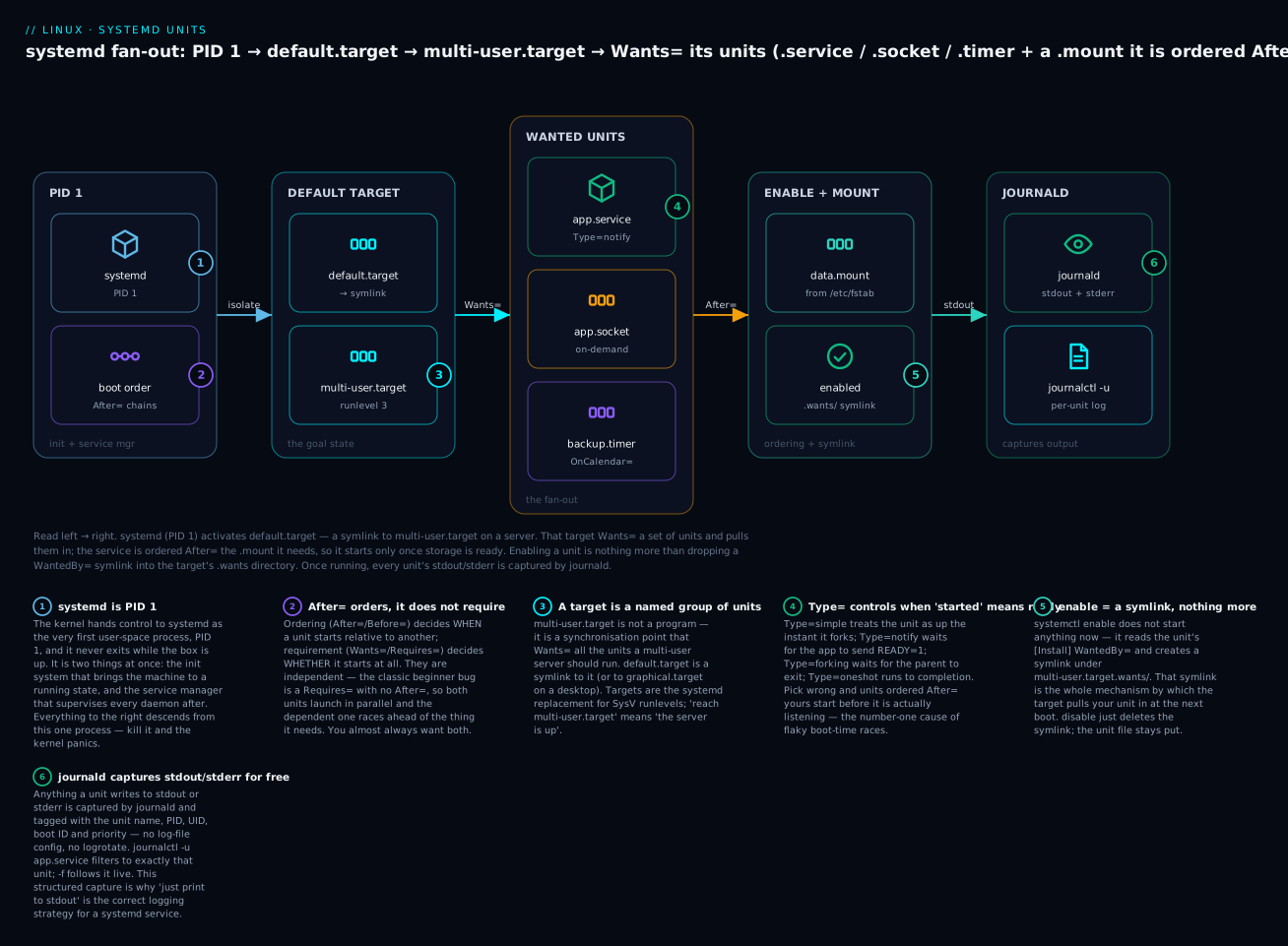
Read it left to right: systemd (PID 1) activates default.target (a symlink to multi-user.target on a server); that target’s Wants= pulls in the units; the .service is ordered After= the .mount it Requires=, so it starts only once storage is ready; enable is nothing more than the WantedBy= symlink in multi-user.target.wants/; and once running, each unit’s stdout/stderr flows to journald, queryable per-unit with journalctl -u. The two independent ideas the badges highlight — ordering (After=) versus requirement (Wants=/Requires=) — are the ones to burn in.
Targets: the modern replacement for runlevels
A target is a unit that groups other units — a synchronisation point, not a program. “Reaching multi-user.target” means “all the units a text-mode multi-user server needs are up.” Targets replaced SysV runlevels, and the mapping is close enough that old muscle memory still helps:
| SysV runlevel | systemd target | State |
|---|---|---|
| 0 | poweroff.target |
Halt / power off |
| 1 / S | rescue.target |
Single-user, minimal, root shell (maintenance) |
| 2, 3, 4 | multi-user.target |
Full multi-user, networked, no GUI (servers) |
| 5 | graphical.target |
multi-user plus a display manager (desktops) |
| 6 | reboot.target |
Reboot |
| — | emergency.target |
Barest shell, root FS mounted read-only, almost nothing else |
Two special targets have no runlevel equivalent and are your break-glass tools: rescue.target (like old single-user: local filesystems mounted, a root shell, most services off) and emergency.target (even more minimal — used when even rescue can’t be reached). The commands to work with targets:
# What state does this machine boot into?
systemctl get-default
# graphical.target

# Make it a server (text) by default — takes effect next boot
sudo systemctl set-default multi-user.target
# Removed /etc/systemd/system/default.target
# Created symlink /etc/systemd/system/default.target → /lib/systemd/system/multi-user.target

# Switch state *right now* without rebooting (stops units not in the new target)
sudo systemctl isolate multi-user.target   # drop the GUI now
sudo systemctl isolate rescue.target        # go to maintenance mode now

# The classic shortcuts still work — they isolate the right target
sudo systemctl rescue      # → rescue.target
sudo systemctl emergency   # → emergency.target
sudo systemctl reboot      # → reboot.target
sudo systemctl poweroff    # → poweroff.target
default.target is a symlink — set-default just repoints it. isolate is “switch to this target now and stop everything not part of it,” which is why you isolate multi-user.target to kill a hung GUI, and isolate rescue.target to reach a maintenance shell without a full reboot. The full boot chain that culminates in reaching default.target — firmware, GRUB, initramfs, then systemd — is covered separately; here the point is that the target is systemd’s destination.
Dependencies and ordering: Wants, Requires, After
This is where flaky boots are made and fixed, so slow down. systemd distinguishes two completely independent questions:
- Requirement — whether unit B is pulled in when unit A starts (
Wants=,Requires=,BindsTo=). - Ordering — when unit B starts relative to A (
After=,Before=).
They do not imply each other. Requires=B with no After=B means B is pulled in but the two start in parallel — A can race ahead of B. Almost every real dependency needs both: Requires=db.service and After=db.service.
| Directive | Kind | Effect if the other unit fails / stops |
|---|---|---|
Wants= |
Requirement (weak) | Pulled in; this unit still starts if it fails |
Requires= |
Requirement (strong) | If it fails to start, this unit is not started |
Requisite= |
Requirement (strong) | Must already be active; else fail immediately (don’t start it) |
BindsTo= |
Requirement (strong+) | Like Requires and stop this unit if it goes inactive for any reason |
PartOf= |
Propagation | stop/restart of the other propagates here (but not start) |
Conflicts= |
Negative | Starting one stops the other |
After= / Before= |
Ordering only | No requirement — purely sequences startup/shutdown |
Wants= is the one to reach for by default: it expresses “I’d like this, but don’t fail the whole boot if it’s unavailable,” which is what you want for most soft dependencies. Requires= is for hard dependencies where continuing makes no sense. Visualise any unit’s tree with list-dependencies:
# What does multi-user.target pull in? (recursive tree)
systemctl list-dependencies multi-user.target | head
# multi-user.target
# ● ├─cron.service
# ● ├─dbus.service
# ● ├─ssh.service
# ● ├─basic.target
# ● │ ├─sysinit.target
# ...

# Reverse: what depends ON this unit?
systemctl list-dependencies --reverse ssh.service

# The ordering actually used at boot, for one unit
systemctl list-dependencies --after ssh.service
The ● glyphs are colour-coded live state (green active, red failed) — so list-dependencies doubles as a quick “what in my boot tree is broken?” scan.
journald: structured logging built in
Every byte a unit writes to stdout or stderr is captured by journald (systemd-journald.service) and stored as a structured record — tagged with the unit name, PID, UID, boot ID, priority and timestamp. That’s the payoff of running under systemd: you don’t configure log files, you don’t set up logrotate for your app — you just print to stdout and query with journalctl. This is why “log to stdout” is the correct strategy for a modern service (and for containers).
journalctl with no arguments dumps the whole journal, oldest first, in a pager. Its power is in the filters:
| Flag | What it shows |
|---|---|
-u UNIT |
Only this unit’s logs (-u ssh.service) — the one you’ll use most |
-f |
Follow live (like tail -f) |
-e |
Jump to the end (newest) in the pager |
-n N |
Last N lines (default 10) |
-r |
Reverse — newest first |
-b |
Only the current boot; -b -1 the previous boot; --list-boots to see them |
--since / --until |
Time window: --since "2026-07-09 09:00", --since yesterday, --since "-1h" |
-p LEVEL |
Only this priority or worse: -p err, -p warning, -p 3 |
-k |
Kernel messages only (the dmesg equivalent) |
-g PATTERN |
grep the message text (regex) |
-o FORMAT |
Change output format (see below) |
-x |
Add explanatory catalog text where available |
--no-pager |
Don’t page — for scripts/pipes |
--disk-usage |
How much disk the journal is using |
--vacuum-size= / --vacuum-time= |
Prune the journal to a size / age |
# The four you'll type every day
journalctl -u ssh.service -n 50 --no-pager   # last 50 lines of one unit
journalctl -u ssh.service -f                  # follow it live
journalctl -b -p err                          # this boot, errors and worse
journalctl -k -b -1                           # kernel log from the *previous* boot
Priorities are the classic syslog 0–7; -p err means “err and everything more severe”:
| Num | Name | Meaning |
|---|---|---|
| 0 | emerg |
System unusable |
| 1 | alert |
Act immediately |
| 2 | crit |
Critical |
| 3 | err |
Error |
| 4 | warning |
Warning |
| 5 | notice |
Normal but notable |
| 6 | info |
Informational |
| 7 | debug |
Debug noise |
Output formats (-o) reshape each entry — invaluable when scripting or when you need the raw fields:
-o format |
Gives you |
|---|---|
short |
Default — syslog-style one line per entry |
short-iso / short-precise |
Same, with ISO / microsecond timestamps |
verbose |
Every field of the record (great for discovering filter fields) |
json / json-pretty |
Machine-readable JSON (pipe to jq) |
cat |
Just the message, no metadata (clean for reading) |
Because entries are structured, you can filter on fields directly — journalctl _PID=1, journalctl _UID=33, journalctl _SYSTEMD_UNIT=ssh.service, journalctl /usr/sbin/sshd (by executable). Run journalctl -o verbose -n1 once to see every field name you can match on.
Persistent vs volatile: where the journal lives
By default many distros keep the journal in RAM (/run/log/journal), which means it’s wiped on every reboot — so journalctl -b -1 finds nothing. Whether it survives is decided by Storage= in /etc/systemd/journald.conf and by whether /var/log/journal/ exists:
Storage= |
Where logs go | Survives reboot? |
|---|---|---|
auto (default) |
/var/log/journal/ if it exists, else /run (RAM) |
Only if that dir exists |
persistent |
/var/log/journal/ — created if missing |
Yes |
volatile |
/run/log/journal/ (RAM) |
No |
none |
Nowhere (forwarded only) | No |
To make logs persistent (you almost always want this on a server):
# Option A: create the dir — 'auto' then keeps logs on disk
sudo mkdir -p /var/log/journal
sudo systemd-tmpfiles --create --prefix /var/log/journal
sudo systemctl restart systemd-journald

# Option B: be explicit in journald.conf
# [Journal]
# Storage=persistent
# SystemMaxUse=500M          # cap total disk use
# MaxRetentionSec=1month     # drop entries older than a month

# Confirm and manage size
journalctl --disk-usage
# Archived and active journals take up 208.0M in the file system.
sudo journalctl --vacuum-size=200M    # prune down to 200M
sudo journalctl --vacuum-time=2weeks  # drop anything older than 2 weeks
How it coexists with rsyslog
journald didn’t kill the old /var/log/syslog and /var/log/messages world — the two coexist. journald is the collector; rsyslog (or syslog-ng), if installed, reads from the journal and writes the traditional text files that many tools and shippers still expect. If ForwardToSyslog=yes in journald.conf, journald hands entries to rsyslog’s socket. So on a typical box you have both: journalctl for rich, per-unit, structured queries, and /var/log/* flat files for anything that greps log files or ships them off the host. Detailed log routing, rsyslog rules and logrotate are a topic of their own — Logging: journald, rsyslog & logrotate — but the takeaway here is simply that they layer: journald underneath, rsyslog on top.
Resource control: slices, cgroups, MemoryMax and CPUQuota
Because every unit runs inside its own cgroup (control group), systemd can cap a service’s CPU, memory and process count with a couple of directives — no external tooling. cgroups are organised into slices (.slice units): the tree is -.slice (root) → system.slice (system services) and user.slice (logged-in users). Your nginx.service lives at system.slice/nginx.service, and limits set there apply to the service and every process it spawns.
| Directive | Caps | Example | Effect when exceeded |
|---|---|---|---|
MemoryMax= |
Hard memory ceiling | 512M |
Processes OOM-killed |
MemoryHigh= |
Soft memory limit | 400M |
Throttled (reclaim pressure), not killed |
CPUQuota= |
CPU time cap | 50% |
Limited to half of one core |
CPUWeight= |
Relative CPU share (default 100) | 200 |
Gets 2× a default sibling under contention |
TasksMax= |
Max processes/threads | 100 |
New forks fail (fork-bomb guard) |
IOWeight= |
Relative disk-I/O share | 50 |
Less I/O bandwidth under contention |
Set them in the unit’s [Service] section, or live and persistently with systemctl set-property (which writes a drop-in for you):
# Cap a running service without editing files (persists as a drop-in)
sudo systemctl set-property nginx.service MemoryMax=512M CPUQuota=50%
# then it's live immediately; survives reboot

# See the cgroup tree and who's in it
systemd-cgls | head -20
# Control group /:
# ├─system.slice
# │ ├─nginx.service
# │ │ ├─2201 nginx: master process
# │ │ └─2202 nginx: worker process
# │ └─ssh.service
# │   └─ 890 sshd: /usr/sbin/sshd

# Live top-style view *per cgroup* (CPU/mem/IO by service)
systemd-cgtop
systemctl status already shows the cgroup and its accounting, which is the fastest way to see a service’s real footprint and confirm limits took effect:
systemctl status nginx.service
# ● nginx.service - A high performance web server
#      Active: active (running) since Thu 2026-07-09 09:14:02 UTC; 2h ago
#    Main PID: 2201 (nginx)
#      Memory: 12.4M (max: 512.0M)      <- MemoryMax visible
#         CPU: 3.201s
#      CGroup: /system.slice/nginx.service
#              ├─2201 nginx: master process
#              └─2202 nginx: worker process
That CGroup: block is the whole process tree of the service — which is how systemctl stop cleanly kills a daemon and every child it forked (the default KillMode=control-group signals the entire cgroup), where old init scripts routinely leaked orphans.
systemd-analyze: why did boot take so long
When a machine boots slowly, systemd-analyze tells you exactly which units and which ordering chain are to blame — no guessing:
| Command | What it tells you |
|---|---|
systemd-analyze (or time) |
Total boot time, split firmware → loader → kernel → userspace |
systemd-analyze blame |
Every unit’s init time, slowest first |
systemd-analyze critical-chain [UNIT] |
The ordering chain that actually gated boot (the @time/+time) |
systemd-analyze plot > boot.svg |
A visual timeline of the whole boot |
systemd-analyze verify UNIT |
Lint a unit file for errors before deploying |
systemd-analyze security UNIT |
Score a service’s hardening (sandboxing exposure) |
systemd-analyze
# Startup finished in 4.821s (kernel) + 18.332s (userspace) = 23.153s
# multi-user.target reached after 18.201s in userspace

systemd-analyze blame | head -5
# 9.204s  NetworkManager-wait-online.service
# 3.881s  snapd.service
# 2.010s  systemd-journal-flush.service
# 1.442s  dev-sda2.device
# 0.901s  apt-daily.service
blame shows raw per-unit time, but a slow unit only matters if it’s on the critical chain — the longest dependency path. A service that takes 9 s but runs in parallel with everything else costs you nothing; critical-chain shows what genuinely held the boot up. (NetworkManager-wait-online.service topping blame is the classic offender — it deliberately waits for the network, which is usually fine to let run in the background.)
Hands-on lab: build a real systemd service end to end
You’ll create a small web service, run it under systemd as its own user, watch its logs in journald, override it with a drop-in, resource-limit it, watch it auto-restart after a crash, and clean up completely. Run on any systemd Linux VM, WSL2 (with systemd enabled), or a --privileged container. Everything binds to localhost on a high port and is fully reversible.
1. Write the app. A tiny script: a heartbeat to stdout (so journald has something to capture) plus a real HTTP listener so the unit has a process to supervise.
sudo tee /usr/local/bin/kvhealth >/dev/null <<'EOF'
#!/usr/bin/env bash
# KloudVin demo health service
set -euo pipefail
PORT="${KVHEALTH_PORT:-8099}"
echo "kvhealth starting on 127.0.0.1:${PORT} as $(id -un)"
# heartbeat to stdout every 5s — captured by journald
( while true; do echo "heartbeat $(date -u +%H:%M:%S)"; sleep 5; done ) &
# foreground: a real listening HTTP server (serves the CWD)
exec python3 -m http.server "${PORT}" --bind 127.0.0.1
EOF
sudo chmod +x /usr/local/bin/kvhealth
What just happened: you have an executable “app” that logs and listens. exec makes the Python server the script’s main process, so systemd supervises it directly.
2. Create a dedicated system user so the service doesn’t run as root (least privilege):
sudo useradd --system --no-create-home --shell /usr/sbin/nologin kvhealth
sudo mkdir -p /srv/kvhealth && sudo chown kvhealth:kvhealth /srv/kvhealth
What just happened: --system makes a low-UID account with no login and no home — the standard pattern for a service identity. This account is what User= will reference.
3. Write the unit file in /etc/systemd/system/ (your directory — highest precedence):
sudo tee /etc/systemd/system/kvhealth.service >/dev/null <<'EOF'
[Unit]
Description=KloudVin demo health service
After=network-online.target
Wants=network-online.target

[Service]
Type=simple
User=kvhealth
WorkingDirectory=/srv/kvhealth
Environment=KVHEALTH_PORT=8099
ExecStart=/usr/local/bin/kvhealth
Restart=on-failure
RestartSec=2

[Install]
WantedBy=multi-user.target
EOF
What just happened: a complete service — Type=simple (foreground app), User= to drop privileges, Environment= to pass the port, Restart=on-failure for supervision, and WantedBy=multi-user.target so enable knows where to hang the boot symlink.
4. Load it and start it. systemd doesn’t know about the file until you reload:
sudo systemctl daemon-reload
sudo systemctl enable --now kvhealth.service
# Created symlink /etc/systemd/system/multi-user.target.wants/kvhealth.service → /etc/systemd/system/kvhealth.service
systemctl status kvhealth.service --no-pager
Expected status (trimmed):
● kvhealth.service - KloudVin demo health service
     Loaded: loaded (/etc/systemd/system/kvhealth.service; enabled; preset: enabled)
     Active: active (running) since Thu 2026-07-09 10:22:01 UTC; 3s ago
   Main PID: 4812 (kvhealth)
      Tasks: 3 (limit: 4915)
     CGroup: /system.slice/kvhealth.service
             ├─4812 /bin/bash /usr/local/bin/kvhealth
             ├─4813 python3 -m http.server 8099 --bind 127.0.0.1
             └─4820 sleep 5
What just happened: enable --now created the WantedBy symlink (starts at boot) and started it now. The CGroup: block shows the whole process family — the script, the Python server, even the sleep — all tracked together.
5. Prove it works and read its logs.
curl -s http://127.0.0.1:8099/ | head -3     # the server responds
journalctl -u kvhealth.service -n 15 --no-pager
Expected journal:
Jul 09 10:22:01 vm systemd[1]: Started kvhealth.service - KloudVin demo health service.
Jul 09 10:22:01 vm kvhealth[4812]: kvhealth starting on 127.0.0.1:8099 as kvhealth
Jul 09 10:22:06 vm kvhealth[4812]: heartbeat 10:22:06
Jul 09 10:22:11 vm kvhealth[4812]: 127.0.0.1 - - [09/Jul/2026 10:22:11] "GET / HTTP/1.1" 200 -
What just happened: the app’s stdout (heartbeats, the startup line) and the Python server’s request log both landed in journald, tagged kvhealth[PID] — zero logging config. Follow it live with journalctl -u kvhealth -f and curl again in another terminal.
6. Override with a drop-in — change the port and add a memory cap. Don’t edit the unit; layer on top:
sudo systemctl edit kvhealth.service
In the editor, add:
[Service]
Environment=KVHEALTH_PORT=8100
MemoryMax=64M
Save and exit, then:
sudo systemctl restart kvhealth.service
systemctl cat kvhealth.service          # shows base unit + the drop-in
curl -s http://127.0.0.1:8100/ | head -1   # now on the NEW port
systemctl show -p MemoryMax kvhealth.service
# MemoryMax=67108864
What just happened: systemctl edit created /etc/systemd/system/kvhealth.service.d/override.conf, merged it over your unit (new port, 64 MB memory ceiling), and ran daemon-reload for you. systemctl cat shows both layers with their source paths.
7. Watch supervision in action — kill it and see it come back.
# Find and hard-kill the main process
MAIN=$(systemctl show -p MainPID --value kvhealth.service)
sudo kill -9 "$MAIN"
sleep 3
systemctl status kvhealth.service --no-pager | grep -E 'Active|Main PID'
journalctl -u kvhealth.service -n 5 --no-pager
You’ll see a new Main PID and a journal line like kvhealth.service: Scheduled restart job — Restart=on-failure brought it back after RestartSec=2.
What just happened: SIGKILL counts as a failure, so systemd waited 2 seconds and restarted the service — the supervision nohup could never give you.
8. Inspect resources and dependencies.
systemd-cgls /system.slice/kvhealth.service     # the cgroup tree
systemctl list-dependencies kvhealth.service     # what it pulls in
systemd-cgtop -n 1 | grep kvhealth               # live CPU/mem for the cgroup
What just happened: you saw the service’s cgroup, its dependency tree (note network-online.target from your Wants=), and its live resource use — all the supervision data systemd tracks for free.
9. Clean up completely. ⚠️ This removes everything you created — safe here because you own all of it:
sudo systemctl disable --now kvhealth.service
sudo rm /etc/systemd/system/kvhealth.service
sudo rm -rf /etc/systemd/system/kvhealth.service.d
sudo systemctl daemon-reload
sudo systemctl reset-failed             # clear any lingering failed state
sudo userdel kvhealth
sudo rm -rf /srv/kvhealth /usr/local/bin/kvhealth
What just happened: disable --now stopped it and removed the boot symlink; you deleted the unit and its drop-in directory; daemon-reload made systemd forget it; and you removed the user, app and data. systemctl status kvhealth now reports it can’t be found — a clean teardown. You’ve just done the full lifecycle a production service goes through.
Common mistakes and troubleshooting
| Symptom | Cause | Fix |
|---|---|---|
| Edited a unit file, changes ignored | systemd is still running the cached definition | sudo systemctl daemon-reload, then restart the unit |
systemctl enable foo → “no installation config” |
Unit has no [Install] section (it’s static) |
It’s meant to be a dependency; pull it in via another unit’s Wants=, or add [Install] WantedBy= |
Service starts, then dies; status says failed |
Bad ExecStart, wrong User=, missing dir, or Type= mismatch |
journalctl -u UNIT -n 50 -xe — read the actual error; check the path/user exist |
| Starts too early, before its dependency is ready | Requires=/Wants= set but no After= — they start in parallel |
Add After=<dep>; for network apps use After=network-online.target + Wants=network-online.target |
| Restarts forever in a tight loop | Crashes instantly with Restart=always/on-failure, no backoff |
Fix the crash; add RestartSec=; systemd’s StartLimitIntervalSec/Burst will eventually stop it (reset-failed to clear) |
journalctl -b -1 shows nothing |
Journal is volatile (RAM) — wiped each reboot | Create /var/log/journal or set Storage=persistent, restart systemd-journald |
| Journal filling the disk | No cap; verbose service | journalctl --vacuum-size=200M; set SystemMaxUse= in journald.conf |
systemctl stop leaves stray processes |
Old-style daemon double-forks; systemd lost track | Set Type=forking + PIDFile=, or rely on default KillMode=control-group (cgroup kill) |
| Masked service “won’t start no matter what” | It was masked (symlink to /dev/null) |
sudo systemctl unmask UNIT first, then start |
The three that cost the most hours, in prose:
The daemon-reload amnesia. You hand-edit /etc/systemd/system/app.service, run systemctl restart app, and your change does nothing. systemd loaded the unit into memory at boot and doesn’t re-read the file on restart — you must systemctl daemon-reload first (or use systemctl edit, which does it for you). systemd even warns: “Warning: The unit file … changed on disk. Run ‘systemctl daemon-reload’.” Believe the warning. Make daemon-reload a reflex after every manual unit edit.
Requirement without ordering. The subtlest systemd bug: Requires=postgresql.service with no After=postgresql.service. Both are pulled in, but they start simultaneously, so your app races Postgres and often loses — connection refused, then a crash-restart loop that “usually” recovers because the retry happens to land after Postgres is up. It looks like a flaky app; it’s a missing After=. Requirement and ordering are orthogonal — set both, every time. And for anything needing the network, remember network.target only means “networking is configured,” not “an address is up” — use network-online.target (with the matching Wants=) when you truly need connectivity.
Reading status instead of the journal. systemctl status shows only the last ~10 log lines — often not enough to see why a unit failed. When a service won’t start, go straight to journalctl -u UNIT -n 50 -xe: -u scopes to the unit, -n 50 gives real history, -x adds catalog hints, -e jumps to the newest. The actual Python traceback, the “permission denied on /srv/app,” the “address already in use” — it’s all there, and it’s the difference between fixing the problem and guessing at it.
Cheat-sheet
| Command | What it does |
|---|---|
systemctl start/stop/restart UNIT |
Activate / deactivate / bounce now |
systemctl reload UNIT |
Re-read config without dropping (via ExecReload=) |
systemctl enable --now UNIT |
Start now and at every boot |
systemctl disable --now UNIT |
Stop now and remove boot symlink |
systemctl mask / unmask UNIT |
Forbid / allow starting entirely |
systemctl status UNIT |
State, PID, cgroup, recent logs |
systemctl is-active / is-enabled UNIT |
Running now? / starts at boot? (scriptable) |
systemctl daemon-reload |
Re-read unit files after a manual edit |
systemctl list-units --type=service |
Loaded units + live state |
systemctl list-unit-files |
All installed units + enable state |
systemctl cat UNIT |
Effective unit = base + drop-ins |
systemctl edit UNIT |
Create/edit a drop-in override (auto reload) |
systemctl edit --full UNIT |
Copy whole unit into /etc and edit |
systemctl revert UNIT |
Drop all overrides, restore vendor unit |
systemctl list-dependencies UNIT |
Dependency tree (--reverse, --after) |
systemctl get-default / set-default TARGET |
Read / set the boot target |
systemctl isolate TARGET |
Switch to a target now |
systemctl set-property UNIT MemoryMax=512M |
Live, persistent resource limit |
journalctl -u UNIT -f |
Follow a unit’s logs live |
journalctl -u UNIT -n 50 -xe |
Last 50 lines + hints (debug a failure) |
journalctl -b / -b -1 |
This boot / previous boot |
journalctl -p err -b |
Errors and worse, this boot |
journalctl -k |
Kernel ring buffer (dmesg) |
journalctl --since "-1h" -u UNIT |
Last hour of a unit |
journalctl --disk-usage |
Journal size on disk |
journalctl --vacuum-size=200M |
Prune the journal |
systemd-cgls / systemd-cgtop |
cgroup tree / live per-service resources |
systemd-analyze blame |
Slowest units at boot |
systemd-analyze critical-chain |
What actually gated the boot |
Interview and exam questions
Q: What is systemd, and what does “PID 1” mean? A: systemd is both the init system (brings the machine to a running state at boot) and the service manager (supervises daemons afterward). The kernel starts it as the first user-space process, PID 1 — the ancestor of every other process, which adopts orphans and must never exit (if it did, the kernel panics).
Q: What’s the difference between systemctl start and systemctl enable?
A: start activates a unit right now (doesn’t survive reboot); enable creates the WantedBy= symlink so it starts at boot (doesn’t start it now). They’re independent axes — enable --now does both. is-active answers “running now?”; is-enabled answers “starts at boot?”.
Q: You changed a unit file but systemctl restart didn’t pick up the change. Why?
A: systemd runs a cached copy of the unit loaded into memory; editing the file on disk doesn’t reload it. Run sudo systemctl daemon-reload first, then restart. (systemctl edit does the reload automatically.)
Q: Explain Wants= vs Requires= vs After=.
A: Wants= and Requires= are requirement (whether a unit is pulled in): Wants= is weak (start anyway if it fails), Requires= is strong (don’t start if the dependency fails). After= is ordering only (when to start, relative to another) and implies no requirement. Requirement and ordering are orthogonal — real dependencies usually need both Requires=/Wants= and After=.
Q: What does Type= do, and when would you use notify over simple?
A: Type= decides the moment systemd considers a service “started,” which gates anything ordered After= it. simple marks it up the instant it forks (before it may be listening); notify waits until the app calls sd_notify(READY=1), so dependents start only when it’s truly ready. Use notify for readiness-aware daemons; forking for classic double-forking daemons (with PIDFile=); oneshot for run-once scripts.
Q: How is a target different from a runlevel, and what’s default.target?
A: A target is a named group of units and a synchronisation point — the systemd replacement for SysV runlevels. multi-user.target ≈ runlevel 3 (server, no GUI), graphical.target ≈ runlevel 5. default.target is a symlink to whichever target the machine boots into; set it with systemctl set-default.
Q: How do you view a service’s logs, only errors, and only from the last boot?
A: journalctl -u UNIT for the unit; add -p err for errors and worse; -b for the current boot (-b -1 for the previous). Combine: journalctl -u nginx -p err -b. Follow live with -f.
Q: Your journal is empty after a reboot (journalctl -b -1 shows nothing). Why, and how do you fix it?
A: The journal is volatile (stored in /run, i.e. RAM) and wiped on reboot. Make it persistent: create /var/log/journal (with Storage=auto) or set Storage=persistent in /etc/systemd/journald.conf, then systemctl restart systemd-journald.
Q: How do you limit a service to 512 MB of RAM and half a CPU without editing its unit file?
A: sudo systemctl set-property UNIT MemoryMax=512M CPUQuota=50% — it writes a drop-in and applies immediately, persisting across reboots. Verify with systemctl show -p MemoryMax,CPUQuota UNIT and watch usage in systemd-cgtop.
Q: What’s the difference between disable and mask?
A: disable removes the boot symlink but the unit can still be started manually or pulled in as a dependency. mask symlinks the unit to /dev/null so it cannot be started at all, even as a dependency — use it to guarantee a service stays dead. Reverse with unmask.
Q (RHCSA-style): Create a service that runs /opt/app/run as user app, restarts on failure, and starts at boot.
A: Write /etc/systemd/system/app.service with [Service] Type=simple, User=app, ExecStart=/opt/app/run, Restart=on-failure, and [Install] WantedBy=multi-user.target; then sudo systemctl daemon-reload && sudo systemctl enable --now app.service. Verify with systemctl status app and journalctl -u app.
Q (LFCS-style): The boot is slow — which command shows what held it up, and how do you read it?
A: systemd-analyze blame lists units by init time (slowest first), but a slow unit only matters if it’s on the critical path — systemd-analyze critical-chain shows the actual gating dependency chain. systemd-analyze alone prints the firmware/kernel/userspace split.
Key takeaways
- systemd is PID 1 — the init system and the service manager. It reads declarative unit files and supervises everything from boot to shutdown;
service/init.dare just compatibility shims over it. - Everything is a unit. Nine-plus types (
.service,.socket,.target,.timer,.mount,.slice, …); files live in/lib/systemd/system(packages) and/etc/systemd/system(you win), and you override safely with drop-ins viasystemctl edit. systemctlis the control panel.start/stop/restart/reloadchange the now;enable/disablechange boot;maskforbids entirely;daemon-reloadafter every manual edit.- Read a
.servicein three parts:[Unit](identity +After/Wants/Requires),[Service](Type=,ExecStart=,Restart=,User=,Environment=),[Install](WantedBy=— whatenablesymlinks).Type=controls when “started” means “ready.” - Targets replace runlevels:
multi-user.target(server) vsgraphical.target(desktop);default.targetis the symlink youset-default;isolate/rescue/emergencyfor state switches and break-glass. - Requirement ≠ ordering.
Wants/Requiresdecide whether;After/Beforedecide when. Set both, or watch services race their dependencies. - journald captures stdout/stderr for free — query per-unit with
journalctl -u, follow with-f, scope with-b/-p err/--since. Make it persistent (/var/log/journal) on any server you care about. - cgroups give you supervision + limits:
MemoryMax=/CPUQuota=/TasksMax=cap a service and all its children;systemctl statusshows the cgroup;systemd-analyze blame/critical-chainexplain a slow boot.