Quick take: Amazon EBS (Elastic Block Store) is the virtual hard disk under your EC2 instance — a network-attached block device that behaves like a raw disk but lives on AWS’s storage fabric, not physically inside the server. Almost everything that matters about it comes down to four choices: which volume type (the modern default is gp3, which gives you a flat 3,000 IOPS and 125 MB/s no matter how small the disk, with IOPS and throughput bought independently of size); how you attach and mount it (and the one line in
/etc/fstabthat, done wrong, stops your instance from booting); how you grow it (live, with no downtime, usingmodify-volume+growpart+resize2fs); and how you protect it with snapshots (incremental, S3-backed, copyable across Regions) and KMS encryption (which you can only turn on, never off). Get those four right and EBS becomes invisible infrastructure. Get them wrong and you overpay by 3×, throttle your database, or lock yourself out of a machine you’re still paying for. This article takes every one of those apart, then does all of it hands-on withawsCLI and Terraform.
Every EC2 instance you have ever launched came with an EBS volume — the root disk the OS boots from — and you probably accepted whatever default it offered. That default is fine for a first instance and quietly wrong for almost everything after it. EBS is where the durable state of a server lives: the operating system, the database files, the logs, the uploaded content. It is the one component whose failure means data loss rather than a restart, and the one whose misconfiguration shows up not as an error but as a slow database, a surprise line on the bill, or a 2 a.m. call because a full disk took the app down. None of it is hard. All of it is unforgiving in the specific way storage always is: the mistakes are silent until they are catastrophic.
This guide is the complete, decision-by-decision treatment of EBS for someone who wants to actually operate it. We define what a block volume really is and how it differs from S3 object storage and EFS file storage; we go type by type — gp3, gp2, io1/io2/io2 Block Express, st1, sc1 — with the exact IOPS, throughput, size and price numbers so “which one” stops being a guess; we walk the full attach-and-mount ritual including the /etc/fstab by UUID rule that separates people who have bricked an instance from people who are about to; we grow a volume live and explain the once-per-six-hours limit; we take snapshots apart (incremental, cross-Region copy, DLM lifecycle automation, Fast Snapshot Restore); and we cover encryption end to end, including the one trick — encrypt-via-snapshot-copy — that gets an already-running unencrypted volume protected.
By the end you can look at a workload and choose the right volume type with real numbers behind the choice, attach and mount a data volume that survives reboots, grow it while it’s in use without dropping a single write, snapshot it and restore that snapshot into a different Availability Zone, and encrypt an existing unencrypted volume without downtime. Every step appears as both an aws CLI command and as Terraform. This maps to the storage domains of CLF-C02 (Cloud Practitioner), SAA-C03 (Solutions Architect Associate) and SOA-C02 (SysOps Administrator).
What problem this solves
The problem EBS solves is durable, low-latency, block-level storage for a single instance: a disk that your OS can partition, format and mount, that keeps your data when the instance stops, and that you can back up and restore. Instance-local disk (instance store) is faster in raw terms but ephemeral — it vanishes the moment the instance stops or is replaced. S3 is durable and cheap but it is object storage: you can’t boot from it, you can’t run a database on it, you can’t mount it as a filesystem. EBS is the thing in between and it is what nearly every stateful EC2 workload — databases, file servers, application state, boot disks — actually runs on.
What breaks without understanding it is rarely the creation of a volume; the console makes that trivial. It’s everything after. You pick gp2 out of habit and pay 10-20% more than gp3 for worse performance. You size a database volume at 100 GB and discover it’s throttled to a burst bucket you didn’t know existed. You edit /etc/fstab to auto-mount a data disk, fat-finger the UUID, reboot, and the instance hangs on boot because the mount failed and you never added nofail. You grow the volume in the AWS console, see “1000 GB,” and can’t understand why the OS still shows 100 GB — because a volume resize and a filesystem resize are two different operations. You snapshot faithfully every night, then find in a real outage that the volume was in us-east-1a and the AZ is down and your snapshot restore also wants to land in us-east-1a. Each of these is a specific, avoidable trap, and each is in this article.
Who hits this: everyone who runs stateful workloads on EC2. It bites hardest on people migrating databases (the gp2 burst-bucket surprise, the io2 provisioning question), on anyone who has ever hand-edited fstab (the boot-hang), on teams under compliance pressure (the “why is this volume unencrypted and how do we fix it without downtime” scramble), and on cost-optimizers who don’t realize a stopped instance still bills full price for its EBS volumes. Here is the whole field in one frame — the four questions every EBS volume silently forces you to answer, whether or not you noticed answering them:
| The question | The default (if you don’t decide) | What it costs to get wrong | Where in this article |
|---|---|---|---|
| Which volume type? | gp3 on new launches (gp2 on old AMIs/scripts) | Overpay 10-20% (gp2), or throttle a DB (undersized gp3), or overbuy io2 you don’t need | The volume types, compared |
| How is it mounted? | Root volume auto-mounts; data volumes don’t | Data disk gone after reboot; or a bad fstab line hangs boot |
Attaching and mounting a volume |
| How do you grow it? | Nothing grows on its own | Full disk → app down; or resize the volume but forget the filesystem | Growing a volume live |
| How is it protected? | No backups, no encryption unless you set them | Data loss (no snapshots); failed audit / breach exposure (no KMS) | Snapshots and Encryption |
Learning objectives
By the end of this article you can:
- Explain what an EBS volume is at the level of “network-attached block device, pinned to one Availability Zone,” and how it differs from instance store, S3, and EFS.
- Choose deliberately among gp3, gp2, io1, io2, io2 Block Express, st1 and sc1 using real IOPS, throughput, size, durability and price numbers — and articulate why gp3 is the default and when io2 Block Express earns its premium.
- Attach a volume, discover it with
lsblk, create a filesystem withmkfs, mount it, and make it survive reboots via/etc/fstabby UUID — with thenofailflag that prevents a boot hang. - Grow a volume live with
modify-volume, then extend the partition (growpart) and the filesystem (resize2fs/xfs_growfs) with zero downtime — and respect the once-per-6-hours modification limit. - Take incremental snapshots, copy them cross-Region and cross-account, automate retention with Data Lifecycle Manager (DLM), and speed cold restores with Fast Snapshot Restore.
- Encrypt volumes with KMS, turn on encrypt-by-default, and encrypt an existing unencrypted volume using the snapshot-copy trick — and explain why you can never decrypt one back.
- Use Multi-Attach correctly (io2 + a cluster-aware filesystem only), and choose between root vs data volumes, delete-on-termination on or off, and gp3 vs instance store.
- Run the whole lifecycle hands-on — create, attach, mount, snapshot, grow live, restore to a new AZ, encrypt via copy, tear down — in both
awsCLI and Terraform.
Prerequisites & where this fits
You need an AWS account, the AWS CLI v2 configured with a non-root IAM identity, and a running (or launchable) EC2 instance you can SSH or Session Manager into — if that’s new to you, start with Launch Your First EC2 Instance and Connect: SSH, Instance Connect & Session Manager. You should be comfortable enough at a Linux shell to run lsblk, sudo mkfs, and edit a file with nano/vi. Terraform appears next to every CLI snippet; you don’t need fluency, only to recognize a resource block.
This sits in the Storage track and is the natural companion to compute. EBS is the disk for EC2, so the instance you attach it to — and how much IOPS that instance can even push over the network — comes from EC2 Instance Types and Families: How to Choose the Right Size (EBS-optimized bandwidth is an instance property, not a volume one). Where EBS is block storage for one instance, S3 Storage Classes and Lifecycle Policies is object storage for the internet — different tool, different job — and when you graduate from ad-hoc snapshots to a real backup program, AWS Backup and Disaster-Recovery Strategies is where DLM gives way to centralized, policy-driven, cross-account protection.
Here’s the assumed knowledge, why each piece matters specifically for EBS, and where to shore it up:
| You should know… | Why it matters here | Brush up |
|---|---|---|
| What an EC2 instance and an AMI are | A volume attaches to an instance; the root volume comes from the AMI | Launch Your First EC2 Instance |
| That instances live in an Availability Zone | A volume is AZ-locked — it can only attach to an instance in the same AZ | Launch Your First EC2 Instance |
Basic Linux disk commands (lsblk, df, mount) |
You partition/format/mount the raw device the OS sees | Any Linux primer |
| EBS-optimized bandwidth is an instance limit | A tiny instance can cap a big volume’s throughput | EC2 Instance Types and Families |
| The difference between block, file, object storage | Explains why you can’t just “use S3” for a database | Core concepts, below |
Core concepts
Six mental models make every later decision obvious.
EBS is a network-attached block device, not a local disk. Your instance talks to the volume over AWS’s storage network as if it were a locally-attached SATA/NVMe disk — the OS sees /dev/nvme1n1 and can partition, format and mount it — but the bytes physically live on a replicated storage fleet in the Availability Zone. This is why a volume survives an instance stop (the network disk is still there), why it can be detached from one instance and attached to another, and why its performance is bounded by two separate ceilings: the volume’s own provisioned limit and the instance’s EBS-optimized bandwidth. A giant io2 volume on a t3.micro will never hit its numbers, because the instance’s network pipe to EBS is the bottleneck.
A volume is pinned to exactly one Availability Zone. When you create a volume you choose an AZ (us-east-1a), and that volume can only attach to instances in that same AZ, forever. There is no “move this volume to another AZ” operation. The way you cross an AZ boundary is through a snapshot: a snapshot is Region-wide, so you snapshot the volume, then create a new volume from that snapshot in the target AZ. This single fact — volume = AZ-local, snapshot = Region-wide — explains disaster recovery, AZ migration, and half the “why can’t I attach this” errors.
Block storage vs the alternatives. A block device exposes raw fixed-size blocks that a filesystem (ext4, xfs, NTFS) organizes into files; you get a real disk you can boot from and run a database on, but only one instance (usually) can mount it. Object storage (S3) stores whole objects addressed by key over HTTP — infinitely scalable and cheap, but you can’t mount it or do random block writes. File storage (EFS/FSx) is a shared network filesystem many instances mount at once over NFS/SMB — but with network-filesystem latency. Choosing EBS means choosing “one instance, real disk, lowest latency.”
| Property | EBS (block) | S3 (object) | EFS (file) | Instance store (local block) |
|---|---|---|---|---|
| Access model | Mount as a disk (one instance*) | HTTP GET/PUT by key | NFS mount (many instances) | Mount as a disk (that instance only) |
| Scope | One Availability Zone | Region-wide, 11 9s | Region-wide (multi-AZ) | Physically on the host |
| Durability | 99.8-99.999% (replicated in-AZ) | 99.999999999% | Very high (multi-AZ) | None — lost on stop/terminate |
| Boot from it? | Yes (root volume) | No | No | Yes (rare) |
| Survives instance stop? | Yes | N/A | N/A | No |
| Snapshots / backup | Yes (to S3) | Versioning/replication | AWS Backup | No |
| Typical use | Boot disk, DB, app state | Files, backups, static web | Shared home dirs, CMS | Scratch, cache, temp |
| Price ballpark (us-east-1) | $0.08/GB-mo (gp3) | $0.023/GB-mo (Standard) | $0.30/GB-mo (Standard) | Included in instance price |
*Multi-Attach lets io1/io2 attach to up to 16 instances, but only with a cluster-aware filesystem — see later.
Two performance dimensions, not one: IOPS and throughput. IOPS (I/O operations per second) measures how many separate reads/writes per second — the metric that matters for databases doing lots of small random operations. Throughput (MB/s) measures raw bytes moved per second — the metric for big sequential reads/writes like log processing or media. SSD-backed types (gp3, io2) are optimized for IOPS; HDD-backed types (st1, sc1) are optimized for throughput and are terrible at IOPS. Matching the type to which dimension your workload stresses is the whole game.
A snapshot is an incremental, Region-wide, point-in-time copy in S3. When you snapshot a volume, EBS copies its blocks into AWS-managed S3 storage (a service-owned location you don’t see as a bucket). The first snapshot copies every used block; every subsequent snapshot of the same volume stores only the blocks that changed since the last one — yet each snapshot still restores as a complete, standalone image. Snapshots are how you back up, how you move data across AZs and Regions, and how you clone a volume.
Encryption is a launch-time, KMS-backed, one-way property. A volume is either encrypted (with a KMS key) or not, decided when it’s created. Encryption is transparent — no performance penalty, applied to data at rest, in transit to the instance, and to every snapshot — but you can never flip an unencrypted volume to encrypted in place, nor decrypt an encrypted one back. You change encryption state only by copying a snapshot with a new setting and restoring from it.
The vocabulary in one table
Before the deep sections, pin down every moving part; the glossary at the end repeats these for lookup:
| Term | One-line definition | Why it matters |
|---|---|---|
| Volume | A network-attached block device, in one AZ | The disk itself; has a type, size, IOPS, throughput |
| Volume type | gp3/gp2/io1/io2/st1/sc1 (SSD or HDD) | Sets performance model and price |
| IOPS | I/O operations per second (random small ops) | The DB metric; provisioned or size-derived |
| Throughput | MB/s of sequential data | The streaming/log metric |
| Snapshot | Incremental point-in-time copy in S3 | Backup, AZ/Region move, clone |
| AZ-locked | A volume attaches only within its AZ | Snapshot to cross an AZ boundary |
| Attach / mount | Wire volume to instance / expose to OS | Attach (AWS) then mount (OS) are two steps |
/etc/fstab |
The Linux auto-mount table | Wrong entry can hang boot |
| KMS key | The encryption key (aws/ebs or a CMK) | Controls who can use/read the volume |
| DLM | Data Lifecycle Manager | Automates snapshot create + retention |
| FSR | Fast Snapshot Restore | Removes the cold first-read penalty |
| Multi-Attach | One io1/io2 volume on ≤16 instances | Needs a cluster-aware filesystem |
| Delete on termination | Per-volume flag; deletes volume with instance | Default true on root, false on data |
To orient before the deep dive, here are the seven volume types at a glance — the one-line “what is it for” that the next section makes rigorous:
| Type | Media | Optimized for | One-line “use it when…” |
|---|---|---|---|
| gp3 | SSD | Balanced IOPS + throughput | Default for almost everything; boot, most DBs, web |
| gp2 | SSD | Balanced (legacy, size-tied) | Only if you inherited it — migrate to gp3 |
| io1 | SSD | High provisioned IOPS (older) | Legacy high-IOPS; prefer io2 |
| io2 | SSD | High IOPS + 99.999% durability | Critical databases needing durability + IOPS |
| io2 Block Express | SSD | Extreme IOPS/throughput, sub-ms | Largest, most latency-sensitive databases |
| st1 | HDD | Throughput (MB/s), sequential | Big streaming reads: logs, data warehouse, ETL |
| sc1 | HDD | Cold, cheapest throughput | Rarely-accessed bulk data you must keep online |
The volume types, compared
This is the section people get wrong most often, because the defaults change over time and the pricing models differ between types. We go one type at a time, then put them all in a single master matrix.
gp3 — the modern default
gp3 is a General Purpose SSD and the type you should reach for unless you have a specific reason not to. Its defining feature: baseline performance is decoupled from size. Every gp3 volume — whether 1 GiB or 16 TiB — starts with 3,000 IOPS and 125 MB/s throughput, free, included in the per-GB price. You then provision more IOPS (up to 16,000) and more throughput (up to 1,000 MB/s) independently of capacity and independently of each other, paying only for what’s above the baseline.
Contrast that with the old gp2 model, where the only way to get more IOPS was to buy a bigger disk (3 IOPS per GiB). Under gp2, needing 10,000 IOPS meant provisioning a 3,334 GiB volume whether or not you needed the space. Under gp3 you keep the disk small and just dial the IOPS up. This is why gp3 is both cheaper and more flexible: the per-GB price is ~20% lower than gp2 ($0.08 vs $0.10 in us-east-1), and you’re not forced to overbuy capacity to earn performance.
| gp3 knob | Baseline (free) | Maximum | Rule / gotcha |
|---|---|---|---|
| Size | — | 16 TiB (1 GiB min) | Independent of IOPS/throughput |
| IOPS | 3,000 | 16,000 | Max ratio 500 IOPS per GiB (need ≥32 GiB for 16,000) |
| Throughput | 125 MB/s | 1,000 MB/s | Max 0.25 MB/s per provisioned IOPS (need ≥4,000 IOPS for 1,000 MB/s) |
| Price (us-east-1) | $0.08/GB-mo | + $0.005/provisioned IOPS >3,000, + $0.04/provisioned MB/s >125 | You pay only above baseline |
| Latency | single-digit ms | — | SSD; not sub-ms like io2 BX |
| Durability | 99.8-99.9% | — | Same as gp2/st1/sc1 |
gp2 — the legacy burst model
gp2 is the previous General Purpose SSD, and its performance model is the source of endless confusion. Its baseline IOPS is 3 IOPS per GiB (minimum 100), so a 100 GiB gp2 gets 300 baseline IOPS. Volumes under 1,000 GiB can burst to 3,000 IOPS by spending from an I/O credit bucket — but that bucket is finite, and under sustained load it drains and you fall back to the (often much lower) baseline. This is the notorious gp2 failure: a small volume flies during a demo and mysteriously crawls in production once the burst credits run out.
| gp2 mechanic | Value | Consequence |
|---|---|---|
| Baseline IOPS | 3 × GiB (min 100) | 100 GiB → 300 IOPS baseline |
| Burst IOPS | up to 3,000 (volumes <1,000 GiB) | Spends I/O credits; not sustainable |
| Credit bucket start | ~5.4 million I/O credits | Enough for a burst, then depletes |
| Max IOPS | 16,000 (at ≥5,334 GiB) | Only by buying huge capacity |
| Max throughput | 250 MB/s | Lower ceiling than gp3’s 1,000 |
| Price | $0.10/GB-mo | ~25% dearer than gp3 for less flexibility |
The practical verdict: there is almost no reason to choose gp2 today. For an identical size, gp3 gives you the same or better baseline for less money, without the burst-bucket cliff. The BurstBalance CloudWatch metric on a gp2 volume dropping toward 0% is the fingerprint of this problem.
| Scenario (500 GiB volume) | gp2 | gp3 | Winner |
|---|---|---|---|
| Baseline IOPS | 1,500 (3×500) | 3,000 (flat) | gp3 (2× the IOPS) |
| Cost of the storage | $50.00/mo | $40.00/mo | gp3 (20% cheaper) |
| Get to 6,000 IOPS | Need 2,000 GiB ($200) | Provision +3,000 IOPS ($15) → $55 | gp3 (far cheaper) |
| Throughput ceiling | 250 MB/s | 1,000 MB/s | gp3 |
| Sustained heavy I/O | Burst bucket drains → throttle | Flat, predictable | gp3 |
io1, io2 and io2 Block Express — Provisioned IOPS SSD
The Provisioned IOPS family is for workloads where IOPS or latency is critical enough to pay a premium and guarantee it. io1 is the original; io2 is its successor with higher durability (99.999% vs 99.8-99.9%) and a better IOPS-to-price at no extra storage cost; io2 Block Express is the top tier, a re-architected backend delivering up to 256,000 IOPS, 4,000 MB/s, 64 TiB and sub-millisecond latency. With io-family volumes you provision the exact IOPS you want (rather than getting a size-derived number), which is why they suit databases with a known, demanding IOPS floor.
| Attribute | io1 | io2 | io2 Block Express |
|---|---|---|---|
| Max IOPS | 64,000 | 64,000 | 256,000 |
| Max throughput | 1,000 MB/s | 1,000 MB/s | 4,000 MB/s |
| Max size | 16 TiB | 16 TiB | 64 TiB |
| IOPS : GiB ratio | 50 : 1 | 500 : 1 | 1,000 : 1 |
| Durability | 99.8-99.9% | 99.999% | 99.999% |
| Latency | single-digit ms | single-digit ms | sub-millisecond |
| Multi-Attach | Yes (≤16) | Yes (≤16) | Yes (≤16) |
| Storage price | $0.125/GB-mo | $0.125/GB-mo | $0.125/GB-mo |
| IOPS price (tiered) | $0.065/IOPS | $0.065 (≤32k), then cheaper tiers | tiered, cheapest at scale |
| Choose it for | Legacy PIOPS | Critical DBs needing durability | Largest, latency-sensitive DBs (SAP HANA, big Oracle/SQL) |
The decision inside this family: prefer io2 over io1 always (same price, five-nines durability, better ratio). Reach for io2 Block Express when a single volume must exceed 64,000 IOPS or 16 TiB, or when you need sub-millisecond latency. And step down to gp3 whenever your IOPS need is ≤16,000 and you don’t need five-nines durability — gp3 delivers that far more cheaply.
st1 and sc1 — Throughput and Cold HDD
The two HDD types abandon IOPS entirely and optimize throughput (MB/s) for large, sequential workloads. They cannot be boot volumes. st1 (Throughput Optimized HDD) suits big streaming reads — log processing, data warehousing, ETL, Kafka. sc1 (Cold HDD) is the cheapest EBS type, for data you must keep online but rarely touch. Both use a throughput credit-bucket model (baseline + burst per TB), and both are miserable for random small I/O — never put a transactional database on them.
| Attribute | st1 (Throughput HDD) | sc1 (Cold HDD) |
|---|---|---|
| Media | HDD | HDD |
| Baseline throughput | 40 MB/s per TB | 12 MB/s per TB |
| Burst throughput | 250 MB/s per TB | 80 MB/s per TB |
| Max throughput/volume | 500 MB/s | 250 MB/s |
| Max IOPS (1 MiB I/O) | 500 | 250 |
| Size range | 125 GiB - 16 TiB | 125 GiB - 16 TiB |
| Price (us-east-1) | $0.045/GB-mo | $0.015/GB-mo (cheapest) |
| Boot volume? | No | No |
| Use it for | Logs, big-data reads, ETL, streaming | Rarely-accessed archives kept online |
The master comparison matrix
Everything above, side by side — the table to keep open when you’re choosing:
| Type | Media | Size range | Max IOPS | Max throughput | Baseline model | Durability | Boot? | Price (storage) | Best for |
|---|---|---|---|---|---|---|---|---|---|
| gp3 | SSD | 1 GiB-16 TiB | 16,000 | 1,000 MB/s | 3,000 IOPS + 125 MB/s flat | 99.8-99.9% | Yes | $0.08/GB-mo | Default: boot, web, most DBs |
| gp2 | SSD | 1 GiB-16 TiB | 16,000 | 250 MB/s | 3 IOPS/GiB + burst | 99.8-99.9% | Yes | $0.10/GB-mo | Legacy only — migrate |
| io1 | SSD | 4 GiB-16 TiB | 64,000 | 1,000 MB/s | provisioned IOPS (50:1) | 99.8-99.9% | Yes | $0.125/GB-mo + IOPS | Legacy PIOPS |
| io2 | SSD | 4 GiB-16 TiB | 64,000 | 1,000 MB/s | provisioned IOPS (500:1) | 99.999% | Yes | $0.125/GB-mo + IOPS | Critical DBs |
| io2 BX | SSD | 4 GiB-64 TiB | 256,000 | 4,000 MB/s | provisioned IOPS (1000:1) | 99.999% | Yes | $0.125/GB-mo + IOPS | Huge, sub-ms DBs |
| st1 | HDD | 125 GiB-16 TiB | 500 | 500 MB/s | 40 MB/s/TB + burst | 99.8-99.9% | No | $0.045/GB-mo | Streaming, logs, ETL |
| sc1 | HDD | 125 GiB-16 TiB | 250 | 250 MB/s | 12 MB/s/TB + burst | 99.8-99.9% | No | $0.015/GB-mo | Cold, online-but-idle |
And the decision table — from what you need to what you pick:
| If you need… | Pick | Why |
|---|---|---|
| A boot/root volume | gp3 | Cheap, flat 3,000 IOPS, ample for OS |
| A general web/app disk | gp3 | Balanced, cheapest SSD, right defaults |
| ≤16,000 IOPS on a database | gp3 (provision IOPS) | Meets the need without io2’s premium |
| >16,000 IOPS on one volume | io2 (or io2 BX) | Only PIOPS goes above 16,000 |
| Five-nines durability for a DB | io2 / io2 BX | 99.999% vs 99.8-99.9% |
| Sub-millisecond latency, >64k IOPS, or >16 TiB | io2 Block Express | The only tier that reaches these |
| Big sequential throughput, cost-sensitive | st1 | HDD throughput at $0.045/GB |
| Rarely-read bulk data, kept online | sc1 | Cheapest EBS at $0.015/GB |
| A shared filesystem across many instances | not EBS → EFS | EBS is single-instance (except Multi-Attach) |
| Ephemeral scratch at max speed | not EBS → instance store | Local NVMe; but lost on stop |
The gp2 → gp3 migration (the easy win)
Migrating an existing gp2 volume to gp3 is an online modify-volume operation — no downtime, no remount, no data movement you can see. It is the single most common EBS cost optimization, and for large fleets it’s real money. A worked example on a modest 4-volume server:
| Volume | Size | gp2 cost/mo | gp3 cost/mo | Saving/mo |
|---|---|---|---|---|
| Root | 30 GiB | $3.00 | $2.40 | $0.60 |
| App data | 200 GiB | $20.00 | $16.00 | $4.00 |
| DB data | 500 GiB | $50.00 | $40.00 | $10.00 |
| Logs | 1,000 GiB | $100.00 | $80.00 | $20.00 |
| Total | 1,730 GiB | $173.00 | $138.40 | $34.60 (20%) |
# Convert a gp2 volume to gp3 in place — no downtime
aws ec2 modify-volume --volume-id vol-0abc123 --volume-type gp3
# (optionally add IOPS/throughput above baseline at the same time)
aws ec2 modify-volume --volume-id vol-0abc123 --volume-type gp3 --iops 6000 --throughput 250
resource "aws_ebs_volume" "data" {
  availability_zone = "us-east-1a"
  size              = 500
  type              = "gp3"      # was "gp2"
  iops              = 3000       # baseline; raise if needed
  throughput        = 125        # baseline MB/s
}
Attaching and mounting a volume
Getting a data volume from “created” to “the OS is writing files to it” is a two-step process people conflate: attach (an AWS operation that wires the volume to the instance) and mount (an OS operation that exposes the filesystem at a path). Between them sit two filesystem steps — partition (optional) and format — and one trap that can brick a boot.
The device-name vs kernel-name gotcha
When you attach a volume you specify a device name like /dev/sdf. On modern Nitro instances the Linux kernel does not show it as /dev/sdf — it shows up as an NVMe device like /dev/nvme1n1, and worse, NVMe device numbers are not guaranteed stable across reboots (the volume you attached as nvme1n1 might come back as nvme2n1). This is exactly why you must never reference a data volume by its device name in /etc/fstab — only by its stable UUID or filesystem label.
| You specify (attach) | Xen instances saw | Nitro instances see | Stable across reboot? |
|---|---|---|---|
/dev/sdf |
/dev/sdf / /dev/xvdf |
/dev/nvme1n1 (number varies) |
No — use UUID |
/dev/sdg |
/dev/xvdg |
/dev/nvme2n1 (number varies) |
No — use UUID |
| Root volume | /dev/sda1 / /dev/xvda |
/dev/nvme0n1 |
Root, auto-mounted |
You can always map the AWS device name to the kernel name with sudo nvme id-ctrl -v /dev/nvme1n1 | grep sn (the serial contains the vol-... id) or the ebsnvme-id helper on Amazon Linux.
The mount workflow, step by step
| Step | Command | What it does | Verify |
|---|---|---|---|
| 1. See the raw device | lsblk |
Lists disks; the new one has no MOUNTPOINT and no FSTYPE | New nvme1n1 appears, size matches |
| 2. Check for a filesystem | sudo file -s /dev/nvme1n1 |
Says data if empty (safe to format) |
data = empty; anything else = has data |
| 3. Create a filesystem | sudo mkfs -t xfs /dev/nvme1n1 |
Formats the whole device (no partition needed) | mkfs prints geometry |
| 4. Make a mount point | sudo mkdir /data |
The directory to mount at | ls -ld /data |
| 5. Mount it | sudo mount /dev/nvme1n1 /data |
Exposes the filesystem at /data |
df -h /data shows it |
| 6. Persist across reboot | add a UUID line to /etc/fstab |
Auto-mounts on every boot | sudo mount -a returns cleanly |
⚠️ The
file -scheck in step 2 is not optional. Runningmkfson a device that already has data erases it instantly. Always confirmdata(empty) first. On a volume restored from a snapshot, it will already have a filesystem — skipmkfsand mount directly.
You rarely need a partition table on an EBS data volume — formatting the whole device (mkfs on /dev/nvme1n1, not /dev/nvme1n1p1) is simpler and standard. Partitions matter mainly for boot volumes.
Filesystem choice: xfs vs ext4
| Aspect | xfs | ext4 |
|---|---|---|
| Default on | Amazon Linux 2/2023, RHEL | Ubuntu, Debian |
| Grow online | xfs_growfs /mount (mounted) |
resize2fs /dev/... (mounted OK) |
| Shrink | No (cannot shrink) | Yes (offline) |
| Large files / parallel I/O | Excellent | Very good |
| Practical pick | Big data/DB volumes | General purpose, when you may shrink |
/etc/fstab by UUID — never the device name
/etc/fstab is the table Linux reads at boot to auto-mount filesystems. Each line has six fields. Getting this right — specifically, using the UUID and the nofail option — is the difference between a data volume that silently reappears after every reboot and an instance that hangs at boot because a mount failed.
| Field | Example | Meaning | The rule |
|---|---|---|---|
| 1. Device | UUID=1234-abcd |
What to mount | Use UUID=, never /dev/nvme1n1 |
| 2. Mount point | /data |
Where to mount it | The directory must exist |
| 3. Filesystem | xfs |
Type | Match what you mkfs’d |
| 4. Options | defaults,nofail |
Mount options | Always include nofail on data volumes |
| 5. Dump | 0 |
Legacy backup flag | Almost always 0 |
| 6. Pass (fsck order) | 2 |
Boot-time fsck order | 1 for root, 2 for others, 0 to skip |
Get the UUID and write the line safely:
sudo blkid /dev/nvme1n1                       # → UUID="1234-abcd-..." TYPE="xfs"
UUID=$(sudo blkid -s UUID -o value /dev/nvme1n1)
echo "UUID=$UUID  /data  xfs  defaults,nofail  0  2" | sudo tee -a /etc/fstab
sudo mount -a                                 # test NOW — before you ever reboot
The mount options that matter on a data volume:
| Option | Effect | When to use |
|---|---|---|
defaults |
rw, suid, dev, exec, auto, nouser, async | The sane base set |
nofail |
Boot continues even if the mount fails | Always on non-root data volumes |
noatime |
Don’t write access-time on every read | Perf win for busy DB/log disks |
nobootwait |
(Ubuntu older) don’t block boot | Legacy equivalent of nofail |
discard |
Pass TRIM to the volume | Rarely needed on EBS; usually omit |
⚠️ The boot-hang. Without
nofail, if the volume is missing, the UUID is mistyped, or the device isn’t ready,systemd/mount -aat boot fails the mount and can block the boot, leaving the instance unreachable (no SSH, stuck on the console). This is the classic “I edited fstab and now my instance won’t boot.” The fix — always — isnofailon every data volume, andsudo mount -ato test the line before you reboot. Recovery if it already happened is in the troubleshooting playbook.
Growing a volume live
EBS Elastic Volumes let you increase a volume’s size (and change type, IOPS, throughput) while it’s attached and in use, with no downtime. The catch that trips everyone: growing the volume (an AWS operation) does not grow the filesystem (an OS operation). After modify-volume the AWS console shows 200 GiB but df still shows 100 GiB, because the filesystem doesn’t know the disk got bigger until you extend the partition and then the filesystem. It’s three steps, not one.
| Step | Layer | Command | Result |
|---|---|---|---|
| 1. Grow the volume | AWS (EBS) | aws ec2 modify-volume --volume-id vol-… --size 200 |
Volume is now 200 GiB; OS still sees old size |
| 2. Grow the partition* | OS (if partitioned) | sudo growpart /dev/nvme1n1 1 |
Partition 1 expands to fill the disk |
| 3. Grow the filesystem | OS | sudo resize2fs /dev/nvme1n1p1 (ext4) or sudo xfs_growfs /data (xfs) |
df finally shows 200 GiB |
*If you formatted the whole device (no partition), skip step 2 and resize the whole device directly.
# 1. Grow the EBS volume (also works to change type/iops/throughput)
aws ec2 modify-volume --volume-id vol-0abc123 --size 200

# watch it move through modifying → optimizing → completed
aws ec2 describe-volumes-modifications --volume-id vol-0abc123 \
  --query 'VolumesModifications[0].[ModificationState,Progress]' --output text

# 2 + 3 on the instance (xfs example, whole-device):
sudo xfs_growfs /data          # xfs: point at the MOUNTPOINT
# ext4 example:
sudo resize2fs /dev/nvme1n1    # ext4: point at the DEVICE
df -h /data                    # now shows the new size
The rules and limits that govern resizing — the numbers that bite:
| Rule | Detail | Consequence |
|---|---|---|
| Grow only | You can increase size but never decrease it | To shrink, snapshot → restore to a smaller new volume → migrate data |
| Once per 6 hours | After a modification, wait ~6 hours (or for it to finish) before the next on that volume | Batch your changes; don’t nudge size repeatedly |
optimizing state |
New IOPS/throughput apply during optimizing; may take hours on huge changes |
Volume is usable throughout; perf ramps |
| No detach needed | Fully online for current-gen instances | Zero downtime |
| Type changes too | Same op changes gp2→gp3, adds IOPS/throughput | One call can resize + retype + re-IOPS |
| Root volume | Also resizable live; still needs growpart+resize |
Same three steps |
Snapshots
A snapshot is your backup, your clone, and your ticket across AZ and Region boundaries. Understanding its incremental nature is what makes its cost and behavior make sense.
How incremental snapshots actually work
| Fact | Detail | Why it matters |
|---|---|---|
| First snapshot | Copies every used block to AWS-managed S3 | Slowest and largest of the chain |
| Later snapshots | Store only blocks changed since the previous | Cheap and fast; nightly snaps are small |
| Each restores fully | Every snapshot is a complete point-in-time image | Deleting one doesn’t break the others |
| Storage location | AWS-managed S3 (not a bucket you see) | Region-scoped, 11 9s durable |
| Deleting a snapshot | Frees only blocks no surviving snapshot needs | You can’t “waste” money on the chain |
| Crash-consistent | A snapshot of a live volume is like pulling the power | For app-consistent, flush/freeze first (or use AWS Backup) |
| Restore is lazy | Blocks load from S3 on first read unless FSR | First touch is slow — see FSR |
Snapshot operations you’ll actually use
| Operation | CLI | Notes |
|---|---|---|
| Create | aws ec2 create-snapshot --volume-id vol-… --description "nightly" |
Point-in-time; can run on a live volume |
| Create + tag | add --tag-specifications 'ResourceType=snapshot,Tags=[…]' |
Tag so DLM/cost tools can find it |
| Copy cross-Region | aws ec2 copy-snapshot --source-region us-east-1 --source-snapshot-id snap-… --region eu-west-1 |
Snapshots are Regional; copy to reach another Region (DR) |
| Copy + re-encrypt | add --encrypted --kms-key-id <arn> |
The moment you change encryption/keys |
| Share (cross-account) | modify-snapshot-attribute --create-volume-permission Add=[{UserId=…}] |
Grant another account restore rights (not for encrypted-with-aws-managed-key) |
| Restore to a volume | aws ec2 create-volume --snapshot-id snap-… --availability-zone us-east-1b |
This is how you move to a new AZ |
| Archive tier | modify-snapshot-tier --snapshot-id snap-… --storage-tier archive |
75% cheaper storage; min 90 days; 24-72h restore |
| Recycle Bin | retention rule | Recover snapshots deleted by accident |
# Snapshot, then restore into a DIFFERENT AZ (the AZ-migration pattern)
SNAP=$(aws ec2 create-snapshot --volume-id vol-0abc123 \
  --description "before-migration" --query SnapshotId --output text)
aws ec2 wait snapshot-completed --snapshot-ids $SNAP
NEWVOL=$(aws ec2 create-volume --snapshot-id $SNAP \
  --availability-zone us-east-1b --volume-type gp3 \
  --query VolumeId --output text)     # now in 1b, not 1a
DLM — automate snapshots and retention
Data Lifecycle Manager (DLM) creates and deletes snapshots on a schedule based on tags, so you never hand-run create-snapshot in cron again. You define a policy: which resources (by tag), how often, how many to keep, and optionally cross-Region copy and Fast Snapshot Restore.
| DLM setting | Example | Purpose |
|---|---|---|
| Target tags | Backup=daily |
Which volumes/instances the policy protects |
| Schedule | every 24h at 03:00 UTC | When snapshots run |
| Retention | keep 7 (or 7 days) | Auto-delete beyond the count/age |
| Fast Snapshot Restore | on, in us-east-1a,1b |
Pre-warm restores in named AZs |
| Cross-Region copy | to eu-west-1, keep 30 |
Off-Region DR copies |
| Cross-account copy | share to a backup account | Ransomware/blast-radius isolation |
| Snapshot tags | copy volume tags | Cost allocation, findability |
resource "aws_dlm_lifecycle_policy" "daily" {
  description        = "Daily EBS snapshots, keep 7"
  execution_role_arn = aws_iam_role.dlm.arn
  state              = "ENABLED"
  policy_details {
    resource_types = ["VOLUME"]
    target_tags    = { Backup = "daily" }
    schedule {
      name = "daily-3am"
      create_rule { interval = 24  interval_unit = "HOURS"  times = ["03:00"] }
      retain_rule { count = 7 }
      copy_tags = true
    }
  }
}
For anything beyond single-account, single-service DLM — centralized policies across accounts, application-consistent backups, restore testing, vault lock — move to AWS Backup, covered in AWS Backup and Disaster-Recovery Strategies.
Fast Snapshot Restore (FSR)
A volume restored from a snapshot loads each block from S3 on first read, so a fresh restore has brutal first-touch latency until every block is “hydrated.” Fast Snapshot Restore pre-initializes a snapshot in chosen AZs so restored volumes deliver full performance immediately — critical when you’re restoring into a live incident and can’t afford a cold ramp.
| FSR aspect | Detail |
|---|---|
| Scope | Per snapshot, per AZ (enable in each AZ you’ll restore into) |
| Benefit | No lazy-load penalty; restored volume is fully initialized |
| Cost | ~$0.75 per hour, per snapshot, per AZ — not cheap; enable only when needed |
| Credit bucket | Governs how many volumes/minute you can create at full performance |
| Alternative | dd/fio read every block to force-hydrate (free but slow, and uses I/O) |
EBS direct APIs
For backup vendors and custom tooling, the EBS direct APIs read and write snapshot blocks over HTTPS without attaching a volume — you can diff two snapshots and pull only changed blocks:
| API | Does |
|---|---|
ListSnapshotBlocks |
Enumerate all blocks in a snapshot |
ListChangedBlocks |
Diff two snapshots — only the changed block indices |
GetSnapshotBlock |
Read one block’s data |
StartSnapshot / PutSnapshotBlock / CompleteSnapshot |
Write a brand-new snapshot block-by-block |
Encryption
EBS encryption protects data at rest, in transit between the volume and the instance, and in every snapshot — transparently, backed by AWS KMS, with no measurable performance hit. The two things to internalize: it is a launch-time decision, and it is one-way. You cannot encrypt an existing unencrypted volume in place, and you cannot decrypt an encrypted one at all. You change state only by copying a snapshot with a different setting.
| Behavior | Encrypted | Notes |
|---|---|---|
| Volume created encrypted | at creation, with a KMS key | Can’t be undone (no decrypt) |
| Snapshots of an encrypted volume | always encrypted (same key) | Inherit the key |
| Volume restored from encrypted snapshot | always encrypted | Inherits encryption |
| Copy of an unencrypted snapshot | can be made encrypted (--encrypted) |
This is the encrypt-an-existing-volume trick |
| Copy of an encrypted snapshot | can change the KMS key, but not remove encryption | Re-key for cross-account/Region |
| Attach to instance | encrypt/decrypt is transparent | No app change, no perf hit |
The encrypt-an-existing-unencrypted-volume procedure — the one interview question everyone gets and the one real-world fix for a compliance finding — is snapshot → copy-with-encryption → restore → swap:
# 1. Snapshot the unencrypted volume
SNAP=$(aws ec2 create-snapshot --volume-id vol-0plain --query SnapshotId --output text)
aws ec2 wait snapshot-completed --snapshot-ids $SNAP
# 2. Copy the snapshot, turning encryption ON with your CMK
ENC=$(aws ec2 copy-snapshot --source-region us-east-1 --source-snapshot-id $SNAP \
  --encrypted --kms-key-id alias/ebs-cmk --query SnapshotId --output text)
aws ec2 wait snapshot-completed --snapshot-ids $ENC
# 3. Create a NEW (encrypted) volume from that copy, in the same AZ
aws ec2 create-volume --snapshot-id $ENC --availability-zone us-east-1a --volume-type gp3
# 4. Stop the instance, detach old, attach new at the same device name, start
Turn on encrypt-by-default so you never ship a plaintext volume again (it’s a per-Region, per-account setting):
aws ec2 enable-ebs-encryption-by-default            # every new volume is encrypted
aws ec2 modify-ebs-default-kms-key-id --kms-key-id alias/ebs-cmk   # with your CMK
The KMS key choice — the two options and why a CMK is usually right:
| Key | What it is | Pros | Cons |
|---|---|---|---|
aws/ebs (AWS-managed) |
AWS creates/rotates it for you | Zero setup | Can’t share encrypted snapshots cross-account; no custom key policy |
| Customer-managed (CMK) | A KMS key you own | Custom key policy, cross-account sharing, granular audit in CloudTrail, your rotation | You manage the policy; ~$1/mo per key |
⚠️ The cross-account snapshot rule. You cannot share a snapshot encrypted with the default
aws/ebskey to another account — sharing encrypted snapshots requires a customer-managed key whose key policy grants the target accountkms:Decrypt/CreateGrant. This is the number-one reason DR-to-another-account restores fail withKMS AccessDenied.
Multi-Attach and special cases
A few features and choices don’t fit the linear story but matter in production.
Multi-Attach
Multi-Attach lets a single io1 or io2 volume attach to up to 16 Nitro instances in the same AZ at once — but with a hard catch: standard filesystems (ext4, xfs) are not cluster-aware and will corrupt the volume if two instances write simultaneously. Multi-Attach is only safe with a cluster-aware/shared-disk filesystem (GFS2, or an application that manages its own I/O fencing like some clustered databases).
| Multi-Attach rule | Value |
|---|---|
| Supported types | io1, io2, io2 Block Express only (not gp3) |
| Max instances | 16, same AZ |
| Filesystem | Cluster-aware only (GFS2, etc.) — never plain ext4/xfs |
| Instance family | Nitro-based |
| Common use | Shared-storage HA clusters, some clustered DBs |
| Gotcha | Plain ext4/xfs + concurrent writes = corruption |
Root vs data volumes, and delete-on-termination
| Aspect | Root volume | Data volume |
|---|---|---|
| Comes from | The AMI | You create/attach it |
| Device | /dev/xvda/nvme0n1 |
/dev/sdf → nvme1n1… |
| Mounted at boot | Yes (it’s /) |
Only if in /etc/fstab |
DeleteOnTermination default |
true (deleted with instance) |
false (survives) |
| Typical type | gp3 | gp3 / io2 / st1 as needed |
Delete-on-termination is the per-volume flag that decides whether a volume is destroyed when its instance terminates. Root volumes default to true (you usually want the boot disk gone); data volumes default to false (you usually want data to survive). Set it deliberately — a true on a data volume is a classic accidental-data-loss trap.
# Keep a root volume after termination (override the default true):
aws ec2 modify-instance-attribute --instance-id i-0abc \
  --block-device-mappings '[{"DeviceName":"/dev/xvda","Ebs":{"DeleteOnTermination":false}}]'
gp3 vs instance store
| Aspect | gp3 (EBS) | Instance store |
|---|---|---|
| Persistence | Survives stop/terminate (if not delete-on-term) | Lost on stop/terminate/host failure |
| Snapshots | Yes | No |
| Detach/re-attach | Yes | No (physically on the host) |
| Latency/IOPS | Very good, provisioned | Highest (local NVMe), not provisioned |
| Resize | Live | Fixed at launch |
| Use for | Anything durable: boot, DB, state | Scratch, cache, temp, replicated shards |
Architecture at a glance
The diagram reads left to right and is the whole lifecycle on one canvas. An EC2 instance (left) in one Availability Zone attaches two EBS volumes: a gp3 root and an io2 Block Express data volume — both AZ-locked and both encrypted at rest by a KMS key. Follow the badges: gp3 (badge 1) gives a flat 3,000 IOPS decoupled from size; io2 Block Express (badge 2) reaches 256,000 IOPS at sub-millisecond latency; KMS encryption (badge 3) is transparent and one-way. To back up and move data, an incremental snapshot (badge 4) captures the volume to AWS-managed S3; a cross-Region copy (badge 5) re-encrypts it with a destination key for DR; and a restore into a new AZ (badge 6) — optionally pre-warmed with Fast Snapshot Restore — is how a Region-wide snapshot puts an AZ-locked volume wherever you need it.
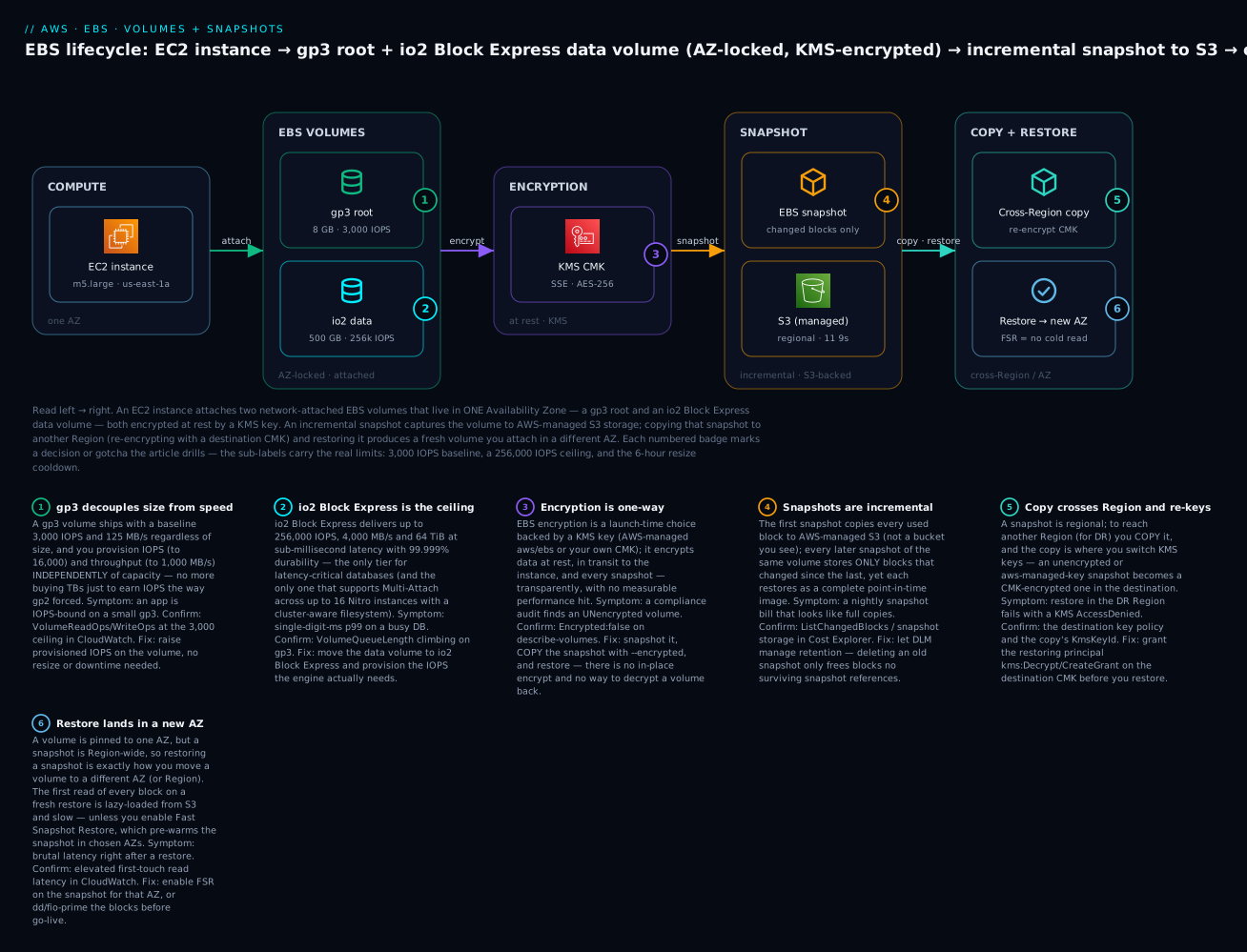
The one-line summary of which stage does what — the mental index for the rest of the article:
| Stage | The volume/snapshot | The one thing to remember |
|---|---|---|
| Attach | gp3 root + io2 data, one AZ | A volume can’t leave its AZ |
| Encrypt | KMS key, at rest + in transit | On is permanent; off is impossible |
| Snapshot | Incremental, to S3, Region-wide | First is full, rest are deltas |
| Copy | Cross-Region, re-encrypt | Snapshots are Regional; copy for DR |
| Restore | New volume, any AZ | This is how you cross an AZ boundary |
Real-world scenario
Meridian Health Analytics, a 40-person startup processing clinical datasets, ran a PostgreSQL database on a single r5.xlarge with a 500 GiB gp2 data volume — the default their first engineer picked in 2021 and nobody revisited. Three things came due at once.
First, cost. A FinOps review flagged that all 22 volumes across their fleet were gp2. Converting every one to gp3 with a single modify-volume per volume — online, no downtime — cut the EBS line item by 20%, about $310/month, and for the database volume specifically it raised baseline IOPS from 1,500 (3×500) to a flat 3,000 at the same time. One afternoon, no maintenance window, cheaper and faster.
Second, performance. As data grew, the Postgres volume started hitting the wall during nightly batch loads — BurstBalance on the old gp2 volume had been draining to near-0% and queries stalled for minutes. That symptom had already pushed them toward the gp3 migration, but analysis showed the batch window needed a guaranteed 9,000 IOPS. On gp3 that was a $30/month IOPS bump on the existing volume; on the old gp2 model it would have meant provisioning a 3,000 GiB volume they didn’t need. They dialed gp3 to 9,000 IOPS with one API call and the batch window dropped from 40 minutes to 11.
Third, compliance. The clinical data triggered an audit, and the finding was blunt: the database volume was unencrypted. There is no in-place encrypt, so they used the copy trick — snapshot the volume, copy-snapshot --encrypted with a customer-managed KMS key (chosen over aws/ebs specifically so they could later share DR snapshots to a separate backup account), create a new encrypted gp3 volume from the copy, then a 12-minute maintenance window to stop Postgres, detach the plaintext volume, attach the encrypted one at the same device name, and start. They set encrypt-by-default on the account so no future volume could ship unencrypted, and stood up a DLM policy: daily snapshots tagged Backup=daily, keep 7, plus a cross-Region copy to us-west-2 for DR.
The before/after captured it:
| Aspect | Before | After |
|---|---|---|
| Volume type | gp2, 500 GiB | gp3, 500 GiB, 9,000 IOPS |
| Baseline IOPS | 1,500 (+ draining burst) | 9,000 (flat, guaranteed) |
| Batch window | ~40 min (throttled) | 11 min |
| Encryption | None (audit finding) | KMS CMK, encrypt-by-default on |
| Backups | Ad-hoc, manual | DLM daily, keep 7, cross-Region copy |
| EBS cost (fleet) | baseline | -20% (~$310/mo) even after adding IOPS |
| DR posture | Single AZ, single Region | Snapshots in 2 Regions, restorable to any AZ |
The lesson the lead wrote up: “Every one of these was a five-minute change we’d deferred for two years. gp3 wasn’t a migration project — it was one API call per volume. Encryption wasn’t downtime — it was one 12-minute window. The only expensive thing here was not doing it sooner.”
Advantages and disadvantages
The honest two-column view of building on EBS:
| Advantages of EBS | Disadvantages / what to watch |
|---|---|
| Real block disk — boot, partition, format, any filesystem | Single-AZ; you own AZ/Region resilience via snapshots |
| Durable — survives instance stop/terminate | A stopped instance still bills full EBS storage |
| Fully elastic — grow size/IOPS/throughput live, no downtime | Filesystem grow is a separate step people forget |
| gp3 decouples IOPS/throughput from size — cheap + flexible | Wrong type (gp2 legacy, HDD for a DB) silently hurts |
| Snapshots are incremental, cheap, cross-Region copyable | Snapshots are crash-consistent unless you quiesce first |
| Encryption is transparent and free of perf cost | One-way; encrypting an existing volume needs the copy dance |
| Multi-Attach for HA clusters (io1/io2) | Multi-Attach + plain ext4/xfs = corruption |
| Per-second-ish billing, only pay above baseline | Provisioned IOPS on io2 gets expensive at scale |
When each side matters: for the default case — a boot disk or a normal app/DB volume — the advantages dominate and gp3 is a no-brainer. The disadvantages bite at the edges: multi-AZ resilience (you must design it with snapshots and AWS Backup), cost hygiene (stopped instances, stray snapshots, over-provisioned io2), and the two silent-failure traps (fstab boot-hang, forgetting the filesystem resize). Every one is avoidable with the practices below.
Hands-on lab
You’ll create a gp3 data volume, attach it to a running instance, format and mount it persistently (fstab by UUID with nofail), write data, snapshot it, grow it live and extend the filesystem, restore the snapshot into a different AZ, and encrypt an unencrypted volume via the copy trick — then tear everything down. Everything is aws CLI first; a Terraform version follows. Region is us-east-1; the instance is assumed running in us-east-1a. Replace IDs with yours.
⚠️ Cost note: A small gp3 volume, snapshots and one short io2/FSR touch cost a few cents for a lab hour — but FSR (~$0.75/AZ/hr) and stray volumes/snapshots are the ones that add up. Do the teardown at the end; leaving an unattached volume or a forgotten snapshot bills every month.
Step 1 — Create a gp3 volume in the instance’s AZ
AZ=us-east-1a
VOL=$(aws ec2 create-volume --availability-zone $AZ \
  --size 10 --volume-type gp3 --iops 3000 --throughput 125 --encrypted \
  --tag-specifications 'ResourceType=volume,Tags=[{Key=Name,Value=lab-data},{Key=Backup,Value=daily}]' \
  --query VolumeId --output text)
aws ec2 wait volume-available --volume-ids $VOL
echo "Volume: $VOL"        # → vol-0...
Step 2 — Attach it to your instance
INST=i-0yourinstance
aws ec2 attach-volume --volume-id $VOL --instance-id $INST --device /dev/sdf
aws ec2 wait volume-in-use --volume-ids $VOL
Step 3 — Discover, format, mount (on the instance)
SSH or Session Manager in, then:
lsblk                                    # find the new device, e.g. nvme1n1 (no MOUNTPOINT)
sudo file -s /dev/nvme1n1                # MUST say "data" (empty) before mkfs
sudo mkfs -t xfs /dev/nvme1n1            # format
sudo mkdir -p /data
sudo mount /dev/nvme1n1 /data
df -h /data                              # → ~10G mounted at /data
Step 4 — Persist across reboot (fstab by UUID + nofail)
UUID=$(sudo blkid -s UUID -o value /dev/nvme1n1)
echo "UUID=$UUID  /data  xfs  defaults,nofail  0  2" | sudo tee -a /etc/fstab
sudo umount /data && sudo mount -a        # TEST the fstab line before any reboot
df -h /data                               # still mounted → line is correct
echo "hello ebs $(date)" | sudo tee /data/proof.txt
Step 5 — Snapshot the volume
SNAP=$(aws ec2 create-snapshot --volume-id $VOL \
  --description "lab-snapshot" \
  --tag-specifications 'ResourceType=snapshot,Tags=[{Key=Name,Value=lab-snap}]' \
  --query SnapshotId --output text)
aws ec2 wait snapshot-completed --snapshot-ids $SNAP
echo "Snapshot: $SNAP"
Step 6 — Grow the volume live and extend the filesystem
# AWS: grow 10 → 20 GiB (no downtime)
aws ec2 modify-volume --volume-id $VOL --size 20
aws ec2 describe-volumes-modifications --volume-id $VOL \
  --query 'VolumesModifications[0].[ModificationState,Progress]' --output text
# On the instance: extend the xfs filesystem to fill the bigger disk
sudo xfs_growfs /data
df -h /data                               # now ~20G — the FS caught up
Step 7 — Restore the snapshot into a DIFFERENT AZ
NEWVOL=$(aws ec2 create-volume --snapshot-id $SNAP \
  --availability-zone us-east-1b --volume-type gp3 \
  --tag-specifications 'ResourceType=volume,Tags=[{Key=Name,Value=lab-restored-1b}]' \
  --query VolumeId --output text)
aws ec2 wait volume-available --volume-ids $NEWVOL
# This volume is in us-east-1b — attachable to any instance there, proving snapshot = Region-wide.
Step 8 — Encrypt an unencrypted volume via copy (the trick)
# (Suppose you had an UNENCRYPTED snapshot snap-plain.) Copy it, turning encryption ON:
ENC=$(aws ec2 copy-snapshot --source-region us-east-1 --source-snapshot-id $SNAP \
  --encrypted --kms-key-id alias/aws/ebs --description "encrypted-copy" \
  --query SnapshotId --output text)
aws ec2 wait snapshot-completed --snapshot-ids $ENC
# A volume from $ENC is encrypted; this is the only path to encrypt existing data.
Step 9 — (Optional) turn on encrypt-by-default so this never happens again
aws ec2 enable-ebs-encryption-by-default
aws ec2 get-ebs-encryption-by-default          # → "EbsEncryptionByDefault": true
Step 10 — Teardown (do this — it bills)
# On the instance: unmount and REMOVE the fstab line first (else next boot fails)
sudo umount /data
sudo sed -i "/$(sudo blkid -s UUID -o value /dev/nvme1n1)/d" /etc/fstab
# AWS: detach and delete every volume and snapshot you made
aws ec2 detach-volume --volume-id $VOL
aws ec2 wait volume-available --volume-ids $VOL
aws ec2 delete-volume --volume-id $VOL
aws ec2 delete-volume --volume-id $NEWVOL
aws ec2 delete-snapshot --snapshot-id $SNAP
aws ec2 delete-snapshot --snapshot-id $ENC
Confirm each stage before moving on — most lab failures are a skipped checkpoint:
| Checkpoint | Command | Pass looks like |
|---|---|---|
| Volume available | aws ec2 describe-volumes --volume-ids $VOL |
State: available then in-use |
| Device visible | lsblk (on instance) |
New nvme1n1, no mountpoint |
| Empty before mkfs | sudo file -s /dev/nvme1n1 |
Says data |
| Mounted | df -h /data |
~10G at /data |
| fstab correct | sudo mount -a after umount |
No error, still mounted |
| Snapshot done | aws ec2 wait snapshot-completed |
Returns cleanly |
| Grow applied | df -h /data after xfs_growfs |
~20G |
| Restored elsewhere | describe-volumes … AvailabilityZone |
us-east-1b |
And the Terraform equivalent for the create-attach-snapshot core (with terraform destroy teardown):
provider "aws" { region = "us-east-1" }

resource "aws_ebs_volume" "data" {
  availability_zone = "us-east-1a"
  size              = 10
  type              = "gp3"
  iops              = 3000
  throughput        = 125
  encrypted         = true
  tags = { Name = "lab-data", Backup = "daily" }
}

resource "aws_volume_attachment" "data" {
  device_name = "/dev/sdf"
  volume_id   = aws_ebs_volume.data.id
  instance_id = "i-0yourinstance"       # your running instance in us-east-1a
}

resource "aws_ebs_snapshot" "data" {
  volume_id   = aws_ebs_volume.data.id
  description = "lab-snapshot"
  tags        = { Name = "lab-snap" }
}

# Restore into a DIFFERENT AZ from that snapshot
resource "aws_ebs_volume" "restored_1b" {
  availability_zone = "us-east-1b"
  snapshot_id       = aws_ebs_snapshot.data.id
  type              = "gp3"
  tags              = { Name = "lab-restored-1b" }
}

output "volume_id"   { value = aws_ebs_volume.data.id }
output "snapshot_id" { value = aws_ebs_snapshot.data.id }
Common mistakes & troubleshooting
This is the section you’ll return to mid-incident. Storage failures are quiet until they aren’t. The playbook first — symptom, root cause, the exact command or console path to confirm, and the fix — then references and the two nastiest failures in prose.
| # | Symptom | Root cause | Confirm (exact command / console path) | Fix |
|---|---|---|---|---|
| 1 | Attached the volume, but it’s not in lsblk |
OS didn’t rescan, or you’re on the wrong instance | lsblk shows no new device; aws ec2 describe-volumes --volume-ids $VOL shows in-use on this instance |
sudo rescan-scsi-bus.sh, or detach/re-attach; on Nitro it usually appears immediately — recheck the instance ID |
| 2 | Instance won’t boot after editing /etc/fstab |
Bad UUID / missing filesystem and no nofail → mount blocks boot |
EC2 serial console shows it hung on mount; Get System Log |
Detach root, attach to a helper instance, fix/remove the fstab line, reattach — always add nofail |
| 3 | Grew the volume but df still shows old size |
Resized the volume, not the filesystem | lsblk shows the big device; df -h shows the small FS |
sudo growpart /dev/nvme1n1 1 (if partitioned) then resize2fs/xfs_growfs |
| 4 | mkfs wiped my data |
Formatted a device that already had a filesystem | Data gone; you skipped file -s |
Restore from snapshot; always sudo file -s first (it says data only when empty) |
| 5 | Database crawls under load on a small gp2 | gp2 BurstBalance drained to ~0% | CloudWatch BurstBalance metric near 0 |
Convert to gp3 and provision the needed IOPS (modify-volume) |
| 6 | gp3 volume hits an IOPS wall | gp3 left at the 3,000 baseline, workload needs more | CloudWatch VolumeReadOps/WriteOps pinned at 3,000; high VolumeQueueLength |
modify-volume --iops <n> (up to 16,000); no downtime |
| 7 | Can’t attach the volume to an instance | AZ mismatch — volume in 1a, instance in 1b | describe-volumes … AvailabilityZone ≠ instance’s AZ |
Snapshot → create-volume from it in the instance’s AZ |
| 8 | VolumeInUse — can’t attach |
Volume already attached to another instance | describe-volumes … Attachments shows another instance |
Detach first (or use Multi-Attach only with io2 + cluster FS) |
| 9 | Slow first reads right after a snapshot restore | Blocks lazy-load from S3 on first touch (no FSR) | High first-touch read latency; VolumeIdleTime low but slow |
Enable Fast Snapshot Restore for that AZ, or dd/fio-prime the blocks |
| 10 | KMS AccessDenied creating/attaching an encrypted volume |
Principal lacks kms:Decrypt/CreateGrant on the key |
CloudTrail Decrypt event AccessDenied; check key policy |
Grant the role kms:Decrypt,GenerateDataKey,CreateGrant on the CMK |
| 11 | Cross-account snapshot share fails or restores denied | Snapshot encrypted with aws/ebs default key (unshareable) |
describe-snapshots … KmsKeyId = aws/ebs; share errors |
Re-copy-snapshot --encrypted with a CMK; grant target account on the key policy |
| 12 | modify-volume rejected (“too frequent”) |
Second modification within 6 hours | Error: modification not allowed yet | Wait ~6h (or for the prior to finish); batch changes into one call |
| 13 | Bill higher than expected after “deleting” things | Stray unattached volumes and old snapshots still bill | describe-volumes --filters Name=status,Values=available; describe-snapshots --owner self |
Delete unattached volumes; prune snapshots (or let DLM retain-rule do it) |
| 14 | Volume stuck in optimizing for hours |
Large IOPS/throughput change is applying | describe-volumes-modifications … ModificationState=optimizing |
It’s usable throughout; just wait — perf ramps to target |
| 15 | Multi-Attach volume corrupted | Plain ext4/xfs written by two instances at once | Filesystem errors on both; not a cluster FS | Restore from snapshot; use a cluster-aware FS (GFS2) with Multi-Attach |
| 16 | Data volume gone after instance terminate | DeleteOnTermination=true on a data volume |
describe-instances … BlockDeviceMappings had it true |
Restore from snapshot; set data volumes to false |
The EBS error/status reference — the strings and states you’ll actually see:
| Status / error | Where | Meaning | Fix |
|---|---|---|---|
creating → available |
volume state | Provisioning, then ready to attach | Wait for available |
in-use |
volume state | Attached to an instance | Normal when attached |
optimizing |
modification state | New IOPS/throughput applying | Usable; wait for completed |
error |
volume state | Provisioning failed | Delete and recreate; check limits |
VolumeInUse |
attach error | Already attached (non-Multi-Attach) | Detach first |
IncorrectState |
attach/delete error | Wrong state for the op (e.g. still attached) | Detach/stop as required |
InvalidVolume.ZoneMismatch |
attach error | Volume AZ ≠ instance AZ | Snapshot → restore into the right AZ |
KMS AccessDenied |
create/attach | No key permission | Grant kms:Decrypt/CreateGrant |
VolumeModificationRateExceeded |
modify error | Modified within 6h | Wait and retry |
SnapshotCreationPerVolumeRateExceeded |
snapshot error | Too many snapshots too fast | Throttle; use DLM scheduling |
pending (snapshot) |
snapshot state | Still copying blocks | Wait for completed |
And the fast decision table — observation to likely cause:
| If you see… | It’s probably… | Do this |
|---|---|---|
New volume missing from lsblk |
Wrong instance, or needs rescan | Verify instance ID; rescan/re-attach |
| Instance stuck on boot after fstab edit | Missing nofail / bad UUID |
Serial console; fix fstab on a helper instance |
df smaller than the volume |
Filesystem not grown | growpart + resize2fs/xfs_growfs |
| DB fast in demo, slow in prod | gp2 burst bucket drained | Move to gp3, provision IOPS |
Can't attach / ZoneMismatch |
Volume in a different AZ | Snapshot → restore into the instance’s AZ |
KMS AccessDenied |
Key policy / role permission | Grant kms:Decrypt on the CMK |
| Surprise storage bill | Stray volumes/snapshots | Prune available volumes + old snaps |
Two failures deserve emphasis because they cause the most damage. The fstab boot-hang (row 2) is the scariest because it locks you out entirely: the instance boots far enough to try mounting from /etc/fstab, the mount fails (missing volume, wrong UUID, wrong filesystem type), and without nofail the boot process stops and waits, so you get no SSH, no Session Manager, just a hung instance. Recovery is mechanical but tedious: stop the instance, detach its root volume, attach it as a data volume to a second “rescue” instance, mount it there, fix (or delete) the offending /etc/fstab line, detach, reattach to the original as its root, and boot. You avoid the whole ordeal by always adding nofail and always running sudo mount -a to test the line before you reboot. The second is the resize-without-filesystem-grow (row 3): it’s not dangerous, just baffling, and it accounts for a huge share of “I grew my disk but it’s still full” tickets — the volume and the filesystem are two layers, and modify-volume only touches the bottom one.
Best practices
- Default to gp3, everywhere. It’s cheaper than gp2 and gives a flat 3,000 IOPS/125 MB/s with IOPS and throughput bought independently of size. Migrate existing gp2 with a single online
modify-volume. - Encrypt every volume, and turn on encrypt-by-default. It’s free of performance cost and one flag per Region (
enable-ebs-encryption-by-default). Use a customer-managed KMS key if you’ll ever share snapshots cross-account. - In
/etc/fstab, always useUUID=and always addnofailon data volumes — and runsudo mount -ato test the line before you ever reboot. This single rule prevents the worst EBS incident (boot-hang). - After growing a volume, grow the filesystem (
growpart+resize2fs/xfs_growfs). The volume resize and the filesystem resize are two separate operations. - Automate snapshots with DLM (or AWS Backup): tag volumes, set a schedule and retention, and add a cross-Region copy for DR. Don’t hand-run
create-snapshotin cron. - Right-size IOPS to the workload. Watch
VolumeQueueLengthandBurstBalance; provision gp3 IOPS up to 16,000 before reaching for io2, and only pay for io2 when you need five-nines durability, sub-ms latency, or >16,000 IOPS. - Remember a stopped instance still bills its EBS volumes at full storage price. Delete unattached (
available) volumes and prune stale snapshots — they are the top stealth cost. - Set
DeleteOnTerminationdeliberately —falseon data volumes so they survive an instance terminate;trueon root unless you need to keep it. - Never use Multi-Attach with a plain filesystem. io1/io2 Multi-Attach requires a cluster-aware filesystem (GFS2); ext4/xfs written by two instances corrupts.
- Match the type to the I/O shape: SSD (gp3/io2) for IOPS and databases; HDD (st1/sc1) for big sequential throughput; never a transactional DB on st1/sc1.
- Test restores, not just backups. A snapshot you’ve never restored is a hope, not a backup — periodically create a volume from it and mount it.
Security notes
Storage security is mostly about encryption, key control, and not leaking data through snapshots. The posture, row by row:
| Concern | Weak default | Least-privilege / hardened control |
|---|---|---|
| Data at rest | Unencrypted volume | KMS-encrypted, encrypt-by-default on |
| Key control | aws/ebs managed key |
Customer-managed CMK with a scoped key policy |
| Who can use the key | Broad kms:* |
Only the roles that launch/attach get Decrypt,GenerateDataKey,CreateGrant |
| Snapshot exposure | Snapshot shared/public | Never make snapshots public; share to specific accounts via CMK only |
| Cross-account DR | Default-key snapshot (unshareable) | CMK-encrypted snapshot + target account granted on the key |
| Deletion safety | Hard-delete, no recovery | Recycle Bin retention rules for volumes/snapshots |
| Audit | None | CloudTrail on Create/Attach/Detach/Delete volume+snapshot and KMS Decrypt |
| Blast radius | One key, one account | Separate CMKs per environment; DR copies to an isolated account |
Two points to emphasize. First, a public snapshot is a data breach. modify-snapshot-attribute can mark a snapshot public; doing so to a snapshot with real data exposes it to the entire world, and this has caused real leaks. Encrypt everything (an encrypted snapshot cannot be made public), and audit for createVolumePermission = all. Second, the CMK key policy is the real access control for the data — anyone who can kms:Decrypt with the key can read any volume it encrypts. Scope the key policy tightly, keep it separate per environment, and log KMS Decrypt in CloudTrail so you can see who read what.
Cost & sizing
EBS bills for three things: provisioned storage (per GB-month, whether or not the volume is attached or the instance is running), provisioned IOPS/throughput above baseline (gp3/io1/io2), and snapshot storage (per GB-month of changed blocks). The drivers, with us-east-1 rates:
| Cost component | Rate (us-east-1, approx) | Notes |
|---|---|---|
| gp3 storage | $0.08/GB-mo | + $0.005/IOPS >3,000, + $0.04/MB/s >125 |
| gp2 storage | $0.10/GB-mo | No separate IOPS charge (size-derived) — but dearer |
| io2 storage | $0.125/GB-mo | + tiered IOPS ($0.065/IOPS, cheaper above 32k) |
| st1 / sc1 | $0.045 / $0.015/GB-mo | HDD; throughput-based; no IOPS charge |
| Snapshots (standard) | $0.05/GB-mo | Of changed blocks (incremental) |
| Snapshot archive | $0.0125/GB-mo | Min 90 days; 24-72h restore + retrieval fee |
| Fast Snapshot Restore | ~$0.75/hr per snapshot per AZ | Enable only when you need warm restores |
| Stopped instance’s volumes | Full storage rate | A stopped instance is not free |
Rough anchors: a 500 GiB gp3 database volume at baseline is $40/month (~₹3,400 at ~₹86/$); the same on gp2 is $50; on io2 with 20,000 IOPS it’s $62.50 storage + IOPS charges, easily $200+. A 10 GiB lab volume is $0.80/month — trivial, but a forgotten one bills forever. The free tier includes 30 GB of gp2/gp3, 1 GB of snapshots, and 2M I/Os for 12 months. The three biggest wastes, in order: stopped instances whose volumes still bill, unattached (available) volumes nobody deleted, and stale snapshots with no retention policy. Sizing discipline: start gp3 at baseline, watch VolumeQueueLength/BurstBalance, and raise IOPS only when the metrics say so — don’t pre-buy io2 “to be safe.”
Interview & exam questions
Q1. What is the single biggest difference between gp2 and gp3, and why does it save money? gp3 decouples IOPS and throughput from volume size: every gp3 gets a flat 3,000 IOPS/125 MB/s regardless of size, and you provision more independently. gp2 ties IOPS to size (3 IOPS/GiB), forcing you to overbuy capacity for performance. gp3 is also ~20% cheaper per GB. (CLF-C02, SAA-C03)
Q2. A volume is in us-east-1a but you need it attached to an instance in us-east-1b. How?
A volume is AZ-locked — you can’t move it. Take a snapshot (which is Region-wide), then create-volume from the snapshot in us-east-1b. That new volume attaches to the 1b instance. (SAA-C03, SOA-C02)
Q3. You grew an EBS volume from 100 to 200 GiB but df still shows 100 GiB. Why, and what’s the fix?
modify-volume grew the volume, not the filesystem. Extend the partition if present (growpart) then the filesystem (resize2fs for ext4, xfs_growfs for xfs). Both are online, no downtime. (SOA-C02)
Q4. How do you encrypt an existing, running, unencrypted volume?
You can’t encrypt in place. Snapshot it, copy-snapshot --encrypted with a KMS key, create a new volume from the encrypted copy, then swap it in (stop, detach, attach, start). Encryption is one-way — no decrypt. (SAA-C03, SCS-C02)
Q5. Why can’t you share a snapshot encrypted with the default aws/ebs key to another account?
The default AWS-managed key can’t be shared. Cross-account snapshot sharing requires a customer-managed KMS key whose key policy grants the target account kms:Decrypt/CreateGrant. Copy the snapshot re-encrypting with a CMK first. (SCS-C02, SAA-C03)
Q6. What makes EBS snapshots cheap despite frequent backups? They’re incremental: the first copies all used blocks, each later one stores only changed blocks — yet every snapshot restores as a full image. Deleting one frees only blocks no surviving snapshot references. (CLF-C02, SAA-C03)
Q7. A database is fast in a demo but crawls under sustained load on a small gp2 volume. What’s happening? gp2’s I/O credit / BurstBalance bucket drained. Small gp2 volumes burst to 3,000 IOPS from a finite bucket; under sustained load they fall back to the 3-IOPS/GiB baseline. Move to gp3 and provision the IOPS. (SOA-C02, SAA-C03)
Q8. When do you choose io2 Block Express over gp3? When you need >16,000 IOPS on one volume, >16 TiB, sub-millisecond latency, or 99.999% durability. Below those, gp3 (≤16,000 IOPS) is far cheaper and sufficient. (SAA-C03)
Q9. What’s the one /etc/fstab mistake that stops an instance from booting, and how do you prevent it?
A failing mount without nofail blocks boot (bad UUID, missing volume). Prevent it by using UUID= (not device names, which reorder on Nitro), adding nofail, and running sudo mount -a to test before rebooting. (SOA-C02)
Q10. What are the requirements and dangers of EBS Multi-Attach? Multi-Attach works only on io1/io2, up to 16 Nitro instances in the same AZ. The danger: standard filesystems (ext4/xfs) aren’t cluster-aware and corrupt under concurrent writes — you must use a cluster-aware filesystem like GFS2. (SAA-C03)
Q11. Your restored volume has terrible read latency for a while after a snapshot restore. Why, and how do you fix it?
Restored blocks lazy-load from S3 on first read. Enable Fast Snapshot Restore on the snapshot for that AZ to pre-initialize it, or force-hydrate with dd/fio. FSR costs ~$0.75/AZ/hr. (SOA-C02, SAA-C03)
Q12. Is a stopped EC2 instance free? What still bills? No. Compute stops billing, but the instance’s EBS volumes still bill at full storage rate, plus any snapshots and Elastic IPs. Delete unattached volumes and stale snapshots to control cost. (CLF-C02)
Quick check
- Why is gp3 both cheaper and more flexible than gp2 for a database that needs 8,000 IOPS?
- You need to move a volume from
us-east-1atous-east-1c. What’s the one mechanism that lets you do it? - After
modify-volume --size 200, what two OS-level commands might you still need, and why? - In
/etc/fstab, what two things must a data-volume line always include to be safe? - How do you encrypt an existing unencrypted volume, in four words of operation?
Answers
- gp3 gives a flat 3,000 IOPS baseline and lets you provision the extra 5,000 IOPS independently of size for a small per-IOPS fee; gp2 would force you to buy a ~2,667 GiB volume (3 IOPS/GiB) to reach 8,000 IOPS. gp3 is also ~20% cheaper per GB.
- A snapshot. Snapshots are Region-wide, so you snapshot the AZ-locked volume and
create-volumefrom it inus-east-1c. growpart(if the disk is partitioned) to expand the partition, thenresize2fs(ext4) orxfs_growfs(xfs) to grow the filesystem — becausemodify-volumegrows the volume, not the filesystem.- The
UUID=of the filesystem (never the device name, which reorders on Nitro) and thenofailoption (so a failed mount doesn’t hang boot). - Snapshot, copy
--encrypted, restore. (Then swap the new encrypted volume in.)
Glossary
| Term | Definition |
|---|---|
| EBS | Elastic Block Store — network-attached block storage for EC2; the durable virtual disk an instance boots from and stores data on. |
| Volume | A single EBS block device, created in and locked to one Availability Zone; has a type, size, and (for SSD) IOPS/throughput. |
| gp3 | The default General Purpose SSD; flat 3,000 IOPS/125 MB/s baseline with IOPS/throughput provisioned independently of size. |
| gp2 | The legacy General Purpose SSD; IOPS derived from size (3 IOPS/GiB) with a finite burst bucket — migrate to gp3. |
| io2 / io2 Block Express | Provisioned IOPS SSD with 99.999% durability; Block Express reaches 256,000 IOPS, 4,000 MB/s, 64 TiB, sub-ms latency. |
| st1 / sc1 | Throughput-Optimized and Cold HDD types for large sequential workloads; cannot boot; poor at random IOPS. |
| IOPS | I/O operations per second — the random-small-op metric that matters for databases. |
| Throughput | Megabytes per second of sequential data — the metric for streaming/log/ETL workloads. |
| Snapshot | An incremental, Region-wide, point-in-time copy of a volume stored in AWS-managed S3; used for backup, cloning, and AZ/Region moves. |
| Incremental | Each snapshot after the first stores only changed blocks, yet restores as a complete image. |
| DLM | Data Lifecycle Manager — tag-based automation of snapshot creation, retention, and cross-Region copy. |
| Fast Snapshot Restore (FSR) | A per-AZ setting that pre-initializes a snapshot so restored volumes skip the cold first-read penalty. |
| KMS key | The AWS Key Management Service key that encrypts a volume; aws/ebs (managed) or a customer-managed CMK. |
| Multi-Attach | Attaching one io1/io2 volume to up to 16 same-AZ instances; requires a cluster-aware filesystem to avoid corruption. |
/etc/fstab |
The Linux table that auto-mounts filesystems at boot; reference volumes by UUID and use nofail to avoid boot hangs. |
| Delete on termination | The per-volume flag that deletes the volume when its instance terminates; default true on root, false on data. |
| Instance store | Ephemeral, physically-attached NVMe storage — fastest, but lost on stop/terminate and not snapshottable. |
Next steps
- Right-size the instance the volume attaches to (and understand EBS-optimized bandwidth as an instance limit) in EC2 Instance Types and Families: How to Choose the Right Size.
- Revisit where a volume attaches and how you reach the box in Launch Your First EC2 Instance and Connect: SSH, Instance Connect & Session Manager.
- Contrast block storage with object storage — and learn lifecycle tiering — in S3 Storage Classes and Lifecycle Policies.
- Graduate from DLM to centralized, policy-driven, cross-account protection in AWS Backup and Disaster-Recovery Strategies.