You have a container. It listens on a port, it serves HTTP, and it works on your laptop. Now you need it running in Azure — reachable on HTTPS, with a real certificate, scaling up when traffic arrives and, crucially, costing nothing when nobody is calling it. You do not want to manage a Kubernetes cluster to get that, you do not want to babysit VMs, and you do not want a fixed monthly bill for an idle API. Azure Container Apps is the service built for exactly this: a serverless container platform that runs your image on a managed Kubernetes-plus-Envoy-plus-KEDA fabric you never see, gives you HTTPS ingress for free, and scales your app between zero and many replicas based on incoming requests.
This article is a complete, copy-pasteable implementation guide. We deploy one real HTTP microservice from nothing to a working, publicly reachable, scale-to-zero endpoint — three ways: click-by-click in the Azure portal, command-by-command with the az containerapp CLI, and declaratively as a Bicep template you can commit and redeploy. Along the way you will set the target ingress port, write the KEDA HTTP scale rule that takes the app to zero when idle and back up under load, add liveness and readiness probes, push a second revision and split traffic, and read the logs that tell you what actually happened. Every step states the command, the portal path, and the output you should see, so you can tell success from a silent failure.
By the end you will have a running endpoint, a Bicep file under version control, and — more valuable — a clear mental model of the four moving parts (environment, app, revision, replica), the ingress contract, and the scale rule. That model is what takes you from “it deployed” to “I know why it scaled, why it cost what it cost, and where to look when it returns a 503.” Scope stays tight: one microservice, the Consumption plan, real numbers, and a teardown so you owe Azure nothing.
What problem this solves
The gap this fills is the awkward middle between “too little” and “too much” platform. Azure Functions is great for event glue but fights you when you want an arbitrary container, a long-lived process, or a framework expecting a normal HTTP server. Azure Kubernetes Service (AKS) gives total control and total responsibility — a control-plane bill, node pools, upgrades, the ingress controller, cert-manager, and the 3 a.m. page when a node goes NotReady. App Service runs containers well but is a fixed-instance PaaS: even its cheapest always-on tiers bill while idle. What many teams actually want — run my container, give it HTTPS, scale it from zero, send me a per-second bill — fell between those stools until Container Apps.
What breaks without it is mostly economic and operational. Teams over-provision: a B1 App Service plan or a two-node AKS cluster runs 24/7 to serve an internal API that gets forty requests a day, and the bill is identical whether the traffic is forty or forty thousand. Or they reach for AKS for a three-service app and sink the first two sprints into cluster plumbing — ingress, TLS, observability, RBAC — before shipping a feature. The cost of the wrong floor is paid every month; the cost of the wrong ceiling is paid in engineering time on infrastructure you did not need.
Who hits this: anyone shipping an HTTP microservice, an internal API, a background worker, or a small set of services that talk to each other, and who wants serverless economics with container flexibility. It bites hardest on cost-sensitive teams (scale-to-zero is the whole point), small teams without a platform engineer (no cluster to operate), and anyone migrating a Docker Compose app to the cloud. Container Apps is the answer to “I have a container and I want it on the internet, cheaply, without operating Kubernetes.”
To frame the field before the deep dive, here is what Container Apps gives you, what it deliberately does not, and where each gap sends you:
| You want… | Container Apps gives you | If you need more… | Go to |
|---|---|---|---|
| Run any container over HTTP | Managed Envoy ingress, free TLS | Raw kubectl, CRDs, operators |
AKS |
| Pay nothing when idle | Scale-to-zero (min replicas 0) | Always-warm, no cold start | App Service / Dedicated profile |
| Event-driven autoscale | KEDA built in (HTTP, queue, custom) | Bespoke scheduling, GPUs at scale | AKS |
| Service-to-service calls | Internal ingress + optional Dapr | Full service mesh (mTLS policy, etc.) | AKS + Istio/Linkerd |
| Smallest step from Docker | One image → one app → one URL | Full control of the node OS | VMs / AKS |
Learning objectives
By the end of this article you can:
- Explain the Container Apps object model — environment → app → revision → replica — and what each boundary controls.
- Deploy a public HTTP microservice from a container image three ways: the portal, the
az containerappCLI, and a Bicep template, end to end. - Configure managed ingress correctly: external vs internal, the target port contract, transport (
auto/http/http2/tcp), and how the FQDN is formed. - Write a KEDA HTTP scale rule that takes the app to zero replicas when idle and scales out under concurrency, and explain
minReplicas,maxReplicas, concurrency, cooldown and cold start. - Add liveness, readiness and startup probes and read Log Analytics + the live log stream to confirm the app is healthy.
- Ship a second revision, split traffic for a canary, and roll back — using both single and multiple revision modes.
- Diagnose the common first-deploy failures (wrong port, image pull denied, scaled-to-zero confusion, 503s) with the exact command or blade that confirms each.
- Estimate the bill from the vCPU-second / GiB-second / request model, use the monthly free grant, and right-size CPU and memory within the Consumption limits.
Prerequisites & where this fits
You should be comfortable with containers at a basic level: you know what a Docker image is, that a container listens on a port, and roughly what a Dockerfile does. You do not need Kubernetes knowledge — that is the point of Container Apps. You need an Azure subscription (the Azure free account is enough for this lab), the Azure CLI installed locally or access to Cloud Shell, and permission to create resources in a resource group. For the Bicep path, the Deploy Your First Bicep File From Scratch walk-through covers the tooling if it is new to you.
This sits at the entry point of the Compute track for serverless containers. The decision of whether Container Apps is the right runtime — versus App Service or AKS — is made upstream in Azure App Service vs Container Apps vs AKS and, for the container-specific cut, AKS vs Container Apps vs Container Instances. Assume you have already decided Container Apps fits; this article is the build. Downstream of it, event-driven scaling beyond HTTP is covered in Event-Driven Autoscaling on AKS with KEDA (the same KEDA you use here, in its AKS form), and observability in Azure Monitor and Application Insights.
A quick map of where each moving part lives, so you know which layer to reach for when something misbehaves:
| Layer | What lives here | You configure | Failure it can cause |
|---|---|---|---|
| Environment | Shared boundary, Log Analytics, VNet, profiles | Region, logging, networking | All apps unreachable; log gaps |
| Container app | Ingress, scale rules, secrets, identity | Port, min/max replicas, image | 503, wrong port, pull failure |
| Revision | Immutable snapshot of a config | Traffic split, activation | Bad rollout, traffic to wrong rev |
| Replica | A running instance (1+ containers) | CPU/memory, probes | OOM, probe failures, restarts |
| Registry (ACR) | Your image | Pull credentials / identity | UNAUTHORIZED, image not found |
Core concepts
Five ideas make every later step obvious. Learn these and the CLI flags stop being magic.
The object model is four nested things. A Container Apps environment is the outer boundary — a secure perimeter apps share, owning the network (it can run in your VNet), the Log Analytics workspace, and the compute profiles. Inside it run container apps, each your service with its own ingress, scaling and secrets. Each app has revisions — immutable snapshots of its config and image; changing the image or a scale setting creates a new revision rather than mutating the old. Each revision runs replicas — the running instances. Scaling adds/removes replicas; deploying adds revisions; networking is set on the environment.
Ingress is managed Envoy, and the port contract is explicit. Enabling ingress runs an Envoy proxy that terminates TLS, gives a stable HTTPS FQDN, and load-balances across replicas. The one thing that matters most: the target port — the port inside your container your process listens on. Envoy takes public traffic on 443 and forwards to it. Get it wrong — target port 80 when your app listens on 8080 — and every request fails health-probing into a 503, even though the container is healthy. Ingress is external (public) or internal (service-to-service only); transport defaults to auto but can be http, http2, or tcp.
Scaling is KEDA, and zero is a first-class replica count. Autoscaling is powered by KEDA (Kubernetes Event-Driven Autoscaling). You define scale rules: an HTTP rule on concurrent requests, a TCP rule on connections, custom rules on queue length, event-hub backlog, CPU/memory, or any KEDA scaler — bounded by minReplicas and maxReplicas. Set minReplicas: 0 and when no requests arrive for a cooldown window, KEDA removes the last replica and the app scales to zero — no compute charge. The next request triggers a cold start (schedule a replica, pull the image, boot the app). Set minReplicas: 1+ to trade that cold start for an always-on idle cost.
Cost is per-second consumption, not per-instance. You are billed for what replicas consume — vCPU-seconds, GiB-seconds, and requests — plus a monthly free grant (180,000 vCPU-seconds, 360,000 GiB-seconds, 2,000,000 requests). Idle replicas bill at a reduced idle rate; a replica scaled to zero bills nothing. That is why scale-to-zero changes the economics: a 0.5 vCPU / 1 GiB API serving forty requests a day sits inside the free grant at effectively zero, where an always-on plan bills 24×30 hours regardless.
Revisions make deployments safe and reversible. A revision is immutable, so a deploy never edits a running thing — it creates a new revision and shifts traffic. Single mode keeps the latest at 100%; multiple mode runs several at once and you split traffic by weight (90/10 for a canary), rolling back by moving the weight. Blue-green and canary with no extra infrastructure — detailed below.
The vocabulary in one table
Before the build, pin every term down. The glossary at the end repeats these for lookup; this is the mental model side by side:
| Term | One-line definition | Where it lives | Why it matters |
|---|---|---|---|
| Environment | Shared secure boundary for apps | Resource group | Network, logging, isolation unit |
| Container app | Your service (ingress + scale + image) | In an environment | The thing you deploy and scale |
| Revision | Immutable config+image snapshot | In an app | Safe deploys, traffic split, rollback |
| Replica | A running instance of a revision | On the fabric | What scales; what you pay for |
| Ingress | Managed Envoy front door (TLS, LB) | App-level | Gives the public/internal FQDN |
| Target port | Port your container listens on | Ingress config | Wrong value → 503 forever |
| Scale rule | KEDA condition that adds replicas | App-level | HTTP/queue/custom triggers |
| minReplicas | Floor on replica count | Scale config | 0 = scale-to-zero (free idle) |
| maxReplicas | Ceiling on replica count | Scale config | Caps cost and blast radius |
| Cold start | First-request latency after zero | Replica lifecycle | The cost of scaling to zero |
| Consumption | Serverless per-second compute profile | Environment profile | Default; up to 4 vCPU / 8 GiB |
| Dapr | Optional microservice sidecar APIs | Per app (opt-in) | Service discovery, pub/sub, state |
Core concept: the ingress and port contract
Ingress is the part first-time deployers get wrong most often, so it earns its own section. When you enable ingress on an app, three settings define the contract. The target port is the port inside the container: your process binds it, Envoy forwards to it, and you state it explicitly with --target-port (the CLI does not read your Dockerfile EXPOSE line). Exposure is external (a public *.<region>.azurecontainerapps.io FQDN) or internal (an *.internal.<region>.azurecontainerapps.io FQDN reachable only from inside the same environment). Transport tells Envoy how to speak to your app.
Here is every ingress setting, its values, default, and the gotcha that bites if you pick wrong:
| Setting | Values | Default | When to change | Gotcha |
|---|---|---|---|---|
| Ingress enabled | on / off | off (CLI) | Any HTTP/TCP service | Off → no FQDN; app is reachable only by other means |
| Exposure | external / internal | external (when on) | Internal-only services | Internal apps get an internal.* FQDN; not public |
| Target port | 1–65535 | none (must set) | Always — match your app | Wrong port → all probes fail → 503 |
| Transport | auto / http / http2 / tcp | auto | gRPC (http2), raw TCP | gRPC needs http2; tcp disables HTTP routing |
| Allow insecure | on / off | off | Local/dev only | On lets plain HTTP through; prefer off |
| Client certificate | ignore / accept / require | ignore | mTLS to the app | require rejects callers without a cert |
| IP restrictions | allow / deny rules | none (all allowed) | Lock down by CIDR | No rules = open to the internet (still TLS) |
| Sticky sessions | none / sticky | none | Stateful UIs | Affinity pins a client to a replica; hurts even scaling |
The FQDN is formed from the app name, a unique environment token, and the region — e.g. app-orders-api.kindpond-1a2b3c4d.eastus.azurecontainerapps.io — and is stable for the life of the app. Internal services are called by their internal FQDN (or just the app name with Dapr). One subtlety: ingress balances across replicas, but the target port is per-container — with a sidecar, only the primary container binds the target port.
Core concept: scale rules and scale-to-zero
This is the headline feature, so we go a layer deeper. A container app’s scale block has three parts: the min, the max, and a list of rules. KEDA evaluates the rules and computes a desired replica count between min and max; the platform reconciles toward it.
The HTTP scale rule is the one you use first. Its one knob that matters is concurrent requests — the in-flight requests KEDA targets per replica, default 10. Set it to 50 with 200 requests in flight and KEDA wants ceil(200 / 50) = 4 replicas. Lower it and the app scales out sooner (more replicas, lower per-replica load, higher cost); raise it and it packs more per replica (fewer replicas, lower cost, more saturation risk). HTTP and TCP rules have no polling interval — they react to live concurrency; polling and cooldown apply to event-driven (custom) rules.
Scale-to-zero is minReplicas: 0 plus nothing keeping a replica alive. When the HTTP rule reports zero in-flight requests for the cooldown period (default 300 s), KEDA removes the final replica. The next request hits ingress, which holds it briefly while a replica starts — the cold start, whose cost depends on image size (pull, cached after first pull on a node), runtime boot, and your app’s startup work.
Here is the scale configuration laid out — every knob, its range, default and trade-off:
| Setting | Range / values | Default | Lower it to… | Raise it to… |
|---|---|---|---|---|
| minReplicas | 0–max | 0 (CLI default is 0) | (0 is the floor) scale to zero, free idle | keep replicas warm, kill cold start |
| maxReplicas | 1–1000 (workload profiles) | 10 | cap cost / blast radius | absorb bigger spikes |
| HTTP concurrency | ≥ 1 | 10 | scale out sooner, lower latency | pack more per replica, lower cost |
| TCP concurrency | ≥ 1 | 10 | (TCP services) same logic as HTTP | — |
| Cooldown (custom) | seconds | 300 | scale down faster after a burst | hold replicas longer post-burst |
| Polling (custom) | seconds | 30 | react to events faster | poll the source less often |
| CPU / memory rule | % threshold | n/a | scale on resource pressure | — |
Two numbers people misremember: the default maxReplicas is 10, not unlimited — a real spike plateaus at ten replicas and sheds load unless you raise it. And the Consumption per-replica ceiling is 4 vCPU / 8 GiB; need more and you move to a Dedicated workload profile (a different billing model, covered in Cost & sizing). CPU and memory follow a fixed ratio — memory in GiB ≈ 2× the vCPU (0.5 vCPU ↔ 1 GiB, 1 vCPU ↔ 2 GiB).
The allowed CPU/memory combinations on the Consumption profile are discrete — you cannot pick arbitrary values. The common ones:
| vCPU | Memory | Typical use | Note |
|---|---|---|---|
| 0.25 | 0.5 GiB | Tiny sidecar, health-only | Smallest; cheapest idle |
| 0.5 | 1.0 GiB | Small API, default starting point | Good first choice |
| 0.75 | 1.5 GiB | Moderate API | — |
| 1.0 | 2.0 GiB | Busy API / light worker | — |
| 2.0 | 4.0 GiB | CPU-heavy service | — |
| 4.0 | 8.0 GiB | Max on Consumption | Beyond this → Dedicated profile |
Health probes — readiness, liveness, startup
Probes are how the platform knows your replica is alive and ready, and they directly affect scaling and rollouts. Container Apps supports the three Kubernetes probe types, because underneath it is Kubernetes. A readiness probe gates traffic — a not-ready replica gets no requests from ingress (vital during cold start and rollout). A liveness probe restarts a wedged replica — repeated failure kills and recreates the container (rescues a deadlock). A startup probe gives slow-booting apps a grace window before liveness kicks in (so a 40-second JVM warm-up isn’t mistaken for a hang). Each probe can be HTTP, TCP, or a command (exec).
The knobs and sane defaults for an HTTP microservice:
| Probe | Purpose | Key fields | Sensible value | If misconfigured |
|---|---|---|---|---|
| Readiness | Gate traffic until ready | path, initialDelaySeconds, periodSeconds, failureThreshold |
/healthz/ready, delay 3 s |
Too strict → replica never gets traffic → 503 |
| Liveness | Restart a hung replica | path, periodSeconds, failureThreshold |
/healthz/live, period 10 s |
Too strict → healthy replica killed in a loop |
| Startup | Grace window for slow boot | path, failureThreshold, periodSeconds |
covers your boot time | Too short → boot mistaken for failure → restart loop |
Two rules from experience: keep readiness and liveness on separate, cheap endpoints — liveness must never check a database (a DB blip then restarts every replica), while readiness can check downstream health so traffic is held during a dependency outage. And size the startup probe’s failureThreshold × periodSeconds to comfortably exceed your worst cold-start boot, or scale-to-zero wake-ups trip into restart loops.
Revisions and traffic splitting
You met revisions in Core concepts; here is how to wield them. The app’s revision mode is single (default) or multiple. In single mode, every meaningful change (new image tag, env var, scale rule) retires the old revision and activates a new one at 100% — right for most services. In multiple mode, new revisions are created but get no traffic until you assign weights, so several serve at once. This is the canary/blue-green lever.
| Mode | New deploy behavior | Traffic | Use when |
|---|---|---|---|
| Single | Old revision retired, new gets 100% | Always 100% latest | Most apps; simplest |
| Multiple | New revision created, 0% until you assign | You split by weight | Canary, blue-green, A/B |
A canary in multiple mode is three steps: deploy the new revision (it gets 0%), shift 10% to it, watch metrics, then shift to 100% — or back to 0% to roll back. Traffic can also target a revision label (a stable alias like canary you point at whichever revision you choose) so testers hit a fixed URL while the underlying revision changes. We do a real split in Step 8 of the lab.
Architecture at a glance
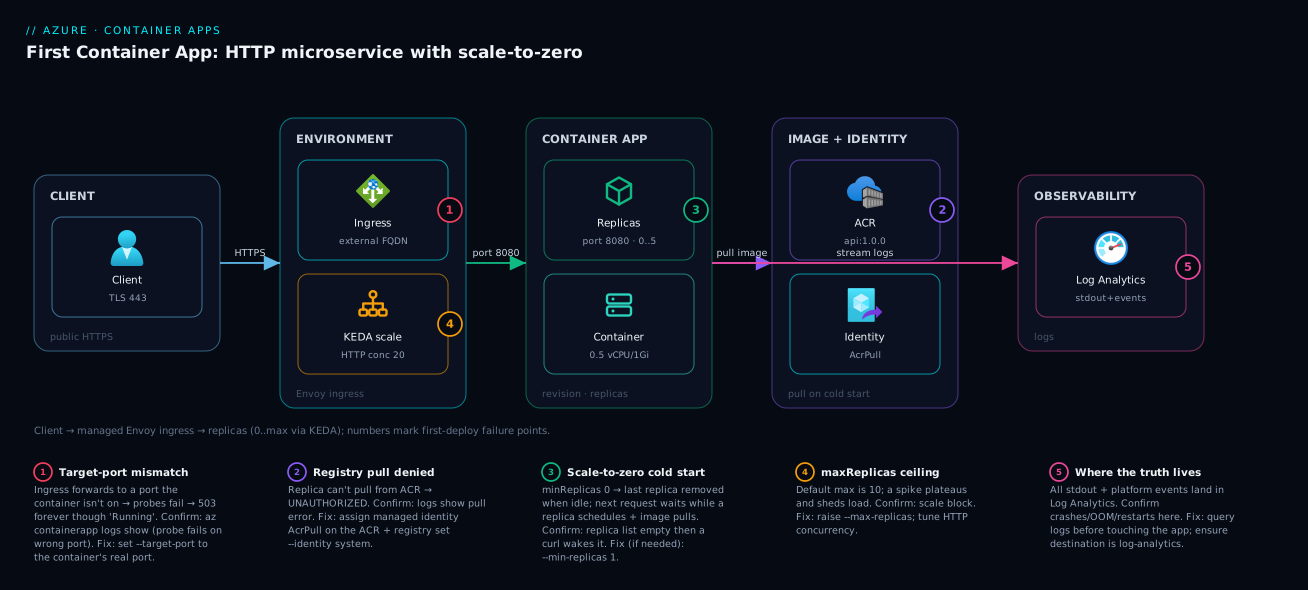
Follow the request left to right. A client resolves the app’s FQDN and opens an HTTPS connection that lands on the Container Apps environment’s managed Envoy ingress, which terminates TLS on 443, applies any IP rules, and forwards to the app’s target port (here 8080) on a healthy replica. KEDA watches the in-flight request count: above the rule’s threshold it adds replicas up to maxReplicas; if requests stop for the cooldown and minReplicas is 0 it removes the last replica and the app scales to zero — so the next request pays a brief cold start while a replica is scheduled and the image is pulled from Azure Container Registry. Every replica streams stdout/stderr and platform events to the environment’s Log Analytics workspace, where you confirm health and read crashes. The app authenticates to the registry (and any Azure service) with a managed identity, so no password lives in config.
The numbered badges mark where a first deploy fails: the target-port handshake (1) where a mismatch produces an endless 503; the registry pull (2) where a missing identity role gives UNAUTHORIZED; the scale-to-zero boundary (3) where the cold start lives; the scale-out ceiling (4) where maxReplicas caps a spike; and the log path (5) where the truth about a crash is recorded. Read the legend as a first-deploy checklist.
Real-world scenario
Northwind Returns runs a customer-returns portal for a mid-size retailer. Their returns-api is a Node.js service: validate a return, look up the order in SQL, write a record, emit an event. Traffic is brutally spiky and time-zoned — near zero overnight, a sharp morning ramp, a lunchtime peak, a long quiet tail. On their old setup, returns-api ran on an App Service P1v2 plan sized for the lunchtime peak, billing 24/7. The monthly compute bill was about ₹11,000 (~US$130) to serve a workload that was genuinely idle for fourteen hours a day. Finance flagged it in a cost review; the team was told to cut it without hurting peak latency.
They moved returns-api to Container Apps on the Consumption profile, sized 0.5 vCPU / 1 GiB per replica, with minReplicas: 0, maxReplicas: 8, and an HTTP scale rule at concurrency 20. The first deploy 503’d for an hour: the container listened on 3000 but the engineer had set --target-port 8080 (copied from a tutorial). The platform’s readiness probe could not reach 3000, so ingress never marked a replica healthy. The fix took thirty seconds once they read the log stream — az containerapp logs show printed the probe failures against port 3000 — and re-set --target-port 3000. Lesson logged for the runbook: the target port is the container’s port, not a convention.
With the port right, behavior matched the model. Overnight the app sat at zero replicas, billing nothing. The first morning request paid a ~1.5-second cold start (small Node image, cached on the node after the first pull), acceptable here; at the lunchtime peak KEDA scaled to five or six replicas at concurrency 20, held p95 where it had been, then drained back toward zero. They kept minReplicas: 0; had the morning cold start been unacceptable, minReplicas: 1 would have removed it for one always-warm replica (~₹900/month).
The result: same workload, same peak latency, billed for what it consumed. Over the month returns-api used roughly 62,000 vCPU-seconds and 124,000 GiB-seconds — inside the free grant — and ~480,000 requests, well under the 2,000,000 free. The line item went from ₹11,000 to effectively ₹0. The architect’s takeaway: the win was not a cheaper instance — it was paying nothing for fourteen idle hours a day, which a fixed-instance plan can never do.
Advantages and disadvantages
Container Apps is a sharp tool with real edges. The two-column trade-off first, then when each side matters:
| Advantages | Disadvantages |
|---|---|
| Scale-to-zero — pay nothing when idle | Cold start on the first request after zero |
| Managed HTTPS ingress (Envoy) — no cert/LB to run | Less control than AKS (no raw kubectl, limited CRDs) |
| No cluster to operate — serverless Kubernetes | Per-replica ceiling 4 vCPU / 8 GiB on Consumption |
| KEDA autoscale built in (HTTP, queue, custom) | maxReplicas defaults to 10 — easy to under-cap |
| Revisions = free blue-green / canary | Stateful workloads need external state (no durable local disk) |
| Per-second billing + generous free grant | Fewer regions / features than AKS at the edges |
| Optional Dapr for microservice plumbing | Networking is simpler but less flexible than full AKS |
Fast from docker push to a live URL |
Some advanced mesh/policy needs (mTLS policy) push you to AKS |
Advantages win for HTTP microservices and internal APIs with spiky traffic, small teams without a platform engineer, and cost-sensitive workloads where idle time is real — scale-to-zero economics alone justify it for the long tail of low-traffic services. Disadvantages bite on latency-critical paths that can’t tolerate any cold start (use minReplicas: 1+ or App Service), workloads needing >4 vCPU/8 GiB per replica, GPUs, custom schedulers or fine-grained network policy (go to AKS), and stateful services assuming durable local disk (replicas are ephemeral — externalize state). The decision is in Azure App Service vs Container Apps vs AKS.
Hands-on lab
This is the centerpiece. We deploy one real HTTP microservice end to end — first in the portal, then the az CLI, then as Bicep — and finish with validation and teardown. Any one path works; doing all three cements the model. Total time ~30 minutes, all inside the free grant. We use Microsoft’s Container Apps quickstart image mcr.microsoft.com/k8se/quickstart:latest, which listens on port 80 and returns a “Welcome to Azure Container Apps” page — ideal because there is no Dockerfile to fight, so you focus on the platform, then swap in a realistic registry image at the end.
Step 0 — Prerequisites and setup
You need the Azure CLI and the Container Apps extension. Run these once:
# Confirm you are logged in and on the right subscription
az account show --output table

# Install / update the Container Apps CLI extension
az extension add --name containerapp --upgrade

# Register the required resource providers (one-time per subscription)
az provider register --namespace Microsoft.App --wait
az provider register --namespace Microsoft.OperationalInsights --wait
Expected output: az account show prints your subscription name and ID. The provider register commands return to the prompt with no error (the --wait blocks until Registered). If az extension add warns it is already installed, that is fine.
Set reusable variables so every later command is copy-paste:
RG=rg-aca-lab
LOC=eastus
ENV=aca-env-lab
APP=app-hello-aca
IMAGE=mcr.microsoft.com/k8se/quickstart:latest

az group create --name $RG --location $LOC --output table
Expected output: a table row showing rg-aca-lab with provisioningState: Succeeded.
The naming and parameters we will reuse across all three paths:
| Parameter | Value | Why |
|---|---|---|
| Resource group | rg-aca-lab |
Single group → one-command teardown |
| Region | eastus |
Broad feature availability |
| Environment | aca-env-lab |
Shared boundary + Log Analytics |
| App name | app-hello-aca |
Becomes part of the FQDN |
| Image | mcr.microsoft.com/k8se/quickstart |
Public, listens on 80, no build |
| Target port | 80 |
The port this image binds |
| Ingress | external | We want a public URL |
Path A — The Azure portal (click-by-click)
A1. Create the Container App resource. In the portal, choose Create a resource → search Container App → Create. On the Basics tab: pick your subscription, the resource group rg-aca-lab (or create it), set Container app name to app-hello-aca, Region East US. Under Container Apps Environment, click Create new, name it aca-env-lab, accept the default Consumption plan, and let it create a new Log Analytics workspace. Expected: the environment field now shows aca-env-lab.
A2. Configure the container. On the Container tab, uncheck “Use quickstart image” (we want to be explicit). Set Name hello, Image source = Docker Hub or other registries, Image type = Public, Registry login server mcr.microsoft.com, Image and tag k8se/quickstart:latest. Set CPU and Memory to 0.5 CPU / 1 Gi. Expected: no validation error on the image fields.
A3. Configure ingress. On the Ingress tab, toggle Ingress = Enabled. Set Ingress traffic = Accepting traffic from anywhere (external). Ingress type = HTTP. Set Target port = 80 (this image’s port). Leave transport on Auto. Expected: the target-port field accepts 80.
A4. Review and create. Click Review + create, then Create. Deployment takes 1–3 minutes. Expected: “Your deployment is complete.”
A5. Get the URL and test. Go to the resource → Overview → copy the Application Url (an https://app-hello-aca.<token>.eastus.azurecontainerapps.io). Open it in a browser. Expected: the “Welcome to Azure Container Apps” page. The first hit may take a second or two (cold start, since the portal default is minReplicas: 0).
A6. Set scale-to-zero explicitly. Go to Application → Scale → edit the active revision’s scale. Set Min replicas = 0, Max replicas = 5. Add an HTTP scale rule named http-rule with Concurrent requests = 20. Save — this creates a new revision. Expected: a new revision appears under Revisions, status Running, replica count dropping to 0 after the cooldown when idle.
You now have a public, scale-to-zero microservice from the portal. The portal is great for learning and one-offs; for anything repeatable, use the CLI or Bicep below.
Path B — The az CLI (the way you will actually do it)
This is the path you will use day to day. It also makes the port and scale settings explicit, which the portal hides.
B1. Create the environment. The environment provisions a Log Analytics workspace automatically:
az containerapp env create \
  --name $ENV \
  --resource-group $RG \
  --location $LOC
Expected output: JSON ending with "provisioningState": "Succeeded". This step is the slow one (2–4 minutes) because it stands up the shared infrastructure. If it returns instantly with an error about providers, re-run the az provider register commands from Step 0.
B2. Deploy the app with ingress and scale-to-zero in one command. This single command creates the app, enables external ingress on the right port, and sets the scale bounds:
az containerapp create \
  --name $APP \
  --resource-group $RG \
  --environment $ENV \
  --image $IMAGE \
  --target-port 80 \
  --ingress external \
  --cpu 0.5 --memory 1.0Gi \
  --min-replicas 0 \
  --max-replicas 5 \
  --query properties.configuration.ingress.fqdn \
  --output tsv
Expected output: a single line — the FQDN, e.g. app-hello-aca.kindpond-1a2b3c4d.eastus.azurecontainerapps.io. The --query ... --output tsv trick prints just the hostname so you can pipe it straight into curl.
B3. Add the HTTP scale rule. The create set the bounds; now define why it scales — a concurrency rule. Updating scale creates a new revision:
az containerapp update \
  --name $APP \
  --resource-group $RG \
  --scale-rule-name http-rule \
  --scale-rule-type http \
  --scale-rule-http-concurrency 20
Expected output: JSON with the new revision and "http": { "metadata": { "concurrentRequests": "20" } } under the scale rules.
B4. Test the endpoint. Capture the FQDN and call it:
FQDN=$(az containerapp show --name $APP --resource-group $RG \
  --query properties.configuration.ingress.fqdn --output tsv)

curl -s -o /dev/null -w "%{http_code}\n" https://$FQDN
curl -s https://$FQDN | head -n 5
Expected output: 200 from the first curl, and the first few lines of the “Welcome to Azure Container Apps” HTML from the second. The very first request after an idle period may take ~1–2 seconds (cold start); subsequent requests are immediate.
B5. Watch it scale to zero. Confirm the replica count and watch it drain:
# Show current replicas for the latest revision
az containerapp replica list --name $APP --resource-group $RG \
  --query "[].name" --output tsv
Expected output: right after a request you see one (or more) replica names; after ~5 minutes of no traffic the list is empty — the app has scaled to zero and is billing nothing for compute. Hit the URL again and a replica reappears.
B6. Read the logs. This is the command you reach for when something is wrong:
# Stream live logs from the running replica
az containerapp logs show --name $APP --resource-group $RG --follow
Expected output: the container’s stdout (HTTP access lines as you curl it). Press Ctrl-C to stop. If the app is scaled to zero, this waits for a replica; trigger one with a curl in another terminal.
The most useful CLI flags for containerapp create/update, so you are not guessing:
| Flag | What it sets | Example |
|---|---|---|
--image |
Container image (with tag) | myreg.azurecr.io/api:1.4.2 |
--target-port |
Container’s listening port | --target-port 8080 |
--ingress |
external / internal |
--ingress internal |
--cpu / --memory |
Per-replica size | --cpu 1.0 --memory 2.0Gi |
--min-replicas / --max-replicas |
Scale bounds | --min-replicas 0 --max-replicas 8 |
--scale-rule-http-concurrency |
HTTP rule target | --scale-rule-http-concurrency 50 |
--env-vars |
Environment variables | --env-vars 'LOG_LEVEL=info' |
--secrets |
Named secrets | --secrets 'cs=...' |
--registry-server / --registry-identity |
ACR + identity for pull | --registry-identity system |
--revision-suffix |
Name the new revision | --revision-suffix v2 |
Path C — Bicep (the version-controlled way)
For anything that outlives a demo, the deployment should be code. This Bicep stands up the Log Analytics workspace, the environment, and the app with ingress and a scale-to-zero HTTP rule — the same result as Path B, but reviewable and redeployable. Save as main.bicep:
@description('Location for all resources')
param location string = resourceGroup().location

@description('Container Apps environment name')
param envName string = 'aca-env-lab'

@description('Container app name')
param appName string = 'app-hello-aca'

@description('Container image to run')
param image string = 'mcr.microsoft.com/k8se/quickstart:latest'

@description('Port the container listens on')
param targetPort int = 80

// Log Analytics workspace the environment logs to
resource law 'Microsoft.OperationalInsights/workspaces@2023-09-01' = {
  name: '${envName}-law'
  location: location
  properties: {
    sku: { name: 'PerGB2018' }
    retentionInDays: 30
  }
}

// The Container Apps environment (shared boundary)
resource env 'Microsoft.App/managedEnvironments@2024-03-01' = {
  name: envName
  location: location
  properties: {
    appLogsConfiguration: {
      destination: 'log-analytics'
      logAnalyticsConfiguration: {
        customerId: law.properties.customerId
        sharedKey: law.listKeys().primarySharedKey
      }
    }
  }
}

// The container app: external ingress + scale-to-zero HTTP rule
resource app 'Microsoft.App/containerApps@2024-03-01' = {
  name: appName
  location: location
  properties: {
    managedEnvironmentId: env.id
    configuration: {
      ingress: {
        external: true
        targetPort: targetPort
        transport: 'auto'
        allowInsecure: false
      }
    }
    template: {
      containers: [
        {
          name: 'hello'
          image: image
          resources: {
            cpu: json('0.5')
            memory: '1.0Gi'
          }
          probes: [
            {
              type: 'Liveness'
              httpGet: { path: '/', port: targetPort }
              periodSeconds: 10
              failureThreshold: 3
            }
            {
              type: 'Readiness'
              httpGet: { path: '/', port: targetPort }
              initialDelaySeconds: 3
              periodSeconds: 5
            }
          ]
        }
      ]
      scale: {
        minReplicas: 0
        maxReplicas: 5
        rules: [
          {
            name: 'http-rule'
            http: { metadata: { concurrentRequests: '20' } }
          }
        ]
      }
    }
  }
}

@description('The public HTTPS URL of the app')
output appUrl string = 'https://${app.properties.configuration.ingress.fqdn}'
C1. Validate and deploy:
# Preview what will be created (no changes made)
az deployment group what-if \
  --resource-group $RG \
  --template-file main.bicep

# Deploy
az deployment group create \
  --resource-group $RG \
  --template-file main.bicep \
  --query properties.outputs.appUrl.value \
  --output tsv
Expected output: what-if prints a green + Create block for the workspace, environment and app. The create ends by printing the app URL on its own line. curl it as in B4 — same 200 and welcome page.
A few Bicep-specific notes that trip people up:
| Pattern | Why | Gotcha |
|---|---|---|
cpu: json('0.5') |
CPU is a decimal; Bicep needs json() |
Plain 0.5 fails type validation |
memory: '1.0Gi' |
Memory is a string with unit | Must pair with CPU per the ratio table |
concurrentRequests: '20' |
Scale metadata values are strings | 20 (int) is rejected |
external: true |
Public ingress | false = internal-only FQDN |
law.listKeys().primarySharedKey |
Wires logs to the workspace | Needs the workspace deployed first (dependency) |
Step 7 — Swap in a private registry image (realistic version)
The quickstart image is public; your real image lives in Azure Container Registry (ACR), which requires authentication. The clean way is a managed identity the app uses to pull — no password in config. Assuming an ACR named myregistry and an image api:1.0.0:
# Give the app a system-assigned identity and grant it AcrPull, then point it at ACR
az containerapp identity assign --name $APP --resource-group $RG --system-assigned

PRINCIPAL=$(az containerapp identity show --name $APP --resource-group $RG \
  --query principalId --output tsv)
ACR_ID=$(az acr show --name myregistry --query id --output tsv)

az role assignment create --assignee $PRINCIPAL --role AcrPull --scope $ACR_ID

az containerapp registry set --name $APP --resource-group $RG \
  --server myregistry.azurecr.io --identity system

az containerapp update --name $APP --resource-group $RG \
  --image myregistry.azurecr.io/api:1.0.0 \
  --target-port 8080
Expected output: each command returns Succeeded/JSON; the final update creates a new revision running your image. If it fails with UNAUTHORIZED, the AcrPull role has not propagated yet (wait ~1 minute) or the identity is wrong — see troubleshooting. Note the deliberate --target-port 8080 change: your image’s port, not the quickstart’s 80. The full ACR hardening story is in Securing Azure Container Registry, and the identity model in Managed Identities Demystified.
Step 8 — Ship a second revision and split traffic (canary)
Switch to multiple-revision mode, deploy a new revision, and canary it:
# Enable multiple-revision mode
az containerapp revision set-mode --name $APP --resource-group $RG --mode multiple

# Deploy a new revision (gets 0% traffic in multiple mode)
az containerapp update --name $APP --resource-group $RG \
  --image $IMAGE --revision-suffix v2

# List revisions to get their names
az containerapp revision list --name $APP --resource-group $RG \
  --query "[].{name:name, active:properties.active, weight:properties.trafficWeight}" -o table

# Send 10% to v2, 90% to the previous revision (replace names)
az containerapp ingress traffic set --name $APP --resource-group $RG \
  --revision-weight app-hello-aca--v1=90 app-hello-aca--v2=10
Expected output: the revision list shows two active revisions; after the traffic set, weights read 90 and 10. Curl the URL repeatedly — ~1 in 10 responses comes from v2. Promote with ...=0 and ...=100, or roll back by reversing the weights.
Step 9 — Validate end to end
A quick checklist that the deployment is genuinely healthy, not just “created”:
| Check | Command | Healthy result |
|---|---|---|
| App is provisioned | az containerapp show -n $APP -g $RG --query properties.provisioningState -o tsv |
Succeeded |
| Ingress returns 200 | curl -s -o /dev/null -w "%{http_code}" https://$FQDN |
200 |
| Replica exists under load | az containerapp replica list -n $APP -g $RG -o table |
≥1 row after a request |
| Scales to zero when idle | same, after ~5 min idle | empty (0 replicas) |
| Logs are flowing | az containerapp logs show -n $APP -g $RG --tail 20 |
recent stdout lines |
| Revision is running | az containerapp revision list -n $APP -g $RG -o table |
active revision Running |
Step 10 — Teardown
Everything lived in one resource group, so cleanup is one command:
az group delete --name $RG --yes --no-wait
Expected output: returns immediately (--no-wait); the group and all its resources (app, environment, Log Analytics) delete in the background over a few minutes. Verify with az group exists --name rg-aca-lab → eventually false. With scale-to-zero you owed almost nothing even before deleting, but tearing down the environment stops the small fixed costs (Log Analytics ingestion) entirely.
Common mistakes & troubleshooting
The first deploy fails in a handful of predictable ways. For each: the symptom, the root cause, the exact command or blade to confirm it, and the fix.
| # | Symptom | Root cause | Confirm with | Fix |
|---|---|---|---|---|
| 1 | URL returns 503 forever; app shows “Running” | Target port ≠ container port — probes can’t reach the app | az containerapp logs show → probe failures on the wrong port |
Set --target-port to the container’s real port; redeploy |
| 2 | Deploy fails / replica won’t start: UNAUTHORIZED |
App can’t pull from ACR (no/insufficient identity role) | az containerapp logs show; system logs show pull error |
Assign identity + AcrPull on the ACR; registry set --identity system |
| 3 | “Where did my app go?” — 0 replicas | Scaled to zero (working as designed) | az containerapp replica list → empty |
Not a bug; a request wakes it. For no cold start, --min-replicas 1 |
| 4 | App never scales to zero | A minReplicas ≥ 1, or a always-on rule, or open connections |
az containerapp show --query properties.template.scale |
Set minReplicas: 0; remove keep-warm rules |
| 5 | Spike plateaus / sheds load at 10 replicas | maxReplicas default is 10 |
check scale block | Raise --max-replicas; revisit concurrency |
| 6 | Internal app unreachable from the internet | Ingress is internal, not external | --query properties.configuration.ingress.external → false |
Set --ingress external (if it should be public) |
| 7 | gRPC clients fail / fall back to HTTP/1.1 | Transport is auto/http, not http2 |
check ingress.transport |
Set --transport http2 |
| 8 | New image deployed but traffic still old | Multiple-revision mode with 0% on the new revision | revision list shows new rev at weight 0 |
ingress traffic set to shift weight, or use single mode |
| 9 | Replica restart loop right after cold start | Startup/liveness probe too strict for boot time | logs show → repeated restarts; probe failures |
Add a startup probe; widen failureThreshold × periodSeconds |
| 10 | Container OOMKilled under load | Memory too low for the workload | logs show → OOMKilled; high memory metric |
Increase --memory (respect the 2:1 ratio with CPU) |
| 11 | No logs in Log Analytics | Workspace not wired, or query lag | az containerapp env show --query properties.appLogsConfiguration |
Ensure destination: log-analytics; wait for ingestion |
| 12 | First request after deploy is slow | Cold start (image pull + boot) on a fresh node | normal; compare first vs subsequent request time | Smaller image, same-region ACR, or minReplicas: 1 |
The single most common first-deploy failure — by a wide margin — is #1, the target port. Internalize the rule: the target port is the port your process binds inside the container, full stop. When in doubt, the log stream tells you which port the probe tried and failed on.
Two diagnostic distinctions that save the most time:
| Distinction | The trap | How to tell them apart |
|---|---|---|
| Scaled-to-zero vs broken | “It’s down!” when it is just idle | replica list empty + a curl brings it back in seconds = scaled to zero, not broken |
| Platform 503 vs app 503 | Staring at app logs for a platform issue | If logs show has no request matching the 503, the platform (ingress/probe) emitted it, not your code |
Best practices
Production-grade rules, learned the hard way:
- Always set
--target-portexplicitly to your container’s real port. This one setting causes more first-deploy 503s than everything else combined. - Pull from ACR with a managed identity, never a password. Assign the app’s identity
AcrPullon the registry; keep zero registry secrets in config. - Set
maxReplicasdeliberately. The default 10 is a silent ceiling; size it to your worst expected spike and your budget, not by accident. - Use
minReplicas: 0for variable/low traffic;minReplicas: 1+only when cold start is unacceptable. Make it a conscious latency-vs-cost choice, not a default you forgot. - Keep liveness and readiness on separate, cheap endpoints. Liveness must not check a database; readiness may. A DB blip should drain traffic, not restart every replica.
- Size the startup probe to exceed your worst cold-start boot. Otherwise scale-to-zero wake-ups trip into restart loops.
- Deploy as Bicep, not clicks. Commit the template; the portal is for exploration and emergencies only.
- Use multiple-revision mode for risky changes. Canary at 10%, watch metrics, then promote — or roll back by moving the weight. It is free blue-green.
- Right-size CPU/memory to the workload and respect the 2:1 ratio. Start at 0.5 vCPU / 1 GiB and adjust from metrics, not guesses.
- Send logs to Log Analytics and actually query them. During an incident,
logs showand a KQL query are faster than any blade. - Tag the resource group for cost allocation so the per-second bill lands on the right cost center — see Azure tagging strategy.
- Put a budget alert on the subscription. Per-second billing is cheap but not free under load; catch a runaway scale-out early — see Azure Cost Management for Beginners.
Security notes
Container Apps inherits a strong default posture, but a few choices are yours.
Identity, not secrets, for Azure access. Authenticate to ACR, Key Vault, SQL and storage with a managed identity, granted the minimum role — AcrPull for the registry, a scoped Key Vault role for secrets — and store no passwords in config; patterns in Managed Identities Demystified.
Secrets are first-class but reference Key Vault for rotation. The native secrets store is referenced from env vars, but for anything that rotates, back it with Azure Key Vault so rotation is centralized — see Azure Key Vault: Secrets, Keys and Certificates. Never bake secrets into the image.
Network isolation when you need it. For private workloads, deploy the environment into your VNet (an internal environment with a private ingress IP) and reach PaaS over Private Endpoints — see Azure Private Endpoint vs Service Endpoint. A workload-profiles environment needs a dedicated subnet of at least /27; the legacy Consumption-only environment needs /23.
Lock down ingress. Public ingress is TLS-only by default; keep allowInsecure: false. Add IP restriction rules to limit callers by CIDR, set client-certificate to require for mTLS where the caller can present one, and prefer internal ingress for service-to-service traffic. Run one concern per app, expose only the target port you need, and avoid running the container as root.
The security responsibilities, drawn cleanly:
| Layer | Azure handles | You handle |
|---|---|---|
| Host / Kubernetes | Patching, isolation, control plane | Nothing |
| Ingress / TLS | Certificate, Envoy, termination | IP rules, mTLS, internal vs external |
| Image | Registry storage | Image contents, scanning, non-root |
| Identity | Token issuance | Which identity, which roles (least priv) |
| Secrets | Encrypted store | What you put there; prefer Key Vault refs |
| Network | VNet integration mechanics | Subnet sizing, Private Endpoints, NSGs |
Cost & sizing
The bill is the reason many teams come to Container Apps, so be precise about it.
What you pay for (Consumption): the active resources your replicas consume — vCPU-seconds and GiB-seconds — plus requests. Replicas running above your minimum but idle between requests bill at a reduced idle rate; a replica scaled to zero bills nothing for compute. The environment’s Log Analytics workspace bills for ingested logs separately (small, but not zero).
The free grant resets monthly and covers a surprising amount of low-traffic work:
| Resource | Free grant / month | What it roughly buys |
|---|---|---|
| vCPU-seconds | 180,000 | One 0.5-vCPU replica active ~100 hrs |
| GiB-seconds | 360,000 | One 1-GiB replica active ~100 hrs |
| Requests | 2,000,000 | 2M HTTP requests |
So a 0.5 vCPU / 1 GiB internal API active only a couple of hours a day, scaling to zero the rest, can land inside the free grant — effectively ₹0 compute, exactly the Northwind result. The lever is minReplicas: 0: a fixed-instance plan bills the idle 22 hours; Container Apps does not.
Sizing guidance — start small, measure, adjust:
| Workload shape | Start at | Min replicas | Max replicas | HTTP concurrency |
|---|---|---|---|---|
| Low-traffic internal API | 0.5 / 1 GiB | 0 | 5 | 20 |
| Public API, spiky | 0.5 / 1 GiB | 0–1 | 10–20 | 10–20 |
| Latency-sensitive API | 1.0 / 2 GiB | 1+ | 10+ | 10 |
| CPU-heavy service | 2.0 / 4 GiB | 0–1 | 10 | 5–10 |
| Background worker (queue) | 0.5 / 1 GiB | 0 | by backlog | n/a (queue rule) |
Consumption vs Dedicated. Consumption is per-second and caps at 4 vCPU / 8 GiB per replica. Need more per replica, GPUs, or steady-state at scale, and a Dedicated workload profile runs on reserved compute billed per node-hour (no scale-to-zero on dedicated nodes). For first microservices, Consumption is almost always right.
| Profile | Billing | Per-replica max | Scale-to-zero | Use when |
|---|---|---|---|---|
| Consumption | Per vCPU-s / GiB-s / request | 4 vCPU / 8 GiB | Yes (min 0) |
Variable/spiky, cost-sensitive |
| Dedicated (workload profile) | Per node-hour (reserved) | Larger; GPU options | No (on dedicated nodes) | Steady-state, big replicas, GPU |
Two cost gotchas: a runaway scale-out (bad concurrency or a retry storm hitting maxReplicas) can bill real money fast — cap maxReplicas and alert on it. And always-on minReplicas quietly bills 24/7 at the idle rate — fine when you need it, wasteful when you set it by accident.
Interview & exam questions
Likely questions, with model answers. Maps to AZ-204 (Developing Solutions for Azure) and AZ-305 (architecture), where Container Apps appears under modern app hosting.
Q1. What is Azure Container Apps and how does it differ from AKS? A serverless container platform built on Kubernetes, KEDA and Envoy, where you run containers without operating the cluster. Versus AKS you get no kubectl or control-plane bill and far less to manage, in exchange for less control (no custom CRDs/operators, a 4 vCPU / 8 GiB per-replica cap on Consumption). Choose it for HTTP microservices wanting serverless economics; AKS when you need full cluster control.
Q2. Explain scale-to-zero and its trade-off. minReplicas: 0 lets KEDA remove the last replica after a cooldown with no traffic, so you pay nothing for compute while idle. The trade-off is a cold start on the next request — schedule a replica, pull the image, boot the app. Use it for variable/low-traffic workloads; set minReplicas: 1+ when cold start is unacceptable.
Q3. A container app returns 503 to every request though it shows “Running.” Most likely cause? A target-port mismatch: ingress forwards to a port the container isn’t on, so readiness probes fail and there is no healthy replica. Confirm in the log stream (probe failures on the wrong port); fix by setting the target port to the container’s actual listening port.
Q4. What is the object model — environment, app, revision, replica? The environment is the shared secure boundary (network, logging, profiles). A container app is your service with ingress and scaling. A revision is an immutable snapshot of config/image; deploys create new revisions. A replica is a running instance of a revision; scaling adds/removes replicas.
Q5. How do you do a canary deployment? Switch to multiple-revision mode, deploy the new revision (starts at 0% traffic), then use ingress traffic set to shift a small weight (e.g. 10%) to it. Watch metrics, promote to 100%, or roll back by moving the weight back. No extra infrastructure — the old revision is still running.
Q6. Which scaler powers autoscaling, and what triggers are available? KEDA. Out of the box: an HTTP rule (concurrent requests), a TCP rule (concurrent connections), and custom rules for any KEDA scaler — Service Bus / Storage Queue length, Event Hubs backlog, CPU/memory, cron. HTTP/TCP react to live concurrency; custom rules poll.
Q7. What’s the default maxReplicas, and why does it matter? 10 — a silent ceiling. A real spike plateaus at ten replicas and sheds load unless you raise it. Set maxReplicas to your worst-case spike, balanced against cost and downstream limits.
Q8. How should a container app authenticate to ACR and Key Vault? With a managed identity, granted least-privilege roles — AcrPull on the registry, a scoped role on Key Vault — and no passwords in config. For the registry, registry set --identity system; for Key Vault, reference secrets via the identity.
Q9. Liveness vs readiness probe — difference and a common mistake? Readiness gates traffic (a not-ready replica gets no requests); liveness restarts a hung replica. The classic mistake is a database check on liveness — a DB blip then restarts every replica in a loop. Keep liveness cheap and local; readiness may check downstream health to drain traffic.
Q10. How is Container Apps billed, and when is it effectively free? Per vCPU-second, GiB-second, and request, with a monthly free grant (180k vCPU-s, 360k GiB-s, 2M requests) and a reduced idle rate; a scaled-to-zero replica costs nothing for compute. A low-traffic app that scales to zero most of the day can sit inside the free grant — effectively ₹0.
Q11. When would you choose App Service over Container Apps? When you want a simple always-on PaaS without managing scale rules, web-tuned features like slots/easy auth, or your traffic is steady enough that scale-to-zero adds no value and you’d rather avoid cold starts.
Q12. What state can a Container Apps replica keep locally? None you can rely on — replicas are ephemeral and destroyed by scaling at any time, so local disk is not durable. Externalize state to Azure SQL, Cosmos DB, Blob, Redis, or a mounted Azure Files share. Treat every replica as disposable.
Quick check
- Your app’s container listens on port 3000. What must
--target-portbe, and what happens if it is wrong? - What does
minReplicas: 0enable, and what is the one cost you pay for it? - The default
maxReplicasis what number, and why should you not leave it at the default for a high-traffic app? - You deployed a new image in multiple-revision mode but all traffic still hits the old version. Why?
- Which probe gates traffic to a replica, and which one restarts a hung replica?
Answers
--target-port 3000— it must match the container’s listening port. If it is wrong, ingress probes fail, no replica is marked healthy, and every request returns 503 even though the container is “Running.”- Scale-to-zero — the app drops to zero replicas when idle and bills nothing for compute. The cost you pay is a cold start (extra latency on the first request after idle) while a replica is scheduled and the image/app boots.
- 10. A high-traffic spike will plateau at ten replicas and start shedding load; set
maxReplicasto your worst expected spike (balanced against budget and downstream limits). - In multiple-revision mode, a new revision starts at 0% traffic — you must explicitly shift weight to it with
ingress traffic set. (In single-revision mode it would have taken 100% automatically.) - The readiness probe gates traffic (a not-ready replica receives no requests); the liveness probe restarts a replica that has failed repeatedly.
Glossary
- Azure Container Apps — Serverless container platform built on Kubernetes, KEDA and Envoy; run containers over HTTP with autoscale and scale-to-zero, no cluster to operate.
- Environment — The shared, secure boundary that one or more container apps run in; owns networking, the Log Analytics workspace, and compute profiles.
- Container app — A single deployed service with its own ingress, scaling, secrets and identity, running inside an environment.
- Revision — An immutable, versioned snapshot of an app’s configuration and image; deployments create new revisions rather than mutating existing ones.
- Replica — A running instance of a revision (one or more containers); the unit that scales and that you are billed for.
- Ingress — The managed Envoy front door that terminates TLS, provides a stable FQDN, and load-balances across replicas; external (public) or internal.
- Target port — The TCP port your process listens on inside the container; ingress forwards public traffic to it. A mismatch causes a persistent 503.
- KEDA — Kubernetes Event-Driven Autoscaling; the engine that evaluates scale rules (HTTP, TCP, queue, custom) and sets the desired replica count.
- Scale rule — A KEDA condition (e.g. concurrent HTTP requests) that determines how many replicas should run between min and max.
- minReplicas / maxReplicas — The floor and ceiling on replica count;
minReplicas: 0enables scale-to-zero,maxReplicascaps cost and spikes (default 10). - Scale-to-zero — Dropping to zero replicas when idle so no compute is billed; the trade-off is a cold start on the next request.
- Cold start — The latency of the first request after scaling from zero, covering replica scheduling, image pull, and app boot.
- Consumption profile — The default serverless compute model billed per vCPU-second / GiB-second / request, capped at 4 vCPU / 8 GiB per replica.
- Dedicated workload profile — Reserved compute billed per node-hour for larger replicas, GPUs, or steady-state workloads; no scale-to-zero on dedicated nodes.
- Dapr — Optional sidecar that adds microservice building blocks (service invocation, pub/sub, state, secrets) to apps in an environment.
- Revision mode —
single(latest revision gets 100%) ormultiple(several revisions live; you split traffic by weight) — the canary/blue-green lever.
Next steps
- Decide the runtime cleanly before you build the next one: Azure App Service vs Container Apps vs AKS and AKS vs Container Apps vs Container Instances.
- Go deeper on autoscaling triggers beyond HTTP with the same engine on AKS: Event-Driven Autoscaling on AKS with KEDA.
- Harden the image supply chain you pull from: Securing Azure Container Registry.
- Wire up identity and secrets the right way: Managed Identities Demystified and Azure Key Vault: Secrets, Keys and Certificates.
- Make the deployment reproducible and observable: Deploy Your First Bicep File From Scratch and Azure Monitor and Application Insights.