You shipped a new build at 14:00. It compiled, the tests were green, the image pushed clean to the registry. At 14:06 the error rate triples and checkout latency doubles — and now you are weighing a full rollback of every user against the hope that it settles. That fork is exactly what a canary deployment removes. Instead of swinging 100% of production traffic to a new version and finding out the hard way, you route a thin slice — 5%, then 20%, then 50% — to the new build, watch the real signals (latency, 5xx, business metrics) on that slice, and either ramp to 100% or pull it back to zero in one command. Azure Container Apps makes this a first-class, built-in capability through revisions and weighted traffic splitting — no service mesh, no second load balancer, no extra infrastructure.
A revision in Container Apps is an immutable snapshot of your app — a specific container image plus the configuration (env vars, scale rules, resources) that was active when you created it. Every time you change a property that affects the running container, the platform mints a new revision with its own stable name and its own internal FQDN. In multiple-revision mode, several revisions run side by side behind the same ingress, and a traffic block decides what percentage of inbound requests each revision serves. Canary, blue-green and A/B rollouts are all just different traffic-weight patterns over the same primitive. The whole mechanism lives in the app’s ingress.traffic configuration, and you drive it with az containerapp ingress traffic set, a Bicep template, or the portal’s Revision management blade.
By the end of this guide you will stand up a Container App in multiple-revision mode, deploy a v2 revision that receives zero traffic, validate it privately on its own revision URL, then shift weight in controlled steps while reading Azure Monitor metrics scoped to the revision. You will pin traffic with labels so a bad image can never auto-capture production, automate the canary in a deployment pipeline, and — the part that matters at 14:06 — roll back instantly by setting the old revision to 100%. We will do every step three ways (portal, az CLI, Bicep), call out the gotchas that bite first-timers (sticky sessions defeating your split, latestRevision flipping traffic out from under you, scale-to-zero hiding cold canaries), and close with cost, security and exam-grade questions.
What problem this solves
The default deployment for most teams is a rolling update or a wholesale swap: build a new image, point production at it, and pray. If the new build has a regression — a slow query, a null-reference under a specific input, a misconfigured connection string — every user hits it at once. You discover the problem from your customers, not before them. Rolling back means another full deploy cycle, and in that window you have shipped a known-bad version to 100% of traffic. Mean-time-to-recovery is measured in deploys, not seconds.
Canary deployment changes the blast radius. The new version is exposed to a bounded fraction of real production traffic, on real production data, behind the real production ingress — but if it misbehaves, only that fraction is affected, and reverting is a single traffic-weight change that takes effect in seconds without rebuilding or redeploying anything. You get to observe the new version under genuine load before committing, which catches the class of bugs that never appear in staging: load-dependent behaviour, real-data edge cases, dependency throttling, memory growth over time.
Who hits the pain this solves: any team running HTTP services or APIs on Container Apps where a bad release has real cost — checkout flows, public APIs, anything with an SLA. It is most valuable when you deploy often (so the per-deploy risk compounds), when you cannot fully reproduce production in a test environment, and when your rollback today means a multi-minute redeploy. If you currently deploy by swapping the whole app and watching dashboards with your stomach in a knot, this is the upgrade.
To frame the landscape before the deep dive, here are the progressive-delivery patterns Container Apps supports natively, all expressed as traffic weights over revisions:
| Pattern | Traffic split | What you are testing | Promote by | Roll back by |
|---|---|---|---|---|
| Canary | 95/5 → 80/20 → 50/50 → 0/100 | New build under a slice of real load | Increasing the new revision’s weight in steps | Setting old revision back to 100% |
| Blue-green | 100/0 then atomic flip to 0/100 | A fully warmed second environment | One flip once green is validated | Flipping back to blue (still running) |
| A/B test | Stable 50/50 (or any fixed ratio) | Business metric difference between two builds | Keeping the winner, retiring the loser | N/A — both are “real” until decided |
| Linear / staged | +10% every interval | Gradual confidence build | Scheduled or metric-gated weight bumps | Halting the ramp and reverting |
| Pinned validation | 100/0 with a label URL on the new one | Private smoke test before any public traffic | Adding weight once the label URL passes | Deactivating the unused revision |
Learning objectives
By the end of this article you can:
- Explain the Container Apps revision model — what mints a new revision, what a revision suffix, revision name and revision FQDN are, and how single- vs multiple-revision mode differs.
- Switch an app to multiple-revision mode and reason about why traffic does not automatically follow the newest revision once you do.
- Deploy a new revision that receives 0% of traffic, then validate it privately on its direct revision URL before any public user sees it.
- Run a real canary: shift traffic in steps (5 → 20 → 50 → 100), reading Azure Monitor metrics and log queries scoped to a single
revisionNameto compare the canary against the stable revision. - Use traffic labels to address a specific revision by a stable URL and to pin weights so
latestRevisioncan never flip production unexpectedly. - Roll back instantly by re-weighting traffic to the previous revision, and clean up by deactivating old revisions to control cost.
- Automate the canary flow in
azCLI and Bicep, and avoid the classic traps: session affinity skewing the split, scale-to-zero cold-starting the canary, and the single-revision-mode silent reset of traffic.
Prerequisites & where this fits
You should be comfortable with containers (an image in a registry, a port your app listens on) and with the idea of an Azure Container Apps environment — the secure boundary, backed by a Log Analytics workspace, in which one or more container apps run and share a virtual network and observability backend. If you have never deployed a container app, build one first with Deploy Your First Container App: HTTP Microservice with Scale-to-Zero and Managed Ingress; this article assumes that app exists and focuses entirely on the release mechanics. You will run az commands in Cloud Shell or a local shell with the containerapp extension, and read JSON output.
This sits in the progressive delivery / DevOps track on top of the compute fundamentals. It is the Container Apps analogue of App Service deployment slots — if your workload is on App Service instead, the equivalent pattern is in Setting Up Azure App Service Deployment Slots: Swap, Warm-Up and Slot-Sticky Settings. Choosing Container Apps over App Service or AKS in the first place is covered in Azure App Service vs Container Apps vs AKS: Choose the Right Compute and AKS vs Container Apps vs Container Instances: Picking the Right Azure Container Runtime. The metrics you watch during a canary come from the platform’s integration with Azure Monitor and Application Insights: Full-Stack Observability, and the image you canary should come from a hardened registry as in Securing Azure Container Registry: Private Endpoints, ACR Tasks, Content Trust, and Geo-Replication.
Here is where each moving part lives, so you know which blade or command owns it:
| Concern | Where it lives | Driven by |
|---|---|---|
| Image + config snapshot | A revision under the container app | New az containerapp update / template change |
| Single vs multiple revisions | App configuration.activeRevisionsMode |
--revisions-mode flag / Bicep |
| Who serves what % | App ingress.traffic block |
ingress traffic set / Bicep / portal |
| A stable URL per revision | Traffic label + revision FQDN | --label-name / revision label add |
| Per-revision health signals | Azure Monitor metrics + Log Analytics | Metrics explorer / KQL with RevisionName |
| Cleanup of idle revisions | Revision activate/deactivate | revision deactivate / retention limit |
Core concepts
Five ideas make every later step obvious.
A revision is immutable; changing the app makes a new one. A revision captures the container template — the image tag, env vars, command, CPU/memory, and scale rules — at the moment it was created. You never edit a revision in place. When you run az containerapp update with a new image (or change any container/scale property), the platform creates a brand-new revision with a fresh revision name (<app-name>--<suffix>), leaving the old one intact. This immutability is what makes rollback trivial: the previous revision is still sitting there, byte-identical to what was working, ready to take traffic again.
Revision mode decides whether old revisions stick around with traffic. In single-revision mode (the default) only the latest revision is active and receives 100% of traffic; creating a new revision automatically retires the previous one — there is nothing to canary against. In multiple-revision mode, new revisions are created active but at 0% traffic by default (unless you opt into latestRevision: true), and several revisions coexist behind the ingress. Canary deployment is only possible in multiple-revision mode. Switching modes is itself a configuration change that can create a revision, so do it deliberately.
Traffic is split by weight, in the ingress block, summing to 100. The ingress.traffic array is a list of entries, each naming a target (a specific revisionName, or latestRevision: true) and a weight (an integer percentage). The platform’s ingress proxy distributes inbound requests across revisions in proportion to those weights. The weights must total 100. A revision not listed in the traffic block gets 0% — it runs (so you can hit it directly) but serves no public traffic. This single array is the entire control surface for canary, blue-green and A/B.
Labels give a revision a stable, private URL — and pin traffic safely. A traffic label is a friendly name (blue, green, canary) you attach to a traffic entry. It does two jobs: it creates a deterministic labelled FQDN (<app>---<label>.<env-region>.azurecontainerapps.io) you can curl to test exactly that revision regardless of weights, and it lets you express traffic against the label rather than a raw suffix, so your pipeline can flip “blue” and “green” without knowing the generated suffixes. Crucially, splitting by explicit revisionName/label means newly created revisions land at 0% — they can never auto-steal production, which a naive latestRevision: true entry would do.
Every revision is independently observable and independently scaled. Each revision has its own internal FQDN, replica set and scale rules, and Azure Monitor tags metrics and logs with the revision name. That is what makes a canary measurable: graph request latency, replica count and 5xx for myapp--v2 alone against myapp--v1 on the same chart. Because revisions scale independently, a 5% canary may run one replica (or scale to zero between probes if min-replicas is 0) while the stable revision runs many — a subtlety that affects both cost and how you read cold-start latency on the canary.
The vocabulary in one table
Pin down every term before the deep sections; the glossary repeats these for lookup.
| Term | One-line definition | Where it lives | Why it matters to canary |
|---|---|---|---|
| Revision | Immutable snapshot of image + config | Under the container app | The unit you split traffic between |
| Revision suffix | The string you append to name a revision | --revision-suffix |
Human-readable handle (e.g. v2-1) |
| Revision name | <app>--<suffix> full identifier |
Generated | What you target in the traffic block |
| Revision FQDN | Direct URL to one revision | <app>--<suffix>.<region>… |
Private validation before public traffic |
| Revision mode | Single vs multiple active revisions | activeRevisionsMode |
Multiple is required for canary |
| Traffic block | Weighted list routing to revisions | ingress.traffic |
The entire canary control surface |
| Weight | Integer % a revision serves | Each traffic entry | The canary dial (5 → 100) |
| Traffic label | Friendly name + stable URL for a revision | Traffic entry label |
Pin weights; test a specific build |
latestRevision |
“Route to whatever is newest” target | A traffic entry | Convenient but can flip prod unexpectedly |
| Activate / deactivate | Run or stop an idle revision | Per revision | Cost control; deactivated = no replicas |
Revisions and revision mode
What mints a new revision
A new revision is created whenever a change touches the container template or scale configuration; application-scope settings (ingress, secret values, traffic weights, Dapr) update the app in place without one. Knowing which is which prevents two surprises: an “innocent” change spawning a revision, and a change you wanted versioned not getting one.
| Change | Creates a new revision? | Notes |
|---|---|---|
| New container image / tag | Yes | The canonical trigger for a deploy |
| Env var add/change/remove | Yes | Part of the container template |
| CPU / memory resources | Yes | Template-scope |
| Scale rules (min/max, KEDA) | Yes | Revision-scope configuration |
| Command / args | Yes | Template-scope |
--revision-suffix value |
Yes (forces one) | Use to name a revision deterministically |
| Ingress on/off, target port, transport | No | App-scope; updates in place |
| Traffic weights | No | App-scope; this is the canary dial itself |
| Secret value update | No (by itself) | Existing revisions keep old value until restarted |
| Revision mode switch | Yes (typically) | Treat as a deploy step |
Always pass --revision-suffix. Without it the platform appends a random hash; with it you get myapp--v2, which keeps traffic commands and dashboards legible. A suffix must be unique within the app, lowercase alphanumeric with hyphens — reusing one fails, so include a build number or short SHA.
Single vs multiple revision mode
This is the switch that enables (or silently disables) everything in this article.
| Aspect | Single revision mode (default) | Multiple revision mode |
|---|---|---|
| Active revisions | Exactly one (the latest) | Many, side by side |
| New revision traffic | Auto-gets 100% | 0% by default (unless latestRevision) |
| Old revision on deploy | Auto-deactivated | Stays active until you deactivate it |
| Traffic block | Effectively ignored / single entry | Fully honoured, weights sum to 100 |
| Canary / blue-green | Not possible | The whole point |
| Rollback | Redeploy the old image | Re-weight to the old revision (seconds) |
Set the mode explicitly. In az:
az containerapp revision set-mode \
  --name myapp --resource-group rg-canary \
  --mode multiple
In Bicep it is a property on the app configuration:
resource app 'Microsoft.App/containerApps@2024-03-01' = {
  name: 'myapp'
  location: location
  properties: {
    managedEnvironmentId: env.id
    configuration: {
      activeRevisionsMode: 'Multiple'   // 'Single' is the default
      ingress: {
        external: true
        targetPort: 8080
        traffic: [
          { revisionName: 'myapp--v1', weight: 100, label: 'blue' }
        ]
      }
    }
    template: { /* container, scale … */ }
  }
}
The non-obvious behaviour: switching from single to multiple does not, by itself, redistribute traffic — the currently-latest revision keeps 100% until you write a traffic block that says otherwise. And switching back to single mode collapses everything onto the latest revision and discards your split. Pick multiple mode at app creation if you ever intend to canary; flipping a busy production app’s mode is a configuration change you should rehearse in non-prod first.
Revision lifecycle: provisioning, active, deactivated
A revision moves through states you can read with az containerapp revision list. Understanding them explains why a canary sometimes “isn’t getting traffic” (it is still provisioning) or why an old revision is “still costing money” (it is active with min-replicas > 0).
| State | Meaning | Serves traffic? | Consumes resources? |
|---|---|---|---|
| Provisioning | Pulling image / starting replicas | Not yet | Starting up |
| Active / Running | Healthy and ready | If weighted > 0 | Yes (at least min replicas) |
| Active, 0 weight | Running but no public traffic | Only via direct/label URL | Yes (min replicas) |
| Scaled to zero | Active, min-replicas 0, no demand | No replicas until a request | Minimal (no replica cost) |
| Deactivated | Manually stopped | No | No (no replicas) |
| Failed | Could not provision | No | No |
You control the active set with two commands — this is your cost lever after a successful canary:
# Stop an old revision once the new one is fully promoted
az containerapp revision deactivate \
  --name myapp --resource-group rg-canary --revision myapp--v1

# Bring a deactivated revision back (e.g. to test a hypothesis)
az containerapp revision activate \
  --name myapp --resource-group rg-canary --revision myapp--v1
The traffic-splitting model
How weights actually route requests
The ingress proxy reads ingress.traffic and routes each inbound request to a revision with probability proportional to its weight. Weights are integers and the listed entries must sum to exactly 100 — the API rejects a block that does not. Routing is per request (not per user, unless you enable session affinity), so over many requests the observed split converges on the configured weights. With low traffic, expect noise: at 5% on a few requests per minute the canary may get zero hits some minutes — size your canary window to your request volume.
| Traffic concept | Rule | Consequence |
|---|---|---|
| Weights sum | Must equal 100 | A block that totals 97 or 103 is rejected |
| Weight granularity | Integer percent | Smallest split is 1% |
| Unlisted revision | Implicit 0% | Runs, but no public traffic |
| Routing unit | Per request (default) | Split is statistical, not per-user |
| Convergence | Holds over many requests | Low-volume canaries are noisy |
latestRevision entry |
Tracks the newest revision | New deploys inherit that entry’s weight |
Targeting: by revision name, by label, or “latest”
A traffic entry can point at a revision three ways. Choosing the right one is the difference between a safe pipeline and one that flips production by accident.
| Target type | Syntax (Bicep) | Behaviour | Use when |
|---|---|---|---|
| By revision name | revisionName: 'myapp--v2' |
Pins that exact build’s weight | You know the suffix; safest for canary |
| By label | label: 'green' (on the entry) |
Weight follows whatever revision wears the label | Blue-green; pipeline flips labels |
| Latest | latestRevision: true |
Weight follows the newest revision | Trunk-style auto-promote (riskier) |
The trap with latestRevision: true at a non-zero weight: the next image you deploy instantly becomes “latest” and immediately inherits that weight — your unvalidated build takes production traffic the moment it provisions. For canary, you almost always want explicit revision names or labels, so a new revision starts at 0% and you raise it deliberately. Reserve latestRevision: true for a deliberate auto-deploy lane where you trust your gate.
Labels and the per-revision URL
Attach a label and the platform exposes a labelled FQDN that always points at that revision, independent of traffic weight:
https://<app>---<label>.<unique-id>.<region>.azurecontainerapps.io
(note the triple hyphen before the label). This is the URL you smoke-test the canary on while it sits at 0% public traffic. Manage labels directly without touching weights:
# Attach a label to a revision (creates the labelled URL)
az containerapp revision label add \
  --name myapp --resource-group rg-canary \
  --revision myapp--v2 --label canary

# Swap which revision two labels point to (atomic blue-green flip)
az containerapp revision label swap \
  --name myapp --resource-group rg-canary \
  --source blue --target green
label swap is the cleanest blue-green primitive: keep 100% weight on label blue, deploy the new build as green, validate green’s URL, then swap labels so the weight on blue now serves green — atomic, and reversible by swapping back.
Running a canary, step by step (conceptually)
Before the full hands-on lab, here is the canonical canary sequence and the decision at each gate. This is the mental script you run during a real release.
| Step | Action | Command shape | Gate before proceeding |
|---|---|---|---|
| 1 | Deploy v2 at 0% | update … --revision-suffix v2 (mode already multiple) |
Revision reaches Running |
| 2 | Private validation | curl https://app---canary… |
200s, correct version banner |
| 3 | 5% canary | ingress traffic set --revision-weight v1=95 v2=5 |
Error rate & latency on v2 ≈ v1 |
| 4 | 20% | … v1=80 v2=20 |
Sustained over your bake time |
| 5 | 50% | … v1=50 v2=50 |
Business metrics neutral/positive |
| 6 | 100% | … v2=100 (or latest=100) |
Soak; then deactivate v1 |
| Rollback | At any gate | … v1=100 |
Instant; investigate offline |
The two judgement calls people get wrong: bake time and what to measure. Bake time must be long enough for your traffic to exercise the new code path meaningfully — a 5% canary on 10 requests/minute needs many minutes to be statistically real; on 1,000 requests/second, a minute is plenty. And measure the right signals: not just CPU, but request 5xx rate, P95 latency, dependency failures, and a business metric (orders, sign-ins) per revision — a regression often shows in business metrics before it shows in infrastructure ones.
The commands you actually use, in one place, so the sequence above is muscle memory:
| Task | Command |
|---|---|
| Set multiple mode | az containerapp revision set-mode --mode multiple |
| Deploy a new revision | az containerapp update --image … --revision-suffix v2 |
| List revisions + traffic | az containerapp revision list --query "[].{n:name,t:properties.trafficWeight}" |
| Show current split | az containerapp ingress traffic show |
| Shift weights | az containerapp ingress traffic set --revision-weight v1=95 v2=5 |
| Add a label (URL) | az containerapp revision label add --revision v2 --label canary |
| Atomic blue-green flip | az containerapp revision label swap --source blue --target green |
| Deactivate old revision | az containerapp revision deactivate --revision v1 |
Observability: comparing canary vs stable
The whole point of a canary is to compare two revisions on live traffic, so you must scope your signals to a single revision. Container Apps emits platform metrics dimensioned by revision name, and writes container console + system logs to the environment’s Log Analytics workspace with a RevisionName_s column.
The metrics that actually tell you whether a canary is healthy:
| Metric | What it tells you | Canary read |
|---|---|---|
| Requests | Throughput per revision | Confirms the canary is actually getting its share |
| Request latency (P50/P95/P99) | Responsiveness | Canary P95 creeping above stable = regression |
| Replica count | How many replicas the revision runs | Canary needing far more replicas = efficiency regression |
| CPU / memory usage | Resource pressure | Canary memory climbing over time = leak |
| Restart count | Replica crashes | Any restarts on the canary = crash loop risk |
| Reserved / used cores | Cost footprint | Inform the promote/rollback economics |
Scope a metric to one revision with the RevisionName dimension:
APP_ID=$(az containerapp show -n myapp -g rg-canary --query id -o tsv)

# Request count for ONLY the canary revision over the last 30 min
az monitor metrics list --resource "$APP_ID" \
  --metric Requests \
  --filter "revisionName eq 'myapp--v2'" \
  --interval PT1M --aggregation Total -o table
In Log Analytics, compare 5xx rate between revisions in one query:
// 5xx rate per revision over the last hour (Container Apps console/system logs)
ContainerAppSystemLogs_CL
| where TimeGenerated > ago(1h)
| where RevisionName_s in ("myapp--v1", "myapp--v2")
| summarize total=count(), errors=countif(toint(StatusCode_d) >= 500)
        by RevisionName_s, bin(TimeGenerated, 5m)
| extend errorRatePct = round(100.0 * errors / total, 2)
| order by TimeGenerated desc
If you front the app with Application Insights, the comparison is sharper still — distributed traces and dependency timings per revision, split in the Failures view by a revision custom dimension. The rule: never promote a canary on a green CPU chart alone. Promote on request success rate, P95 latency, and a business KPI, each scoped to the canary revision and trending flat-or-better against stable.
Architecture at a glance
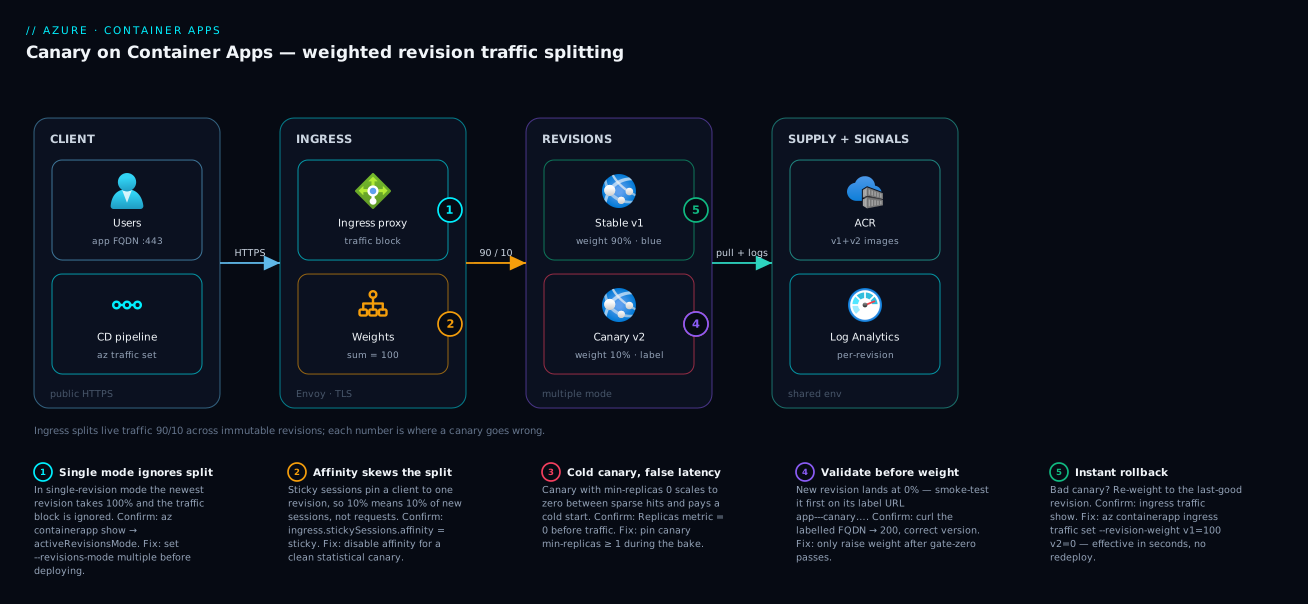
Follow a single request left to right. A user hits the app’s public ingress FQDN, which terminates TLS at the Container Apps environment’s managed ingress (an Envoy-based proxy). That proxy reads the traffic block and rolls the dice: with a 90/10 split it sends roughly nine of every ten requests to the stable revision (myapp--v1) and one to the canary revision (myapp--v2). Both revisions run their own replica sets inside the same environment, pulling their images from the same Azure Container Registry, and both stream metrics and console logs — tagged with their revision name — into the environment’s Log Analytics / Azure Monitor backend. Off to the side, a labelled FQDN (app---canary…) bypasses the weighted split entirely and lands every request on the canary, which is how you smoke-test v2 before it ever sees public traffic and how your pipeline validates it between weight bumps.
The numbered hazards on the diagram are the places a canary goes wrong: the proxy honouring weights only in multiple-revision mode (in single mode the split is silently ignored), session affinity pinning users so your 10% never really samples 10% of users, the canary scaled to zero so its first probe pays a cold start and looks artificially slow, and the rollback path — a single re-weight to v1=100 that drains the canary in seconds. Read the diagram as the request path plus the diagnostic map: each badge is a failure mode mapped to the exact hop where it bites, and the legend tells you how to confirm and fix it.
Real-world scenario
Northwind Retail runs its checkout API on Azure Container Apps — a single app, checkout-api, in a Premium environment, averaging 600 requests/second at peak, autoscaling between 4 and 30 replicas on concurrent-request count. Historically they deployed by az containerapp update straight to the live app in single-revision mode: build, push, swap, watch Grafana. It worked until the quarter they shipped a change to the tax-calculation library. The new build passed every test, but a rounding change in the library produced a one-cent discrepancy on a small percentage of multi-currency orders that the payment gateway rejected. Within four minutes of the swap, the order-failure rate climbed from 0.2% to 3.1%. Because it was a single-revision deploy, 100% of checkouts were on the bad build, and rolling back meant a full rebuild-and-redeploy that took eleven minutes. They lost roughly forty minutes of degraded checkout and a chunk of revenue.
After that incident the platform team moved checkout-api to multiple-revision mode and rebuilt the pipeline around a canary. The new flow: the CD pipeline deploys each build as a revision with suffix b<build-number> at 0% traffic, attaches the canary label, and runs a synthetic order against the labelled URL (a real multi-currency test order through the gateway’s sandbox). Only if that passes does it set --revision-weight stable=95 b<n>=5. A pipeline gate then queries Log Analytics for the canary revision’s order-failure rate and P95 latency over a ten-minute bake; if either exceeds a threshold relative to the stable revision, the pipeline runs --revision-weight stable=100 and fails the release. Clean canaries ramp 5 → 25 → 50 → 100 with a bake at each step, then the old revision is deactivated.
Three months later the same class of bug recurred — a different library, a different currency edge case. This time the canary at 5% caught an elevated failure rate on exactly that order shape within the ten-minute bake, and the automated gate reverted to stable=100 before any human looked at it. Customer impact: 5% of a fraction of orders for ten minutes, versus 100% for forty minutes the first time. The on-call engineer woke up to a failed pipeline and a captured-but-still-running bad revision to debug at leisure on its label URL — not to a sev-1. The cost was effectively zero (the canary rode the same environment, adding a replica or two during the bake), and rollback was one traffic-weight command effective in seconds. That asymmetry — bounded blast radius, instant revert, debug-at-leisure — is the entire return on canary.
Advantages and disadvantages
| Advantages | Disadvantages |
|---|---|
| Blast radius bounded to the canary weight (5%, not 100%) | Multiple revisions running means (briefly) more replicas → more cost |
| Rollback is one traffic-weight change, effective in seconds | Statistical split needs enough traffic to be meaningful |
| Validate on real production load + data before committing | Stateful/sticky apps need session affinity, which skews the split |
| Built into the platform — no service mesh or extra LB | Schema/DB migrations must be backward-compatible across both revisions |
| Per-revision metrics/logs make comparison precise | Two app versions live at once raises compatibility surface |
| Labels give private validation URLs and atomic blue-green | Requires discipline to deactivate old revisions (cost/clutter) |
Works with your existing CI/CD via az or Bicep |
Auto-gating needs you to wire up the metric queries yourself |
When the advantages dominate: high-traffic HTTP services where a bad release is expensive, frequent deploys, and an inability to fully reproduce production. When the disadvantages bite: very low-traffic apps (a 5% canary may never get sampled meaningfully — prefer blue-green with a synthetic test instead), apps with hard session affinity, and releases that include a breaking database migration (a canary requires both revisions to work against the same database simultaneously, so the schema must be forward- and backward-compatible — expand-then-contract migrations, never a single breaking change mid-canary).
Hands-on lab
This is the centerpiece. You will create an environment, deploy v1, switch to multiple-revision mode, deploy v2 at 0%, validate it privately, canary it from 5% to 100% while reading metrics, then roll back and tear down. Everything is shown in portal, az CLI, and Bicep. It uses public sample images so it costs almost nothing and finishes in well under an hour.
Step 0 — Prerequisites and variables
You need an Azure subscription, the Azure CLI, and the Container Apps extension. Set shell variables you will reuse.
# Install / update the Container Apps CLI extension
az extension add --name containerapp --upgrade

# Register the required providers (one-time per subscription)
az provider register --namespace Microsoft.App --wait
az provider register --namespace Microsoft.OperationalInsights --wait

# Variables
RG=rg-canary
LOC=eastus
ENV=cae-canary
APP=albumapi
az group create --name "$RG" --location "$LOC" -o none
Expected: az group create returns nothing with -o none (success). az containerapp env list -g $RG is empty for now.
| Variable | Value here | What it is |
|---|---|---|
RG |
rg-canary |
Resource group |
LOC |
eastus |
Region (pick one near you) |
ENV |
cae-canary |
Container Apps environment name |
APP |
albumapi |
The app we will canary |
Step 1 — Create the Container Apps environment
The environment is the shared boundary (network + Log Analytics) your revisions run in.
az containerapp env create \
  --name "$ENV" --resource-group "$RG" --location "$LOC"
Expected: after 1–3 minutes, the command returns the environment JSON with "provisioningState": "Succeeded". A Log Analytics workspace is auto-created and linked (that is where your per-revision logs land).
Validate:
az containerapp env show -n "$ENV" -g "$RG" --query properties.provisioningState -o tsv
# → Succeeded
Portal equivalent: Create a resource → Container Apps → on the Basics tab set the resource group, app name, region; click Create new under Container Apps Environment, accept the auto-created Log Analytics workspace. (We will create the app properly in the next step; you can also create just the environment from Container Apps Environments → Create.)
Step 2 — Deploy v1 and turn on multiple-revision mode at creation
Deploy the first revision from a public sample image, external ingress on the app’s port, and set the mode to multiple now so canary is possible later. We give v1 a deterministic suffix and a blue label.
az containerapp create \
  --name "$APP" --resource-group "$RG" --environment "$ENV" \
  --image mcr.microsoft.com/k8se/quickstart:latest \
  --target-port 80 --ingress external \
  --revisions-mode multiple \
  --revision-suffix v1 \
  --min-replicas 1 --max-replicas 3 \
  --cpu 0.25 --memory 0.5Gi \
  --query properties.configuration.ingress.fqdn -o tsv
Expected: the command prints the app’s public FQDN, e.g. albumapi.salmonmoss-1a2b3c4d.eastus.azurecontainerapps.io. Save it:
FQDN=$(az containerapp show -n "$APP" -g "$RG" --query properties.configuration.ingress.fqdn -o tsv)
curl -s "https://$FQDN" | head -c 200
# → the quickstart welcome page HTML (HTTP 200)
At this point there is one revision (albumapi--v1) at 100% traffic, but the app is already in multiple-revision mode, so the next deploy will land at 0%.
Portal equivalent: In the create wizard’s Container tab, set image mcr.microsoft.com/k8se/quickstart:latest; Ingress tab → enable Ingress, Accepting traffic from anywhere, target port 80. After creation, open the app → Revision management → set Revision mode to Multiple → Save. Then open Revisions and replicas, select the revision, and add the label blue under Manage labels.
Bicep equivalent (the whole v1 app):
param location string = resourceGroup().location

resource law 'Microsoft.OperationalInsights/workspaces@2023-09-01' = {
  name: 'law-canary'
  location: location
  properties: { sku: { name: 'PerGB2018' }, retentionInDays: 30 }
}

resource env 'Microsoft.App/managedEnvironments@2024-03-01' = {
  name: 'cae-canary'
  location: location
  properties: {
    appLogsConfiguration: {
      destination: 'log-analytics'
      logAnalyticsConfiguration: {
        customerId: law.properties.customerId
        sharedKey: law.listKeys().primarySharedKey
      }
    }
  }
}

resource app 'Microsoft.App/containerApps@2024-03-01' = {
  name: 'albumapi'
  location: location
  properties: {
    managedEnvironmentId: env.id
    configuration: {
      activeRevisionsMode: 'Multiple'
      ingress: {
        external: true
        targetPort: 80
        traffic: [
          { revisionName: 'albumapi--v1', weight: 100, label: 'blue' }
        ]
      }
    }
    template: {
      revisionSuffix: 'v1'
      containers: [
        {
          name: 'albumapi'
          image: 'mcr.microsoft.com/k8se/quickstart:latest'
          resources: { cpu: json('0.25'), memory: '0.5Gi' }
        }
      ]
      scale: { minReplicas: 1, maxReplicas: 3 }
    }
  }
}

output appFqdn string = app.properties.configuration.ingress.fqdn
Deploy with az deployment group create -g rg-canary --template-file canary.bicep.
Step 3 — Deploy v2 as a 0%-traffic revision
Now the canary. Deploy a different image (here a second public sample so you can see a different response) with suffix v2. Because the app is in multiple-revision mode and the traffic block still points 100% at v1, v2 comes up at 0% traffic.
az containerapp update \
  --name "$APP" --resource-group "$RG" \
  --image mcr.microsoft.com/k8se/samples/test-app:latest \
  --revision-suffix v2 \
  --cpu 0.25 --memory 0.5Gi
Expected: the command succeeds and a new revision albumapi--v2 appears. Confirm it exists, is healthy, and has 0% traffic:
az containerapp revision list -n "$APP" -g "$RG" \
  --query "[].{name:name, active:properties.active, traffic:properties.trafficWeight, state:properties.runningState}" -o table
Expected output (shape):
Name           Active    Traffic    State
-------------   -------   --------   --------
albumapi--v1    True      100        Running
albumapi--v2    True      0          Running
If albumapi--v2 shows Traffic 0 and State Running, the canary is staged and serving zero public traffic — exactly what you want.
Portal equivalent: App → Revision management → Create new revision → choose the new image and set the suffix v2 → Create. In multiple mode the new revision is created with 0% traffic; verify in the revisions list.
Step 4 — Validate v2 privately on its label URL
Attach the canary label to v2 and curl the labelled FQDN — this hits v2 directly, bypassing the 100/0 weight, so you smoke-test it before any user does.
az containerapp revision label add \
  --name "$APP" --resource-group "$RG" \
  --revision albumapi--v2 --label canary

# Discover the labelled FQDN
az containerapp revision show -n "$APP" -g "$RG" --revision albumapi--v2 \
  --query properties.fqdn -o tsv
# Or construct it: https://<app>---canary.<unique-id>.<region>.azurecontainerapps.io
CANARY_URL="https://${APP}---canary.$(echo "$FQDN" | cut -d. -f2-)"
curl -s "$CANARY_URL" | head -c 200
Expected: an HTTP 200 from the v2 image specifically (different content from v1). This is your gate-zero: if the labelled URL is unhealthy, stop — never give it weight.
Portal equivalent: Revisions and replicas → select albumapi--v2 → Manage labels → add canary. The labelled URL is shown on the revision; open it in a browser.
Step 5 — Start the canary at 5%
Shift a thin slice of live traffic to v2. The weights must sum to 100.
az containerapp ingress traffic set \
  --name "$APP" --resource-group "$RG" \
  --revision-weight albumapi--v1=95 albumapi--v2=5
Expected: the command echoes the new traffic block. Verify:
az containerapp ingress traffic show -n "$APP" -g "$RG" -o table
# v1 → 95, v2 → 5
Now generate traffic and watch the split land on both revisions:
# Fire 200 requests; with a 95/5 split ~10 should hit v2
for i in $(seq 1 200); do curl -s -o /dev/null -w "%{http_code}\n" "https://$FQDN"; done | sort | uniq -c
# Expect mostly 200s; failures here would be your first canary signal
Portal equivalent: Revision management → in the traffic table set v1 to 95% and v2 to 5% → Save. The portal enforces the sum-to-100 rule in the UI.
Step 6 — Read per-revision metrics and decide
Compare the canary against stable. Pull request counts and any restarts scoped to each revision.
APP_ID=$(az containerapp show -n "$APP" -g "$RG" --query id -o tsv)

# Requests landing on the canary (confirms it's actually sampled)
az monitor metrics list --resource "$APP_ID" --metric Requests \
  --filter "revisionName eq 'albumapi--v2'" \
  --interval PT1M --aggregation Total -o table

# Replica restarts on the canary (any non-zero = investigate)
az monitor metrics list --resource "$APP_ID" --metric Replicas \
  --filter "revisionName eq 'albumapi--v2'" \
  --interval PT1M --aggregation Average -o table
And the 5xx comparison in Log Analytics (run in the workspace, or via az monitor log-analytics query):
ContainerAppSystemLogs_CL
| where TimeGenerated > ago(30m)
| where RevisionName_s in ("albumapi--v1", "albumapi--v2")
| summarize total=count(), errors=countif(toint(StatusCode_d) >= 500) by RevisionName_s
| extend errorRatePct = round(100.0 * errors / total, 2)
Decision rule: if v2’s error rate and P95 latency over your bake window are flat-or-better versus v1, proceed to the next weight. If worse, jump to Step 8 (rollback).
Portal equivalent: App → Metrics → add metric Requests (and Replica Count, Restart count), then Apply splitting by Revision to see v1 vs v2 on one chart. App → Logs to run the KQL.
Step 7 — Ramp 20 → 50 → 100
Raise the weight in steps, baking at each. These are three separate commands run over time as confidence builds.
# 20%
az containerapp ingress traffic set -n "$APP" -g "$RG" \
  --revision-weight albumapi--v1=80 albumapi--v2=20
# … bake, re-check metrics …

# 50%
az containerapp ingress traffic set -n "$APP" -g "$RG" \
  --revision-weight albumapi--v1=50 albumapi--v2=50
# … bake …

# 100% — full promotion
az containerapp ingress traffic set -n "$APP" -g "$RG" \
  --revision-weight albumapi--v2=100
Expected: each traffic show reflects the new split; at 100% the v1 entry is gone (or 0). Move the blue/canary labels so they describe reality for the next cycle, then deactivate v1 to stop paying for it:
az containerapp revision deactivate -n "$APP" -g "$RG" --revision albumapi--v1
Validate end state:
az containerapp revision list -n "$APP" -g "$RG" \
  --query "[].{name:name, active:properties.active, traffic:properties.trafficWeight}" -o table
# albumapi--v2 → Active True, Traffic 100 ; albumapi--v1 → Active False, Traffic 0
Bicep equivalent of a promoted traffic block (what your IaC looks like once v2 is at 100% — keep the IaC the source of truth and re-apply it post-canary):
ingress: {
  external: true
  targetPort: 80
  traffic: [
    { revisionName: 'albumapi--v2', weight: 100, label: 'blue' }
  ]
}
Step 8 — Roll back instantly (the drill you practice)
Whenever the canary looks wrong, revert all traffic to the last-good revision. This is one command, effective in seconds, with no rebuild.
az containerapp ingress traffic set \
  --name "$APP" --resource-group "$RG" \
  --revision-weight albumapi--v1=100 albumapi--v2=0
Expected: traffic show reports v1 at 100, v2 at 0. Public users are back on the known-good build immediately; v2 keeps running at 0% so you can debug it on its label URL. Practice this once on purpose so it is muscle memory during an incident.
Portal equivalent: Revision management → set v1 to 100%, v2 to 0% → Save.
Step 9 — Teardown
Delete the resource group to remove the app, environment, and the auto-created Log Analytics workspace, so nothing keeps billing.
az group delete --name "$RG" --yes --no-wait
Expected: the command returns immediately (--no-wait); deletion completes in the background. Confirm later with az group exists -n rg-canary → false.
| Step | You did | Verified by |
|---|---|---|
| 1 | Created environment | provisioningState = Succeeded |
| 2 | Deployed v1, multiple mode | curl $FQDN → 200 |
| 3 | Deployed v2 at 0% | revision list shows v2 Traffic 0 |
| 4 | Private-validated v2 | curl $CANARY_URL → 200 (v2 content) |
| 5 | 5% canary | traffic show → 95/5 |
| 6 | Read per-revision metrics | v2 vs v1 error/latency |
| 7 | Ramped to 100%, deactivated v1 | v2 Traffic 100, v1 Active False |
| 8 | Rolled back (drill) | v1 100, v2 0 in seconds |
| 9 | Teardown | az group exists → false |
Common mistakes & troubleshooting
The failure modes below are the ones that actually consume a release window. Each is symptom → root cause → how to confirm → fix.
| # | Symptom | Root cause | Confirm with | Fix |
|---|---|---|---|---|
| 1 | New revision instantly gets 100% traffic | App is in single-revision mode | az containerapp show … activeRevisionsMode |
Set mode to multiple before deploying |
| 2 | Traffic split set, but all traffic still hits one revision | Session affinity enabled pins users | ingress.stickySessions.affinity = sticky |
Disable affinity, or accept per-user (not per-request) split |
| 3 | Canary gets near-zero requests | Too little total traffic for 5% to sample | Compare Requests per revision |
Use a higher canary weight or a synthetic load against the label URL |
| 4 | traffic set rejected |
Weights don’t sum to 100 | Read the CLI error / traffic show |
Make the listed weights total exactly 100 |
| 5 | Canary first requests are slow / 5xx | Canary scaled to zero, paying cold start | Replicas metric = 0 before traffic |
Set canary min-replicas ≥ 1 during the canary |
| 6 | Next deploy unexpectedly took prod traffic | A latestRevision: true entry at >0% |
Inspect the traffic block targets | Pin by revisionName/label; reserve latest for an auto lane |
| 7 | Rollback “didn’t work” | Old revision was deactivated, can’t serve | revision list shows it Inactive |
revision activate it, then re-weight |
| 8 | Label URL 404 / not found | Triple-hyphen / wrong label name | revision show … fqdn |
Use the exact FQDN from revision show; note app---label |
| 9 | Both revisions error after deploy | A breaking DB migration broke v1 too | Errors on both revisions in logs | Use expand/contract migrations; canary only backward-compatible schema |
| 10 | Suffix reuse fails the deploy | Revision suffix must be unique | CLI error “revision already exists” | Include build number/SHA in the suffix |
| 11 | Old revisions piling up / extra cost | Forgot to deactivate after promotion | revision list shows many Active |
Deactivate post-promote; set inactive-revision retention |
| 12 | Mode switch wiped the split | Switched back to single mode | activeRevisionsMode = Single |
Stay in multiple; never toggle mid-canary |
A few of these deserve the exact mechanism:
Session affinity vs the split (#2). Container Apps supports sticky sessions; when enabled, the ingress sets an affinity cookie and pins a client to a revision for the session. That means your 10% weight becomes “10% of new sessions,” and existing sessions never sample the canary — your split looks broken. For a clean statistical canary, leave affinity off (the default). If your app genuinely needs stickiness, accept that the canary samples by session and lengthen your bake. Check it:
az containerapp show -n "$APP" -g "$RG" \
  --query properties.configuration.ingress.stickySessions -o json
Cold canary (#5). A canary with min-replicas: 0 scales to zero between sparse 5% requests; the next request pays an image-pull-and-start cold start and reports inflated latency, making you reject a perfectly good build. During a canary, pin the canary revision to at least one replica so you measure steady-state, not cold-start, behaviour:
az containerapp update -n "$APP" -g "$RG" \
  --revision-suffix v2b --min-replicas 1 --max-replicas 3 \
  --image mcr.microsoft.com/k8se/samples/test-app:latest
Breaking migration (#9). A canary runs two app versions against one database at the same time. If v2’s release includes a schema change that v1 cannot tolerate (a renamed/dropped column), the moment you apply it, v1 — still serving 95% — breaks too, and your “safe” canary takes down everything. The discipline is expand/contract: deploy the additive schema change first (both versions cope), canary the code, then remove the old schema only after v1 is fully retired. Never bundle a breaking migration into the canaried release.
Best practices
- Always deploy with
--revision-suffix(build number or short SHA). Deterministic names make traffic commands and dashboards legible and rollbacks unambiguous. - Keep the app in multiple-revision mode permanently for any service you intend to canary; flipping modes is a config change that resets traffic.
- Pin traffic by revision name or label, never
latestRevision: trueat a live weight — so a new deploy always starts at 0% and you raise it deliberately. - Validate on the label URL before adding any weight. Gate-zero is a synthetic request against
app---canary…returning the expected version and 200. - Pin the canary to
min-replicas ≥ 1for the duration of the canary so you measure steady-state, not cold-start, latency. - Promote on the right signals: request success rate, P95 latency, dependency failures, and a business KPI per revision — not CPU alone.
- Size the bake to your traffic. Low volume → higher canary weight or synthetic load; high volume → short bakes are fine. A canary nobody hits proves nothing.
- Automate the gate. Wire the metric/log queries into the pipeline so promotion and rollback are metric-driven, not eyeballed.
- Use expand/contract migrations. Both revisions must work against the same database throughout the canary.
- Deactivate old revisions after promotion and set an inactive-revision retention limit, so cost and clutter stay bounded.
- Keep IaC the source of truth. After a successful canary, update the Bicep traffic block to the promoted state and re-apply, so the next deploy starts from a known baseline.
- Practice the rollback command on purpose in non-prod so it is reflex during a real incident.
Security notes
Canary mechanics do not change your security model, but two-versions-live widens a few surfaces worth checking:
- Least privilege for the pipeline. The identity that runs
containerapp updateandingress traffic setneeds only Container Apps Contributor (or a custom role withMicrosoft.App/containerApps/*write on that app) — not Owner on the resource group. Scope the role assignment to the app or its RG. - Image provenance for the canary. A canary serves real production traffic. Pull canary images from a trusted, private registry with content trust/attestation, exactly as the stable revision does — see Securing Azure Container Registry: Private Endpoints, ACR Tasks, Content Trust, and Geo-Replication. Never canary an image from an unverified public source against live users.
- Secrets are app-scoped, but a new revision binds the current value. Updating a secret does not retroactively change running revisions; a freshly created canary revision binds the secret value at creation. Confirm the canary picked up the intended secret/Key Vault reference before giving it weight, and prefer managed identity + Key Vault references over inline secret values so the value never sits in the template.
- The label URL is public. A labelled FQDN (
app---canary…) is internet-reachable just like the main FQDN. If your “private validation” must be truly private, validate from inside the environment’s VNet or restrict ingress with IP rules — do not assume the label URL is hidden simply because it is unguessable. - Don’t leak version info. Two revisions may expose different version banners/headers; ensure neither the canary nor stable reveals internal build details to anonymous callers beyond what you intend.
Cost & sizing
A canary’s incremental cost is the extra replicas the second revision runs while it is active, billed on the Container Apps consumption model (per vCPU-second and GiB-second of running replicas, plus per-request). The stable revision’s cost is unchanged; the canary adds at minimum its min-replicas × (cpu, memory) for the bake window. Keep it cheap by pinning the canary to a small min-replica count (1 is usually enough to measure) and deactivating the old revision promptly after promotion so you are not paying for two full fleets.
| Cost driver | Effect on bill | How to control |
|---|---|---|
| Canary replicas during bake | + (canary min-replicas × resources) × bake time | Min-replicas = 1; short, metric-gated bakes |
| Old revision left active post-promote | Pays a second fleet indefinitely | Deactivate immediately after 100% promotion |
| Idle revisions accumulating | Each active revision can hold min-replicas | Set inactive-revision retention; deactivate stale ones |
| Scale-to-zero on canary | Near-zero when idle, but cold-start risk | Trade: pin ≥1 replica only during the canary, then relax |
| Per-request charges | Same total requests, just split | No net change — the split doesn’t add requests |
Rough figures (consumption plan, indicative — always price for your region): a canary running 1 replica at 0.25 vCPU / 0.5 GiB for a 30-minute bake costs a few US cents (single-digit INR) — a rounding error against a bad full deploy. The expensive mistake is not the canary; it is leaving the old revision active after promotion, which silently doubles your compute until someone notices. Make deactivation part of the pipeline.
Free-tier note: every Container Apps environment includes a monthly free grant of vCPU-seconds, GiB-seconds, and requests; small lab/canary workloads like this one typically fall inside it, so this lab costs essentially nothing if you tear it down promptly.
Interview & exam questions
Q1. What is a revision in Azure Container Apps, and what creates a new one?
A revision is an immutable snapshot of the container template (image, env vars, resources, scale rules) and revision-scope config. A new revision is created by any change to that template — a new image, env var, resources, scale rules, command — or by passing --revision-suffix; app-scope changes (ingress, traffic weights, secret values) do not create one.
Q2. Why is multiple-revision mode required for canary deployments?
In single-revision mode only the latest revision is active and it automatically takes 100% of traffic, so there is nothing to split against. Multiple-revision mode lets several revisions run concurrently and honours the weighted ingress.traffic block, which is the entire canary mechanism. Maps to AZ-204 (Container Apps) and AZ-400 (progressive delivery).
Q3. How do you shift 5% of traffic to a new revision in the CLI?
az containerapp ingress traffic set -n <app> -g <rg> --revision-weight <old>=95 <new>=5. The weights must sum to 100, and the app must be in multiple-revision mode. The change takes effect at the ingress proxy within seconds without redeploying.
Q4. What is a traffic label and why use one instead of a raw revision name?
A label is a friendly name on a traffic entry that creates a stable, direct FQDN (app---label…) for that revision and lets you express traffic/blue-green flips against the label rather than generated suffixes. It enables private validation before public traffic and atomic label swap for blue-green.
Q5. You set a 90/10 split but every user still sees one version. What’s wrong? Session affinity (sticky sessions) is enabled, pinning each client to a revision for the session — so the split applies per session, not per request, and existing sessions never sample the canary. Disable affinity for a clean statistical canary, or accept session-granularity and lengthen the bake.
Q6. How do you roll back a bad canary, and how fast is it?
Re-weight all traffic to the previous (still-running) revision: ... --revision-weight <old>=100 <new>=0. It is effective in seconds because it only changes ingress routing — no rebuild, no redeploy — provided the old revision is still active.
Q7. What is the danger of latestRevision: true at a non-zero weight?
The next revision you deploy becomes “latest” and immediately inherits that weight, so an unvalidated build takes production traffic the moment it provisions. For canary you pin by revision name or label so new revisions start at 0%.
Q8. Why must database migrations be backward-compatible during a canary? A canary runs two app versions against the same database simultaneously. A breaking schema change applied for v2 also breaks v1, which is still serving most traffic — so the “safe” canary takes everything down. Use expand/contract: additive change first, canary the code, contract only after the old revision retires.
Q9. How do you compare the canary’s health against the stable revision?
Scope Azure Monitor metrics (Requests, request latency, Replicas, Restart count) and Log Analytics queries by the RevisionName dimension, charting v2 against v1. Promote on request success rate, P95 latency, dependency failures and a business KPI per revision — not CPU alone.
Q10. Why might a canary report artificially high latency, and how do you prevent it?
If the canary has min-replicas: 0, it scales to zero between sparse low-weight requests and pays a cold start (image pull + container start) on the next request. Pin the canary to min-replicas ≥ 1 during the canary so you measure steady-state behaviour.
Q11. After promoting v2 to 100%, what should the pipeline do about v1, and why?
Deactivate v1 (az containerapp revision deactivate). Left active, it holds at least its min-replicas and silently bills a second fleet. Deactivation stops its replicas and cost while keeping the revision available to reactivate if a late regression appears.
Q12. How is canary on Container Apps different from App Service deployment slots? Both give blue-green/canary, but slots are named environments you warm and swap, with slot-sticky settings, whereas Container Apps splits weighted traffic across immutable revisions behind one ingress with no separate slot resource. Container Apps gives finer percentage control; slots give a clearer “two distinct environments” model.
Quick check
- Which revision mode must the app be in to run a canary, and what happens to a new revision’s traffic in that mode by default?
- Which single command shifts traffic to 80/20 between
app--v1andapp--v2, and what must the weights total? - You need to test a new revision before any public user sees it — what feature gives you a direct URL to exactly that revision?
- A 95/5 split is configured but all users see one version. Name the most likely cause and the fix.
- After v2 is at 100%, what one action keeps your bill from carrying two full fleets?
Answers
- Multiple-revision mode. In it, a newly created revision gets 0% traffic by default (unless a
latestRevision: trueentry is in play), so it runs but serves no public traffic until you raise its weight. az containerapp ingress traffic set ... --revision-weight app--v1=80 app--v2=20. The listed weights must sum to exactly 100.- A traffic label — attach a label (e.g.
canary) to the revision and curl its labelled FQDN (app---canary…), which bypasses the weighted split and lands on that revision. - Session affinity (sticky sessions) is enabled, so the split is per session, not per request, and existing sessions never reach the canary. Disable affinity (or accept session-granularity and extend the bake).
- Deactivate the old revision (
az containerapp revision deactivate), so it stops running replicas and billing once v2 owns all traffic.
Glossary
- Revision — An immutable snapshot of a container app’s image and configuration; the unit you split traffic between.
- Revision suffix — The string (
v2,b1487) you append to give a revision a deterministic, readable name. - Revision name — The full identifier
<app>--<suffix>you target in the traffic block. - Revision FQDN — A direct URL to one revision, used for private validation regardless of traffic weight.
- Revision mode —
Single(one active revision, auto-100%) orMultiple(several active, weighted) — canary needs Multiple. - Traffic block — The
ingress.trafficarray of weighted entries that routes inbound requests across revisions. - Weight — The integer percentage of traffic a revision serves; weights in the block must total 100.
- Traffic label — A friendly name on a traffic entry that creates a stable per-revision URL and lets you pin/flip traffic by label.
latestRevision— A traffic target meaning “route to the newest revision”; convenient but can flip production on the next deploy.- Canary deployment — Routing a small, bounded slice of real traffic to a new version to validate it before full promotion.
- Blue-green — Two full environments (revisions); validate the idle one, then atomically flip all traffic to it.
- Bake time — The window you let a canary serve traffic while you watch metrics before raising its weight.
- Activate / deactivate — Start or stop an idle revision’s replicas; deactivation removes its cost.
- Expand/contract migration — A schema-change discipline (additive first, remove later) that keeps both revisions working against one database during a canary.
- Session affinity — Sticky-session routing that pins a client to one revision, changing a canary from per-request to per-session sampling.
Next steps
- Build the base service this article canaries: Deploy Your First Container App: HTTP Microservice with Scale-to-Zero and Managed Ingress.
- Compare this to the App Service approach: Setting Up Azure App Service Deployment Slots: Swap, Warm-Up and Slot-Sticky Settings.
- Wire the per-revision signals into dashboards and alerts: Azure Monitor and Application Insights: Full-Stack Observability.
- Make sure the canary image comes from a hardened registry: Securing Azure Container Registry: Private Endpoints, ACR Tasks, Content Trust, and Geo-Replication.
- Decide whether Container Apps is the right home at all: Azure App Service vs Container Apps vs AKS: Choose the Right Compute.