Everything you have learned so far in this course you have typed one command at a time. That is fine for exploration, but no server is run that way. Backups, health checks, user provisioning, log cleanup, deploys — the real work of a sysadmin is done by scripts: files full of the same commands, run by the machine on a schedule or on demand, the same way every time, with no human at the keyboard. A script is how you turn “I know how to do this” into “the system does this reliably, forever, and pages me if it breaks.”
The gap between a script that appears to work when you run it by hand and one that survives production is almost entirely about robustness — and robustness is a small set of habits, not talent. A script without them fails in the worst possible way: silently. A missing file, a variable with a space in it, a cd that didn’t happen, a pipeline whose first stage died — bash will happily sail past all of these and keep going, deleting the wrong directory or reporting success on a backup that never ran. The professional difference is a handful of lines at the top of the file and a discipline about quoting that, once it is muscle memory, you never think about again.
This is the on-ramp to automation. It gives you the whole language a sysadmin actually uses — variables and quoting, conditionals, loops, functions, arrays, arithmetic, exit codes — and then the part that separates a toy from a tool: the strict-mode header, trap-based cleanup, input validation, ShellCheck, logging and idempotency. For the language in full depth — argument parsing with getopts, testing with bats, concurrency, secrets handling, the whole 40-lesson treatment — there is a dedicated Shell Scripting Zero to Hero course. This lesson makes you a sysadmin who can write scripts you would trust in a cron job. Type every example on a throwaway VM, WSL, or a container; scripting is a skill of the fingers, not the eyes.
Why this matters
Three concrete situations, all of which this lesson prevents:
- The backup that reported success every night and had nothing in it. A script did
cd /data; tar czf /backup/data.tgz .. One night/datafailed to mount, thecdfailed, and — with noset -eand no||check — the script carried on and tar’d the empty mount point. Every run exited0. The scheduler was happy for months. The restore was empty.set -eplus one validation line would have caught it on night one. - The cleanup that deleted a user’s home directory.
rm -rf $dir/*where$dirwas empty (an unset variable) expands torm -rf /*. Unquoted variables and missing validation are not style nits; they are how scripts destroy data. The habits in this lesson — always quote, always validate,${var:?}— exist precisely to make that class of bug impossible. - The job that “works in my shell but not in cron.” You test the script interactively, it is perfect, you schedule it, and it does nothing. Almost always this is an environment or a quoting difference between your login shell and the bare shell cron gives you. Writing scripts that don’t depend on your interactive environment is a core part of robustness — and it is why the scheduling lesson and this one are two halves of one skill.
The mental model to hold onto: a script is a program, and bash is a genuinely hostile language to write correct programs in — unless you opt into safety. By default it splits unquoted variables on whitespace, treats unset variables as empty strings, ignores failures in the middle of a pipeline, and continues after almost any error. Every robustness technique below is you switching one of those defaults from “dangerous” to “safe.” Get the header and the quoting right and the rest is just vocabulary.
From one-liner to script: shebang, chmod, and how it runs
A script is a plain text file. The first line — the shebang — tells the kernel which interpreter to feed the rest of the file to when you execute it. For sysadmin scripts, the correct shebang is:
#!/usr/bin/env bash
#!/usr/bin/env bash finds bash via PATH rather than hard-coding /bin/bash, so the same script works where bash lives in /usr/bin (some systems), /usr/local/bin (Homebrew, *BSD), or /bin. The alternative, #!/bin/bash, is fine on Linux where bash is reliably in /bin, but env is the portable habit. What you must not do is write #!/bin/sh and then use bash features — on Debian/Ubuntu /bin/sh is dash, which has no arrays, no [[ ]], no ${var^^}, and your “bash” script breaks in confusing ways.
| Shebang | Interpreter | Use it when |
|---|---|---|
#!/usr/bin/env bash |
bash, found via PATH |
Default for sysadmin scripts — portable, bash features available |
#!/bin/bash |
bash at a fixed path | Linux-only, and you want to ignore any bash earlier in PATH |
#!/bin/sh |
The system POSIX shell (dash on Debian) | You are writing strict POSIX and need it to run anywhere, incl. minimal containers |
#!/usr/bin/env python3 |
Any interpreter | The shebang mechanism is general — same rule for Python, Perl, etc. |
| (no shebang) | The caller’s current shell | Fragile — behaviour depends on who runs it; always add one |
Make it executable, then run it:
# create, make executable, run
cat > hello.sh <<'EOF'
#!/usr/bin/env bash
echo "Hello from $0, arg 1 is $1"
EOF

chmod +x hello.sh        # the +x bit is what lets you ./run it
./hello.sh world
# Hello from ./hello.sh, arg 1 is world
Two things trip up beginners here. First, you must run it as ./hello.sh, not hello.sh — the current directory is not on PATH (deliberately, for security), so bash won’t find a script in . unless you tell it where it is. To run it by bare name from anywhere, put it in a PATH directory (/usr/local/bin for system scripts, ~/bin or ~/.local/bin for personal ones). Second, if you forget chmod +x, you get permission denied; you can still run it explicitly with bash hello.sh (which ignores the executable bit and the shebang), which is also the fastest way to test a script you’re editing.
Running versus sourcing — a distinction that bites
There are two ways to make a script’s commands happen, and they are not interchangeable:
./backup.sh        # RUN: a new child bash process executes it
bash backup.sh     # RUN: same thing, explicit interpreter
source setenv.sh   # SOURCE: run the lines in your CURRENT shell
. setenv.sh        # SOURCE: '.' is the POSIX synonym for source
When you run a script it gets its own process; any variables it sets, any cd it does, die with that child when it finishes. When you source a script the lines execute in your current shell, so its variable assignments and cd stick. That is exactly why you source ~/.bashrc to reload your shell config, but you ./deploy.sh to run a deploy — and why a script that ends in cd /some/dir “doesn’t change my directory” (it changed the child’s, then the child exited).
| Aspect | Run (./script.sh, bash script.sh) |
Source (source script.sh, . script.sh) |
|---|---|---|
| Process | New child shell | Current shell |
Variable/cd changes persist after it ends |
No | Yes |
Needs chmod +x |
Yes (not for bash script.sh) |
No |
| Reads the shebang line | Yes | No (it’s just a # comment) |
exit in the script |
Ends the child only | Ends YOUR shell — a real footgun |
| Use it for | Doing a job | Loading env vars / functions into your session |
⚠️ exit inside a sourced file terminates your interactive shell. If a script might be sourced or run, use return where possible, and guard the “am I being run directly?” logic with if [[ "${BASH_SOURCE[0]}" == "$0" ]]; then ... fi.
Variables and quoting: the discipline that prevents most bugs
Variable assignment in bash has one rule beginners break constantly: no spaces around the =.
name="web01"        # correct
name = "web01"      # WRONG — bash tries to run the command 'name' with args '=' and '"web01"'
count=42            # values are strings; 42 is the string "42"
path="/var/log"     # quote anything that could contain spaces or specials
To use a variable you prefix it with $. And here is the single most important habit in all of shell scripting: always wrap variable expansions in double quotes — "$var", never bare $var.
file="my report.txt"
rm $file              # DANGER: becomes  rm my report.txt  → tries to delete TWO files
rm "$file"            # correct: deletes the one file "my report.txt"
Unquoted, bash performs word splitting (on spaces/tabs/newlines) and globbing (*, ?, [) on the expanded value. A filename with a space becomes two arguments; a value containing * expands to matching filenames. Quoting turns all of that off and passes the value through verbatim. The only time you deliberately leave a variable unquoted is when you want splitting — and even then an array (below) is almost always the better tool. Make "$var" reflexive and you have eliminated the largest single category of shell bugs. This is also the number-one thing ShellCheck will nag you about (code SC2086), and it is right every time.
Command substitution
$(...) runs a command and substitutes its output into the line. It is how a script captures the result of a command into a variable:
today=$(date +%F)                 # today=2026-07-09
host=$(hostname -s)               # host=web01
count=$(grep -c ERROR /var/log/app.log)   # count=17
echo "On $host, $today: $count errors"
# On web01, 2026-07-09: 17 errors
Always prefer $(...) over the old backtick form `...` — $() nests cleanly ($(a $(b))), doesn’t get confused by quotes, and is what everyone reads today. And quote the whole thing when the output could contain spaces: "$(command)".
Parameter expansion — defaults, required values, and string surgery
Bash’s ${...} syntax does far more than fetch a value. This is the toolkit that makes scripts defensive and concise; the two you will use in every script are ${var:-default} (fall back) and ${var:?message} (abort if missing).
| Expansion | Result | Typical use |
|---|---|---|
"$var" / "${var}" |
The value | Always-quoted basic use; braces needed for "${var}_suffix" |
${var:-default} |
var if set & non-empty, else default (var unchanged) |
Optional setting: dir=${1:-/tmp} |
${var:=default} |
Same, and assigns default to var |
Set-and-use a default in one go |
${var:?message} |
The value, or exit with error message if unset/empty |
Require an argument: : "${API_KEY:?must be set}" |
${var:+alt} |
alt if var is set, else empty |
“If configured, add this flag” |
${#var} |
Length of the value | [[ ${#pass} -lt 12 ]] password check |
${var#pattern} |
Remove shortest matching prefix | ${path##*/} → basename |
${var##pattern} |
Remove longest matching prefix | ${file##*.} → extension |
${var%pattern} |
Remove shortest matching suffix | ${file%.gz} → strip .gz |
${var%%pattern} |
Remove longest matching suffix | ${host%%.*} → short hostname |
${var/old/new} |
Replace first old with new |
${line/ERROR/WARN} |
${var//old/new} |
Replace all occurrences | ${csv//,/ } → spaces |
${var^^} / ${var,,} |
Upper / lower case (bash 4+) | Normalise input: ${answer,,} |
${var:offset:len} |
Substring | ${uuid:0:8} → first 8 chars |
${var##*/} and ${var%.*} deserve a special mention: they do basename and strip-extension without spawning basename/dirname, which matters in a loop over thousands of files. Note # trims the front (think of # at the start of a comment) and % trims the back.
Positional parameters and special variables
Arguments passed to a script (or a function) arrive as $1, $2, … $9, then ${10} upward (the braces are required past 9). Several special variables describe the whole invocation:
#!/usr/bin/env bash
echo "script name : $0"       # ./deploy.sh
echo "first arg   : $1"       # staging
echo "all args    : $@"       # staging v2.1 --force
echo "arg count   : $#"       # 3
shift                          # drop $1; $2 becomes $1, $# decrements
echo "after shift : $1 ($# left)"   # v2.1 (2 left)
| Variable | Contains | Note |
|---|---|---|
$0 |
The script’s name/path | ${0##*/} for just the basename in usage messages |
$1 … $9, ${10}… |
Positional arguments | Brace-wrap from 10 up |
"$@" |
All args as separate quoted words | The correct way to forward args: cmd "$@" |
"$*" |
All args joined into one string (by first IFS char) |
Rarely what you want; use "$@" |
$# |
Number of positional args | [[ $# -lt 2 ]] && usage |
$? |
Exit status of the last command | 0 = success; check it immediately |
$$ |
PID of the current script | Unique temp names: tmp=/tmp/job.$$ |
$! |
PID of the last background command | sleep 60 & wait "$!" |
$_ |
Last argument of the previous command | Handy interactively; avoid in scripts |
$LINENO |
Current line number | Great in trap ... ERR messages |
${BASH_SOURCE[0]} |
Path of the current script file | Source-vs-run detection, script-relative paths |
The distinction between "$@" and "$*" is a classic exam question: "$@" expands to N separate quoted arguments (so spaces inside an argument are preserved), while "$*" mashes them into one string. When you forward a script’s arguments to another command, it is always "$@".
Reading input with read
read pulls a line from standard input (a keyboard, a pipe, or a file) into one or more variables. In scripts you almost always want -r.
read -rp "Hostname to check: " host          # prompt, read one line (raw) into $host
read -rsp "Password: " pass; echo            # -s hides typing (echo adds the newline)
read -rt 10 answer || answer="timeout"        # -t 10 → give up after 10s
read -ra parts <<< "a:b:c"                     # -a → split into array; combine with IFS
read flag |
Effect |
|---|---|
-r |
Raw: do not treat backslash as an escape — nearly always what you want |
-p "text" |
Print text as a prompt (no trailing newline) before reading |
-s |
Silent — don’t echo typed characters (passwords, secrets) |
-t N |
Time out after N seconds; read returns non-zero |
-n N |
Return after N characters (no Enter needed) — read -n1 for a single keypress |
-a arr |
Split the line into array arr (using IFS) |
-d C |
Use C as the line delimiter instead of newline (e.g. -d '' for NUL) |
The -r flag is not optional in serious scripts: without it, a backslash in the input is silently eaten, so a Windows path or a value ending in \ reads wrong. The correct file-reading loop, below, is while IFS= read -r line.
Conditionals: making decisions
The if statement runs commands based on another command’s exit status — 0 (success) means “then,” non-zero means “else.” That is the key insight: if doesn’t test a boolean, it runs a command and branches on whether it succeeded.
if systemctl is-active --quiet nginx; then
    echo "nginx is up"
elif systemctl is-failed --quiet nginx; then
    echo "nginx has FAILED"
else
    echo "nginx is stopped/unknown"
fi
Most of the time the “command” you test is [[ ... ]], bash’s built-in test-expression.
[[ ]] versus [ ] — use [[ ]]
Both evaluate a test expression, but [[ ]] is a bash keyword with saner rules, while [ ] is an old external-style builtin (test) with sharp edges.
| Feature | [ ... ] (POSIX test) |
[[ ... ]] (bash keyword) |
|---|---|---|
| Word-splitting on unquoted vars | Yes — [ $x = y ] breaks if $x is empty or has spaces |
No — safe even unquoted (still, quote for habit) |
| Empty variable | [ $x = y ] → [ = y ] → syntax error |
[[ $x = y ]] → works, $x is empty string |
&& / || inside |
No — must use -a / -o (deprecated, fragile) |
Yes — [[ -f $f && -r $f ]] |
< > string comparison |
Need escaping \<; does redirection otherwise |
Yes — [[ $a < $b ]] (lexical) |
Regex match =~ |
No | Yes — [[ $ip =~ ^[0-9.]+$ ]] |
| Glob pattern match | No | Yes — [[ $f == *.log ]] |
Portability to /bin/sh |
Yes | Bash-only |
The rule for sysadmin scripts: use [[ ]] unless you are deliberately writing POSIX sh. It removes an entire class of “works until the variable is empty” bugs — the infamous [ $x = value ] that explodes the moment $x is unset. Reserve [ ] for #!/bin/sh scripts.
The test operators you actually use
| Operator | True when | Category |
|---|---|---|
-e file |
file exists (any type) | file |
-f file |
file exists and is a regular file | file |
-d file |
file exists and is a directory | file |
-r / -w / -x file |
file is readable / writable / executable by you | file |
-s file |
file exists and is not empty (size > 0) | file |
-L file |
file is a symbolic link | file |
f1 -nt f2 / f1 -ot f2 |
f1 is newer / older than f2 (mtime) | file |
-z "$s" |
string is empty (zero length) | string |
-n "$s" |
string is non-empty | string |
"$a" = "$b" / == |
strings equal (== allows globs in [[ ]]) |
string |
"$a" != "$b" |
strings not equal | string |
"$a" =~ regex |
string matches ERE ([[ ]] only) |
string |
$a -eq $b |
numbers equal | number |
-ne -lt -le -gt -ge |
not-equal, less-than, ≤, greater-than, ≥ | number |
The number-versus-string trap catches everyone once: -eq compares numbers, = compares strings. [[ "01" -eq "1" ]] is true (numeric), but [[ "01" = "1" ]] is false (different strings). Use -eq/-lt/… for integers and =/!= for text, and never mix them.
# real checks you'll write constantly
[[ -f /etc/nginx/nginx.conf ]]  || { echo "config missing" >&2; exit 1; }
[[ -d "$backup_dir" ]]          || mkdir -p "$backup_dir"
[[ -z "${1:-}" ]]               && { echo "usage: $0 <host>" >&2; exit 2; }
(( $(id -u) == 0 ))             || { echo "run as root" >&2; exit 1; }
&&, ||, and case
&& and || chain commands by exit status: A && B runs B only if A succeeded; A || B runs B only if A failed. This is the compact idiom for “do this, or bail”:
mkdir -p "$dir" && cd "$dir"          # cd only if mkdir worked
command -v jq >/dev/null || { echo "install jq first" >&2; exit 1; }
ping -c1 -W2 "$host" &>/dev/null && echo "up" || echo "down"
⚠️ The A && B || C “ternary” is a trap: if B itself fails, C runs too. It is only safe when B cannot fail. For real either/or logic, use a proper if.
When you’re branching on the value of one variable against many patterns, case is cleaner than a stack of elif:
case "$1" in
    start)          start_service ;;
    stop)           stop_service ;;
    restart|reload) stop_service; start_service ;;   # multiple patterns
    *.conf)         echo "a config file" ;;           # globs work
    "")             echo "no argument" >&2; exit 2 ;;
    *)              echo "unknown: $1" >&2; exit 2 ;;  # default
esac
Each branch ends in ;;. Patterns are shell globs (*, ?, [...], a|b alternation), matched top to bottom, first match wins — so put * last as the catch-all.
Loops: repeating work correctly
for over lists, globs, and command output
for host in web01 web02 db01; do          # explicit list
    echo "checking $host"
done

for logfile in /var/log/*.log; do         # glob — the SAFE way to loop over files
    echo "rotating $logfile"
done

for i in {1..5}; do echo "attempt $i"; done   # brace-expansion range

for (( i=0; i<5; i++ )); do echo "$i"; done    # C-style, when you need the index
Looping over a glob (*.log) is the correct way to iterate files, because bash hands each match to the loop as one intact word even if it contains spaces. What you must never do is loop over the output of ls or an unquoted command substitution:
for f in $(ls *.log); do ...    # BROKEN: splits filenames on spaces, expands globs again
for f in *.log; do ...           # CORRECT: glob gives whole filenames, no ls needed
⚠️ Never parse ls in a script. Its output is for humans and mangles any filename with a space, newline, or glob character (ShellCheck SC2045). Use a glob for files, or find ... -print0 | while IFS= read -r -d '' f for a recursive, whitespace-safe walk.
while, until, and the one correct way to read a file
while CMD; do ...; done loops as long as CMD succeeds; until CMD loops until it succeeds. The single most important loop for a sysadmin is reading a file line by line, and there is exactly one idiom that gets it right:
# THE correct file-reading loop
while IFS= read -r line; do
    echo "processing: $line"
done < /etc/hosts
Every part earns its place: IFS= stops leading/trailing whitespace being trimmed, -r stops backslashes being interpreted, and < file feeds the file in. This reads any line — spaces, tabs, backslashes, and a final line with no newline — correctly. To iterate the output of a command instead of a file, use process substitution so the loop body runs in your shell, not a subshell:
# Read command output WITHOUT losing variables (process substitution)
count=0
while IFS= read -r line; do
    (( count++ ))
done < <(grep ERROR /var/log/app.log)
echo "$count errors"
⚠️ The pipe-into-while subshell trap. grep ERROR log | while read -r line; do (( count++ )); done runs the while in a subshell, so count is 0 afterward — the increment happened in a child that then vanished. Feed the loop with redirection < file or process substitution < <(cmd) and the variables survive.
until is while’s inverse — handy for “wait for a thing to come up”:
until curl -sf http://localhost:8080/health >/dev/null; do
    echo "waiting for app..."; sleep 2
done
echo "app is ready"
break exits the loop early; continue skips to the next iteration. break 2 / continue 2 operate on the enclosing loop when you’re nested.
| Loop form | Reads as | When to use |
|---|---|---|
for x in a b c |
Iterate an explicit list | Small fixed sets |
for f in *.log |
Iterate a glob | Looping over files — safe with spaces |
for x in "$@" |
Iterate the script’s arguments | Process each argument |
for (( i=0; i<n; i++ )) |
C-style counter | You need the numeric index |
while IFS= read -r line; do ... done < file |
Read a file line by line | Reading files/records — the correct idiom |
while cmd; do ... done < <(cmd2) |
Read command output, keep variables | Counting/accumulating from a command |
until cmd; do ... done |
Loop until a command succeeds | Wait-for-ready polling |
Functions: named building blocks
A function is a named block of commands. Define it once, call it by name; arguments arrive as $1, $2, "$@" — exactly like a script’s.
log() {                       # define
    echo "[$(date +%T)] $*"   # $* / $@ are the function's args, not the script's
}

require_root() {
    (( EUID == 0 )) || { echo "must be root" >&2; return 1; }
}

log "starting"                # call: prints [14:03:22] starting
require_root || exit 1
Two disciplines make functions safe. First, declare your variables local so a function can’t clobber a caller’s variable of the same name:
backup_one() {
    local src="$1" dest="$2"          # local to this function
    local ts; ts=$(date +%s)           # declare, then assign separately (see caveat below)
    tar czf "$dest/backup-$ts.tgz" "$src"
}
Second, understand the two ways a function returns information. A function’s return N sets its exit status (0–255), which you test with if/&& — use it for success/failure. To return data (a string, a computed value), you echo it and the caller captures it with $(...):
# return STATUS (did it work?)
is_installed() { command -v "$1" >/dev/null; }     # returns 0 if found
is_installed docker && echo "docker present"

# return DATA (a value) via stdout
newest_backup() { ls -t /backup/*.tgz | head -1; }
latest=$(newest_backup)
| Concern | Return status (return N) |
Return data (echo + $( )) |
|---|---|---|
| Purpose | Did it succeed? (branching) | Produce a value |
| Range/type | Integer 0–255 only | Any string |
| Caller reads it with | $?, if func, func && ... |
x=$(func) |
| Mixing the two | Fine (echo data, return a status) |
Don’t echo status numbers as data |
⚠️ local x=$(cmd) hides cmd’s failure. Because local is itself a command that succeeds, local x=$(false) makes the line exit 0 even under set -e — the failure of the substitution is masked. Split it: local x; x=$(cmd) so set -e sees the real exit status. This is one of the most common ways set -e “doesn’t work.”
Arrays and arithmetic
Indexed arrays
A plain variable holds one value; an array holds a list, and it is the right tool whenever you have “a bunch of things” — a set of hosts, a list of files, arguments you’re building up.
hosts=(web01 web02 db01)          # create
hosts+=(cache01)                   # append
echo "${hosts[0]}"                 # web01  — first element (0-indexed)
echo "${hosts[@]}"                 # all elements, each a separate quoted word
echo "${#hosts[@]}"                # 4      — element count
echo "${!hosts[@]}"                # 0 1 2 3 — the indices

for h in "${hosts[@]}"; do         # iterate — QUOTE it, always
    echo "→ $h"
done
The quoting rule is life-or-death for arrays: "${arr[@]}" expands to each element as its own word (spaces preserved), which is what you want 99% of the time. Bare ${arr[@]} word-splits every element again. Arrays are also the correct way to build a command with optional/spaced arguments:
opts=(--verbose --exclude "my dir")
rsync "${opts[@]}" src/ dst/       # each option passed intact, "my dir" stays one arg
Associative arrays (bash 4+)
An associative array maps string keys to values — a dictionary. Declare it with declare -A first (this is required; without it bash treats the subscript as arithmetic).
declare -A svc_port
svc_port[nginx]=80
svc_port[ssh]=22
svc_port[postgres]=5432

echo "${svc_port[ssh]}"            # 22
for name in "${!svc_port[@]}"; do  # !… = the KEYS
    echo "$name listens on ${svc_port[$name]}"
done
| Operation | Indexed | Associative |
|---|---|---|
| Declare | arr=() or declare -a arr |
declare -A arr (required) |
| Set element | arr[0]=x / arr=(a b c) |
arr[key]=x |
| Get element | "${arr[i]}" |
"${arr[key]}" |
| All values | "${arr[@]}" |
"${arr[@]}" |
| All keys/indices | "${!arr[@]}" → 0 1 2 |
"${!arr[@]}" → the string keys |
| Count | "${#arr[@]}" |
"${#arr[@]}" |
| Append | arr+=(new) |
arr[newkey]=new |
| Iterate | for x in "${arr[@]}" |
for k in "${!arr[@]}"; do ... "${arr[$k]}" |
Arithmetic
Bash does integer math (no floats — use awk or bc for decimals) inside (( )) for evaluation and $(( )) for substitution. Inside them you don’t prefix variables with $.
count=$(( 3 + 4 * 2 ))            # 11
(( count++ ))                      # increment in place
(( total = a + b ))                # assign; no $ needed on a, b
retries=$(( retries - 1 ))         # decrement
pct=$(( used * 100 / size ))       # integer percentage
(( pct > 90 )) && echo "disk almost full"
let "x = 5 % 2"                    # let: older equivalent, x=1
| Construct | Purpose | Example |
|---|---|---|
$(( expr )) |
Substitute the numeric result | n=$(( a + b )) |
(( expr )) |
Evaluate (assignment, comparison); sets exit status | (( i++ )), if (( a > b )) |
let expr |
Older evaluate-in-place | let n+=1 |
+ - * / % |
Arithmetic, integer division, modulo | $(( 17 % 5 )) → 2 |
** |
Exponent | $(( 2 ** 10 )) → 1024 |
> < >= <= == != |
Comparison (inside (( ))) |
(( x >= 100 )) |
&& || ! |
Logical | (( a > 0 && b > 0 )) |
i++ ++i i+=n |
Increment / compound-assign | (( count += 5 )) |
⚠️ (( expr )) and set -e collide. (( )) returns exit status 1 when the result is 0 — so (( count++ )) when count was 0 “fails,” and under set -e your script exits. Use count=$(( count + 1 )), or (( count++ )) || true, when the value might be zero. It’s a genuinely surprising one-liner bug.
Exit codes: how scripts talk to the system
Every command, and every script, ends with an integer exit status: 0 for success, 1–255 for failure. This is the only thing cron, systemd, a pipeline, or a parent script sees — it is how automation knows whether you succeeded. You read the last command’s status from $?, and you set your script’s status with exit N.
grep -q ERROR /var/log/app.log
echo "$?"                          # 0 if found, 1 if not — grep uses status meaningfully

if ! backup_database; then
    echo "backup failed" >&2
    exit 1                          # tell the scheduler we FAILED
fi
exit 0                              # explicit success
Some exit codes are conventional; honouring them makes your scripts play nicely with the rest of the system:
| Code | Meaning | Where it comes from |
|---|---|---|
0 |
Success | The convention for “OK” |
1 |
General/unspecified error | Your exit 1 for “something went wrong” |
2 |
Misuse — bad arguments/usage | Convention for “you called me wrong” |
126 |
Command found but not executable | Missing chmod +x, or a directory |
127 |
Command not found | Typo, or not on PATH (the cron classic) |
128 + N |
Killed by signal N |
130 = Ctrl-C (SIGINT), 137 = SIGKILL (OOM), 143 = SIGTERM |
255 |
Exit status out of range / SSH failure | exit -1 wraps to 255 |
⚠️ $? is overwritten by the very next command. If you need it, capture it immediately: cmd; rc=$?. A common bug is running cmd, then echo "checking...", then testing $? — which now reflects the echo, always 0.
set -e and its caveats
set -e (errexit) makes the script exit the moment any command fails — the foundation of “fail fast, don’t sail past errors.” It is essential, but it has famous blind spots, and knowing them is the difference between set -e protecting you and lulling you:
set -e does not trigger when the failing command is… |
Because | What to do |
|---|---|---|
In an if, while, or until condition |
The whole point is to test it | Intentional — this is correct |
The left side of && / || (except the last) |
You’re branching on it | Intentional |
Negated with ! |
You’re inverting the result | Intentional |
| Anywhere in a pipeline except the last stage | set -e only sees the pipeline’s final exit |
Add set -o pipefail |
A function called as a condition (if myfunc) |
-e is disabled inside that function |
Don’t rely on -e inside condition-called funcs |
local x=$(cmd) |
local succeeds, masking cmd |
Split: local x; x=$(cmd) |
The takeaway: set -e is necessary but not sufficient. Pair it with pipefail (so a broken pipeline fails) and nounset (so a typo’d variable is caught), which is exactly the strict-mode header we build next.
Writing robust production scripts
Everything so far is the language. This section is the craft — the handful of habits that turn a script that works on your laptop into one you trust in a cron job at 2 a.m. Start here whenever you write something that will run unattended.
The strict-mode header goes at the top of every serious script, right after the shebang. It switches bash’s four dangerous defaults to safe:
#!/usr/bin/env bash
set -Eeuo pipefail
IFS=$'\n\t'
| Flag | Long name | What it changes |
|---|---|---|
-e |
errexit |
Exit immediately if any command fails (subject to the caveats above) — stop sailing past errors |
-u |
nounset |
Error on an unset variable — a typo’d $NAME aborts instead of expanding to empty (and rm -rf $DIR/ becoming rm -rf /) |
-o pipefail |
— | A pipeline fails if ANY stage fails, not just the last — so curl … | tar … catches a failed download |
-E |
errtrace |
An ERR trap is inherited by functions and subshells, so your error handler fires everywhere |
IFS=$'\n\t' |
— | Word-split only on newline/tab, not spaces — a safer default for the rare unquoted expansion |
With set -u on, reference a possibly-unset variable safely as "${var:-}" (default to empty) — this is why you’ll see [[ -z "${1:-}" ]] rather than [[ -z "$1" ]] in strict scripts.
trap — cleanup that always runs
A robust script may create a temp file, take a lock, or start a background process — and it must clean those up however it exits: success, error, or Ctrl-C. trap registers a command to run on a signal or the special EXIT pseudo-signal, which fires no matter how the script ends.
#!/usr/bin/env bash
set -Eeuo pipefail

tmp=$(mktemp)                                  # safe unique temp file
cleanup() { rm -f "$tmp"; }                     # remove it on the way out
trap cleanup EXIT                               # runs on normal exit, error, or signal
trap 'echo "FAILED at line $LINENO" >&2' ERR    # a breadcrumb on any error (needs -E)

# ... work that uses "$tmp" ...
trap target |
Fires when | Use for |
|---|---|---|
EXIT |
The script exits for any reason | The universal cleanup hook (temp files, locks) |
ERR |
Any command fails (with -E, inside functions too) |
Log the failing $LINENO, alerting |
INT |
Ctrl-C (SIGINT) | Custom “interrupted” message before quitting |
TERM |
kill / systemd stop (SIGTERM) |
Graceful shutdown of a long-running script |
HUP |
Terminal closed / reload convention | Re-read config (daemons) |
trap - EXIT |
(removes a trap) | Disable a previously-set handler |
A lock to stop two copies running at once uses flock on a file descriptor, and the kernel releases it automatically when the script exits:
exec 9>/var/lock/myjob.lock          # open fd 9 on a lock file
flock -n 9 || { echo "already running" >&2; exit 1; }   # non-blocking; bail if held
# ... only one instance reaches here ...
Input validation
Validate arguments and preconditions before doing anything destructive. This is where ${var:?} and the file tests earn their keep:
usage() { echo "usage: $0 <source-dir> <backup-dir>" >&2; exit 2; }

(( $# == 2 )) || usage
src=${1:?source dir required}
dest=${2:?backup dir required}
[[ -d "$src"  ]] || { echo "no such source: $src" >&2; exit 1; }
[[ -d "$dest" ]] || mkdir -p "$dest"
ShellCheck — run it on every script
ShellCheck is a static analyser that reads your script and flags the exact bugs this lesson warns about, before you ever run it. Run it on every script, ideally in CI so a bad pattern can’t merge.
sudo apt install shellcheck    # Debian/Ubuntu
sudo dnf install ShellCheck    # RHEL/Fedora/Rocky

shellcheck backup.sh           # reports issues with codes and explanations
shellcheck -x backup.sh        # -x: also follow `source`d files
| ShellCheck code | Catches | Fix |
|---|---|---|
| SC2086 | Unquoted variable (word-splitting/globbing) | Quote it: "$var" |
| SC2046 | Unquoted command substitution | "$(cmd)" |
| SC2164 | cd whose failure is ignored |
cd "$d" || exit 1 |
| SC2006 | Legacy backticks | Use $(...) |
| SC2181 | Checking $? indirectly |
Test the command directly in if |
| SC2115 | rm -rf "$x/" where $x could be empty |
Guard with ${x:?} |
| SC2045 | Parsing ls output |
Loop a glob or find -print0 |
| SC1090/SC1091 | Can’t follow a sourced path | # shellcheck source=./lib.sh or -x |
You can silence a specific, reviewed line with # shellcheck disable=SC2086 directly above it — but treat every suppression as a claim you understand the case, not a way to quiet the tool.
Logging: stdout, stderr, and the journal
Give your script a voice. Normal progress goes to stdout; anything that is an error or warning goes to stderr (>&2) so it can be separated and so redirecting stdout to a file doesn’t swallow your errors. For unattended jobs, logger writes to syslog/journald so the output is queryable with journalctl alongside everything else.
log()  { echo  "[$(date +%FT%T)] $*"; }            # stdout, timestamped
warn() { echo  "[$(date +%FT%T)] WARN: $*" >&2; }  # stderr
die()  { echo  "[$(date +%FT%T)] ERROR: $*" >&2; exit 1; }
logger -t mybackup "backup completed, $count files"   # → journald, view: journalctl -t mybackup
| Destination | Write with | Read it back with | Use for |
|---|---|---|---|
| stdout (fd 1) | echo "..." / printf |
terminal, or > file |
Normal progress and results |
| stderr (fd 2) | echo "..." >&2 |
terminal, or 2> file |
Warnings and errors, kept separate from results |
| syslog / journald | logger -t tag "..." |
journalctl -t tag |
Unattended jobs — durable, queryable, centralised |
| Priority-tagged journal | logger -p daemon.err -t tag "..." |
journalctl -p err -t tag |
Distinguishing error vs info in the journal |
| A log file (both streams) | cmd >> /var/log/job.log 2>&1 |
tail -f, less |
Cron jobs that must capture stdout and stderr |
The stdout/stderr split matters more than it looks: when the script runs from cron with >> job.log 2>&1, both streams land in the log; but a monitoring wrapper can also capture just stderr to decide whether to alert. Redirection, pipes and file descriptors are covered in depth in the Shell Basics: pipes, redirection & environment lesson, and the logging lesson covers reading what logger writes.
Idempotency: safe to run twice
An idempotent script produces the same end state whether it runs once or a hundred times — the property that lets you re-run a half-finished job without fear, and the reason config-management tools exist. The technique is check-before-change: never blindly create, always ask “is it already so?”
| Instead of (blind) | Do (idempotent) |
|---|---|
mkdir /opt/app |
mkdir -p /opt/app (no error if it exists) |
useradd deploy |
id deploy &>/dev/null || useradd deploy |
echo "line" >> file |
grep -qxF "line" file || echo "line" >> file |
ln -s target link |
ln -sfn target link (force, no “exists” error) |
tar xzf pkg.tgz every run |
Extract only if a sentinel/marker file is absent |
systemctl start svc |
systemctl is-active --quiet svc || systemctl start svc |
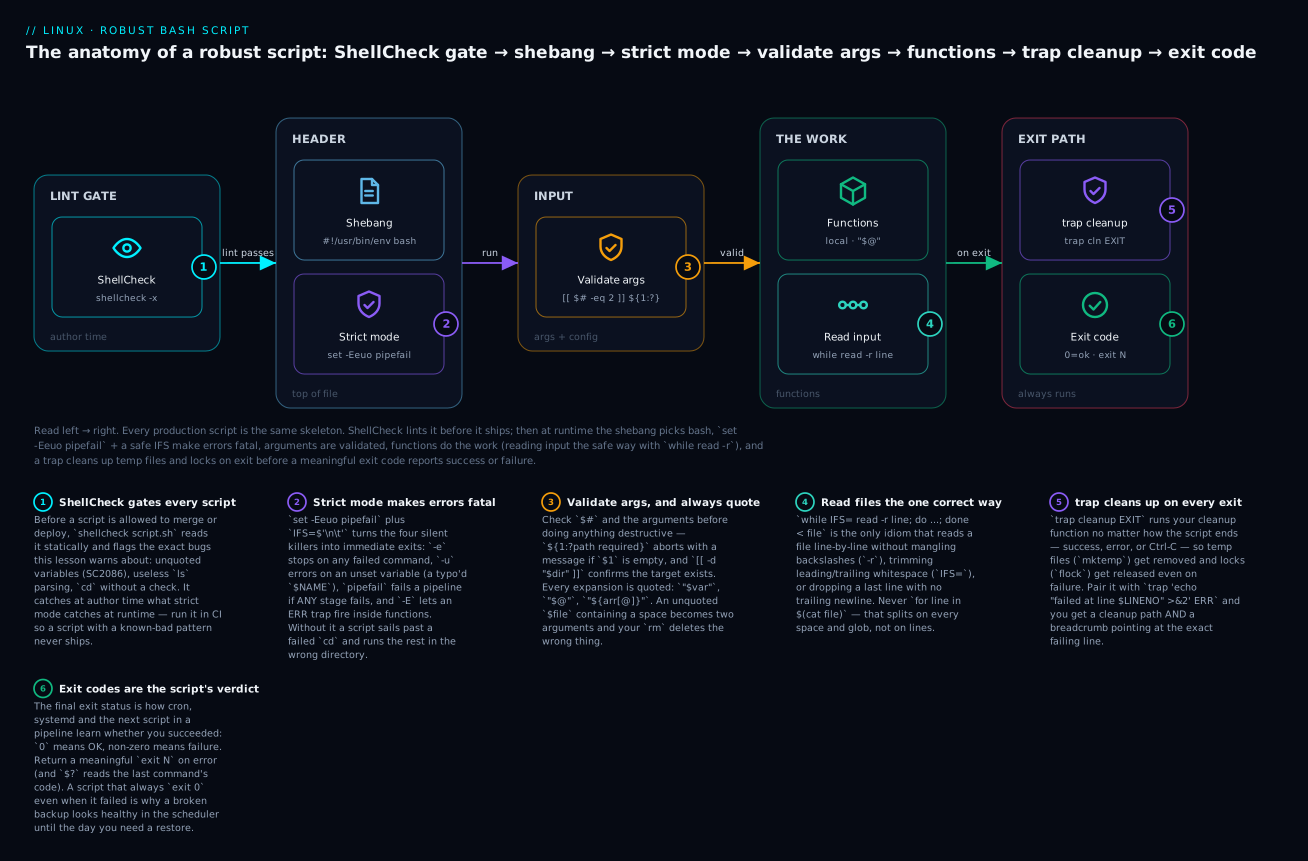
The anatomy of a script that has all of this — the ShellCheck gate, the shebang, strict mode, validation, the functions that do the work, the trap cleanup, and a meaningful exit code — is one repeatable skeleton. Read the diagram left to right; the numbered badges mark the six points that separate a robust script from a fragile one.
Debugging bash scripts
When a script misbehaves, bash can show you exactly what it’s doing. set -x (xtrace) prints each command after expansion — so you see the real values, spaces and all — which instantly reveals quoting and variable bugs.
bash -x ./script.sh              # trace the whole run
# or trace just a suspect block:
set -x
tar czf "$dest" "$src"
set +x                            # turn tracing back off
Enrich the trace with a custom PS4 so every line shows where it is:
export PS4='+ ${BASH_SOURCE##*/}:${LINENO}:${FUNCNAME[0]:-main}: '
bash -x ./script.sh
# + backup.sh:14:main: tmp=/tmp/tmp.aB3xK
# + backup.sh:15:cleanup: rm -f /tmp/tmp.aB3xK
| Switch | Effect | Use it to |
|---|---|---|
bash -x / set -x |
Print each command after expansion | See the real values — the #1 debugging tool |
PS4='...' |
Customise the xtrace prefix | Add file:line:function to every traced line |
bash -n / set -n |
Parse only, don’t run — syntax check | Validate a script without side effects |
bash -v / set -v |
Echo each input line as written (before expansion) | See the source as bash reads it |
trap '...' DEBUG |
Run a command before every statement | Fine-grained step tracing |
set -x; PS4=... in CI |
Trace on failure | Post-mortem a job that failed unattended |
The workflow is: reproduce with bash -x, watch for the line where an expansion is empty or split wrong (that’s your bug), fix the quoting or validation, and confirm with ShellCheck. Ninety percent of script bugs are visible in the first xtrace.
Hands-on lab: three real sysadmin scripts
Run these on a throwaway VM, WSL, or container. Each is written to the strict-mode standard, and you’ll ShellCheck every one. Install ShellCheck first: sudo apt install shellcheck or sudo dnf install ShellCheck.
Step 0 — a scratch area.
mkdir -p ~/lab/{data,backups,logs}
echo "important" > ~/lab/data/file1.txt
echo "config"    > ~/lab/data/file2.txt
Script 1 — backup with rotation
A backup that timestamps its archive, keeps only the newest N, cleans up its temp file on any exit, and refuses to run twice at once. This is the real shape of a nightly backup; for the archiving/retention theory behind it see the Backup & recovery: tar, rsync, restic lesson.
cat > ~/lab/backup.sh <<'EOF'
#!/usr/bin/env bash
set -Eeuo pipefail
IFS=$'\n\t'

KEEP=3                                   # how many backups to retain
src=${1:?usage: backup.sh <source-dir> <backup-dir>}
dest=${2:?usage: backup.sh <source-dir> <backup-dir>}

log()  { echo "[$(date +%FT%T)] $*"; }
die()  { echo "[$(date +%FT%T)] ERROR: $*" >&2; exit 1; }

[[ -d "$src"  ]] || die "source not found: $src"
mkdir -p "$dest"

# single-instance lock, auto-released on exit
exec 9>"$dest/.backup.lock"
flock -n 9 || die "another backup is already running"

# temp file cleaned up however we exit
tmp=$(mktemp)
cleanup() { rm -f "$tmp"; }
trap cleanup EXIT
trap 'die "failed at line $LINENO"' ERR

ts=$(date +%Y%m%d-%H%M%S)
archive="$dest/backup-$ts.tgz"

log "backing up $src → $archive"
tar czf "$tmp" -C "$src" .               # build in temp, then move (atomic-ish)
mv "$tmp" "$archive"
trap - ERR                                # archive is safe now

# rotation: delete all but the newest $KEEP
mapfile -t old < <(ls -1t "$dest"/backup-*.tgz 2>/dev/null | tail -n +$((KEEP + 1)))
for f in "${old[@]}"; do
    log "pruning old backup: $f"
    rm -f "$f"
done

log "done: $(du -h "$archive" | cut -f1) in $archive"
EOF
chmod +x ~/lab/backup.sh

shellcheck ~/lab/backup.sh && echo "shellcheck: clean"
~/lab/backup.sh ~/lab/data ~/lab/backups
~/lab/backup.sh ~/lab/data ~/lab/backups   # run a few times to see rotation kick in
~/lab/backup.sh ~/lab/data ~/lab/backups
~/lab/backup.sh ~/lab/data ~/lab/backups
ls -1t ~/lab/backups/backup-*.tgz          # only the newest 3 survive
What just happened: strict mode + the ERR trap mean any failure aborts loudly with a line number; the flock stops concurrent runs; mktemp + the EXIT trap guarantee no temp litter; and rotation keeps disk bounded. Run it four times and only three archives remain.
Script 2 — service health-check with alerting
Check that a service is active and answering, log the result to journald, and “alert” (here, to stderr and logger) when it’s down. This is the skeleton of every monitoring script.
cat > ~/lab/healthcheck.sh <<'EOF'
#!/usr/bin/env bash
set -Eeuo pipefail
IFS=$'\n\t'

svc=${1:?usage: healthcheck.sh <service> [url]}
url=${2:-}

warn() { echo "WARN: $*" >&2; logger -t healthcheck "WARN: $*"; }
ok()   { echo "OK: $*";     logger -t healthcheck "OK: $*"; }

# 1) is the unit active?
if ! systemctl is-active --quiet "$svc"; then
    warn "$svc is not active"
    exit 1
fi

# 2) if a URL was given, does it answer 2xx/3xx within 5s?
if [[ -n "$url" ]]; then
    if ! curl -fsS --max-time 5 "$url" >/dev/null; then
        warn "$svc is active but $url did not respond"
        exit 1
    fi
fi

ok "$svc healthy"
EOF
chmod +x ~/lab/healthcheck.sh

shellcheck ~/lab/healthcheck.sh && echo "shellcheck: clean"
~/lab/healthcheck.sh ssh            # or any service that exists on your box
~/lab/healthcheck.sh ssh http://localhost:22 ; echo "exit=$?"   # port 22 isn't HTTP → fails
journalctl -t healthcheck -n 5 --no-pager
What just happened: the script separates two failure modes (unit dead vs. unit up but not answering), writes both to journald under a tag you can query, and returns a non-zero exit code the scheduler (or a systemd OnFailure=) can act on. Point it at a real service and URL and it becomes a genuine check — drop it in a systemd timer and you have monitoring.
Script 3 — idempotent log cleanup with a dry-run
Delete logs older than N days — but only inside a validated directory, with a --dry-run so you can preview before you destroy. This is the pattern for any bulk-delete chore.
cat > ~/lab/logclean.sh <<'EOF'
#!/usr/bin/env bash
set -Eeuo pipefail
IFS=$'\n\t'

dry=0
[[ "${1:-}" == "--dry-run" ]] && { dry=1; shift; }

dir=${1:?usage: logclean.sh [--dry-run] <log-dir> [days]}
days=${2:-14}

# refuse to operate on dangerous or missing targets
[[ -d "$dir" ]]                 || { echo "no such dir: $dir" >&2; exit 1; }
[[ "$dir" == "/" || -z "$dir" ]] && { echo "refusing to clean $dir" >&2; exit 1; }

count=0
while IFS= read -r -d '' f; do          # -print0 / read -d '' → whitespace-safe
    if (( dry )); then
        echo "[dry-run] would delete: $f"
    else
        rm -f "$f"; echo "deleted: $f"
    fi
    (( count += 1 ))
done < <(find "$dir" -type f -name '*.log' -mtime +"$days" -print0)

echo "$( ((dry)) && echo would-remove || echo removed ) $count file(s) older than $days days"
EOF
chmod +x ~/lab/logclean.sh

# make some old files to catch
touch -d '30 days ago' ~/lab/logs/old1.log ~/lab/logs/old2.log
touch ~/lab/logs/fresh.log

shellcheck ~/lab/logclean.sh && echo "shellcheck: clean"
~/lab/logclean.sh --dry-run ~/lab/logs 14     # preview — deletes nothing
~/lab/logclean.sh ~/lab/logs 14               # for real — fresh.log survives
ls ~/lab/logs
⚠️ Any script that runs rm on a computed path must validate that path first — the two guard lines refusing / and an empty $dir, plus set -u, are what stand between “clean the log dir” and “clean the root filesystem.” Never ship a delete loop without them.
What just happened: --dry-run let you see the blast radius before committing; the NUL-delimited find … -print0 / read -d '' pair handled any filename safely; and the guards made the destructive path refuse obviously-wrong targets. Re-running after the real run deletes nothing new — it’s idempotent.
Common mistakes and troubleshooting
Work this table top to bottom when a script misbehaves; the first three rows account for most of it.
| Symptom | Likely cause | Fix |
|---|---|---|
rm/cp acts on the wrong files when a name has a space |
Unquoted $var word-split into multiple args |
Quote everything: "$var", "$@", "${arr[@]}" |
Script deleted far too much / hit / |
Unset variable expanded to empty in a path | set -u; validate with ${var:?}; guard rm paths |
[: =: unary operator expected |
[ $x = y ] with $x empty → [ = y ] |
Use [[ ]] (immune) and quote: [[ "$x" == y ]] |
Counter is 0 after a ... | while ... loop |
Pipe put the while in a subshell; var died with it |
Feed with < file or < <(cmd), not a pipe |
Filenames with spaces break a for loop |
Looping $(ls) or unquoted substitution |
for f in *.glob, or find -print0 | while read -d '' |
set -e script keeps going after a failure |
Failure was in a pipeline / if-condition / local x=$(…) |
Add pipefail; split local x; x=$(…); don’t rely on -e in conditions |
unbound variable abort under set -u |
Referencing a maybe-unset var directly | "${var:-}" for optional, ${var:?} for required |
((i++)) exits the script unexpectedly |
(( )) returns 1 when result is 0, tripping set -e |
i=$((i+1)) or ((i++)) || true |
| Works by hand, does nothing in cron | cron’s bare PATH/environment; relative paths |
Absolute paths, set PATH in the script, test under cron |
command not found (127) for an installed tool |
Not on the script’s PATH |
Call by absolute path or set PATH at the top |
| Temp files pile up after failures | No cleanup on the error path | trap 'rm -f "$tmp"' EXIT — fires on any exit |
$? always reads 0 |
Checked after an intervening command (e.g. echo) |
Capture immediately: cmd; rc=$? |
The pitfalls that cost the most time
These four are worth committing to memory — they are the bugs that ShellCheck exists to catch and that senior sysadmins spot on sight:
| Bad pattern | Why it’s a bug | Correct form |
|---|---|---|
cp $src $dst |
Unquoted — splits on spaces, expands globs | cp "$src" "$dst" |
[ $x = value ] |
Empty/spaced $x → syntax error or wrong result |
[[ "$x" == value ]] |
for f in $(ls *.log) |
ls output mangles spaces/newlines, re-globs |
for f in *.log |
cd /some/dir; rm -rf * |
If cd fails, rm runs in the wrong dir |
cd /some/dir || exit 1; rm -rf ./* |
result=`cmd` |
Legacy backticks don’t nest, confuse quoting | result=$(cmd) |
rm -rf "$dir/" |
$dir empty → rm -rf / |
rm -rf "${dir:?}/" |
echo $var > file (secret) |
Word-splits; leaks via ps/logs |
printf '%s\n' "$var" > file |
Unquoted variables are the root of most disasters. Word-splitting and globbing on an unquoted expansion is not a rare edge case — it fires the first time a filename has a space or a value is empty, and the failure mode ranges from “wrong file” to “deleted the filesystem.” The fix is a reflex, not a judgement call: quote every expansion, and let ShellCheck (SC2086) catch the ones you miss.
cd without a check is a data-loss bug waiting to happen. The pattern cd "$dir"; do_destructive_thing assumes the cd worked. If $dir doesn’t exist (unmounted disk, typo), you’re now doing the destructive thing in whatever directory you were in. Always cd "$dir" || exit 1, or better, don’t cd at all — use absolute paths and -C flags (tar -C "$dir", git -C "$dir").
set -e gives false confidence if you don’t know its holes. People add set -e, assume they’re safe, and are surprised when a script continues after a failing pipeline stage or a local x=$(failing_cmd). Strict mode (-Eeuo pipefail) closes the biggest holes, but the real safety net is explicit checking of the commands that matter — cmd || die "…" — combined with ShellCheck and testing. Treat set -e as a backstop, not a strategy.
Cheat-sheet
| Task | Syntax |
|---|---|
| Shebang (portable) | #!/usr/bin/env bash |
| Strict-mode header | set -Eeuo pipefail then IFS=$'\n\t' |
| Make executable / run / source | chmod +x s.sh · ./s.sh · source s.sh |
| Assign / use (always quote) | x=val · "$x" |
| Command substitution | out=$(cmd) |
| Default / required value | ${x:-default} · ${x:?message} |
| Basename / extension | ${path##*/} · ${file##*.} · strip: ${file%.gz} |
| Args | $1 … ${10} · all: "$@" · count: $# · shift: shift |
| Read a line (safe) | read -rp "Prompt: " var |
| String / number test | [[ "$a" == "$b" ]] · [[ $n -gt 5 ]] |
| File tests | [[ -f f ]] [[ -d d ]] [[ -z "$s" ]] [[ -n "$s" ]] |
| If / and / or | if cmd; then … fi · A && B · A || B |
| Case | case "$x" in a) … ;; *) … ;; esac |
| For over files | for f in *.log; do … done |
| Read a file | while IFS= read -r line; do … done < file |
| Read command output | while … done < <(cmd) (keeps variables) |
| C-style / range | for ((i=0;i<n;i++)) · for i in {1..5} |
| Function + local | f() { local x="$1"; …; } |
| Return status / data | return N · echo v then x=$(f) |
| Indexed array | a=(x y) · "${a[@]}" · "${#a[@]}" · a+=(z) |
| Assoc array | declare -A m; m[k]=v; "${m[k]}"; "${!m[@]}" |
| Arithmetic | n=$(( a + b )) · (( i++ )) · (( x > y )) |
| Exit code | $? · exit 0 (ok) / exit 1 (fail) |
| Temp file + cleanup | t=$(mktemp); trap 'rm -f "$t"' EXIT |
| Error breadcrumb | trap 'echo "fail line $LINENO" >&2' ERR |
| Single-instance lock | exec 9>lock; flock -n 9 || exit 1 |
| Log to stderr / journal | echo "..." >&2 · logger -t tag "..." |
| Idempotent create | mkdir -p d · id u &>/dev/null || useradd u |
| Lint / trace / syntax-check | shellcheck s.sh · bash -x s.sh · bash -n s.sh |
Interview and exam questions
Q: Why always quote "$var", and what goes wrong if you don’t?
A: Unquoted, bash performs word-splitting (on IFS whitespace) and globbing on the expanded value, so rm $file with file="a b" tries to delete two files, and an empty variable can collapse a command’s arguments. Quoting passes the value through verbatim. It’s the single biggest source of shell bugs and ShellCheck’s SC2086.
Q: What does set -Eeuo pipefail do, flag by flag?
A: -e exit on any command failure; -u error on referencing an unset variable; -o pipefail make a pipeline fail if any stage fails (not just the last); -E make an ERR trap fire inside functions/subshells too. Together they turn bash’s dangerous silent-continue defaults into fail-fast behaviour.
Q: Give the correct way to read a file line by line, and explain each part.
A: while IFS= read -r line; do …; done < file. IFS= preserves leading/trailing whitespace, -r stops backslash interpretation, and < file feeds the file in. Never for line in $(cat file) — that splits on every whitespace and glob, not on lines.
Q: Why is for f in $(ls *.log) wrong, and what do you use instead?
A: ls output is for humans; it mangles filenames with spaces or newlines and re-globs. Use a glob directly: for f in *.log. For a recursive, whitespace-safe walk use find … -print0 | while IFS= read -r -d '' f.
Q: What’s the difference between [ ] and [[ ]]? Which should a bash script use?
A: [ ] is the POSIX test builtin: it word-splits unquoted variables (so [ $x = y ] breaks when $x is empty), needs -a/-o for logic, and can’t do regex/globs. [[ ]] is a bash keyword that doesn’t split, supports &&/||/</>, =~ regex and == globbing. Use [[ ]] unless you’re writing #!/bin/sh.
Q: How does a function return a value versus a status, and why does the distinction matter?
A: return N sets the function’s exit status (0–255) for branching (if func). To return data, echo it and capture with x=$(func). Mixing them up — trying to return a string, or capturing a status as data — is a common bug.
Q: You added set -e but the script still continues after a failure. Name three reasons.
A: The failing command was (1) in a pipeline’s non-final stage (needs pipefail), (2) part of an if/while condition or the left side of &&/|| (intentional), or (3) local x=$(cmd) — local succeeds and masks cmd’s failure (split into local x; x=$(cmd)). Also, -e is disabled inside a function called as a condition.
Q: What does ${var:?message} do, and where would you use it?
A: It expands to var’s value, or if var is unset/empty, prints message to stderr and exits non-zero. It’s the concise way to make a required argument or environment variable mandatory: src=${1:?source dir required}.
Q: Why is ((i++)) sometimes fatal under set -e?
A: (( )) returns exit status 1 when its result is 0. So ((i++)) when i was 0 evaluates to 0 (the pre-increment value), “fails,” and set -e exits the script. Use i=$((i+1)) or ((i++)) || true.
Q: How do you guarantee a temp file is removed no matter how the script exits?
A: Create it with mktemp, then trap 'rm -f "$tmp"' EXIT. The EXIT pseudo-signal fires on normal completion, on error (with set -e), and on Ctrl-C, so cleanup always runs. Add trap '…$LINENO…' ERR for a failure breadcrumb.
Q (RHCSA-style): Write a one-liner that adds user deploy only if it doesn’t already exist.
A: id deploy &>/dev/null || useradd deploy — the idempotent check-before-change pattern; safe to run repeatedly.
Q (LFCS-style): A backup script must not run two copies concurrently. How?
A: Take a lock on a file descriptor: exec 9>/run/backup.lock; flock -n 9 || { echo "already running" >&2; exit 1; }. The kernel releases the lock automatically when the script exits, so no cleanup is needed.
Key takeaways
- Quoting is the discipline that prevents most bugs. Write
"$var","$@", and"${arr[@]}"reflexively — unquoted expansions word-split and glob, which is how scripts touch the wrong files or, with an empty variable, the whole filesystem. - Every serious script opens with
#!/usr/bin/env bashthenset -Eeuo pipefailandIFS=$'\n\t'. That header flips bash’s dangerous defaults (continue-on-error, empty-on-unset, ignore-pipeline-failures) to fail-fast. - There is one correct way to read a file:
while IFS= read -r line; do … done < file. Piping into awhileloses your variables to a subshell; parsinglsmangles filenames. - Use
[[ ]], know your test operators (-f -d -z -nfor files/strings,-eq -lt …for numbers,=/!=for strings), and remember-eqis numeric while=is textual. trap cleanup EXITandtrap … ERRguarantee temp files and locks are released however the script ends, and give you a line-numbered breadcrumb on failure. Pair withmktempandflock.- Validate input before acting, and make scripts idempotent —
${var:?}, file tests, and check-before-change (mkdir -p,id u || useradd) so a re-run is always safe. - Run ShellCheck on every script — it catches unquoted variables, unchecked
cd,lsparsing and empty-pathrmbefore they run — and debug withbash -xplus a richPS4. - Exit codes are how automation hears you:
exit 0on success, meaningful non-zero on failure, captured immediately with$?. A script that always exits 0 is why a broken backup looks healthy until the restore. For the full language —getopts, testing, concurrency, secrets — continue in the Shell Scripting Zero to Hero course.