Quick take: EC2 SSH fails in exactly three ways, and they are not interchangeable.
Connection timed outmeans your packet never got an answer — a network/path problem (security group, NACL, route/IGW, no public IP, OS firewall).Connection refusedmeans the host answered but nothing is listening on the port — sshd is down, on another port, or still booting.Permission denied (publickey)means you reached sshd and it rejected your auth — wrong key, wrong username for the AMI, or bad file permissions. Read the exact error string first; it tells you which third of this guide you are in. Guessing wastes the incident; the string is the diagnosis.
It is 09:40, the deploy pipeline is red, and you cannot get onto the box to see why. ssh -i deploy.pem ec2-user@52.14.x.x just… hangs, then prints ssh: connect to host 52.14.x.x port 22: Connection timed out. Your colleague swears it worked yesterday. Nothing changed — except your home ISP handed you a new IP overnight, the My IP rule in the security group still pins last night’s address, and every SYN packet you send is now silently discarded at the ENI. Ninety seconds of reading the right signal would have told you that. Instead the team is about to widen the security group to 0.0.0.0/0, reboot the instance, and open a support case — three wrong moves for one five-second fix.
This is the most common EC2 support problem in the world, and it is maddening precisely because the same action (ssh) produces three different failures with three different root-cause families and three different fixes. The discipline that separates a two-minute recovery from a two-hour one is triage: name the failure class from the exact error string before you touch anything. A timeout and a refusal look identical in your terminal history a day later, but they are as different as “the road is closed” versus “the shop is shut.” This guide is built around that split. We trace one SSH connection through every hop — client → internet → IGW → route table → NACL → security group → ENI → sshd → authentication — map each of the three failure classes onto the exact hop where it bites, then spend the bulk of the article on a structured playbook: decode tables, a 20-row symptom → category → root cause → confirm → fix matrix, an ordered “checks in order” runbook, and the escape hatches for when SSH is dead entirely — EC2 Serial Console, EC2 Instance Connect, and SSM Session Manager, which needs no port 22 and no public IP at all.
By the end you will stop guessing. When the terminal says timed out you will look at the path; when it says refused you will look at the daemon; when it says Permission denied (publickey) you will look at the key and the username — and you will confirm each with an exact command before you change anything. Every operation shows both the aws CLI and Terraform, and the whole thing maps to the compute and networking domains of SAA-C03 and SOA-C02, where “why can’t I SSH in” is a near-guaranteed question.
What problem this solves
SSH to EC2 hides a surprising amount of machinery behind a one-line command, and when any layer of it misbehaves the feedback you get is deliberately vague. A firewall that drops your packet cannot, by design, send back “I dropped your packet” — that would help attackers map your network — so it sends nothing, and your client waits until the TCP handshake times out. The information you need is real and knowable, but it is scattered across the security group, the NACL, the route table, the instance’s public-IP assignment, the OS firewall, sshd’s config, the key’s file permissions, and the AMI’s default username. Not knowing which layer maps to which symptom is what turns a trivial fix into an afternoon.
What breaks without this triage discipline is a predictable, wasteful pattern. An engineer sees a timeout and restarts the instance (which sometimes “fixes” it by chance because a stop-start re-runs user-data or clears an OS-firewall state, teaching the wrong lesson). Another opens the security group to 0.0.0.0/0:22 — turning a firewall into an open door — because the timeout “went away.” A third burns an hour re-reading sshd config for a Permission denied that was simply the wrong username, root@ instead of ec2-user@. A fourth stares at Connection refused and blames the security group, when a refusal proves the security group is fine — the packet reached a host that answered. Each of these is a concept you learn once and never re-pay.
Who hits this: everyone who runs EC2. It bites hardest on first-time launchers (wrong AMI username, forgotten key, chmod on the .pem), on teams behind corporate networks (egress port 22 blocked at the office firewall), on anyone with a dynamic home IP (the My IP rule goes stale nightly), on private-subnet workloads (no path from the internet at all — the entire reason SSM Session Manager exists), and on modern clients hitting old servers (OpenSSH 8.8+ disabled the legacy ssh-rsa SHA-1 signature by default, and a valid old key suddenly gets Permission denied). The model is closed and small: three error classes, one connection path, a handful of hops. Learn the path and the return-traffic rules and the fog clears.
Here is the whole field in one frame — the three classes, what each proves, and where to look first:
| Error class (exact string) | What it PROVES | What it does NOT prove | First place to look |
|---|---|---|---|
Connection timed out |
Nothing answered your SYN | That sshd is down (you never reached it) | Security group → route/public IP → NACL → OS firewall |
Connection refused |
A host answered with RST | That the network is broken (packet got through) | sshd running? right port? still booting? fail2ban? |
Permission denied (publickey) |
You reached sshd; auth failed | That the key is wrong (could be the username) | Username for the AMI → correct key → key/dir permissions |
No route to host |
The local/edge network has no path | A server-side problem | Local routing, VPN, subnet route table, IGW |
Host key verification failed |
The host key changed vs known_hosts |
An AWS-side fault | Re-launched instance reusing an IP; clean known_hosts |
Learning objectives
By the end of this article you can:
- Triage in one glance: map any of the three SSH errors (
timed out,refused,Permission denied) to a specific hop in the connection path and name the most likely root cause for each. - Diagnose a
Connection timed outas a security-group miss, a staleMy IP, a missing route to the IGW, a missing public IP/EIP, a private-subnet reachability gap, a custom-NACL block, or an in-guest firewall — and confirm which with an exact command. - Diagnose a
Connection refusedas sshd not running, sshd on a non-standard port, an instance still booting, afail2banREJECT, or a full disk — and confirm each. - Diagnose
Permission denied (publickey)as the wrong AMI username, the wrong private key, a key not inauthorized_keys, wrong permissions on the key or~/.ssh(StrictModes), a full disk, SELinux context, or the ssh-rsa/OpenSSH 8.8 signature deprecation. - Read
ssh -vvvoutput and localise the failure to the network, the daemon, or the auth exchange. - Use VPC Reachability Analyzer to get a deterministic “this component blocks it” answer for port 22.
- Recover a host with no working SSH using the four escape hatches — Serial Console, EC2 Instance Connect, SSM Session Manager, and lost-key recovery (user-data re-inject / detach-root-volume /
AWSSupport-ResetAccess). - Reproduce a timeout and a permission-denied in a free-tier lab, fix both, and tear it down — in
awsCLI and Terraform.
Prerequisites & where this fits
You should be able to launch an EC2 instance, know what a key pair, security group, subnet, route table and internet gateway (IGW) are, and run the AWS CLI with credentials (aws sts get-caller-identity returns your account). You need an SSH client — OpenSSH on macOS/Linux/WSL, or a recent Windows 10/11 which ships ssh.exe. Basic Linux process and permission concepts (systemctl, chmod, file ownership) help for the server-side fixes.
This sits at the intersection of Compute and Networking troubleshooting. It assumes the firewall mechanics covered in depth in Security Groups vs NACLs: A Deep Dive and Troubleshooting Guide — this article reuses the stateful vs stateless return-traffic rule but focuses it on port 22. It is the compute-side companion to the broader AWS VPC Connectivity Troubleshooting Playbook, and the natural next read after you first Launch Your First EC2 Instance and SSH In — that walkthrough builds the working case; this one fixes it when it breaks.
A quick ownership map so you page the right person during an incident:
| Layer | What lives here | Who usually owns it | Failure class it causes |
|---|---|---|---|
| Client / corporate network | Local firewall, VPN, egress rules | You / IT / NetSec | Timeout (egress 22 blocked), No route to host |
| DNS / public IP | Public IPv4, EIP, public DNS name | App / platform | Timeout (stale or missing IP) |
| Route table + IGW | 0.0.0.0/0 → igw, subnet association |
Network team | Timeout (no path from internet) |
| NACL (subnet) | Stateless in/out rules, ephemeral range | Network team | Timeout (in 22 or out ephemeral missing) |
| Security group (ENI) | Stateful inbound tcp 22 ← your IP |
App / platform | Timeout (#1 cause) |
| EC2 / ENI state | Running? public IP attached? 2/2 checks | Platform | Timeout / refused (stopped, impaired) |
| sshd (in guest) | Daemon, Port, listen address, fail2ban | App / OS | Refused (down, wrong port), denied (config) |
| Auth (key + user) | authorized_keys, permissions, username |
App / OS | Permission denied (publickey) |
Core concepts
Five mental models make every later diagnosis obvious.
The error string is the triage. ssh reports the first layer that failed and stops. A timeout means the TCP three-way handshake never completed — your SYN went out and no SYN-ACK came back, because something on the path dropped it silently (firewalls drop, they do not reply). A refusal means a host did answer, with a TCP RST — the machine is up and reachable, but no process is listening on that port (or something actively rejected the SYN). A Permission denied means the TCP connection succeeded, the SSH protocol negotiated, and then authentication failed. These three sit at three different depths of the same connection, and each rules the earlier layers in: a refusal proves your security group, route, and public IP are all correct, because the packet reached a listening host to be refused.
Firewalls are silent; applications are loud. A security-group or NACL drop produces a timeout — no ICMP, no RST, nothing. An in-guest iptables -j DROP also times out. But an in-guest iptables -j REJECT, a stopped sshd, or fail2ban’s default action can produce a refusal. So “timeout vs refused” is often “packet dropped before the OS vs packet reached the OS.” This single distinction eliminates half the search space instantly.
The path is asymmetric and the NACL is stateless. Inbound, your packet crosses NACL-in → SG-in → ENI. The reply retraces SG-out → NACL-out. The security group is stateful — allow the inbound SSH and the reply is automatic. The NACL is stateless — it must explicitly allow the outbound reply, which leaves from the instance’s ephemeral port (1024–65535) back to your client. A custom NACL that allows inbound 22 but forgets the outbound ephemeral range drops every reply, and you see a timeout even though “the rule for 22 is right there.” (This is the classic covered in the SG-vs-NACL deep dive; on port 22 it is just as common.)
Reachability is not just firewalls — it is having a path at all. Even with perfect firewall rules, a packet from the internet reaches your instance only if the instance has a public IPv4 address or Elastic IP, sits in a subnet whose route table sends 0.0.0.0/0 to an internet gateway, and is actually running. A private-subnet instance has no such path by design — you must reach it through a bastion, a VPN, an EC2 Instance Connect Endpoint, or SSM Session Manager. And a public IP that is auto-assigned (not an EIP) changes on every stop-start, so yesterday’s DNS name or IP silently points at nothing.
Authentication is a contract with three terms: the key, the user, and the permissions. sshd accepts you only if (1) you present the private key whose public half is in that user’s ~/.ssh/authorized_keys, (2) you log in as the correct OS user for the AMI (Amazon Linux ec2-user, Ubuntu ubuntu, Debian admin, …), and (3) the key file on your side and ~/.ssh on the server side have tight enough permissions that sshd’s StrictModes trusts them. Miss any one and you get the same Permission denied (publickey) — which is why the message alone never tells you which term failed, and why ssh -vvv is mandatory.
The vocabulary in one table
| Term | One-line definition | Where it lives | Why it matters to SSH |
|---|---|---|---|
| Key pair | Public/private RSA/ed25519 pair; AWS keeps the public half | Your .pem + EC2 metadata |
Wrong/lost private key → Permission denied |
| Security group | Stateful, allow-only firewall on the ENI | Attached to the ENI | No inbound 22 rule → timeout (#1) |
| NACL | Stateless, ordered allow+deny firewall on the subnet | Subnet | Missing in-22 or out-ephemeral → timeout |
| Route table | Where 0.0.0.0/0 and local traffic go |
Associated to the subnet | No → igw → timeout from internet |
| Internet gateway (IGW) | The VPC’s door to the internet | Attached to the VPC | Absent/unrouted → no public path |
| Public IPv4 / EIP | The internet-routable address on the ENI | ENI | None → unreachable; auto-IP changes on stop-start |
| sshd | The SSH daemon listening on :22 | In the guest OS | Down/other port → refused |
authorized_keys |
The user’s list of allowed public keys | ~/.ssh/authorized_keys |
Key absent/wrong perms → denied |
| StrictModes | sshd’s refusal to trust loose permissions | sshd_config (default yes) |
Loose ~/.ssh → denied despite right key |
| Ephemeral ports | The high ports a reply leaves from | 1024–65535 |
NACL must allow them outbound |
| SSM Agent | Systems Manager agent for session/automation | In the guest + instance profile | Enables Session Manager (no port 22) |
| Status checks | System (2/2) + instance reachability probes | EC2 console / API | 1/2 or 0/2 → boot/OS problem → refused/timeout |
The triage: timed out vs refused vs denied
Everything starts here. Run the connection verbosely — ssh -vvv -i key.pem user@host — and read the last thing it prints before it fails. That single line places you in one of three columns. Do not proceed to any fix until you have named the column.
| Signal | Connection timed out |
Connection refused |
Permission denied (publickey) |
|---|---|---|---|
| TCP handshake | Never completes (SYN, no reply) | Completes then RST, or immediate RST | Completes fully |
| Speed | Slow — hangs ~20–75 s then fails | Fast — fails in <1 s | Fast — negotiates then rejects |
ssh -vvv last line |
Connecting to host … port 22. then silence |
connect to address … port 22: Connection refused |
Offering public key … → server declines |
| Layer that failed | Network / path (before the OS) | Reached the OS; port closed | Reached sshd; auth failed |
| Rules IN as correct | Nothing yet proven | SG, NACL, route, public IP all OK | Everything through TCP is OK |
| Root-cause family | SG, NACL, route/IGW, public IP, OS -j DROP, corp egress |
sshd down/other port, still booting, fail2ban, -j REJECT |
Wrong user, wrong key, key not authorized, perms, ssh-rsa |
| First confirm | Reachability Analyzer / describe-security-groups |
Serial Console systemctl status sshd |
ssh -vvv + check the AMI username |
| First fix | Open 22 from your IP / add route / assign IP | Start sshd / use right port / wait | Right user@, right -i key, fix perms |
Two reading notes that save the most time. First, macOS prints Operation timed out where Linux prints Connection timed out — same meaning. Second, a Connection reset by peer or kex_exchange_identification: Connection closed by remote host is a fourth, subtler signal: the TCP connection opened but sshd hung up during the banner/key exchange — almost always fail2ban/sshguard, MaxStartups throttling, TCP wrappers, or an sshd mid-restart. Treat it as “reached the daemon, daemon rejected the session” — closer to the refused/denied side than the timeout side.
Class 1 — Connection timed out (network / path)
A timeout means your packet died on the way in. Work the hops outside-in, cheapest check first. The order matters: 80% of real timeouts are the security group or a stale source IP, so start there.
| # | Root cause | Why it times out | Confirm (exact) | Fix |
|---|---|---|---|---|
| T1 | No inbound SG rule for 22 | SG is allow-only; absent rule = silent drop | aws ec2 describe-security-groups --group-ids sg-x --query "SecurityGroups[].IpPermissions" |
authorize-security-group-ingress --port 22 --cidr <you>/32 |
| T2 | Stale My IP / dynamic ISP / VPN |
Rule pins an old /32; your IP changed | Compare curl -s https://checkip.amazonaws.com to the rule’s CIDR |
Update the rule to your current /32 |
| T3 | Wrong SG attached to the ENI | Rule is perfect but on an unattached SG | describe-instances … NetworkInterfaces[].Groups |
Attach the correct SG to the ENI |
| T4 | No public IPv4 / EIP | No internet-routable address to hit | describe-instances … Association.PublicIp is null |
Associate an EIP, or enable auto-assign + relaunch |
| T5 | No route 0.0.0.0/0 → igw |
Subnet has no path to the internet | describe-route-tables for the subnet’s assoc |
Add --destination-cidr-block 0.0.0.0/0 --gateway-id igw-x |
| T6 | Private subnet (by design) | Never meant to be internet-reachable | Subnet’s route table has no IGW route | Use a bastion, EIC Endpoint, or SSM Session Manager |
| T7 | Instance stopped / terminated | Nothing is there to answer | describe-instances … State.Name |
Start it; note the public IP will change (no EIP) |
| T8 | Stale public DNS/IP after stop-start | Auto-assigned IP rotates on stop-start | Compare current PublicIpAddress to what you dialled |
Reconnect to the new IP; use an EIP to pin it |
| T9 | Custom NACL denies inbound 22 | Stateless subnet firewall blocks entry | describe-network-acls … Entries for an in-deny |
Add an inbound ALLOW for tcp 22 below the deny |
| T10 | NACL missing outbound ephemeral | Reply can’t leave; you never see SYN-ACK | NACL egress lacks 1024–65535; Flow Logs REJECT |
Add outbound ALLOW tcp 1024-65535 to your CIDR |
| T11 | OS firewall -j DROP |
iptables/ufw/firewalld drops the SYN in-guest | Serial Console: ufw status / iptables -L -n |
Allow 22 in the OS firewall (or disable for triage) |
| T12 | Corporate egress blocks 22 | Your office/VPN blocks outbound 22 | ssh -vvv hangs from office, works from phone hotspot |
Use SSM Session Manager over 443, or a VPN exception |
| T13 | Wrong region/subnet target | You’re dialling an IP that isn’t this box | describe-instances region + IP sanity check |
Target the right instance/region |
| T14 | IPv6-only client, no ::/0 rule |
v6 client, SG/NACL only has v4 rules | ssh -4 works, ssh -6 times out |
Add an inbound rule for your IPv6 /128 |
Because so many timeouts are the inbound rule, here is that rule field by field — the exact shape of a correct SSH ingress and where each field goes wrong:
| Field | Value for SSH | Example | Why / gotcha |
|---|---|---|---|
| Protocol | tcp |
--protocol tcp |
-1/all works but is over-broad; SSH is TCP only |
| Port range | 22 (from=to=22) |
--port 22 |
A range like 0-65535 is the open-door anti-pattern |
| Source (CIDR) | your /32 |
203.0.113.5/32 |
0.0.0.0/0 exposes SSH to the whole internet |
| Source (SG ref) | a bastion’s SG | --source-group sg-bastion |
Preferred for tiered access; no IP to go stale |
| Source (prefix list) | EC2_INSTANCE_CONNECT |
a managed prefix list | Needed if you use browser EC2 Instance Connect |
| IPv6 source | your /128 |
2406:da00::/128 |
Separate rule; a v4-only rule drops v6 clients |
| Description | who / why | "me-home" |
No functional effect, but saves the next engineer |
And the reason the source keeps going stale — where your public IP actually comes from and how stable it is:
| Your network | Source IP AWS sees | Stability | SSH implication |
|---|---|---|---|
| Home broadband | ISP-assigned public IP | Rotates (days–weeks) | My IP rule goes stale → timeout |
| Office (static) | Fixed egress IP | Stable | Safe to pin a /32 |
| Corporate VPN | VPN concentrator IP | Stable per POP | Pin the VPN egress, not your laptop |
| CGNAT / mobile | Shared carrier IP | Volatile, shared | Pin a wider range, or use SSM |
| Cloud / CI runner | The runner’s NAT/EIP | Varies per run | Use an SSM/OIDC path, not a pinned IP |
| Behind a NAT gateway | The NAT’s EIP | Stable if EIP | Pin the NAT EIP for egress SSH |
The one-line proofs
# Your current public IP (the value the SG rule must contain)
curl -s https://checkip.amazonaws.com

# Does the instance even have a public address, and is it running?
aws ec2 describe-instances --instance-ids i-0abc123 \
  --query "Reservations[].Instances[].{State:State.Name,Pub:PublicIpAddress,Subnet:SubnetId,SGs:SecurityGroups[].GroupId}" \
  --output table

# Does the subnet route 0.0.0.0/0 to an IGW?
aws ec2 describe-route-tables \
  --filters Name=association.subnet-id,Values=subnet-0abc \
  --query "RouteTables[].Routes[?DestinationCidrBlock=='0.0.0.0/0']"

# Is there an inbound rule for tcp 22, and from which CIDR?
aws ec2 describe-security-groups --group-ids sg-0abc \
  --query "SecurityGroups[].IpPermissions[?FromPort==\`22\`]"
The fastest deterministic answer is Reachability Analyzer — it evaluates SG + NACL + route + IGW together and names the blocking component:
PATH_ID=$(aws ec2 create-network-insights-path \
  --source igw-0abc --destination i-0abc123 \
  --protocol tcp --destination-port 22 \
  --query NetworkInsightsPath.NetworkInsightsPathId --output text)

ANALYSIS=$(aws ec2 start-network-insights-analysis \
  --network-insights-path-id "$PATH_ID" \
  --query NetworkInsightsAnalysis.NetworkInsightsAnalysisId --output text)

aws ec2 describe-network-insights-analyses \
  --network-insights-analysis-ids "$ANALYSIS" \
  --query "NetworkInsightsAnalyses[].{Reachable:NetworkPathFound,Blocker:Explanations[0].ExplanationCode}"
NetworkPathFound: false with an ExplanationCode like ENI_SG_RULES_MISMATCH or NO_ROUTE_TO_DESTINATION points straight at the layer. (Each analysis costs a small per-run fee — see Cost & sizing.)
Class 2 — Connection refused (reached the host, port closed)
A refusal is good news for the network: the packet reached a live host that answered. The problem is now on or inside the instance. Because SSH is dead you will usually confirm these via Serial Console or SSM Session Manager, not SSH.
| # | Root cause | Why it refuses | Confirm (exact) | Fix |
|---|---|---|---|---|
| R1 | sshd not running / crashed | No process bound to :22 → RST | Serial Console: systemctl status sshd (or ssh) |
systemctl start sshd && systemctl enable sshd |
| R2 | sshd on a non-standard port | Someone set Port 2222 |
Serial Console: ss -tlnp | grep sshd |
ssh -p 2222 …, and open that port in the SG |
| R3 | Instance still booting | sshd not up yet in the first ~30–90 s | Status checks not yet 2/2 |
Wait; watch describe-instance-status |
| R4 | fail2ban / sshguard ban |
Repeated fails → REJECT your IP | Serial Console: fail2ban-client status sshd |
fail2ban-client set sshd unbanip <you> |
| R5 | OS firewall -j REJECT |
In-guest REJECT sends an RST | Serial Console: iptables -L -n | grep 22 |
Change REJECT→ACCEPT for 22, or fix the rule |
| R6 | Disk full → sshd can’t fork | No space to create session/PTY | Serial Console: df -h shows 100% |
Clear space (journalctl --vacuum, logs, /tmp) |
| R7 | sshd config broke; failed to start | Bad sshd_config after an edit |
Serial Console: sshd -t prints the syntax error |
Fix the config line; systemctl restart sshd |
| R8 | Socket unit disabled | ssh.socket masked/disabled |
Serial Console: systemctl status ssh.socket |
systemctl enable --now ssh |
| R9 | TCP wrappers hosts.deny |
Legacy /etc/hosts.deny: sshd: ALL |
Serial Console: read `/etc/hosts.allow | deny` |
| R10 | Wrong port on the client | You passed -p for the wrong port |
Re-run without -p, or with the real one |
Use the correct port |
Most of R1–R7 come down to sshd’s own config, so keep this directive reference at hand. Read the effective config on the box with sshd -T (it resolves includes and defaults), never the raw file:
| Directive | Default | Effect if misset | Confirm (on host) |
|---|---|---|---|
Port |
22 |
Non-22 → client refused on :22 |
sshd -T | grep -i '^port' |
ListenAddress |
all interfaces | Bound to 127.0.0.1 → refused externally |
sshd -T | grep -i listenaddress |
PubkeyAuthentication |
yes |
no → every key login denied |
sshd -T | grep -i pubkey |
PasswordAuthentication |
no on AWS AMIs |
no + no valid key → denied |
sshd -T | grep -i passwordauth |
PermitRootLogin |
prohibit-password |
no → root@ denied (use the AMI user) |
sshd -T | grep -i permitroot |
AllowUsers / AllowGroups |
unset | Set without your user → denied | sshd -T | grep -iE 'allow(users|groups)' |
DenyUsers / DenyGroups |
unset | Lists your user → denied | sshd -T | grep -i deny |
StrictModes |
yes |
Loose ~/.ssh perms → denied |
sshd -T | grep -i strictmodes |
MaxAuthTries |
6 |
Low + many agent keys → Too many failures |
sshd -T | grep -i maxauthtries |
MaxStartups |
10:30:100 |
Low under load → kex … closed |
sshd -T | grep -i maxstartups |
PubkeyAcceptedAlgorithms |
8.8+ excludes ssh-rsa |
Excludes your key’s algorithm → denied | sshd -T | grep -i acceptedalgo |
If the refusal is a brute-force defence biting your own IP (R4), know which tool is running and how to clear yourself:
| Tool | Trigger | Ban action | Check | Unban |
|---|---|---|---|---|
fail2ban |
Failed logins in a window | iptables/nftables drop or reject |
fail2ban-client status sshd |
fail2ban-client set sshd unbanip <you> |
sshguard |
Repeated auth failures | Firewall block | journalctl -u sshguard |
Flush its table / whitelist your IP |
DenyHosts (legacy) |
Failed logins | /etc/hosts.deny entry |
Read /etc/hosts.deny |
Remove your IP; add to hosts.allow |
The tell that separates R1–R2 from a genuine boot problem is the status checks. A refusal with 2/2 checks passing means the OS is healthy but the daemon or a firewall is the issue (R1, R2, R4, R5). A refusal with 1/2 (instance check failing) means the OS itself is unhealthy — kernel panic, corrupt fstab, misconfigured network — and you go to the Serial Console to read the boot messages:
aws ec2 describe-instance-status --instance-ids i-0abc123 \
  --query "InstanceStatuses[].{System:SystemStatus.Status,Instance:InstanceStatus.Status}"
# {"System":"ok","Instance":"impaired"}  → OS-level problem, open Serial Console
Read the two checks together — the pair localises the fault to AWS, the OS, or just “still booting”:
| System check | Instance check | Means | Action |
|---|---|---|---|
ok |
ok (2/2) |
The OS is healthy | Refused/denied is sshd/auth, not the OS |
ok |
impaired (1/2) |
Guest OS / boot problem | Serial Console → read boot log, fstab, network |
impaired |
ok / insufficient |
AWS host / hardware issue | Stop-start (moves to a new host); check Health |
insufficient-data |
insufficient-data |
Still booting or agent not reporting | Wait, then re-check |
| n/a | initializing |
First ~1–3 min after launch | Expect transient refused; wait |
Class 3 — Permission denied (publickey) (reached sshd, auth failed)
You are through the network and the daemon is up. The three-term contract failed. This class has the widest fan-out and the message never says which term — ssh -vvv does.
| # | Root cause | Why auth fails | Confirm (exact) | Fix |
|---|---|---|---|---|
| P1 | Wrong username for the AMI | Key is right; user has no such authorized_keys |
-vvv: offers key, server declines for that user |
Use the AMI’s user (table below) |
| P2 | Wrong private key | Not the pair AWS injected at launch | -vvv: Offering public key then decline |
ssh -i <correct>.pem; check the launch key name |
| P3 | Key never placed | Launched with no key, or key removed | Instance’s KeyName is empty in metadata |
Re-inject via user-data / EIC / AWSSupport-ResetAccess |
| P4 | Local key perms too open | Client refuses to use a world-readable key | WARNING: UNPROTECTED PRIVATE KEY FILE! |
chmod 400 key.pem |
| P5 | Server ~/.ssh perms (StrictModes) |
sshd won’t trust a loose ~/.ssh/home |
Serial Console: ls -ld ~/.ssh is 0777/group-writable |
chmod 700 ~/.ssh; chmod 600 authorized_keys |
| P6 | Wrong ownership of authorized_keys |
Owned by root, not the user | Serial Console: ls -l ~/.ssh/authorized_keys |
chown user:user ~/.ssh -R |
| P7 | Disk full | Can’t read/write .ssh or PTY |
Serial Console: df -h = 100% |
Free space; retry |
| P8 | SELinux context wrong | ~/.ssh mislabeled after a restore/edit |
Serial Console: ls -Z ~/.ssh; ausearch -m avc |
restorecon -R -v ~/.ssh |
| P9 | PubkeyAuthentication no |
Key auth disabled in sshd | Serial Console: sshd -T | grep pubkey |
Set PubkeyAuthentication yes; restart sshd |
| P10 | AllowUsers/DenyUsers excludes you |
Your user isn’t allowed | Serial Console: sshd -T | grep -i allowusers |
Add your user; restart sshd |
| P11 | Account locked / nologin shell |
User exists but can’t log in | Serial Console: passwd -S user; getent passwd |
Unlock; set a real shell |
| P12 | Too many keys offered | Agent offers wrong keys → Too many auth failures |
-vvv: several Offering before disconnect |
ssh -o IdentitiesOnly=yes -i key.pem … |
| P13 | ssh-rsa disabled (OpenSSH 8.8+) | New client/server rejects SHA-1 RSA | -vvv: send_pubkey_test: no mutual signature algorithm |
-o PubkeyAcceptedAlgorithms=+ssh-rsa, or new ed25519 key |
| P14 | Wrong key format (PuTTY .ppk) | .ppk isn’t OpenSSH format |
Load key … invalid format |
Convert with puttygen, or use -i OpenSSH .pem |
The AMI username you must use (P1 — the single most common)
root@ almost never works; each AMI ships a default sudo-capable user. Using the wrong one produces Permission denied (publickey) with the correct key, which sends people down the wrong path for hours.
| AMI / distribution | Default SSH username | Fallback / note |
|---|---|---|
| Amazon Linux 2 / 2023 | ec2-user |
— |
| Ubuntu (all versions) | ubuntu |
— |
| Debian | admin |
older images root |
| RHEL 8/9 | ec2-user |
older root |
| CentOS / CentOS Stream | centos |
some community AMIs ec2-user |
| Rocky / AlmaLinux | rocky / almalinux |
some use ec2-user |
| SUSE / SLES | ec2-user |
older root |
| Fedora | fedora |
some ec2-user |
| FreeBSD | ec2-user |
some root |
| Bitnami (any stack) | bitnami |
— |
| Windows (RDP, not SSH) | Administrator |
password via key decrypt |
If you do not know the AMI, ssh -vvv shows Authentications that can continue: publickey, you offer the key, and the server declines — try each documented user, or read the AMI’s marketplace/vendor page. A generic probe: many AMIs print the right user in the SSH banner error, and cloud-init logs it in /var/log/cloud-init.log (readable via Serial Console).
The permission contract (P4–P6) in exact numbers
sshd’s StrictModes yes (the default) refuses a key if the surrounding permissions are too loose — even when the key itself is correct. These are the exact modes it demands:
| Path | Required mode | Owner | Symptom if wrong |
|---|---|---|---|
Private key (key.pem, client) |
0400 or 0600 |
you | UNPROTECTED PRIVATE KEY FILE! → key ignored → denied |
~/.ssh (server) |
0700 |
the login user | Denied despite correct key (StrictModes) |
~/.ssh/authorized_keys (server) |
0600 (or 0644) |
the login user | Denied; sshd distrusts a group/world-writable file |
Home dir ~ (server) |
not group/world-writable (0755/0750) |
the login user | Denied; a 0777 home fails StrictModes |
/var/empty/sshd (privsep) |
0755, root-owned |
root | sshd fails to start → refused |
One more denial family hides in the key itself — its type and format. A .ppk is not an OpenSSH key, and an old ssh-rsa SHA-1 key is refused by modern daemons:
| Key type / format | Typical file | Works with | Note |
|---|---|---|---|
| RSA (SHA-2) | .pem |
Everything modern | Fine on OpenSSH 8.8+ using SHA-2 signatures |
RSA (SHA-1 ssh-rsa) |
.pem |
Pre-8.8 servers only | Denied by default on 8.8+ (P13) |
| ed25519 | id_ed25519 |
OpenSSH 6.5+ | Preferred; sidesteps the 8.8 issue entirely |
| ECDSA | .pem |
Broad | Acceptable; ed25519 preferred |
OpenSSH PEM (-----BEGIN …) |
.pem |
ssh -i directly |
AWS create-key-pair default output |
PuTTY .ppk |
.ppk |
PuTTY / Pageant only | ssh -i fails invalid format; convert with puttygen |
Reading ssh -vvv — the single most useful skill
ssh -vvv prints every step. You do not read all of it; you read the last few lines before failure and match them to the class. This table is the decoder:
-vvv line (last meaningful one) |
It means | Class |
|---|---|---|
Connecting to 52.x.x.x [52.x.x.x] port 22. then long silence |
SYN sent, nothing back | Timeout (network) |
connect to address 52.x.x.x port 22: Connection refused |
Host answered RST | Refused (port) |
connect to address 52.x.x.x port 22: Connection timed out |
Path drop | Timeout |
kex_exchange_identification: Connection closed by remote host |
sshd hung up at banner | fail2ban / MaxStartups / restart |
Authentications that can continue: publickey → decline |
Server rejected your key/user | Denied |
Offering public key: key.pem → we sent a publickey packet, wait for reply → decline |
That key not accepted for this user | Denied (P1/P2) |
Server accepts key then still denied |
Key OK but StrictModes/perms on server |
Denied (P5/P6) |
send_pubkey_test: no mutual signature algorithm |
ssh-rsa/SHA-1 deprecation | Denied (P13) |
Received disconnect … Too many authentication failures |
Agent offered too many keys | Denied (P12) |
Load key "key.pem": invalid format |
Not an OpenSSH private key | Denied (P14) |
Host key verification failed. |
Host key changed vs known_hosts |
Not auth — clean known_hosts |
The most valuable single distinction: Offering public key … [decline] puts you in P1/P2 (wrong key or wrong user — the auth was attempted and refused), whereas Server accepts key then denied puts you in P5/P6 (the key is right, so it must be permissions/StrictModes on the server). That one fork saves the most time in the whole guide.
These are the client flags you actually reach for during triage — each one isolates or works around a specific class:
| Flag | What it does | Use when |
|---|---|---|
-vvv |
Max-verbose trace | Always, to name the class |
-i <key> |
Use this identity file | Point at the exact .pem (P2) |
-p <port> |
Connect to a non-default port | sshd moved off 22 (R2) |
-o ConnectTimeout=10 |
Fail fast instead of hanging | Confirming a timeout quickly |
-o IdentitiesOnly=yes |
Offer only the -i key |
Too many authentication failures (P12) |
-o StrictHostKeyChecking=accept-new |
Trust a new host key once | First connect / re-launched box |
-o PubkeyAcceptedAlgorithms=+ssh-rsa |
Re-enable SHA-1 RSA | Old RSA key on OpenSSH 8.8+ (P13) |
-J user@bastion |
ProxyJump through a bastion | Private-subnet target |
-o ProxyCommand="aws ssm start-session …" |
Tunnel over SSM | No inbound 22 / private subnet |
-4 / -6 |
Force IPv4 / IPv6 | Isolate an IP-family issue (T14) |
A Host key verification failed is not an auth failure — it is your known_hosts cache disagreeing with the host key, common after a re-launch reuses an IP:
| Symptom | Cause | Fix |
|---|---|---|
Host key verification failed |
New host key vs cached one (re-launch reused the IP) | ssh-keygen -R <host> then reconnect |
REMOTE HOST IDENTIFICATION HAS CHANGED! |
Same as above (or a genuine MITM) | Verify it is your new instance, then -R |
| Prompted to trust the host every time | ~/.ssh/known_hosts not writable |
Fix its permissions / ownership |
| Want no prompt in automation | — | -o StrictHostKeyChecking=accept-new (never no) |
The escape hatches — when SSH is dead
When you cannot fix SSH over SSH (locked-out key, sshd down, no port 22), AWS gives you four out-of-band ways onto the box. Pre-wiring the last one (SSM) before you need it is the single highest-leverage reliability move in this article.
| Method | Needs port 22? | Needs public IP? | Prereqs | Best for |
|---|---|---|---|---|
| EC2 Serial Console | No | No | Account opt-in; a set OS password; Nitro instance; IAM SendSerialConsoleSSHPublicKey |
Boot failures, sshd down, OS-firewall lockout, read dmesg |
| EC2 Instance Connect (browser/CLI) | Yes (22 from EIC range) | Usually yes (public subnet) | ec2-instance-connect pkg; IAM SendSSHPublicKey; supported AMIs |
Quick key-less login when the network still works |
| EC2 Instance Connect Endpoint | No (uses the endpoint) | No | An EIC Endpoint in the VPC; IAM permissions | Private-subnet SSH without a bastion |
| SSM Session Manager | No | No | SSM Agent + instance profile AmazonSSMManagedInstanceCore + egress 443 (or VPC endpoints) |
The default for everything; no inbound at all |
| Lost-key recovery | n/a | n/a | user-data re-inject / detach-root-volume / AWSSupport-ResetAccess |
You no longer have any working key |
SSM Session Manager — the one to pre-install
Session Manager reaches the OS through the SSM Agent making an outbound HTTPS (443) connection to the Systems Manager service. There is no inbound port 22, no public IP, no key — which is exactly why it keeps working when SSH is dead. The price of admission is three things, wired at launch:
# 1) Instance profile with the managed policy
aws iam create-role --role-name ssm-ec2 \
  --assume-role-policy-document '{"Version":"2012-10-17","Statement":[{"Effect":"Allow","Principal":{"Service":"ec2.amazonaws.com"},"Action":"sts:AssumeRole"}]}'
aws iam attach-role-policy --role-name ssm-ec2 \
  --policy-arn arn:aws:iam::aws:policy/AmazonSSMManagedInstanceCore
aws iam create-instance-profile --instance-profile-name ssm-ec2
aws iam add-role-to-instance-profile --instance-profile-name ssm-ec2 --role-name ssm-ec2

# 2) Attach it to a running instance (or set at launch)
aws ec2 associate-iam-instance-profile \
  --instance-id i-0abc123 --iam-instance-profile Name=ssm-ec2

# 3) Confirm the agent registered, then open a shell — no SSH needed
aws ssm describe-instance-information \
  --query "InstanceInformationList[?InstanceId=='i-0abc123'].PingStatus"
aws ssm start-session --target i-0abc123
| SSM prerequisite | Why | Confirm |
|---|---|---|
| SSM Agent installed | It initiates the connection | Pre-installed on AL2/AL2023, Ubuntu, RHEL; systemctl status amazon-ssm-agent |
Instance profile with AmazonSSMManagedInstanceCore |
Agent needs permission to register | describe-instances … IamInstanceProfile |
| Outbound 443 to SSM endpoints | Agent → ssm, ssmmessages, ec2messages |
NAT/IGW egress, or 3 interface VPC endpoints for private subnets |
AWS-StartSSHSession (optional) |
To tunnel real ssh over SSM |
ssh -o ProxyCommand="aws ssm start-session --target %h --document-name AWS-StartSSHSession --parameters portNumber=%p" |
In a private subnet with no NAT, the agent reaches the service through three interface VPC endpoints — miss one and Session Manager silently never registers:
| Endpoint service | Purpose | Required for Session Manager? |
|---|---|---|
com.amazonaws.<region>.ssm |
Core SSM API | Yes (private subnet, no NAT) |
com.amazonaws.<region>.ssmmessages |
Session data channel | Yes |
com.amazonaws.<region>.ec2messages |
Agent ↔ service messages | Yes |
com.amazonaws.<region>.s3 (gateway) |
Session logs / patch content | Only if logging to S3 |
EC2 Instance Connect and the Serial Console
EC2 Instance Connect pushes a temporary public key (valid ~60 seconds) into the instance’s authorized_keys via the agent, so you can log in without holding a long-lived key — but it still rides SSH, so the network must work (port 22 open, from your IP or the EC2_INSTANCE_CONNECT service prefix list). Use it for “I lost my key but the box is otherwise fine”:
aws ec2-instance-connect send-ssh-public-key \
  --instance-id i-0abc123 --instance-os-user ec2-user \
  --ssh-public-key file://~/.ssh/temp_key.pub
ssh -i ~/.ssh/temp_key ec2-user@<public-ip>   # within ~60 s
EC2 Instance Connect has a handful of prerequisites; when a browser “Connect” button greys out or the CLI push fails, it is almost always one of these:
| Requirement | Detail | Confirm |
|---|---|---|
ec2-instance-connect package |
Pre-installed on AL2/AL2023, Ubuntu 16.04+ | rpm -q ec2-instance-connect / dpkg -l |
| IAM permission | ec2-instance-connect:SendSSHPublicKey |
The caller’s policy |
| Network reachability | Port 22 open from your IP or the EIC prefix list | SG inbound rule |
| Supported AMI | Amazon Linux, Ubuntu (not every custom AMI) | Vendor docs |
| Correct OS user | --instance-os-user ec2-user/ubuntu |
Matches the AMI |
Serial Console is the true out-of-band path — it attaches to the instance’s serial port (ttyS0) like a crash cart, works even when the network stack or sshd is dead, and needs no port 22. Its two gates are an account-level opt-in and a password set on the OS user (the serial console needs password auth for the interactive login):
aws ec2 enable-serial-console-access          # account-wide opt-in (once)
aws ec2 get-serial-console-access-status
# then: Console → EC2 → instance → Connect → EC2 Serial Console
Recovering a lost key (P3)
If no key works and you cannot use EIC, re-inject a key you control. Three documented methods, in order of how disruptive they are:
| Method | Mechanism | Downtime | Gotcha |
|---|---|---|---|
| user-data re-inject | Add cloud-config that appends your pubkey to authorized_keys, then start |
Stop/start | user-data runs once by default — must force re-run (below) |
AWSSupport-ResetAccess |
SSM automation resets/creates a key; needs SSM working | Reboot | Requires the SSM Agent + profile already present |
| Detach root volume | Stop, detach root EBS, attach to a rescue instance, edit authorized_keys, reattach |
Full stop | Manual, but works when everything else fails |
Because user-data normally runs only on the first boot, force it to run again by prepending the cloud-config that sets scripts-user to always:
#cloud-config
cloud_final_modules:
- [scripts-user, always]

--//
Content-Type: text/x-shellscript
#!/bin/bash
echo "ssh-ed25519 AAAA...newpubkey you@laptop" >> /home/ec2-user/.ssh/authorized_keys
chown ec2-user:ec2-user /home/ec2-user/.ssh/authorized_keys
chmod 600 /home/ec2-user/.ssh/authorized_keys
Set that as the stopped instance’s user-data (aws ec2 modify-instance-attribute --instance-id i-x --user-data …), start it, and your key is appended on boot. Prefer AWSSupport-ResetAccess if SSM is already wired — it is the least error-prone.
Each escape hatch is gated by a specific IAM action — grant these deliberately (they all ultimately grant a shell) and log them in CloudTrail:
| Method | Key IAM action | What it grants |
|---|---|---|
| EC2 Instance Connect | ec2-instance-connect:SendSSHPublicKey |
Push a 60-second key to an OS user |
| EIC Endpoint | ec2-instance-connect:OpenTunnel |
Tunnel to a private instance |
| Serial Console (login) | ec2-instance-connect:SendSerialConsoleSSHPublicKey |
Out-of-band serial login |
| Serial Console (opt-in) | ec2:EnableSerialConsoleAccess |
Account-level enablement |
| SSM Session Manager | ssm:StartSession (+ instance profile) |
Shell via the agent, no port 22 |
| Key recovery | ssm:StartAutomationExecution on AWSSupport-ResetAccess |
Reset / create a key |
Architecture at a glance
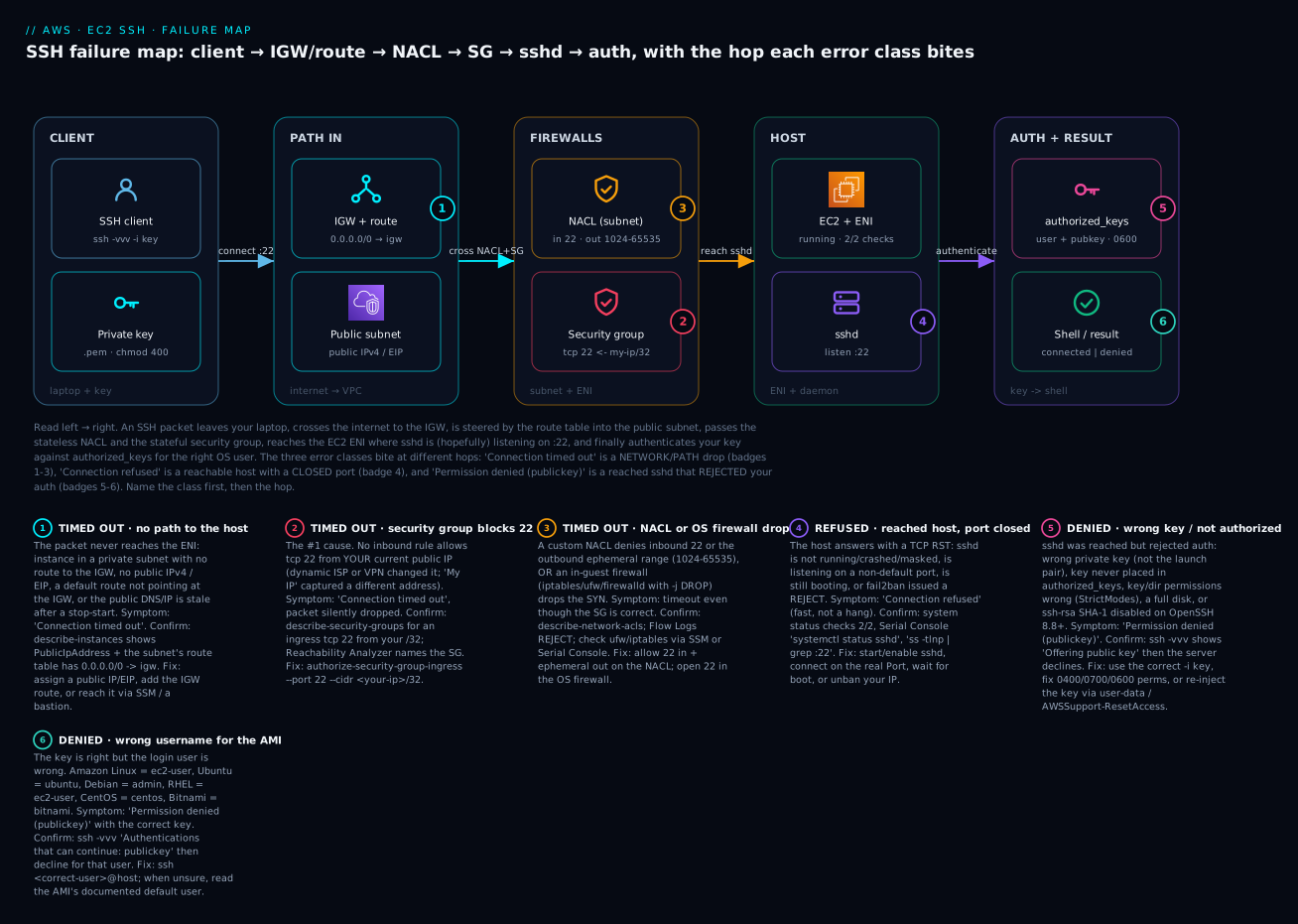
The diagram traces one SSH connection left to right and pins each failure class onto the exact hop where it bites. Read it as the map you keep open during an incident: your client and private key on the left; the internet path through the IGW and route table into the public subnet; the two firewalls (stateless NACL, stateful security group); the EC2 ENI and the sshd daemon; and finally the authentication step where your key meets authorized_keys for the right OS user. The six numbered badges are the six ways it breaks — badges 1–3 are the timeout family (no path, SG block, NACL/OS-firewall drop), badge 4 is the refused family (port closed), and badges 5–6 are the denied family (wrong key/perms, wrong username) — and the legend narrates each as symptom · confirm · fix.
Real-world scenario
Northwind Freight runs a logistics API on a fleet of t3.medium instances behind an ALB, plus a single t3.small “ops box” the on-call team SSHes into to run migration scripts. For eight months nobody thought about SSH — it just worked. Then three incidents in one quarter taught the team the whole taxonomy.
Incident 1 — the Monday timeout. Every Monday at 09:00, on-call reported “can’t SSH to the ops box, connection times out.” It always cleared by lunch. The security group allowed 22 from a single /32 — the office’s static IP. But the on-call engineer worked from home on Mondays, on a residential connection whose IP rotated over the weekend. Classic T2: a stale source. curl https://checkip.amazonaws.com from the laptop showed 49.207.x.x; the SG rule said 203.0.113.5/32 (the office). The “fix” people had been using — wait until they drove to the office — was accidental. The real fix was to stop using SSH from arbitrary IPs at all: they attached an instance profile with AmazonSSMManagedInstanceCore, and on-call switched to aws ssm start-session. The inbound 22 rule was deleted entirely. Zero timeouts since, because there is no inbound path to get wrong.
Incident 2 — the refused after patching. A nightly patch job on the ops box upgraded OpenSSH and, on one reboot, sshd failed to come back because an old sshd_config line (Protocol 2 — long removed) now made sshd -t fail. SSH gave Connection refused, and because the SG was already deleted (Incident 1’s fix), the team briefly panicked that SSM had “broken networking.” But describe-instance-status showed 2/2 — the OS was healthy, only the daemon was down. They opened Serial Console, ran sshd -t, saw Unsupported option Protocol, deleted the line, systemctl restart sshd, done. Ten minutes, no instance replacement. The lesson they wrote in the runbook: refused + 2/2 checks = the daemon, not the network; go to Serial Console, not to the VPC.
Incident 3 — the denied on the new AMI. The team baked a new golden image on Ubuntu (the old one was Amazon Linux). The first person to SSH in used muscle memory — ssh -i ops.pem ec2-user@… — and got Permission denied (publickey). They spent forty minutes re-checking the key, the SG, and authorized_keys before someone noticed the AMI change. P1: Ubuntu’s user is ubuntu, not ec2-user. ssh -i ops.pem ubuntu@… connected instantly. They added a one-liner to the launch template’s tags — ssh-user: ubuntu — so the next person would not repeat it, and standardised on ssh -vvv in the runbook so “offered key, server declined” would be read as wrong user or key, not broken network, next time.
The through-line: each incident was a different class, and every wasted minute came from acting before naming the class. After they adopted “read the error string, then the status checks, then ssh -vvv” as a fixed order — and pre-wired SSM so the worst case always had a way in — mean-time-to-recovery for access problems dropped from ~40 minutes to under 5.
Advantages and disadvantages
The strategic choice hiding inside every “can’t SSH” incident is whether you should be exposing SSH at all. Direct SSH is simple and universal; SSM Session Manager removes the entire failure surface this article is about — at the cost of a dependency on the agent and IAM.
| Direct SSH (port 22, key) | SSM Session Manager (no port 22) | |
|---|---|---|
| Inbound attack surface | Port 22 open to some CIDR | None — no inbound rule at all |
| Works with no public IP | Only via bastion/EIC endpoint | Yes, natively |
| Auth | Long-lived private key | IAM identity + short-lived session |
| Audit | sshd logs only | Full CloudTrail + session logging to S3/CW |
| Failure modes | All of this article | Agent down / IAM / egress 443 |
| Setup cost | A key + one SG rule | Instance profile + agent + endpoints |
| Break-glass when it’s down | Serial Console | Serial Console (same) |
| Best for | Ad-hoc, learning, non-AWS targets | Production, private subnets, compliance |
When direct SSH matters: quick labs, non-EC2 targets, environments where you cannot install an agent, and the break-glass Serial Console path (which is SSH-like but out-of-band). When SSM wins: any production or regulated workload — deleting the inbound 22 rule eliminates T1–T14 as a class, and session logging answers “who ran what” for free. Most mature shops run SSM as the default and keep Serial Console as break-glass, reserving direct SSH for narrow cases behind a bastion or EIC endpoint.
Hands-on lab
Free-tier friendly (t2.micro/t3.micro, ~15 minutes). You will (1) launch a reachable instance, (2) reproduce a timeout by removing the SG:22 rule and confirm it is the SG via Reachability Analyzer and ssh -vvv, (3) fix it, (4) reproduce a permission-denied with the wrong username and fix it, then (5) tear everything down. ⚠️ Reachability Analyzer analyses and Elastic IPs on stopped instances incur small charges — the teardown removes them.
Step 0 — variables
export AWS_REGION=ap-south-1
export AZ=ap-south-1a
KEY=ssh-lab-key
Step 1 — a key pair, VPC path, and instance (CLI)
# Key pair (private key saved locally, locked down)
aws ec2 create-key-pair --key-name $KEY \
  --query KeyMaterial --output text > ${KEY}.pem
chmod 400 ${KEY}.pem

# Use the default VPC + a public subnet in the AZ
VPC=$(aws ec2 describe-vpcs --filters Name=isDefault,Values=true \
  --query "Vpcs[0].VpcId" --output text)
SUBNET=$(aws ec2 describe-subnets \
  --filters Name=vpc-id,Values=$VPC Name=availability-zone,Values=$AZ \
  --query "Subnets[0].SubnetId" --output text)

# Security group allowing 22 from *your* current IP only
MYIP=$(curl -s https://checkip.amazonaws.com)
SG=$(aws ec2 create-security-group --group-name ssh-lab-sg \
  --description "SSH lab" --vpc-id $VPC --query GroupId --output text)
aws ec2 authorize-security-group-ingress --group-id $SG \
  --protocol tcp --port 22 --cidr ${MYIP}/32

# Latest Amazon Linux 2023 AMI, launched into the public subnet with a public IP
AMI=$(aws ssm get-parameters \
  --names /aws/service/ami-amazon-linux-latest/al2023-ami-kernel-default-x86_64 \
  --query "Parameters[0].Value" --output text)
IID=$(aws ec2 run-instances --image-id $AMI --instance-type t3.micro \
  --key-name $KEY --security-group-ids $SG --subnet-id $SUBNET \
  --associate-public-ip-address \
  --tag-specifications 'ResourceType=instance,Tags=[{Key=Name,Value=ssh-lab}]' \
  --query "Instances[0].InstanceId" --output text)
aws ec2 wait instance-running --instance-ids $IID
PUB=$(aws ec2 describe-instances --instance-ids $IID \
  --query "Reservations[0].Instances[0].PublicIpAddress" --output text)
echo "Instance $IID at $PUB"
Verify the happy path (wait ~40 s for boot). Amazon Linux 2023’s user is ec2-user:
ssh -o StrictHostKeyChecking=accept-new -i ${KEY}.pem ec2-user@$PUB 'hostname; echo OK'
# Expected: the instance hostname, then OK
Step 1 (Terraform equivalent)
provider "aws" { region = "ap-south-1" }

data "aws_vpc" "default" { default = true }
data "aws_subnets" "default" {
  filter { name = "vpc-id"  values = [data.aws_vpc.default.id] }
  filter { name = "availability-zone" values = ["ap-south-1a"] }
}
data "aws_ssm_parameter" "al2023" {
  name = "/aws/service/ami-amazon-linux-latest/al2023-ami-kernel-default-x86_64"
}
# NOTE: pin to your own /32; http data source shown for lab convenience only
data "http" "myip" { url = "https://checkip.amazonaws.com" }

resource "aws_key_pair" "lab" {
  key_name   = "ssh-lab-key"
  public_key = file("~/.ssh/ssh-lab-key.pub") # ssh-keygen -y -f ssh-lab-key.pem > ...pub
}

resource "aws_security_group" "ssh" {
  name   = "ssh-lab-sg"
  vpc_id = data.aws_vpc.default.id
  ingress {
    description = "SSH from me"
    from_port   = 22
    to_port     = 22
    protocol    = "tcp"
    cidr_blocks = ["${chomp(data.http.myip.response_body)}/32"]
  }
  egress { from_port = 0 to_port = 0 protocol = "-1" cidr_blocks = ["0.0.0.0/0"] }
}

resource "aws_instance" "lab" {
  ami                         = data.aws_ssm_parameter.al2023.value
  instance_type               = "t3.micro"
  subnet_id                   = data.aws_subnets.default.ids[0]
  vpc_security_group_ids      = [aws_security_group.ssh.id]
  key_name                    = aws_key_pair.lab.key_name
  associate_public_ip_address = true
  tags = { Name = "ssh-lab" }
}

output "public_ip" { value = aws_instance.lab.public_ip }
Step 2 — reproduce the timeout (remove the SG:22 rule)
aws ec2 revoke-security-group-ingress --group-id $SG \
  --protocol tcp --port 22 --cidr ${MYIP}/32

ssh -vvv -o ConnectTimeout=10 -i ${KEY}.pem ec2-user@$PUB 'echo hi'
# Expected -vvv tail:
#   debug1: Connecting to <PUB> [<PUB>] port 22.
#   (long pause)
#   ssh: connect to host <PUB> port 22: Connection timed out
The hang-then-timeout, not a fast refusal, tells you a firewall silently dropped the SYN — the network class, not the daemon.
Step 3 — confirm it is the SG with Reachability Analyzer
IGW=$(aws ec2 describe-internet-gateways \
  --filters Name=attachment.vpc-id,Values=$VPC \
  --query "InternetGateways[0].InternetGatewayId" --output text)
PID=$(aws ec2 create-network-insights-path --source $IGW --destination $IID \
  --protocol tcp --destination-port 22 \
  --query NetworkInsightsPath.NetworkInsightsPathId --output text)
AID=$(aws ec2 start-network-insights-analysis --network-insights-path-id $PID \
  --query NetworkInsightsAnalysis.NetworkInsightsAnalysisId --output text)
sleep 8
aws ec2 describe-network-insights-analyses --network-insights-analysis-ids $AID \
  --query "NetworkInsightsAnalyses[].{Reachable:NetworkPathFound,Code:Explanations[0].ExplanationCode}"
# Expected: Reachable=false, Code contains an SG mismatch explanation
Step 4 — fix the timeout, then break auth instead
# Fix: re-add the rule for your current IP
MYIP=$(curl -s https://checkip.amazonaws.com)
aws ec2 authorize-security-group-ingress --group-id $SG \
  --protocol tcp --port 22 --cidr ${MYIP}/32
ssh -o StrictHostKeyChecking=accept-new -i ${KEY}.pem ec2-user@$PUB 'echo network-fixed'
# Expected: network-fixed

# Now reproduce Permission denied — wrong username (this AMI is ec2-user)
ssh -vvv -i ${KEY}.pem ubuntu@$PUB 'echo hi'
# Expected -vvv tail:
#   debug1: Authentications that can continue: publickey
#   debug1: Offering public key: ssh-lab-key.pem ...
#   debug1: Authentications that can continue: publickey
#   ubuntu@<PUB>: Permission denied (publickey).

# Fix: correct username
ssh -i ${KEY}.pem ec2-user@$PUB 'echo auth-fixed'
# Expected: auth-fixed
You have now produced and fixed both headline failures and seen how -vvv distinguishes them: a silent hang (network) versus Offering public key → decline (auth).
Step 5 — teardown (⚠️ stops charges)
aws ec2 terminate-instances --instance-ids $IID
aws ec2 wait instance-terminated --instance-ids $IID
aws ec2 delete-security-group --group-id $SG
aws ec2 delete-key-pair --key-name $KEY
aws ec2 delete-network-insights-analysis --network-insights-analysis-id $AID
aws ec2 delete-network-insights-path --network-insights-path-id $PID
rm -f ${KEY}.pem
# Terraform: terraform destroy
Common mistakes & troubleshooting
This is the reference you keep open at 09:40. First the master playbook — 20 rows spanning all three classes, each with the exact confirm command and fix. Then the decode and the ordered runbook.
| # | Symptom (exact error) | Category | Root cause | Confirm | Fix |
|---|---|---|---|---|---|
| 1 | Connection timed out |
Timeout | No inbound SG rule for 22 | describe-security-groups … IpPermissions[?FromPort==\22`]` |
authorize-security-group-ingress --port 22 --cidr <you>/32 |
| 2 | Connection timed out |
Timeout | Stale My IP / dynamic ISP |
curl checkip.amazonaws.com vs the rule CIDR |
Update the rule to your current /32 |
| 3 | Connection timed out |
Timeout | No public IP / EIP | describe-instances … PublicIpAddress is null |
Associate an EIP; enable auto-assign |
| 4 | Connection timed out |
Timeout | No route 0.0.0.0/0 → igw |
describe-route-tables for the subnet |
create-route … --gateway-id igw-x |
| 5 | Connection timed out |
Timeout | Private subnet (no internet path) | Route table has no IGW route | Use SSM Session Manager / bastion / EIC endpoint |
| 6 | Connection timed out |
Timeout | Custom NACL missing out-ephemeral | describe-network-acls; Flow Logs REJECT |
Add outbound tcp 1024-65535 to your CIDR |
| 7 | Connection timed out |
Timeout | OS firewall -j DROP (ufw/iptables) |
Serial Console: ufw status / iptables -L -n |
Allow 22 in-guest, or disable for triage |
| 8 | Connection timed out |
Timeout | Corporate egress blocks 22 | Works from phone hotspot, not office | Use SSM over 443, or a firewall exception |
| 9 | Operation timed out (macOS) |
Timeout | Same as any timeout above | ssh -vvv hang after Connecting to … |
Work the timeout table T1–T14 |
| 10 | Connection refused |
Refused | sshd not running / crashed | Serial Console: systemctl status sshd |
systemctl start sshd && systemctl enable sshd |
| 11 | Connection refused |
Refused | sshd on a non-standard port | Serial Console: ss -tlnp | grep ssh |
ssh -p <port> and open that port in the SG |
| 12 | Connection refused |
Refused | Instance still booting | Status checks not yet 2/2 |
Wait; watch describe-instance-status |
| 13 | Connection refused |
Refused | fail2ban banned your IP |
Serial Console: fail2ban-client status sshd |
fail2ban-client set sshd unbanip <you> |
| 14 | kex_exchange_identification: Connection closed |
Refused-ish | fail2ban / MaxStartups / sshd restart | Serial Console: journalctl -u sshd |
Unban; raise MaxStartups; retry |
| 15 | Permission denied (publickey) |
Denied | Wrong AMI username | ssh -vvv offers key → server declines |
Use ec2-user/ubuntu/admin per AMI |
| 16 | Permission denied (publickey) |
Denied | Wrong private key | -vvv: Offering public key → decline |
ssh -i <correct>.pem; check launch KeyName |
| 17 | Permission denied (publickey) |
Denied | Key not in authorized_keys |
Instance KeyName empty / key removed |
Re-inject via user-data / EIC / AWSSupport-ResetAccess |
| 18 | UNPROTECTED PRIVATE KEY FILE! |
Denied | Local key perms too open | ls -l key.pem shows group/other bits |
chmod 400 key.pem |
| 19 | Permission denied with right key |
Denied | Server ~/.ssh perms (StrictModes) |
Serial Console: ls -ld ~/.ssh |
chmod 700 ~/.ssh; chmod 600 authorized_keys |
| 20 | no mutual signature algorithm |
Denied | ssh-rsa/SHA-1 off (OpenSSH 8.8+) | -vvv: send_pubkey_test: no mutual signature |
-o PubkeyAcceptedAlgorithms=+ssh-rsa, or new key |
| 21 | Too many authentication failures |
Denied | Agent offers too many keys | -vvv shows several Offering |
ssh -o IdentitiesOnly=yes -i key.pem |
| 22 | Host key verification failed |
Not-auth | Reused IP → host key changed | WARNING: REMOTE HOST IDENTIFICATION CHANGED |
ssh-keygen -R <host> then reconnect |
The 30-second decode
| If you see… | It’s almost certainly… | Do this first |
|---|---|---|
A slow hang then timed out |
A firewall/path drop (network) | Check the SG rule + your current IP |
A fast refused |
The port is closed on a reachable host | Serial Console → systemctl status sshd |
Permission denied (publickey) fast |
Wrong user or wrong key | Fix user@, then -i key, then perms |
timed out but SG looks perfect |
NACL out-ephemeral, no route, or no public IP | Reachability Analyzer |
refused but you just launched |
Still booting | Wait for 2/2 status checks |
denied but the key is definitely right |
Username, StrictModes, or ssh-rsa | ssh -vvv; read Server accepts key vs decline |
Checks in order (the runbook)
Do not skip ahead — each step rules out a layer cheaply before the next:
| Order | Check | Command | If it fails → |
|---|---|---|---|
| 1 | Read the exact error class | ssh -vvv -i key user@host |
Pick the column: timeout / refused / denied |
| 2 | Instance running + public IP | describe-instances … State, PublicIpAddress |
Start it / attach EIP (T4, T7) |
| 3 | Your current IP vs the SG rule | curl checkip.amazonaws.com; describe-security-groups |
Update the /32 (T1, T2) |
| 4 | Route to IGW + NACL | describe-route-tables; describe-network-acls |
Add route / NACL rules (T5, T9, T10) |
| 5 | Deterministic path check | Reachability Analyzer to port 22 | Fix the named component |
| 6 | Status checks (is the OS alive?) | describe-instance-status |
1/2 → Serial Console, boot logs |
| 7 | Daemon up + right port | Serial Console: systemctl status sshd; ss -tlnp |
Start/enable sshd; use real port (R1, R2) |
| 8 | Username for the AMI | try ec2-user / ubuntu / admin |
Use the right user (P1) |
| 9 | Key correct + local perms | chmod 400 key.pem; ssh -i <right> |
Right key + 0400 (P2, P4) |
| 10 | Server-side perms / StrictModes | Serial Console: ls -ld ~/.ssh; sshd -T |
700/600; fix config (P5, P9, P13) |
Best practices
- Prefer SSM Session Manager over inbound SSH for anything production. Deleting the inbound
22rule eliminates the entire timeout class and gives you CloudTrail-audited, key-less, IAM-controlled access. - Pre-wire the escape hatches before you need them: attach the SSM instance profile at launch, opt the account into Serial Console, and set an OS password on your break-glass user. During an incident is the wrong time to discover none of them are enabled.
- Never open
22to0.0.0.0/0. Scope it to your/32, your office CIDR, or a referenced bastion SG. If you catch yourself widening the SG to “fix” a timeout, stop — it is almost always a stale source IP. - Use an Elastic IP for anything you SSH to by IP/DNS, so a stop-start does not silently move the address out from under you.
- Standardise on
ssh -vvvin the runbook. The verbose tail is the fastest triage signal and it is free. - Record the AMI’s SSH user in a launch-template tag (
ssh-user: ubuntu) so nobody burns 40 minutes onec2-user@vsubuntu@. chmod 400your.pemthe moment you download it, and keep keys out of shared/synced folders where a sync tool can loosen the mode.- Prefer ed25519 keys over RSA to sidestep the OpenSSH-8.8
ssh-rsaSHA-1 deprecation entirely. - Rotate away from long-lived keys: use EC2 Instance Connect (60-second keys) or SSM for humans, and keep the launch key as break-glass only.
- Test reachability with Reachability Analyzer in CI for critical paths, so a bad NACL or route change is caught before it pages someone.
- Log Session Manager sessions to S3/CloudWatch for audit, and put SSM VPC endpoints in private subnets so agents reach the service without a NAT gateway.
Security notes
The SSH front door is the most attacked port on the internet, so every fix here has a security dimension. Least privilege on the network: scope inbound 22 to the narrowest source you can — a /32, a bastion SG reference, or the EC2_INSTANCE_CONNECT prefix list — never 0.0.0.0/0. The moment you can, delete the inbound rule and move to SSM Session Manager, which needs no inbound access and authenticates with IAM, so access is governed by policies, MFA and SCPs rather than possession of a .pem. Least privilege on identity: the IAM actions that back these tools — ec2-instance-connect:SendSSHPublicKey, ssm:StartSession, ec2:EnableSerialConsoleAccess — are powerful (they grant shell), so gate them behind conditions (tags, source IP) and log them in CloudTrail. Key hygiene: private keys are bearer tokens — chmod 400, never commit them (a leaked .pem in git is a breach), rotate them, and prefer short-lived EIC keys for humans. Server-side: keep PasswordAuthentication no and PermitRootLogin no, run fail2ban to throttle brute force (and know it can be your lockout — R4), and keep sshd patched (the same 8.8 change that broke your old key also closed real weaknesses). Audit trail: direct SSH logs only to the box; SSM logs who opened a session, when, and optionally every command, to S3/CloudWatch — which is what an auditor actually asks for.
Cost & sizing
SSH access itself is free — you pay for the surrounding pieces, all modest.
| Item | Cost driver | Rough figure (2026) | Free-tier / note |
|---|---|---|---|
| EC2 instance | Instance-hours | t3.micro ≈ ₹0.90–1.10 / hr (~$0.011) |
750 hrs/mo t2/t3.micro first 12 months |
| Elastic IP | Now billed even when attached | ≈ ₹0.40 / hr (~$0.005) per EIP | Every public IPv4 is chargeable since 2024 |
| SSM Session Manager | The service is free | ₹0 | Pay only for optional S3/CW session logs |
| SSM VPC endpoints | Interface endpoints (private subnets) | ≈ ₹0.85 / hr (~$0.01) each × 3 + data | Avoids a NAT gateway; needed with no egress |
| Reachability Analyzer | Per analysis run | ≈ ₹8–9 (~$0.10) per analysis | Delete the path after use |
| Serial Console | Free | ₹0 | Only the instance-hours apply |
| NAT gateway (if agents egress via NAT) | Hourly + per-GB | ≈ ₹3.7 / hr (~$0.045) + data | Prefer VPC endpoints for SSM-only egress |
Right-sizing guidance: for a pure ops/bastion box, t3.micro or t4g.micro (Graviton, cheaper) is plenty. If you go all-in on SSM in private subnets, the three interface endpoints (ssm, ssmmessages, ec2messages) cost more than a single NAT gateway only at very low scale — above a few instances the endpoints usually win and are more secure. Remember the 2024 change: every public IPv4 address is billed hourly, so an idle stopped instance still holding an EIP quietly costs money — the lab teardown removes it.
Interview & exam questions
Q1. A user reports Connection timed out on SSH. What are the first three things you check, and why in that order? Current source IP vs the SG rule (most common, stale My IP), then that the instance is running with a public IP, then the route to the IGW. You order them by probability and cost-to-check. A timeout is a network failure, so you never look at sshd or the key yet. (SAA-C03, SOA-C02)
Q2. Connection refused vs Connection timed out — what does each tell you about the security group? A refusal proves the security group (and NACL, route, public IP) is correct — the packet reached a host that answered with RST, so the problem is the daemon/port inside. A timeout means the packet was dropped before reaching a listening host, so the SG/NACL/route/path is the prime suspect. (SOA-C02)
Q3. Why does Permission denied (publickey) happen with the correct key, and how do you confirm the cause? The username is wrong for the AMI (e.g., ec2-user on Ubuntu, which wants ubuntu), the key isn’t in that user’s authorized_keys, or server-side permissions fail StrictModes. ssh -vvv: Offering public key → decline points to wrong key/user; Server accepts key then denied points to permissions. (DVA-C02, SAA-C03)
Q4. You must SSH to an instance in a private subnet with no public IP. Options? SSM Session Manager (outbound 443, no inbound, no public IP — the preferred answer), an EC2 Instance Connect Endpoint, or a bastion host in a public subnet. SSM also gives IAM auth and full session audit. (SAA-C03, SCS-C02)
Q5. sshd is down and you cannot SSH in. How do you get a shell to fix it? EC2 Serial Console (out-of-band, needs account opt-in + an OS password, works even with the network stack down) or SSM Session Manager if the agent is still running. Both bypass port 22. (SOA-C02)
Q6. A custom NACL allows inbound 22 but SSH still times out. What’s the classic cause? NACLs are stateless, so the reply must be explicitly allowed outbound on the ephemeral range (1024–65535) back to the client. Without it, the SYN-ACK is dropped and the client times out despite the inbound rule. (ANS-C01, SOA-C02)
Q7. What changed in OpenSSH 8.8 that breaks old keys, and how do you fix it? The ssh-rsa (RSA-with-SHA-1) signature algorithm was disabled by default. A valid RSA key can then get Permission denied / no mutual signature algorithm. Fix: -o PubkeyAcceptedAlgorithms=+ssh-rsa as a stopgap, or regenerate an ed25519 key. (DVA-C02)
Q8. How do you recover an instance whose only key is lost? AWSSupport-ResetAccess (SSM automation, if the agent/profile exist), re-inject a key via user-data forced to re-run (cloud_final_modules: [scripts-user, always]), or stop the instance, detach the root EBS volume, attach it to a rescue instance, edit authorized_keys, and reattach. (SOA-C02)
Q9. Your key works but you get WARNING: UNPROTECTED PRIVATE KEY FILE! and then denied. Why? The client refuses to use a private key with group/world-readable permissions, so no key is offered and auth fails. chmod 400 key.pem. (DVA-C02)
Q10. How do you get a single, deterministic answer to “what is blocking port 22”? VPC Reachability Analyzer: create a network-insights path from the IGW (or your ENI) to the instance on TCP 22, run the analysis, and read NetworkPathFound plus the ExplanationCode, which names the SG, NACL or route that blocks it. (ANS-C01, SOA-C02)
Q11. Too many authentication failures before you even type anything — why? Your ssh-agent is offering multiple keys and sshd cuts you off after MaxAuthTries. Force a single identity: ssh -o IdentitiesOnly=yes -i thecorrect.pem. (DVA-C02)
Q12. After re-launching an instance that reused an IP, SSH fails with Host key verification failed. Is this an AWS problem? No — the new instance has a different host key than the one cached in your known_hosts for that IP, which (correctly) trips a MITM warning. ssh-keygen -R <host> and reconnect. (SOA-C02)
Quick check
- Your terminal prints
Connection refused. Is the security group a likely cause? Why or why not? - Which AMI uses
ubuntu, which usesec2-user, and which usesadminas the SSH user? - A custom NACL allows inbound 22 but SSH times out. What single rule is probably missing?
- Name the one access method that needs neither port 22 nor a public IP, and its two prerequisites.
- In
ssh -vvv, what distinguishes “wrong key/user” from “right key, bad server-side permissions”?
Answers
- No. A refusal means the packet reached a host that answered with RST — so the SG (and NACL/route/public IP) let it through. The problem is the closed port / dead daemon inside, not the firewall.
- Ubuntu →
ubuntu; Amazon Linux/RHEL →ec2-user; Debian →admin. Using the wrong one yieldsPermission denied (publickey)with a correct key. - The outbound ephemeral-range rule (
tcp 1024–65535to the client’s CIDR). NACLs are stateless, so the reply must be explicitly allowed or the client times out. - SSM Session Manager. Prerequisites: the SSM Agent running, and an instance profile with
AmazonSSMManagedInstanceCore(plus outbound 443 to the SSM endpoints). Offering public key → server declines= wrong key or wrong user (auth attempted, rejected).Server accepts keythen denied = the key is right, so it is server-side permissions / StrictModes.
Glossary
- Connection timed out — TCP handshake never completed; the SYN was silently dropped on the path (firewall, route, no public IP). A network failure.
- Connection refused — a reachable host answered with a TCP RST; nothing is listening on the port (or it was actively rejected). A daemon/port failure.
- Permission denied (publickey) — the TCP connection and SSH negotiation succeeded but authentication failed (wrong key/user/permissions). An auth failure.
- Security group — stateful, allow-only firewall attached to the ENI; the #1 place SSH timeouts originate.
- NACL — stateless, ordered allow+deny firewall on the subnet; needs an explicit outbound ephemeral rule for return traffic.
- Ephemeral ports — the high port range (
1024–65535) a reply leaves from; must be allowed outbound on a custom NACL. - StrictModes — sshd’s default refusal to use a key when
~/.ssh,authorized_keysor the home dir have loose permissions. - EC2 Serial Console — out-of-band access to the instance’s serial port; works when the network/sshd is dead; needs account opt-in and an OS password.
- EC2 Instance Connect — pushes a 60-second temporary key so you can SSH without a long-lived key; still requires network reachability on 22.
- SSM Session Manager — shell access via the SSM Agent’s outbound 443; no inbound port 22, no public IP, IAM-authenticated and auditable.
- Reachability Analyzer — a VPC tool that evaluates SG + NACL + route + IGW and names the component blocking a path (e.g., to port 22).
- Status checks — the System (2/2) and instance reachability probes;
1/2signals an OS-level problem to inspect via Serial Console. ssh-rsadeprecation — OpenSSH 8.8+ disabled the RSA-SHA-1 signature by default; old RSA keys may then be denied.AWSSupport-ResetAccess— an SSM automation document that resets/creates a key or password to recover a locked-out instance.
Next steps
- Master the firewall layer this article touches on port 22 in the full Security Groups vs NACLs: A Deep Dive and Troubleshooting Guide.
- Widen the lens from one port to the whole VPC with the AWS VPC Connectivity Troubleshooting Playbook.
- If you have not built the working case yet, do the Launch Your First EC2 Instance and SSH In walkthrough, then break and fix it with this guide.
- Trade inbound SSH for auditable, key-less access by standardising on SSM Session Manager across your fleet.
- Add a Reachability Analyzer check to CI for critical SSH/RDP paths so a bad NACL or route change is caught before it pages you.