Quick take: Amazon EFS (Elastic File System) is a fully-managed NFSv4.1 file system that many machines mount at once — the one AWS storage service where a file written by an EC2 instance in
us-east-1ais readable, a millisecond later, by another instance inus-east-1b, by a Fargate task, and by a Lambda function, all at the same time. That single fact — shared, concurrent, multi-AZ, POSIX — is what separates it from EBS, which attaches to exactly one instance in one AZ. Almost everything that matters about operating EFS comes down to five choices: how clients reach it (mount targets — one elastic network interface per AZ, each with a security group that must allow NFS on TCP 2049); how fast it goes (throughput mode — Elastic, Bursting or Provisioned — and the burst-credit trap that throttles small file systems); what it costs (storage classes — Standard, One Zone, IA, Archive — plus lifecycle management that tiers cold files automatically); how you isolate apps on one file system (access points that pin a POSIX user and root directory); and how you secure it (KMS at rest, TLS in transit viaamazon-efs-utils, and EFS IAM authorization). Get those right and EFS is invisible shared storage that scales to petabytes with no capacity planning. Get them wrong and your mount hangs for sixty seconds and times out, your writes fail with permission denied, your throughput falls off a credit cliff in production, or your bill quietly triples because nothing ever moved to Infrequent Access. This article takes every one of those apart, then does all of it hands-on withawsCLI and Terraform.
You reach for EFS the first time two machines need to see the same files. A pair of web servers behind a load balancer that must both serve the same user uploads. A content-management cluster where every node reads the same wp-content directory. A machine-learning fleet where dozens of training instances read one shared dataset. A container platform where pods come and go but their data must persist and be shared. In every one of these, the block-storage answer — attach an EBS volume — fails at the first requirement, because an EBS volume belongs to one instance in one Availability Zone and cannot be in two places at once. EFS is the answer built for exactly this: a network file system that presents a normal POSIX directory tree (/mnt/efs/uploads/...), that any number of clients across every AZ in the Region can mount simultaneously, and that grows and shrinks automatically as you add and delete files — you never provision capacity, you never run out, and you never see a disk to resize.
This guide is the complete, decision-by-decision treatment of EFS for someone who has to actually run it in production. We define what a managed NFS file system really is and how it differs from EBS block storage, S3 object storage and the FSx family; we take mount targets apart down to the ENI and the one security-group rule that causes 80% of “my mount hangs” tickets; we go mode by mode through performance modes (General Purpose vs the legacy Max I/O) and throughput modes (Elastic, Bursting, Provisioned) with the exact baseline and burst-credit numbers; we enumerate every storage class and build a lifecycle policy that tiers cold data to IA and Archive for up to 90% less; we use access points to jail three apps into one file system safely; we turn on encryption at rest and in transit and lock mounts down with EFS IAM; and we mount the same tree from EC2, from ECS and EKS (the EFS CSI driver), and from Lambda. Then we do the whole thing hands-on and finish with a troubleshooting playbook you will come back to mid-incident.
By the end you can create an EFS file system with mount targets in two AZs behind a correct NFS security group, mount it on two instances in different AZs and watch a file written on one appear on the other, carve out a per-app access point with an enforced POSIX identity, turn on lifecycle to Infrequent Access, and mount the same file system from a container and a Lambda — every step as both an aws CLI command and Terraform. This maps to the storage domains of CLF-C02 (Cloud Practitioner), SAA-C03 (Solutions Architect Associate) and SOA-C02 (SysOps Administrator).
What problem this solves
The problem EFS solves is shared, persistent, POSIX file storage that scales itself and is reachable by many compute instances at once across Availability Zones. Three constraints make it a distinct problem from the storage you already know. First, sharing: more than one machine must read and write the same files concurrently, with normal file semantics (open, seek, write, lock, ls, chmod). Second, elasticity across a fleet that changes: instances scale in and out, containers are ephemeral, Lambdas are stateless — the data has to outlive and be shared by all of them without anyone attaching, detaching, or resizing a disk. Third, multi-AZ durability and availability: the storage must survive an entire Availability Zone going down and still be mountable from the AZs that remain.
Block storage cannot meet the first constraint at all. An EBS volume attaches to a single instance (Multi-Attach exists but requires io1/io2 and a cluster-aware filesystem and is a niche HA pattern, not general file sharing). Put your shared uploads on EBS and your second web server simply cannot see them. Object storage (S3) is shared and infinitely scalable but is not a filesystem: you can’t mount it, can’t open()/seek()/append, can’t run a legacy app or a CMS that expects a POSIX path — you rewrite the app to speak the S3 API. EFS is the piece in the middle: a real mounted filesystem that behaves like a local disk to every app, but is shared, elastic and multi-AZ.
What breaks without understanding it is rarely the creation — the console makes a file system in three clicks. It’s everything about reaching it and paying for it. You create the file system, run mount, and it hangs for sixty seconds then fails because the mount target’s security group doesn’t allow port 2049 from your instance — the single most common EFS failure, and one that produces no useful error, just a timeout. You mount successfully but every write is permission denied because the NFS export maps your user to nobody and the directory is owned by root. Your app flies in a load test and then throttles to a crawl in production because you left it on Bursting throughput and the burst credit bucket — which fills only in proportion to how much data you store — drained to zero. And three months later Finance asks why a file system holding mostly untouched log archives costs $0.30/GB-month when it could be $0.016 — because nobody enabled lifecycle management. Every one of these is specific, avoidable, and in this article.
Who hits this: anyone running stateful workloads on more than one instance. It bites hardest on teams putting a CMS (WordPress, Drupal, Magento) behind an Auto Scaling group; on container platforms needing ReadWriteMany persistent volumes; on ML/analytics fleets sharing datasets; on lift-and-shift migrations of on-prem NFS/NAS; and on anyone whose first EFS mount silently times out with no clue why. Here is the whole field in one frame — the five questions every EFS file system silently forces you to answer:
| The question | The default (if you don’t decide) | What it costs to get wrong | Where in this article |
|---|---|---|---|
| How do clients reach it? | Mount targets you must create per AZ; SG defaults vary | Mount hangs/times out (no mount target in the AZ, or SG blocks 2049) | Mount targets, security groups and the NFS path |
| How fast does it go? | Elastic (new console default); Bursting on older ones | Prod throttles when Bursting credits drain, or you overpay for Provisioned | Performance modes and throughput modes |
| What does it cost? | Standard ($0.30/GB-mo), no lifecycle | 3–20× overpay on cold data with no lifecycle to IA/Archive | Storage classes and lifecycle management |
| How do apps stay isolated? | Everyone mounts root as root | One app stomps another’s files; no POSIX enforcement | Access points and POSIX isolation |
| How is it secured? | At-rest encryption on by default (new); in-transit off unless you ask | Plaintext on the wire; any VPC client can mount | Encryption and EFS IAM authorization |
Learning objectives
By the end of this article you can:
- Explain what EFS is at the level of “managed, elastic, multi-AZ NFSv4.1 file system shared by tens of thousands of clients,” and articulate precisely how it differs from EBS, S3, instance store, and the FSx family.
- Create mount targets — one per AZ, each an ENI with a security group — and write the exact inbound TCP 2049 rule that lets an instance mount, and diagnose the hang when it’s missing.
- Choose deliberately between General Purpose and Max I/O performance modes and between Elastic, Bursting and Provisioned throughput modes, using the real baseline (50 KB/s per GB) and burst (100 MB/s per TB) numbers and the burst-credit model.
- Enumerate every storage class (Standard, One Zone, Standard-IA, One Zone-IA, Archive), build a lifecycle policy that transitions cold files by access age, and account for the IA/Archive retrieval cost.
- Carve access points that enforce a POSIX user, group and root directory, giving each app its own jailed subtree on one shared file system.
- Turn on encryption at rest (KMS) and in transit (TLS via
amazon-efs-utils), and lock down mounts with EFS IAM authorization (elasticfilesystem:ClientMount/ClientWrite/ClientRootAccess). - Mount the same file system from EC2 (
amazon-efs-utils,mount -t efs,/etc/fstabwith_netdev/tls), from ECS and EKS (task volumes and the EFS CSI driver), and from Lambda (VPC + access point +LocalMountPath). - Run the whole lifecycle hands-on — create the file system and mount targets, mount across two AZs and prove shared writes, add an access point, enable lifecycle to IA, then tear it all down — in both
awsCLI and Terraform.
Prerequisites & where this fits
You need an AWS account, the AWS CLI v2 configured with a non-root IAM identity, and a VPC with at least two subnets in two Availability Zones plus one or two EC2 instances you can reach — if launching and connecting to an instance is new, start with Launch Your First EC2 Instance and Connect: SSH, Instance Connect & Session Manager. You should be comfortable at a Linux shell (mount, df, ls -l, editing /etc/fstab) and recognize a security group rule when you see one. Terraform appears next to every CLI snippet; you don’t need fluency, only to read a resource block.
This sits in the Storage track as the shared-file counterpart to block storage. Where Amazon EBS Hands-On: Volume Types, Snapshots, Resizing & Encryption gives one instance a fast private disk, EFS gives a whole fleet one shared disk — the two are complementary, not competing (a database goes on EBS; the shared uploads directory goes on EFS). EFS is also the natural persistence layer when you move to containers: the AWS ECS vs EKS vs Fargate: Choose Your Container Path decision determines how you mount it (task volume vs the EFS CSI driver), and in a layered web stack like The Classic AWS Three-Tier Web Application Architecture: VPC, ALB, Auto Scaling and RDS Done Right, EFS is where the web tier’s shared state lives so any instance behind the ALB can serve any request.
Here’s the assumed knowledge, why each piece matters specifically for EFS, and where to shore it up:
| You should know… | Why it matters here | Brush up |
|---|---|---|
| What a VPC, subnet and AZ are | A mount target lives in one subnet/AZ; clients mount the one in their AZ | Launch Your First EC2 Instance |
| How a security group filters traffic | The mount target SG must allow TCP 2049 from clients | Mount targets, below |
Basic Linux mount / /etc/fstab |
You mount NFS by hand and persist it across reboots | Any Linux primer |
POSIX permissions (uid/gid, chmod) |
Access points and NFS export mapping are all POSIX | Access points, below |
| The difference between block, file, object storage | Explains why EFS, not EBS or S3, for shared files | Core concepts, below |
| That EBS is single-AZ, single-instance | The exact gap EFS fills | Amazon EBS Hands-On |
Core concepts
Seven mental models make every later decision obvious.
EFS is a managed NFS server you never see. You get an NFSv4.1 (and 4.0) endpoint per Availability Zone and a DNS name; behind it AWS runs a horizontally-scaled, fault-tolerant fleet that stores your files redundantly across multiple AZs. You never patch it, never scale it, never see a “server.” Your instance runs a standard NFS client (or the AWS amazon-efs-utils helper) and mounts it at a path. Everything a normal filesystem does — directories, permissions, symlinks, byte-range locks, open/read/write/append — works, over the network, shared.
It is regional and multi-AZ; the file system is not pinned to one AZ (Standard is not). Unlike an EBS volume (locked to one AZ) or an S3 bucket (regional object store), a Standard EFS file system stores every byte redundantly across three or more Availability Zones in the Region. That is why it survives an AZ outage and why clients in any AZ can mount it. The exception is the One Zone storage class, which — as the name says — keeps data in a single AZ for lower cost and lower durability.
You reach the file system through a mount target — one per AZ. A mount target is an elastic network interface (ENI) that AWS places into a subnet you choose, giving the file system a private IP and DNS name reachable from that AZ. You create one mount target per Availability Zone you want to mount from, each attached to a security group. A client mounts the file system by its DNS name; AWS resolves that to the mount target IP in the client’s own AZ (cross-AZ mounts work but add latency and cross-AZ data cost). No mount target in an instance’s AZ, or a security group that blocks the NFS port, and the mount hangs.
NFS is TCP port 2049 — that one rule governs connectivity. The entire client-to-EFS conversation is NFS over TCP 2049. The mount target’s security group must allow inbound 2049 from wherever your clients are (their security group, or their subnet CIDR). This is the whole networking story, and getting it wrong is the number-one EFS failure. There are no other ports to open for a modern amazon-efs-utils TLS mount.
Block vs file vs object — why EFS, not EBS or S3. A block device (EBS) is a raw disk one instance formats and mounts — lowest latency, but single-attach. Object storage (S3) stores whole objects by key over HTTP — infinitely scalable and cheap, but not mountable and not POSIX. File storage (EFS) is a shared network filesystem many instances mount over NFS — POSIX semantics and concurrent sharing, at network-filesystem latency (single-digit-ms for General Purpose mode). Choosing EFS means choosing “many clients, real files, shared, elastic — and I accept NFS latency over local-disk latency.”
| Property | EFS (file) | EBS (block) | S3 (object) | Instance store (local block) |
|---|---|---|---|---|
| Access model | NFS mount, many clients at once | Mount as a disk (one instance) | HTTP GET/PUT by key | Mount as a disk (that host only) |
| Concurrent multi-instance | Yes — thousands, all AZs | No (single-attach) | Yes (API, not a mount) | No |
| Scope / resilience | Region, multi-AZ (Standard) | One AZ | Region, 11 9s | On the physical host |
| Capacity | Elastic — grows/shrinks automatically | Fixed size you resize | Unlimited | Fixed at launch |
| POSIX filesystem semantics | Yes | Yes (your FS) | No | Yes |
| Latency | Single-digit ms (network) | Sub-ms to low-ms (local net) | Tens of ms (HTTP) | Lowest (local NVMe) |
| Survives instance stop? | Yes | Yes | N/A | No |
| Price ballpark (us-east-1) | $0.30/GB-mo (Standard) | $0.08/GB-mo (gp3) | $0.023/GB-mo (Standard) | Included in instance |
| Typical use | Shared uploads, CMS, home dirs, ML datasets, container RWX | Boot disk, database, single-node app state | Files, backups, static web, data lake | Scratch, cache, temp |
Throughput and IOPS are managed, not provisioned (with Elastic). With the modern Elastic throughput mode you do not provision anything — EFS delivers the read and write throughput your workload demands and bills per GB transferred. The older Bursting mode ties baseline throughput to how much you store (50 KB/s per GB) and lets you burst using a credit bucket; the small-file-system-that-throttles trap lives here. Provisioned mode lets you buy a fixed throughput independent of size.
Access points are the multi-tenancy primitive. An access point is a named entry point into the file system that enforces a POSIX user (uid/gid) and a root directory. Mount through an access point and you are transparently jailed to, say, /app-a, acting as uid 1000 no matter who you are on the client — so three apps can share one file system without seeing or corrupting each other’s data. Access points are how you do per-app isolation and how ECS/EKS/Lambda integrations bind to a subtree.
The vocabulary in one table
Pin down every moving part before the deep sections; the glossary repeats these for lookup:
| Term | One-line definition | Why it matters |
|---|---|---|
| File system | The EFS resource (fs-…), regional, elastic |
The thing you create; holds the directory tree |
| Mount target | An ENI in one subnet/AZ with an IP + SG | How clients in that AZ reach the file system |
| Security group (on the MT) | Firewall on the mount target ENI | Must allow inbound TCP 2049 from clients |
| NFSv4.1 | The protocol clients speak to EFS | Port 2049; locking, POSIX, TLS-wrappable |
| Access point | Enforced POSIX user + root dir (fsap-…) |
Per-app isolation and container/Lambda binding |
| Performance mode | General Purpose or Max I/O | Latency vs aggregate-IOPS trade-off (set at create) |
| Throughput mode | Elastic / Bursting / Provisioned | How fast, and how you pay for speed |
| Burst credits | Bucket that funds bursts above baseline | Drains on small/busy Bursting file systems → throttle |
| Storage class | Standard / One Zone / IA / Archive | Durability + price tier of stored bytes |
| Lifecycle management | Auto-transition by access age | Moves cold files to IA/Archive to cut cost |
amazon-efs-utils |
AWS mount helper (mount -t efs) |
Adds TLS (stunnel) + IAM + DNS convenience |
| EFS IAM authorization | IAM policy gating the mount | ClientMount/ClientWrite/ClientRootAccess |
_netdev / tls |
fstab options for EFS | _netdev waits for network; tls encrypts in transit |
To orient before the deep dive, here are the moving parts you’ll configure, at a glance — the one-liner the next sections make rigorous:
| Component | You create it… | The one thing to remember |
|---|---|---|
| File system | once, per Region | Elastic; encrypted at rest by default (new) |
| Mount target | one per AZ | Its SG must allow 2049; place in the client subnet |
| Access point | per app/tenant | Pins uid/gid + root dir — enforced, not advisory |
| Throughput mode | at create (changeable) | Elastic is the modern default; Bursting throttles small FS |
| Lifecycle policy | after create | Transitions to IA/Archive by access age — big cost lever |
Mount targets, security groups and the NFS path
This is the section people get wrong first, because the file system creates cleanly and the failure only appears when a client tries to mount. A mount target is the only way a client reaches an EFS file system, and it is a real network object with an IP, an AZ, and a firewall.
What a mount target actually is
When you create a mount target you specify the file system, a subnet (which fixes the AZ), and one or more security groups. AWS provisions an elastic network interface in that subnet, assigns it a private IP from the subnet’s range, and that ENI becomes the NFS endpoint for that Availability Zone. The file system’s DNS name (fs-0abc123.efs.us-east-1.amazonaws.com) resolves, from within the VPC, to the mount target IP in the resolver’s AZ.
| Mount target property | Detail | Consequence |
|---|---|---|
| Count | One per Availability Zone (max) | You need one MT in each AZ you mount from |
| What it is | An ENI in a subnet, with a private IP | Consumes one IP from the subnet CIDR |
| Security group(s) | Up to 5 SGs on the ENI | Must allow inbound TCP 2049 from clients |
| DNS resolution | FS DNS → the MT IP in the client’s AZ | Requires VPC DNS resolution + hostnames enabled |
| Lifecycle | creating → available |
Wait for available before mounting |
| One Zone file system | Exactly one mount target (its single AZ) | Cross-AZ mount incurs latency + data charge |
| Deletion | Delete MTs before deleting the file system | Orphan MTs block file-system delete |
⚠️ The “one mount target per AZ” rule is the whole availability story. If your Auto Scaling group can launch instances in
us-east-1a,1band1c, you need a mount target in all three. An instance that lands in an AZ with no mount target will hang on mount forever — and because ASG placement is non-deterministic, this shows up as “it works most of the time,” the worst kind of bug.
The one security-group rule that matters
NFS is TCP port 2049. For a client to mount, the mount target’s security group must allow inbound 2049 from the client. The cleanest, least-privilege way is to allow it from the client’s security group (a security-group reference), not from a CIDR — that way any instance carrying the client SG can mount, and nothing else can.
| Rule direction | On which SG | Protocol / port | Source / dest | Why |
|---|---|---|---|---|
| Inbound | Mount target SG | TCP 2049 | Client SG (sg-ref) | Lets clients open the NFS connection |
| Outbound | Client SG | TCP 2049 | Mount target SG / subnet | Usually covered by default allow-all egress |
| (No other ports) | — | — | — | Modern TLS mount uses only 2049 (stunnel wraps it) |
# Allow NFS from the client SG to the mount target SG (least privilege)
aws ec2 authorize-security-group-ingress \
  --group-id sg-mounttarget \
  --protocol tcp --port 2049 \
  --source-group sg-clients
resource "aws_security_group" "efs_mt" {
  name   = "efs-mt-sg"
  vpc_id = var.vpc_id
  ingress {
    description     = "NFS from clients"
    from_port       = 2049
    to_port         = 2049
    protocol        = "tcp"
    security_groups = [aws_security_group.clients.id]   # SG reference, not CIDR
  }
  egress { from_port = 0  to_port = 0  protocol = "-1"  cidr_blocks = ["0.0.0.0/0"] }
}
The DNS name and how a mount resolves
You mount by the file system’s DNS name, and getting resolution right requires two VPC settings and (for a fresh instance) a moment’s patience:
| Requirement | Setting / command | Symptom if wrong |
|---|---|---|
| VPC DNS resolution | enableDnsSupport = true on the VPC |
DNS name won’t resolve; mount fails |
| VPC DNS hostnames | enableDnsHostnames = true on the VPC |
Regional/AZ DNS names don’t resolve |
Mount target available |
describe-mount-targets → available |
Mount hangs if MT still creating |
| Resolve from the right AZ | Let DNS pick the local MT | Cross-AZ mount = higher latency + data cost |
| IP fallback (no DNS) | Mount the mount target IP directly | Works, but you lose AZ-local auto-selection |
The two DNS naming forms you’ll see:
| Form | Example | Resolves to |
|---|---|---|
| File system DNS | fs-0abc123.efs.us-east-1.amazonaws.com |
The mount target IP in the caller’s AZ |
| Mount target IP | 10.0.1.20 |
That specific AZ’s mount target directly |
Performance modes and throughput modes
EFS performance is governed by two independent settings: a performance mode (a latency-vs-parallelism choice, fixed at creation) and a throughput mode (how fast and how you pay, changeable). Conflating them is a common source of confusion.
Performance modes: General Purpose vs Max I/O
| Aspect | General Purpose (default) | Max I/O (legacy) |
|---|---|---|
| Latency per operation | Lowest (single-digit ms) | Higher (tens of ms) |
| Aggregate IOPS ceiling | High but capped per file system | Higher aggregate, more parallel clients |
| Set when | At creation — cannot change later | At creation — cannot change later |
| AWS recommendation | Use it for virtually everything | Not recommended for new file systems |
| Watch | PercentIOLimit climbing toward 100% |
Rarely needed with Elastic throughput |
| Use it for | Web, CMS, home dirs, most container/ML | Only massively-parallel legacy cases |
General Purpose is the right answer for essentially every workload. It gives the lowest latency, and with Elastic throughput its historical IOPS ceilings have been raised substantially. Max I/O trades latency for a higher aggregate IOPS ceiling and was designed for tens of thousands of clients hammering one file system in parallel; AWS now steers you away from it for new file systems (Elastic throughput on General Purpose covers those cases better). The one signal that General Purpose is nearing its limit is the CloudWatch PercentIOLimit metric — if it sits near 100%, you’re I/O-bound; the modern fix is Elastic throughput, not Max I/O.
⚠️ Performance mode is permanent. You choose General Purpose or Max I/O when you create the file system and you can never change it. To switch, you create a new file system and copy the data (DataSync or
rsync). Choose General Purpose unless you have a proven, measured reason not to — and in 2026 you almost never do.
Throughput modes: Elastic, Bursting, Provisioned
| Mode | How throughput is set | How you pay | Pick it when |
|---|---|---|---|
| Elastic (modern default) | Automatic — scales to demand | Per GB read/write transferred | Spiky or unknown workloads; the default choice |
| Bursting | Tied to size: 50 KB/s per GB baseline + burst | Included in storage price | Steady workloads whose throughput tracks their data size |
| Provisioned | Fixed MB/s you set, independent of size | Storage + provisioned throughput | Small data but high, steady throughput needs |
Elastic is the modern default and the safe choice. You provision nothing; EFS supplies read and write throughput up to high per-file-system limits (region-dependent — on the order of several GB/s read and ~1 GB/s write) and bills only for the data you actually move. For a workload whose throughput you can’t predict — which is most of them — Elastic removes the entire class of throttling bugs.
The Bursting burst-credit model (the throttling trap)
Bursting mode is where small file systems mysteriously throttle, so understand its arithmetic:
| Bursting mechanic | Value | Consequence |
|---|---|---|
| Baseline throughput | 50 KB/s per GB of Standard storage | A 10 GB FS gets only ~0.5 MB/s baseline |
| Burst throughput | 100 MB/s per TB stored (min 100 MB/s) | Small FS can burst 100 MB/s but only briefly |
| Credit earning | Earns credits whenever below baseline | Idle time refills the bucket |
| Credit spending | Spends credits whenever above baseline | Sustained load drains it |
| New file system | Starts with a credit allowance | Flies at first, then falls to baseline |
| The trap | Tiny FS + sustained load = throttle to baseline | Demo is fast, production crawls |
| The signal | BurstCreditBalance trending to 0 |
The fingerprint of this failure |
The classic Bursting failure: you store 20 GB and run a busy CMS on it. Baseline is 20 × 50 KB/s = 1 MB/s. New file systems start with a generous credit balance so the demo is snappy; a week into production the credits drain and every file read slows to a 1 MB/s crawl, and no error is logged. The fix is one API call — switch to Elastic (or, if you truly want a fixed floor, Provisioned). This is why new file systems now default to Elastic.
# Move a throttling Bursting file system to Elastic — no downtime, no remount
aws efs update-file-system --file-system-id fs-0abc123 --throughput-mode elastic
# Or set a fixed floor with Provisioned:
aws efs update-file-system --file-system-id fs-0abc123 \
  --throughput-mode provisioned --provisioned-throughput-in-mibps 100
resource "aws_efs_file_system" "this" {
  creation_token   = "app-shared"
  performance_mode = "generalPurpose"   # permanent choice
  throughput_mode  = "elastic"          # modern default; avoids burst-credit throttling
  encrypted        = true
}
Storage classes and lifecycle management
EFS stores each file in a storage class, and a lifecycle policy moves files between classes automatically by how recently they were accessed. This is the single biggest cost lever on EFS, and the one most often left off.
The storage classes
| Storage class | Durability / AZs | Access latency | Price (us-east-1, approx) | Use it for |
|---|---|---|---|---|
| Standard | Multi-AZ (≥3) | Low (ms) | $0.30/GB-mo | Hot, frequently-accessed files |
| Standard-IA (Infrequent Access) | Multi-AZ (≥3) | Slightly higher first-byte | $0.016/GB-mo | Files not accessed for days/weeks |
| Archive | Multi-AZ (≥3) | Higher first-byte | $0.008/GB-mo | Rarely accessed, kept online |
| One Zone | Single AZ | Low (ms) | $0.16/GB-mo | Dev/test, reproducible data, cost-first |
| One Zone-IA | Single AZ | Slightly higher first-byte | $0.0133/GB-mo | Cold data where single-AZ is acceptable |
Two axes here: durability (Standard/IA/Archive are multi-AZ; One Zone variants live in a single AZ, ~47% cheaper but lost if that AZ is destroyed) and access frequency (Standard is hot; IA and Archive are progressively colder and cheaper per GB but add a per-GB retrieval charge and slightly higher latency on access).
| Standard vs One Zone | Standard | One Zone |
|---|---|---|
| AZs storing data | 3 or more | 1 |
| Survives an AZ loss | Yes | No (data lost if that AZ is destroyed) |
| Storage price | $0.30/GB-mo | $0.16/GB-mo (~47% less) |
| Mount targets | One per AZ (multi-AZ) | One (the single AZ) |
| Use it for | Production shared data | Dev/test, easily-reproducible data |
Lifecycle management — transition by access age
A lifecycle policy has up to three independent rules: when to move a file to IA, when to move it to Archive, and whether to move it back to Standard on access. “Access age” means time since the file was last read or written.
| Lifecycle setting | Allowed values | What it does |
|---|---|---|
TransitionToIA |
1, 7, 14, 30, 60, 90, 180, 270, 365 days (or AFTER_1_DAY…) |
Move a file to Standard-IA after N days of no access |
TransitionToArchive |
≥ 90 days (and ≥ the IA setting) | Move to Archive after N days of no access |
TransitionToPrimaryStorageClass |
AFTER_1_ACCESS (or none) |
On first read, move it back to Standard |
| Scope | Whole file system | Applies to all files by their own access age |
| Effect | Automatic, transparent | Files stay in the same path; only the class changes |
# Transition to IA after 30 days idle, Archive after 90, and bring back to Standard on access
aws efs put-lifecycle-configuration --file-system-id fs-0abc123 \
  --lifecycle-policies \
    '{"TransitionToIA":"AFTER_30_DAYS"}' \
    '{"TransitionToArchive":"AFTER_90_DAYS"}' \
    '{"TransitionToPrimaryStorageClass":"AFTER_1_ACCESS"}'
resource "aws_efs_file_system" "this" {
  creation_token  = "app-shared"
  throughput_mode = "elastic"
  encrypted       = true

  lifecycle_policy { transition_to_ia                    = "AFTER_30_DAYS" }
  lifecycle_policy { transition_to_archive               = "AFTER_90_DAYS" }
  lifecycle_policy { transition_to_primary_storage_class = "AFTER_1_ACCESS" }
}
The retrieval cost — the catch with IA and Archive
IA and Archive are dramatically cheaper per GB stored but add a retrieval (read/write) charge per GB every time you touch a file that lives there. If your “cold” data is actually read constantly, IA can cost more than Standard. Do the arithmetic on your access pattern.
| Class | Storage $/GB-mo | Retrieval $/GB (approx) | Net winner when… |
|---|---|---|---|
| Standard | $0.30 | none | Data is read often |
| Standard-IA | $0.016 | ~$0.01 read | Data is read rarely (weeks between touches) |
| Archive | $0.008 | higher than IA | Data is read very rarely (months between touches) |
Worked example — a 1 TB file system, 90% of it untouched for months:
| Layout | Standard portion | IA/Archive portion | Monthly storage cost |
|---|---|---|---|
| No lifecycle (all Standard) | 1,000 GB × $0.30 | — | $300 |
| Lifecycle → IA (900 GB cold) | 100 GB × $0.30 = $30 | 900 GB × $0.016 = $14.40 | $44.40 |
| Lifecycle → Archive (900 GB) | 100 GB × $0.30 = $30 | 900 GB × $0.008 = $7.20 | $37.20 |
That is a ~85–88% storage saving for one lifecycle policy — as long as the cold data really is cold. TransitionToPrimaryStorageClass = AFTER_1_ACCESS protects you: anything that turns out to be hot gets promoted back to Standard on its first read, so you don’t pay repeated retrieval charges on data that woke up.
Access points and POSIX isolation
An access point turns one shared file system into many isolated, jailed subtrees, each with an enforced identity. This is how you host three apps on one file system without them stepping on each other, and how ECS, EKS and Lambda bind cleanly to a subdirectory.
What an access point enforces
| Access point field | What it does | Example |
|---|---|---|
POSIX user (Uid/Gid) |
Overrides the client’s user for all operations | Uid=1000, Gid=1000 — every write is owned by 1000 |
| Secondary GIDs | Extra group memberships | [2000, 2001] for shared-group access |
Root directory Path |
Jails the mount to this subtree | /app-a — client sees this as / |
| Creation info | uid/gid/permissions to create the root dir if absent | OwnerUid=1000, Permissions=0755 |
| Enforcement | POSIX identity is enforced, not advisory | Client cannot escape the root dir or spoof a uid |
Mount through an access point and the client is transparently confined to the root directory and acts as the configured POSIX user — regardless of what Linux user is running on the instance. Three apps, three access points, one file system, zero cross-talk:
| App | Access point root | POSIX user | Sees |
|---|---|---|---|
| App A | /app-a |
uid/gid 1000 | Only /app-a, as user 1000 |
| App B | /app-b |
uid/gid 2000 | Only /app-b, as user 2000 |
| Shared read-only | /shared |
uid/gid 3000 | Only /shared, as user 3000 |
# Create an access point that jails clients to /app-a as uid/gid 1000, creating the dir 0755
aws efs create-access-point --file-system-id fs-0abc123 \
  --posix-user 'Uid=1000,Gid=1000' \
  --root-directory 'Path=/app-a,CreationInfo={OwnerUid=1000,OwnerGid=1000,Permissions=0755}' \
  --tags Key=Name,Value=app-a-ap
resource "aws_efs_access_point" "app_a" {
  file_system_id = aws_efs_file_system.this.id
  posix_user { uid = 1000  gid = 1000 }
  root_directory {
    path = "/app-a"
    creation_info { owner_uid = 1000  owner_gid = 1000  permissions = "0755" }
  }
  tags = { Name = "app-a-ap" }
}
Why the POSIX identity solves “permission denied”
Without an access point, an NFS client mounts the file system root and its local users map straight through — so if the instance process runs as uid 1000 but the directory is owned by root (uid 0) with 0755, writes are denied. With an access point that sets Uid=1000 and owns the root dir as 1000, every operation is remapped to a user that owns the tree, and writes just work. The access point is both an isolation boundary and the cleanest fix for the classic NFS permission-denied problem.
| Mount style | User seen by EFS | Root dir | Typical result |
|---|---|---|---|
| Raw mount, process uid 1000, dir owned by root | 1000 | / root, root-owned 0755 |
Permission denied on write |
| Raw mount as root | 0 | / root |
Works, but no isolation, root everywhere |
Access point (Uid=1000, owns /app-a) |
1000 (enforced) | /app-a owned by 1000 |
Writes succeed, app jailed to /app-a |
Encryption and EFS IAM authorization
EFS gives you three independent security layers: encryption at rest (KMS), encryption in transit (TLS), and EFS IAM authorization (an IAM policy gating who may mount and write). Use all three in production.
Encryption at rest and in transit
| Layer | How | When decided | Notes |
|---|---|---|---|
| At rest | KMS key (aws/elasticfilesystem or a CMK) |
At creation only — cannot change later | On by default for new file systems; transparent |
| In transit | TLS 1.2 via amazon-efs-utils (stunnel) |
Per mount (-o tls) |
Wraps NFS/2049; no extra port; small CPU cost |
| Key choice | AWS-managed vs customer-managed CMK | At creation | CMK for custom key policy, cross-account, audit |
Encryption at rest is a launch-time, one-way property just like EBS: you choose it (and the KMS key) when you create the file system and you cannot toggle it afterward — to change it you create a new file system and copy the data. Encryption in transit is a per-mount option (-o tls with amazon-efs-utils), which routes NFS through a local stunnel TLS tunnel to the mount target — no extra security-group port, just TCP 2049 wrapped in TLS.
# Create an encrypted file system with a customer-managed KMS key
aws efs create-file-system \
  --encrypted --kms-key-id alias/efs-cmk \
  --performance-mode generalPurpose --throughput-mode elastic \
  --tags Key=Name,Value=app-shared
EFS IAM authorization
Beyond network reachability (the security group) and POSIX (the access point), EFS IAM authorization gates the mount itself with an IAM policy — so even a client on the right network with the right SG cannot mount unless its role is allowed. It uses a file system policy (resource policy on the file system) and/or identity policies with these actions:
| IAM action | Grants | Typical use |
|---|---|---|
elasticfilesystem:ClientMount |
Permission to mount (read) | Read-only clients |
elasticfilesystem:ClientWrite |
Permission to write | Read/write clients |
elasticfilesystem:ClientRootAccess |
Permission to act as root (uid 0) | Rarely — admin/setup only |
elasticfilesystem:DescribeMountTargets |
Discover mount targets | Tooling/automation |
A common hardened file-system policy: deny any mount that isn’t using TLS, and require IAM auth. You add -o iam to the mount so the client presents its instance-role credentials.
# Mount using TLS AND IAM authorization (client presents its instance-role identity)
sudo mount -t efs -o tls,iam fs-0abc123:/ /mnt/efs
{
  "Version": "2012-10-17",
  "Statement": [{
    "Effect": "Deny",
    "Principal": { "AWS": "*" },
    "Action": "*",
    "Resource": "arn:aws:elasticfilesystem:us-east-1:111122223333:file-system/fs-0abc123",
    "Condition": { "Bool": { "aws:SecureTransport": "false" } }
  }]
}
| Control | Question it answers | Mechanism |
|---|---|---|
| Security group | Can packets reach the mount target? | Inbound TCP 2049 from client SG |
| EFS IAM auth | Is this principal allowed to mount/write? | ClientMount/ClientWrite/ClientRootAccess |
| Access point POSIX | What identity + subtree does it get? | Enforced uid/gid + root directory |
| TLS in transit | Is the data encrypted on the wire? | -o tls (stunnel) |
| KMS at rest | Is the data encrypted on disk? | Encryption at creation with a KMS key |
Mounting from EC2, ECS/EKS and Lambda
The whole point of EFS is that many different kinds of compute mount the same tree. Each has its own mechanics.
From EC2 — amazon-efs-utils and /etc/fstab
The recommended client is amazon-efs-utils, which adds the mount -t efs helper, automatic DNS to the AZ-local mount target, TLS (via stunnel), and IAM support. You can also use the stock Linux NFS client, but you lose TLS/IAM convenience.
| Client | Mount command | Gets you | Trade-off |
|---|---|---|---|
amazon-efs-utils |
mount -t efs -o tls fs-…:/ /mnt/efs |
TLS, IAM, AZ-aware DNS, access-point option | Install the package (yum/apt) |
| Stock NFS client | mount -t nfs4 -o nfsvers=4.1,… <dns>:/ /mnt |
Works everywhere | No TLS/IAM helper; more flags |
# Amazon Linux 2023 / 2:
sudo yum install -y amazon-efs-utils            # (Ubuntu: build/install amazon-efs-utils)
sudo mkdir -p /mnt/efs
sudo mount -t efs -o tls fs-0abc123:/ /mnt/efs   # TLS in transit
# Mount THROUGH an access point (jailed + POSIX-enforced):
sudo mount -t efs -o tls,accesspoint=fsap-0aaa111 fs-0abc123:/ /mnt/app-a
df -h /mnt/efs                                    # shows the EFS mount
Persist across reboot with /etc/fstab. The two options that matter are _netdev (wait for the network before mounting — EFS is a network filesystem) and tls:
| fstab field | Value (EFS) | Meaning |
|---|---|---|
| 1. File system | fs-0abc123:/ (or fs-…:/ + accesspoint=) |
The EFS DNS/id and export path |
| 2. Mount point | /mnt/efs |
Where to mount |
| 3. Type | efs |
Uses the amazon-efs-utils helper |
| 4. Options | _netdev,tls (add ,iam, ,accesspoint=fsap-…) |
_netdev waits for network; tls encrypts |
| 5. Dump | 0 |
Legacy |
| 6. Pass | 0 |
Don’t fsck a network FS |
# /etc/fstab line — TLS, network-aware, via an access point
echo "fs-0abc123 /mnt/app-a efs _netdev,tls,accesspoint=fsap-0aaa111 0 0" | sudo tee -a /etc/fstab
sudo mount -a          # test the line NOW, before any reboot
⚠️
_netdevis not optional. Without it, the OS may try to mount EFS before the network is up at boot, the mount fails, and (depending on the distro) boot can stall — the same class of failure as the EBSnofail/fstab boot-hang, but caused by the network not being ready. Always include_netdev, and always runsudo mount -ato test before you reboot.
From ECS and Fargate — task volumes
ECS mounts EFS through a volume in the task definition with an efsVolumeConfiguration; the container references it with a mount point. Fargate supports EFS natively (platform version 1.4+).
| ECS volume field | Value | Purpose |
|---|---|---|
fileSystemId |
fs-0abc123 |
Which file system |
transitEncryption |
ENABLED |
TLS in transit (recommended) |
authorizationConfig.accessPointId |
fsap-0aaa111 |
Bind to an access point (isolation) |
authorizationConfig.iam |
ENABLED |
Use the task role for EFS IAM auth |
rootDirectory |
/ (or a path, if no AP) |
Subtree to mount (omit when using an AP) |
{
  "volumes": [{
    "name": "shared",
    "efsVolumeConfiguration": {
      "fileSystemId": "fs-0abc123",
      "transitEncryption": "ENABLED",
      "authorizationConfig": { "accessPointId": "fsap-0aaa111", "iam": "ENABLED" }
    }
  }],
  "containerDefinitions": [{
    "name": "app",
    "mountPoints": [{ "sourceVolume": "shared", "containerPath": "/data" }]
  }]
}
From EKS — the EFS CSI driver
Kubernetes mounts EFS through the AWS EFS CSI driver, which supports ReadWriteMany (the reason to use EFS over EBS in k8s — EBS is ReadWriteOnce). You install the driver, define a StorageClass (often pointing at a file system with dynamic access-point provisioning), and claim it with a PVC.
| EKS/EFS piece | What it is | Notes |
|---|---|---|
| EFS CSI driver | Add-on that speaks CSI to EFS | Install via EKS add-on or Helm; needs an IRSA role |
StorageClass |
provisioner: efs.csi.aws.com |
provisioningMode: efs-ap dynamically makes access points |
| PV / PVC | Bind pods to the file system | accessModes: ReadWriteMany — the key capability |
| IRSA role | IAM for the driver | elasticfilesystem:* scoped actions |
apiVersion: storage.k8s.io/v1
kind: StorageClass
metadata: { name: efs-sc }
provisioner: efs.csi.aws.com
parameters:
  provisioningMode: efs-ap          # dynamically create an access point per PVC
  fileSystemId: fs-0abc123
  directoryPerms: "0755"
---
apiVersion: v1
kind: PersistentVolumeClaim
metadata: { name: shared-pvc }
spec:
  accessModes: ["ReadWriteMany"]     # many pods mount it at once
  storageClassName: efs-sc
  resources: { requests: { storage: 5Gi } }   # size is nominal — EFS is elastic
From Lambda — VPC + access point
A Lambda function can mount EFS at a local path, so serverless code shares files with EC2/containers. Two hard requirements: the function must be in the VPC (attached to subnets that have mount targets), and it mounts through an access point at a LocalMountPath under /mnt.
| Lambda EFS requirement | Detail |
|---|---|
| VPC config | Function attached to subnets with mount targets + a security group |
| Access point | FileSystemConfig.Arn = the access point ARN (not the raw FS) |
| Local mount path | LocalMountPath must start with /mnt/ (e.g. /mnt/efs) |
| Security group | Function SG allowed to reach the mount target SG on 2049 |
| Permissions | Execution role needs EFS + VPC ENI permissions |
aws lambda update-function-configuration --function-name my-fn \
  --vpc-config 'SubnetIds=subnet-a,subnet-b,SecurityGroupIds=sg-clients' \
  --file-system-configs 'Arn=arn:aws:elasticfilesystem:us-east-1:111122223333:access-point/fsap-0aaa111,LocalMountPath=/mnt/efs'
resource "aws_lambda_function" "fn" {
  function_name = "my-fn"
  # … handler/runtime/role …
  vpc_config { subnet_ids = [var.subnet_a, var.subnet_b]  security_group_ids = [aws_security_group.clients.id] }
  file_system_config {
    arn              = aws_efs_access_point.app_a.arn   # the access point, not the FS
    local_mount_path = "/mnt/efs"
  }
  depends_on = [aws_efs_mount_target.a, aws_efs_mount_target.b]  # MTs must exist first
}
EFS vs EBS vs FSx vs S3 — choosing the right storage
The most common real question is not “how do I use EFS” but “should this be EFS at all.” The decision table:
| If you need… | Choose | Why |
|---|---|---|
| Shared POSIX files across many Linux instances/AZs | EFS | The only AWS-native multi-attach elastic NFS |
| A boot disk or single-node database volume | EBS | Lowest latency block, single-attach |
| Object storage / static assets / data lake | S3 | Cheapest, infinite, HTTP — not a filesystem |
| Ephemeral scratch at max speed | Instance store | Local NVMe; lost on stop |
| Windows file shares (SMB, AD) | FSx for Windows File Server | Native SMB + Active Directory |
| HPC / ML highest throughput, POSIX | FSx for Lustre | Massively parallel, S3-linked |
| NetApp ONTAP features (snapshots, dedup, multi-protocol) | FSx for NetApp ONTAP | ONTAP on AWS; NFS + SMB + iSCSI |
| High-performance ZFS (snapshots, NFS) | FSx for OpenZFS | Low-latency ZFS over NFS |
ReadWriteMany volumes for Kubernetes pods |
EFS (CSI driver) | EBS CSI is ReadWriteOnce only |
The FSx family, side by side — EFS is Linux/NFS/elastic; FSx is the specialized-protocol/performance answer:
| Service | Protocol | OS focus | Elastic capacity | Headline strength |
|---|---|---|---|---|
| EFS | NFSv4.1 | Linux | Yes (auto grow/shrink) | Simple, serverless, multi-AZ shared NFS |
| FSx for Windows | SMB | Windows | Provisioned | AD-integrated Windows shares |
| FSx for Lustre | Lustre (POSIX) | Linux/HPC | Provisioned | Extreme parallel throughput; S3 integration |
| FSx for NetApp ONTAP | NFS + SMB + iSCSI | Multi | Provisioned + tiering | ONTAP feature set, multi-protocol |
| FSx for OpenZFS | NFS | Linux | Provisioned | ZFS snapshots/clones, low latency |
| Dimension | EFS | EBS | S3 |
|---|---|---|---|
| Shape | File (NFS) | Block (disk) | Object (HTTP) |
| Multi-attach | Yes (thousands) | No (special-case 16 with io2) | Yes (API) |
| Scope | Region (multi-AZ) | One AZ | Region |
| Capacity model | Elastic, pay-per-use | Provisioned size | Pay-per-use, infinite |
| Mountable filesystem | Yes | Yes | No |
| Best at | Shared files across a fleet | Low-latency single-node disk | Cheap durable objects |
Backup with AWS Backup
EFS integrates with AWS Backup for centralized, policy-driven, point-in-time backups (there is no separate “EFS snapshot” API — AWS Backup is the mechanism). You define a backup plan (schedule + retention + optional cross-Region/cross-account copy) and assign the file system by tag or ARN.
| AWS Backup for EFS | Detail |
|---|---|
| Mechanism | AWS Backup plan → backup vault (no native EFS snapshot API) |
| What’s captured | Point-in-time recovery point of the whole file system |
| Restore | To a new or the same file system (full or item-level) |
| Cross-Region / account | Copy recovery points for DR / ransomware isolation |
| Automatic backups | New EFS file systems get a default daily AWS Backup plan (opt-out) |
| Vault Lock | Immutable retention for compliance |
resource "aws_backup_plan" "efs" {
  name = "efs-daily"
  rule {
    rule_name         = "daily-35d"
    target_vault_name = aws_backup_vault.main.name
    schedule          = "cron(0 3 * * ? *)"
    lifecycle { delete_after = 35 }
  }
}
resource "aws_backup_selection" "efs" {
  name         = "efs-selection"
  plan_id      = aws_backup_plan.efs.id
  iam_role_arn = aws_iam_role.backup.arn
  resources    = [aws_efs_file_system.this.arn]
}
Architecture at a glance
The diagram reads left to right and shows the whole shared-storage picture on one canvas. On the left, three different kinds of client mount the same file tree at the same time: an EC2 instance in us-east-1a, an EC2 instance in us-east-1b, and a Lambda function in the VPC — proof that EFS is shared, concurrent and cross-AZ in a way EBS can never be. Each client reaches the file system through a mount target — one ENI per AZ (badge 3) whose security group must allow inbound NFS on TCP 2049; get that rule wrong and the mount hangs. Clients mount through an access point (badge 4) that pins a POSIX uid/gid and jails them to a root directory, so apps stay isolated on one file system. Behind the mount targets sits the file system itself (badge 5): a regional, multi-AZ, elastic NFSv4.1 service encrypted at rest with KMS and in transit with TLS, where a byte written by the AZ-a instance is instantly readable by the AZ-b instance and the Lambda. Finally, a lifecycle policy (badge 6) silently tiers files that go cold from Standard to Infrequent Access and then Archive, cutting the storage bill by up to ~90% while keeping every file in the same path.
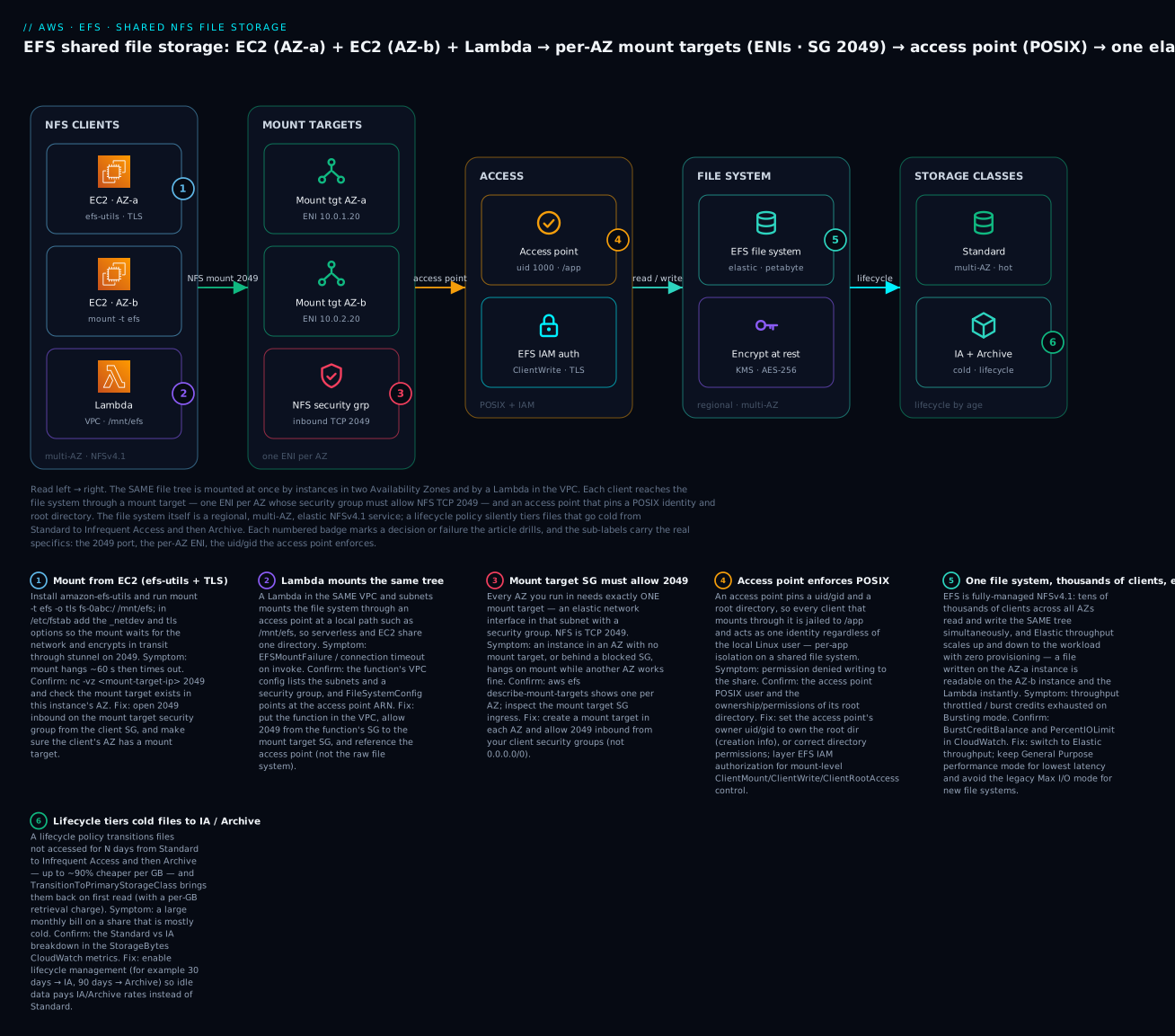
The one-line summary of what each stage does — the mental index for the rest of the article:
| Stage | The component | The one thing to remember |
|---|---|---|
| Clients | EC2 (2 AZs) + Lambda | Many clients, all AZs, mount the same tree at once |
| Reach it | Mount target per AZ (ENI) | Its SG must allow TCP 2049 from clients |
| Isolate | Access point (uid/gid + root) | POSIX identity is enforced, per-app jail |
| Store | Elastic multi-AZ NFSv4.1 FS | Encrypted at rest (KMS) + in transit (TLS) |
| Save | Lifecycle → IA → Archive | Cold files auto-tier for up to ~90% less |
Real-world scenario
Brightleaf Media, a 60-person digital publisher, ran WordPress for a network of magazine sites on three EC2 instances behind an Application Load Balancer. Each instance kept its own copy of wp-content/uploads on a local EBS volume, and “syncing” them was a nightly rsync cron that everyone hated. The symptoms were constant: an editor uploaded a hero image, it landed on instance 2, and readers whose session hit instance 1 or 3 saw a broken image until the next night’s sync. Plugin installs had to be done three times. When Auto Scaling added a fourth instance during a traffic spike, it came up with an empty uploads directory and served 404s for every image until someone noticed.
The fix was to make the uploads directory shared, and that is exactly EFS’s job. They created a General Purpose, Elastic-throughput, encrypted EFS file system, added mount targets in all three AZs the ASG used (each with a security group allowing 2049 from the web-tier SG only), and created an access point rooted at /uploads enforcing the www-data POSIX identity (uid/gid 33) so WordPress could write without a permission fight. They baked the mount into the launch template’s user-data — /etc/fstab line fs-…: /var/www/html/wp-content/uploads efs _netdev,tls,accesspoint=fsap-… 0 0 — so every instance the ASG launches, in any AZ, mounts the same uploads tree at boot. The nightly rsync was deleted.
Two things surprised them. First, they had initially left the file system on Bursting throughput (an older console default), and after a week the media-heavy site slowed noticeably during traffic peaks — BurstCreditBalance in CloudWatch was trending to zero, because the file system only held ~40 GB, giving a baseline of 40 × 50 KB/s = 2 MB/s, nowhere near enough for concurrent image serving. Switching to Elastic with one update-file-system call — no downtime, no remount — removed the throttling entirely and they stopped thinking about throughput. Second, the FinOps review a quarter later flagged that the file system had grown to 1.2 TB, dominated by years of old article images almost never re-requested. They enabled lifecycle management (TransitionToIA AFTER_30_DAYS, TransitionToArchive AFTER_90_DAYS, TransitionToPrimaryStorageClass AFTER_1_ACCESS); within a month ~85% of the data had moved to IA/Archive and the EFS storage line dropped from about $360/month to roughly $60/month, with any image that got re-featured automatically promoted back to Standard on its first read.
The before/after captured it:
| Aspect | Before (EBS-per-instance + rsync) | After (shared EFS) |
|---|---|---|
| Uploads consistency | Eventually consistent (nightly rsync) | Instant — one shared tree |
| New ASG instance | Empty uploads → 404s until sync | Mounts the shared tree at boot |
| Plugin/media install | Repeated on every instance | Once, visible everywhere |
| Throughput | (n/a) then Bursting → throttled at 2 MB/s | Elastic — no throttling |
| Permissions | chmod fights per instance |
Access point enforces www-data |
| Storage cost (1.2 TB) | — | ~$360→$60/mo via lifecycle to IA/Archive |
| Cross-AZ resilience | Per-instance, per-AZ copies | Multi-AZ file system, survives an AZ loss |
The lesson the platform lead wrote up: “Every hard part of running WordPress on more than one box was really just ‘these machines can’t see the same files.’ EFS made the uploads directory one thing instead of three, and the two gotchas — Bursting throttling and no lifecycle — were each a one-line fix once we knew to look.”
Advantages and disadvantages
The honest two-column view of building on EFS:
| Advantages of EFS | Disadvantages / what to watch |
|---|---|
| Shared — thousands of clients, all AZs, one tree | Higher latency than local/EBS block (it’s NFS over the network) |
| Elastic — grows/shrinks automatically, no provisioning | Standard is pricey per GB ($0.30) if you skip lifecycle |
| Multi-AZ durable (Standard) — survives an AZ loss | One Zone is cheaper but single-AZ (can lose data) |
| Fully managed NFS — no servers to patch or scale | Bursting throughput throttles small file systems |
| POSIX semantics — legacy apps and CMSes “just work” | Not for high-IOPS single-node databases (use EBS) |
| Access points give clean per-app isolation | Mount target SG (2049) misconfig = silent hang |
Native EC2 / ECS / EKS (RWX) / Lambda integration |
Performance mode is permanent; encryption-at-rest is permanent |
| TLS + KMS + EFS IAM = defense in depth | Cross-AZ mounts add latency + data-transfer cost |
When each side matters: for the default case — a shared directory across a fleet, a CMS behind a load balancer, ReadWriteMany for containers, a shared ML dataset — the advantages dominate and EFS is the obvious right tool. The disadvantages bite at the edges: latency-sensitive single-node databases (put those on EBS or io2), cost hygiene on Standard-only file systems (enable lifecycle), the Bursting throttle (use Elastic), and the 2049 security-group trap (which the troubleshooting playbook below exists to kill). Every one is avoidable with the practices in this article.
Hands-on lab
You’ll create a General Purpose, Elastic-throughput, encrypted EFS file system, add mount targets in two AZs behind an NFS security group, mount it on two EC2 instances in different AZs, write a file on one and read it on the other (the proof that it’s shared), create an access point, enable lifecycle to IA, then tear everything down. Everything is aws CLI first; a Terraform version follows. Region is us-east-1; you have a VPC with subnets in us-east-1a and us-east-1b and one instance in each. Replace IDs with yours.
⚠️ Cost note: A small file system holding a few files for a lab hour costs a rounding error, and the first 5 GB of Standard storage is free for 12 months. The things that bill if you forget them: leftover Provisioned throughput, a large file system with no lifecycle, and the two EC2 instances (their own charge). Do the teardown at the end.
Step 1 — Create security groups (client + mount target)
VPC=vpc-0yourvpc
# SG for the clients (attach to your instances)
CLIENTS=$(aws ec2 create-security-group --group-name efs-clients \
  --description "EFS client SG" --vpc-id $VPC --query GroupId --output text)
# SG for the mount targets, allowing NFS 2049 FROM the client SG
MTSG=$(aws ec2 create-security-group --group-name efs-mt \
  --description "EFS mount target SG" --vpc-id $VPC --query GroupId --output text)
aws ec2 authorize-security-group-ingress --group-id $MTSG \
  --protocol tcp --port 2049 --source-group $CLIENTS
echo "clients=$CLIENTS  mount-target-sg=$MTSG"
Step 2 — Create the file system (GP, Elastic, encrypted)
FS=$(aws efs create-file-system \
  --performance-mode generalPurpose --throughput-mode elastic --encrypted \
  --tags Key=Name,Value=lab-efs \
  --query FileSystemId --output text)
aws efs describe-file-systems --file-system-id $FS \
  --query 'FileSystems[0].LifeCycleState' --output text     # wait for "available"
echo "FileSystem: $FS"
Step 3 — Create a mount target in EACH AZ
SUBNET_A=subnet-0a_in_us_east_1a
SUBNET_B=subnet-0b_in_us_east_1b
MTA=$(aws efs create-mount-target --file-system-id $FS \
  --subnet-id $SUBNET_A --security-groups $MTSG --query MountTargetId --output text)
MTB=$(aws efs create-mount-target --file-system-id $FS \
  --subnet-id $SUBNET_B --security-groups $MTSG --query MountTargetId --output text)
# Wait until BOTH are "available"
aws efs describe-mount-targets --file-system-id $FS \
  --query 'MountTargets[].[MountTargetId,AvailabilityZoneName,LifeCycleState]' --output text
Step 4 — Mount on instance A (in us-east-1a) and write a file
Attach the efs-clients SG to both instances first, then SSH/Session Manager into instance A:
sudo yum install -y amazon-efs-utils          # Amazon Linux
sudo mkdir -p /mnt/efs
sudo mount -t efs -o tls $FS:/ /mnt/efs        # replace $FS with fs-...
df -h /mnt/efs                                  # confirms the mount
echo "written on instance A in us-east-1a at $(date)" | sudo tee /mnt/efs/proof.txt
Step 5 — Mount on instance B (in us-east-1b) and READ the same file
SSH/Session Manager into instance B (different AZ):
sudo yum install -y amazon-efs-utils
sudo mkdir -p /mnt/efs
sudo mount -t efs -o tls fs-0abc123:/ /mnt/efs
cat /mnt/efs/proof.txt      # → "written on instance A in us-east-1a at ..."
Seeing instance A’s file on instance B, across two Availability Zones, instantly — with no sync — is the entire point of EFS.
Step 6 — Create an access point (POSIX + jailed root dir)
AP=$(aws efs create-access-point --file-system-id $FS \
  --posix-user 'Uid=1000,Gid=1000' \
  --root-directory 'Path=/app-a,CreationInfo={OwnerUid=1000,OwnerGid=1000,Permissions=0755}' \
  --tags Key=Name,Value=lab-ap --query AccessPointId --output text)
# Mount THROUGH it — the client is jailed to /app-a as uid 1000
sudo mount -t efs -o tls,accesspoint=$AP $FS:/ /mnt/app-a
Step 7 — Enable lifecycle management (transition to IA)
aws efs put-lifecycle-configuration --file-system-id $FS \
  --lifecycle-policies \
    '{"TransitionToIA":"AFTER_30_DAYS"}' \
    '{"TransitionToPrimaryStorageClass":"AFTER_1_ACCESS"}'
aws efs describe-lifecycle-configuration --file-system-id $FS   # verify the policy
Step 8 — Persist the mount across reboot (fstab)
echo "$FS /mnt/efs efs _netdev,tls 0 0" | sudo tee -a /etc/fstab
sudo umount /mnt/efs && sudo mount -a       # TEST the line before rebooting
df -h /mnt/efs                              # still mounted → line is correct
Step 9 — Teardown (do this — some parts bill)
# On each instance: unmount and remove the fstab line
sudo umount /mnt/efs /mnt/app-a 2>/dev/null
sudo sed -i "\#$FS /mnt/efs#d" /etc/fstab
# AWS: delete access point, mount targets, then the file system
aws efs delete-access-point --access-point-id $AP
aws efs delete-mount-target --mount-target-id $MTA
aws efs delete-mount-target --mount-target-id $MTB
# wait until mount targets are gone, THEN delete the file system
aws efs delete-file-system --file-system-id $FS
# finally the SGs (after nothing references them)
aws ec2 delete-security-group --group-id $MTSG
aws ec2 delete-security-group --group-id $CLIENTS
Confirm each stage before moving on — most lab failures are a skipped checkpoint:
| Checkpoint | Command | Pass looks like |
|---|---|---|
| File system ready | aws efs describe-file-systems --file-system-id $FS |
LifeCycleState: available |
| Mount targets in 2 AZs | aws efs describe-mount-targets --file-system-id $FS |
Two rows, both available, different AZs |
| SG allows 2049 | aws ec2 describe-security-groups --group-ids $MTSG |
Ingress TCP 2049 from $CLIENTS |
| Mounted (A) | df -h /mnt/efs (instance A) |
EFS mount shown |
| Shared read (B) | cat /mnt/efs/proof.txt (instance B) |
Instance A’s line appears |
| Access point | aws efs describe-access-points --file-system-id $FS |
AP with /app-a + uid 1000 |
| Lifecycle set | aws efs describe-lifecycle-configuration --file-system-id $FS |
TransitionToIA: AFTER_30_DAYS |
And the Terraform equivalent for the whole core (with terraform destroy teardown):
provider "aws" { region = "us-east-1" }

resource "aws_security_group" "clients" {
  name = "efs-clients"  description = "EFS clients"  vpc_id = var.vpc_id
  egress { from_port = 0  to_port = 0  protocol = "-1"  cidr_blocks = ["0.0.0.0/0"] }
}

resource "aws_security_group" "efs_mt" {
  name = "efs-mt"  description = "EFS mount targets"  vpc_id = var.vpc_id
  ingress {
    from_port = 2049  to_port = 2049  protocol = "tcp"
    security_groups = [aws_security_group.clients.id]   # NFS from clients only
  }
}

resource "aws_efs_file_system" "this" {
  creation_token   = "lab-efs"
  performance_mode = "generalPurpose"
  throughput_mode  = "elastic"
  encrypted        = true
  lifecycle_policy { transition_to_ia                    = "AFTER_30_DAYS" }
  lifecycle_policy { transition_to_primary_storage_class = "AFTER_1_ACCESS" }
  tags = { Name = "lab-efs" }
}

resource "aws_efs_mount_target" "a" {
  file_system_id  = aws_efs_file_system.this.id
  subnet_id       = var.subnet_a          # us-east-1a
  security_groups = [aws_security_group.efs_mt.id]
}
resource "aws_efs_mount_target" "b" {
  file_system_id  = aws_efs_file_system.this.id
  subnet_id       = var.subnet_b          # us-east-1b
  security_groups = [aws_security_group.efs_mt.id]
}

resource "aws_efs_access_point" "app_a" {
  file_system_id = aws_efs_file_system.this.id
  posix_user { uid = 1000  gid = 1000 }
  root_directory {
    path = "/app-a"
    creation_info { owner_uid = 1000  owner_gid = 1000  permissions = "0755" }
  }
  tags = { Name = "lab-ap" }
}

output "file_system_id" { value = aws_efs_file_system.this.id }
output "dns_name"       { value = aws_efs_file_system.this.dns_name }
output "access_point"   { value = aws_efs_access_point.app_a.id }
Common mistakes & troubleshooting
This is the section you’ll return to mid-incident. EFS failures are quiet: a bad security group doesn’t error, it hangs. The playbook first — symptom, root cause, the exact command or console path to confirm, and the fix — then references and the two nastiest failures in prose.
| # | Symptom | Root cause | Confirm (exact command / console path) | Fix |
|---|---|---|---|---|
| 1 | mount hangs ~60s then times out |
Mount target SG doesn’t allow 2049 from the client | nc -vz <mt-ip> 2049 fails; check MT SG ingress |
Add inbound TCP 2049 from the client SG on the mount target SG |
| 2 | Mount hangs only from some instances | No mount target in that instance’s AZ | aws efs describe-mount-targets lists AZs; compare to instance AZ |
Create a mount target in every AZ you run in |
| 3 | Mount fails: name won’t resolve | VPC DNS resolution/hostnames disabled | aws ec2 describe-vpc-attribute --attribute enableDnsSupport |
Enable enableDnsSupport and enableDnsHostnames, or mount the MT IP |
| 4 | Permission denied writing to the share | Process uid ≠ dir owner; root-owned dir over NFS | ls -ln /mnt/efs shows owner uid; compare to your process |
Mount via an access point with a matching POSIX uid/gid, or chown the dir |
| 5 | Writes as root map to nobody |
NFS root-squash without ClientRootAccess/AP |
id on the write; file owner shows nobody/65534 |
Use an access point (enforced uid) or grant ClientRootAccess via EFS IAM |
| 6 | App fast in test, slow in prod | Bursting credits drained on a small FS | CloudWatch BurstCreditBalance trending to 0 |
update-file-system --throughput-mode elastic |
| 7 | Throughput capped even with credits | Hitting the file system’s PercentIOLimit (GP mode) |
CloudWatch PercentIOLimit near 100% |
Move to Elastic throughput; do not reach for Max I/O |
| 8 | TLS mount fails / stunnel error |
amazon-efs-utils/stunnel missing or blocked |
mount -t efs -o tls … errors; which stunnel |
Install/upgrade amazon-efs-utils; ensure the helper’s efs-proxy/stunnel runs |
| 9 | Lambda mount: EFSMountFailure/timeout |
Function not in VPC, or not via access point, or SG blocks 2049 | Function VPC config; FileSystemConfig ARN |
Put fn in subnets with mount targets, use the access point ARN, allow 2049 |
| 10 | AccessDenied on mount despite open SG |
EFS IAM file-system policy denies the principal | File system policy; CloudTrail ClientMount deny |
Grant elasticfilesystem:ClientMount/ClientWrite to the role; add -o iam |
| 11 | Boot stalls after adding EFS to fstab | Missing _netdev — mount tried before network |
EC2 serial console shows it hung on mount | Add _netdev (and tls); test with sudo mount -a before rebooting |
| 12 | Bill higher than expected | No lifecycle — all data on Standard ($0.30/GB) | describe-lifecycle-configuration empty; CloudWatch StorageBytes Standard |
Enable lifecycle to IA/Archive; check retrieval vs storage math |
| 13 | Can’t delete the file system | Mount targets (or access points) still exist | describe-mount-targets returns rows |
Delete access points + all mount targets first, then the FS |
| 14 | Cross-AZ mount slower + costs more | Client resolving a mount target in a different AZ | Mount IP’s AZ ≠ instance AZ | Ensure a mount target exists in the client’s own AZ (DNS picks local) |
| 15 | One Zone file system unmountable from other AZs | One Zone lives in a single AZ; only one MT | describe-file-systems … AvailabilityZoneName set |
Use Standard for multi-AZ, or run clients in that one AZ |
| 16 | Data on a One Zone FS lost after AZ event | One Zone stores data in one AZ only | Storage class = One Zone (single-AZ) | Use Standard (multi-AZ) for anything you can’t rebuild; back up with AWS Backup |
The EFS error/status reference — the strings and states you’ll actually see:
| Status / error | Where | Meaning | Fix |
|---|---|---|---|
creating → available |
file system / mount target | Provisioning, then ready | Wait for available before mounting |
mount.nfs4: Connection timed out |
client mount |
SG blocks 2049, or no MT in this AZ | Open 2049; add a mount target in the AZ |
mount.nfs4: access denied by server |
client mount |
EFS IAM policy / export denies you | Grant ClientMount/ClientWrite; check FS policy |
Permission denied (write) |
app / shell | POSIX uid mismatch / root-squash | Access point with matching uid, or chown |
EFSMountFailureException |
Lambda invoke | VPC/access-point/SG misconfig | VPC + access point ARN + 2049 |
FileSystemInUse |
delete-file-system |
Mount targets still attached | Delete MTs (and APs) first |
MountTargetConflict |
create-mount-target |
Already a mount target in that AZ/subnet | One MT per AZ — reuse it |
BurstCreditBalance → 0 |
CloudWatch | Bursting mode exhausted credits | Switch to Elastic throughput |
PercentIOLimit ~100% |
CloudWatch | General Purpose IOPS ceiling | Elastic throughput (not Max I/O) |
stunnel/efs-proxy failed |
client log | TLS helper not running | Reinstall/upgrade amazon-efs-utils |
And the fast decision table — observation to likely cause:
| If you see… | It’s probably… | Do this |
|---|---|---|
| Mount hangs then times out | SG 2049 blocked, or no MT in this AZ | Open 2049 from client SG; add MT in the AZ |
| Works from AZ-a, hangs from AZ-b | Missing mount target in AZ-b | Create the AZ-b mount target |
| Permission denied on write | uid mismatch / root-squash | Mount via access point (enforced uid) |
| Fast in demo, slow in prod | Bursting credits drained | Switch to Elastic throughput |
| Lambda can’t mount | Not in VPC / not via access point | VPC config + access point ARN + 2049 |
| Surprise storage bill | No lifecycle (all Standard) | Enable lifecycle to IA/Archive |
| Can’t delete file system | Mount targets/APs still exist | Delete APs + MTs first |
Two failures deserve emphasis because they cause the most wasted hours. The 2049 security-group hang (rows 1–2) is the signature EFS incident, and it is nasty precisely because it produces no error — the mount command sits silent for about 60 seconds and then returns Connection timed out, giving you nothing to search for. The diagnosis is always the same two questions: is there a mount target in this instance’s Availability Zone? (aws efs describe-mount-targets and compare AZs) and does the mount target’s security group allow inbound TCP 2049 from this client? (nc -vz <mount-target-ip> 2049 — a fast success or a hang tells you instantly). Ninety percent of “EFS won’t mount” is one of those two, and the least-privilege fix is a single ingress rule allowing 2049 from the client security group. The second is the Bursting throttle (row 6): it is invisible in every demo because a new file system starts with a full credit balance and flies, then a week into production the credits drain and throughput collapses to 50 KB/s × (GB stored) with no error logged anywhere — you find it only by looking at the BurstCreditBalance CloudWatch metric trending to zero. The permanent fix is to stop thinking about throughput at all: switch to Elastic mode, which is why AWS made it the default for new file systems.
Best practices
- Put a mount target in every AZ your clients run in, and allow TCP 2049 only from the client security group (a security-group reference, never
0.0.0.0/0). This one rule prevents the signature EFS incident. - Use Elastic throughput for anything with variable or unknown load. It removes the entire class of burst-credit throttling bugs and is the modern default. Reach for Provisioned only when you need a guaranteed fixed floor on a small file system.
- Choose General Purpose performance mode (it’s permanent) — it’s the right answer for virtually every workload. Avoid the legacy Max I/O for new file systems; watch
PercentIOLimitand move to Elastic if you’re I/O-bound. - Enable lifecycle management (
TransitionToIA,TransitionToArchive, andTransitionToPrimaryStorageClass = AFTER_1_ACCESS). It’s the single biggest cost lever and it’s one API call. It can cut storage cost ~85% on cold-heavy file systems while auto-promoting anything that turns hot. - Isolate apps with access points, each pinning a POSIX uid/gid and a root directory. It’s both the clean multi-tenancy boundary and the cleanest fix for NFS permission-denied.
- Encrypt at rest (it’s on by default; keep it) and in transit (
-o tls). In-transit TLS uses only port 2049 (stunnel), so it costs you nothing at the network layer. - In
/etc/fstab, always use_netdev(andtls), and runsudo mount -ato test the line before you ever reboot — the EFS analogue of the EBSnofailrule. - Gate mounts with EFS IAM authorization for sensitive data: a file-system policy that denies non-TLS mounts and requires
ClientMount/ClientWrite, so network reachability alone isn’t enough to mount. - Prefer Standard (multi-AZ) for anything you can’t rebuild. Use One Zone only for dev/test or easily-reproducible data, and remember its data is lost if that single AZ is destroyed.
- Back it up with AWS Backup (there’s no native snapshot). Set a plan with retention and a cross-Region/account copy for DR and ransomware isolation; keep the default automatic backup on.
- Don’t run a latency-sensitive single-node database on EFS. That’s EBS/io2 territory. EFS shines for shared files, not for the lowest-latency block I/O.
- Delete mount targets and access points before the file system, and prune unused file systems — an idle multi-TB Standard file system with no lifecycle is a stealth cost.
Security notes
EFS security is defense in depth across the network, the protocol, the identity, and the data. The posture, row by row:
| Concern | Weak default | Least-privilege / hardened control |
|---|---|---|
| Network reachability | MT SG open to the VPC/0.0.0.0/0 |
2049 only from the client SG (sg-reference) |
| Data in transit | Plaintext NFS | TLS (-o tls); deny non-TLS via aws:SecureTransport |
| Data at rest | (New FS: encrypted by default) | KMS CMK with a scoped key policy for audit/cross-account |
| Who may mount | Anyone on the network | EFS IAM: ClientMount/ClientWrite per role |
| Root on the share | Root-squash or full root | Access point enforces a non-root uid; grant ClientRootAccess only when required |
| App isolation | Everyone mounts / |
Access point per app with a jailed root dir |
| Blast radius | One file system for everything | Separate file systems / access points per environment |
| Audit | None | CloudTrail on EFS API + ClientMount events; KMS Decrypt logging |
| Backups / recovery | None or manual | AWS Backup plan + Vault Lock; cross-account copy |
Two points to emphasize. First, the security group is your primary access control at the network layer, and 2049-from-anywhere is a real exposure. Any principal that can reach the mount target on 2049 can attempt a mount; scope the mount-target SG to only the client security group, and layer EFS IAM so that even a reachable client must hold ClientMount to succeed. Second, encryption in transit is free, so there’s no excuse to skip it — -o tls wraps NFS through a local stunnel on the same 2049 port, adds no security-group rules, and a file-system policy with a "aws:SecureTransport": "false" deny makes it mandatory. Combine at-rest KMS, in-transit TLS, IAM-gated mounts, and access-point POSIX enforcement and a leaked network path alone gets an attacker nothing.
Cost & sizing
EFS bills for four things: stored data (per GB-month, by storage class), throughput (with Elastic, per GB read/written; with Provisioned, per MB/s-month), requests/retrieval on IA and Archive (per GB accessed), and backups (AWS Backup storage). Unlike EBS you never pay for “provisioned but empty” capacity — you pay for the bytes you actually store. The drivers, with us-east-1 rates:
| Cost component | Rate (us-east-1, approx) | Notes |
|---|---|---|
| Standard storage | $0.30/GB-mo | Multi-AZ; the hot tier |
| Standard-IA storage | $0.016/GB-mo | + per-GB retrieval on access |
| Archive storage | $0.008/GB-mo | Coldest; higher retrieval, kept online |
| One Zone storage | $0.16/GB-mo | Single-AZ; ~47% cheaper than Standard |
| One Zone-IA | $0.0133/GB-mo | Single-AZ cold |
| IA/Archive retrieval | ~$0.01/GB (IA read) | Charged each time you access tiered data |
| Elastic throughput | ~$0.03/GB read, ~$0.06/GB write | Pay per data moved; no provisioning |
| Provisioned throughput | ~$6.00/MB/s-mo | Above what size-based bursting gives |
| AWS Backup storage | per GB-mo of recovery points | Separate line; set retention |
| Cross-AZ data transfer | per GB | Mounting a mount target in another AZ |
Rough anchors: a 100 GB all-Standard file system is $30/month (~₹2,580 at ~₹86/$); enable lifecycle so 80 GB goes to IA and it drops to 20 × $0.30 + 80 × $0.016 = $7.28/month. A 1 TB Standard file system is $300/month; the same TB with 90% on Archive is about $37/month — the lifecycle policy is worth 8× here. The free tier includes 5 GB of Standard storage for 12 months. The three biggest wastes, in order: no lifecycle (paying $0.30 for cold data that could be $0.016 or $0.008), Provisioned throughput left on when Elastic would be cheaper for a spiky workload, and abandoned file systems nobody deleted (you pay for every stored byte forever). Sizing discipline is simpler than EBS because there is no size to provision: start on Elastic + General Purpose, turn lifecycle on from day one, and let the file system grow and shrink itself.
Interview & exam questions
Q1. What is the fundamental difference between EFS and EBS? EBS is block storage that attaches to one instance in one Availability Zone; EFS is a file system (NFSv4.1) that thousands of clients across all AZs mount simultaneously and that grows/shrinks elastically. Use EBS for a single-node disk (boot, database); use EFS for shared files across a fleet. (CLF-C02, SAA-C03)
Q2. Why does my EFS mount hang for 60 seconds and then time out?
The mount target’s security group isn’t allowing inbound TCP 2049 from the client, or there is no mount target in the client’s Availability Zone. Confirm with nc -vz <mount-target-ip> 2049 and aws efs describe-mount-targets; fix by opening 2049 from the client SG and ensuring a mount target exists in every AZ you run in. (SAA-C03, SOA-C02)
Q3. What is a mount target and how many do you need? A mount target is an elastic network interface placed in a subnet, giving the file system an IP and DNS endpoint in that Availability Zone, with a security group. You create one per AZ you want to mount from; clients resolve the file system DNS to the mount target in their own AZ. (SAA-C03)
Q4. A database was fast in a load test but throttles in production on EFS. Why?
The file system is on Bursting throughput, whose baseline is only 50 KB/s per GB stored. A new file system starts with a credit balance (fast in the test) that drains under sustained load, dropping to a tiny baseline. Switch to Elastic throughput (one update-file-system call, no downtime). (SOA-C02, SAA-C03)
Q5. What does an access point enforce, and what problem does it solve? An access point pins a POSIX user (uid/gid) and a root directory, jailing every client that mounts through it to that subtree acting as that identity — regardless of the local Linux user. It gives per-app isolation on one file system and is the cleanest fix for NFS permission-denied (the enforced uid owns the directory). (SAA-C03)
Q6. How do you encrypt EFS in transit, and what port does it use?
Mount with -o tls using amazon-efs-utils, which routes NFS through a local stunnel TLS tunnel to the mount target — over the same TCP 2049 port, so no extra security-group rule is needed. You can make it mandatory with a file-system policy that denies aws:SecureTransport = false. (SCS-C02, SAA-C03)
Q7. Explain EFS storage classes and lifecycle management. Files live in Standard (multi-AZ, hot), Standard-IA/Archive (progressively colder, cheaper per GB but with retrieval charges), or the single-AZ One Zone/One Zone-IA. A lifecycle policy moves files to IA/Archive after N days without access and (optionally) back to Standard on first access — the single biggest EFS cost lever. (CLF-C02, SAA-C03)
Q8. When would you choose One Zone over Standard? When lower cost matters more than AZ resilience and the data is easily reproducible (dev/test, scratch, derived data). One Zone is ~47% cheaper but stores data in one AZ only, so it’s lost if that AZ is destroyed — never use it for data you can’t rebuild. (SAA-C03)
Q9. How does a Lambda function mount EFS?
The function must be attached to the VPC (subnets that have mount targets, plus a security group allowed to reach 2049), and it mounts through an access point at a LocalMountPath under /mnt (e.g. /mnt/efs). You reference the access point ARN in the function’s FileSystemConfig, not the raw file system. (DVA-C02, SAA-C03)
Q10. Why use EFS instead of EBS for persistent volumes in EKS?
EBS volumes are ReadWriteOnce (one node at a time), so pods on different nodes can’t share them. The EFS CSI driver provides ReadWriteMany volumes that many pods across many nodes mount concurrently — the right choice for shared state. (SAA-C03)
Q11. What are General Purpose and Max I/O performance modes, and which should you pick?
General Purpose gives the lowest per-operation latency and is recommended for essentially every workload; Max I/O trades latency for a higher aggregate IOPS ceiling and is a legacy mode AWS steers you away from for new file systems. The mode is fixed at creation — choose General Purpose, and if you’re I/O-bound (PercentIOLimit near 100%) move to Elastic throughput, not Max I/O. (SAA-C03, SOA-C02)
Q12. How do you back up an EFS file system? Through AWS Backup — there is no native EFS snapshot API. You create a backup plan (schedule, retention, optional cross-Region/account copy) and assign the file system; new file systems get a default daily backup you can opt out of. Restore to a new or the same file system, full or item-level. (SOA-C02, SAA-C03)
Quick check
- You have instances in
us-east-1a,1band1cbehind an Auto Scaling group. How many mount targets do you need, and why? - Your
mount -t efscommand hangs and times out. What are the two things to check first? - Why does a small EFS file system on Bursting throughput slow down in production but not in a demo?
- An app writes to the share as uid 1000 but gets “permission denied.” What’s the cleanest EFS-native fix?
- Name the one setting that most reduces EFS storage cost, and the option that protects you if “cold” data turns out to be hot.
Answers
- Three — one mount target per Availability Zone the ASG can place instances in. An instance that lands in an AZ with no mount target will hang on mount forever, and ASG placement is non-deterministic, so a missing MT shows up as intermittent failures.
- (a) Does the mount target’s security group allow inbound TCP 2049 from the client (test
nc -vz <mt-ip> 2049)? (b) Is there a mount target in this instance’s AZ (aws efs describe-mount-targets)? Those two cover ~90% of mount hangs. - Bursting baseline is 50 KB/s per GB stored, so a small file system has a tiny baseline. A new file system starts with a full burst-credit balance (fast demo); under sustained production load the credits drain and throughput falls to that tiny baseline. Fix: switch to Elastic.
- Create an access point with
Uid=1000,Gid=1000and a root directory owned by 1000, and mount through it (-o tls,accesspoint=fsap-…). The access point enforces the uid so the directory is owned by the writing identity — no root-squash, nochmodfight. - Lifecycle management (transition idle files to IA/Archive) is the biggest cost lever;
TransitionToPrimaryStorageClass = AFTER_1_ACCESSprotects you by moving any file that gets read back up to Standard on first access, so hot data doesn’t pay repeated retrieval charges.
Glossary
| Term | Definition |
|---|---|
| EFS | Elastic File System — a fully-managed, elastic, multi-AZ NFSv4.1 file system that many EC2 instances, containers and Lambda functions mount and share simultaneously. |
| File system | The EFS resource (fs-…); regional, elastic, holding the shared POSIX directory tree. |
| Mount target | An elastic network interface EFS places in one subnet/AZ, giving the file system a private IP, DNS endpoint and security group for clients in that AZ; one per AZ. |
| NFSv4.1 | The Network File System protocol version clients use to mount EFS, over TCP port 2049, with POSIX semantics and byte-range locking. |
| Security group (mount target) | The firewall on the mount target ENI; must allow inbound TCP 2049 from client security groups for a mount to succeed. |
| Access point | A named entry into the file system that enforces a POSIX uid/gid and a root directory, giving per-app isolation and clean container/Lambda binding. |
| Performance mode | General Purpose (lowest latency, the default) or the legacy Max I/O (higher aggregate IOPS, higher latency); fixed at file-system creation. |
| Throughput mode | Elastic (auto-scaling, pay-per-GB — the modern default), Bursting (baseline tied to size + credits), or Provisioned (a fixed MB/s you buy). |
| Burst credits | The bucket that funds throughput above the Bursting baseline (50 KB/s per GB); drains under sustained load on small file systems, causing throttling. |
| Storage class | The durability/price tier a file lives in: Standard, Standard-IA, Archive (multi-AZ) or One Zone / One Zone-IA (single-AZ, cheaper, less durable). |
| Lifecycle management | A policy that transitions files between storage classes by access age (to IA/Archive when cold, back to Standard on access) — the primary EFS cost lever. |
amazon-efs-utils |
The AWS mount helper providing mount -t efs, TLS-in-transit via stunnel, IAM authorization, access-point mounting, and AZ-aware DNS. |
| EFS IAM authorization | Gating mounts with IAM (elasticfilesystem:ClientMount/ClientWrite/ClientRootAccess) via a file-system policy and/or identity policy. |
_netdev / tls |
fstab mount options for EFS: _netdev waits for the network before mounting; tls encrypts the NFS traffic in transit. |
| EFS CSI driver | The Kubernetes driver that provisions EFS as ReadWriteMany persistent volumes so many pods across many nodes share one file system. |
| AWS Backup | The service that backs up EFS (there is no native snapshot API): scheduled recovery points with retention and cross-Region/account copy. |
Next steps
- Contrast shared file storage with the single-instance block disk it complements in Amazon EBS Hands-On: Volume Types, Snapshots, Resizing & Encryption — a database goes on EBS, its shared uploads go on EFS.
- Revisit how you launch and reach the instances that mount EFS in Launch Your First EC2 Instance and Connect: SSH, Instance Connect & Session Manager.
- Decide how your containers will mount EFS (task volume vs the
ReadWriteManyCSI driver) in AWS ECS vs EKS vs Fargate: Choose Your Container Path. - See where shared web-tier state lives in a full stack in The Classic AWS Three-Tier Web Application Architecture: VPC, ALB, Auto Scaling and RDS Done Right.