Quick take: EC2 tells you an instance is unhealthy through status checks, and the whole art is reading which check failed before you touch anything. A failed System status check is the AWS host underneath you — power, network, or hardware you did not build and cannot fix from inside the guest; the cure is to move the instance to healthy hardware (auto-recovery, or a stop/start). A failed Instance status check is your operating system — a bad
/etc/fstab, a kernel panic, a full root disk, memory exhausted at boot — and no amount of recovering onto new hardware fixes it; you must repair the OS, usually offline. A failed EBS status check means an attached volume can no longer complete I/O. Read the pairSystem / Instance(and now the third, EBS) first.impaired / oksends you to the AWS host;ok / impairedsends you to a rescue workflow. Guessing which one it is turns a five-minute recovery into a two-hour outage.
It is 02:10 and PagerDuty is screaming: the payments worker i-08f3… is “down.” You SSH in — timeout. You panic-reboot it from the console. It comes back for ninety seconds, then goes dark again. You reboot once more; same thing. What the console was quietly telling you the entire time, in a field most people never read, is System status check: 1/2, Instance status check: 0/2 — the physical host is failing, your reboots are pointless because a reboot keeps the instance on the same dying host, and the one action that would have fixed it in three minutes is stop then start (which migrates an EBS-backed instance to new hardware) or letting auto-recovery do exactly that for you. Instead you burned twenty minutes rebooting a healthy OS on a sick host.
The opposite failure is just as common and just as misdiagnosed. Someone adds a data volume, edits /etc/fstab to mount it at /data, and reboots to “make sure it survives.” The volume name was wrong, or the volume was later detached, and now systemd waits forever for a device that will never appear — the instance drops into emergency mode, never finishes booting, and the Instance status check goes to impaired. Here the host is perfectly healthy (System: ok), so stop/start and auto-recovery do nothing; the fix is to get at the disk offline, comment out one line, and boot. Two failures, opposite root causes, opposite fixes — and the only thing that tells them apart is the two-value status-check pair.
This article is built around that discipline. We define the three status checks precisely — what each probes, who owns the fix, and what CloudWatch metric each emits — then go deep on auto-recovery (the modern automatic Nitro behaviour and the explicit CloudWatch recover alarm action, plus exactly what a recover preserves versus what a stop/start silently loses). Then comes the bulk: the boot-failure catalog behind a failed Instance check, a ≥16-row symptom → root-cause → confirm → fix playbook, and the diagnosis toolchain — get-console-output, the EC2 Serial Console, the instance screenshot, the detach-root-volume repair pattern, and the AWSSupport-ExecuteEC2Rescue SSM runbook. Every operation is shown in both the aws CLI and Terraform, and the whole thing maps to the compute and monitoring domains of SOA-C02 and SAA-C03, where “the instance failed a status check — what do you do?” is a near-guaranteed question.
By the end you will never reboot a dying host again, never attach a recover action to the wrong metric, and never stare at an instance that “won’t come up” without pulling the console log in the first sixty seconds. Here is the entire field in one frame:
| Check | What it probes | Can YOU fix it? | Failing metric (AWS/EC2) |
First move when it fails |
|---|---|---|---|---|
| System status check | The AWS host: power, network, hardware under your instance | No — it is AWS’s hardware | StatusCheckFailed_System |
Auto-recover, or stop/start an EBS-backed instance to new hardware |
| Instance status check | Your guest OS/config: network config, memory, filesystem, kernel, mounts | Yes — it is your OS | StatusCheckFailed_Instance |
Read the console log; repair the OS (often offline) |
| Attached EBS status check | Whether attached EBS volumes can complete I/O | Partly — AWS storage, your volume | StatusCheckFailed_AttachedEBS |
Usually self-heals; else stop/start or check volume modifications |
| Combined | Either System or Instance failing | — | StatusCheckFailed |
Split it into the two above first |
What problem this solves
An EC2 instance can be “down” in ways that look identical from your laptop — SSH hangs, the health check fails, the app stops answering — but that have completely different causes and completely different fixes. The information you need to tell them apart is right there in the two status-check values, yet under pressure people skip past it and start taking actions. And the actions are not neutral: a reboot keeps you on a failing host, a stop/start throws away instance-store data and swaps your public IP, and a recover action wired to the wrong metric can put an instance into an endless recovery loop. Not reading the checks first is what turns a routine hardware blip into a self-inflicted outage.
What breaks without this discipline is a predictable, expensive pattern. An engineer sees “instance down,” reboots it, and it comes back briefly because the reboot happened to re-run something — teaching the wrong lesson. Another sees a boot that never finishes, assumes the host is bad, and stop/starts it repeatedly, each time destroying the /mnt instance-store scratch data and each time landing on a healthy host that still cannot boot the broken OS. A third attaches an auto-recovery alarm to StatusCheckFailed (the combined metric) instead of StatusCheckFailed_System, so when the instance check trips on a bad kernel, EC2 dutifully “recovers” the instance onto brand-new hardware — which promptly fails the same instance check, and recovers again, and again. A fourth loses a full day of a database because they stop/started an instance-store-backed box, not knowing that stop is fatal to instance-store data. Each of these is a concept you learn once and never re-pay.
Who hits this: everyone who runs EC2 long enough. Hardware fails — at fleet scale, some host under some instance of yours will degrade this quarter, and AWS will surface it as a System check failure and often a scheduled retirement event. OS-level boot failures bite hardest right after a change: a new data volume and an fstab edit, a yum update that pulled a kernel that will not boot, a disk that filled with logs overnight, a botched cloud-init script. The pattern is closed and small — three checks, a handful of host faults, a catalog of boot faults, and five diagnosis tools — but the cost of not knowing it is measured in hours of downtime and, sometimes, in lost data. Learn the checks and the recovery semantics and the fog clears.
The concrete cost of guessing, action by action, is worth internalising before we go deeper:
| Wrong action taken | The check it ignored | What it costs you |
|---|---|---|
| Reboot a host-failed instance | System impaired |
Nothing improves — reboot stays on the same dying host |
| Stop/start an OS-boot-failed instance | Instance impaired |
Instance-store data gone, public IP changed, still won’t boot |
| Stop/start an instance-store-backed box | Any | Permanent data loss — instance-store cannot survive a stop |
recover alarm on the combined/Instance metric |
— | Recovery loop: new hardware, same broken OS, repeat |
| Repeated reboots of a fstab-hung instance | Instance impaired |
Time lost; the fix is one offline line edit |
| Terminate + relaunch to “start fresh” | Instance impaired |
Root-volume data lost when a detach-and-fix would have saved it |
Learning objectives
By the end of this article you can:
- Triage in one glance: read the
System / Instance / EBSstatus-check triple and name, for each failing check, whether the fault is AWS’s host, your OS, or a volume — and therefore whether to recover, repair, or wait. - Explain what the System status check probes (host power, network, hardware), why you cannot fix it from the guest, and the two ways to move an instance to healthy hardware (auto-recovery, stop/start).
- Explain what the Instance status check probes (OS networking, memory, filesystem, kernel, mounts) and enumerate the boot-failure catalog behind it — fstab hang, kernel panic/bad GRUB, full root disk, OOM at boot, corrupt
/etc, a bad recent change. - Describe the attached EBS status check, its
StatusCheckFailed_AttachedEBSmetric, and how an impaired volume manifests as a hung instance. - Configure auto-recovery both ways — the modern automatic Nitro behaviour and an explicit CloudWatch alarm firing the
recoveraction onStatusCheckFailed_System— and state exactly what a recover preserves (instance ID, private/Elastic IP, metadata, EBS) versus what a stop/start loses (instance-store data, RAM, the auto-assigned public IP). - Diagnose a failed instance with
get-console-output --latest, the EC2 Serial Console, and the instance screenshot, reading real console signatures (Give root password for maintenance,Kernel panic,grub rescue>). - Repair a broken boot offline with the detach-root-volume-attach-to-helper pattern, and drive the automated equivalent with the
AWSSupport-ExecuteEC2RescueSSM Automation runbook. - Run a free-tier lab: set a
StatusCheckFailed_Systemrecovery alarm, deliberately break boot with a bad/etc/fstab, watch the Instance check fail, diagnose via console output/serial console, repair via detach-root-volume — inawsCLI and Terraform — then tear it down.
Prerequisites & where this fits
You should be comfortable launching an EC2 instance, know what an AMI, EBS root volume, instance store, security group and key pair are, and be able to run the AWS CLI with credentials (aws sts get-caller-identity returns your account). You need to understand a Linux boot at a high level — GRUB → kernel → initramfs → systemd → mounts from /etc/fstab — because the Instance-check failures live in that chain. Basic CloudWatch concepts (namespace, metric, dimension, alarm, statistic, period) help for the recovery alarm.
This sits at the intersection of Compute operations and observability. It is the natural companion to EC2 SSH ‘Connection Timed Out’ & ‘Permission Denied’: The Complete Troubleshooting Guide — that guide handles “I can reach the network but can’t log in”; this one handles “the instance itself is unhealthy or won’t boot.” When your instance is starved of CPU, memory, or disk while still running, that is a different problem covered in EC2 High CPU, Memory & Disk: The Performance Troubleshooting Playbook. The storage layer the EBS check and the detach-root-volume pattern depend on is covered in EBS Volumes, Types & Snapshots: A Hands-On Guide. And if you have not yet built a working instance to break, start with Launch Your First EC2 Instance and Connect: SSH, Instance Connect & Session Manager.
A quick ownership map so you page the right person — and take the right action — during an incident:
| Layer | What lives here | Who owns the fix | Which check it trips |
|---|---|---|---|
| Physical host: power, cooling | AWS data-centre hardware | AWS | System |
| Host network / hypervisor | AWS Nitro / network fabric | AWS | System |
| Host retirement / degradation | AWS scheduled events | AWS (you action the move) | System (+ event) |
| Attached EBS volume | The volume’s I/O path | AWS storage / you (volume) | Attached EBS |
| Guest kernel / GRUB / initramfs | Your AMI + yum update |
You / platform | Instance |
/etc/fstab and mounts |
Your OS config | You / whoever edited it | Instance |
| Root filesystem health / free space | Your OS + your app’s logs | You / app team | Instance |
| Guest networking / cloud-init | Your OS config + user-data | You / platform | Instance |
Core concepts
Five mental models make every later diagnosis obvious.
A status check is a reachability probe, not a health opinion. Every minute, EC2 runs automated checks and reports each as a simple pass/fail — internally a CloudWatch metric that is 0 when passing and 1 when failing. The System check verifies that AWS’s side (host power, host network, the hardware and hypervisor) can reach your instance. The Instance check verifies that your instance can be reached through its own network stack and is responsive — which it can only be if the OS booted and configured itself correctly. The attached EBS check verifies that the EBS volumes attached to the instance can complete I/O. None of them inspect your application; a web server returning 500s with a booted, reachable OS is 2/2 (or 3/3) healthy as far as status checks are concerned. Status checks answer “is the box reachable and its storage alive,” not “is my app happy.”
The System check is the one thing you cannot fix — so the fix is to move. When the System check fails, the fault is in AWS’s hardware, network, or power beneath your instance. You have no login, no config, no knob that helps, because the problem is not in your operating system. The only remedy is to relocate the instance onto healthy hardware: auto-recovery does this for you automatically on modern instances, or you do it manually by stopping and starting an EBS-backed instance (a stop/start almost always lands it on a different physical host). A reboot does not help — it restarts the guest OS but keeps the instance on the same failing host.
The Instance check is your OS — recovering onto new hardware changes nothing. When the Instance check fails but the System check passes (ok / impaired, i.e. 1/2), the host is fine and your operating system is not: it did not finish booting, its network is misconfigured, its root filesystem is corrupt or full, or the kernel panicked. Moving to new hardware — recover or stop/start — boots the same broken OS image and fails the same way. The fix lives inside the volume: read what went wrong (console log/serial console/screenshot) and repair it, frequently offline by detaching the root volume onto a helper instance because you cannot log in to a box that will not boot.
Recover is a targeted response to a System failure — never wire it to anything else. The CloudWatch recover alarm action, and EC2’s automatic recovery, exist specifically to answer a StatusCheckFailed_System event. Attaching recover to the combined StatusCheckFailed metric or to StatusCheckFailed_Instance is a classic, damaging mistake: an OS boot bug then triggers a “recover” that migrates hardware, re-runs the broken OS, fails again, and loops. Match the response to the check: recover (or stop/start) for System, repair (or reboot) for Instance.
Move-to-new-hardware always costs you volatile state — know exactly what. A recover and a stop/start both migrate the instance and therefore both discard everything that lived only on that host: in-memory (RAM) contents and any instance-store (ephemeral) volumes. What survives is anything on EBS — your root and data volumes are intact — plus your instance ID, private IPv4, Elastic IP, IAM role, and metadata. The one asymmetry to memorise: a recover keeps the auto-assigned public IPv4, while a manual stop/start releases it and assigns a new one. And instance-store-backed instances cannot be stopped at all — a stop is a terminate, so their data is simply gone.
The vocabulary in one table
| Term | One-line definition | Where it lives | Why it matters here |
|---|---|---|---|
| System status check | Probe of the AWS host (power/net/hardware) under your instance | EC2 control plane | Fail → move to new hardware; you can’t fix it |
| Instance status check | Probe that your OS booted and is reachable/responsive | EC2 + the guest | Fail → repair the OS, often offline |
| Attached EBS status check | Probe that attached EBS volumes can complete I/O | EC2 + EBS | Fail → instance hangs on disk; usually self-heals |
StatusCheckFailed_System |
CloudWatch metric, 1 when System check fails | AWS/EC2 namespace |
The ONLY correct trigger for recover |
StatusCheckFailed_Instance |
CloudWatch metric, 1 when Instance check fails | AWS/EC2 |
Trigger a reboot or alert, never recover |
StatusCheckFailed_AttachedEBS |
CloudWatch metric, 1 when EBS check fails | AWS/EC2 |
Alert; a stuck-I/O signal |
| Auto-recovery | AWS migrates a system-failed instance to healthy hardware | Nitro platform / alarm | The default remedy for System failures |
recover action |
Alarm action ARN …:ec2:recover that recovers the instance |
CloudWatch alarm | Explicit, per-instance recovery |
| Reboot | OS restart on the same host | You / alarm reboot |
Fixes some OS hangs; useless for host faults |
| Stop/Start | Power-cycle that re-places an EBS-backed instance on new hardware | You | Migrates hardware; loses instance-store + public IP |
| Instance store | Ephemeral disk physically on the host | The host | Destroyed by stop, recover, or termination |
/etc/fstab |
Table of filesystems to mount at boot | Guest OS | A bad line drops boot into emergency mode |
nofail |
fstab mount option: don’t block boot if the device is missing | /etc/fstab |
Prevents the classic fstab boot hang |
get-console-output |
API returning the instance’s captured serial/system log | EC2 API | First diagnosis for a failed Instance check |
| Serial Console | Out-of-band interactive access to the serial port | EC2 (Nitro) | Live boot fixing when SSH is dead |
AWSSupport-ExecuteEC2Rescue |
SSM runbook that automates offline OS repair | Systems Manager | Automates the detach-root-volume workflow |
| Scheduled event | AWS-planned reboot/retirement/maintenance | EC2 events | A host degradation often precedes a System failure |
Finally, what each check proves and disproves — the single most useful triage table in the article:
| You observe | It PROVES | It does NOT prove | Go look at |
|---|---|---|---|
System: impaired (1/2) |
AWS host/power/network/hardware fault | Your OS is broken | Auto-recovery / stop-start / Health events |
Instance: impaired, System ok |
Your OS didn’t boot/reach healthy | The host is bad (it’s fine) | Console log → fstab, kernel, disk, memory |
AttachedEbs: impaired |
A volume can’t complete I/O | The CPU/OS logic is broken | Volume status, volume modifications |
Both impaired (0/2) |
Host fault taking the OS down with it | You must fix the OS first | Recover host first, then re-check Instance |
All ok but app is down |
The box is reachable, storage alive | Your application is healthy | App logs, ALB target health, not status checks |
The three status checks, in depth
Everything starts with describe-instance-status. It returns, per instance, the instance state, the System status, the Instance status, the attached EBS status, and any scheduled events. Read it before you take any action:
aws ec2 describe-instance-status --instance-ids i-08f3abc \
  --query "InstanceStatuses[].{State:InstanceState.Name,\
System:SystemStatus.Status,Instance:InstanceStatus.Status,\
Ebs:AttachedEbsStatus.Status,Events:Events[].Code}" --output table
# Example: State=running, System=impaired, Instance=ok, Ebs=ok, Events=[instance-retirement]
By default the command only returns instances whose state is running; add --include-all-instances to see stopped/pending boxes too. Each status resolves to one of a small set of values — know them cold, because insufficient-data and initializing are not failures and must not trigger action:
| Status value | Meaning | Is it a failure? | What to do |
|---|---|---|---|
ok |
The check passed | No | Nothing |
impaired |
The check failed | Yes | Act per which check it is |
insufficient-data |
Not enough data (e.g. just launched, agent quiet) | No | Wait, then re-check |
initializing |
The check is still running after launch/boot | No | Wait (~1–3 min after launch) |
not-applicable |
The check doesn’t apply (e.g. EBS check, no EBS) | No | Ignore |
The reachability detail sits one level down, under Details[].Name == "reachability" with a Status of passed, failed, initializing, or insufficient-data. And the CloudWatch metrics — the thing your alarms watch — are all in the AWS/EC2 namespace, dimensioned by InstanceId, valued 0 (pass) or 1 (fail), at 1-minute granularity:
| Metric | 1 when… | Alarm statistic | Correct alarm action |
|---|---|---|---|
StatusCheckFailed |
System or Instance failed (combined) | Maximum |
Alert only — too coarse for recover |
StatusCheckFailed_System |
System check failed | Maximum |
recover (or stop, then start) |
StatusCheckFailed_Instance |
Instance check failed | Maximum |
reboot or alert (never recover) |
StatusCheckFailed_AttachedEBS |
An attached EBS volume can’t do I/O | Maximum |
Alert; investigate the volume |
The System status check — AWS’s hardware
The System check fails when something on AWS’s side of the line breaks. You did not cause it and you cannot fix it in the guest; you can only move off the bad host. These are the causes AWS attributes it to:
| System-check cause | What happened | Your remedy |
|---|---|---|
| Loss of network connectivity | The host lost its network path to your instance | Auto-recover / stop-start to a new host |
| Loss of system power | Power event on the physical host | Auto-recover / stop-start |
| Hardware issue on the physical host | A component (NIC, CPU, board) degraded | Auto-recover / stop-start; expect a retirement event |
| Software issue on the host/hypervisor | A fault in AWS’s host software | Auto-recover / stop-start |
| Host under scheduled retirement | AWS flagged the host for decommission | Stop-start (EBS-backed) before the retirement date |
The tell that it is a System problem and not yours: the Instance check is often still ok at the same moment (the OS is fine; it just cannot be reached because the host beneath it is failing), and there is frequently a scheduled event attached — most importantly instance-retirement. Retirement is AWS telling you a host is being decommissioned; for an EBS-backed instance you stop/start it (which moves it) before the deadline, while an instance-store-backed instance is simply terminated at the deadline, so you must relaunch it yourself. The scheduled-event codes worth recognising:
Event Code |
Meaning | Action before the deadline |
|---|---|---|
instance-retirement |
The host is being retired | Stop/start (EBS-backed) to migrate; instance-store is terminated |
instance-stop |
AWS will stop the instance at a set time | Stop/start yourself earlier to control timing |
instance-reboot |
AWS will reboot your instance | Reboot yourself in a maintenance window |
system-reboot |
AWS will reboot the underlying host | Usually transparent; plan for a blip |
system-maintenance |
Host maintenance (network/power) | Often transparent; stop/start to avoid it if sensitive |
The Instance status check — your operating system
The Instance check fails when your instance cannot be reached through its own OS — because the OS did not finish booting, misconfigured its network, ran out of memory, corrupted or filled its filesystem, or panicked its kernel. This is the check you have the most control over and the one behind almost every “it won’t come up” incident. Its causes map straight onto the boot chain:
| Instance-check cause | Typical trigger | Where it shows |
|---|---|---|
| Failed/incorrect network configuration | Bad netplan/ifcfg, DHCP client broken | Console log: network service failed |
| Exhausted memory | OOM at boot, too-small instance for the workload | Console log: Out of memory: Kill process |
| Corrupted file system | Unclean shutdown, disk error | Console log: UNEXPECTED INCONSISTENCY; RUN fsck |
| Incompatible/broken kernel after update | yum update pulled a kernel that won’t boot |
Screenshot: GRUB, or Kernel panic |
| Broken bootloader (GRUB) | Bad grub.cfg, moved partition |
Screenshot: grub rescue> / no such partition |
Failed mount from /etc/fstab |
Volume renamed/detached, no nofail |
Screenshot: emergency mode / maintenance prompt |
| Full root disk | Logs/temp filled /, boot can’t write |
Console log: No space left on device |
| Broken cloud-init / user-data | A boot script errors and blocks | Console log: cloud-init … failed |
The crucial pairing: an Instance failure with System: ok means the OS is the problem and moving hardware is futile — you go to the diagnosis tools. An Instance failure with System: impaired (0/2) means the host took the OS down with it; recover the host first, then re-evaluate the Instance check once it is running on healthy hardware.
The attached EBS status check — volume I/O
The newest of the three, the attached EBS status check monitors whether the EBS volumes attached to your instance can complete I/O. When it fails, the instance can be running and reachable yet hung on disk — processes block in uninterruptible sleep, the app stops making progress, and nothing in the OS logs is obviously wrong because the OS is waiting, not erroring. Its causes and the response:
| EBS-check cause | What it looks like | Remedy |
|---|---|---|
| Impaired EBS volume | I/O stalls; iostat shows 100% util, ~0 throughput |
Often self-heals; else stop/start to remigrate |
| Storage-subsystem issue (AWS side) | Multiple volumes stall together | Wait for auto-heal; open a case if persistent |
| Stuck volume modification | A modify-volume (resize/type change) is mid-flight |
Check describe-volumes-modifications; wait for completed |
| Degraded/failed volume | Rare underlying media failure | Restore from the latest snapshot to a new volume |
The metric is StatusCheckFailed_AttachedEBS; alarm on it for visibility, but the action is rarely automated — you investigate the volume rather than reflexively move the instance. Confirm the volume side with aws ec2 describe-volume-status --volume-ids vol-xxx (look for io-enabled / io-performance events) and aws ec2 describe-volumes-modifications --volume-ids vol-xxx.
Reading the pair (and now the triple)
The combined interpretation is the whole game. Memorise this decision table — it converts three raw values into one action:
| System | Instance | EBS | It means | Do this |
|---|---|---|---|---|
ok |
ok |
ok |
Healthy and reachable | If the app is down, look at the app, not EC2 |
impaired |
ok |
ok |
AWS host fault; OS is fine | Auto-recover / stop-start to new hardware |
ok |
impaired |
ok |
Your OS didn’t boot/reach healthy | Console log → repair the OS (often offline) |
impaired |
impaired |
any | Host fault dragging the OS down | Recover host first, then re-check Instance |
ok |
ok |
impaired |
Attached volume can’t do I/O | Check volume status/modifications; stop-start if stuck |
insufficient |
insufficient |
any | Still booting or agent quiet | Wait; re-run describe-instance-status |
ok |
initializing |
any | First minutes after launch | Expect transient; wait ~1–3 min |
Auto-recovery — automatic Nitro recovery and the CloudWatch recover action
Auto-recovery is EC2’s built-in answer to a System check failure: it migrates your instance to healthy hardware while keeping its identity. There are two flavours, and modern accounts get both.
Automatic recovery is the default on current-generation instances. With no configuration at all, when a System status check fails because of an underlying hardware problem, EC2 attempts to recover the instance for you — reboot-migrating it onto a healthy host, keeping the instance ID, private IP, Elastic IP, and metadata. You control it through the instance’s maintenance options, whose AutoRecovery value is default (recover when possible) or disabled (never auto-recover — chosen only for workloads that must not move, e.g. those pinned to instance-store data):
# See the current setting
aws ec2 describe-instances --instance-ids i-08f3abc \
  --query "Reservations[].Instances[].MaintenanceOptions.AutoRecovery"
# Turn it off (rarely) or back to default
aws ec2 modify-instance-maintenance-options --instance-id i-08f3abc --auto-recovery disabled
aws ec2 modify-instance-maintenance-options --instance-id i-08f3abc --auto-recovery default
Alarm-based recovery is the explicit, auditable path: a CloudWatch alarm on StatusCheckFailed_System whose action is the special recover ARN. This predates automatic recovery, still works, and is the version certifications test. The two compared:
| Aspect | Automatic recovery | Alarm-based recover action |
|---|---|---|
| Setup | None (on by default) | Create a CloudWatch alarm per instance |
| Trigger | Internal system-failure signal | StatusCheckFailed_System >= 1 for N periods |
| Visibility | recovery events in the console/CloudTrail |
The alarm’s history + CloudTrail |
| Control knob | MaintenanceOptions.AutoRecovery = default/disabled |
Enable/disable/delete the alarm |
| Notification | No built-in SNS | Add SNS to the alarm for a page |
| Cert relevance | Newer default | The classic SOA-C02 answer |
| Best for | Everything, hands-off | When you want SNS + explicit control |
Here is the canonical alarm — note StatusCheckFailed_System (not the combined metric), Maximum, two 60-second periods (so two consecutive failing minutes), and the recover ARN in the instance’s own region:
aws cloudwatch put-metric-alarm \
  --alarm-name "ec2-autorecover-i-08f3abc" \
  --alarm-description "Recover on system status check failure" \
  --namespace AWS/EC2 --metric-name StatusCheckFailed_System \
  --dimensions Name=InstanceId,Value=i-08f3abc \
  --statistic Maximum --period 60 --evaluation-periods 2 \
  --threshold 1 --comparison-operator GreaterThanOrEqualToThreshold \
  --alarm-actions arn:aws:automate:ap-south-1:ec2:recover \
  --alarm-actions arn:aws:sns:ap-south-1:111122223333:ops-pages
The four instance-alarm action ARNs are worth tabulating, because choosing the wrong one is a recurring mistake — recover is not the only option, and each fits a different metric:
Alarm action ARN (…:automate:<region>:ec2:…) |
What it does | Pair it with |
|---|---|---|
…:ec2:recover |
Migrate to healthy hardware, keep identity | StatusCheckFailed_System |
…:ec2:reboot |
Reboot the OS on the same host | StatusCheckFailed_Instance (some OS hangs) |
…:ec2:stop |
Stop the instance | Cost control on idle, not health |
…:ec2:terminate |
Terminate the instance | Disposable/ASG-managed workloads |
What recover preserves versus what stop/start loses
This is the table to burn into memory — it decides whether an action is safe for a given workload. Compare reboot, recover, stop/start, and terminate+replace across every property that matters:
| Property | Reboot | Recover (auto/alarm) | Stop → Start | Terminate + replace |
|---|---|---|---|---|
| Instance ID | Same | Same | Same | New |
| Physical host | Same | New (healthy) | New (usually) | New |
| Private IPv4 | Same | Same | Same | New |
| Auto-assigned public IPv4 | Same | Kept | New (released) | New |
| Elastic IP association | Same | Kept | Kept | Must reassociate |
| EBS root + data volumes | Intact | Intact | Intact | New (unless reattached) |
| Instance-store (ephemeral) data | Intact | Lost | Lost | Lost |
| In-memory (RAM) state | Lost (OS restart) | Lost | Lost | Lost |
| IAM role / metadata / placement | Same | Same | Same | New |
| Fixes an AWS host fault? | No | Yes | Yes | Yes |
| Fixes an OS boot bug? | Sometimes | No | No | Only if you rebuild the image |
Two lines carry most of the danger. First, instance-store data is destroyed by recover and stop/start — anything you cannot afford to lose must be on EBS or replicated off-box. Second, a stop/start swaps the auto-assigned public IPv4 while a recover keeps it; if clients reach the box by its public IP or public DNS, a stop/start silently breaks them unless you use an Elastic IP.
Recovery eligibility and limits
Not every instance can be recovered, and recovery is not infinite. The eligibility constraints (they have loosened over time on Nitro, but the classics still appear on exams and still bite instance-store users):
| Requirement | Detail | If unmet |
|---|---|---|
| EBS-backed root | Recover relies on EBS persisting | Instance-store-backed can’t recover (stop = terminate) |
| No instance-store data you need | Instance store is lost on recover | Ephemeral data gone — replicate it off-box |
| Supported instance type | Most current-gen/Nitro types | Older/unsupported types: no auto-recovery |
| Default or dedicated tenancy | Not bare-metal | Bare-metal (*.metal) can’t auto-recover |
| Not blocked by other config | Some placement/networking edge cases | Recovery may not trigger; monitor and alert |
And the operational limits: EC2 retries recovery a limited number of times for a given event — if the hardware fault is severe enough that recovery keeps failing, the instance is left stopped/failed and you will typically see a scheduled retirement, at which point you stop/start (EBS-backed) or relaunch. Recovery also does not fire for problems it cannot cure — a StatusCheckFailed_Instance (your OS) is out of scope by design. The Terraform for both the alarm and the maintenance option:
resource "aws_instance" "app" {
  ami           = data.aws_ssm_parameter.al2023.value
  instance_type = "t3.micro"
  # ... subnet, key, sg ...
  maintenance_options {
    auto_recovery = "default" # or "disabled"
  }
  tags = { Name = "app" }
}

resource "aws_cloudwatch_metric_alarm" "system_recover" {
  alarm_name          = "ec2-autorecover-${aws_instance.app.id}"
  namespace           = "AWS/EC2"
  metric_name         = "StatusCheckFailed_System"
  dimensions          = { InstanceId = aws_instance.app.id }
  statistic           = "Maximum"
  period              = 60
  evaluation_periods  = 2
  threshold           = 1
  comparison_operator = "GreaterThanOrEqualToThreshold"
  alarm_actions       = ["arn:aws:automate:${data.aws_region.current.name}:ec2:recover"]
}
The boot-failure catalog — what hides behind a failed Instance check
When System: ok and Instance: impaired, the OS did not reach a healthy running state. This is the catalog of why, each with the console signature that identifies it, how to confirm, and the fix. This table is the heart of the article — keep it open during an incident:
| # | Failure | Console-log / screenshot signature | Root cause | Confirm | Fix |
|---|---|---|---|---|---|
| B1 | fstab hang → emergency mode | Give root password for maintenance / You are in emergency mode |
fstab references a missing/renamed device without nofail |
Screenshot shows the maintenance prompt; console shows Timed out waiting for device |
Offline: comment the line or add nofail,x-systemd.device-timeout=1ms |
| B2 | Kernel panic | Kernel panic - not syncing: VFS: Unable to mount root fs |
Bad kernel/initramfs after update; wrong root device | Screenshot shows the panic trace | Boot the prior kernel (GRUB), or rebuild initramfs offline |
| B3 | Broken GRUB | grub rescue> / error: no such partition |
grub.cfg points at a moved/renamed partition |
Screenshot shows the GRUB rescue prompt | Reinstall/repair GRUB offline; fix grub.cfg |
| B4 | Full root disk | No space left on device; services fail to start |
Logs/temp/journal filled / |
Serial console / offline df -h shows / at 100% |
Free space (journalctl --vacuum, rotate logs); grow the EBS volume |
| B5 | Out of memory at boot | Out of memory: Kill process; OOM killer |
Instance too small; a boot service leaks | Console log shows OOM kills | Move to a larger type; fix the service; add swap |
| B6 | Corrupt filesystem | UNEXPECTED INCONSISTENCY; RUN fsck MANUALLY |
Unclean shutdown / disk error | Console log shows the fsck demand | Offline fsck on the detached volume; then reattach |
| B7 | Corrupt /etc (e.g. bad config) |
Service X fails; boot degrades or hangs | A bad edit to /etc/* (sshd, network, sudoers) |
Serial console reads the failing unit | Offline: revert the file from a known-good copy |
| B8 | Broken network config | Failed to start Network Manager / no DHCP lease |
netplan/ifcfg edit, wrong interface name | Console log shows network service failure | Offline: fix the interface config |
| B9 | cloud-init/user-data failure | cloud-init … failed; a boot script errors |
A user-data script blocks or errors on boot | Console log shows the cloud-init stack trace | Fix/neutralise the script offline; re-run cloud-init |
| B10 | Wrong kernel selected as default | Boots an old/removed kernel; modules missing | grub2-set-default / update left a bad default |
Screenshot shows GRUB default entry | Set the correct default kernel offline |
| B11 | A bad recent change (generic) | Any of the above right after a deploy/patch | The last change broke boot | Correlate the failure time with your change log | Revert the change (offline if it blocks boot) |
| B12 | Read-only root after error | Read-only file system; writes fail |
Kernel remounted / read-only after an I/O error |
Console log shows the remount | fsck the volume offline; investigate the EBS/disk error |
| B13 | SELinux mislabel blocks boot | Services denied; relabel storm | A restore/edit left wrong SELinux contexts | Serial console: ausearch -m avc |
Offline touch /.autorelabel (or restorecon) and reboot |
| B14 | Too-large /tmp or swap on missing dev |
Hang waiting on a swap/tmp device | fstab swap entry to a device that’s gone | Screenshot: waiting for the swap device | Offline: remove/nofail the swap line |
The nastiest, in prose
Three of these deserve more than a table row because they are where careers-worth of downtime is lost.
The fstab boot hang (B1) — the single most common self-inflicted boot failure. You attach a second EBS volume, format it, and add a line to /etc/fstab so it mounts at /data after reboots: UUID=… /data ext4 defaults 0 2. Then, weeks later, that volume is detached (or its device name changes, or someone recreates it with a new UUID), and the next reboot hangs. Why: systemd treats a defaults fstab entry as a hard dependency for reaching the default target, so it waits for a device that will never appear, times out, and drops into emergency mode — the box never finishes booting, the Instance check goes impaired, and SSH times out because sshd never started. The console screenshot shows the tell: Give root password for maintenance (or press Control-D to continue) or You are in emergency mode. The fix is one character-level edit you must make offline (you cannot log in): comment the line out, or, the durable fix, add the nofail option (and x-systemd.device-timeout=1ms) so a missing device is logged and skipped instead of blocking boot: UUID=… /data ext4 defaults,nofail,x-systemd.device-timeout=1ms 0 2. The lesson every senior engineer eventually writes into a runbook: never add an fstab entry without nofail on a non-root volume, and never reboot to “test” a mount without it.
The System-check-failed hardware fault (the 02:10 page) — stop rebooting. When the System check is impaired, the physical host under your instance is failing, and the instinct to reboot is exactly wrong: a reboot restarts your OS but keeps the instance on the same dying host, so it fails again in minutes. Worse, if you have not internalised the difference, you will keep rebooting — three, four times — while the fix is a single stop then start, which re-places an EBS-backed instance on a healthy host in about the time one reboot takes. Better still, an auto-recovery alarm (or the modern automatic behaviour) does this the instant StatusCheckFailed_System trips, so you are paged after the box is already healthy again. The confirmation is unambiguous — describe-instance-status shows System: impaired, usually with Instance: ok (the OS is fine; the host can’t reach it) and often a instance-retirement scheduled event. The discipline: System impaired → move hardware (recover or stop/start), never reboot.
Recover-versus-stop/start data loss — the mistake that deletes a database. Both recover and stop/start migrate the instance, and both therefore destroy instance-store (ephemeral) data and RAM contents — but people routinely forget this and lose data. The nightmare version is an instance-store-backed instance (or one keeping its database on an instance-store NVMe for speed): a stop is a terminate for instance-store-backed instances, and even for EBS-backed instances the instance-store volumes are wiped on stop/start/recover. So the “quick stop/start to fix the host” throws away everything on /mnt/nvme. The second trap is the public IP: a stop/start releases the auto-assigned public IPv4 and hands you a new one on start, so anything addressing the box by public IP/DNS breaks — whereas a recover keeps the public IP. The rules to live by: put anything you cannot lose on EBS (or replicate it off-box), use an Elastic IP for anything reached by address, and know that recover and stop/start both wipe instance store.
fstab options that make or break boot
Because B1/B14 are so common, know the exact mount options and which ones prevent a boot hang:
| Option | Effect | Prevents boot hang? |
|---|---|---|
defaults |
rw, suid, dev, exec, auto, nouser, async — blocking dependency | No — the classic trap |
nofail |
Don’t fail boot if the device is absent | Yes — the key fix |
x-systemd.device-timeout=1ms |
Give up on a missing device almost immediately | Yes — pair with nofail |
noauto |
Don’t mount at boot at all (mount on demand) | Yes (but the mount won’t be there) |
_netdev |
Wait for the network before mounting (NFS/EFS) | Prevents a different hang for network mounts |
nobootwait (Ubuntu, legacy) |
Old Debian/Ubuntu equivalent of nofail |
Yes on old distros; use nofail today |
Diagnosing a failed instance — the five tools
When the Instance check is impaired, you cannot log in, so you reach for out-of-band diagnosis. Five tools, in the order you use them:
| Tool | What it shows | Needs | Best for |
|---|---|---|---|
get-console-output |
Captured serial/system log (boot messages) | Just the API | First read — panics, OOM, fsck, cloud-init, No space |
get-console-screenshot |
A JPEG of the current console screen | Just the API; Nitro | GRUB menu, grub rescue>, emergency-mode prompt, Windows BSOD |
| EC2 Serial Console | Live interactive serial (ttyS0) session |
Account opt-in, OS password, Nitro, IAM | Interactive fixing when SSH is dead (edit fstab in place) |
| SSM Session Manager | A shell via the SSM agent (if it’s up) | SSM agent running + instance profile | When the OS booted enough for the agent |
| Detach-root-volume | Full offline filesystem access | A helper instance | When nothing above works — the universal repair |
Reading the boot log with get-console-output
The fastest first move. On Nitro instances, --latest returns the most recent serial output (near-real-time); on older Xen instances the console output is captured and buffered (updated roughly hourly), so --latest may be unavailable and you read the buffered snapshot:
# Nitro: freshest serial output, decoded to text
aws ec2 get-console-output --instance-id i-08f3abc --latest --output text | tail -n 60
# Look for: 'Give root password for maintenance', 'Kernel panic', 'Out of memory',
#           'No space left on device', 'UNEXPECTED INCONSISTENCY', 'cloud-init ... failed'
The signatures you are scanning for, and what each means:
| Console signature | Failure it names | Catalog row |
|---|---|---|
Give root password for maintenance |
fstab/emergency mode | B1 |
You are in emergency mode |
systemd emergency (usually fstab) | B1 |
A start job is running for … (no limit) |
Waiting forever on a device/mount | B1/B14 |
Kernel panic - not syncing: VFS: Unable to mount root fs |
Bad kernel/initramfs/root device | B2 |
error: no such partition / grub rescue> |
Broken GRUB | B3 |
No space left on device |
Full root disk | B4 |
Out of memory: Kill process |
OOM at boot | B5 |
UNEXPECTED INCONSISTENCY; RUN fsck MANUALLY |
Corrupt filesystem | B6 |
Failed to start Network Manager / Failed to bring up eth0 |
Broken network config | B8 |
cloud-init[…]: … Traceback / failed |
cloud-init/user-data broke boot | B9 |
EXT4-fs error … remounting filesystem read-only |
I/O error → read-only root | B12 |
The screenshot — when the log isn’t enough
If the failure is at the bootloader (GRUB, grub rescue>) or an interactive prompt, the serial log may be empty but the screen is showing it. get-console-screenshot returns a base64 JPEG of exactly what a monitor plugged into the box would show:
aws ec2 get-console-screenshot --instance-id i-08f3abc --output text \
  | base64 --decode > console.jpg && open console.jpg
# Shows the GRUB menu, 'Give root password for maintenance', a kernel panic, or a Windows BSOD stop code
The Serial Console — live fixing without SSH
The EC2 Serial Console attaches to the instance’s serial port like a crash cart, so it works even when the network stack or sshd is dead. It needs the same gates as in the SSH guide — an account-level opt-in and a password on the OS user (the serial login is password-based) — plus a Nitro instance:
aws ec2 enable-serial-console-access             # account-wide, once
aws ec2 get-serial-console-access-status
# then: Console → EC2 → instance → Connect → EC2 Serial Console (log in with the OS password)
| Serial Console requirement | Detail |
|---|---|
| Account opt-in | ec2:EnableSerialConsoleAccess (once per account) |
| Nitro-based instance | Xen instances are not supported |
| OS user password set | Serial login is password auth, not key |
| IAM permission | ec2-instance-connect:SendSerialConsoleSSHPublicKey |
| A way to interrupt GRUB | For single-user/rescue boots, you drive GRUB here live |
With a serial session you can often fix B1 in place: at the emergency-mode prompt, enter the root password, remount / read-write (mount -o remount,rw /), edit /etc/fstab to add nofail, and reboot — no volume detaching required.
The detach-root-volume repair pattern — the universal fix
When nothing else works, you get at the filesystem offline. This pattern fixes any on-disk boot failure because it removes the need to boot the broken OS at all — you mount its disk on a healthy helper instance and edit it directly:
| Step | Action | Command / note |
|---|---|---|
| 1 | Snapshot first (safety net) | aws ec2 create-snapshot --volume-id vol-broken |
| 2 | Stop the broken instance | aws ec2 stop-instances --instance-ids i-broken |
| 3 | Note the root device name | Usually /dev/xvda (AL) or /dev/sda1 |
| 4 | Detach the root volume | aws ec2 detach-volume --volume-id vol-broken |
| 5 | Attach it to a helper (same AZ) as a secondary disk | aws ec2 attach-volume --volume-id vol-broken --instance-id i-helper --device /dev/sdf |
| 6 | On the helper, mount it | sudo mount /dev/xvdf1 /mnt/rescue |
| 7 | Fix the file | e.g. sudo vi /mnt/rescue/etc/fstab → add nofail / comment the bad line |
| 8 | Unmount and detach from the helper | sudo umount /mnt/rescue; aws ec2 detach-volume --volume-id vol-broken |
| 9 | Re-attach to the original as its root device | aws ec2 attach-volume --volume-id vol-broken --instance-id i-broken --device /dev/xvda |
| 10 | Start the original; verify the Instance check | aws ec2 start-instances …; describe-instance-status |
The two gotchas that trip people: the helper must be in the same Availability Zone as the volume (EBS is AZ-scoped — you cannot attach across AZs), and you must re-attach to the original using the exact root device name it had (/dev/xvda for Amazon Linux, /dev/sda1 for many others) or the instance will not boot from it.
Automating it — AWSSupport-ExecuteEC2Rescue
The detach-attach-fix dance is exactly what the AWSSupport-ExecuteEC2Rescue SSM Automation runbook automates. It stops the instance (with your consent via AllowOffline), snapshots and detaches the root volume, attaches it to a temporary helper it launches, runs the EC2Rescue tool to fix common boot and connectivity problems (fstab, networking, and more), then reattaches everything and starts the instance — unattended:
aws ssm start-automation-execution \
  --document-name "AWSSupport-ExecuteEC2Rescue" \
  --parameters "InstanceId=i-08f3abc,Action=FixAll,AllowOffline=True"
# Track it:
aws ssm describe-automation-executions \
  --filters Key=DocumentNamePrefix,Values=AWSSupport-ExecuteEC2Rescue
The SSM rescue/recovery runbooks worth knowing, and when each applies:
| Runbook | What it fixes | Needs |
|---|---|---|
AWSSupport-ExecuteEC2Rescue |
Offline boot/connectivity repair (fstab, network, GRUB) | Automation role; AllowOffline=True to stop the box |
AWSSupport-StartEC2RescueWorkflow |
Runs a custom script or EC2Rescue against an instance | Automation role |
AWSSupport-ResetAccess |
Reset/create a key or password (lost-key recovery) | SSM on the instance (or offline method) |
AWSSupport-TroubleshootSSH |
Diagnose/fix SSH connectivity specifically | Instance reachable enough for SSM |
AWSSupport-RecoverEC2Instance |
Guided recovery for a failed instance | Automation role |
AWSSupport-ExecuteEC2Rescue is the button to reach for when you have confirmed an on-disk boot failure and do not want to run the ten manual steps by hand — it is the same workflow, audited and repeatable.
Architecture at a glance
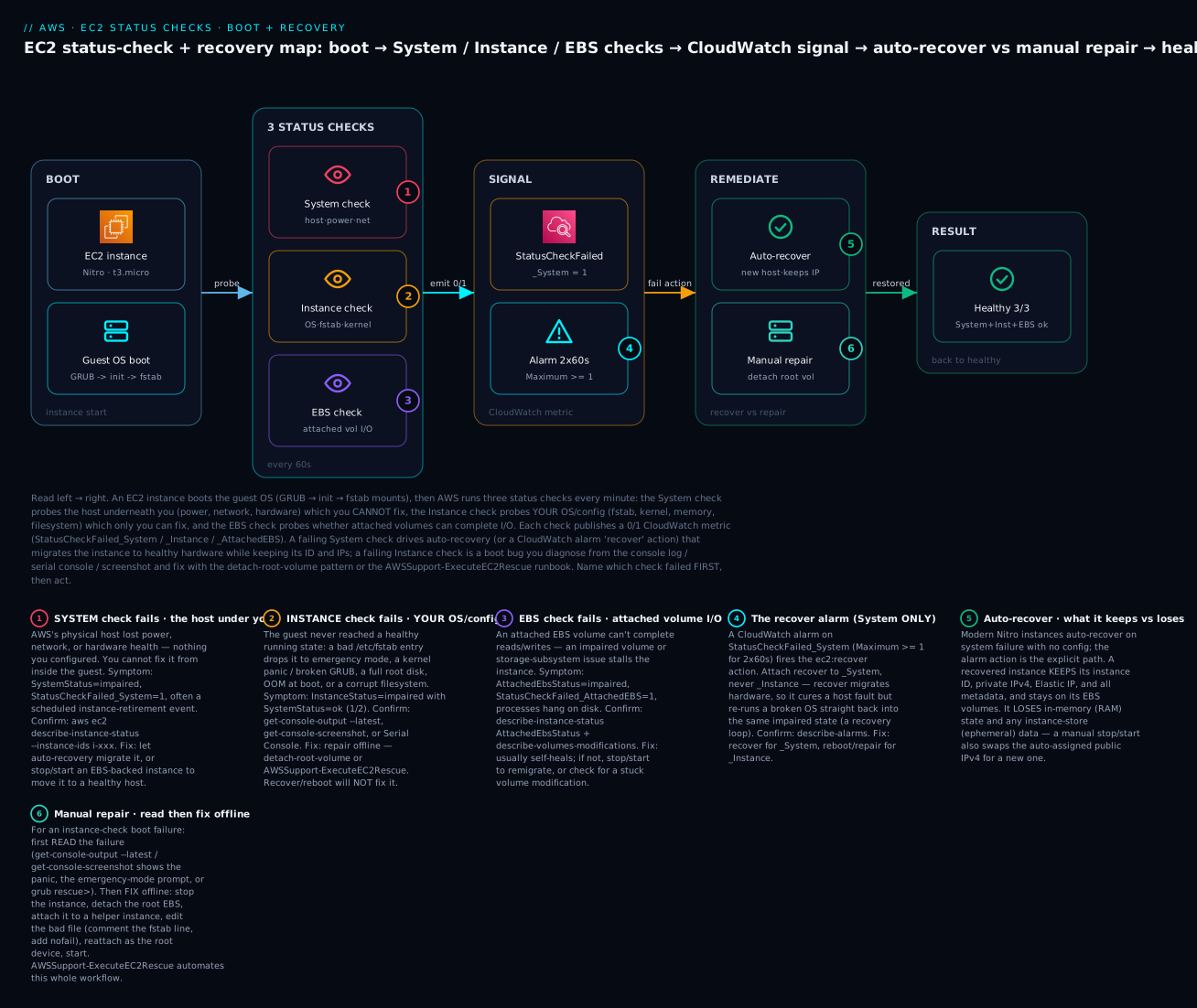
The diagram traces one instance from boot through the three status checks to a resolution, and pins each failure class onto the exact check where it bites. Read it left to right: the EC2 instance boots its guest OS (GRUB → init → fstab); AWS then runs the System check (the host under you — badge 1, red, unfixable from inside), the Instance check (your OS/fstab/kernel — badge 2, amber, yours to repair), and the attached EBS check (volume I/O — badge 3, purple). Each publishes a 0/1 CloudWatch metric; a StatusCheckFailed_System alarm (badge 4) drives the recover action. The resolution splits: a System failure goes to auto-recovery (badge 5 — new host, keeps ID/IP, loses RAM/instance-store), while an Instance failure goes to manual repair (badge 6 — read the console log, then detach-root-volume or AWSSupport-ExecuteEC2Rescue) — and both paths return the box to a healthy 3/3. The legend narrates each badge as symptom · confirm · fix.
Real-world scenario
Meridian Analytics runs a nightly ETL job on a single m6i.large “cruncher” instance that pulls data onto a fast local instance-store NVMe at /mnt/scratch for speed, writes results to S3, and is otherwise ignored. Three incidents over one quarter taught the team the entire status-check taxonomy — and cost them one avoidable data loss before they learned it.
Incident 1 — the 02:10 host failure. At 02:10 the cruncher stopped responding mid-job. On-call SSHed in — timeout — and rebooted it from the console. It answered for ninety seconds, then died. They rebooted again; same thing. Twenty-five minutes in, someone finally ran describe-instance-status and read System: impaired, Instance: ok with a scheduled instance-retirement event: the host was failing, and every reboot had been restarting a healthy OS on a dying host. They stop/started it — and only then discovered the second lesson the hard way: the stop wiped /mnt/scratch, the instance-store NVMe, destroying six hours of in-progress ETL that had not yet been flushed to S3. The instance came back healthy on new hardware in three minutes, but the night’s run was gone. Two lessons, one incident: System impaired means move hardware, not reboot — and instance-store data does not survive a stop/start.
Incident 2 — the fstab hang after a “harmless” change. The next week, an engineer added a persistent EBS data volume, mounted it at /data, and added UUID=… /data ext4 defaults 0 2 to /etc/fstab so it would survive reboots. It did — until a cleanup job detached the now-unused volume a fortnight later. The following reboot hung: Instance: impaired, System: ok, SSH timing out. Because Incident 1 had scarred them, nobody rebooted blindly this time — they pulled get-console-screenshot, saw Give root password for maintenance, and recognised emergency mode. They ran the detach-root-volume pattern: snapshot, stop, detach /dev/xvda, attach to a helper as /dev/sdf, mount, comment out the /data line (and later re-add it with nofail), unmount, reattach as /dev/xvda, start. Fifteen minutes, no data lost. The runbook gained a rule: every non-root fstab entry gets nofail.
Incident 3 — the recovery loop they narrowly avoided. Emboldened, someone proposed “let’s just put an auto-recovery alarm on it so we never get paged for these again” — and wrote it against the combined StatusCheckFailed metric. A reviewer caught it: had a bad kernel from a yum update tripped the Instance check, that alarm would have fired recover, migrated the instance to new hardware, booted the same broken kernel, failed the Instance check again, recovered again — an infinite loop burning hardware migrations while the real fix (boot the prior kernel) went undone. They rewrote the alarm to watch StatusCheckFailed_System only, added a separate alarm on StatusCheckFailed_Instance that paged a human instead of taking an action, and moved /mnt/scratch off instance store onto a gp3 EBS volume so a future recover/stop-start would not eat the ETL data.
The through-line: every incident was a different check with an opposite correct action, and every wasted minute (and the one lost dataset) came from acting before reading the check pair. After the team adopted “run describe-instance-status first, match the action to the failing check, put durable data on EBS, and alarm _System for recover but _Instance for a page,” mean-time-to-recovery for instance-health incidents dropped from ~30 minutes to under 5 — and they never lost scratch data again.
Advantages and disadvantages
The strategic choice is how much to automate the response to an unhealthy instance — from doing nothing, to auto-recovery, to full replace-on-failure via an Auto Scaling group.
| Manual response | Auto-recovery (recover on _System) |
Replace-on-failure (ASG / disposable) | |
|---|---|---|---|
| Reacts to a host fault | You, after a page | Automatically, in ~minutes | Automatically (new instance) |
| Keeps instance ID / IP / EBS | Yes (if you stop/start) | Yes — same identity | No — brand-new instance |
| Fixes an OS boot bug | You repair it | No (recover only cures host faults) | Yes — a fresh instance from a good image |
| Preserves in-instance state | Depends on your action | RAM/instance-store lost, EBS kept | All in-instance state gone |
| Operational complexity | Lowest | Low (one alarm) | Higher (ASG, health checks, immutable AMI) |
| Best fit | Labs, pets you watch closely | Stateful “pet” servers on EBS | Stateless “cattle” fleets |
| Human still needed for | Everything | Instance-check (OS) failures | Rarely — the group self-heals |
Auto-recovery wins for stateful single instances — a database, a license server, a build box — that keep their data on EBS and whose identity (a fixed private IP, an Elastic IP, an instance ID other systems reference) must survive a hardware fault. It cannot help with OS-level boot bugs, so pair it with a _Instance alarm that pages a human. Replace-on-failure wins for stateless fleets behind a load balancer: there is no state to preserve, so terminating and relaunching a healthy instance from a known-good AMI is both simpler and more robust than repairing a sick one — and it also fixes OS boot bugs for free by never reusing the broken disk. Most mature architectures do both: cattle behind ASGs, pets protected by auto-recovery, and every stateful box’s durable data on EBS or replicated off-instance so no recovery ever loses it.
Hands-on lab
Free-tier friendly (t3.micro, ~20 minutes). You will (1) launch an instance and set a StatusCheckFailed_System auto-recovery alarm, (2) break boot with a bad /etc/fstab entry, (3) watch the Instance check go impaired, (4) diagnose via get-console-output/screenshot, (5) repair with the detach-root-volume pattern, and (6) tear it all down. ⚠️ A running t3.micro and any EBS volumes/snapshots cost a little outside the free tier; the teardown removes them.
Step 0 — variables
export AWS_REGION=ap-south-1
export AZ=ap-south-1a
KEY=statuscheck-lab
Step 1 — launch a working instance (CLI)
aws ec2 create-key-pair --key-name $KEY --query KeyMaterial --output text > ${KEY}.pem
chmod 400 ${KEY}.pem

VPC=$(aws ec2 describe-vpcs --filters Name=isDefault,Values=true --query "Vpcs[0].VpcId" --output text)
SUBNET=$(aws ec2 describe-subnets \
  --filters Name=vpc-id,Values=$VPC Name=availability-zone,Values=$AZ \
  --query "Subnets[0].SubnetId" --output text)
MYIP=$(curl -s https://checkip.amazonaws.com)
SG=$(aws ec2 create-security-group --group-name statuscheck-lab-sg \
  --description "status check lab" --vpc-id $VPC --query GroupId --output text)
aws ec2 authorize-security-group-ingress --group-id $SG --protocol tcp --port 22 --cidr ${MYIP}/32

AMI=$(aws ssm get-parameters \
  --names /aws/service/ami-amazon-linux-latest/al2023-ami-kernel-default-x86_64 \
  --query "Parameters[0].Value" --output text)
IID=$(aws ec2 run-instances --image-id $AMI --instance-type t3.micro \
  --key-name $KEY --security-group-ids $SG --subnet-id $SUBNET --associate-public-ip-address \
  --tag-specifications 'ResourceType=instance,Tags=[{Key=Name,Value=statuscheck-lab}]' \
  --query "Instances[0].InstanceId" --output text)
aws ec2 wait instance-running --instance-ids $IID
PUB=$(aws ec2 describe-instances --instance-ids $IID \
  --query "Reservations[0].Instances[0].PublicIpAddress" --output text)
echo "Instance $IID at $PUB"
Confirm the healthy baseline — you want System: ok, Instance: ok:
aws ec2 describe-instance-status --instance-ids $IID \
  --query "InstanceStatuses[].{System:SystemStatus.Status,Instance:InstanceStatus.Status}" --output table
# Expected (after ~2 min): System=ok, Instance=ok
Step 2 — set the auto-recovery alarm on StatusCheckFailed_System
aws cloudwatch put-metric-alarm \
  --alarm-name "recover-${IID}" \
  --alarm-description "Auto-recover on system status check failure" \
  --namespace AWS/EC2 --metric-name StatusCheckFailed_System \
  --dimensions Name=InstanceId,Value=$IID \
  --statistic Maximum --period 60 --evaluation-periods 2 \
  --threshold 1 --comparison-operator GreaterThanOrEqualToThreshold \
  --alarm-actions arn:aws:automate:${AWS_REGION}:ec2:recover

aws cloudwatch describe-alarms --alarm-names "recover-${IID}" \
  --query "MetricAlarms[].{Name:AlarmName,Metric:MetricName,Action:AlarmActions[0],State:StateValue}" --output table
# Expected: Metric=StatusCheckFailed_System, Action ends in :ec2:recover, State=OK (or INSUFFICIENT_DATA at first)
Note: you cannot simulate a real System failure — it needs AWS hardware to fail — so this alarm is a real-world safety net you are wiring correctly, not something the lab triggers. The failure we can reproduce is an Instance-check (OS) failure, next.
Step 2 (Terraform equivalent)
provider "aws" { region = "ap-south-1" }
data "aws_region" "current" {}

resource "aws_cloudwatch_metric_alarm" "recover" {
  alarm_name          = "recover-${aws_instance.lab.id}"
  namespace           = "AWS/EC2"
  metric_name         = "StatusCheckFailed_System"
  dimensions          = { InstanceId = aws_instance.lab.id }
  statistic           = "Maximum"
  period              = 60
  evaluation_periods  = 2
  threshold           = 1
  comparison_operator = "GreaterThanOrEqualToThreshold"
  alarm_actions       = ["arn:aws:automate:${data.aws_region.current.name}:ec2:recover"]
}

# The instance's automatic-recovery setting (default = recover when possible)
resource "aws_instance" "lab" {
  ami                         = data.aws_ssm_parameter.al2023.value
  instance_type               = "t3.micro"
  subnet_id                   = data.aws_subnets.default.ids[0]
  vpc_security_group_ids      = [aws_security_group.ssh.id]
  key_name                    = aws_key_pair.lab.key_name
  associate_public_ip_address = true
  maintenance_options { auto_recovery = "default" }
  tags = { Name = "statuscheck-lab" }
}
Step 3 — break boot with a bad /etc/fstab, then reboot
SSH in and add an fstab entry pointing at a device that does not exist, without nofail — the classic B1:
ssh -o StrictHostKeyChecking=accept-new -i ${KEY}.pem ec2-user@$PUB
# On the instance:
echo '/dev/xvdz /data ext4 defaults 0 2' | sudo tee -a /etc/fstab   # /dev/xvdz does not exist
sudo reboot
Step 4 — watch the Instance check fail, and diagnose
Give it two or three minutes, then read the checks — System stays ok, Instance goes impaired:
aws ec2 describe-instance-status --instance-ids $IID --include-all-instances \
  --query "InstanceStatuses[].{State:InstanceState.Name,System:SystemStatus.Status,Instance:InstanceStatus.Status}" --output table
# Expected: State=running, System=ok, Instance=impaired
SSH now times out (sshd never started). Read why from out-of-band tools:
aws ec2 get-console-output --instance-id $IID --latest --output text | tail -n 40
# Expect lines about a failed mount / dependency and dropping to emergency mode

aws ec2 get-console-screenshot --instance-id $IID --output text | base64 --decode > console.jpg
open console.jpg   # shows 'Give root password for maintenance' or 'You are in emergency mode'
Step 5 — repair via the detach-root-volume pattern
Launch (or reuse) a helper t3.micro in the same AZ, then move the broken root volume to it, fix the file, and move it back:
# Identify the broken root volume and its device
ROOTVOL=$(aws ec2 describe-instances --instance-ids $IID \
  --query "Reservations[0].Instances[0].BlockDeviceMappings[?DeviceName=='/dev/xvda'].Ebs.VolumeId | [0]" --output text)

aws ec2 create-snapshot --volume-id $ROOTVOL --description "pre-repair"   # safety net
aws ec2 stop-instances --instance-ids $IID
aws ec2 wait instance-stopped --instance-ids $IID
aws ec2 detach-volume --volume-id $ROOTVOL
aws ec2 wait volume-available --volume-ids $ROOTVOL

# HELPER = a second running t3.micro you launched in $AZ (same steps as Step 1)
aws ec2 attach-volume --volume-id $ROOTVOL --instance-id $HELPER --device /dev/sdf
# On the helper:
#   sudo mount /dev/xvdf1 /mnt/rescue
#   sudo sed -i '/\/dev\/xvdz/d' /mnt/rescue/etc/fstab     # remove the bad line
#   sudo umount /mnt/rescue
aws ec2 detach-volume --volume-id $ROOTVOL
aws ec2 wait volume-available --volume-ids $ROOTVOL

# Reattach to the ORIGINAL as its root device and start
aws ec2 attach-volume --volume-id $ROOTVOL --instance-id $IID --device /dev/xvda
aws ec2 start-instances --instance-ids $IID
aws ec2 wait instance-running --instance-ids $IID
aws ec2 describe-instance-status --instance-ids $IID \
  --query "InstanceStatuses[].{System:SystemStatus.Status,Instance:InstanceStatus.Status}" --output table
# Expected: System=ok, Instance=ok  → boot repaired
The automated alternative — instead of Step 5’s manual dance, one runbook call: aws ssm start-automation-execution --document-name AWSSupport-ExecuteEC2Rescue --parameters "InstanceId=$IID,Action=FixAll,AllowOffline=True" (needs an SSM automation role).
Step 6 — teardown (⚠️ stops charges)
aws ec2 terminate-instances --instance-ids $IID $HELPER
aws ec2 wait instance-terminated --instance-ids $IID
aws cloudwatch delete-alarms --alarm-names "recover-${IID}"
aws ec2 delete-security-group --group-id $SG
aws ec2 delete-key-pair --key-name $KEY
# delete the pre-repair snapshot you created:
aws ec2 describe-snapshots --owner-ids self --filters Name=description,Values=pre-repair \
  --query "Snapshots[].SnapshotId" --output text | xargs -n1 aws ec2 delete-snapshot --snapshot-id
rm -f ${KEY}.pem
# Terraform: terraform destroy
Common mistakes & troubleshooting
This is the reference you keep open during an incident. First the master playbook — 20 rows keyed by which check failed, each with the exact confirm command and fix. Then the signature reference, the 30-second decode, and the ordered runbook.
| # | Symptom (which check) | Category | Root cause | Confirm | Fix |
|---|---|---|---|---|---|
| 1 | System: impaired (1/2) |
Host | AWS hardware/power/network fault | describe-instance-status … SystemStatus |
Auto-recover, or stop/start (EBS-backed) |
| 2 | System: impaired + retirement event |
Host | Host scheduled for decommission | describe-instance-status … Events[].Code |
Stop/start before the deadline |
| 3 | Reboot didn’t help a System failure |
Host | Reboot stays on the same dying host | It’s still impaired after reboot |
Stop/start or recover — never reboot for host faults |
| 4 | Instance: impaired, System: ok |
OS boot | fstab/kernel/disk/memory boot failure | get-console-output --latest |
Repair per the boot catalog (often offline) |
| 5 | Boot hangs, Give root password prompt |
OS boot | fstab device missing, no nofail |
get-console-screenshot |
Offline: nofail / comment the fstab line |
| 6 | Kernel panic … unable to mount root fs |
OS boot | Bad kernel/initramfs after update | Screenshot shows the panic | Boot prior kernel via GRUB; rebuild initramfs offline |
| 7 | grub rescue> / no such partition |
OS boot | Broken GRUB / moved partition | Screenshot shows GRUB rescue | Repair GRUB offline; fix grub.cfg |
| 8 | No space left on device at boot |
OS boot | Full root disk | Console log / offline df -h |
Free space; grow the EBS volume |
| 9 | Out of memory: Kill process at boot |
OS boot | Instance too small / boot service leak | Console log shows OOM | Larger type; fix service; add swap |
| 10 | UNEXPECTED INCONSISTENCY; RUN fsck |
OS boot | Corrupt filesystem | Console log demands fsck | Offline fsck on the detached volume |
| 11 | SSH times out but Instance: ok |
Network | It’s a network/auth issue, not a boot failure | describe-instance-status = 2/2 |
Work the SSH guide, not this one |
| 12 | AttachedEbs: impaired |
EBS I/O | Volume can’t complete I/O | describe-instance-status … AttachedEbsStatus |
Usually self-heals; else stop/start |
| 13 | Processes hung, disk 100% util ~0 throughput | EBS I/O | Impaired volume / stuck modification | describe-volumes-modifications |
Wait for completed; else remigrate |
| 14 | Recover fired but instance keeps failing | Config | recover wired to _Instance/combined |
describe-alarms … MetricName |
Point recover at StatusCheckFailed_System only |
| 15 | Stop/start “lost my data” | Data | Instance-store wiped by stop/start/recover | Data was on /mnt instance store |
Put durable data on EBS; replicate off-box |
| 16 | Clients broke after stop/start | Network | Auto public IPv4 changed on start | New PublicIpAddress vs the old one |
Use an Elastic IP; or recover (keeps the IP) |
| 17 | Instance-store box: stop = gone | Data | Instance-store-backed can’t be stopped safely | AMI is instance-store-backed | Never stop it; treat it as disposable |
| 18 | Auto-recovery “isn’t working” | Config | Instance type/tenancy not eligible, or disabled | MaintenanceOptions.AutoRecovery |
Use a supported EBS-backed type; set default |
| 19 | insufficient-data right after launch |
Timing | Checks still initializing | describe-instance-status = initializing |
Wait ~1–3 min; do not act |
| 20 | Repeated recovery, never healthy | Host | Severe host fault; recovery cap reached | Instance left stopped/retirement scheduled |
Stop/start to a new host, or relaunch |
The console-signature reference
The exact string in get-console-output / the screenshot tells you the row above without guessing:
| Signature | Catalog | Class |
|---|---|---|
Give root password for maintenance |
B1 | Instance (fstab) |
You are in emergency mode |
B1 | Instance (fstab) |
A start job is running for … / no limit |
B1/B14 | Instance (mount wait) |
Kernel panic - not syncing: VFS: Unable to mount root fs |
B2 | Instance (kernel) |
error: no such partition / grub rescue> |
B3 | Instance (GRUB) |
No space left on device |
B4 | Instance (full disk) |
Out of memory: Kill process |
B5 | Instance (OOM) |
UNEXPECTED INCONSISTENCY; RUN fsck MANUALLY |
B6 | Instance (fs corrupt) |
EXT4-fs error … remounting … read-only |
B12 | Instance (I/O error) |
cloud-init[…] … Traceback / failed |
B9 | Instance (user-data) |
SystemStatus: impaired with empty console |
— | System (host) |
The 30-second decode
| If you see… | It’s almost certainly… | Do this first |
|---|---|---|
System: impaired (often with Instance: ok) |
An AWS host fault | Auto-recover / stop-start — never reboot |
Instance: impaired with System: ok |
Your OS didn’t boot | get-console-output --latest → the catalog |
Give root password for maintenance on the screenshot |
An fstab hang (no nofail) |
Offline: fix /etc/fstab |
Both impaired (0/2) |
Host fault taking the OS down | Recover the host first, then re-check Instance |
AttachedEbs: impaired, box hung on disk |
A volume I/O problem | Check volume status/modifications; stop-start if stuck |
| Recover fires repeatedly, never healthy | Wrong metric or a real host death | Confirm the alarm is on _System; else stop/start/relaunch |
Checks in order (the runbook)
Do not skip ahead — each step is cheap and rules out a layer before the next:
| Order | Check | Command | If it points here → |
|---|---|---|---|
| 1 | Read the status triple | describe-instance-status … System/Instance/AttachedEbs |
Pick the failing check |
| 2 | Scheduled events? | describe-instance-status … Events[].Code |
Retirement → plan a stop/start |
| 3 | If System failed | (host fault) | Auto-recover / stop-start; don’t reboot |
| 4 | If Instance failed, read the log | get-console-output --latest |
Match a console signature to the catalog |
| 5 | If the log is empty, screenshot | get-console-screenshot |
GRUB / emergency-mode / panic |
| 6 | Interactive fix if possible | Serial Console (opt-in + OS password) | Edit fstab live; boot prior kernel |
| 7 | Otherwise repair offline | Detach root volume → helper → fix → reattach | Any on-disk boot failure |
| 8 | Or automate it | AWSSupport-ExecuteEC2Rescue (AllowOffline=True) |
Hands-off offline repair |
| 9 | If EBS failed | describe-volume-status / -modifications |
Wait for self-heal; else remigrate |
| 10 | Confirm recovery | describe-instance-status back to 2/2 (or 3/3) |
Close the incident; add a nofail/alarm fix |
Best practices
- Read
describe-instance-statusbefore you take any action. TheSystem / Instance / EBStriple decides whether you recover, repair, or wait — and the wrong action (a reboot on a host fault, a stop/start on instance-store data) makes things worse. - Match the alarm to the check.
recover(or stop/start) forStatusCheckFailed_System; arebootaction or a human page forStatusCheckFailed_Instance; an alert forStatusCheckFailed_AttachedEBS. Never pointrecoverat the combined or_Instancemetric. - Wire an auto-recovery alarm on every stateful “pet” instance, and add SNS so you are paged after the box is already healthy again.
- Put durable data on EBS, never solely on instance store, because recover and stop/start wipe instance store. If you use instance-store NVMe for speed, replicate or checkpoint to EBS/S3.
- Use an Elastic IP for anything reached by address, so a stop/start (which swaps the auto-assigned public IPv4) does not silently break clients. Recover keeps the IP; stop/start does not.
- Never add a non-root
/etc/fstabentry withoutnofail(plusx-systemd.device-timeout), and never reboot to “test a mount” without it — this single rule prevents the most common boot hang there is. - Pre-enable the diagnosis path: opt the account into the Serial Console and set an OS password on a break-glass user before an incident; wire the SSM instance profile so
AWSSupport-ExecuteEC2Rescueis available. - Snapshot the root volume before an offline repair — the detach/edit/reattach dance is safe, but a snapshot makes a slip recoverable.
- Prefer replace-on-failure for stateless fleets. An ASG that terminates and relaunches from a known-good AMI both self-heals host faults and dodges OS boot bugs entirely — no repair needed.
- Keep a change log correlated with instance IDs, because “a bad recent change” (a kernel update, an fstab edit, a cloud-init tweak) is behind most Instance-check failures, and the fastest diagnosis is “what changed just before the failure time.”
- Test your kernel updates on one instance before the fleet, and keep the previous kernel installed so GRUB can boot it when a new one panics.
Security notes
The recovery and diagnosis tools here all ultimately grant deep control of an instance, so treat their IAM actions as privileged. The detach-root-volume pattern hands whoever runs it the entire root filesystem of another instance — including secrets, keys, and /etc/shadow — so ec2:DetachVolume / ec2:AttachVolume on production volumes is effectively root access and must be scoped and logged. The Serial Console is out-of-band interactive access; gate ec2:EnableSerialConsoleAccess and ec2-instance-connect:SendSerialConsoleSSHPublicKey tightly, require the account opt-in be a deliberate decision, and remember the console needs an OS password — keep that password strong and rotated. The AWSSupport-ExecuteEC2Rescue runbook stops your instance, snapshots and mounts its disk on a helper, and runs code against it, so restrict ssm:StartAutomationExecution on that document and review its automation role. Keep get-console-output in mind as a data-exposure surface: boot logs can print hostnames, IPs, and occasionally secrets echoed by a careless boot script — restrict ec2:GetConsoleOutput/GetConsoleScreenshot and scrub what your boot scripts log. Finally, encrypt EBS volumes so a detached-and-mounted root volume is not readable by a helper in a different trust boundary without the key, and log every one of these actions in CloudTrail — an auditor’s first question after an incident is “who attached that volume, and to what.”
The IAM actions behind each tool, to grant deliberately:
| Tool / action | IAM action(s) | What it grants |
|---|---|---|
| Read the boot log | ec2:GetConsoleOutput |
The instance’s serial/system log |
| Console screenshot | ec2:GetConsoleScreenshot |
A JPEG of the console screen |
| Serial Console (opt-in) | ec2:EnableSerialConsoleAccess |
Account-level serial access |
| Serial Console (login) | ec2-instance-connect:SendSerialConsoleSSHPublicKey |
Out-of-band interactive login |
| Offline repair | ec2:StopInstances, ec2:DetachVolume, ec2:AttachVolume |
Full root-filesystem access to a box |
| Recover / stop-start | ec2:StopInstances, ec2:StartInstances, cloudwatch:PutMetricAlarm |
Move an instance to new hardware |
| EC2Rescue automation | ssm:StartAutomationExecution on AWSSupport-ExecuteEC2Rescue |
Automated offline OS repair |
Cost & sizing
The status-check and recovery machinery is almost entirely free — you pay only for the surrounding compute and storage.
| Item | Cost driver | Rough figure (2026) | Free-tier / note |
|---|---|---|---|
| Status checks | The checks themselves | ₹0 | Always on, no charge |
| Basic status-check metrics in CloudWatch | 1-minute EC2 status metrics | ₹0 | The StatusCheckFailed* metrics are free |
| CloudWatch alarm (recover/reboot) | Per alarm-month | ≈ ₹8–9 (~$0.10) per standard alarm/mo | First 10 alarms free tier historically |
| Auto-recovery action | The recovery itself | ₹0 | You pay only for the instance as usual |
| EC2 instance | Instance-hours | t3.micro ≈ ₹0.90–1.10/hr (~$0.011) |
750 hrs/mo t2/t3.micro, first 12 months |
| Helper instance (offline repair) | Instance-hours while repairing | A few ₹ for ~15 min | Terminate it right after the repair |
| EBS snapshot (pre-repair safety net) | Per-GB-month of snapshot | ≈ ₹4/GB-mo (~$0.05) | Delete after the repair confirms |
| Elastic IP | Per public IPv4/hr | ≈ ₹0.40/hr (~$0.005) | Every public IPv4 is billed since 2024 |
Right-sizing guidance: the checks cost nothing, so alarm liberally — a _System recover alarm and a _Instance page alarm on every important instance is a rounding error against one avoided outage. The only real spend is the transient helper instance and snapshot during an offline repair; both are cents if you terminate/delete them promptly (the lab teardown does). Remember the 2024 change: every public IPv4 is billed hourly, so a stopped instance holding an Elastic IP still costs a little — which is a fair price to keep a stable address across a stop/start. If you run large stateful “pets,” the auto-recovery alarm is the cheapest insurance in AWS; if you run stateless “cattle,” an ASG’s replace-on-failure removes even the need to alarm individual boxes.
Interview & exam questions
Q1. An instance shows System status check: 1/2, Instance status check: 0/2. What is happening and what do you do? The System check failed — the AWS host under the instance has a hardware/power/network fault dragging the OS down (0/2). You cannot fix a host fault from inside; move the instance to healthy hardware via auto-recovery or by stopping and starting an EBS-backed instance. A reboot won’t help because it keeps you on the same host. (SOA-C02, SAA-C03)
Q2. What is the difference between the System and Instance status checks? The System check probes AWS’s side — host power, network, and hardware — which you cannot fix; the Instance check probes your OS/config (networking, memory, filesystem, kernel, mounts), which only you can fix. System failures are cured by moving hardware; Instance failures are cured by repairing the OS. (SOA-C02)
Q3. Which CloudWatch metric should an auto-recovery alarm watch, and why not the others? StatusCheckFailed_System. Recover migrates the instance to new hardware, which cures a host fault but not an OS bug — so pointing recover at StatusCheckFailed_Instance or the combined StatusCheckFailed risks a recovery loop (new host, same broken OS, fail, repeat). (SOA-C02)
Q4. What does a recover preserve, and what does it lose? It keeps the instance ID, private IPv4, Elastic IP, metadata, and EBS volumes, and even the auto-assigned public IPv4. It loses in-memory (RAM) state and any instance-store (ephemeral) data. A manual stop/start is similar but also releases the auto-assigned public IPv4 for a new one. (SAA-C03, SOA-C02)
Q5. An instance won’t finish booting after someone edited /etc/fstab. How do you diagnose and fix it? Confirm Instance: impaired, System: ok, then read get-console-output --latest / get-console-screenshot — you’ll see emergency mode / Give root password for maintenance. Fix offline: detach the root volume, attach it to a helper, add nofail or remove the bad line, reattach as root, start. Or run AWSSupport-ExecuteEC2Rescue. (SOA-C02)
Q6. Why is nofail important in /etc/fstab? Without it, systemd treats the mount as a hard boot dependency and waits forever for a missing device, dropping the instance into emergency mode so it never finishes booting and fails the Instance check. nofail makes a missing device non-fatal, so boot proceeds. (SOA-C02)
Q7. When is stopping and starting an instance dangerous? When the instance has instance-store (ephemeral) volumes — stop/start (and recover) wipe them, and an instance-store-backed instance cannot be stopped at all (stop = terminate). Also, stop/start changes the auto-assigned public IPv4, breaking clients that address the box by IP/DNS without an Elastic IP. (SAA-C03)
Q8. What is the attached EBS status check and how does its failure present? It monitors whether attached EBS volumes can complete I/O (StatusCheckFailed_AttachedEBS). A failure typically shows as a hung instance — processes blocked in uninterruptible sleep on disk — rather than an OS error. It often self-heals; if not, check for a stuck volume modification or stop/start to remigrate. (SOA-C02)
Q9. A host is scheduled for retirement. What happens to an EBS-backed vs an instance-store-backed instance? An EBS-backed instance should be stopped/started before the retirement date to migrate it to a healthy host, keeping its data. An instance-store-backed instance is terminated at the retirement time and its data is lost, so you must relaunch (ideally from a fresh AMI) and rely on off-box state. (SOA-C02, SAA-C03)
Q10. get-console-output returns nothing useful, but the instance is clearly stuck at boot. What next? Use get-console-screenshot to capture the actual screen — the failure may be at the bootloader (GRUB menu, grub rescue>) or an interactive prompt that produces no serial-log lines. For live interaction, use the EC2 Serial Console (account opt-in + OS password). (SOA-C02)
Q11. How does automatic recovery differ from a CloudWatch recover alarm? Automatic recovery is on by default on modern instances and needs no configuration, controlled via MaintenanceOptions.AutoRecovery (default/disabled). The alarm-based recover action is an explicit per-instance CloudWatch alarm on StatusCheckFailed_System that you can attach SNS to. Both migrate the instance to healthy hardware. (SOA-C02)
Q12. When would you choose replace-on-failure (ASG) over auto-recovery? For stateless “cattle” with no per-instance state to preserve: terminating and relaunching from a known-good AMI is simpler, self-heals host faults, and — unlike recover — also fixes OS boot bugs by never reusing the broken disk. Auto-recovery is for stateful “pets” whose identity and EBS data must survive. (SAA-C03)
Quick check
System: impaired, Instance: ok. Should you reboot the instance? Why or why not?- Which CloudWatch metric must an auto-recovery
recoveralarm watch, and what breaks if you use the combined metric? - Name two things a recover/stop-start destroys and two things it preserves.
- What single
/etc/fstaboption prevents the classic boot hang, and what happens without it? - Your instance won’t boot and
get-console-outputis empty. What’s your next command, and what might it reveal?
Answers
- No. A reboot keeps the instance on the same failing host.
System: impairedis an AWS hardware fault — move the instance to new hardware via auto-recovery or a stop/start (EBS-backed) instead. StatusCheckFailed_System. If you use the combinedStatusCheckFailed(or_Instance), an OS boot bug can triggerrecover, which migrates hardware but re-runs the broken OS — an infinite recovery loop.- Destroys: in-memory (RAM) state and instance-store (ephemeral) data. Preserves: instance ID, private IPv4, Elastic IP, metadata, and EBS volumes (recover also keeps the auto-assigned public IP; stop/start does not).
nofail(ideally withx-systemd.device-timeout). Without it, systemd waits forever for a missing device and drops into emergency mode, so the instance never finishes booting and fails the Instance check.aws ec2 get-console-screenshot— it captures the actual screen, revealing a bootloader failure (GRUB menu,grub rescue>) or an interactive prompt (Give root password for maintenance) that produces no serial-log lines.
Glossary
- Status check — an automated per-minute EC2 probe reported as pass/fail; internally a CloudWatch metric valued 0 (pass) or 1 (fail).
- System status check — verifies AWS’s host power, network, and hardware can reach your instance; you cannot fix a failure from inside — you move to new hardware.
- Instance status check — verifies your OS booted and is reachable/responsive; failures are OS-level (fstab, kernel, memory, filesystem, network) and yours to repair.
- Attached EBS status check — verifies attached EBS volumes can complete I/O; a failure presents as a hung instance and emits
StatusCheckFailed_AttachedEBS. - Auto-recovery — AWS migrating a system-failed instance to healthy hardware while keeping its identity; automatic on modern instances, or via a CloudWatch
recoveralarm. recoveraction — the alarm action ARNarn:aws:automate:<region>:ec2:recover; correct only onStatusCheckFailed_System.- Reboot — an OS restart on the same host; fixes some OS hangs but never a host fault.
- Stop/Start — power-cycle that re-places an EBS-backed instance on new hardware; loses instance-store data and swaps the auto-assigned public IPv4.
- Instance store — ephemeral disk physically attached to the host; destroyed by stop, recover, or termination.
/etc/fstab— the table of filesystems mounted at boot; a bad entry withoutnofaildrops boot into emergency mode.nofail— an fstab mount option that lets boot proceed when a device is missing instead of hanging.get-console-output— API returning the captured serial/system (boot) log;--latestgives near-real-time output on Nitro.get-console-screenshot— API returning a JPEG of the console screen; the way to see GRUB, panics, and boot prompts.- EC2 Serial Console — out-of-band interactive serial access (Nitro); needs account opt-in and an OS password; works when SSH is dead.
- Detach-root-volume pattern — the universal offline repair: move the broken root volume to a helper instance, edit the disk, reattach as root, boot.
AWSSupport-ExecuteEC2Rescue— an SSM Automation runbook that automates offline boot/connectivity repair using the EC2Rescue tool.- Scheduled event — an AWS-planned reboot/retirement/maintenance action, often preceding or accompanying a System check failure.
Next steps
- When the box is reachable but you still cannot log in, switch to EC2 SSH ‘Connection Timed Out’ & ‘Permission Denied’: The Complete Troubleshooting Guide — a
2/2-healthy instance that refuses SSH is a network/auth problem, not a boot failure. - For an instance that is running but starved of CPU, memory, or disk, work through EC2 High CPU, Memory & Disk: The Performance Troubleshooting Playbook.
- Master the storage layer the EBS check and the detach-root-volume pattern depend on in EBS Volumes, Types & Snapshots: A Hands-On Guide.
- If you have not built a working instance to break yet, start with Launch Your First EC2 Instance and Connect: SSH, Instance Connect & Session Manager.
- Wire a
StatusCheckFailed_Systemrecover alarm (with SNS) on every stateful instance, and a separateStatusCheckFailed_Instancepage alarm, so hardware faults self-heal and OS failures reach a human fast.