The Cost Analysis blade answers “what did we spend last month?” and nothing harder. The moment finance asks “split last quarter’s spend by team and environment, show the trend, and email it to me every Monday,” the blade falls apart — it can’t join your tags to a cost-centre mapping, it keeps only a rolling window of detail, and you cannot schedule it. Azure Cost Management exports solve exactly this: a managed, scheduled job that writes your full cost-and-usage detail — every meter, every resource, every tag — as files into a storage account on a daily or monthly cadence, where it becomes raw material for a real reporting pipeline. Point Power BI at that storage account and you have a custom FinOps dashboard that refreshes on a schedule, slices by any dimension you tagged, and does chargeback the blade never could.
This article is a build, not a tour. You will stand up the whole pipeline end to end — storage account with the right redundancy and access model, a scheduled daily amortized export in FOCUS (FinOps Open Cost and Usage Specification) format, the managed identity and RBAC so the export can write and Power BI can read, then a modelled, refreshing report. Every step comes three ways: the portal, the az CLI, and Bicep. You will see the exact file layout an export produces (<directory>/<date-range>/<runid>/part_*.parquet plus a manifest.json), why FinOps wants amortized over actual cost, and how to dodge the three mistakes that make people think exports are “broken”: looking before the first run completes, mis-reading the partitioned folders, and double-counting overlapping ranges.
By the end you will stop screenshotting Cost Analysis into slide decks: a storage account quietly accumulating daily cost detail, a Power BI model that turns it into spend-by-team, spend-by-environment and forecast views, and the RBAC to let finance self-serve without subscription access — all for a few rupees a month, since the export itself is free.
What problem this solves
Native Cost Analysis is a viewer, not a data source. It shows a chart and a table, lets you group by a handful of dimensions, and downloads a one-off CSV of what’s on screen. Three hard limits bite the moment your FinOps needs grow past “glance at the chart.” First, retention and detail: the interactive views keep a rolling window and aggregate older data; you cannot re-slice 18 months of resource-level detail on demand. Second, no scheduling: there is no “email me this every Monday.” Third, no real modelling: you cannot join cost rows to an external mapping (this subscription belongs to cost-centre 4471; this tag rolls up to “Platform team”) or build measures like blended rate or unit cost per transaction.
What breaks without exports is the entire chargeback and showback motion. Finance wants to allocate spend back to the teams that incurred it, with an audit trail, refreshed automatically, in a tool they already use; managers want a self-serve “your team spent ₹X this month, up Y%, here’s the top five resources.” Neither is buildable on the blade, so teams do it by hand — one engineer exports a CSV monthly, VLOOKUPs the cost centres in a spreadsheet, and emails a screenshot. It’s slow, error-prone, and dies the moment that engineer is on leave.
Who hits this: anyone past a single subscription and team. It bites hardest on chargeback (real money moved between cost centres — the numbers must be defensible and reproducible), platform teams running shared services many teams consume, and anyone whose tagging is good enough to allocate precisely if they could get the tagged detail into a tool that joins and models. Exports are the missing piece: a reliable, scheduled, complete feed into storage that any BI tool builds on.
What each native option can and cannot do, so you choose exports for the right reasons:
| Capability | Cost Analysis blade | One-off CSV download | Scheduled export (this article) | Cost Management API |
|---|---|---|---|---|
| Interactive chart / quick answer | Yes | No | No | No |
| Resource-level detail, all tags | Partial (rolling) | Yes (snapshot) | Yes, every row, every run | Yes |
| Runs on a schedule, no human | No | No | Yes (daily / monthly) | You build the scheduler |
| Lands in storage for BI to read | No | Manual upload | Yes (Storage Account) | You write the plumbing |
| Amortized + actual + usage datasets | Actual view only | Current view | Yes (pick the dataset) | Yes |
| Historical backfill on first run | n/a | Manual | Yes (one-time export of a range) | Yes (paged) |
| Cost to run | Free | Free | Free export; pay only for storage | Free API; you pay compute |
Learning objectives
By the end of this article you can:
- Explain what a Cost Management export is, how it differs from the Cost Analysis blade and the API, and when each fits.
- Choose the right dataset (actual vs amortized vs usage vs price sheet) and format (CSV vs Parquet, FOCUS vs legacy) for a FinOps dashboard.
- Create a storage account and container with the right redundancy and access settings to receive exports.
- Configure a scheduled daily export plus a one-time backfill — in the portal, with
az costmanagement export create, and with a BicepMicrosoft.CostManagement/exportsresource. - Wire the least-privilege RBAC each actor needs (Cost Management Contributor to author, Blob Data Contributor to write, Blob Data Reader to read) using a system-assigned managed identity.
- Read the partitioned file layout (
directory/date-range/runid/), parse themanifest.json, and connect Power BI to model the data. - Build a FinOps report — spend by team/environment from tags, month-over-month trend, scheduled refresh — without double-counting overlapping runs.
- Diagnose the common failures: empty container, “ran but no data,” doubled totals, refresh failures from missing reader RBAC, and broken tag columns.
Prerequisites & where this fits
You should know that a subscription is a billing and access boundary (Azure Subscriptions Explained: Types, Billing Boundaries and When to Create a New One), that tags are key-value labels and consistent tagging is what makes allocation possible (Azure Resource Tagging Strategy: Drive Cost Allocation and Governance From Day One), and that a storage account holds blobs in containers (Azure Storage Account Fundamentals: Blobs, Files, Queues and Tables). You should run az in Cloud Shell, read JSON, and have Power BI Desktop (free) on Windows. Scheduling a refresh and sharing the dashboard needs the Power BI service (Pro/PPU); the modelling and export pipeline are free.
This sits in the Cost Management & FinOps track, one rung above alerting. It assumes you’ve done reactive cost control — Set Up Azure Budgets: Threshold Alerts to Email, Action Groups, and Automation and Azure Cost Management for Beginners: Budgets, Alerts and Cost Analysis in Your First 30 Days — and now want proactive, analytical FinOps. It pairs with Azure Advisor for Cost: Acting on Rightsizing and Idle-Resource Recommendations (the export shows where money goes; Advisor shows what to cut) and scales into Azure FinOps and Cost Management: Controlling Cloud Spend at Scale. Chargeback depends on tagging, so Azure Tagging Strategy 101: A Naming and Tag Schema for Cost Allocation is the prerequisite that makes the dashboard useful, not merely correct.
Where each piece lives and who owns it, so you call the right person when a step needs a permission you lack:
| Layer | What lives here | Who usually owns it | What it needs to work |
|---|---|---|---|
| Cost Management (the export) | Export config, schedule, dataset choice | FinOps / platform | Cost Management Contributor on the scope |
| Scope (subscription / MG / billing) | The cost data being exported | Subscription owner | Read access to the scope’s cost |
| Storage account + container | The landed Parquet/CSV files | Platform / storage team | Account created; container exists |
| RBAC / identity | Who can write and read the files | Identity / platform | Export’s MI as writer; BI reader as reader |
| Power BI (the model) | Dataflow, semantic model, report | FinOps analyst | Storage Blob Data Reader on the account |
| Tag → cost-centre mapping | The allocation lookup table | Finance | A maintained mapping (Excel/CSV/table) |
Core concepts
Five ideas make the build obvious.
An export is a managed, recurring “Cost Analysis to a file.” A Cost Management export is a config object (Microsoft.CostManagement/exports) attached to a scope — subscription, resource group, management group, or billing account. On your schedule, the platform queries the chosen dataset and time period and writes the result as files into a storage container — no compute or function for you to maintain. Each run is idempotent: it writes a fresh set of files under a run-specific folder, so reruns never corrupt earlier data.
The dataset you pick decides what “cost” means. Four kinds: actual cost (as billed — a reservation lands as a lump sum on its buy date), amortized cost (purchases spread evenly across their term), usage (consumption quantities), and the price sheet (negotiated rates). For allocation you almost always want amortized — every team gets the smoothed daily share of a reservation they consumed, not a lump sum dumped on whoever bought it. A chart that “spikes on the 3rd every month” is the classic tell of a dashboard built on actual cost.
FOCUS makes the schema stable. Every cloud’s cost export historically had its own column names, and Azure changed its own over time. FOCUS (FinOps Open Cost and Usage Specification) is a vendor-neutral schema — BilledCost, EffectiveCost, ServiceName, ResourceId, Tags, ChargePeriodStart — Azure now offers as a first-class export type. Your model uses the same column names you’d use against AWS or GCP, and it survives Azure’s churn. Pair FOCUS with Parquet (columnar, compressed, far smaller/faster for BI than CSV) for the modern shape.
The file layout is partitioned. An export writes a tree, not one file: <directory>/<start>-<end>/<run-guid>/part_0_0001.parquet, part_0_0002.parquet, … plus a manifest.json (row count, byte size, blob list, schema version). The date-range folder keeps historical months side by side. This tree is the key to the Power BI step — you point Power BI at the container/directory and it reads all partitioned files as one table, but you must filter to avoid loading the same day twice from overlapping runs.
RBAC is split three ways: author vs write vs read. To create/edit an export you need Cost Management Contributor on the scope; to write into storage, the export’s managed identity needs Storage Blob Data Contributor; to read the files, Power BI needs Storage Blob Data Reader. Conflating these is the top cause of “it created fine but nothing shows up” — the config saved (you had Cost Management Contributor) but the write or read failed (the data-plane role was missing).
The vocabulary in one table
Pin down every moving part first.
| Term | One-line definition | Where it lives | Why it matters here |
|---|---|---|---|
| Export | Scheduled job writing cost data to storage | Microsoft.CostManagement/exports |
The whole pipeline’s source |
| Scope | Subscription / RG / MG / billing account the data covers | The export’s properties.scope (via API path) |
Sets what cost is included |
| Dataset | actual / amortized / usage / price sheet | Export config (definition.type) |
Decides what “cost” means |
| FOCUS | Vendor-neutral cost schema | Export type / dataset version | Stable column names across clouds |
| Parquet | Columnar compressed file format | Export format |
Small, fast for BI vs CSV |
| Manifest | manifest.json describing a run |
In each run folder | Lists files, rows, schema |
| Run folder | <range>/<run-guid>/ holding part_* |
In the container directory | Where one run’s files land |
| Managed identity | The export’s identity that writes to storage | On the export resource | Keyless write to the account |
| Amortized cost | Reservation cost spread over its term | The amortized dataset | The FinOps-correct cost basis |
| Chargeback | Allocating cost back to teams | Your Power BI model | The reason exports exist |
| Showback | Reporting cost to teams (no money moved) | Your Power BI model | The softer cousin of chargeback |
| Tags | Key-value labels on resources | A column in the export | What you slice/allocate by |
Datasets, formats and schedules — choosing what to export
This decision shapes everything downstream. Three knobs matter: which dataset, which format/schema, and what schedule + time period.
Which dataset
For a FinOps allocation dashboard, choose amortized cost (or FOCUS, which carries both billed and effective cost per row). Use usage only for consumption quantities in unit-economics work, and the price sheet only to reconcile rates.
| Dataset | What it contains | Reservation/savings-plan handling | Best for | Watch-out |
|---|---|---|---|---|
| Actual cost | Cost as billed | Purchase lands as a lump sum on buy date | Invoice reconciliation, “what hit the card” | Monthly spikes on purchase dates — bad for allocation |
| Amortized cost | Cost with purchases spread over term | Smoothed daily across the reservation term | Chargeback, showback, trend | Won’t match the invoice line-for-line |
| Usage | Consumption quantities + cost | Per meter usage | Unit economics (cost per GB / per txn) | Larger; needs joining to make sense |
| Price sheet | Your negotiated unit rates | n/a | Rate reconciliation, what-if pricing | Rates, not spend — don’t sum it as cost |
| FOCUS (cost + usage) | Unified spec: billed + effective cost, usage, tags | Both BilledCost and EffectiveCost columns |
Modern default for dashboards | Newer schema; confirm your BI handles Tags map |
Which format and schema
Two independent choices — file format and schema.
| Choice | Option A | Option B | Recommendation for FinOps |
|---|---|---|---|
| File format | CSV — human-readable, opens in Excel, larger | Parquet — columnar, compressed (~5–10× smaller), typed | Parquet — unless a human must open a single file in Excel |
| Schema | Legacy Azure columns (PreTaxCost, MeterCategory, ResourceGroup) |
FOCUS (BilledCost, EffectiveCost, ServiceName, Tags) |
FOCUS — vendor-neutral, stable, multi-cloud-ready |
| Compression | Uncompressed CSV | Parquet’s built-in (Snappy) | Parquet handles it; no extra step |
| Tag representation | Flattened Tags string (legacy) |
Structured Tags field (FOCUS) |
FOCUS, then expand the tag map in Power BI |
Keep CSV for a one-time human-readable extract, but build the recurring pipeline on Parquet + FOCUS — Power BI reads it natively, at a fraction of CSV’s size.
Schedule and time period
The schedule controls how often the export runs; the time period, what window each run covers.
| Schedule / period option | What it does | Typical use | Gotcha |
|---|---|---|---|
| Daily export, period “month-to-date” | Each day writes the current month’s data so far | The standard FinOps feed — fresh detail every morning | Each day’s file supersedes yesterday’s for the same month; load the latest run per month |
| Monthly export, period “last month” | Once a month writes the prior completed month | A stable, closed-month archive | Lags up to a month; pair with a daily for currency |
| One-time export of a custom range | A single run over e.g. the last 12 months | Historical backfill when you first set up | Heavy first run; large files for big subscriptions |
| Recurrence start/end dates | When the schedule activates / expires | Run only for a fiscal period | If status: Inactive it won’t run at all |
| Overwrite vs partition | Replace files vs add partitioned part_* |
Modern exports partition into a run folder | The date-range folder is what keeps months separate |
Most teams land on one daily month-to-date export plus one one-time backfill — both in one container.
The storage account that receives the export
The storage account’s settings affect cost, durability and who can read the data. Exports write to blob storage, so a general-purpose v2 account is what you want.
Redundancy, namespace and tier
| Setting | Options | Recommended for cost exports | Why |
|---|---|---|---|
| Account kind | StorageV2 (general-purpose v2), BlobStorage, legacy | StorageV2 | Full feature support; required for some options |
| Redundancy | LRS, ZRS, GRS, RA-GRS | LRS (ZRS if zonal durability matters) | Cost data is reproducible — no geo-redundancy needed; LRS is cheapest. See Azure Storage Redundancy Decoded: LRS vs ZRS vs GRS vs RA-GRS and How to Choose |
| Hierarchical namespace (ADLS Gen2) | On / off | On for future Synapse/Databricks/ADF; off fine for Power BI-only | HNS adds directory semantics + ACLs; Power BI reads both |
| Access tier (default) | Hot / Cool / Cold | Hot for current; lifecycle old months to Cool | Recent data read often, old months rarely. See Blob Access Tiers Explained: Hot, Cool, Cold and Archive Cost Trade-offs in Practice |
| Allow blob public access | Enabled / Disabled | Disabled | Cost data must never be world-readable |
| Minimum TLS version | 1.0 / 1.1 / 1.2 | 1.2 | Baseline security |
| Shared key access | Enabled / Disabled | Disabled if you use managed identity; enabled only if the export must use the key | Keyless (MI) is the safer default |
How the export authenticates to storage
Two ways the export writes, and the choice changes the RBAC you set.
| Method | How it works | RBAC needed | When to use |
|---|---|---|---|
| Managed identity (recommended) | The export resource gets a system-assigned identity; you grant it write on the account | Storage Blob Data Contributor for the export’s MI | Default; keyless, auditable, no secret to rotate |
| Storage account key (legacy) | The export uses the account’s shared key | None data-plane (the key is the credential) | Only when MI isn’t available for the scope/flow; requires shared-key access enabled |
We use managed identity throughout — keyless, and why “shared key access: Disabled” is a safe default. The one nuance: the identity must exist and hold the data-plane role before the first run, or it writes nothing.
RBAC and identity — the wiring that actually moves data
Most “the export doesn’t work” tickets are RBAC — three principals, three needs.
| Principal | What it does | Role it needs | Scope of the role |
|---|---|---|---|
| You / the FinOps author | Creates and edits the export | Cost Management Contributor (or Owner/Contributor) | The cost scope (subscription / MG / billing account) |
| The export’s managed identity | Writes the Parquet/CSV files | Storage Blob Data Contributor | The storage account (or the container) |
| Power BI / the analyst | Reads the files to build the report | Storage Blob Data Reader | The storage account (or the container) |
Three things people get wrong, every time:
- Control-plane vs data-plane. Contributor on the storage account (control-plane) does not grant blob read/write — those are data-plane roles (
Storage Blob Data Reader/Contributor). You can own the account and still getAuthorizationPermissionMismatchreading a blob. The single most common trap; Azure RBAC Fundamentals: Roles, Scopes and Assignments Without the Confusion covers it in depth. - Reader can’t author. Cost Management Reader views costs but can’t create an export — you need Cost Management Contributor.
- Propagation lag. A fresh assignment can take minutes (occasionally ~30) to apply; “I granted it and it still says denied” is often impatience — wait and retry.
Exports use a system-assigned identity, the right call here: it lives and dies with the export and needs no separate management. The broader trade-off is in Managed Identities Demystified: System vs User-Assigned and When to Use Each.
Architecture at a glance
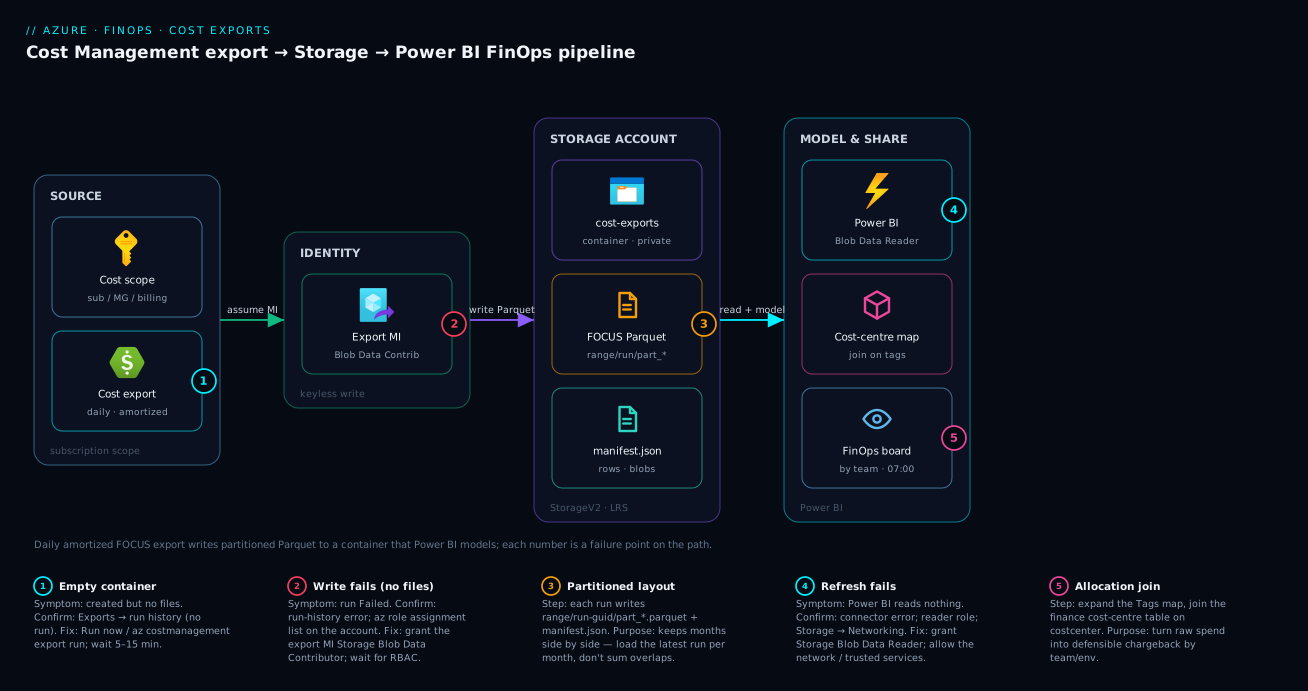
Read the diagram left to right as the data’s journey. On the left, Azure Cost Management owns the spend data for a scope (here a subscription) and runs your scheduled export every morning. The export is a single hop: query the dataset (amortized FOCUS) for the month-to-date window and write the result, authenticating with its system-assigned managed identity rather than a key. That write lands in the middle — a storage account (StorageV2, LRS) with a container, where the export deposits a partitioned tree: a date-range folder, a run-GUID folder, the part_*.parquet files, and a manifest.json. The partitioning lets a year of daily runs coexist without clobbering each other.
On the right is consumption. Power BI connects with Storage Blob Data Reader, reads all the partitioned Parquet as one table, expands the Tags map into columns, joins a finance-owned cost-centre mapping, and publishes a refreshing FinOps dashboard. The numbered badges mark where the pipeline breaks: the write fails if the MI lacks the data-plane role (1), the container looks empty if you peek before the first run completes (2), totals double if you load overlapping daily runs for one month (3), and the refresh fails if the reader role is missing or storage networking blocks it (4).
Real-world scenario
Nexora Logistics runs a fleet-tracking platform across three subscriptions — prod, nonprod, shared-platform — about ₹46,00,000/month of Azure spend, with a four-person platform team and a FinOps analyst, Priya, in finance. Tagging is mature: every resource carries team, env and costcenter, enforced by Azure Policy. The CFO wants quarterly chargeback — real cross-charges to seven product teams — refreshed weekly and defensible to an auditor.
For two quarters Priya did it by hand: each month she opened Cost Analysis on all three subscriptions, grouped by the team tag, exported three CSVs, stitched them in Excel, VLOOKUPed costcenter against a finance master, and emailed a PivotTable. It took two days, the numbers occasionally disagreed with the invoice (she was on the actual cost view, so a three-year reservation the platform team bought spiked one team’s October by ₹3,10,000), and when she took leave the report simply didn’t happen. The auditor’s question — “show me how this ₹3,10,000 was derived” — had no clean answer because the spreadsheet was a one-off.
The platform team rebuilt it as a pipeline in an afternoon: one LRS StorageV2 account, stnexorafinops, with a cost-exports container, and a daily, month-to-date, amortized FOCUS Parquet export at the management-group scope covering all three subscriptions in one feed — plus a one-time backfill of the trailing 18 months. The export MI got Storage Blob Data Contributor; Priya’s account got Storage Blob Data Reader. In Power BI she connected to the container, expanded Tags to pull team/env/costcenter, joined the finance master on costcenter, and built three pages — chargeback-by-team, spend-by-environment, and month-over-month with a 3-month forecast — on a scheduled refresh every weekday at 07:00.
The switch to amortized cost immediately fixed the October anomaly: the ₹3,10,000 reservation now spread across 36 months at ₹8,600/month allocated to whoever consumed the reserved capacity, and the auditor’s question answered itself. Two gotchas surfaced in week one — Priya first panicked the container was “empty” (she looked before the overnight first run), and her initial load double-counted the current month from overlapping daily runs, fixed by filtering to the latest run per month. After that it ran itself, reproducibly, on ~14 GB of Parquet at roughly ₹250/month and Pro licences finance already owned.
The before/after — the shape of the change is the lesson:
| Dimension | Before (hand-built) | After (export pipeline) |
|---|---|---|
| Effort per cycle | ~2 days of manual work | 0 (scheduled refresh) |
| Currency | Monthly, lagging | Daily, refreshed each weekday 07:00 |
| Cost basis | Actual (reservation spikes) | Amortized (smoothed, FinOps-correct) |
| Reproducibility | One-off spreadsheet | Modelled, auditable, re-runnable |
| Bus factor | Broke on Priya’s leave | Runs unattended |
| Scope | 3 separate exports stitched | One MG-scope feed |
| Monthly cost | (analyst time) | ~₹250 storage + existing PBI licences |
Advantages and disadvantages
Exports trade immediacy for power — you lose the one-click chart but gain a real data platform.
| Advantages (why build the pipeline) | Disadvantages (the cost of doing so) |
|---|---|
| Full resource-level detail with all tags, every run — the blade can’t keep this | You must build and own a BI model; it’s a project, not a click |
| Runs on a schedule, unattended — no human to forget | Up to a day of latency; not real-time (cost data itself lags ~8–24 h) |
| Lands in storage any BI tool (Power BI, Excel, Synapse) can read | You manage a storage account, RBAC and (eventually) lifecycle |
| Amortized basis gives defensible, smooth chargeback | Amortized won’t reconcile line-for-line with the invoice (different by design) |
| FOCUS + Parquet = stable schema, small files, multi-cloud-ready | FOCUS is newer; some old report templates expect legacy columns |
| Free to run (export is free; storage is pennies) | A year of daily exports accumulates files you should lifecycle/clean |
| Historical backfill in one one-time run | Big first run can be large/slow on a high-spend scope |
| Decouples finance from subscription access (they read a container, not your cloud) | Getting RBAC split right (control- vs data-plane) trips people up |
The pipeline is right whenever you need recurring, modelled, allocated reporting — chargeback, showback, multi-team dashboards. It’s overkill if you only glance at this month’s chart or pull one ad-hoc CSV. The disadvantages are all manageable: latency is fine for FinOps, storage and RBAC are one-time setup, and the amortized-vs-invoice gap is a feature you explain once.
Hands-on lab
The centrepiece. You will build the entire pipeline end to end — storage account, container, a scheduled amortized FOCUS export, RBAC, a historical backfill, then Power BI modelling — and tear it down. It’s free-tier-friendly: the export is free and a near-empty lab account costs a rupee or two. Three ways: Part A portal, Part B az CLI, Part C Bicep, then Part D Power BI. Run CLI parts in Cloud Shell (Bash).
Prerequisite check: Cost Management Contributor (or Owner/Contributor) on the target subscription, rights to create a storage account and assign data-plane roles, and — for Part D — Power BI Desktop on Windows. Confirm the subscription has a few days of spend, or the export succeeds but is empty.
Part A — Portal click-path
Step 1 — Create the storage account. Portal → Storage accounts → Create. Resource group rg-finops-lab, Name stfinopslab<unique> (3–24 lowercase/digits), Region Central India, Performance Standard, Redundancy LRS. On Advanced: Hierarchical namespace off, Allow blob public access: Disabled, Minimum TLS 1.2. Create.
Step 2 — Create the container. Account → Containers → + Container → name cost-exports, access level Private.
Step 3 — Open Cost Management Exports. Portal → Cost Management → select your subscription scope → Exports (under Settings) → + Create. The export wizard opens.
Step 4 — Pick the dataset and schema. Choose Cost and usage (FOCUS) as the export type (the modern unified dataset carrying billed + effective cost and tags); on older UI, choose Amortized cost as the metric. Set format Parquet.
Step 5 — Set the schedule and history. Frequency Daily (exports month-to-date each day). Tick export historical data / one-time for the trailing months if offered, or add a separate one-time export in Step 7.
Step 6 — Point at storage and finish. In Destination, choose your subscription, the account stfinopslab<unique>, the container cost-exports, and directory focus. Choose Use managed identity if prompted. Create. Expected: the export appears in the list with a schedule and next-run time.
Step 7 — (If needed) add a one-time historical export. Repeat Steps 3–6 with a one-time export over a custom range (e.g. last 6 months) into the same container/directory, to backfill history.
Step 8 — Grant the export’s managed identity write access. Storage account → Access Control (IAM) → + Add role assignment → Storage Blob Data Contributor → Managed identity → pick the Cost Management export identity (appears once the export exists). Save. (If the portal auto-granted it, don’t add it twice.)
Step 9 — Run it now. Exports list → your export → Run now, wait 5–15 min. Expected: under cost-exports/focus/ a date-range folder with a run-GUID folder containing part_*.parquet and manifest.json.
Part B — az CLI (the automatable path)
Step 1 — Variables and resource group:
RG=rg-finops-lab
LOC=centralindia
SA=stfinopslab$RANDOM         # 3–24 lowercase + digits
CONTAINER=cost-exports
SUB=$(az account show --query id -o tsv)
SCOPE="/subscriptions/$SUB"
az group create -n $RG -l $LOC -o table
Step 2 — Create the storage account (StorageV2, LRS, hardened):
az storage account create -n $SA -g $RG -l $LOC \
  --sku Standard_LRS --kind StorageV2 \
  --allow-blob-public-access false --min-tls-version TLS1_2 -o table
Expected: a row with kind = StorageV2, sku.name = Standard_LRS.
Step 3 — Create the container (Entra/AAD auth, not the key):
az storage container create -n $CONTAINER \
  --account-name $SA --auth-mode login -o table
Expected: { "created": true }. (If you hit AuthorizationPermissionMismatch, grant yourself Storage Blob Data Contributor on the account and retry — control-plane Owner is not enough for the data plane.)
Step 4 — Capture the storage account resource ID (the export’s destination):
SAID=$(az storage account show -n $SA -g $RG --query id -o tsv)
echo $SAID
Step 5 — Create the scheduled daily amortized export (daily, month-to-date, Parquet). Recurrence dates set when the schedule is active:
az costmanagement export create \
  --name finops-daily-amortized \
  --scope "$SCOPE" \
  --storage-account-id "$SAID" \
  --storage-container "$CONTAINER" \
  --storage-directory "focus" \
  --recurrence Daily \
  --recurrence-period from="2026-06-24T00:00:00Z" to="2030-12-31T00:00:00Z" \
  --schedule-status Active \
  --timeframe MonthToDate \
  --type AmortizedCost \
  --dataset-granularity Daily \
  -o table
Expected: a summary showing name: finops-daily-amortized, recurrence: Daily, status: Active. (--type AmortizedCost selects the dataset; the FOCUS export type, Parquet format and FOCUS schema are first-class in the REST API format/dataSet.configuration fields — confirm flags with az costmanagement export create --help, and if your CLI build predates one, create via the portal or REST API.)
Step 6 — Create a one-time historical backfill (last 6 months) — a separate export with --timeframe Custom over an explicit window:
az costmanagement export create \
  --name finops-backfill-6m \
  --scope "$SCOPE" \
  --storage-account-id "$SAID" \
  --storage-container "$CONTAINER" \
  --storage-directory "focus-history" \
  --recurrence Daily \
  --recurrence-period from="2026-06-24T00:00:00Z" to="2026-06-25T00:00:00Z" \
  --schedule-status Active \
  --timeframe Custom \
  --time-period from="2025-12-01T00:00:00Z" to="2026-05-31T00:00:00Z" \
  --type AmortizedCost \
  --dataset-granularity Daily \
  -o table
Expected: a second export finops-backfill-6m. (A short recurrence window with a Custom time period gives you a one-time backfill; the recurring daily one above is your ongoing feed.)
Step 7 — Grant the export’s managed identity Storage Blob Data Contributor — read its identity, then assign the data-plane role:
MI=$(az costmanagement export show --name finops-daily-amortized --scope "$SCOPE" \
     --query "identity.principalId" -o tsv)
echo "Export MI principalId: $MI"

az role assignment create \
  --assignee-object-id "$MI" \
  --assignee-principal-type ServicePrincipal \
  --role "Storage Blob Data Contributor" \
  --scope "$SAID" -o table
Expected: a role-assignment row. (If identity.principalId is empty, the export uses key-based access on your flow — enable shared-key access or recreate with managed identity. Allow a few minutes for RBAC to propagate.)
Step 8 — Trigger a run now and confirm files land (don’t wait for the schedule):
az costmanagement export run --name finops-daily-amortized --scope "$SCOPE" -o table

# Wait 5–15 min, then list what landed (AAD auth):
az storage blob list --account-name $SA --container-name $CONTAINER \
  --auth-mode login --prefix "focus/" \
  --query "[].name" -o tsv
Expected: paths like focus/20260601-20260630/<run-guid>/part_0_0001.parquet and focus/20260601-20260630/<run-guid>/manifest.json.
Step 9 — Read the manifest to confirm the run — download and inspect it for row count and the file list:
MANIFEST=$(az storage blob list --account-name $SA --container-name $CONTAINER \
  --auth-mode login --prefix "focus/" --query "[?ends_with(name, 'manifest.json')].name | [0]" -o tsv)

az storage blob download --account-name $SA --container-name $CONTAINER \
  --auth-mode login --name "$MANIFEST" --file ./manifest.json -o none
cat ./manifest.json
Expected: JSON with the run’s blobs array, byteCount, and schema/version fields — proof the export produced real rows.
Part C — Bicep (the committable path)
Put the storage account, container, export and RBAC in one pipeline-ready template. The export is Microsoft.CostManagement/exports at subscription scope; the role assignment grants its managed identity write on the account.
// main.bicep — deploy at subscription scope:
//   az deployment sub create -l centralindia -f main.bicep
targetScope = 'subscription'

@description('Storage account name (3-24 lowercase + digits, globally unique)')
param storageAccountName string

@description('Resource group for the storage account')
param rgName string = 'rg-finops-lab'

param location string = 'centralindia'

resource rg 'Microsoft.Resources/resourceGroups@2024-03-01' = {
  name: rgName
  location: location
}

module storage 'storage.bicep' = {
  name: 'finops-storage'
  scope: rg
  params: {
    storageAccountName: storageAccountName
    location: location
  }
}

// The export lives at subscription scope (targetScope = subscription).
resource exportRes 'Microsoft.CostManagement/exports@2023-11-01' = {
  name: 'finops-daily-amortized'
  identity: {
    type: 'SystemAssigned'
  }
  location: 'global'
  properties: {
    schedule: {
      status: 'Active'
      recurrence: 'Daily'
      recurrencePeriod: {
        from: '2026-06-24T00:00:00Z'
        to: '2030-12-31T00:00:00Z'
      }
    }
    format: 'Parquet'
    deliveryInfo: {
      destination: {
        resourceId: storage.outputs.storageAccountId
        container: 'cost-exports'
        rootFolderPath: 'focus'
      }
    }
    definition: {
      type: 'AmortizedCost'
      timeframe: 'MonthToDate'
      dataSet: {
        granularity: 'Daily'
      }
    }
  }
}

// Grant the export's system-assigned identity write on the storage account.
// Storage Blob Data Contributor role GUID is fixed platform-wide.
var blobDataContributor = subscriptionResourceId(
  'Microsoft.Authorization/roleDefinitions',
  'ba92f5b4-2d11-453d-a403-e96b0029c9fe'
)

module ra 'roleassign.bicep' = {
  name: 'finops-export-ra'
  scope: rg
  params: {
    storageAccountName: storageAccountName
    principalId: exportRes.identity.principalId
    roleDefinitionId: blobDataContributor
  }
}
// storage.bicep
param storageAccountName string
param location string

resource sa 'Microsoft.Storage/storageAccounts@2023-05-01' = {
  name: storageAccountName
  location: location
  sku: { name: 'Standard_LRS' }
  kind: 'StorageV2'
  properties: {
    allowBlobPublicAccess: false
    minimumTlsVersion: 'TLS1_2'
    supportsHttpsTrafficOnly: true
  }
}

resource blobSvc 'Microsoft.Storage/storageAccounts/blobServices@2023-05-01' = {
  parent: sa
  name: 'default'
}

resource container 'Microsoft.Storage/storageAccounts/blobServices/containers@2023-05-01' = {
  parent: blobSvc
  name: 'cost-exports'
  properties: {
    publicAccess: 'None'
  }
}

output storageAccountId string = sa.id
// roleassign.bicep
param storageAccountName string
param principalId string
param roleDefinitionId string

resource sa 'Microsoft.Storage/storageAccounts@2023-05-01' existing = {
  name: storageAccountName
}

resource ra 'Microsoft.Authorization/roleAssignments@2022-04-01' = {
  name: guid(sa.id, principalId, roleDefinitionId)
  scope: sa
  properties: {
    principalId: principalId
    roleDefinitionId: roleDefinitionId
    principalType: 'ServicePrincipal'
  }
}
Deploy and validate:
az deployment sub create -l centralindia -f main.bicep \
  --parameters storageAccountName=stfinopslab$RANDOM -o table

az costmanagement export show --name finops-daily-amortized \
  --scope "/subscriptions/$(az account show --query id -o tsv)" \
  --query "{name:name, status:schedule.status, format:format}" -o table
Expected: deployment Succeeded, export status: Active, format: Parquet. Run az costmanagement export run (as in Part B) to populate it, then verify blobs.
Bicep note: the exact
apiVersionand whetherformat: 'Parquet'/ a FOCUStypeare accepted depend on the provider version in your tenant — list versions withaz provider show -n Microsoft.CostManagement --query "resourceTypes[?resourceType=='exports'].apiVersions" -o tsvand validate withbicep buildbefore deploying. If a property is rejected, drop to the REST API or portal for that field; never hand-invent one. See Bicep what-if and Preflight Validation as a CI Gate.
Part D — Connect Power BI and model the data
Step 1 — Grant your reader role. Give the account that will run Power BI Storage Blob Data Reader on the storage account (portal IAM, or az role assignment create --role "Storage Blob Data Reader" --scope "$SAID" --assignee <you>). Without it, the connector authenticates but reads zero files.
Step 2 — Get Data → Azure Data Lake Storage Gen2. In Power BI Desktop: Get Data → Azure → Azure Data Lake Storage Gen2 (this connector reads any StorageV2 blob container, HNS or not). Enter the DFS endpoint URL of the container: https://<account>.dfs.core.windows.net/cost-exports. Choose Organizational account (Entra) sign-in. Expected: a navigator listing the files under the container.
Step 3 — Filter, then Combine. The Power Query preview shows every blob — daily run folders and the backfill. Filter Folder Path to your directory and, critically, to the latest run per month (keep only the most recent Date modified per date-range folder) so you don’t double-count overlapping daily runs. Then Combine Files on the Parquet content. Expected: one table with all cost rows.
Step 4 — Expand the Tags column. FOCUS carries Tags as a JSON map. Select the Tags column → Expand / parse JSON → pull team, env, costcenter into their own columns you can slice by.
Step 5 — Set types and the cost measure. Type EffectiveCost/BilledCost Decimal and ChargePeriodStart Date, then create Total Cost = SUM(focus[EffectiveCost]) — use EffectiveCost (amortized) for chargeback.
Step 6 — Join the cost-centre mapping. Load your finance master (costcenter → team → owner) via Get Data → Text/CSV and create a relationship on costcenter, so cost rows carry friendly team names.
Step 7 — Build the FinOps pages. Three visuals: (a) bar of Total Cost by team; (b) stacked column of Total Cost by env over month; © line of monthly Total Cost with a built-in forecast. Add team/env slicers.
Step 8 — Publish and schedule refresh. Publish to a workspace; in the service → dataset → Settings → Scheduled refresh, set a daily time (07:00) and OAuth2 data-source credentials (the reader account). The report now refreshes itself every morning. (Scheduled refresh needs Pro/PPU; Desktop modelling is free.)
Validation checklist
Each lab step proves one link in the chain:
| Step | What you did | What it proves | Real-world analogue |
|---|---|---|---|
| A2 / B3 | Created the container | Destination exists before the write | Every pipeline’s first dependency |
| B5 / C | Created a daily amortized export | The recurring FinOps feed is configured | Core of the pipeline |
| B6 | Added a one-time backfill | History loaded, not just “today forward” | First-time setup on a live sub |
| B7 | Granted the MI Blob Data Contributor | The write path works (data-plane) | The #1 thing people miss |
| B8/B9 | Ran it, read the manifest | Real rows landed; the run succeeded | Proving it produced data |
| D1 | Granted yourself Blob Data Reader | The read path works for BI | Finance self-serves without sub access |
| D3 | Filtered to latest run per month | No double-counting | The classic “totals are 2×” fix |
Teardown
# Delete both exports (config objects), then the resource group:
az costmanagement export delete --name finops-daily-amortized \
  --scope "/subscriptions/$(az account show --query id -o tsv)" --yes
az costmanagement export delete --name finops-backfill-6m \
  --scope "/subscriptions/$(az account show --query id -o tsv)" --yes
az group delete -n $RG --yes --no-wait
Deleting the group removes the storage account and files; deleting the export stops the schedule. Cost note: the export is free and a near-empty lab account costs ~₹1–2 for the hour.
Common mistakes & troubleshooting
The failures are concentrated — RBAC, timing and the file layout cause nearly all of them. The scannable playbook first, then confirm-command detail.
| # | Symptom | Root cause | Confirm (exact cmd / portal path) | Fix |
|---|---|---|---|---|
| 1 | Export created fine, but the container is empty | You looked before the first scheduled run completed, or never ran it | Exports list → run history; az costmanagement export show --query "runHistory" |
Run now / az costmanagement export run; wait 5–15 min |
| 2 | Run shows Failed, no files | Export MI lacks Storage Blob Data Contributor (data-plane) | Run history error; az role assignment list --scope $SAID |
Grant the MI Blob Data Contributor; wait for RBAC propagation |
| 3 | Power BI totals are ~2× the real spend | Loaded overlapping daily runs of the same month | Inspect folders: multiple run-GUIDs under one date-range | Filter to latest run per month in Power Query |
| 4 | Power BI refresh fails / sees no files | Reader lacks Storage Blob Data Reader, or storage firewall blocks it | Connector error; az role assignment list; Storage → Networking |
Grant Blob Data Reader; allow the network/trusted services |
| 5 | Chart spikes on the same day each month | You exported actual cost, not amortized | Check the export’s dataset/metric | Recreate as AmortizedCost / FOCUS EffectiveCost |
| 6 | Tag columns are missing/empty in Power BI | Tags not expanded, or resources untagged | Inspect the Tags column raw value |
Expand the Tags map; fix tagging upstream (Policy) |
| 7 | AuthorizationPermissionMismatch listing blobs |
You have Owner but not a data-plane role | az storage blob list ... --auth-mode login errors |
Grant yourself Blob Data Reader/Contributor |
| 8 | Export never runs | schedule.status: Inactive, or recurrence window expired |
az costmanagement export show --query "schedule" |
Set status: Active; fix recurrencePeriod dates |
| 9 | First (backfill) run is huge/slow | Large historical window on a high-spend scope | Manifest byteCount; file count |
Narrow the backfill window; backfill in chunks |
| 10 | Numbers don’t match the invoice | Amortized ≠ billed (by design) | Compare EffectiveCost vs BilledCost |
Expected; use BilledCost to reconcile, EffectiveCost to allocate |
| 11 | Container has files but last month is missing | Daily MTD export only covers the current month | List date-range folders | Add a monthly export or a backfill for prior months |
| 12 | New costcenter tag not in the report |
Tag added after the run; export reflects the run window | Compare resource tags vs export rows’ date | Wait for the next run; tags appear for usage after tagging |
Four entries with the detail you most need mid-incident:
Empty container (#1). Exports are scheduled; creation does not trigger a run. Confirm with the run history — portal Exports blade, or az costmanagement export show --name <n> --scope <scope> --query "runHistory". If there’s no run, click Run now (or az costmanagement export run) and wait — the first files take a few minutes, longer for big scopes.
Run failed, no files (#2). Read the run-history error (it usually says it couldn’t write to the destination), then check az role assignment list --scope $SAID --query "[?roleDefinitionName=='Storage Blob Data Contributor']". If the export’s MI isn’t there, add it, wait a few minutes for propagation, and re-run.
Doubled totals (#3). A daily month-to-date export writes a new run folder each day, each containing the whole month so far; loading every folder sums the same days repeatedly. In Power Query, filter Folder Path to the most recent run per date-range. Confirm by listing folders — multiple <run-guid> under one YYYYMMDD-YYYYMMDD is the tell.
Refresh fails / no files in BI (#4). Either the principal Power BI uses lacks Storage Blob Data Reader, or the storage firewall blocks it (Storage → Networking → allow the network or enable trusted services). Network isolation is covered in Azure Private Endpoint vs Service Endpoint: When to Use Which; tag-enforcement for the missing-tags case (#6) is in Azure Policy Effects Explained: Deny, Audit, Modify, DeployIfNotExists.
Best practices
- Export amortized (FOCUS
EffectiveCost) for allocation; keep a billed feed for reconciliation — allocate on amortized, reconcile on billed, never conflate them. - Standardise on FOCUS + Parquet — stable, multi-cloud column names in files a fraction of CSV’s size.
- Scope as high as your access allows — a single management-group export covers many subscriptions in one feed, far cleaner than stitching per-subscription exports.
- Run one daily month-to-date export plus a one-time backfill — currency from the daily, history from the backfill, in one container.
- Use managed identity, not the storage key — keyless, auditable, nothing to rotate, and lets you disable shared-key access.
- Split RBAC tightly — Cost Management Contributor to author, Blob Data Contributor for the export MI, Blob Data Reader for consumers; never hand finance subscription access to read costs.
- Lifecycle old months and prune dead runs — a year of daily MTD runs accumulates redundant folders; a lifecycle rule keeps storage tiny.
- Filter to the latest run per month in the BI model, deterministically, so totals never double-count.
- Keep the account private — public access disabled, TLS 1.2+, firewall/private endpoint, since the data reveals your architecture and spend.
- Document the amortized-vs-invoice gap once in the dashboard so finance never re-asks why model and bill differ by design.
- Make tagging the prerequisite — the export is only as good for chargeback as your
team/env/costcentercoverage; enforce it with Policy. - Version the pipeline in Bicep so storage, export and RBAC are reproducible and reviewable, not click-ops.
Security notes
- The data is sensitive — cost exports reveal your full inventory, architecture, regions and spend. Set public access: Disabled, min TLS 1.2, and restrict network access (firewall/Private Endpoint) beyond a lab.
- Least-privilege, data-plane roles only — the export MI gets exactly Blob Data Contributor, consumers exactly Blob Data Reader, not Owner/Contributor. Model in Azure RBAC Fundamentals: Roles, Scopes and Assignments Without the Confusion.
- Prefer managed identity over the key, then disable shared-key access so there’s no long-lived secret. If a tool must use a key, source it from Azure Key Vault: Secrets, Keys and Certificates Done Right.
- Lock the Power BI side — Entra auth for the connector, OAuth2 credentials in the service, and govern workspace access.
- Scope reader access per consumer — for team-only visibility, use container-level scoping or row-level security rather than handing every analyst the whole account.
- Audit access — enable storage diagnostic logs and review who reads this financial data.
The controls that both secure and keep the pipeline correct, side by side:
| Control | Setting / mechanism | Secures against | Also prevents |
|---|---|---|---|
| Disable public blob access | allowBlobPublicAccess: false |
Cost data exposed to the internet | Accidental public sharing of a container |
| Managed identity write | Export system-assigned MI + Blob Data Contributor | Leaked storage keys | Key-rotation breaking the export |
| Data-plane reader only | Storage Blob Data Reader for consumers | Over-privileged finance access | Analysts mutating/deleting the files |
| Storage firewall / Private Endpoint | Networking rules | Exfiltration from untrusted networks | Stray public reads of spend data |
| Disable shared-key access | allowSharedKeyAccess: false |
Long-lived key compromise | “Temporary” key auth becoming permanent |
| Diagnostic logging | Storage blob read/list logs | Undetected access to financial data | Silent unauthorized reads |
Cost & sizing
The pipeline is one of the cheapest things you’ll run in Azure — the expensive part, the export job, is free.
- The export itself is free — no charge for the operation; you pay only for what it writes to.
- Storage is pennies. Compressed Parquet means even a high-spend subscription rarely exceeds tens of GB over years — typically ₹50–500/month at LRS Hot, less if you tier old months down.
- Transactions and egress are negligible for one daily same-region refresh — keep storage and Power BI co-located.
- Power BI licensing is the real “cost,” usually already paid: Desktop is free; scheduled refresh/sharing needs Pro/PPU.
- Don’t let storage grow unbounded — a daily MTD export writes a fresh full-month folder every day, ~30 redundant copies per month; a lifecycle rule (delete old runs, keep month-end) keeps it tiny.
A rough monthly picture:
| Cost driver | What you pay for | Rough INR / month | Notes |
|---|---|---|---|
| Cost Management export | The export job | ₹0 | Free — always |
| Storage (LRS Hot) | The Parquet files | ~₹50–500 | Scales with spend volume + retention |
| Storage (lifecycle to Cool) | Older months | ~₹20–150 | Cheaper per GB; small read penalty |
| Transactions / egress | List + read per refresh | ~₹0–50 | Negligible if same-region, 1×/day |
| Power BI Pro | Refresh + share (per user) | ~₹800–1,000/user | Usually already owned by finance |
| Typical total (new lines only) | Storage + transactions | ~₹100–600 | Power BI usually pre-paid |
The takeaway: a pipeline that replaces days of manual work costs roughly a coffee per month in incremental spend. For the broader discipline it feeds, see Azure FinOps and Cost Management: Controlling Cloud Spend at Scale.
Interview & exam questions
1. What is a Cost Management export and how does it differ from the Cost Analysis blade? An export is a scheduled job (Microsoft.CostManagement/exports) that writes full cost-and-usage detail — every resource, every tag — to storage as CSV/Parquet on a daily or monthly cadence. The blade is an interactive viewer with a rolling window and a manual CSV download; it can’t schedule, retain full detail, or feed a BI model. Use exports when you need a recurring, modelled data source.
2. Actual vs amortized cost — which do you export for chargeback, and why? Amortized. Amortized spreads reservation and savings-plan purchases evenly across their term, so each team gets the smoothed daily share they actually consumed, instead of a lump-sum purchase landing on whoever bought it. Actual cost is for invoice reconciliation; it spikes on purchase dates and is wrong for allocation. The tell-tale of a chart built on actual cost is a recurring monthly spike.
3. What is FOCUS and why export in it? FOCUS (FinOps Open Cost and Usage Specification) is a vendor-neutral cost schema with stable column names (BilledCost, EffectiveCost, ServiceName, ResourceId, Tags). Exporting in FOCUS means your BI model survives Azure’s internal schema changes and uses the same columns you’d use against AWS/GCP cost data, easing multi-cloud FinOps.
4. You created an export but the container is empty. First two things you check? (a) Whether a run has happened — creation does not trigger one; check run history and use Run now. (b) Whether the export’s managed identity has Storage Blob Data Contributor — without the data-plane write role, runs fail to land files. Allow a few minutes for the run and RBAC propagation.
5. A colleague has Owner on the storage account but gets AuthorizationPermissionMismatch reading the blobs. Why? Owner/Contributor are control-plane roles; reading/writing blob data needs data-plane roles — Storage Blob Data Reader/Contributor. Owning the account lets you manage it, not read its contents under Entra auth.
6. Your Power BI totals are exactly double the real spend. Cause and fix? A daily month-to-date export writes a new run folder each day, each holding the whole month so far; loading overlapping runs sums the same days repeatedly. Filter in Power Query to the latest run per month so each day counts once.
7. What RBAC does each actor need in this pipeline? The author needs Cost Management Contributor on the scope to create the export; the export’s managed identity needs Storage Blob Data Contributor to write; the consumer (Power BI/analyst) needs Storage Blob Data Reader to read. Three distinct roles — conflating them is the top failure mode.
8. How do you load historical data when first setting up exports? Create a one-time export over a custom period (e.g. last 12 months) into the same container, alongside the recurring daily one. The one-time run backfills history; the daily keeps it current. Watch the backfill size on high-spend scopes — chunk it if needed.
9. The export’s numbers don’t reconcile with the invoice. Is that a bug? No — amortized cost differs from billed by design (purchases are spread, not lumped). Use BilledCost to reconcile to the invoice and EffectiveCost to allocate to teams; document the gap so finance doesn’t re-raise it.
10. Why CSV vs Parquet, and which do you pick? Parquet is columnar, compressed (often 5–10× smaller) and typed, so BI reads it faster and storage costs less; CSV is human-readable in Excel. Build the recurring pipeline on Parquet, keeping CSV for occasional human-readable extracts.
11. Where can an export be scoped, and why prefer management-group scope? A subscription, resource group, management group, or billing account. Management-group scope covers many subscriptions in one feed — fewer exports and one unified dataset for cross-subscription chargeback — given the right access there.
12. How do you keep export storage from growing unbounded? A daily MTD export writes a fresh full-month folder every day, so a month accumulates ~30 redundant copies. Apply a lifecycle rule to delete old runs (keeping month-end snapshots) and tier older months to Cool/Cold; with FOCUS+Parquet’s small footprint, storage stays in the tens-of-rupees range.
These map to AZ-104 (Administrator) — monitor and maintain Azure resources; cost management, exports, budgets — and AZ-305 for the wider FinOps/governance design. The vendor-neutral FinOps framing (FOCUS, amortization, chargeback vs showback) maps to the FinOps Certified Practitioner certification. A compact cert mapping:
| Question theme | Primary cert | Objective area |
|---|---|---|
| Exports vs blade; create/schedule export | AZ-104 | Manage costs; Cost Management |
| Amortized vs actual; chargeback/showback | FinOps Certified Practitioner | Allocation; cost basis |
| FOCUS, multi-cloud cost schema | FinOps Certified Practitioner | Reporting & analytics |
| RBAC: data-plane vs control-plane | AZ-104 / AZ-500 | Secure storage; access control |
| Architecture: storage + BI for FinOps | AZ-305 | Design cost-optimized solutions |
Quick check
- You need a daily, refreshing FinOps dashboard split by team. Why won’t the Cost Analysis blade do, and what do you use instead?
- For chargeback, do you export actual or amortized cost — and what visual symptom betrays the wrong choice?
- Your export was created but the container is empty. Name the two most likely causes.
- A teammate has Owner on the storage account but can’t read the exported blobs. What role are they missing?
- Your Power BI total is exactly 2× the real spend. What’s the cause, and the fix?
Answers
- The blade is an interactive viewer — it can’t schedule, can’t retain full tagged detail indefinitely, and can’t join to a cost-centre mapping or model measures. Use a scheduled export to a storage account, then build the dashboard in Power BI on that data.
- Amortized. With actual cost, reservation/savings-plan purchases land as lump sums, so the chart spikes on the purchase date each month — the tell-tale of the wrong dataset. Amortized spreads them across the term for smooth, allocatable cost.
- (a) No run has happened — creation doesn’t trigger a run; you must Run now or wait for the schedule. (b) The export’s managed identity lacks Storage Blob Data Contributor (the data-plane write role), so runs fail to land files.
- Storage Blob Data Reader (a data-plane role). Owner/Contributor are control-plane and do not grant blob data access under Entra auth — hence
AuthorizationPermissionMismatch. - A daily month-to-date export writes a new run folder each day, each holding the whole month so far; loading overlapping runs sums the same days repeatedly. Filter in Power Query to the latest run per month so each day counts once.
Glossary
- Export — a scheduled Cost Management job (
Microsoft.CostManagement/exports) writing cost/usage data to a storage container daily or monthly. - Scope — the subscription, resource group, management group, or billing account whose cost an export covers.
- Dataset — the kind of data: actual cost, amortized cost, usage, or price sheet (or the unified FOCUS dataset).
- Actual cost — cost as billed, with reservation/savings-plan purchases landing as lump sums on the purchase date.
- Amortized cost — cost with purchases spread evenly across their term; the FinOps-correct basis for allocation.
- FOCUS — the FinOps Open Cost and Usage Specification, a vendor-neutral schema (
BilledCost,EffectiveCost,ServiceName,Tags,ChargePeriodStart). - Parquet — a columnar, compressed, typed file format; smaller and faster for BI than CSV.
- Manifest — the
manifest.jsonin each run folder, describing the run’s files, row/byte counts and schema. - Run folder — the
<date-range>/<run-guid>/directory holding one run’spart_*files and manifest. - Managed identity — the export’s system-assigned identity used to write to storage without a key.
- Storage Blob Data Contributor / Reader — the data-plane roles to write / read blob data (distinct from control-plane Owner/Contributor).
- Chargeback — allocating cloud cost back to the teams that incurred it, with money moved internally.
- Showback — reporting cost to teams for visibility, without moving money.
- Month-to-date (MTD) — a timeframe covering the current month so far; the standard daily-export cadence.
- Lifecycle management — storage rules that tier or delete blobs by age, used to prune redundant export runs.
Next steps
You can now stand up a complete cost-export-to-Power-BI pipeline and own the FinOps dashboard finance lives in. Build outward:
- Next: Azure FinOps and Cost Management: Controlling Cloud Spend at Scale — the operating model this data feeds: allocation, optimisation and forecasting at organisation scale.
- Related: Azure Tagging Strategy 101: A Naming and Tag Schema for Cost Allocation — the tag schema that makes chargeback precise rather than merely correct.
- Related: Azure Advisor for Cost: Acting on Rightsizing and Idle-Resource Recommendations — once the dashboard shows where the money goes, this is what to cut.
- Related: Set Up Azure Budgets: Threshold Alerts to Email, Action Groups, and Automation — pair proactive dashboards with reactive threshold alerts.
- Related: Build Your First Data Factory Pipeline: Copy Data from Blob Storage into Azure SQL — when you outgrow Power BI’s direct read and want to transform the exported Parquet in a pipeline.