You have discovered your VMware estate, run the assessment, and the right-sizing report says “lift these 40 VMs to Azure.” Now comes the part that actually moves production: replicating each server’s disks into Azure, proving the copy boots and works without touching the live VM, and then — at a planned moment — cutting over so users land on the Azure copy. This is server migration with Azure Migrate, and the feature that makes it safe is agentless replication: for VMware, Azure Migrate snapshots and copies your disks through the same appliance you already deployed for discovery, with no Mobility agent installed inside the guest OS. The live VM keeps serving traffic the entire time; only at cutover does anything switch.
The migration is three distinct phases, and conflating them is the number-one reason migrations go badly. Replication is the long-running background copy: an initial full sync, then continuous delta sync so the Azure copy stays minutes behind the source. Test migration spins up a throwaway Azure VM from the current point into an isolated test VNet to boot and validate the app — while the source keeps running and replication keeps flowing. Cutover is the real switch: a last delta sync, the source shut down to capture the final bytes, and a production Azure VM comes up. Test as many times as you like; cut over once, when you choose.
By the end you will run that full lifecycle yourself: enable replication on a VMware VM through the portal and az migrate / REST, watch the state move through InitialReplication → Replicating, fire a test migration into an isolated VNet and validate it, then perform the production cutover and verify the new VM. You will know the exact states, the network and identity prerequisites that trip everyone up, the IaC pattern for the target VM, and the troubleshooting for the failures you actually meet — appliance disconnects, snapshot-consolidation problems, IP clashes at cutover, and boot failures on the migrated VM. This is the implementation guide; the discovery and assessment that precede it are covered in Azure Migrate Discovery & Assessment: From Appliance Deployment to Your First Right-Sizing Report.
What problem this solves
Moving a running server to the cloud is a trust problem before a technical one. The business will not take production down for an unbounded window to “see if it works in Azure,” and you cannot promise a clean cutover if the first time the workload runs in Azure is during the cutover. You need to copy a live machine continuously, rehearse the result without disrupting anything, then flip in minutes — with a path back if it goes wrong.
Without a tool like this, teams improvise and every improvisation is worse: a maintenance-window outage to azcopy a VHD by hand (no delta sync, no rehearsal); an in-guest agent that destabilises a fragile legacy box; a “cutover” that rebuilds the VM from an untested runbook and discovers at 2 a.m. that a config file lived only on the old disk; or a migration with no rollback because the source was deleted to “save cost.” The pain is real downtime, failed cutovers at the worst hour, and migrations that stall at 60% because nobody trusts the process enough to finish.
Who hits this: anyone with an on-premises VMware (or Hyper-V, or physical) estate heading to Azure IaaS — data-centre exits, hardware-refresh avoidance, DR consolidation, acquisitions. Agentless replication removes the biggest objection for VMware shops: “you are not putting an agent on my production guest.” The discipline is yours: separate replication from test from cutover, validate in isolation, and keep the source until sign-off.
To frame the field, here are the three phases, what happens to the source, and the safety each preserves:
| Phase | What it does | Source VM during this phase | Reversible? | The safety it buys |
|---|---|---|---|---|
| Replication | Initial full copy + continuous delta sync of disks to a managed staging area | Running, untouched (agentless) | Yes — stop replication anytime, source unaffected | A current copy always exists in Azure |
| Test migration | Boots a throwaway Azure VM from the latest point into an isolated VNet | Still running, replication continues | Yes — “Clean up test migration” deletes the test VM | Rehearse boot + app validation with zero production risk |
| Cutover (Migrate) | Final delta sync, shut down source, bring up the production Azure VM | Shut down (recommended) to capture last bytes | Yes, until you “Complete migration” / delete the source | The real switch, at a moment you choose |
Learning objectives
By the end of this article you can:
- Distinguish replication, test migration and cutover precisely — what each does to the source, what it costs, which is reversible — and never conflate them in a runbook.
- Enable agentless replication for a VMware VM via the portal and
az migrate/ REST, and read the state (InitialReplication,Replicating,Resyncing) to know when a VM is cutover-ready. - Configure the target settings — subscription, RG, VNet/subnet, VM size, OS disk, disk type, Hybrid Benefit — and express the post-migration estate as Bicep.
- Run a test migration into an isolated test VNet, validate the booted VM, and clean it up without affecting replication.
- Perform a production cutover with minimal downtime, decide when to power the source off for a zero-data-loss final sync, and verify the migrated VM.
- Diagnose the real failures: appliance/vCenter disconnects, snapshot-consolidation and CBT problems, replication stuck at a percentage, cutover IP/quota clashes, and a VM that won’t boot.
- Plan the cost, bandwidth and sequencing of a wave: what you pay during replication, how long initial sync takes, and the right batch size and cutover order.
Prerequisites & where this fits
You should already have completed discovery and assessment: an Azure Migrate project exists, the appliance is deployed on-premises and connected to vCenter, your VMs appear under Discovered servers, and an assessment has given you a recommended VM size and disk type per server. If that is unfamiliar, deploy the appliance first (Deploying the Azure Migrate Appliance: Discovering VMware, Hyper-V & Physical Estates) and run the assessment (Azure Migrate Discovery & Assessment: From Appliance Deployment to Your First Right-Sizing Report). Be comfortable with az in Cloud Shell, basic networking (a VNet and subnet — see Azure Virtual Network, Subnets & NSGs), and managed disks and VM sizes.
This sits in the Migrate track, in the execution stage of the Cloud Adoption Framework — after Plan (assess), before Manage (operate). It is the IaaS-server counterpart to database migration: to move a SQL database you would reach for Database Migration Service (Migrate to Azure SQL with Database Migration Service) instead. If you are unsure which tool fits at all, settle that first with Choosing Your Migration Tool: Azure Migrate vs Site Recovery vs Database Migration Service. The downtime and rollback thinking rests on RTO/RPO fundamentals from BCDR Foundations on Azure: Making Sense of RTO, RPO, and the Resilience Spectrum.
Who owns each moving part, so you know whom to call when a phase stalls:
| Component | What it does in migration | Where it lives | Who usually owns it |
|---|---|---|---|
| Azure Migrate project | The container for discovery, assessment and migration | Azure (a resource group) | Cloud / migration team |
| Azure Migrate appliance | Snapshots and copies disks agentlessly via vCenter | On-premises VM next to vCenter | Migration + VMware team |
| vCenter Server | Provides snapshots, CBT, VM inventory to the appliance | On-premises | VMware / infrastructure team |
| Replication (gateway) flow | Moves disk data appliance → Azure over HTTPS 443 | On-prem appliance → Azure | Network + migration team |
| Managed staging / target disks | Where replicated data lands; becomes the VM’s disks | Azure (target subscription) | Cloud team |
| Target VNet / subnet | Where test and production migrated VMs are placed | Azure | Network team |
Core concepts
Five mental models make every later step obvious:
Agentless means the appliance and vCenter do the work, not the guest. For VMware, the Server Migration tool drives vCenter snapshots and VMware Changed Block Tracking (CBT) to read the disks; the on-premises appliance orchestrates this and pushes data to Azure over HTTPS on port 443. Nothing is installed in the guest — that is the point of agentless, and what gets the change approved on production. (Agent-based replication exists too, installing the Mobility service in-guest; you use it for physical servers and non-VMware guests. For native VMware this article uses agentless.)
Replication is full-then-delta, continuously. Enabling replication copies every block of every selected disk — the initial replication, the long part, gated by disk size and uplink bandwidth. It then switches to delta sync: periodic snapshots capture only changed blocks, keeping the Azure copy a bounded amount behind. A VM is cutover-ready once initial replication finishes and it is in steady-state delta; the “data pending” figure tells you how far behind the copy is right now.
Test migration is a sandbox boot, not a switch. It creates a new, temporary Azure VM from the latest replicated point in a test VNet you specify — which should be isolated (no route to production, ideally a fresh VNet with no peering) so the test VM cannot collide with the still-running source’s identity, IP, or AD presence. The source keeps running and replication keeps flowing while you boot the test VM, validate the app, then clean up the test migration (deleting the throwaway VM). Nothing about the source or replication is affected — rehearse as many times as you need.
Cutover is the real, one-way (until completed) switch. Migrate does a final delta sync then brings up the production Azure VM. To avoid losing the last minutes of changes you shut down the source first so no writes happen during that final sync — near-zero data loss for a short planned downtime. The source still exists (a rollback path) until you Complete migration / stop replication, which cleans up the staging. Cutover is where DNS, IP and dependency order matter.
The states are your source of truth. A VM moves InitialReplication → Replicating → Migrating → Migrated (with Resyncing if a delta needs a fresh baseline, and test-specific states during a test). The state tells you exactly what is safe to do next — the full reference is the replication-states table below.
The vocabulary in one table
Pin down every moving part before the deep sections — the mental model side by side:
| Term | One-line definition | Why it matters to the migration |
|---|---|---|
| Agentless replication | Disk copy via vCenter snapshots + CBT, no in-guest agent | The reason production VMs can be replicated safely |
| Initial replication | First full copy of every block of every disk | The long phase; bandwidth-bound |
| Delta sync | Periodic copy of only changed blocks | Keeps the Azure copy minutes behind the source |
| CBT (Changed Block Tracking) | VMware feature listing blocks changed since last snapshot | Makes delta sync cheap; if reset, forces a resync |
| Data pending | How far behind the Azure copy currently is | Tells you cutover RPO right now |
| Test migration | Throwaway boot from the latest point into an isolated VNet | Rehearsal with zero production impact |
| Cutover (Migrate) | Final sync + bring up the production Azure VM | The real switch |
| Complete migration | Stop replication, clean up staging | Ends the migration; stops replication charges |
| Target settings | Subscription, RG, VNet, size, disk type for the migrated VM | What the Azure VM looks like |
| Replication state | InitialReplication/Replicating/Migrated… |
Source of truth for “what can I do now” |
How agentless VMware replication actually works
Understand the data path first — every replication failure maps to one hop on it. When you enable replication, the appliance asks vCenter to snapshot the VM, uses CBT to identify which blocks to read, and sends them over HTTPS 443 to a gateway that writes them into a managed staging area in your target subscription. After the initial copy it repeats on a schedule, but CBT now returns only changed blocks, so each delta is small; it then consolidates (removes) the snapshot so they don’t accumulate on the datastore. At cutover a final delta is taken with the source ideally powered off, and Azure assembles the staged data into managed disks on a new VM built from your target settings.
Two facts explain most incidents. First, the appliance must stay connected to both vCenter and Azure; lose either and replication stalls (data-pending stops falling). Second, if snapshot consolidation fails (a known VMware pain) snapshots pile up and can fill the datastore — which is why you watch datastore free space during big initial syncs.
Here is the path hop by hop, what flows over it, and the failure you get if it breaks:
| Hop | What moves | Protocol / port | If it breaks you see |
|---|---|---|---|
| vCenter → appliance | Snapshot + CBT block list + disk reads | VMware APIs (443) to vCenter | Replication can’t start / “failed to take snapshot” |
| Appliance (read) | Reads changed blocks from datastore | Datastore I/O | Slow replication; datastore IOPS pressure |
| Appliance → Azure | Replicated blocks (initial + delta) | HTTPS 443 outbound | Data pending stops falling; appliance “disconnected” |
| Azure gateway → staging | Writes blocks to managed staging | Internal | Rare; surfaces as replication errors in portal |
| Cutover assembly | Staging → managed disks → new VM | Internal (target sub) | Migration job fails (size/quota/disk issues) |
Because it is agentless, things you might expect are absent, and each absence removes risk: no in-guest Mobility agent (production guests untouched), no reboot to start (zero source disruption), and no kernel filter driver (snapshot-based delta via CBT, no driver risk on legacy OSes). Snapshots are crash-consistent (app-consistent is optional via VSS in some cases), so validate the app on the test VM. The trade-off: delta sync is snapshot-interval-based, not byte-continuous — so your RPO is “since the last delta,” which is why you power the source off for the final sync when you need near-zero data loss.
Configuring the target: what the migrated VM becomes
When you enable replication you choose the target settings — the shape the Azure VM takes. Get them right once and the cutover is boring. Each setting and its gotcha:
| Target setting | What it controls | Pick it from | Common gotcha |
|---|---|---|---|
| Target subscription | Where the migrated VM and disks land | Your landing-zone subscription | Must have quota for the VM family/size in the region |
| Target resource group | RG for the new VM + NIC + disks | Per your naming convention | RG region is metadata; VM region follows the project |
| Target virtual network / subnet | Where the production VM connects | Pre-created landing-zone VNet | Subnet must have free IPs; NSG must allow your management |
| Target VM size | The Azure SKU (vCPU/RAM) | The assessment recommendation | Oversizing wastes money; undersizing throttles the app |
| OS disk | Which source disk is the boot disk | Auto-detected; verify | Wrong OS disk = VM won’t boot |
| Disk type per disk | Standard HDD / Standard SSD / Premium SSD | Assessment + IOPS need | Defaulting everything to Premium inflates cost |
| Availability options | Availability Zone / Set / none | Your HA design | Zone choice is fixed at create; plan it now |
| Azure Hybrid Benefit | Reuse Windows Server / SQL licences | If you have Software Assurance | Forgetting it pays full Windows licence cost |
Two of these deserve their own note.
Disk type — don’t default everything to Premium
Azure Migrate lets you set the managed-disk type per disk. Premium-everywhere is right for a busy database’s data disk and wasteful for an idle boot disk — let the assessment’s IOPS numbers drive it (you can change it after migration). The decision in one grid (detail in Azure VM Disk Types: Standard, Premium & Ultra):
| Disk role | Typical choice | Why |
|---|---|---|
| OS / boot disk (general server) | Standard SSD | Cheap, fast enough to boot and run a typical app |
| App/data disk, latency-sensitive DB | Premium SSD | Consistent low latency, provisioned IOPS |
| Bulk/archive data, dev/test | Standard HDD | Lowest cost where latency is irrelevant |
| Extreme IOPS (large OLTP, SAP) | Ultra / Premium SSD v2 | Highest, independently-tunable IOPS |
VM size — take the assessment number, then sanity-check
The assessment already recommended a size from observed CPU/RAM/IOPS, so start there. Sanity-check against VM family semantics — a general server wants D-series, a memory-heavy app E-series, a cheap idle box a B-series burstable (families in Azure VM Series & Families: D, E, F, L, N, M Explained). Confirm the size exists and you have quota in the region before cutover, or the job fails at the worst time:
# Confirm the target size is available in the region and you have quota headroom
az vm list-skus --location centralindia --size Standard_D4s_v5 \
  --query "[].{name:name, vCPU:capabilities[?name=='vCPUs'].value | [0]}" -o table

az vm list-usage --location centralindia \
  --query "[?contains(localName,'Dsv5')].{name:localName, used:currentValue, limit:limit}" -o table
The replication states — your source of truth
You will refer to these constantly. Each state, what it means, what is safe to do, and how to read it:
| State | Meaning | Safe to do | How you see it |
|---|---|---|---|
InitialReplication |
First full copy in progress | Wait; don’t cut over | Portal “Replicating servers” % ; REST migrationState |
Replicating |
Steady delta sync; copy is current | Test migrate, then cut over | Health = Healthy, data pending small |
Resyncing |
A fresh baseline is being taken (CBT reset, error) | Wait for it to return to Replicating |
Portal shows “Resynchronization” |
MigratingTestFailover |
Test migration is creating the test VM | Wait, then validate the test VM | Job in progress; test VM appearing |
TestMigrateCleanup |
Test VM is being deleted | Wait; replication unaffected | After you click “Clean up test migration” |
Migrating |
Cutover in progress (final sync + VM build) | Wait | Migration job running |
Migrated |
Production VM is created and running | Verify VM; later “Complete migration” | VM exists in target RG |
MigrationFailed |
Cutover job failed | Read the error; fix; retry | Job error detail in portal |
A note that saves confusion: InitialReplication 62% that is still climbing is healthy and bandwidth-bound; one stuck at 62% with health flagged is a problem (appliance disconnect, snapshot failure, datastore pressure). The fix is never “wait longer” once the number has stopped moving.
Architecture at a glance
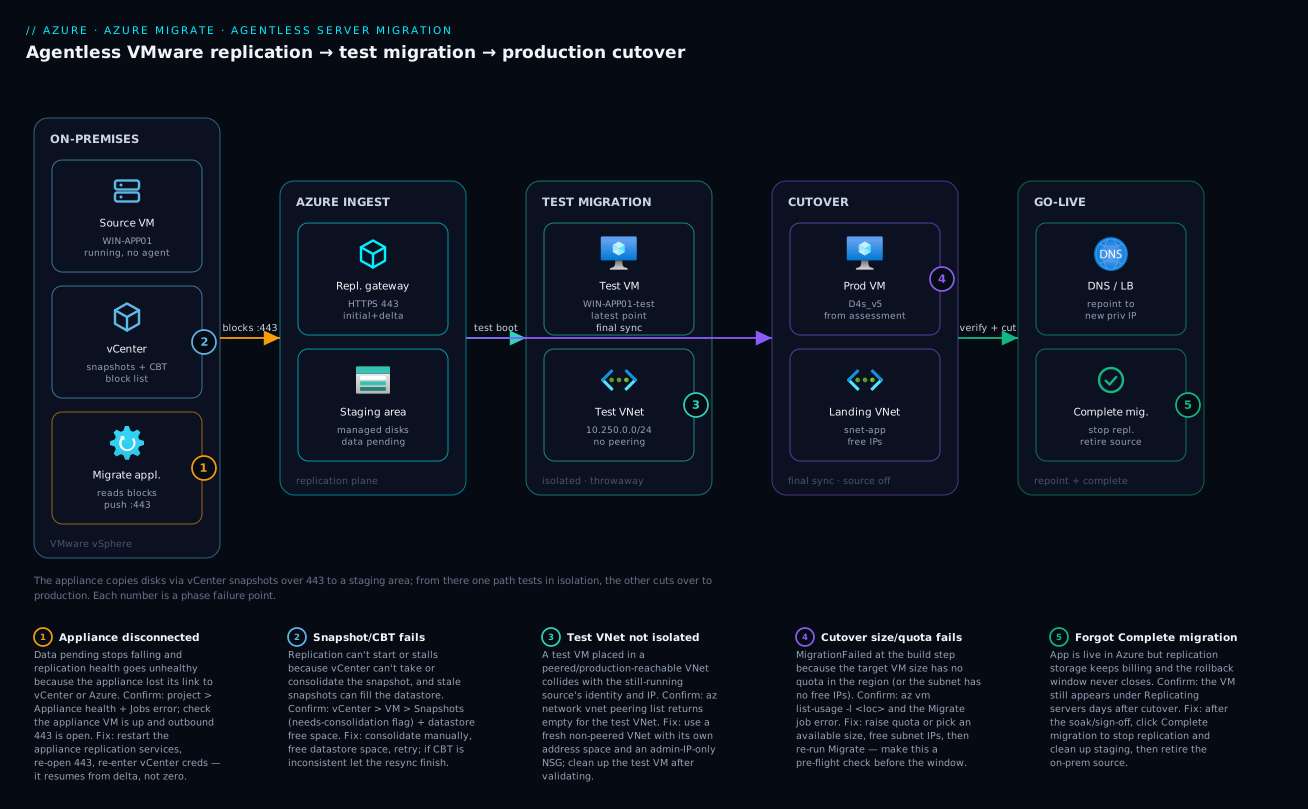
Read the diagram left to right as the data’s journey with the three phases on one path. The on-premises zone holds the running VMware VM, vCenter (snapshots and CBT), and the appliance — the only component talking to Azure. The appliance pushes changed blocks over HTTPS 443 to the replication gateway, which lands them in a managed staging area: the continuous replication flow, source never interrupted. Badges mark where replication breaks — a lost appliance link or a snapshot/CBT failure on the datastore.
From staging, two paths diverge: the upper test migration assembles the latest point into a throwaway VM in an isolated test VNet (no peering, can’t collide with the live source); the lower production cutover does a final delta sync (source off for zero data loss) and assembles the staged disks into managed disks on a production VM in your landing-zone VNet. The legend numbers each failure point with confirm and fix, so the diagram is both architecture and diagnostic map.
Real-world scenario
Northwind Logistics is exiting a leased data centre in Pune with 90 days’ notice. The estate is 38 VMware VMs on vSphere 7: Windows Server 2019 app servers, a few Linux web boxes, and three larger SQL Server VMs. The team is three engineers plus a VMware admin nervous about anything touching the production guests. The landing zone (hub-and-spoke in Central India) is built; assessment recommends mostly D-series with two E-series for SQL.
They sequenced the wave by dependency and risk. Week 1: enable agentless replication on the 12 lowest-risk app servers in two batches of six (~3 TB initial replication over their 500 Mbps uplink took ~3 days, continuous). The VMware admin relaxed once she saw snapshots consolidating cleanly and no agent in any guest. Week 2: the first test migration — a fresh isolated test VNet (vnet-mig-test, no peering, locked NSG), three app servers test-migrated in, RDP’d, apps and the monitoring agent confirmed, then cleaned up. One Windows box booted wrong because it had two disks and the OS disk was mis-detected; they fixed the OS-disk selection and re-tested green.
The first cutover was a Saturday 22:00 window for four app servers: notify users, shut down each source (zero-data-loss final sync), Migrate, verify. Three of four cut over in under 20 minutes. The fourth failed at the build step — MigrationFailed, size error: the assessment picked Standard_D8s_v5 but the Dsv5 quota in Central India had been consumed by another team that afternoon. They raised quota (~15 minutes, auto-approved) and re-ran Migrate; it completed. Post-cutover they repointed DNS to the new private IPs, updated the load-balancer backend pool, and smoke-tested. They deliberately did not complete migration for 48 hours, keeping the source as a rollback path; after app-owner sign-off they completed migration (stopping replication charges) and decommissioned the source.
The lesson: the test migration paid for itself on the first batch by catching the OS-disk mis-detection in a sandbox instead of at 2 a.m., and the quota failure proved why you confirm size and quota before the window. The full order:
| Time / phase | Action | Result | Lesson |
|---|---|---|---|
| Week 1 | Enable replication, 2 batches of 6 | ~3 TB initial sync over ~3 days; snapshots consolidated clean | Batch by risk; watch datastore + appliance |
| Week 2 | Test migrate 3 into isolated VNet | One box: OS disk mis-detected → wrong boot | Test catches it in a sandbox, not at cutover |
| Week 2 | Fix OS-disk selection, re-test | Green | Re-test is free; do it until clean |
| Cutover night | Shut down source, Migrate (batch of 4) | 3/4 succeed in <20 min each | Power-off source = near-zero data loss |
| Cutover night | 4th VM MigrationFailed (size quota) |
Dsv5 quota exhausted in region | Confirm size and quota before the window |
| +15 min | Raise quota, re-run Migrate | 4th completes | Quota is a pre-flight check, not a cutover-night surprise |
| +48 h | App owners sign off → Complete migration | Replication stops, source retired | Keep the source as rollback until sign-off |
Advantages and disadvantages
The agentless, phased model is the right default for VMware-to-Azure IaaS — weigh it honestly:
| Advantages (why this model wins) | Disadvantages (where it bites) |
|---|---|
| No in-guest agent for VMware — production guests untouched, no reboot to start | Relies on healthy vCenter snapshots + CBT; consolidation problems are a VMware-side risk |
| Test migration rehearses the exact boot into an isolated VNet with zero source impact | Test/cutover validity depends on you actually building an isolated test VNet — a careless test can clash with the source |
| Continuous delta sync keeps RPO at “minutes behind”; cutover window is short | RPO is snapshot-interval-based, not byte-continuous — you must power off the source for true zero-loss |
| Reversible until “Complete migration” — source remains a rollback path | Keeping the source means paying double (on-prem + Azure) until you complete and decommission |
| The tool itself is free; you pay only Azure consumption for the target | Replication storage + the eventual VM run costs accrue; long-parked replications waste money |
| Driven by the same appliance as discovery/assessment — one footprint | The appliance is a single dependency; if it’s down, every replication stalls |
| Bicep-able target estate — model the migrated VMs as code post-cutover | The migration itself is portal/REST-orchestrated, not declaratively reproducible |
The model is ideal with a VMware estate, a built landing zone, and a need to cut over predictably with rollback. It fits poorly for a database (use DMS), byte-continuous DR (Site Recovery), or a physical/non-VMware source (agent-based path). The disadvantages are all manageable: isolate the test VNet, confirm quota, and complete migration promptly to stop paying twice.
Hands-on lab
The centrepiece: enable agentless replication on a VMware VM, run a non-disruptive test migration, validate it, perform the production cutover, and verify — in the portal and with az CLI / REST, plus a Bicep target skeleton, with expected output and validation at each step and a teardown.
What you need before you start. An Azure Migrate project with the appliance connected and at least one VMware VM Discovered and assessed (so a size recommendation exists), a built target VNet/subnet in the project’s region, az in Cloud Shell, and Contributor on the target resource group. Use a single non-critical VM so you can cut it over for real and tear it down.
Lab variables (set once in Cloud Shell):
RG_PROJ=rg-migrate          # RG holding the Azure Migrate project
PROJECT=migrate-northwind   # Azure Migrate project name
RG_TARGET=rg-mig-target     # where migrated VMs land
LOC=centralindia
VNET_PROD=vnet-landing
SUBNET_PROD=snet-app
VNET_TEST=vnet-mig-test     # isolated test network we create
SUBNET_TEST=snet-test
SRC_VM="WIN-APP01"          # display name of the VMware VM to migrate
az account show --query "{sub:name, id:id}" -o table
Part A — Prepare the target and an isolated test network
Step 1 — Create the target resource group.
az group create -n $RG_TARGET -l $LOC -o table
Expected: a row with provisioningState: Succeeded.
Step 2 — Create an isolated test VNet (no peering, locked-down NSG). The test VM must not reach production or collide with the still-running source — a fresh VNet with its own address space and a restrictive NSG:
az network nsg create -n nsg-mig-test -g $RG_TARGET -l $LOC -o table
# Allow only your admin IP to RDP/SSH the test VM; deny the rest is implicit
MYIP=$(curl -s ifconfig.me)
az network nsg rule create -g $RG_TARGET --nsg-name nsg-mig-test -n allow-admin \
  --priority 100 --access Allow --protocol Tcp --direction Inbound \
  --source-address-prefixes $MYIP/32 --destination-port-ranges 3389 22 -o table

az network vnet create -n $VNET_TEST -g $RG_TARGET -l $LOC \
  --address-prefixes 10.250.0.0/24 \
  --subnet-name $SUBNET_TEST --subnet-prefixes 10.250.0.0/27 -o table

az network vnet subnet update -g $RG_TARGET --vnet-name $VNET_TEST -n $SUBNET_TEST \
  --network-security-group nsg-mig-test -o table
Expected: a VNet 10.250.0.0/24 with subnet 10.250.0.0/27 and the NSG attached. No peering — confirm it is an island:
az network vnet peering list -g $RG_TARGET --vnet-name $VNET_TEST -o table
# Expected: empty — the test VNet is isolated
Step 3 — Confirm the source VM is discovered and assessed. In the portal: Azure Migrate → your project → Servers, databases and web apps → Migration tools → Replicate is available because the appliance is connected. Confirm the VM is present:
# Project tooling lives under Microsoft.Migrate / Microsoft.OffAzure; list discovered machines via REST
SUBID=$(az account show --query id -o tsv)
az rest --method get \
  --url "https://management.azure.com/subscriptions/$SUBID/resourceGroups/$RG_PROJ/providers/Microsoft.OffAzure/VMwareSites?api-version=2023-06-06" \
  --query "value[].name" -o tsv
Expected: your VMware site name(s) returned, proving the appliance is registered. (The discovered-machine listing differs by API version; the portal Discovered servers view is the reliable confirmation that WIN-APP01 is present and assessed.)
Part B — Enable agentless replication (portal)
Step 4 — Start the Replicate wizard. Portal → Azure Migrate → project → Migration and modernization tile → Replicate. Choose:
| Wizard page | Field | What to set |
|---|---|---|
| Source settings | Are machines virtualized? | Yes, with VMware vSphere |
| Source settings | On-premises appliance | Your registered appliance |
| Virtual machines | Import from assessment? | Optionally select your assessment to prefill sizes |
| Virtual machines | Select machines | Tick WIN-APP01 |
| Target settings | Subscription / RG | Target sub / rg-mig-target |
| Target settings | Virtual network / subnet | vnet-landing / snet-app (production target) |
| Compute | Azure VM size | The assessment recommendation (e.g. Standard_D4s_v5) |
| Compute | OS type / OS disk | Verify OS type and that the boot disk is the OS disk |
| Compute | Availability | Zone/Set/none per your HA design |
| Disks | Disk type per disk | Standard SSD for OS; Premium for hot data disks |
| Compute | Azure Hybrid Benefit | Yes if you have Windows Server SA |
Click Replicate. Azure starts a “Start replication” job.
Step 5 — Watch initial replication. Portal → project → Replicating servers. WIN-APP01 appears and moves through Initial replication with a climbing percentage, then to Protected / Replicating when delta sync is steady. Health should be Healthy.
Expected end state: Status = Replicating (Protected), Health = Healthy, a small “data pending” figure (now minutes behind the source). This takes from under an hour to many hours depending on disk size and uplink — the percentage climbing is the sign it is working.
Part C — Enable replication via CLI / REST (the same thing, scripted)
Server Migration replication is orchestrated through the Microsoft.Migrate provider; the portal wizard calls these APIs. The az migrate extension surfaces some of it; for the full control plane you use az rest. The pattern (illustrative — your project/site IDs come from the discovery resources):
# Install/refresh the preview migrate extension if you use the az migrate verbs
az extension add --name migrate --upgrade 2>/dev/null || true

# The replication control plane lives under the migrate project's solution.
# In practice you GET the discovered machine's ARM ID, then PUT a ReplicationProtectedItem
# referencing the target RG, VNet/subnet, VM size and disk types you chose above.
SUBID=$(az account show --query id -o tsv)
echo "Project scope: /subscriptions/$SUBID/resourceGroups/$RG_PROJ/providers/Microsoft.Migrate/MigrateProjects/$PROJECT"
Then read replication state for any protected machine via REST so you can poll it in a pipeline:
# Poll replication/migration state of protected items (api-version may differ per project)
az rest --method get \
  --url "https://management.azure.com/subscriptions/$SUBID/resourceGroups/$RG_PROJ/providers/Microsoft.RecoveryServices/vaults/<vault>/replicationProtectedItems?api-version=2023-06-01" \
  --query "value[].{name:name, state:properties.protectionState, health:properties.replicationHealth}" -o table 2>/dev/null \
  || echo "Use the portal Replicating servers view to read state if the vault path differs for your project."
Reading-state commands you lean on day to day:
| You want to know… | Command / portal path |
|---|---|
| Is the VM cutover-ready? | Portal → Replicating servers → Status Replicating, Health Healthy |
| How far behind is the copy? | Same view → Data pending (MB) column |
| Did a job fail? | Portal → project → Jobs (or az rest GET on jobs) |
| Target size has quota? | az vm list-usage -l $LOC (Part on sizing above) |
Reality check: the replication control plane is broad and its REST shapes/api-versions vary by project. The portal Replicate wizard and Replicating-servers view are the supported, reliable path for VMware agentless. Use the CLI/REST above to read state and script triggers in a pipeline; do the initial enablement in the portal unless you have a tested API script.
Part D — Test migration into the isolated VNet
Step 6 — Trigger the test migration. Once WIN-APP01 is Replicating / Healthy: Portal → Replicating servers → right-click → Test migrate. Choose the test VNet = vnet-mig-test (isolated, from Step 2), then Test migrate.
Azure builds a new VM (a -test suffix) in the test VNet from the latest point; the source keeps running and replication keeps flowing.
Expected: the “Test migration” job completes; WIN-APP01-test exists in rg-mig-target on vnet-mig-test.
Step 7 — Validate the test VM. The rehearsal — exercise everything cutover depends on:
# Find the test VM's private IP and (if you assigned one) public IP
az vm list -g $RG_TARGET --query "[?contains(name,'WIN-APP01-test')].name" -o tsv
az vm list-ip-addresses -g $RG_TARGET -n WIN-APP01-test \
  --query "[].virtualMachine.network.privateIpAddresses" -o tsv
Validation checklist for the test VM:
| Check | How | Pass criteria |
|---|---|---|
| Boots | Portal → VM → Boot diagnostics screenshot | Login screen / OS reached |
| Reachable | RDP/SSH from your admin IP (allowed by the test NSG) | You can log in |
| OS disk correct | Inside OS, confirm C:/root is the right volume | App files present where expected |
| App starts | Start the app/service inside the VM | Service runs; app responds locally |
| Agents | Monitoring/AV/domain status | Behaves as designed (domain-join may not reach a DC in the isolated VNet — expected) |
| Data disks attached | Get-Disk / lsblk |
All expected disks present |
If anything is wrong (wrong OS disk, missing disk, size too small), fix the target settings on the replicating VM and re-test — it is free and non-disruptive.
Step 8 — Clean up the test migration. Portal → Replicating servers → right-click → Clean up test migration, tick “testing is complete”. Azure deletes WIN-APP01-test; replication is unaffected and the VM returns to plain Replicating.
Expected: WIN-APP01-test is gone; WIN-APP01 status is back to Replicating / Healthy. Confirm the test VM is removed:
az vm list -g $RG_TARGET --query "[?contains(name,'WIN-APP01-test')].name" -o tsv
# Expected: empty
Part E — Production cutover (the real switch)
Step 9 — Pre-cutover pre-flight. Before the window, confirm three things that cause cutover-night failures:
# 1) Target VM size exists and you have quota in the region (see Sizing section)
az vm list-usage -l $LOC --query "[?contains(localName,'Dsv5')].{name:localName,used:currentValue,limit:limit}" -o table
# 2) Production subnet has free IPs
az network vnet subnet show -g <rg-landing> --vnet-name $VNET_PROD -n $SUBNET_PROD \
  --query "{prefix:addressPrefix}" -o table
# 3) The VM is Replicating + Healthy with small data pending (portal Replicating servers)
Step 10 — Shut down the source for a zero-data-loss final sync (recommended). Stop writes so the final delta captures everything — gracefully shut down WIN-APP01 from the guest or vCenter. (You can cut over hot, but then anything written after the last delta is lost.)
Step 11 — Migrate (cut over). Portal → Replicating servers → right-click WIN-APP01 → Migrate. Leave “Shut down machine before migration” = Yes (if you didn’t already) for zero data loss, then Migrate.
Azure runs a “Migrate” job: a final delta sync, then it assembles the staged disks into managed disks and creates the production VM in vnet-landing/snet-app.
Expected: the Migrate job completes; status becomes Migrated; a VM WIN-APP01 exists in rg-mig-target on the production VNet.
Step 12 — Verify the migrated production VM.
# The migrated VM and its private IP
az vm show -g $RG_TARGET -n WIN-APP01 --query "{name:name, size:hardwareProfile.vmSize, state:provisioningState}" -o table
az vm list-ip-addresses -g $RG_TARGET -n WIN-APP01 \
  --query "[].virtualMachine.network.privateIpAddresses" -o tsv
# Boot screenshot to confirm the OS came up
az vm boot-diagnostics get-boot-log -g $RG_TARGET -n WIN-APP01 2>/dev/null | tail -5 || \
  echo "Use portal Boot diagnostics screenshot to confirm the OS reached login."
Post-cutover checklist:
| Step | Action | Why |
|---|---|---|
| 1 | RDP/SSH the migrated VM, start the app | Confirm it works on the real network |
| 2 | Repoint DNS to the new private IP | Users/clients resolve to the Azure VM |
| 3 | Update load balancer / App Gateway backend pool | Traffic flows to the new VM |
| 4 | Re-join domain / re-register agents if needed | Production identity and monitoring |
| 5 | Smoke-test end to end | Sign-off gate before retiring source |
Step 13 — Keep the source as a rollback path, then complete migration. Do not click Complete migration immediately — leave replication and the powered-off source in place for an agreed soak (e.g. 24–48 h) so you can fall back if the app owner finds a problem. Once signed off: Portal → Replicating servers → Complete migration. This stops replication (and its charges) and removes the staging; the source can then be decommissioned.
Part F — The Bicep angle (model the migrated estate as code)
The migration orchestration is portal/REST, but the end state — the VMs now in Azure — should be captured as code so the estate is reproducible and governable. A skeleton for one migrated VM’s target shape (size, disk type, NIC, Hybrid Benefit), reconciled against what Azure Migrate built:
@description('Region and landing-zone subnet the migrated VM lives on')
param location string = 'centralindia'
param subnetId string   // /subscriptions/.../subnets/snet-app

resource nic 'Microsoft.Network/networkInterfaces@2023-09-01' = {
  name: 'win-app01-nic'
  location: location
  properties: {
    ipConfigurations: [ {
      name: 'ipconfig1'
      properties: {
        subnet: { id: subnetId }
        privateIPAllocationMethod: 'Static'   // pin the IP you repointed DNS to
        privateIPAddress: '10.10.1.20'
      }
    } ]
  }
}

resource vm 'Microsoft.Compute/virtualMachines@2023-09-01' = {
  name: 'WIN-APP01'
  location: location
  properties: {
    hardwareProfile: { vmSize: 'Standard_D4s_v5' }   // from the assessment
    licenseType: 'Windows_Server'                     // Azure Hybrid Benefit
    storageProfile: {
      osDisk: {
        createOption: 'Attach'                        // attach the migrated managed disk
        osType: 'Windows'
        managedDisk: { storageAccountType: 'StandardSSD_LRS' }
      }
    }
    networkProfile: { networkInterfaces: [ { id: nic.id } ] }
  }
}
This is not how you perform the migration — Azure Migrate creates the VM — but checking the live VM into Bicep (or az export) makes the post-migration estate drift-detectable and re-deployable, which auditors and your future self will thank you for.
Teardown
Delete everything this lab created (stop charges):
# Stop replication for the lab VM first (portal: Complete migration / Stop replication),
# then remove the target and test resources:
az group delete -n $RG_TARGET --yes --no-wait
az network vnet delete -n $VNET_TEST -g $RG_TARGET 2>/dev/null || true
If you cut a real (non-throwaway) VM over, do not delete it — complete migration and retire only the on-prem source. For the lab, deleting rg-mig-target removes the migrated VM, disks, NIC and test VNet.
Common mistakes & troubleshooting
The failures you actually hit. Read the table at speed during an incident, then the detail below.
| # | Symptom | Root cause | Confirm (exact cmd / portal path) | Fix |
|---|---|---|---|---|
| 1 | Replication % stops moving; health goes unhealthy | Appliance lost connection to vCenter or Azure | Portal → project → Appliance health; Jobs error; check appliance VM is up | Restart appliance services; verify outbound 443; re-enter vCenter creds |
| 2 | “Failed to take/consolidate snapshot” | VMware snapshot/consolidation problem on the datastore | vCenter → VM → Snapshots; datastore free space | Manually consolidate in vCenter; free datastore space; retry |
| 3 | Initial replication painfully slow | Uplink saturated or throttled; large disks | Watch data transferred vs link capacity | Throttle other traffic; batch fewer VMs; consider ExpressRoute |
| 4 | Stuck in Resyncing repeatedly | CBT reset / inconsistency forced a fresh baseline | Portal shows “Resynchronization”; vCenter CBT state | Let resync finish; if chronic, reset CBT on the VM per VMware KB |
| 5 | Test VM boots but app can’t reach anything | Test VNet is isolated (by design) — no DC/DNS/dependencies | You’re in vnet-mig-test with no peering |
Expected; validate what you can; full deps are tested at cutover |
| 6 | Cutover fails MigrationFailed — size/quota |
Target VM size lacks quota in the region | az vm list-usage -l <loc>; job error detail |
Raise quota or pick an available size; re-run Migrate |
| 7 | Cutover fails — IP/subnet | Production subnet full or static IP clash | az network vnet subnet show free IPs; NIC config |
Free IPs / pick another subnet; fix static allocation; retry |
| 8 | Migrated VM won’t boot | Wrong OS disk selected; or in-guest boot issue | Portal → VM → Boot diagnostics screenshot | Fix OS-disk selection in target settings + re-migrate; or repair OS |
| 9 | Migrated Linux VM no network / wrong NIC name | Predictable network-interface naming differs in Azure | Boot diagnostics serial log; ip a once in |
Use Azure Linux prep guidance; ensure cloud-init/agent present |
| 10 | Replication charges keep accruing after go-live | Forgot to Complete migration | Portal → Replicating servers still lists the VM | Click Complete migration to stop replication once signed off |
| 11 | Can’t see the VM to replicate | Not discovered/assessed, or appliance not connected | Portal → Discovered servers; appliance health | Fix appliance/vCenter connection; wait for discovery |
| 12 | Windows VM cuts over but won’t RDP | NSG/firewall on the new subnet; or in-guest RDP off | az network nsg rule list; boot diagnostics |
Allow 3389 from your range; enable RDP via Run Command |
The extra reasoning for the ones that bite hardest:
1. Replication % stops moving, health unhealthy. The appliance lost its link to vCenter or Azure — the most common stall, since it is the only thing pushing data. Restart its replication services (or reboot it), confirm outbound 443 is open, re-enter vCenter creds if expired; replication resumes from delta, not zero.
2. Snapshot fails / won’t consolidate. A VMware-side problem: the appliance snapshots each cycle and consolidates; failed consolidation accumulates snapshots that can fill the datastore. Consolidate manually in vCenter, free datastore space, retry — and watch datastore headroom during large initial syncs.
3. Initial replication painfully slow. It is bandwidth-bound — every block over a modest uplink takes time, worsened by competing traffic. Reduce concurrent VMs per batch, schedule off-peak, throttle other egress, or use ExpressRoute for large estates. This is “right-size the wave,” not a bug.
6. Cutover fails with a size/quota error. The target VM size has no quota in the region at cutover time (the Northwind failure). The Migrate job names the size; az vm list-usage -l <loc> shows the family at its limit. Raise quota (often auto-approved) or pick an available size and re-run — make it a pre-flight check, see Azure Quota Management: vCPU Limits & Increase Requests.
8. The migrated VM won’t boot. Usually the wrong OS disk was set as boot (common on multi-disk VMs). The boot-diagnostics screenshot shows where it hangs. Correct the OS-disk selection and re-migrate, or repair via serial console / Run Command — exactly what test migration exists to catch first.
10. Replication charges keep accruing after go-live. You never clicked Complete migration, so replication and its storage keep billing; the VM still appears under Replicating servers days later. Complete migration once signed off; don’t park replications indefinitely.
Best practices
- Always separate the three phases in your runbook. Replication ≠ test ≠ cutover — most failed migrations skip the test or treat cutover as casual.
- Build a genuinely isolated test VNet. No peering, own address space, locked NSG. A test VM that can reach production can clash with the live source’s identity and IP.
- Test-migrate before every cutover, and re-test after any target-setting change. It’s free and non-disruptive — catch OS-disk mis-detection, missing disks, and undersizing in the sandbox.
- Confirm target VM size and quota in the region as a pre-flight. The most common cutover-night failure is a size with no quota.
- Power the source off for the final sync when you need zero data loss. Off + final delta = near-zero RPO; cutting over hot loses everything since the last delta.
- Cut over in dependency order. Migrate shared services and databases the app needs before or with the app tier, and repoint DNS/LB after each batch.
- Keep the source until sign-off. Don’t Complete migration the moment cutover succeeds — keep the powered-off source as a rollback path for an agreed soak.
- Watch datastore free space and appliance health during big initial syncs. Failed snapshot consolidation can fill a datastore.
- Batch by risk and bandwidth. Low-risk app servers first, biggest/most-critical last; size batches so initial replication finishes in a sensible window.
- Right-size disks per disk, not all-Premium. Standard SSD boot, Premium only where IOPS demand it — disk type is a recurring cost.
- Capture the migrated estate as Bicep (or export it). The migration is imperative; the result should be drift-detectable code.
- Complete migration promptly to stop double-paying. On-prem + Azure + replication storage is three bills; collapse to one once signed off.
Security notes
- Least-privilege on the migration identity. The team needs
Contributoron the target RG and rights on the migrate project — not Owner on the subscription. - Protect the appliance. It holds vCenter credentials and talks to Azure — treat it as privileged: restrict logins, patch it, and don’t expose its management.
- Outbound-only from the appliance. It needs outbound HTTPS 443 to Azure, no inbound — keep it behind the firewall with no public ingress.
- Encrypt at rest in the target. Migrated managed disks support Azure Disk Encryption / platform- or customer-managed keys — apply your disk-encryption standard during post-cutover hardening.
- Isolate the test VNet and lock its NSG. Admin IP only to test VMs; the network should be unable to reach production by design.
- Harden before exposing. A migrated VM arrives with on-prem-era firewall rules and local accounts. Re-apply your Azure baseline (NSGs, JIT, Defender for Servers, patching) and rotate sensitive credentials before production traffic.
Security controls that also keep the migration healthy:
| Control | Mechanism | Secures against | Also helps |
|---|---|---|---|
| Scoped RBAC on target RG | Contributor at RG, not sub |
Over-broad migration rights | Cleaner blast radius if a script misfires |
| Appliance hardening | Restricted login, patched, no public ingress | vCenter-cred theft / appliance abuse | Stable, trusted replication source |
| Outbound-only 443 | Firewall egress rule | Inbound attack surface on appliance | Predictable connectivity (one rule to verify) |
| Isolated test VNet + NSG | No peering, admin-IP-only rules | Test VM clashing with production | Honest, contained test migrations |
| Post-cutover baseline | NSGs, JIT, Defender, disk encryption | Migrated VM running on-prem-era posture | Brings the new VM up to Azure standard |
Cost & sizing
What drives the bill, and how phases map to charges:
- The tool itself is free. No charge for discovery, assessment, or orchestrating replication/migration. You pay Azure consumption: replication storage while a VM replicates, then the VM + disks once it runs.
- Replication storage accrues from enable until Complete migration — modest per VM, but dozens parked for weeks add up. Complete promptly.
- The migrated VM is normal IaaS cost (per-second VM size + managed disks). Azure Hybrid Benefit and right-sized disk types decide a lean vs bloated bill.
- Bandwidth / initial-sync time is the hidden “cost” — not a line item but the wall-clock that sets your wave schedule. Estimate from total disk size ÷ usable uplink.
- Free-tier reality: no free server migration, but the tool is free and a small lab VM cut over and torn down in an hour is a few rupees. Test migrations cost only while the throwaway VM exists.
The cost drivers and what each buys:
| Cost driver | What you pay for | Rough INR / month (one VM) | Lever to reduce it |
|---|---|---|---|
| Azure Migrate tool | Discovery, assessment, replication orchestration | ₹0 (free) | n/a |
| Replication storage (while replicating) | Staging of replicated data | ~₹500–2,000 per VM until completed | Complete migration promptly |
| Migrated VM (D4s_v5, Windows) | VM compute, per-second | ~₹12,000–18,000 (PAYG) | Hybrid Benefit; right-size; reserve |
| Managed disks | OS + data disks | ~₹500 (Std SSD) to several × for Premium | Std SSD boot; Premium only where needed |
| Azure Hybrid Benefit (saving) | Reuse Windows/SQL SA licences | −₹4,000–6,000 off Windows compute | Enable it at replication time |
| ExpressRoute (large waves) | Faster, predictable initial sync | circuit cost (shared across wave) | Only for big estates / tight windows |
A 40-VM wave of mostly D4s_v5 Windows servers might run ₹4–6 lakh/month in steady-state compute (heavily cut by Hybrid Benefit and reservations), with replication storage a small temporary overlay. The tool adds nothing; the money is saved by right-sizing, Hybrid Benefit, Standard-SSD boot disks, and completing migration to stop replication storage.
Interview & exam questions
1. What does “agentless” replication mean for VMware, and why does it matter? Azure Migrate replicates disks using vCenter snapshots and CBT orchestrated by the on-prem appliance, with no Mobility agent in the guest OS. Production guests are untouched and need no reboot to start, which removes the biggest objection to replicating live servers. Agent-based replication (in-guest Mobility service) is used for physical/non-VMware sources.
2. Distinguish replication, test migration and cutover. Replication is the continuous background copy (initial full sync, then delta) keeping an Azure copy minutes behind the source. Test migration boots a throwaway VM from the latest point into an isolated test VNet for non-disruptive validation. Cutover (Migrate) is the real switch: a final delta (source ideally off) then the production VM is created. Test many times; cut over once.
3. Why power off the source before the final sync at cutover? So no writes occur during the final delta — near-zero data loss (RPO ≈ 0). Because agentless delta sync is snapshot-interval-based, not byte-continuous, cutting over hot loses anything written since the last delta. The price is a short planned downtime during the final sync and VM build.
4. Why must the test-migration VNet be isolated? The source is still running with the same hostname, IP and AD identity. If the test VM can reach production it can clash with the live source (duplicate identity/IP) and disrupt it. An isolated VNet (no peering, own address space, locked NSG) lets you boot and validate safely.
5. A VM is stuck at 60% initial replication — slow or broken? Climbing = healthy and bandwidth-bound (it copies every block over your uplink). Stopped + unhealthy = broken: usually the appliance lost its link to vCenter/Azure, or snapshots are failing. Confirm via appliance health and the Jobs error; the fix is connection/snapshot, not waiting.
6. Cutover fails with MigrationFailed and a size error. Cause and prevention? The target VM size had no quota in the region. Prevent it by making “size exists and has quota” a pre-flight (az vm list-usage) before the window. Fix on the night by raising quota or choosing an available size, then re-running Migrate.
7. The migrated VM won’t boot — likely cause, and which phase should have caught it? Usually the wrong OS disk was set as boot (common on multi-disk VMs). Test migration should have caught it — that is its purpose. Fix by correcting OS-disk selection and re-migrating, or repair via serial console / Run Command.
8. What is “data pending” and why watch it before cutover? How far behind the Azure copy currently is — bytes not yet synced. Small = a short, low-loss cutover; large = more to sync and lose if you don’t power off the source. You want it small and the VM Replicating/Healthy before cutting over.
9. After go-live, replication charges keep accruing — why and fix? You never clicked Complete migration, so replication and staging storage keep billing. Complete it once the soak/sign-off is done. Keeping the source as a rollback path is good — but only until sign-off.
10. When would you NOT use Azure Migrate Server Migration? When the workload is really a database (use Database Migration Service), when you need byte-continuous DR (Azure Site Recovery), or when the source is physical/non-VMware (agent-based path). Settle this in the tool-selection step before replicating anything.
11. “Complete migration” vs just leaving the VM running? The migrated VM runs regardless once cutover succeeds. Complete migration is a separate action that stops replication, removes staging, and ends the rollback window. Un-completed keeps you paying replication storage and keeps the source as fallback — fine briefly, wasteful long-term.
12. How do you make a portal-driven migration’s estate reproducible? Capture the end state as Bicep (or az export): VM size, disk types, NIC on the landing-zone subnet, Hybrid Benefit. The orchestration is imperative, but checking the resulting VMs into IaC makes the estate drift-detectable and governable.
These map to AZ-104 (Administrator) — migrate servers to Azure and managing VMs/disks/VNets — and AZ-305 (Solutions Architect) — design migrations and the tool-selection/landing-zone reasoning. A compact cert mapping:
| Question theme | Primary cert | Objective area |
|---|---|---|
| Agentless vs agent-based; phases | AZ-104 | Migrate servers to Azure |
| Test migration / isolated VNet | AZ-104 | Configure and manage virtual networking |
| Tool selection (Migrate vs SRM vs DMS) | AZ-305 | Design migrations |
| Quota / size / disk right-sizing | AZ-104 / AZ-305 | Configure VMs; cost-optimised design |
| Cutover RPO, source power-off | AZ-305 | Design for business continuity |
Quick check
- During replication, what is happening to the source VM, and is an agent installed in its guest OS (for VMware)?
- You want to validate that the migrated VM boots and the app runs, without touching production. Which phase do you use, and what one property must the network you place it in have?
- At cutover, why do you shut down the source VM before the final sync?
- A VM has been at “Initial replication 45%” for hours and the percentage is still slowly increasing. Broken or just slow — and what would tell you it’s actually broken?
- Cutover succeeded last night and the app is live in Azure, but you’re still being billed for replication storage. What did you forget to do?
Answers
- The source VM is running and untouched — it keeps serving traffic. For VMware agentless replication, no agent is installed in the guest; the appliance uses vCenter snapshots + CBT instead.
- A test migration, with the test VM in an isolated test VNet (no peering, own address space, locked NSG) so it can’t clash with the source’s identity/IP. Clean it up afterwards; replication is unaffected.
- Near-zero data loss: powering the source off means no writes during the final delta sync, so the copy captures everything. Cutting over hot loses whatever was written since the last delta.
- Just slow — a climbing percentage is healthy and bandwidth-bound. It’s broken if the percentage stops and health goes unhealthy (usually the appliance lost its link to vCenter/Azure, or snapshots are failing). Confirm via appliance health and the Jobs error.
- You forgot to click Complete migration, which stops replication and cleans up the staging storage. Do it once you’ve finished the rollback soak and the app owners have signed off.
Glossary
- Azure Migrate / Server Migration tool — Azure’s hub for discovering, assessing and migrating to Azure; the Server Migration tool replicates and migrates VMs/servers to IaaS.
- Agentless replication — VMware disk replication via vCenter snapshots + CBT orchestrated by the appliance, with no in-guest agent.
- Agent-based replication — replication using the in-guest Mobility service (for physical/non-VMware sources).
- Azure Migrate appliance — the on-prem VM that discovers, assesses and (for VMware) drives agentless replication; the only component talking to Azure.
- CBT (Changed Block Tracking) — a VMware feature recording which blocks changed since the last snapshot, making delta sync cheap.
- Initial replication — the first full copy of every block of every selected disk; bandwidth-bound.
- Delta sync — periodic copy of only changed blocks, keeping the Azure copy minutes behind the source.
- Data pending — how far behind the Azure copy currently is (bytes not yet synced); your cutover RPO right now.
- Test migration — a throwaway VM from the latest point in an isolated VNet, for non-disruptive validation.
- Cutover / Migrate — the final switch: final delta sync (source ideally off) then the production VM is created.
- Complete migration — stop replication and clean up staging after sign-off; ends replication charges.
- Target settings — the migrated VM’s shape: subscription, RG, VNet/subnet, VM size, OS disk, disk types, availability, Hybrid Benefit.
- Replication state —
InitialReplication/Replicating/Resyncing/Migrating/Migrated; the source of truth for what’s safe to do next. - Azure Hybrid Benefit — reuse Windows Server / SQL licences with Software Assurance to cut Azure compute cost.
- Isolated test VNet — a non-peered VNet with its own address space and a locked NSG so test migrations can’t clash with production.
Next steps
You can now run the full lifecycle — replicate agentlessly, test in isolation, cut over, complete. Build outward:
- Before this: Azure Migrate Discovery & Assessment: From Appliance Deployment to Your First Right-Sizing Report — the sizes and dependencies that feed every target setting here.
- Related: Deploying the Azure Migrate Appliance: Discovering VMware, Hyper-V & Physical Estates — the appliance that does agentless replication.
- Related: Choosing Your Migration Tool: Azure Migrate vs Site Recovery vs Database Migration Service — confirm server migration is the right tool before you replicate.
- Related: Migrate to Azure SQL with Database Migration Service: Online vs Offline Cutover Walkthrough — the database-tier counterpart to this guide.
- Related: BCDR Foundations on Azure: Making Sense of RTO, RPO, and the Resilience Spectrum — the RTO/RPO thinking behind cutover windows and source power-off.
- Related: Azure Backup and Site Recovery: Protecting Workloads from Loss — protect the migrated VMs the moment they’re live.