You have a SQL Server database — say 80 GB, doing real transactions all day — and a deadline to land it on Azure SQL with the shortest possible outage. The naive plan is “back it up, copy the .bak to Azure, restore it.” Then you discover Azure SQL Database has no RESTORE DATABASE you can drive, the copy takes two hours over your link, and your business owner says the app cannot be read-only for two hours. This is the exact gap the Azure Database Migration Service (DMS) plus the Azure SQL Migration extension for Azure Data Studio is built to close: a managed, repeatable migration engine that moves your schema and data, and — when you choose the online mode — keeps syncing the source’s changes until you decide to cut over, collapsing the outage to a few minutes.
The single decision that shapes everything else is offline versus online. An offline migration copies the database once: from the moment it starts, writes to the source are not carried across, so you take the source offline (or accept that anything written after the snapshot is lost) until it finishes and you point the app at Azure. An online migration does the same initial copy but then continuously replicates ongoing changes using log backups, so the source stays live; you flip the application to Azure during a brief, planned cutover when ready. Offline is simpler and cheaper but trades a longer outage; online buys a near-zero-downtime cutover at the cost of more setup, a continuously running sync, and stricter prerequisites. Pick wrong and you get either an outage the business won’t accept, or weeks of online-migration complexity you didn’t need for a database that could have gone offline at 2 a.m. on a Sunday.
This is the implementation walkthrough. We define DMS and the migration extension, lay out the offline-vs-online trade-off as a decision you can defend, then do the migration end to end — prerequisites, numbered steps in both the portal and az CLI, a Bicep definition, expected output, validation queries, and teardown — for SQL Server → Azure SQL Managed Instance (the path that supports both modes cleanly), with notes throughout for the Azure SQL Database target. Every option that matters is a table you can scan mid-project, because at cutover you don’t want to be reading paragraphs.
What problem this solves
Moving a production database is the part of a cloud migration that keeps people up at night, because the database is stateful and the business cannot lose a row. The compute tier you can redeploy; the data you get exactly one chance to move correctly. Doing it by hand — backup, copy, restore, then somehow reconcile every transaction that happened during the copy — is error-prone and, for Azure SQL Database, not even possible the obvious way (you cannot restore an arbitrary .bak into a logical Azure SQL Database; the restore surface differs from a box you own).
What breaks without a managed tool: teams write bespoke scripts that copy tables with bcp or SSIS, miss a foreign-key ordering, drop an index, or — the expensive one — schedule a “quick” maintenance window that turns into six hours when the copy is slower than the test run and there is no way to resume. Or they hand-build transactional replication and discover at 1 a.m. that a schema mismatch silently stopped the distributor. DMS replaces all of that with a managed service that handles the schema, the data copy, the continuous sync (online mode), retry and resumability, and a guided cutover, with progress you can watch.
Who hits this: anyone retiring on-premises or VM-hosted SQL Server in favour of Azure SQL — lift-and-shift to Azure SQL Managed Instance (closest to box SQL Server: SQL Agent, cross-database queries, CLR), or modernisation to Azure SQL Database (the managed single-database/elastic-pool PaaS). It bites hardest on databases too large to copy inside an acceptable window, ones that must stay writable until the second of cutover, and teams who have never run a controlled cutover. If you’re still choosing which migration tool, Choosing Your Migration Tool: Azure Migrate vs Site Recovery vs Database Migration Service is the upstream decision; this article assumes you’ve landed on DMS for the database tier.
Here is the whole field in one frame — the two modes, what each costs you, and when to reach for it:
| Dimension | Offline migration | Online migration |
|---|---|---|
| What it does | One-time copy of schema + data | One-time copy, then continuous change sync |
| Source during migration | Effectively read-only (changes after start are lost) | Stays live and writable |
| Downtime | Whole copy duration (minutes to hours) | A short, planned cutover (minutes) |
| Setup complexity | Lower | Higher (log backups, network share, cutover step) |
| Cost | DMS compute for the run only | DMS compute for the whole sync window |
| Best for | DBs that tolerate a maintenance window | DBs that cannot afford a long outage |
| Risk if you misjudge | Outage longer than the business accepts | Weeks of complexity you didn’t need |
Learning objectives
By the end of this article you can:
- Explain what the Azure Database Migration Service and the Azure SQL Migration extension are, how they relate, and where each runs.
- Decide offline versus online for a given database using outage tolerance, size, change rate and target, and defend the choice.
- Enumerate the prerequisites for both modes — backup configuration, networking, the self-hosted integration runtime, permissions and target sizing — and verify each before you start.
- Run an offline migration of a SQL Server database to Azure SQL Managed Instance end to end, in both the portal and
azCLI, and validate the result. - Run an online migration with continuous sync and perform a controlled cutover, knowing exactly what each step does and how to confirm it.
- Provision the DMS resource declaratively with Bicep, and tear everything down to stop billing.
- Diagnose the common failures — blocked backups, network-share permission errors, schema gaps, RU/throughput stalls and cutover surprises — by their exact symptom and fix.
Prerequisites & where this fits
You should know the basics of SQL Server (databases, full and transaction-log backups, the recovery model) and of Azure SQL — that Azure SQL Database is a single logical database (or elastic pool) with no OS or instance you manage, while Azure SQL Managed Instance (MI) is a near-100%-compatible SQL Server instance as a managed service. If either of those is fuzzy, Your First Azure SQL Database: Create, Configure Firewall Rules and Connect Securely covers the Database side and its connectivity model. You should be comfortable running az in Cloud Shell, reading JSON output, and have Azure Data Studio installed locally (the migration extension is the control surface for the actual migrations).
This sits in the Migration track, downstream of the tool-choice decision and of discovery. If you haven’t assessed the source databases for compatibility and right-sizing yet, Azure Migrate Discovery & Assessment: From Appliance Deployment to Your First Right-Sizing Report is the step before this one — the same migration extension runs the readiness/SKU-recommendation assessment that tells you which target SKU to provision. Once the data is in Azure SQL, day-two connectivity is covered by Troubleshooting Azure SQL Database: Connectivity, Timeouts, Throttling & Blocking, and choosing the compute tier by Azure SQL Database Purchasing Models: DTU vs vCore and How to Pick Without Overpaying.
A quick map of who owns which piece during a migration, so you call the right person fast:
| Layer | What lives here | Who usually owns it | What it can break |
|---|---|---|---|
| Source SQL Server | Database, backups, recovery model | DBA / app team | Backups not full-recovery; no log chain (online) |
| Backup location | Network share (SMB) or Azure Blob + SAS | DBA / infra | DMS can’t read backups → migration stalls |
| Self-hosted IR | The agent that reads on-prem backups | Whoever runs DMS | Offline IR → “integration runtime unavailable” |
| DMS instance | The managed migration engine | Migration lead | Wrong region/SKU → slow or failed runs |
| Network path | On-prem ↔ Azure (VPN/ER), firewall | Network team | Blocked ports → no connectivity to source/target |
| Target Azure SQL | MI or Database, sizing, auth | DBA / platform | Undersized → throttled copy; auth → login failed |
Core concepts
A few mental models make every later step obvious.
DMS is the engine; the extension is the cockpit. The Azure Database Migration Service is a managed Azure resource — a fleet of migration workers Microsoft runs for you. You almost never click around inside DMS itself; you drive migrations through the Azure SQL Migration extension for Azure Data Studio, which assesses the source, recommends a target SKU, kicks off the migration against your DMS instance, and shows live progress. An older “classic” DMS experience exists in the portal, but the current, supported path for SQL Server is DMS + the migration extension, and that is what this walkthrough uses.
The migration always starts with a backup. DMS does not stream rows out of your running database with a magic pipe. For SQL Server sources it works from native backups — a full backup for the initial seed and, for online mode, the transaction-log backups that carry ongoing changes. You point DMS at where those backups live (an on-premises SMB network share, or Azure Blob Storage with a SAS token); it restores the full backup into the target and — online — keeps restoring log backups to stay caught up. This is why recovery model and backup hygiene matter so much: online migration requires the FULL recovery model and an unbroken log chain.
Offline copies once; online keeps replaying the log. In offline mode: restore the full backup (plus any differential/log backups up to the start) into the target, finish, done — anything written to the source after that point does not come across, so you stop writing before or at the moment you start. In online mode: restore the full backup, then continuously restore each new log backup as it appears, holding the target a short time behind the source, until you trigger cutover, which applies the final log backup and completes the migration so the target is fully consistent and you can repoint the app.
The self-hosted integration runtime bridges on-prem to Azure. When the backups live on an on-prem SMB share, DMS cannot reach them directly — it runs in Azure. The self-hosted integration runtime (SHIR) is a small agent you install on a Windows machine inside your network that DMS uses to read those backups and ship them up. If your backups live in Azure Blob instead, you don’t need a SHIR — DMS reads the blob directly. The SHIR is the most common “why is nothing happening” culprit in on-prem migrations.
Target choice changes what’s possible. Azure SQL Managed Instance supports both offline and online migrations and accepts native backups directly, making it the smooth lift-and-shift target. Azure SQL Database is supported too, but the data-movement mechanics differ (schema + data movement rather than native backup restore), the online/offline constraints are tighter, and some instance-level features (SQL Agent jobs, cross-database queries, linked servers) simply don’t exist on Database and must be re-platformed. Pick MI for minimal application change; pick Database when modernising and you can adapt — itself a sizing decision, of which Azure SQL Serverless Explained: Auto-Pause, Per-Second Billing and Right-Sizing Compute covers one Database compute option you might land on.
The vocabulary in one table
Pin down every moving part before the deep sections; the glossary repeats these for lookup.
| Term | One-line definition | Where it lives | Why it matters |
|---|---|---|---|
| DMS | Managed Azure migration engine | Azure resource (region) | Does the actual data movement |
| Migration extension | Azure Data Studio plug-in driving DMS | Your laptop / jump box | The cockpit; assess + start + monitor |
| Offline migration | One-time copy, no ongoing sync | DMS run | Simpler; outage = copy duration |
| Online migration | Copy + continuous log replay | DMS run | Near-zero-downtime cutover |
| Cutover | The step that finalises an online migration | Triggered by you | Applies last log; target goes consistent |
| Full backup | Complete DB backup (initial seed) | Share / Blob | Required to start any migration |
| Log backup | Transaction-log backup (changes) | Share / Blob | Carries ongoing changes (online) |
| Recovery model | FULL / BULK_LOGGED / SIMPLE | Source DB property | Online needs FULL + unbroken chain |
| Self-hosted IR | Agent reading on-prem backups | A Windows box on-prem | Bridges on-prem ↔ DMS |
| Target | Azure SQL MI or Database | Azure | Determines mode support + features |
| SAS token | Scoped, time-bound Blob access | Storage account | Lets DMS read backups in Blob |
Offline vs online: making the call
This is the decision the rest of the project hangs on. Both modes do the same initial copy; the difference is whether the source keeps serving writes while you migrate. Don’t reach for online reflexively — it is more moving parts, a longer-running (and more expensive) DMS engagement, and stricter prerequisites. Reach for it only when the offline outage is genuinely unacceptable.
The honest way to decide is to estimate the offline outage first: roughly the time to copy the full backup into the target plus validation, which scales with database size and path throughput. If that fits a maintenance window the business will grant, offline wins on simplicity. If it doesn’t — large database, modest link, or a business that cannot go read-only that long — online earns its complexity by shrinking the outage to just the cutover.
| Decision factor | Lean offline when… | Lean online when… |
|---|---|---|
| Outage tolerance | A maintenance window (e.g. a weekend night) is acceptable | The app must stay writable until the second of cutover |
| Database size | Small/medium; full copy fits the window | Large enough that the copy exceeds the window |
| Change rate | Low; little lost if you freeze writes | High; freezing writes for the copy is unacceptable |
| Network throughput | Fast enough that the copy is short | Modest link makes the initial copy long |
| Target | MI or Database; both fine offline | MI (cleanest online); check Database constraints |
| Team experience | First migration; keep it simple | Comfortable running a controlled cutover |
| Number of DBs | A handful you can window together | Many, staggered, can’t all freeze at once |
A few traps to avoid:
| Trap | Why it bites | The right framing |
|---|---|---|
| “Online means zero downtime” | Cutover is still a brief, real outage | Online means minimal downtime — plan the cutover window |
| “Offline is always faster overall” | The run is, but the outage may be huge | Optimise for outage, not total wall-clock |
| “We’ll decide at cutover” | Online needs FULL recovery + log chain from the start | Decide before you take the first backup |
| “Bigger DMS SKU fixes a slow copy” | Often the bottleneck is the network or source IO | Profile the bottleneck before upsizing |
| “Online has no upper time limit” | Long sync windows cost money and accumulate risk | Treat the sync window as short and deliberate |
The practical rule: default to offline; choose online only when the offline outage estimate exceeds what the business will accept. Most single-database migrations under a few hundred GB on a decent link go offline at 2 a.m. and nobody notices. Online is for the database where that math fails.
Prerequisites for both modes
Get these right before you touch the migration UI; a missed prerequisite is the number-one cause of a migration that won’t start or stalls at 0%. The list differs slightly by mode and by where backups live.
Source SQL Server prerequisites
| Requirement | Offline | Online | How to check / set |
|---|---|---|---|
| Supported source version | Yes | Yes | SELECT @@VERSION; — confirm a supported SQL Server build |
| Recovery model | Any (FULL recommended) | FULL (mandatory) | SELECT name, recovery_model_desc FROM sys.databases; |
| Unbroken log chain | Not required | Required | Don’t take out-of-band COPY_ONLY=false log backups elsewhere |
| A recent full backup | Required | Required | BACKUP DATABASE ... TO DISK = N'...' |
sysadmin (or equivalent) on source |
Yes | Yes | For the account DMS/SHIR uses to read backups/metadata |
| Backups not encrypted with an unknown key | Yes | Yes | TDE-encrypted backups need the cert on the target |
Set FULL recovery and take a fresh full backup before an online migration:
-- On the source SQL Server: ensure FULL recovery, then take a full backup
ALTER DATABASE [SalesDB] SET RECOVERY FULL;
BACKUP DATABASE [SalesDB]
  TO DISK = N'\\fileserver\dmsbackups\SalesDB_full.bak'
  WITH INIT, COMPRESSION, FORMAT, STATS = 5;
Backup-location prerequisites
DMS reads backups from one of two places — choose one and meet its requirements:
| Backup location | When to use | What DMS needs | Common failure |
|---|---|---|---|
| On-prem SMB network share | Source is on-prem; backups already land on a share | A self-hosted IR with read access to the share (network credentials) | Share permissions / SHIR offline |
| Azure Blob Storage container | Source can write backups to Blob, or you’re already in Azure | A container + SAS token (read/list) scoped to it | Expired/over-scoped SAS; wrong container |
For an on-prem share, grant the account the SHIR runs under read access to the folder; for Blob, generate a least-privilege SAS:
# Generate a read+list SAS on the backups container (valid 7 days)
EXPIRY=$(date -u -d "+7 days" '+%Y-%m-%dT%H:%MZ' 2>/dev/null || date -u -v+7d '+%Y-%m-%dT%H:%MZ')
az storage container generate-sas \
  --account-name stdmsbackups --name dmsbackups \
  --permissions rl --expiry "$EXPIRY" --https-only -o tsv
Networking prerequisites
| Path | Requirement | Why |
|---|---|---|
| DMS → target (MI/Database) | Network line of sight (VNet for MI; firewall rule for Database) | DMS must connect to restore/write |
| DMS / SHIR → source backups | Read access to the share or Blob | To pull the full + log backups |
| On-prem ↔ Azure (if on-prem source) | VPN or ExpressRoute, and DNS resolution | Private connectivity for the data path |
| Outbound from SHIR machine | HTTPS (443) to Azure endpoints | SHIR registers and ships data over 443 |
For MI the DMS instance is typically deployed into (or peered with) the MI’s VNet; for Database you ensure the server firewall permits the DMS service. Connectivity to the target is exactly the model covered in Cannot Connect to Azure SQL: Fixing Login Failed, Firewall Blocks and Auth Mode Mismatches — the same firewall and auth rules that trip an app trip the migration.
Permissions & target prerequisites
| Requirement | Detail | Verify |
|---|---|---|
| Source login for DMS | sysadmin (reads backups/metadata) |
Test the login can RESTORE HEADERONLY the backup |
| Target login for DMS | Sufficient rights to create/restore the DB on MI, or write schema+data on Database | Test it can create objects on the target |
| Target provisioned & sized | MI or Database created at a SKU that holds the data and sustains the copy | Compare DB size to target storage; check vCores |
| Azure RBAC to run DMS | Contributor (or a custom role) on the DMS resource group | az role assignment list for your principal |
| No name collision on target | Target DB name not already present (MI) | SELECT name FROM sys.databases; on the target |
Right-size the target before migrating — a too-small target throttles the copy and may fail it. The extension’s assessment + SKU recommendation (the same one in Azure Migrate Discovery & Assessment: From Appliance Deployment to Your First Right-Sizing Report) gives a defensible starting SKU from the source’s actual resource use rather than a guess.
Architecture at a glance
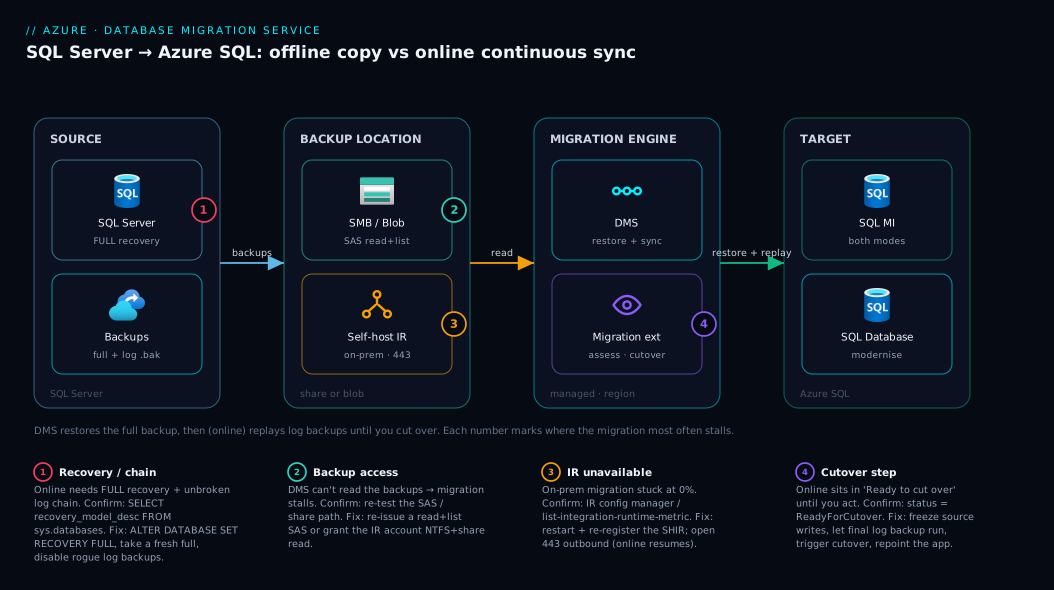
Walk the path the data takes left to right. Your source SQL Server writes native backups — a full backup to seed, plus, for online migrations, a stream of transaction-log backups — into a backup location, either an on-premises SMB share or an Azure Blob container fronted by a SAS token. The Azure Database Migration Service is the managed engine in Azure that does the work; when the backups are on-premises it reaches them through a self-hosted integration runtime installed inside your network (when they’re in Blob, DMS reads the container directly and no IR is needed). You don’t operate DMS by hand — the Azure SQL Migration extension in Azure Data Studio is the cockpit that assesses the source, recommends a target SKU, starts the migration against DMS, and shows live progress.
From the backup location DMS restores the full backup into the target — Azure SQL Managed Instance for a clean lift-and-shift, or Azure SQL Database when modernising. In offline mode that single restore is the migration: it finishes and you repoint the app. In online mode DMS keeps restoring each new log backup to hold the target a short time behind the source, until you trigger cutover, which applies the final log backup and makes the target fully consistent so you can flip the application over with a near-zero outage. The numbered badges below mark the four places this most commonly goes wrong: the source recovery model / log chain, the backup location’s permissions, the integration runtime’s availability, and the cutover step itself.
Real-world scenario
Northwind Retail runs its order-management system on a single on-premises SQL Server 2019 instance hosting SalesDB — 140 GB, FULL recovery, around 1,200 transactions per minute during business hours, used by a warehouse floor that runs three shifts. The mandate from the migration steering group was blunt: land SalesDB on Azure SQL Managed Instance (the app uses SQL Agent jobs and a couple of cross-database queries, so Database was off the table), and the floor cannot be read-only for more than ten minutes, ever, including at night — there is no “quiet window” with three shifts.
The team’s first instinct was offline at 3 a.m. They estimated the copy: 140 GB across a 200 Mbps site-to-site VPN, restored into a freshly provisioned MI, plus validation — well over an hour of read-only. That blew the ten-minute ceiling immediately, so offline was out. They went online.
Setup took a day. They confirmed SalesDB was in FULL recovery with a clean log chain — a rogue weekly COPY_ONLY=false log backup job on a monitoring server had to be disabled first, as it would have broken the chain DMS depends on. They provisioned MI at a General Purpose, 8 vCore tier sized from the migration extension’s SKU recommendation, deployed a self-hosted integration runtime on a Windows jump box with read access to the existing \\fileserver\dmsbackups share, and created a DMS instance in the MI’s region. The pre-migration assessment flagged two deprecated sp_ calls that MI handles fine — no blockers.
They started the online migration on a Tuesday afternoon while the floor kept working. DMS restored the 140 GB full backup over about ninety minutes, then settled into continuously replaying the log backups the source’s existing 15-minute schedule produced. For three days the migration sat in “Ready to cut over”, the target trailing by under a log-backup interval, costing only the running DMS engine. The cutover was scheduled for Saturday 2 a.m. — not from downtime fear (the cutover itself is minutes) but to give the floor a calm change window. At cutover they stopped the app, let DMS apply the final log backup (a few seconds of change), confirmed consistency, repointed the connection string to the MI, and ran smoke tests. Total floor downtime: under seven minutes.
What saved them: midway through the sync window, the SHIR machine was rebooted by an unrelated patch job and the migration paused with “integration runtime unavailable.” Because they were watching progress and had an alert on the SHIR service, they caught it in minutes; the SHIR auto-reconnected on boot and DMS resumed where it left off — no re-seed. Offline, that reboot mid-copy would have meant restarting the whole 140 GB copy. Online’s resumability turned a scary moment into a footnote. They kept the source read-only for a week as a rollback net, then decommissioned it.
Advantages and disadvantages
DMS-driven migration is the right default for SQL Server → Azure SQL, but it is not free of trade-offs. The two-column view first, then where each line actually matters:
| Advantages | Disadvantages |
|---|---|
| Managed engine — no bespoke copy scripts to maintain | Still requires correct backup hygiene and networking |
| Online mode gives near-zero-downtime cutover | Online adds real setup complexity and a running cost |
| Resumable — survives transient network/IR blips | On-prem path needs a self-hosted IR you must keep healthy |
| Handles schema + data + (online) continuous sync | Some MI/Database feature gaps still need re-platforming |
| Guided assessment + SKU recommendation built in | Target must be pre-provisioned and correctly sized |
| Repeatable across many databases | Large DBs still bound by network/source IO throughput |
| Free service tier covers most one-off migrations | Long online sync windows accrue cost and risk |
The advantages that matter most are resumability and the online cutover. Resumability makes a real-world migration survivable: networks blip, machines reboot, and a tool that re-seeds 140 GB on every hiccup is unusable for anything large. The online cutover is the entire reason the mode exists — but if the business can grant a maintenance window, you may never need it and offline’s simplicity wins.
The disadvantages that bite hardest are the self-hosted IR (a stateful agent you must keep running, patched and connected — the most common operational failure in on-prem migrations, easy to forget until it goes offline at the wrong moment) and feature gaps on the target. The latter is a planning problem: if your source uses SQL Agent, Service Broker, cross-database queries or linked servers and you target Azure SQL Database, those don’t exist and the migration tool won’t invent them — you re-platform or target MI. Plan that on the whiteboard, not at cutover.
Hands-on lab
This is the centrepiece. We will migrate a database to Azure SQL Managed Instance end to end: provision the target and DMS, run an offline migration first (simpler, proves the pipeline), then convert to an online migration with a controlled cutover. Each step gives the portal action, the equivalent az CLI, the expected output, and a validation check; a Bicep definition for the DMS resource lets you codify it. Teardown is at the end — do it to stop billing.
Cost note: the DMS free SKU covers most one-off migrations, but the target Managed Instance bills from the moment it exists. Provision the MI as late as you can and delete it in teardown if this is only a drill.
Lab prerequisites checklist
| # | Prerequisite | Verify with |
|---|---|---|
| 1 | A source SQL Server with a test DB in FULL recovery | SELECT recovery_model_desc FROM sys.databases WHERE name='SalesDB'; |
| 2 | A full backup of that DB on a reachable location (share or Blob) | RESTORE HEADERONLY FROM DISK = N'...' returns one row |
| 3 | Azure CLI logged in, correct subscription selected | az account show -o table |
| 4 | Azure Data Studio + Azure SQL Migration extension installed | Extensions pane shows “Azure SQL Migration” |
| 5 | Resource group + region chosen (target and DMS co-located) | az group show -n rg-dbmig |
| 6 | (On-prem source) a Windows host for the self-hosted IR | Host can reach the share and HTTPS-out to Azure |
Step 1 — Set variables and create the resource group
Define everything once so the rest is copy-paste. Pick a region close to your source.
# Names and location for the whole lab
RG=rg-dbmig
LOC=centralindia
DMS_NAME=dms-salesdb-mig
MI_NAME=mi-sales-prod          # Managed Instance name (must be globally unique)
SRC_DB=SalesDB
TGT_DB=SalesDB

# Create the resource group
az group create --name $RG --location $LOC -o table
Expected output: a table row showing rg-dbmig with ProvisioningState = Succeeded.
Validation: az group show -n $RG --query properties.provisioningState -o tsv returns Succeeded.
Step 2 — Provision the target (Azure SQL Managed Instance)
The target must exist and be sized before DMS can restore into it; MI takes a while to deploy, so start it early. Portal: Create a resource → Azure SQL → Managed Instance, choose General Purpose, set vCores/storage from your assessment, place it in a dedicated subnet of a VNet, set the admin login. CLI (MI requires a delegated subnet; this assumes the VNet/subnet exist — see Azure Private Endpoint vs Service Endpoint: Secure PaaS Access for the VNet model):
# Provision a General Purpose Managed Instance (deployment can take a while)
az sql mi create \
  --name $MI_NAME --resource-group $RG --location $LOC \
  --admin-user miadmin --admin-password '<StrongP@ssw0rd!>' \
  --subnet $(az network vnet subnet show -g $RG --vnet-name vnet-dbmig \
             --name snet-mi --query id -o tsv) \
  --capacity 8 --edition GeneralPurpose --family Gen5 \
  --storage 256GB --license-type LicenseIncluded -o table
Expected output: a long-running operation; on completion a table row for mi-sales-prod with State = Ready. MI provisioning commonly takes a substantial amount of time — do not block the lab on it; proceed to set up DMS in parallel.
Validation: az sql mi show -n $MI_NAME -g $RG --query state -o tsv returns Ready.
Targeting Azure SQL Database instead? Create a logical server and an empty database, and ensure the server firewall allows Azure services / the DMS path. The migration extension targets the empty database; DMS moves schema + data into it rather than restoring a native backup.
Step 3 — Create the Database Migration Service instance
DMS is the engine. Portal: Create a resource → Azure Database Migration Service → create, pick the resource group, region (same as the target), a name, and the pricing tier (free suits one-off migrations). CLI — the modern SQL flow uses the SQL-specific service kind:
# Register the provider once per subscription
az provider register --namespace Microsoft.DataMigration

# Create a DMS instance for the SQL migration flow
az datamigration sql-service create \
  --resource-group $RG \
  --sql-migration-service-name $DMS_NAME \
  --location $LOC -o table
Expected output: a JSON/table result showing the service dms-salesdb-mig with provisioningState = Succeeded.
Validation:
az datamigration sql-service show \
  --resource-group $RG --sql-migration-service-name $DMS_NAME \
  --query provisioningState -o tsv   # → Succeeded
Step 4 — (On-prem source only) install and register the self-hosted IR
If your backups are on an on-prem SMB share, DMS reaches them through a self-hosted integration runtime. Skip this step entirely if your backups are in Azure Blob. Portal/extension: the wizard offers to set up the IR and shows the authentication keys; download the IR installer onto your Windows host, install it, and paste a key to register it against this DMS. CLI — retrieve the IR auth keys:
# Get the integration-runtime authentication keys for this DMS
az datamigration sql-service list-auth-key \
  --resource-group $RG --sql-migration-service-name $DMS_NAME -o json
On the Windows host, install the Microsoft Integration Runtime, launch the configuration manager, and register it with authKey1 from the output. Grant the IR’s service account read on the backup share.
Expected output: the IR configuration manager shows “Connected” to the cloud service; the extension lists the node as online.
Validation:
# Monitor the registered IR node health
az datamigration sql-service list-integration-runtime-metric \
  --resource-group $RG --sql-migration-service-name $DMS_NAME -o table
A healthy node reports as available; an empty or unavailable result means the IR isn’t registered or is offline (see troubleshooting).
Step 5 — Assess the source and confirm readiness (in the extension)
Open Azure Data Studio, connect to the source, right-click the database → Azure SQL Migration → Migrate to Azure SQL. The extension runs an assessment: it flags feature/compatibility issues for your target (MI vs Database) and produces a SKU recommendation from the source’s actual CPU/memory/IO. Read the readiness report before going further — fix or accept each finding.
| Assessment result | Meaning | What to do |
|---|---|---|
| Ready | No blocking issues for the target | Proceed |
| Ready with conditions | Minor issues (deprecated syntax, warnings) | Note them; usually safe on MI |
| Not ready | A blocking incompatibility for this target | Re-platform the feature, or choose MI over Database |
Expected output: a readiness summary per database and a recommended target SKU.
Validation: every database you intend to migrate shows Ready or Ready with conditions — never start with Not ready.
Step 6 — Choose the mode and point DMS at the backups (OFFLINE first)
In the wizard, select the target MI, choose Offline mode, and tell DMS where the backups are: for an on-prem share, the share path plus the Windows credential and the self-hosted IR node; for Blob, the storage account/container and the SAS token. Provide the source connection (sysadmin) and the target connection (the MI admin).
The mode-vs-source-backup decision in one place:
| You chose… | Backups in… | DMS needs | Note |
|---|---|---|---|
| Offline | On-prem SMB share | SHIR + share path + Windows cred | Restores the latest full (+ diffs/logs to start) |
| Offline | Azure Blob | Container + SAS (rl) | No SHIR required |
| Online | On-prem SMB share | SHIR + share path + Windows cred | Restores full, then keeps replaying logs |
| Online | Azure Blob | Container + SAS (rl) | DMS reads new log backups as they land |
CLI — start an offline migration to MI from Blob-hosted backups (the extension wraps this; the CLI shows the contract):
az datamigration sql-managed-instance create \
  --resource-group $RG \
  --managed-instance-name $MI_NAME \
  --target-db-name $TGT_DB \
  --migration-service "/subscriptions/<sub-id>/resourceGroups/$RG/providers/Microsoft.DataMigration/sqlMigrationServices/$DMS_NAME" \
  --source-location '{"AzureBlob":{"storageAccountResourceId":"<storage-id>","accountKey":"<key>","blobContainerName":"dmsbackups"}}' \
  --offline-configuration '{"offline":true}' \
  --source-sql-connection '{"dataSource":"sqlsrv-onprem","authentication":"SqlAuthentication","userName":"dmsuser","password":"<pwd>"}' \
  --scope "/subscriptions/<sub-id>/resourceGroups/$RG/providers/Microsoft.Sql/managedInstances/$MI_NAME" \
  -o table
Expected output: a migration object is created and its status moves into provisioning/restoring.
Validation:
az datamigration sql-managed-instance show \
  --resource-group $RG --managed-instance-name $MI_NAME \
  --target-db-name $TGT_DB \
  --query "properties.migrationStatus" -o tsv
Step 7 — Run the offline migration and watch progress
With offline selected, DMS restores the full backup (and any differential/log backups up to the start) into the MI, then completes. Watch progress in the extension’s monitoring view, or poll via CLI.
| Migration status | What it means | Your action |
|---|---|---|
Creating / Provisioning |
DMS is spinning up the migration | Wait |
InProgress (Restoring) |
Restoring the full backup into the target | Wait; watch % / bytes |
Succeeded (offline) |
Restore complete; DB is on the target | Validate, then cut the app over |
Failed |
An error stopped the migration | Read the error; see troubleshooting |
Canceled |
You (or the system) canceled it | Restart after fixing the cause |
Expected output: status progresses to Succeeded for an offline run once the restore finishes.
Validation — confirm the database is really there and complete. Connect to the MI and run:
-- On the target MI: confirm the DB exists, is online, and row counts match
SELECT name, state_desc, recovery_model_desc FROM sys.databases WHERE name = N'SalesDB';

-- Spot-check a known table's row count against the source
SELECT COUNT(*) AS order_rows FROM SalesDB.dbo.Orders;
Compare against the same query on the source at the migration start point. For offline, anything written to the source after the migration started won’t be present — expected, and exactly why you freeze writes before starting.
Step 8 — Convert to ONLINE: run continuous sync
Now the online path — identical through Step 5; at Step 6 you choose Online instead of Offline. DMS restores the full backup, then continuously restores each new transaction-log backup the source produces, holding the target a short time behind. It does not finish on its own — it sits in “Ready to cut over” until you act.
# Start an ONLINE migration (offline:false) — DMS keeps replaying log backups
az datamigration sql-managed-instance create \
  --resource-group $RG \
  --managed-instance-name $MI_NAME \
  --target-db-name ${TGT_DB}_online \
  --migration-service "/subscriptions/<sub-id>/resourceGroups/$RG/providers/Microsoft.DataMigration/sqlMigrationServices/$DMS_NAME" \
  --source-location '{"AzureBlob":{"storageAccountResourceId":"<storage-id>","accountKey":"<key>","blobContainerName":"dmsbackups"}}' \
  --offline-configuration '{"offline":false}' \
  --source-sql-connection '{"dataSource":"sqlsrv-onprem","authentication":"SqlAuthentication","userName":"dmsuser","password":"<pwd>"}' \
  --scope "/subscriptions/<sub-id>/resourceGroups/$RG/providers/Microsoft.Sql/managedInstances/$MI_NAME" \
  -o table
Expected output: the migration reaches a steady state and reports it is ready to cut over while continuing to apply logs.
Validation: the status reports ReadyForCutover (or the extension shows “Ready to cut over”) and the “logs restored / pending” indicator stays low. Keep the source’s log-backup job running on its normal schedule — DMS feeds on those backups.
| Online sync indicator | Healthy | Unhealthy → action |
|---|---|---|
| Status | ReadyForCutover |
InProgress stuck → check IR / backups |
| Pending log backups | Low / draining | Growing → DMS not keeping up; check throughput |
| Last restored log time | Close to “now” | Falling behind → investigate source IO / network |
| IR node | Available | Unavailable → restart SHIR (online resumes) |
Step 9 — Perform the cutover
When the business window arrives and the target is caught up, cut over — a deliberate sequence you control. Extension: click “Start cutover”; it shows how many log backups are pending and waits for you to confirm. CLI:
# Trigger cutover: DMS applies the final log backup and finalises the target
az datamigration sql-managed-instance cutover \
  --resource-group $RG \
  --managed-instance-name $MI_NAME \
  --target-db-name ${TGT_DB}_online \
  --migration-operation-id "<operationId-from-show>"
The cutover runbook — do these in order:
| # | Cutover step | Why | Confirm |
|---|---|---|---|
| 1 | Stop the application’s writes to the source | Freeze the source so no change is missed | App in maintenance mode |
| 2 | Let the source’s final log backup be taken | Captures the last transactions | Log-backup job completed |
| 3 | Trigger cutover in DMS | Applies the final log; finalises target | Status → Succeeded |
| 4 | Validate the target (row counts, key tables) | Prove consistency before repointing | Counts match source |
| 5 | Repoint the app’s connection string to the MI | Send traffic to Azure | App connects to MI |
| 6 | Smoke-test the app | Confirm real workflows work | Critical paths pass |
| 7 | Keep source read-only as rollback for a window | Safety net before decommission | Source untouched |
Expected output: after cutover, migration status is Succeeded and the target database is fully consistent and writable.
Validation: repeat the row-count and state_desc checks from Step 7; this time the counts include everything up to the cutover moment, because the final log backup carried the tail of the transaction log.
Step 10 — Provision DMS as code (Bicep)
For repeatable, reviewable infrastructure, define the DMS instance in Bicep. The SQL migration service is its own resource type:
@description('Location for the migration service')
param location string = resourceGroup().location

@description('Name of the Database Migration Service (SQL flow)')
param dmsName string = 'dms-salesdb-mig'

resource sqlMigrationService 'Microsoft.DataMigration/sqlMigrationServices@2023-07-15-preview' = {
  name: dmsName
  location: location
  properties: {}
}

output dmsResourceId string = sqlMigrationService.id
Deploy and confirm:
az deployment group create \
  --resource-group $RG \
  --template-file dms.bicep \
  --parameters dmsName=$DMS_NAME -o table
Expected output: provisioningState = Succeeded and the dmsResourceId output populated.
Validation: az datamigration sql-service show -g $RG --sql-migration-service-name $DMS_NAME --query provisioningState -o tsv returns Succeeded. (The migrations themselves — connections, backup locations, cutover — run through the extension or the data-plane CLI above; Bicep provisions only the engine.)
Step 11 — Teardown (stop billing)
Delete what you no longer need. The Managed Instance is the expensive item — remove it first if this was a drill; tidy DMS too.
# 1) Delete the migration(s) (data-plane), if still present
az datamigration sql-managed-instance delete \
  --resource-group $RG --managed-instance-name $MI_NAME \
  --target-db-name $TGT_DB --yes

# 2) Delete the DMS instance
az datamigration sql-service delete \
  --resource-group $RG --sql-migration-service-name $DMS_NAME --yes

# 3) Delete the Managed Instance (the costly resource)
az sql mi delete --name $MI_NAME --resource-group $RG --yes

# 4) If the whole RG was for this lab, delete it last
az group delete --name $RG --yes --no-wait
Expected output: each delete returns without error; az group delete runs asynchronously.
Validation: az resource list -g $RG -o table returns empty (or the RG is gone). Also unregister and uninstall the self-hosted IR on the on-prem host if you set one up — it keeps running otherwise.
Common mistakes & troubleshooting
The failure modes below actually stall real migrations. Each gives the symptom, root cause, the exact place to confirm it, and the fix.
| # | Symptom | Root cause | Confirm | Fix |
|---|---|---|---|---|
| 1 | Online migration won’t start; “FULL recovery required” | Source DB is in SIMPLE/BULK_LOGGED | SELECT recovery_model_desc FROM sys.databases |
ALTER DATABASE SET RECOVERY FULL; then take a fresh full backup |
| 2 | Migration stuck at 0% / “integration runtime unavailable” | SHIR offline, not registered, or no network out | IR config manager / list-integration-runtime-metric |
Restart the IR service; re-register with auth key; open 443 outbound |
| 3 | “Access denied” reading the backup share | IR service account lacks read on the share | Try the path as that account from the IR host | Grant read NTFS+share perms; supply correct Windows credential |
| 4 | DMS can’t read Blob backups | SAS expired, wrong scope, or wrong container | Re-test the SAS URL in a browser/az storage blob list |
Re-issue a read+list SAS scoped to the right container |
| 5 | Restore fails: “backup chain broken” (online) | An out-of-band log backup broke the chain | Audit log-backup jobs on the source | Disable rogue COPY_ONLY=false log backups; re-seed from a new full |
| 6 | Restore fails: TDE-encrypted backup | Target lacks the certificate to decrypt | Backup is from a TDE database | Restore/import the TDE cert on the target first |
| 7 | Migration fails: “database already exists” on target | Target DB name collides | SELECT name FROM sys.databases on target |
Drop/rename the target DB, or migrate to a new name |
| 8 | Copy is painfully slow / online falls behind | Network or source IO is the bottleneck (not DMS SKU) | Compare pending-logs trend vs link throughput | Improve the path (ExpressRoute), throttle source load, or accept a longer window |
| 9 | Connectivity to target fails: “login failed” / timeout | Firewall or auth on MI/Database blocks DMS | Target’s firewall + auth blade | Allow the DMS path; fix the login (see the SQL login article) |
| 10 | Cutover done, but app still hitting old server | Connection string never repointed | Check the app config / DNS | Update the connection string to the MI; flush DNS/connection pools |
| 11 | Row counts don’t match after offline | Writes continued on source after start | Compare counts at the start LSN | Expected for offline — freeze source writes before starting |
| 12 | SQL Agent jobs / linked servers missing on target | Targeted Azure SQL Database (no instance features) | Source uses Agent/cross-db/linked servers | Re-platform those, or migrate to MI which has them |
Two decision tables to triage faster mid-incident:
| If you see… | It’s probably… | Do this |
|---|---|---|
| Nothing progressing, on-prem source | SHIR offline | Restart/re-register the IR; check 443 outbound |
| “FULL recovery required” | Wrong recovery model | Set FULL, take a fresh full backup, restart |
| “Access denied” on backups | Share or SAS permissions | Fix NTFS/share creds or re-issue the SAS |
| Online “falling behind” | Network/source IO ceiling | Improve the path or extend the window |
| Post-cutover, app still on source | Connection string | Repoint the app; recycle connection pools |
| Distinction | The trap | How to tell them apart |
|---|---|---|
| Offline “data loss” vs a bug | Panic that DMS lost rows | Offline never carries post-start writes — that’s by design, not a fault |
| DMS 502/timeout vs target firewall | Hours in the wrong logs | If the target rejects any connection (test with sqlcmd), it’s firewall/auth, not DMS |
| IR “registered” vs “connected” | Installed ≠ working | The IR can be registered yet show offline — check the cloud-connection status, not just install |
Best practices
- Decide offline vs online before the first backup. Online needs FULL recovery and an unbroken log chain from the start — you can’t bolt it on later without re-seeding.
- Right-size the target from the assessment, not a guess. An undersized MI/Database throttles or fails the copy; use the extension’s SKU recommendation.
- Keep the self-hosted IR healthy and monitored. An unnoticed reboot pauses on-prem migrations; pin it to a host that isn’t on an aggressive patch-reboot schedule.
- Use Azure Blob backups when you can. Blob + SAS removes the SHIR entirely — fewer moving parts, no on-prem agent to babysit.
- Audit your log-backup jobs before an online migration. A single rogue
COPY_ONLY=falselog backup elsewhere breaks the chain DMS depends on. - Validate before you repoint, every time. Row counts and a
state_desc = ONLINEcheck on key tables — never flip the app to an unvalidated target. - Treat the online sync window as short and deliberate. It costs money and accrues risk; cut over as soon as the business window allows.
- Keep the source read-only as a rollback net for a defined window after cutover, then decommission — don’t delete it the same hour.
- Script the connection-string flip and cutover runbook so the actual cutover is mechanical, not improvised at 2 a.m.
- Migrate logins and Agent jobs deliberately — DMS moves the database; server-level objects (logins, jobs, linked servers) you handle separately or they’re missing.
- Test the whole pipeline on a copy first. A dry run on a restored copy surfaces permission, network and feature-gap problems before the real cutover.
Security notes
The migration path touches your most sensitive asset — production data — so treat it with least privilege and short-lived access throughout.
- Scope the backup access tightly. For Blob backups, issue a read+list SAS scoped to the single container with a short expiry (days, not months), HTTPS-only. Don’t hand DMS an account key when a narrow SAS will do.
- Least-privilege the migration logins. The source login needs enough to read backups and metadata; the target login enough to create/restore. Create purpose-made logins and disable them after cutover — don’t reuse a standing admin credential.
- Encrypt the backups and the channel. Use backup compression with encryption (or rely on TDE) so backups at rest aren’t plaintext; keep the data path private (VPN/ExpressRoute), not over the open internet.
- Handle TDE deliberately. A TDE-encrypted source backup needs its certificate present on the target before restore — plan the certificate move; don’t disable TDE just to ease the migration.
- Lock down the target from day one. Put the MI in a VNet with NSGs, or the Database behind firewall rules and ideally a private endpoint (Azure Private Endpoint vs Service Endpoint: Secure PaaS Access); prefer Entra-based auth over SQL logins where the app supports it.
- Protect the self-hosted IR host. It holds credentials to your backups and a trust to Azure — patch it, restrict logon, and uninstall/unregister it the moment the migration is done.
- Rotate and revoke after cutover. Expire the SAS, disable the migration logins, and remove the DMS resource so no lingering credential or engine retains access.
Cost & sizing
Three things drive the bill: the DMS service tier, the target (MI or Database) which runs continuously once created, and — for online — the time the migration runs. DMS itself has a free tier that covers the typical one-off migration; the dominant cost is almost always the target Managed Instance, which bills from creation regardless of whether a migration is in flight.
Rough monthly figures (order-of-magnitude in INR; always confirm against the Azure pricing calculator for your region):
| Cost driver | Rough monthly cost (INR) | How to control it |
|---|---|---|
| DMS service tier | ~₹0 (free tier) | Use the free tier for one-off migrations |
| Target Managed Instance (GP, 8 vCore) | tens of thousands to ~₹1–1.5 lakh+/mo | The real cost — provision late, right-size, decommission |
| Target Azure SQL Database (mid vCore) | a few thousand to tens of thousands/mo | Far cheaper than MI; pick DTU vs vCore well |
| Online sync window | runs while it runs | Keep it short; cut over promptly |
| Network egress / link | per-GB over VPN/ExpressRoute | Larger one-offs may justify ExpressRoute |
| Self-hosted IR | ~₹0 (your own host) | Cost is the host you already own |
| Blob storage for backups | low (per-GB) | Tier/clean up backups after cutover |
The sizing rule: size the target for steady-state load, not the migration. The copy may briefly want more IO, but you don’t keep an oversized MI forever to make one restore faster. Use the assessment’s recommendation as the floor, and remember MI is dramatically more expensive than a single Azure SQL Database — if you don’t need instance-level features, the Database tiers in Azure SQL Database Purchasing Models: DTU vs vCore and How to Pick Without Overpaying save you a great deal monthly.
Interview & exam questions
Q: What is the difference between an offline and an online migration in DMS? Offline does a one-time copy of schema and data; changes written to the source after the start aren’t carried over, so the source is effectively read-only until you cut over. Online does the same initial copy but then continuously replays the source’s transaction-log backups to keep the target nearly current, letting the source stay live until a brief, planned cutover.
Q: Which Azure SQL target supports both modes most cleanly, and why? Azure SQL Managed Instance — it accepts native SQL Server backups directly and supports both offline and online migrations, making it the natural lift-and-shift target. Azure SQL Database is supported but with tighter constraints and different data-movement mechanics, and it lacks instance-level features like SQL Agent and cross-database queries.
Q: What recovery model does an online migration require, and why? FULL recovery, with an unbroken transaction-log backup chain. Online carries ongoing changes by continuously restoring the source’s log backups; that is only possible if the source is in FULL recovery and no out-of-band backup has broken the chain.
Q: What is the self-hosted integration runtime’s role, and when do you not need it? It’s an agent inside your network that lets DMS (which runs in Azure) read backups stored on an on-premises SMB share and ship them up. You don’t need it when backups live in Azure Blob Storage — DMS reads the container directly via a SAS token.
Q: A migration is stuck at 0% with “integration runtime unavailable.” What do you check? The SHIR: is the service running, is it registered against the right DMS with a valid auth key, and can the host reach Azure over HTTPS (443) outbound. A reboot or lost network commonly pauses on-prem migrations; once the IR reconnects, online migrations resume where they left off.
Q: How do you minimise downtime when the database is too large to copy inside a maintenance window? Use an online migration: DMS seeds the full backup while the source stays live, replays log backups to stay caught up, and you cut over during a short planned window where only the final log backup (a few seconds of change) is applied — turning hours of outage into minutes.
Q: What is “cutover” and what does it actually do? The operator-triggered step that finalises an online migration: you stop writes on the source, the final log backup is applied to the target, and DMS completes the migration so the target is fully consistent and writable. You then repoint the application.
Q: Why might row counts differ between source and target after an offline migration, and is that a bug? Not a bug — by design. Offline does not carry writes that happen on the source after the start, so rows added post-start won’t be on the target. The remedy is to freeze writes on the source before starting an offline migration.
Q: Your backups are TDE-encrypted. What must you do before restoring to the target? Make the TDE certificate available on the target before the restore, or the encrypted backup can’t be decrypted and the restore fails. Plan the certificate move as part of the migration; don’t disable TDE just to simplify the copy.
Q: Where does DMS sit relative to Azure Migrate? Azure Migrate is the broader hub for discovering, assessing and migrating servers and workloads; DMS is the specialist engine for the database tier. You assess databases (compatibility, SKU) first, then DMS performs the actual move — the tool-choice comparison covers when each applies.
Q (exam mapping): These map to DP-300 (Azure Database Administrator Associate) and the migration content in AZ-305 (Azure Solutions Architect) — migrating SQL workloads to Azure SQL, choosing between MI and Database, and minimising downtime with online migrations.
Quick check
- You can grant a two-hour read-only maintenance window and the database is 30 GB on a fast link. Offline or online?
- What recovery model and chain property does an online migration require on the source?
- Your backups live in an on-premises SMB share. What component must DMS use to reach them, and what if they were in Azure Blob instead?
- After an online migration sits in “Ready to cut over,” what does triggering cutover actually do?
- The migration is stuck at 0% with an “integration runtime unavailable” warning. Name the first three things to check.
Answers
- Offline. A 30 GB database on a fast link copies well inside a two-hour window, so the simpler offline mode wins — online’s complexity buys nothing here.
- FULL recovery model with an unbroken transaction-log backup chain. Online replays log backups to carry changes, which requires both.
- A self-hosted integration runtime installed inside your network reads the on-prem share and ships backups to DMS. If the backups were in Azure Blob, you’d need no IR — DMS reads the container directly with a SAS token.
- It applies the final transaction-log backup to the target and finalises the migration so the target is fully consistent and writable; you then repoint the application. You stop source writes first so nothing is missed.
- (a) Is the SHIR service running; (b) is it registered against the right DMS with a valid auth key; © can the host reach Azure over HTTPS (443) outbound. A reboot or network loss is the usual cause; online resumes once it reconnects.
Glossary
- Azure Database Migration Service (DMS): The managed Azure engine that performs database migrations to Azure SQL.
- Azure SQL Migration extension: The Azure Data Studio plug-in that assesses the source, recommends a SKU, and drives DMS migrations.
- Offline migration: A one-time copy of schema and data; changes made to the source after the start are not carried over.
- Online migration: A copy followed by continuous transaction-log replay, keeping the target current until a planned cutover.
- Cutover: The operator-triggered step that applies the final log backup and finalises an online migration.
- Full backup: A complete backup of the database used to seed the migration.
- Transaction-log backup: A backup of the transaction log; the unit of ongoing change DMS replays in online mode.
- Recovery model: A database setting (FULL / BULK_LOGGED / SIMPLE) that governs log retention; online needs FULL.
- Log chain: The unbroken sequence of log backups that lets the target be brought forward; a stray backup breaks it.
- Self-hosted integration runtime (SHIR): An on-prem agent DMS uses to read backups stored inside your network.
- SAS token: A scoped, time-bound credential granting DMS access to backups in Azure Blob Storage.
- Azure SQL Managed Instance (MI): A near-100%-compatible SQL Server instance as a managed service; supports both migration modes cleanly.
- Azure SQL Database: The fully managed single-database/elastic-pool PaaS target for SQL workloads.
- TDE (Transparent Data Encryption): Encryption of data at rest; TDE backups need the certificate present on the target to restore.
- Assessment / SKU recommendation: The migration extension’s readiness analysis and target-size suggestion derived from source usage.
Next steps
- Tighten target connectivity and fix login/firewall issues post-migration with Troubleshooting Azure SQL Database: Connectivity, Timeouts, Throttling & Blocking.
- Right-size the landed database and avoid overpaying with Azure SQL Database Purchasing Models: DTU vs vCore and How to Pick Without Overpaying.
- If you migrated several tenant databases, plan their density with Elastic Pools for Multi-Tenant SaaS: Sharing DTUs, Density Planning and Tenant Isolation.
- Revisit the tool choice and where DMS fits among the migration tools in Choosing Your Migration Tool: Azure Migrate vs Site Recovery vs Database Migration Service.
- Secure private access to the new database with Azure Private Endpoint vs Service Endpoint: Secure PaaS Access.