The business owner asks one question and it decides your whole project: “How long will the app be down?” You are moving a 120 GB SQL Server database — busy all day, a few hundred writes a second at peak — onto Azure SQL, and the answer the owner can accept (five minutes? two hours? a Sunday night?) is the answer that picks your migration method, your prerequisites, your runbook, and how many late nights you spend rehearsing. The Azure Database Migration Service (DMS) — a managed migration engine driven through the Azure SQL Migration extension for Azure Data Studio — exists to make that downtime number as small as the business needs, and no smaller. Get the method right and a 120 GB database that does real transactions cuts over in minutes. Get it wrong and you either inflict an outage the business won’t forgive, or you spend three weeks engineering a near-zero-downtime online migration for a database that could have gone offline at 2 a.m. on a Sunday with nobody watching.
The single lever is offline versus online. An offline migration copies the database once: the moment the data copy begins, writes on the source stop being carried across, so you take the source read-only (or write off anything changed after the snapshot) until the copy finishes and you repoint the application. Your downtime is the copy duration — minutes for a small database, hours for a large one over a constrained link. An online migration does the same initial copy, then continuously restores the source’s transaction-log backups into the target so the source stays live and writable; you flip the app to Azure during a brief, planned cutover when you’re ready, and downtime shrinks to the seconds-to-minutes the cutover itself takes. Offline is cheaper and simpler and trades a long outage; online buys a tiny cutover at the cost of more setup, a sync that runs for the whole window, and stricter prerequisites. This article is about choosing correctly and then executing so the actual downtime matches the promise.
This is the implementation guide. We define DMS and the migration extension, model what genuinely drives your downtime minutes (it is rarely what people think), then run the migration end to end — prerequisites, numbered steps in both the portal and az CLI, a Bicep definition, expected output at each step, validation queries, a cutover runbook, rollback and teardown — for SQL Server → Azure SQL Managed Instance, the path that supports both modes cleanly, with notes throughout for the Azure SQL Database target. Every option that matters is a table you can scan at 1 a.m., because at cutover you don’t read paragraphs — you read the runbook and watch the clock.
What problem this solves
Moving a production database is the part of a cloud migration that keeps people up at night, because the database is stateful and the business cannot lose a row. The compute tier you can redeploy from a pipeline; the data you get exactly one chance to move correctly, and the cutover is the one moment in the whole programme where a mistake is visible to every user at once. The naive plan — “back it up, copy the .bak, restore it” — fails twice: for Azure SQL Database there is no RESTORE DATABASE you can drive (the restore surface is nothing like a box you own), and even for Azure SQL Managed Instance, where a native restore from a backup in Blob Storage does work, a one-shot restore gives you an outage equal to the copy plus restore time with no way to keep the source’s later transactions.
What breaks without a managed tool and a downtime plan: teams write bespoke bcp/SSIS scripts that miss a foreign-key ordering or drop an index; they hand-roll transactional replication and discover at 1 a.m. that a schema mismatch silently stopped the distributor; or they schedule a “quick two-hour window” that becomes six hours because the copy is slower than the test run and there is no resume. The expensive failure is not technical — it is a cutover that overruns the agreed window because nobody modelled what the downtime actually depended on, so the rollback decision gets made in a panic with the business on the line.
Who hits this: anyone retiring on-premises or VM-hosted SQL Server in favour of Azure SQL — lift-and-shift to Azure SQL Managed Instance (closest to box SQL Server: SQL Agent, cross-database queries, CLR, Service Broker), or modernisation to Azure SQL Database. The minimal-downtime question bites hardest on databases too large to copy inside an acceptable window, ones that must stay writable until the second of cutover, and teams who have never rehearsed a controlled cutover and so discover at go-live how long it really takes. If you’re still choosing which migration tool across the whole estate, Choosing Your Migration Tool: Azure Migrate vs Site Recovery vs Database Migration Service is the upstream decision; this article assumes you’ve landed on DMS for the database tier and now need the outage as short as the business demands.
Here is the whole field in one frame — the two modes, what each costs you in downtime and effort, and when to reach for it:
| Dimension | Offline migration | Online migration |
|---|---|---|
| What it does | One-time copy of schema + data | One-time copy, then continuous log-backup restore |
| Source during migration | Read-only from start (later writes lost) | Stays live and writable |
| Downtime | Whole copy duration (minutes to hours) | A short, planned cutover (seconds to minutes) |
| Setup complexity | Lower | Higher (log backups, share/URL, cutover step) |
| DMS cost | Compute for the run only | Compute for the entire sync window |
| Best for | DBs that tolerate a maintenance window | DBs that cannot afford a long outage |
| Risk if you misjudge | Outage longer than the business accepts | Weeks of complexity you didn’t need |
Learning objectives
By the end of this article you can:
- Explain what the Azure Database Migration Service and the Azure SQL Migration extension are, how they relate, and where each piece runs.
- Decide offline versus online for a given database from its outage tolerance, size, change rate and target — and defend the choice to a business owner.
- Model the real downtime budget: enumerate exactly which steps consume your outage minutes in each mode, and which ones you can move outside the window.
- Enumerate and verify the prerequisites for both modes — backup configuration, the network share or Blob URL, the self-hosted integration runtime, permissions, and target sizing.
- Run an online migration of a SQL Server database to Azure SQL Managed Instance end to end in the portal and
azCLI, then execute a controlled cutover with a written runbook. - Provision the DMS resource declaratively with Bicep, validate the result with concrete queries, and tear everything down to stop billing.
- Diagnose the failures that blow up a cutover — blocked backups, share permission errors, schema gaps, sync lag and cutover stalls — by exact symptom and fix.
Prerequisites & where this fits
You should know SQL Server basics — databases, the recovery model (full vs simple), and the difference between a full backup and a transaction-log backup — because online migration is built entirely on log backups, and a database in the simple recovery model cannot take them. You should understand Azure SQL at a high level: Azure SQL Database is a single logical database (or elastic pool) with no instance you manage, while Azure SQL Managed Instance (MI) is a near-100%-compatible SQL Server instance delivered as a managed service inside your VNet. If the Database side is fuzzy, Your First Azure SQL Database: Create, Configure Firewall Rules and Connect Securely covers it and its connectivity model. You should be comfortable running az in Cloud Shell, reading JSON output, and have Azure Data Studio installed locally — the migration extension is the control surface for the actual migration runs.
This sits in the Migration track, downstream of tool choice and discovery. If you haven’t assessed the source databases for compatibility and right-sizing, Azure Migrate Discovery & Assessment: From Appliance Deployment to Your First Right-Sizing Report is the step before this one — the same migration extension runs the readiness and SKU-recommendation assessment that tells you which target SKU to provision. Choosing that compute tier without overpaying is Azure SQL Database Purchasing Models: DTU vs vCore and How to Pick Without Overpaying. Once the data lands, day-two connectivity issues are Troubleshooting Azure SQL Database: Connectivity, Timeouts, Throttling & Blocking, and the downtime promise you make to the business should be grounded in Business Continuity & Disaster Recovery: RTO and RPO Fundamentals on Azure.
A quick map of who owns which piece during a cutover, so you call the right person fast when the clock is running:
| Layer | What lives here | Who usually owns it | What it can break |
|---|---|---|---|
| Source SQL Server | The live database, backups, recovery model | DBA team | No log backups → online migration won’t start |
| Backup location (share / Blob) | Where DMS reads full + log backups | DBA + storage | Permission/SAS errors → restore stalls |
| Self-hosted IR (online, on-prem source) | Reads backups, ships them to DMS | Migration engineer | Offline/unreachable → sync stops |
| Network path | VNet, private endpoint, firewall, DNS | Network team | Blocked 1433/443 → connection failures |
| Target Azure SQL (MI / DB) | The destination database | DBA + platform | Undersized SKU → slow restore, throttling |
| Application config | Connection string the app uses | App team | Not repointed at cutover → still hitting source |
Core concepts
Five mental models make every later step — and every minute of downtime — obvious.
DMS is the engine; the migration extension is the cockpit. The Azure Database Migration Service is a managed Azure resource that runs the migration. You almost never drive it raw — you drive it through the Azure SQL Migration extension for Azure Data Studio, which connects to your source, runs the assessment, provisions or reuses a DMS instance, and orchestrates the migration. There are two DMS generations: the classic service (its own SKUs, older portal flow) and the current Azure SQL Migration experience (DMS resources of kind SqlMi/SqlDb/SqlVm, created and driven by the extension or az datamigration). This article uses the current experience — it is the one Microsoft is investing in and the one that supports online migration to MI cleanly.
Offline copies once; online keeps restoring logs. Both modes start identically: take a full backup of the source and restore it into the target. Offline stops there — anything written to the source after that backup is not carried over, which is why the source must be read-only from the start of the copy. Online continues: it restores a chain of transaction-log backups into the target with NORECOVERY, so the target stays in a restoring state, continuously catching up to the source. The target is not usable for reads while this continues — it is mid-restore — until you trigger cutover, which restores the final log backup, recovers the database, and brings it online. The whole “minimal downtime” property comes from this: the expensive copy happens while the source is still live.
Your downtime is the cutover, not the copy. In offline mode, downtime = full-copy duration, because the source is frozen the whole time. In online mode, the full copy and most log restores happen with the source live — so your downtime is only the final stretch: stop writes on the source, take and restore the last log backup, recover, validate, repoint the app. If you keep the target’s restore lag small throughout the sync, that final log backup is tiny and the cutover is fast. Minimal downtime is therefore an engineering goal you manage during the sync (keep lag low), not a single switch you flip at the end.
The backup location is the data path. DMS does not connect to your source and stream rows. It reads backup files. For a source on an Azure VM or on-prem, those backups live on a network file share (SMB) that DMS reaches via a self-hosted integration runtime (SHIR) you install near the source, or — increasingly — on Azure Blob Storage that DMS reads directly via a SAS or managed identity. The recovery target therefore depends on backups existing, being reachable, and (for online) a clean, gap-free log chain. Most migration failures are backup-location failures: a permission, a path, a broken chain.
Target sizing decides restore speed and post-cutover health. The target SKU (vCores, storage, MI tier) sets how fast the restore ingests and how the app performs after cutover. Undersize it and the copy crawls and the cutover overruns; right-size it from the assessment’s SKU recommendation. For MI, the General Purpose vs Business Critical tier and storage size are the levers; for SQL Database, the vCore/DTU tier. You can scale up later, but a too-small target during the run directly inflates downtime.
The vocabulary in one table
Pin down every moving part before the deep sections; the glossary repeats these for lookup.
| Concept | One-line definition | Where it lives | Why it matters to downtime |
|---|---|---|---|
| DMS | Managed migration engine | Azure resource (kind SqlMi/SqlDb) |
Runs the copy and the sync |
| Migration extension | The cockpit you drive DMS from | Azure Data Studio | Where you start/monitor/cut over |
| Offline mode | One-shot copy, source frozen | Migration setting | Downtime = whole copy |
| Online mode | Copy + continuous log restore | Migration setting | Downtime = cutover only |
| Full backup | Complete point-in-time copy | Source → share/Blob | Seeds the target |
| Log backup | Changes since the last backup | Source → share/Blob | Feeds online sync; smaller = faster cutover |
| Recovery model | full / bulk-logged / simple | Source DB property | simple blocks log backups → no online |
| Self-hosted IR | Agent that ships backups to DMS | Near the source | Offline/down → sync stalls |
| Cutover | Final restore + bring online | Triggered in the extension | The act that consumes your outage minutes |
| Restore lag | How far behind the target is | DMS migration status | Keep small to keep cutover fast |
| Target SKU | vCores/storage/tier of the destination | Azure SQL MI / DB | Too small → slow restore, long downtime |
Offline vs online: the decision you defend
The choice is not a preference; it follows from four inputs. Work them in order and the answer falls out.
| If… | …then lean | Why |
|---|---|---|
| The business accepts a maintenance window ≥ the copy time | Offline | Simpler, cheaper, fewer prerequisites, nothing to keep in sync |
| The app must stay writable until the second of cutover | Online | Only online keeps the source live during the copy |
| The database is large and the link is slow (copy = hours) | Online | Offline downtime would be hours; online moves the copy outside the window |
| The source is in the simple recovery model and can’t change | Offline | Online needs log backups, impossible in simple recovery |
| It’s a low-traffic dev/test DB or a one-off | Offline | Online complexity isn’t worth it |
| You’re migrating many DBs and rehearsing cutover matters | Online | A repeatable, low-risk cutover is worth the setup |
The trap is reading only the first row. A 5 GB database might copy in eight minutes — but if the business won’t accept any read-only window in business hours and you can’t get a 2 a.m. slot, you still go online. Conversely, a 400 GB database the business will freeze over a long weekend can go offline if the weekend exceeds the copy time. Outage tolerance and copy time together decide it; size alone does not.
What changes between the two modes, concretely
The modes differ in more than downtime. Knowing every difference up front stops surprises at cutover.
| Aspect | Offline | Online |
|---|---|---|
| Source writes during run | Must stop (read-only) | Continue normally |
| Backups needed | One full (+ optional differentials) | Full and an ongoing log-backup chain |
| Recovery model required | Any (simple OK) | full or bulk-logged (log backups must work) |
| DMS billing window | Just the copy | Entire sync until cutover |
| Explicit cutover step | No (it’s done when copy ends) | Yes — you trigger it |
| Rollback if validation fails | Re-run (source unchanged if frozen) | Source still live → repoint back to it |
| Sensitivity to log-chain breaks | None | High — a broken chain stalls sync |
| Operational attention during run | Minimal | Monitor lag, ensure logs keep flowing |
Target matrix: which mode each Azure SQL target supports
Not every target supports every mode. Confirm your target row before you commit a plan.
| Source → Target | Offline | Online | Notes |
|---|---|---|---|
| SQL Server → SQL Managed Instance | Yes | Yes | The cleanest both-modes path; native restore underneath |
| SQL Server → SQL Database | Yes | Yes | Online supported via the migration extension; schema handled |
| SQL Server → SQL on Azure VM | Yes | Yes | IaaS target; you own the instance |
| Source on Azure VM | Yes | Yes | Backups to a share or Blob the DMS can read |
| Source on-premises | Yes | Yes | Needs a self-hosted IR to reach backups |
| Database in simple recovery | Yes | No | No log backups possible → online unavailable |
The downtime budget: where your outage minutes actually go
“Minimal downtime” is a number you can compute, not a vibe. Break the work into steps and label each as in-window (counts against your outage) or pre-window (done while the source is live). The whole art of online migration is moving as much as possible into the pre-window column.
| Step | Offline | Online | Driver of duration |
|---|---|---|---|
| Provision DMS + target | Pre-window | Pre-window | One-time; do it days ahead |
| Initial full backup + restore | In-window | Pre-window | Database size ÷ throughput |
| Restore log-backup chain | n/a | Pre-window | Source change rate during sync |
| Stop writes / quiesce app | In-window | In-window | App-dependent; usually seconds |
| Final log backup + restore | n/a | In-window | Size of the last log only — keep tiny |
| Recover database, bring online | In-window | In-window | Seconds to a couple of minutes |
| Smoke-test / validate | In-window | In-window | Your test pack length |
| Repoint app connection string | In-window | In-window | Config push; seconds |
| DNS/TTL or failover propagation | In-window | In-window | TTL you set days earlier |
Read the two In-window columns and the difference is the whole value proposition: offline pays for the entire copy inside the outage; online pays only for the final log restore plus the human steps. The online cutover’s duration is dominated by how small you kept the trailing log and how fast your validation runs — both controlled before the window opens.
Levers that shrink the cutover
Each of these moves a chunk of time out of the outage. Apply the ones that fit.
| Lever | What it does | Downtime saved | Cost / effort |
|---|---|---|---|
| Use online instead of offline | Copy happens with source live | Hours → minutes | More setup + sync billing |
| Keep restore lag low during sync | Final log backup stays small | Minutes → seconds | Frequent log backups |
| Right-size the target SKU | Faster ingest, no throttling | Cuts copy + cutover | Higher SKU cost during run |
| Pre-stage backups in same region Blob | Removes WAN from the path | Big on large DBs | Storage + upload time (pre-window) |
| Lower app DNS TTL days ahead | App repoints instantly at cutover | Minutes of propagation | Trivial; plan ahead |
| Rehearse the cutover on a copy | Eliminates “what does this button do” | Removes human hesitation | A practice run |
| Script the app repoint | No manual config fumbling | Seconds, and fewer errors | A small pipeline/script |
| Pre-create logins/users/jobs on target | No post-cutover scramble | Minutes | Run the schema-only step early |
Prerequisites you verify before you start
Every failed cutover I’ve seen traces to a prerequisite nobody checked. Verify each of these before the window, with the exact command, and the cutover becomes boring.
| Prerequisite | Why | How to verify | Failure if skipped |
|---|---|---|---|
| Source in full (or bulk-logged) recovery (online) | Log backups require it | SELECT recovery_model_desc FROM sys.databases |
Online migration can’t start |
| Log backups actually being taken (online) | DMS restores the chain | Check SQL Agent backup jobs / msdb.backupset |
Sync never catches up |
| Backup location reachable by DMS | DMS reads files, not rows | Test the share path / SAS from the IR host | Restore stalls at “reading backups” |
| Self-hosted IR installed & online (on-prem) | Bridges source backups to DMS | IR status in the extension | “Integration runtime not available” |
| Target Azure SQL provisioned & sized | Destination must exist | az sql mi show / az sql db show |
Nothing to migrate into |
| Network path open (1433/443, private endpoint, DNS) | Connectivity end to end | Test-NetConnection / nc -vz host 1433 |
Connection timeouts |
| Migration login has rights on source & target | Reads backups, writes target | CONTROL/db_owner as required |
Permission-denied mid-run |
| Target storage sized ≥ source + headroom | Restore needs room | Compare source size vs target max | Restore fails “out of space” |
Networking and identity prerequisites in detail
The migration login and the network path are where most “it worked in the lab” surprises live. Lay them out explicitly.
| Item | Setting | Recommended value | Note |
|---|---|---|---|
| DMS → source auth | SQL or Windows auth | A dedicated migration login | Least privilege; rotate after |
| DMS → target auth | SQL or Entra auth | Dedicated login / managed identity | Prefer Entra where possible |
| Backup share access | SMB credentials | Account with read on the share | DMS reads full + log backups |
| Blob access (Blob path) | SAS token or managed identity | Read/List, short-lived SAS | Scope to the container only |
| MI connectivity | Private endpoint / VNet | Private; no public endpoint | Keep traffic on the backbone |
| Ports | 1433 (SQL), 443 (control) | Open source↔IR↔DMS↔target | Plus 445 for SMB if used |
| DNS | Private DNS for MI/PE | Resolves to private IP | Public DNS → wrong path |
For VNet design and private connectivity to MI, Azure VNet IP Address Planning: CIDR & Subnetting Done Right and Private Endpoint vs Service Endpoint: Which One and Why cover the subnet and DNS choices that keep the migration traffic private and resolving correctly.
Architecture at a glance
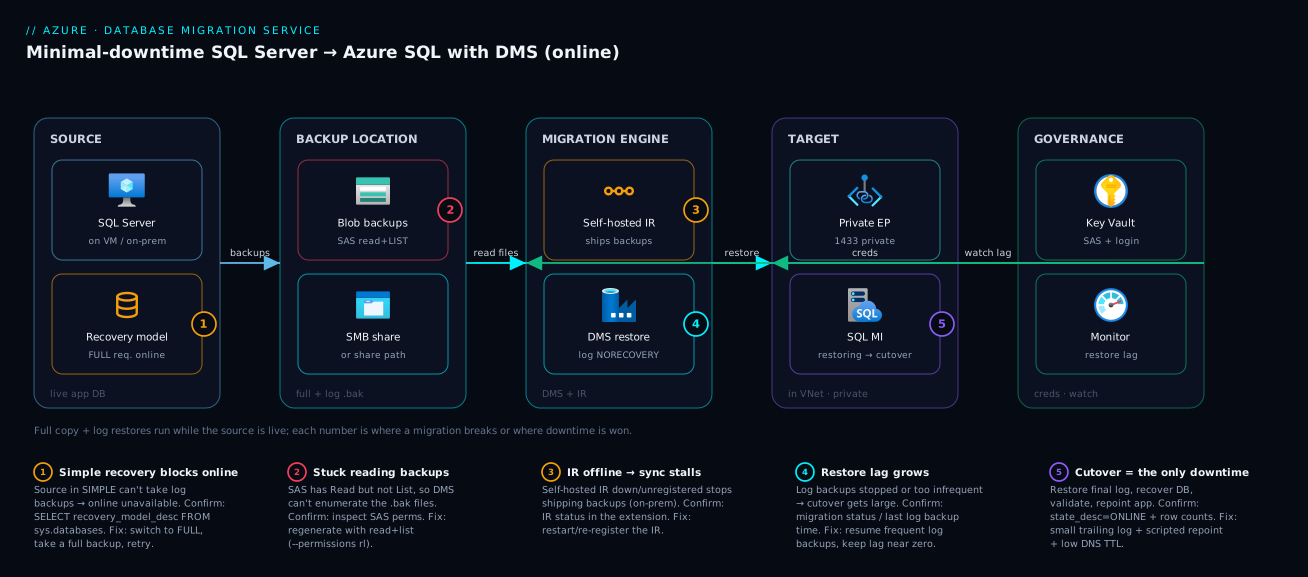
Read the migration left to right as a pipeline, because that’s how the bytes flow and where each delay lives. On the far left is the source SQL Server — on an Azure VM or on-premises — still serving the live application; the moment it stops being live is the moment your downtime starts, which is exactly why online mode keeps it on the left, untouched, for as long as possible. The source writes a full backup and an ongoing chain of transaction-log backups to a backup location: an SMB network share or an Azure Blob container. For an on-prem source, a self-hosted integration runtime sits beside the backups and ships them outward; for a source already in Azure, DMS can read the Blob directly. In the middle, the Azure Database Migration Service does the work — it restores the full backup once, then (online) restores each log backup with NORECOVERY, keeping the target continuously catching up. On the right, the target is Azure SQL Managed Instance (or SQL Database), sitting in your VNet behind a private endpoint, in a restoring state that is invisible to users until cutover. Around it, Key Vault holds the migration credentials and Azure Monitor watches restore lag.
The numbered badges mark where a migration actually breaks and where your downtime minutes are won or lost. Badge 1 sits on the source recovery model — simple here kills online migration before it starts. Badge 2 is the backup location, the single most common failure surface (a permission, a path, a broken log chain). Badge 3 is the self-hosted IR, whose health is the difference between a sync that keeps up and one that silently stalls. Badge 4 is the DMS restore itself, where restore lag must be watched. Badge 5 is the cutover hop into the target — the moment, and the only moment, the user-visible outage is incurred. Follow the flows and you can point at the exact node that owns any symptom mid-cutover.
Real-world scenario
Meridian Retail runs its order-management database, OrdersDB, on a SQL Server 2019 instance on an Azure VM: 140 GB, full recovery model, peaking around 300 writes/second during the evening rush. The mandate from the business was blunt — move it to Azure SQL Managed Instance for managed patching and built-in HA, with no more than ten minutes of downtime, and it must not be down between 08:00 and 23:00 any day. The DBA’s first instinct was the offline path: a Sunday-night .bak restore. They timed a trial copy over their setup and the full backup-plus-restore took just under two hours. Two hours of read-only OrdersDB was a non-starter even at 2 a.m., because the warehouse’s overnight batch writes to it. Offline was out on outage grounds, not size.
So they went online. The setup took two days, almost all of it prerequisites rather than DMS itself. They switched OrdersDB’s backups to land in an Azure Blob container in the same region as the source VM (removing any WAN hop), confirmed SQL Agent was taking log backups every five minutes, and provisioned an MI General Purpose, 8 vCores, 256 GB target sized from the assessment’s SKU recommendation. The first dress rehearsal exposed the classic mistake: their first migration attempt failed at “reading backups” because the SAS token they generated had only Read, not Read + List, on the container — DMS couldn’t enumerate the backup files. One character of permission. Fixed, the initial full restore ran in the pre-window with the application fully live; users noticed nothing.
The continuous sync ran for three days while the team validated. Restore lag stayed under a minute because the five-minute log backups were small. They lowered the app’s connection DNS TTL to 30 seconds two days ahead, scripted the connection-string swap into their release pipeline, and pre-created the SQL logins and Agent jobs on the MI target. The cutover, at 02:10 on a Tuesday: app into maintenance mode (writes stopped), DMS restored the final tiny log backup and recovered the database, a 90-second smoke test (row counts on the five busiest tables matched, a test order inserted and read back), connection string flipped via the pipeline, DNS repointed within the TTL. Total user-visible downtime: 4 minutes 40 seconds — comfortably inside the ten-minute promise. Because the source stayed live and untouched, rollback was trivial: had validation failed, point the app back at the VM. It didn’t. The lesson Meridian took away: the cutover was the easy part — the win was banked days earlier, in the prerequisites and the rehearsal that made those four minutes boring.
Advantages and disadvantages
DMS-driven migration, weighed against rolling your own:
| Advantages | Disadvantages |
|---|---|
| Managed engine: handles schema, copy, sync, retry, resume | Online mode needs full recovery + a healthy log chain |
| Online mode delivers minutes of downtime, not hours | Sync runs (and bills) for the whole window |
| Repeatable and rehearsable across many databases | On-prem sources need a self-hosted IR to install/operate |
| Progress and restore lag are observable in real time | Backup-location permissions are a fiddly, common failure |
| Source stays live → trivial rollback (just repoint) | Some SQL features need post-migration fix-up (Agent, logins) |
| Native restore under MI is fast and well-trodden | Not every edge case (cross-DB, specific features) auto-migrates |
az datamigration + Bicep make it scriptable |
Classic vs current DMS generations can confuse first-timers |
When the advantages dominate: any production database where the business sets a real downtime SLA, or any estate with enough databases that a repeatable, low-risk cutover pays back the setup many times over. When the disadvantages bite: a single small dev database that tolerates a maintenance window doesn’t justify online’s machinery — offline, or even a manual MI restore from a .bak in Blob, is less to operate. The honest rule: use the cheapest mode whose downtime the business will sign off on, and not a notch more.
Hands-on lab
This lab runs an online migration of a SQL Server database on an Azure VM to Azure SQL Managed Instance, then performs a controlled cutover — the path that actually exercises minimal downtime. (For a pure offline run to MI, the same steps apply with --migration-mode OFFLINE and no cutover step.) You will do it in the portal and az CLI, provision the DMS resource with Bicep, validate, and tear down. Where MI differs from a SQL Database target, the step calls it out. Steps that incur real cost are flagged; the teardown removes everything.
Prerequisites for the lab
| You need | Why | Quick check |
|---|---|---|
| A source SQL Server (Azure VM is easiest) with a test DB in full recovery | Online needs log backups | SELECT recovery_model_desc FROM sys.databases WHERE name='AppDb' |
| An Azure SQL Managed Instance (General Purpose is fine for the lab — note: MI takes time to deploy) | The target | az sql mi show returns it |
| An Azure Blob container for backups + a SAS with Read + List | DMS reads backups | az storage container show |
| Azure Data Studio with the Azure SQL Migration extension | The cockpit | Extension installed |
az CLI and the datamigration extension |
Scripting DMS | az extension add -n datamigration |
| Contributor on the resource group | Create DMS + roles | az role assignment list |
Cost note: a Managed Instance is not free-tier and bills by the hour while it exists — General Purpose 8 vCores is roughly ₹45,000–₹60,000/month (~$550–$720) prorated, so spin it up only for the lab and run the teardown the same day. The DMS resource itself in the current SQL Migration experience has no separate compute charge for these target types; you pay for the target and storage.
Step 1 — Set variables and add the CLI extension
RG=rg-dms-lab
LOC=centralindia
DMS=dms-app-lab
SUB=$(az account show --query id -o tsv)

# The current Azure SQL Migration experience is driven via this extension
az extension add --name datamigration --upgrade
az group create --name $RG --location $LOC -o table
Expected output: the resource group shows "provisioningState": "Succeeded", and az extension list includes datamigration.
Step 2 — Confirm the source recovery model and log backups (online prerequisite)
On the source SQL Server, this is the gate for online migration. Run in SSMS or sqlcmd:
-- Must return 'FULL' (or 'BULK_LOGGED') for online migration
SELECT name, recovery_model_desc FROM sys.databases WHERE name = 'AppDb';

-- Confirm log backups are actually happening (most recent log backup time)
SELECT database_name, MAX(backup_finish_date) AS last_log_backup
FROM msdb.dbo.backupset
WHERE type = 'L' AND database_name = 'AppDb'
GROUP BY database_name;
Expected output: recovery_model_desc = FULL, and last_log_backup is recent (within your backup interval). If recovery is SIMPLE, switch it and take a fresh full backup before migrating — otherwise online mode is unavailable.
Step 3 — Provision the backup location (Blob) and a scoped SAS
Point your source’s full and log backups at a Blob container, and generate a SAS DMS can use. The permission that catches everyone is List — DMS must enumerate files, not just read one.
SA=stdmslab$RANDOM
az storage account create -n $SA -g $RG -l $LOC --sku Standard_LRS -o table
az storage container create --account-name $SA -n backups -o table

# SAS with Read AND List, scoped to the container, short-lived
EXPIRY=$(date -u -d "+2 days" '+%Y-%m-%dT%H:%MZ' 2>/dev/null || date -u -v+2d '+%Y-%m-%dT%H:%MZ')
SAS=$(az storage container generate-sas --account-name $SA -n backups \
  --permissions rl --expiry $EXPIRY -o tsv)
echo "Container SAS (rl = read+list): $SAS"
Expected output: a SAS string. Note --permissions rl — read + list. Read-only (r) is the single most common cause of a migration stuck at “reading backups.”
Then configure the source to back up AppDb (full once, log on a schedule) to URL into that container — for example a full backup:
BACKUP DATABASE AppDb
TO URL = 'https://<storageaccount>.blob.core.windows.net/backups/AppDb_full.bak'
WITH COMPRESSION, FORMAT, INIT;
-- (Schedule frequent TRANSACTION LOG backups to the same container for online sync)
Step 4 — Verify the target Managed Instance and network path
The target must exist and be reachable on the private path before you start. (Provisioning an MI is a long operation — assume it already exists for the lab.)
MI=mi-app-lab
az sql mi show -n $MI -g $RG --query "{name:name, state:state, vcores:vCores, storageGB:storageSizeInGB, tier:sku.tier}" -o table

# From a host inside the VNet, confirm the MI port answers (private endpoint path)
# nc -vz <mi-name>.<dns-zone>.database.windows.net 1433
Expected output: the MI shows state = Ready with your vCores/storage; the port check connects. If DNS resolves to a public IP or the port times out, fix the private endpoint/DNS before proceeding — see the networking prerequisites table above.
Step 5 — Provision the DMS resource (CLI)
Create the DMS instance in the current SQL Migration experience (kind tied to the SqlMi target):
az datamigration sql-service create \
  --resource-group $RG \
  --sql-migration-service-name $DMS \
  --location $LOC -o table
Expected output: the service returns "provisioningState": "Succeeded". For an on-premises source you would additionally register a self-hosted integration runtime with this service and install it on a host near the source; for an Azure-VM source reading Blob directly, the managed integration runtime suffices.
Step 5b — Or provision DMS with Bicep (declarative)
Capture the DMS resource in IaC so it’s repeatable across environments:
@description('Location for the Database Migration Service')
param location string = resourceGroup().location

@description('Name of the SQL Migration Service (DMS)')
param dmsName string = 'dms-app-lab'

resource dms 'Microsoft.DataMigration/sqlMigrationServices@2023-07-15-preview' = {
  name: dmsName
  location: location
  properties: {}
}

output dmsId string = dms.id
output dmsName string = dms.name
Deploy and confirm:
az deployment group create -g $RG \
  --template-file dms.bicep \
  --parameters dmsName=$DMS -o table
Expected output: deployment Succeeded, dmsId emitted. (The Bicep provisions the engine; the migration run itself — source, target, mode, cutover — is orchestrated by the extension or az datamigration sql-managed-instance commands, which carry the live credentials, not committed to IaC.)
Step 6 — Start the online migration to Managed Instance (portal)
In Azure Data Studio:
- Connect to the source SQL Server, right-click the server → Manage → Azure SQL Migration.
- Click Migrate to Azure SQL; the extension runs an assessment of
AppDb(readiness + SKU recommendation). ConfirmAppDbis Ready. - Choose the target type Azure SQL Managed Instance and sign in / pick the subscription, resource group and the MI from Step 4.
- Choose Migration mode: Online. (Offline is the same wizard without the cutover step.)
- Point at the backup location: the Blob container and SAS from Step 3 (or the network share + IR for on-prem).
- Select the existing DMS resource (Step 5). For on-prem, attach the self-hosted IR.
- Click Start migration.
Expected output: a migration appears with status Initializing → In progress, then the full backup restore runs (source stays live), then it enters continuous restore of log backups. The dashboard shows restore lag trending toward near-zero as it catches up.
Step 6b — Or start the migration via CLI
The equivalent for an MI target (key parameters; supply your source/target details):
az datamigration sql-managed-instance create \
  --resource-group $RG \
  --managed-instance-name $MI \
  --target-db-name AppDb \
  --source-location '{"AzureBlob":{"storageAccountResourceId":"<sa-id>","accountKey":"<key>","blobContainerName":"backups"}}' \
  --migration-service "/subscriptions/$SUB/resourceGroups/$RG/providers/Microsoft.DataMigration/sqlMigrationServices/$DMS" \
  --scope "/subscriptions/$SUB/resourceGroups/$RG/providers/Microsoft.Sql/managedInstances/$MI" \
  --source-database-name AppDb \
  --migration-mode Online \
  --offline-configuration '{"offline":false}' -o table
Expected output: the migration resource is created and reports a provisioning/migration status you can poll (next step). The exact --source-location/--source-sql-connection shape depends on auth; the extension UI in Step 6 is the friendlier first run, with the CLI for automation once you know the shape.
Step 7 — Monitor restore lag (this is where minimal downtime is earned)
Watch the migration until lag is small and stable — that’s your signal the cutover will be fast.
az datamigration sql-managed-instance show \
  --resource-group $RG \
  --managed-instance-name $MI \
  --target-db-name AppDb \
  --query "{status:properties.migrationStatus, mode:properties.migrationMode}" -o table
Or in the extension dashboard, the migration tile shows Migration status: In progress (continuous restore) and the backup-file restore progress. Expected output: status is healthy, restore lag is at or near zero. Keep log backups flowing — if they stop, the chain can’t advance and the cutover will be larger.
Step 8 — Execute the cutover (the only in-window step)
This is the runbook moment. With writes stopped on the source:
Portal: in the migration dashboard click Complete cutover, confirm the pending log backups are all uploaded/restored, and complete.
CLI:
# Trigger cutover for the online migration
az datamigration sql-managed-instance cutover \
  --resource-group $RG \
  --managed-instance-name $MI \
  --target-db-name AppDb
Expected output: DMS restores any remaining log backups, recovers the database, and the migration moves to Succeeded / Completed. The MI database AppDb is now online and writable. Your downtime clock runs from “stopped writes” to “validated + repointed.”
Step 9 — Validate the target
Before you let users back in, prove the data is right. Connect to the MI and check:
-- Row counts on the busiest tables should match the source's last known counts
SELECT 'Orders' AS tbl, COUNT(*) AS rows FROM dbo.Orders
UNION ALL SELECT 'Customers', COUNT(*) FROM dbo.Customers;

-- The database is fully recovered and online (not 'RESTORING')
SELECT name, state_desc FROM sys.databases WHERE name = 'AppDb';

-- A round-trip write/read proves it's writable
INSERT INTO dbo.Orders (CustomerId, Amount, CreatedUtc) VALUES (1, 1.00, SYSUTCDATETIME());
SELECT TOP 1 * FROM dbo.Orders ORDER BY CreatedUtc DESC;
Expected output: state_desc = ONLINE, row counts match your pre-cutover baseline, and the insert/select round-trips. Now repoint the application connection string (ideally scripted) and let DNS propagate within the low TTL you set earlier.
Step 10 — Teardown (stop billing)
Delete everything so the Managed Instance stops charging:
# Deleting the resource group removes the DMS, storage and (if in this RG) the MI
az group delete --name $RG --yes --no-wait
Expected output: the group enters deleting state. Confirm with az group show -n $RG returning not-found once complete. The MI is the expensive item — verify it’s gone the same day.
| Lab checkpoint | Command | Expected |
|---|---|---|
| RG + extension ready | az group show -n $RG |
Succeeded; datamigration listed |
| Source ready for online | SELECT recovery_model_desc … |
FULL |
| Backups reachable | SAS has rl |
read+list |
| DMS provisioned | az datamigration sql-service show |
Succeeded |
| Sync caught up | migration status | lag ~0 |
| Cutover done | migration status | Completed; DB ONLINE |
| Validated | round-trip query | counts match, writable |
| Torn down | az group show -n $RG |
NotFound |
Common mistakes & troubleshooting
The failures that derail a migration cluster around a handful of root causes. Each here is symptom → root cause → confirm → fix.
| # | Symptom | Root cause | Confirm (command / path) | Fix |
|---|---|---|---|---|
| 1 | Online migration won’t start | Source in simple recovery | SELECT recovery_model_desc … |
Switch to FULL, take a full backup, retry |
| 2 | Stuck at “reading backups” | SAS lacks List permission | Inspect the SAS perms (rl needed) |
Regenerate SAS with --permissions rl |
| 3 | “Integration runtime not available” | SHIR offline/unregistered (on-prem) | IR status in the extension | Restart/re-register the self-hosted IR |
| 4 | Sync lag keeps growing | Log backups stopped or too infrequent | MAX(backup_finish_date) for type L |
Resume frequent log backups |
| 5 | Restore fails “out of space” | Target storage < source size | Compare source size vs MI storageSizeInGB |
Scale up target storage before retry |
| 6 | Cutover hangs “completing” | Pending log backups not yet restored | Migration dashboard backup-file list | Ensure last logs are uploaded, then complete |
| 7 | Connection timeouts to MI | Private endpoint/DNS/port path broken | nc -vz <mi> 1433; DNS resolves to private IP |
Fix PE/DNS/NSG; open 1433 on the path |
| 8 | App still hitting old DB after cutover | Connection string not repointed / DNS TTL high | App config + nslookup the endpoint |
Push new connection string; lower TTL next time |
| 9 | Logins/Agent jobs missing on MI | Schema migrated, server objects didn’t | SELECT name FROM sys.server_principals |
Pre-create logins/jobs; re-map orphaned users |
| 10 | Migration “Completed with warnings” | Specific objects/features not migrated | Assessment + migration report | Remediate flagged objects manually |
| 11 | Throughput far slower than test | WAN in the path / undersized target | Backup-restore rate vs link; target tier | Stage backups in same-region Blob; raise SKU |
| 12 | Orphaned users can’t log in post-cutover | SID mismatch between source and target login | ALTER USER … WITH LOGIN = … check |
Re-map: ALTER USER [u] WITH LOGIN = [u] |
The two that cost the most hours: #2 (SAS without List — DMS can read a file but can’t enumerate the folder, so it never finds the backups) and #8 (a flawless migration where the app still talks to the old database because nobody actually repointed it, or a stale DNS TTL held the old address). Both are preventable in the pre-window. For login/auth failures specifically after cutover, Troubleshooting Azure SQL: Login Failed, Firewall Rules & Entra Auth Basics walks the SID-remap and firewall path in detail.
The cutover runbook (write it down before the window)
A cutover that’s improvised overruns. Pre-fill this table for your database and follow it line by line during the window; the right-hand column is the proof you don’t move on without.
| # | Action | Owner | Validation |
|---|---|---|---|
| 1 | Announce window; enable app maintenance mode | App team | App returns maintenance page |
| 2 | Stop writes / quiesce the source | DBA | No new transactions on source |
| 3 | Trigger final log backup (or let schedule fire) | DBA | Last log backup in container |
| 4 | Complete cutover in DMS | Migration eng | Status → Completed |
| 5 | Confirm target DB ONLINE |
DBA | state_desc = ONLINE |
| 6 | Run smoke tests (counts + round-trip) | DBA/QA | Counts match; write/read OK |
| 7 | Repoint app connection string (scripted) | App team | App config points at target |
| 8 | Verify app traffic hits the target | All | Live reads/writes on MI |
| 9 | Exit maintenance mode | App team | Users back in |
| 10 | Hold rollback window; watch errors | All | Error rate normal for N minutes |
Best practices
- Rehearse the cutover at least once on a throwaway copy. The migration is rarely the problem; human hesitation on the buttons is. A dress rehearsal turns a tense window into a checklist.
- Choose the cheapest mode the business will sign off on. Offline if a window fits; online only when the outage budget demands it. Don’t operate online’s machinery for a database that could freeze at 2 a.m.
- Keep the trailing log small. Frequent log backups during the online sync keep restore lag near zero, so the final cutover log restore is tiny — that’s where your minimal-downtime number actually comes from.
- Stage backups in the same region as the source for large databases. Removing the WAN from the backup-read path is often the biggest single throughput win.
- Lower the app’s DNS TTL days ahead. A 5-minute TTL set the day before silently adds minutes to your outage at cutover; a 30-second TTL set in advance makes the repoint instant.
- Script the application repoint. Fumbling a connection string by hand during the window is a needless error; a pipeline variable swap is a few seconds and auditable.
- Pre-create server-level objects (logins, SQL Agent jobs, linked servers) on the target before the window — the data migration moves the database, not the instance furniture.
- Right-size the target from the assessment, not from a guess. An undersized target slows the copy and throttles after cutover; you can scale down later if it’s generous.
- Keep the source live and untouched as your rollback. The whole point of online is that if validation fails you simply point the app back — don’t destroy the source until you’ve run on the target for a safe period.
- Verify orphaned users immediately post-cutover. SID mismatches between source and target logins are the classic “migration worked but nobody can log in” — re-map with
ALTER USER … WITH LOGIN. - Watch restore lag as the health metric, not just “in progress.” Lag trending up means the cutover will be slower than planned; fix the log chain before you open the window.
- Capture the DMS engine in Bicep, the run in the extension/CLI. The resource is IaC; the credentialed run is operational — don’t commit secrets to templates.
Security notes
A migration moves your most sensitive asset across a network, so treat it as a security event, not just a data-plane task.
| Concern | Practice |
|---|---|
| Migration credentials | A dedicated, least-privilege login on source and target; rotate/disable immediately after cutover |
| Backup-location access | Short-lived SAS scoped to the container (read+list only), or a managed identity; never a long-lived account key in scripts |
| Secrets storage | Hold connection strings and SAS in Key Vault, not in pipeline variables in clear — see Azure Key Vault: Secrets, Keys & Certificates Explained |
| Network isolation | Migrate over private endpoints; keep MI without a public endpoint; no migration traffic over the public internet — Azure Private Link & Private DNS for PaaS |
| Encryption in transit | TLS on SQL connections (1433) and HTTPS (443) to the backup location; SMB signing if using a share |
| Encryption at rest | Target uses TDE by default on Azure SQL; ensure backup blobs are in an encrypted, access-restricted account |
| Identity for the engine | Prefer managed identity for DMS → storage/target over keys where supported — Managed Identity: System- vs User-Assigned Patterns |
| Audit | Enable auditing on the target from day one; log who triggered the cutover and when |
| Cleanup | Delete backup blobs and the migration login after a safe window — they’re a copy of production data and a standing credential |
The cardinal rule: the backup container is a full copy of your production database. Scope its access tightly, keep it private, and delete it once the migration is signed off.
Cost & sizing
What drives the bill on a DMS migration, in priority order:
| Cost driver | What it is | How to control it |
|---|---|---|
| Target Azure SQL | The MI/DB you migrate into — the big number | Right-size from the assessment; scale down later if generous |
| Online sync duration | The target (and any IR VM) bills for the whole sync window | Keep the window short; don’t let online sync run for weeks |
| Backup storage | Blob holding full + log backups | Standard LRS is fine; delete after sign-off |
| Self-hosted IR host | A VM/host running the IR (on-prem source) | Small VM; decommission after migration |
| Egress | Data leaving a region (if source and target differ) | Keep backups same-region as the source where possible |
| DMS engine | The SQL Migration service resource | No separate compute charge for these target types in the current experience; you pay the target/storage |
Rough figures (INR-leaning, illustrative): an MI General Purpose, 8 vCores, 256 GB runs roughly ₹45,000–₹60,000/month (~$550–$720) prorated, plus negligible Blob storage. The lever that matters is the online sync window: a sync left running for a month bills a month of the target. Size the target from the assessment, keep the sync window in days not weeks, and tear down the IR host and backup blobs the moment you’ve signed off. There is no free tier for Managed Instance — for cost-sensitive dev rehearsals, a SQL Database target (which does have small/serverless tiers) is cheaper.
| Target | Free tier? | Cheapest realistic tier | Note |
|---|---|---|---|
| Azure SQL Database | Serverless has a free-ish low tier | General Purpose serverless, small vCore | Auto-pause cuts idle cost; good for rehearsal |
| Azure SQL Managed Instance | No | General Purpose, 4 vCores | Bills hourly while it exists; tear down promptly |
| Backup storage (Blob) | Pennies | Standard LRS | Delete after sign-off |
Interview & exam questions
Q1. What is the core difference between an offline and an online DMS migration? Offline copies the database once and stops; the source is effectively read-only from the start of the copy, so downtime equals the copy duration. Online does the same initial copy but then continuously restores the source’s transaction-log backups so the source stays live, and you cut over during a brief planned window — downtime is just the final log restore plus validation.
Q2. Why does online migration require the full recovery model? Online sync is built on transaction-log backups. A database in the simple recovery model truncates the log and cannot produce log backups, so there is no chain for DMS to restore continuously. Full (or bulk-logged) recovery is mandatory for online.
Q3. Where does your downtime actually go in an online migration? Only the in-window steps count: stop writes, take and restore the final log backup, recover the database, validate, and repoint the app. The expensive full copy and most log restores happen while the source is still live, outside the outage — which is the whole reason online is “minimal downtime.”
Q4. What is the single most common cause of a migration stuck at “reading backups,” and the fix?
A SAS token (or share permission) that grants Read but not List. DMS must enumerate the backup files, not just read one. Regenerate the SAS with read and list (--permissions rl).
Q5. How do DMS and the Azure SQL Migration extension relate? DMS is the managed engine that performs the copy and sync; the Azure SQL Migration extension for Azure Data Studio is the cockpit that runs the assessment, provisions or selects the DMS resource, and orchestrates and monitors the migration and cutover.
Q6. Your online migration’s restore lag is steadily growing. What’s wrong and what do you do? Log backups have stopped or aren’t frequent enough, so the target can’t keep up with the source’s changes. Confirm the most recent log backup time on the source; resume frequent log backups so the chain advances and the cutover stays small.
Q7. After a clean cutover, users can’t log in to the new database. Likely cause?
Orphaned users — a SID mismatch between the migrated database user and the server login on the target. The data migrated but the server-level login mapping didn’t. Re-map with ALTER USER [user] WITH LOGIN = [login], and pre-create logins next time.
Q8. Why keep the source live and untouched after cutover? It is your rollback. Because online keeps the source running throughout, if post-cutover validation fails you simply repoint the application back to the source — no data lost. Don’t decommission the source until you’ve run on the target for a safe period.
Q9. When would you choose offline despite a downtime-sensitive business? When the database is in simple recovery and can’t change (online is impossible), or when the copy time genuinely fits inside an acceptable window (a small database at 2 a.m.). Outage tolerance and copy time together decide it — not size alone.
Q10. What’s the most effective single lever to cut copy throughput problems on a large database? Stage the backups in Blob Storage in the same region as the source, removing the WAN hop from the backup-read path. Combined with a right-sized target, it’s usually the biggest throughput win; raising the target SKU helps ingest further.
Q11. Which targets support online migration from SQL Server via DMS? Azure SQL Managed Instance, Azure SQL Database, and SQL Server on an Azure VM all support online migration through the current Azure SQL Migration experience. The simple-recovery exception still applies — no log backups, no online.
Q12. Map these to certs. Migration tooling and the offline/online decision appear in AZ-305 (designing migration) and AZ-104 (managing Azure SQL), and database-specific migration depth in DP-300 (administering relational databases, including migration methods and cutover).
Quick check
- In which mode does your downtime equal the entire data-copy duration?
- What recovery model must the source be in for an online migration, and why?
- Which SAS permission, if missing, leaves DMS stuck at “reading backups”?
- Name two steps you can move outside the outage window in an online migration.
- After cutover, the app still reads the old database. Name the two usual causes.
Answers
- Offline — the source is read-only for the whole copy, so downtime = copy time. Online confines downtime to the cutover.
- Full (or bulk-logged). Online sync restores transaction-log backups, which the simple recovery model cannot produce.
- List — DMS must enumerate the backup files; a read-only SAS finds nothing. Use read and list (
rl). - The initial full backup + restore and the bulk of the log restores both run with the source live, before the window. (Provisioning DMS and the target are also pre-window.)
- The connection string wasn’t repointed, or a stale DNS TTL is still serving the old endpoint. Both are pre-window fixes (script the repoint; lower the TTL ahead of time).
Glossary
- Azure Database Migration Service (DMS): The managed Azure engine that performs SQL Server → Azure SQL migrations, including continuous sync for online mode.
- Azure SQL Migration extension: The Azure Data Studio extension that runs assessment and orchestrates DMS migrations — the cockpit.
- Offline migration: A one-shot copy of schema and data; the source is read-only from the start, so downtime equals the copy duration.
- Online migration: A copy followed by continuous restore of the source’s log backups, keeping the source live; downtime is only the cutover.
- Cutover: The final step of an online migration — restore the last log backup, recover the database, bring it online, and repoint the app.
- Full backup: A complete point-in-time backup of the database that seeds the target.
- Transaction-log backup: A backup of the changes since the last backup; the unit online migration restores continuously.
- Recovery model: A database setting (full / bulk-logged / simple) that determines whether log backups are possible; online needs full or bulk-logged.
- Self-hosted integration runtime (SHIR): An agent installed near an on-premises source that lets DMS reach the source’s backups.
- Restore lag: How far behind the source the target’s continuous restore is; small lag means a fast cutover.
- Azure SQL Managed Instance (MI): A near-100%-compatible SQL Server delivered as a managed service in your VNet — the cleanest both-modes target.
- Azure SQL Database: Azure’s single-database/elastic-pool managed PaaS; a supported migration target with small/serverless tiers.
- Orphaned user: A database user whose SID no longer matches any server login on the target, blocking sign-in until re-mapped.
- Downtime budget: The set of in-window steps that count against your outage SLA, modelled explicitly to keep the cutover within promise.
Next steps
- If you haven’t picked the tool across the estate yet, start at Choosing Your Migration Tool: Azure Migrate vs Site Recovery vs Database Migration Service.
- Right-size the target before you migrate with Azure SQL Database Purchasing Models: DTU vs vCore and How to Pick Without Overpaying.
- Run the readiness and SKU assessment first via Azure Migrate Discovery & Assessment: From Appliance Deployment to Your First Right-Sizing Report.
- Tie your downtime promise to real targets with Business Continuity & Disaster Recovery: RTO and RPO Fundamentals on Azure.
- Handle day-two connectivity on the migrated database with Troubleshooting Azure SQL Database: Connectivity, Timeouts, Throttling & Blocking.