The difference between a junior operator and a senior one is almost never how many commands they have memorised. It is method. Put both in front of a production box that “won’t come up,” and the junior starts typing commands — restarting things, editing configs, rebooting “to see if it helps” — while the senior sits still for ten seconds, asks what exactly is broken and since when, runs five commands that rule out four whole categories of cause, and then fixes the one thing that was actually wrong. The senior looks slower for the first minute and finishes twenty minutes sooner.
This lesson teaches that method as a mechanical, repeatable loop, and then hands you five playbooks — one each for the failure classes you will meet again and again: won’t boot, disk full or read-only, no network, a service that won’t start, and permission denied. Every playbook is built the same way: a symptom → layer → tool → fix table you can run under pressure, backed by prose on the traps. By the end you should be able to walk up to a broken Linux host you have never seen and diagnose it without guessing — and because the method never changes, every failure you work makes the next one faster.
Why this matters
Everything you have learned so far in this course — boot, storage, networking, systemd, permissions — was construction knowledge: how the system is built. Troubleshooting is the inverse skill: taking a system that is misbehaving and working backwards to the one broken component. Same facts, opposite posture. Construction says “here is how it should be”; diagnosis asks “here is how it is — where does that diverge, and why?”
Beginners struggle because a broken system hands you a symptom, and symptoms are liars. “The website is down” could be DNS, a full disk, a crashed service, a firewall rule, a bad deploy, an expired certificate, or a kernel panic three layers below any of those. React to the symptom — “site’s down, restart the web server” — and you fix it by luck perhaps one time in five; the other four you make it worse or paper over the real cause so it returns at 3am. The symptom tells you where it hurts, not what is wrong. The whole job is turning a symptom into a cause.
The good news: Linux is extraordinarily diagnosable. Almost every subsystem writes its story to a log, exposes its state through /proc or a systemctl/ip/ss query, and fails with a specific error you can look up. It will tell you what is wrong if you ask the right five questions in the right order — which is all the method really is. One more framing that saves years: most outages are self-inflicted and recent, so before cosmic rays and kernel bugs, ask “what changed?” — a deploy, an edit, a disk that filled overnight, an expired cert, a new fstab line. The layer method finds the where; “what changed?” finds the why.
The diagnostic loop: a repeatable method
Here is the entire method as a loop. You will run it for a dead boot, a full disk, or a flaky service — the steps never change, only the commands you plug into them.
| # | Step | What you actually do | The trap it prevents |
|---|---|---|---|
| 1 | Define the problem | Write the exact symptom and error text. “It’s broken” is not a problem statement; “systemctl start nginx returns code=exited status=203/EXEC” is. |
Fixing the wrong thing because you never pinned down what is wrong. |
| 2 | Reproduce | Make the failure happen on demand. If it only happened once, you cannot prove you fixed it. | “It works now” — but you never made it fail, so you have no proof. |
| 3 | Establish blast radius | One host or the fleet? One user or everyone? One command or all commands? Since boot or since a change? | Debugging a host problem that is actually a network/DNS/upstream problem. |
| 4 | Isolate the layer | Walk the stack hardware → kernel → storage → network → service → app → user. Find the first layer that is provably wrong. | Tuning the app while the disk is full, or debugging DNS while the interface is down. |
| 5 | Form ONE hypothesis | State a single testable cause: “the default route is missing,” not “networking is weird.” | Changing five things at once and never learning which mattered. |
| 6 | Change ONE thing | Make exactly one change, ideally reversible, with the original backed up. | A “fix” that introduces a second bug you now cannot separate from the first. |
| 7 | Verify | Re-run the exact command that was failing and watch it pass. | Declaring victory on a silent return code instead of proof. |
| 8 | Document + roll forward | Note symptom, cause, change, and rollback. Remove temporary hacks (setenforce 0, opened firewall, mounted rescue). |
The same outage next month with no record, and a box left in a debug state. |
The heart of it is step 4 — isolate the layer. Linux is a stack, and a failure at a low layer masquerades as a failure at every layer above it. If the disk is full, the service looks broken, the app looks broken, and the user sees an error — but the cause is storage. The discipline is to walk the stack from the bottom and stop at the first layer that is provably wrong, because everything above it is a symptom, not a cause.
| Layer | What lives here | First question | First command |
|---|---|---|---|
| Hardware | CPU, RAM, disks, NICs, power | Is the hardware healthy? | dmesg -l err,crit, smartctl -a /dev/sda |
| Kernel | Drivers, modules, panics, OOM | Did the kernel log an error? | journalctl -k -b, dmesg -T |
| Storage | Partitions, filesystems, mounts | Is there space, and is it writable? | df -h, df -i, mount |
| Network | Interfaces, routes, DNS, firewall | Can packets get out and names resolve? | ip a, ip r, dig, ss -tlnp |
| Service | systemd units / daemons | Is the unit running and enabled? | systemctl status, journalctl -u |
| Application | The program’s own config/logic | Does its own config test pass? | nginx -t, app logs |
| User | Permissions, quotas, environment | Is it this user / this context? | id, sudo -l, namei -l |
Walk this table top-down as dmesg → journalctl -k → df → ip → systemctl → app config → id, and the first line that shows a real error is where you stop and dig in. The diagram below renders the whole loop — symptom, triage, the layer isolation, confirmation, and fix — as a single left-to-right map you can hold in your head.
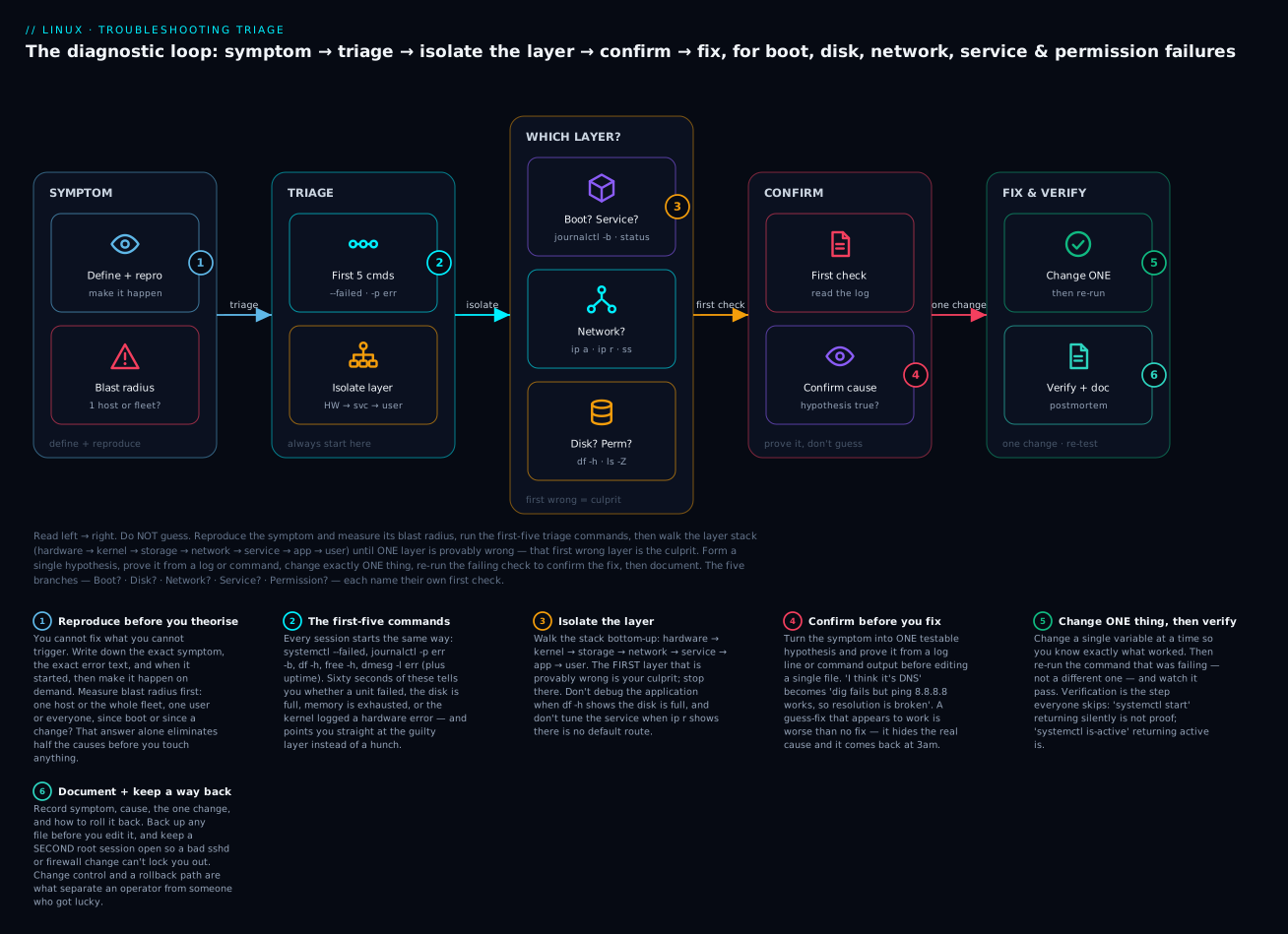
Three badges on that map are worth tattooing on your forearm. One change at a time (badge 5): if you edit the config and restart and open the firewall in one go and it works, you have learned nothing and cannot repeat it. Confirm before you fix (badge 4): turn “I think it’s DNS” into “dig fails but ping 8.8.8.8 works, so it is DNS” before you edit resolv.conf. Document with a rollback (badge 6): back up every file before you touch it, and keep a second root session open so a bad sshd, firewall, or fstab change cannot lock you out of the box you are fixing.
Always start here: the 60-second triage
Before any playbook, before any theory, run the same handful of commands every single time. They take under a minute, they need nothing but a shell, and they immediately tell you which layer is on fire. This is your first-five (six, really — the sixth is free):
# 1. Any systemd units in a failed state? (the single most useful command)
systemctl --failed
# 2. Everything at error priority or worse, this boot
journalctl -p err -b --no-pager | tail -n 40
# 3. Any filesystem full? (the #1 cause of "random" breakage)
df -h
# 4. Out of memory / swap? Is something being OOM-killed?
free -h
# 5. Did the kernel log a hardware/driver error?
sudo dmesg -l err,crit -T
# (free sixth) Load and uptime — is the box thrashing, and did it just reboot?
uptime
Learn what each one rules in or out, because that is what turns a list of commands into a diagnosis:
| Command | What it tells you | Points at layer | Read it as… |
|---|---|---|---|
systemctl --failed |
Which units crashed or won’t start | Service | A named unit here is your prime suspect — go straight to its status. |
journalctl -p err -b |
All error/critical log lines since boot | Any | The error text usually names the subsystem and file. |
journalctl -k -b |
Kernel ring buffer for this boot | Kernel / hardware | I/O errors, OOM kills, filesystem “remounting read-only” live here. |
df -h |
Free space per mounted filesystem | Storage | Any filesystem at 100% (especially /, /var, /tmp) is almost certainly your cause. |
df -i |
Free inodes per filesystem | Storage | 100% inodes with free bytes = millions of tiny files; df -h alone misses this. |
free -h |
RAM and swap in use | Memory | Near-zero available + heavy swap = thrashing; check dmesg for Out of memory: Killed. |
dmesg -l err,crit |
Kernel-level errors, timestamped | Hardware / kernel | Disk I/O error, EXT4-fs error, NIC resets, OOM — the low-layer truth. |
uptime |
Load average + time since boot | System | Load ≫ core count = overloaded; a tiny uptime means it just rebooted (crash? OOM? watchdog?). |
systemctl status |
Overall system state (running/degraded) | Service | State: degraded means at least one unit failed — pair with --failed. |
If those six commands are clean — no failed units, no errors, disk and memory fine, no kernel complaints, sane load — then your problem is almost certainly at the application or user layer (a config, a permission, a bad request), and you have just eliminated the entire bottom of the stack in sixty seconds. If one of them lights up, you have your layer and you go to the matching playbook below.
A note on privilege:
dmesgmay be restricted to root on hardened kernels (kernel.dmesg_restrict=1), andjournalctlshows the full system journal only to root or members of thesystemd-journal/admgroup. When in doubt, run triage withsudo.
Playbook 1 — The system won’t boot
Nothing raises the pulse like a box that won’t come up. But “won’t boot” is a sequence with distinct, separable stages — firmware, bootloader, kernel, initramfs, root pivot, systemd — and the fix depends entirely on how far it got. Your first job is to locate the stall in that sequence, because the recovery for “GRUB never appears” is nothing like the recovery for “systemd hangs on a mount.” If you have not internalised the boot stages, the companion lesson on the boot process: firmware, GRUB, initramfs & systemd targets is the map this playbook navigates.
| Symptom | Likely layer | First check | Likely cause | Fix |
|---|---|---|---|---|
| No firmware/POST, blank screen | Hardware | Screen, beeps, PSU | Dead hardware, wrong boot device | Fix boot order in firmware; check RAM/PSU |
| Firmware OK but no GRUB menu | Bootloader | Does a GRUB prompt appear? | Clobbered MBR/ESP, wrong disk | Boot rescue media → grub2-install / grub-install + regenerate config |
| GRUB menu appears, kernel won’t load | Bootloader/kernel | Pick older kernel entry | Bad kernel/initramfs after update | Boot previous kernel; rebuild initramfs |
Kernel panics: Unable to mount root fs |
Kernel/storage | Panic text names root= |
Wrong root=UUID=, missing storage driver |
Fix root=; rebuild initramfs with the driver |
| Boots then hangs “A start job is running for…” | Storage | Which unit/mount is named | Bad /etc/fstab line, absent device |
Boot with fstab bypassed → fix the line |
Drops to emergency mode shell |
Storage/filesystem | journalctl -xb, systemctl --failed |
Corrupt filesystem, failed mount | Repair FS / fix mount, then systemctl default |
| Boots but no login / lost root password | User | Reaches login prompt? | Forgotten password | rd.break (RHEL) or init=/bin/bash → passwd |
Locating the stall
The single most valuable habit is to read the journal from the failed boot. If the box eventually gives you any shell — a rescue prompt, emergency mode, or you can boot a previous kernel — these tell the whole story:
# The current boot's log, errors highlighted
journalctl -xb
# Just this boot at error priority
journalctl -p err -b
# The PREVIOUS boot (the one that failed), if you've since rebooted
journalctl -b -1 -p err
# What is systemd still waiting on / what failed
systemctl --failed
systemctl list-jobs          # jobs still running = what's hanging the boot
If the box does not even reach a shell, you edit the boot live at the GRUB menu. Highlight the entry, press e, find the linux line (the one with vmlinuz and root=), append a parameter, and boot with Ctrl-x (or F10). These are the parameters that get you in:
| GRUB kernel parameter | Effect | Use it when |
|---|---|---|
systemd.unit=rescue.target |
Boot to single-user rescue (root FS mounted, minimal services) | You need a working shell with most of the system |
systemd.unit=emergency.target |
Most minimal shell, root FS often read-only, nothing else mounted | Rescue itself fails (e.g. a bad /etc/fstab) |
rd.break |
Break in the initramfs, before root pivot; root is at /sysroot |
RHEL/Fedora root-password reset, broken root FS |
init=/bin/bash |
Kernel runs bash as PID 1 instead of systemd | Distro-agnostic last resort; nothing else running |
3 |
Boot to multi-user.target (text, no GUI) |
A broken display manager blocks a graphical boot |
nomodeset |
Disable kernel mode-setting for GPU | Black screen from a bad graphics driver |
single / s |
Legacy single-user request | Older/SysV-flavoured systems |
⚠️ Editing the GRUB line only affects this one boot — it is non-destructive and forgotten on reboot, which is exactly why it is safe to experiment with. Nothing you type there is written to disk.
The two boot fixes you will actually perform
Fix A — a bad /etc/fstab hangs the boot. This is the most common self-inflicted boot outage: someone adds a mount, fat-fingers the UUID or device, and on next reboot systemd waits 90 seconds for a device that will never appear, then drops to emergency mode. The fix:
# In emergency/rescue shell: root is often mounted read-only, so remount it writable
mount -o remount,rw /
# Comment out or correct the offending line
vi /etc/fstab
# Prove the file is now valid BEFORE rebooting — this is the whole point
mount -a          # should return with no error; an error means fstab is still wrong
# Continue the boot without rebooting
systemctl daemon-reload
systemctl default
⚠️ Never reboot a box with a fstab you have not validated with mount -a. The single reason fstab mistakes are so painful is that they only bite at boot; mount -a lets you find the mistake before the reboot instead of after. A defence worth knowing: adding nofail to a non-critical fstab entry makes the boot continue even if that device is missing, converting a full outage into a missing mount. The fstab syntax and mount options are covered in depth in the disks, partitions, filesystems & fstab lesson.
Fix B — reset a lost root password (the classic RHCSA task). On RHEL 8/9, Rocky, and Fedora, you break into the initramfs and reset from there:
# 1. At GRUB, press 'e', append rd.break to the 'linux' line, Ctrl-x to boot.
# 2. You land in the initramfs; the real root is mounted READ-ONLY at /sysroot.
mount -o remount,rw /sysroot     # make it writable
chroot /sysroot                  # enter the real system
passwd root                      # set the new password
touch /.autorelabel              # ⚠️ CRITICAL on SELinux: relabel /etc/shadow on next boot
exit                             # leave chroot
exit                             # continue boot
The touch /.autorelabel step is the one everybody forgets and the reason the reset “doesn’t work”: without it, SELinux has the wrong context on the shadow file you just edited and login fails. On Debian/Ubuntu the equivalent is booting with init=/bin/bash (or the recovery menu’s root shell), then mount -o remount,rw / and passwd, with no relabel step because Ubuntu uses AppArmor rather than SELinux. The mechanics of accounts and passwd live in the users, groups & permissions lesson.
Playbook 2 — Disk full or read-only root
A full filesystem is the great impersonator. It makes services crash on startup, databases refuse writes, logins fail (no space for a session file), and the shell throw baffling errors — all while the actual problem is four words: no space left on device. And its uglier cousin, a filesystem that has flipped to read-only, means the kernel detected corruption or an I/O error and protected your data by refusing further writes. Both are near the bottom of the stack, so they masquerade as everything above.
| Symptom | Likely layer | First check | Likely cause | Fix |
|---|---|---|---|---|
No space left on device on writes |
Storage | df -h |
A filesystem at 100% | Find + remove biggest offenders; vacuum journal |
df shows space free but writes still fail |
Storage | df -i |
Inodes exhausted (millions of tiny files) | Delete the many small files; find with find/du |
Disk usage high but du can’t find it |
Storage | lsof +L1 |
Deleted-but-open file still held by a process | Restart the holding process (or truncate via its fd) |
Read-only file system on every write |
Filesystem | mount | grep ' / ', dmesg |
FS flipped RO after I/O error/corruption | Check dmesg; fsck/xfs_repair unmounted; remount |
/boot full, kernel updates fail |
Storage | df -h /boot |
Old kernels/initramfs pile up | Remove old kernels (dnf/apt autoremove) |
| Space vanishes overnight | Storage | du -x, journal size |
Runaway log or core dumps | Rotate/limit logs; cap journald; disable cores |
Cannot create temp file / login fails |
Storage | df -h / /tmp /var |
/ or /tmp full |
Free space in the specific full mount |
Finding what ate the disk
df tells you which filesystem is full; du tells you what filled it. The one flag that matters is -x (--one-file-system), which stops du from wandering across mount points and giving you a meaningless total:
# WHICH filesystem is full? (start here, always)
df -h
# Out of inodes instead of bytes? (df -h looks fine but writes fail)
df -i
# WHAT filled the guilty filesystem — biggest top-level dirs, staying on one FS
sudo du -x -h -d1 / 2>/dev/null | sort -rh | head -20
# Drill down into the biggest offender
sudo du -x -h -d1 /var 2>/dev/null | sort -rh | head -20
# The single biggest files anywhere under a path
sudo find /var -xdev -type f -printf '%s\t%p\n' 2>/dev/null | sort -rn | head -20
| Tool / flag | What it does | Why it matters |
|---|---|---|
df -h |
Human-readable free space per mount | Identifies the filesystem, not the directory |
df -i |
Free inodes per mount | Catches “space free but can’t write” — inode exhaustion |
df -hT |
Adds the filesystem type column | Tells you ext4 vs xfs vs tmpfs — changes your repair tool |
du -x |
Stay on one filesystem | Without it, du / counts /proc, /sys, bind mounts — garbage totals |
du -h -d1 |
Human sizes, one level deep | The right granularity to descend a tree fast |
lsof +L1 |
Files with link count < 1 | Finds deleted-but-open files — the “phantom” usage |
ncdu |
Interactive disk-usage browser | The friendliest way to hunt a full disk (install it) |
The two traps: phantom space and read-only root
Trap 1 — deleted but still open. You delete a 40 GB log file, but df still shows the disk full and du cannot find the 40 GB anywhere. The reason: a process still has the file open. On Linux, disk space is not reclaimed until the last file descriptor to a file is closed — deleting the name (unlink) is not enough while a process holds it open. lsof +L1 lists exactly these files (link count zero, still open):
# Find deleted-but-still-open files eating space
sudo lsof +L1
# Example row: the '0' NLINK column and '(deleted)' name are the tell
# COMMAND  PID USER  FD  TYPE  DEVICE  SIZE/OFF NLINK  NODE NAME
# rsyslogd 812 root   7w  REG   253,0 4.0G       0  1234 /var/log/huge.log (deleted)
The fix is to make the process release the descriptor: restart it (systemctl restart rsyslog) or, if you cannot, truncate the file through its still-open fd without restarting: : > /proc/812/fd/7. Restarting is almost always cleaner.
Trap 2 — read-only root. When you see Read-only file system on writes to /, the kernel almost certainly remounted it read-only to protect you after detecting corruption or an I/O error. Do not blindly remount it read-write — first find out why:
# What state is / actually in?
mount | grep ' / '           # look for 'ro' in the options
# Why did it go read-only? The kernel logged it:
sudo dmesg -T | grep -iE 'ext4-fs error|xfs|i/o error|remount' | tail
If dmesg shows a hardware I/O error, remounting rw will only corrupt more — the disk is dying; get the data off and replace it. If it is filesystem corruption on a healthy disk, you repair it — and a filesystem can only be repaired while unmounted, which for the root filesystem means from rescue media or the initramfs:
| Filesystem | Check tool | Repair command | Notes |
|---|---|---|---|
| ext2/3/4 | e2fsck -n (read-only preview) |
fsck.ext4 -y /dev/sdaN |
Must be unmounted; -y auto-answers yes |
| XFS | xfs_repair -n (dry run) |
xfs_repair /dev/sdaN |
fsck.xfs is a no-op by design — use xfs_repair |
| Btrfs | btrfs check --readonly |
btrfs check --repair |
--repair is a last resort; try btrfs scrub first |
| Any (mounted RO) | — | mount -o remount,rw / |
Only after you know it’s a clean/transient reason |
⚠️ Never run fsck or xfs_repair on a mounted filesystem — it will corrupt data catastrophically. fsck on the live root is why boxes get bricked. Unmount first, or run it from a rescue environment where the target FS is not mounted.
Finally, the space-recovery moves that are almost always safe: vacuum the systemd journal (frequently the biggest single consumer of /var), and clear old kernels off a full /boot:
# Cap the journal to a size or age — reclaims /var immediately
sudo journalctl --vacuum-size=200M      # keep at most 200 MB
sudo journalctl --vacuum-time=7d        # keep only the last 7 days
# Remove old kernels/packages (Debian/Ubuntu)
sudo apt autoremove --purge
# Remove old kernels (RHEL/Fedora/Rocky) — keep the running one
sudo dnf remove --oldinstallonly        # or: dnf autoremove
For a durable fix (rotating logs, capping journal size permanently), see the logging: journald, rsyslog & logrotate lesson — a full disk is very often a logging problem wearing a storage costume.
Playbook 3 — No network
“No network” is where the layer method pays off most obviously, because networking is itself a stack, and you diagnose it by climbing that stack one rung at a time. The mistake beginners make is jumping straight to the top (“the website won’t load, it must be DNS”) when the interface is down three rungs below. The cure is a fixed ladder you climb in order; the first rung that fails is your layer, and you stop there. The underlying tools — ip, nmcli, ss, dig — are covered in depth in the networking fundamentals lesson; here we weaponise them into a diagnosis.
| Symptom | Likely layer | First check | Likely cause | Fix |
|---|---|---|---|---|
| No IP address on the interface | Link/L2 | ip a |
Interface down, no DHCP lease, bad cable/VLAN | ip link set up; renew DHCP; check nmcli |
| Have IP, can’t reach anything off-subnet | Routing/L3 | ip r |
Missing/wrong default route | Add default route; fix nmcli/netplan gateway |
| Can ping gateway, not the internet | Routing/upstream | ping 8.8.8.8 |
Upstream/NAT/route problem beyond you | Escalate to network; check firewall/NAT |
Can ping 8.8.8.8, names don’t resolve |
DNS | dig, resolvectl status |
Broken /etc/resolv.conf or DNS server |
Fix resolver config; test with dig @1.1.1.1 |
| Names resolve, service refuses connection | Service/firewall | ss -tlnp, curl -v |
Service not listening, or firewall drop | Start/bind the service; open the port |
Connection refused on a local port |
Service | ss -tlnp | grep :PORT |
Nothing is listening on that port | Start the service; check its bind address |
Connection timed out (not refused) |
Firewall | nft list ruleset, remote FW |
A firewall silently drops the packet | Allow the port on host/security-group firewall |
The connectivity ladder
Climb these rungs in order. Each one isolates exactly one layer, and the first failure is your answer:
# Rung 1 — L2/L3 local: is the interface up and does it have an IP?
ip -brief a          # eth0  UP  192.168.1.50/24   <- want an address + UP
ip link              # look for 'state UP' and 'NO-CARRIER' (cable/link problem)

# Rung 2 — routing: is there a default route, and via the right gateway?
ip r                 # want a line: 'default via 192.168.1.1 dev eth0'

# Rung 3 — local reachability: can I reach my own gateway? (tests L2 + local L3)
ping -c3 192.168.1.1

# Rung 4 — internet by IP: does routing/NAT work? (bypasses DNS entirely)
ping -c3 8.8.8.8

# Rung 5 — DNS: can I resolve a name? (only meaningful if rung 4 worked)
dig +short example.com      # or: getent hosts example.com
resolvectl status           # systemd-resolved: which server, which domain

# Rung 6 — the service itself: is the target port actually open and answering?
curl -sv http://example.com:80 -o /dev/null   # full request, verbose handshake
nc -vz example.com 443                          # just: is the TCP port open?
ss -tlnp                                        # locally: what is listening, and as who?
| Rung | Command | Passes → rules out | Fails → your layer is |
|---|---|---|---|
| 1 | ip a |
Interface + addressing | Link / DHCP / driver |
| 2 | ip r |
Local routing table | Missing default route |
| 3 | ping gateway |
L2 + local subnet | Local network / ARP / VLAN |
| 4 | ping 8.8.8.8 |
Routing + NAT to internet | Upstream routing / firewall |
| 5 | dig / getent |
Everything below DNS | DNS only |
| 6 | curl / ss |
The whole path | The service or its firewall |
The elegance is diagnostic subtraction. If ping 8.8.8.8 works but dig fails, you have proven it is DNS — routing and connectivity are fine, only name resolution is broken, so you look at /etc/resolv.conf, resolvectl status, or the DNS server itself. If ping 8.8.8.8 fails but ping <gateway> works, the problem is upstream of you — routing or NAT beyond your host — and no amount of fiddling with resolv.conf will help. Each rung eliminates everything below it.
Refused vs timed out — the tell that saves an hour
The most useful single distinction in network debugging:
Connection refusedmeans a packet reached the host and the host actively said “nothing is listening here” (a TCP RST). The network path works; the service is down or bound to the wrong address. Checkss -tlnp— is anything listening on that port, and on0.0.0.0/::versus only127.0.0.1? A service bound to127.0.0.1refuses every remote client while looking perfectly healthy locally.Connection timed outmeans the packet vanished — no response at all. That is the fingerprint of a firewall silently dropping the packet (host firewall, cloud security group, or an upstream ACL). FirewallsDROP(silence → timeout); servicesREJECT(RST → refused).
# What is listening locally, numeric, with the owning process
ss -tlnp
# LISTEN 0 128 127.0.0.1:5432 ...  <- Postgres only on localhost = remote refused
# LISTEN 0 128       0.0.0.0:80   ...  <- reachable from anywhere

# Host firewall state (pick your distro's front-end)
sudo firewall-cmd --list-all      # RHEL/Fedora (firewalld)
sudo ufw status verbose           # Debian/Ubuntu (ufw)
sudo nft list ruleset             # the modern nftables truth underneath both
sudo iptables -L -n -v            # legacy view (still works via nft compat)
If ss shows the service listening on the right address and you still get a timeout from another host, the drop is a firewall — and in the cloud it is very often the security group, not the OS firewall at all. Check both; the layer method applies to the network too.
Playbook 4 — A service won’t start
A systemd service that refuses to start is the most common day-to-day failure, and systemd is refreshingly honest about why — if you ask it correctly. The two commands that answer 90% of cases are systemctl status -l <unit> (the summary and the last few log lines) and journalctl -u <unit> -e (the full, unfiltered story). Beginners stop at “it failed”; the log almost always contains the exact reason on one line. The unit-file mechanics behind this playbook are covered in the systemd: units, services, targets & journald lesson.
| Symptom | Likely layer | First check | Likely cause | Fix |
|---|---|---|---|---|
status=203/EXEC |
Service | systemctl status -l |
ExecStart path wrong / not executable | Fix ExecStart=; chmod +x the binary |
status=200/CHDIR |
Service | systemctl cat |
WorkingDirectory= doesn’t exist |
Create the dir or fix the path |
Address already in use |
Service | ss -tlnp | grep :PORT |
Another process owns the port | Stop the other process, or change the port |
Starts then exits code=exited status=1 |
Application | journalctl -u -e |
App config error, missing dependency | Read the app error; run its config test |
Permission denied in the log |
User/security | journalctl, ls -Z, ausearch -m AVC |
File perms or SELinux denial | Fix perms/ownership; restorecon; SELinux boolean |
| Fails only at boot, fine manually | Service | Check After=/Requires= |
Started before a dependency (network/mount) | Add After=/Wants= for the real dependency |
Job for x.service failed…see 'journalctl -xe' |
Service | journalctl -xe |
Generic — read the actual error | Follow the journal to the specific cause |
unit not found |
Service | systemctl daemon-reload |
New/edited unit not reloaded | daemon-reload; check file path + name |
The service-debugging sequence
# 1. The summary + last 10 log lines + the exit code (start here)
systemctl status -l nginx.service
# 2. The full journal for this unit, jump to the end
journalctl -u nginx.service -e --no-pager
# 3. See the EFFECTIVE unit file (base + all drop-ins merged)
systemctl cat nginx.service
# 4. Validate the unit file syntax itself
systemd-analyze verify nginx.service
# 5. After ANY unit-file edit — systemd won't see changes until you reload
sudo systemctl daemon-reload
The exit codes in status are a precise vocabulary — learn the common ones and you often skip straight to the fix:
status= code |
Meaning | Usual cause | Fix |
|---|---|---|---|
203/EXEC |
Couldn’t exec the ExecStart binary | Wrong path, not executable, wrong interpreter | Verify path with ls -l; chmod +x; fix shebang |
200/CHDIR |
Couldn’t change to WorkingDirectory |
Directory missing | Create it or correct WorkingDirectory= |
226/NAMESPACE |
Sandbox/namespace setup failed | ProtectHome=/ReadOnlyPaths= mis-set |
Fix the hardening directive |
1/FAILURE |
The program itself exited non-zero | App-level config/logic error | Read the app’s own log line |
217/USER |
The User= doesn’t exist |
Typo’d or absent service account | Create the user or fix User= |
code=killed signal=SEGV |
Crashed (segfault) | Bug or corrupt binary/lib | Reinstall; check coredumpctl |
Result: timeout |
Didn’t signal ready in time | Type=notify service that never notified |
Fix readiness signalling / raise TimeoutStartSec= |
The traps that fool everyone
Config errors — never restart blind. Every serious daemon ships a config test that validates syntax without touching the running service. Run it before you restart, so you never take an outage from a typo:
| Service | Config test command | What it catches |
|---|---|---|
| nginx | nginx -t |
Syntax + cert paths, before reload |
| Apache | apachectl configtest / httpd -t |
Vhost/module syntax |
| sshd | sshd -t |
⚠️ Bad sshd_config can lock you out — always test |
| BIND | named-checkconf / named-checkzone |
Config + zone-file syntax |
| Postfix | postfix check / postconf |
Main.cf sanity |
| sudo | visudo -c |
⚠️ A broken sudoers file breaks all sudo |
| Any unit | systemd-analyze verify unit |
Unit-file directives |
“Address already in use.” The service can’t bind because something already holds its port. Find the squatter and decide who wins:
sudo ss -tlnp | grep ':80 '        # who is on port 80?
# Or by port with lsof:
sudo lsof -i :80
The After= boot-order trap. A service that starts fine when you run it by hand but fails at boot is almost always a dependency ordering problem: it started before the thing it needs (the network was not up, the NFS mount was not ready, the database socket did not exist yet). The fix is to declare the real dependency in the unit — After=network-online.target with Wants=network-online.target, or After= the specific mount/service — and daemon-reload. systemctl list-dependencies <unit> shows the ordering graph.
Playbook 5 — Permission denied
Permission denied (errno EACCES) looks simple and is anything but, because on a modern Linux there are five independent gates a request must pass, and the shell reports all five with the same three words. The skill is knowing which gate slammed. Work them in order — classic Unix rwx first, because it is the most common by far, then the exotic ones. The rwx/ownership model itself is taught in the users, groups & permissions lesson; here we turn it into a diagnosis.
| Symptom | Likely gate | First check | Likely cause | Fix |
|---|---|---|---|---|
Permission denied reading/writing a file |
DAC (rwx) | ls -l, id |
Wrong mode/owner for your user/group | chmod/chown, or add user to the group |
Denied, but ls -l mode looks fine |
ACL | getfacl file |
An ACL entry overrides the visible bits | setfacl to grant, or read the ACL mask |
Denied on RHEL despite correct rwx |
SELinux | ls -Z, ausearch -m AVC |
Wrong SELinux context / boolean off | restorecon; set the right context/boolean |
cd into a dir fails though files readable |
DAC (dir x) |
ls -ld dir, namei -l |
Missing execute on a parent directory | chmod +x the traversed directory |
sudo: … not allowed |
sudo policy | sudo -l |
No sudoers rule for you/this command | Add a sudoers rule (via visudo) |
Permission denied executing a script |
mount / DAC | mount | grep, ls -l |
noexec mount, or missing x bit |
Remount without noexec, or chmod +x |
| Web server 403 on RHEL, files world-readable | SELinux | ls -Z, journalctl -t setroubleshoot |
Wrong httpd_sys_content_t context |
restorecon -Rv, or chcon the content |
The five gates, and the tool for each
| Gate | What it checks | Inspect with | Fix with |
|---|---|---|---|
| DAC (rwx) | Owner/group/other read-write-execute bits | ls -l, stat, id |
chmod, chown, usermod -aG |
| Path traversal | Execute bit on every parent directory | namei -l /full/path |
chmod +x each missing dir |
| ACL | Extended per-user/group grants | getfacl |
setfacl -m, mind the mask |
| SELinux (MAC) | Security context (type enforcement) | ls -Z, ausearch -m AVC, sealert |
restorecon, chcon, setsebool |
| sudo policy | Whether you may run this as root | sudo -l |
visudo rule |
| Mount options | noexec, nosuid, ro on the filesystem |
mount, findmnt |
Remount / edit fstab option |
Working the gates
Gate 1 — read it literally, and check the path, not just the file. The most missed cause is a missing execute bit on a parent directory: to open /data/reports/q3.csv you need x (search) on /, /data, and /data/reports, plus r on the file. namei -l shows the permission of every component in one shot — it is the single best permission-debugging command and almost nobody knows it:
# Show mode + owner of EVERY component of the path
namei -l /data/reports/q3.csv
# f: /data/reports/q3.csv
# dr-xr-xr-x root root /
# drwxr-x--- alice alice data        <- HERE: 'other' has no x; you're denied traversal
# drwxr-xr-x alice alice reports
# -rw-r--r-- alice alice q3.csv
# Confirm which identity you actually are, including supplementary groups
id
Gate 2 — ACLs hide behind normal-looking bits. If ls -l shows a mode that should grant you access but you are still denied, look for a trailing + on the mode string (-rw-rwx---+) — that plus sign means an ACL is present and overriding your intuition. getfacl reveals it, and watch the mask, which caps every named/group entry:
getfacl /srv/share/file
# user::rw-
# user:bob:rwx        <- bob has an explicit ACL grant...
# mask::r--           <- ...but the mask caps it to r-- ! effective: r--
setfacl -m u:bob:rwx /srv/share/file   # grant, and raise the mask if needed
Gate 3 — SELinux, the RHEL surprise. On RHEL/Fedora/Rocky, SELinux is enforcing by default, and it denies based on context even when rwx is perfect. The tell is that everything looks right but access fails, and a denial (AVC) is logged. The workflow:
# Is SELinux even on? (Permissive/Disabled removes it as a suspect)
getenforce
# The security context of the file (the 4th field: user:role:TYPE:level)
ls -Z /var/www/html/index.html
# The denial record — this NAMES what was blocked and why
sudo ausearch -m AVC -ts recent
# Friendly explanation + suggested fix
sudo sealert -a /var/log/audit/audit.log
# Most common fix: reset the file to its POLICY-CORRECT context
sudo restorecon -Rv /var/www/html
The number-one SELinux cause for beginners: you moved a file into place (with mv, or by extracting a tarball, or serving content from a non-standard path). Moving preserves the old context, so an nginx-served file that came from /home carries a home-directory type that httpd may not read → 403. restorecon relabels it to the correct type; semanage fcontext makes a non-standard path permanent. ⚠️ setenforce 0 (permissive) is a diagnostic — if the problem vanishes, you have proven it is SELinux — but it is not a fix; turn it back on with setenforce 1 and solve the context properly. On Debian/Ubuntu the equivalent MAC layer is AppArmor (aa-status, denials in /var/log/syslog or dmesg, profiles in /etc/apparmor.d/).
Gate 4 — sudo and mount options. sudo -l lists exactly what you are permitted to run as root; if the command is not there, no sudoers rule grants it. And a script that is executable (chmod +x done) but still refuses to run with Permission denied is very often on a filesystem mounted noexec (common for /tmp, /var, and /home on hardened systems) — findmnt -T /path/to/script shows the mount options, and the fix is to run it from an exec-permitted filesystem or remount.
The troubleshooter’s toolbox
Beyond the first-five, a small set of tools covers almost everything else. You do not need to master them all today — you need to know which one answers which question, so that when the standard commands run dry you know where to reach.
| Tool | Answers the question | Example |
|---|---|---|
journalctl |
“What did the system log, and when?” | journalctl -u app -S -1h -p err |
systemctl |
“What is the state of this unit/system?” | systemctl status, --failed, is-active |
ss |
“What is listening / connected, and as who?” | ss -tlnp, ss -s (summary) |
ip |
“What is the network config?” | ip a, ip r, ip -s link |
lsof |
“Who has this file/port/dir open?” | lsof /var/log/x, lsof -i :443, lsof +L1 |
strace |
“What syscall is this process making/stuck on?” | strace -f -p PID |
ltrace |
“What library calls is it making?” | ltrace -p PID |
/proc/PID/* |
“What is this exact process doing right now?” | cat /proc/PID/status, ls -l /proc/PID/fd |
dmesg |
“What did the kernel just say?” | dmesg -T -l err,crit -w |
perf top / pidstat |
“What is burning CPU/IO?” | pidstat -d 1, perf top |
When a process hangs: strace and /proc
The scariest failure is a process that is simply stuck — not crashed, not logging, just frozen, holding a lock or a port. Here, strace and /proc let you see inside a running process without restarting it. strace prints the system calls a process makes; attach to a hung one and the last line is what it is blocked in:
# Attach to a running (possibly hung) process and watch its syscalls
sudo strace -f -p 1234
# ... if the last line just sits there, that syscall is the block:
#   futex(0x..., FUTEX_WAIT, ...      -> stuck on a lock (deadlock/contention)
#   read(7, ...                        -> waiting on a fd (fd 7 = ? see /proc)
#   connect(5, {sa_family=AF_INET...   -> hung on a network connect (firewall/DNS)
#   stat("/mnt/nfs/...",               -> blocked on a dead NFS/disk mount

# Trace a command from launch, only file-opens, timestamps + durations
strace -ttT -e trace=openat,stat -f myapp 2>strace.out
# A one-line summary of where the time/syscalls went
strace -c -p 1234        # (Ctrl-C to print the table)
strace flag |
Effect |
|---|---|
-p PID |
Attach to an already-running process |
-f |
Follow child processes (threads/forks) too |
-e trace=… |
Filter to specific syscalls (openat, connect, network, file) |
-c |
Print a summary count/time table instead of every line |
-tt / -T |
Timestamps / time spent in each syscall |
-y |
Show the path/target behind each file descriptor |
-o file |
Write to a file (keeps the terminal readable) |
The last syscall printed before the process freezes is the diagnosis — read it against this table:
| Last syscall shown | The process is blocked on… | Where to look next |
|---|---|---|
futex(..., FUTEX_WAIT |
A userspace lock (deadlock/contention) | Other threads: /proc/PID/task/*/stack |
read(fd, / recvfrom( |
Input on a fd that never arrives | ls -l /proc/PID/fd/FD — what is that fd? |
connect( / poll( on a socket |
A network peer (firewall drop / dead DNS) | The network playbook: ss, ping, dig |
stat/openat on a path |
A dead or hung mount (NFS, failing disk) | mount, dmesg; the path’s filesystem |
wait4( |
A child process that never exits | The child’s own state (ps, then recurse) |
Nothing printed, state D |
The kernel itself — uninterruptible I/O | /proc/PID/wchan, storage/mount health |
⚠️ strace pauses the target on every syscall — it can slow a hot process by 10-100× or worsen a timing-sensitive hang. Use it briefly on production, prefer a spare replica, and detach as soon as you have your answer.
When you cannot even attach, /proc/<pid>/ is the process laid bare as files — no tool required, just cat and ls:
| Path | Shows |
|---|---|
/proc/PID/status |
State (R/S/D/Z), UID/GID, memory (VmRSS), threads |
/proc/PID/cmdline |
The exact command line (NUL-separated) |
/proc/PID/cwd |
Symlink to its working directory |
/proc/PID/fd/ |
Every open file descriptor (files, sockets, pipes) |
/proc/PID/environ |
Its environment (great for “what did cron pass?”) |
/proc/PID/limits |
Its ulimits (open-file caps, memory) |
/proc/PID/wchan |
The kernel function it is sleeping in |
/proc/PID/stack |
Kernel stack (why a D-state process is stuck) |
A process in state D (uninterruptible sleep) in /proc/PID/status is blocked in the kernel — almost always on disk or a hung NFS mount — and you cannot kill -9 it out of that state; you fix the storage/mount underneath. That single fact demystifies half of “why won’t this process die?” questions.
Staying safe: change control and blast radius
The fastest way to turn a small incident into a large one is a careless fix. Before you change anything on a system that is already unhappy, spend the ten seconds these habits cost — they are what separate an operator from someone who got lucky.
| Habit | Why | How |
|---|---|---|
| Back up before you edit | You need a way back from a bad edit | cp sshd_config sshd_config.$(date +%F) |
| Keep a second root session | A bad sshd/firewall/fstab change can lock you out |
Open a second SSH session and leave it logged in |
| Change ONE thing | So you know what fixed (or broke) it | One edit → verify → next |
| Test config before reload | Never take an outage from a typo | nginx -t, sshd -t, visudo -c, mount -a |
| Verify with the failing command | A silent return is not proof | Re-run the exact thing that failed |
| Undo your debug hacks | setenforce 0, opened ports, RO→RW remounts leave the box unsafe |
Revert every temporary change |
| Write it down | Next month’s you (or a colleague) needs the story | Symptom · cause · change · rollback |
Two deserve emphasis. Keep a second session is the one people learn the hard way: edit sshd_config or the firewall over SSH, apply it, get disconnected, and discover the change locked out every login — with no console access. A second, already-authenticated session lets you undo it even when the new config refuses connections. Back up before you edit makes every risky change reversible — cp file file.bak costs nothing and has saved more outages than any monitoring tool. That last loop step, document and keep a way back, is not paperwork; it is the safety net that lets you move fast on the next incident.
Hands-on lab
⚠️ Run this on a throwaway VM, WSL instance, or container you can destroy — it deliberately breaks things. Do not run it on anything you care about. Every step cleans up after itself, but a snapshot first is cheap insurance.
We will manufacture four of the five failure classes and diagnose each by method, so the loop becomes muscle memory.
Step 1 — Baseline triage. Learn what “healthy” looks like on this box before you break it.
systemctl --failed          # expect: 0 loaded units listed
df -h                       # note the % on / and /var
free -h ; uptime            # note available memory and load
What just happened: you established the baseline. Every later step compares against this. On a healthy box systemctl --failed shows nothing — so when it shows something later, you know it is your fault.
Step 2 — Break a service, then diagnose it (Playbook 4).
# Create a broken unit: the ExecStart binary does not exist
sudo tee /etc/systemd/system/lab.service >/dev/null <<'EOF'
[Unit]
Description=Lab broken service
[Service]
ExecStart=/usr/local/bin/does-not-exist
EOF
sudo systemctl daemon-reload
sudo systemctl start lab.service        # returns an error
# --- now diagnose, don't peek at the cause above ---
systemctl status -l lab.service         # look for: status=203/EXEC
journalctl -u lab.service -e --no-pager # the exact failing path
What just happened: status=203/EXEC is systemd telling you it could not execute the ExecStart path — Playbook 4’s first row. The fix is to correct the path. You just read a real exit code and mapped it to a cause.
Step 3 — Simulate a full disk, including phantom space (Playbook 2).
# Build a tiny 20 MB throwaway filesystem in a file (no real disk touched)
mkdir -p /tmp/lab && dd if=/dev/zero of=/tmp/lab/disk.img bs=1M count=20 status=none
mkfs.ext4 -q /tmp/lab/disk.img
sudo mkdir -p /mnt/lab && sudo mount -o loop /tmp/lab/disk.img /mnt/lab
df -h /mnt/lab                                   # ~18M, mostly free
# Fill it and watch the write fail:
sudo dd if=/dev/zero of=/mnt/lab/fill bs=1M count=50 2>&1 | tail -1   # No space left
df -h  /mnt/lab                                  # 100% used
# The phantom-space trap: hold a deleted file open in a subshell
sudo bash -c 'exec 9>/mnt/lab/ghost; dd if=/dev/zero of=/mnt/lab/ghost bs=1M count=5 status=none; rm /mnt/lab/ghost; echo "deleted ghost, but df still shows it used:"; df -h /mnt/lab; lsof +L1 /mnt/lab; exec 9>&-'
What just happened: df reported 100% and, after rm, the space was still consumed until the file descriptor closed — exactly the deleted-but-open trap, and lsof +L1 named the culprit. This is the failure that makes people reboot in confusion; you now recognise it in seconds.
Step 4 — Manufacture a permission-denied path (Playbook 5).
sudo mkdir -p /srv/lab/private && echo secret | sudo tee /srv/lab/private/data.txt >/dev/null
sudo chmod 750 /srv/lab/private            # 'other' loses execute/search on the dir
sudo useradd labtester 2>/dev/null || true
sudo -u labtester cat /srv/lab/private/data.txt   # Permission denied
# --- diagnose by path, not guesswork ---
sudo -u labtester namei -l /srv/lab/private/data.txt   # find the exact denying component
What just happened: namei -l walked every directory and showed which one lacked the search (x) bit for labtester — the file itself was readable, but a parent directory blocked traversal. That is the permission trap beginners never find with ls -l on the file alone.
Step 5 — Clean up. Leave no trace.
sudo umount /mnt/lab && sudo rmdir /mnt/lab && rm -rf /tmp/lab
sudo systemctl stop lab.service 2>/dev/null; sudo rm /etc/systemd/system/lab.service; sudo systemctl daemon-reload
sudo rm -rf /srv/lab && sudo userdel labtester 2>/dev/null
systemctl --failed          # back to a clean baseline
What just happened: you restored the baseline from Step 1 — the undo your debug hacks discipline in miniature. Diagnose, then always return the box to a known-good state.
Common mistakes and troubleshooting
| Symptom / mistake | Cause | Fix |
|---|---|---|
| “Fixed” it but it breaks again next day | Treated the symptom, not the cause (restarted the app while the disk kept filling) | Isolate the layer; fix the root cause, then verify it stays fixed |
| Changed five things, now it works, don’t know why | Violated one-change-at-a-time | Revert to baseline; change one variable at a time |
Edited a unit file, systemctl ignores it |
systemd caches unit files | sudo systemctl daemon-reload after every unit edit |
| Reset root password on RHEL, still can’t log in | Skipped touch /.autorelabel; SELinux context on /etc/shadow wrong |
Reboot with autorelabel, or restorecon /etc/shadow |
df says full, du can’t find the space |
Deleted-but-open file held by a process | lsof +L1; restart the holding process |
Ran fsck on the mounted root, corrupted it |
Filesystem repair on a mounted FS | Only ever fsck/xfs_repair unmounted (rescue/initramfs) |
Locked out after editing sshd_config |
Applied an untested SSH change over SSH | Always sshd -t first, and keep a second session open |
| Web 403 on RHEL though files are readable | Wrong SELinux context (moved/extracted file) | restorecon -Rv; don’t disable SELinux |
ping works but nothing loads |
Stopped climbing the ladder too early | Continue: dig (DNS) and ss/curl (service) |
Killed a stuck process with -9, won’t die |
Process in D (uninterruptible) state on dead I/O |
Fix the storage/mount; D-state ignores signals |
The three nastiest, spelled out. First: the symptom-fix loop. You restart the crashing service, close the ticket — and it crashes again in an hour because the disk is still 100% full. The restart “worked” only by buying minutes before the log refilled the disk. If a fix works but you cannot explain the mechanism, you have not fixed anything, you have reset the clock — always be able to answer “why did that fix it?”
Second: the untested reload that locks you out. sshd, firewalld/ufw, and /etc/fstab are the three files that can sever your own connection to the box. Test each before applying — sshd -t, mount -a — and keep a second authenticated session open as your parachute.
Third: fixing the wrong layer. The whole method exists to prevent this, yet it is still the most common error under pressure: the app developer debugs the app, the DBA blames the query, while df -h would have shown a full disk in three seconds. Run the first-five before you form any theory.
Cheat-sheet
| Command | What it does |
|---|---|
systemctl --failed |
List all failed units (best first command) |
journalctl -p err -b |
All errors this boot |
journalctl -xb |
Full current-boot log, with explanations |
journalctl -b -1 |
The previous (failed) boot’s log |
journalctl -u UNIT -e -f |
A unit’s log, end, follow live |
df -h / df -i / df -hT |
Free space / inodes / with FS type |
du -xh -d1 /path | sort -rh |
Biggest dirs, one filesystem |
lsof +L1 |
Deleted-but-open files eating space |
free -h |
Memory and swap |
dmesg -T -l err,crit |
Kernel errors, human timestamps |
uptime |
Load average + time since boot |
ip -br a / ip r |
Interfaces+IPs (brief) / routing table |
ping -c3 8.8.8.8 |
Internet by IP (bypass DNS) |
dig +short NAME / resolvectl status |
DNS resolution / resolver config |
ss -tlnp |
Listening TCP sockets + owning process |
curl -sv URL / nc -vz host port |
Test a service / test a port open |
firewall-cmd --list-all / ufw status |
Host firewall rules (RHEL / Debian) |
systemctl status -l UNIT |
Unit summary + last log + exit code |
systemctl cat UNIT |
Effective merged unit file |
systemd-analyze verify UNIT |
Validate unit-file syntax |
nginx -t / sshd -t / visudo -c |
Config-syntax tests (before reload!) |
ls -l / ls -Z / getfacl |
rwx+owner / SELinux context / ACLs |
namei -l /full/path |
Perms of every component of a path |
id / sudo -l |
Your identity+groups / your sudo rights |
restorecon -Rv PATH / getenforce |
Fix SELinux labels / SELinux mode |
ausearch -m AVC -ts recent |
Recent SELinux denials |
strace -f -p PID |
Watch a process’s syscalls (find a hang) |
cat /proc/PID/status / ls -l /proc/PID/fd |
Process state / open descriptors |
mount -o remount,rw / |
Remount root read-write (after root cause!) |
mount -a |
Validate /etc/fstab before rebooting |
Interview and exam questions
Q: A server is “slow and throwing random errors.” What are the first commands you run and why?
A: The first-five triage: systemctl --failed, journalctl -p err -b, df -h (and df -i), free -h, dmesg -l err, plus uptime. They take under a minute and isolate the layer — a failed unit, a full disk/inode table, memory exhaustion, or a kernel/hardware error — before I form any theory. “Random errors” are very often a single full filesystem impersonating many failures.
Q: df -h shows a filesystem 100% full, but du -sh on it accounts for far less. Explain.
A: A process is holding a deleted-but-open file. On Linux, space is freed only when the last file descriptor closes, so rm on a large log a daemon still has open removes the name but not the data. du walks names and can’t see it; lsof +L1 lists it (link count 0, (deleted)). Fix: restart the holding process, or truncate via /proc/PID/fd/N.
Q: You can ping 8.8.8.8 but curl https://example.com fails. Where is the problem and how do you prove it?
A: Connectivity and routing are fine (ICMP to a public IP works), so the fault is above routing — almost certainly DNS. Prove it with dig +short example.com or getent hosts example.com: if resolution fails while ping 8.8.8.8 works, it is DNS, and I check /etc/resolv.conf / resolvectl status, testing against a known resolver with dig @1.1.1.1 example.com.
Q: A systemd service fails with status=203/EXEC. What does that mean and how do you fix it?
A: systemd could not execute the ExecStart binary — the path is wrong, the file isn’t executable, or the interpreter/shebang is bad. Confirm with systemctl status -l and systemctl cat to see the effective ExecStart, then ls -l the path; fix the path or chmod +x, then daemon-reload and start. Verify with systemctl is-active.
Q: (RHCSA) You’ve forgotten the root password on a RHEL 9 box. Walk through resetting it.
A: Reboot; at GRUB press e, append rd.break to the linux line, Ctrl-x. In the initramfs, mount -o remount,rw /sysroot, chroot /sysroot, passwd root, then touch /.autorelabel so SELinux relabels /etc/shadow on next boot, exit, exit. Omitting the relabel is why the reset “doesn’t work.”
Q: What is the difference between Connection refused and Connection timed out, diagnostically?
A: refused = the packet reached the host and got a TCP RST — the path works, but nothing is listening on that port (or it’s bound to 127.0.0.1 only). Check ss -tlnp. timed out = the packet vanished with no reply — the fingerprint of a firewall dropping it (host firewall or cloud security group). Refused → service problem; timeout → firewall problem.
Q: A file is -rw-r--r-- and owned by you, yet you get Permission denied opening it. Name two causes.
A: (1) A parent directory lacks the execute/search bit, so you can’t traverse the path — check with namei -l. (2) An ACL or SELinux context overrides the visible bits — a trailing + on the mode means an ACL (getfacl), and on RHEL a wrong context denies despite correct rwx (ls -Z, ausearch -m AVC).
Q: The boot hangs at “A start job is running for /mnt/data.” What happened and how do you recover?
A: A /etc/fstab entry references a device that isn’t present, so systemd waits (default ~90s) then drops to emergency mode. Recover by booting to emergency.target (or the box drops there itself), mount -o remount,rw /, comment/fix the bad fstab line, validate with mount -a, then systemctl default. Prevention: add nofail to non-critical mounts.
Q: How do you investigate a process that is completely hung (not using CPU, not crashing)?
A: Attach strace -f -p PID; the last syscall shown is where it’s blocked — futex (lock), read/connect (I/O or network), stat on a dead mount. Cross-reference /proc/PID/status (state D = uninterruptible kernel sleep, usually dead disk/NFS), /proc/PID/wchan, and ls -l /proc/PID/fd to see which fd it’s stuck on. A D-state process ignores kill -9 — fix the underlying I/O.
Q: Your root filesystem is mounted read-only and every write fails. What do you do?
A: Don’t blindly remount rw. Check dmesg for why: an I/O error means failing hardware (get data off, replace the disk — remounting rw risks more corruption); filesystem corruption on healthy hardware means repair it unmounted (fsck.ext4 -y or xfs_repair from rescue/initramfs), then remount. Only remount rw once you know the cause is transient/clean.
Q: Why is “change one thing at a time” a hard rule, not just advice? A: Because a fix you can’t attribute is a fix you can’t repeat or safely revert. If I edit config, restart, and open a port together and it works, I’ve learned nothing and may have introduced a new latent bug masked by the fix. One change → verify with the failing command → next. It’s slower for one incident and far faster across a career.
Q: What’s the single most common troubleshooting error, and how does the method prevent it?
A: Fixing the wrong layer — debugging the app while the disk is full, or resolv.conf while the interface is down. The layer-isolation step (walk hardware→kernel→storage→network→service→app→user, stop at the first provably-wrong layer) plus running the first-five triage before forming a theory prevents it structurally.
Key takeaways
- Method beats knowledge. One repeatable loop — define, reproduce, isolate the layer, hypothesise, change ONE thing, verify, document — diagnoses failures you have never seen, because the steps don’t change even when the symptom does.
- Run the first-five before you theorise.
systemctl --failed,journalctl -p err -b,df -h/df -i,free -h,dmesg -l err,uptime. Sixty seconds that tells you the layer and eliminates the bottom of the stack. - Isolate the layer, stop at the first wrong one. A low-layer failure (full disk, dead interface) impersonates every layer above it. Walk hardware→kernel→storage→network→service→app→user and fix the first provably-wrong layer — everything above is a symptom.
- Symptoms lie; logs and commands don’t.
Permission denied,Connection refusedvstimed out,status=203/EXEC— read the precise error and it usually names the cause. Turn “I think it’s DNS” into “digfails butping 8.8.8.8works, so it is DNS.” - The five playbooks are a symptom→layer→tool→fix table each. Boot (rescue/
rd.break/fstab), disk (df -i/lsof +L1/fsck), network (theip a→ip r→ping→dig→ssladder), service (status/journalctl -u/config test), permission (rwx→ACL→SELinux→sudo→mount). Work them top to bottom. - Change one thing, then verify with the failing command. A silent return code is not proof; re-run the exact thing that broke and watch it pass. Multiple simultaneous changes teach you nothing.
- Stay safe: back up before you edit, keep a second root session, undo your debug hacks, write it down.
setenforce 0and a remount are diagnostics, not fixes — a box left in a debug state is the next incident waiting to happen.