Quick take: EC2 Auto Scaling turns a fixed set of servers into an elastic fleet governed by four objects — a launch template (the versioned blueprint for each instance), an Auto Scaling group (min/desired/max across Availability Zones), one or more scaling policies (when to add or remove capacity), and instance refresh (how to roll a new template version across the fleet without an outage). Get those four right and the group heals failed instances, follows demand, and deploys itself. Get the health-check type, the grace period, or the scaling policy wrong and you get a group that thrashes, an infinite launch-terminate loop, or a scale-out that never fires while CPU pegs at 100%.
A gaming startup put its match-making API behind an Auto Scaling group the week before a launch, tested it at low traffic, and shipped. The night of the launch, traffic arrived — and the group did something worse than not scaling: it entered a launch-terminate loop. Every instance it started was killed roughly forty seconds later, a new one took its place, and that one died too. CloudWatch showed a sawtooth of instances that never stabilised; the bill climbed while zero requests were served. The cause was two settings fighting each other. The team had set the group’s health check type to ELB (good) but left the health-check grace period at the default 300 seconds in the console yet overrode it to 30 in their script — and their app, a JVM service, took about 90 seconds to warm up and start passing the target-group health check. So every instance was marked unhealthy at 30 seconds, terminated, and replaced, forever. Not a capacity problem. A grace-period-versus-boot-time problem, and it cost them the launch window.
This article is the hands-on, production-grade guide to EC2 Auto Scaling. You will learn the whole object model — launch templates and their versions, the Auto Scaling group and its multi-AZ balancing, health checks and grace periods, every scaling policy type (target tracking, step, simple, scheduled, predictive), lifecycle hooks, warm pools, instance refresh, maximum instance lifetime, mixed-instances policies with Spot, termination policies, and scale-in protection. You will then build the real thing — a launch template, an ASG across three AZs behind a target group, target tracking on CPU, a load-triggered scale-out, and a rolling instance refresh onto a new template version — with both the aws CLI and Terraform, and tear it down. Because this is a reference you will reopen mid-incident, every setting, limit and failure mode is laid out as a scannable table. Read the prose once; keep the tables open when the pager fires.
What problem this solves
A fixed fleet is wrong in two directions at once. Provision for peak and you pay for idle capacity all night; provision for average and you fall over at peak. Worse, a fixed fleet does not heal — when an instance’s disk fills, its kernel panics, or the app wedges, that box keeps “running” and keeps taking traffic until a human notices. And deploying a new AMI means replacing instances by hand, one at a time, hoping you do not drop below capacity. EC2 Auto Scaling exists to make all three of those problems the platform’s job: match capacity to demand, replace unhealthy instances automatically, and roll new versions safely.
What breaks without it, or with it misconfigured: a marketing spike doubles traffic and the site browns out because nothing added capacity (no scaling policy, or a policy whose alarm never breaches). An instance’s app hangs but the box stays in rotation because the group only checks EC2 status, not load-balancer health (wrong health-check type). New instances are terminated seconds after launch because the grace period is shorter than the boot time (the gaming-startup loop above). A deploy drops capacity to zero because someone edited the launch template but the group kept using the old version. A cost-optimisation with Spot instances evaporates the whole fleet at once because the allocation strategy put every instance in one capacity pool. Each of these is a specific, avoidable configuration mistake — and this guide names all of them.
Who hits this: essentially every team running EC2 for anything with variable load — web tiers, APIs, batch workers, game servers, CI runners. It bites hardest on teams that treat the ASG as “the thing that keeps two instances alive” and never learn what the health check, the grace period, or the scaling policy actually do. When the group thrashes, loops, or refuses to scale, the fix is almost never “add more instances by hand.” It is “find the setting that is lying — the policy, the health check, the grace period, or the template version — and make it tell the truth.”
To frame the field, here is the Auto Scaling object model — the objects you configure, in the order they come to life. Internalise this hierarchy and every setting later has an obvious home.
| Object | What it is | References | You configure | Failure it owns |
|---|---|---|---|---|
| Launch template | Versioned blueprint for each instance | An AMI, SGs, IAM profile, user data | AMI, type, storage, network, IMDS, tags | Wrong version live, IMDS locked, bad user data |
| Launch template version | One immutable revision (1, 2, 3…) | The template | Create new; set $Default |
$Latest surprise, stale $Default |
| Auto Scaling group (ASG) | The elastic fleet definition | One launch template + subnets | min/desired/max, AZs, health check | No scale, AZ imbalance, launch loop |
| Scaling policy | When to change desired capacity | The ASG + CloudWatch | Type, metric, target, warmup | Won’t scale, thrashing, slow reaction |
| Lifecycle hook | A pause on launch/terminate | The ASG | Transition, timeout, result | Stuck Pending:Wait, dropped drains |
| Instance refresh | Rolling replacement of the fleet | The ASG + a template version | Min-healthy %, warmup, checkpoints | Stuck refresh, capacity dip |
Learning objectives
By the end of this article you can:
- Build a launch template, create and manage its versions, understand why AWS replaced launch configurations with them, and reason about the
$Latestvs$Defaultreference trap. - Create an Auto Scaling group with the right min/desired/max, spread it across multiple Availability Zones, and explain AZ balancing and rebalancing.
- Choose the correct health check type (EC2 vs ELB vs the newer options) and set a grace period that matches your real boot time — the single most common cause of a launch-terminate loop.
- Pick and configure the right scaling policy for the job — target tracking (the recommended default), step scaling, simple scaling with a cooldown, scheduled scaling, and ML-driven predictive scaling — and know their metrics, warmups and gotchas.
- Use lifecycle hooks to run bootstrap or connection-drain logic, and warm pools to cut scale-out latency for slow-booting apps.
- Roll a new template version across the fleet with instance refresh (min-healthy percentage, warmup, checkpoints, skip-matching, auto-rollback) and enforce maximum instance lifetime for patching and compliance.
- Combine multiple instance types and Spot/On-Demand with a mixed-instances policy and the right allocation strategy, control which instances die first with termination policies, and protect specific instances with scale-in protection.
- Run a symptom → confirm → fix playbook for won’t-scale-out, thrashing, instances killed after launch, stuck instance refresh, AZ imbalance, and the
$Latest-vs-pinned surprise.
Prerequisites & where this fits
You should already be comfortable launching a single EC2 instance and connecting to it — if not, start with Launch Your First EC2 Instance and Connect over SSH. You should understand user data and cloud-init bootstrapping, because a launch template’s whole job is to bake that in; the deep dive is EC2 User Data and cloud-init Bootstrapping. You need a working VPC with subnets in at least two (ideally three) Availability Zones, the aws CLI v2 configured (aws sts get-caller-identity works), and enough IAM permission for ec2, autoscaling, and elasticloadbalancing.
This sits in the Compute track and is the elastic-fleet half of a load-balanced tier. The load balancer in front of the group is covered in AWS Application Load Balancer & Target Groups Hands-On — read it alongside this one, because the ASG registers into the target group that guide builds, and the ELB health check that decides target health is the same signal the ASG uses to replace instances. For where this whole pattern sits in a full stack, see The Classic AWS Three-Tier Web Application Architecture. For picking the instance types your template and mixed-instances policy will use, see Choosing EC2 Instance Types and Families.
Two companion troubleshooting guides go deeper than the playbook here: when a group flatly refuses to grow, work EC2 Auto Scaling Not Scaling: A Troubleshooting Playbook; when you add Spot to the mixed-instances policy for savings, read EC2 Spot Instances: Savings and Interruption Handling before you trust it with production.
Core concepts
An Auto Scaling group is a controller that continuously drives the number of running EC2 instances toward a target called desired capacity, staying within a minimum and maximum you set, and keeping those instances spread across the Availability Zones you name. It launches every instance from a launch template — a versioned document that specifies exactly what each instance looks like (AMI, type, storage, network, IAM role, user data, tags, metadata options). When an instance fails a health check, the group terminates it and launches a replacement from the same template. When a scaling policy fires, the group raises or lowers desired capacity and the controller adds or drains instances to match.
Three facts anchor everything else. First, desired capacity is the setpoint — scaling policies and scheduled actions and rebalancing all work by changing that one number, and the controller does the rest. Second, the group only knows what “healthy” means from its health-check type — by default it watches EC2 status checks (is the hypervisor and OS alive), and only if you tell it to does it also watch the load balancer’s opinion of the app. Third, the launch template is versioned and the group pins a version — so an edit to the template does nothing until you either point the group at the new version or refresh onto it. Miss any one of these and you get a class of failure that looks mysterious until you know the mechanism.
Here is the object model in one dense reference — each moving part, its default, and the limit or gotcha that bites.
| Concept | What it does | Default | Key values | Limit / gotcha |
|---|---|---|---|---|
| Desired capacity | The setpoint the group drives toward | = min at create | 0 … max | Policies change this, not min/max |
| Min size | Floor the group never goes below | — | ≥ 0 | Scale-in and refresh respect it |
| Max size | Ceiling the group never exceeds | — | ≥ desired | Scale-out silently capped here |
| Availability Zones | Subnets the group spreads across | — | 1+ subnets, distinct AZs | Use ≥2 (ideally 3) for resilience |
| Health check type | What counts as “unhealthy” | EC2 |
EC2, ELB, EBS, VPC_LATTICE |
ELB needed for app-level health |
| Grace period | Suppress checks after launch | 300 s |
0 … 7200 s | Set above real boot time |
| Launch template version | Which revision to launch | $Default you set |
number, $Latest, $Default |
$Latest = every launch may differ |
| Default cooldown | Pause after a simple scaling activity | 300 s |
0 … seconds | Only simple scaling; warmup elsewhere |
| Default instance warmup | Ignore new instances in metrics until warm | unset (recommended) | seconds | Modern replacement for cooldown |
| Termination policy | Which instance dies on scale-in | Default |
see table below | Order matters; list is evaluated top-down |
Two more mental anchors before the deep dive. The lifecycle of a single instance inside a group is a state machine — reading the state (and the reason in a scaling activity) is your fastest diagnosis. And the group runs a set of named processes you can individually suspend, which is itself a frequent “why won’t it scale” cause.
| Instance state | Meaning | The group is… | Common trigger |
|---|---|---|---|
Pending |
Launching | Booting a new instance | Scale-out, replace, refresh |
Pending:Wait |
Paused by a launch lifecycle hook | Waiting for your bootstrap signal | Lifecycle hook on launch |
Pending:Proceed |
Hook completed / timed out | Finishing launch | complete-lifecycle-action |
InService |
Serving | Counting it as capacity | Passed health + warmup |
Terminating |
Shutting down | Draining and stopping | Scale-in, unhealthy, refresh |
Terminating:Wait |
Paused by a terminate lifecycle hook | Waiting for you to drain | Lifecycle hook on terminate |
Terminating:Proceed |
Hook done | Finishing termination | complete-lifecycle-action |
Standby |
Held out of service by you | Not routing, not scaling it | enter-standby for maintenance |
Warmed:Stopped |
Pre-initialised in a warm pool | Ready to promote fast | Warm pool configured |
Launch templates: the versioned blueprint
A launch template is the document the group hands to EC2 for every instance it launches. It is versioned: each save is a new immutable revision numbered 1, 2, 3…; you nominate one as the default version, and anything that references the template picks a version by number or by the two magic aliases $Default and $Latest. This versioning is the whole reason launch templates exist, and the reason they replaced the older launch configuration.
Why launch templates replaced launch configurations
A launch configuration is a flat, immutable, single-version object: to change anything you create a whole new one and repoint the group. It cannot express Spot-plus-On-Demand mixes, multiple instance types, several network interfaces, newer settings like IMDSv2 enforcement or tag-on-launch, and — critically — AWS no longer adds new instance types or features to launch configurations. New accounts are steered entirely to launch templates. Treat launch configurations as legacy; if you still have one, migrating to a template is a prerequisite for almost every feature in this article.
| Capability | Launch configuration | Launch template |
|---|---|---|
| Versioning | None (immutable, replace whole object) | Numbered versions + $Default/$Latest |
| Multiple instance types (mixed policy) | No | Yes |
| Spot + On-Demand in one group | No | Yes (mixed-instances policy) |
| Multiple network interfaces | No | Yes |
| Tag instances on launch | Limited | Yes (tag_specifications) |
| IMDSv2 enforcement / hop limit | No | Yes (metadata_options) |
| New instance types & features | Frozen | Yes (actively developed) |
| Used by instance refresh / warm pools | No | Yes |
| AWS recommendation | Legacy — migrate off | Default choice |
$Latest versus $Default — the reference trap
When the group references a template, it stores a version. The two aliases behave very differently and the difference causes real outages:
| Reference | Resolves to | Behaviour on new launch | Use when |
|---|---|---|---|
A number (3) |
Exactly that version | Deterministic — pinned | Production; you control rollout explicitly |
$Default |
Whatever you set as default | Changes only when you move the default | You want a controlled “current” pointer |
$Latest |
The highest-numbered version | Every launch may differ the instant you save a new version | Fast dev iteration — dangerous in prod |
The trap: a group set to $Latest will start launching your half-finished new version the moment you save it — including on an unrelated scale-out or a health-check replacement at 3 a.m. — with no refresh, no review, no rollback gate. Pin production groups to a number or to $Default, and change what is live deliberately (by moving the default or running an instance refresh). Reserve $Latest for throwaway/dev groups.
Everything a launch template carries
A template is a big document. Enumerate the settings so nothing is left to a console default you did not choose — especially the metadata options (IMDSv2) and block-device mappings, which have security and cost consequences.
| Setting | What it controls | Typical / recommended | Gotcha |
|---|---|---|---|
| AMI ID | The base image | An SSM-parameter-resolved latest AMI | Hard-coded AMI ages; use SSM param |
| Instance type | Size/family | t3.micro (lab) → workload-fit |
Overridden by mixed-instances policy |
| Key pair | SSH key | Prefer SSM Session Manager (no key) | Lost key = no SSH; use SSM instead |
| Security groups | Instance firewall | App SG referencing the ALB SG | Wrong SG = health-check timeouts |
| Subnet / network interfaces | Placement, ENIs, public IP | Leave subnet to the ASG’s AZ list | Setting a subnet here fights the ASG |
| IAM instance profile | The instance’s role | Least-privilege + AmazonSSMManagedInstanceCore |
Needed for SSM Run Command / patching |
| User data | Boot script | Idempotent cloud-init | Non-idempotent scripts break refresh |
| Block device mappings | EBS volumes | gp3, encrypted, delete-on-termination |
Forgetting encryption; oversizing root |
| Metadata options (IMDS) | Instance metadata access | HttpTokens=required (IMDSv2), hop limit 1 (or 2 for containers) |
IMDSv1 open = SSRF credential theft |
| Detailed monitoring | 1-min vs 5-min CloudWatch | enabled for responsive scaling |
Off = 5-min metrics = sluggish scaling |
| Instance market options | On-Demand vs Spot | Set via mixed policy, not here, for ASGs | Per-template Spot ignores diversification |
| Placement | Tenancy, group, host | default tenancy |
Dedicated tenancy costs far more |
| CPU options | Cores / threads-per-core | Default; disable HT only if licensed | Wrong core count skews licensing |
| Credit specification | T-family standard/unlimited |
unlimited for bursty web |
unlimited can add surprise charges |
| Tag specifications | Tags on instances/volumes at launch | Name, env, cost-allocation tags |
Missing tags break cost reports |
| EBS optimization | Dedicated EBS bandwidth | On for EBS-heavy types | Default varies by type |
Create a template and a second version with the CLI. Note the AMI resolved from an SSM public parameter so it never goes stale, and IMDSv2 required:
# v1 of the launch template
AMI=$(aws ssm get-parameters --names \
  /aws/service/ami-amazon-linux-latest/al2023-ami-kernel-default-x86_64 \
  --query 'Parameters[0].Value' --output text)

aws ec2 create-launch-template \
  --launch-template-name asg-lab-lt \
  --version-description "v1 baseline" \
  --launch-template-data "{
    \"ImageId\":\"$AMI\",
    \"InstanceType\":\"t3.micro\",
    \"SecurityGroupIds\":[\"$INSTANCE_SG\"],
    \"IamInstanceProfile\":{\"Name\":\"asg-lab-ssm\"},
    \"MetadataOptions\":{\"HttpTokens\":\"required\",\"HttpPutResponseHopLimit\":1},
    \"Monitoring\":{\"Enabled\":true},
    \"TagSpecifications\":[{\"ResourceType\":\"instance\",\"Tags\":[{\"Key\":\"Name\",\"Value\":\"asg-lab\"}]}]
  }"

# v2: same but a different Name tag — we will refresh onto this later
aws ec2 create-launch-template-version \
  --launch-template-name asg-lab-lt \
  --source-version 1 --version-description "v2 tag change" \
  --launch-template-data '{"TagSpecifications":[{"ResourceType":"instance","Tags":[{"Key":"Name","Value":"asg-lab-v2"}]}]}'

# make v2 the default (the ASG references $Default)
aws ec2 modify-launch-template --launch-template-name asg-lab-lt --default-version 2
The Terraform equivalent — note latest_version and default_version are exported so the ASG can pin deliberately:
resource "aws_launch_template" "app" {
  name_prefix   = "asg-lab-lt-"
  image_id      = data.aws_ssm_parameter.al2023.value
  instance_type = "t3.micro"
  vpc_security_group_ids = [aws_security_group.instance.id]

  iam_instance_profile { name = aws_iam_instance_profile.ssm.name }

  metadata_options {                 # IMDSv2 required
    http_tokens                 = "required"
    http_put_response_hop_limit = 1
  }
  monitoring { enabled = true }      # 1-minute metrics for responsive scaling

  tag_specifications {
    resource_type = "instance"
    tags          = { Name = "asg-lab", env = "lab" }
  }
  lifecycle { create_before_destroy = true }
}
The Auto Scaling group: min, desired, max and multi-AZ
The group itself is defined by the capacity triple — min-size, desired-capacity, max-size — plus the launch template + version it launches from and the subnets (hence AZs) it spreads across. Everything dynamic works by moving desired capacity within [min, max].
The capacity triple
| Setting | Meaning | Who changes it | If set wrong |
|---|---|---|---|
| min-size | Hard floor; group never scales below | You | Too high wastes money at night; too low risks under-provisioning |
| desired-capacity | Current setpoint | Policies, scheduled actions, you, rebalancing | It is an output of scaling, not something to hand-hold |
| max-size | Hard ceiling; scale-out capped here | You | Too low silently caps scale-out — the #1 “won’t scale” cause |
The most common capacity mistake is a max that is too low: the alarm breaches, the policy asks for more, and the group launches nothing because it is already at max — with no error, just a Failed/capped scaling activity you have to go read. Always set max with real headroom above your expected peak.
Multi-AZ balancing and rebalancing
You give the group a list of subnets (vpc-zone-identifier) across two or more AZs, and the group spreads capacity as evenly as it can across them. If you ask for 3 instances across 3 AZs, you get one per AZ; ask for 4 and one AZ gets two. This is free resilience: lose an AZ and you lose only a third of capacity, and the group relaunches the missing instances in the surviving AZs.
AZ rebalancing keeps that balance over time. If the AZs drift out of balance — an AZ recovers after an outage, you manually detach or terminate an instance, a Spot pool refills — the group launches a replacement in the under-provisioned AZ and then terminates one in the over-provisioned AZ. Because it launches before terminating, the group can briefly exceed desired capacity (by up to about 10%, or one instance) during a rebalance. If you run pinned at max, that headroom does not exist and rebalancing can stall — a reason not to run permanently at max.
| Scenario | What the group does | Watch out for |
|---|---|---|
| Even across AZs | Steady state | Ideal |
| Scale-out by 1, 3 AZs | Adds to the AZ with fewest instances | — |
| One AZ fails | Relaunches its instances in healthy AZs | Capacity in survivors must have room |
| Failed AZ recovers | Rebalances back toward even | Brief over-desired launch |
| You detach an instance | Rebalance may launch a replacement | Use Standby if you want it back |
| Running at max | Rebalancing constrained | Leave headroom below max |
Group-level settings worth naming
| Setting | Default | What it does | When to change |
|---|---|---|---|
vpc-zone-identifier |
— | Subnets/AZs to spread across | Always list ≥2 AZs |
default-cooldown |
300 s | Pause after simple scaling | Prefer default-instance-warmup instead |
default-instance-warmup |
unset | Ignore new instances in metrics until warm | Set to real warm-up time for all policies |
health-check-type |
EC2 |
What “unhealthy” means | Set ELB behind a load balancer |
health-check-grace-period |
300 s | Suppress checks after launch | Match real boot time |
termination-policies |
Default |
Which instance dies on scale-in | Tune for cost/version rollout |
new-instances-protected-from-scale-in |
false | Protect new instances from scale-in | Stateful workers you can’t kill freely |
capacity-rebalance |
false | Proactively replace at-risk Spot | Enable with Spot in the mix |
suspended-processes |
none | Pause specific behaviours | Debugging; never leave suspended |
Create the group across three AZs, attached to a target group, with ELB health checks. This is the backbone of the lab:
aws autoscaling create-auto-scaling-group \
  --auto-scaling-group-name asg-lab \
  --launch-template "LaunchTemplateName=asg-lab-lt,Version=\$Default" \
  --min-size 3 --desired-capacity 3 --max-size 9 \
  --vpc-zone-identifier "$SUBNET_A,$SUBNET_B,$SUBNET_C" \
  --target-group-arns "$TG_ARN" \
  --health-check-type ELB --health-check-grace-period 120 \
  --default-instance-warmup 120 \
  --tags "Key=Name,Value=asg-lab,PropagateAtLaunch=true"
resource "aws_autoscaling_group" "app" {
  name                      = "asg-lab"
  min_size                  = 3
  desired_capacity          = 3
  max_size                  = 9
  vpc_zone_identifier       = [var.subnet_a, var.subnet_b, var.subnet_c]
  target_group_arns         = [aws_lb_target_group.app.arn]
  health_check_type         = "ELB"
  health_check_grace_period = 120
  default_instance_warmup   = 120

  launch_template {
    id      = aws_launch_template.app.id
    version = aws_launch_template.app.default_version   # deliberate, not $Latest
  }

  tag {
    key                 = "Name"
    value               = "asg-lab"
    propagate_at_launch = true
  }
}
Health checks and the grace period
The group replaces any instance it considers unhealthy. What “unhealthy” means depends entirely on the health-check type, and when it starts caring depends on the grace period. This pair causes more Auto Scaling incidents than any other — including the launch-terminate loop in the opening story.
Health-check types
| Type | The group considers an instance unhealthy when… | Use when |
|---|---|---|
| EC2 (default) | An EC2 status check fails (system or instance status) | No load balancer; you only care the box is alive |
| ELB | EC2 status fails or the target fails the load-balancer/target-group health check | Behind an ALB/NLB — you want app-level health |
| EBS | An attached EBS volume’s status check fails | Volume-impairment-sensitive workloads |
| VPC_LATTICE | The instance fails a VPC Lattice target health check | Fronted by VPC Lattice |
The classic bug: you put the group behind an ALB but leave the health check at EC2. An instance whose app has crashed still passes EC2 status checks (the OS is fine), so the group never replaces it, and the ALB keeps it out of rotation while the group thinks all is well — capacity looks full but real capacity is short. Set the type to ELB so the group and the load balancer agree on what “healthy” means. The corollary bug is the reverse — ELB health with a grace period shorter than boot time — which produces the launch-terminate loop.
The grace period
The health-check grace period (default 300 seconds) is a window after an instance reaches InService during which the group ignores health-check failures, giving the app time to boot and start passing the target-group check. Set it to comfortably more than your real boot-to-healthy time — measure it, don’t guess. Too short and healthy-but-still-booting instances are killed in a loop; too long and a genuinely broken instance lingers before replacement.
| Boot-to-healthy time | Safe grace period | Symptom if grace too short |
|---|---|---|
| Static site / nginx (~20 s) | 60–120 s | Instances killed ~30 s in, loop |
| Interpreted app + deps (~60 s) | 120–180 s | Sawtooth of Terminating right after InService |
| JVM / heavy warm-up (~90–120 s) | 180–300 s | The gaming-startup launch-terminate loop |
| Pulls large image / migrates (~3–5 min) | 300–600 s | Refresh never completes; constant replacement |
The detection-and-replacement timing is worth internalising: an instance must fail checks past the grace period, then the group launches a replacement (subject to warmup) and terminates the bad one. If you need faster replacement of genuinely dead instances, shorten the ELB health check’s own interval/threshold on the target group (covered in the ALB guide), not the grace period.
Scaling policies: target tracking, step, simple, scheduled, predictive
A scaling policy connects a signal to a change in desired capacity. There are five kinds, and choosing the right one is most of the skill. Here they are side by side before we take each in turn.
| Policy type | How it decides | Reacts to | Best for | Avoid when |
|---|---|---|---|---|
| Target tracking | Holds a metric at a target value (like a thermostat) | Continuous metric | 90% of web/API workloads (default choice) | Highly non-linear metrics |
| Step scaling | Different steps for different breach sizes | Alarm breach magnitude | You need proportional, tuned response | You just want “hold 50% CPU” |
| Simple scaling | One adjustment, then a cooldown | A single alarm | Legacy / very simple cases | Anything needing responsiveness (use target/step) |
| Scheduled | Sets capacity at a time | The clock | Known daily/weekly patterns | Unpredictable load |
| Predictive | ML forecast schedules capacity ahead | Forecast of a metric | Cyclical load with lead-time-to-boot | Erratic, non-cyclical load |
Target tracking — the recommended default
Target-tracking scaling works like a thermostat: you pick a metric and a target value, and the policy adds or removes capacity to keep the metric at that value. It auto-creates the CloudWatch alarms (a high alarm to scale out and a low alarm to scale in) and manages them for you — you never touch the alarms directly. This is the policy AWS recommends for most groups because it is self-tuning and hard to get badly wrong.
The predefined metrics cover the common cases; you can also supply a customised metric.
| Predefined metric | Meaning | Typical target | Needs |
|---|---|---|---|
ASGAverageCPUUtilization |
Avg CPU across the group | 40–60 | Nothing extra |
ASGAverageNetworkIn |
Avg bytes in per instance | Workload-specific | A measured baseline |
ASGAverageNetworkOut |
Avg bytes out per instance | Workload-specific | A measured baseline |
ALBRequestCountPerTarget |
Requests per target from an ALB | e.g. 1000 | A ResourceLabel (the ALB/TG id) |
| Target-tracking setting | Default | What it does |
|---|---|---|
TargetValue |
— | The value to hold (e.g. 50.0) |
PredefinedMetricType / custom |
— | Which metric to track |
DisableScaleIn |
false | If true, policy only scales out (pair with a separate scale-in) |
EstimatedInstanceWarmup / group warmup |
group default | Ignore new instances in the metric until warm |
Two things to know. First, target tracking will scale out aggressively and in gently — it is biased to protect availability, so scale-in lags scale-out on purpose. Second, it uses your instance warmup to avoid overshooting: during warmup a new instance’s metrics do not count, so the policy does not pile on more instances while the last batch is still booting. Create one on CPU:
aws autoscaling put-scaling-policy \
  --auto-scaling-group-name asg-lab \
  --policy-name cpu50 --policy-type TargetTrackingScaling \
  --target-tracking-configuration '{
    "PredefinedMetricSpecification":{"PredefinedMetricType":"ASGAverageCPUUtilization"},
    "TargetValue":50.0
  }'
resource "aws_autoscaling_policy" "cpu50" {
  name                   = "cpu50"
  autoscaling_group_name = aws_autoscaling_group.app.name
  policy_type            = "TargetTrackingScaling"

  target_tracking_configuration {
    predefined_metric_specification {
      predefined_metric_type = "ASGAverageCPUUtilization"
    }
    target_value = 50.0
  }
}
Step scaling
Step scaling responds to a CloudWatch alarm with step adjustments sized by how far the metric has breached — add 1 instance if CPU is 50–70%, 2 if 70–90%, 4 if above 90%. You define the step boundaries (as offsets from the alarm threshold) and each step’s adjustment. It uses instance warmup (not cooldown) so overlapping activities do not double-count. Reach for step scaling when you need a proportional, tuned response that target tracking’s single target value can’t express.
| Concept | What it is | Example |
|---|---|---|
| Metric interval lower/upper bound | Range (offset from threshold) for a step | 0–20, 20–40, 40–+∞ |
ScalingAdjustment |
How much to change in that step | +1, +2, +4 |
AdjustmentType |
How to interpret the number | ChangeInCapacity, ExactCapacity, PercentChangeInCapacity |
MetricAggregationType |
How the alarm aggregates | Average (default), Minimum, Maximum |
EstimatedInstanceWarmup |
Warm-up before counting new instances | e.g. 120 |
Simple scaling and cooldown
Simple scaling is the original mechanism: one alarm triggers one adjustment, then the group waits out a cooldown period (default 300 s) before it will act on any simple policy again. That blocking cooldown is exactly why it is sluggish — during a fast ramp it changes capacity once, then ignores the world for five minutes. AWS recommends target or step scaling instead. Keep simple scaling only for trivial cases, and know that the cooldown is its defining (and limiting) feature.
| Adjustment type | Meaning | Example: current 4 |
|---|---|---|
ChangeInCapacity |
Add/subtract N | +2 → 6 |
ExactCapacity |
Set to N | 6 → 6 |
PercentChangeInCapacity |
Change by % (min-step rounds up) | +50% → 6 |
Scheduled scaling
Scheduled actions change min/max/desired at a specific time — once or on a recurrence (cron). Perfect for known patterns: scale up at 08:00 before the workday, down at 20:00; add capacity every Friday for the weekly report. Scheduled actions and dynamic policies coexist — the schedule sets a floor/ceiling, dynamic policies fine-tune within it.
aws autoscaling put-scheduled-update-group-action \
  --auto-scaling-group-name asg-lab --scheduled-action-name workday-up \
  --recurrence "0 8 * * MON-FRI" --min-size 6 --desired-capacity 6 --max-size 12 \
  --time-zone "Asia/Kolkata"
| Field | Meaning | Note |
|---|---|---|
Recurrence |
Cron in UTC (or with TimeZone) |
0 8 * * MON-FRI = 08:00 weekdays |
StartTime / EndTime |
One-off or bounded window | For a specific event |
MinSize/MaxSize/DesiredCapacity |
What to set | Omit to leave unchanged |
TimeZone |
IANA zone | Handles DST for you |
Predictive scaling
Predictive scaling uses machine learning to forecast load and scale ahead of it — invaluable when your boot time is long relative to how fast demand ramps. It analyses at least 24 hours (up to 14 days) of history, produces a 48-hour forecast that regenerates hourly, and schedules capacity to meet predicted demand. It runs in ForecastOnly mode (see predictions without acting — always start here) or ForecastAndScale (actually pre-scale). Pair it with target tracking: predictive sets the proactive baseline, target tracking handles the reactive surprises.
| Aspect | Detail |
|---|---|
| History needed | ≥ 24 h (best with 14 days) |
| Forecast horizon | 48 hours, regenerated hourly |
| Metrics | CPU, network in/out, ALB request count/target, or custom |
| Modes | ForecastOnly (safe, observe) → ForecastAndScale |
MaxCapacityBreachBehavior |
Optionally allow forecast to exceed max (with a buffer) |
| Best for | Cyclical load + long boot time; erratic load defeats it |
Lifecycle hooks, warm pools and instance refresh
Three mechanisms control how instances enter, wait, and get replaced — the difference between a group that bootstraps and drains cleanly and one that drops connections on every deploy.
Lifecycle hooks
A lifecycle hook pauses an instance at a transition so you can run custom logic before it serves traffic (launch) or before it dies (terminate). On launch, the instance enters Pending:Wait and stays there until you call complete-lifecycle-action (or the timeout fires) — use it to finish a slow bootstrap, register with a config system, or warm a cache. On terminate, the instance enters Terminating:Wait — use it to drain connections, flush logs, or deregister gracefully.
| Setting | Default | Range / values | Purpose |
|---|---|---|---|
LifecycleTransition |
— | EC2_INSTANCE_LAUNCHING / EC2_INSTANCE_TERMINATING |
Which transition to pause |
HeartbeatTimeout |
3600 s | 30 – 7200 s | How long to wait for your signal |
DefaultResult |
ABANDON |
CONTINUE / ABANDON |
What to do on timeout |
| Global timeout | — | min(100 × heartbeat, 48 h) | Hard cap even with heartbeats |
NotificationTargetARN |
— | SNS/SQS | Where the hook event is sent |
The classic hook failure: an instance stuck in Pending:Wait because nothing ever calls complete-lifecycle-action (the bootstrap crashed, or the IAM role can’t call the API), so it never enters service and the scale-out never completes. On terminate, DefaultResult=ABANDON with too-short a heartbeat cuts drains mid-flight. Emit a heartbeat and complete the action explicitly.
Warm pools
A warm pool keeps a set of pre-initialised instances ready so scale-out is near-instant for apps that boot slowly. Instances sit in the pool as Warmed:Stopped (cheapest — you pay only EBS), Warmed:Running (fastest — you pay compute), or Warmed:Hibernated (RAM preserved), and get promoted to InService on scale-out far faster than a cold launch.
| Setting | What it does | Trade-off |
|---|---|---|
PoolState |
Stopped (default) / Running / Hibernated |
Cost vs promotion speed |
MinSize |
Instances always kept warm | More = faster scale-out, more cost |
MaxGroupPreparedCapacity |
Cap on in-service + warm | Bounds total prepared fleet |
InstanceReusePolicy |
Return scaled-in instances to the pool | Reuse vs always-fresh |
Warm pools pay off when boot-to-healthy is minutes (large images, heavy migrations, JIT warm-up) and you scale often; they are wasted overhead on fast-booting stateless apps. Combine with a launch lifecycle hook to do the expensive prep once, while warm.
Instance refresh
Instance refresh rolls a new launch-template version (or a config change) across the fleet by replacing instances in batches, always keeping a floor of healthy capacity in service. It is how you deploy a new AMI to an ASG safely and reproducibly.
| Preference | Default | What it does |
|---|---|---|
MinHealthyPercentage |
90% | Never drop below this % healthy during the roll |
MaxHealthyPercentage |
unset | Optional ceiling (100–200%) — launch-before-terminate headroom |
InstanceWarmup |
group warmup | Wait after each new instance before counting it healthy |
CheckpointPercentages |
none | Pause at these completion %s (canary the rollout) |
CheckpointDelay |
— | How long to hold at each checkpoint |
SkipMatching |
false | Skip instances already on the target version/config |
AutoRollback |
false | Roll back automatically on failure |
StandbyInstances |
Ignore |
How to treat Standby instances |
ScaleInProtectedInstances |
Ignore |
How to treat scale-in-protected instances |
The mechanism: refresh takes a batch out (respecting MinHealthyPercentage), launches replacements on the new version, waits InstanceWarmup for them to pass health checks, then proceeds to the next batch. Checkpoints let you roll to, say, 20% and pause for an hour to watch error rates before continuing — a built-in canary. If replacements fail health checks, the refresh stalls by design rather than replacing your whole fleet with broken instances; with AutoRollback it reverts to the prior version.
# roll the fleet onto the new default template version, keeping 90% healthy
aws autoscaling start-instance-refresh --auto-scaling-group-name asg-lab \
  --preferences '{"MinHealthyPercentage":90,"InstanceWarmup":120,"SkipMatching":true}'

aws autoscaling describe-instance-refreshes --auto-scaling-group-name asg-lab \
  --query 'InstanceRefreshes[0].{Status:Status,Pct:PercentageComplete}' --output table
Maximum instance lifetime
Maximum instance lifetime forces the group to replace any instance older than a limit — a rolling, automatic re-baseline for patching and compliance (no instance lives more than N days, so config drift and unpatched kernels can’t accumulate). The value must be ≥ 86,400 seconds (1 day); 0 disables it. Replacements honour the same min-healthy behaviour as a refresh, so it is safe to leave on.
| Setting | Value | Effect |
|---|---|---|
max-instance-lifetime |
0 |
Disabled (default) |
max-instance-lifetime |
604800 (7 days) |
Replace instances weekly, rolling |
max-instance-lifetime |
2592000 (30 days) |
Monthly re-baseline |
Mixed instances, termination policies and scale-in protection
The last layer is about which instances the group runs, and which it kills first.
Mixed-instances policy
A mixed-instances policy lets one group span multiple instance types and blend On-Demand and Spot — the standard way to cut cost without a second group. You give a base launch template plus overrides (a list of instance types, or attribute-based selection), and an instances distribution that controls the On-Demand/Spot split and how each is allocated.
| Setting | Meaning | Recommended |
|---|---|---|
OnDemandBaseCapacity |
Guaranteed On-Demand floor | Cover your steady baseline |
OnDemandPercentageAboveBaseCapacity |
% of growth that is On-Demand | e.g. 20–50% for balance |
OnDemandAllocationStrategy |
How to pick On-Demand types | prioritized (default) or lowest-price |
SpotAllocationStrategy |
How to pick Spot capacity | price-capacity-optimized (recommended) |
SpotInstancePools |
Pools to spread over (lowest-price only) | ≥ 4 to diversify |
SpotMaxPrice |
Cap (blank = On-Demand price) | Leave blank |
| Spot allocation strategy | Picks capacity by | Interruption risk |
|---|---|---|
price-capacity-optimized |
Best mix of price and available capacity | Lowest (recommended default) |
capacity-optimized |
Deepest available pools | Very low |
capacity-optimized-prioritized |
Deep pools, honouring your type priority | Low |
lowest-price |
Cheapest N pools | Highest (concentrates in few pools) |
The Spot mistake that erases your fleet: lowest-price with few pools puts most instances in one capacity pool, so a single Spot reclamation takes out a large fraction at once. Use price-capacity-optimized and a broad type list, enable capacity-rebalance, and cover your must-have baseline with OnDemandBaseCapacity. The interruption mechanics are their own topic — see EC2 Spot Instances: Savings and Interruption Handling.
Termination policies
When the group scales in, the termination policy decides which instance dies. It is an ordered list — the group applies each policy in turn to narrow the candidates until one instance is chosen.
| Policy | Terminates the instance that is… | Use for |
|---|---|---|
Default |
Balances AZs, then oldest template/config, then closest to the hour | Sensible general default |
AllocationStrategy |
Least aligned with your allocation strategy (mixed) | Keep Spot pools optimal |
OldestLaunchTemplate |
On the oldest launch-template version | Retire old versions first |
OldestLaunchConfiguration |
On the oldest launch configuration | Legacy migrations |
OldestInstance |
Running the longest | Force regular turnover |
NewestInstance |
Started most recently | Roll back a bad new batch |
ClosestToNextInstanceHour |
Nearest its next billing boundary | Legacy hourly-billing thrift |
The default first balances across AZs (kills in the AZ with the most instances), which is why scale-in generally preserves your zonal spread. Override it only for a specific reason — e.g. OldestLaunchTemplate to drain old versions, or NewestInstance to unwind a bad deploy.
Scale-in protection
Scale-in protection marks specific instances so the group won’t terminate them during scale-in (it does not protect against health-check replacement or manual termination). Essential for stateful workers mid-job — a video encoder three hours into a render should not be killed because CPU dipped. Set it at the group level for all new instances (new-instances-protected-from-scale-in) or per instance (set-instance-protection), and clear it when the work finishes.
| Mechanism | Scope | Protects against | Does not protect against |
|---|---|---|---|
Group new-instances-protected-from-scale-in |
All future instances | Scale-in termination | Health replacement, manual, refresh |
set-instance-protection |
Named instances | Scale-in termination | Same exceptions |
Architecture at a glance
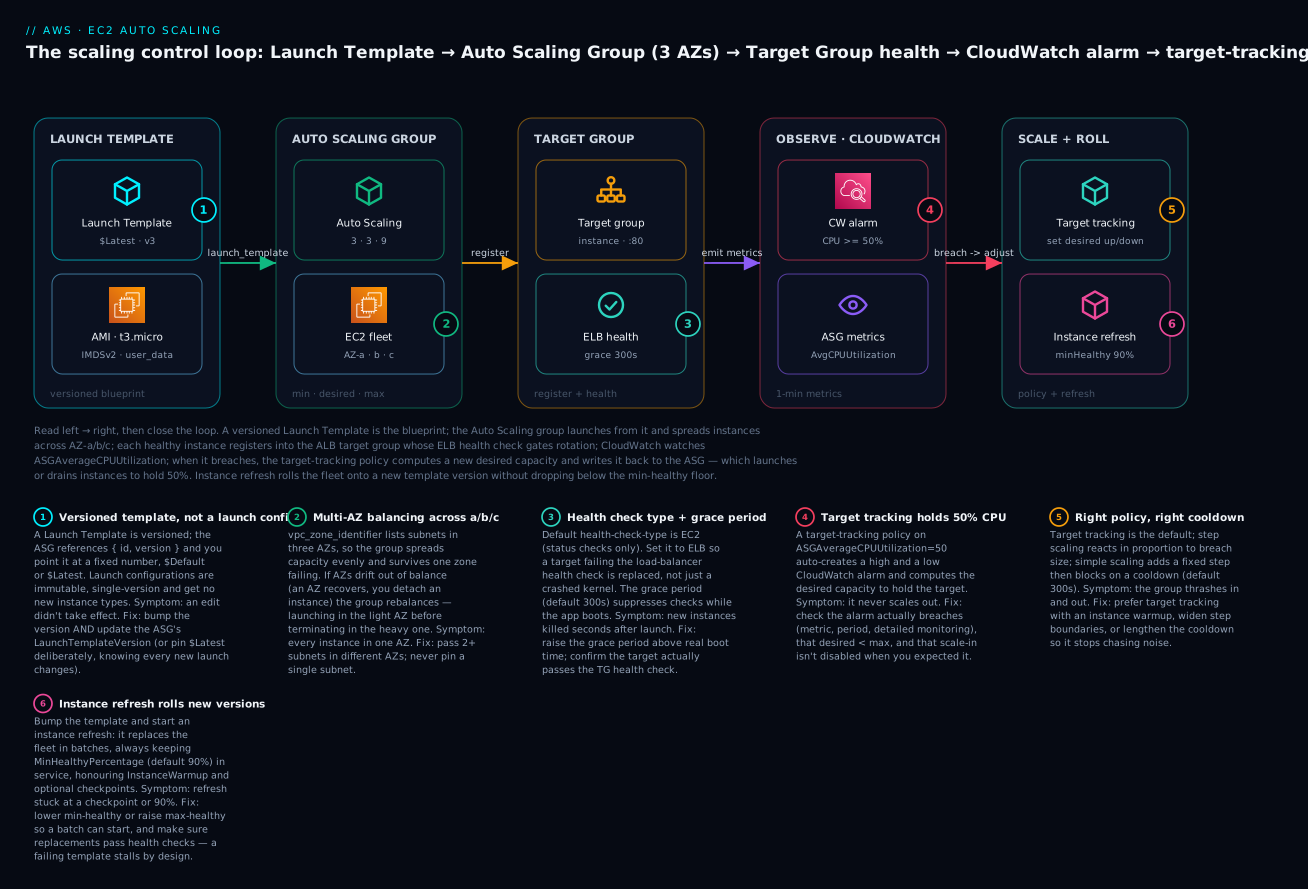
The diagram traces the scaling control loop you build in the lab — read it left to right, then follow the loop back. A launch template (versioned; the group references $Default, not $Latest) is the blueprint for every instance. The Auto Scaling group launches from it and spreads its instances across three AZ subnets (a/b/c), so losing one zone costs a third of capacity, not all of it. Each healthy instance registers into the ALB target group, whose ELB health check (with the grace period suppressing checks while the app boots) decides which instances are in rotation and, because health-check-type is ELB, which the group replaces. CloudWatch collects ASGAverageCPUUtilization on one-minute metrics; when it crosses 50%, the target-tracking policy computes a new desired capacity and writes it back to the group, which launches or drains instances to hold the target — closing the loop. Off to the side, instance refresh rolls the fleet onto a new template version in batches, never dropping below the 90% min-healthy floor. The six numbered badges sit on the exact hop where each classic failure bites: template versioning, multi-AZ balancing, the health-check-type/grace-period pair, the target-tracking alarm, policy choice/cooldown thrashing, and a stuck instance refresh.
Real-world scenario
Nimbus Tickets sells event tickets on AWS: a web tier of EC2 instances behind an ALB, in an Auto Scaling group across three AZs in ap-south-1. Baseline traffic is a gentle ~800 requests/second; on-sale events for popular concerts spike to 8–10× within ninety seconds. The team had target tracking on CPU at 60% and thought they were covered.
The first big on-sale failed anyway. When 40,000 fans hit refresh at 10:00:00, CPU shot past 60% in under a minute — but the group added capacity far too slowly and the site threw errors for eight minutes before it caught up. The post-mortem found three compounding causes. First, the launch template was on basic monitoring, so CloudWatch published CPU every five minutes; the target-tracking alarm simply could not see the spike fast enough. Second, the instances were a JVM app with a ~100-second warm-up, and the group’s grace period was 60 seconds, so the first wave of new instances was briefly marked unhealthy and churned. Third, max-size was 8 against a baseline desired of 4 — the group hit its ceiling almost immediately and stopped scaling, silently, with capped scaling activities nobody was watching.
The fixes were surgical. They enabled detailed (one-minute) monitoring in the launch template so the metric was responsive. They set the grace period to 180 seconds and the group’s default instance warmup to 120, matching real boot-to-healthy time, so new instances stopped churning. They raised max-size to 30 with real headroom. Then, because a ninety-second ramp is faster than a cold JVM can boot, they added two things a purely reactive policy can’t provide: a predictive scaling policy in ForecastAndScale mode keyed to the published on-sale calendar (it pre-warms capacity before 10:00), and a warm pool of 10 Warmed:Stopped instances so any remaining reactive scale-out promoted in seconds instead of minutes. Finally, they added CloudWatch alarms on GroupDesiredCapacity == GroupMaxSize (you are capped) and on scaling activities with StatusCode=Failed, wired to the pager.
The next on-sale, the same 10× spike was a non-event: predictive scaling had the fleet at 22 instances by 09:55, the warm pool absorbed the first reactive wave in seconds, and CPU never crossed 65%. Customer-facing errors: zero. The lesson the team wrote on the wall: reactive scaling can only react as fast as your slowest signal and your slowest boot — for sharp, scheduled spikes you must see the metric in one minute, pre-warm capacity, and leave real headroom below max.
Advantages and disadvantages
| Advantages | Disadvantages |
|---|---|
| Auto-heals: replaces unhealthy instances with no human | Misconfigured health check/grace = launch-terminate loop |
| Matches capacity to demand — pay for what you use | Reactive scaling lags sharp spikes (boot + metric latency) |
| Multi-AZ resilience for free (spread + relaunch) | AZ imbalance and stuck rebalancing if you run at max |
| Safe rolling deploys via instance refresh | A bad launch template can stall a refresh (by design) |
| Spot + On-Demand blend cuts cost dramatically | Wrong Spot allocation strategy can evaporate the fleet |
| Predictive + scheduled scaling for known patterns | Predictive needs history and cyclical load to help |
| Warm pools slash scale-out latency | Warm pools add standing EBS/compute cost |
| Everything is API/IaC-drivable and versioned | $Latest template reference causes silent surprise launches |
The advantages dominate for any variable-load EC2 workload — web tiers, APIs, workers, game servers. The disadvantages are almost all configuration failures, not platform limits: they bite teams that never set the grace period to match boot time, never raise max above peak, or point production at $Latest. For truly spiky, scheduled load, layer predictive/scheduled scaling and warm pools on top of target tracking; for pure serverless-shaped bursts, question whether EC2 is the right compute at all.
Hands-on lab
You will build a launch template, an Auto Scaling group across three AZs behind an ALB target group, target-tracking on CPU, trigger a real scale-out with CPU load, roll the fleet onto a new template version with an instance refresh, verify, and tear everything down. Budget ~35 minutes.
⚠️ Cost warning. This lab runs three
t3.microinstances (may exceed the single-instance free tier), an ALB (~₹1.9/hr ≈ ₹1,360/month plus LCU) and brief extra instances during the scale-out. Detailed monitoring adds a few rupees. Total for a 35-minute run is well under ₹30 — but a forgotten ALB or a group left at high desired capacity bills continuously. Run the teardown at the end.
Prerequisites
- AWS CLI v2 configured (
aws sts get-caller-identityworks), a VPC with three subnets in three AZs, and permission forec2:*,autoscaling:*,elasticloadbalancing:*,iam:*,ssm:*. - We create an IAM instance profile with
AmazonSSMManagedInstanceCoreso we can push CPU load via SSM Run Command (no SSH key needed).
Step 1 — Environment variables
export AWS_REGION=ap-south-1
VPC_ID=$(aws ec2 describe-vpcs --filters Name=isDefault,Values=true \
  --query 'Vpcs[0].VpcId' --output text)
read -r SUBNET_A SUBNET_B SUBNET_C <<<"$(aws ec2 describe-subnets \
  --filters Name=vpc-id,Values=$VPC_ID \
  --query 'Subnets[0:3].SubnetId' --output text)"
AMI=$(aws ssm get-parameters --names \
  /aws/service/ami-amazon-linux-latest/al2023-ami-kernel-default-x86_64 \
  --query 'Parameters[0].Value' --output text)
echo "VPC=$VPC_ID  AZs=$SUBNET_A $SUBNET_B $SUBNET_C  AMI=$AMI"
Step 2 — IAM instance profile (for SSM), security groups, ALB
# Instance role + profile so SSM Run Command can drive load
aws iam create-role --role-name asg-lab-ssm --assume-role-policy-document '{
  "Version":"2012-10-17","Statement":[{"Effect":"Allow",
  "Principal":{"Service":"ec2.amazonaws.com"},"Action":"sts:AssumeRole"}]}'
aws iam attach-role-policy --role-name asg-lab-ssm \
  --policy-arn arn:aws:iam::aws:policy/AmazonSSMManagedInstanceCore
aws iam create-instance-profile --instance-profile-name asg-lab-ssm
aws iam add-role-to-instance-profile --instance-profile-name asg-lab-ssm \
  --role-name asg-lab-ssm

ALB_SG=$(aws ec2 create-security-group --group-name asg-lab-alb-sg \
  --description "ALB" --vpc-id $VPC_ID --query GroupId --output text)
INSTANCE_SG=$(aws ec2 create-security-group --group-name asg-lab-inst-sg \
  --description "Instances" --vpc-id $VPC_ID --query GroupId --output text)
aws ec2 authorize-security-group-ingress --group-id $ALB_SG \
  --protocol tcp --port 80 --cidr 0.0.0.0/0
# Instances accept :80 ONLY from the ALB SG (traffic + health checks)
aws ec2 authorize-security-group-ingress --group-id $INSTANCE_SG \
  --protocol tcp --port 80 --source-group $ALB_SG

ALB_ARN=$(aws elbv2 create-load-balancer --name asg-lab-alb --type application \
  --scheme internet-facing --subnets $SUBNET_A $SUBNET_B $SUBNET_C \
  --security-groups $ALB_SG --query 'LoadBalancers[0].LoadBalancerArn' --output text)
TG_ARN=$(aws elbv2 create-target-group --name asg-lab-tg --protocol HTTP --port 80 \
  --vpc-id $VPC_ID --target-type instance --health-check-path / \
  --health-check-interval-seconds 15 --healthy-threshold-count 2 \
  --query 'TargetGroups[0].TargetGroupArn' --output text)
aws elbv2 create-listener --load-balancer-arn $ALB_ARN --protocol HTTP --port 80 \
  --default-actions Type=forward,TargetGroupArn=$TG_ARN
Step 3 — Launch template v1
User data installs a web server (so the target-group health check passes) and stress-ng (so we can drive CPU later):
USERDATA=$(printf '#!/bin/bash\ndnf install -y httpd stress-ng\necho "web $(hostname)" > /var/www/html/index.html\nsystemctl enable --now httpd\n' | base64)

LT_ID=$(aws ec2 create-launch-template --launch-template-name asg-lab-lt \
  --version-description "v1 baseline" \
  --launch-template-data "{
    \"ImageId\":\"$AMI\",\"InstanceType\":\"t3.micro\",
    \"SecurityGroupIds\":[\"$INSTANCE_SG\"],
    \"IamInstanceProfile\":{\"Name\":\"asg-lab-ssm\"},
    \"MetadataOptions\":{\"HttpTokens\":\"required\",\"HttpPutResponseHopLimit\":1},
    \"Monitoring\":{\"Enabled\":true},
    \"UserData\":\"$USERDATA\",
    \"TagSpecifications\":[{\"ResourceType\":\"instance\",\"Tags\":[{\"Key\":\"Name\",\"Value\":\"asg-lab-v1\"}]}]
  }" --query 'LaunchTemplate.LaunchTemplateId' --output text)
echo "LT=$LT_ID"
Step 4 — The Auto Scaling group across 3 AZs
aws autoscaling create-auto-scaling-group --auto-scaling-group-name asg-lab \
  --launch-template "LaunchTemplateId=$LT_ID,Version=\$Default" \
  --min-size 3 --desired-capacity 3 --max-size 9 \
  --vpc-zone-identifier "$SUBNET_A,$SUBNET_B,$SUBNET_C" \
  --target-group-arns $TG_ARN \
  --health-check-type ELB --health-check-grace-period 120 \
  --default-instance-warmup 120 \
  --tags "Key=Name,Value=asg-lab,PropagateAtLaunch=true"
Step 5 — Target-tracking policy on CPU
aws autoscaling put-scaling-policy --auto-scaling-group-name asg-lab \
  --policy-name cpu50 --policy-type TargetTrackingScaling \
  --target-tracking-configuration '{
    "PredefinedMetricSpecification":{"PredefinedMetricType":"ASGAverageCPUUtilization"},
    "TargetValue":50.0}'
Step 6 — Verify the baseline
Wait ~2 minutes for instances to boot and pass health checks, then confirm three instances spread across three AZs, all healthy in the target group:
aws autoscaling describe-auto-scaling-groups --auto-scaling-group-names asg-lab \
  --query 'AutoScalingGroups[0].Instances[].{Id:InstanceId,AZ:AvailabilityZone,Health:HealthStatus,State:LifecycleState}' \
  --output table
# Expect 3 rows: AZ-a/b/c, Healthy, InService

aws elbv2 describe-target-health --target-group-arn $TG_ARN \
  --query 'TargetHealthDescriptions[].TargetHealth.State' --output text
# Expect: healthy healthy healthy
| Verification | Command | Expected |
|---|---|---|
| 3 instances, 3 AZs | describe-auto-scaling-groups |
AZ-a/b/c, InService |
| All healthy in TG | describe-target-health |
healthy healthy healthy |
| Policy attached | describe-policies --auto-scaling-group-name asg-lab |
cpu50 TargetTracking |
| Alarms auto-created | aws cloudwatch describe-alarms --alarm-name-prefix TargetTracking |
two alarms (high/low) |
Step 7 — Trigger a real scale-out with CPU load
Push CPU on the running instances with SSM Run Command; target tracking will see CPU cross 50% and raise desired capacity:
IDS=$(aws autoscaling describe-auto-scaling-groups --auto-scaling-group-names asg-lab \
  --query 'AutoScalingGroups[0].Instances[].InstanceId' --output text | tr '\t' ' ')

aws ssm send-command --document-name "AWS-RunShellScript" \
  --instance-ids $IDS \
  --parameters 'commands=["stress-ng --cpu 0 --timeout 420"]'

# Watch desired capacity climb and scaling activities appear
watch -n15 "aws autoscaling describe-auto-scaling-groups \
  --auto-scaling-group-names asg-lab \
  --query 'AutoScalingGroups[0].{Desired:DesiredCapacity,InService:length(Instances[?LifecycleState==\`InService\`])}' \
  --output table"

aws autoscaling describe-scaling-activities --auto-scaling-group-name asg-lab \
  --max-items 5 --query 'Activities[].{Time:StartTime,Status:StatusCode,Desc:Description}' \
  --output table
Within a few minutes you will see DesiredCapacity rise (e.g. 3 → 5 → 7) as the high alarm breaches, new instances go Pending → InService, and register into the target group. When the stress command’s 420-second timeout ends, CPU falls and — after the gentler scale-in delay — desired capacity settles back down.
Step 8 — Roll a new template version with instance refresh
Create v2 of the template, make it default, then refresh the fleet onto it — zero-downtime, 90% healthy throughout:
aws ec2 create-launch-template-version --launch-template-id $LT_ID \
  --source-version 1 --version-description "v2 tag change" \
  --launch-template-data '{"TagSpecifications":[{"ResourceType":"instance","Tags":[{"Key":"Name","Value":"asg-lab-v2"}]}]}'
aws ec2 modify-launch-template --launch-template-id $LT_ID --default-version 2

aws autoscaling start-instance-refresh --auto-scaling-group-name asg-lab \
  --preferences '{"MinHealthyPercentage":90,"InstanceWarmup":120,"SkipMatching":true}'

# Track it to Successful
watch -n20 "aws autoscaling describe-instance-refreshes \
  --auto-scaling-group-name asg-lab \
  --query 'InstanceRefreshes[0].{Status:Status,Pct:PercentageComplete}' --output table"
You will see Status move Pending → InProgress → Successful and PercentageComplete climb. Throughout, describe-target-health keeps showing healthy targets — the whole point of a refresh.
Step 9 — Verify the new version is live
aws autoscaling describe-auto-scaling-groups --auto-scaling-group-names asg-lab \
  --query 'AutoScalingGroups[0].Instances[].LaunchTemplate.Version' --output text
# Expect all instances on version 2
Step 10 — Lab resource summary and teardown
| Resource | Name | Billable | Teardown order |
|---|---|---|---|
| Auto Scaling group | asg-lab |
Instances (per-sec) | 1 (--force-delete) |
| Launch template | asg-lab-lt |
No | 4 |
| Load balancer | asg-lab-alb |
Per hour + LCU | 2 |
| Target group | asg-lab-tg |
No | 3 |
| Security groups | asg-lab-*-sg |
No | 5 |
| IAM role/profile | asg-lab-ssm |
No | 6 |
aws autoscaling delete-auto-scaling-group --auto-scaling-group-name asg-lab --force-delete
aws elbv2 delete-load-balancer --load-balancer-arn $ALB_ARN
sleep 30   # let ENIs detach
aws elbv2 delete-target-group --target-group-arn $TG_ARN
aws ec2 delete-launch-template --launch-template-id $LT_ID
aws ec2 delete-security-group --group-id $INSTANCE_SG
aws ec2 delete-security-group --group-id $ALB_SG
aws iam remove-role-from-instance-profile --instance-profile-name asg-lab-ssm --role-name asg-lab-ssm
aws iam delete-instance-profile --instance-profile-name asg-lab-ssm
aws iam detach-role-policy --role-name asg-lab-ssm --policy-arn arn:aws:iam::aws:policy/AmazonSSMManagedInstanceCore
aws iam delete-role --role-name asg-lab-ssm
Terraform equivalent
The whole lab as HCL (assumes vpc_id, subnet_a/b/c, and an instance_profile variable/resource). Apply with terraform init && terraform apply; destroy with terraform destroy (⚠️ same ALB-hour cost while it exists):
data "aws_ssm_parameter" "al2023" {
  name = "/aws/service/ami-amazon-linux-latest/al2023-ami-kernel-default-x86_64"
}

resource "aws_launch_template" "app" {
  name_prefix   = "asg-lab-lt-"
  image_id      = data.aws_ssm_parameter.al2023.value
  instance_type = "t3.micro"
  vpc_security_group_ids = [aws_security_group.instance.id]
  iam_instance_profile { name = aws_iam_instance_profile.ssm.name }
  metadata_options { http_tokens = "required", http_put_response_hop_limit = 1 }
  monitoring { enabled = true }
  user_data = base64encode(<<-EOF
    #!/bin/bash
    dnf install -y httpd stress-ng
    echo "web $(hostname)" > /var/www/html/index.html
    systemctl enable --now httpd
  EOF
  )
  tag_specifications {
    resource_type = "instance"
    tags          = { Name = "asg-lab" }
  }
  lifecycle { create_before_destroy = true }
}

resource "aws_autoscaling_group" "app" {
  name                      = "asg-lab"
  min_size                  = 3
  desired_capacity          = 3
  max_size                  = 9
  vpc_zone_identifier       = [var.subnet_a, var.subnet_b, var.subnet_c]
  target_group_arns         = [aws_lb_target_group.app.arn]
  health_check_type         = "ELB"
  health_check_grace_period = 120
  default_instance_warmup   = 120

  launch_template {
    id      = aws_launch_template.app.id
    version = aws_launch_template.app.default_version
  }

  instance_refresh {
    strategy = "Rolling"
    preferences {
      min_healthy_percentage = 90
      instance_warmup        = 120
      skip_matching          = true
    }
  }

  tag {
    key                 = "Name"
    value               = "asg-lab"
    propagate_at_launch = true
  }
}

resource "aws_autoscaling_policy" "cpu50" {
  name                   = "cpu50"
  autoscaling_group_name = aws_autoscaling_group.app.name
  policy_type            = "TargetTrackingScaling"
  target_tracking_configuration {
    predefined_metric_specification { predefined_metric_type = "ASGAverageCPUUtilization" }
    target_value = 50.0
  }
}
With the instance_refresh block above, a terraform apply that changes the launch template automatically triggers a rolling refresh — IaC-native deploys.
Common mistakes & troubleshooting
This is the section you will return to mid-incident. Work the playbook first — symptom, root cause, exact confirm, fix — then the scaling-activity reference and the decision table.
| # | Symptom | Root cause | Confirm (exact command / console path) | Fix |
|---|---|---|---|---|
| 1 | Group won’t scale out under load | max-size already reached |
describe-auto-scaling-groups → DesiredCapacity == MaxSize; activity WaitingForCapacity/capped |
Raise --max-size with headroom above peak |
| 2 | Won’t scale out; alarm never fires | Basic (5-min) monitoring; metric too slow/insufficient datapoints | describe-alarms → INSUFFICIENT_DATA; check LT Monitoring.Enabled |
Enable detailed monitoring in the launch template |
| 3 | Won’t scale at all | A process is suspended | describe-auto-scaling-groups → SuspendedProcesses lists Launch/Terminate/AlarmNotification |
resume-processes for the suspended ones |
| 4 | Instances killed ~30–60 s after launch (loop) | Grace period < boot-to-healthy time | Activities: InService then immediate Terminating, reason “failed ELB health checks” |
Raise --health-check-grace-period above real boot time |
| 5 | Crashed app not replaced | Health-check type is EC2, not ELB |
describe-auto-scaling-groups → HealthCheckType=EC2 |
Set --health-check-type ELB |
| 6 | Group thrashes in and out | Aggressive tracking / no warmup / tiny cooldown | Sawtooth in describe-scaling-activities |
Raise default-instance-warmup; widen step bounds; prefer target tracking |
| 7 | New instances unhealthy in TG though app runs |
Instance SG doesn’t allow ALB SG on the port | describe-target-health → Target.Timeout; check instance SG ingress source |
Ingress on instance SG from the ALB SG id on the port |
| 8 | Template edit “did nothing” | Group pinned to an old version (or $Default not moved) |
describe-auto-scaling-groups → LaunchTemplate.Version |
Move $Default / repoint version, then instance refresh |
| 9 | Surprise/partial deploy with no refresh | Group references $Latest; a new version auto-launched |
LaunchTemplate.Version == $Latest |
Pin to a number or $Default; deploy via refresh |
| 10 | Instance refresh stuck at ~90% | MinHealthyPercentage too high to start a batch; or replacements failing health |
describe-instance-refreshes → InProgress, no progress |
Lower min-healthy or raise max-healthy; fix the new template’s health |
| 11 | Refresh replaced fleet with broken instances? No — it stalled | Replacements never pass health checks | Refresh Cancelled/stalled; new instances unhealthy |
Fix AMI/user data; enable AutoRollback |
| 12 | All instances in one AZ | Single subnet, or one AZ ran out of capacity | describe-auto-scaling-groups → all one AZ |
List ≥2 subnets in different AZs; broaden instance types |
| 13 | Instance stuck in Pending:Wait |
Launch lifecycle hook never completed | describe-scaling-activities; state Pending:Wait |
complete-lifecycle-action; fix bootstrap/IAM; shorten heartbeat |
| 14 | Spot fleet vanished all at once | lowest-price concentrated one pool |
describe-auto-scaling-groups → MixedInstancesPolicy strategy |
Use price-capacity-optimized; diversify types; add On-Demand base |
| 15 | Scale-in killed a stateful worker mid-job | No scale-in protection | Activity terminated an in-use instance | set-instance-protection; or protect new instances at group level |
| 16 | Desired keeps resetting to old value | Terraform/console fighting the policy over desired_capacity |
Drift in plan on desired_capacity |
Ignore desired_capacity in IaC (lifecycle { ignore_changes }) |
Scaling-activity status & failure reference
Every launch/terminate/refresh emits a scaling activity; its StatusCode and description name the cause. describe-scaling-activities is the ASG equivalent of reading the logs.
| StatusCode / message fragment | Meaning | Likely cause | Fix |
|---|---|---|---|
Successful |
Activity completed | Normal | — |
WaitingForInstanceWarmup |
New instance warming | Working as intended | Wait; tune warmup if too long |
WaitingForELBConnectionDraining |
Draining on terminate | Deregistration delay | Normal; size the delay |
Failed — “capacity” |
Couldn’t launch | Insufficient capacity for the type/AZ | Broaden types (mixed policy) / other AZs |
Cancelled |
Activity cancelled | Superseded / refresh cancelled | Re-check the triggering policy |
| “instance failed to pass health checks” | Replacement unhealthy | Bad AMI / grace too short / SG | Fix health; raise grace; open SG |
| “Launching a new EC2 instance … at or above max” | Capped | max-size reached |
Raise max |
PreventedByLifecycleHook |
Hook holding | Pending:Wait/Terminating:Wait |
Complete the lifecycle action |
Decision table — from symptom to first move
| If you see… | It’s probably… | Do this first |
|---|---|---|
| No scale-out under real load | Max reached, or a suspended process | DesiredCapacity vs MaxSize; SuspendedProcesses |
Alarm stuck INSUFFICIENT_DATA |
Basic monitoring / no datapoints | Enable detailed monitoring in the LT |
| Instances churning right after launch | Grace < boot time | Raise the grace period |
| Crashed app stays in service | Health-check type EC2 |
Switch to ELB |
| Group flaps up/down | No warmup / aggressive policy | Set instance warmup; prefer target tracking |
| Edit to template ignored | Version pinned / $Default stale |
Move version + instance refresh |
| Refresh won’t finish | Min-healthy too high / bad template | Lower min-healthy; fix the new version |
The three nastiest, explained
The launch-terminate loop (grace vs boot time). With health-check-type ELB and a grace period shorter than boot-to-healthy time, every new instance is marked unhealthy while it is still legitimately booting, terminated, and replaced — forever. The tell is a sawtooth in describe-scaling-activities: InService immediately followed by Terminating with reason “instance failed ELB health checks.” The fix is not more instances; it is a grace period comfortably above your measured boot time (and a default instance warmup to match). Measure boot-to-healthy on a real instance before you set it.
The silent max cap. A scale-out that “doesn’t work” is very often a group already at max-size. There is no error dialog — just scaling activities that note the group is at maximum and a DesiredCapacity pinned to MaxSize. Alarm on GroupDesiredCapacity >= GroupMaxSize so you learn you are capped before the incident, and always set max with real headroom above expected peak.
The $Latest surprise. A production group pointed at $Latest will start launching a new template version the instant you save it — on the next scale-out, health replacement, or AZ rebalance, with no refresh and no rollback gate. Teams discover this when a half-finished template edit shows up on 30% of the fleet at 3 a.m. Pin production to a number or $Default, and change what is live only through a controlled default move or an instance refresh with checkpoints.
Best practices
- Use launch templates, never launch configurations — they are versioned, feature-complete, and required for mixed instances, warm pools and refresh.
- Pin production groups to a version number or
$Default, not$Latest. Deploy changes through an instance refresh with a min-healthy floor (and checkpoints for a canary), so rollouts are deliberate and reversible. - Set the health check to
ELBbehind a load balancer, and set the grace period above your measured boot-to-healthy time — this single pair prevents both the “crashed app stays in” bug and the launch-terminate loop. - Prefer target tracking for most workloads; add step scaling only when you need a proportional response, and layer scheduled/predictive for known and cyclical patterns.
- Enable detailed (one-minute) monitoring in the launch template so scaling reacts in a minute, not five — the difference between absorbing a spike and browning out.
- Set
max-sizewith real headroom above expected peak, and alarm onGroupDesiredCapacity >= GroupMaxSizeso you know when you’re capped. - Set a
default-instance-warmupmatching boot time so overlapping activities don’t overshoot; it is the modern replacement for cooldown. - Spread across ≥2 (ideally 3) AZs and leave headroom below max so AZ rebalancing can launch-before-terminate.
- With Spot, use
price-capacity-optimized, diversify instance types, cover the baseline withOnDemandBaseCapacity, and enablecapacity-rebalance— neverlowest-priceon a narrow type list. - Use lifecycle hooks to drain on terminate (deregister, flush) and to finish slow bootstrap on launch; always emit heartbeats and complete the action explicitly.
- Turn on
max-instance-lifetimefor automatic rolling patching/compliance, and scale-in protection for stateful workers mid-job. - In Terraform,
ignore_changes = [desired_capacity]so IaC and the scaling policy don’t fight over the setpoint.
Security notes
The group is a fleet factory — every instance inherits the template’s security posture, so the template is where you enforce it.
| Control | What to do | Why |
|---|---|---|
| IMDSv2 required | metadata_options { http_tokens = "required" }; hop limit 1 (2 for containers) |
Blocks SSRF-to-credential theft via IMDSv1 |
| Least-privilege instance role | Scope the instance profile tightly; add SSM core for keyless access | Compromised instance ≠ account compromise |
| No SSH keys | Prefer SSM Session Manager over a key pair | No key sprawl, full audit trail |
| Encrypted EBS | encrypted = true on block-device mappings |
Data-at-rest protection by default |
| SG least privilege | Instances accept traffic only from the ALB SG id | Instances not reachable directly from the internet |
| Private subnets for instances | Keep instances private; ALB in public subnets | Reduce blast radius |
| Immutable, rolling deploys | Deploy via new AMI + instance refresh, not in-place patching | Reproducible, drift-free, auditable |
max-instance-lifetime |
Force periodic replacement | No long-lived, unpatched, drifted instances |
| Tag on launch | tag_specifications for owner/env/cost |
Governance, cost allocation, incident triage |
The theme is that the launch template is a security control: enforce IMDSv2, encryption, least-privilege roles and keyless access there, and every instance the group ever launches — including 3 a.m. health replacements — inherits it automatically. Rolling deploys via instance refresh keep the fleet immutable and patched.
Cost & sizing
The Auto Scaling group itself is free — you pay only for what it launches: EC2 instance-seconds, EBS volumes, data transfer, the load balancer, and (a few rupees) detailed monitoring. The whole point is that the bill follows demand instead of peak, so right-sizing is about the capacity triple, the instance mix, and not leaving capacity running idle.
| Cost driver | What it is | Lever |
|---|---|---|
| Instance-seconds | The fleet’s compute | Right-size the type; scale-in gently but actually |
| Min-size floor | Capacity you always pay for | Set min to true minimum, not “comfortable” |
| Spot vs On-Demand | Purchase mix | Mixed policy can cut compute 50–90% |
| Warm pool | Standing pre-initialised capacity | Use Warmed:Stopped (EBS only) not Running |
| Detailed monitoring | 1-min metrics | ~₹25/instance/month — worth it for responsiveness |
| Load balancer | ALB per-hour + LCU | ~₹1,360/mo baseline + LCU; share across paths |
| Over-high max during incident | Runaway scale-out | Cap max sensibly; alarm on desired == max |
Rough figures (ap-south-1): a t3.micro is ~₹0.75/hr; a steady 3-instance floor is ~₹1,600/month of compute, plus ~₹1,360 for the ALB. Add detailed monitoring (~₹75/month for three) and you are near ₹3,000/month for the lab-shaped stack at rest, scaling up only when demand does. A mixed-instances policy with a Spot majority typically halves the compute line or better. The single biggest waste is a min-size set too high (you pay for idle capacity every night) and a warm pool left Running when Stopped would do.
| Workload | Sizing approach | Rough monthly (INR) |
|---|---|---|
| Dev/test | min 1, max 3, target tracking | ~₹1,800 (+ ALB if used) |
| Small prod web | min 3, max 12, detailed monitoring | ~₹3,000–6,000 + ALB |
| Spiky on-sale | predictive + warm pool + high max | Baseline low; peaks brief |
| Cost-optimised workers | Spot-heavy mixed policy, min 0 | 50–90% off On-Demand |
Interview & exam questions
Q1. Why did launch templates replace launch configurations? Launch configurations are immutable and single-version, can’t express mixed instances or Spot+On-Demand, don’t support newer features (IMDSv2 enforcement, multiple ENIs, tag-on-launch), and no longer get new instance types. Launch templates are versioned, feature-complete, and required for warm pools and instance refresh. (SAA-C03, SOA-C02)
Q2. What’s the difference between referencing $Latest and $Default on a launch template? $Latest resolves to the highest-numbered version, so every new launch may differ the instant you save a new version — risky in production. $Default resolves to whatever version you nominate as default, so it changes only when you deliberately move the pointer. Pin production to a number or $Default. (SAA-C03)
Q3. An ASG behind an ALB keeps a crashed app instance in service. Why? The health-check type is EC2, which only checks that the OS/hypervisor is alive — a crashed app still passes. Set the health-check type to ELB so the group also honours the target-group health check and replaces the instance. (SOA-C02)
Q4. New instances are terminated ~40 seconds after launch, in a loop. What’s the cause and fix? The health-check grace period is shorter than the app’s boot-to-healthy time, so instances are marked unhealthy while still booting and replaced forever. Raise the grace period above the measured boot time (and set a matching default instance warmup). (SOA-C02, SAA-C03)
Q5. When would you choose step scaling over target tracking? Target tracking holds a single metric at a target value and is the default for most workloads. Choose step scaling when you need a proportional response sized to the breach magnitude — e.g. +1 instance for a small breach, +4 for a large one — which a single target value can’t express. (SAA-C03)
Q6. What does predictive scaling need, and when does it help? It needs history (≥24 hours, ideally 14 days) and cyclical, forecastable load. It produces a 48-hour forecast (regenerated hourly) and pre-scales ahead of demand — invaluable when boot time is long relative to how fast load ramps. Start in ForecastOnly, then ForecastAndScale. Erratic load defeats it. (SAA-C03)
Q7. How does instance refresh deploy a new AMI without an outage? It replaces instances in batches, always keeping MinHealthyPercentage (default 90%) in service, waiting InstanceWarmup for each replacement to pass health checks. Checkpoints let you canary at a percentage; if replacements fail health, it stalls (or auto-rolls-back) rather than breaking the whole fleet. (SOA-C02, DVA-C02)
Q8. What is a lifecycle hook and give one use for each transition. A hook pauses an instance at launch (Pending:Wait) or terminate (Terminating:Wait) until you signal completion. On launch: finish a slow bootstrap or register with a config system. On terminate: drain connections and flush logs before the instance dies. (SAA-C03, DVA-C02)
Q9. Why might a Spot-backed ASG lose most of its capacity at once, and how do you prevent it? With lowest-price allocation and few instance types, most instances land in one Spot capacity pool; a single reclamation of that pool takes them all. Use price-capacity-optimized, diversify across many instance types, cover the baseline with OnDemandBaseCapacity, and enable capacity rebalancing. (SAA-C03)
Q10. How does multi-AZ balancing behave, and what is AZ rebalancing? The group spreads capacity as evenly as possible across the subnets/AZs you give it, and relaunches lost instances in healthy AZs. Rebalancing restores even distribution after drift by launching in the light AZ before terminating in the heavy one — briefly exceeding desired capacity, so leave headroom below max. (ANS-C01, SAA-C03)
Q11. Your target-tracking policy never scales out though CPU is high. Name two likely causes. The launch template is on basic (5-minute) monitoring so the alarm can’t see the spike in time (enable detailed monitoring); or the group is already at max-size and silently capped (raise max, alarm on desired == max). A suspended Launch process is a third. (SOA-C02)
Q12. What does scale-in protection protect against, and what doesn’t it? It prevents a specific instance from being terminated during scale-in — ideal for a stateful worker mid-job. It does not protect against health-check replacement, manual termination, or instance refresh. Set it per instance or for all new instances at the group level. (SAA-C03)
Quick check
- Your ASG behind an ALB adds capacity but every new instance is killed ~30 seconds after it starts. Which two settings do you check first?
- You edited the launch template but nothing changed on the running fleet. Why, and how do you roll the change out safely?
- CPU is pegged at 90% but the group won’t scale out. Name two causes that produce no error message.
- Which scaling policy would you use for a concert on-sale at a known time with a 90-second boot time — and why not plain target tracking alone?
- Which Spot allocation strategy minimises the chance that one interruption removes most of your fleet?
Answers
- The health-check grace period (must be above real boot-to-healthy time) and the default instance warmup. A grace period shorter than boot time causes the launch-terminate loop.
- The group is pinned to an old template version (or
$Defaultwasn’t moved). Create/nominate the new version, then run an instance refresh (min-healthy 90%, optional checkpoints) to roll it out safely. - The group is at
max-size(silently capped), or a process is suspended (Launch/AlarmNotification). Basic 5-minute monitoring starving the alarm is a third. - Predictive scaling (in
ForecastAndScale), optionally with a warm pool — reactive target tracking can only react after the spike, and a 90-second boot is slower than the ramp, so you must pre-warm before the on-sale. price-capacity-optimized(orcapacity-optimized), combined with a diverse instance-type list — it favours pools with the most available capacity, spreading risk.
Glossary
| Term | Definition |
|---|---|
| Auto Scaling group (ASG) | A controller that keeps a fleet of EC2 instances at a desired capacity within min/max, across AZs. |
| Launch template | The versioned blueprint (AMI, type, storage, network, IMDS, tags) the group launches every instance from. |
| Launch template version | One immutable numbered revision; referenced by number, $Default, or $Latest. |
| Launch configuration | The legacy, immutable, single-version predecessor to launch templates — migrate off it. |
| Desired capacity | The setpoint the group drives toward; scaling policies change this number. |
| Health-check type | What “unhealthy” means: EC2 (status checks) or ELB (also load-balancer health). |
| Grace period | The window after launch during which health-check failures are ignored while the app boots. |
| Target-tracking scaling | A policy that holds a metric at a target value, auto-managing its CloudWatch alarms. |
| Step scaling | A policy with different capacity adjustments for different alarm-breach magnitudes. |
| Simple scaling | The legacy policy: one adjustment, then a blocking cooldown. |
| Scheduled scaling | Setting capacity at specific times or on a recurrence. |
| Predictive scaling | ML-forecast-driven proactive scaling that pre-provisions ahead of predicted demand. |
| Lifecycle hook | A pause on launch (Pending:Wait) or terminate (Terminating:Wait) for custom logic. |
| Warm pool | A set of pre-initialised (often stopped) instances kept ready for fast scale-out. |
| Instance refresh | A rolling replacement of the fleet onto a new template version, honouring a min-healthy floor. |
| Maximum instance lifetime | A limit that forces rolling replacement of instances older than N seconds (≥1 day). |
| Mixed-instances policy | Running one group across multiple instance types and On-Demand/Spot with an allocation strategy. |
| Termination policy | The ordered rule set deciding which instance is terminated on scale-in. |
| Scale-in protection | A flag that prevents an instance from being terminated during scale-in. |
Next steps
- Put the load balancer in front of this group with AWS Application Load Balancer & Target Groups Hands-On — the target group your ASG registers into and the ELB health check it depends on.
- When a group flatly refuses to grow, work the dedicated guide EC2 Auto Scaling Not Scaling: A Troubleshooting Playbook.
- Before you trust Spot in the mixed-instances policy, read EC2 Spot Instances: Savings and Interruption Handling for interruption handling and diversification.
- Get the per-instance bootstrap right with EC2 User Data and cloud-init Bootstrapping — the user data your launch template carries.
- See where the elastic tier sits in a full stack in The Classic AWS Three-Tier Web Application Architecture, and choose the instance types for your template and overrides with Choosing EC2 Instance Types and Families.