Quick take: In Google Cloud, the project is the center of everything — billing, IAM, quotas and the resources themselves all hang off it. But projects do not float in space. They live inside folders, which live inside one organization. That four-level tree — Organization → Folders → Projects → Resources — is how you set a rule once at the top and have it flow down to a thousand resources, instead of clicking the same checkbox a thousand times.
A startup spun up a brand-new GCP project for every experiment, every demo, every “quick test.” After eighteen months, finance ran a report and found 47 active projects — most with no labels, no owner, and no way to map spend back to a team. Three of them still listed a contractor who had left a year earlier as Owner. Two were quietly running GPU instances nobody remembered. Nothing here was caused by bad people or bad intentions. It was caused by the absence of a resource hierarchy: no folders to group projects, no naming standard, no policies inherited from above, and no labels required at creation. Every project was an island, and 47 islands have no map.
This article is that map. By the end you will understand every level of the Google Cloud hierarchy — what each one is, what it is for, and what flows down through it. You will see how IAM policies and Organization Policies are inherited from parent to child, why the project is simultaneously your billing boundary, your isolation boundary and your quota boundary, how labels let finance slice the bill by team, and what the Cloud Resource Manager API actually does under the hood. You will get real gcloud commands, a sane starter hierarchy you can copy for a small or medium organization, and a tour of the mistakes that bite first-timers — so your estate stays navigable when it grows from 4 projects to 400.
What problem this solves
Imagine you have one project. Governance is easy: you grant a few people access, set a budget, and you are done. Now imagine you have two hundred projects across a dozen teams, three environments (production, staging, development), and an auditor asking “who can delete a production database, and prove it.” Without structure, that question has no fast answer. You would have to open every project, read its IAM policy by hand, and hope you did not miss one.
The resource hierarchy solves exactly this. It gives every resource a single, unambiguous parent, and it makes three kinds of governance flow downward through the tree:
- Access (IAM): grant a role at the organization or folder level once, and everyone and everything beneath inherits it. Grant your security team
roles/iam.securityReviewerat the organization, and they can read IAM everywhere — no per-project grants. - Guardrails (Organization Policy): set a constraint like “only allow VMs in
asia-south1” or “no public IP addresses on VMs” at a folder, and every project in that folder is bound by it, including projects created next year. - Cost (Billing + labels): projects roll up to billing accounts, and labels tag spend so finance can answer “what did the data team cost in March.”
What breaks without it is predictable and expensive: inconsistent access (some projects locked down, others wide open), surprise costs (spend nobody can attribute), policy drift (a rule applied to 40 of 50 projects, missed on 10), and audit pain (no single place to see the truth). Who hits this? Every organization past its first handful of projects — startups scaling fast, enterprises migrating in, and any team that says “we will organize it later.”
The hierarchy is not bureaucracy. It is the difference between setting a rule once and setting it five hundred times.
Learning objectives
By the end of this article you can:
- Name all four levels of the GCP resource hierarchy — Organization, Folder, Project, Resource — and explain what each is for in one sentence.
- Explain IAM policy inheritance: how a role granted at a parent flows to every child, and why the effective policy on a resource is the union of all policies above it.
- Explain Organization Policy inheritance: how constraints flow down, the difference between IAM and Org Policy, and how a child folder can (or cannot) override a parent.
- Describe why a project is simultaneously the billing, isolation and quota boundary, and what that means in practice.
- Use labels to tag projects and resources so cost and ownership can be sliced and reported.
- Run real
gcloudagainst the Cloud Resource Manager API to list the org, create folders and projects, link billing, and move a project. - Design a sane starter hierarchy for a small or medium organization, with environment folders, team folders and a separate security/logging project.
- Avoid the common mistakes — flat estates, project-per-task sprawl, over-permission at the top, and missing labels.
Prerequisites & where this fits
You need very little to follow along. You should know what a cloud resource is (a VM, a storage bucket, a database — a thing you create and pay for). It helps to have used the gcloud CLI once, even just gcloud auth login; if not, the gcloud CLI Quickstart walks you through it. You do not need to be an admin, and you do not need an organization of your own to read this — many examples will say “you need org-level permission to do this,” and that is fine; understanding what the command does is the point.
Where this fits: the resource hierarchy is the foundation everything else stands on. IAM (who can do what) makes no sense until you know what it attaches to — read this alongside Google Cloud IAM Explained Simply: Members, Roles, and Bindings and GCP IAM and Service Accounts: Roles, Bindings and Least Privilege. Networking lives inside projects too, so GCP’s Global VPC Explained and GCP VPC and Shared VPC build on this. When you are ready to design a real, production-grade landing zone, the GCP Landing Zone Foundation Blueprint takes these concepts to enterprise scale.
Here is where each governance concern attaches in the tree, so you have the whole map before the deep dive:
| Concern | Where it attaches | Flows down to | Who usually owns it |
|---|---|---|---|
| Identity domain | Organization | Everything | Cloud Identity / Workspace admin |
| Access (IAM) | Org, Folder, Project, or Resource | All children below the grant | Platform / security team |
| Guardrails (Org Policy) | Org, Folder, or Project | All children below the constraint | Security / governance team |
| Billing | Billing account ↔ Project link | The project’s resources | Finance + project owner |
| Quotas | Mostly per Project (some per region/account) | That project only | Project owner + Google |
| Cost attribution (labels) | Project and individual resources | N/A (a tag, not inherited) | Finance + team |
| The actual workload | Resource (VM, bucket, DB) | N/A (leaf node) | Dev / app team |
Core concepts
The whole system is a tree with four levels. Picture a family tree: one ancestor at the top (the Organization), branches (Folders), the people who hold things (Projects), and what they hold (Resources). Rules set on an ancestor apply to all descendants — that single sentence is 80% of the hierarchy. Here is every moving part, level by level:
| Level | What it is | How many | Example name | Its main job |
|---|---|---|---|---|
| Organization | The root node, tied to your company’s identity domain | Exactly one per domain | kloudvin.com |
Top of the tree; owns everything; sets company-wide policy |
| Folder | A container for projects and other folders | Up to 10 levels deep | prod, non-prod, team-data |
Group by team, environment, or department |
| Project | The container for resources; the unit of billing, IAM and quota | Thousands (request quota increase) | acme-shop-prod |
Isolation + billing + access boundary |
| Resource | The actual service instance you use | Unlimited (within quota) | a VM, a GCS bucket, a Cloud SQL DB | Do the real work |
Three ideas tie these together, and they are the heart of this article:
1. Inheritance flows down, never up. A rule (IAM grant or Org Policy) set on a node applies to that node and everything beneath it. It never flows sideways to a sibling, and never up to a parent. Grant roles/viewer on the prod folder, and you can view every project in prod — but not projects in non-prod.
2. The effective policy is cumulative. A resource does not have just its own policy. Its effective IAM is the union of its own grants plus every grant on every ancestor up to the organization. You cannot reduce permissions by setting a smaller policy lower down — IAM grants are additive (you grant access; you do not deny it, except with the separate, advanced IAM Deny feature). This is the single most important — and most surprising — rule.
3. The project is the center of gravity. Almost everything practical happens at the project level. Billing attaches to projects. Most quotas are per project. APIs are enabled per project. Resources are named projects/<id>/.... Folders and the org exist mostly to organize and govern projects.
Here is the same vocabulary as a quick reference you will come back to:
| Term | One-line definition | Why it matters |
|---|---|---|
| Organization (org) | Root node tied to Cloud Identity / Workspace | Without it you only get standalone projects, no folders, no org policy |
| Cloud Identity | Google’s free identity service for managing users/domains | Creating one (or having Workspace) is what creates the Organization |
| Folder | Grouping container under the org or another folder | Where you set per-team / per-environment policy |
| Project | Resource + billing + IAM + quota container | The boundary you isolate and bill on |
| Project ID | Globally unique, immutable text id (e.g. acme-shop-prod) |
The real handle; you cannot change or reuse it for 30 days after deletion |
| Project number | Auto-assigned numeric id | Used by some APIs and service agents |
| Resource | A VM, bucket, database, etc. | The leaf of the tree; what you actually pay for |
| IAM policy | “Who has what role on this node” | Inherited downward, additive (union) |
| Org Policy | A guardrail/constraint on what can be done | Inherited downward; restricts, not grants |
| Cloud Resource Manager | The API/service that manages the hierarchy | Every create/move/list of org, folder, project goes through it |
| Label | A key:value tag on a project or resource |
Cost attribution and filtering (not inherited, not for security) |
The Organization: the root of everything
The Organization is the top node — exactly one per identity domain, representing your whole company. You don’t create it by clicking a button; it is provisioned automatically the first time someone in your domain sets up Cloud Identity (free) or Google Workspace (paid). If your company already uses Workspace for email, you very likely already have an Organization waiting.
Why it matters so much for a beginner: without an organization, you only get standalone projects — the kind a personal Gmail account creates. Standalone projects can’t be grouped into folders, can’t inherit org-level IAM, and can’t be governed by Organization Policy. The org is what unlocks all the “set it once at the top” power.
The Organization node is where you put company-wide truths — the rules that should apply to everything, forever:
| Set at the Organization when… | Example | Why here and not lower |
|---|---|---|
| It must apply to every project, even future ones | “Only members of kloudvin.com can be granted access” (domain restriction) |
Catches projects created years from now |
| It is a security baseline you never want bypassed | “Disable service account key creation” | One place, no drift |
| It is a small, trusted group of org admins | roles/resourcemanager.organizationAdmin to 2–3 people |
The keys to the kingdom; keep the list tiny |
| It is genuinely global | “Allowed resource locations = India + EU only” (data residency) | Compliance everyone must follow |
A few things only the Organization can do:
- Hold Organization Policies that bind the entire tree.
- Be the parent of top-level folders.
- Own org-level IAM roles like Organization Administrator and Organization Policy Administrator.
- Provide a single point to search and audit every resource beneath it (via Cloud Asset Inventory).
To see your organization with gcloud:
# List the organization(s) your account can see
gcloud organizations list
# Output: DISPLAY_NAME    ID              DIRECTORY_CUSTOMER_ID
#         kloudvin.com    123456789012    C01abc234
That numeric ID (the organization ID) is the handle you pass to almost every hierarchy command. Note that managing org-level settings requires powerful roles — most engineers will only read at this level, which is exactly as it should be.
Folders: grouping for teams and environments
A Folder is a container that sits under the organization (or under another folder) and holds projects and sub-folders. Folders are how you turn a flat pile of projects into a navigable structure that mirrors how your company actually works.
There are two classic ways to organize folders, and most real orgs blend them:
| Folder strategy | Looks like | Best when | Watch out for |
|---|---|---|---|
| By environment | prod, non-prod (staging + dev) |
Strong prod/non-prod separation is your top priority | Teams still need sub-grouping inside each |
| By team / department | team-data, team-web, team-payments |
Autonomy per team matters most | Environment separation gets fuzzy |
| Hybrid (recommended) | prod/team-web, non-prod/team-web |
You want both — environment at top, team underneath | A bit more depth, but clearest of all |
| By department then team | engineering/team-web, finance/reporting |
Large enterprise with clear org chart | Can get deep; mind the 10-level limit |
Folders are useful because most of your real governance lands here. The organization is too broad for most rules (you rarely want literally every project bound by the same constraint); the project is too granular (you don’t want to repeat the same rule on each one). The folder is the sweet spot — set a stricter Org Policy, a team-wide IAM grant, or an allowed-region rule on prod once, and every production project (today’s and next year’s) inherits it.
A few folder facts: you can nest folders up to 10 levels below the organization; a folder’s parent is the org or another folder; a folder can hold both projects and sub-folders; and folders are optional (projects can attach directly to the org, but folders are how you scale).
Create and inspect folders with gcloud:
# Create a top-level "prod" folder under the organization
gcloud resource-manager folders create \
  --display-name="prod" \
  --organization=123456789012

# Create a "team-web" folder *inside* the prod folder (note: parent is a folder ID)
gcloud resource-manager folders create \
  --display-name="team-web" \
  --folder=555555555555

# List folders directly under the organization
gcloud resource-manager folders list --organization=123456789012

# Describe one folder (shows name, parent, lifecycle state)
gcloud resource-manager folders describe 555555555555
Projects: the real center of gravity
The Project is where you will spend 95% of your time. It is the container that holds your actual resources — VMs, buckets, databases, networks — and it is, all at once, the billing boundary, the IAM boundary and the quota boundary. Understanding the project is understanding GCP.
Every project has three identifiers, and beginners constantly confuse them:
| Identifier | Example | Mutable? | You choose it? | Used for |
|---|---|---|---|---|
| Project ID | acme-shop-prod |
No — permanent | Yes (must be globally unique) | The real handle; what you type in commands |
| Project name | “Acme Shop Production” | Yes (display only) | Yes | Human-friendly label in the console |
| Project number | 483912047581 |
No | No (auto-assigned) | Some APIs, service agents, IAM internals |
The Project ID is the one that matters most and the one with the sharpest gotcha: it is globally unique across all of Google Cloud (so prod is long gone — you need something like acme-shop-prod), it is permanent (you cannot rename it), and after you delete a project, its ID is reserved for 30 days and generally cannot be reused. Choose it with care.
Why the project is the billing boundary
Every project links to exactly one billing account at a time (you can switch it), and all charges for that project’s resources flow there; one billing account can serve many projects. With no billing account linked, the project is “disabled for billing” and most paid resources stop or can’t be created. This makes the project the natural unit for cost separation: put the data team’s production workload in its own project, link billing, and you see precisely what it costs — separately from everyone else. Linking billing needs roles/billing.user on the account plus access to the project.
Why the project is the isolation boundary
A project is a security and resource sandbox. By default, resources in project A cannot see or touch resources in project B: each project has its own IAM policy (granting access to A says nothing about B), its own default network (resources are network-isolated unless you deliberately connect them via Shared VPC or peering), its own service accounts, and its own enabled APIs (Compute Engine on in one, off in another). The payoff is blast radius — a misconfiguration is contained to one project. This is exactly why the standard advice is separate projects for production, staging and development: a mistake in dev physically cannot reach prod.
Why the project is the quota boundary
Most quotas (limits on how many of a thing you can create, or how fast you can call an API) are tracked per project. “Maximum CPUs in region asia-south1,” “API requests per minute,” “number of VPC networks” — these counters reset and apply at the project level. This is another reason to split workloads: one runaway batch job in its own project cannot starve production of quota.
| Quota scope | Typical examples | Why it matters |
|---|---|---|
| Per project + region | CPUs, IP addresses, persistent disk GB | A noisy project can hit its own ceiling without affecting others |
| Per project (global) | VPC networks, firewall rules, API requests/min | Splitting workloads spreads the limits |
| Per billing account / org | Some service-specific or trust-based limits | Occasionally the real ceiling for very large estates |
Create and wire up a project with gcloud:
# Create a project with a chosen (globally-unique) ID, inside the team-web folder
gcloud projects create acme-shop-prod \
  --name="Acme Shop Production" \
  --folder=666666666666

# Link it to a billing account (find IDs with: gcloud billing accounts list)
gcloud billing projects link acme-shop-prod \
  --billing-account=0X0X0X-0X0X0X-0X0X0X

# Enable an API the project needs (e.g. Compute Engine)
gcloud services enable compute.googleapis.com --project=acme-shop-prod

# Show the project (parent, number, lifecycle state)
gcloud projects describe acme-shop-prod
IAM policy inheritance: how access flows down
This is the concept that makes the hierarchy powerful — and the one that, misunderstood, causes the scariest mistakes. IAM controls who can do what. You grant a member (a user, group, or service account) a role (a bundle of permissions) on a node in the hierarchy. The grant is called a binding. (If those words are new, read Google Cloud IAM Explained Simply first — this section assumes the basics.)
The rule that matters here is simple and absolute: an IAM grant on a node applies to that node and every descendant beneath it. Grant a role on the org → it applies everywhere. Grant it on a folder → it applies to every project in that folder. Grant it on a project → it applies to every resource in that project.
| You grant a role at… | It applies to… | Example |
|---|---|---|
| Organization | Every folder, project and resource in the company | roles/iam.securityReviewer to the security team → read IAM everywhere |
| Folder | Every project and resource under that folder | roles/viewer on prod → view all production projects |
| Project | Every resource in that project | roles/storage.admin on acme-shop-prod → manage all its buckets |
| Resource | Just that one resource (where supported, e.g. a bucket) | roles/storage.objectViewer on one bucket only |
The effective policy is a union (additive only)
Here is the part that surprises everyone. The permissions someone actually has on a resource are the union of every grant above it. There is no subtraction. If Alice is granted roles/owner on the organization and you grant her only roles/viewer on a project, she is still an owner of that project — the org-level Owner flows down and the smaller project grant adds nothing and removes nothing.
| Scenario | Org grant | Folder grant | Project grant | Alice’s effective access on the project |
|---|---|---|---|---|
| Additive grants | roles/viewer |
roles/compute.admin (on the folder) |
roles/storage.admin |
Viewer + Compute Admin + Storage Admin (all three) |
| The “can’t shrink” trap | roles/owner |
— | roles/viewer |
Owner (the project Viewer grant does nothing to reduce it) |
| Group inheritance | roles/editor to team-web@ group |
— | — | Every member of team-web@ is Editor on every project below |
You cannot make permissions smaller by granting a lesser role lower down. To genuinely remove access you must remove the higher grant (or use the separate, advanced IAM Deny policies, which explicitly block permissions and are an advanced topic beyond this beginner guide).
The practical lesson: grant high-power roles as low and as narrowly as possible. A roles/owner at the org level is a loaded gun pointed at everything; the same role on one sandbox project is contained. Prefer granting to groups (team-web@kloudvin.com) over individual emails, use specific roles (roles/storage.admin) over blanket roles/owner, and review org- and folder-level bindings monthly — the grants near the top are the easiest to forget and the most dangerous.
Inspect and set IAM at each level:
# See the IAM policy on the organization (who has org-wide roles)
gcloud organizations get-iam-policy 123456789012

# Grant a group Viewer on a *folder* (flows to all projects under it)
gcloud resource-manager folders add-iam-policy-binding 555555555555 \
  --member="group:team-web@kloudvin.com" \
  --role="roles/viewer"

# Grant a service account Storage Admin on a single *project*
gcloud projects add-iam-policy-binding acme-shop-prod \
  --member="serviceAccount:deployer@acme-shop-prod.iam.gserviceaccount.com" \
  --role="roles/storage.admin"

# See the *effective* picture for a project (its own bindings;
# remember the real effective set also includes inherited org/folder grants)
gcloud projects get-iam-policy acme-shop-prod
Organization Policy inheritance: the guardrails
IAM answers “who can do things.” Organization Policy answers “what is allowed to be done at all” — regardless of who. They are different systems and beginners must not confuse them. IAM grants abilities to identities. Org Policy restricts the configuration space for everyone, even an Owner.
An Org Policy applies a constraint to a node, and like IAM it is inherited downward. Set “VMs may not have external (public) IP addresses” on the prod folder, and no one — not even a project Owner in that folder — can create a VM with a public IP.
| Dimension | IAM | Organization Policy |
|---|---|---|
| Question it answers | Who can do what | What configurations are allowed |
| Grants or restricts? | Grants abilities | Restricts the allowed space |
| Applies to | Members (users/groups/SAs) | The resources themselves, for everyone |
| Inherited downward? | Yes (union) | Yes (with override rules) |
| Can an Owner bypass it? | An Owner is a who | No — Org Policy binds even Owners |
| Example | “Alice is Storage Admin” | “Buckets must not be public” |
Common, beginner-relevant constraints you will meet:
| Constraint (informal name) | What it enforces | Where you’d set it |
|---|---|---|
| Domain restricted sharing | Only identities in your domain can be granted access | Organization (company-wide) |
| Resource location restriction | Resources may only be created in allowed regions | Org or a regulated folder (data residency) |
| Disable service account key creation | No downloadable, long-lived SA keys | Organization (security baseline) |
| Restrict VM external IPs | VMs cannot get public IPs | prod folder (force traffic through controlled paths) |
| Disable default network creation | New projects don’t auto-create the default VPC | Organization (so networking is deliberate) |
The inheritance has one twist worth knowing even as a beginner. By default a child inherits its parent’s policy. A child can also override it — tightening a restriction is usually fine; loosening one is allowed only for constraints that permit it and only with the Organization Policy Administrator role. The effective policy on any resource is found by walking from the org down to the resource, applying overrides along the way.
Set an Org Policy with gcloud:
# Restrict allowed resource locations on a folder (e.g. India + EU only)
# (Modern syntax uses the Org Policy API; this is the common shape.)
gcloud resource-manager org-policies allow \
  gcp.resourceLocations \
  in:asia-south1-locations in:eu-locations \
  --folder=555555555555

# Enforce "no external IPs on VMs" on the prod folder
gcloud resource-manager org-policies enable-enforce \
  compute.vmExternalIpAccess \
  --folder=555555555555

# Describe the effective policy for a constraint on a project
gcloud resource-manager org-policies describe \
  compute.vmExternalIpAccess --project=acme-shop-prod --effective
Labels: tagging for cost and ownership
A label is a simple lowercase key:value pair (up to 64 per resource) you attach to a project or resource (environment:prod, cost-center:web-1142, owner:web-team). Labels are not inherited (you apply them where you want them) and are never part of the security model — they’re metadata for filtering, grouping and especially cost attribution via the billing export. They are how finance turns one giant bill into “the data team spent ₹X, the web team spent ₹Y.”
The discipline that separates a clean estate from a messy one is requiring labels at creation time and keeping the keys consistent. A common, sane starter set:
| Label key | Example value | Answers the question |
|---|---|---|
environment |
prod, staging, dev |
Which environment is this? |
cost-center |
web-1142 |
Which budget pays for it? |
team / owner |
web-team |
Who owns it / who do I call? |
app |
shop-frontend |
Which application is this part of? |
data-class |
public, internal, confidential |
How sensitive is the data here? |
Apply labels with gcloud:
# Label a project (key=value pairs, comma-separated)
gcloud projects update acme-shop-prod \
  --update-labels=environment=prod,cost-center=web-1142,team=web-team

# Label a resource (here, a Compute Engine instance)
gcloud compute instances update web-vm-01 \
  --update-labels=environment=prod,app=shop-frontend \
  --zone=asia-south1-a

# Filter projects by a label (find everything the web team owns)
gcloud projects list --filter="labels.team=web-team"
Because labels appear in the billing export, finance can group cost by cost-center or team in BigQuery and answer attribution questions without ever opening the console.
The Cloud Resource Manager API
Everything you have done in this article — list the org, create folders, create and move projects, read the hierarchy — goes through one service: Cloud Resource Manager. It is the API and control plane for the structure of your cloud (orgs, folders, projects, their lifecycle, and moving them between parents), as opposed to the per-service APIs that create the resources inside projects (VMs, buckets, databases) or the Billing API that handles charges. When gcloud projects create runs, it is calling Resource Manager; when the console shows your folder tree, it is reading Resource Manager.
Two beginner-useful capabilities it gives you:
Moving a project between parents. You can re-parent a project — say, move it from non-prod into prod once it graduates. This is powerful but has a sharp edge: the project’s inherited IAM and Org Policy change instantly to those of the new parent. A project that was wide open in sandbox suddenly inherits production’s strict guardrails (good) but may also lose team grants it relied on from the old folder (surprising). Always review effective access after a move.
# Move a project to a different folder (its inherited policy changes!)
gcloud projects move acme-shop-prod --folder=666666666666

# Move a folder under a new parent folder
gcloud resource-manager folders move 555555555555 --folder=777777777777
Lifecycle and the 30-day delete window. Deleting a project does not vaporize it instantly. It enters a “delete requested” state and is recoverable for ~30 days, after which it is permanently removed. During that window the Project ID stays reserved.
| Lifecycle state | Meaning | Can you recover? |
|---|---|---|
ACTIVE |
Normal, running | N/A |
DELETE_REQUESTED |
Scheduled for deletion (~30-day grace) | Yes — gcloud projects undelete <id> |
DELETE_IN_PROGRESS / removed |
Past the grace period | No |
# Soft-delete (enters the 30-day recoverable window)
gcloud projects delete acme-shop-prod

# Changed your mind within ~30 days
gcloud projects undelete acme-shop-prod
Architecture at a glance
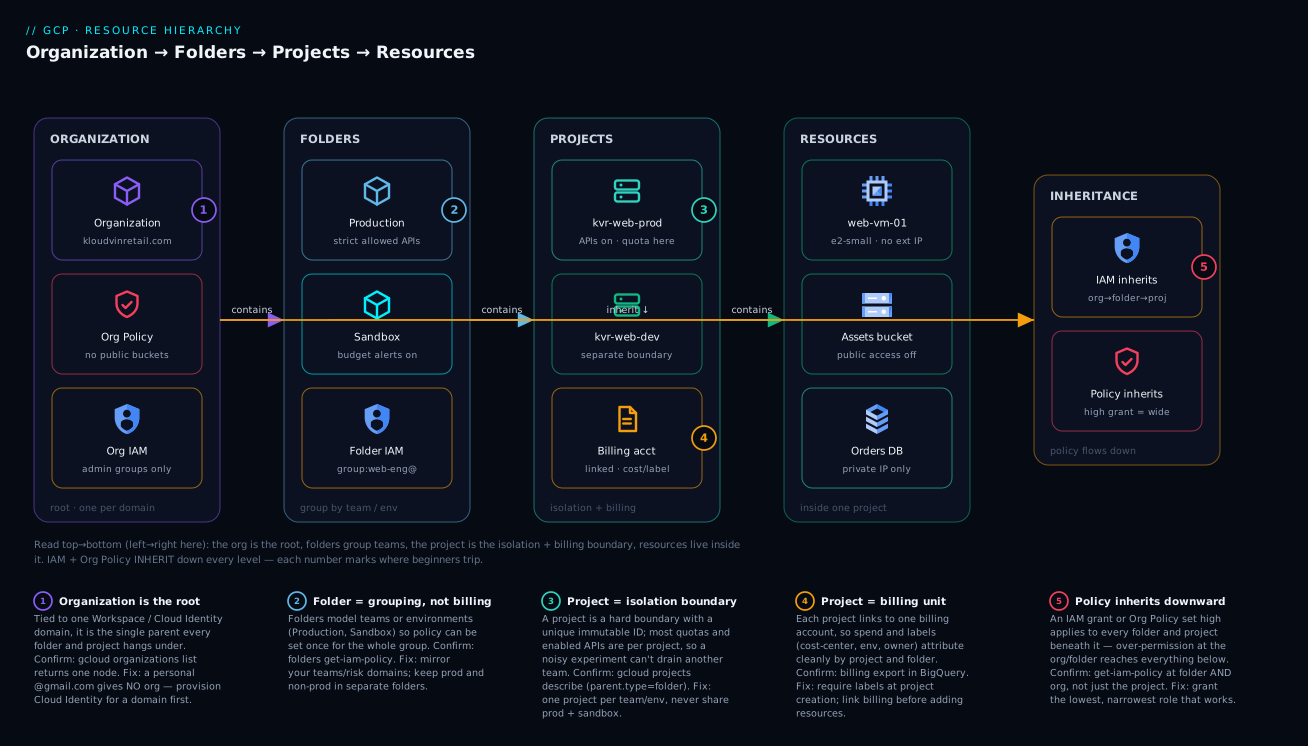
Picture the whole tree top to bottom. At the very top sits the Organization (kloudvin.com), tied to your Cloud Identity domain — this is where company-wide IAM and the strictest Org Policies live. Beneath it branch your top-level Folders: a prod folder and a non-prod folder, plus a small shared/security folder for the things every team uses. Inside prod, team folders (team-web, team-data) each hold the team’s production Projects (acme-shop-prod, acme-data-prod), and non-prod mirrors that structure for staging and dev. Each project is linked to a billing account and holds the real Resources — VMs, buckets, databases, networks.
The arrows that matter all point downward: an IAM grant on prod flows into every project under it; an Org Policy on the organization binds the entire tree; labels sit on projects and resources for the billing rollup. Follow any path from top to bottom and you can read exactly what governs a resource — the union of every IAM grant and the stack of every Org Policy from the org down to that leaf.
Real-world scenario
Acme Retail started exactly like the startup in the opening: a flat pile of projects, no folders, no labels. By the time they had 47 projects, finance could not attribute spend, security could not answer “who can touch production,” and two projects still listed a departed contractor as Owner. They spent one focused week reorganizing — and the hierarchy did the heavy lifting.
What they built. They created two top-level folders, prod and non-prod, plus a small shared-infra folder. Under each they made team folders (team-web, team-data, team-payments). They moved each existing project to the right folder with gcloud projects move, picking the environment by what the project actually ran. They created a dedicated acme-logging project in shared-infra to centralize audit logs, and a separate acme-security project for security tooling — both deliberately isolated from team workloads.
The governance that came for free. On the prod folder they set three Org Policies: resource locations limited to asia-south1 and asia-south2 (data residency), no external IPs on VMs, and no service-account key downloads. Every production project — including ones created later — now inherits those guardrails automatically. They granted the security team roles/iam.securityReviewer once at the organization, replacing 47 individual project grants. Each team got roles/editor on their own folder, so team-web could manage every web project but could not touch payments.
The cleanup that exposed the rot. Walking the new tree, they found the departed contractor’s Owner binding on two projects and removed it in minutes (it was visible because access was now organized, not scattered). They required four labels at project creation — environment, cost-center, team, app — and backfilled them on existing projects.
The numbers. Before: finance attributed roughly 40% of a ~₹6,00,000/month bill to “unknown.” After labels and folders, unattributed spend dropped under 3%, and they immediately found ₹38,000/month of forgotten GPU instances in two abandoned projects, which they deleted (entering the safe 30-day window in case anyone objected). Security’s answer to “who can delete a prod database” went from “give us a day” to a single command against the prod folder. The reorganization paid for itself in the first month.
Advantages and disadvantages
| Advantages | Disadvantages |
|---|---|
| Governance at scale — set IAM/Org Policy once at a parent, inherited everywhere below | Inheritance can surprise you — an over-broad grant high up silently reaches everything beneath |
| Clean billing attribution — projects + labels slice spend by team/environment | Moving projects changes inherited policy — a re-parent can add or remove access unexpectedly |
| Strong isolation — separate projects contain blast radius and quota | Some upfront design — you must decide a folder structure before it pays off |
| Consistent guardrails without blocking autonomy — teams own their folder, org sets the floor | Folder depth is bounded (10 levels) — very complex org charts need careful modeling |
| Simple, fast audit — one tree to walk for “who can do what, where” | Project ID is permanent and globally unique — naming mistakes are not easily undone |
| Future-proof — new projects inherit the rules automatically | Easy to over-engineer — too many folders early is its own kind of mess |
The trade-offs cluster around one theme: the same inheritance that makes the hierarchy powerful is what makes mistakes powerful too. A role granted at the org reaches everything; a policy on a folder catches every future project. That is exactly what you want — if you grant low, name carefully, and review what sits near the top.
Hands-on lab
This lab walks you through reading and building a small slice of the hierarchy. Some steps need organization-level permissions (creating folders, linking billing) — if you do not have them, read along and run the steps you can (listing, describing, labeling a project you own). Everything here uses the free gcloud CLI; the only cost is whatever resources you later put in a project (creating empty projects and folders is free).
Step 1 — Confirm your identity and see the org.
gcloud auth login                  # opens a browser to sign in
gcloud organizations list          # note your ORG ID (e.g. 123456789012)
Expected: a table with your organization’s DISPLAY_NAME and numeric ID. (No rows? Your account may be a standalone Gmail with no org — the rest is read-only for you.)
Step 2 — Create an environment folder (needs org permission).
gcloud resource-manager folders create \
  --display-name="lab-nonprod" \
  --organization=123456789012
gcloud resource-manager folders list --organization=123456789012
Expected: the new folder appears with a numeric folder ID. Copy that ID.
Step 3 — Create a project inside the folder.
# Project IDs are GLOBALLY unique — add a suffix to avoid collisions
gcloud projects create acme-lab-$RANDOM \
  --name="Acme Lab" \
  --folder=<LAB_FOLDER_ID>
Expected: Creating project...done. Note the chosen ID; you will reuse it.
Step 4 — Link billing so the project can run paid resources.
gcloud billing accounts list                       # find your BILLING_ACCOUNT_ID
gcloud billing projects link <PROJECT_ID> \
  --billing-account=<BILLING_ACCOUNT_ID>
Expected: billingEnabled: true in the output.
Step 5 — Apply labels (the cost-attribution habit).
gcloud projects update <PROJECT_ID> \
  --update-labels=environment=dev,team=lab,cost-center=lab-001
gcloud projects describe <PROJECT_ID>              # confirm labels show
Expected: the labels: block lists all three pairs.
Step 6 — Grant a least-privilege role at the folder level.
# Grant Viewer to yourself on the folder; it flows to every project below
gcloud resource-manager folders add-iam-policy-binding <LAB_FOLDER_ID> \
  --member="user:$(gcloud config get-value account)" \
  --role="roles/viewer"
Expected: the updated policy prints with your binding. You can now view every project in lab-nonprod from a single grant.
Step 7 — Validate inheritance.
# The project's own policy (remember: effective access also includes the folder grant)
gcloud projects get-iam-policy <PROJECT_ID>
# The folder grant you just made:
gcloud resource-manager folders get-iam-policy <LAB_FOLDER_ID>
Expected: the Viewer binding is on the folder, and it governs the project even though it is not repeated in the project’s own policy. That is inheritance.
Step 8 — Teardown (safe, recoverable).
gcloud projects delete <PROJECT_ID>                # enters ~30-day recoverable window
# Folders must be empty of active projects to delete:
gcloud resource-manager folders delete <LAB_FOLDER_ID>
Expected: the project moves to DELETE_REQUESTED (recover with gcloud projects undelete <PROJECT_ID> within ~30 days), and the empty folder is removed.
Common mistakes & troubleshooting
| # | Symptom | Root cause | How to confirm | Fix |
|---|---|---|---|---|
| 1 | Spend nobody can attribute; “unknown” is your biggest cost line | No labels and/or a flat project pile | gcloud projects list shows no labels; billing export has empty team/cost-center |
Add a standard label set; require labels at creation; use folders per team |
| 2 | A junior engineer can delete production resources | roles/owner/roles/editor granted at org or a high folder |
gcloud organizations get-iam-policy <ORG> shows broad high-level bindings |
Remove the high grant; re-grant least privilege at the team’s folder/project |
| 3 | Can’t create a project: “you do not have permission” | Missing roles/resourcemanager.projectCreator (often org-controlled) |
gcloud projects create returns a 403 |
Ask an org admin to grant Project Creator on the right folder |
| 4 | New VM creation blocked: “external IP not allowed” | An inherited Org Policy (compute.vmExternalIpAccess) from a parent folder |
gcloud resource-manager org-policies describe compute.vmExternalIpAccess --project=<id> --effective |
Use a load balancer/NAT (intended), or, if wrong, adjust the policy at the right level |
| 5 | After moving a project, the team suddenly can’t access it | Re-parent changed inherited IAM to the new folder’s | gcloud projects describe <id> shows new parent; old folder grants no longer apply |
Re-grant the team’s role on the new folder (or grant at the project) |
| 6 | “Project ID already exists” on create | Project IDs are globally unique and reserved 30 days after deletion | The exact ID you tried is taken anywhere in GCP | Choose a unique ID (add company prefix/suffix); don’t reuse a recently deleted ID |
| 7 | Dev project keeps hitting “quota exceeded” but prod is fine | Quotas are per project; this project hit its own ceiling | gcloud compute regions describe <region> shows quota usage |
Request a quota increase for that project, or split the workload |
| 8 | Resource creation fails: “location not allowed” | Resource location Org Policy restricts allowed regions | org-policies describe gcp.resourceLocations --effective on the project |
Create in an allowed region, or amend the policy if business-justified |
| 9 | Tried to delete a folder, got “folder not empty” | Folders can’t be deleted while they contain active projects/sub-folders | gcloud resource-manager folders list --folder=<id> shows children |
Move or delete the children first, then delete the folder |
| 10 | No folders available at all; everything is a standalone project | No Organization (account isn’t tied to Cloud Identity/Workspace) | gcloud organizations list returns nothing |
Set up Cloud Identity (free) or Workspace to provision the org |
| 11 | Granted a lower role to “reduce” someone’s access, but they still have full power | IAM is additive — a higher grant still applies (union) | Compare org/folder/project bindings for that member | Remove the higher binding; lower grants can’t subtract |
| 12 | Deleted a project by mistake; panic | Deletion is recoverable for ~30 days | gcloud projects describe <id> shows DELETE_REQUESTED |
gcloud projects undelete <id> within the window |
If you hit IAM “permission denied” errors that are not obviously hierarchy-related, the dedicated GCP Permission Denied IAM Troubleshooting Decision Tree walks the full diagnostic path.
Best practices
- Use an Organization (Cloud Identity is free). Standalone projects can’t be governed; the org unlocks folders, inherited IAM and Org Policy.
- Separate prod and non-prod at the top of the tree with folders. The strongest, simplest guardrail you can give yourself.
- One project per workload-per-environment, not per task.
acme-shop-prodandacme-shop-dev, nottest-thing-1throughtest-thing-47. - Grant high-power roles as low and as narrow as possible. Editor on a folder, not the org. Owner almost never belongs above a single project.
- Prefer groups over individuals for IAM. Grant
team-web@a role once; manage membership in your directory, not in 30 projects. - Set company-wide guardrails as Org Policies at the org or a high folder: domain-restricted sharing, allowed locations, disable SA key creation, restrict external IPs.
- Require a standard label set at creation —
environment,cost-center,team,app— and enforce/backfill it. This is what makes billing answerable. - Keep a dedicated logging project and a dedicated security project, isolated from team workloads.
- Review org- and folder-level IAM monthly. Inherited bindings near the top are the easiest to forget and the most dangerous.
- Treat Project IDs as permanent. Name them deliberately (
<company>-<app>-<env>); you can’t rename or quickly reuse them. - Re-check effective access after moving a project between folders — inheritance changes the moment the parent does.
- Don’t over-engineer the tree early. Start with a few folders; deepen only when a real need appears.
Security notes
- Inheritance is a security boundary you must respect both ways. A grant high in the tree reaches everything below it. Audit org- and folder-level bindings with the same seriousness you’d audit a production database’s access.
- Domain-restricted sharing (an Org Policy) stops anyone from accidentally granting
allUsersor an external Gmail account access. Set it at the org early — it prevents a whole class of data-exposure mistakes. - Owner is radioactive above the project level. An Org or folder Owner can change policy, billing and IAM for everything beneath. Keep org admins to two or three named people, ideally with strong MFA and reviewed quarterly.
- Org Policy binds even Owners. Use it for the rules you never want bypassed (no public IPs, no SA keys, allowed locations) — because IAM alone can’t stop a legitimate Owner from doing the wrong thing.
- Isolate by project for blast-radius control. A compromised dev project physically can’t reach prod when they’re separate projects with separate IAM and networks.
- Labels are not security. They’re metadata for cost and filtering — never gate access on a label. Access decisions belong to IAM and Org Policy only.
- Centralize audit logs in a dedicated, locked-down logging project so that even a team with full access to its own project can’t tamper with the record of what it did. Service accounts and least privilege are covered in depth in GCP IAM and Service Accounts: Least Privilege.
Cost & sizing
The hierarchy itself is free: creating an organization, folders and (empty) projects costs nothing. You pay only for the resources inside projects. But the structure is one of your most powerful cost tools, because it’s what makes spend visible and attributable.
| Cost lever | How the hierarchy helps | Action |
|---|---|---|
| Attribution | Projects + labels slice the bill by team/environment | Require cost-center/team labels; export billing to BigQuery |
| Budgets & alerts | Budgets can target a project or billing account | Set a budget per project (or per environment via labels) |
| Finding waste | Isolated projects make orphaned resources obvious | List per-project spend; hunt forgotten VMs/disks/IPs |
| Quota control | Per-project quotas contain runaway usage | Keep batch/experiment workloads in their own projects |
| Chargeback/showback | Folder + label structure maps cleanly to teams | Roll spend up by folder for internal billing |
Rough figures so you can calibrate: a tidy small-org estate might run 4–12 projects (prod/dev per a couple of teams, plus logging and security projects). The structure adds ₹0; a forgotten n1-standard GPU VM, by contrast, can quietly burn tens of thousands of rupees a month — which is exactly the kind of thing the hierarchy surfaces. The single highest-ROI cost action for a beginner is labels + per-project budgets: a few hours of setup that turns “where did the money go?” into a one-line query. For service-level cost models, see BigQuery for Beginners and Cloud Storage Classes Decoded.
Interview & exam questions
-
What are the four levels of the GCP resource hierarchy? Organization → Folders → Projects → Resources. The org is the root (one per identity domain), folders group projects/sub-folders, the project is the billing/IAM/quota container, and resources are the leaves.
-
How does IAM inheritance work in GCP? A role granted at a node applies to that node and all descendants. The effective policy on a resource is the union of its own bindings plus every binding on every ancestor — grants are additive, so you can’t shrink access by granting a lesser role lower down.
-
What’s the difference between IAM and Organization Policy? IAM grants who can do what to identities. Org Policy restricts what configurations are allowed for everyone — even Owners. IAM is additive grants; Org Policy is inherited restrictions.
-
Why is the project the “billing boundary”? Each project links to exactly one billing account at a time, and all its resource charges flow there. Separating workloads into projects gives you clean cost separation.
-
Why is the project also the isolation and quota boundary? Projects have separate IAM, networks and service accounts (isolation), and most quotas (CPUs, IPs, API rates) are tracked per project — so a problem in one project is contained.
-
What are the three project identifiers, and which is permanent? Project ID (globally unique, immutable, the real handle), project name (mutable display label), and project number (auto-assigned numeric). The ID is permanent and reserved ~30 days after deletion.
-
What is Cloud Resource Manager? The API/service that manages the structure — creating, listing, moving and deleting organizations, folders and projects. It does not manage the resources inside projects (those have their own service APIs).
-
What happens to inherited policy when you move a project to another folder? It changes immediately to the new parent’s inherited IAM and Org Policy. The project may gain new guardrails and lose grants it relied on from the old folder — always re-check effective access.
-
What are labels for, and what are they not for? Labels are
key:valuemetadata for cost attribution, filtering and automation. They are not inherited and must never be used for access control. -
How would you organize folders for a small company with prod/dev and two teams? A hybrid: top-level
prodandnon-prodfolders, team folders (team-web,team-data) under each, one project per workload-per-environment, plus separate logging and security projects. -
Can an Organization Policy stop a project Owner from creating a public VM? Yes. Org Policy binds everyone, including Owners. An enforced
compute.vmExternalIpAccessconstraint blocks external IPs regardless of IAM role. -
You deleted a project by accident — is it gone? Not immediately. It enters
DELETE_REQUESTEDand is recoverable for ~30 days withgcloud projects undelete <id>; after the grace period it’s permanent.
These map to the Associate Cloud Engineer and Professional Cloud Architect exams, where resource-hierarchy and IAM-inheritance questions are near-guaranteed.
Quick check
- In which direction do IAM and Org Policy inherit — up or down the hierarchy?
- If Alice is granted
roles/owneron the organization androles/vieweron a project, what is her effective access on that project? - Which level is the billing boundary, the isolation boundary and the quota boundary all at once?
- Are labels inherited from a folder to the projects inside it?
- Name one thing the Cloud Resource Manager API does and one thing it does not do.
Answers
- Downward. A rule on a node applies to that node and every descendant; it never flows up to a parent or sideways to a sibling.
- Owner. IAM is additive (union) — the org-level Owner flows down, and the lesser project Viewer grant neither adds nor removes anything. She is an Owner of the project.
- The project. It links to one billing account (billing), has its own IAM/network/service accounts (isolation), and tracks most quotas per project (quota).
- No. Labels are not inherited; you apply them where you want them. They’re for cost/filtering, not governance.
- Does: create/list/move/delete organizations, folders and projects (the structure). Does not: create the resources inside projects — VMs, buckets and databases use their own service APIs.
Glossary
- Organization (org): The root node of the hierarchy, tied to your Cloud Identity or Workspace domain. One per domain; owns everything beneath it.
- Cloud Identity: Google’s free identity service for managing your domain’s users and groups; setting it up provisions your Organization.
- Folder: A grouping container under the org (or another folder) that holds projects and sub-folders, up to 10 levels deep. Where most per-team/per-environment policy lives.
- Project: The container for resources and the unit of billing, IAM and quota. The center of gravity for everyday work.
- Project ID: A globally unique, immutable text identifier (e.g.
acme-shop-prod). The real handle used in commands; reserved ~30 days after deletion. - Project number: An auto-assigned numeric identifier used internally by some APIs and service agents.
- Resource: A service instance (VM, bucket, database, network) — the leaf of the tree and the thing you pay for.
- IAM policy: The set of role bindings (“who has what role”) on a node. Inherited downward; the effective set is the union of all ancestor policies.
- Binding: A single grant pairing a member (user/group/service account) with a role on a node.
- Organization Policy (Org Policy): A constraint/guardrail restricting what configurations are allowed on a node and its descendants — binds everyone, even Owners.
- Constraint: The specific rule an Org Policy enforces (e.g.
compute.vmExternalIpAccess,gcp.resourceLocations). - Inheritance: The mechanism by which IAM grants and Org Policies on a parent apply to all descendants.
- Cloud Resource Manager: The API/service that creates and manages the hierarchy structure (orgs, folders, projects).
- Billing account: The payment instrument a project links to; all of the project’s charges flow to it.
- Label: A
key:valuetag on a project or resource for cost attribution and filtering — not inherited, not for security. - Lifecycle state: A project’s status (
ACTIVE,DELETE_REQUESTED, etc.); deletion is recoverable for ~30 days.
Next steps
- Google Cloud IAM Explained Simply: Members, Roles, and Bindings — the access model that rides on top of this hierarchy.
- GCP IAM and Service Accounts: Roles, Bindings and Least Privilege — how non-human identities get permissions, the right way.
- GCP Landing Zone: The Foundation Blueprint with Shared VPC and Org Policies — take this structure to production-grade, enterprise scale.
- GCP’s Global VPC Explained: Why Your Network Spans the Planet — how networking lives inside (and across) your projects.
- GCP ‘Permission Denied’? The IAM Troubleshooting Decision Tree — when inherited access doesn’t behave as you expect.